
Find and Replace
The following elements can be found in the Home | Find and Replace grouping of the Text Editor.
Find

This command is used to access the Find Text dialog, from where you can configure a search for specific text located in the current document, all text-based documents in the active project, all open text-based documents, or all text-based documents in a specified directory.
After launching the command, the Find Text dialog will open. The dialog essentially operates in two modes, with functionality delivered courtesy of two tabs:
- Find - use the options on this tab to configure a search within the current document only. After clicking OK, the first instance of matching text found will be highlighted on the document.
- Find in Files - use the options on this tab to configure a search across all text-based documents in the active project, all open text-based documents, or all text-based documents in a specified directory. After clicking OK, all instances of matching text found in the files coming under the scope of the search, will be listed as entries in the Messages panel. Each message will reflect the source file, the line on which the searched text was found, the entire text on that line, and the character position within that line at which the searched text string starts.
Tips
- Each message in the Messages panel is in the form (x, y): <LineText>, where x is the character position on line y of the document.
- Files do not have to be open in order to search text using the Find in Files mode.
- When using the Find in Files mode, resulting found text can be cross-probed to, from the Messages panel entry - simply double-click on the message.
Replace
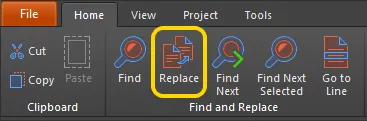
This command is used to access the Replace Text dialog, from where you can configure a search to locate and replace specific text - located in the current document, all text-based documents in the active project, all open text-based documents, or all text-based documents in a specified directory.
After launching the command, the Replace Text dialog will appear. The dialog essentially operates in two modes, with functionality delivered courtesy of two tabs:
- Replace Text - use the options on this tab to configure text replacement within the current document only. To replace only the first instance of matching text, click OK. If the Prompt on replace option was enabled, the text will be highlighted, with a dialog appearing to confirm the replacement. Click Yes to replace only this instance. You will have the opportunity to replace all matching instances from this dialog. Alternatively, to replace all from the start, click Replace All, rather than OK. Again, all matching instances of the search text will either be replaced directly, or through individual prompting, depending on the state of the Prompt on replace option.
- Replace in Files - use the options on this tab to configure a text replacement across all text-based documents in the active project, all open text-based documents, or all text-based documents in a specified directory. After clicking OK, all instances of matching text found in the files coming under the scope of the search, will be replaced. Again, you can opt to be prompted on replacement by setting the Prompt on replace option beforehand. The Replacing dialog will appear to show progress of the replacement. Each replacement made will be listed as entries in the Messages panel. Each message will reflect the source file, the line on which the searched text was found, the entire text on that line, and the character position within that line at which the searched text string starts.
In each case, an information dialog will appear, summarizing the number of replacements made.
Tips
- Each message in the Messages panel is in the form (x, y): <OriginalLineText>, where x is the character position on line y of the document. The text shows the original text, prior to replacement.
- Files do not have to be open in order to replace text using the Replace in Files mode. Such files can optionally be opened after replacement by enabling the Open changed files in editor option, prior to performing the replacement.
- When using the Replace in Files mode, resulting replaced text can be cross-probed to, from the Messages panel entry - simply double-click on the message.
Find Next

This command is used to find the next occurrence of the last text search that was specified using the Find Text dialog.
After launching the command, the next occurrence of the text specified in the Text to find field of the Find Text dialog, will be located and highlighted. Use the command repeatedly to sequence through all other occurrences.
Tips
- This feature applies all search criteria options that were specified when performing the original text search.
Find Next Selected

This command is used to find the next occurrence of the currently selected text in the active document.
First, ensure the text string that you want to search for is selected in the document editing window.
After launching the command, the next occurrence of the selected text will become selected. Use the command repeatedly to sequence through all other occurrences.
Tips
- This feature essentially performs a text search using the Find Text dialog, with the selected text used as the entry for the Text to find field. All search criteria options that were last specified when performing a text search using the Find Text dialog, will be applied using this feature.
Go to Line

This command is used to jump to a specific line in the current document.
After launching the command, the Go to Line Number dialog will appear. Initially, the dialog will reflect the line in which the text cursor is currently positioned. Simply enter the line number that you want the cursor to jump to. If the line number is greater than the number of lines in the document the dialog will reappear, ready to type in a valid line number.
After clicking OK, the cursor will jump to the same position in the specified line.
Additional Commands
The following sub-menus of commands are available by right-clicking in the text document.
- Toggle Bookmarks - this sub-menu contains commands for setting up to ten distinct 'location marks' within the active text document. Each Set Location Mark n command is used to store the current location of the text cursor on the current document, into the chosen location marker. This can save you from having to scroll through pages of text to get back to a specific location. Simply position the cursor at the desired location and launch the command. The location will be stored in the chosen location marker and a corresponding entry will appear in the left margin area. This acts as a reminder as to the line in which the marker has been set.

- Goto Bookmarks - this sub-menu contains commands for quickly jumping to any of ten defined 'location marks' within the active text document. Each Jump Location Mark n command is used to move the text cursor to a predefined location on the current document, as stored in the nth location marker. This can save you from having to scroll through pages of text.
