
Saving Projects and Documents
Saving a Document
The currently active document can be saved locally by:
-
Choosing the File » Save command, from the main menus.
-
Clicking the
 button on the Quick Access Bar.
-
Clicking the
button on the editor's main toolbar.
-
Using the
Ctrl+Skeyboard shortcut.
The currently focused document in the Projects panel (if the document is actually open) can also be saved by right-clicking on its entry in the panel and choosing the Save command, from the context menu.
The currently focused item (document, project, or project group) in the Projects panel can be saved by clicking the  button at the top of the Projects panel. When the focused item is a project, only the project document is saved. The constituent design documents are not saved by this command. When the focused item is the design project group, only the design Project Group document is saved (*.DsnWrk). The constituent projects and their design documents are not saved by this command.
A document in a modified state can also be saved by using the corresponding command from its document tab - right-click on the tab to access a context menu of commands. Note that this command will not be available if multiple documents of the same type are open and currently grouped.
An open project document can be saved under a new name using the File » Save As command or the Save As command from the right-click menu of the document entry in the Projects panel, which creates a copy of the document file under the nominated new name. This process automatically adds (links) the new document copy to the active project in place of the existing (source) document, which remains intact in the source folder. If the open document is not part of a project – a free document – the new copy is simply opened in the editor in place of the original document.
After launching the command, the standard Windows Save As dialog appears. Use this dialog to browse to a particular destination in which to save the file, give the file a new name (if required) and also to select the format in which to store the file (where available). The newly saved file will be opened in place of the original file as the active document.
If the intention is just to make a backup copy of a document, use the Save Copy As option. This creates a named copy of the document file without affecting its host project. After launching the command, the standard Windows Save A Copy Of dialog appears. Use this dialog to browse to a particular destination in which to save the file, give the file a new name (if required) and also to select the format in which to store the file (where available). The newly saved file will not be opened in place of the original file.
All projects and documents that have been modified can be saved locally by:
- Choosing the File » Save All command, from an editor's main menus.
-
Clicking the
 button on the Quick Access Bar.
- Right-clicking on the entry for the design project group in the Projects panel, and choosing the Save All command, from the context menu.
If the projects are part of an existing (previously saved) Project Group, and project membership has changed (projects added or removed since last save), then the Project Group document (*.DsnWrk) will also be saved.
To save all documents that are currently open within the focused category (sub-folder) in the Projects panel or descendant folders thereof, right-click on the entry for the required category (sub-folder) and choose the Save All command, from the context menu.
Saving a Project
When you perform a change on an open project's structure or options, it becomes modified. A modified project is distinguished by an asterisk next to its entry and the  status icon in the Projects panel. To save the changes of a project document file, right-click the project entry in the Projects panel and select the Save command. The focused project in the panel can be saved by clicking the control at the top of the panel.
For a Workspace project, the Save command will save the changes locally, i.e. only your local working copy of the project document file will be saved. After saving changes locally, the project's VCS status will be changed to Modified, and the project's VCS status icon will be changed to  . To make the changes available in the connected Workspace, the project must be saved to this Workspace. To do this, use one of the following ways:
-
Click the Save to Server control next to the project entry.
-
Right-click on the project entry and select Save to Server from the context menu.
-
Click the Modified status icon (
) next to the project entry and select Commit Project.
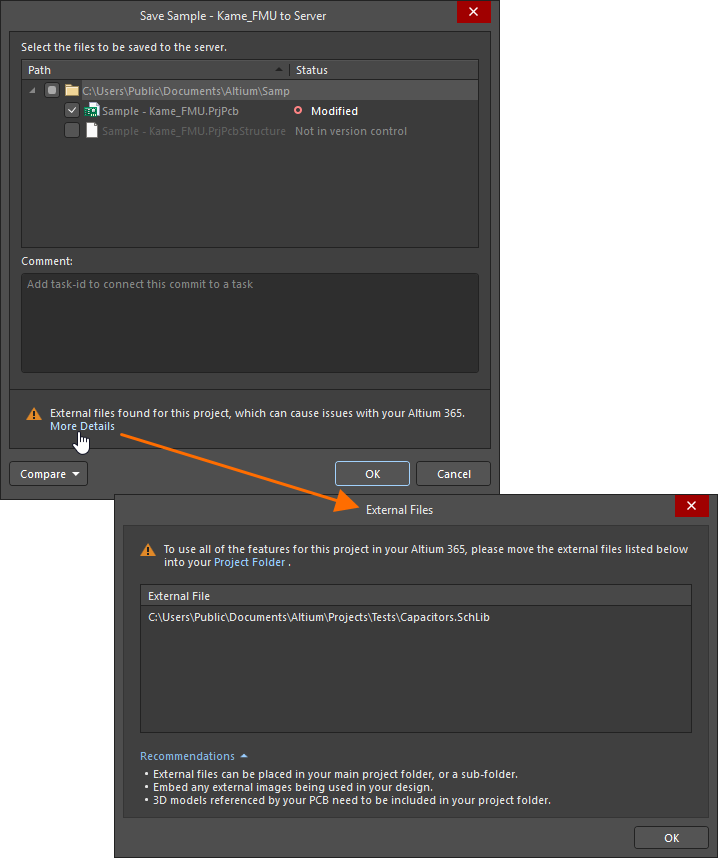
This saves the project's source design documents that have been modified but not yet saved locally and opens the Save to Server dialog, in which you can select the documents to be saved to the Workspace. By default, all modified documents are selected in the dialog when accessed as described above.

Options and Controls of the Save to Server Dialog
Upper Pane
This upper pane lists all files in the selected project and lists whether or not they are in VCS. Additional relevant information is also listed, including whether a file is marked for addition or deletion. You can select files to commit to version control. The Path column shows the path of each file, the Status column shows the file's current status. This part of the dialog also features a right-click menu with the following options:
-
Select All – click to select all files listed in the dialog. Selected files will be added to VCS.
-
Select None – click to deselect all files listed in the dialog. These files will not be added to VCS.
-
Select Project Documents – click to select only project files.
Lower Pane
-
Comment – you can write comments before committing the files to version control in this text box.
- Compare – click to select a command to compare the locally saved schematic, PCB, or BOM data with a commit or release of the project. The results of the comparison will be presented in a new tab of your default browser. For more information, see Design Data Comparisons (Altium 365 Workspace, Enterprise Server Workspace).

After clicking OK, the documents are saved to the Workspace, and the Save to Server link disappears from the Projects panel.
-
The Save to Server dialog can also be accessed by clicking the Modified VCS status icon (
 ) next to the entry of the Workspace project's document and selecting Save to Server. Note that in this case, only that document will be selected by default in the dialog.
-
When the project contains documents in the Conflict Prevention state, with the
 VCS icon in the Projects panel, it is not possible to save the project to the Workspace. Conflicts need to be resolved before saving the project to the Workspace. Refer to the Collaborators Visualization & Conflict Prevention page to learn more.
-
When attempting to save a project to a connected Workspace and the project includes documents in the Ahead of server state only (
 ), all these documents will be pushed to the Workspace (instead of committed and pushed), ensuring no 'empty commits' (commits with no real changes).

-
If the target Workspace in which the focused Workspace project resides is not currently connected, Altium Designer will connect to this Workspace automatically.
 ).
).Working Copy to Workspace Project Sync Resolution
The application of fully managed, version-controlled PCB projects relies on tight synchronization between the project's local working folder contents and the Workspace's versioned storage. If this relationship is disrupted by changes made outside of the normal processes, the managed project structure can become corrupted.
Possible changes that break the local-remote storage synchronization include manual actions such as renaming, moving, or copying/cloning a working project folder. These issues are detected and addressed through a choice dialog that highlights a recommended action based on the situation. In general, its options are to resynchronize the folder project as the current managed project or to remove the project's relationship with the server (make the project unmanaged).
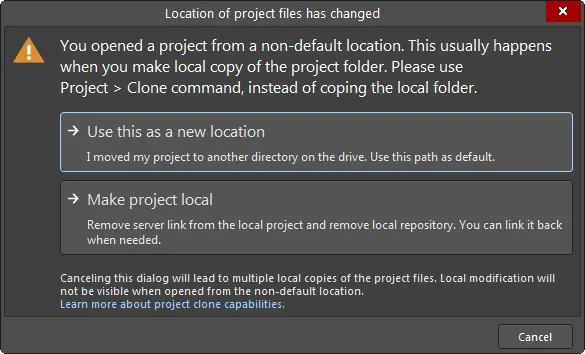
Options to get you back into sync if you have manually changed the location of your local working copy of a project.
Other more complex synchronization disruptions may be caused by changes in the server identity, such as when the server itself has been renamed or moved when a local project file has been overwritten with one that contains different server identity parameters, or the project's target repository has changed. Such issues create a disparity between the server and the local project repositories and are reported by warning dialogs or dialogs that provide a resolution choice.
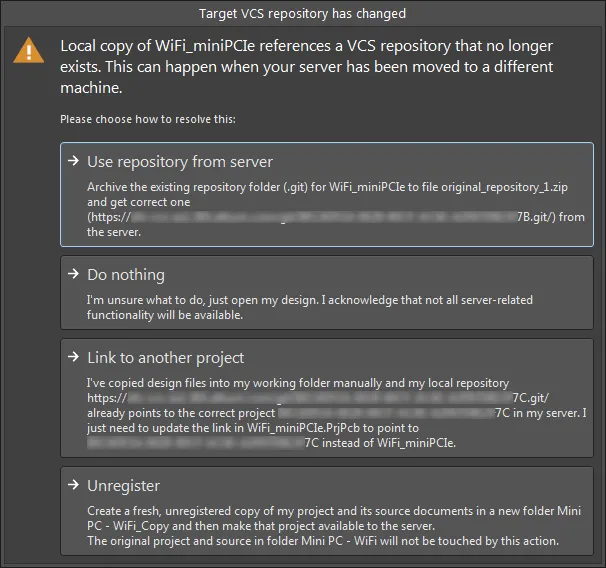
Options to get you back on track if the repository targeted by the local working copy of your design project has changed.
Saving when Closing a Project
If you close a project and that project has two or more modified documents that have not yet been saved, the Confirm Save for Modified Documents dialog will open. Use this dialog to decide what to do with those documents.
 Use the Confirm Save for Modified Documents dialog to decide how to handle unsaved documents when closing one or more projects or Altium Designer itself.
The main area of the dialog lists all open and modified documents (by name and path to the local copy) for which you need to make a decision about whether or not to save. Documents are grouped by type (e.g., PCB Documents, PCB Projects, Schematic Documents, BOM Documents and so on).
The possible decisions are listed below. Which decisions are actually presented for a document will depend on whether that document is local or Workspace-based and, if the latter, whether or not that document has also been saved locally already.
 - this decision is available for a local document or for a Workspace document that has not already been saved locally. In the case of the latter, it allows you to save the document locally without committing changes to the connected Workspace.
 - this decision is available for a local document or for a Workspace document that has not already been saved locally. Any changes to the document will be discarded.
 - this decision is available for a Workspace document, irrespective of whether it has already been saved locally or not. Changes to the document will be saved locally (where applicable) and to the connected Workspace.
 - this decision is available for a Workspace document when it has already been saved locally. Since there is nothing to save locally, nothing will be done with this document.
The following buttons are available at the bottom of the dialog to quickly make decisions en-masse:
 - use this button to quickly set decisions for each document in a 'save locally' way. For a local document or Workspace document that has not already been save locally, its decision will be set to Save. For a Workspace document that has already been save locally, its decision will be set to Do nothing.
 - use this button to quickly set decisions for each document in a 'save none' way. For a local document or Workspace document that has not already been save locally, its decision will be set to Don't Save. For a Workspace document that has already been save locally, its decision will be set to Do nothing.
 - use this button to quickly set decisions for each document in a 'save fully' way. For a local document its decision will be set to Save. For a Workspace document its decision will be set to Save to Server.
Auto Save Backups
Developing an electronic product in an environment like Altium Designer results in a large number of electronic files. These files are valuable since they are your company's IP (Intellectual Property) and must be stored and maintained in an appropriate way. Altium Designer includes a number of features to ensure that your files remain safe, are backed up, and older versions can be retrieved if necessary.
Altium Designer includes the capability to automatically save multiple versions of all open files at the specified time interval. Configured in the Data Management – Backup page of the Preferences dialog, the Auto Save feature saves a copy of all currently open files that have been modified (in the Projects panel, this is indicated by an asterisk after the filename) into the specified location and at the specified time interval. Up to 10 versions of each file can be saved in the location specified by the Path entry in the Preferences dialog.

This feature is intended for disaster recovery, for example, if the power fails and your PC shuts down unexpectedly. AutoSave files are identified by the addition of .~(X) into their filename, for example, the file MySchematic.SchDoc is auto saved as MySchematic.~(1).SchDoc, then MySchematic.~(2).SchDoc, etc. Note that once the specified number of versions have been saved, the filenames are re-used. That means that the file's timestamp should be used to identify the latest file, rather than the number within the brackets in the filename.