Reuse Requirements
The ability to Reuse existing requirements (total or partially, individual items, groups, or sets), requirement’s Blocks in new projects or products, is a way to improve efficiency, consistency, and quality across the development process of multiple projects or products. By reusing existing requirements, teams can save time and effort in developing new requirements from scratch and ensure that they are building upon proven and tested requirements. This can also help to reduce errors and inconsistencies, as teams can rely on previously validated requirements rather than creating new ones that may be redundant or conflicting.
Requirements Portal’s Reuse functions can be performed directly at the Requirement’s Module. The available Reuse requirements functions are:
-
Custom Copy – the Reuse Requirements Wizard will guide you through steps to customize the copies of requirements as needed.
-
Quick Copy – immediately creates a copy of the chosen requirements, without further action needed.
Custom Copy
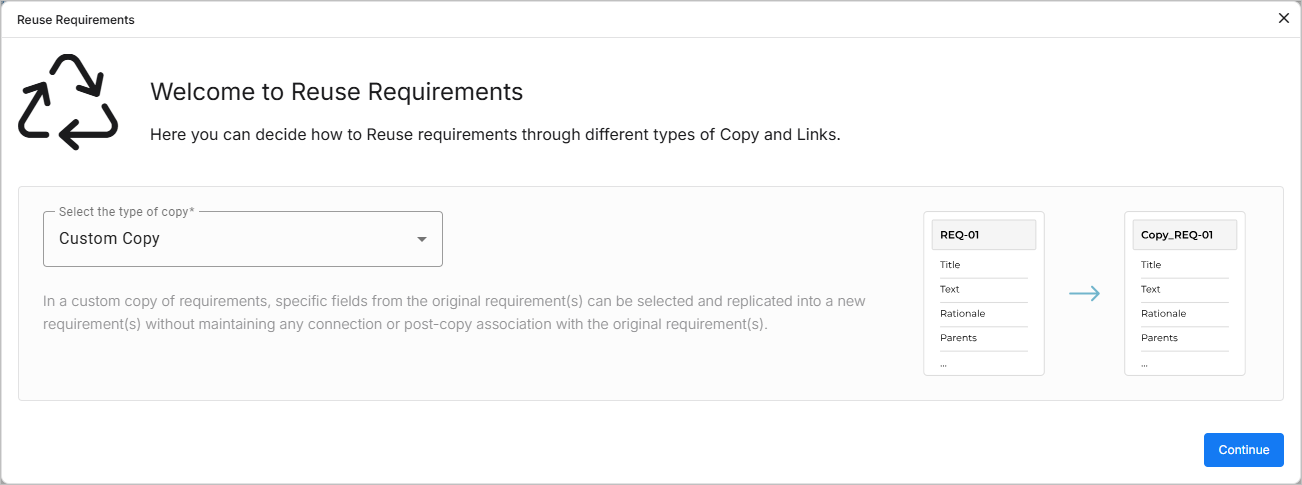
In a custom copy of requirements, specific fields from the original requirement(s) can be selected and replicated into a new requirement(s) without maintaining any connection or post-copy association with the original requirement(s).
The Custom Copy functionality is available through the Reuse Requirements Wizard that can be accessed as follows:
-
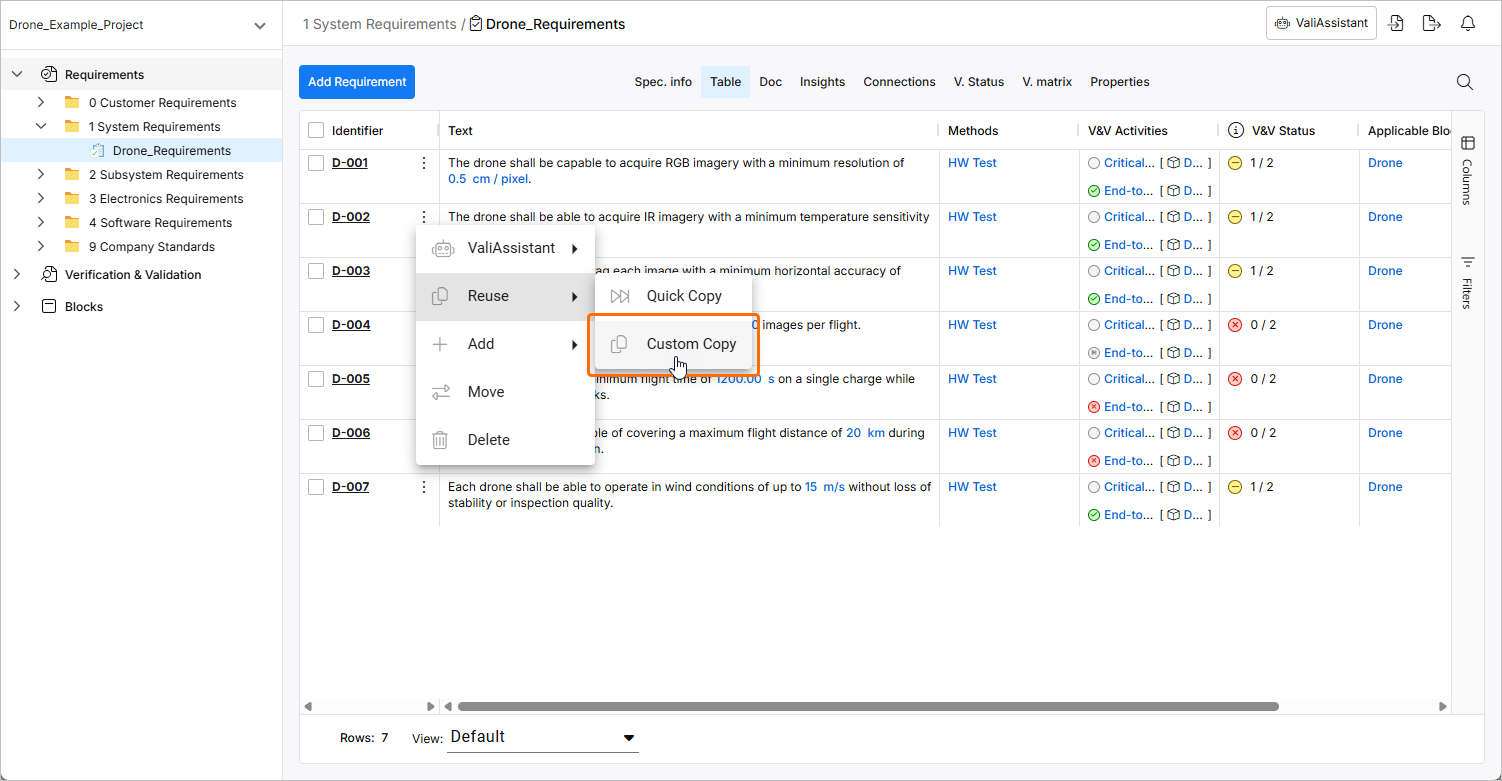
From the requirements table – click the
 icon in the row of a requirement and use the Reuse » Custom Copy command from the menu that appears. The command will be applied to the requirement.
-
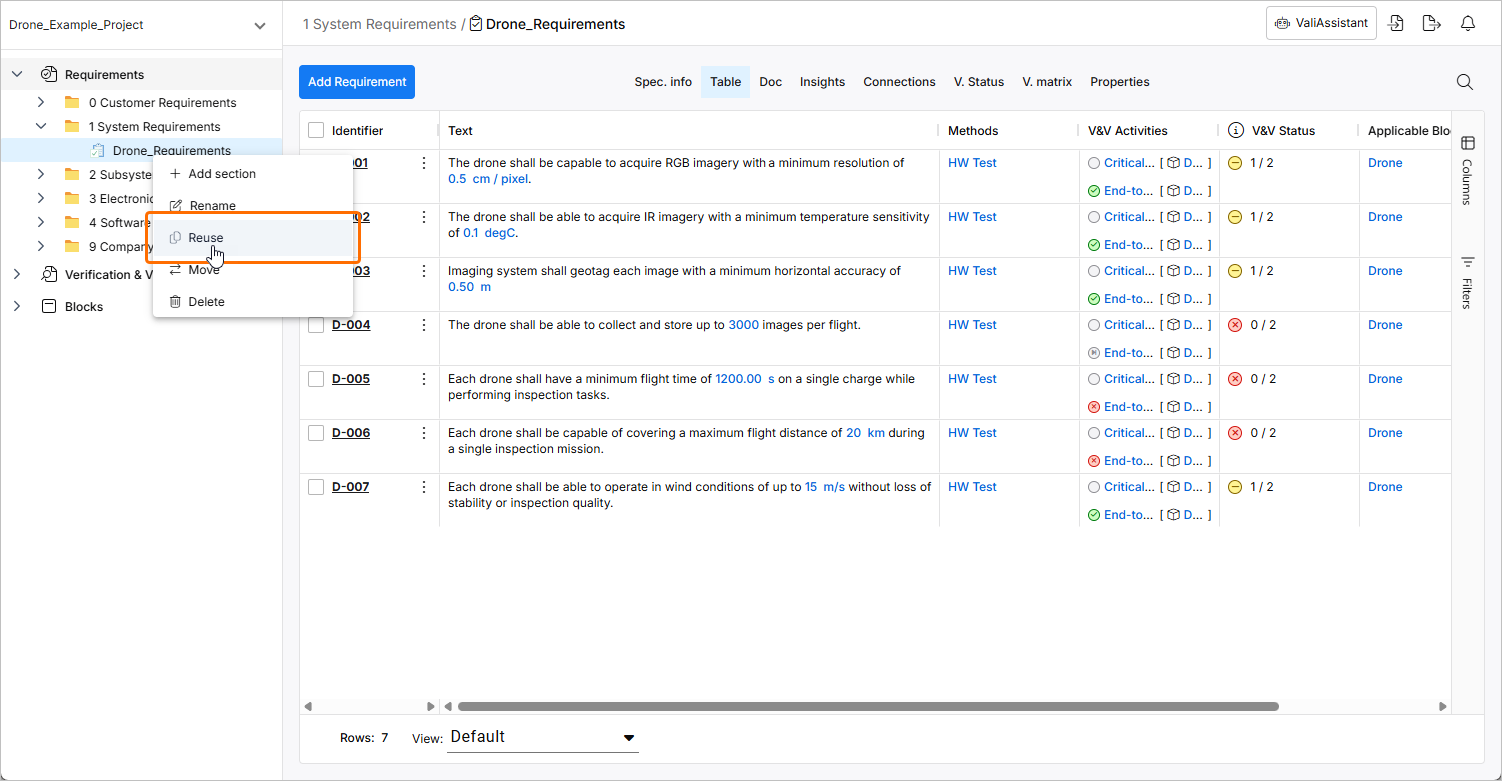
From the requirements tree – right-click a specification or section and select the Reuse command from the menu that appears to apply the command to all requirements in the specification/section.
After selecting the command, the Reuse Requirements window will open. The stages of the process are described below.
Reuse Requirements Menu
On this initial stage, the Custom Copy feature is summarized. Click the  button to proceed.
Destination Selection
On this stage, you can specify the location where the copied requirements will be saved. Here the following can be chosen:
-
Project – by default, the current project is pre-selected, but any other project can be selected
-
Specification – by default, the current specification is pre-selected. You also create a new specification, which will then be pre-selected.
-
Section – if the selected Specification has a Section, you can select them here. The current section will be selected by default.
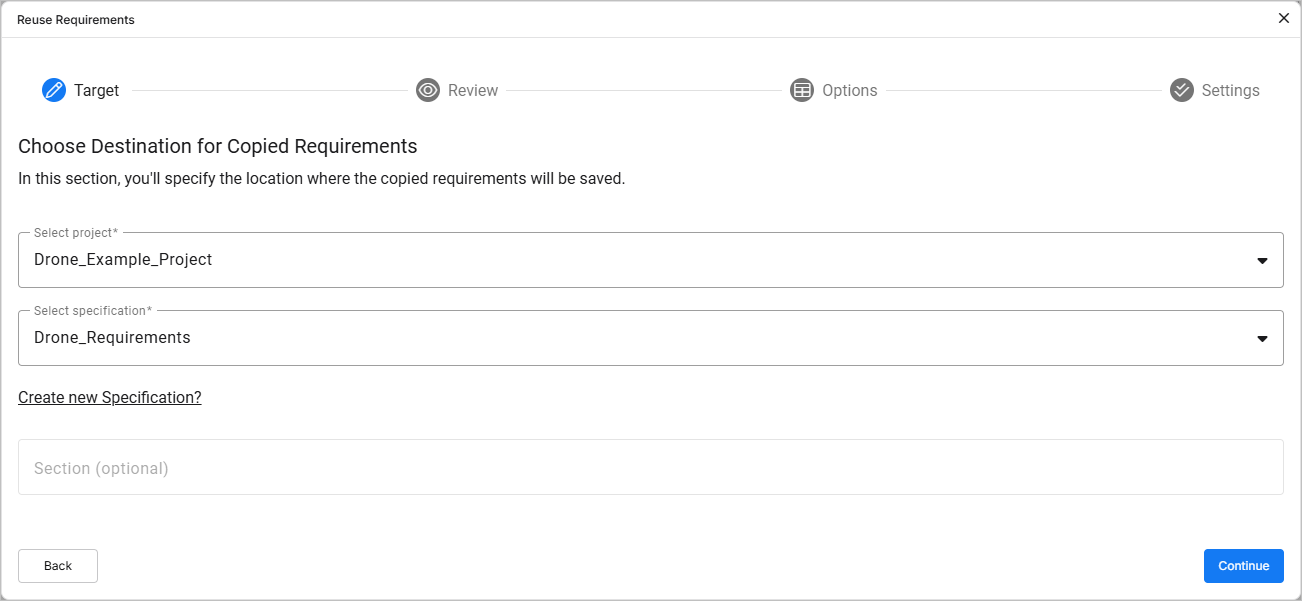
Click the button to proceed.
Review & Edit Requirements
Once the destination is selected, you can review the identifiers and select the requirements to copy.
The following actions can be done in this section:
-
Confirm the selected requirements that will be copied
-
Decide if the original requirements Identifiers are to be kept or if new Identifiers should be generated for the copies.
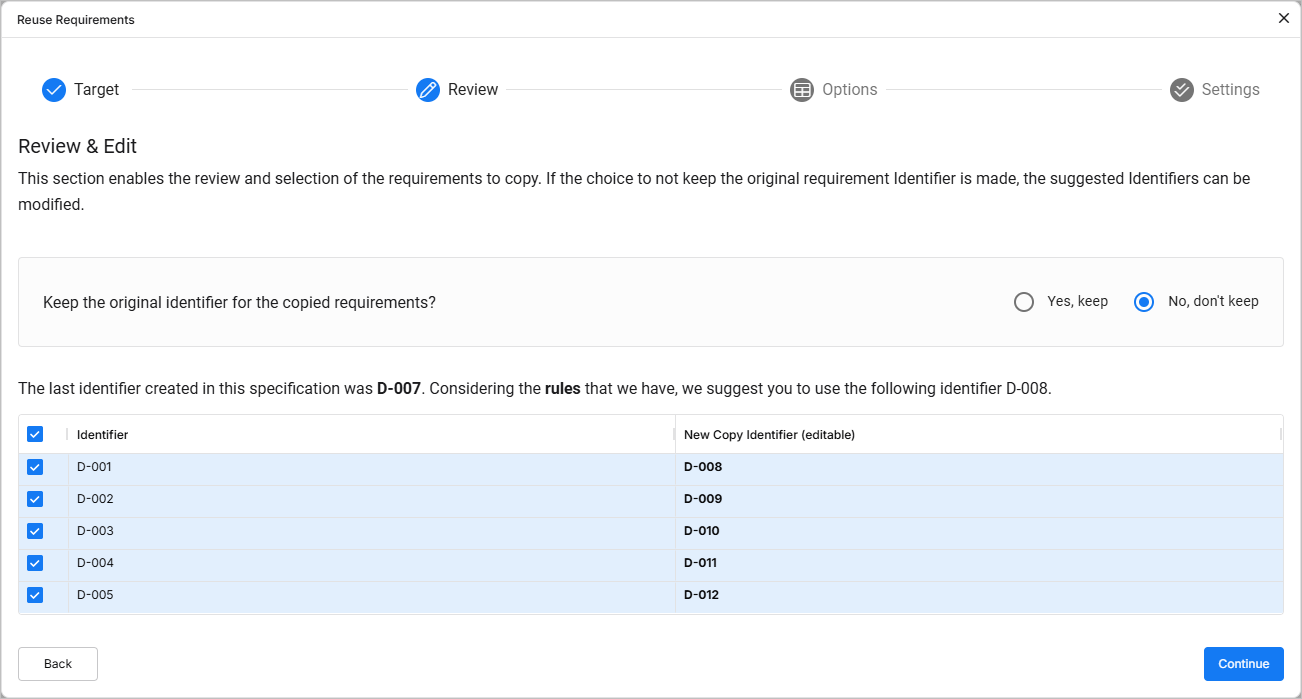
Click the button to proceed.
Field Options Selection
On this stage, you can select requirement fields to be copied.
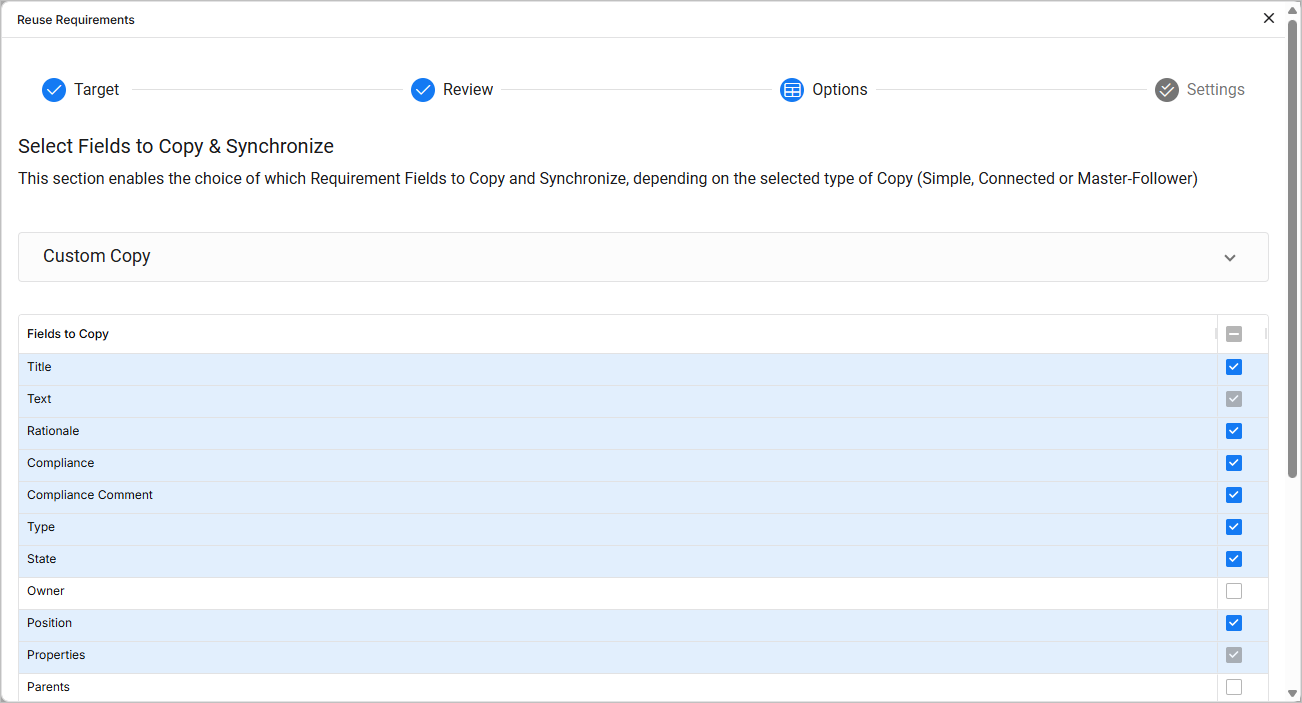
The fields that can be copied are:
-
Title
-
Text
-
Rationale
-
Compliance
-
Compliance Comment
-
Type
-
State
-
Owner
-
Position
-
Properties
-
Parents
-
Children
-
Applicability
-
Tags
-
Files
-
V&V Methods
-
V&V Activities
-
V&V Status
-
Custom Columns
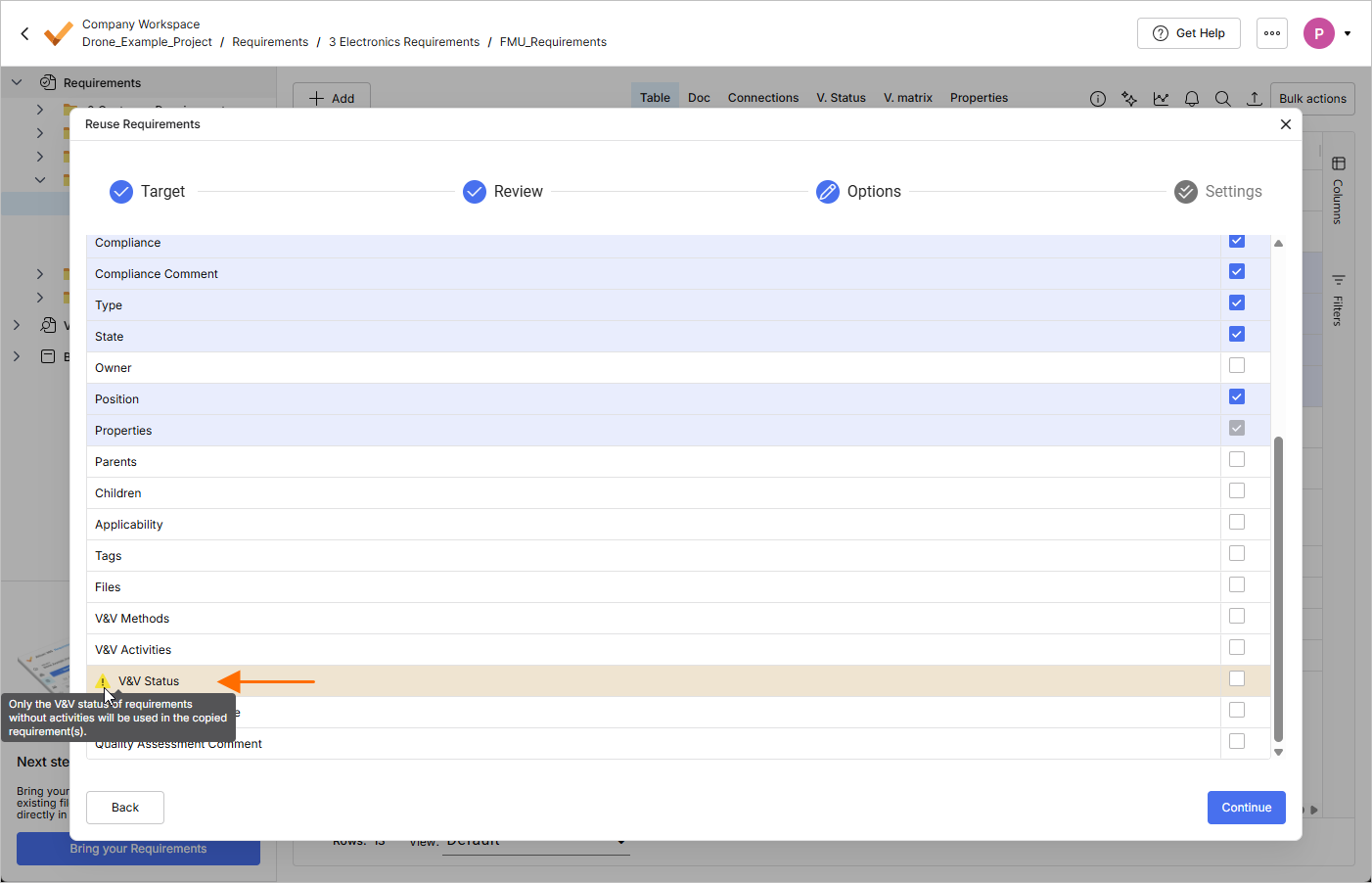 ).
).When the fields to be copied are selected, click the button to proceed.
Settings Configuration
Based on your previous choices, this section allows you to configure your requirements copying settings. The currently options are:
-
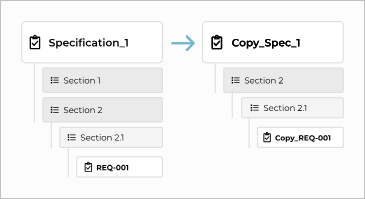
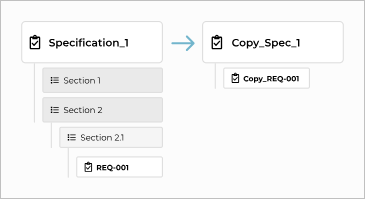
Copy of Specification Structure (Sections and sub-sections)
-
If option Yes is selected and the requirement is inside a section at the original location, that section will also be considered (and created if not existing) at the destination location.
-
If option No is selected, the requirement is placed at the destination location without any consideration for its location in the original location.
-
-
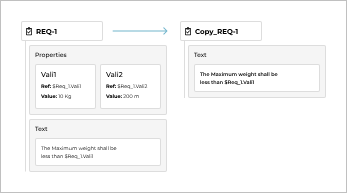
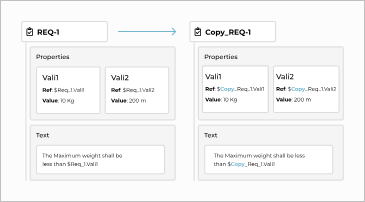
Keep Properties (Valis) References or create new ones
-
If option Keep is selected, only the references to Valis in the Original requirement (for example, inside the text) will be copied.
-
If option Create is selected, copies of the Original Requirement Valis will be created and the references will be updated accordingly.
-
-
Field Mapping (these options are only available when the destination is in another project) – you can map fields such as state, type, compliance, and custom columns from the original project to the destination project. Creation of new options, at the destination project, is also available.
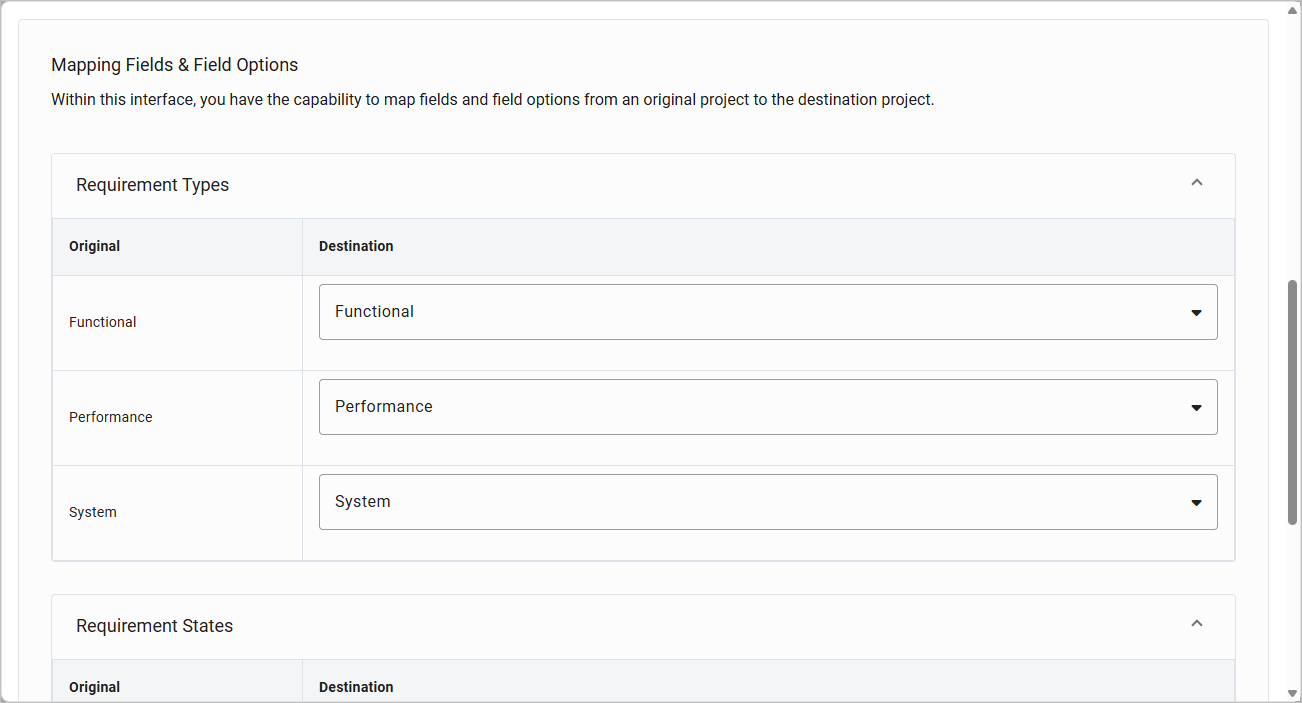
When ready, click the  button to proceed and create copies of requirements according to the settings configured in the window.
Quick Copy
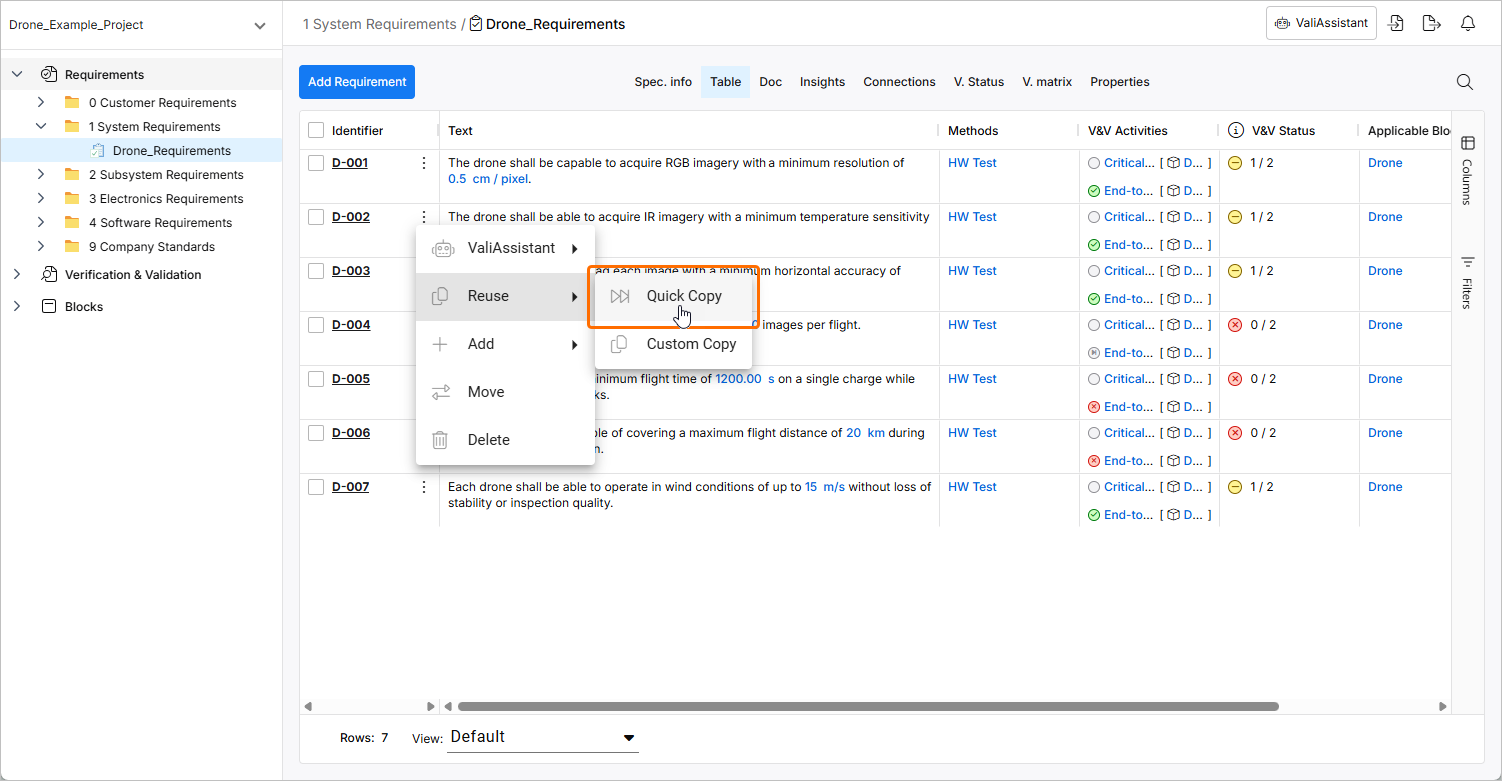
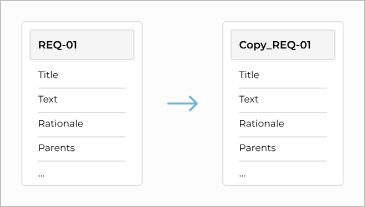
The Quick Copy functionality allows you create a quick copy of a requirement within the same specification. It only copies the title, text, and rationale of the original requirement. The new requirement gets copied and created into a new requirement with the identifier as <original_requirement_identifier>_copy (e.g., Req-008_copy).
To reuse a requirement using the Quick Copy functionality, click the icon in the row of the requirement and select the Reuse » Quick Copy command from the menu that appears. The command will be applied to the requirement.