
Requirement Fields
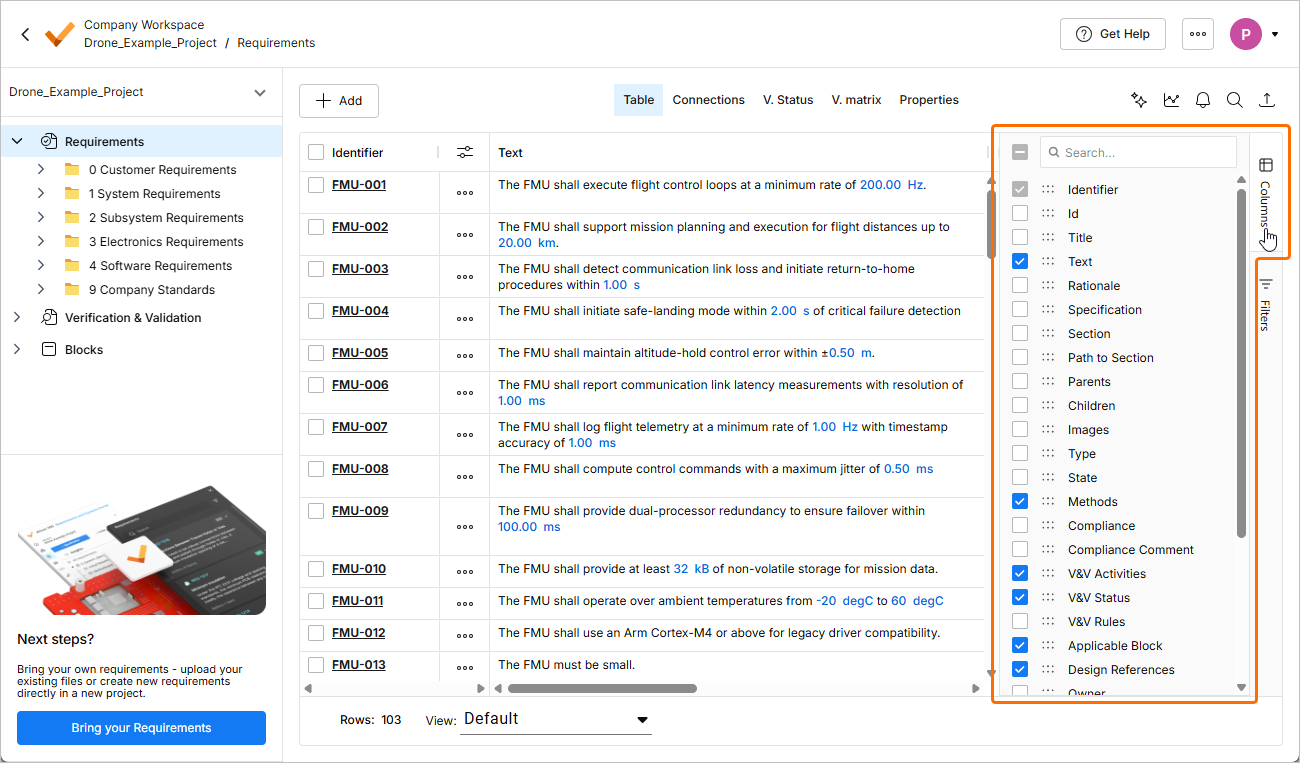
The Requirements Module has different columns for every Requirement Field, each with its characteristics. However, if a field is unavailable for your use case, you can create a custom column in the custom columns page within the settings. The visibility of columns can be configured using the Columns pane, as shown below.
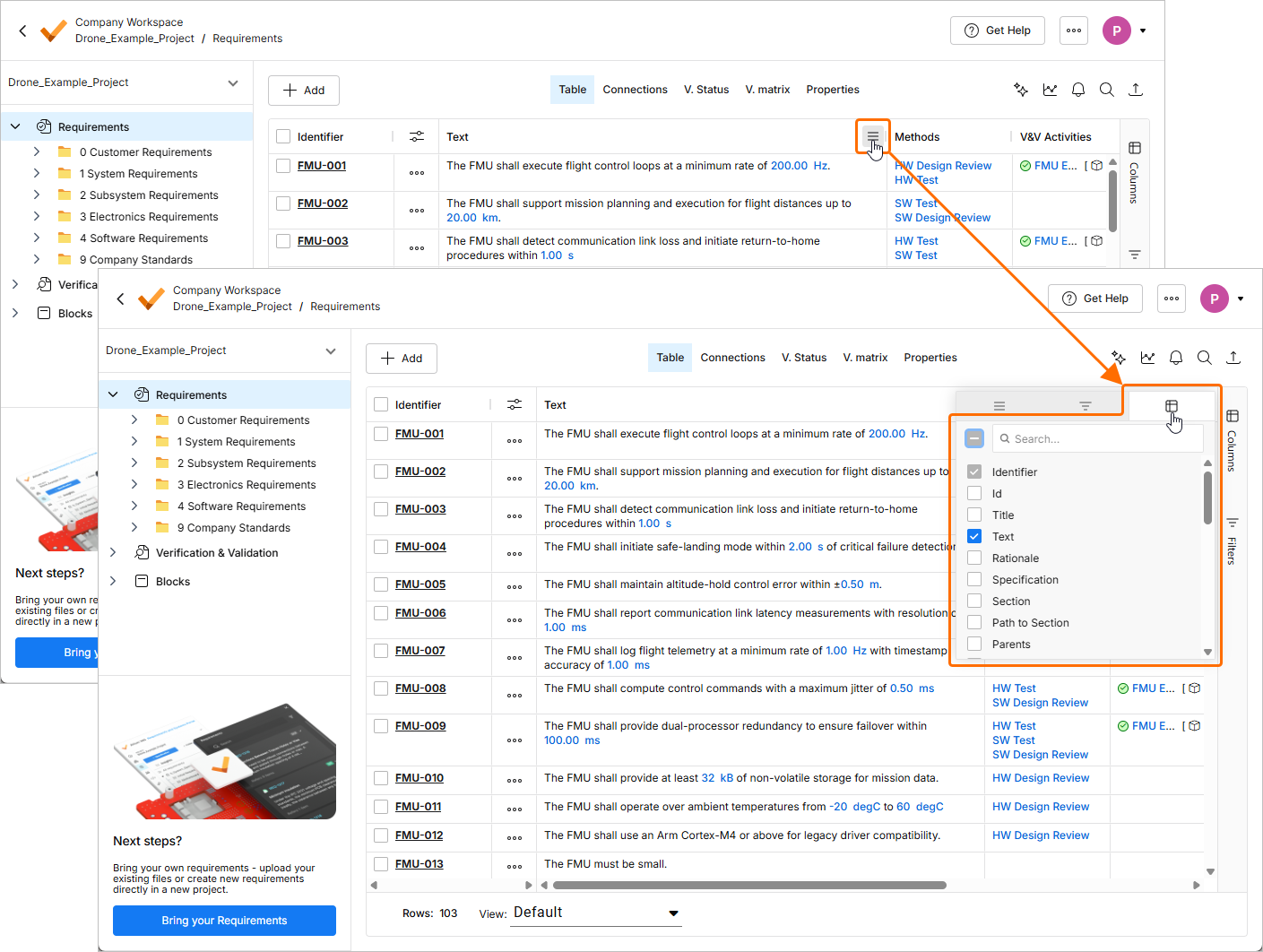
You can also set which columns are visible through the header popup by clicking on the  icon that appears when hovering the mouse over any of the column headers and then clicking on the columns tab (
 ).
).
| Column Field | Description |
|---|---|
Identifier |
The identifier is the mandatory field, usually a unique name to the requirements. For example, in BAT-001, the BAT represents the abbreviation of the battery subsystem, and 001 represents the first requirement of the subsystem. |
Id |
ID is different from the identifier in Requirements Portal. The software automatically creates IDs when a requirement is created. |
Title |
As the name suggests, it is a title or a short description of the requirement. |
Text |
This field contains the requirement text. You can use the dollar sign to directly reference Valis and other Requirements in this field. |
Rationale |
You can input additional comments or the logical reasons behind the requirement in this field. |
Specification |
This field shows the name of the specification to which the requirement belongs. It’s a drop-down menu, and if you want to move from one specification to another, you can select the specification, and it will automatically move. |
Section |
Similar to specification, this field shows the name of the section in which the requirement belongs. It’s a drop-down menu, and if you want to move from one section to another, you can select the section and Requirements Portal automatically rearranges the requirement. |
Path to Section |
If a requirement is placed within a sub-section, its full path will be displayed here, with each section level being separated by a “\” character. This field can be used in an imported file to create the section structure and properly place the requirements on creation. |
Parents |
If the requirement has a parent’s requirements, it shows the list of requirements which are a parent. Clicking on them leads to information on the parents' requirements. |
Children |
If the requirement has children’s requirements, it shows a list of requirements. Clicking on them leads to information about children’s requirements. |
Images |
If your requirement requires additional information in the form of an image, you can add it here. |
Type |
It is a user-defined field. The type relates to what kind of requirement it is. For example, our default ones are functional, performance and system. You can add other option fields. Refer to Requirements Settings. |
State |
This field shows the state of the requirement identifier and the text. The current defaults are final, draft, and in review. You can set the transition settings in the state. So, whenever the requirement text or identifier is edited, the state is automatically changed. Refer to Requirements Settings. |
| V&V Methods | The method by which you are verifying the requirements. You can add or modify V&V methods based on your use case. |
Compliance |
Add the nature of compliance with the requirement. Default ones are compliant, partially compliant and non-compliant. |
Compliance Comment |
If you have any comments related to the compliance, they can be added here. |
| V&V Activities | Displays the list of V&V activities used to verify the requirement. Double-click the cell to manage the list. For more information, refer to the Flow 4: Manual and Rules Verification Flow page. |
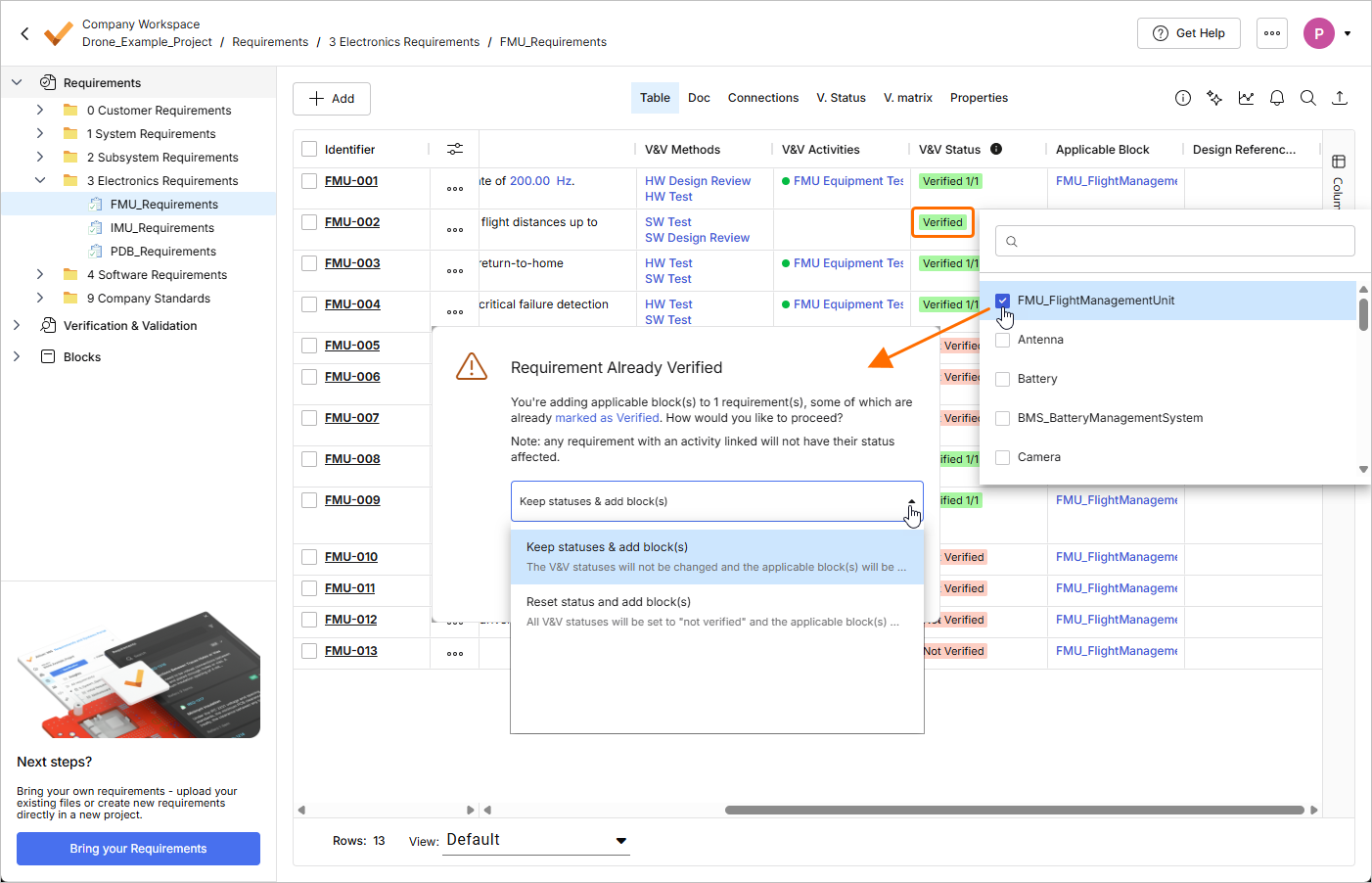
| V&V Status | This field is either manually changed or calculated automatically using V&V activities. Automatic calculation occurs when a V&V activity is assigned to the requirement. If no V&V activity is assigned, double-click the cell to manually set the status to Verified or Not Verified. |
| V&V Rules | Displays the number of verified rules and the total number of rules created for the requirement. Double-click the cell to create and manage V&V rules. For more information, refer to the Flow 4: Manual and Rules Verification Flow page. |
Applicable Block |
In Requirements Portal, each requirement is related to blocks, and the verification is done for each block. The verification method is editable only when the block is referred to as a requirement. |
| Design References | Displays a list of design project documents where the requirement is placed. For more information, refer to the Working with Requirements page. |
Owner |
Displays the owner of the requirement. |
| Applicability | Displays a list of Block Types that are set as relevant to the requirement. For more information, refer to the Applicability in Requirements Module page. |
Tags |
If you want to group based on special needs, e.g. to be reviewed, you can add tags to each requirement. |
| Properties | Displays a list of valis used in the requirements. |
Position |
You cannot have a custom arrangement of requirements as it is sorted alphabetically. So, to have a workaround, a position was introduced. Give a number to each number according to your order and sort the column to have the custom order. |
Created |
The date on which the requirement was created. |
Updated |
The date on which the requirement was last updated. |
Custom fields |
If you need a field that does not cover a required use case, you can create custom fields, which can be rich text fields or drop-down menus. |
 ).
).