
High Speed Rule Types
At a Glance
- A clear summary of the High Speed design rule types available in Altium Designer.
- Better familiarity with how the High Speed category is organized within the design rules system.
- A practical reference for locating and understanding these rule options during PCB layout work.
The design rules of the High Speed category are described below.
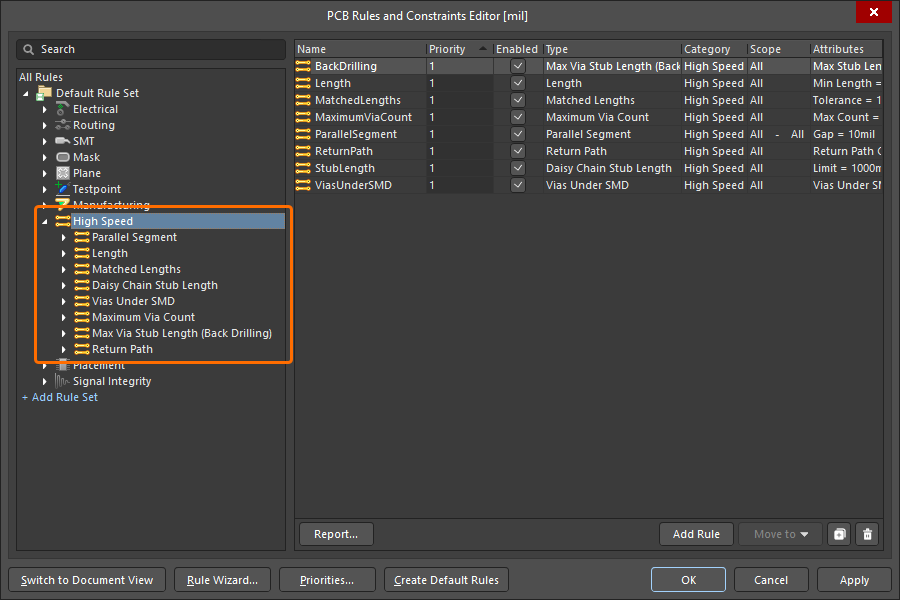
The High Speed category of design rules.
Parallel Segment
This rule specifies the distance two track segments can run in parallel, for a given separation. Note that routed differential pair nets are excluded from checking by this rule.
Constraints
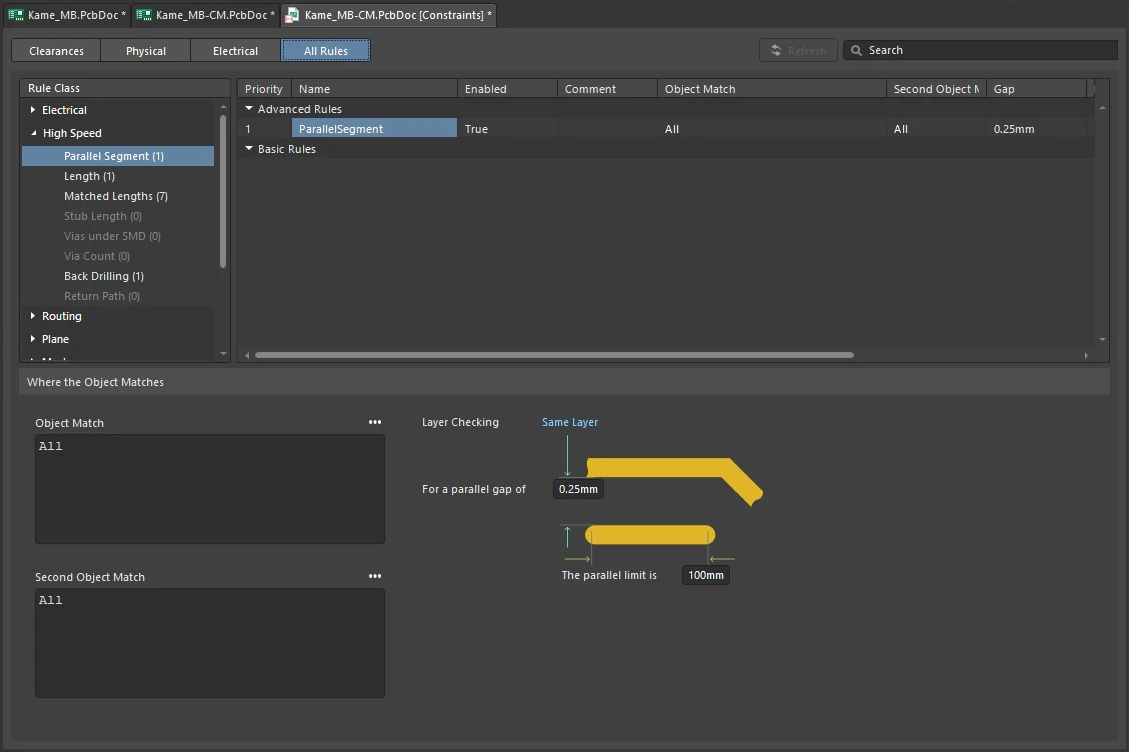
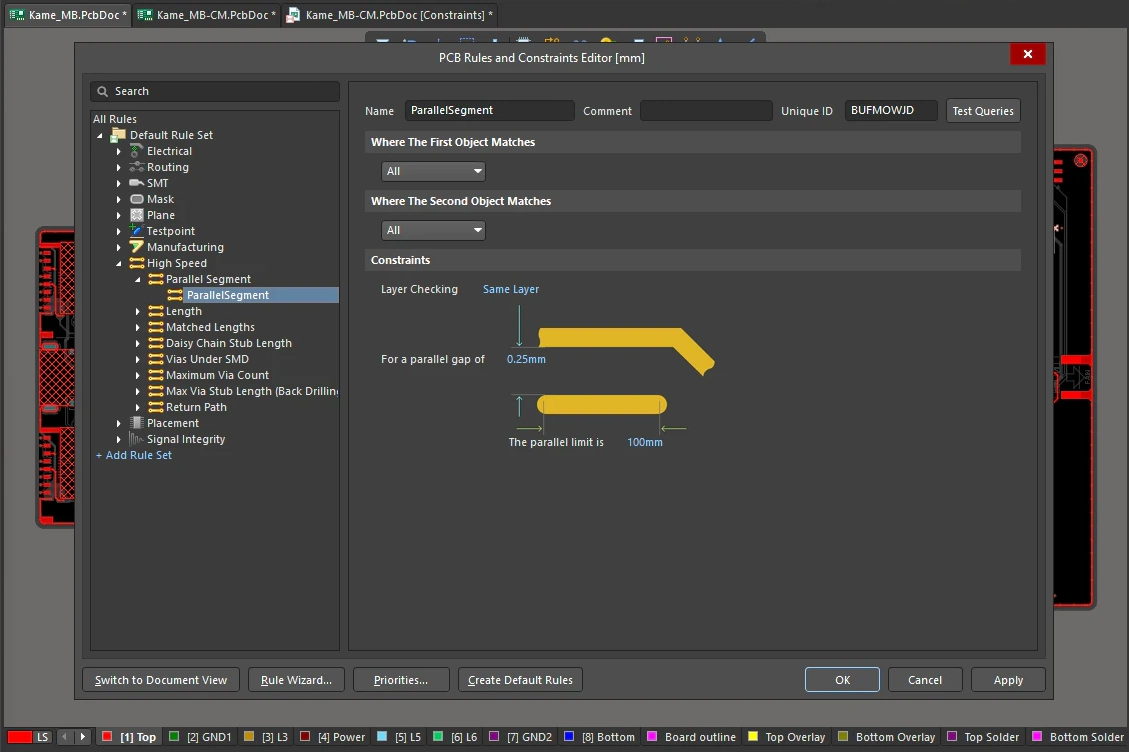
Parallel Segment Constraints
| Default Rule | Not required. |
| Layer Checking | Specifies where the two track segments to be checked should reside:
|
| For a parallel gap of | Specifies the parallel gap that should exist between two track segments before they can be considered for test. Parallel track segments with a gap of this value or less will be tested. |
| The parallel limit is | Specifies the maximum permissible parallel length of two track segments (on different nets), when the parallel gap constraint is observed over the entire length. |
| What is parallel? | This rule detects parallel track segments that are within the parallel gap setting, then adds all segment lengths that are in those nets ( |
| Rule Application | Online DRC and Batch DRC. |

Length
This rule specifies the minimum and maximum lengths of a net.
Constraints
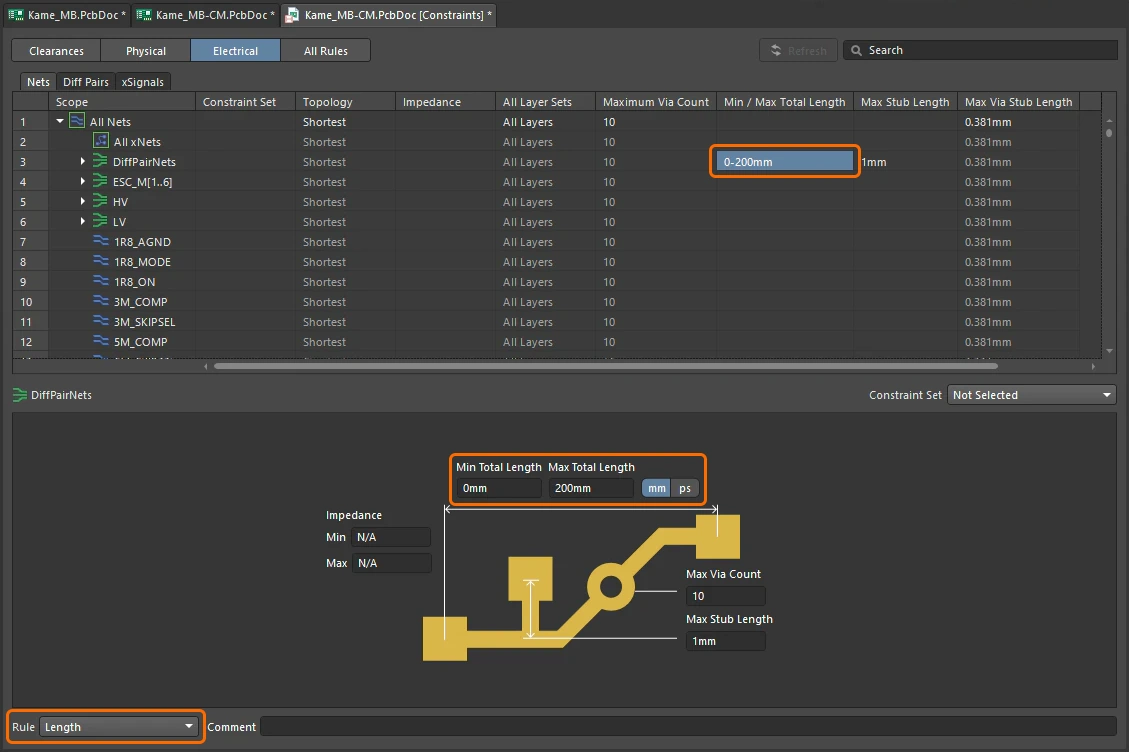
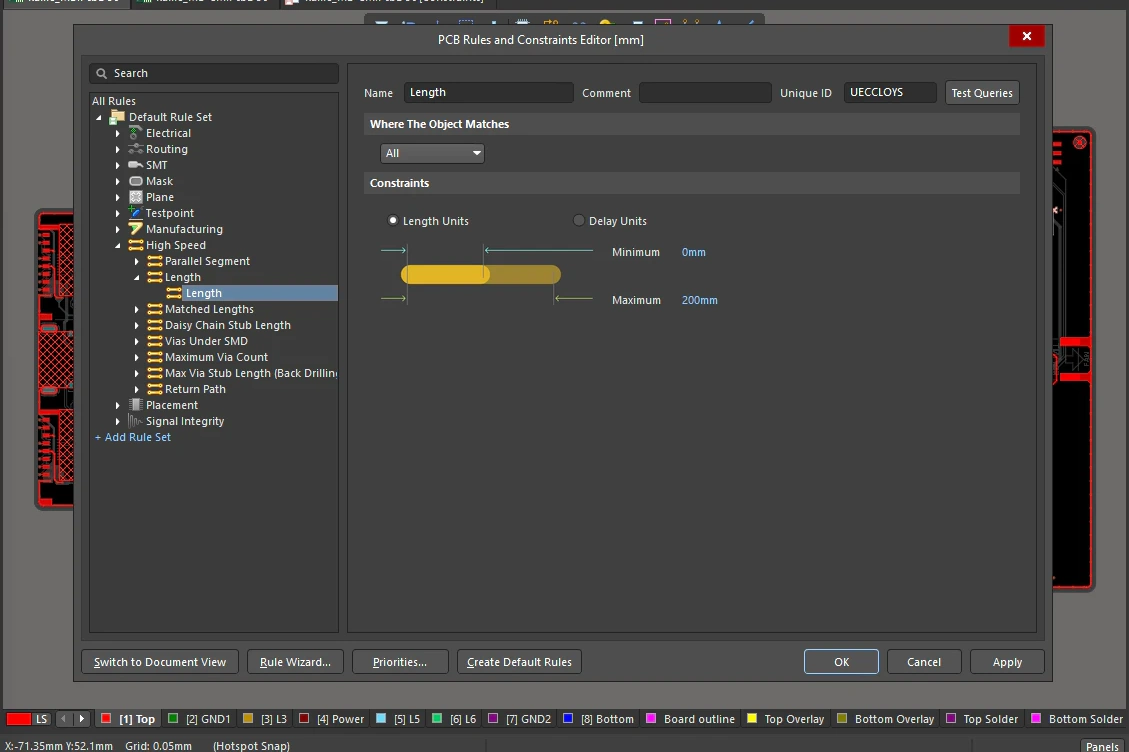
Length Constraints
| Default Rule | Not required. |
| Length Units | Define the length as a distance. |
| Delay Units | Define the length as a time (how long the signal takes to travel along that length of route). |
| Minimum | The value for the minimum permissible length of the net. |
| Maximum | The value for the maximum permissible length of the net. |
| Rule Application | Interactive length tuning, automatic length tuning, online and batch DRC. |
Matched Lengths
This rule specifies the allowable difference in net lengths. This rule is essential in a high-speed design, where the challenge is not just about how long it takes the signals to arrive (which is determined by their overall length), but how important it is that the specified signals arrive at the same time. Depending on the signal switching speeds, the function of the signal, and the materials used in the board, the allowed difference could be as much as 500mils, or as little as 1mil.
The set of nets being targeted is defined by the scope of the rule (as defined by its full query), with the reference length (the longest net in the set) being determined by the rule scope, in combination with the Constraints settings. Other targeted nets will pass the rule if their Current Length is:
(LongestLength - tolerance) ≤ CurrentLength ≤ LongestLength
Constraints
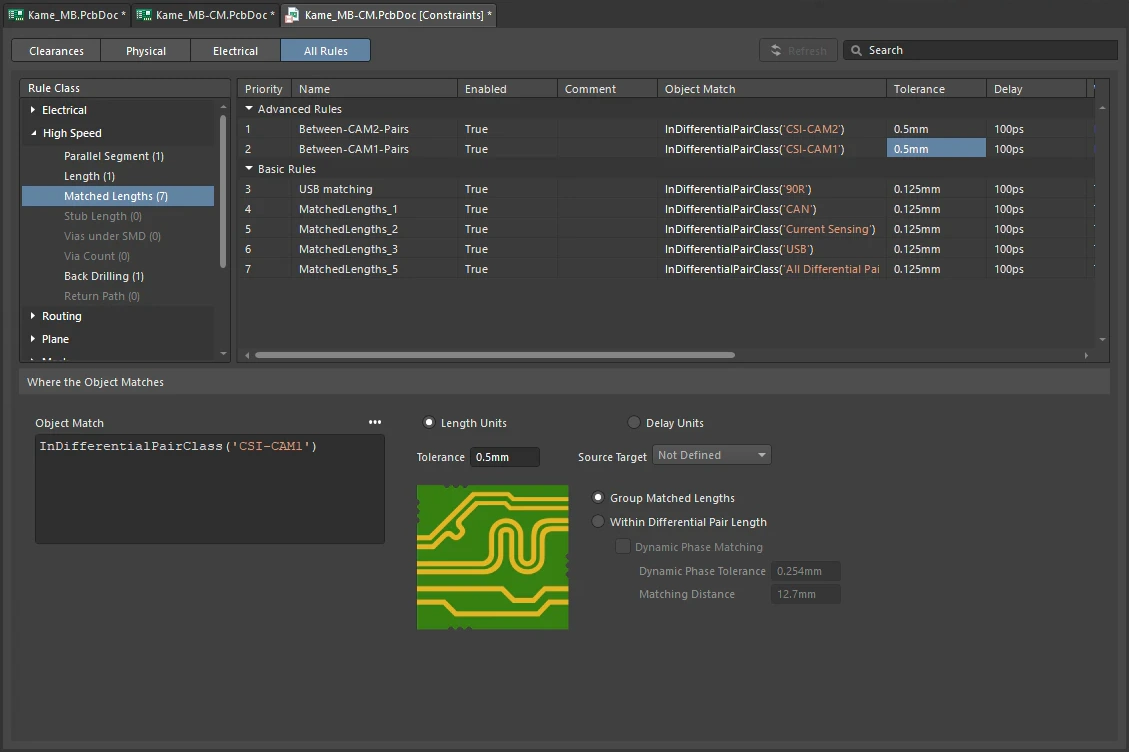
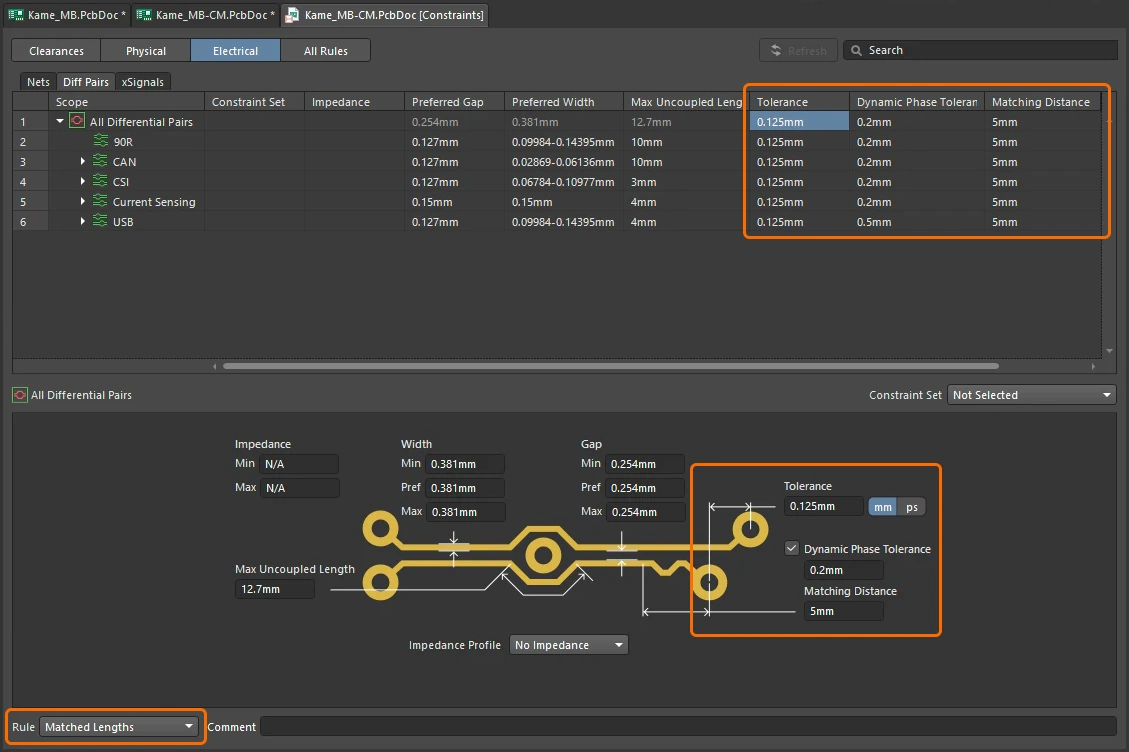
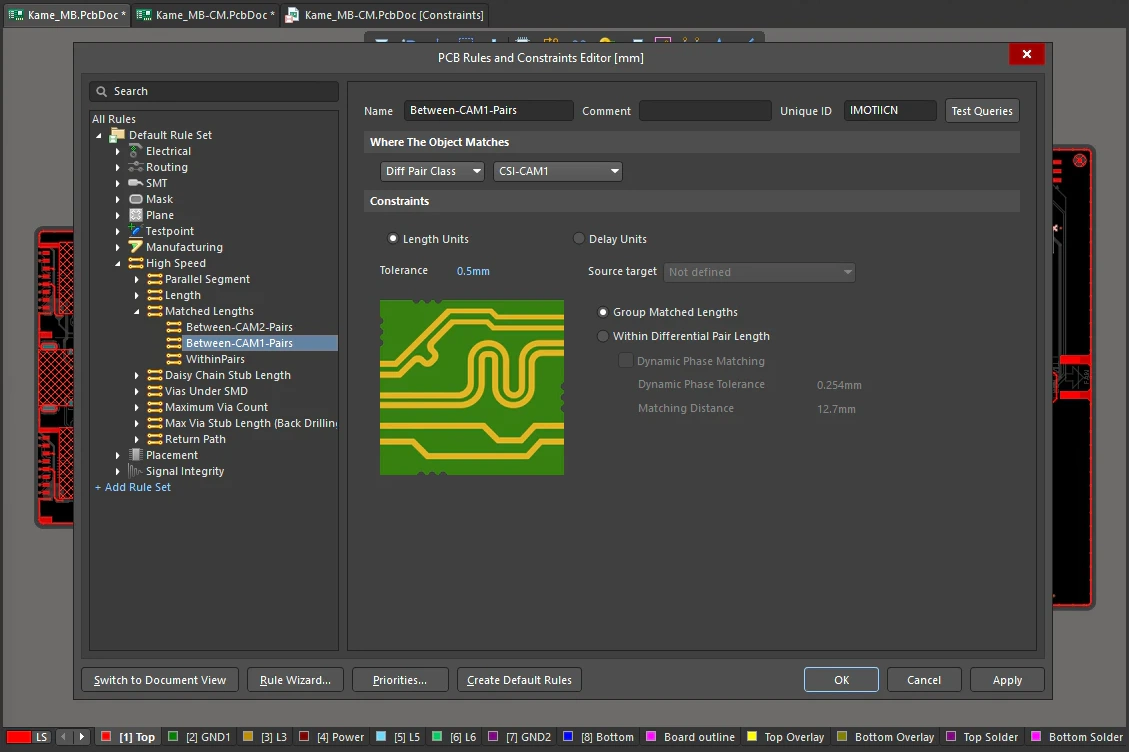
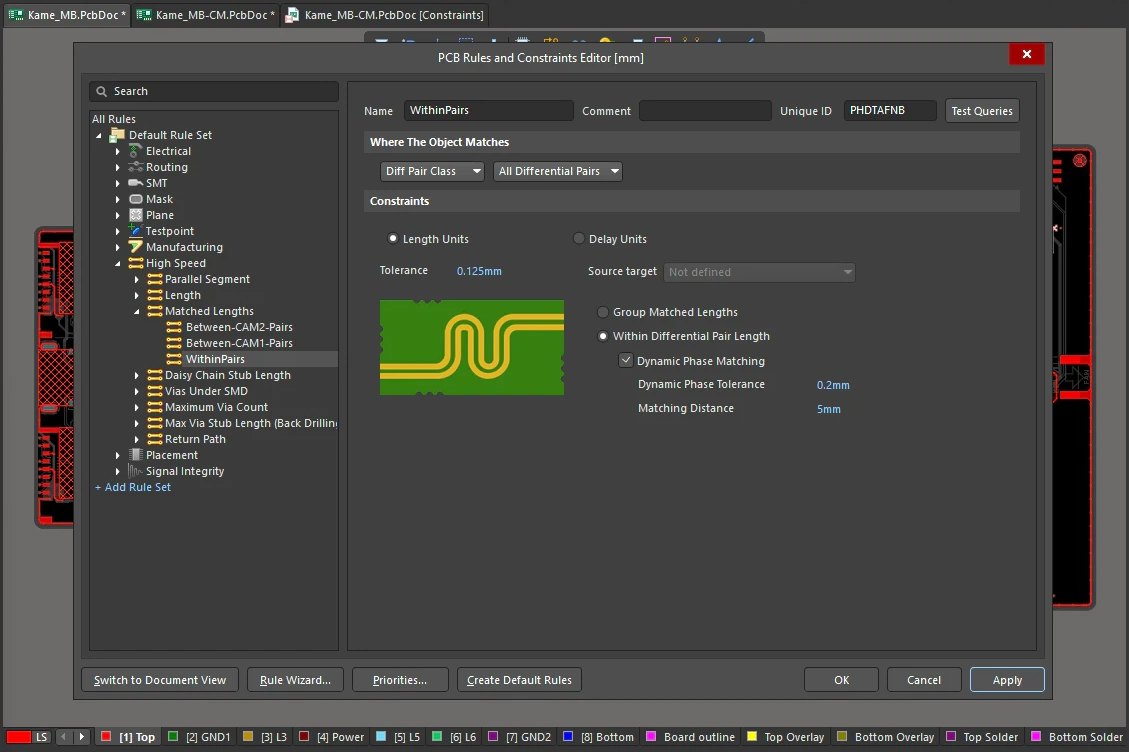
Matched Lengths Constraints
| Default Rule | Not required. |
| Length Units | Define the length as a distance. |
| Delay Units | Define the length as a time (how long the signal takes to travel along that length of route). |
| Tolerance | Specifies a length tolerance when comparing each net with the longest net in the set. Any net whose length does not lie within the specified tolerance is deemed to be too short and will have track added to it should the Equalize Net Lengths command be run. |
| Source Target | This drop-down is only available when an xSignal class (or all xSignals of the design) is used as the rule scope. Select an xSignal from the drop-down to use its length as a target for other xSignals scoped by the rule. When an xSignal is selected as a source target, other targeted xSignals will pass the rule if their Current Length is:
|
| Group Matched Lengths | Choose this option to check lengths between all nets targeted by the rule scope, as shown in slides 1 and 3. |
| Within Differential Pair Length | Choose this option to check lengths between the nets within each differential pair targeted by the rule scope, as shown in slides 2 and 4. This is referred to a phase matching, as summarized below. |
| Dynamic Phase Matching | Enable this option to specify dynamic phase matching (matching the phase along the entire length of the pair) constraints. If this option is not enabled then the phase matching is static (only applied to the overall length)
Learn more about phase matching a differential pair. |
| Scoping a Matched Lengths rule | When scoping a Matched Net Length rule for interactive tuning purposes:
|
| The role of Rule Priority | When there are multiple rules applied to an object, the standard approach used by the PCB editor is to apply the highest priority rule. This is not the case for Matched Lengths design rules, where multiple rules can legitimately be applied to an object. For example, it is common to define tighter matching within say, an 8-bit bus, and at the same time require that several 8-bit busses all match as well, with a larger tolerance. In this situation, the priorities of these two rules are ignored. |
| Rule Application | Interactive length tuning, automatic length tuning, online and batch DRC. |
Daisy Chain Stub Length
This rule specifies the maximum permissible stub length for a net with a daisy chain topology.
Constraints
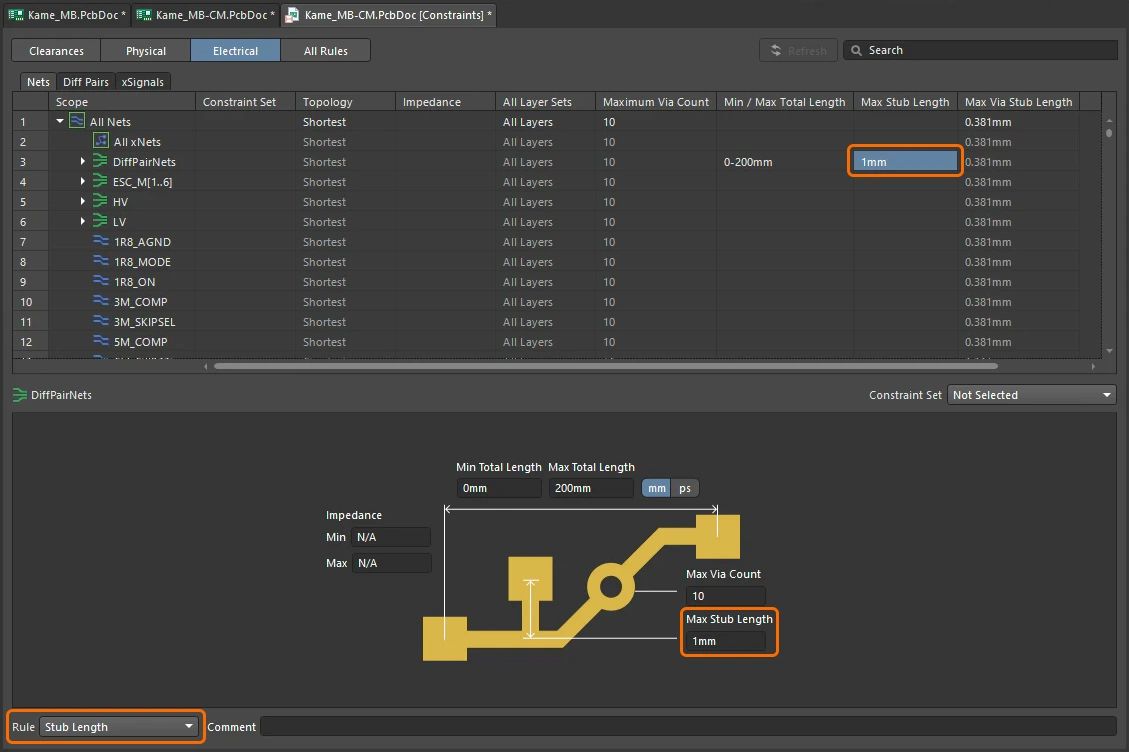
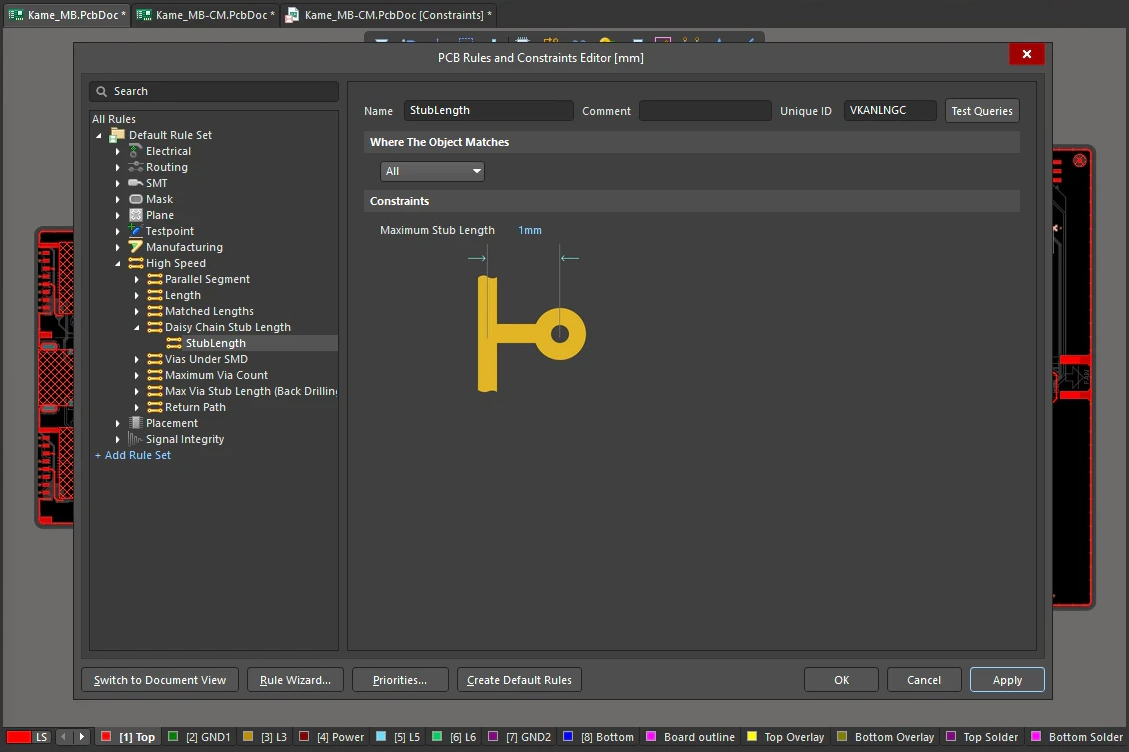
Daisy Chain Stub Length Constraints
| Default Rule | Not required. |
| Maximum Stub Length | The value for the maximum stub length allowed. |
| Rule Application | Online DRC and Batch DRC. |
Vias Under SMD
This rule specifies whether vias can be placed under SMD pads.
Constraints
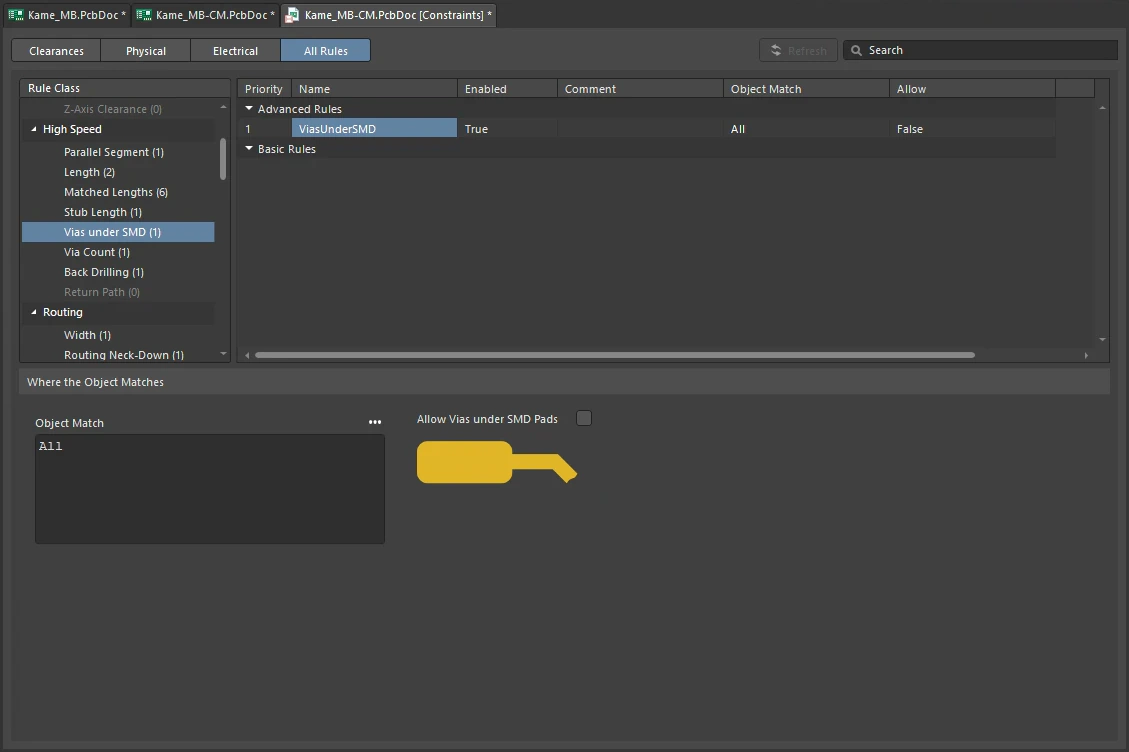
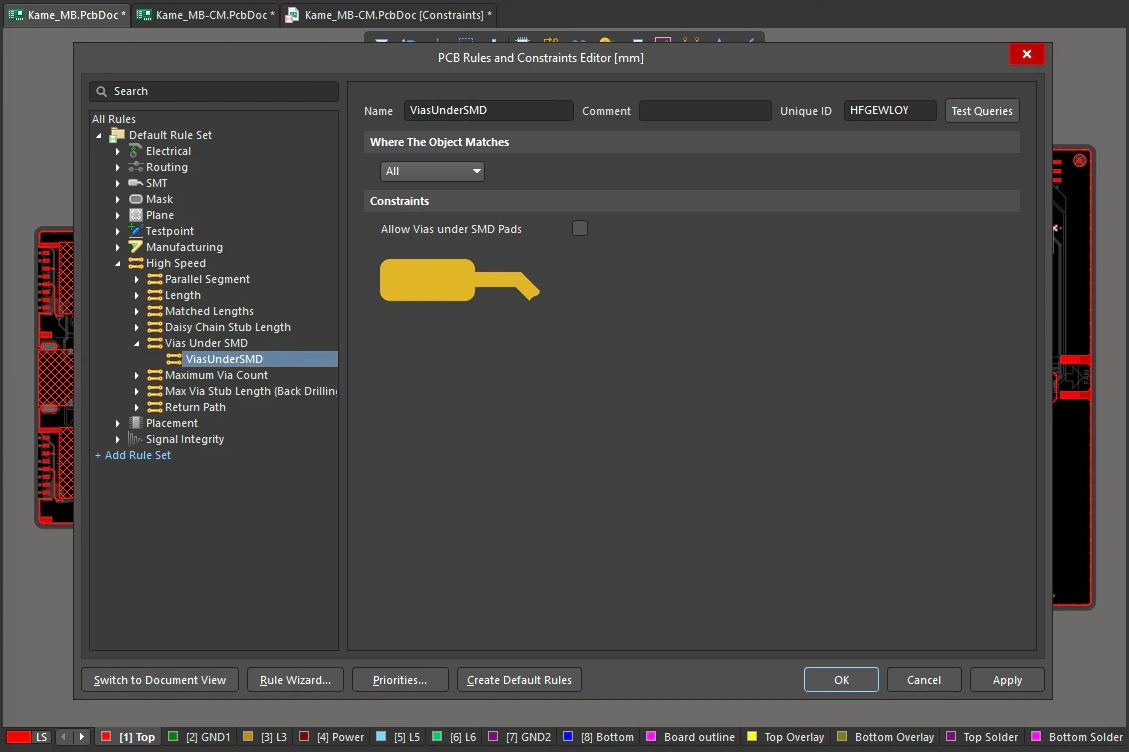
Vias Under SMD Constraints
| Default Rule | Not required. |
| Allow Vias under SMD Pads | Specifies whether vias can be placed under the pads of a Surface Mount Device (SMD). |
| Single-layer pads only | This rule applies only to pad objects defined on a single copper Layer (not Multi-Layer). |
| Which pads are targeted | The scope of the rule (Where the Object Matches) defines which SMD pad objects are targeted by this instance of the rule. When a pad falls within the rule's scope (is detected by the rule), the pad is then checked to see if it complies with the Allow Vias under SMD Pads constraint setting defined by this rule. |
| Via partially under the pad | The rule is to allow / not allow vias under SMD pads. If vias are allowed, the rule does not check if the via is only partially under the SMD pad, or the properties of that via. |
| Multiple vias under the pad | If there are multiple vias under an SMD pad where they are not allowed, only the first via detected during rule checking is flagged. Once this violation is cleared, the next violating via is flagged, and so on. |
| Controlling which pads are allowed vias | To selectively allow vias under SMD pads (
|
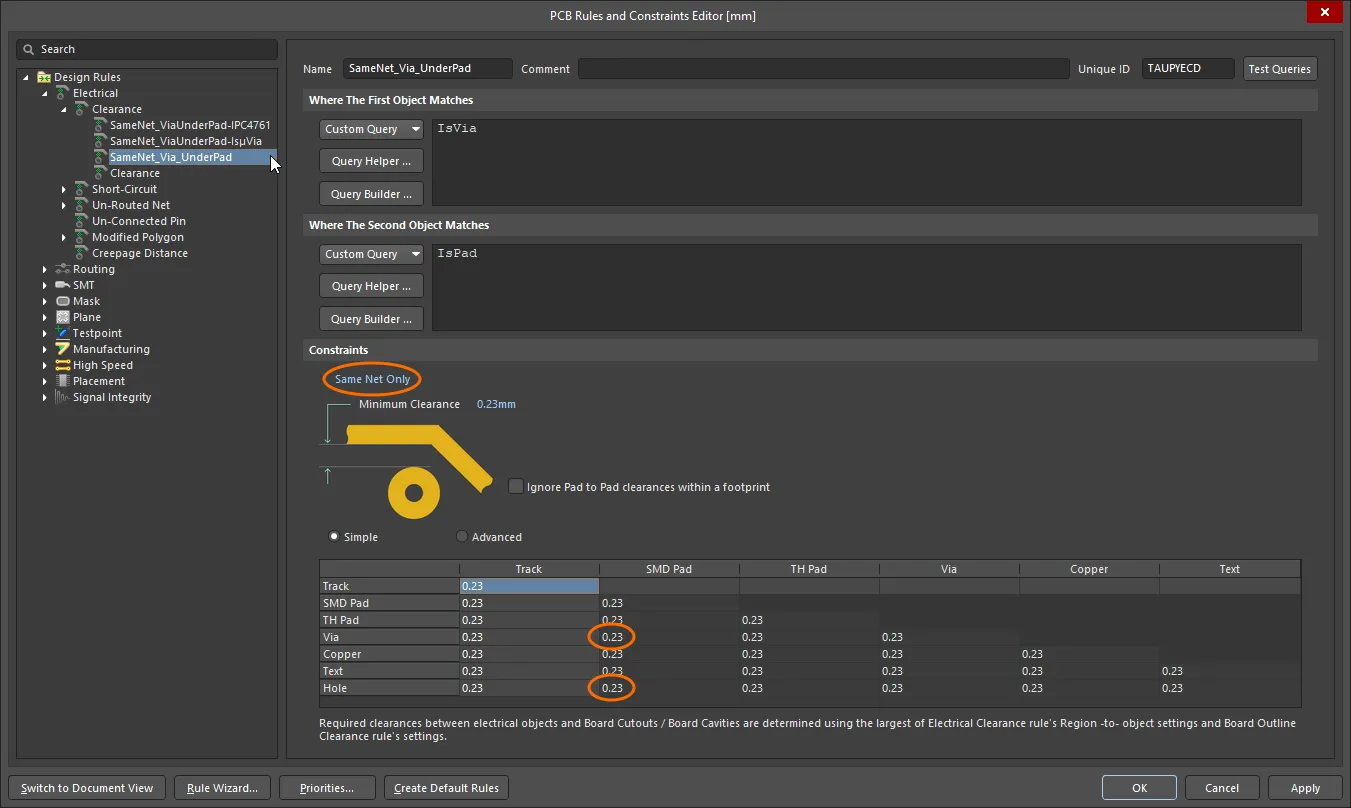
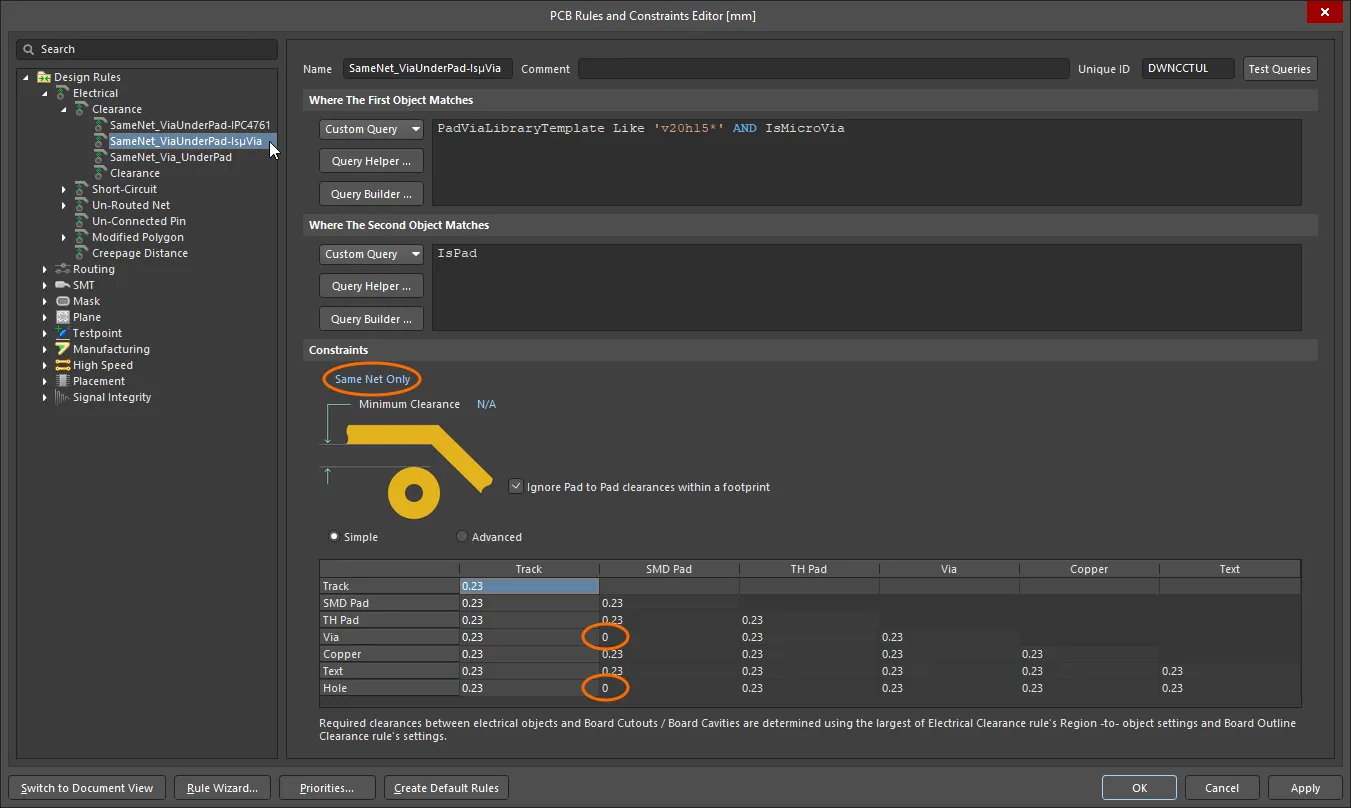
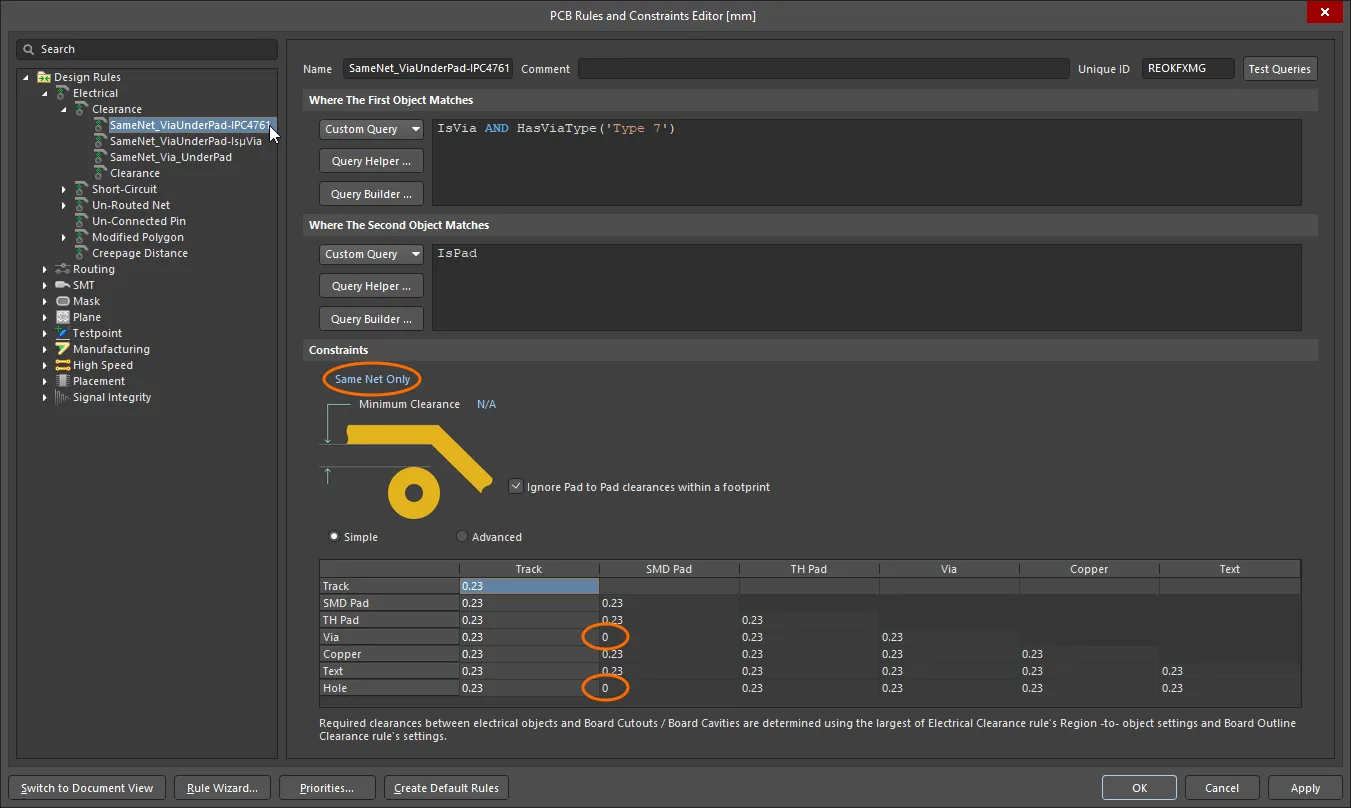
| Controlling what via is allowed under pads | The Allow Vias under SMD Pads rule cannot check that a specific via is being used under an SMD pad, it only detects if a via is allowed / not allowed under the specified SMD pad. To check that a via under an SMD pad has specific qualities, such as being a MicroVia, or is using a specific PadViaTemplate, use a set of Same-Net Clearance Constraint rules. As with the Allow Vias Under SMD rule, this approach also requires a lower priority rule to not allow a Via Under an SMD pad, combined with higher priority rules that then selectively allow vias under SMD pads, based on their properties. The set of Clearance Constraint rules could include (
|
| Rule Application | Online DRC, Batch DRC, interactive routing, and autorouting. |

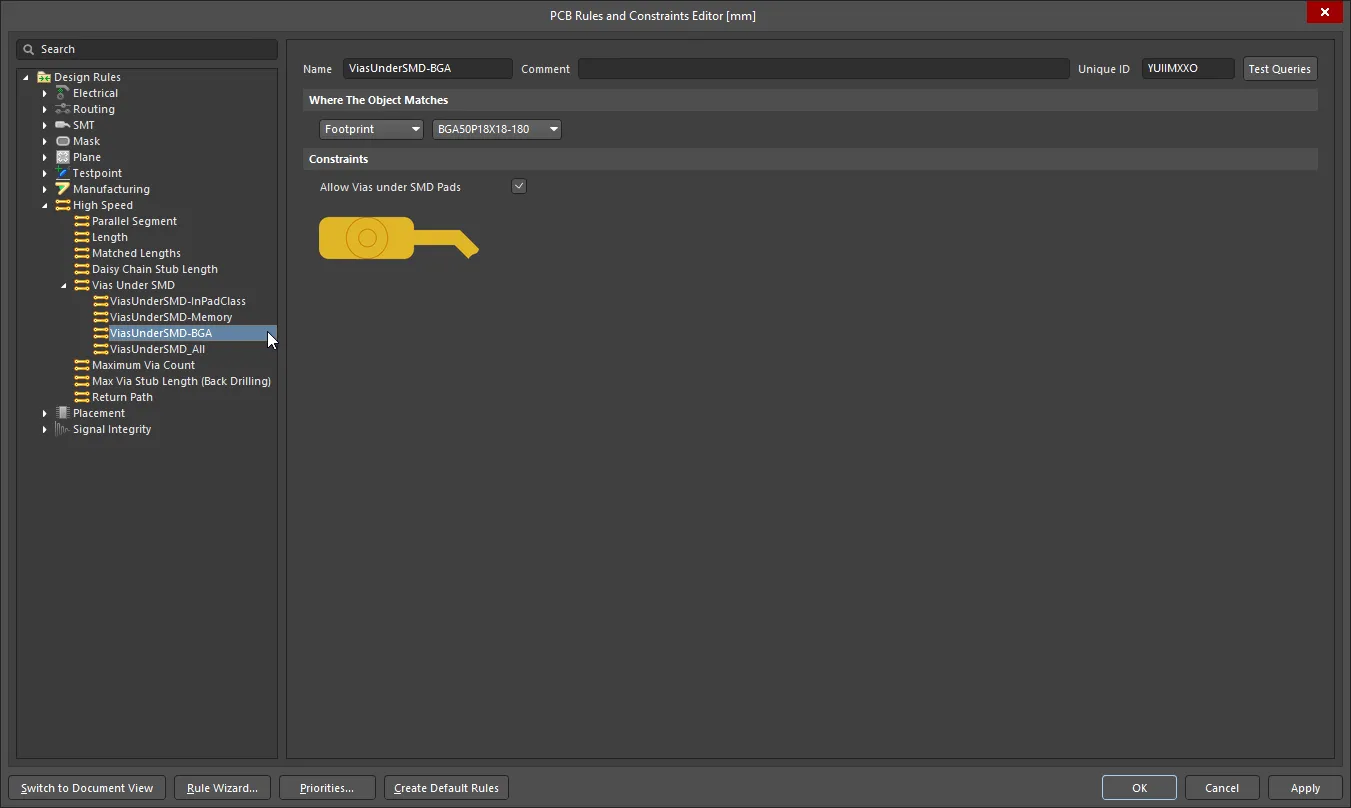 )
)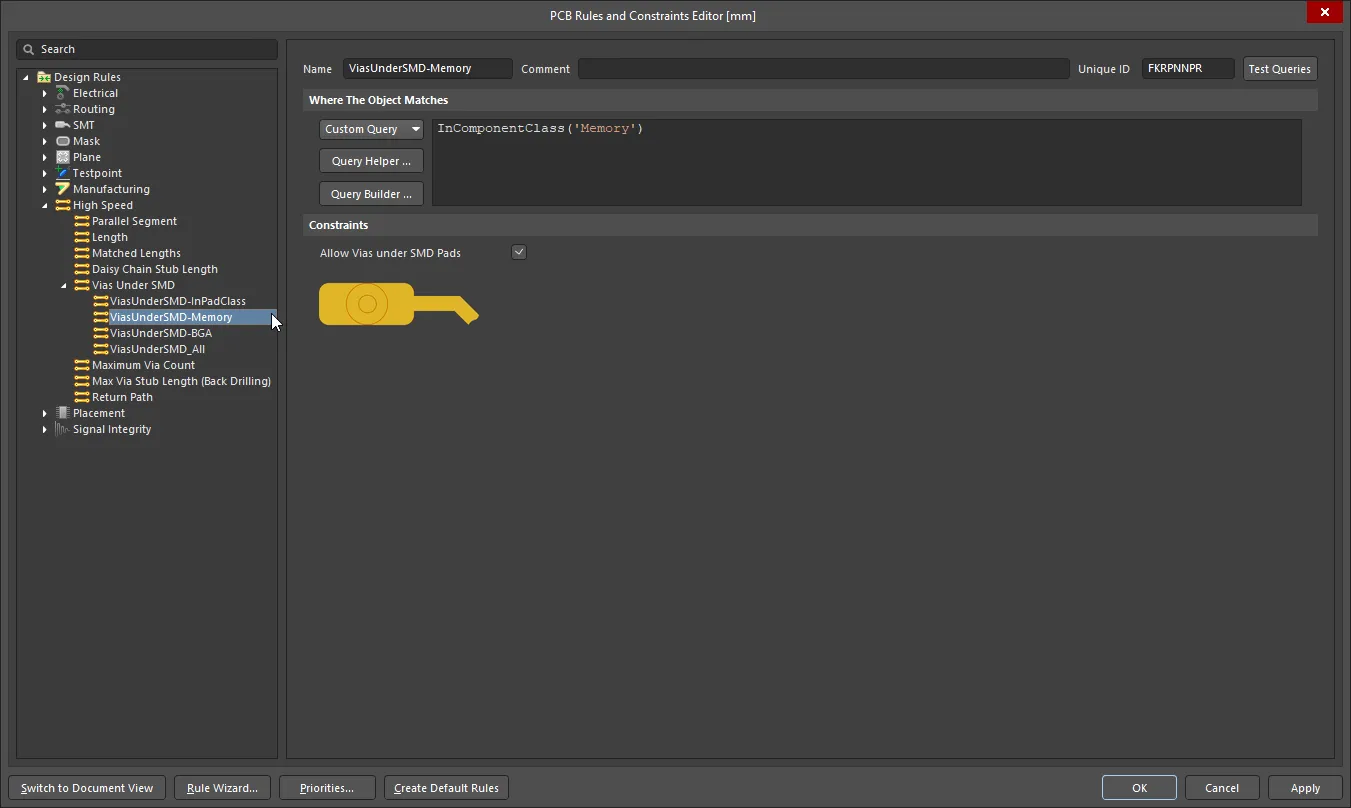 )
)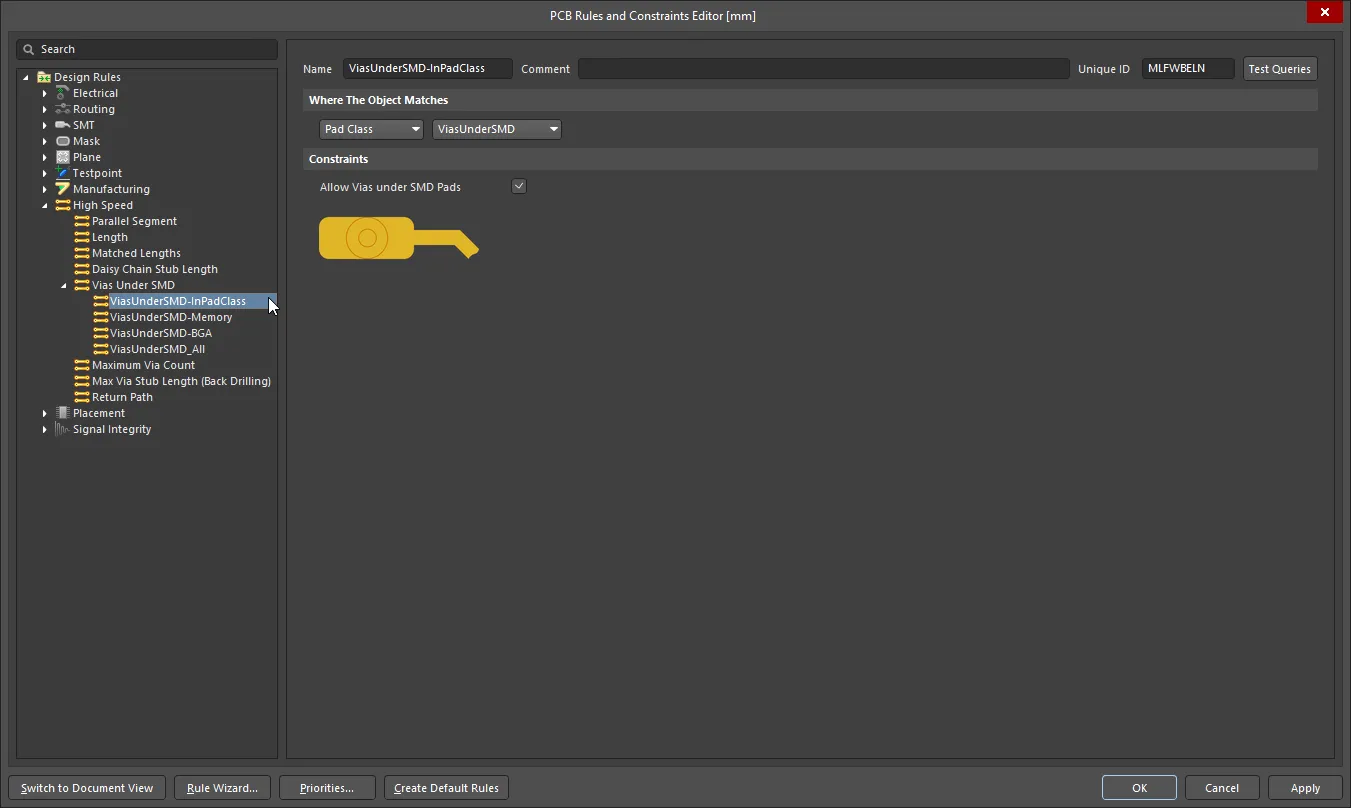 ).
). )
) ).
). ).
). ).
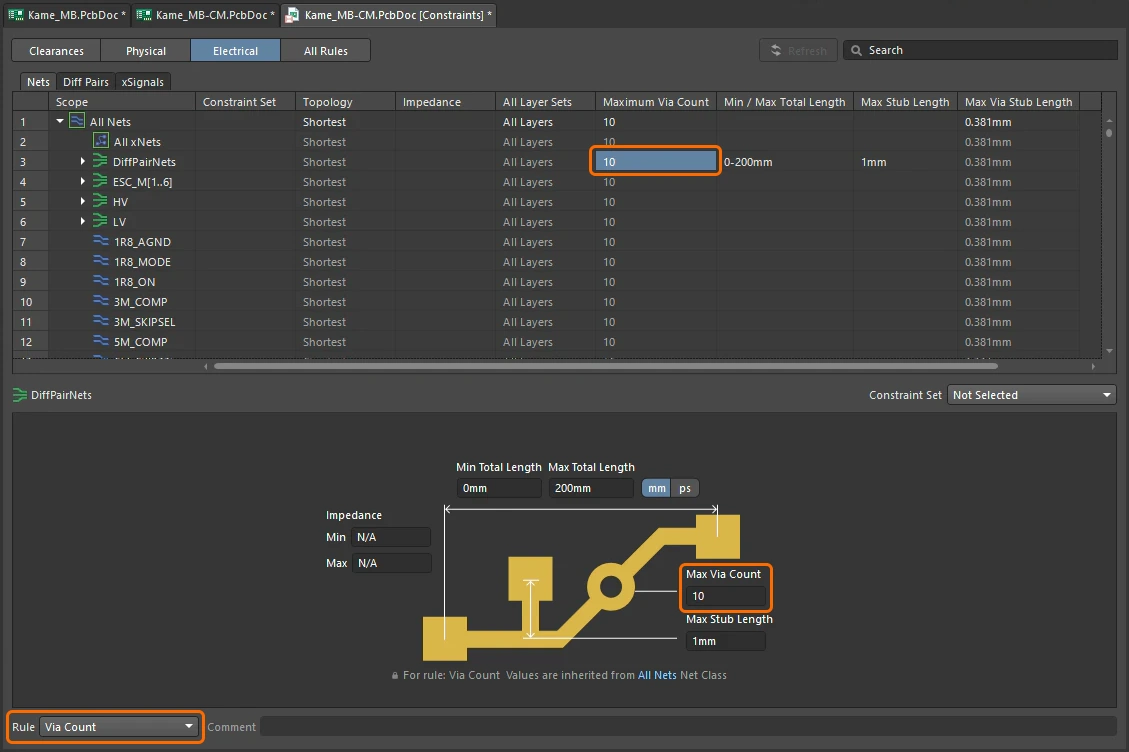
).Maximum Via Count
This rule specifies the maximum number of vias permitted for each individual net in the current design.
Constraints
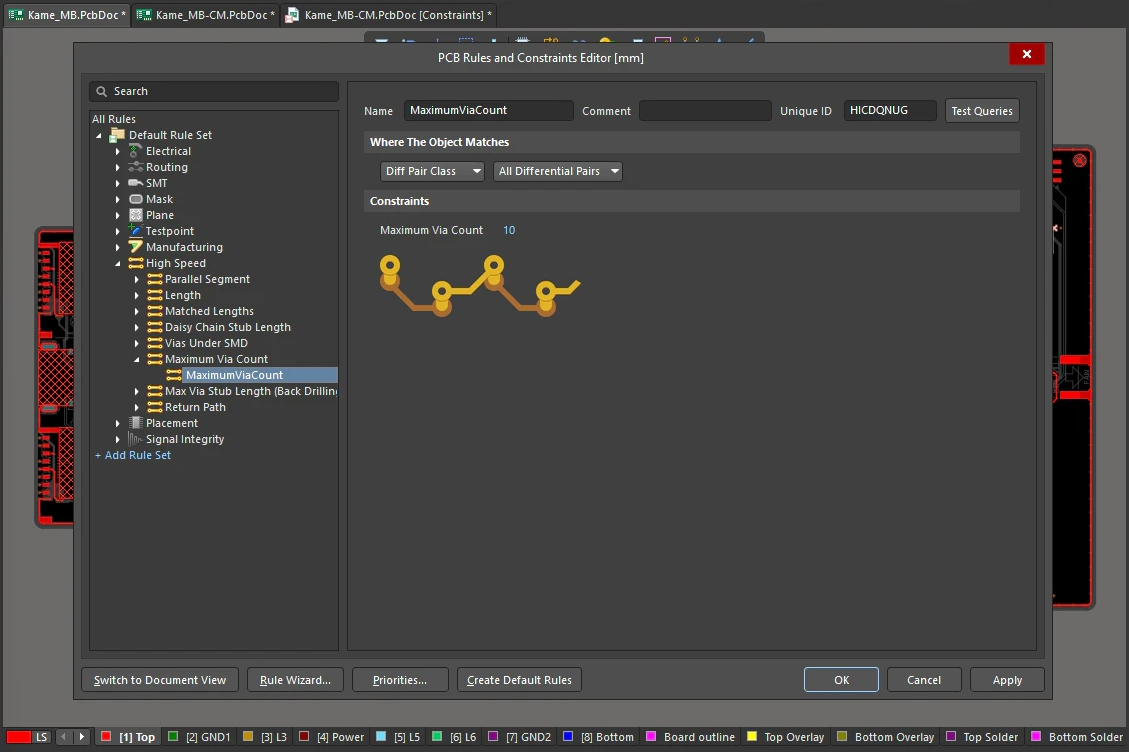
Maximum Via Count Constraints
| Default Rule | Not Required. |
| Maximum Via Count | The maximum number of vias permitted in each individual net falling under the defined scope of the rule. |
| Rule Application | Online DRC and Batch DRC. |
Max Via Stub Length (Back Drilling)
A stub is the length of via or pad barrel that protrudes beyond the last-used signal layer that the via/pad connects on. Back drilling will be applied to suitable vias/pads in nets targeted by this rule, in accordance with the enabled side-of-board Layer checkboxes, and the back drill pairs defined on the Back Drills tab of the Layer Stack Manager.
As well as being used to define which vias/pads are to be considered for back drilling, during design rule checking this rule tests for via and pad stubs longer than the specified Max Stub Length, for all nets targeted by this rule (regardless of whether back drilling has been applied to that via or pad). This rule also specifies how much larger the drill size must be for vias and pads that are back drilled.
Constraints
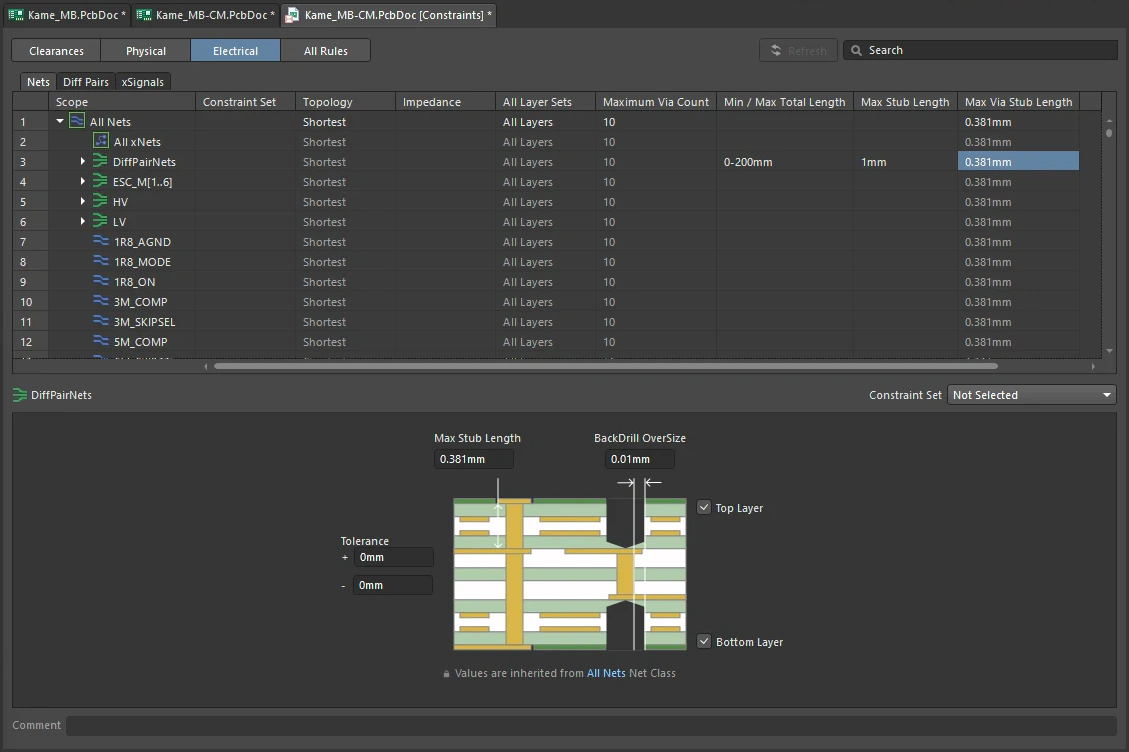
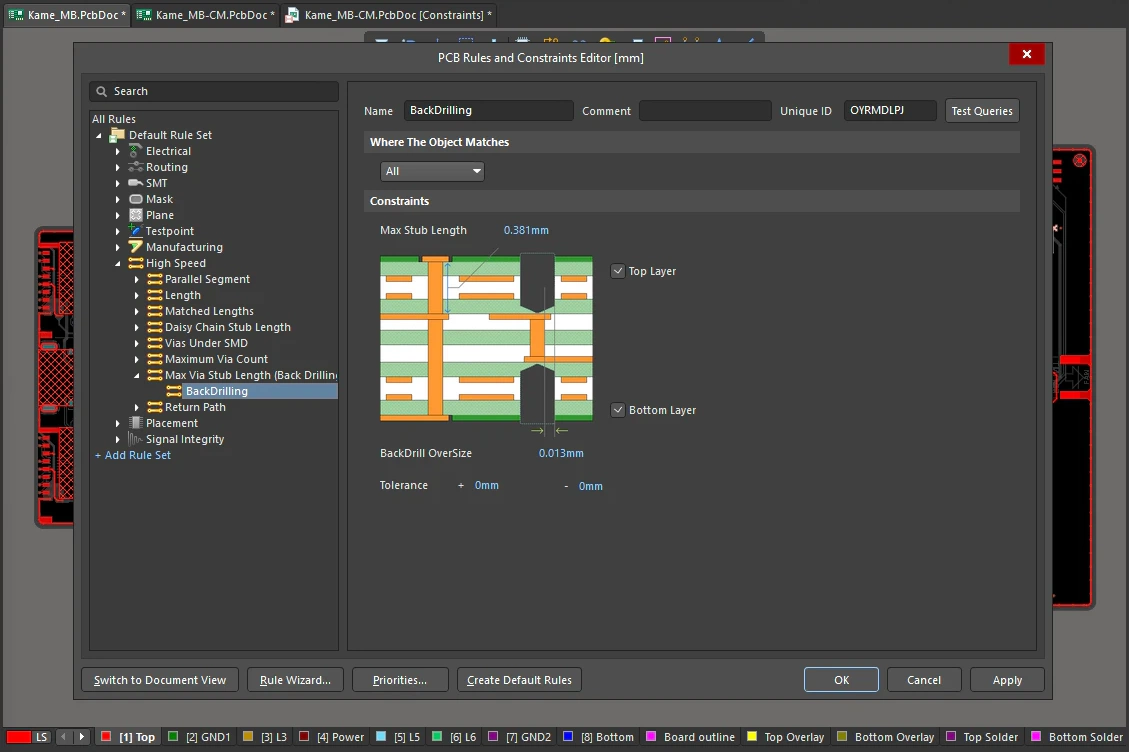
Max Via Stub Length (Back Drilling) Constraints
| Default Rule | Not required. |
| Max Stub Length | The maximum length of stub allowed. This setting is used to test for remaining stubs of this length or longer, it does not define the drill depth used for back drilling.
|
| Back Drill Oversize | The radial increase in size of the drill used for back drilling, over the original via/pad hole size.
|
| Drill depth | The drill depth is defined by: the sum of the layer thicknesses of all layers from the first layer (included) through to the last layer (not included), defined in the Layer Stack Manager. |
| Rule Application | Batch DRC and output generation. |
Learn more about Controlled Depth Drilling (Back Drilling).
Return Path
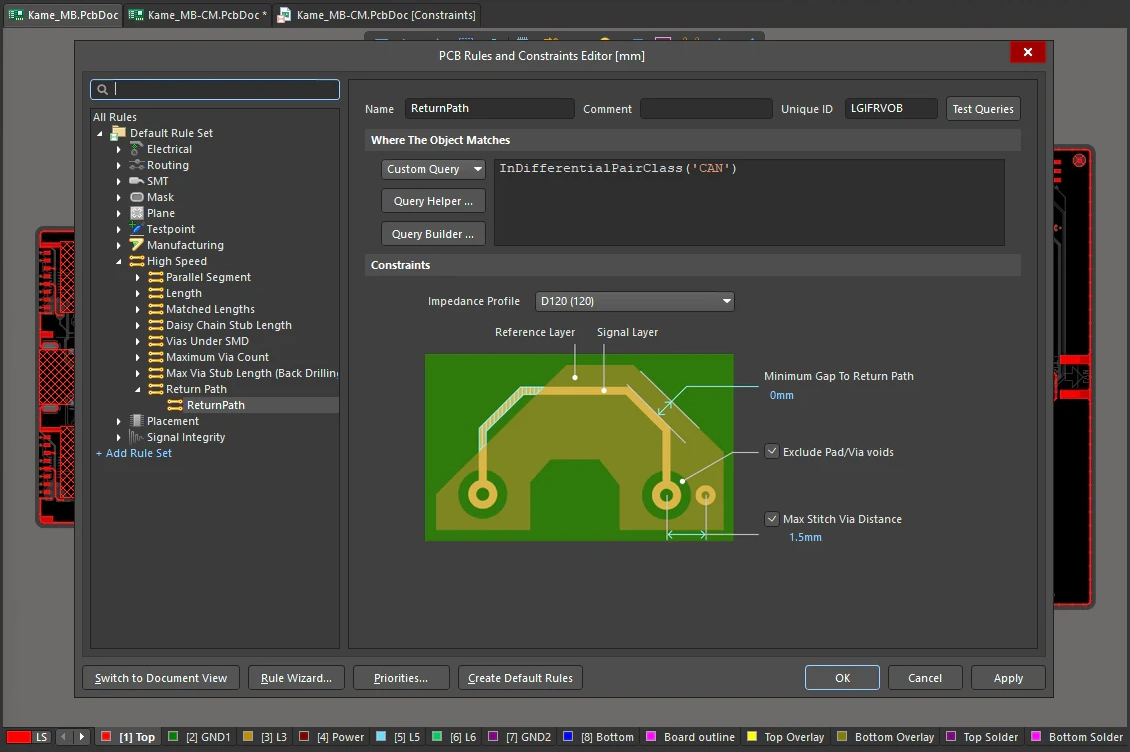
This rule specifies a continuous signal return path along the designated reference layer above or below the signals targeted. The return path can be created from fills, regions, and polygon pours placed on a signal layer or plane layers.
Constraints
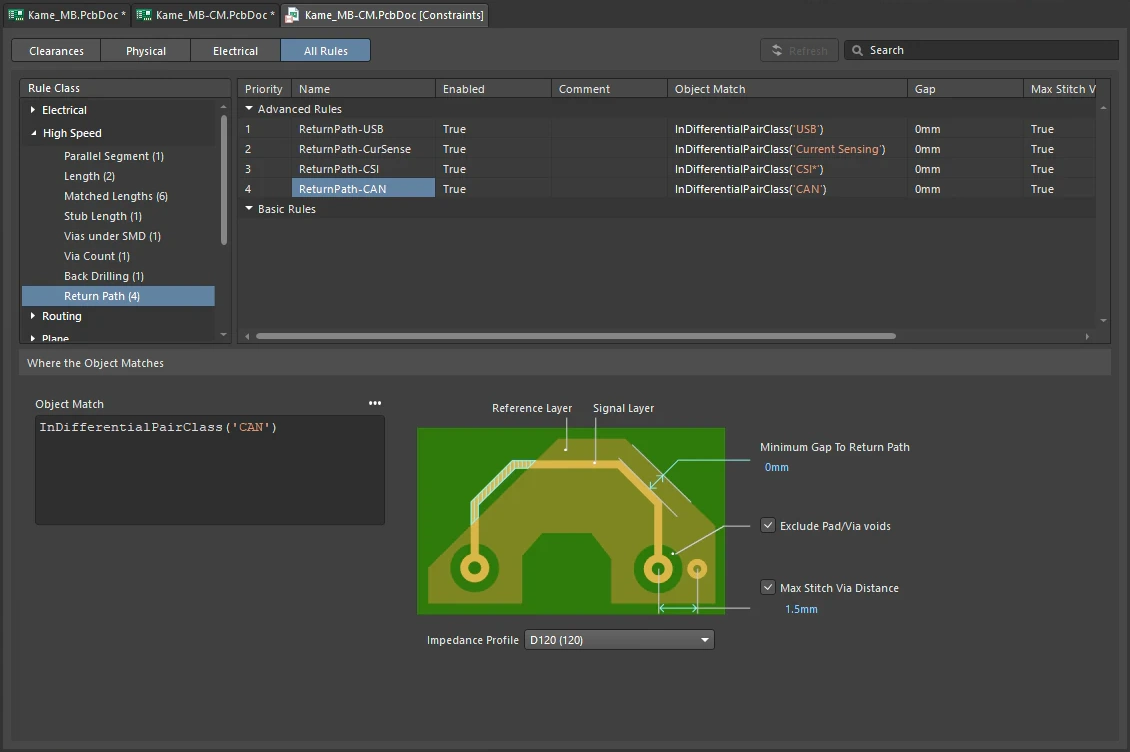
Return Path Constraints
| Default Rule | Not required. |
| Impedance Profile | Select the applicable impedance profile for the nets targeted by this rule. The profile specifies which layer(s) provide the return path for the targeted signals. |
| Minimum Gap to Return Path | Indicates the minimum gap from the conductor edge to the outer edge of the return path. The check is applied along the entire length of the conductor. An error will be flagged if the gap is equal to or less than the Minimum Gap to Return Path value (default value is 0 mm). |
| Exclude Pad/Via Voids | When enabled, openings in the return path created by the clearance around pads and vias that belong to the targeted net(s) are not flagged as violations. |
| Max Stitch Via Distance | Enable to define a distance at which a return path via should be present from a via of the scoped signal (default value is 1.5 mm). The return path via should provide connection to the reference layer defined in the Layer Stack Manager for the corresponding impedance profile. |
| Exclude small areas of copper |
Exclude small areas of copper from flagging a violation by setting the required value (in sq. mils, |
| Rule Application | Batch DRC. |