
Working with the Variant Management Dialog
Variants are created and configured in the Variant Management dialog. To open the dialog, select Variants from the Project menu (shortcut: C, V) or right-click on the project name in the Projects panel then select Variants.
Features of the Dialog
The dialog has two main regions:
-
The upper Components for project region, which lists all of the components in the base design, and if applicable, columns for the applied variants.
-
The lower Component Parameters region, which details all of the parameters of the component(s) currently selected in the upper region, and if applicable, columns for the applied variants.
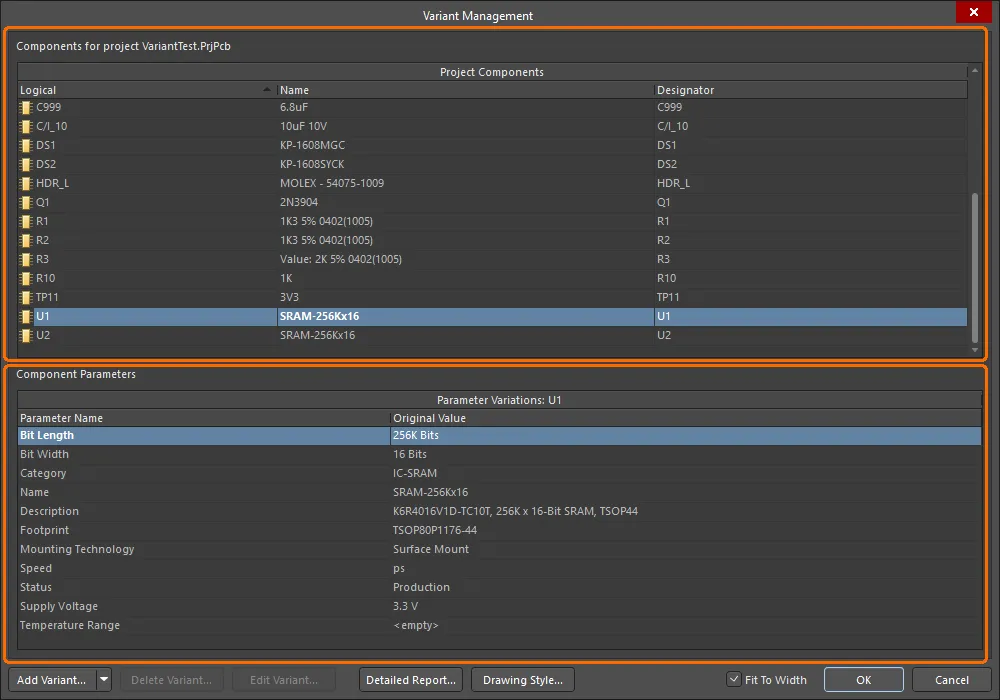
Variants are created and configured in the Variant Management dialog.
Options and Controls of the Variant Management Dialog
Some of this dialog's options/controls are straightforward and require no further explanation. Those that do are described below.
Components |
|
| Project Components | This region lists each component in the project. For each component, the Hierarchy Path and Logical designator are listed as well as Name and physical Designator. The Document and Original Library Link lists where source documents are located. |
| Variant of | After a new variant is added, a column appears to the right of Project Components. The name given the new variant appears as the title and the Component Variation column lists any variations for each component. Once the variant has been created, you can configure the state of each component. This is done by clicking the component cell in the new column to reveal
|
| Right-click Commands | The following are some of the commands available on the Components region's right-click menu.
|
Component Parameters
Each component in the dialog can have Parameter Variations. The Parameter Name and its Original Value are listed along with New Value listings for columns representing variants that have been added. The New Value that appears is a copy of the base design component value until changes are made. Parameters that are varied from the base design are shown in bold in this region, making them easy to identify. Access the right-click menu for the following additional options.
| Edit Selected, Reset Selected, Reset All | Click to change, restore or reset (all) New Value(s) of the selected variant cell. |
| Update Values From Library | Click to bring any parameter changes made to a library component that has been used as an Alternate Part into the variant definitions. Note that this updates the parameters only and not the component. |
| Only Show Varied Values | Click to show only those values that have been varied from the original values. |
| Cut | Click to delete cell contents. A Confirm dialog opens for confirmation before deletion occurs. |
| Report | Click to open the Report Preview dialog to create a printout of the Component Parameters region. |
| Save All, Save Selected | Click to open a dialog to save all/selected parameters for the selected component to a formatted text file in another location. |
| Invert Selection | Click to select all parameters other than those that are currently selected. |
Additional Controls |
|
| Add Variant | Click to open the Edit Project Variant dialog to create a new variant of the base design. Use this dialog to add, edit or remove a variant and specify any required variant-level parametric data. This button includes a drop-down that is used to access the Make a copy of the Selected Variant command. Copying is particularly useful when you need to define a number of variants that are very similar. |
| Delete Variant | Click to delete selected variant(s). A dialog opens for confirmation before deletion occurs. |
| Edit Variant | Click to open Edit Project Variant dialog to edit a variant. |
| Detailed Report | Click to open the Variant Report dialog to generate a detailed variant report in HTML format. |
| Drawing Style | Click to access the Variant Options dialog in which you can define how non-fitted components and varied parameters will appear, both in the compiled document view of the schematic and in schematic prints. You can also define the appearance for these components in PCB assembly drawings. |
| Fit To Width | Enable this option to automatically adjust the width of the columns based on the content. |
Creating a New Variant
Click the  button in the Variant Management dialog to create a new variant of the base design. The Edit Project Variant dialog will open.
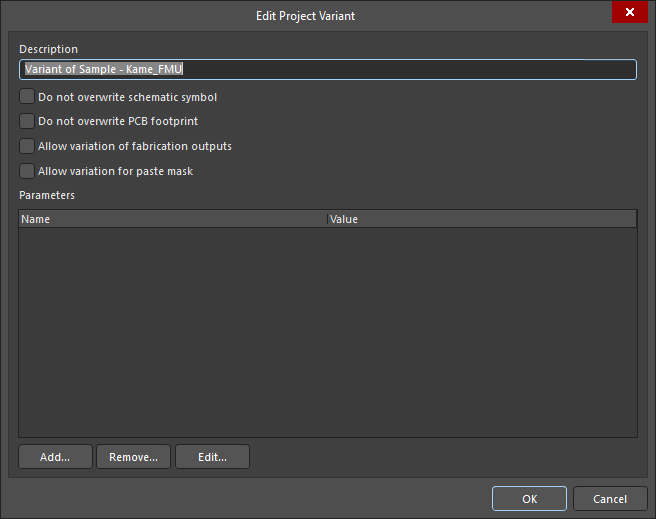
At the very minimum, enter a name for the variant in the Description field, which, by default, will have the entry Variant of <ProjectName>.
If fabrication variants need to be generated from the design, enable the Allow variation of fabrication outputs option in the Edit Project Variant dialog. If paste mask outputs need to be generated for a design that includes variants with 'Not Fitted' components, enable the Allow variation for paste mask option. These components will no longer have paste mask included on their pads.
You can choose if an alternate part needs its symbol to be changed on a schematic, or its footprint to be added to the PCB using the following options in the Edit Project Variant dialog:
-
Do not overwrite schematic symbol – when enabled, non-varied symbols will be used for components for which alternate parts are selected in the variant.
-
Do not overwrite PCB footprint – when enabled, non-varied footprints will be used for components for which alternate parts are selected in the variant. A footprint of an alternative part applied to a variant will not be transferred to the PCB as part of the PCB update (an ECO to add the footprint to the PCB will not be generated).
You can also define parameters for the variant. For details on how and how variant-level parameters fit into the parametric hierarchy within Altium Designer, see Working with Variant Parameters.
With the variant defined as required, click OK. An additional column will open on the right side of the Variant Management dialog, with the new variant name as the column title. All the cells will be empty; an empty cell indicates that the component is Fitted and unchanged from the base design. The components can now be configured for the new variant. The image below shows a project that has had two variants created: BGA and TSOP.
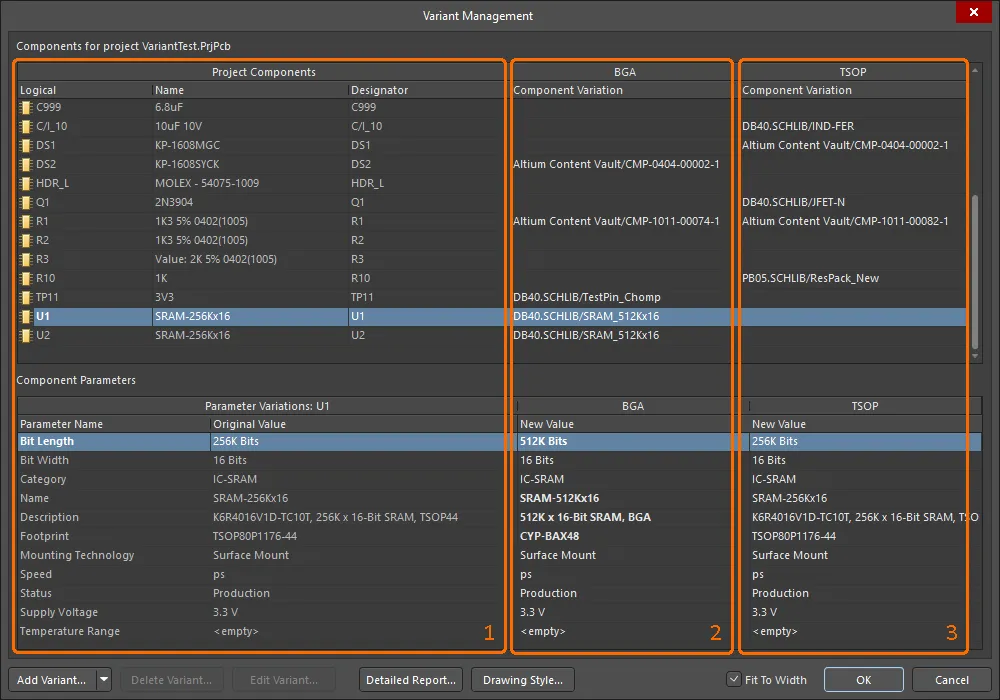
Region 1 details the components in the base design; region 2 details the components in the BGA variant; and region 3 details the components in the TSOP variant.
The Variant Management dialog includes a number of interface features that allow the display of useful information. These are configured via the right-click context menu.

Useful commands not defined previously include:
-
Columns
-
Hierarchy Path – shows the location of the component in the design hierarchy.
-
Original Library Link – details where the base component was sourced from.
-
-
Set Selected As – use the sub-menu to choose the type of variation (Fitted, Not Fitted, Alternate). Can be used instead of clicking the
 control in the component cell. Only available when you right-click on a variant's component cell.
-
Only Show Varied Parameters – only display components that have some form of variation applied in the Variant Management dialog.
-
Filter – use the sub-menu to control of which types of variations are displayed in the Variant Management dialog. (Works well in combination with the Only Show Varied Parameters command.)
Defining Component Variations
Once the variant has been created, the state of each component is ready to be varied. This can be done by clicking on a component cell in the variant column to reveal the control, or by right-clicking on the cell and choosing the required entry from the Set Selected As context sub-menu.
The control opens the Edit Component Variation dialog.

Three choices are offered:
-
Fitted – the original component as used in the base design is also fitted/used in this variant of the design. For a newly added variant, all components are fitted by default, and the cells for the fitted components are empty. Note that individual parameters can also be varied for a fitted component by typing in a new parameter value in the dialog's Component Parameters region for the variant.
-
Not Fitted – the original component used in the base design is not fitted/used in this variant of the design. For a Not Fitted component status, the cell displays the text Not Fitted and the dialog's lower Component Parameters region is blank.
-
Alternate Part – this option allows a different (alternate) part to be selected. The dialog will expand to include controls to browse and locate the required replacement component. Once the part is chosen, the cell displays the alternate part's source link. The Component Parameters region of the dialog will display all of the parameters in the alternate part. See the next section for more information.
Choosing an Alternate Part
When the Alternate Part option is selected, the Edit Component Variation dialog expands to show the base parameters of the existing part. Use the  button to browse and locate the required alternate part component in the Replace Component dialog, which is a modal dialog version of the Components panel. All of Altium Designer's component storage models are supported, such as independent libraries, database libraries, as well as Workspace Library components (as shown in the example below).
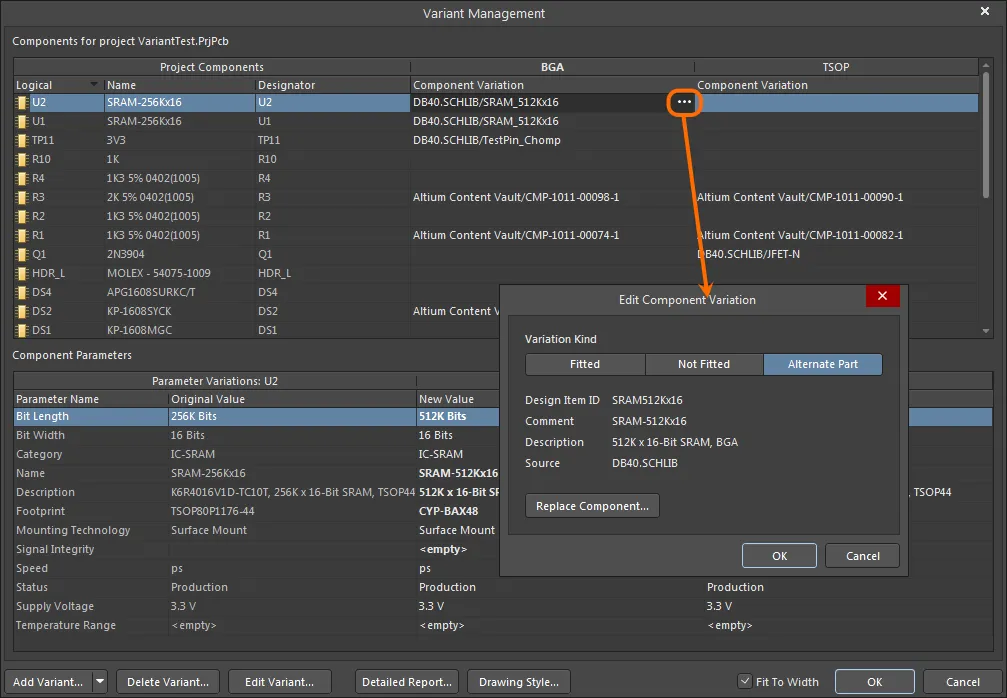
An example of an Alternate Part variation.
The newly-applied alternative component can be checked in the design space. Refer to the Working with Variants in the Design page to learn more.
Resetting and Updating Variant Data
Design variations set up in the Variant Management dialog are ultimately saved in the project file. This includes the 'Not Fitted' state, local parameter variations to a Fitted component, and the parameter values of Alternate Parts. The actual Alternate Parts are stored in a [ProjectName].PrjPcbVariants file. The Variant Management dialog includes commands for resetting parameters and updating components, which helps to ensure that they are in sync with the source component libraries.
Updating a Varied Component Parameter
Parameters modified locally in the Variant Management dialog can be restored to their original value by right-clicking on the modified parameter (shown in bold) in the Variant Parameter list, and then choosing Reset Selected from the context menu – as shown below. Note that multiple parameters can be selected at once then reset in a single action, or Reset All used to reset all parameters for that component.
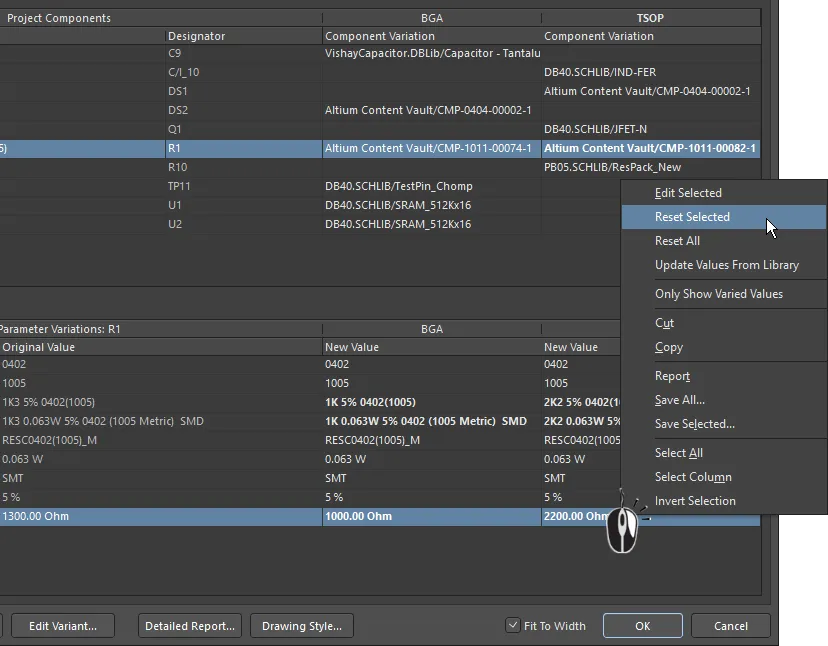
Modified parameter(s) can have their value(s) restored using the Reset Selected command.
Updating an Alternate Part Parameter
If a library component that is used as an Alternate Part has had parameters changed in the library, you can bring those changes directly into the variant definitions in your project by right-clicking in that Variant's Parameter list and selecting Update Values from Library from the menu (as shown below). Note that this updates the parameters; if you need to update the graphic, use the technique described below.
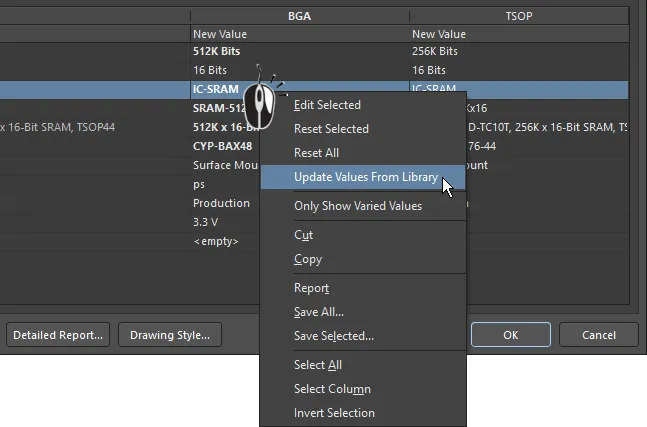
If an Alternate Part component has been modified in the library, use the Update Values from Library command to refresh the copy used in the project.
Following the Update Values from Library command, browse to and locate the component in the source library in the Browse Libraries dialog and click OK to open the Update Project Variants From Library dialog. Select/deselect the Parameters from Library Component and Variants to Update, then click OK to complete the update process.
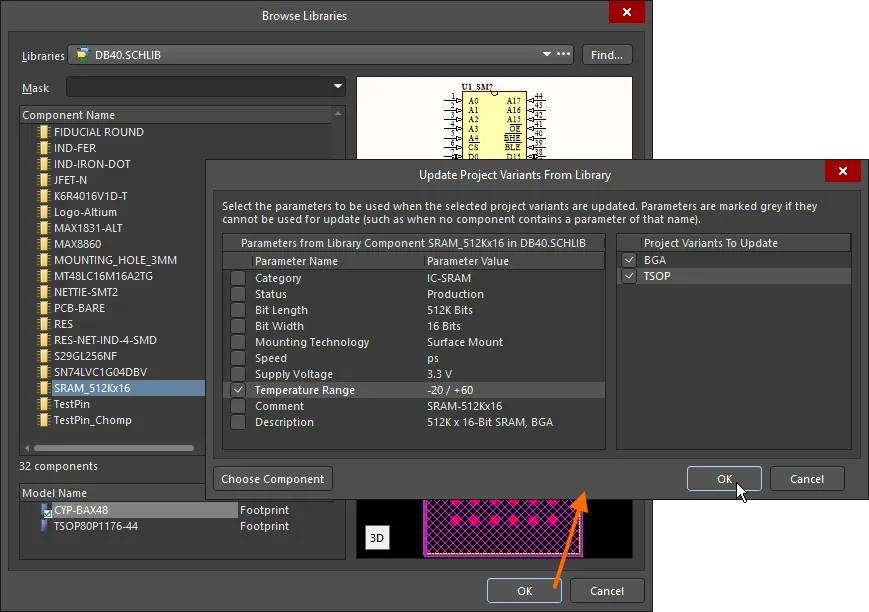
Updating a varied component from the source library. Here you configure which parameters are updated, and to which variant the updates are applied.
Options and Controls of the Browse Libraries Dialog
-
Libraries - displays the current library. Use the drop-down arrow to access a list of available libraries then select the desired target library. Click the
 button to open the Available File-based Libraries dialog in which you can add or remove libraries.
- Find - click to open the File-based Libraries Search dialog to locate additional libraries.
- Mask - enter the desired key words to mask results in the Component Name list. The drop-down lists previously used key words.
Upper Grid
- Component Name - displays the name of the component.
- Library - displays in which library the component is located.
- Description - a brief description of the component.
- Footprint - displays the associated footprint (if any).
- <nn> components - displays the total number (nn) of components.
Lower Grid
- Model Name - displays the model name of a component currently selected in the upper grid.
- Type - displays the model type of a component currently selected in the upper grid.
Preview Windows
- Upper Window - displays the schematic symbol of the component currently selected in the upper grid.
-
Lower Window - displays the footprint of the component currently selected in the upper grid.
- 2D/3D - use to toggle between 2D and 3D preview images.
Options and Controls of the Update Project Variants From Library Dialog
- Parameters from Grid - lists of all parameters and their values of the selected component. Check the box to select the parameters to be updated. Parameters are grayed out if they cannot be used to update (e.g., when no components contain a parameter of that name).
- Project Variants To Update Grid - a list of all variants that currently exist in the project. Check the box to select the variants to be updated.
- Choose Component - click to open a dialog in which you can search for components.
All parameters are listed on the left of the Update Project Variants From Library dialog – if required, any parameter can be deselected to exclude it from the update process. On the right of the dialog, the target project variant can be changed (Project Variant To Update). This will default to select the variant that was selected when the Update Values from Library command was activated.
Completely Updating an Alternate Part
If the source component for an Alternate Part has been edited in its library, it can be updated in the design by running the Update from Library dialog.
Launched from the Tools menu in the schematic editor, the dialog includes an option to Include Variants. When this option is enabled, the component list will expand to include any components that have been used as Alternate Parts. Check the components in the list to be updated, and then complete the Wizard to update the required parts from the source.
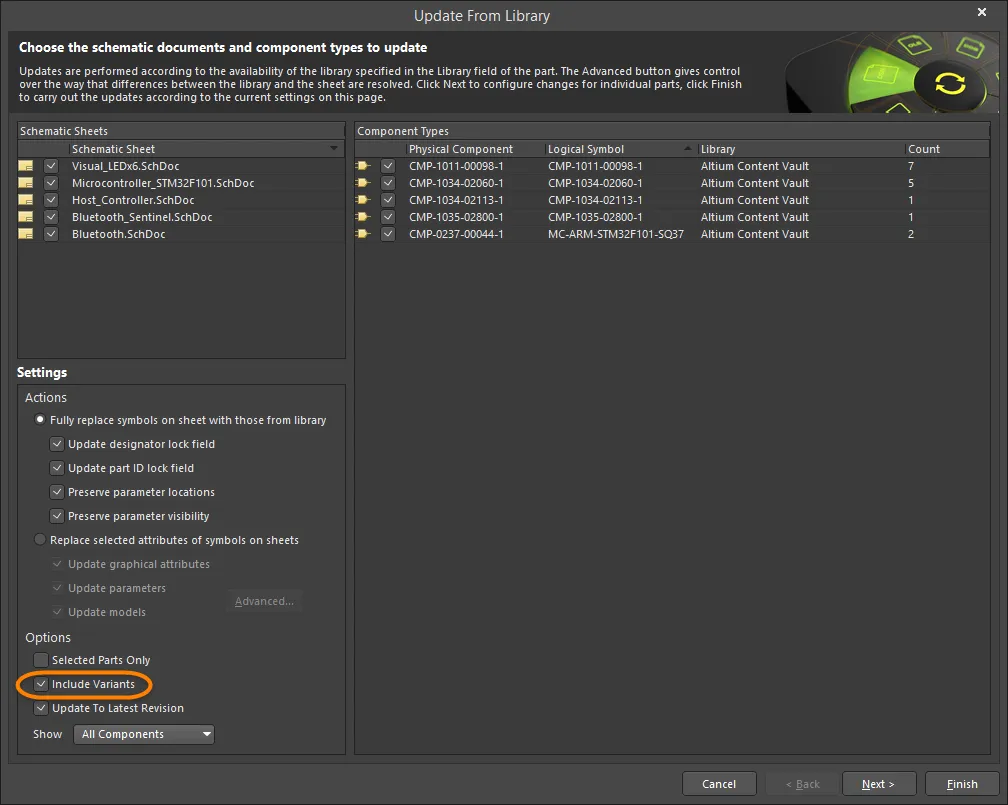
To fully update an Alternate Part, including its graphic, enable the Include Variants checkbox and enable the part to be updated.
Change Multiple Parameters for Multiple Components
The Variant Management dialog supports multi-select, which means that any number of components can be selected simultaneously in the upper (Component) part of the dialog, and then updates performed on any number of parameters selected in the lower (Parameters) part of the dialog. The dialog also offers Filters (via the right-click context menu), to further refine the selection and the displayed data.
By way of example, to reset the manually-varied parameters for all components, in all variants:
-
In the upper (Component) part of the dialog, use the Only Show Varied Components right-click menu option in combination with the right-click Filter options to only Show Fitted with Varied Parameters. The component list should now display only those components that have manually varied parameters.
-
Right-click in the component list and choose Select All from the context menu. All components currently displayed in the upper part of the dialog will be selected.
-
Then right-click in the lower (Parameters) part of the dialog and choose Select All from that context menu. All parameters for all components will now be selected. Note that the Select Column command could have been chosen instead, which would allow an action (such as Reset) to be applied to the components in a specific variant (column).
-
Right-click again in the parameters list and choose Reset Selected from the context menu. Hover the cursor over the image below to show steps 2, 3 and 4.
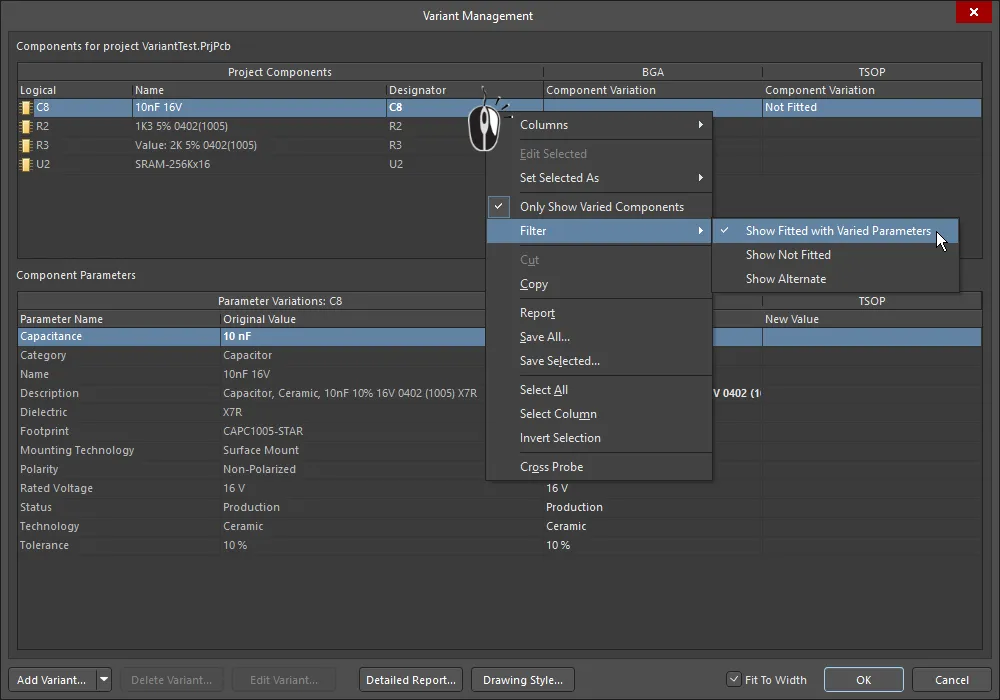
Resetting all manually varied parameters, for all components, in all variants. Hover the cursor over the image to show steps 2, 3 and 4.
If you have been experimenting with the Filter options and have applied different filters, you may need to reset the filter before attempting another update. To do this, disable the Only Show Varied Components option to clear the filter system, then re-apply it and clear the Filter options as required.
Working with Variant Parameters
Altium Designer supports parameters at various levels of a project. For example, document-level parameters can be added to each schematic sheet in the Parameters tab of the Schematic editor Properties panel (available when nothing is selected). Project-level parameters can also be added to a project on the Parameters tab of the Project Options dialog (Project » Options).
Further to this, parameters can also be added to a variant via the Edit Project Variant dialog. In the Variant Management dialog, select the variant column and click the Edit Variant button to open this dialog. To add a new parameter, click the Add button. Use the Parameter Properties dialog that opens to enter the Name and set the Value of the new parameter then click OK. The new parameter is now displayed in the Edit Project Variant dialog.

In the images below, a parameter called ProjectTitle has been defined for the project, and also for each variant. The video shows the behavior on the PCB as the Variants selector is used to show the base design, then each variant.
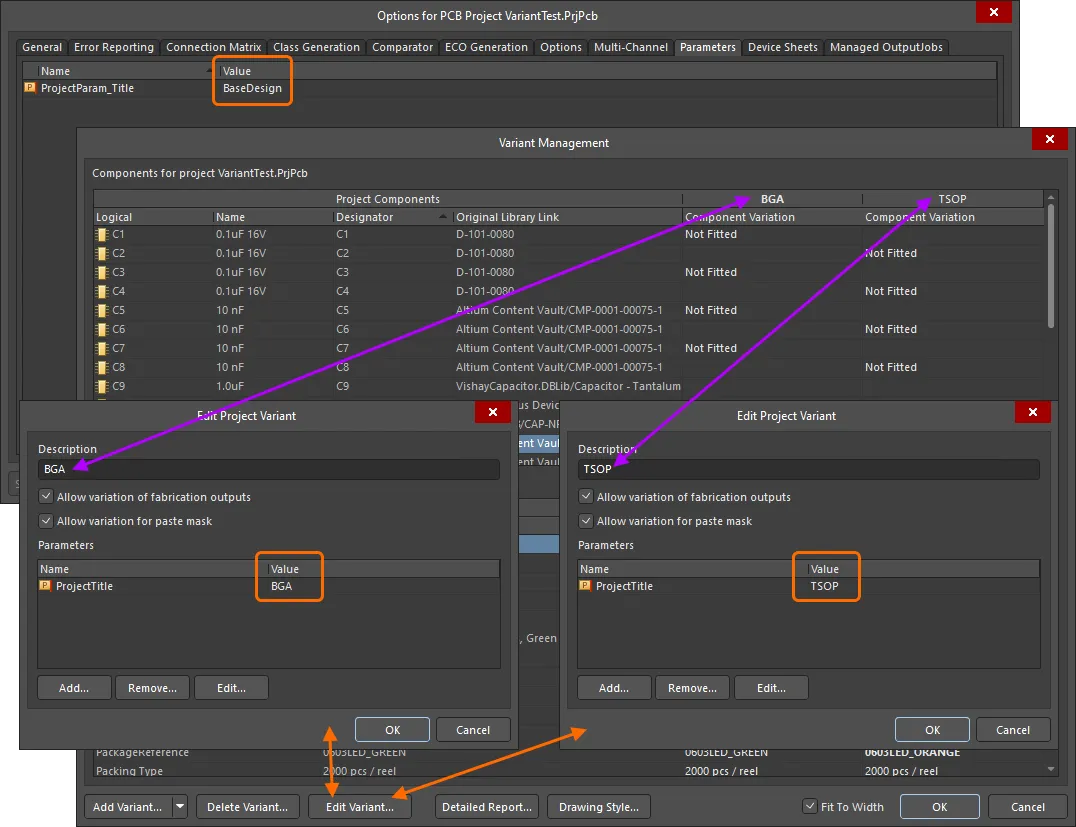
A ProjectTitle parameter added to the project (via the Project Options dialog) has also been added to each design variant, but with a different value in each case.
 A special string
 .ProjectTitle has been placed on the PCB overlay, which is automatically linked to project and variant parameters of the same name.
Variants When a DbLink File is Used
Altium Designer supports several ways of storing and working with components, including the use of a DBLink file with the project. A DBLink file is an interface between the components on the schematic and a company database.
Rather than just creating a reference from each component to a specific database record (as is typically done when you place a component from a DBLib-type library), the DBLink model relies on you to initiate a query action based on one or more component parameters. The software then searches the database for a record with fields that contain matching values. When a match occurs, other field values from that record (such as the Part Number) can be returned to the Altium Designer component. The component parameter-to-database field mapping is defined in the DBLink document, as is the target database.
► Learn more about Database Libraries
In a design that does not use variants, the query action is performed using the Update Parameters from Database command, and can also be performed during BOM generation by enabling the Include Parameters from Database option (see below), to extract BOM-specific component data, such as price.
For a design that includes variants, the parameters used to query the database are varied in the Variant Management dialog. Since those parameter values only exist in the Variant Management dialog, the Update Parameters from Database command is not used to retrieve database information. Instead, the parameters are extracted from the database when the BOM is being generated.
Generating a Variant Report
The Variant Report dialog accessed by clicking the Detailed Report button at the bottom of the Variant Management dialog allows you to configure and generate a detailed HTML-formatted report of the defined project variants.
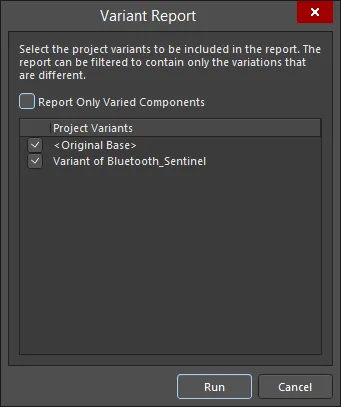
The Variant Report dialog
Options and Controls of the Variant Report Dialog
-
Report Only Varied Components - use this option to determine the exact information featured in the report:
- Full Non-Varied Information (option disabled) - all components are listed, showing their inclusion state in each enabled variant. For each component, all parameters and their values are listed.
- Full Varied Information (option enabled) - only those components that vary in some way between enabled variants are listed, showing their inclusion state in each variant. For each component, only those parameters that vary in some way between variants are listed, along with their values.
- Project Variants - this region lists the original base design (<Original Base>) and all defined variants. The generated report could compare one specific variant against the base design, compare one variant against another, or compare all variants against the base design. By default, all defined variants, as well as the original base design, will be enabled for inclusion into the report. Use the associated checkbox to include/exclude entities as required.
- Run - click this button to generate the report. The report will be created and opened as the active document within the main design window.
Variant Errors
Variant settings are stored in the project file (*.PrjPcb), and this data is read, analyzed and loaded into the Variant Management dialog when the dialog is opened. If issues are detected when the data loads, such as any mismatches between component designators or component UIDs, an Information dialog will open to outline the problem.
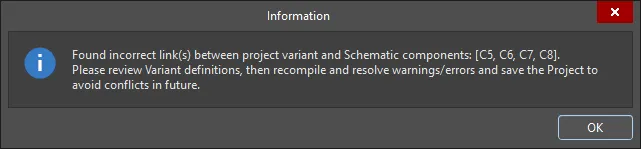
Resolve designator and UID mismatches before continuing with the design process.
Component UID mismatches are automatically resolved, and the corrections will be retained when the project is saved. Duplicate designators must be corrected at the schematic level. To resolve these, validate the project (Project » Validate <project name>) and check the Messages panel for warning/error details.