
Setting Up Your Requirements Project
This tutorial takes you from an empty Requirements Portal instance to a set of requirements living inside a real PCB project.
Requirements are how a team agrees on what it is building. Kept well, they are a shared picture that everyone works from and that survives people joining, leaving, and forgetting. Kept badly, they are a spreadsheet somebody last opened in March. This tutorial is about the first kind, and about what changes when those requirements can reach the board itself.
We will work on the Flight Management Unit of a Drone. Building out the rest of the drone is the subject of the tutorial's Part 3, including the parts with no PCB in them at all, such as the airframe, battery, and payload.
In the tutorial we will go through:
-
Organizing your requirements into specifications and sections.
-
Importing stakeholder requirements.
-
Breaking down subsytem requirements with the Engineering Assistant.
-
Connecting requirements to a PCB project.
-
Placing requirements on the PCB project and marking them as verified.
What You Need
-
A Workspace with Requirements Portal activated (learn more).
-
The Sample - Kame_FMU project, which is present by default in a new Workspace activated with the Include sample data option enabled (learn more). If it is absent, or if you would rather use your own design, any PCB project is enough to follow the whole tutorial.
-
The latest version Altium Designer installed or a browser for the Workspace's Web Viewer. Both work, and this tutorial shows both.
-
The stakeholder requirements spreadsheet: Kame_Drone_stakeholder_requirements.xlsx.
Creating the Requirements Project
-
Open Requirements Portal by selecting Requirements Portal from the nine-dot menu at the top right of your Workspace's browser interface or by clicking the
 button in the Requirements Portal tile on the Workspace's Home page.
-
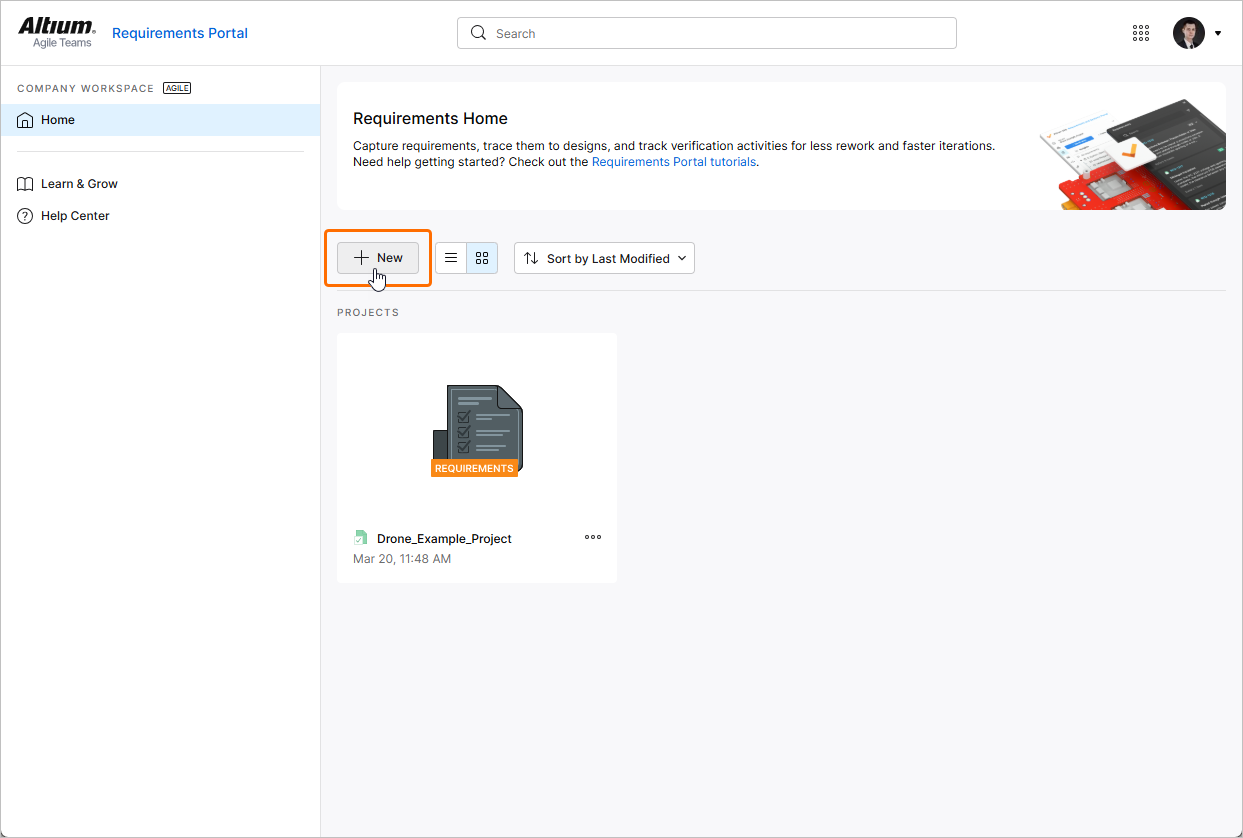
On the Home page of Requirements Portal, click the
 button above the list of requirements projects.
-
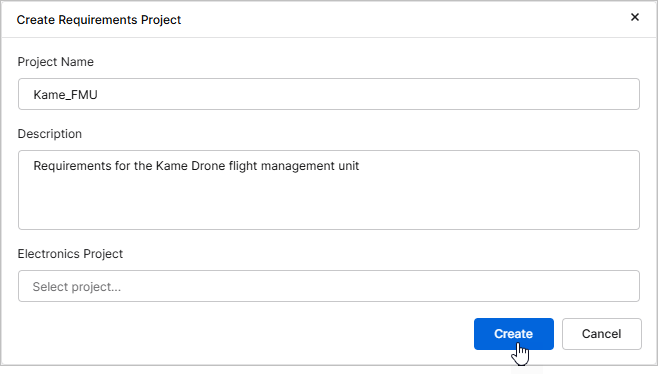
In the Create Requirements Project window that opens:
-
Project Name – enter
Kame_FMU. -
Description – enter, for example,
Requirements for the Kame Drone flight management unit. -
Electronics Project – leave this field blank.
Once project details are specified, click the
 button. Creating a project sets up its specification and block as well, so give it a moment to appear in the list.
-
-
Click the project name to open it, or double-click its icon.
Creating the project also created two things for you, both named after it:
-
An empty specification named
Kame_FMU, in the Requirements Module. -
A block named
Kame_FMUof the Electronics type, in the Blocks Module.
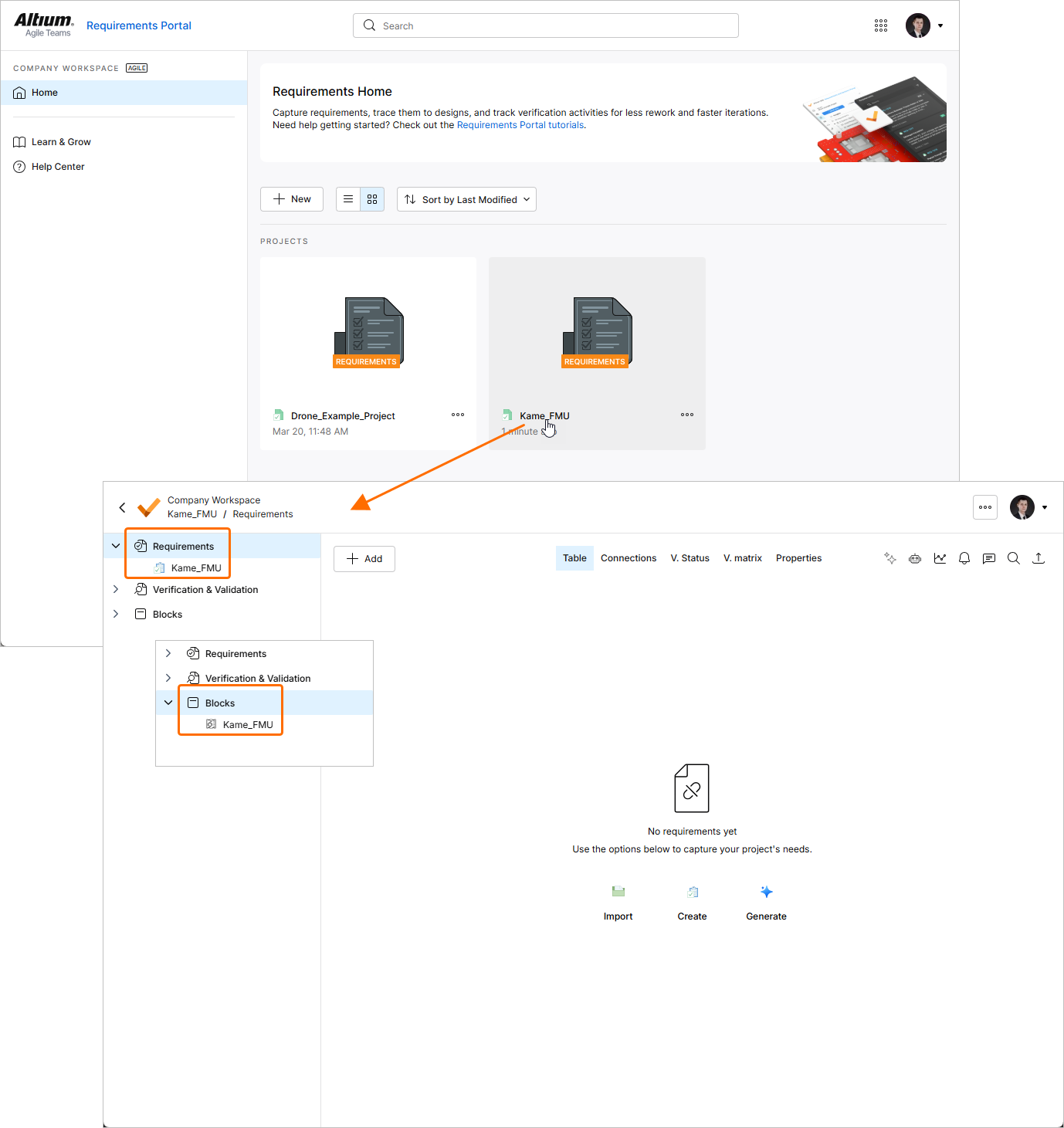
The two are already joined up: the block has been set as the specification's default block, which means every requirement you put in that specification will point at it automatically. The Linking Requirements to an ECAD Project stage explains the extra work that automation saves you, and where you will want to override it.
Being of type Electronics allows a block to be connected to a PCB project. We use both defaults as they are; nothing in this tutorial needs renaming.
Setting Up the Specification
Everything in this tutorial lives in the one Kame_FMU specification, but it holds two different kinds of requirements and it helps to keep them apart from the start.
Stakeholder requirements say what the people who will buy, fly and maintain the drone need from it. Board requirements say what the FMU has to do in order to satisfy them. The first kind is agreed with a customer and changes only after a conversation with them; the second is engineering's to change as the design develops. Mixing them in one undifferentiated list is how that distinction gets lost.
Sections and Sub-sections are how a specification is divided.
-
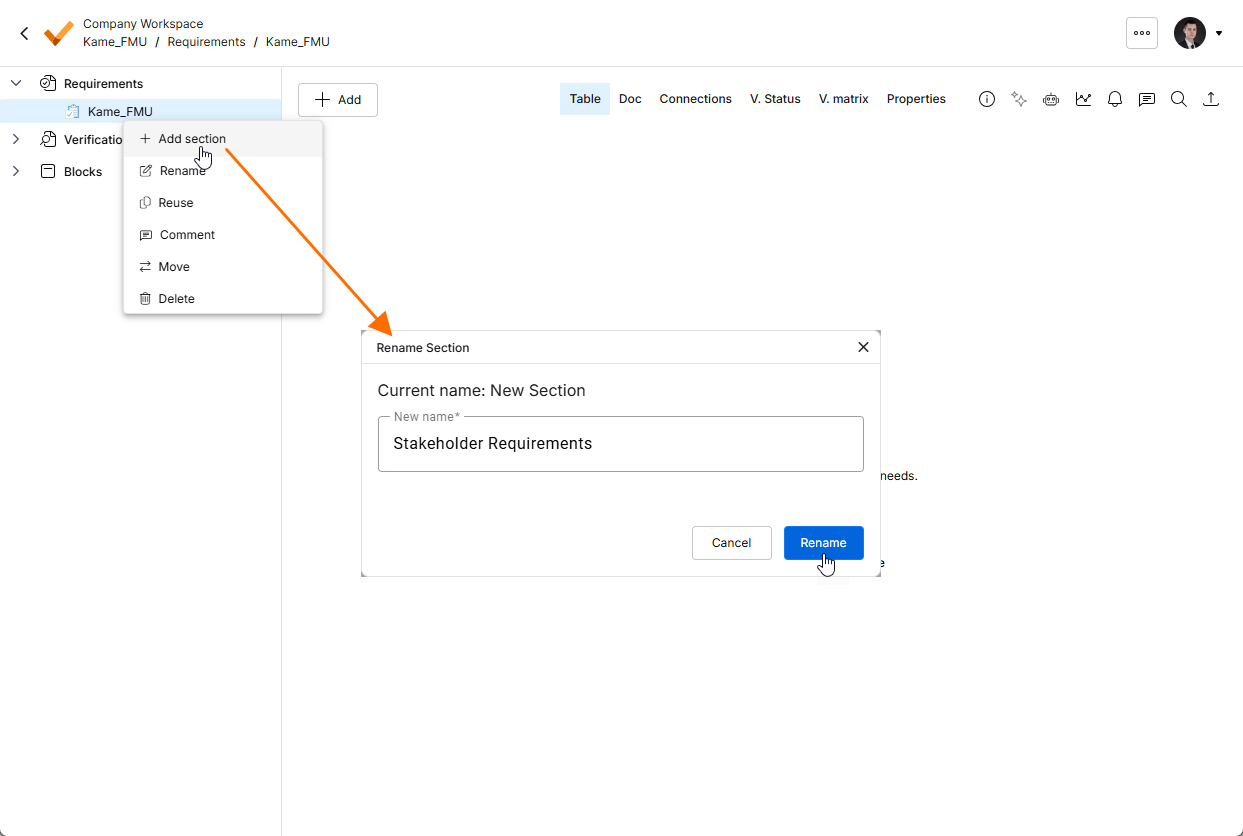
Right-click the
Kame_FMUspecification in the project tree and select Add Section. In the Rename Section window that opens, enterStakeholder Requirementsinto the New Name field and click the button.
-
Similarly, add another section named
FMU Requirements.
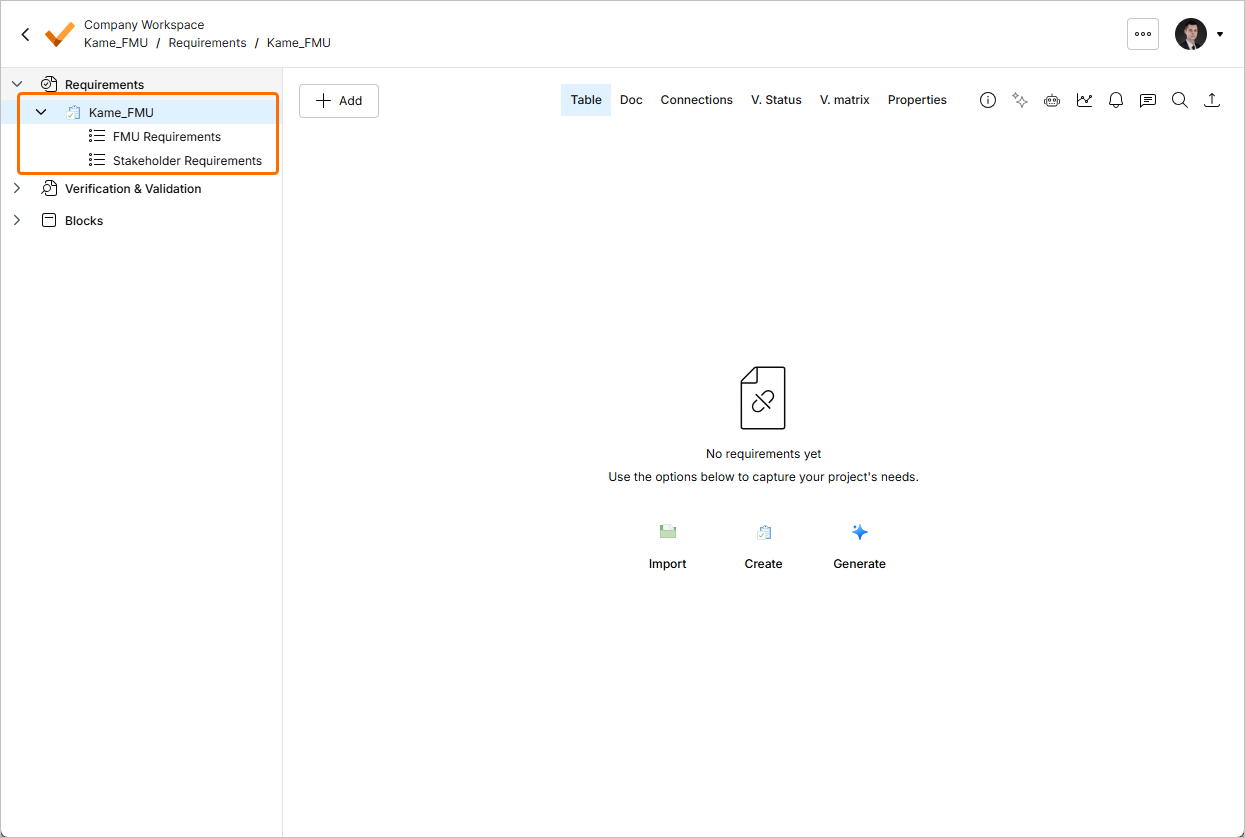
Sections can be nested if a board's specification grows enough to need grouping by functional area, for example power, processing, sensing and interfaces. Two flat sections are enough here.
Importing the Stakeholder Requirements
Stakeholder requirements typically arrive as a document or a spreadsheet after a series of conversations, and importing them is usually the first real task.
-
Download the stakeholder requirements spreadsheet and open it to see its shape: one requirement per row, with Identifier, Title, Text, and Rationale columns.
-
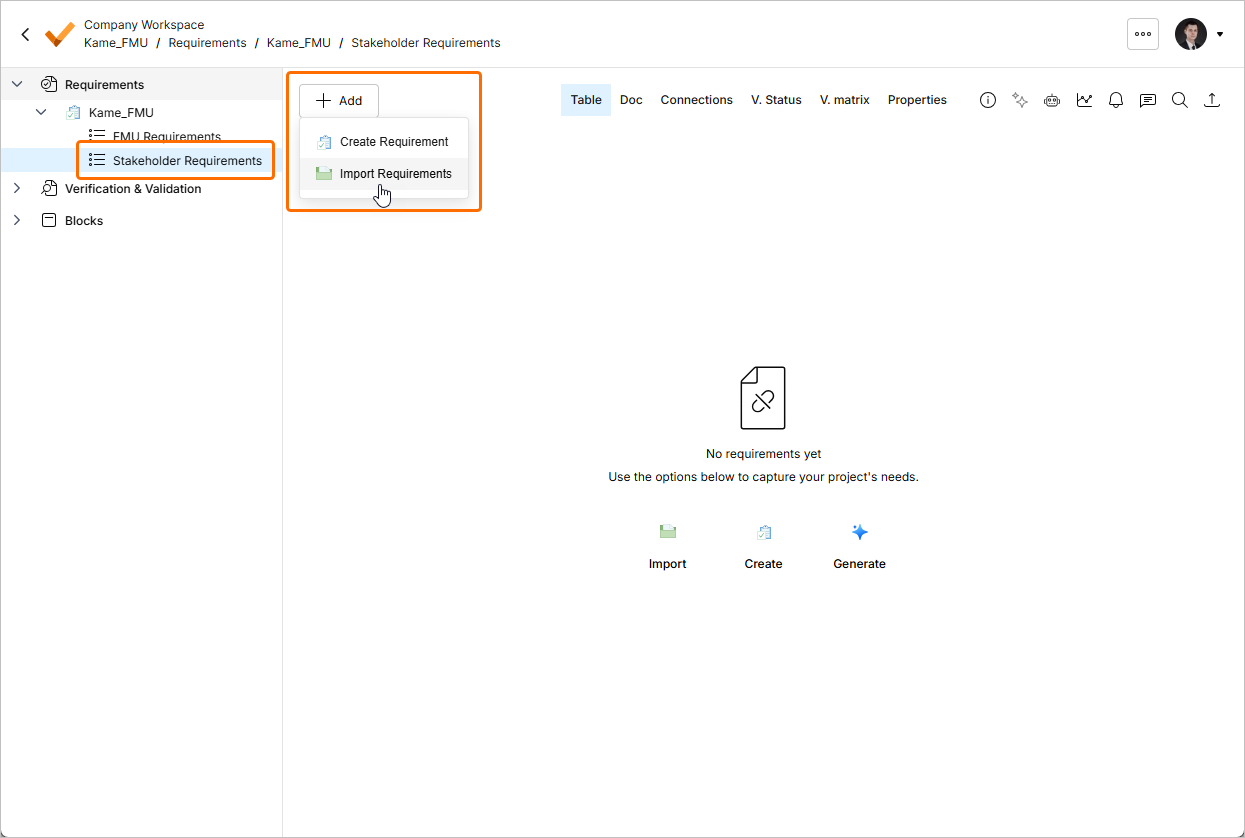
In the project tree, select the
Stakeholder Requirementssection. -
Click the
 button at the top right and select Import Requirements.
-
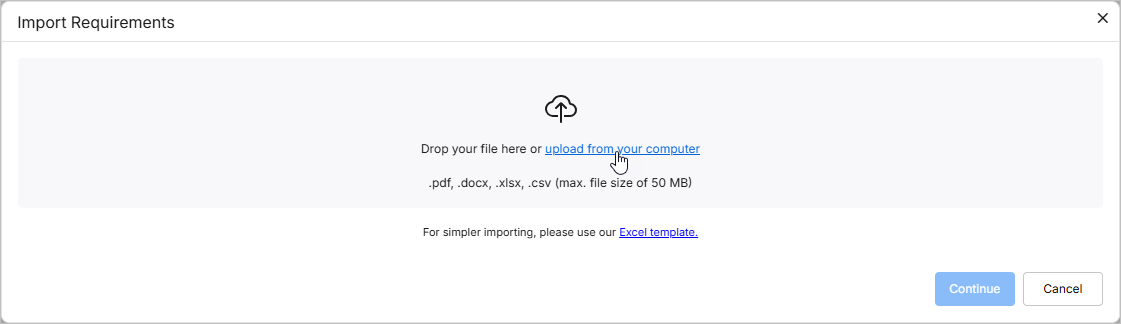
In the Document Importer window that opens, drag and drop the downloaded XLSX file into the Drop your file here region or click the upload from your computer link to upload the file so that the import wizard can read and import it.
-
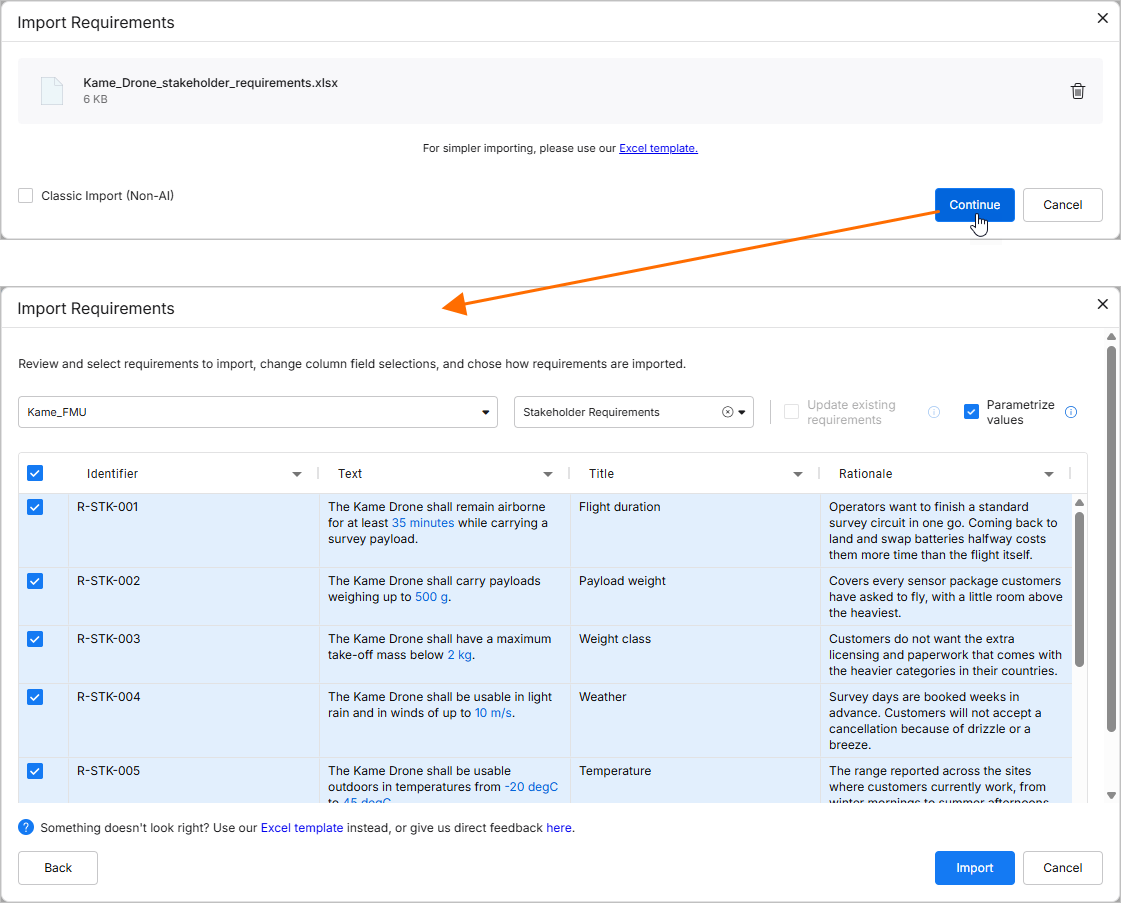
Leave Classic Import (Non-AI) disabled, so the file goes through the AI-Assisted Importer, and click
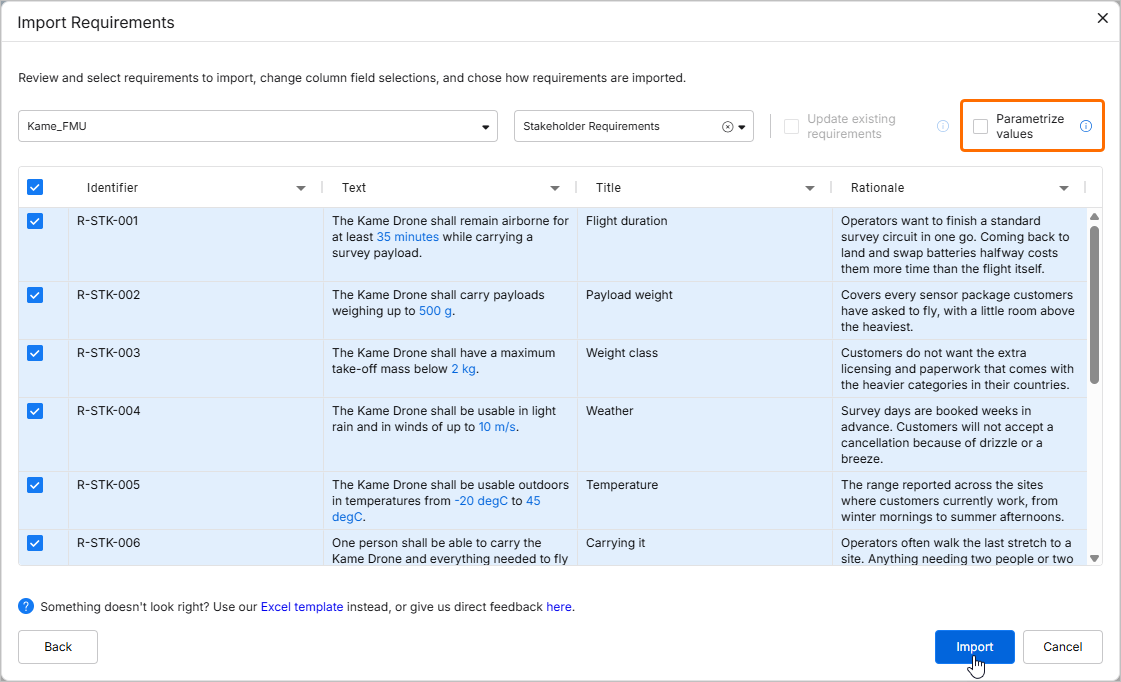
 . Once the file is processed, the field mappings the importer has worked out for itself will be shown. You are free to change any of them, and to send the requirements to a different specification or section than the one you selected. We leave the defaults as they are.
-
Disable the Parameterize values option. Parameters are the subject of the tutorial's Part 3, and nothing here needs them, so we skip them for now. Click
 .
.
-
The importer offers to import another file. Since one is all we need here, decline by closing the Import Requirements window.
-
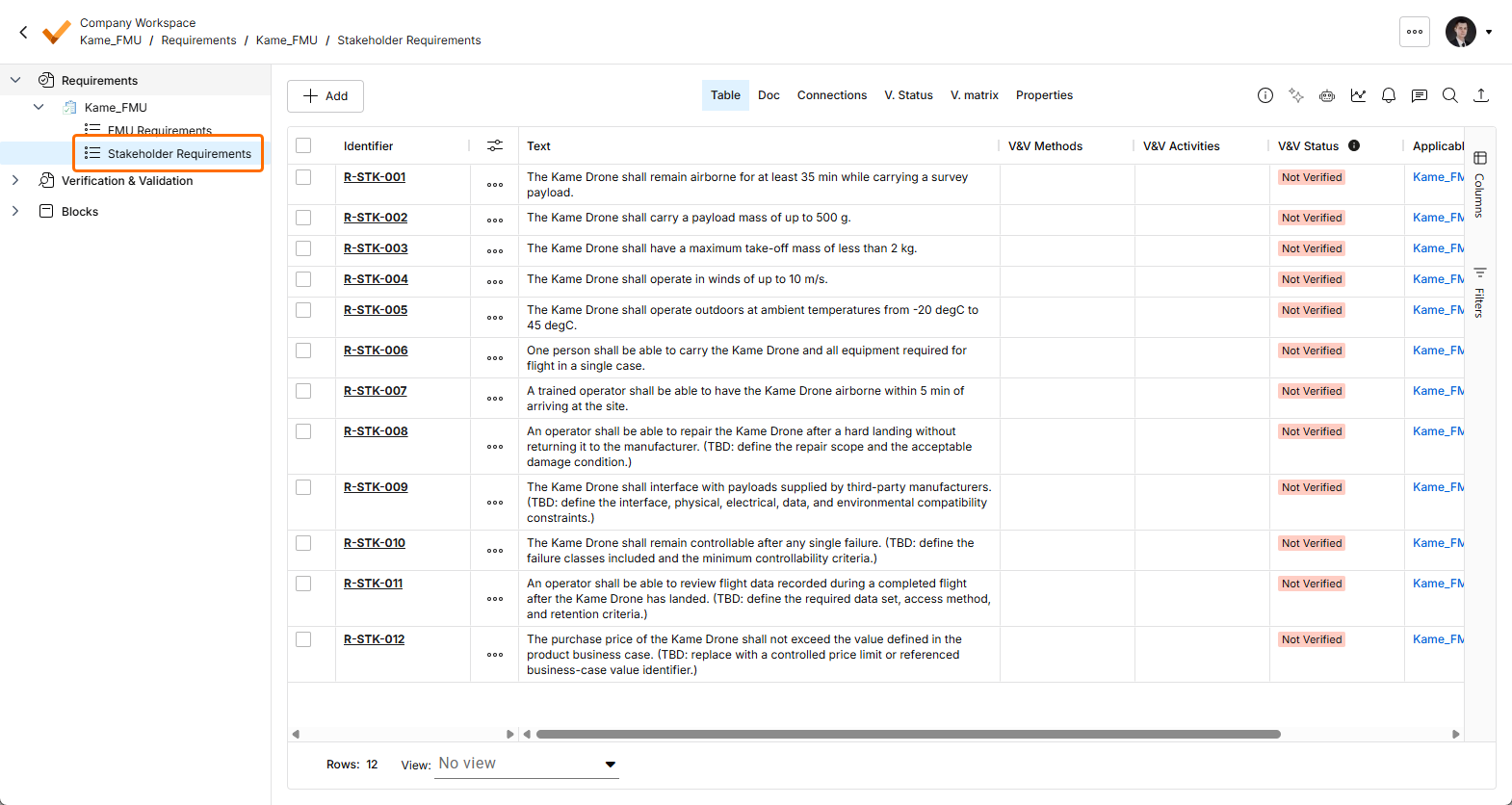
The stakeholder requirements are now listed in the Stakeholder Requirements section.
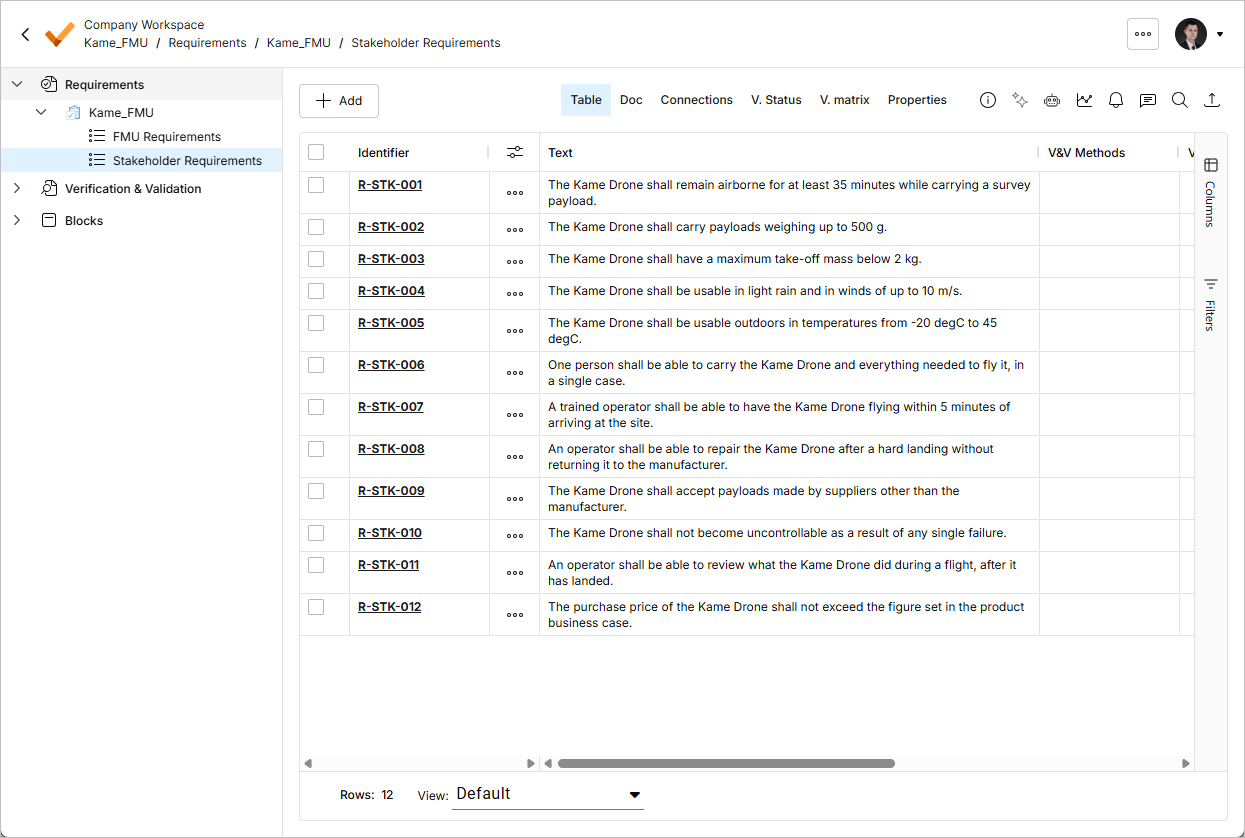
They have also stopped being a spreadsheet. From here they have identifiers, history, owners and a place in a structure, and no one has to wonder whether they are looking at the current version.
Take a moment to read them, because what is missing from them matters as much as what is in them.
Every one is written from the point of view of somebody who will buy or fly the drone: how long it stays up, what weather it works in, whether one person can carry it, how quickly it can be repaired after a hard landing. They are precise and testable, but none of them mentions a circuit board, a supply rail, a data bus or a processor. They could all have been written before anyone decided how the drone would be built, which is the test of a good stakeholder requirement: it constrains the outcome without prescribing the design.
Note also the Rationale column. It carries the reason in the customer's own words, which is the part that gets lost first and asked about most. Six months from now, "operators often walk the last stretch to a site" is what stops someone quietly relaxing the single-case requirement.
They are also about the whole drone rather than about this board, which is correct and is the point. Nothing here tells you what to put on the FMU. Closing that gap is what the next step is for.
Breaking Down the Requirements with the Engineering Assistant
Getting from "usable in light rain and winds up to 10 m/s" to a decision about a connector is engineering work, and it is where most of the value of a requirements tool sits. The Engineering Assistant can do the first pass of it: reading a set of requirements and proposing the board-level requirements that follow from them, in ordinary language, with the parent-child links already made.
Reviewing a draft is easier than facing an empty table. It is also the only part of this that is optional; everything the assistant does here you could type yourself.
The Engineering Assistant is enabled by default. Its output is generated by an AI system, is provided for information only, and must be reviewed by a qualified engineer before you rely on it. Nothing it produces is a verification or a confirmation of compliance with any standard.
-
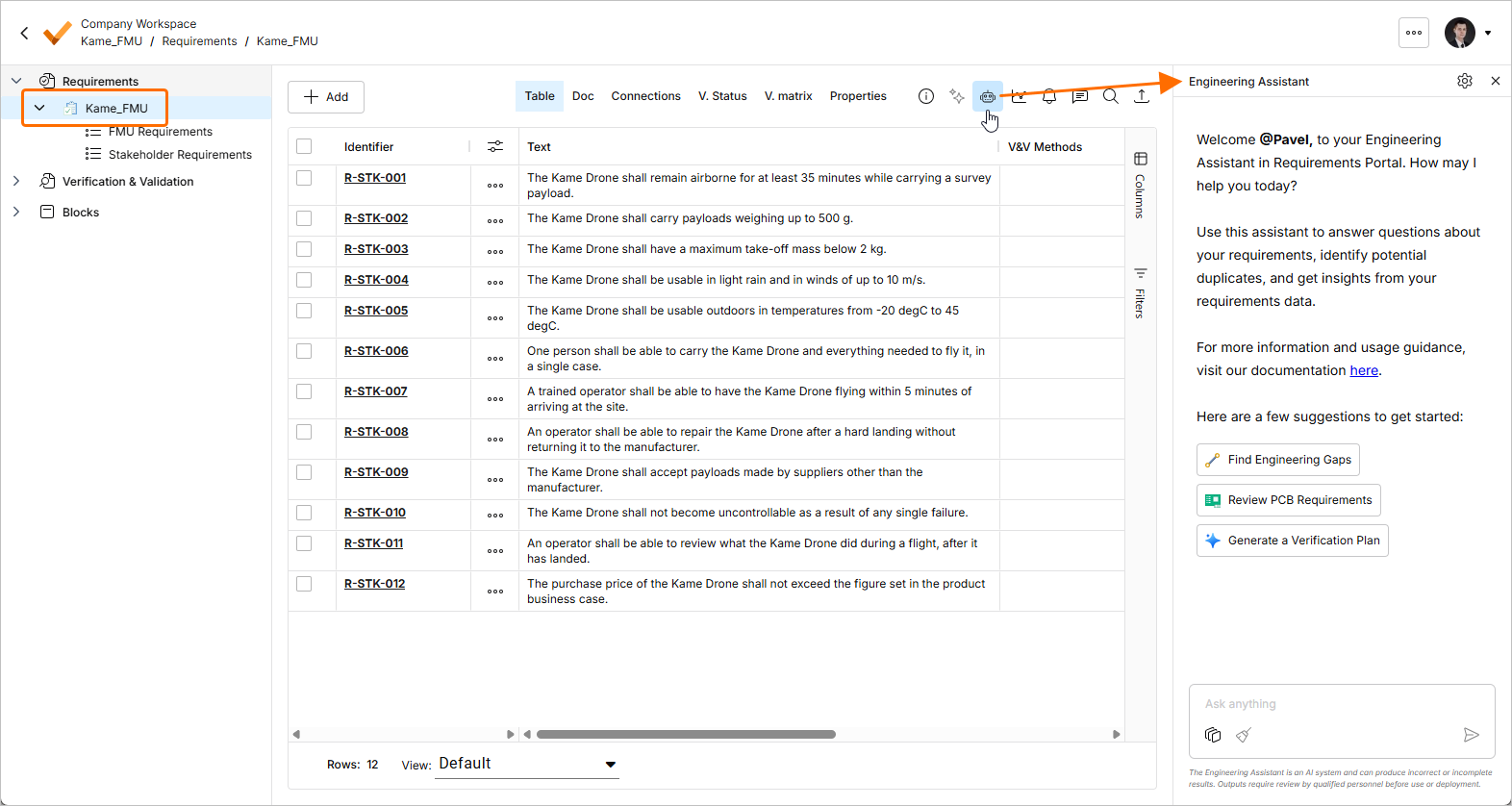
Open the
Kame_FMUspecification and click the Engineering Assistant icon at the top right ( ) to open the Engineering Assistant pane.
-
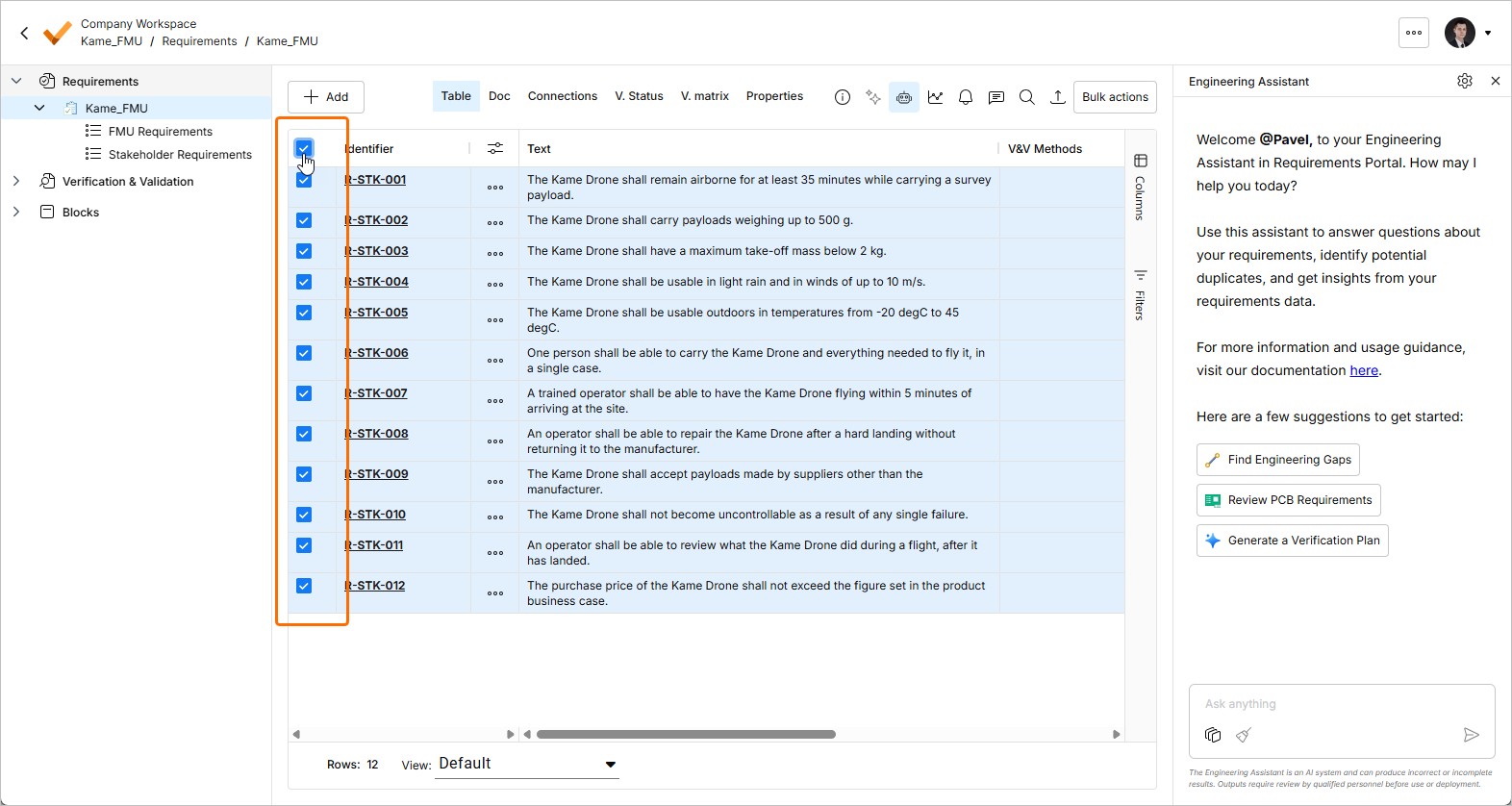
Select the stakeholder requirements you want broken down. Click the selection box in the column header, immediately before the Identifier header, to take all of them or tick individual rows.
-
Click the Chat Context button (
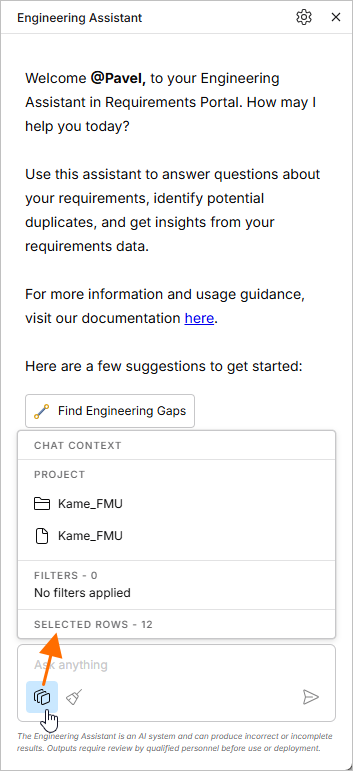
 ) at the bottom of the Engineering Assistant pane to see what the assistant is working on: the current project and the selected specification, any filters applied to the table, and Selected rows, which should now show the number you just picked. Checking the context before asking is worth the two seconds. An assistant pointed at the wrong place will happily write requirements into it.
-
Type your request into the Ask anything field and press
Enter. The assistant needs to know what the board is before it can say what the board must do, so describe it:Break the selected stakeholder requirements down into requirements for the Kame Drone flight management unit board, and put the results in the FMU Requirements section. The FMU takes 5 V from a separate power distribution board and generates its own 3.3 V rails, runs the flight management application on a microcontroller, reads an inertial measurement unit on a separate flex assembly over SPI, and presents two independent CAN interfaces to a motherboard. It must operate from -20 degC to 45 degC and tolerate rotor-induced vibration. -
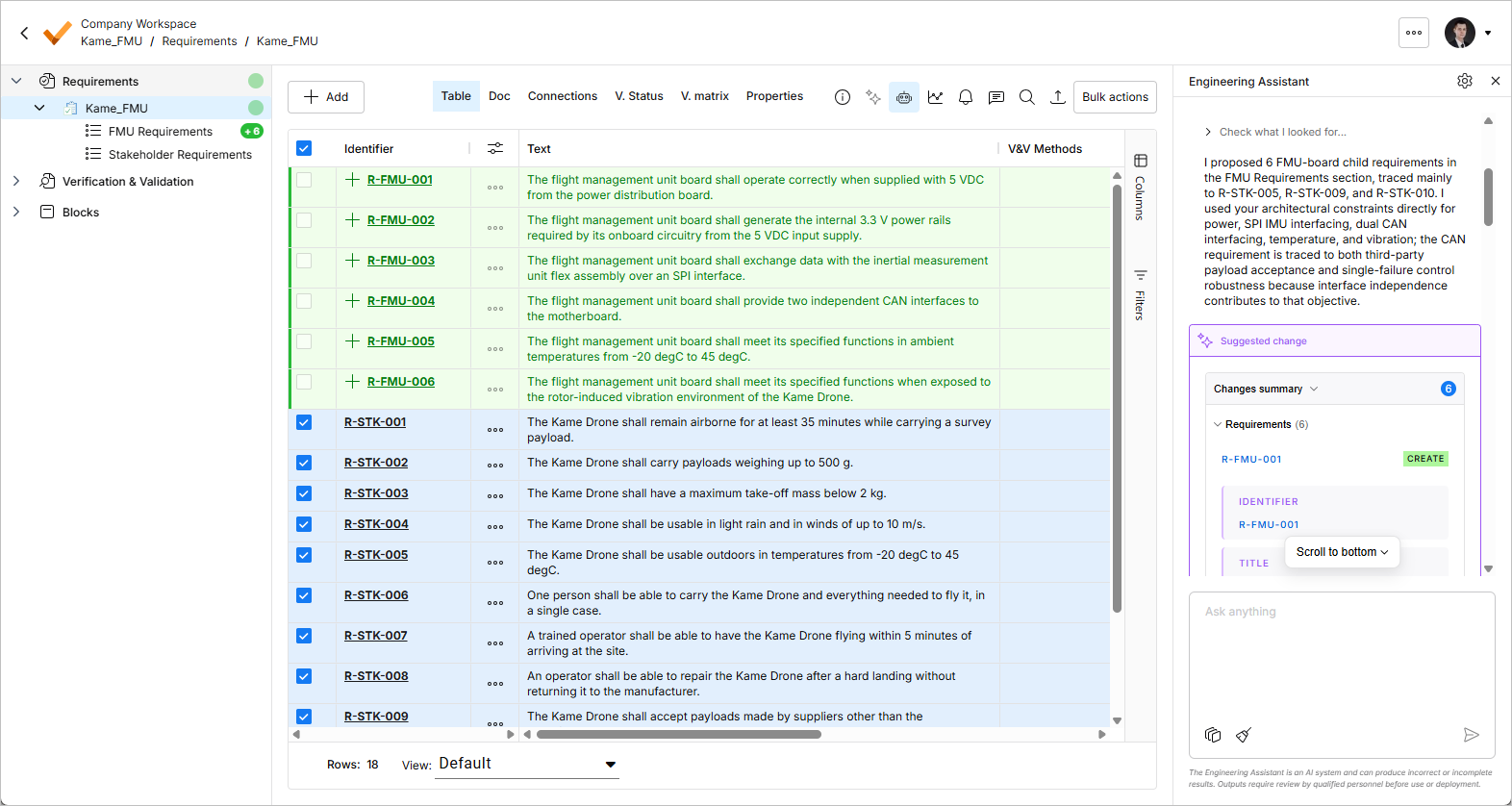
The assistant returns its suggestions in a tile in the pane and shows them in the requirements table highlighted in green with an add icon (
 ) in the Identifier column. Expand the Changes summary region to review them.
-
Read every suggestion before accepting anything. Look in particular for numbers the assistant has invented, for board requirements that do not actually follow from the parent they are attached to, and for requirements that cannot be verified as written. Then either apply or discard the changes.
-
Refine with follow-up requests. The assistant remembers the conversation, so you can build on what it has already produced:
-
Break these down further. -
Rewrite these requirements according to the INCOSE guide to writing requirements.
-
-
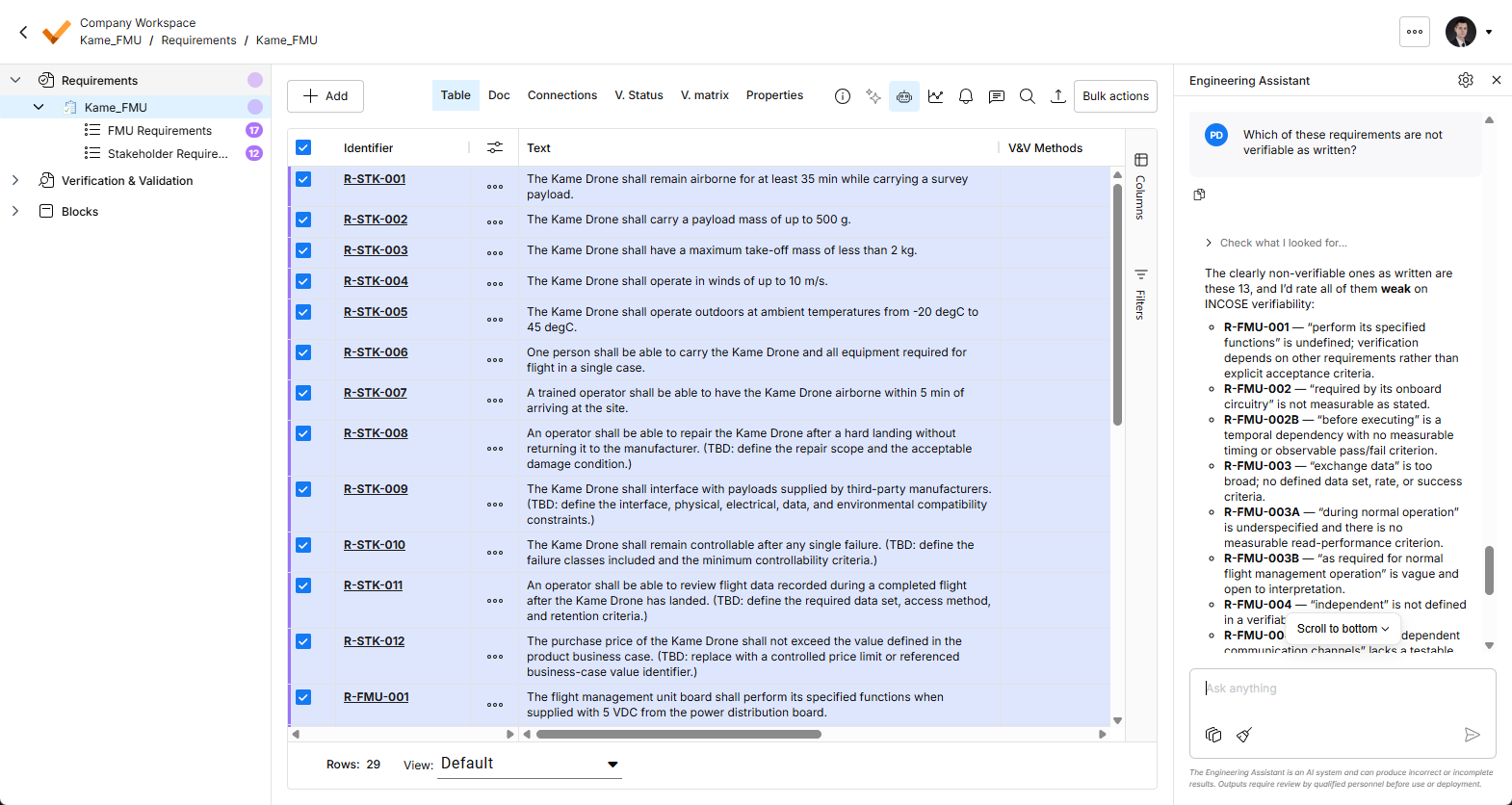
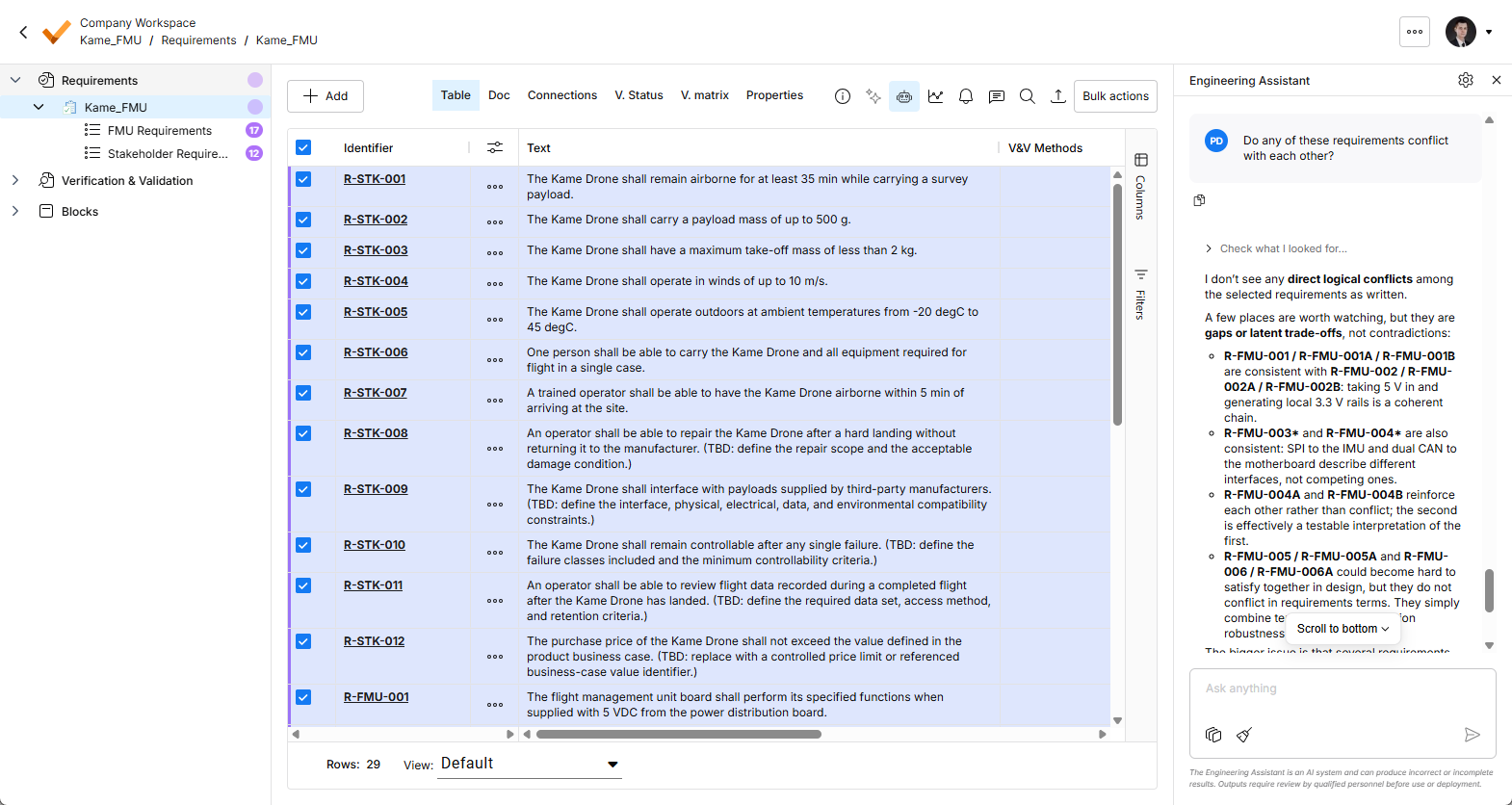
Ask it to review rather than change. These return an opinion for you to act on, not a set of proposed edits:
-
Which of these requirements are not verifiable as written? -
Do any of these requirements conflict with each other?
Once you are done with the assistant, close the pane or clear the conversation. The highlights and counts it leaves in the project tree are useful while you are working and clutter once you are not.
-
-
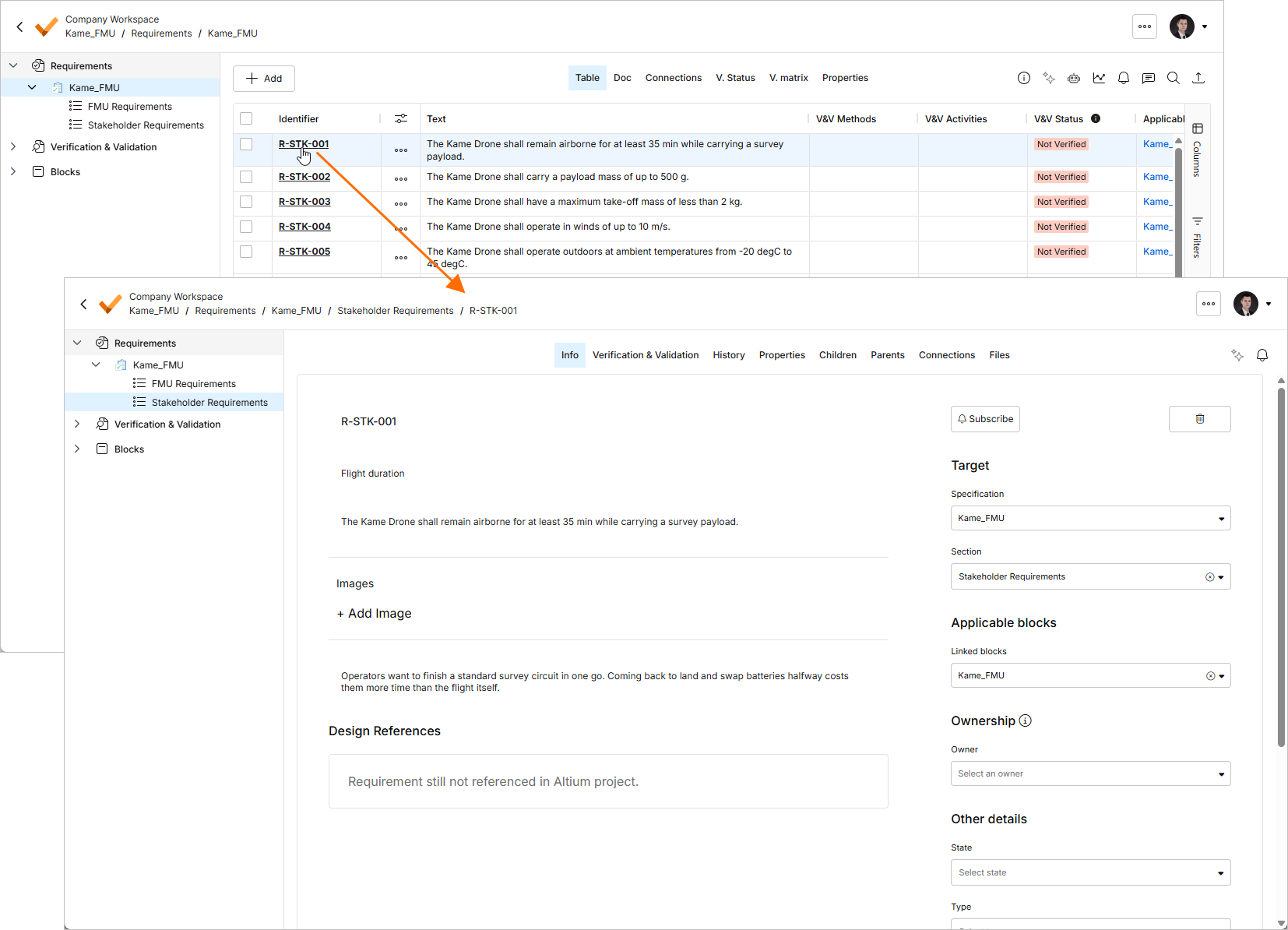
Edit anything you would rather write yourself. Double-click a cell in the table to change it directly, or click a requirement's identifier to open its detail view where you can add a rationale, assign an owner and set the state. Every change is recorded in the requirement's History.
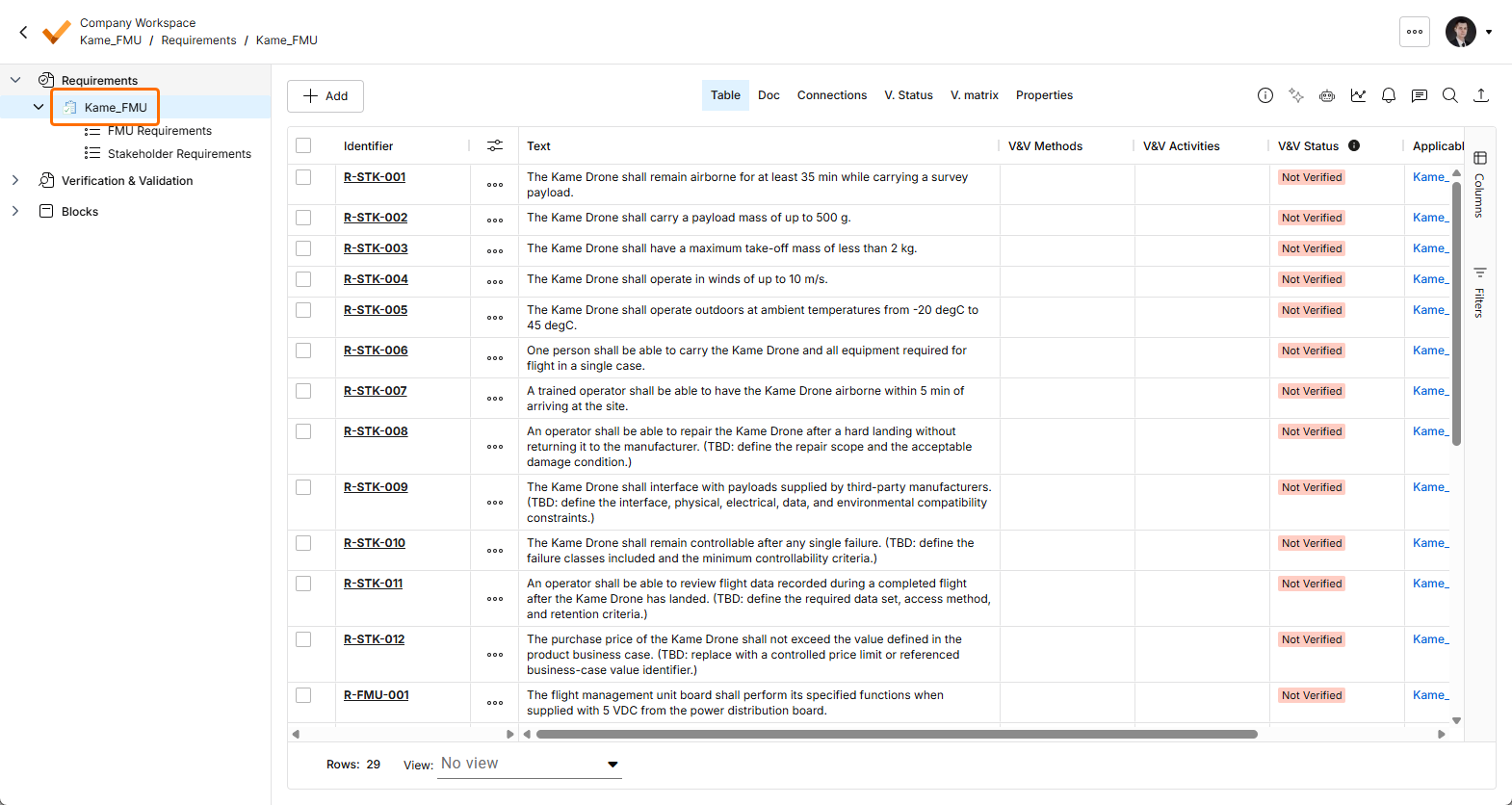
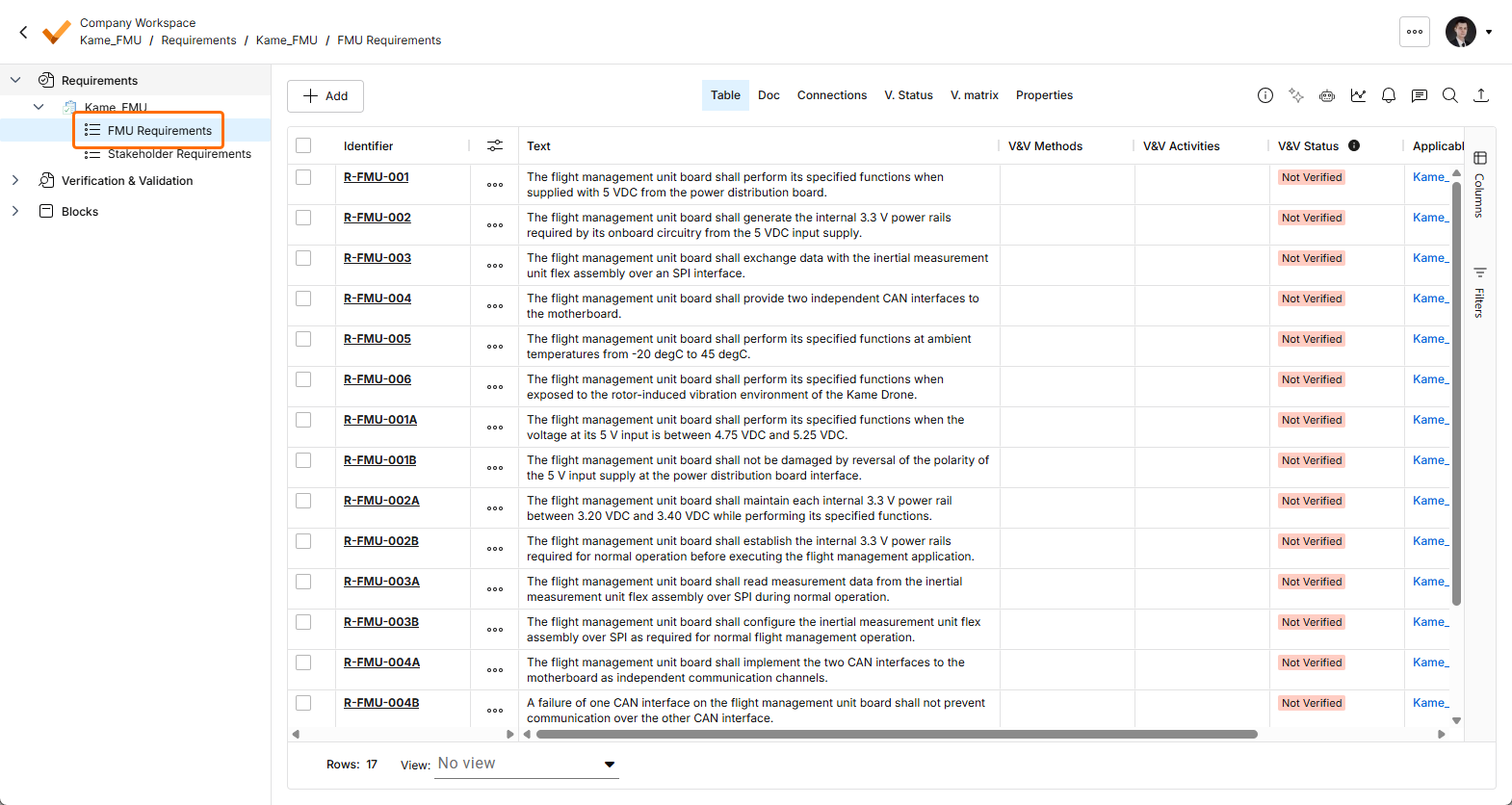
You now have two levels in one specification, with the board requirements traceable to the stakeholder requirements that produced them.
The assistant works through reusable AI Skills, which are instruction sets your Workspace can define so that a task such as "apply our requirement writing standard" produces the same result whoever runs it. Skills are selected automatically based on what you ask. When one is used, it appears in the Check what I looked for region of the response. See Using and Managing AI Skills.
Reviewing the Requirement Set with the Engineering Assistant
With requirements written, assigned, placed and partly verified, the Engineering Assistant becomes useful for a different job: telling you where you stand.
-
Open the
Kame_FMUspecification and open the Engineering Assistant pane. -
Ask questions about the state of the set. For example:
-
How many requirements are not verified? -
Which requirements need to be taken into account for PCB design? -
Are there any engineering gaps in these requirements? -
Show me all requirements about the power supply. -
Which stakeholder requirements have no board requirements under them? -
Summarize the selected requirements.
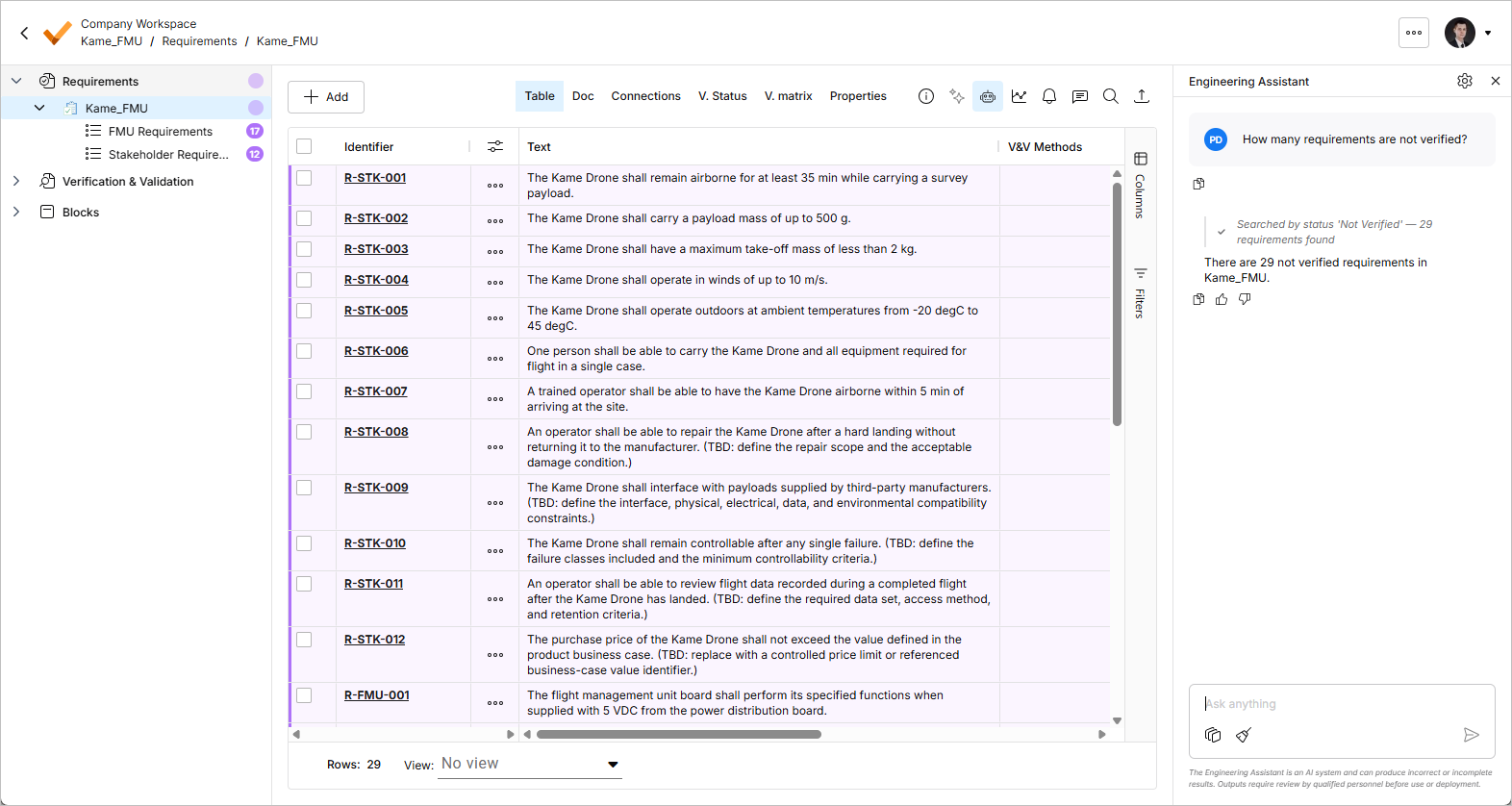
-
-
The answer appears in the pane, the requirements concerned are highlighted in the table, and the count of matching requirements appears in the project tree next to each specification and section. Follow up in the same conversation to narrow things down; the assistant remembers what it just listed, so
How many of those are still in Draft?works as you would expect. -
Ask it to help close the gaps it finds.
Generate verification criteria for these requirements.produces suggested acceptance criteria for a set you select, which is a useful bridge into the tutorial's Part 2.
Two limits to keep in mind. The assistant can read and change most requirement fields, but V&V Status is derived and cannot be edited by the assistant, and it does not touch owners, applicability, or custom properties. And its answers are AI-generated: treat a clean report as a prompt to look, not as evidence that there is nothing to find.
Linking Requirements to an ECAD Project
Your electronics requirements can describe what the Electronics Engineer needs to take into account when designing and selecting components for their board. By linking a requirement to an ECAD project, the requirements will be visible to the Electronics Engineer in Altium Designer and in the Altium 365 Web Viewer.
Requirements are linked to an ECAD project through a Block. A Block in Requirements Portal represents a part of your system – a system design block. A block of type Electronics has an Altium Link field which you can set.
The block created with the project is already named Kame_FMU and already of type Electronics type, so we only need to fill the Altium link.
-
Click on the Blocks entry in the project tree to open the Blocks Module and select the
Kame_FMUblock. -
Open the block's Info tab, find the Altium Link field and use it to select the
Sample - Kame_FMUdesign project from the drop-down. The link takes effect immediately and the design project's preview image appears.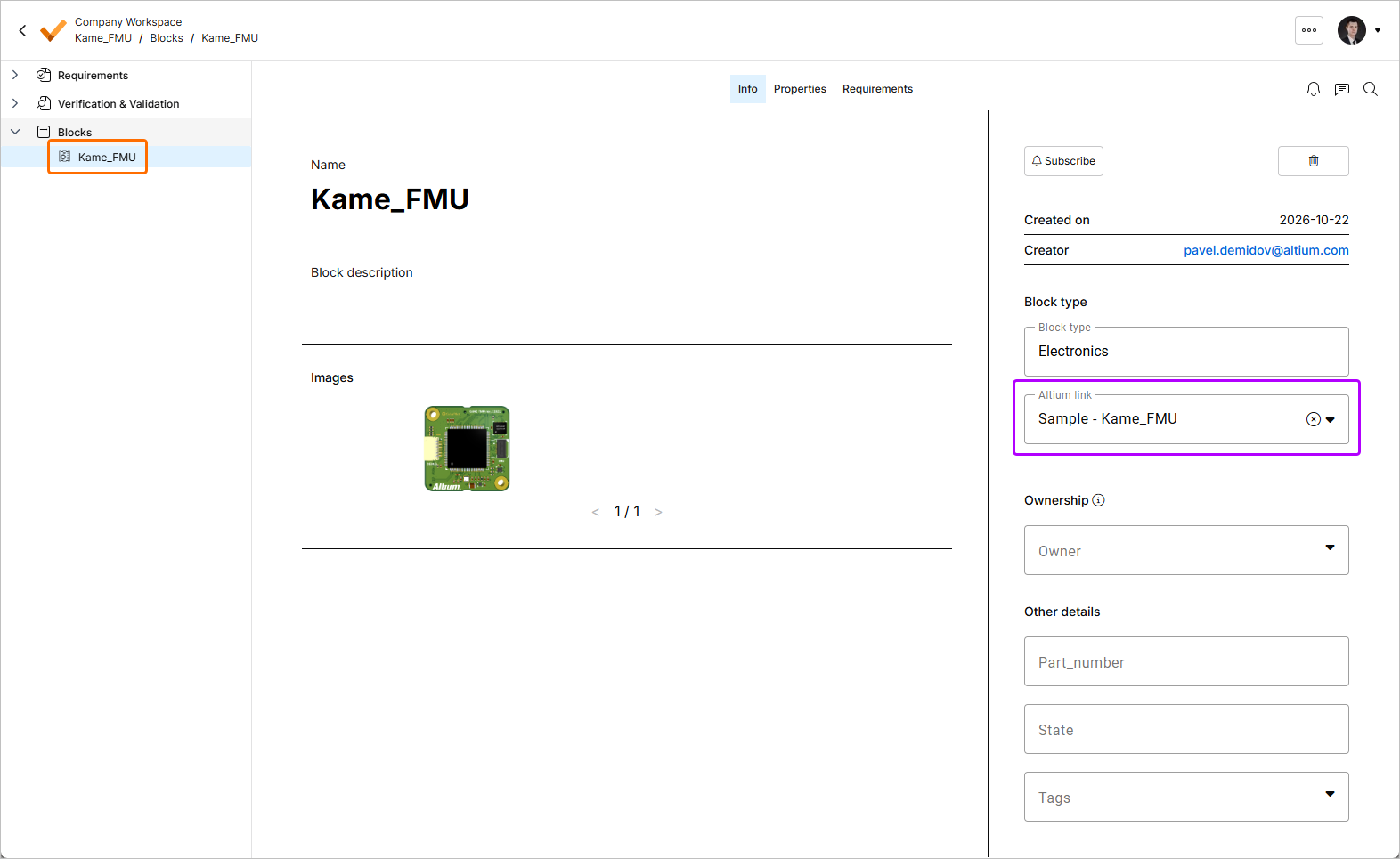
-
Go back to the
Kame_FMUspecification. -
Make sure the Applicable Block column is visible, using the Columns control at the right. It appears in the quick-load tables only.
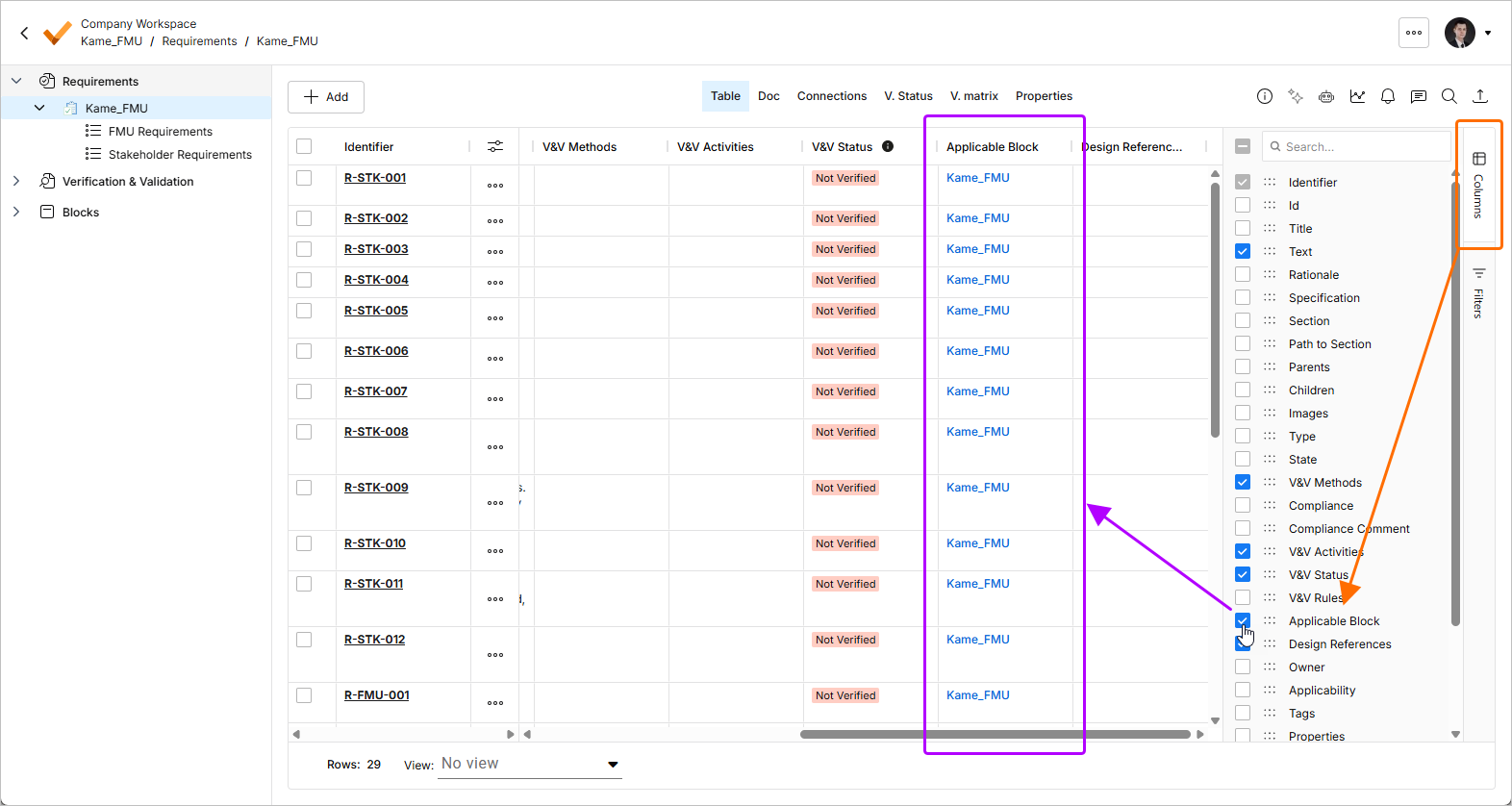
For more information about applicable blocks, refer to the Applicable Blocks page.
-
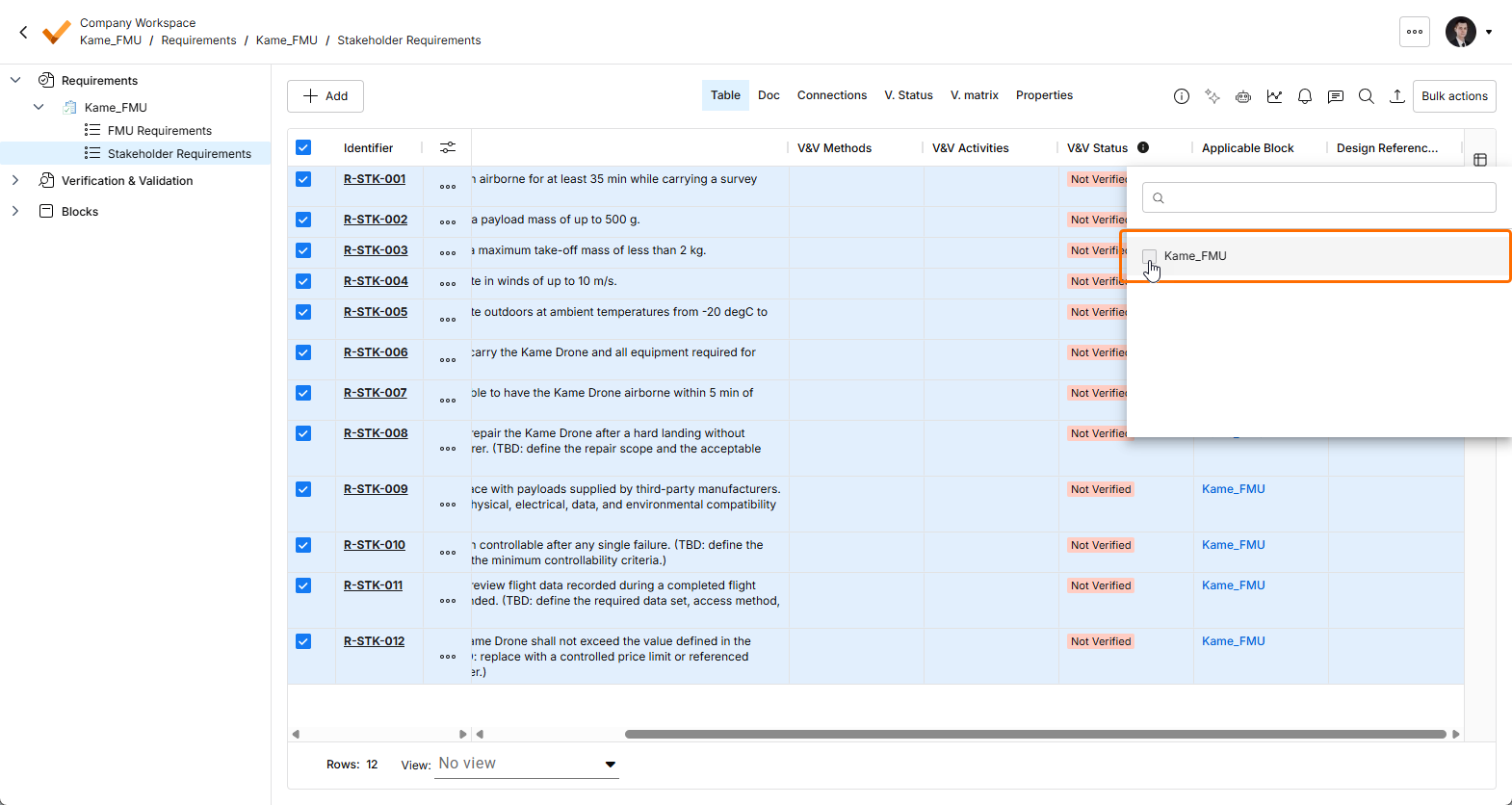
See that the Applicable Block field is already populated with
Kame_FMU. That is the specification's Default blocks setting. When the project was created, theKame_FMUblock was set as the default block of theKame_FMUspecification, so any requirement added to that specification will get that applicable block automatically.All requirements with
Kame_FMUas applicable block will now show up in theKame_FMUproject in Altium Designer and in the Altium 365 Web Viewer. -
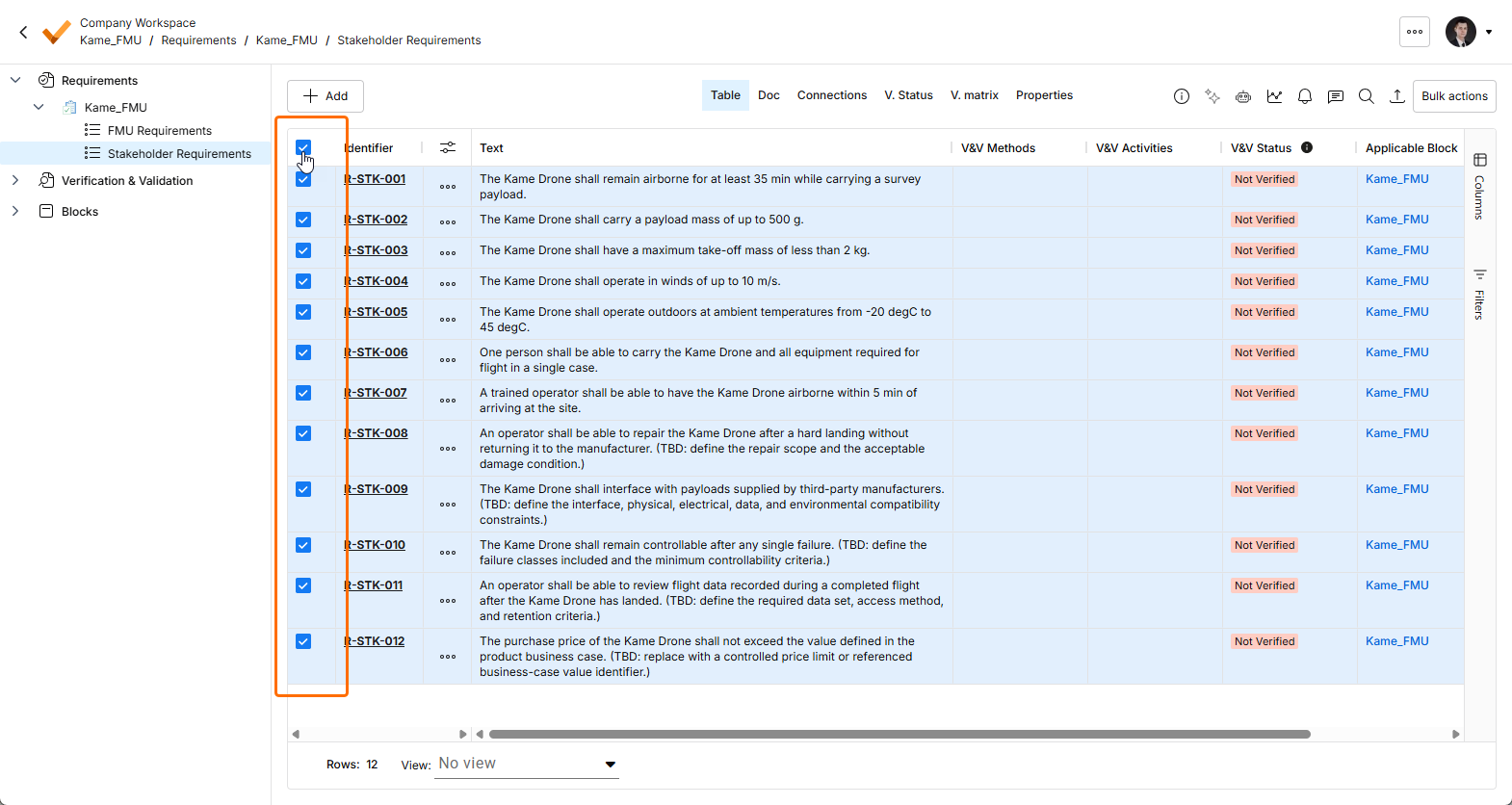
Let’s remove the stakeholder requirements that do not belong to the board, they describe the drone, and most of them have nothing to say to somebody working on this schematic. A requirement about transport volume in front of the person routing a board does not make any sense. Select the Stakeholder Requirements section in the project tree so the table shows only those requirements.
-
Click the selection box in the column header, immediately before the Identifier header. Every requirement below it is selected, which here means the whole stakeholder section and nothing else, because the table is already showing only that section.
-
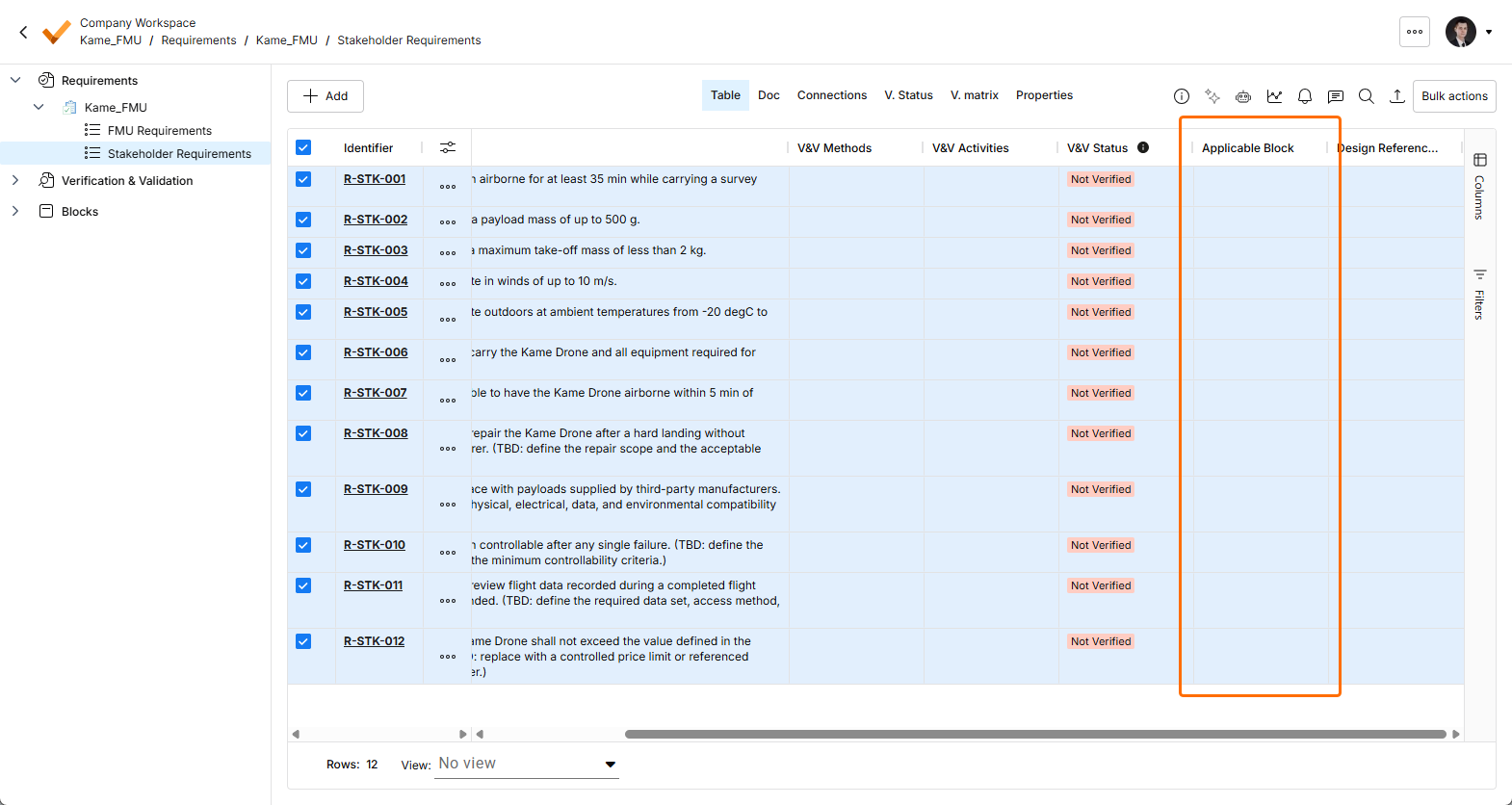
With the rows still selected, click the Applicable Block field on any of them and clear
Kame_FMUfrom it. -
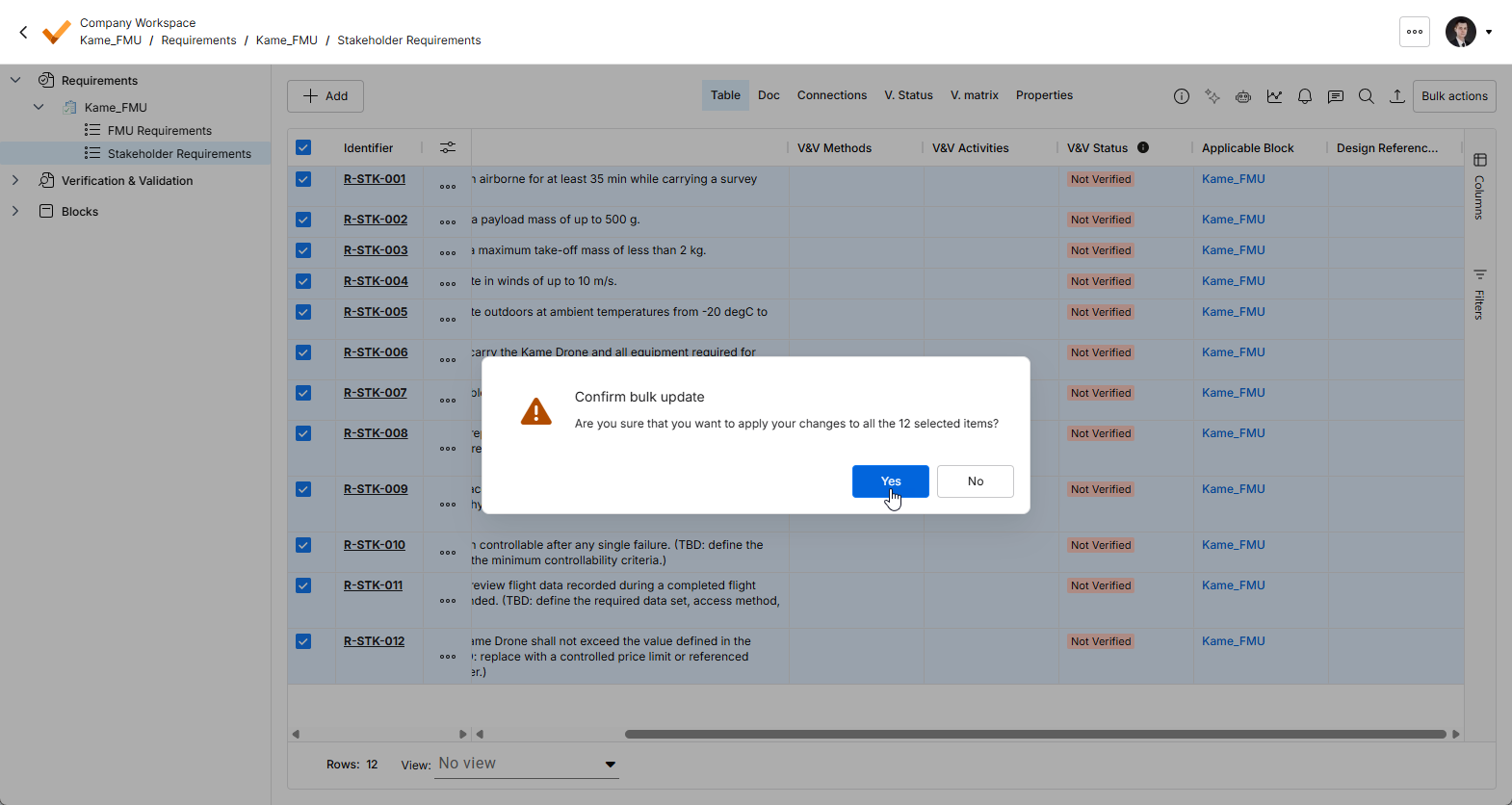
Click away from the field. A window asks whether to apply the change to all the selected requirements. Accept, and every row in the selection is updated at once.
-
If a stakeholder requirement is applicable to this board directly, put the block back on that one: click its Applicable Block field and select
Kame_FMUagain. Most will not need it, and nothing is lost by leaving the rest cleared, because each one stays reachable from the board requirements broken down from it. The original intent is always a click away when somebody needs it.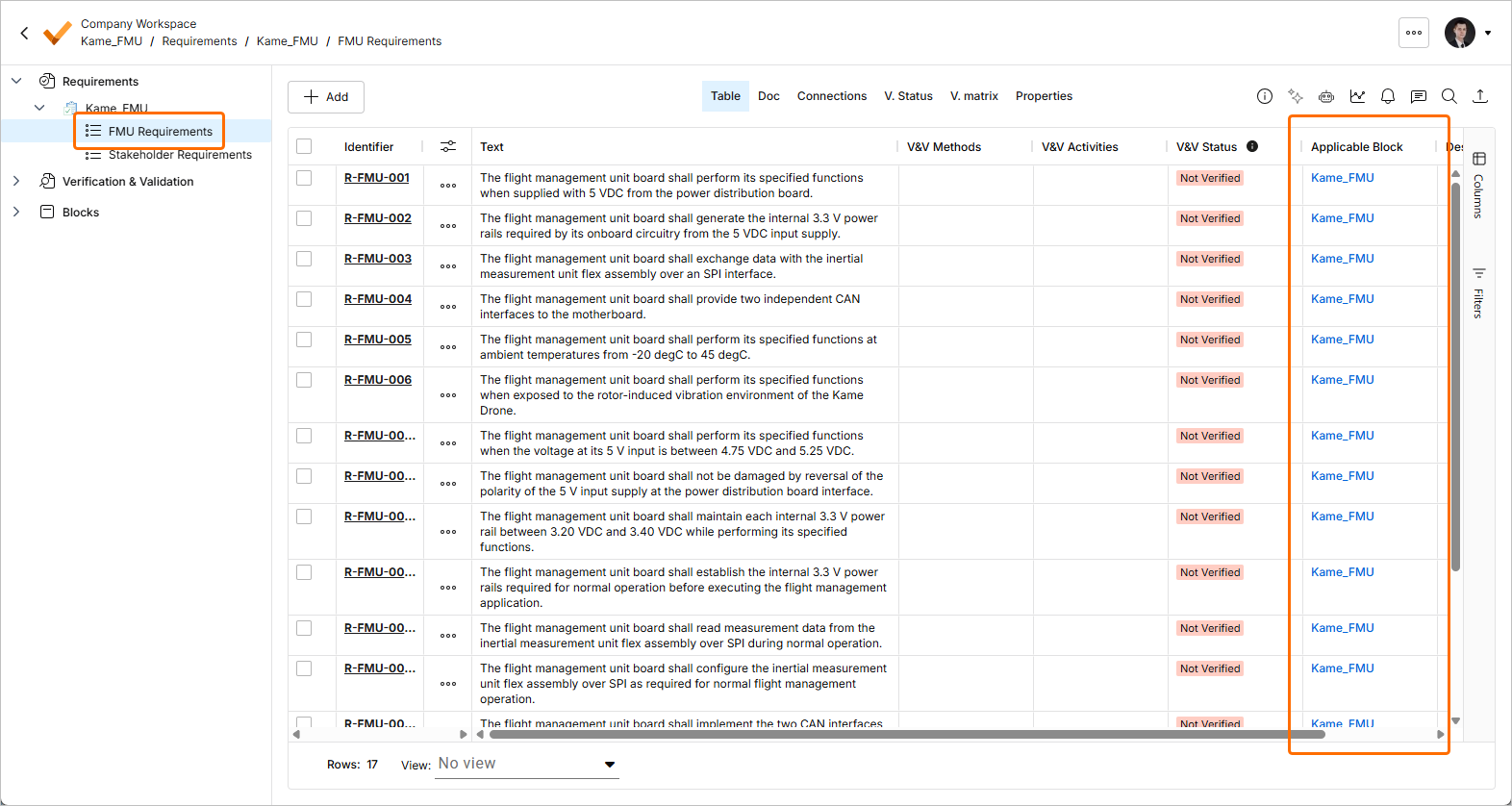
Everything in this tutorial happened in a single Workspace, so a colleague opening the same project sees the requirements, the placements and the comments as they are now, without anyone exporting or emailing a version.
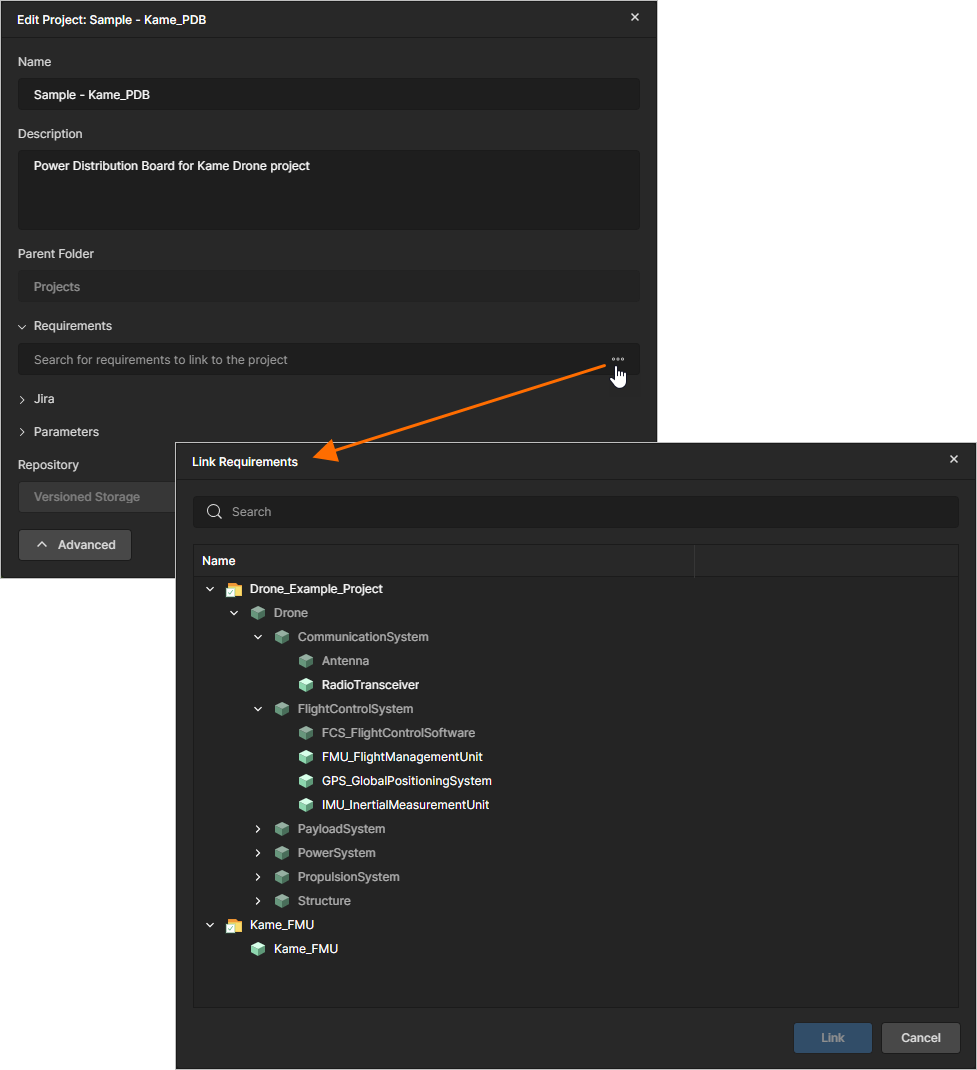
You can check your work from the block side: select the Kame_FMU block in the Blocks Module and click the Requirements control to list every requirement for which it is the applicable block. The stakeholder requirements should no longer be there.
Working with the Requirements in the Design
Everything so far has happened inside Requirements Portal. Now we cross into the design, which is where the requirements meet the person who has to satisfy them.
Reference documentation: Requirements in a Design, Working with Requirements
Opening the Requirements
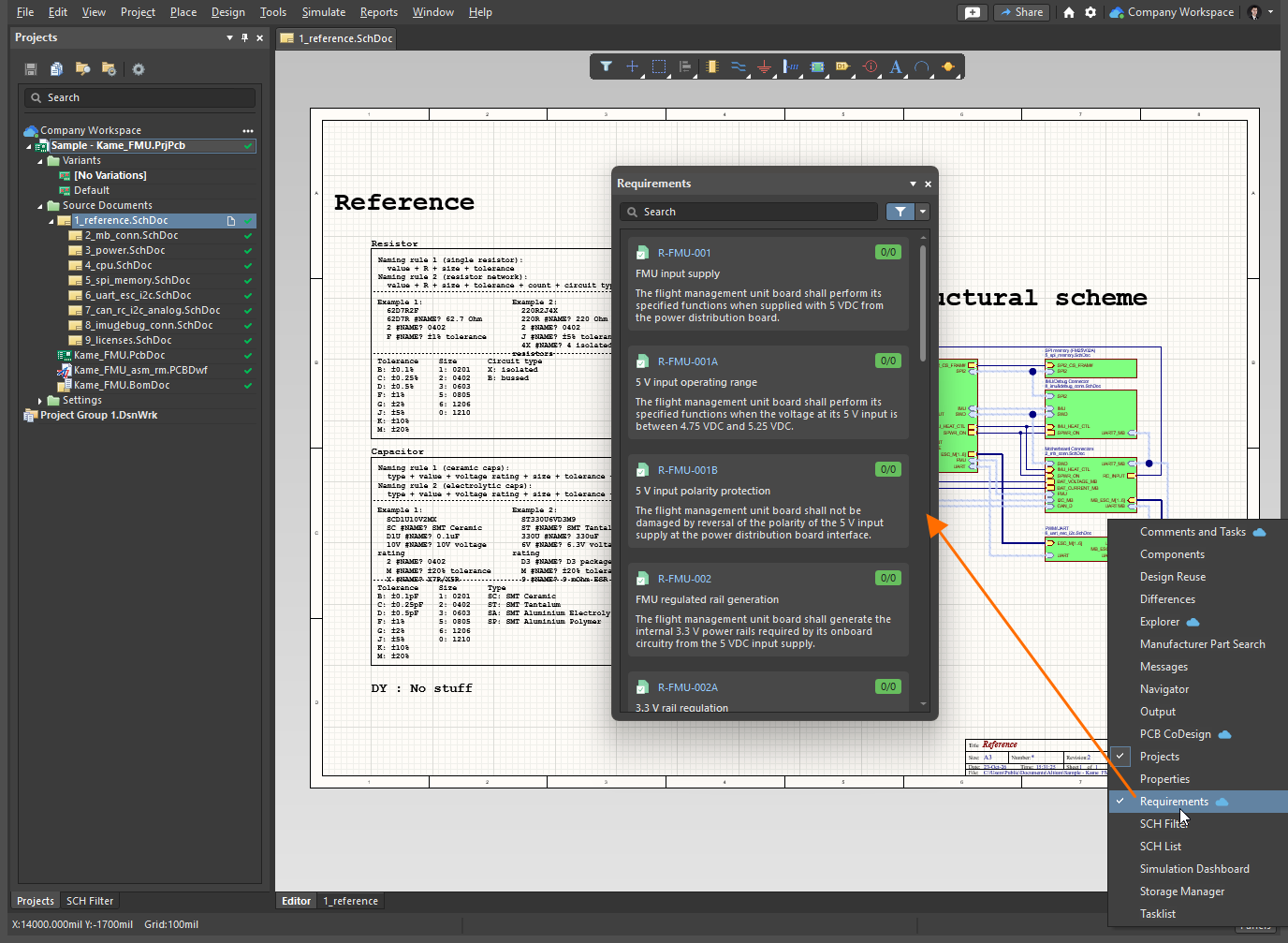
In Altium Designer: open the Sample - Kame_FMU project and a schematic sheet, click the  button at the bottom right of the design space and select Requirements from the menu that appears.
In the Web Viewer: open the Sample - Kame_FMU project in your Workspace, open a design document, and click the Requirements icon ( ) at the top of the document view.
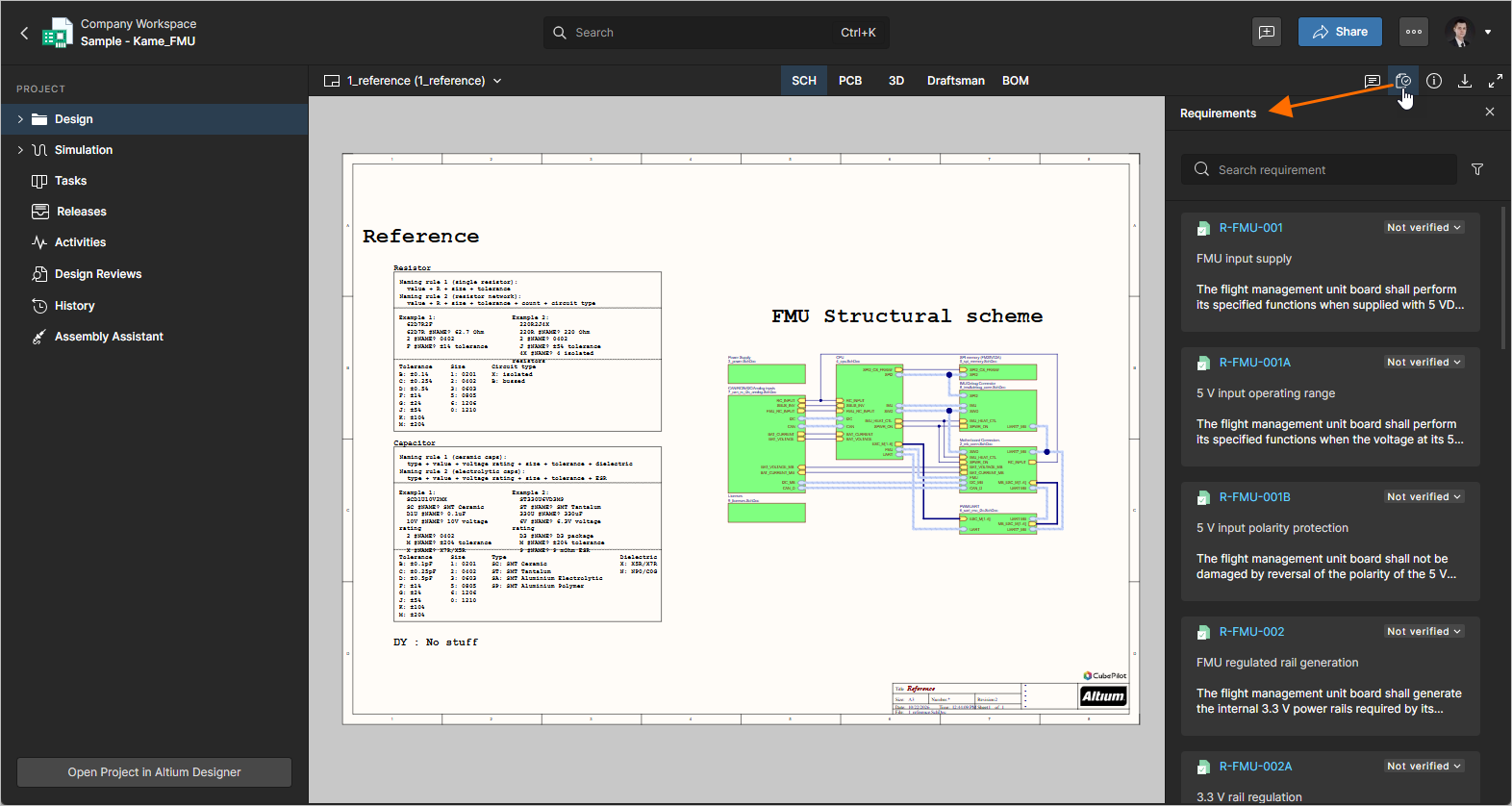
Requirement data lives in the Workspace, so anything done in one appears in the other, and in Requirements Portal, in real time. The two are equivalent for everything in this tutorial except setting the verification status, which is noted where it arises below.
Select a requirement tile to see its text, a link to its entry in Requirements Portal, and its verification settings.
If your requirements do not appear here, the cause is almost always one of two things: the block is not linked to this project, or the requirements do not have that block in their Applicable Block field.
Placing a Requirement on the Design
Placing a requirement creates a reference to that requirement in the selected location in the design document. Placements can be used to trace where on a board or schematic the requirement was implemented.
It works exactly like placing a comment: on a point, on an object such as a component or a track, or on an area. Placed requirements are stored independently and are not part of your source files or outputs.
-
Select a requirement in the Requirements panel or pane.
-
Click the
 button.
-
Click the point, object, or area the requirement applies to.
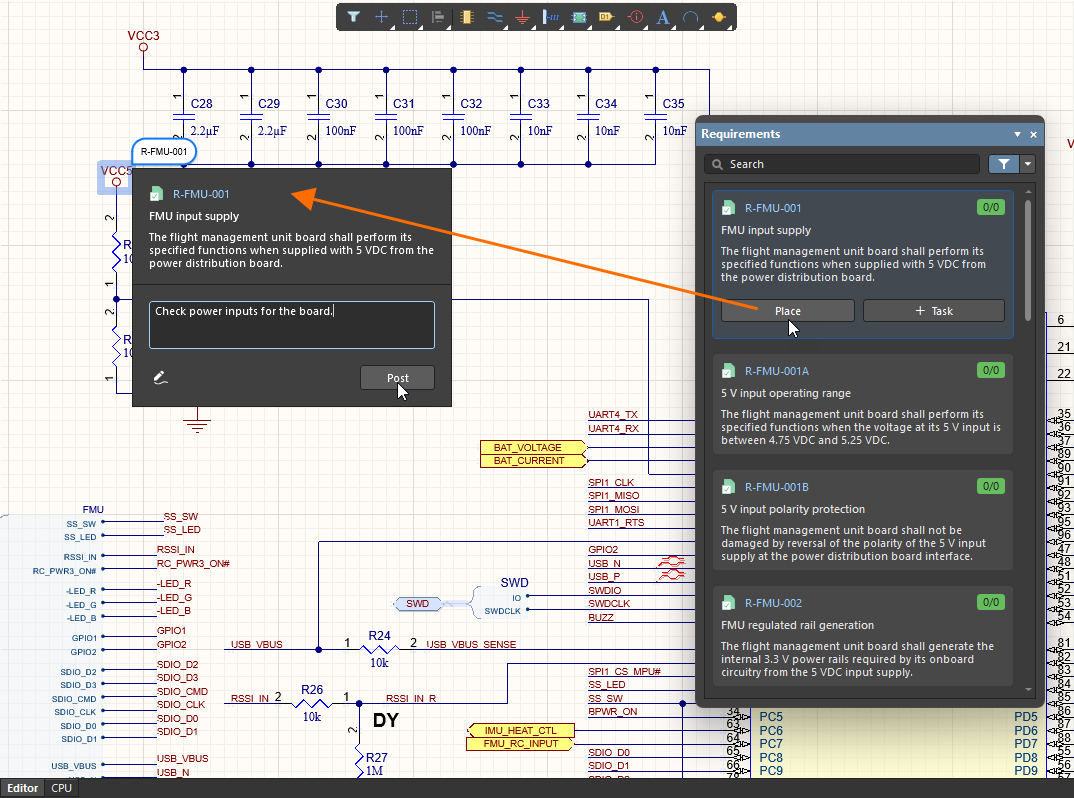
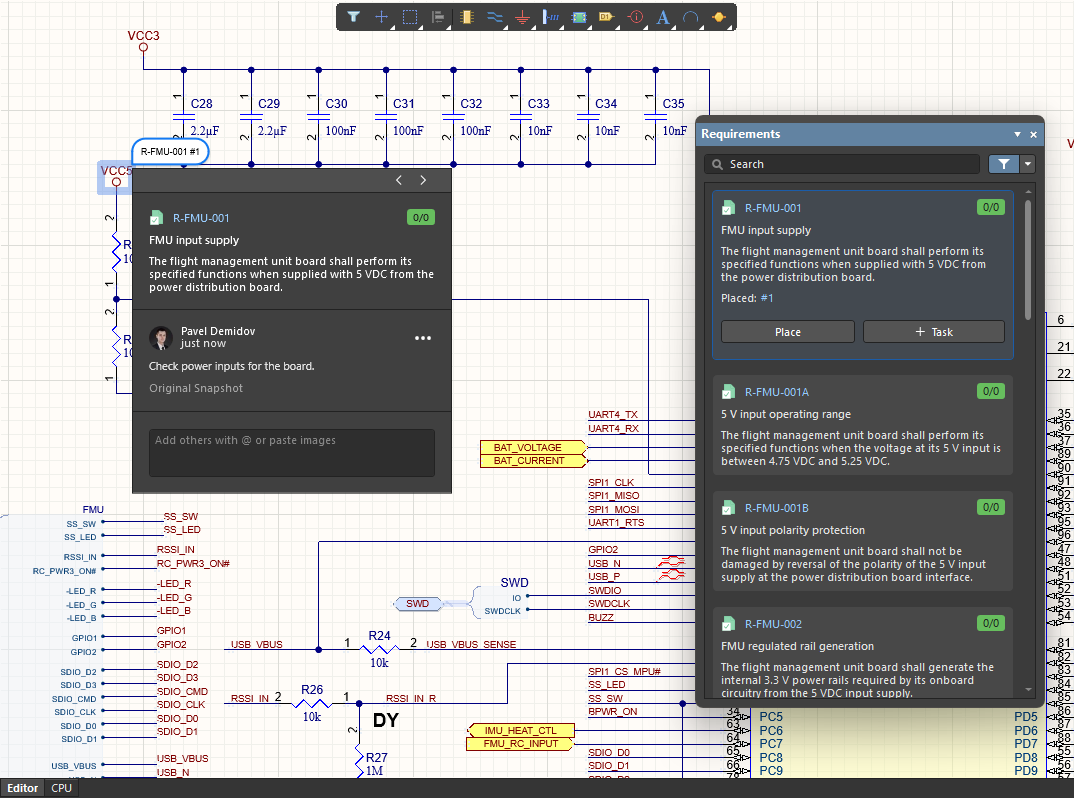
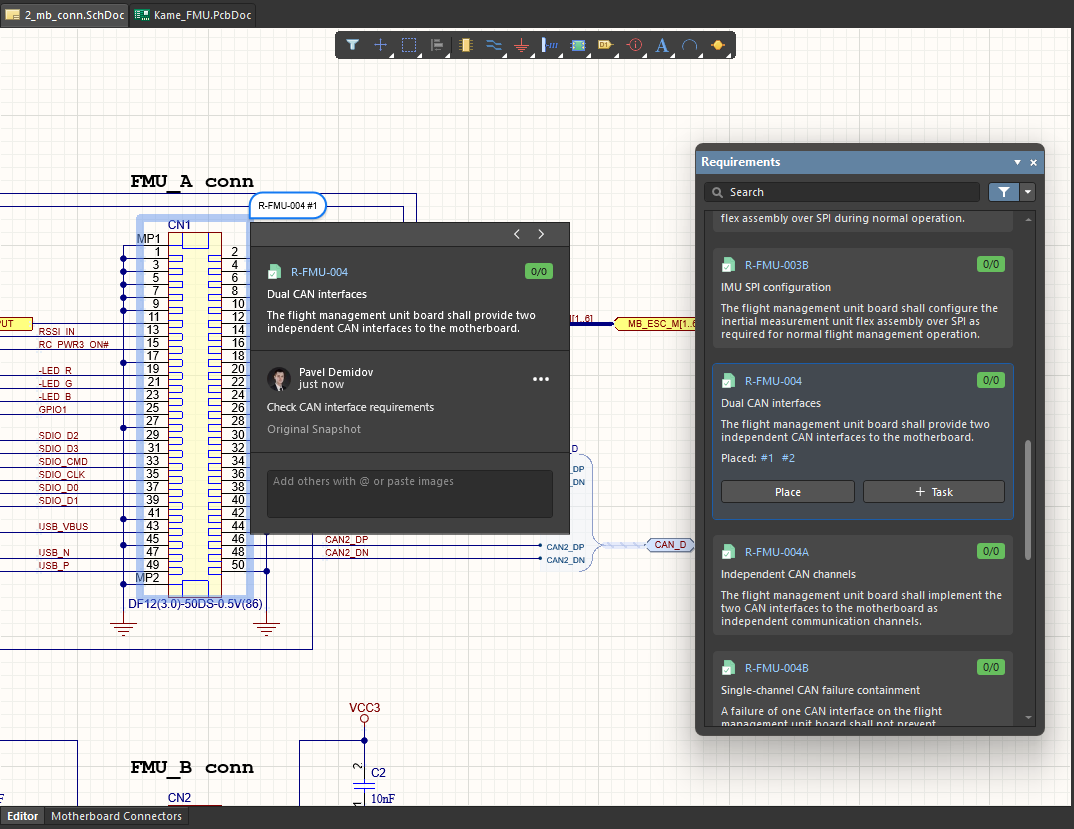
Work through the FMU requirements, placing each against the thing that satisfies it. For example:
Requirement about |
Place it on |
|---|---|
Board input supply |
The power input connector on the schematic |
Boot time |
The microcontroller |
CAN interfaces to the motherboard |
The board-to-board connector, on the schematic and on its PCB footprint |
IMU interface |
The sensor connector or the interface circuitry |
Operating temperature |
The board outline area on the PCB, since it constrains everything |
Field replaceability |
The mounting hardware or the connector that has to be released |
Design References in Requirements Portal
Return to Requirements Portal and open one of the requirements you placed. The Design References entry lists the design documents containing an instance. Click one to open the placement in the design project.
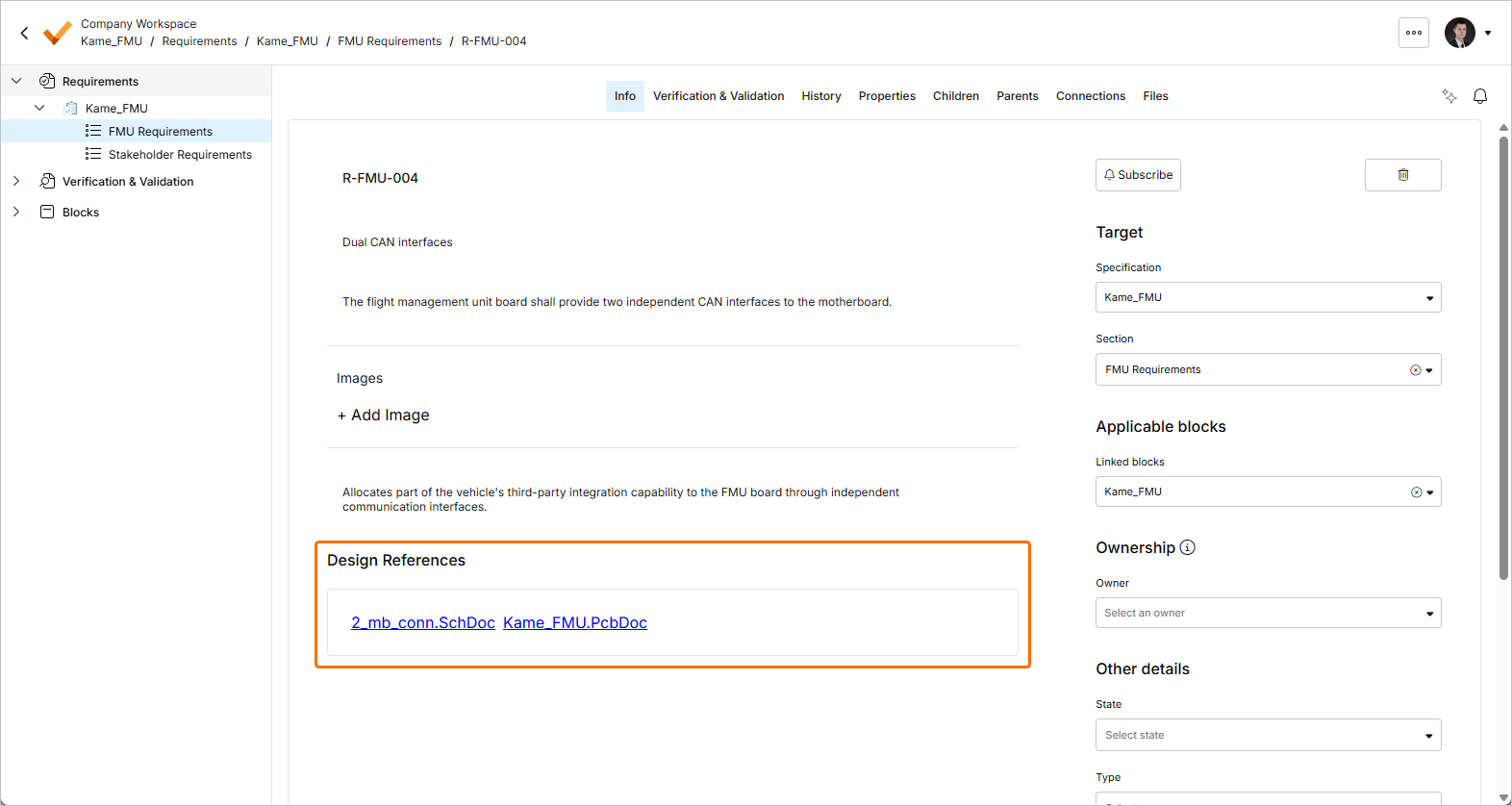
Traceability now runs in both directions and across two tools. From a requirement, you can reach the part of the board that implements it; from the board, you can reach the requirement that constrains what you are about to change, and from there its parent, and the customer's reason for asking. Neither direction depends on anyone maintaining a cross-reference.
Creating a Task from a Requirement
A requirement that needs work by a specific person can become an actionable Workspace task.
-
Select the requirement in the Requirements panel or pane.
-
Click the
 button.
-
Assign a Workspace member, enter a description of what needs doing, and confirm with
 .
.
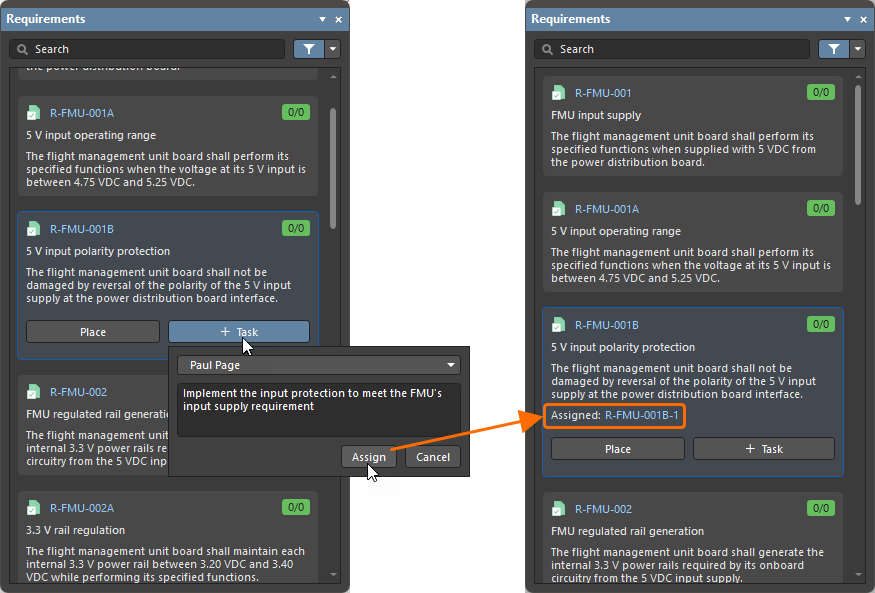
The task is not placed on the document. It appears on the Workspace Tasks page and, in both Altium Designer and the Web Viewer, in the Comments and Tasks panel/pane. Tasks can be commented on, reassigned, reprioritised and moved to Resolved. The requirement tile's Assigned link jumps to the task.
Implement the input protection to meet the FMU's input supply requirement as an assigned task with the requirement attached is considerably harder to lose than the same sentence in a meeting.
Discussing a Requirement in Place
A placed requirement behaves like a comment, which means anyone can leave a comment on a requirement. Open a placed requirement and use the comment thread to ask a question, record a decision, or mention a colleague so they are notified.
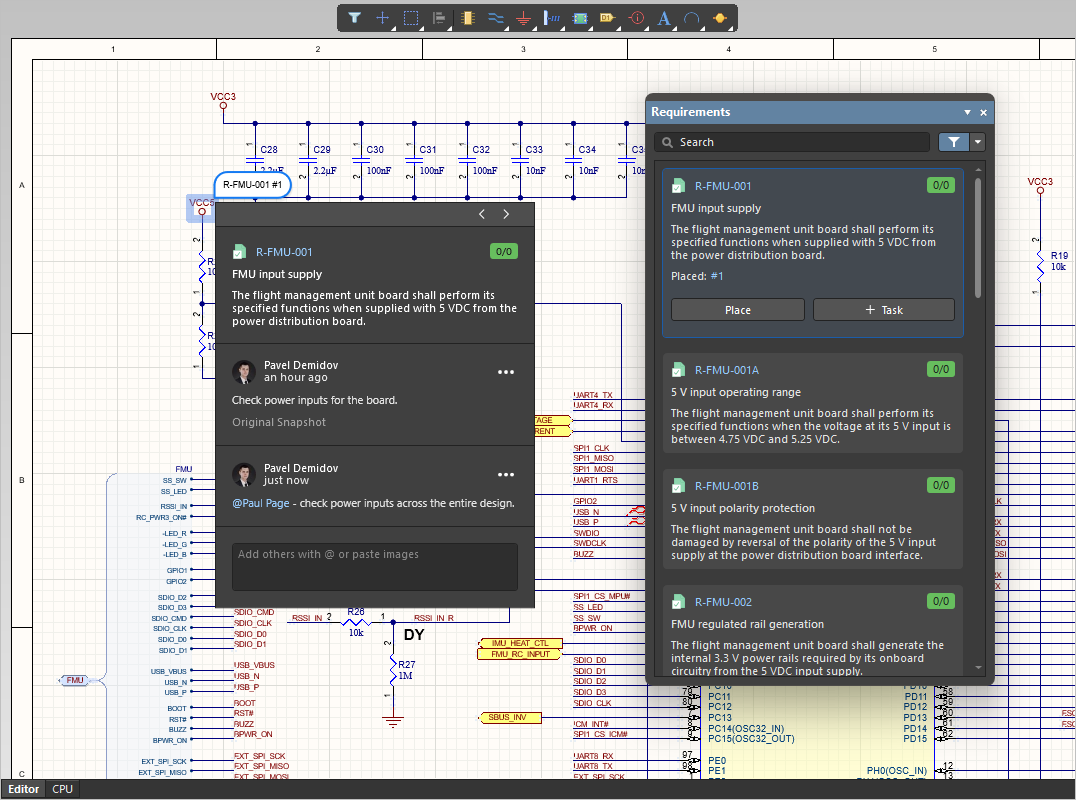
See Document Commenting for the full set of commenting features in Altium Designer, and Comments for the Web Viewer.
Setting the Verification Status
You can mark a requirement as verified from within the design, which matters because the person best placed to confirm a requirement is met is often the one looking at the circuit.
-
Select the requirement in the Requirements pane or open a placed instance.
-
Open the verification menu on the requirement entry.
-
Set the status, for example
Verified.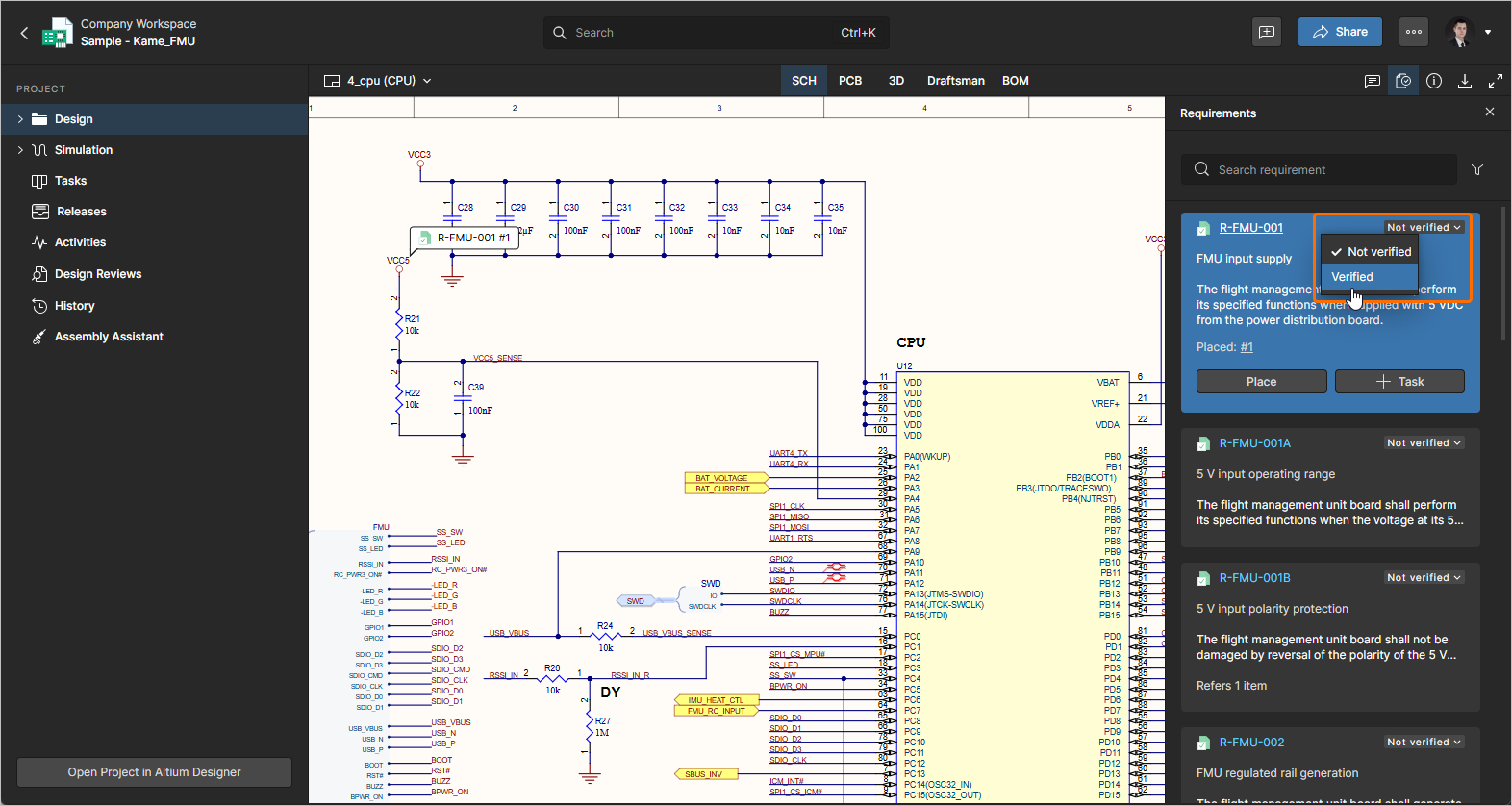
Checking the Change in Requirements Portal
Go back to Requirements Portal and open the Kame_FMU specification with the V&V Status column visible. The requirement you just marked in the design shows as verified here.
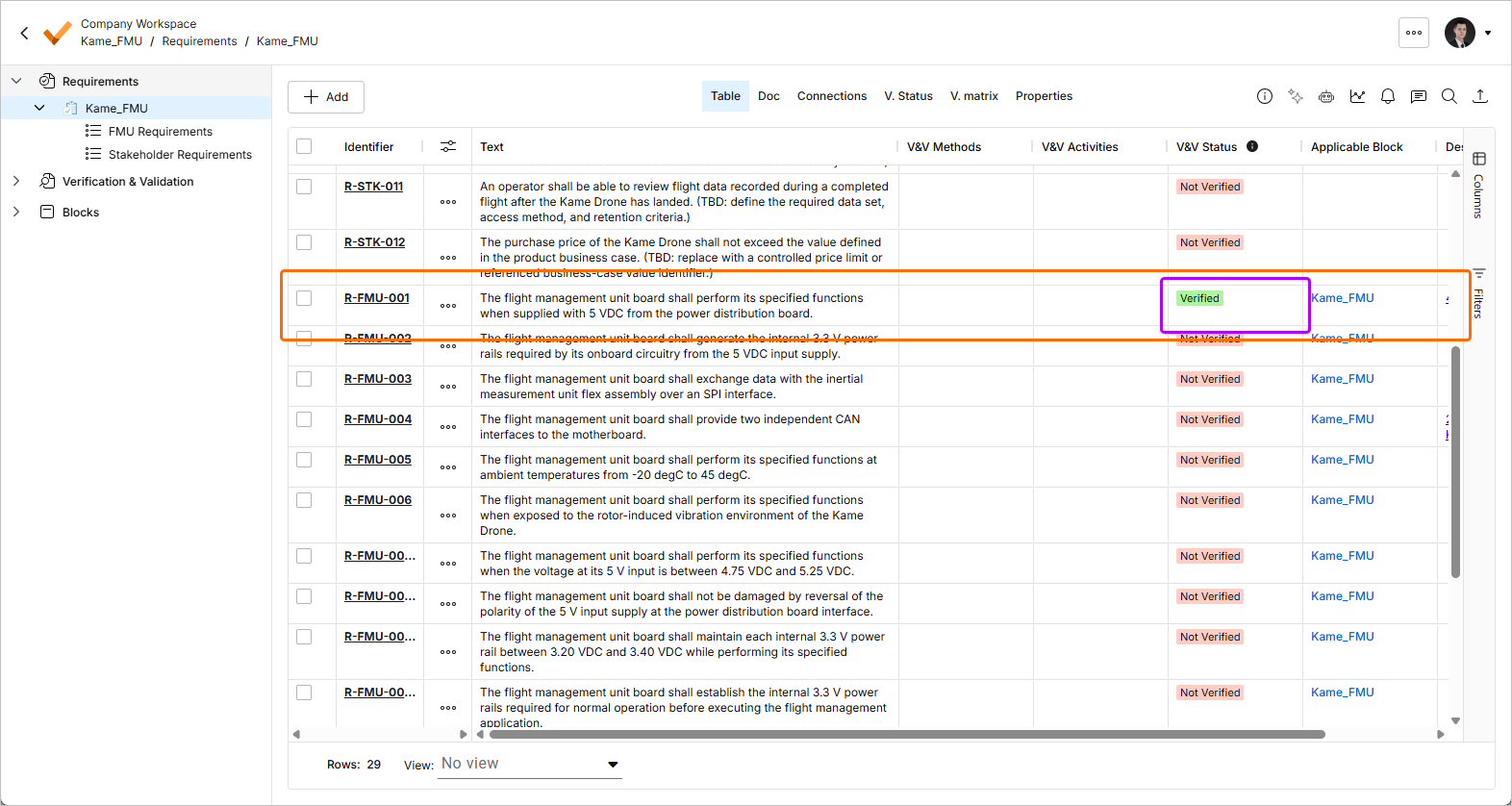
That round trip is the whole point of connecting the block to the project. The requirement was written in one tool, implemented and confirmed in another, and there is one status, not two.
What's Next
You have one board with requirements that reach the design and a status that means the same thing in both tools. That is the complete loop, on the smallest system it can be shown on. Two things are missing, and each has its own tutorial:
-
Part 2 – Verification and Validation. Verification activities with steps, runs and uploaded evidence; ERC and DRC reports captured against the requirements they satisfy; test campaigns; and exporting the verification record when someone needs to see how a requirement was proven.
-
Part 3 – The Whole Drone. Structuring a requirements project around a system rather than a board: a block tree covering all five avionics boards and the multi-board assembly, each block connected to its own design project. Then engineering parameters (valis) on those blocks, budgets that roll up across the drone and recalculate themselves, margins and worst-case analysis, and V&V rules that re-check a requirement automatically every time a value changes.