
Konfigurowanie uwierzytelniania Single Sign-on
Administratorzy Enterprise Server mogą skonfigurować i włączyć funkcje Single Sign-On (SSO) dla serwera. System konfiguracji zaplecza umożliwia administratorom ustanowienie, przetestowanie, włączenie i wyłączenie funkcji SSO dla użytkowników serwera. Opcja SSO jest dostępna podczas logowania do interfejsu przeglądarkowego Enterprise Server. Po skonfigurowaniu dla użytkowników serwera SSO zapewnia wygodę dostępu do serwera przy użyciu tego samego zestawu poświadczeń, który obowiązuje w systemach firmowych.
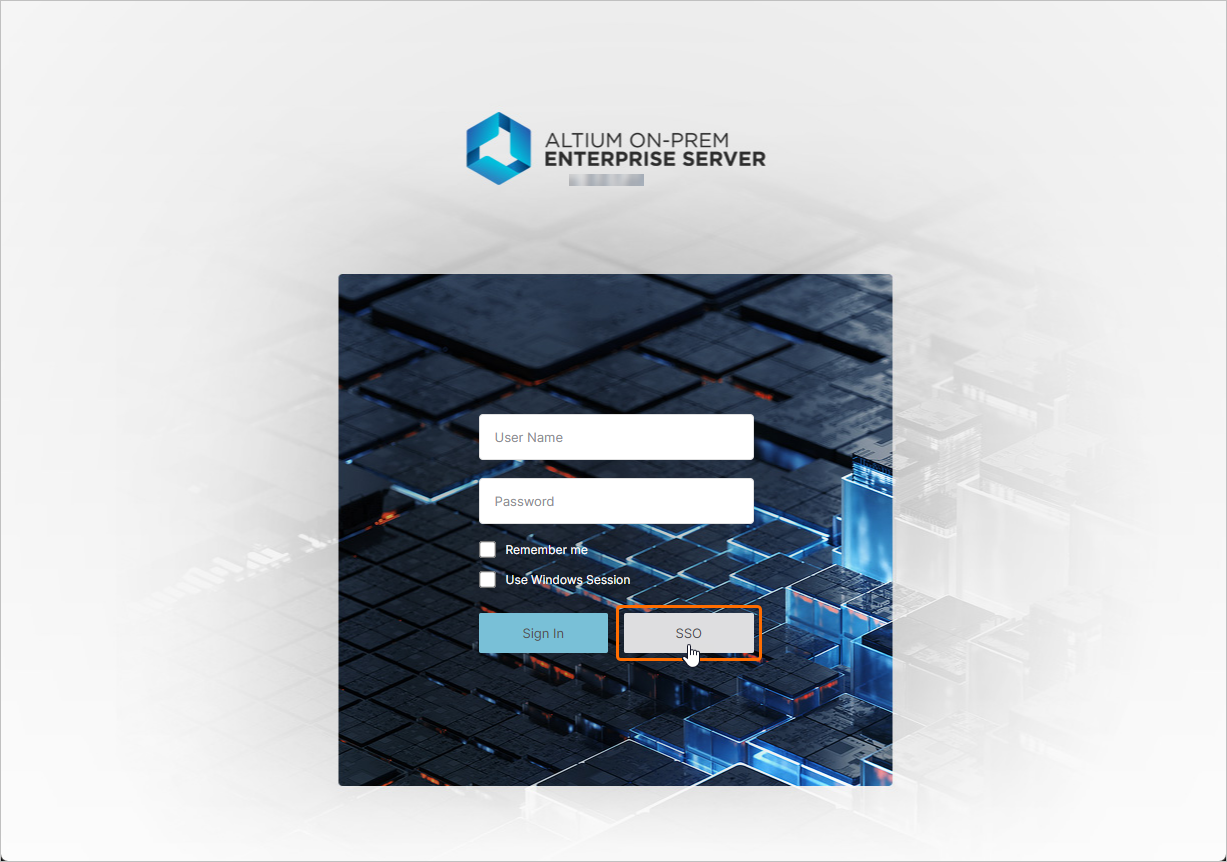
Więcej informacji o dostępie do interfejsu przeglądarkowego Enterprise Server można znaleźć na stronie Exploring the Browser-based Interface.
SAML Single Sign-On
Po skonfigurowaniu i włączeniu w Enterprise Server system SSO ustanawia autoryzowane tożsamości od wskazanego przez Twoją firmę dostawcy tożsamości (IdP), na przykład Okta, OneLogin itd., a komunikacja asercji ID opiera się na standardzie Security Assertion Markup Language (SAML 2.0). Interfejs logowania SSO dla Twojej firmy, jeśli nie został jeszcze wdrożony, jest zwykle oparty na szablonie lub przykładzie dostarczonym przez IdP – inicjuje to wymianę asercji uwierzytelniających opartych na SAML i zapewnia dostęp do usług firmowych.
Po wybraniu opcji SAML z listy rozwijanej SSO na stronie Admin – Settings – Authentication interfejsu przeglądarkowego strona pokazuje wstępnie skonfigurowane adresy URL usługi SSO Enterprise Server (Altium Metadata Configuration) oraz opcję przesłania lub ręcznego wprowadzenia danych połączenia autoryzacyjnego Twojego IdP (SAML Identity Provider Configuration).
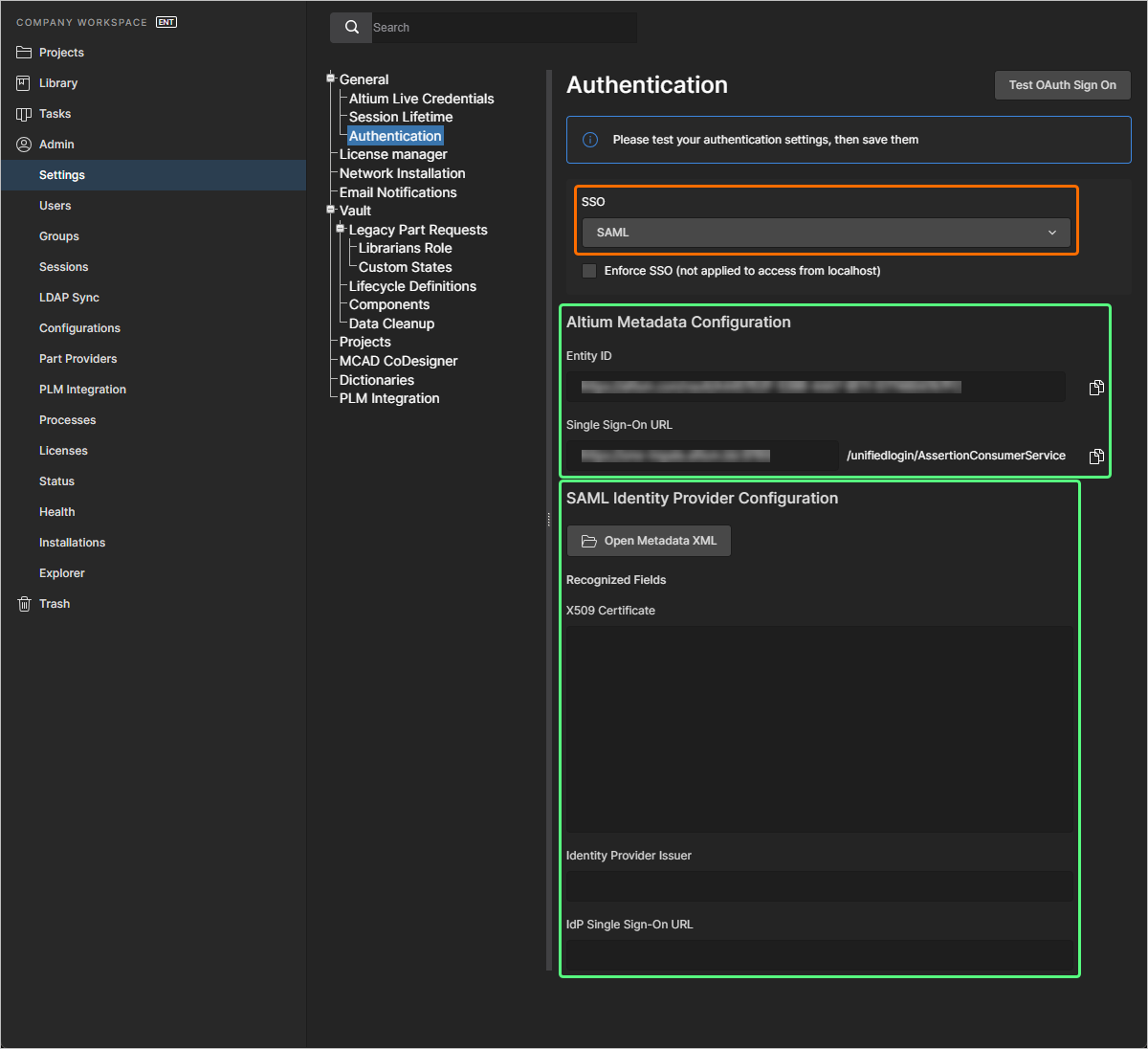
Metadane konfiguracji IdP powinny być dostępne u dostawcy tożsamości po skonfigurowaniu go do integracji z usługami Twojej firmy – patrz przykłady integracji IdP poniżej. Aby skonfigurować system SAML SSO w Enterprise Server (jeśli nie zostało to jeszcze wykonane), użyj przycisku  , aby odszukać i przesłać plik XML konfiguracji SAML IdP wygenerowany przez firmowy IdP. Przesłany plik XML IdP jest analizowany przez system w celu wyodrębnienia głównych pól konfiguracji (X509 Certificate, adresu URL Identity Provider Issuer oraz IdP Single Sign-On URL). Alternatywnie można ręcznie dodać poszczególne elementy konfiguracji (certyfikat bezpieczeństwa i adresy URL) do odpowiednich pól.
SSO nie zostanie włączone, dopóki nie zostanie uruchomiony test integracji, wywoływany przyciskiem  . Weryfikuje on proces tożsamości SSO oraz firmowe logowanie SSO. Po pomyślnym przetestowaniu konfiguracji można zapisać ustawienia, klikając przycisk
  (
(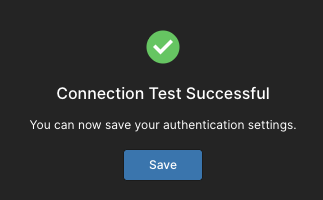 ), co skutecznie zastosuje je w Enterprise Server.
Przykłady integracji dostawcy tożsamości
Rozwiń poniższą sekcję zwijaną, aby zobaczyć przykład krok po kroku procesu integracji dla OneLogin jako dostawcy tożsamości.
Integration with OneLogin
-
Zaloguj się do OneLogin jako administrator.
-
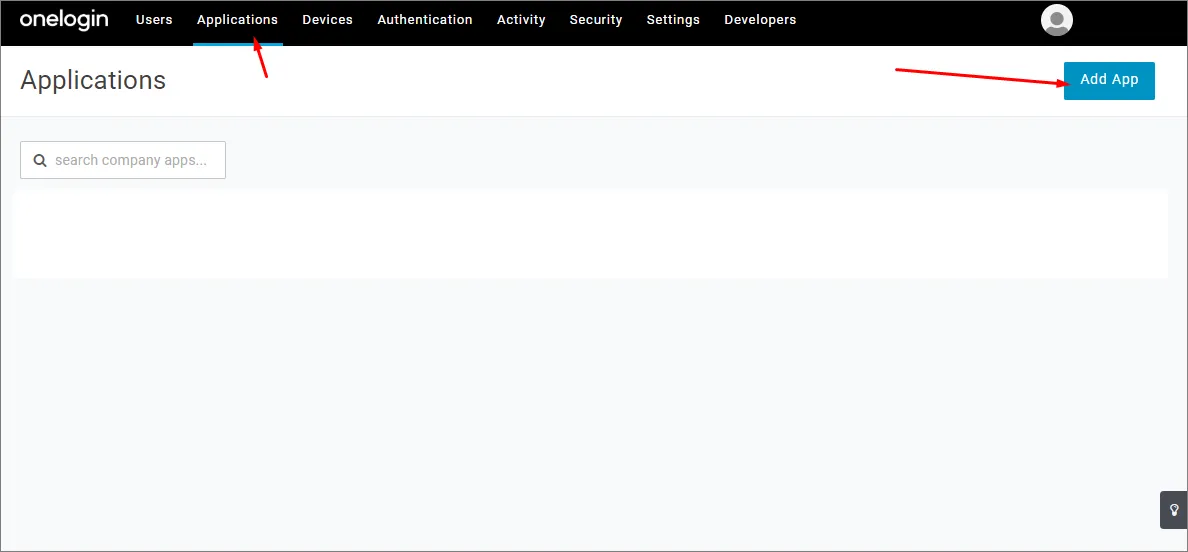
Wybierz Applications, a następnie Add Apps.
-
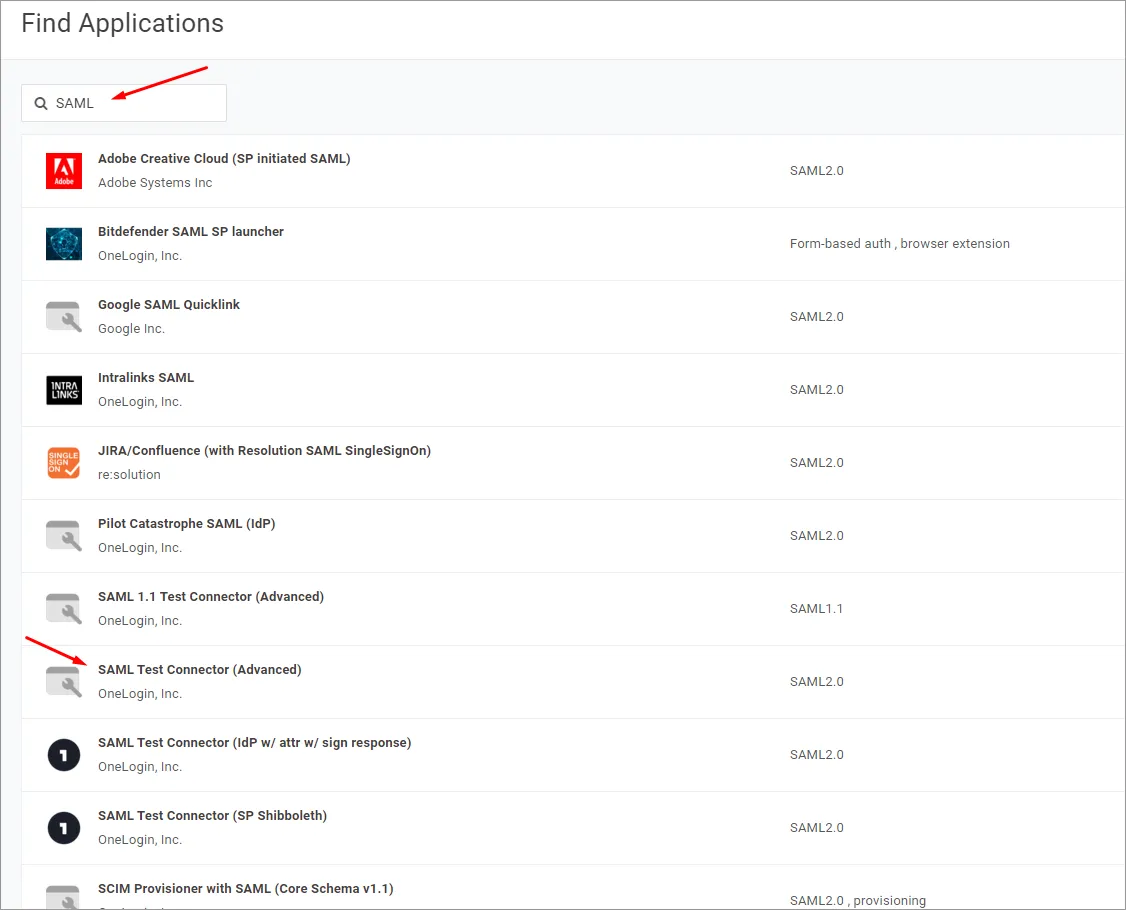
Wyszukaj „SAML” i wybierz opcję aplikacji IdP SAML Test Connector (Advanced).
-
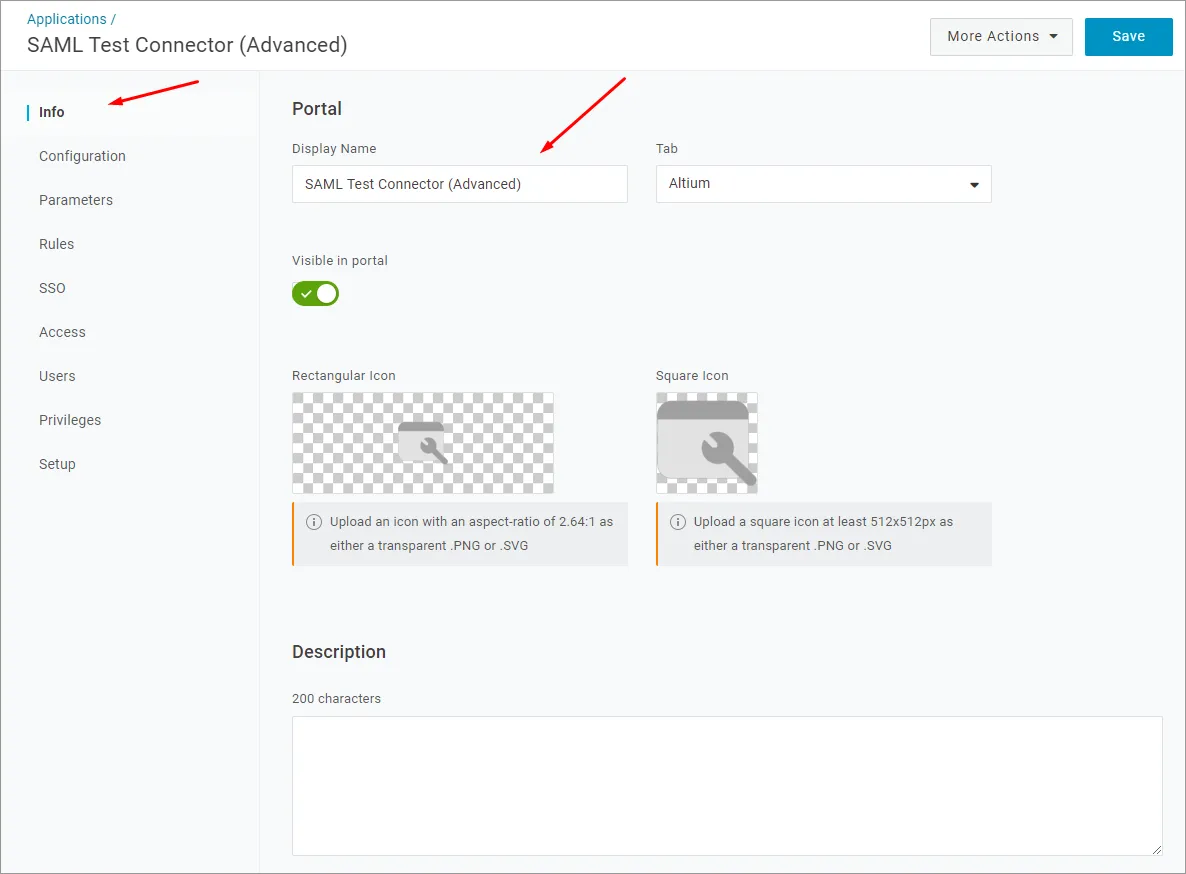
Podaj nazwę aplikacji (Display Name). Służy ona wyłącznie do celów wyświetlania.
-
Kliknij przycisk Save.
-
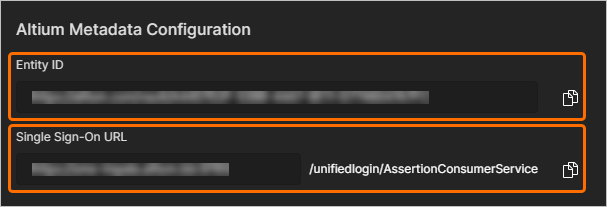
Skopiuj (
 ) wpisy Entity ID oraz Single Sign-On URL (Assertion Consumer Service) ze strony Admin – Settings – Authentication interfejsu przeglądarkowego Enterprise Server do pól wskazanych poniżej.
W konfiguracji aplikacji OneLogin:
-
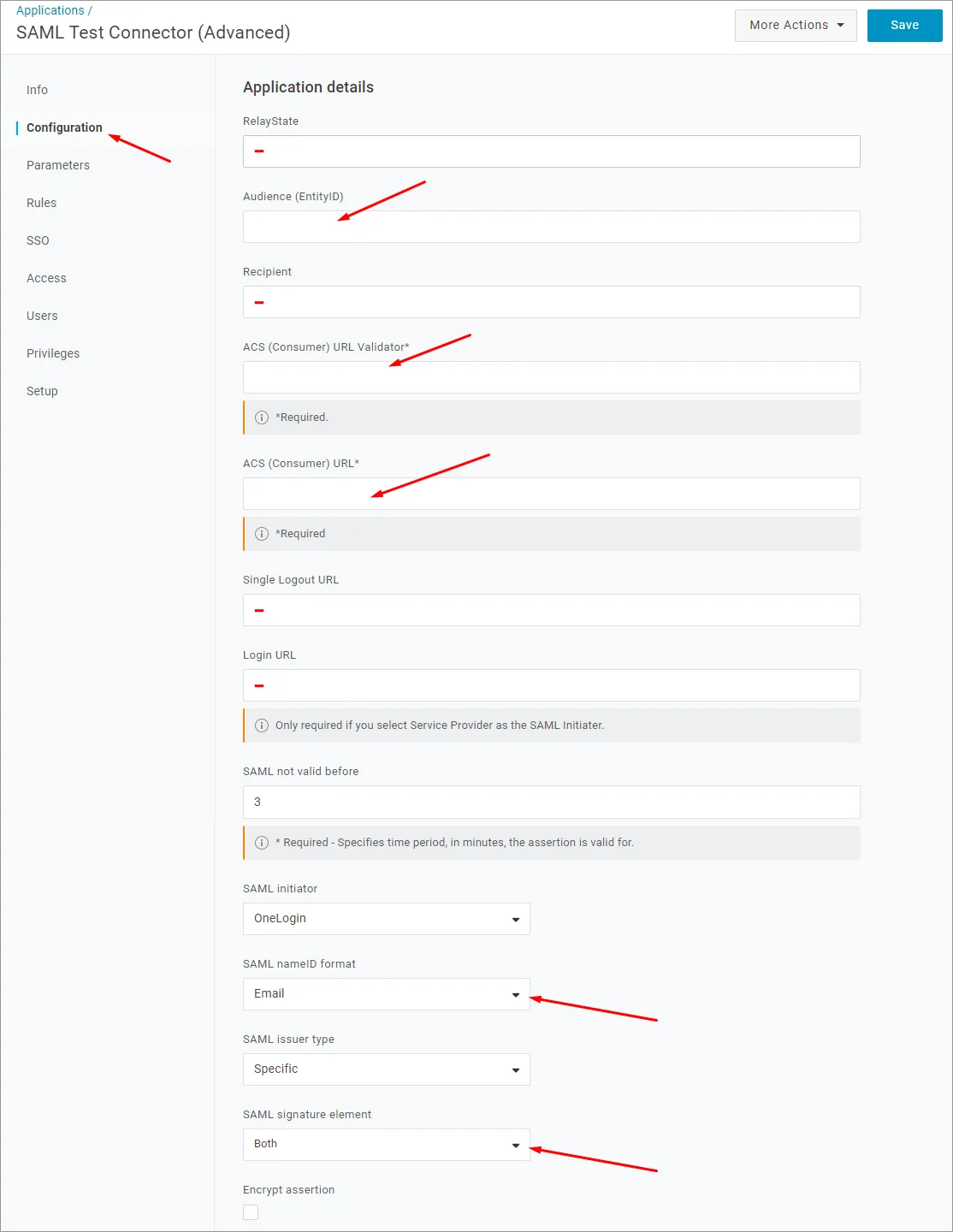
Wklej powyższy Entity ID (nazwę dostawcy usług) jako adres URL Audience (EntityID).
-
Wklej powyższy Single Sign-On URL (Assertion Consumer Service) jako ACS (Consumer) URL Validator.
-
Wklej również Single Sign-On URL (Assertion Consumer Service) jako ACS (Consumer) URL.
-
Pola RelayState, Recipient, Single Logout URL i Login URL można pozostawić puste.
-
-
Upewnij się, że opcja SAML nameID format jest ustawiona na Email, a SAML signature element jest ustawione na Both. Kliknij przycisk Save, aby potwierdzić ustawienia.
-
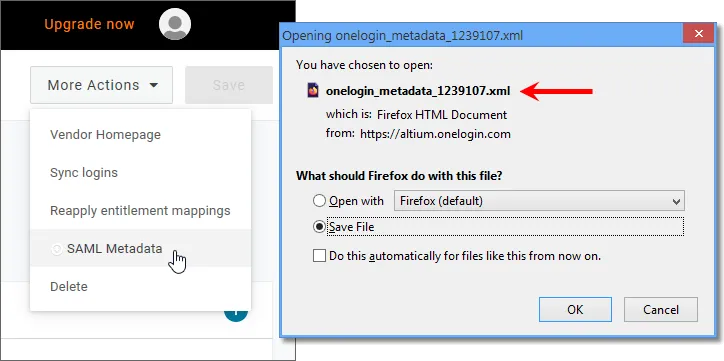
Kliknij przycisk More Actions, a następnie opcję menu SAML Metadata, aby pobrać metadane SAML dostawcy tożsamości jako plik XML.
-
Ten plik metadanych zostanie przesłany na stronie Admin – Settings – Authentication interfejsu przeglądarkowego Enterprise Server w celu skonfigurowania usługi SSO OneLogin – zobacz poniżej.
-
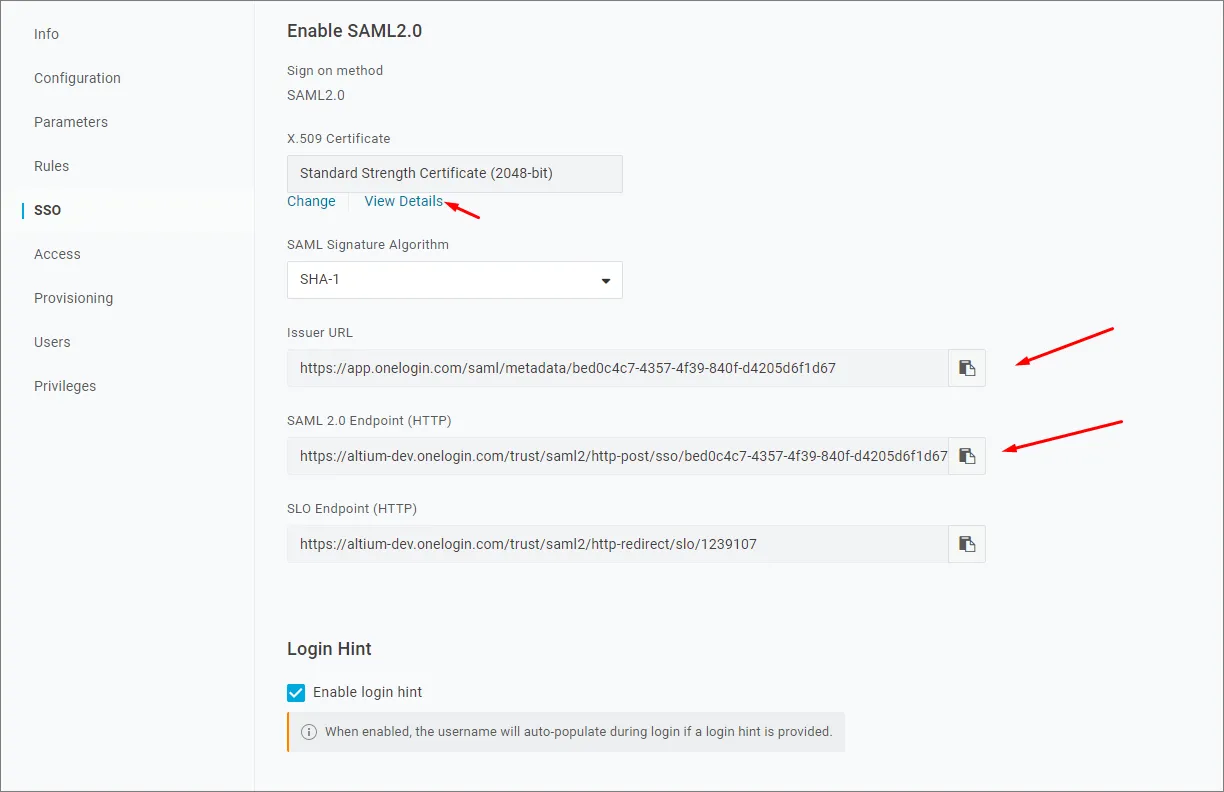
Jeśli preferowana jest ręczna konfiguracja usługi SSO OneLogin w Enterprise Server, wymagane parametry można znaleźć, wybierając opcję menu SSO w interfejsie aplikacji OneLogin.
-
-
Kolejnym krokiem będzie dodanie użytkowników i przypisanie im aplikacji.
Rozwiń poniższą sekcję zwijaną, aby zobaczyć przykład krok po kroku procesu integracji dla Okta jako dostawcy tożsamości.
Integration with Okta
-
Zaloguj się do Okta jako administrator.
-
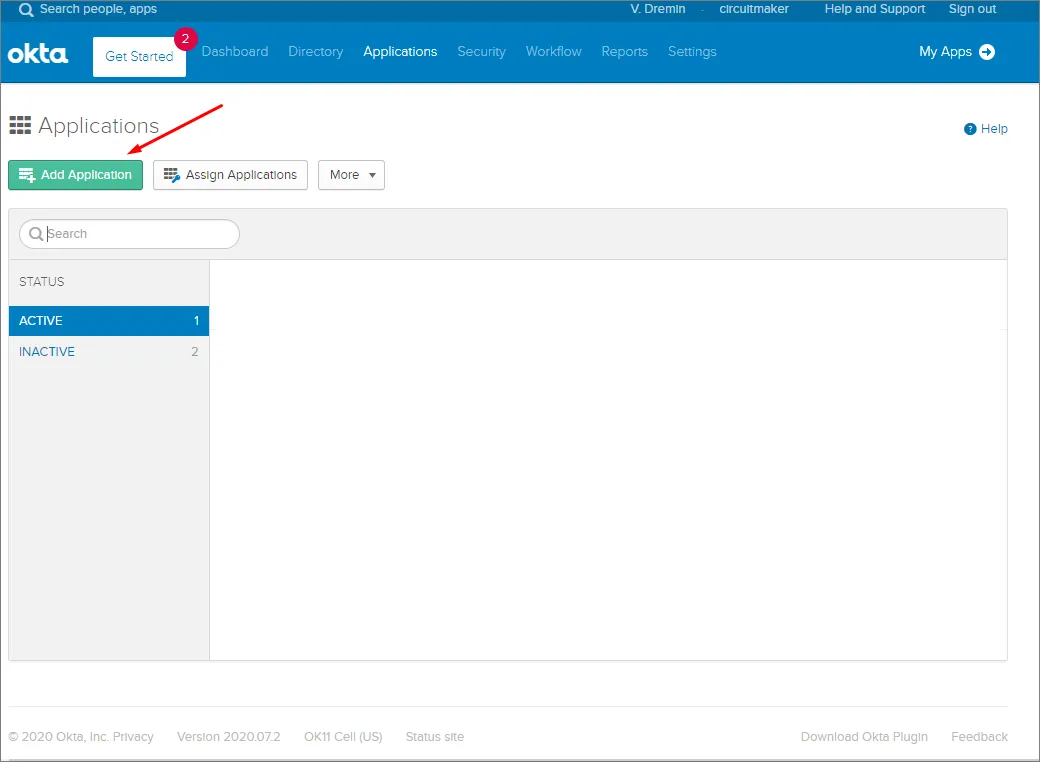
Kliknij link/przycisk Admin, a następnie przycisk Add Application w obszarze firmowym Applications.
-
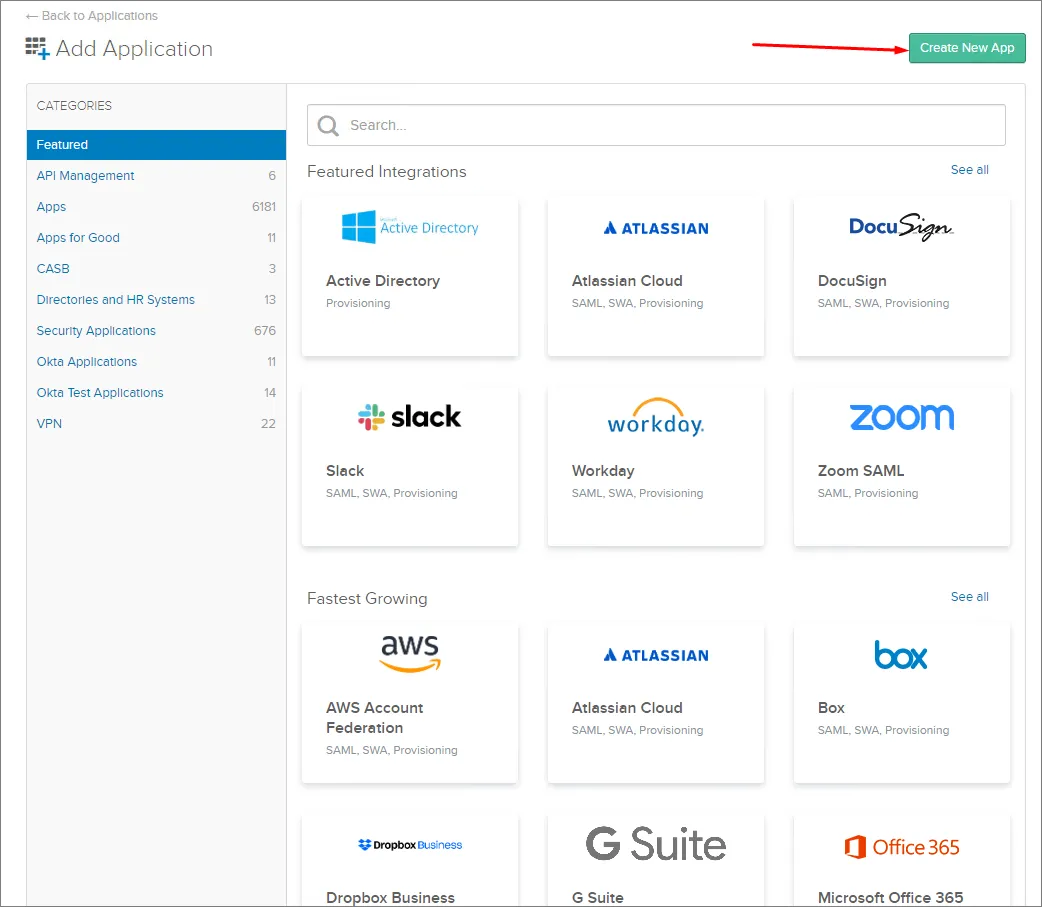
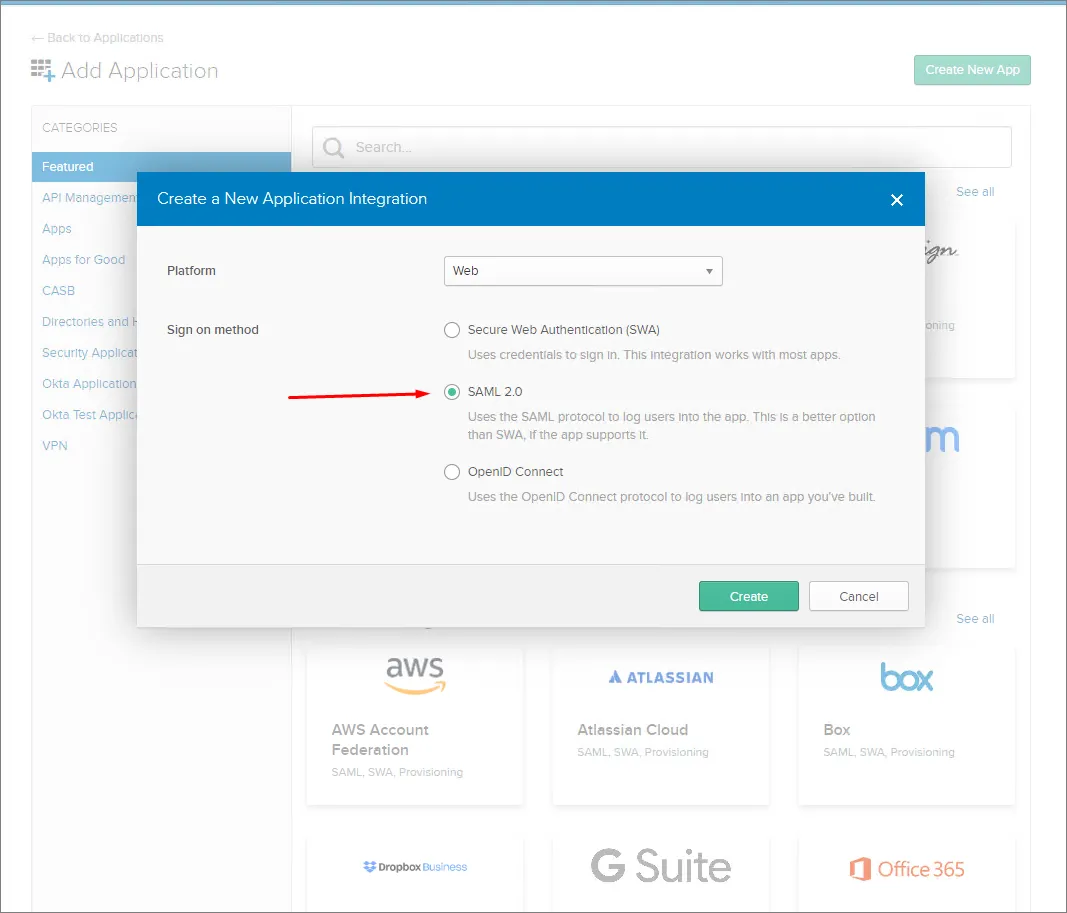
Kliknij przycisk Create New App.
-
Wybierz SAML 2.0 jako Sign-on method.
-
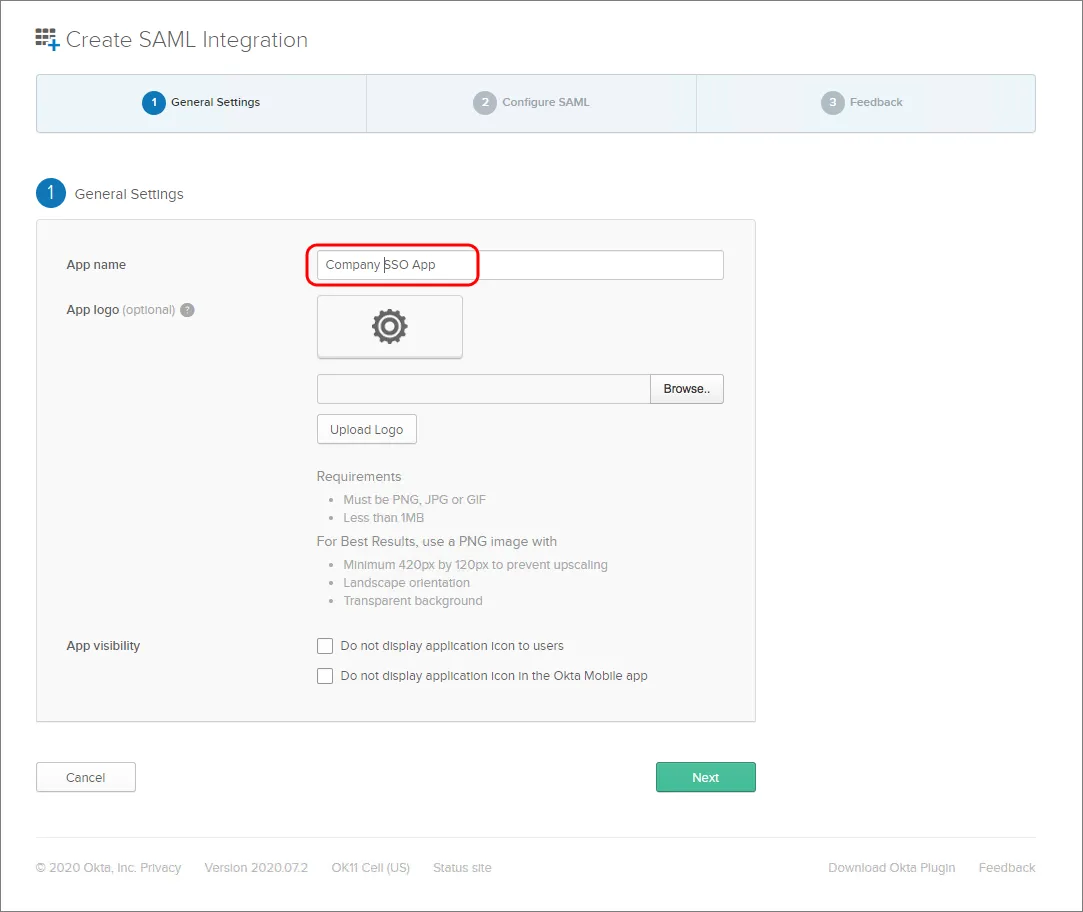
Podaj App name. Służy ono wyłącznie do celów wyświetlania.
-
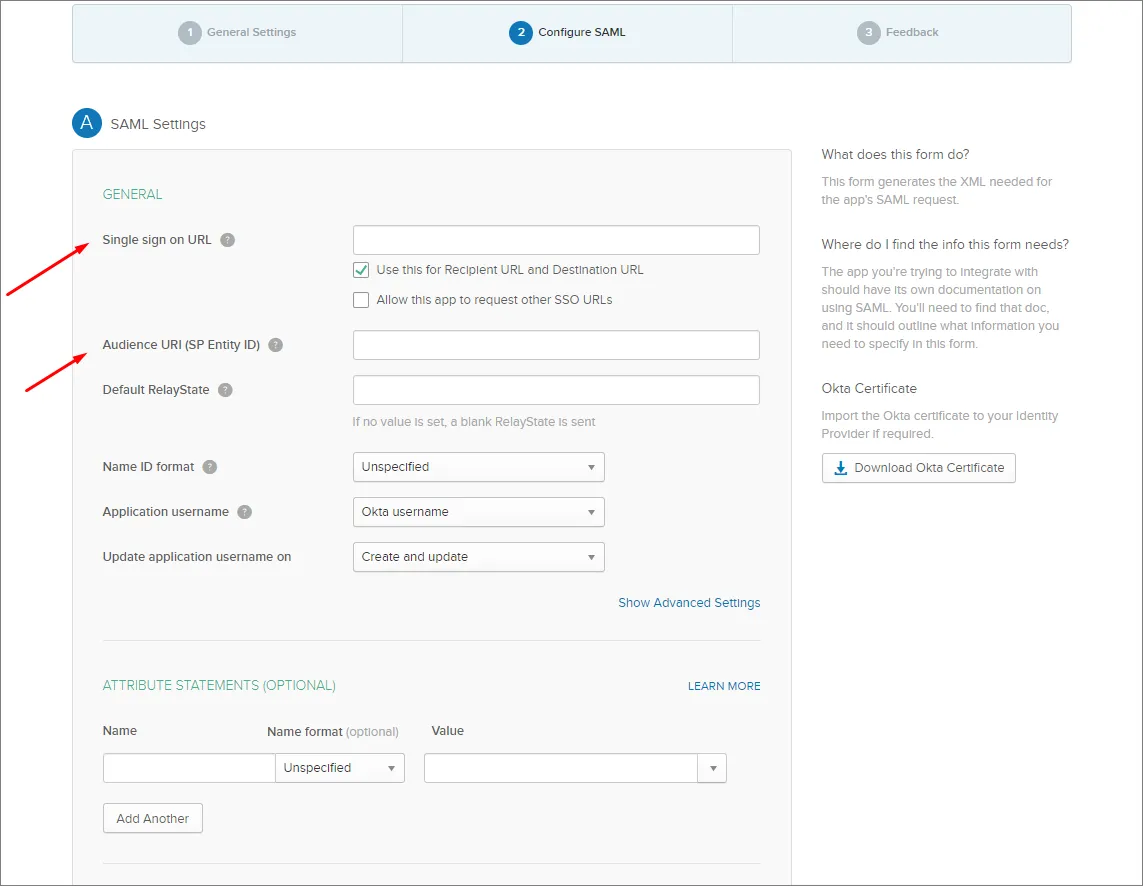
Zanotuj wpisy Single Sign On URL (Assertion Consumer Service) oraz Entity ID na stronie Admin – Settings – Authentication interfejsu przeglądarkowego Enterprise Server.
-
Skopiuj (
) i wklej wpis Enterprise Server Single Sign-On URL do pola Single sign on URL w ustawieniach Okta SAML Settings.
-
Skopiuj (
) i wklej wpis Enterprise Server Entity ID do pola Audience URI w ustawieniach Okta SAML Settings.
Wpis Default RelayState nie jest wymagany.
-
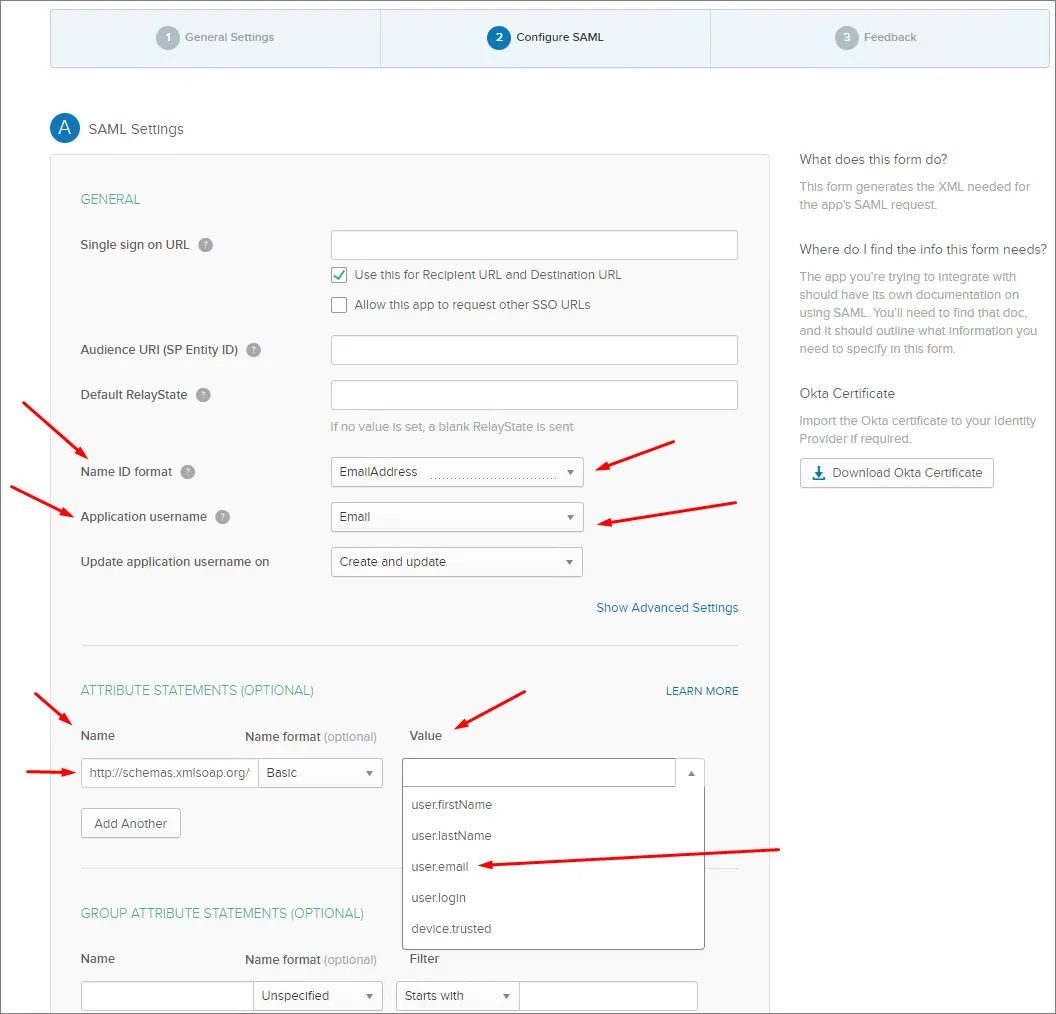
Ustaw pozostałe pola w następujący sposób:
-
Name ID format to
EmailAddress. -
Application username to (Okta)
Email. -
W sekcji ATTRIBUTE STATEMENTS ustaw pole Name na:
http://schemas.xmlsoap.org/ws/2005/05/identity/claims/emailaddress, a Value na:user.email
-
-
Kliknij przycisk Next i wybierz opcję ..Okta customer adding an internal app.
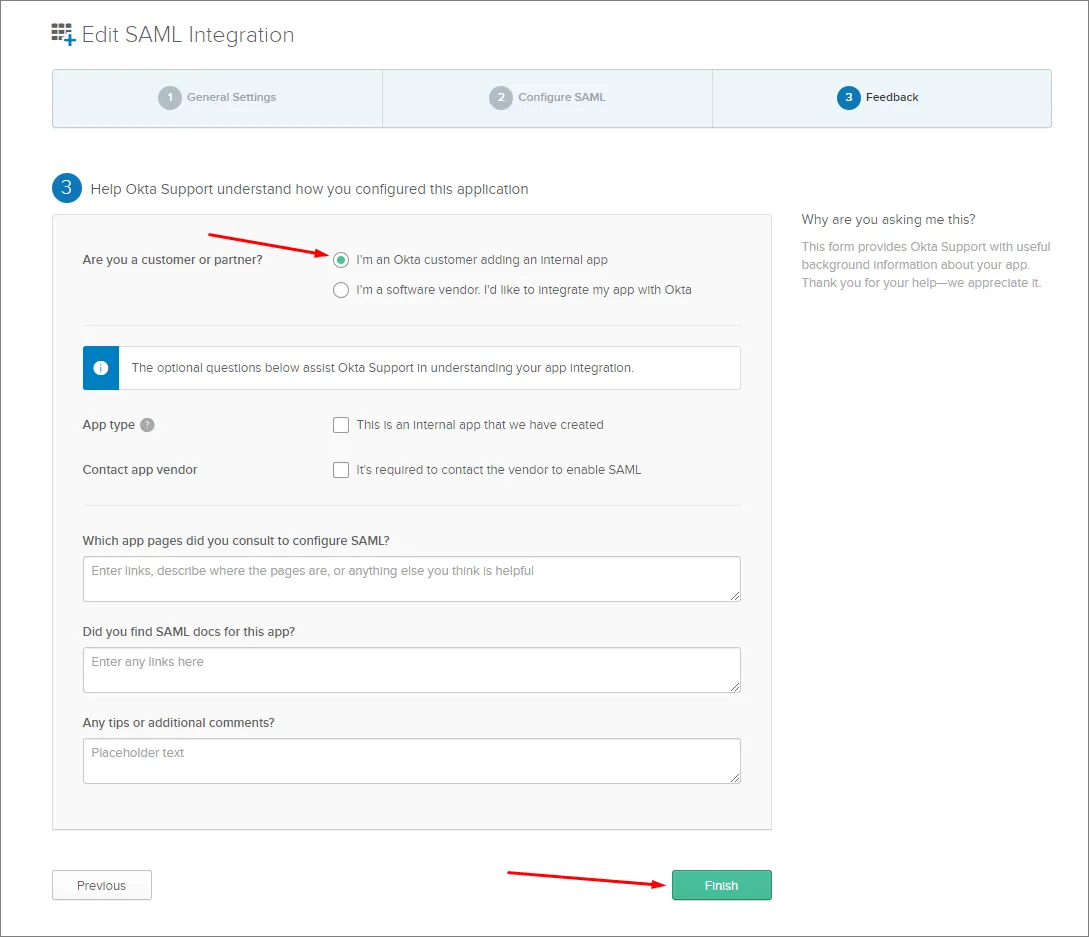
-
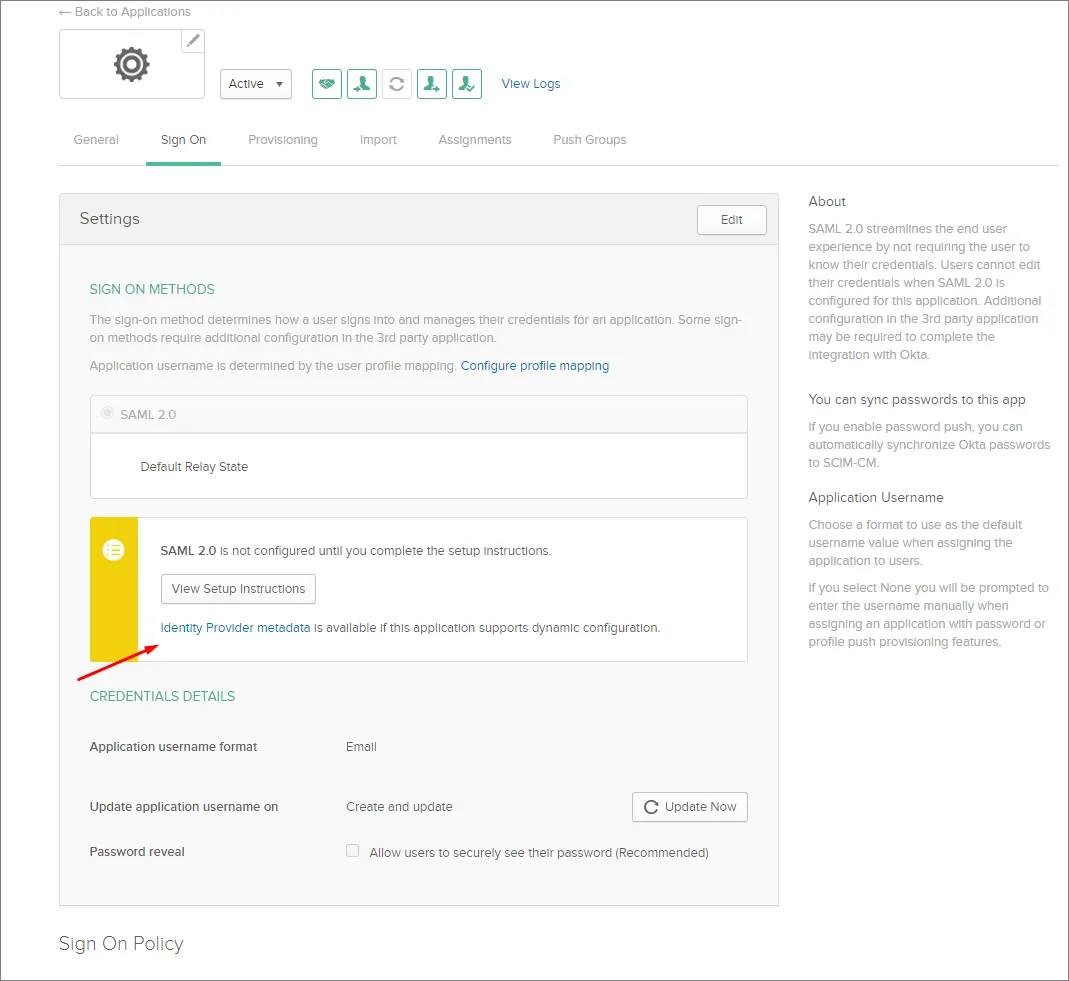
Kliknij przycisk Finish.
-
Kliknij łącze Identity Provider metadata i zapisz metadane XML na swoim komputerze lub kliknij przycisk View Setup Instructions, aby zobaczyć opcje konfiguracji ręcznej.
-
W sekcji SAML Identity Provider configuration na stronie Admin – Settings – Authentication interfejsu przeglądarkowego Enterprise Server prześlij zapisany plik XML metadanych lub skonfiguruj poszczególne sekcje ręcznie – zobacz powyżej.
-
Rozwiń poniższą sekcję zwijaną, aby zobaczyć przykład krok po kroku procesu integracji dla Microsoft Entra ID jako dostawcy tożsamości.
Integration with Microsoft Entra ID
-
Zaloguj się do Microsoft Entra admin center.
-
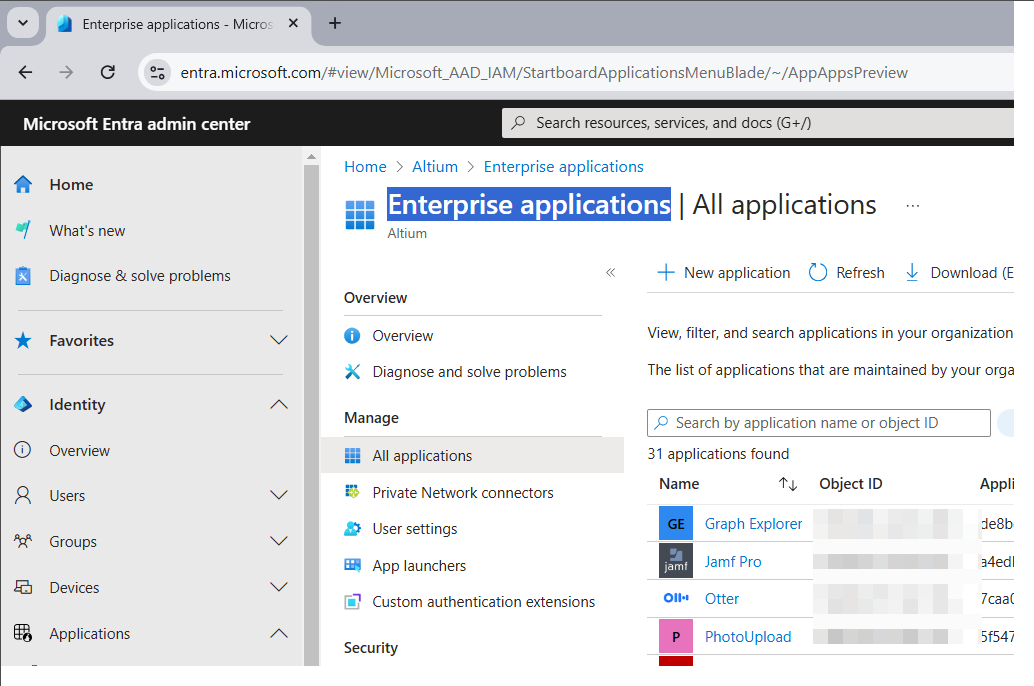
Wybierz Identity, a następnie opcję Enterprise applications.
-
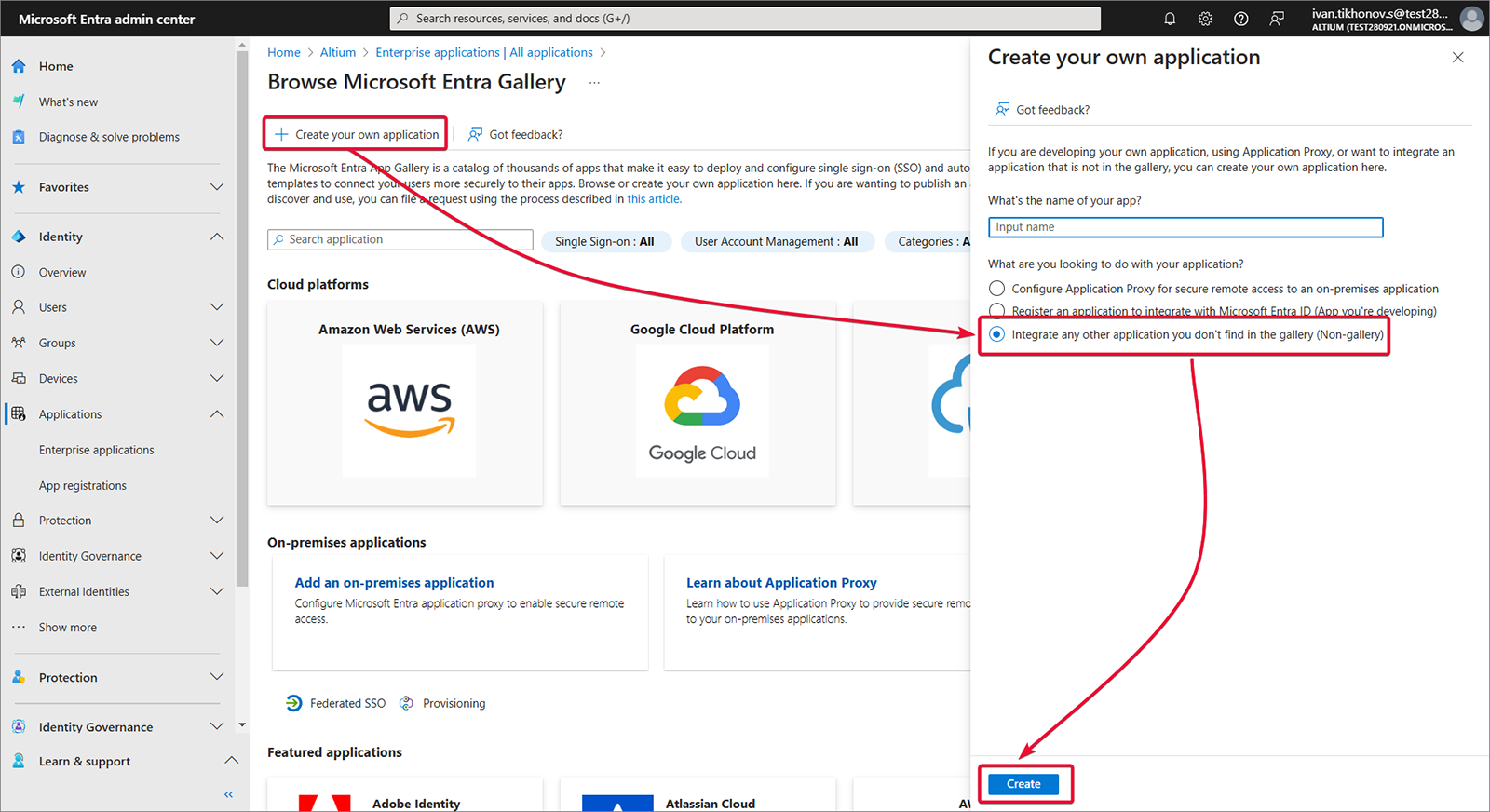
Utwórz własną aplikację.
-
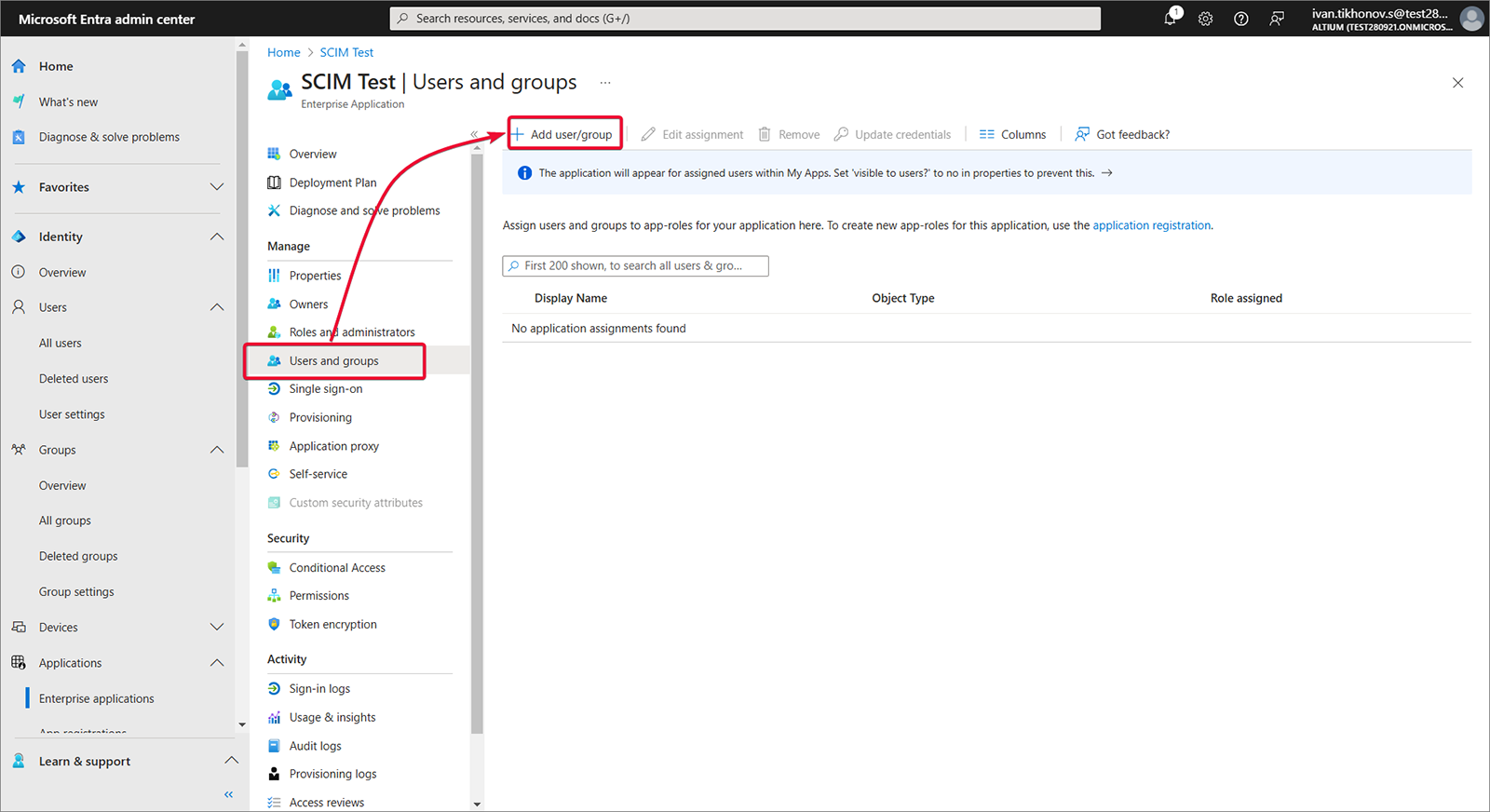
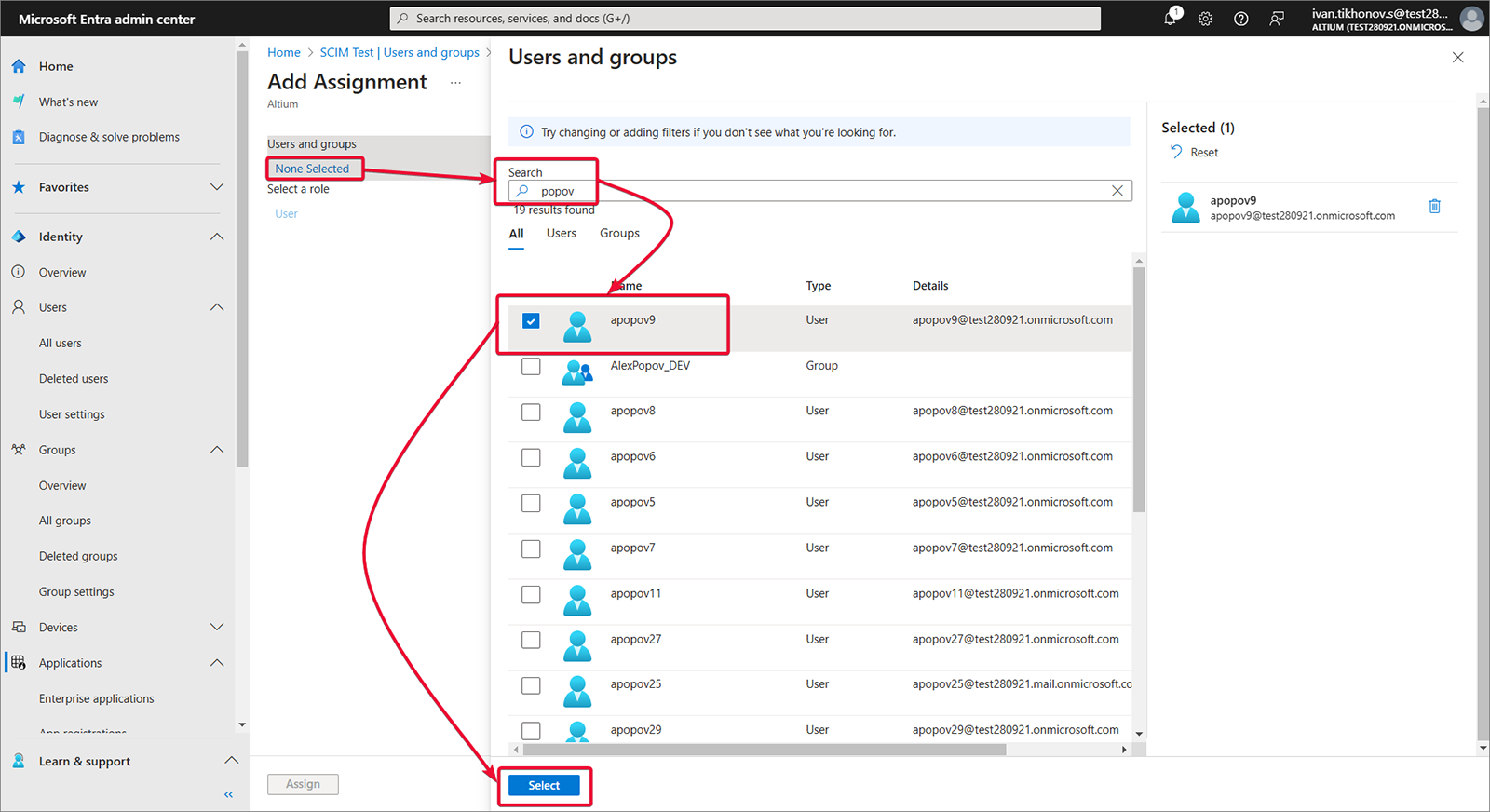
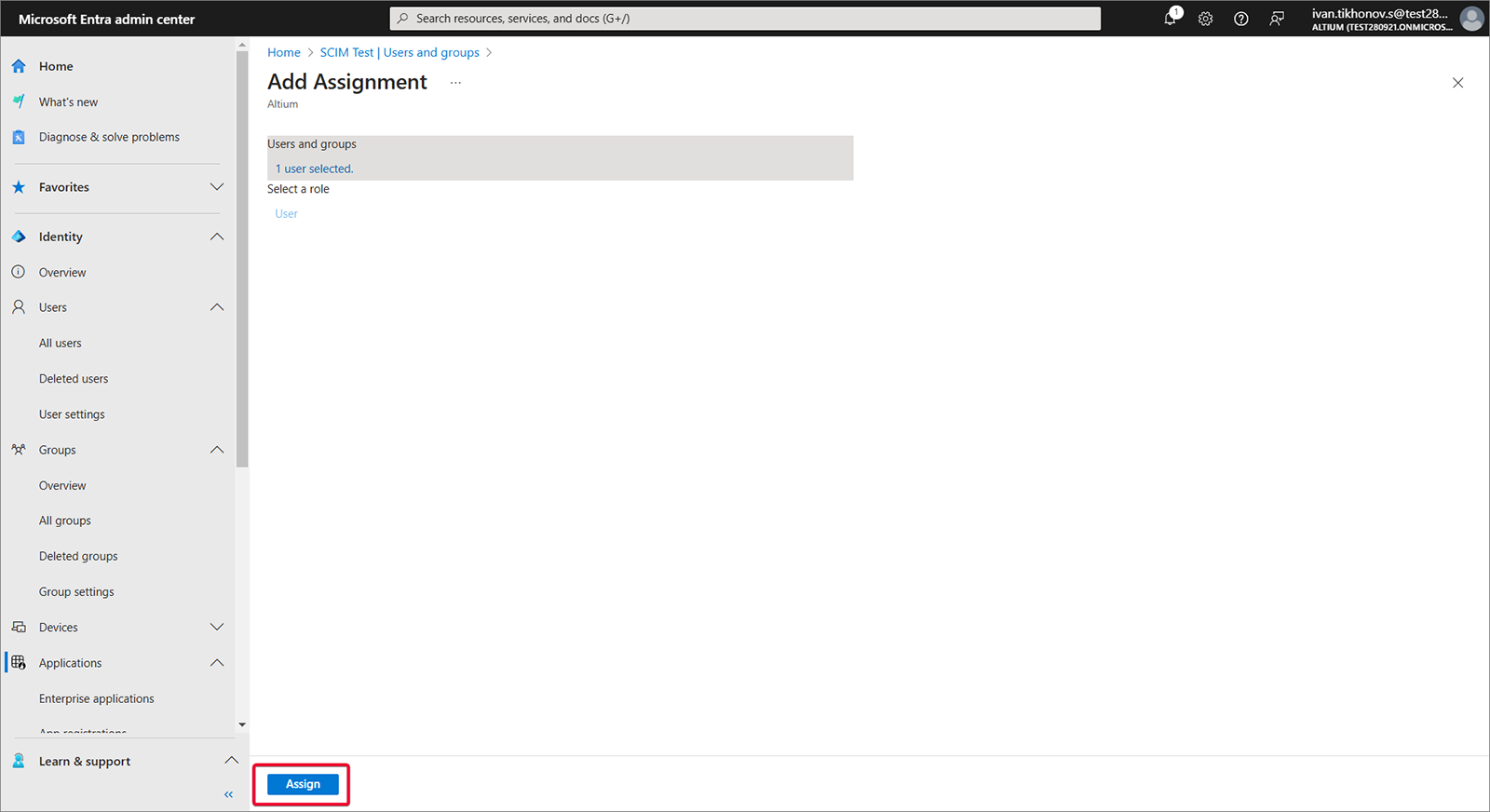
Wybierz Users and groups, a następnie Add user/group.
-
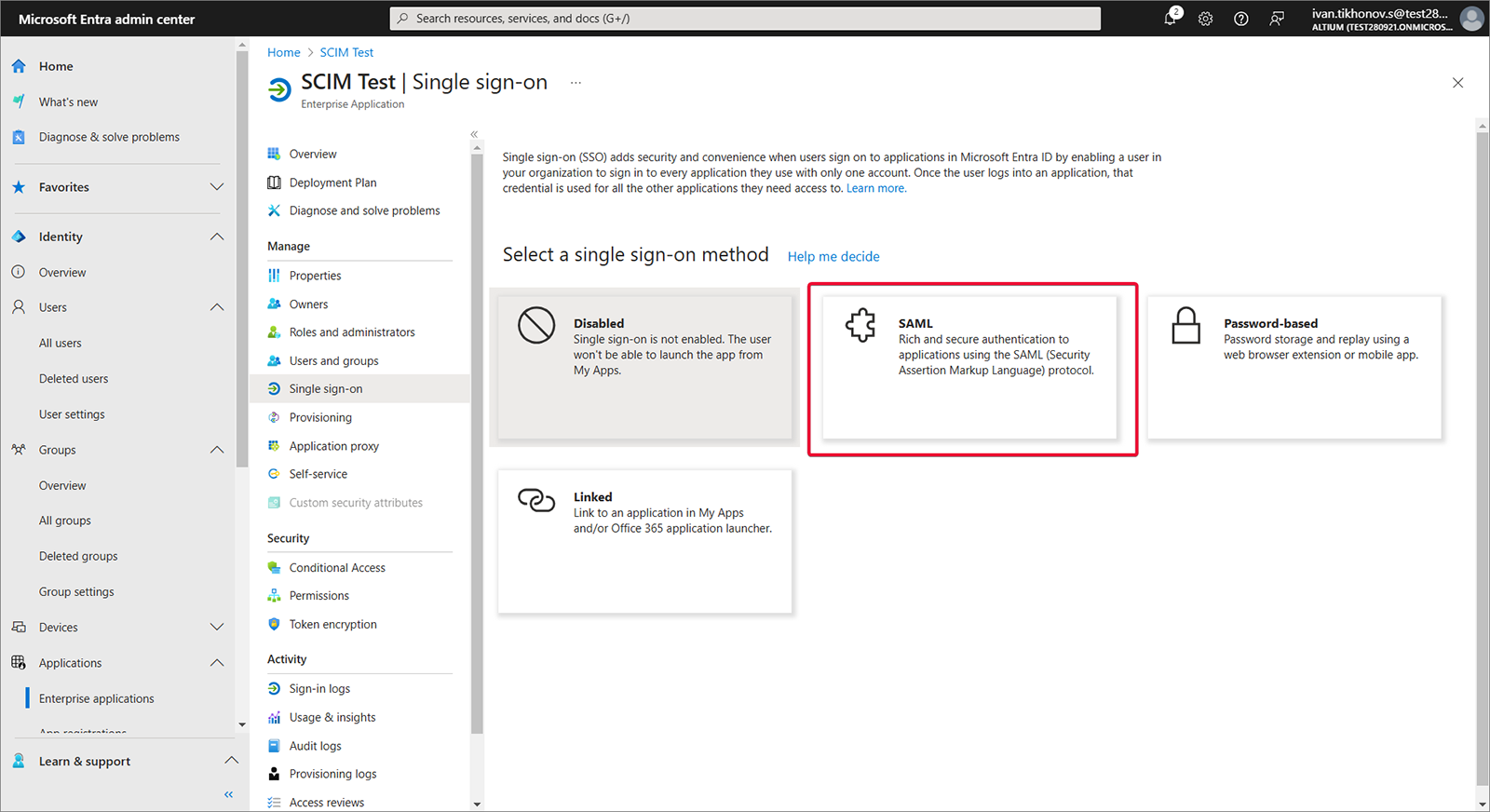
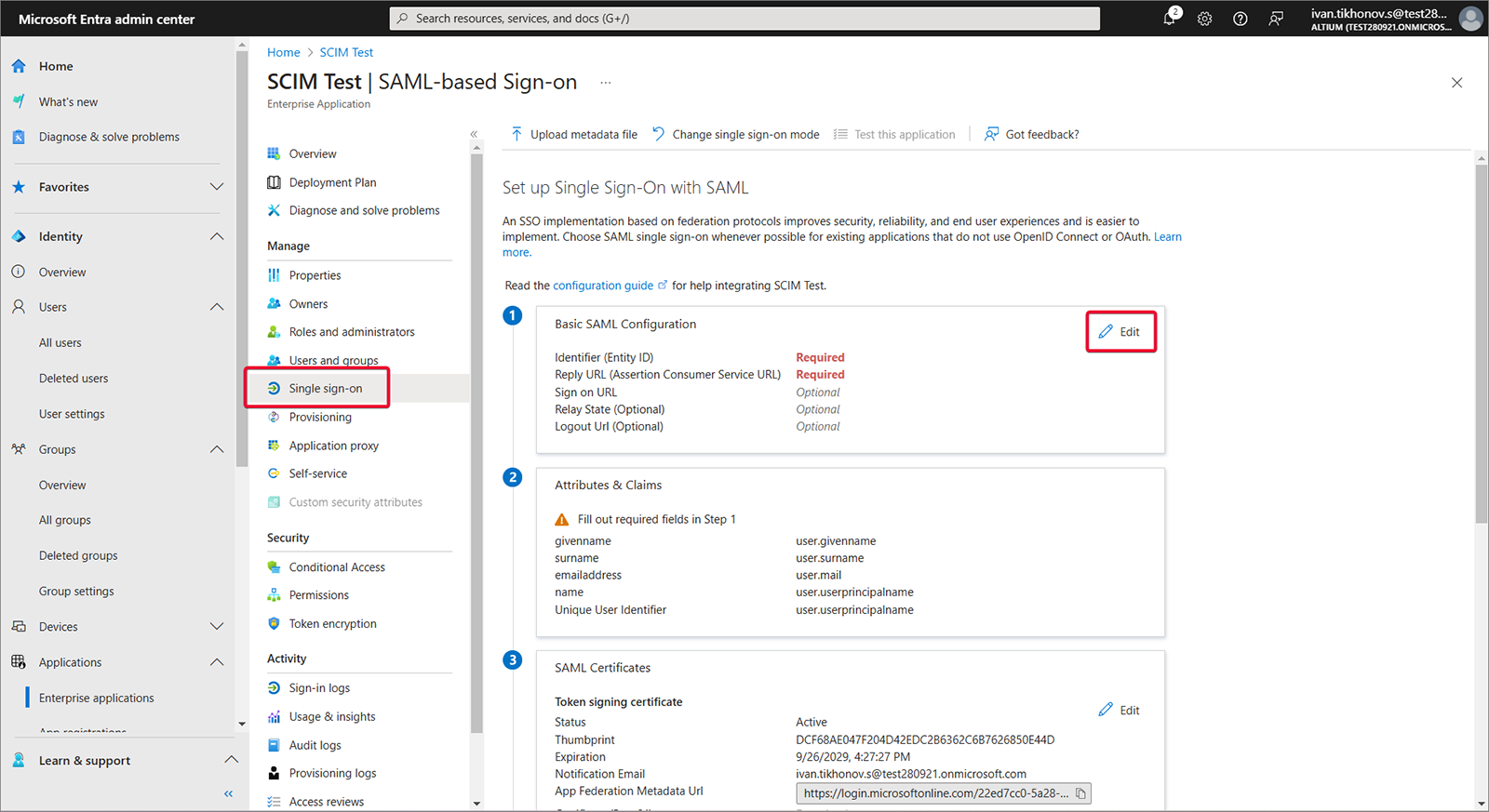
Wybierz Single sign-on, Step 1, a następnie Edit.
-
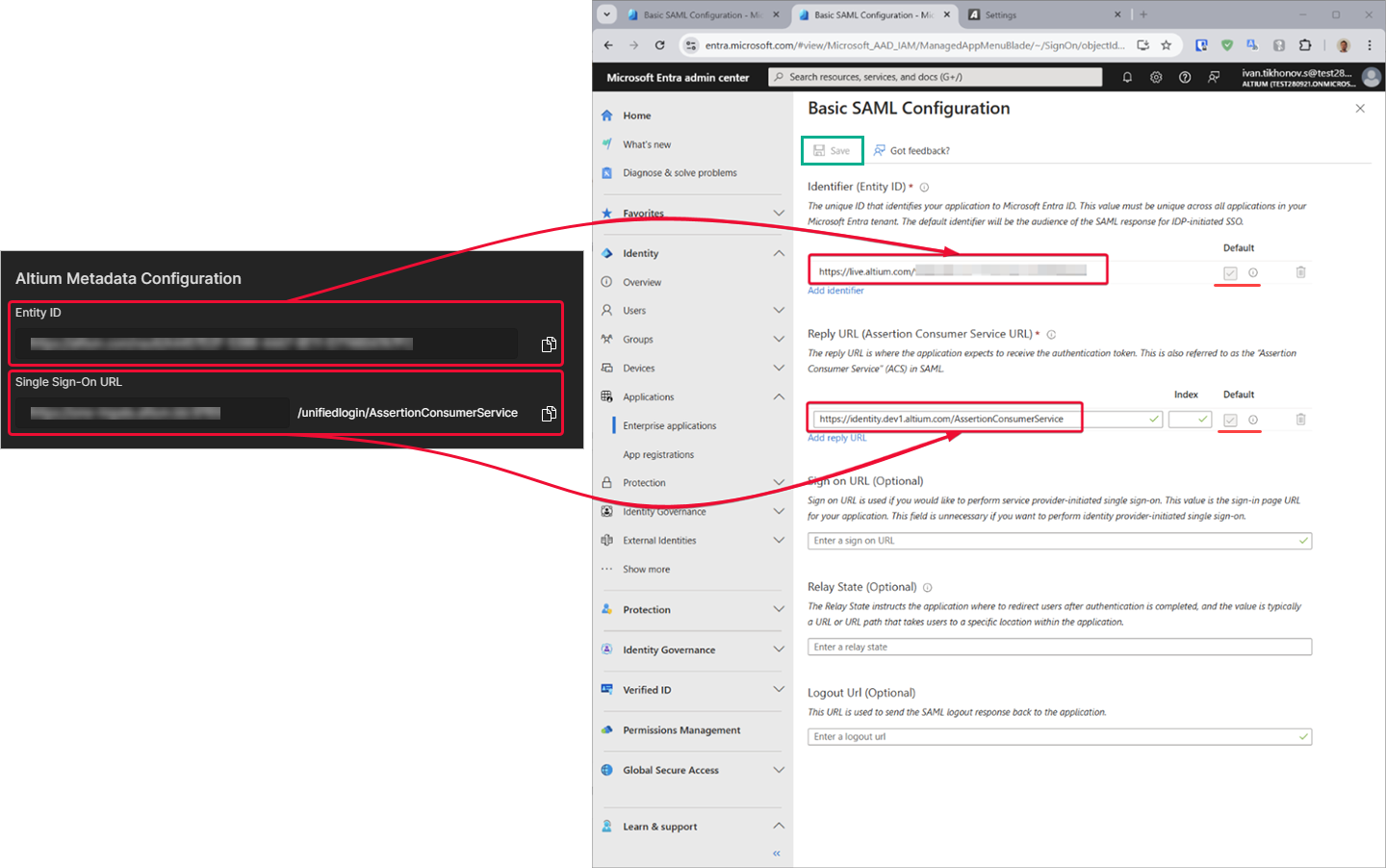
Skopiuj (
) Entity ID i Single Sign-On URL ze strony Admin – Settings – Authentication interfejsu przeglądarkowego Enterprise Server. Wklej skopiowane ciągi do pól Entity ID i Assertion Consumer Service URL w obszarze Microsoft Entra app SAML Configuration. Upewnij się, że pola wyboru Default są zaznaczone dla tych pól, a następnie zapisz konfigurację.
-
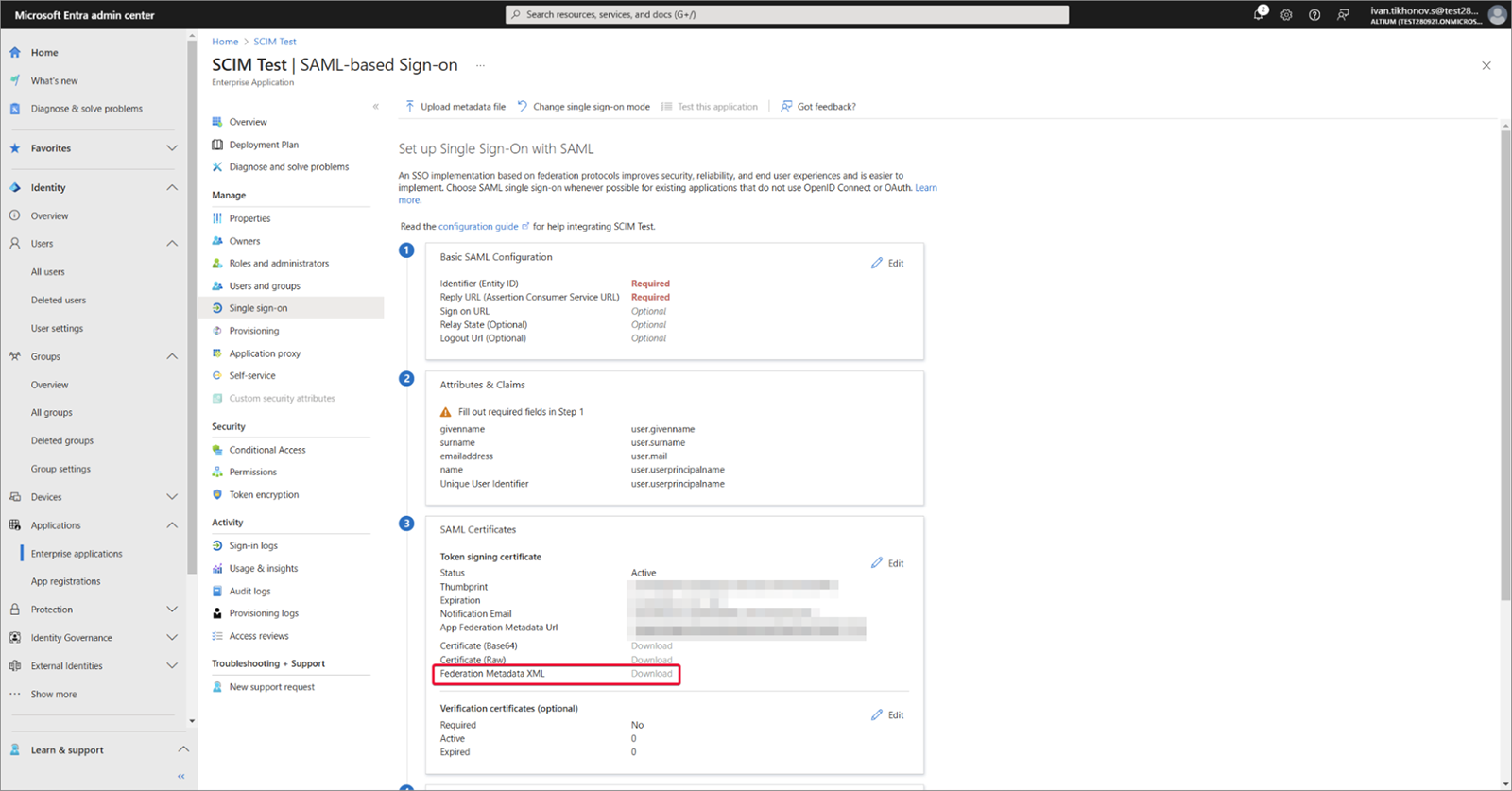
Pobierz utworzony plik Federation Metadata XML.
-
Prześlij plik Federation Metadata XML na stronę Admin – Settings – Authentication interfejsu przeglądarkowego Enterprise Server, a następnie przetestuj połączenie integracji SAML – zobacz powyżej.
Rozwiń poniższą sekcję zwijaną, aby zobaczyć przykład krok po kroku procesu integracji dla JumpCloud jako dostawcy tożsamości.
Integration with JumpCloud
-
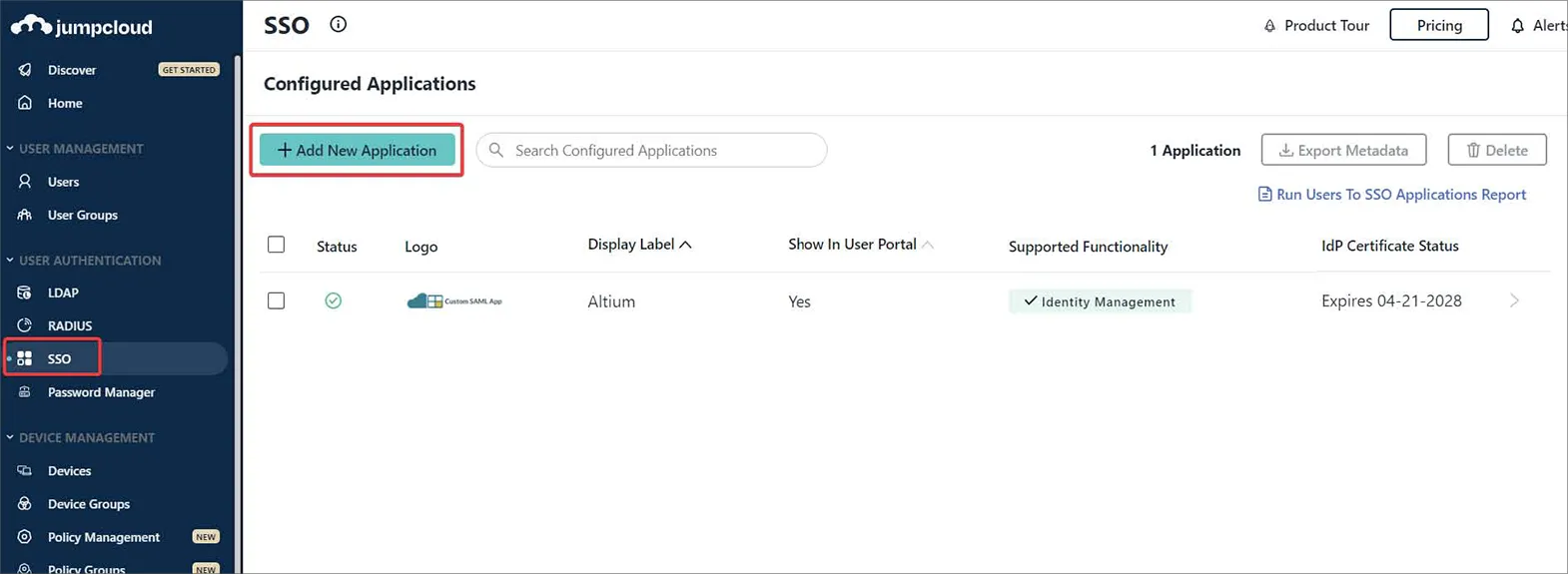
W interfejsie JumpCloud wybierz SSO z drzewa nawigacji, a następnie przycisk Add New Application na stronie SSO.
-
Wprowadź '
saml' w polu Search okna konfiguracji, aby odnaleźć i zainstalować Custom SAML App.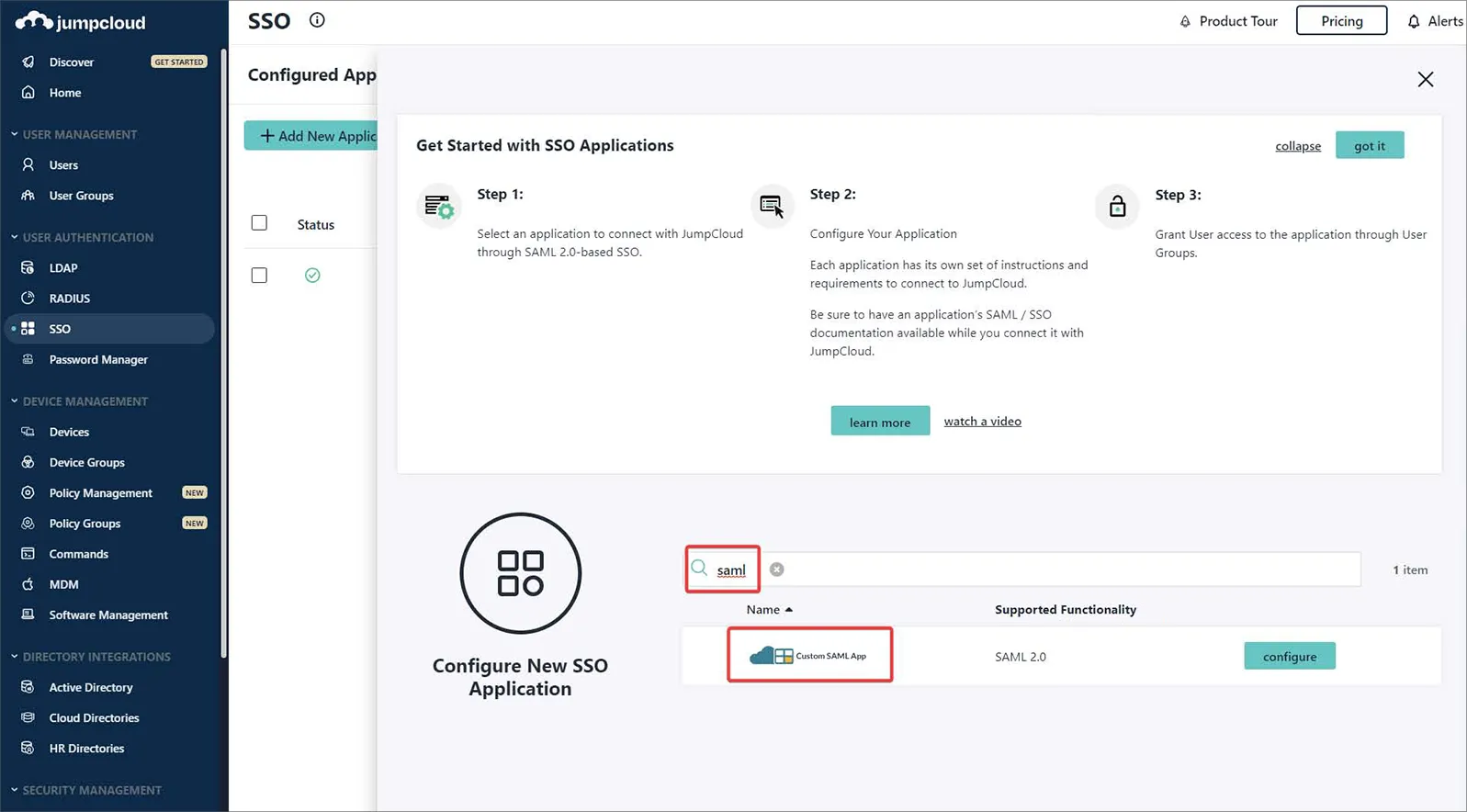
-
Nazwij swoją instancję Custom SAML App – w tym przykładzie etykieta to
Altium.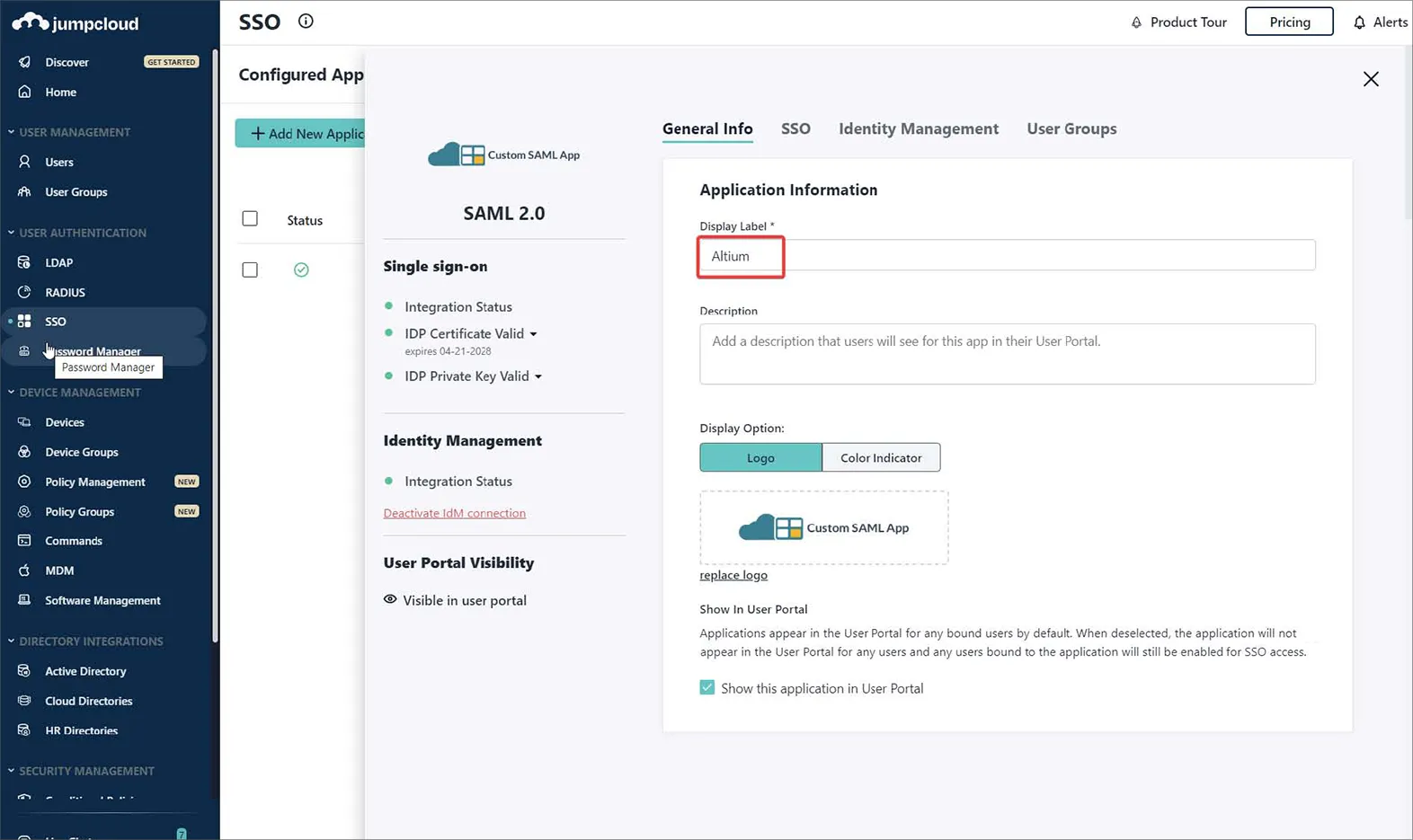
-
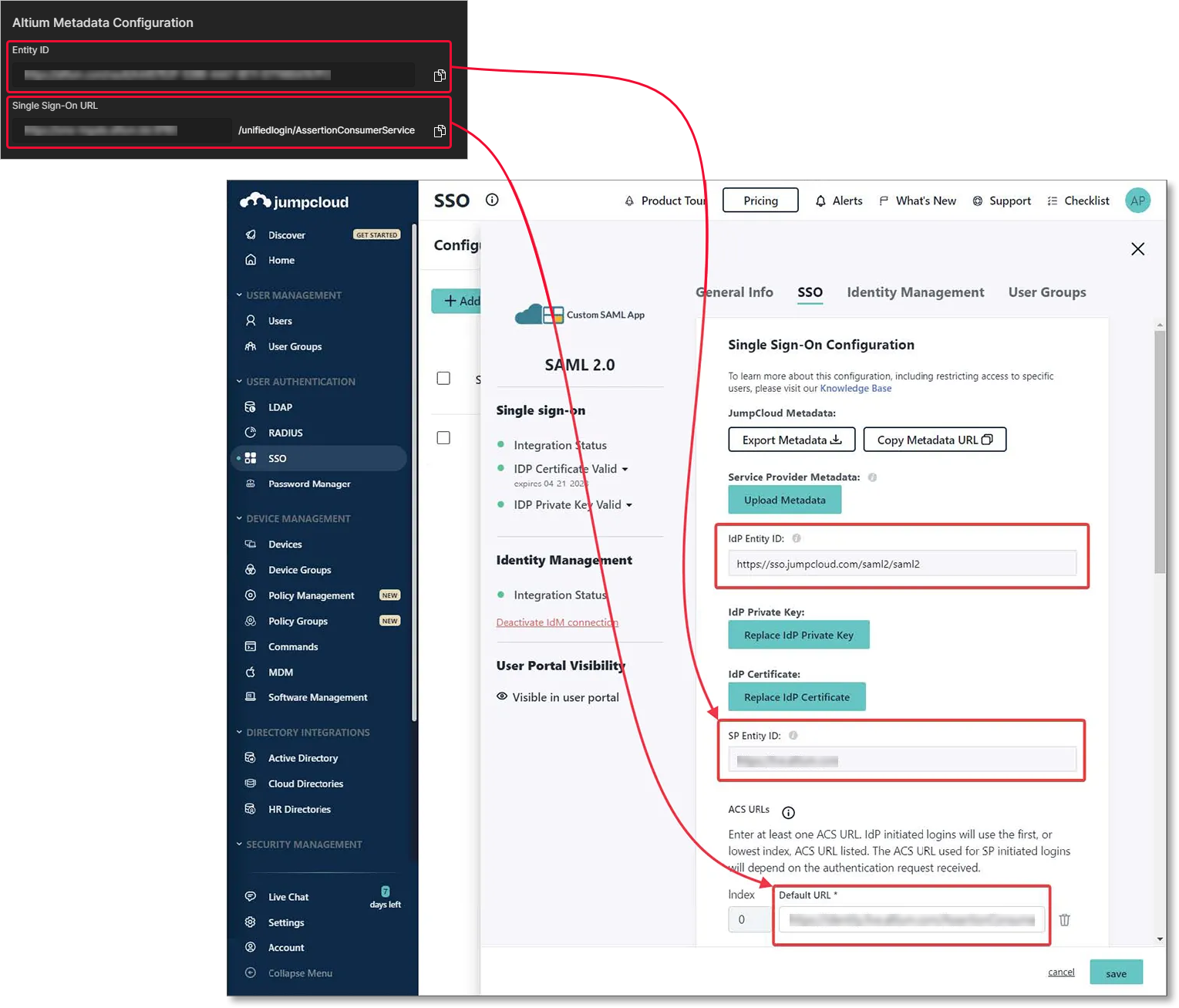
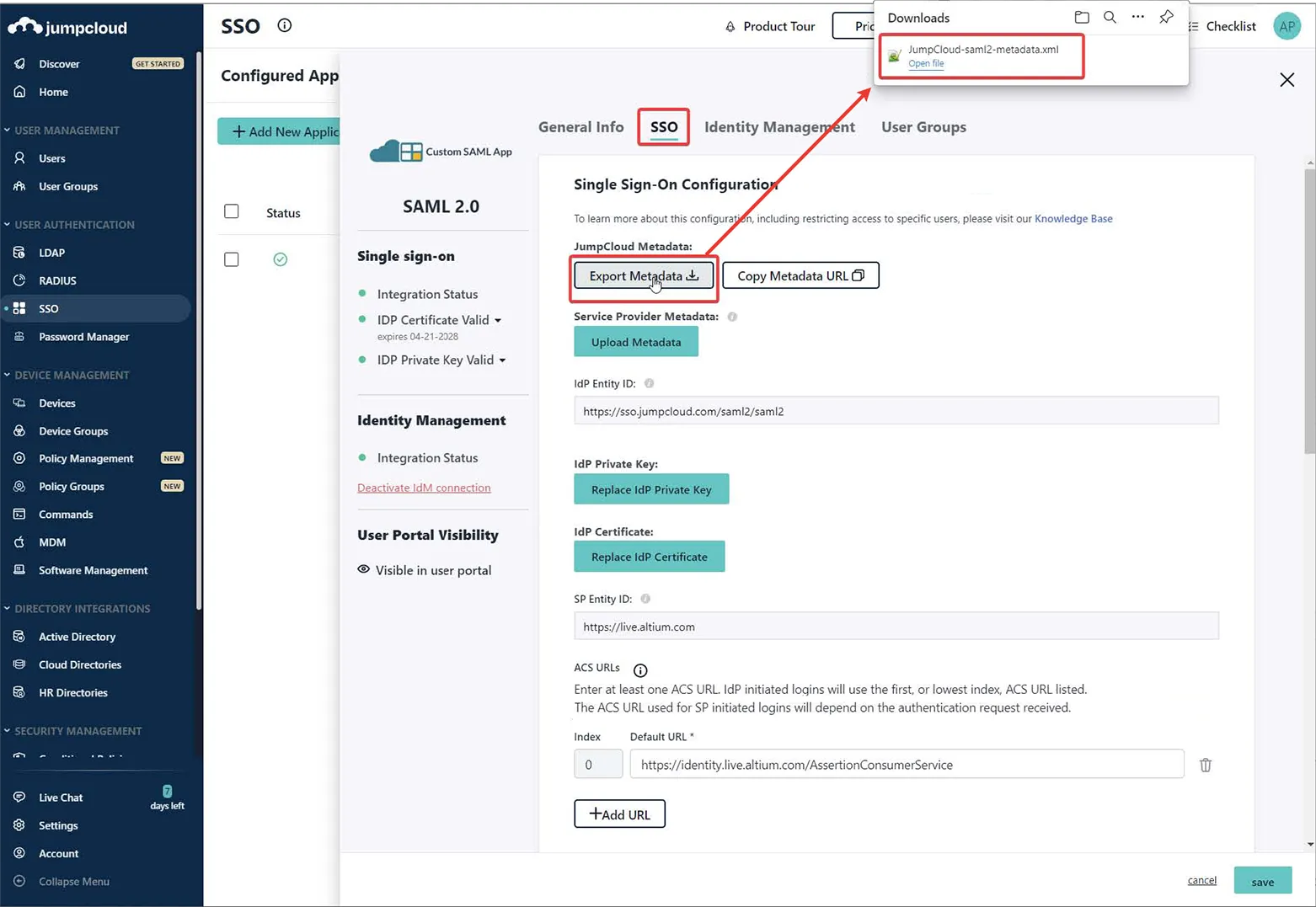
Przejdź do karty SSO w interfejsie konfiguracji JumpCloud i wprowadź ustawienia Entity/URL ze strony Admin – Settings – Authentication interfejsu przeglądarkowego Enterprise Server, jak pokazano.
-
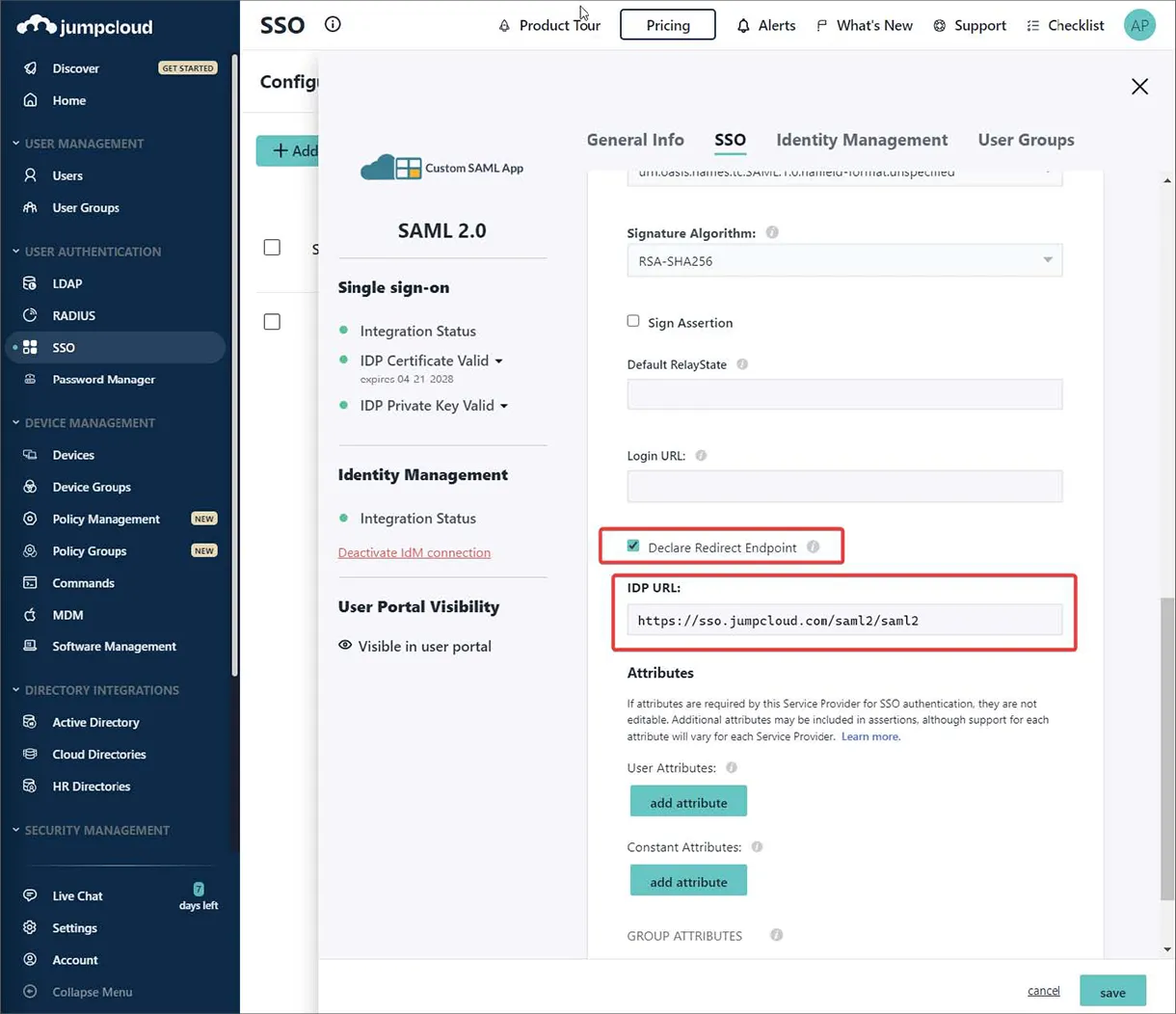
Wprowadź punkt końcowy JumpCloud IDP URL i włącz opcję Declare Redirect Endpoint.
-
Użyj opcji Export Metadata, aby pobrać wynikowy plik XML metadanych SAML.
-
Prześlij plik XML metadanych na stronę Admin – Settings – Authentication interfejsu przeglądarkowego Enterprise Server, a następnie przetestuj połączenie integracji SAML – patrz wyżej.
Rozwiń poniższą zwijaną sekcję, aby zobaczyć przykładowy proces integracji krok po kroku dla Microsoft Administrative Domain Federated Services (AD FS) jako dostawcy tożsamości.
Integration with Microsoft AD FS
-
Otwórz aplikację AD FS Management (zwykle Start → Windows Administrative Tools → AD FS Management).
-
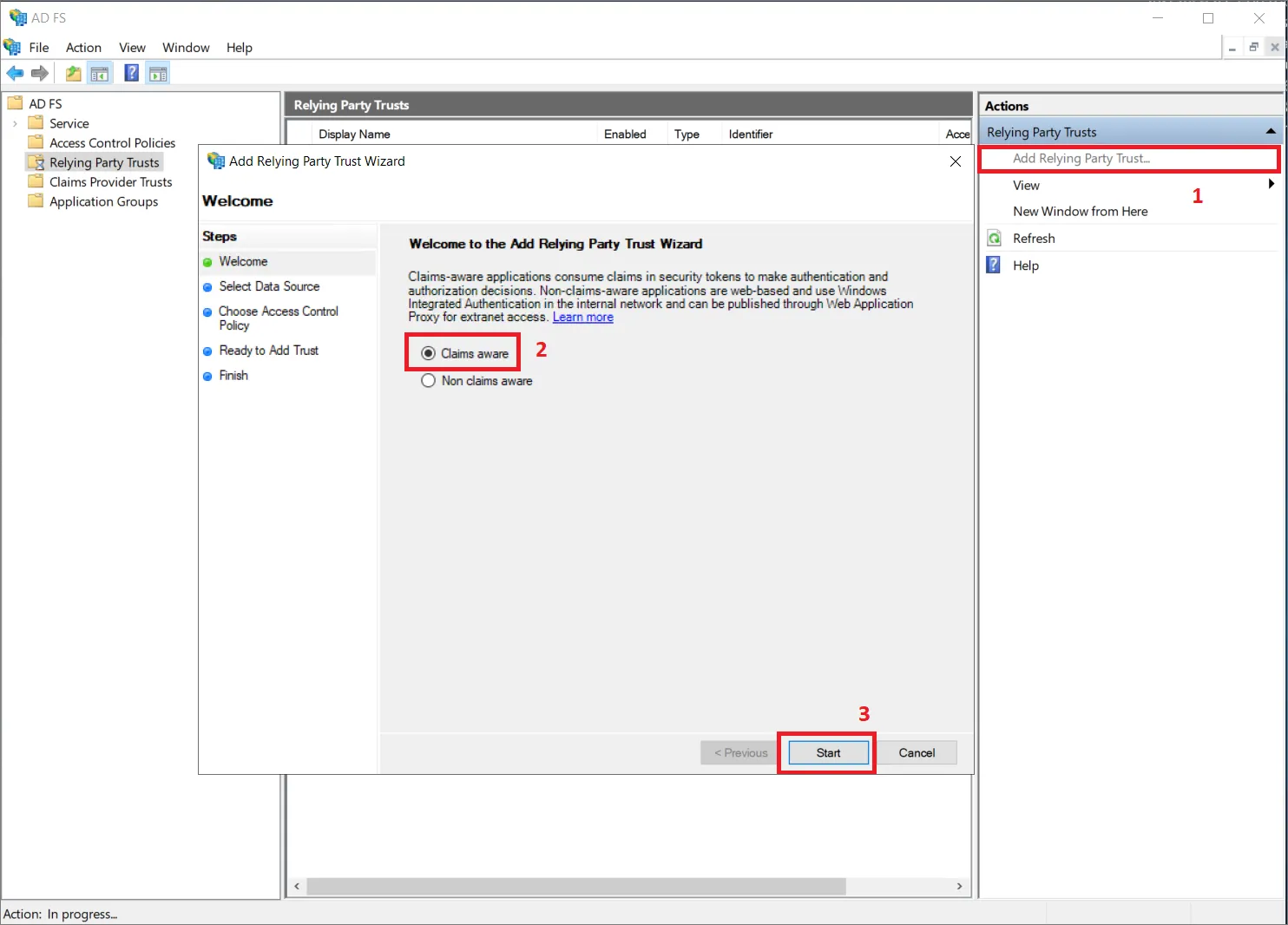
Przejdź do Relying Party Trusts i kliknij opcję Add Relying Party Trust... (1).
-
W wyskakującym oknie upewnij się, że wybrano Claims aware (2), a następnie kliknij Start (3).
-
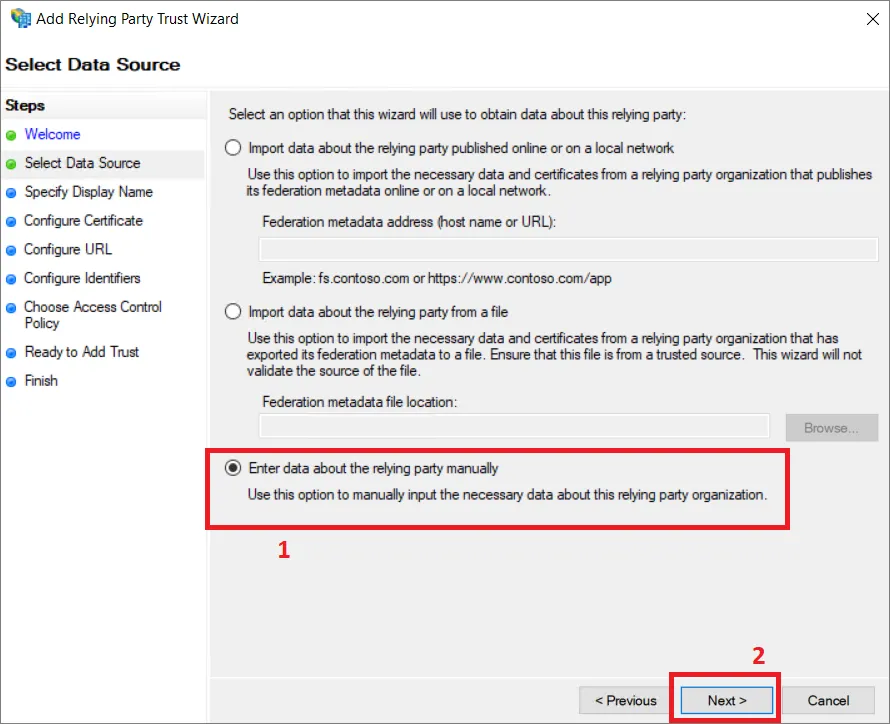
W kroku Select Data Source wybierz Enter data about the relying party manually (1) i kliknij Next (2).
-
Podaj nazwę wyświetlaną dla relacji zaufania. W tym przykładzie jako nazwy wyświetlanej użyto
AltiumLive.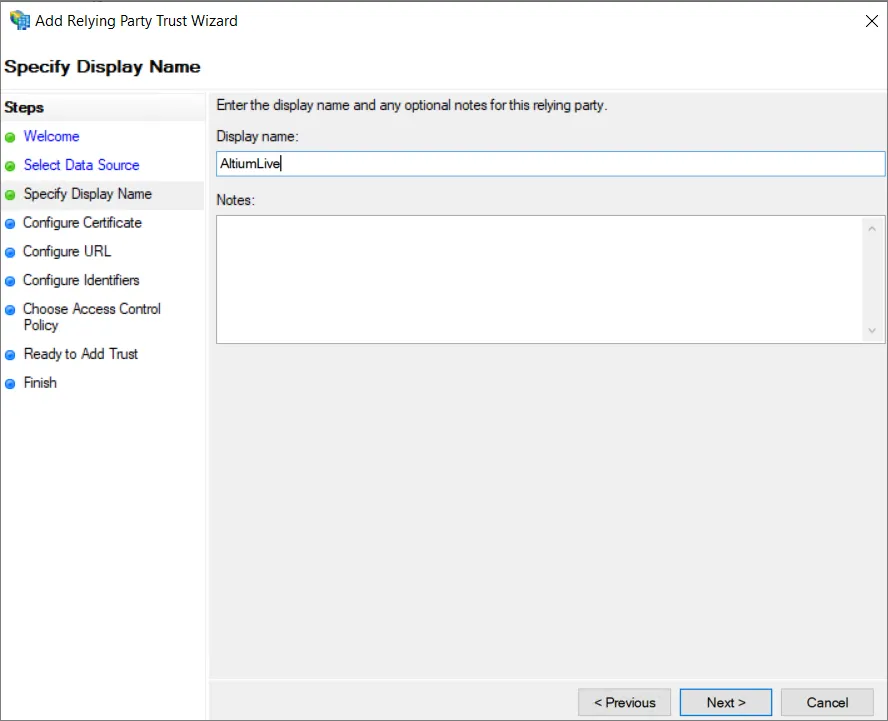
-
W zależności od konfiguracji zabezpieczeń możesz określić opcjonalny certyfikat szyfrowania tokenu. Na potrzeby tego przewodnika nie będziemy go używać.
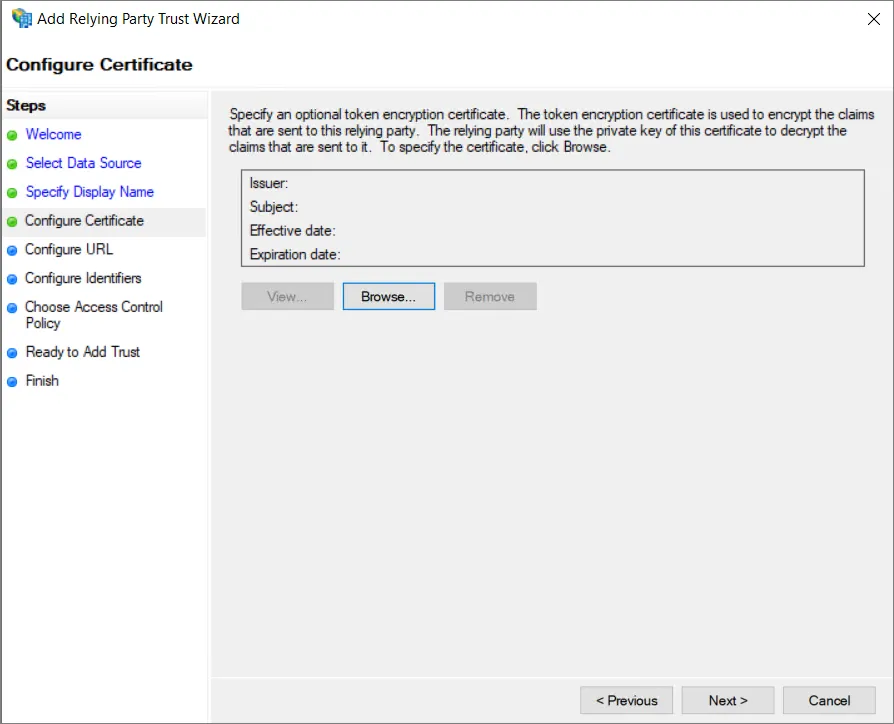
-
W kroku Configure URL upewnij się, że wybrano opcję Enable support for the SAML 2.0 WebSSO protocol (1), i wprowadź Single Sign-On URL skopiowane ze strony Admin – Settings – Authentication interfejsu przeglądarkowego Enterprise Server do pola Relying party SAML 2.0 SSO service URL: (2). Kliknij Next (3).
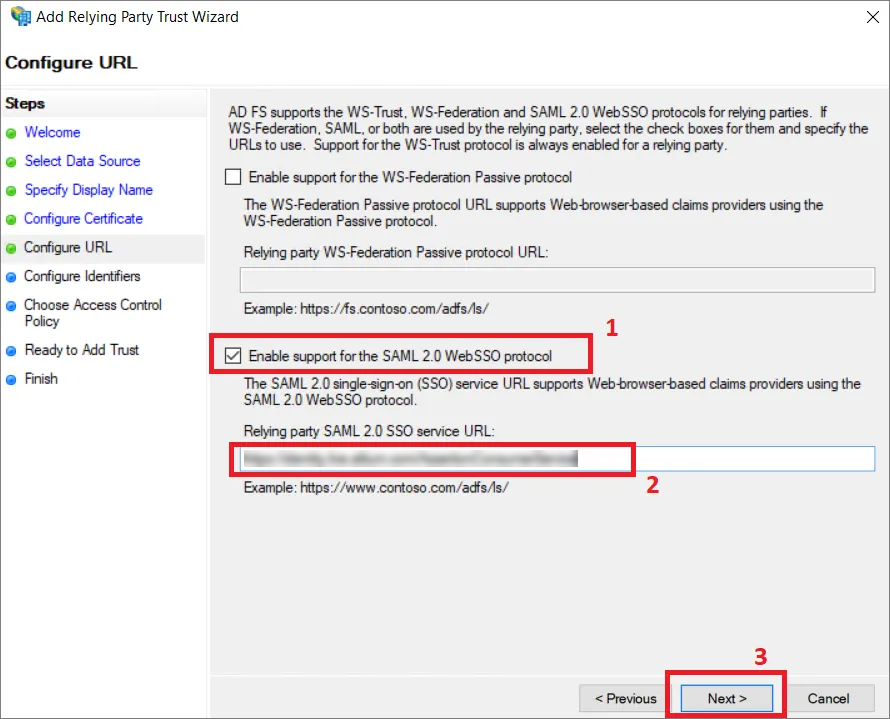
-
W kroku Configure Identifiers podaj identyfikator tej relacji zaufania w polu wejściowym (1). Identyfikator musi zostać pobrany z wpisu Entity ID znajdującego się w obszarze Altium Metadata Configuration na stronie Admin – Settings – Authentication interfejsu przeglądarkowego Enterprise Server. Upewnij się, że klikniesz przycisk Add (2).
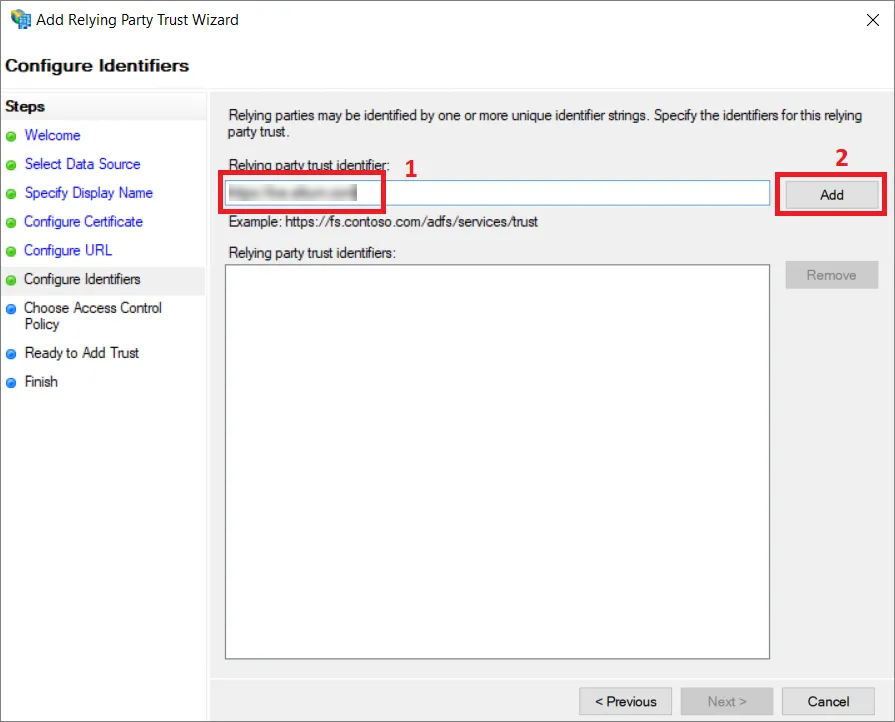
Wynik powinien wyglądać następująco. Kliknij Next.
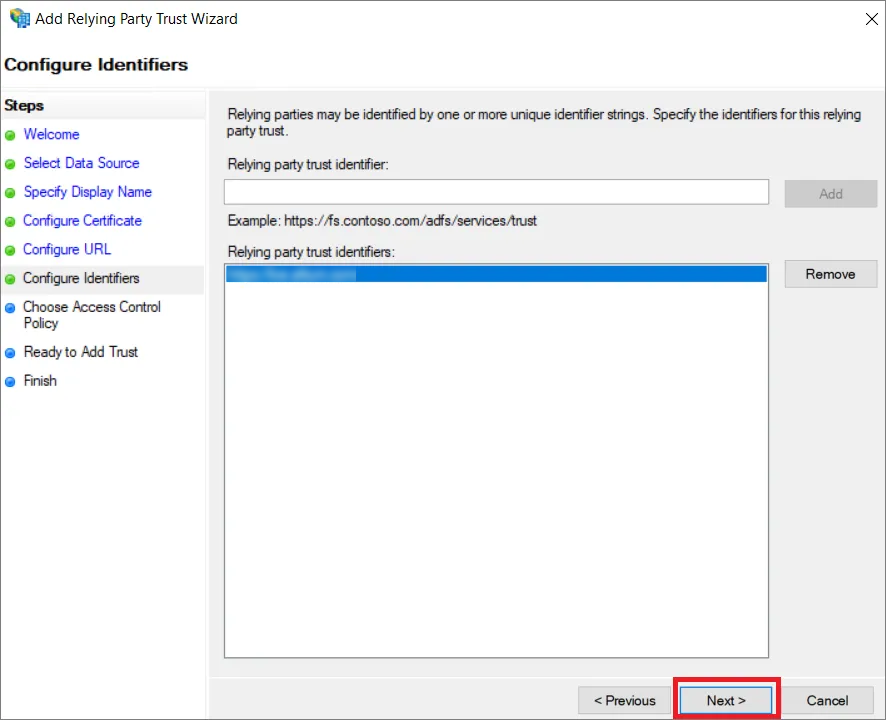
-
W zależności od konfiguracji zabezpieczeń w następnym kroku możesz wybrać opcjonalne zasady kontroli dostępu. W tym przykładzie nie będziemy wybierać żadnych dodatkowych zasad i przejdziemy dalej przy użyciu opcji
Permit everyone.
-
Przejrzyj konfigurację i wybierz Next.
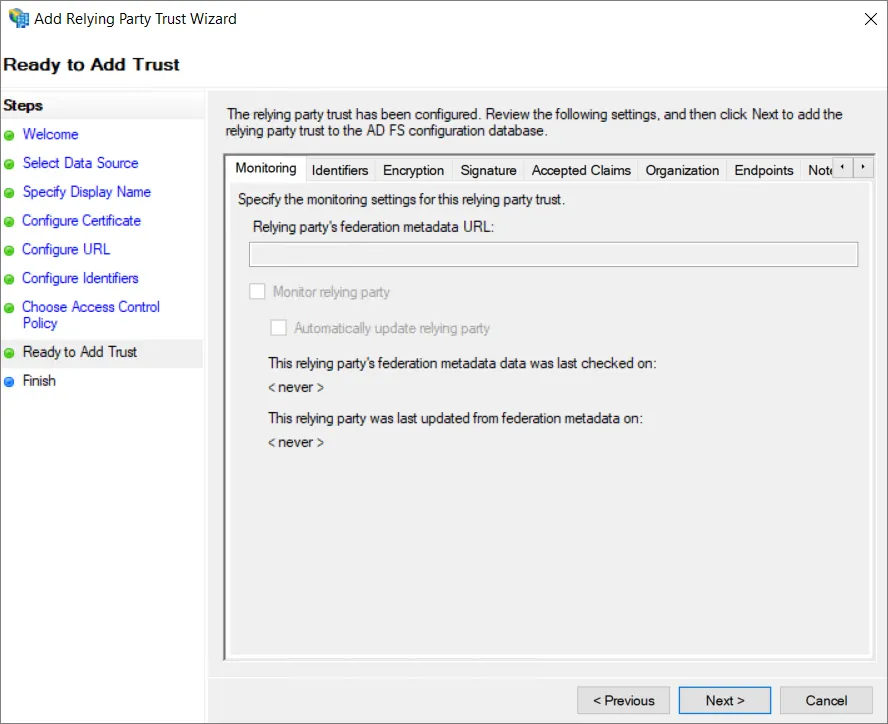
-
Nie wszystkie ustawienia są dostępne podczas konfigurowania relacji zaufania. Aby umożliwić użycie
SHA-1jako bezpiecznego algorytmu mieszającego, kliknij prawym przyciskiem myszy nazwę Relying Party Trust, którą właśnie dodano, i wybierz Properties.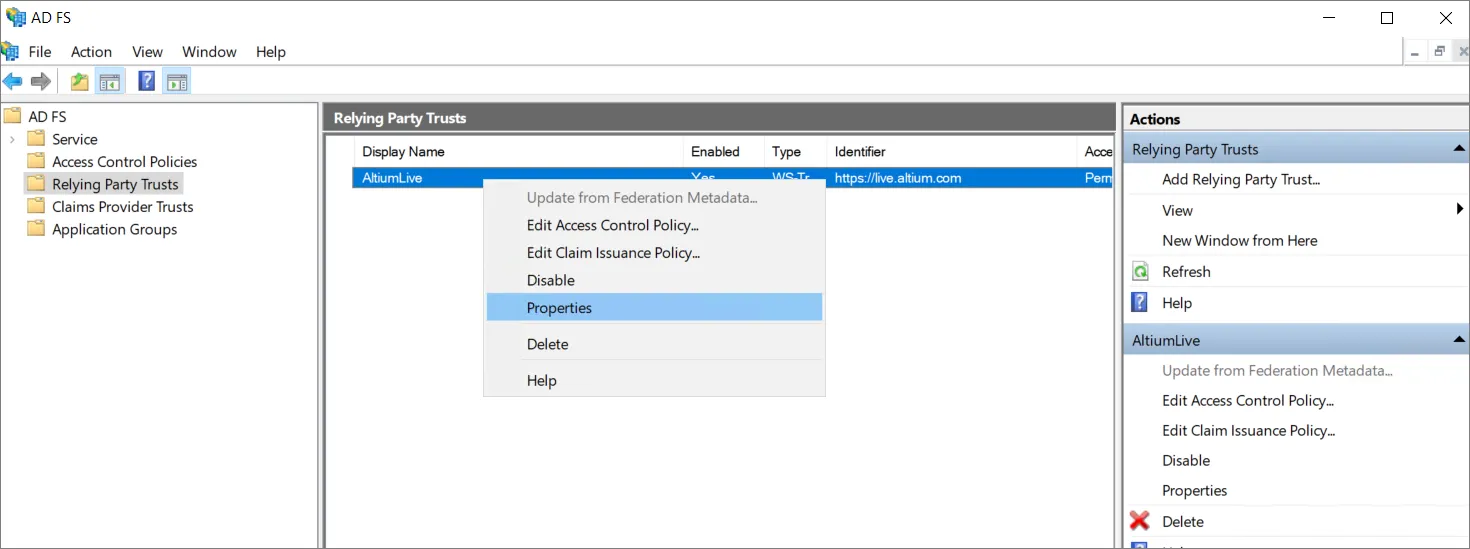
-
W oknie właściwości wybierz kartę Advanced (1) i ustaw
SHA-1jako bezpieczny algorytm mieszający (2). Kliknij OK, aby zapisać zmiany.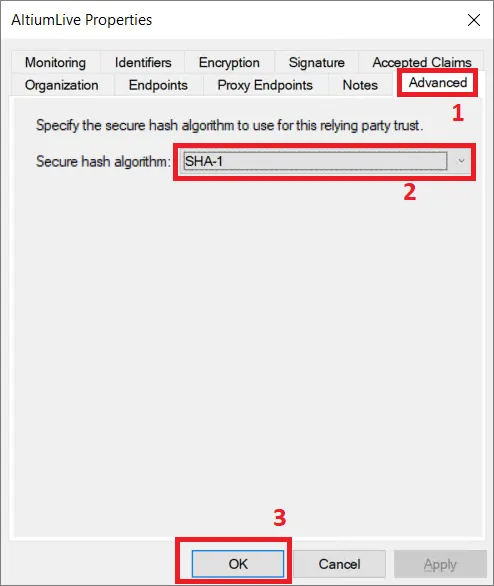
-
Po powrocie do okna AD FS Management wybierz dodaną Relaying Party Trust i wybierz opcję Edit Claim Issuance Policy....
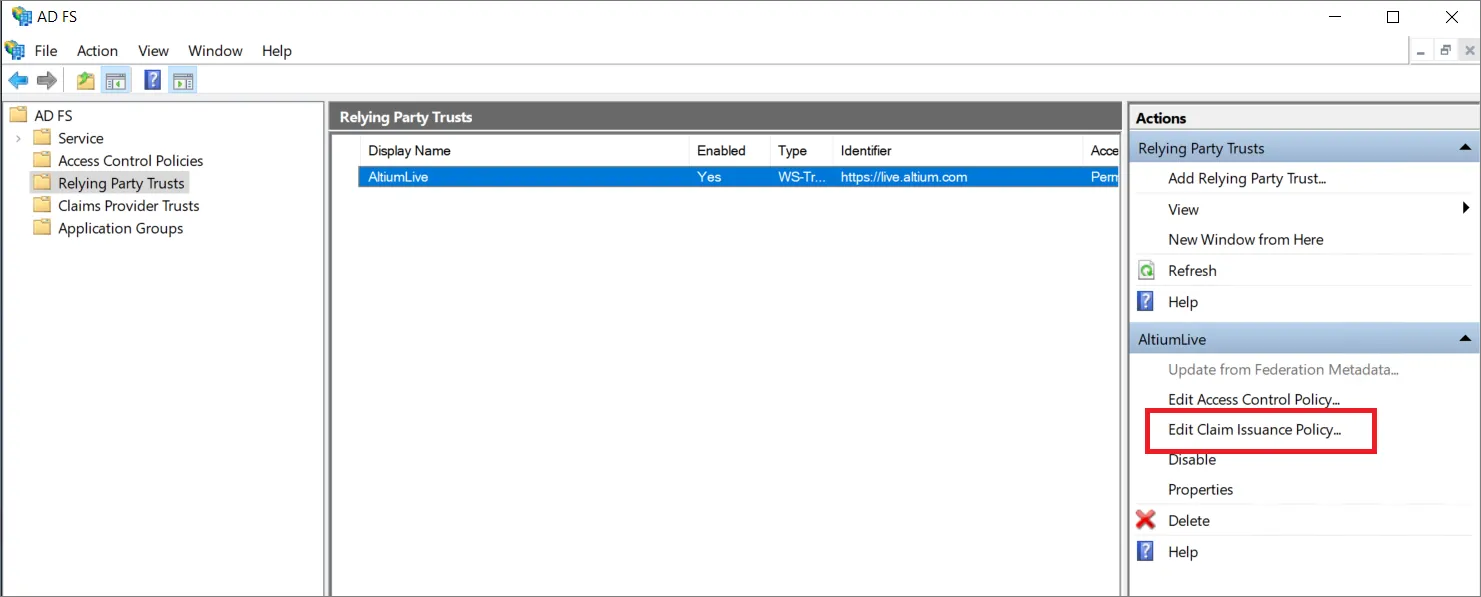
-
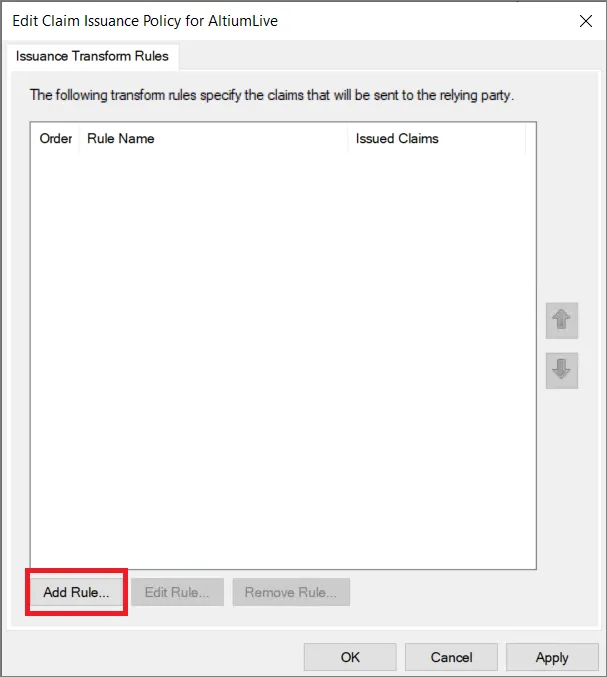
W oknie Edit Claim Issuance Policy wybierz Add Rule...
-
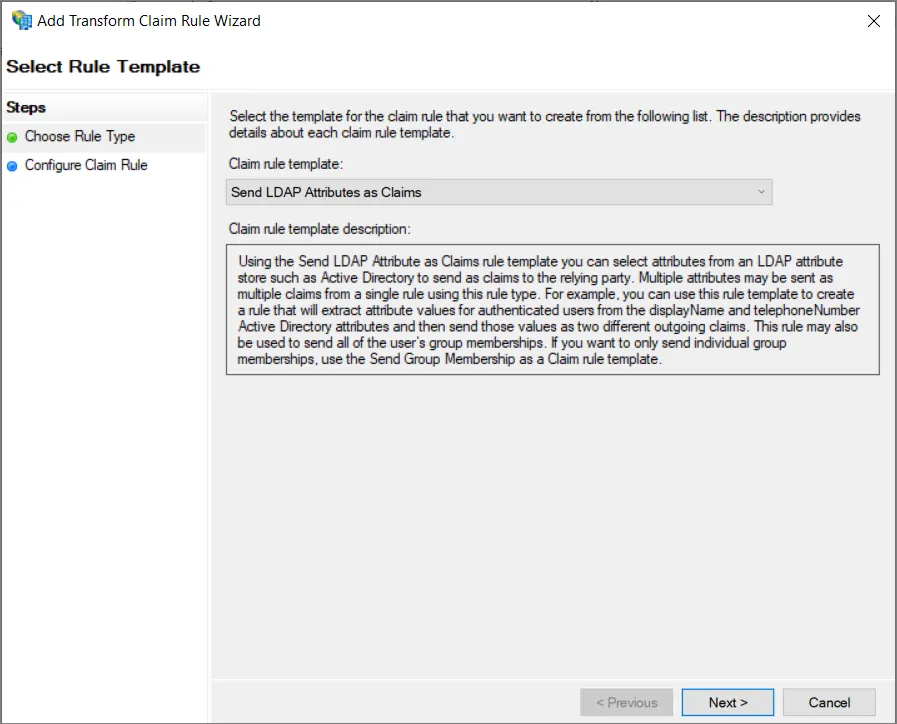
W kroku Choose Rule Type kreatora upewnij się, że wybrano Send LDAP Attributes as Claims, a następnie kliknij Next.
-
Podaj Claim rule name (1), wybierz
Active Directoryjako Attribute store (2) oraz wybierz LDAP Attribute (3) z identyfikatora zawierającego nazwę użytkownika dla użytkownika Enterprise Server. Ten atrybut musi być mapowany na Name ID w Outgoing Claim Type (3). Kliknij Finish (4).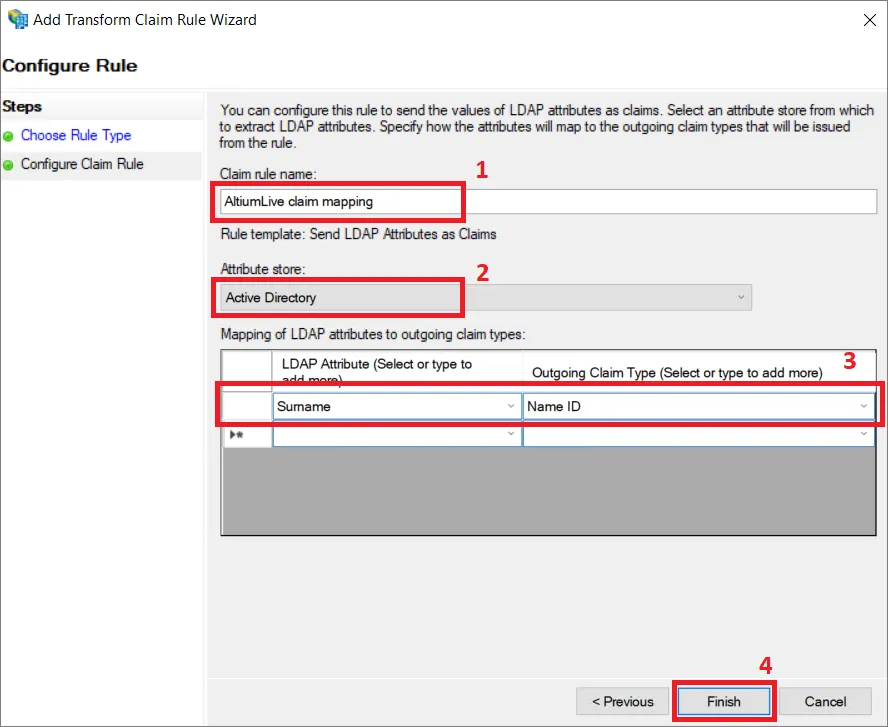
-
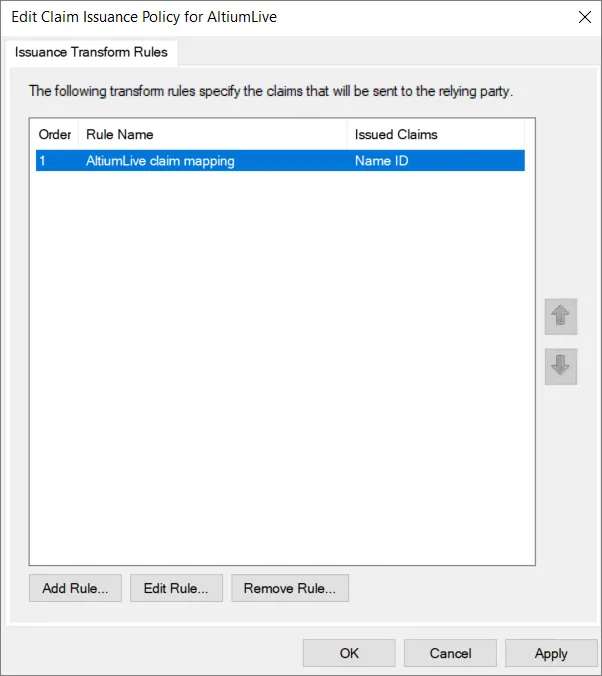
Upewnij się, że zasada wystawiania oświadczeń została zapisana, klikając OK.
-
Pobierz plik
FederationMetadata.xmlz odpowiedniego serwera. -
Prześlij plik XML metadanych na stronę Admin – Settings – Authentication interfejsu przeglądarkowego Enterprise Server, a następnie przetestuj połączenie integracji SAML – patrz wyżej.
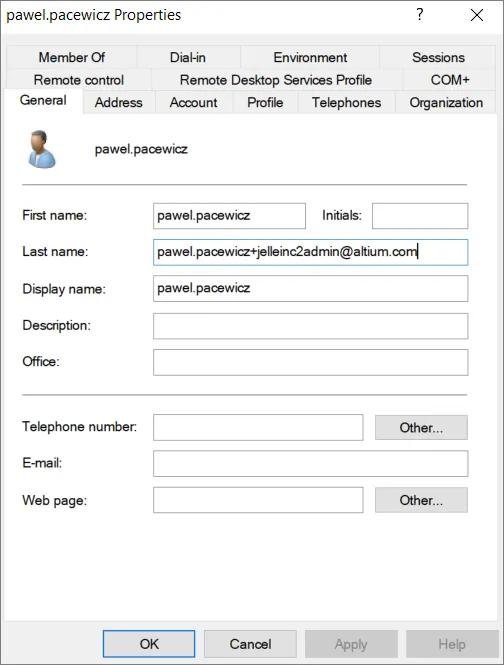
Rozwiń poniższą zwijaną sekcję, aby zobaczyć przykładowy proces integracji krok po kroku dla AWS IAM Identity Center jako dostawcy tożsamości:
Integration with AWS IAM Identity Center
-
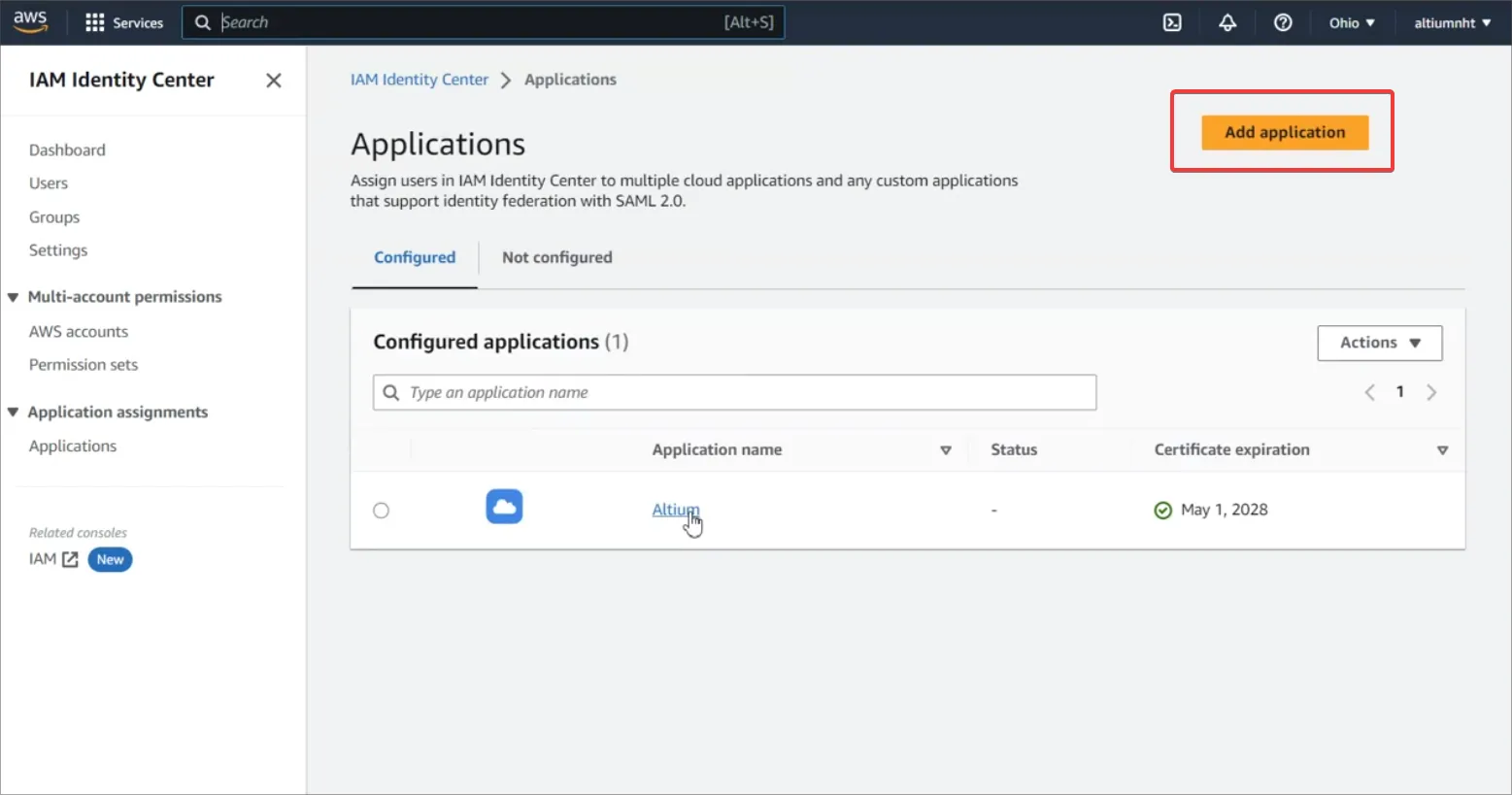
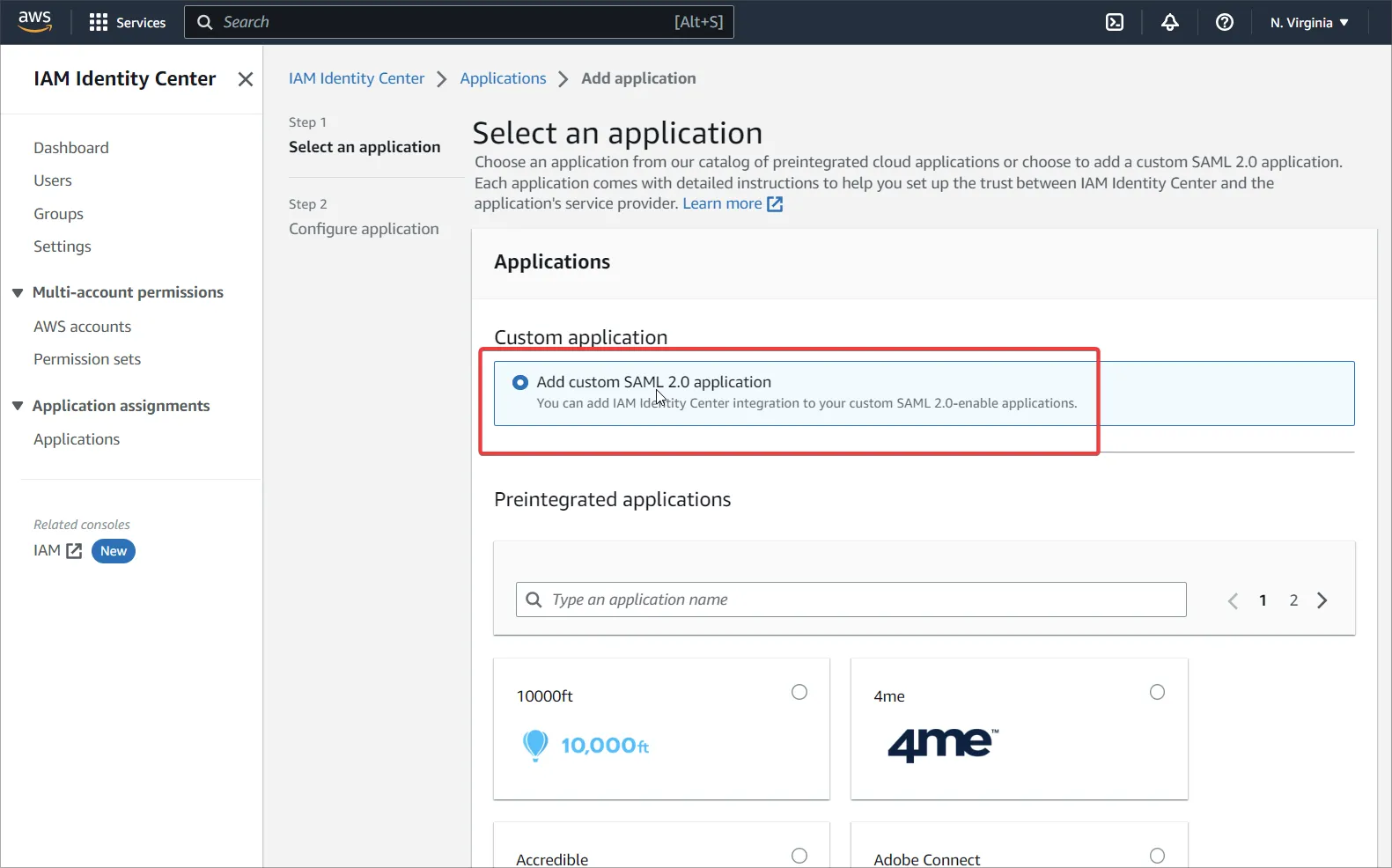
Przejdź do IAM Identity Center i dodaj niestandardową aplikację SAML 2.0 (Add Application).
-
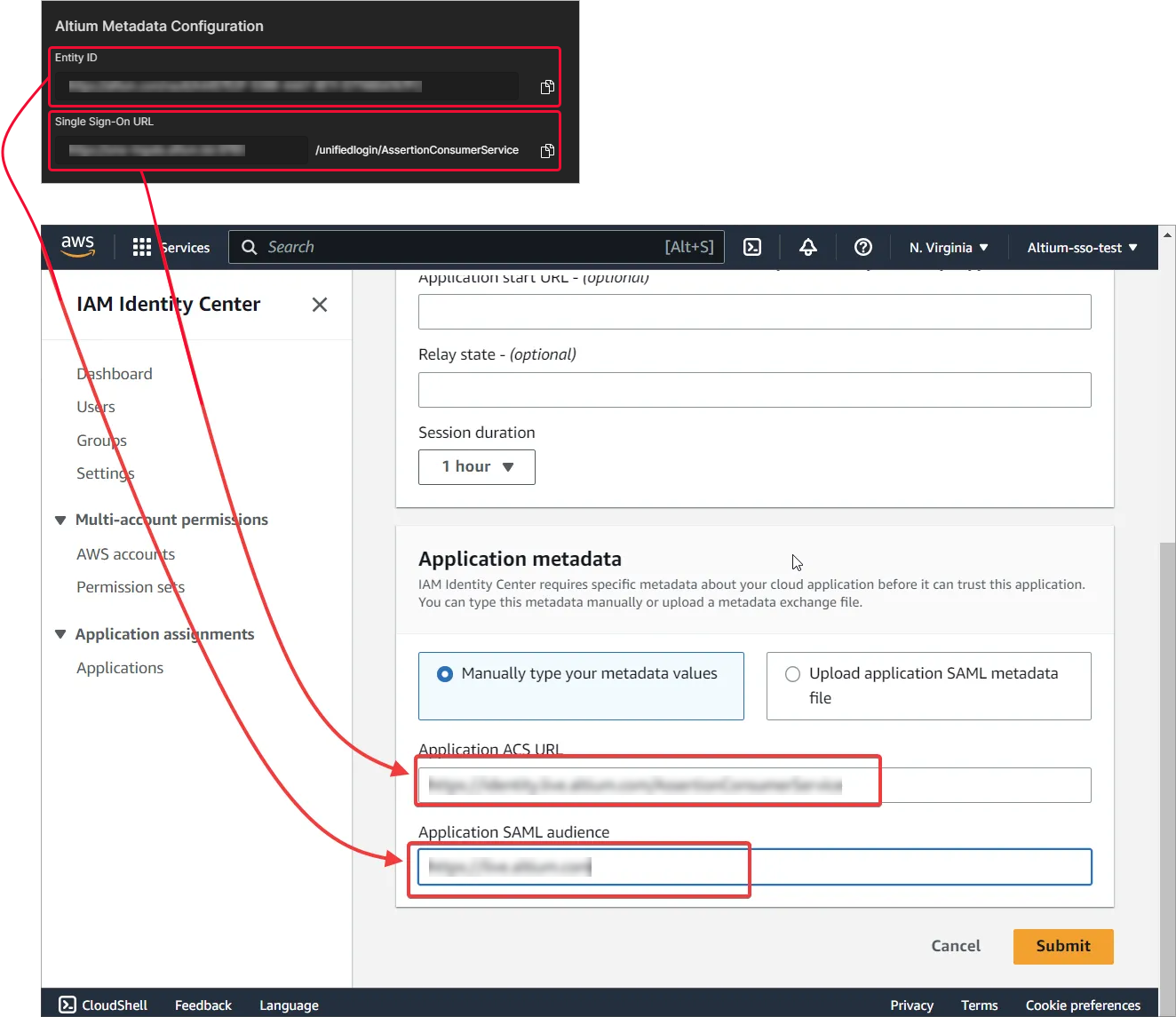
Wypełnij ustawienia adresu URL metadanych AWS danymi z Twojej strony Altium SSO. Potwierdź ustawienia przyciskiem Submit.
-
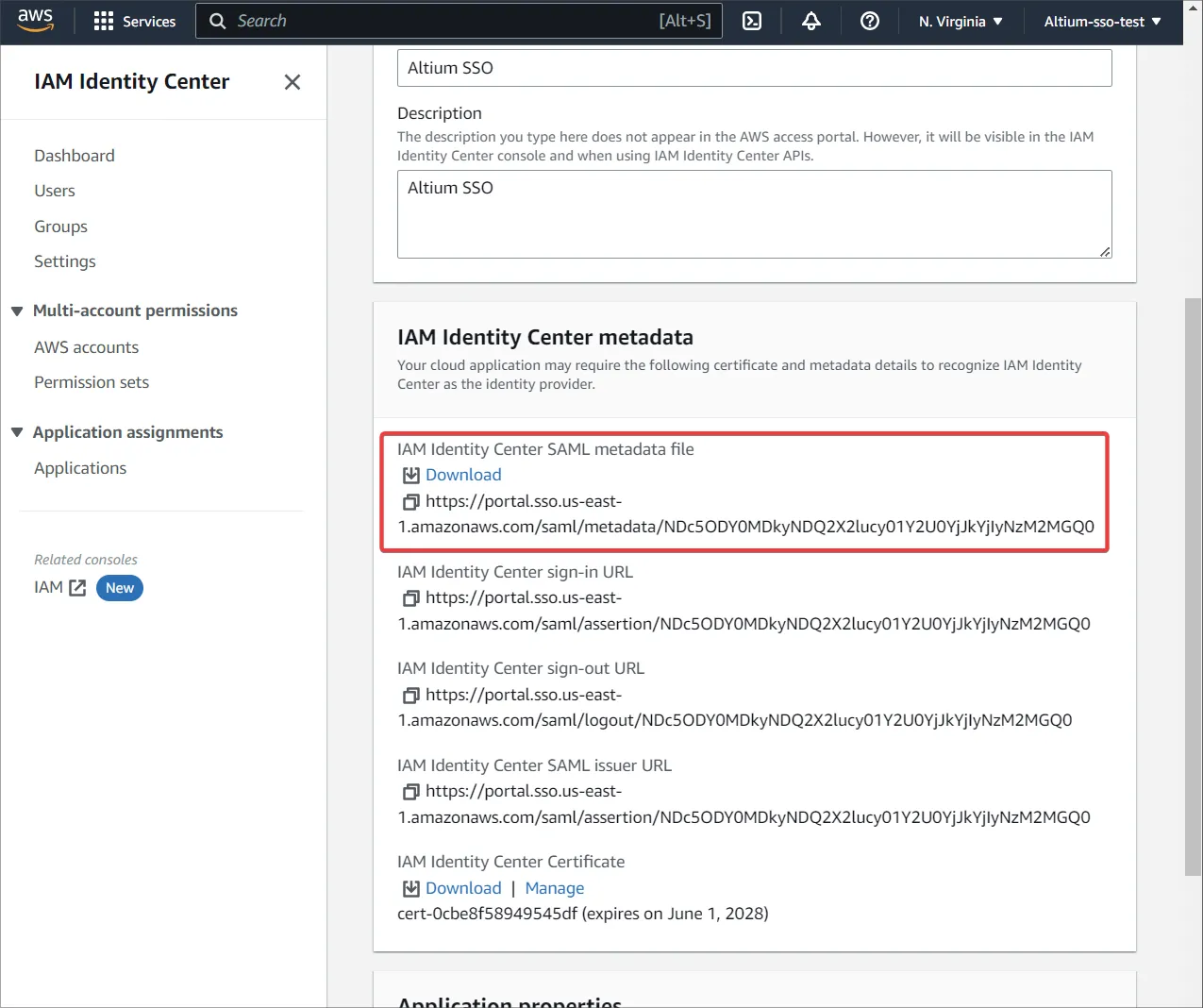
Pobierz plik metadanych z obszaru IAM Identity Center metadata.
-
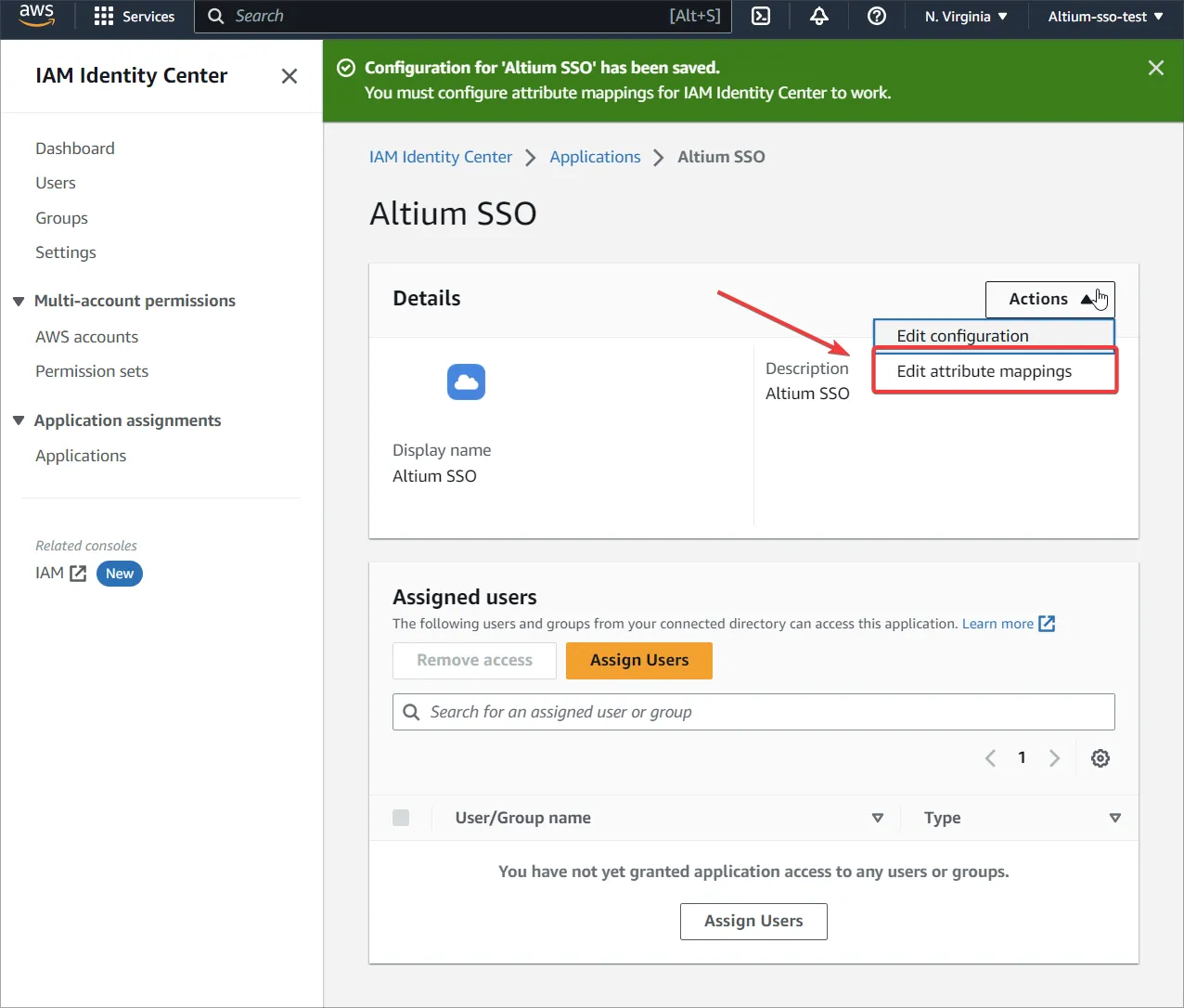
Przejdź do Edit attribute mappings.
-
Podaj atrybut, który będzie zawierał nazwę użytkownika dla użytkownika Enterprise Server, i wybierz
unspecifieddla Format. -
Utwórz nowych użytkowników w AWS i przypisz aplikację do utworzonych użytkowników lub do grupy.
-
Upewnij się, że ci sami użytkownicy istnieją zarówno po stronie Altium, jak i IAM.
-
Prześlij plik XML metadanych na stronę Admin – Settings – Authentication interfejsu przeglądarkowego Enterprise Server, a następnie przetestuj połączenie integracji SAML – patrz wyżej.
Jednokrotne logowanie OAuth / OIDC
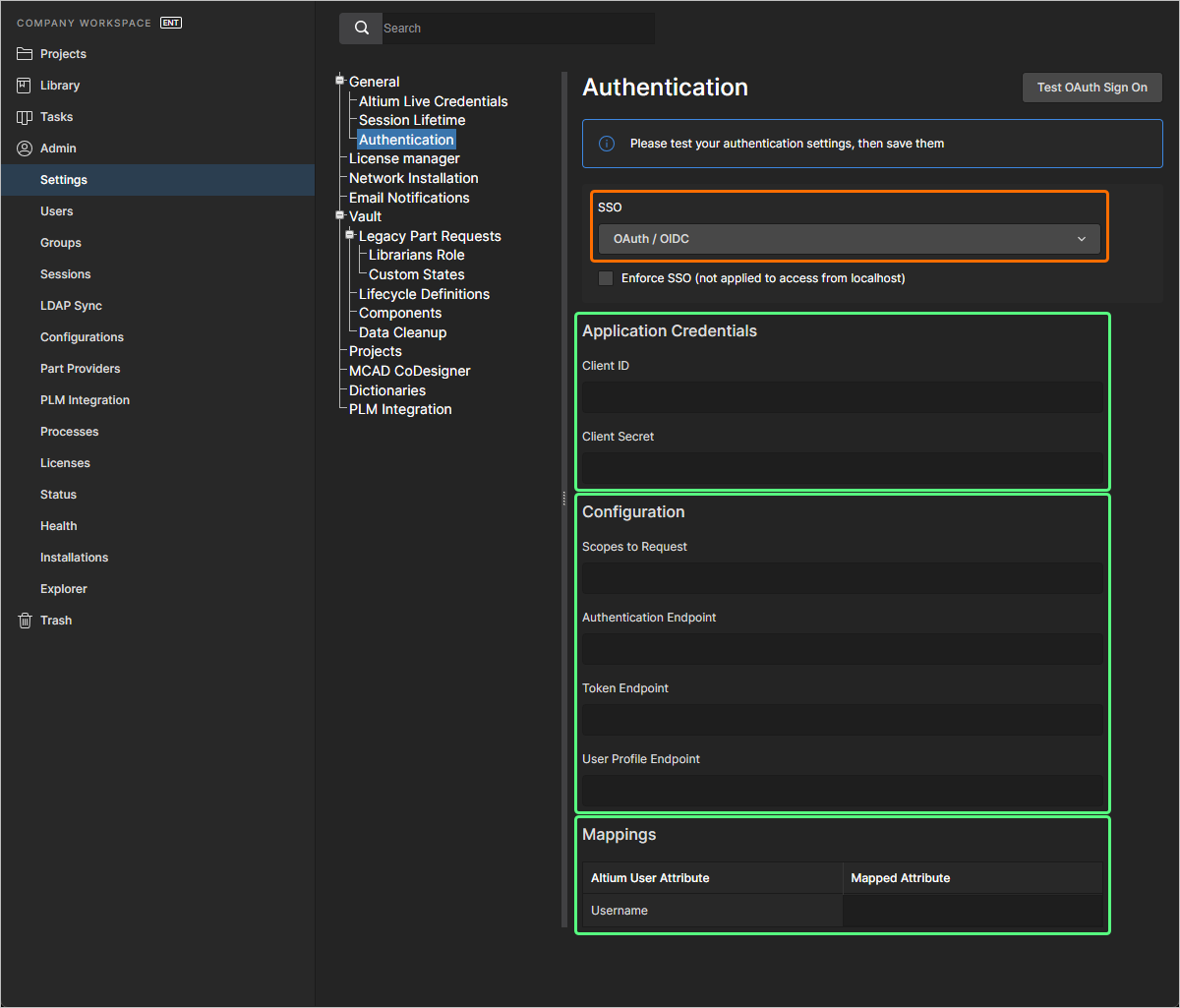
Możliwość SSO dla Twojego Enterprise Server można również skonfigurować przy użyciu standardu OAuth / OIDC. Po wybraniu opcji OAuth / OIDC z listy rozwijanej SSO na stronie Admin – Settings – Authentication interfejsu przeglądarkowego strona umożliwia wprowadzenie danych dostarczonych przez wybranego dostawcę tożsamości.
-
Application Credentials:
-
Client ID – identyfikator aplikacji od dostawcy tożsamości.
-
Client Secret – klucz tajny aplikacji od dostawcy tożsamości.
-
-
Configuration:
-
Scopes to Request – zakresy definiują poziom dostępu, o który Twoja aplikacja prosi użytkownika.
-
Authentication Endpoint – ten punkt końcowy obsługuje uwierzytelnianie użytkownika i wyrażanie zgody. Twoja aplikacja przekierowuje użytkowników do tego punktu końcowego, aby się zalogowali i przyznali uprawnienia.
-
Token Endpoint – ten punkt końcowy służy do wymiany kodu autoryzacyjnego lub tokenu odświeżania na token dostępu. Jest to bezpieczna komunikacja w kanale zaplecza między aplikacją a serwerem autoryzacji.
-
User Profile Endpoint – ten punkt końcowy pobiera informacje o profilu użytkownika (np. imię i nazwisko, e-mail) przy użyciu tokenu dostępu. Zwracane dane zależą od zakresów przyznanych podczas autoryzacji.
-
-
Mappings – w polu Mapped Attribute tabeli wprowadź atrybut, który będzie mapowany na nazwę użytkownika po stronie Enterprise Server.
SSO nie jest włączane do momentu uruchomienia testu integracji, który jest wywoływany przyciskiem . Weryfikuje to proces tożsamości SSO oraz firmowe logowanie SSO. Po pomyślnym przetestowaniu konfiguracji możesz zapisać ustawienia, klikając przycisk (), co powoduje ich zastosowanie w Enterprise Server.
 Tłumaczenie SI