
Làm việc với Renesas 365 Solutions
Altium Designer, khi được kết nối với một Renesas 365 Workspace, cho phép bạn mở các solution Renesas 365 để khám phá các dự án phần cứng (PCB) được liên kết với chúng và kéo về các thay đổi từ System Data Model (SDM) của solution.
Để tìm hiểu thêm về Renesas 365 và cách làm việc với các solution từ giao diện dựa trên trình duyệt của nó, hãy tham khảo trang Renesas 365.
Mở một Solution
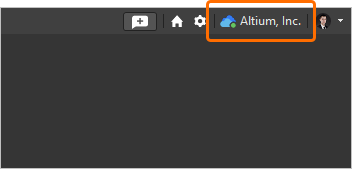
Trước khi mở một solution Renesas 365, hãy bảo đảm rằng bạn đã kết nối với Renesas 365 Workspace của mình từ Altium Designer. Quy trình kết nối với một Renesas 365 Workspace tương tự như khi kết nối với một Workspace được lưu trữ trên Altium Platform (tìm hiểu thêm).
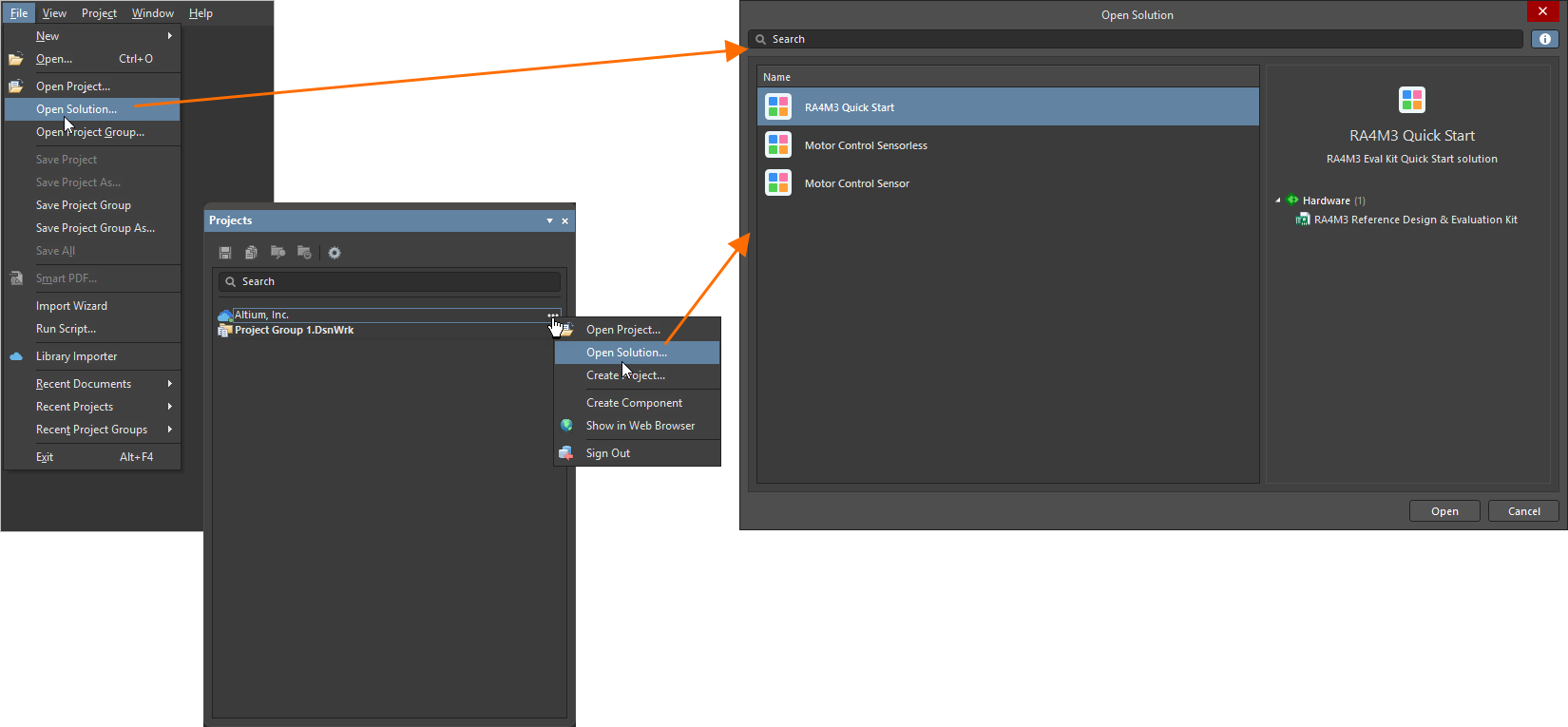
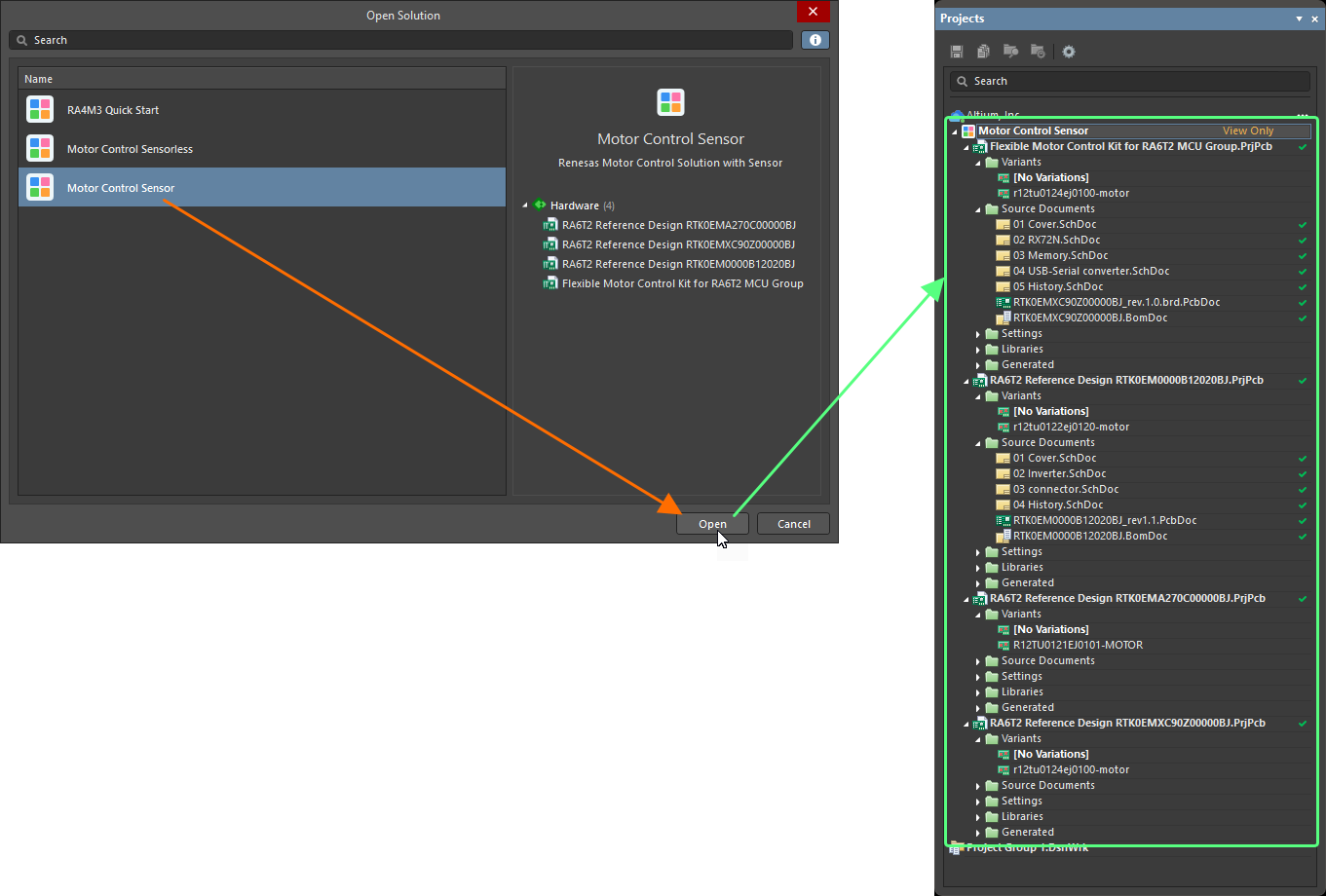
Việc mở một solution từ Renesas 365 Workspace đã kết nối được thực hiện trực tiếp bằng hộp thoại Open Solution, được truy cập bằng cách chọn lệnh File » Open Solution từ các menu chính. Ngoài ra, hãy nhấp chuột phải vào mục Workspace trong bảng Projects hoặc nhấp vào điều khiển  ở ngoài cùng bên phải của mục đó rồi chọn lệnh Open Solution. Hộp thoại Open Solution cung cấp một nơi duy nhất để tìm kiếm, duyệt và mở solution. Hộp thoại hiển thị danh sách các solution có sẵn trong Renesas 365 Workspace đã kết nối (theo tên của chúng).
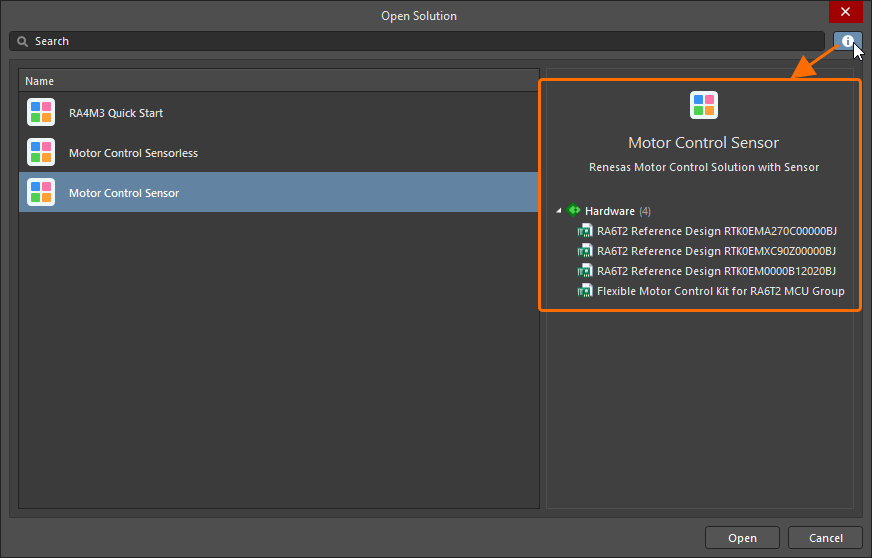
Khi nhấp vào biểu tượng  ở góc trên bên phải của hộp thoại, phía bên phải của hộp thoại sẽ hiển thị thêm chi tiết về solution đã chọn, bao gồm mô tả của solution và danh sách có thể thu gọn các dự án phần cứng được liên kết với solution đó.
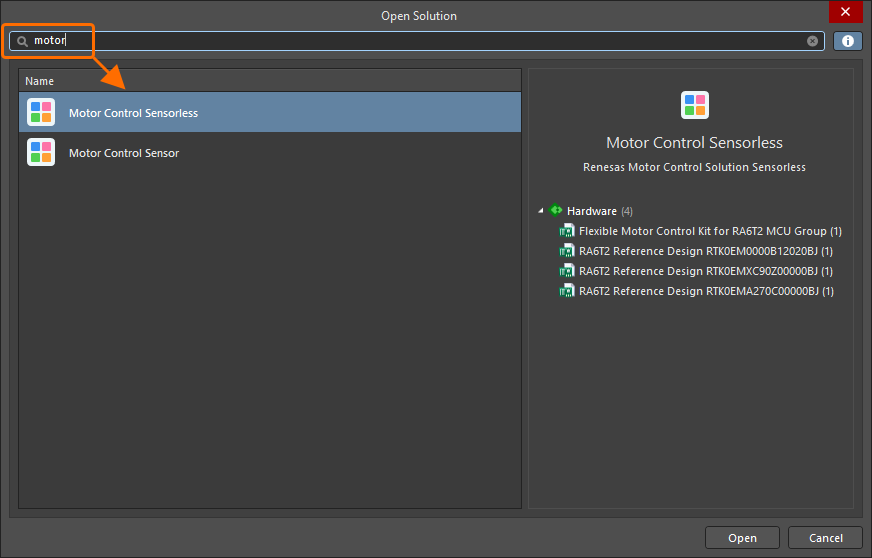
Sử dụng trường Search ở đầu hộp thoại Open Solution để lọc danh sách solution theo tên của chúng bằng cách nhập các ký tự chữ/số. Nhấp vào biểu tượng  ở bên phải thanh Search để xóa chuỗi tìm kiếm hiện được đặt.
Để mở solution cần thiết, hãy chọn nó trong danh sách và nhấp vào nút  ở góc dưới bên phải của hộp thoại. Sau khi mở, solution sẽ xuất hiện dưới một mục dành cho Workspace, trong bảng Projects. Các dự án phần cứng được liên kết với solution sẽ xuất hiện bên dưới mục của solution. Bạn có thể mở rộng hoặc thu gọn cấu trúc solution trong bảng Projects để hiển thị hoặc ẩn các dự án phần cứng được liên kết và các tài liệu cấu thành của chúng.
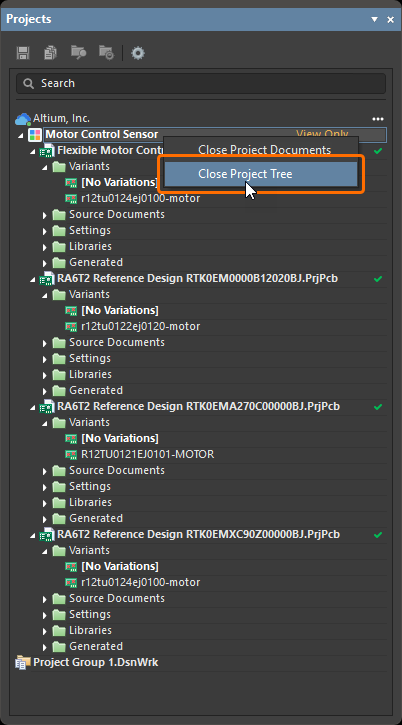 ).
).Kéo SDM vào một Dự án Phần cứng
Để giữ cho một dự án phần cứng luôn đồng bộ với những thay đổi được thực hiện ở các khía cạnh khác của solution (ví dụ: tài liệu ESD của solution), Altium Designer cung cấp khả năng kéo các thay đổi trong SDM của solution vào dự án.
Khi tài liệu schematic của dự án (*.SchDoc) là tài liệu đang hoạt động, hãy dùng lệnh Design » Pull from Solution từ các menu chính. Altium Designer sẽ so sánh dữ liệu giữa solution và dự án, và nếu phát hiện khác biệt, hộp thoại Engineering Change Order sẽ mở ra và liệt kê tập hợp Engineering Change Orders (ECO) tương ứng.
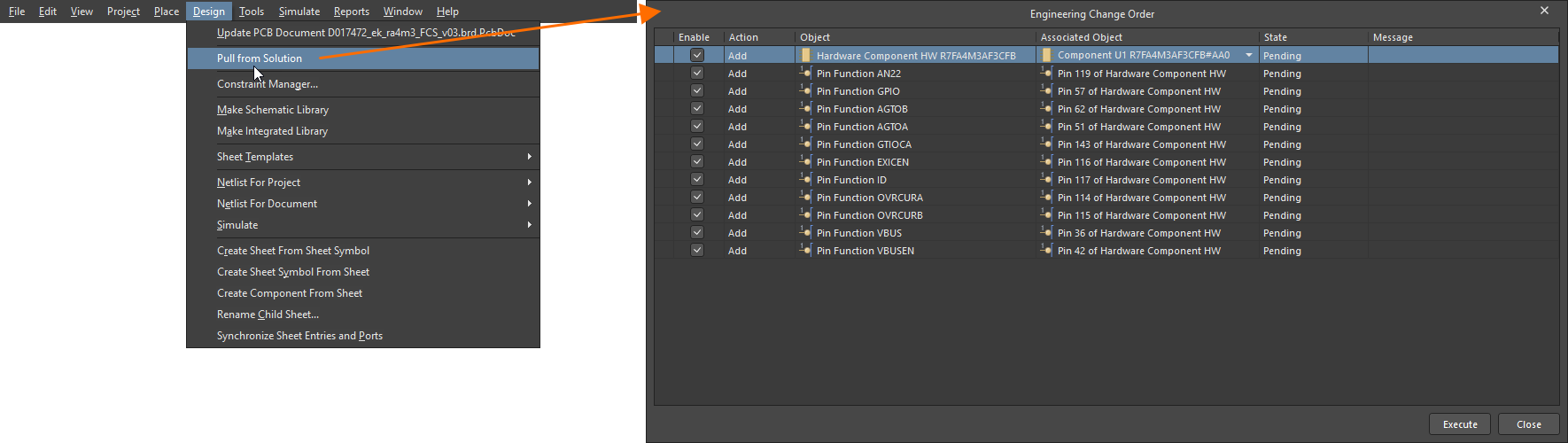
Theo mặc định, tất cả thay đổi đều được bật trong hộp thoại. Hãy tắt mọi thay đổi mà bạn muốn tạm hoãn. Sử dụng các hộp kiểm trong cột Enable để bật/tắt các thay đổi cụ thể. Ngoài ra, hãy nhấp chuột phải vào bất kỳ đâu trong danh sách và chọn lệnh Enable All hoặc Disable All để lần lượt bật hoặc tắt tất cả các thay đổi trong danh sách.
Các thay đổi sau đây được hỗ trợ để đồng bộ hóa:
-
Addition and removal of a hardware component – thay đổi này cho phép thêm hoặc xóa liên kết của một linh kiện được đặt trong dự án phần cứng với một hardware component được đặt trong tài liệu ESD của solution. Theo mặc định, một linh kiện của dự án phần cứng sẽ được tự động chọn trong hộp thoại Engineering Change Order dựa trên sự khớp giữa văn bản hardware component của ESD và giá trị trường Comment của linh kiện trong dự án phần cứng, nhưng bạn có thể chọn một linh kiện khác trong dự án phần cứng bằng danh sách thả xuống trong cột Associated Object cho mục thay đổi đó trong hộp thoại (
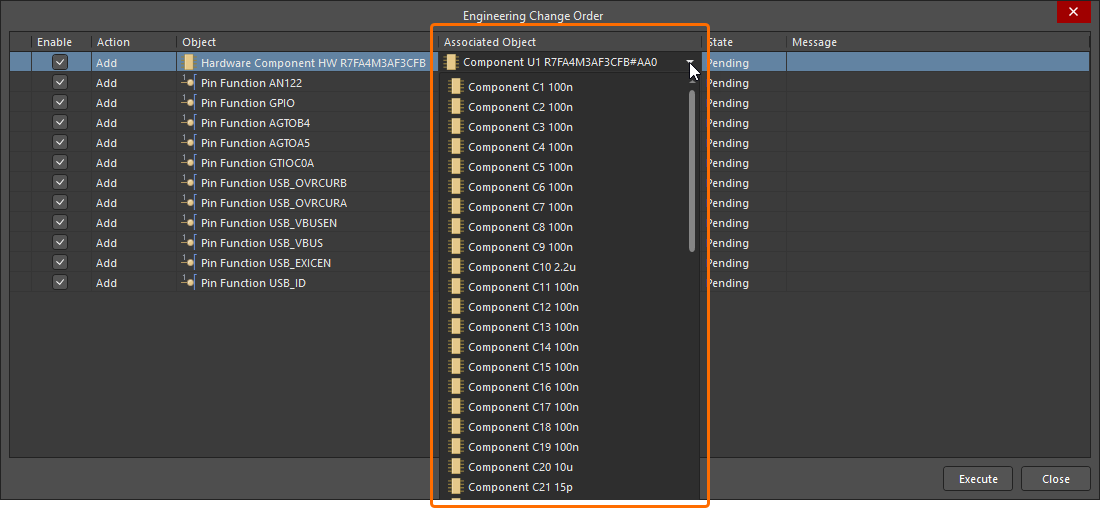 ).
).
-
Addition and removal of a pin function – thay đổi này cho phép thêm hoặc xóa một chức năng chân vào/khỏi một chân của linh kiện trong dự án phần cứng theo cấu hình thiết bị của hardware component tương ứng trong tài liệu ESD của solution. Chức năng chân được áp dụng sẽ tự động được bật cho chân đó và tên mặc định của nó sẽ bị tắt. Nhấp vào tên chân đang hiển thị trong không gian thiết kế để mở cửa sổ bật lên với các chức năng khả dụng (
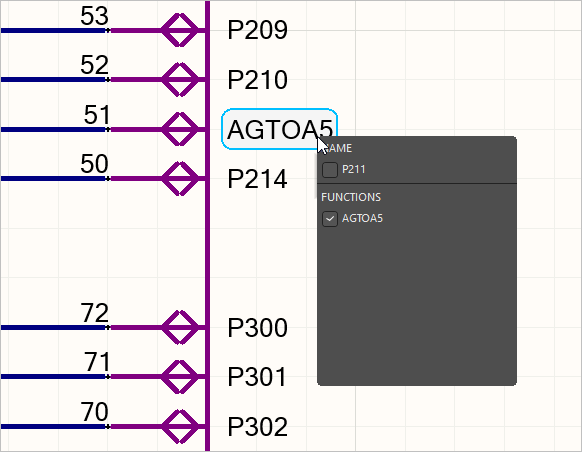 ).
).
Để biết thêm thông tin về cách làm việc với các chân đa chức năng, hãy tham khảo trang Working with Placed Components.
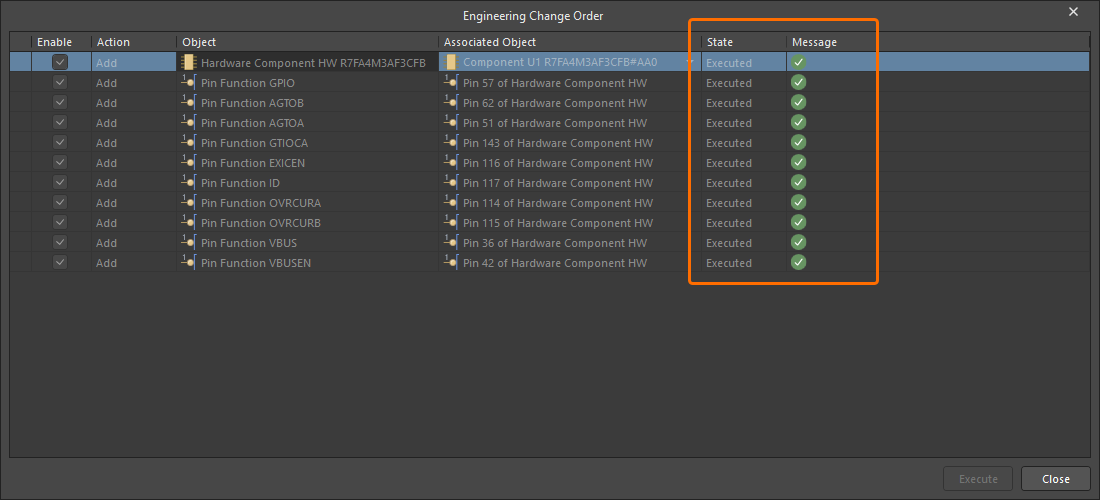
Khi bạn đã hài lòng với các thay đổi sẽ được thực hiện, hãy nhấp vào nút  để thực thi ECO và áp dụng các thay đổi hợp lệ có trong đó. Kết quả thực thi sẽ xuất hiện trong các cột State và Message của hộp thoại Engineering Change Order.
 Bản địa hóa bằng AI