マルチボードアセンブリ が完成したら(詳細はこちら)、必要に応じて製造図面を作成し、注釈を追加できます。Draftsmanエディタで、マルチボード設計の製造図面を作成しています。
製造図面ドキュメントの設定
マルチボード設計の製造図面を作成するには、新しい Draftsman ドキュメント(*.MbDwf)をマルチボードプロジェクトに追加します。これを行うには、Projects パネルでプロジェクト項目を右クリックし、コンテキストメニューから Add New to Project » Draftsman Document を選択します(または、メインメニューの File » New » Draftsman Document コマンドを使用します)。開いた New Document ダイアログで、必要に応じて利用可能な製造図面テンプレートを選択し、正しい Project とマルチボードアセンブリ Document が選択されていることを確認してください。
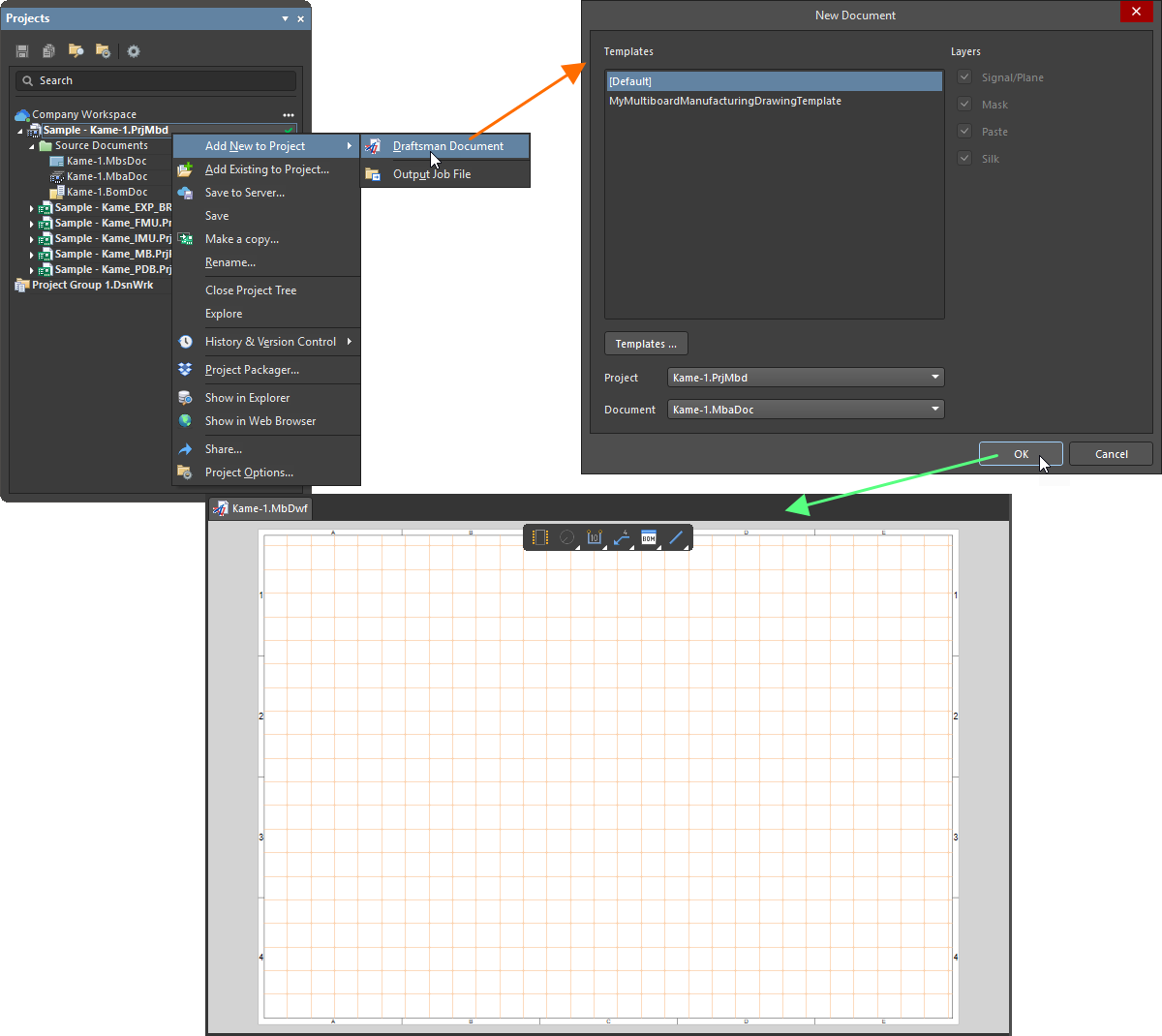
Projects パネルと New Document ダイアログを使用して、マルチボードプロジェクトに新しい Draftsman ドキュメントを追加します。
Creating a Manufacturing Drawing Template
製造図面テンプレートは、製造図面ドキュメントの内容と(オプションで)スタイルプロパティを定義します。
新しい製造図面ドキュメントテンプレートを作成するには:
-
マルチボード設計プロジェクトがアクティブなプロジェクトである状態で、メインメニューから File » New » Draftsman Document コマンドを選択して新しい製造図面ドキュメントを作成します。
-
テンプレートの内容を定義します。テンプレートは複数ページのドキュメント、メインドキュメント属性(表やリスト、図面タイプなど)のデータ、ページ設定、そしてマルチボード設計内容に依存しない要素をサポートします。シートテンプレートは、新規または既存の図面ドキュメントのグラフィック形式を定義するために使用でき、製造図面ドキュメントテンプレートの一部として保存されます。
複数ページの製造図面ドキュメントには、通常、マルチボードビューや BOM テーブルが含まれます。Draftsman のマルチボードドキュメントテンプレートとして保存すると、現在のマルチボード設計からのデータが保持され、図面内容の「シェル」を定義します。
-
メインメニューから File » Save Copy As または File » Save As コマンドを選択します。表示される Save ダイアログで、Altium Designer のインストールにおけるローカルテンプレートフォルダを参照します(Preferences ダイアログの Data Management – Templates page の下部にある Local Templates folder フィールドで定義。既定のインストールの場合は C:\Users\Public\Documents\Altium\AD<Solution/Version>\Templates )。テンプレートの希望名を入力し、Save as type ドロップダウンから Altium Draftsman MultiBoard Document Templates (*.MbDot) を選択します。
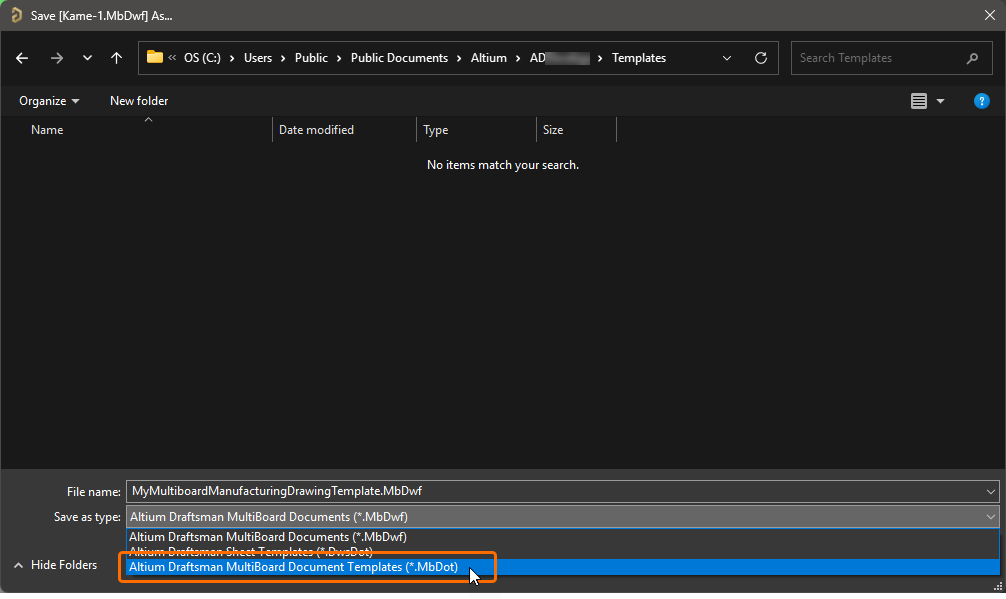
Save をクリックすると、マルチボード設計から抽出されたデータに関連するものを除き、既存の図面ドキュメントの内容と属性が製造図面ドキュメントテンプレートとして保存されます。元の図面ドキュメントに特定のページスタイル(シートテンプレートで適用される場合など)がある場合、それらのグラフィック要素と属性も新しい製造図面ドキュメントテンプレートとともに保存されます。
-
他の Altium Designer ドキュメントと同様に、Save As コマンドは、プロジェクト構造内の既存のソースファイル(この場合は Draftsman 図面ドキュメント)を、新しく保存したファイル(Draftsman テンプレートドキュメント)で置き換えます。ソースドキュメント(*.MbDwf)は、ディスク上のプロジェクトフォルダから削除されません。より良い方法は Save Copy As オプションを使用することで、これによりソースドキュメント(およびプロジェクト内容)をそのまま保持しつつ、指定したディレクトリに新しいテンプレートを保存できます。
-
製造図面ドキュメントテンプレート形式と互換性のない要素は削除されます。
その後、新しい製造図面ドキュメントのテンプレートとして使用すると、プロジェクト データがテンプレートデータの代わりにシェルへ読み込まれ、ドキュメント形式とその内容タイプが再作成されます。
製造図面ドキュメントのオプションは、Properties パネルの Document Options モードで設定できます。このモードは、ドキュメントのデザインスペースで何もオブジェクトが選択されていないときにアクティブになります。詳細は Setting Up a Draftsman Document ページを参照してください。
-
製造図面ドキュメントを作成した後、マルチボードアセンブリで行った変更は、メインメニューの Tools » Import Changes From <MultiBoardAssemblyDocumentName.MbaDoc> コマンド、またはデザインスペースの右クリックメニューから製造図面へインポートできます。
-
製造図面オブジェクトの既定プロパティは、Preferences ダイアログの Draftsman – Defaults page で設定できます。これらのプロパティは、以降に配置するオブジェクトに適用されます。
-
Bookmarks panel は、複数シートの製造図面を移動・管理するための便利な方法を提供します。このパネルはドキュメント構造全体を展開可能なツリービューで表示し、すべてのドキュメントシートと、それらのシート内の主要なビューオブジェクトを含みます。
ビューの操作
製造図面ドキュメントでは、このプロジェクトに含まれるマルチボードアセンブリのビューを配置できます。
マルチボードビュー
マルチボードビュー(Place » Multiboard View)は、マルチボードアセンブリ(*.MbaDoc)を構成する部品の外形を自動的に合成したグラフィックです。
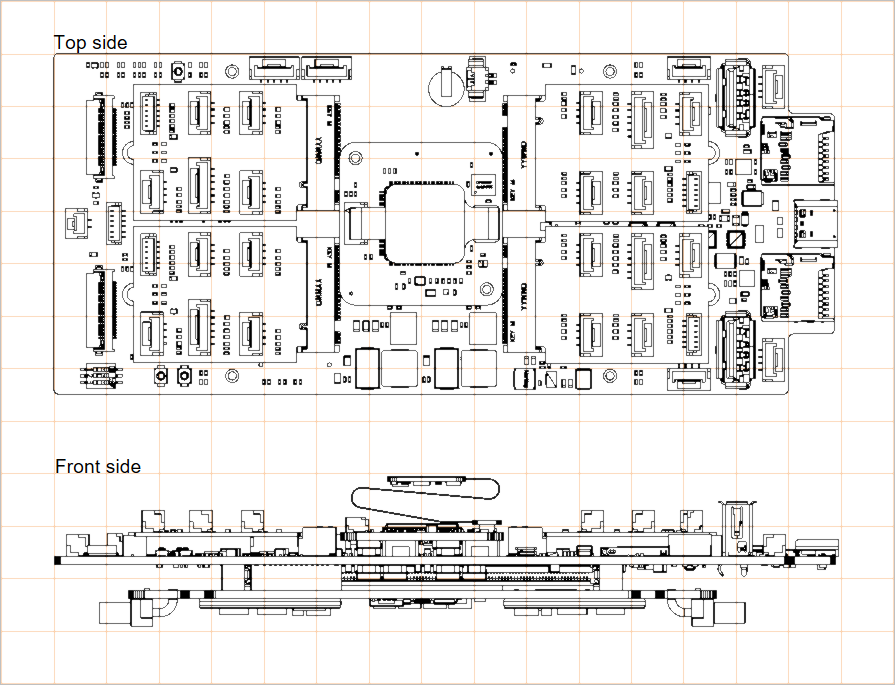
上面および前面からマルチボードアセンブリを表示する、配置済みの2つのマルチボードビュー
配置済みマルチボードビューのプロパティは、デザインスペースでビューを選択したとき(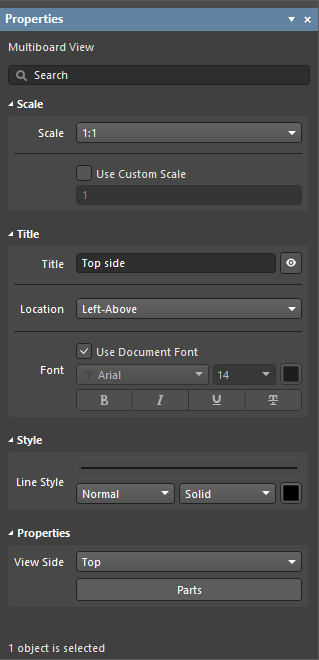 )に Properties パネルで設定できます。
スケール
|
Scale,
Use Custom Scale |
これらのオプションを使用してビューのスケールを設定します。詳細は Working with Views ページを参照してください。 |
タイトル
|
Title,
Location,
Font |
これらのオプションを使用してビューのタイトルを設定します。詳細は Working with Views ページを参照してください。
Title フィールドには、固定テキストと、特殊文字列の形式で任意のパラメータを含めることができます。タイトルにパラメータを含めるには =<ParameterName> 構文を使用します。含めたパラメータの値は、図面シート上のタイトルに表示されます。
|
スタイル
|
| Line Style |
ドロップダウンを使用して、ビューの枠線/外形の描画に使用する線の太さとパターンを選択します。利用可能なオプションは、デザインスペースで何もオブジェクトが選択されていないときに Properties パネルの Line Styles 領域で定義されます。詳細は Setting Up a Draftsman Document ページを参照してください。関連するカラーボタンを使用して、線の色を指定します。 |
プロパティ
|
| View Side |
基板図面のレンダリングに使用するビュー方向です。ドロップダウンメニューから、あらかじめ用意されたビュー方向の範囲から選択します。 |
 |
ボタンをクリックして Parts ダイアログを開き、選択したビュー(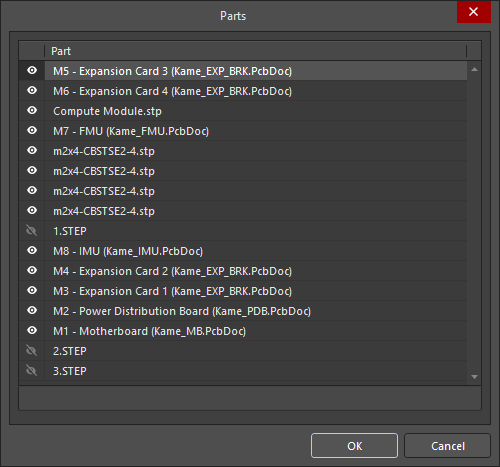 )上でアセンブリを構成する部品の表示/非表示を管理できます。 )上でアセンブリを構成する部品の表示/非表示を管理できます。 |
断面ビュー
断面ビューは、配置済みマルチボードビューに対して、指定した「カット」位置を通るプロファイルスライス、すなわち断面図を提供します。断面ビュー生成機能は、現在のマルチボードアセンブリから利用可能な3Dデータを使用して、指定したカット位置に整列した独立した断面図を作成します。マルチボードビューからは、任意の数の断面ビューを作成できます。
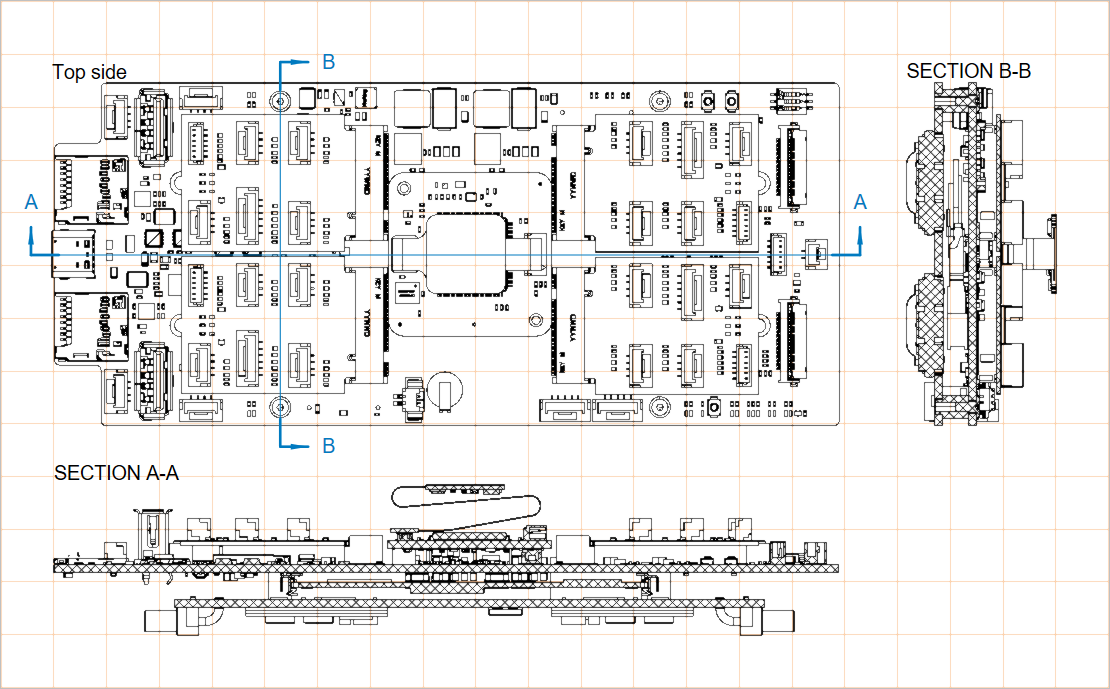
同じマルチボードビューから作成された、配置済みの2つの断面ビュー
マルチボードビューからは任意の数の断面ビューを作成できます。 製造図面で複数の断面ビューを作成する場合は、それぞれに固有のラベルを付けることを推奨します。
断面ビューは、次の手順で製造図面ドキュメントに配置します:
-
断面ビュー配置コマンド(Place » Additional Views » Section View)を選択します。
-
マルチボードビュー上にカーソルを置くと、垂直のカットライン(初期状態では A-A)がカーソルの動きに追従します。Spacebar を使用して、垂直/水平のカットラインを切り替えます。
-
クリックしてカットラインの位置を設定します。
-
ラインの左右いずれかにカーソルを移動してビュー方向(カットラインの矢印で示されます)を設定し、クリックして確定します。
-
新しい断面ビューをドラッグし、希望の位置に配置します。
配置済み断面ビューは、デザインスペースで選択すると、位置・サイズ・ターゲットポイントをグラフィカルに変更できます。このビューでは、複数のグラフィック編集モードが利用できます:
-
Click, Hold&Drag 断面ビューのグラフィックをドラッグして位置を変更します。
-
Click, Hold&Drag外形の右上にある断面ビューのスケーリングハンドル(ノード)をドラッグして、レンダリングサイズを変更します。
-
Click, Hold&Drag断面図の切断線(ノード以外の部分)をドラッグして、アセンブリを貫く切断位置を変更します。
-
Click, Hold&Drag断面図の切断線ノードのいずれかをドラッグして、アセンブリを貫く切断範囲(端点)を変更します。
-
切断線またはそのノードをドラッグする際は、 Spacebar を使用して Positioning Mode (Horizontal または Vertical)を変更します。
配置済み断面図のプロパティ(図面表現スタイル、表示方向、ラベリングなど)は、デザインスペースでビューを選択した状態( )で Properties パネルから設定できます。
スケール
|
Scale,
Use Custom Scale |
これらのオプションを使用してビューのスケールを設定します。詳細は Working with Views ページを参照してください。 |
タイトル
|
Title,
Location,
Font |
これらのオプションを使用してビューのタイトルを設定します。詳細は Working with Views ページを参照してください。
Title フィールドには、固定テキストと、特殊文字列の形式で任意のパラメータを含めることができます。タイトルにパラメータを含めるには =<ParameterName> 構文を使用します。含めたパラメータの値は、図面シート上のタイトルに表示されます。
|
スタイル
|
| Cutting Line |
ドロップダウンを使用して、ビューの矢印付きインジケータ線を描画する線幅と線種(パターン)を選択します。使用可能なオプションは、デザインスペースで何も選択していないときの Properties パネルの Line Styles 領域で定義されています。詳細は Setting Up a Draftsman Document ページを参照してください。 関連するカラーボタンで線の色を指定します。
|
| Connector Line |
ドロップダウンを使用して、ビューの切断線(矢印付き断面インジケータの間にあり、ボードアセンブリビューを通過する線)を描画する線幅と線種(パターン)を選択します。使用可能なオプションは、デザインスペースで何も選択していないときの Properties パネルの Line Styles 領域で定義されています。詳細は Setting Up a Draftsman Document ページを参照してください。 関連するカラーボタンで線の色を指定します。
|
| Arrow Style |
用意されているオプションを使用して、断面インジケータを設定します。
-
Head Style – ドロップダウンメニューから、プリセットの断面インジケータスタイル(ヘッダー)を選択します。矢印に設定すると、断面の表示方向を示します。
-
Width – 矢印などのインジケータヘッドの幅。この設定は、丸型ヘッドスタイルの直径も定義します。
-
Length – 矢印などのインジケータヘッドの長さ。
|
| Board Cut Fill Style |
これらのオプションを使用して、断面(切断)されたボードのグラフィック塗りつぶしパターンと色の表示を設定します。パターンスウォッチには、設定に基づくパターンのプレビューが表示されます。関連するカラーボタンで、塗りつぶしおよびハッチパターンの色を指定します。関連する  ボタンを選択して、次のオプションにアクセスします。 ボタンを選択して、次のオプションにアクセスします。
-
Pattern – 断面ボードのグラフィックパターン。ドロップダウンメニューから Solid 塗りつぶし、または ANSI パターン(ANSI 31 または ANSI 37)を選択します。
-
Scale – 適用する ANSI ハッチパターンの相対的な線間隔。
-
Rotation – ANSI ハッチング線の角度。0 の値は 45° に相当します。
-
Hatch Thickness – ANSI パターン線の線幅。
|
プロパティ
|
| Label |
断面カットラベルとして表示されるビューラベル名に使用するテキスト文字列/文字。
また、ViewLabel パラメータを使用してビュータイトルに含めることもできます。
|
| Rotation |
断面図を描画する回転角度(元のマルチボードビューに対する相対角)。ドロップダウンメニューから 90° 刻みのプリセットを選択します。
|
| Positioning Mode |
断面カットの X/Y 方向(Horizontal または Vertical)。 |
| Flip View Direction |
有効にすると、断面図の向き(「どちら側から見ているか」)が反転します。切断線方向の矢印もそれに応じて変わります。 |
| Slice Section |
有効にすると、切断線の背後にあるオブジェクトの表示が無効になります。背景オブジェクトがビューから除去され、ボードを文字どおり切断したビューになります。 |
| Display Mode |
カットインジケータ矢印の表示スタイル。矢印を切断線の後(Standard)または前(Alternative)に配置します。 |
| Show Connector Line |
有効にすると、切断線の表示が有効になります。 |
ボード詳細ビュー
ボード詳細ビューは、マルチボードビューで定義した領域を拡大して表示する、フローティング表示のビューです。ボード詳細ビューは、円形または矩形の形状で作成できます。
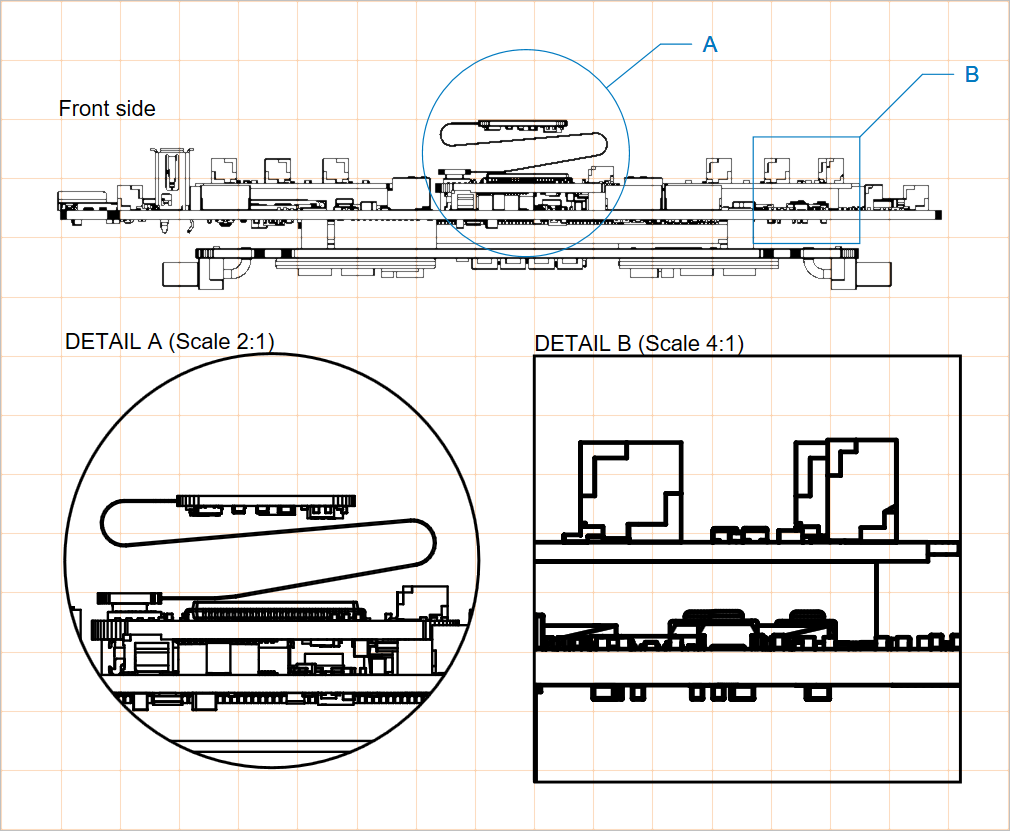
同じマルチボードビューから作成した 2 つのボード詳細ビュー(円形領域と矩形領域)
ドキュメント内で複数のボード詳細ビューを作成する場合は、それぞれに固有のラベルを付けることを推奨します。
ボード詳細ビューを作成する手順は次のとおりです。
-
ボード詳細ビュー配置コマンド(必要なビュー形状に応じて Place » Additional Views » Board Detail View » Circle area detail view または Place » Additional Views » Board Detail View » Rectangle area detail view)を選択します。
-
マルチボードビュー上の点をクリックして、対象となるボード詳細ビュー領域の中心を指定します。
-
マウスを移動してからクリックし、ビュー領域(ボード詳細ビューのソース)の半径(円形ビューの場合)/角(矩形ビューの場合)を指定します。ビューがカーソル上にフローティング表示されます。
-
もう一度クリックして、ボード詳細ビューの拡大表示の配置位置を確定します。
ボード詳細ビュー本体と、そのソース領域/サイズはグラフィカルに変更できます。グラフィック編集モードを有効にするには、ボード詳細ビューの拡大表示、ソース領域の外周、ラベル、接続/引出線など、グラフィック表現の任意の部分をクリックします。
-
Click, Hold&Drag ボード詳細ビュー本体(ソース領域の拡大表示)をドラッグして、位置を変更します。
-
ラベルまたは接続/引出線にカーソルを合わせ(カーソルが「移動」十字 –  に変わります)、次に
 Click, Hold&Drag してビューのソース領域の位置を移動します。
-
ソース領域のアウトラインにカーソルを合わせ(カーソルが「リサイズ」十字 –  に変わります)、次に
 Click, Hold&Drag してビューのソース領域サイズを変更します。
-
ボード詳細ビューオブジェクトがラベルリーダー(Properties パネルで Display Mode が With Leader に設定)を使用している場合、編集ハンドルが表示され、ドラッグしてリーダーとラベルの位置を変更できます。
配置済みボード詳細ビューのプロパティ(拡大率(スケール)、ラベリング、線属性など)は、デザインスペースでビューを選択した状態(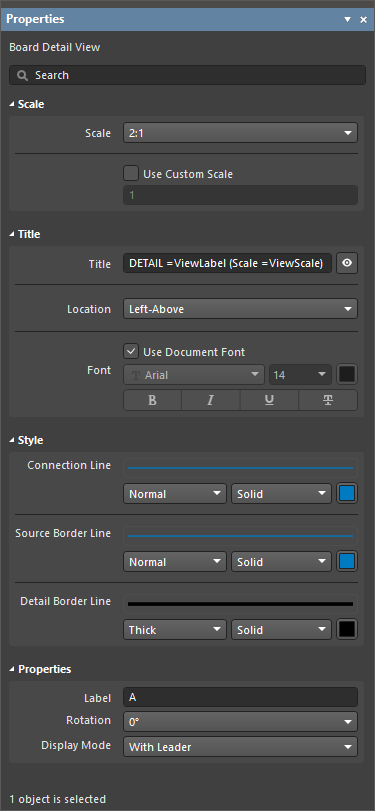 )で Properties パネルから設定できます。
スケール
|
Scale,
Use Custom Scale |
これらのオプションを使用してビューのスケールを設定します。詳細は Working with Views ページを参照してください。 |
タイトル
|
Title,
Location,
Font |
これらのオプションを使用してビューのタイトルを設定します。詳細は Working with Views ページを参照してください。
Title フィールドには、固定テキストと、特殊文字列の形式で任意のパラメータを含めることができます。タイトルにパラメータを含めるには =<ParameterName> 構文を使用します。含めたパラメータの値は、図面シート上のタイトルに表示されます。
|
スタイル
|
| Connection Line |
ドロップダウンを使用して、リーダーラベル線(Display Line オプションが With Leader に設定されている場合)または、ソースアウトラインとビュー本体を接続する線(Display Line オプションが Connected に設定されている場合)を描画する線幅と線種(パターン)を選択します。使用可能なオプションは、デザインスペースで何も選択していないときの Properties パネルの Line Styles 領域で定義されています。詳細は Setting Up a Draftsman Document ページを参照してください。 関連するカラーボタンで線の色を指定します。
|
| Source Border Line |
ドロップダウンを使用して、ビューのソース領域アウトラインを描画する線幅と線種(パターン)を選択します。使用可能なオプションは、デザインスペースで何も選択していないときの Properties パネルの Line Styles 領域で定義されています。詳細は Setting Up a Draftsman Document ページを参照してください。 関連するカラーボタンで線の色を指定します。
|
| Detail Border Line |
ドロップダウンを使用して、ビューの拡大領域アウトラインを描画する線幅と線種(パターン)を選択します。使用可能なオプションは、デザインスペースで何も選択していないときの Properties パネルの Line Styles 領域で定義されています。詳細は Setting Up a Draftsman Document ページを参照してください。 関連するカラーボタンで線の色を指定します。
|
プロパティ
|
| Label |
ビューラベル名に使用するテキスト文字列/文字。Display Line オプションが With Leader または No Leader に設定されている場合、ビューラベルとして表示されます。
ViewLabel パラメータを使用して、ビューのタイトルに含めることもできます。
|
| Rotation |
拡大領域を表示する角度。ここで 0° は、ソース(ターゲット)図面ビューにおける当該領域固有のビュー角度に関連します。ドロップダウンメニューから 90° 刻みのビューオプションを選択します。
|
| Display Mode |
ビューのソースに対する接続線のスタイル。ドロップダウンから Connected、With Leader、または No Leader のスタイルを選択します。 |
Board Realistic View
ボードのリアリスティックビュー(Place » Additional Views » Board Realistic View)は、現在のマルチボードアセンブリのスケーラブルな 3D レンダリングです。配置すると、ビューは最初に Multi-board Assembly エディタの現在の 3D ビューを採用します。
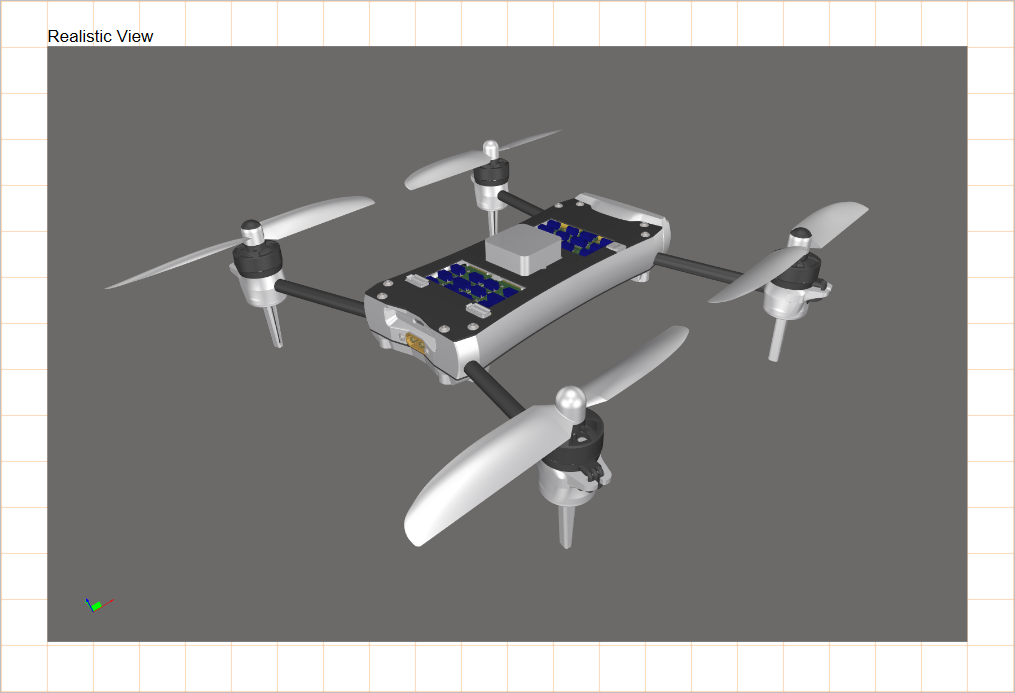
配置されたボードのリアリスティックビュー
配置済みのボードのリアリスティックビューのプロパティは、デザインスペース(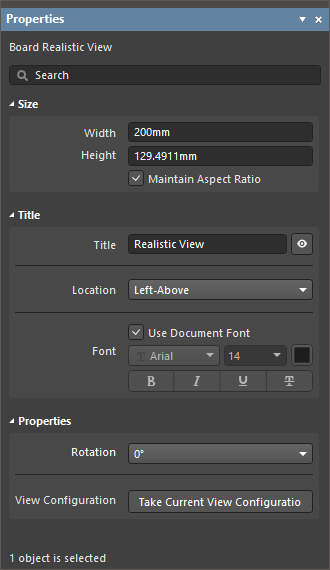 )でビューを選択したときに Properties パネルで設定できます。
サイズ
|
| Width |
ビューの幅。 |
| Height |
ビューの高さ。 |
| Maintain Aspect Ratio |
このオプションを有効にすると、Width または Height に新しい値を入力してオブジェクトをスケーリングする場合、あるいはデザインスペースでオブジェクトの選択ノードをドラッグする場合でも、画像の縦横比が維持されます。 |
タイトル
|
Title、
Location、
Font |
これらのオプションを使用してビューのタイトルを設定します。詳細は Working with Views ページを参照してください。
Title フィールドには、固定テキストと、特殊文字列の形式で任意のパラメータを含めることができます。タイトルにパラメータを含めるには =<ParameterName> 構文を使用します。含めたパラメータの値は、図面シート上のタイトルに表示されます。
|
プロパティ
|
| Rotation |
ドロップダウンメニューで適用される、ビューのレンダリングに使用する回転角度。 |
| View Configuration |
 ボタンをクリックすると、レンダリングされたビューが、Multi-board Assembly エディタで現在適用されているビュー設定(View Configuration panel で定義)を採用します。 ボタンをクリックすると、レンダリングされたビューが、Multi-board Assembly エディタで現在適用されているビュー設定(View Configuration panel で定義)を採用します。
|
図面の注釈と寸法記入
製造図面に重要な情報を追加するための、追加の注釈、寸法記入、および作図ツールが用意されています。これには、自動ノートおよびハイライトのシステムに加え、外形の長さ・サイズ・角度、または指定したオブジェクト間の距離を示すためのツールが含まれます。BOM および汎用テーブルも利用できます。

マルチボード製造ドキュメントに追加された BOM テーブルは、マルチボードの ActiveBOM ドキュメントからデータを取得し、それを反映します。テーブル内容には、マルチボード設計全体のすべての部品アイテムが含まれます。追加のモジュール参照パラメータ列(ModuleAssembly、ModuleDesignator、ModuleSource、および ModuleTitle)が利用可能です(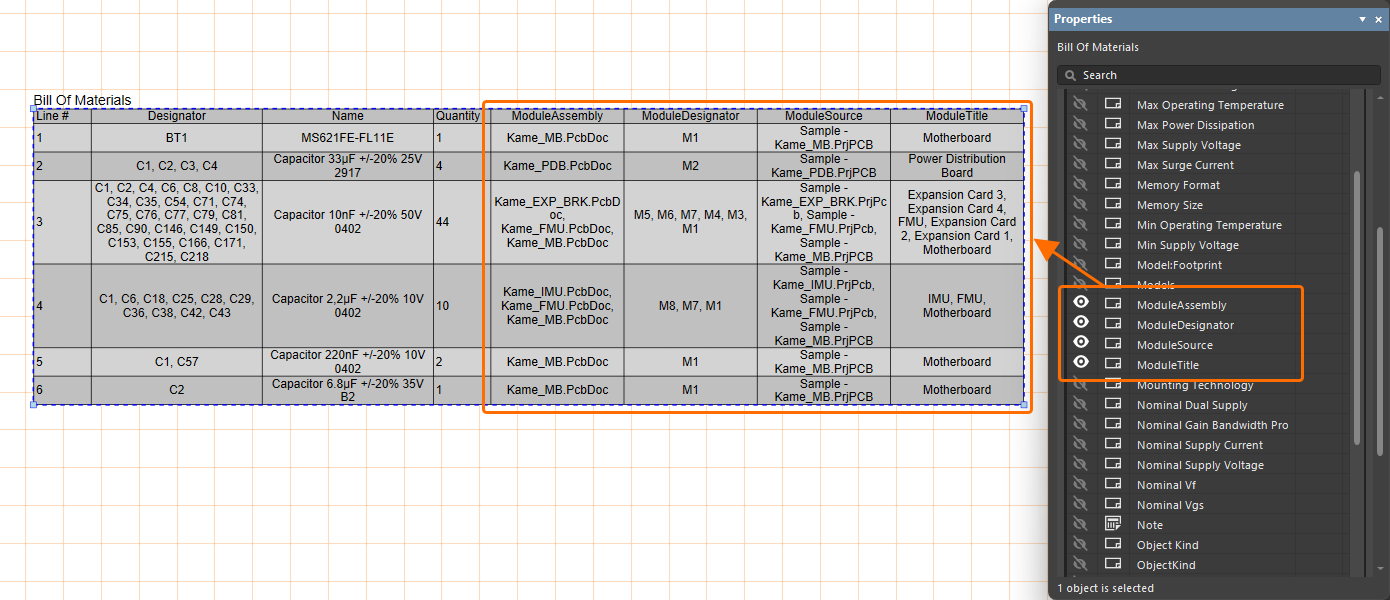 )。
)。

 AI で翻訳