
シングルサインオン(SSO)認証の設定
Enterprise Server 管理者は、サーバーに対してシングルサインオン(SSO)機能を設定して有効化できます。バックエンド構成システムにより、管理者はサーバーユーザー向けの SSO 機能を確立、テスト、有効化、無効化できます。SSO オプションは、Enterprise Server のブラウザーインターフェースへのサインイン時に利用できます。サーバーユーザー向けに設定されている場合、SSO を使用すると、社内システム全体で使用しているものと同じ認証情報セットでサーバーにアクセスできる利便性があります。
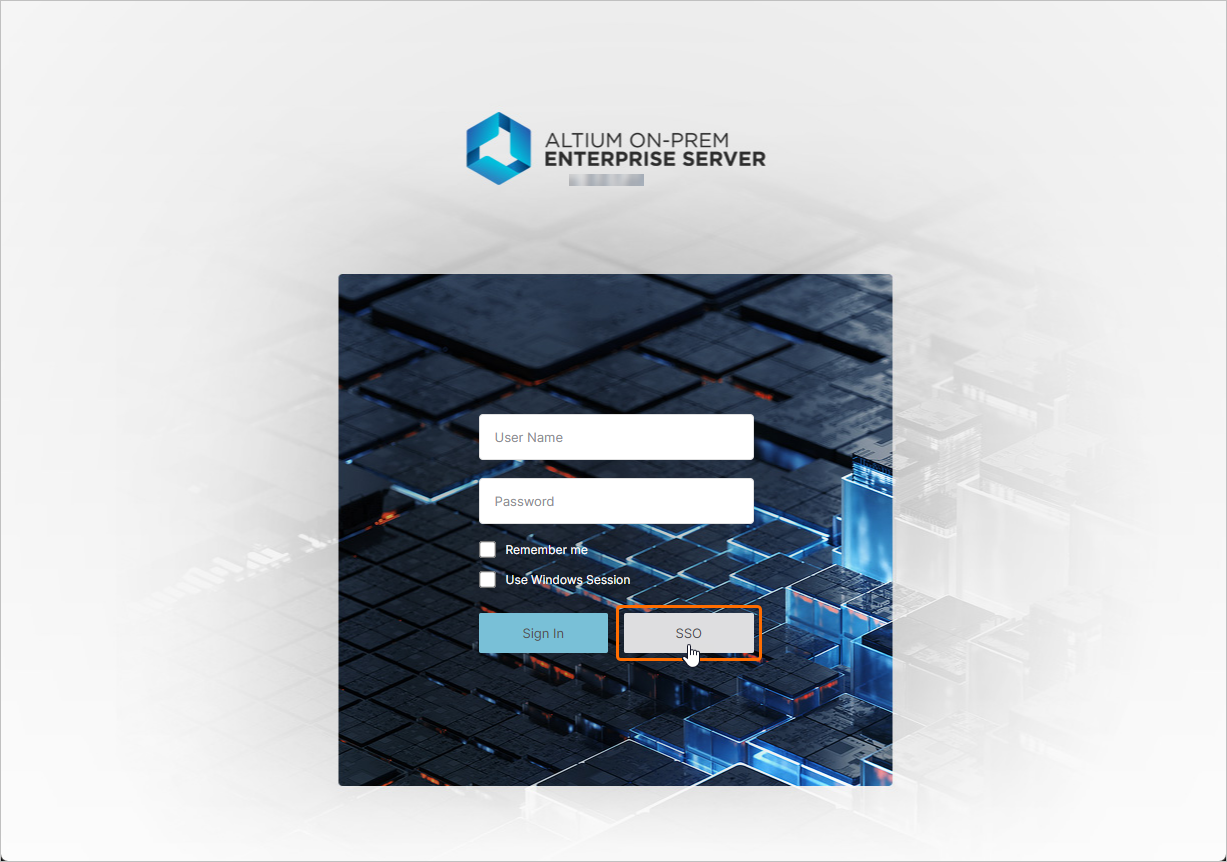
Enterprise Server のブラウザーインターフェースへのアクセスの詳細については、Exploring the Browser-based Interface ページを参照してください。
SAML シングルサインオン
Enterprise Server で設定および有効化されると、SSO システムは、標準化された Security Assertion Markup Language(SAML 2.0)に基づく ID アサーション通信により、たとえば Okta、OneLogin などの、会社で指定された Identity Provider(IdP)から認可済みの ID を確立します。会社向けの SSO サインインインターフェースがまだ用意されていない場合、通常は IdP が提供するテンプレートまたはサンプルに基づいて構築されます。これにより、SAML ベースの認証アサーション交換が開始され、社内サービスへのアクセスが提供されます。
ブラウザーインターフェースの Admin – Settings – Authentication ページで、SSO ドロップダウンから SAML オプションを選択すると、このページには Enterprise Server SSO サービス用の事前構成済み URL(Altium Metadata Configuration)と、IdP の認可接続データをアップロードまたは手動入力するためのオプション(SAML Identity Provider Configuration)が表示されます。
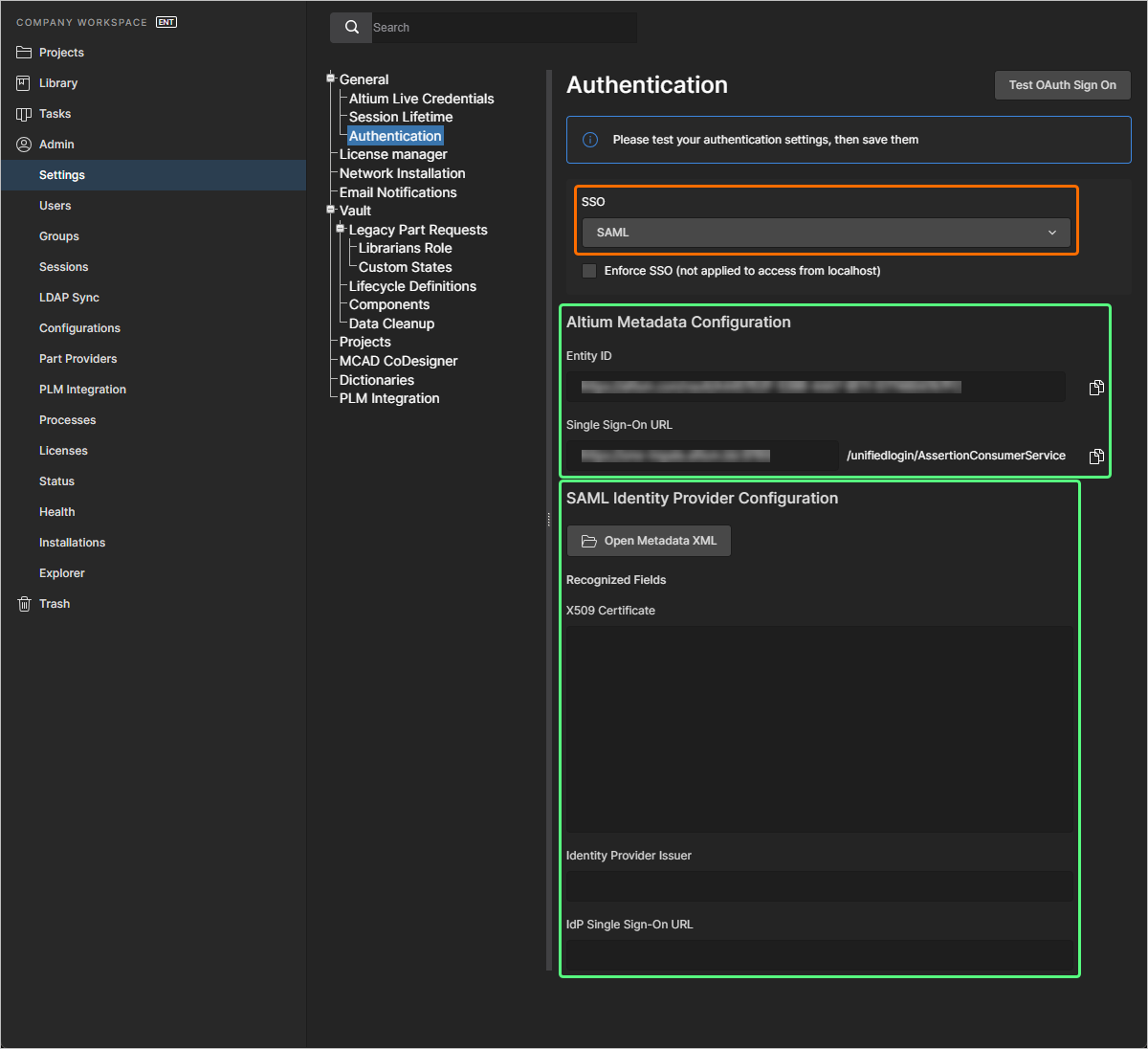
IdP 構成メタデータは、Identity Provider が会社のサービスとの統合用にセットアップされると利用可能になるはずです。以下の IdP 統合例を参照してください。Enterprise Server で SAML SSO システムを設定するには(まだ完了していない場合)、 ボタンを使用して、会社の IdP によって生成された SAML IdP 構成 XML ファイルを指定してアップロードします。アップロードされた IdP XML ファイルはシステムによって解析され、主要な構成フィールド(X509 Certificate、Identity Provider Issuer URL、IdP Single Sign-On URL)が抽出されます。あるいは、構成の各要素(セキュリティ証明書および URL)を対応するフィールドに手動で追加することもできます。
SSO は、 ボタンで開始される統合テストを実行するまで有効になりません。これにより、SSO の ID 処理と会社の SSO サインインが検証されます。構成のテストが正常に完了したら、
 ボタン(
ボタン( )をクリックして設定を保存し、Enterprise Server に適用できます。
Identity Provider 統合例
以下の折りたたみセクションを展開すると、Identity Provider として OneLogin を使用する統合プロセスの手順例を確認できます。
Integration with OneLogin
-
管理者として OneLogin にログインします。
-
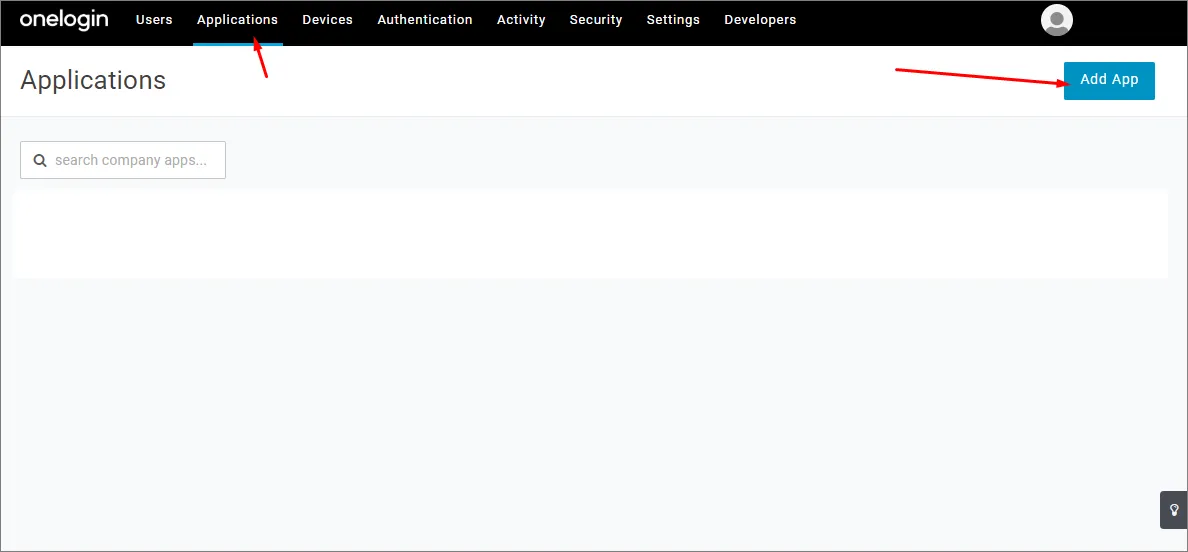
Applications を選択し、次に Add Apps を選択します。
-
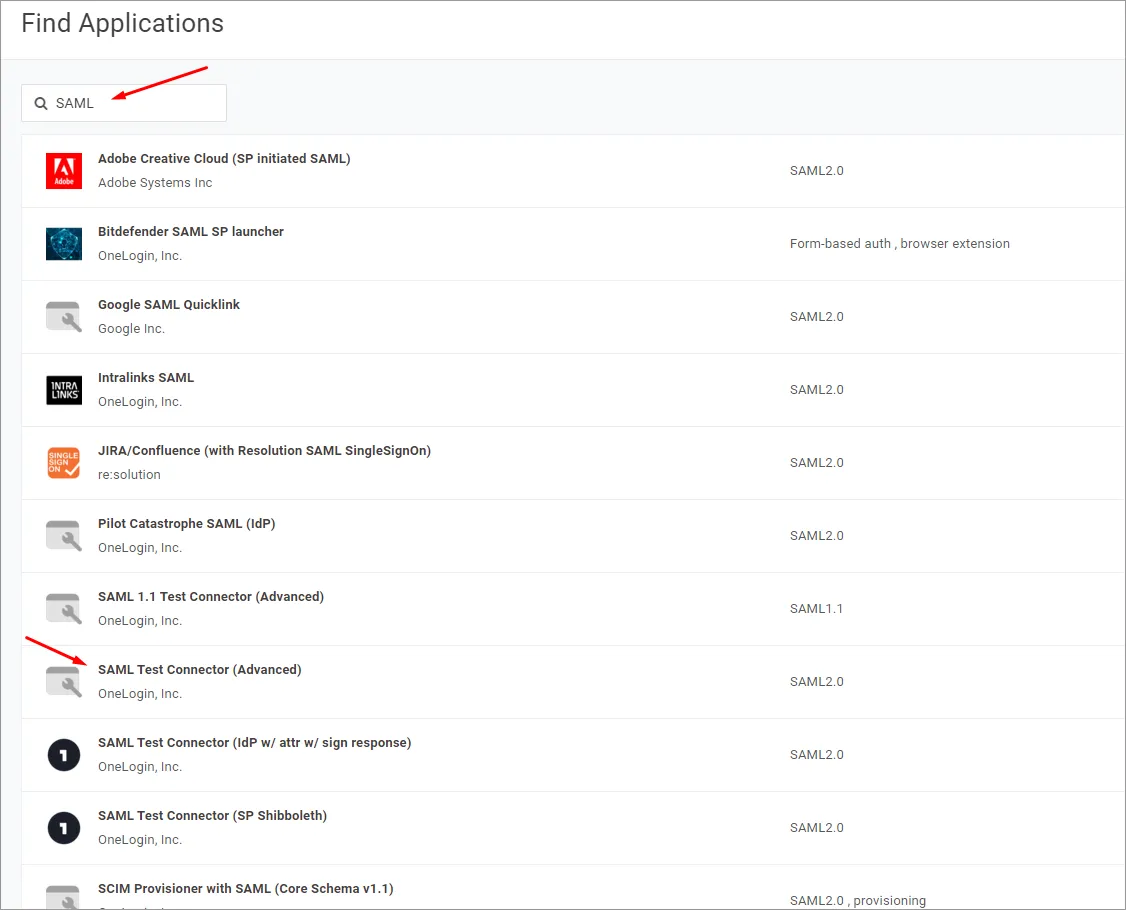
'SAML' を検索し、SAML Test Connector (Advanced) IdP アプリケーションオプションを選択します。
-
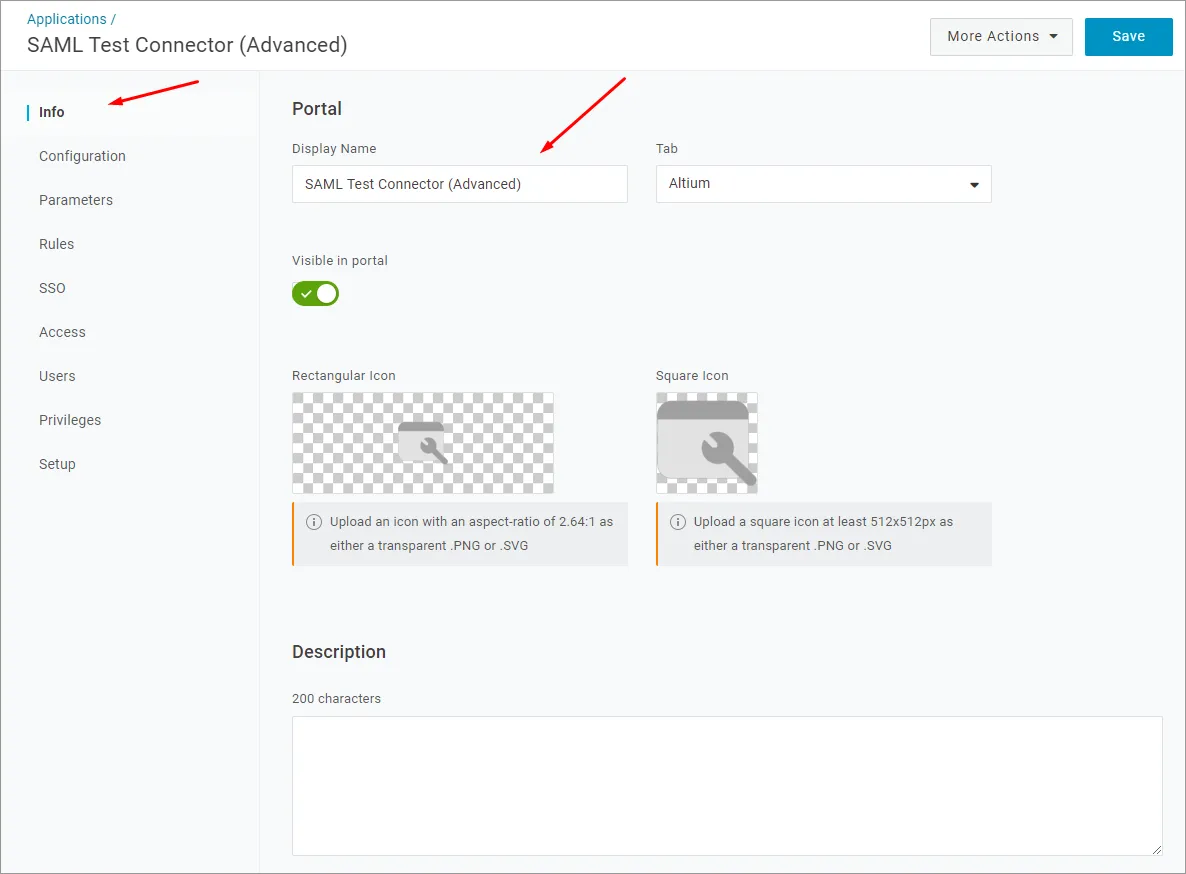
アプリケーション名(Display Name)を指定します。これは表示専用です。
-
Save ボタンをクリックします。
-
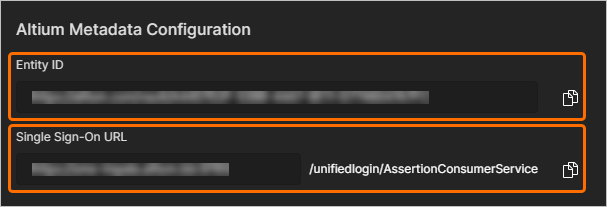
Enterprise Server のブラウザーインターフェースの Admin – Settings – Authentication ページから、Entity ID および Single Sign-On URL(Assertion Consumer Service)エントリをコピー(
 )し、以下の指定どおりに各フィールドへ貼り付けます。
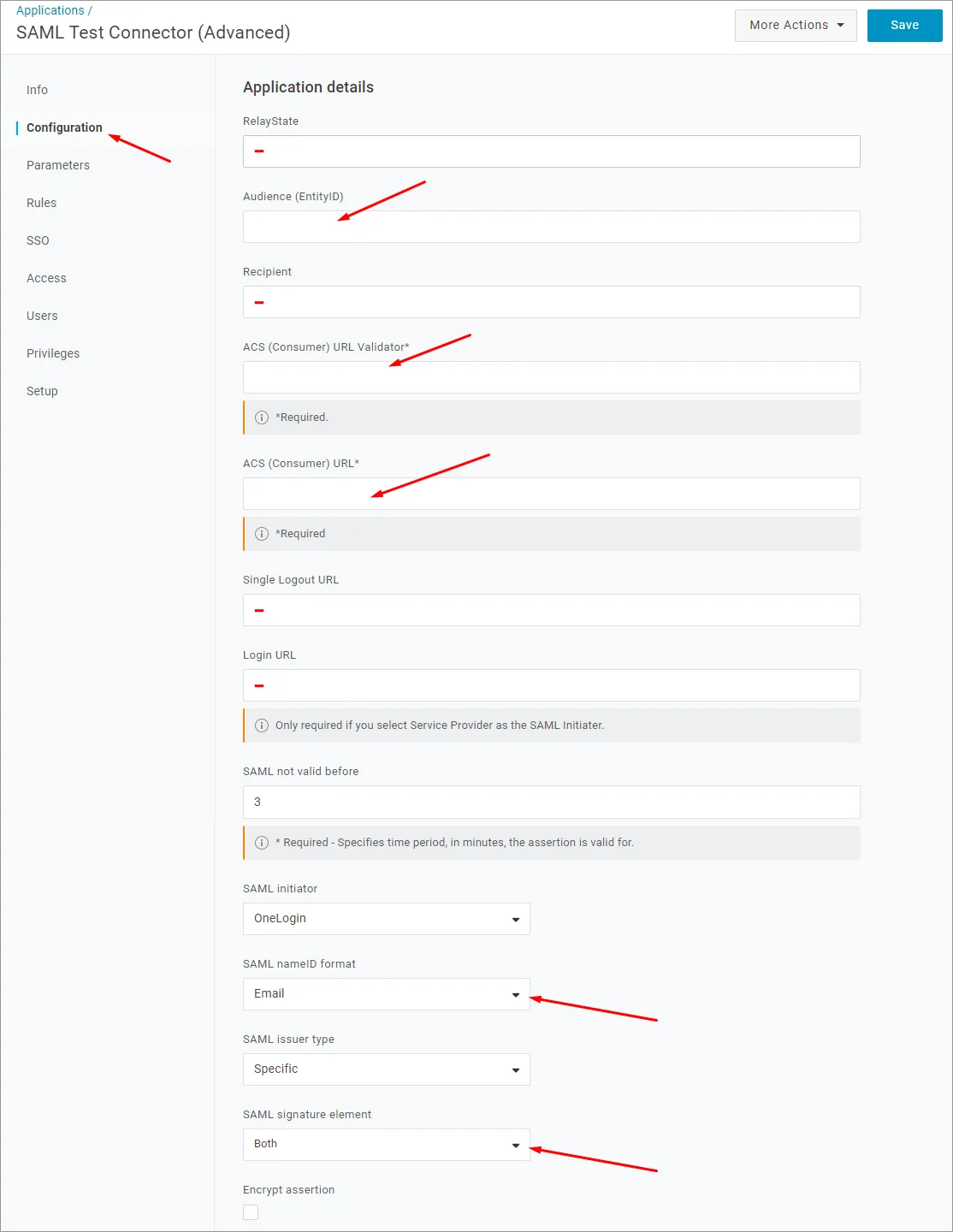
OneLogin アプリケーションの設定で:
-
上記の Entity ID (service provider 名)を Audience (EntityID) URL として貼り付けます。
-
上記の Single Sign-On URL(Assertion Consumer Service)を ACS (Consumer) URL Validator に貼り付けます。
-
また、Single Sign-On URL(Assertion Consumer Service)も ACS (Consumer) URL に貼り付けます。
-
RelayState、Recipient、Single Logout URL、Login URL の各フィールドは空欄のままでかまいません。
-
-
SAML nameID format オプションが Email に設定され、SAML signature element が Both に設定されていることを確認します。設定を確定するには Save ボタンをクリックします。
-
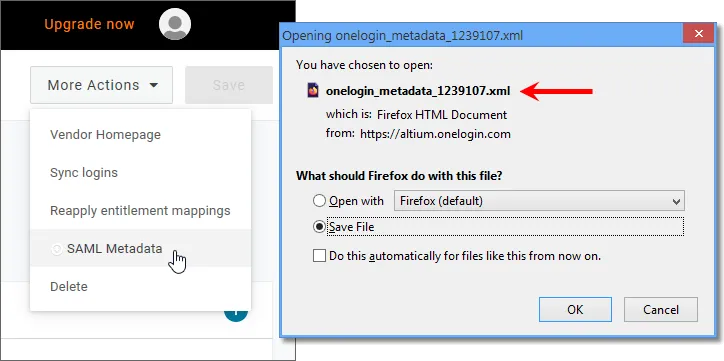
More Actions ボタンをクリックし、次に SAML Metadata メニューオプションをクリックして、Identity Provider SAML メタデータを XML ファイルとしてダウンロードします。
-
このメタデータファイルは、OneLogin SSO サービスを構成するために Enterprise Server のブラウザーインターフェースの Admin – Settings – Authentication ページへアップロードします。以下を参照してください。
-
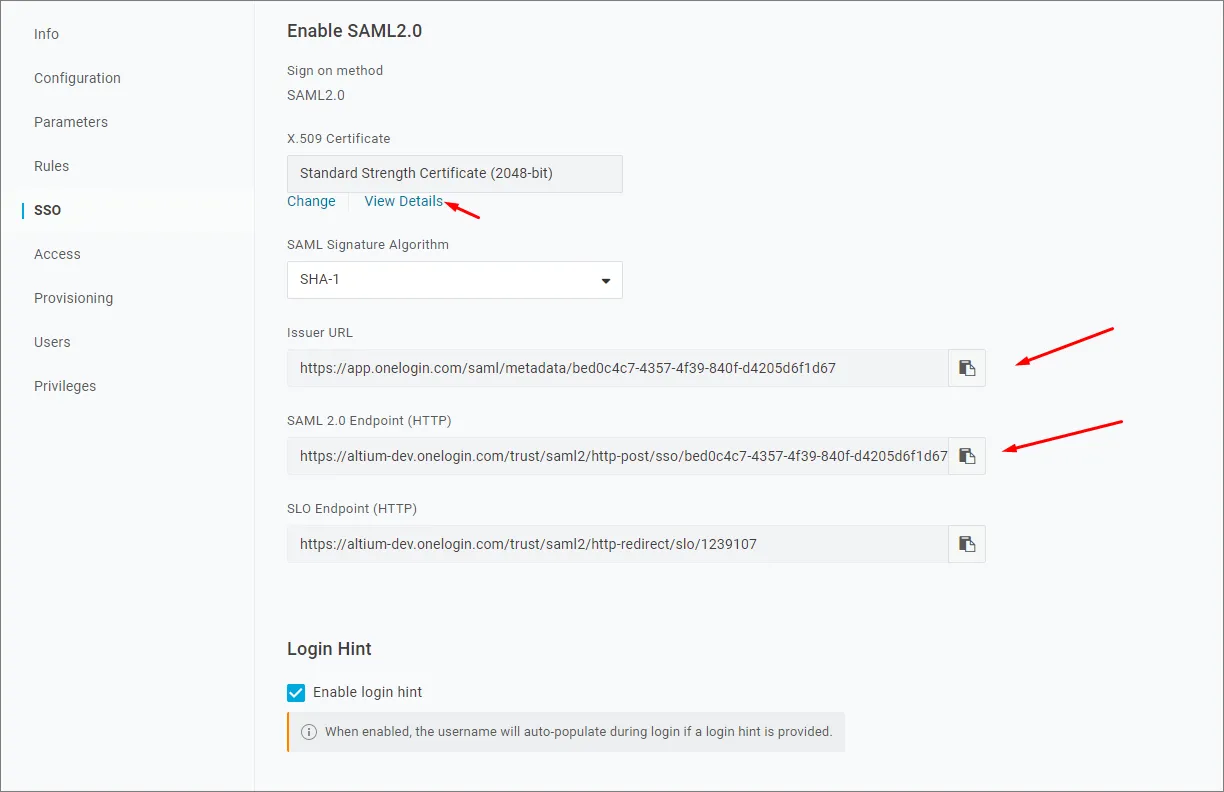
OneLogin SSO サービスを Enterprise Server で手動設定する場合、必要なパラメーターは OneLogin アプリケーションインターフェースで SSO メニューオプションを選択すると確認できます。
-
-
続く手順として、ユーザーを追加し、それらのユーザーにアプリケーションを割り当てます。
以下の折りたたみセクションを展開すると、Identity Provider として Okta を使用する統合プロセスの手順例を確認できます。
Integration with Okta
-
管理者として Okta にサインインします。
-
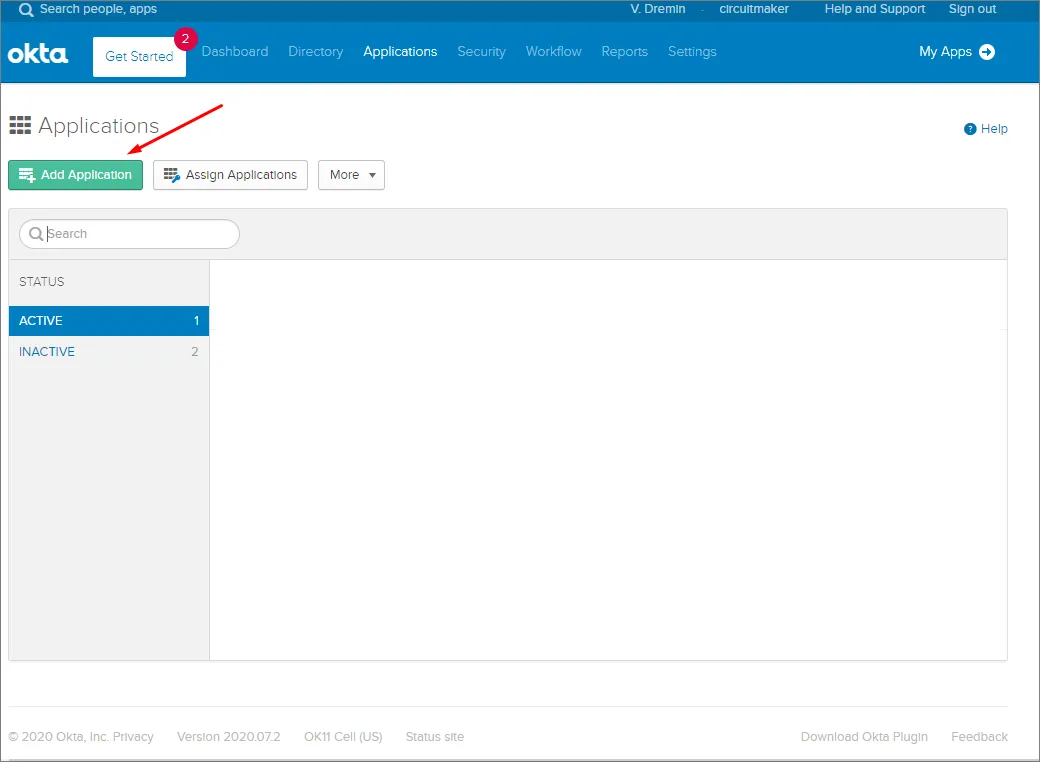
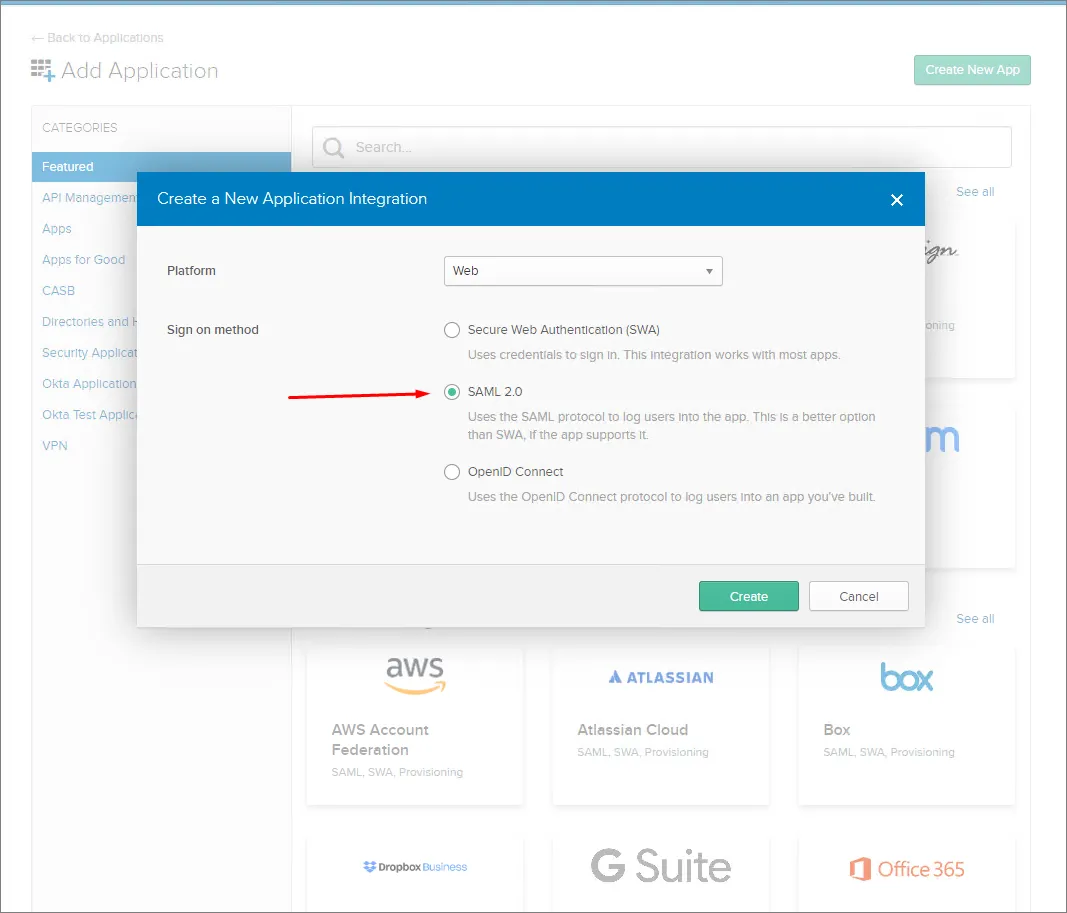
Admin リンク/ボタンをクリックし、次に会社の Applications の下にある Add Application ボタンをクリックします。
-
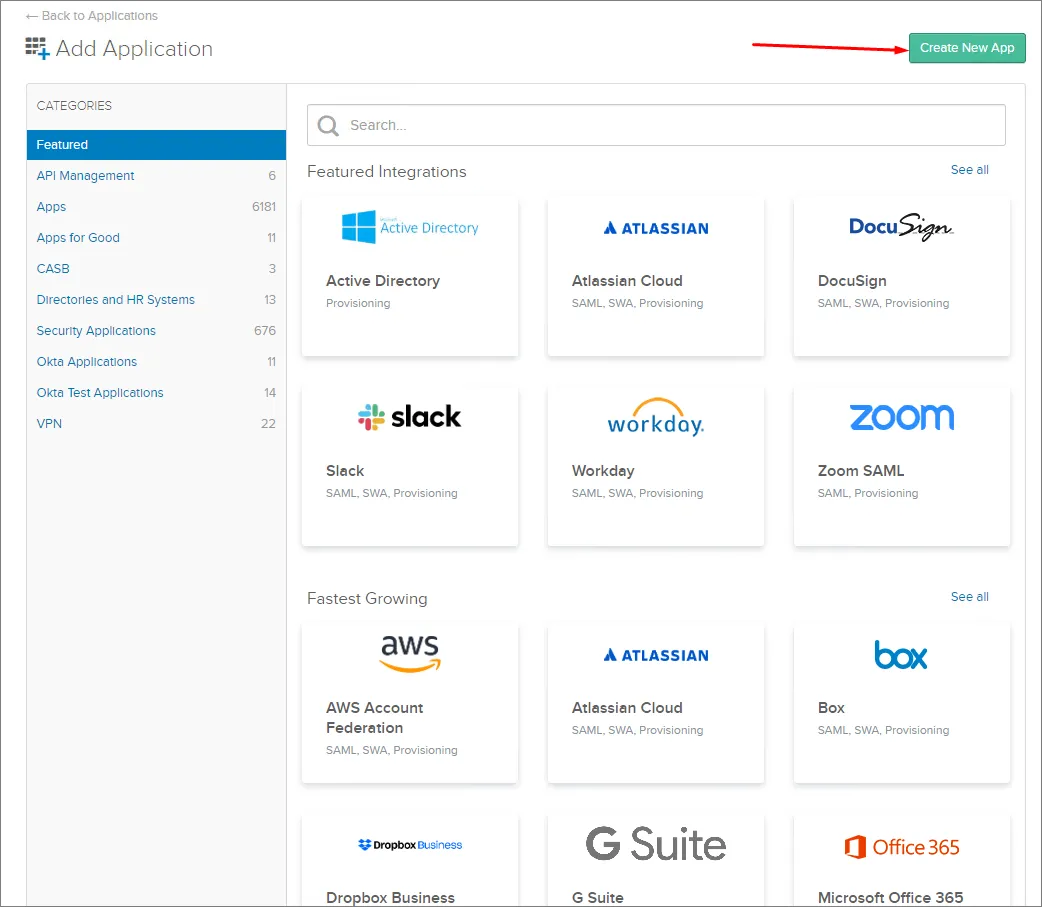
Create New App ボタンをクリックします。
-
Sign-on method として SAML 2.0 を選択します。
-
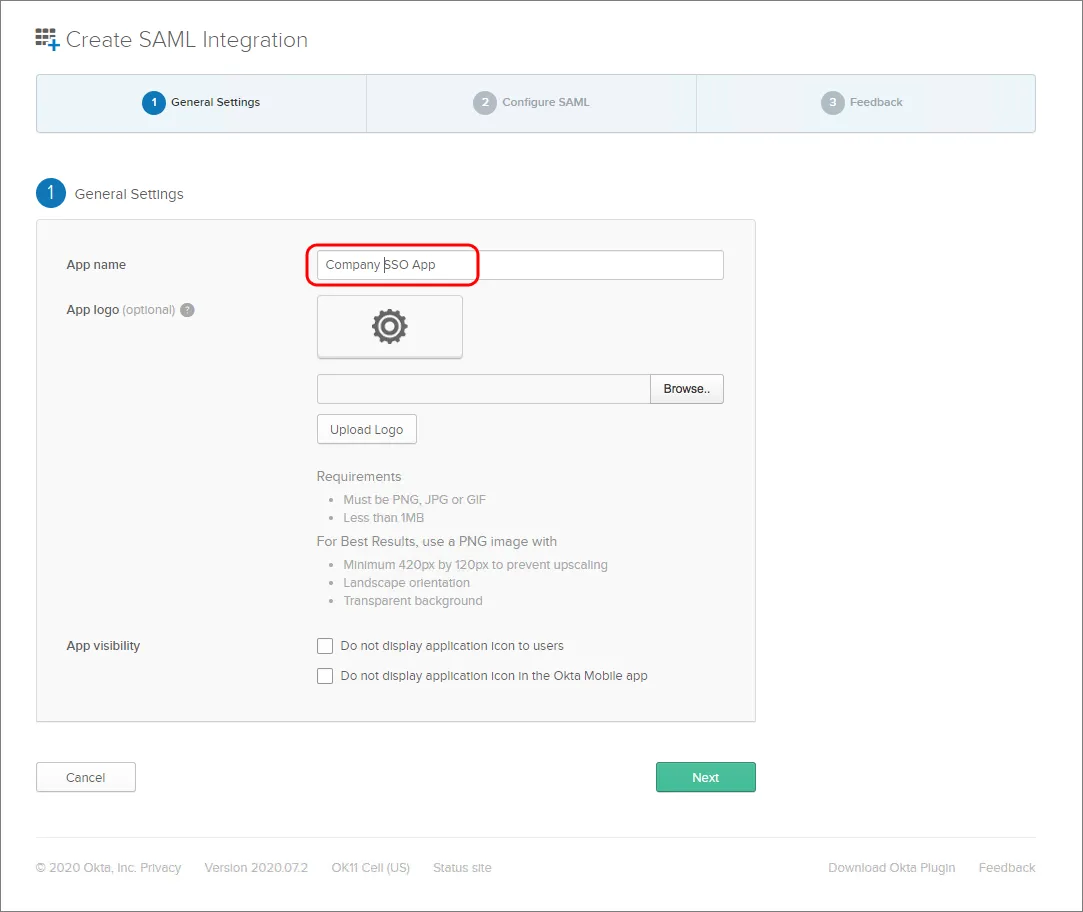
App name を指定します。これは表示専用です。
-
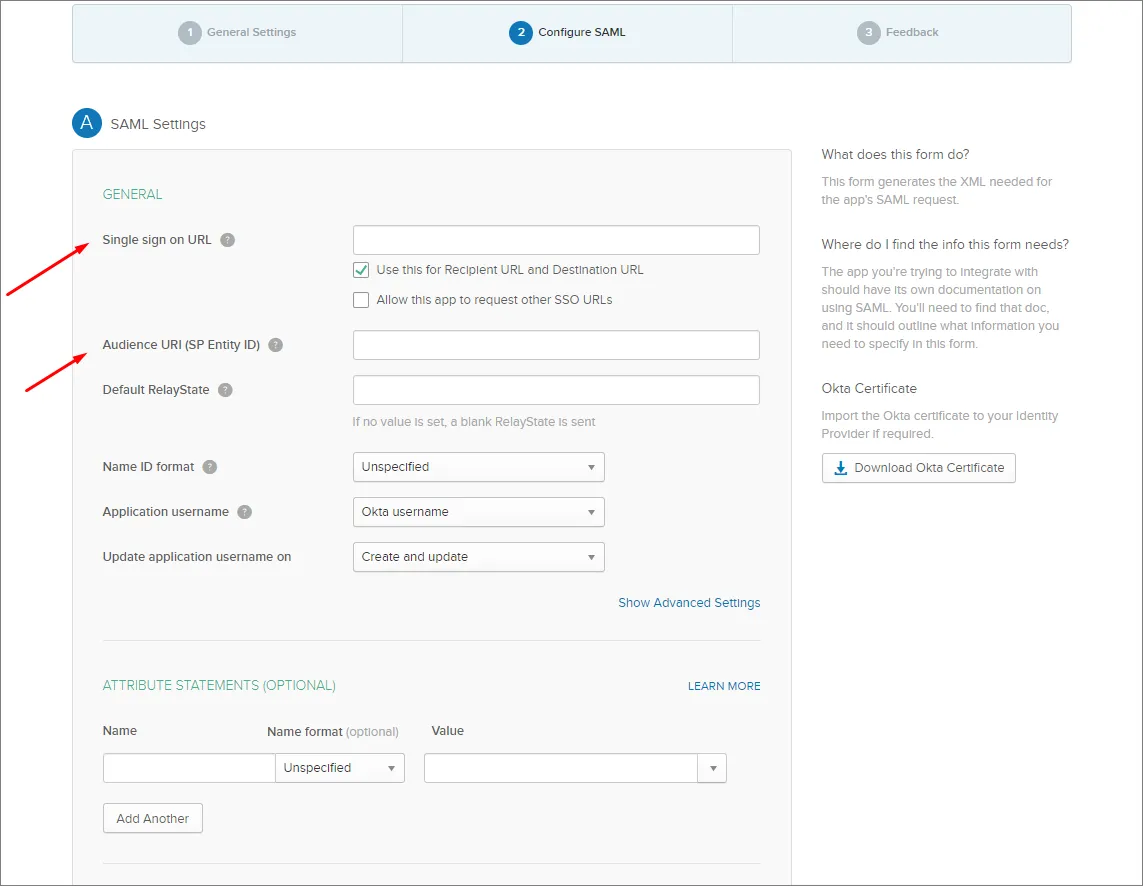
Enterprise Server のブラウザーインターフェースの Admin – Settings – Authentication ページで、Single Sign On URL(Assertion Consumer Service)および Entity ID エントリを確認します。
-
Enterprise Server の Single Sign-On URL エントリをコピー(
)して、Okta SAML Settings の Single sign on URL フィールドに貼り付けます。
-
Enterprise Server の Entity ID エントリをコピー(
)して、Okta SAML Settings の Audience URI フィールドに貼り付けます。
Default RelayState エントリは不要です。
-
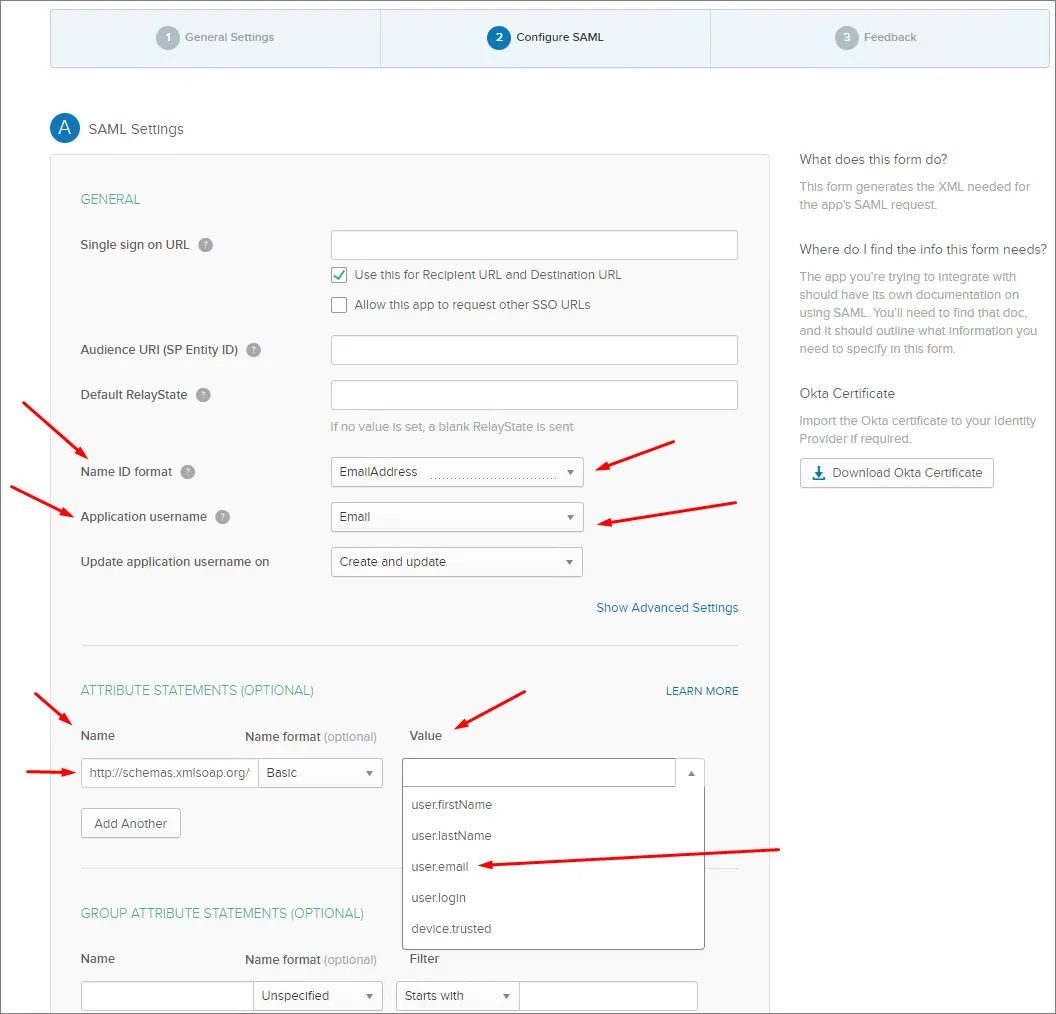
残りのフィールドは次のように設定します:
-
Name ID format は
EmailAddressです。 -
Application username は(Okta)
Emailです。 -
ATTRIBUTE STATEMENTS セクションで、Name フィールドを
http://schemas.xmlsoap.org/ws/2005/05/identity/claims/emailaddressに、Value を次の値に設定します:user.email
-
-
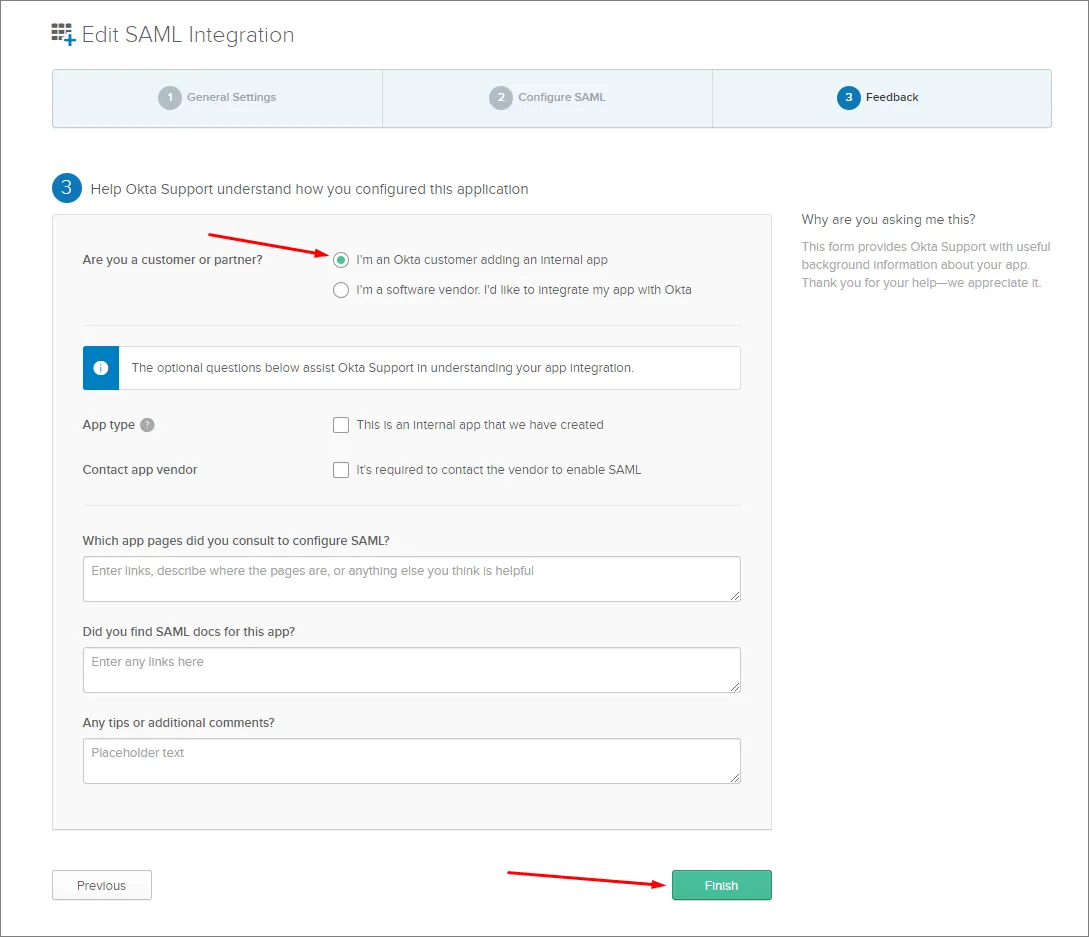
Next ボタンをクリックし、..Okta customer adding an internal app オプションを選択します。
-
Finish ボタンをクリックします。
-
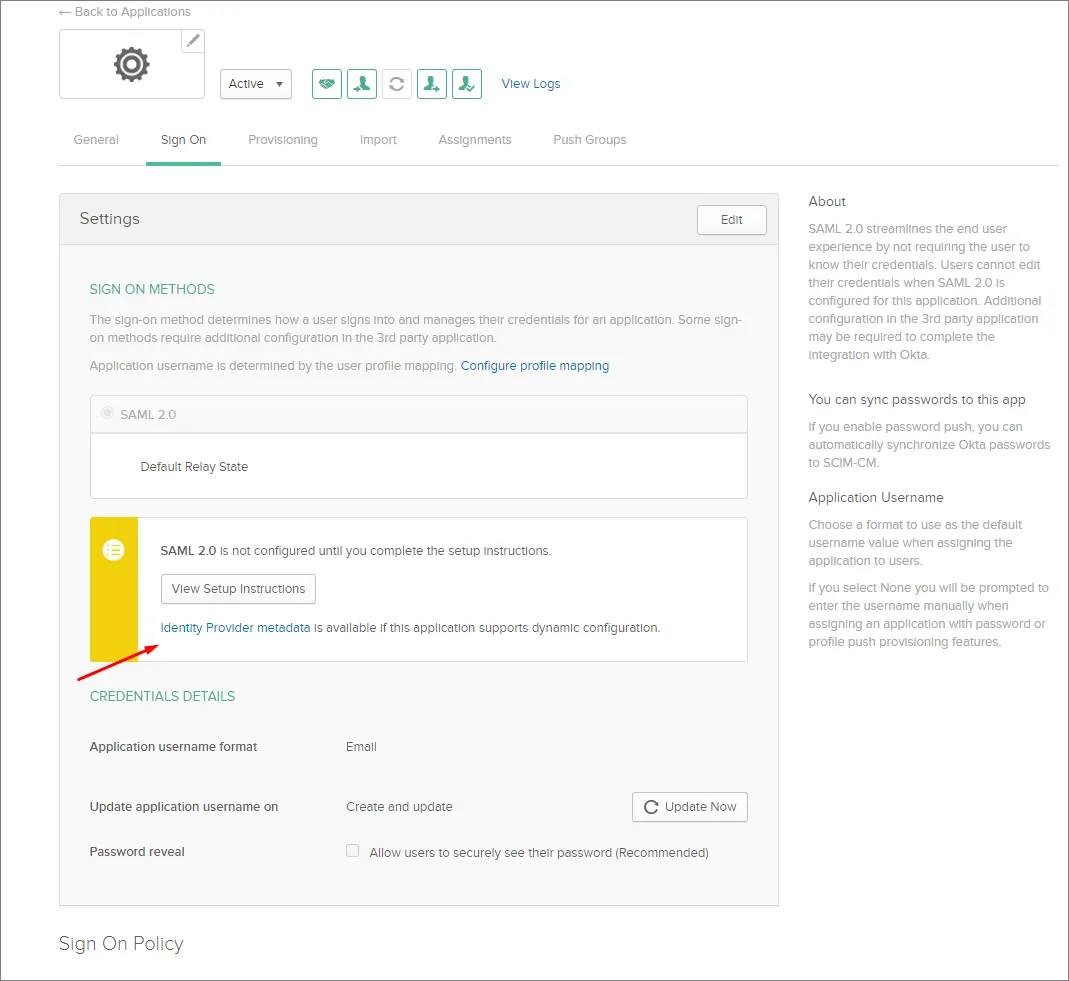
Identity Provider metadata リンクをクリックしてメタデータ XML をコンピューターに保存するか、手動設定オプションを使用するには View Setup Instructions ボタンをクリックします。
-
Enterprise Server のブラウザーインターフェースの Admin – Settings – Authentication ページにある SAML Identity Provider configuration セクションで、保存したメタデータ XML ファイルをアップロードするか、各セクションを手動で設定します。上記を参照してください。
-
以下の折りたたみセクションを展開すると、Identity Provider として Microsoft Entra ID を使用する統合プロセスの手順例を確認できます。
Integration with Microsoft Entra ID
-
Microsoft Entra admin center にサインインします。
-
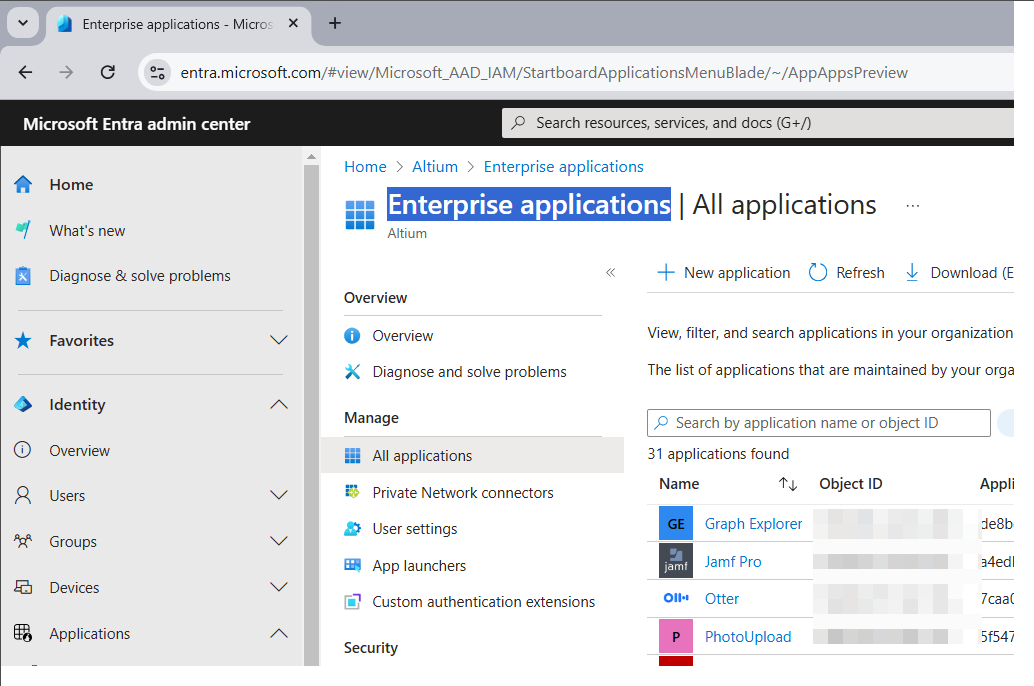
Identity を選択し、次に Enterprise applications オプションを選択します。
-
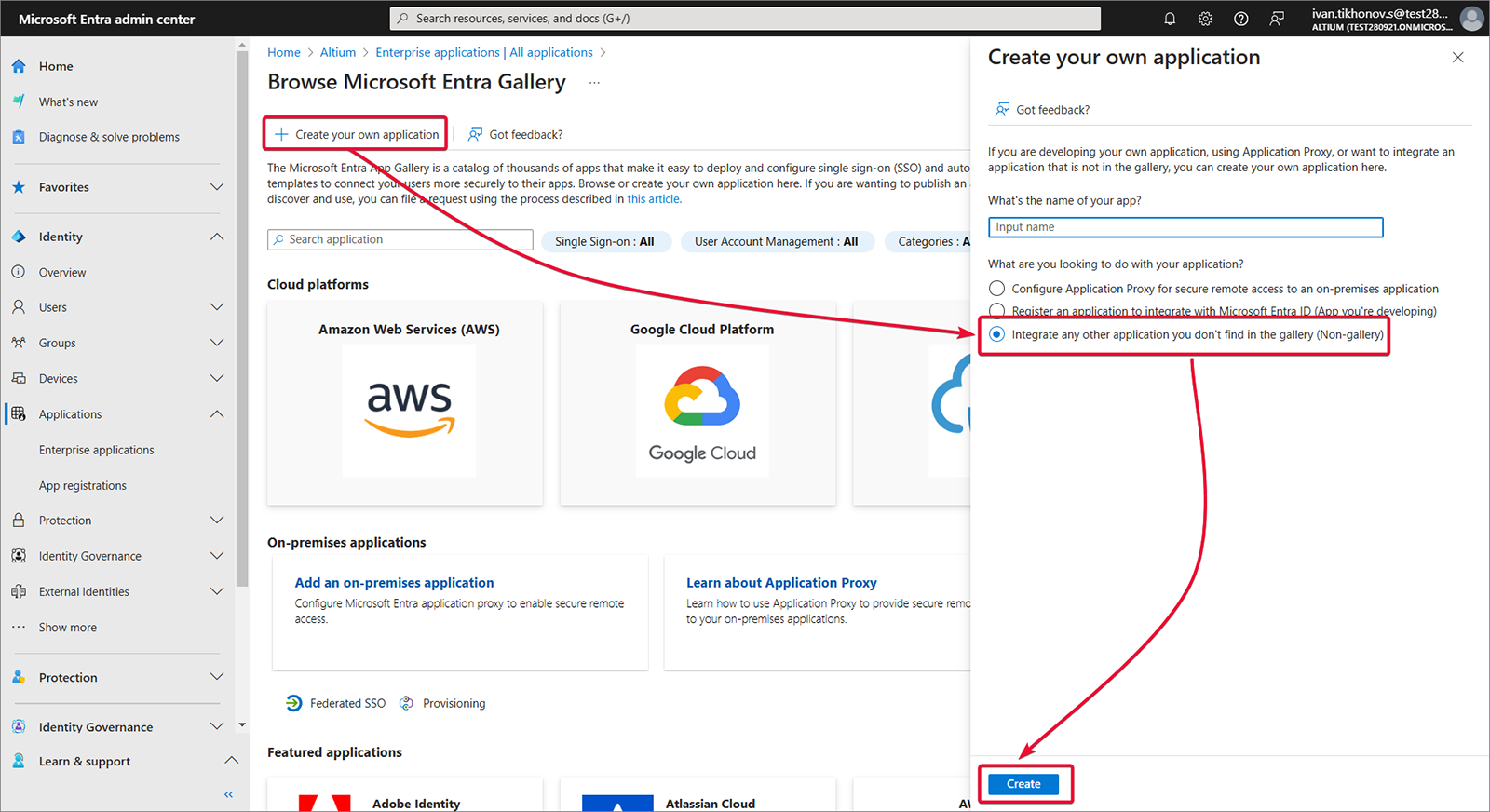
独自のアプリケーションを作成します。
-
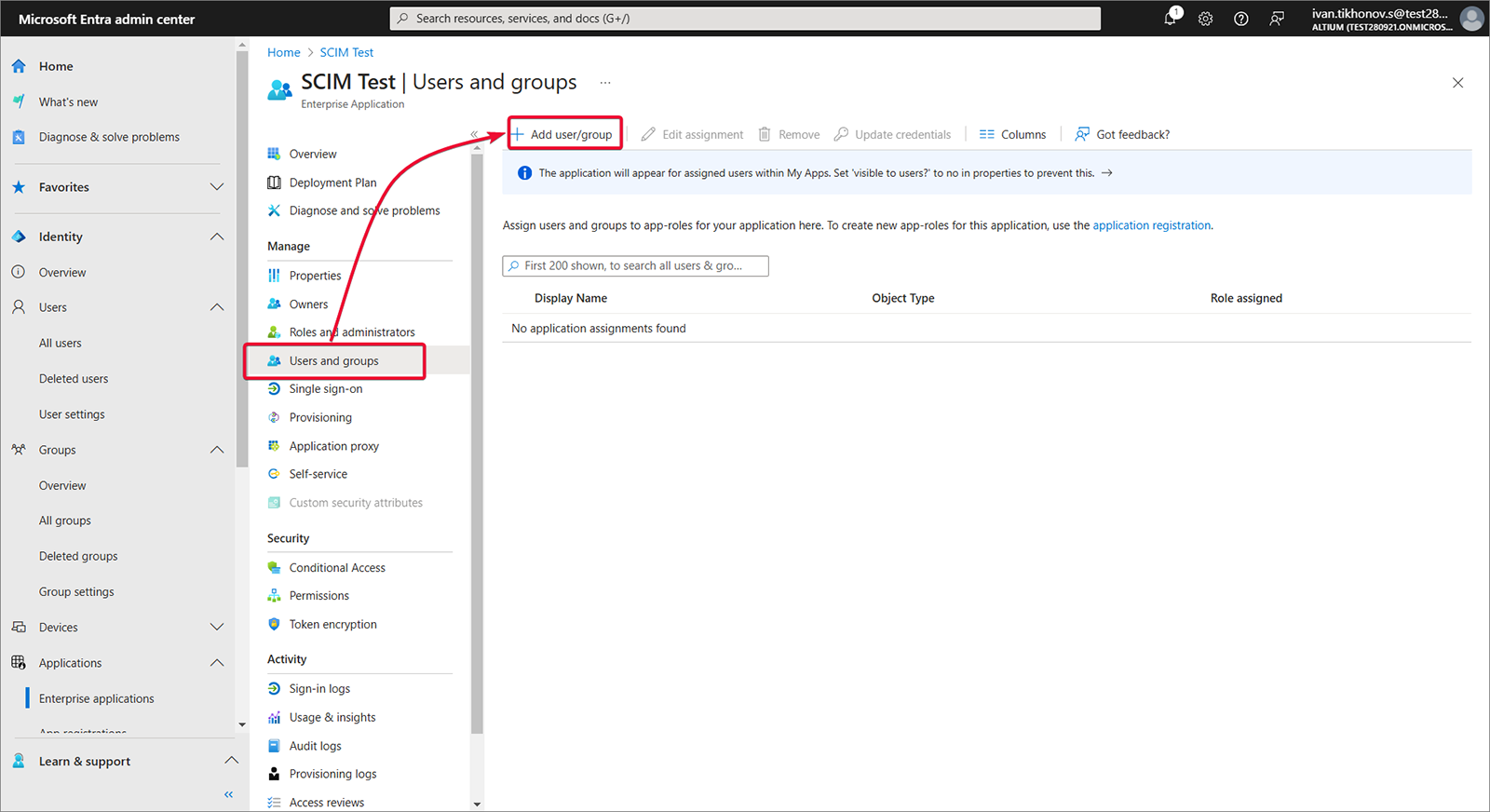
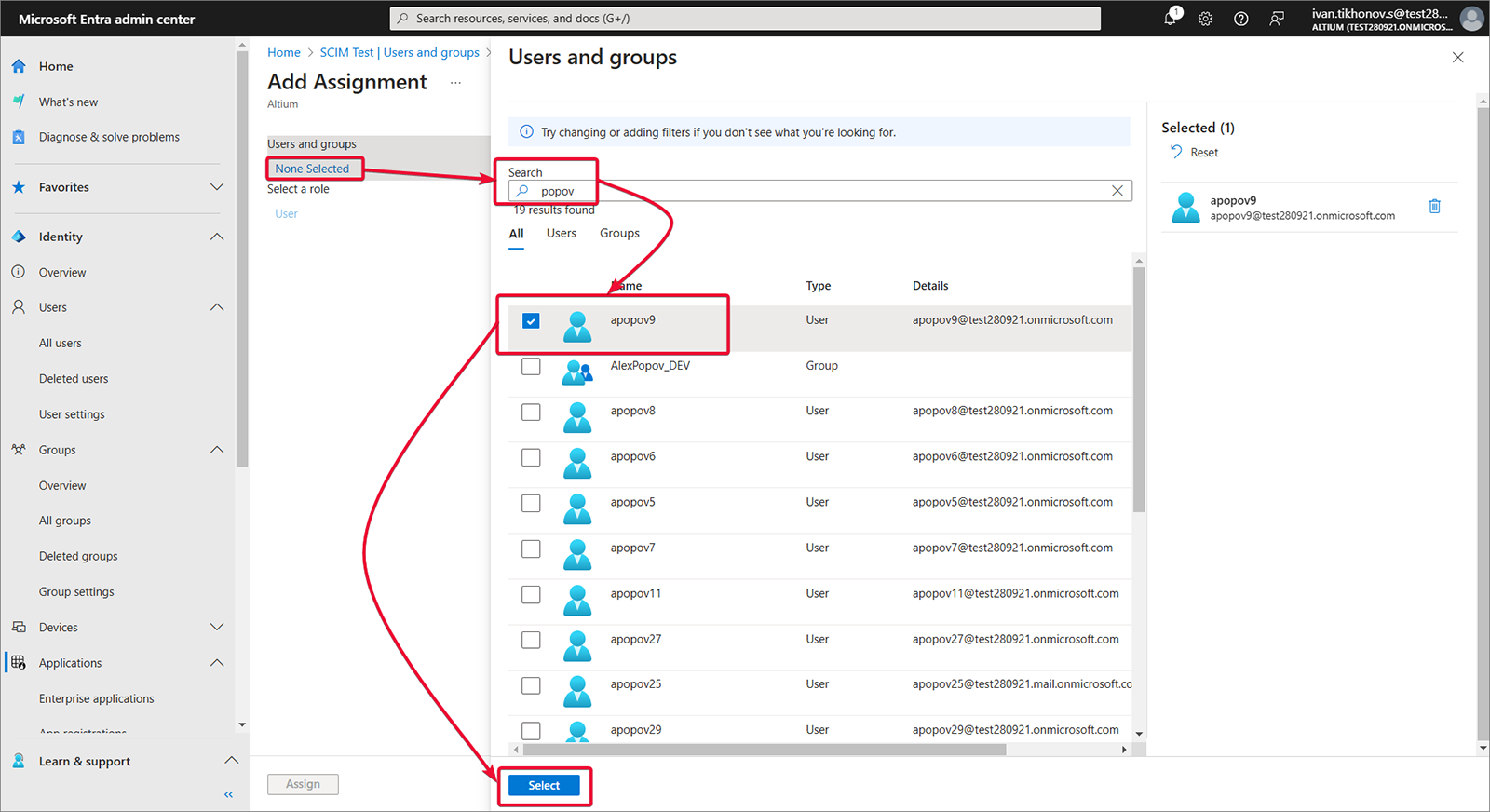
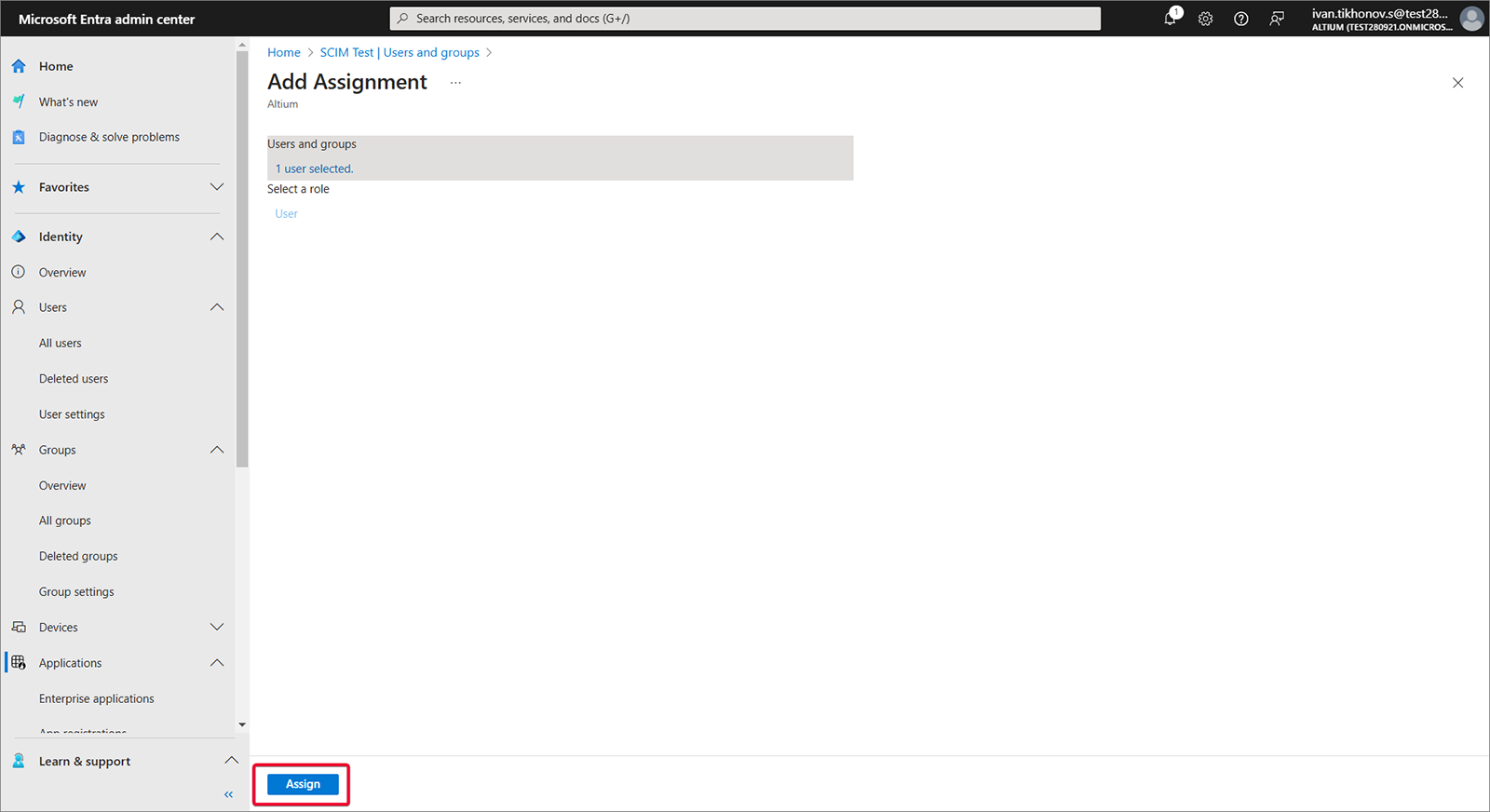
Users and groups を選択し、次に Add user/group を選択します。
-
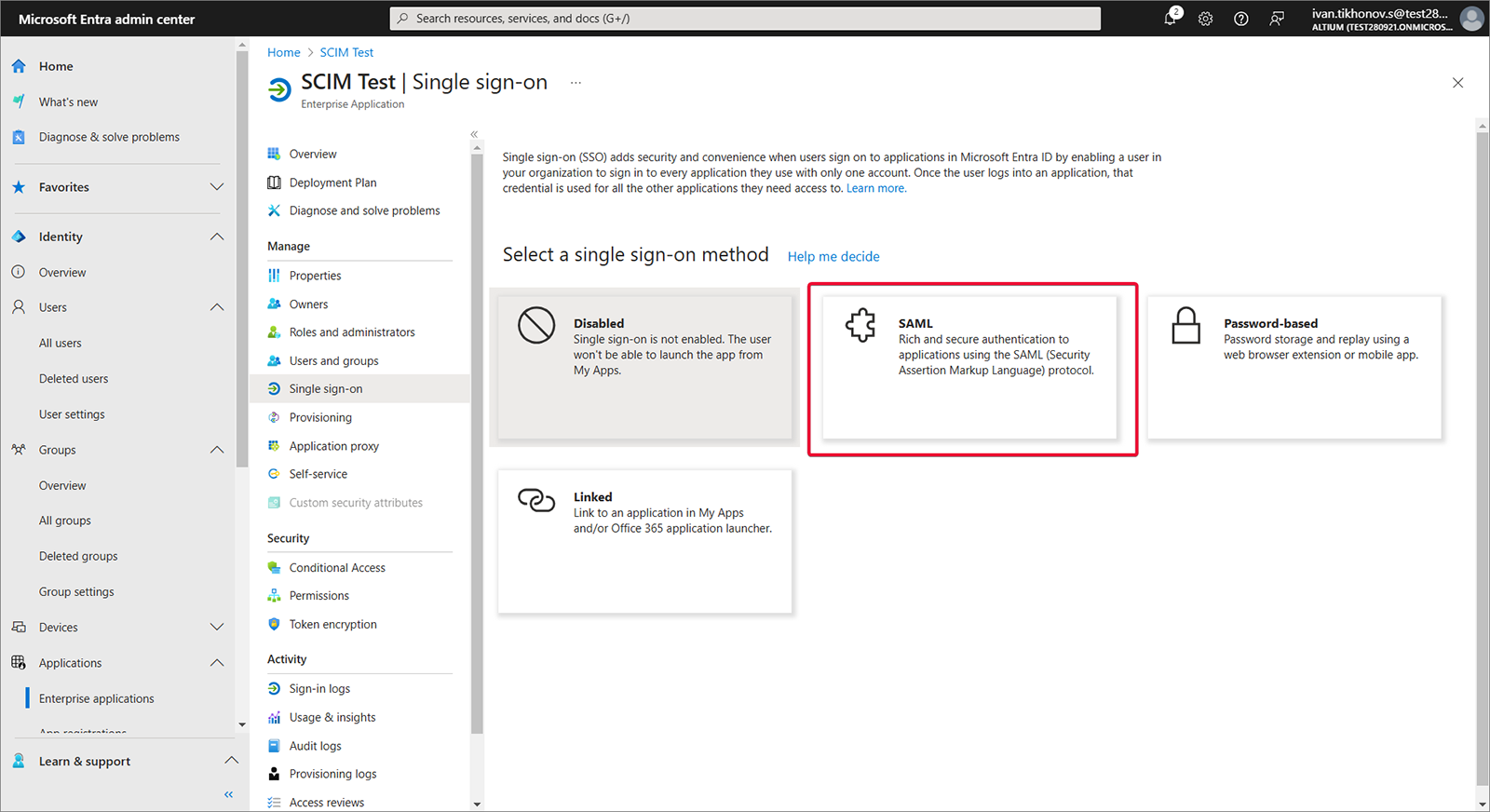
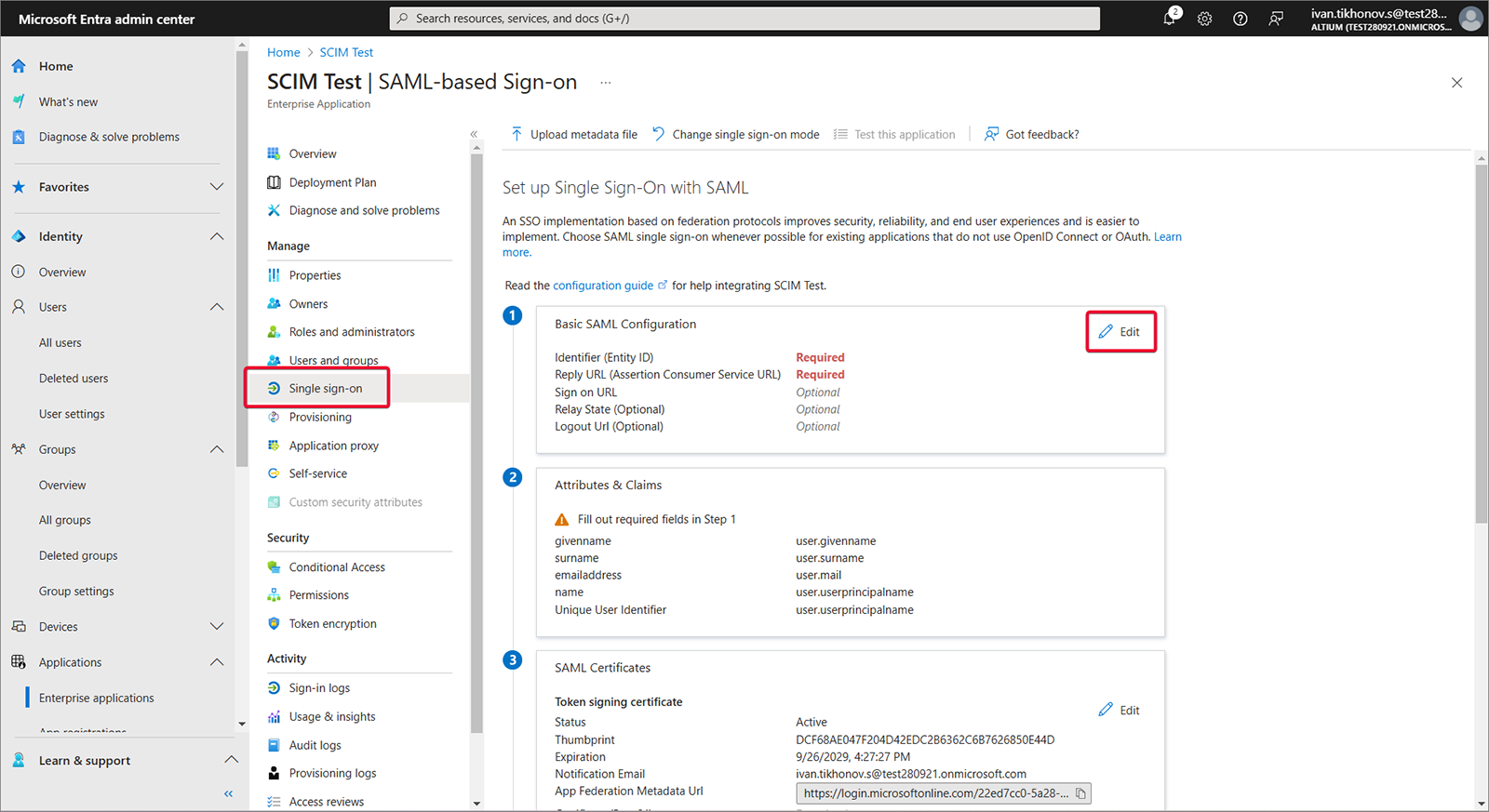
Single sign-on、Step 1、そして Edit を順に選択します。
-
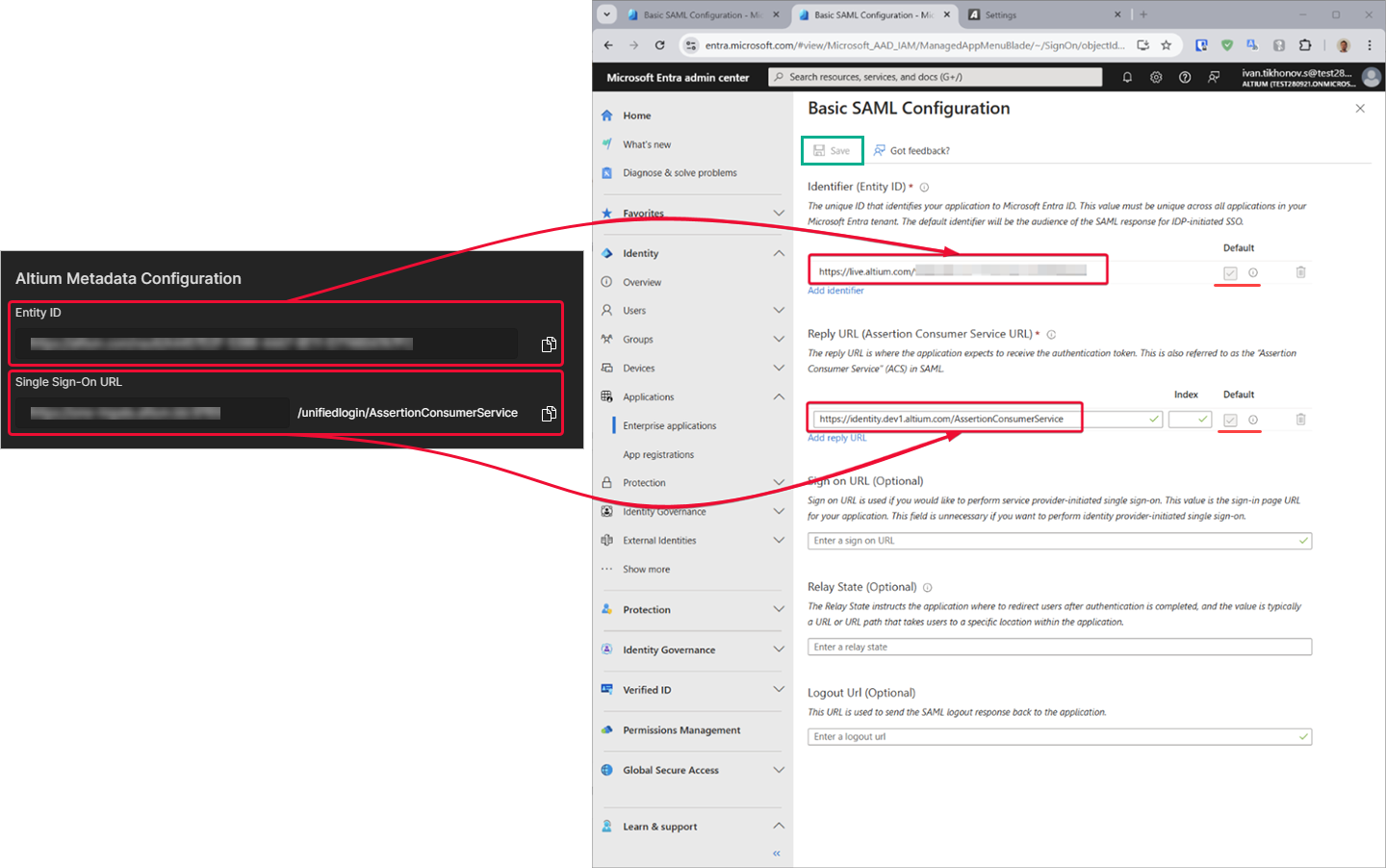
Enterprise Server のブラウザーインターフェースの Admin – Settings – Authentication ページから Entity ID と Single Sign-On URL をコピー(
)します。コピーした文字列を、Microsoft Entra アプリの SAML Configuration 領域にある Entity ID および Assertion Consumer Service URL フィールドに貼り付けます。これらのフィールドに対して Default ボックスがチェックされていることを確認し、その後構成を保存します。
-
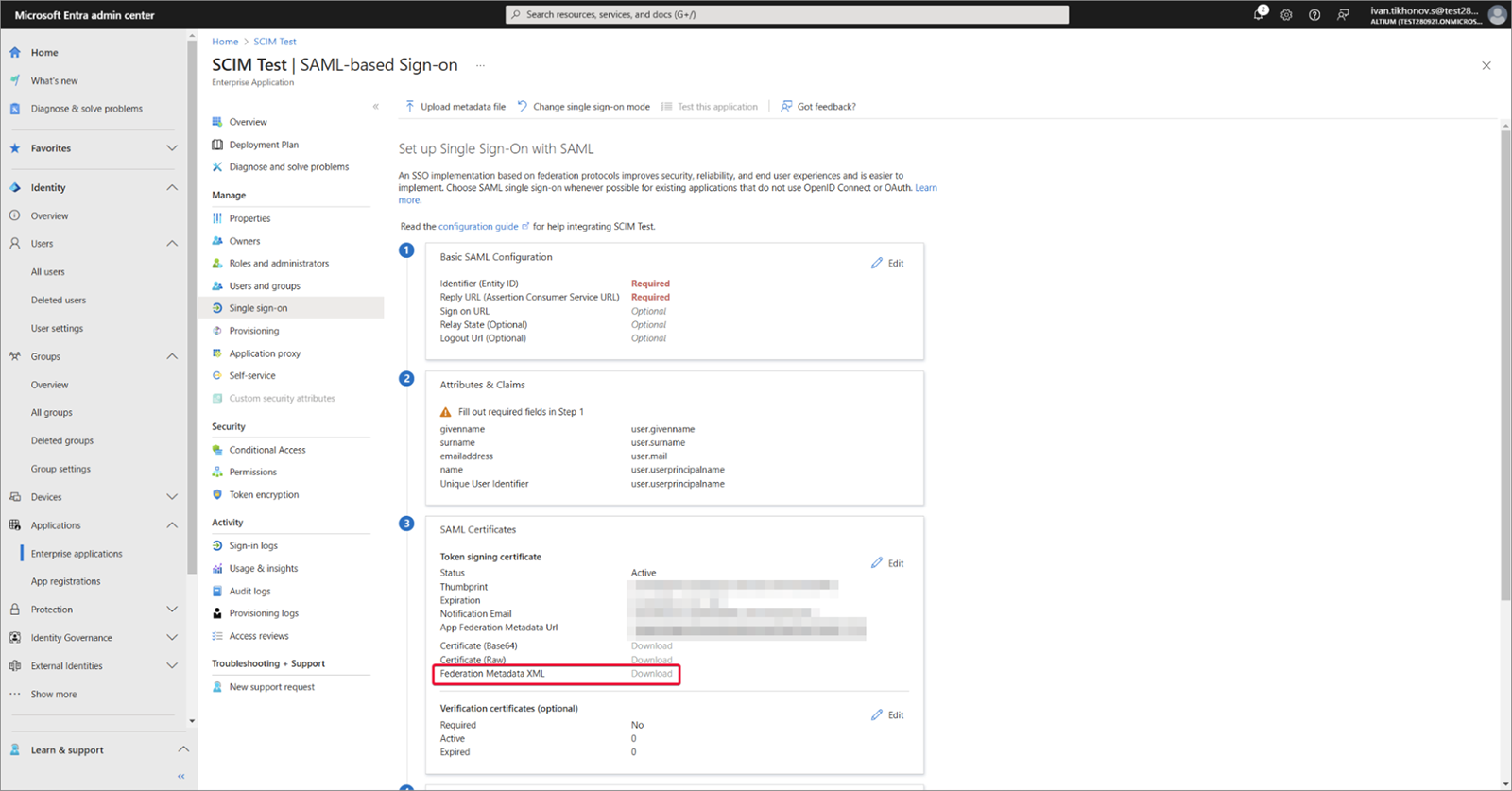
作成した Federation Metadata XML をダウンロードします。
-
Federation Metadata XML を Enterprise Server のブラウザーインターフェースの Admin – Settings – Authentication ページにアップロードし、その後 SAML 統合接続をテストします。上記を参照してください。
以下の折りたたみセクションを展開すると、Identity Provider として JumpCloud を使用する統合プロセスの手順例を確認できます。
Integration with JumpCloud
-
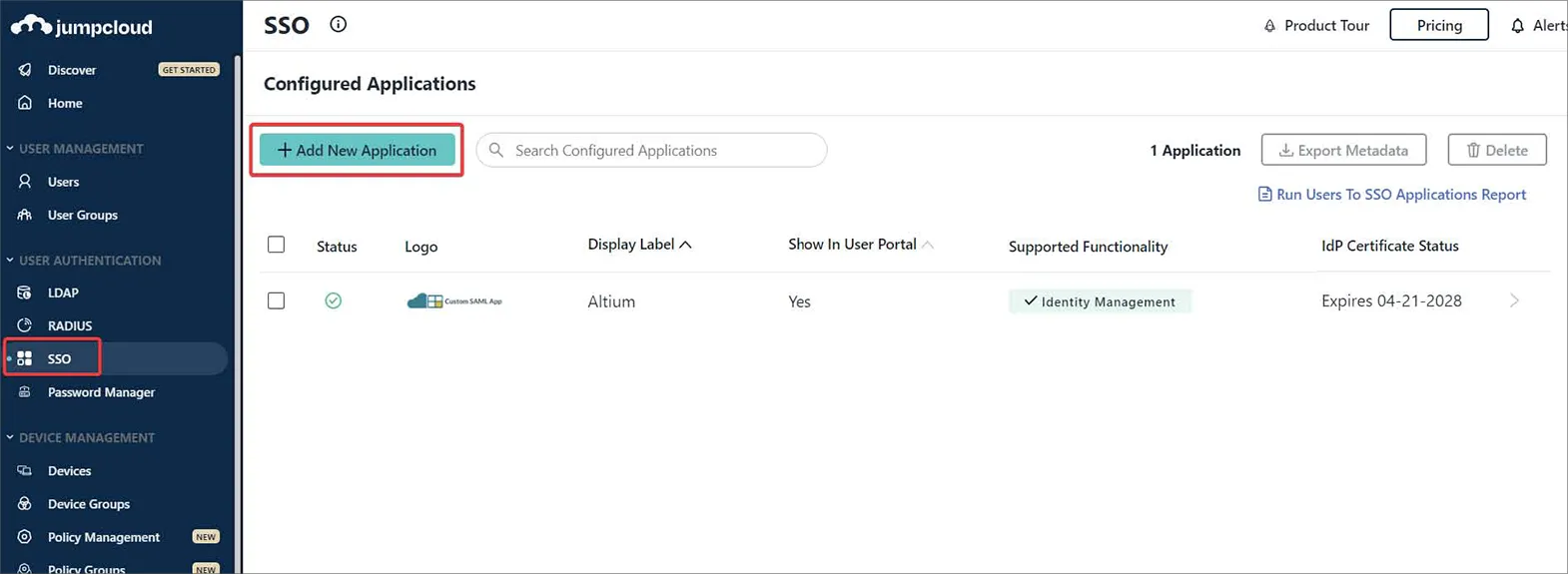
JumpCloud インターフェースで、ナビゲーションツリーから SSO を選択し、続いて SSO ページの Add New Application ボタンをクリックします。
-
設定ウィンドウの検索欄に '
saml' と入力して Custom SAML App を見つけ、インストールします。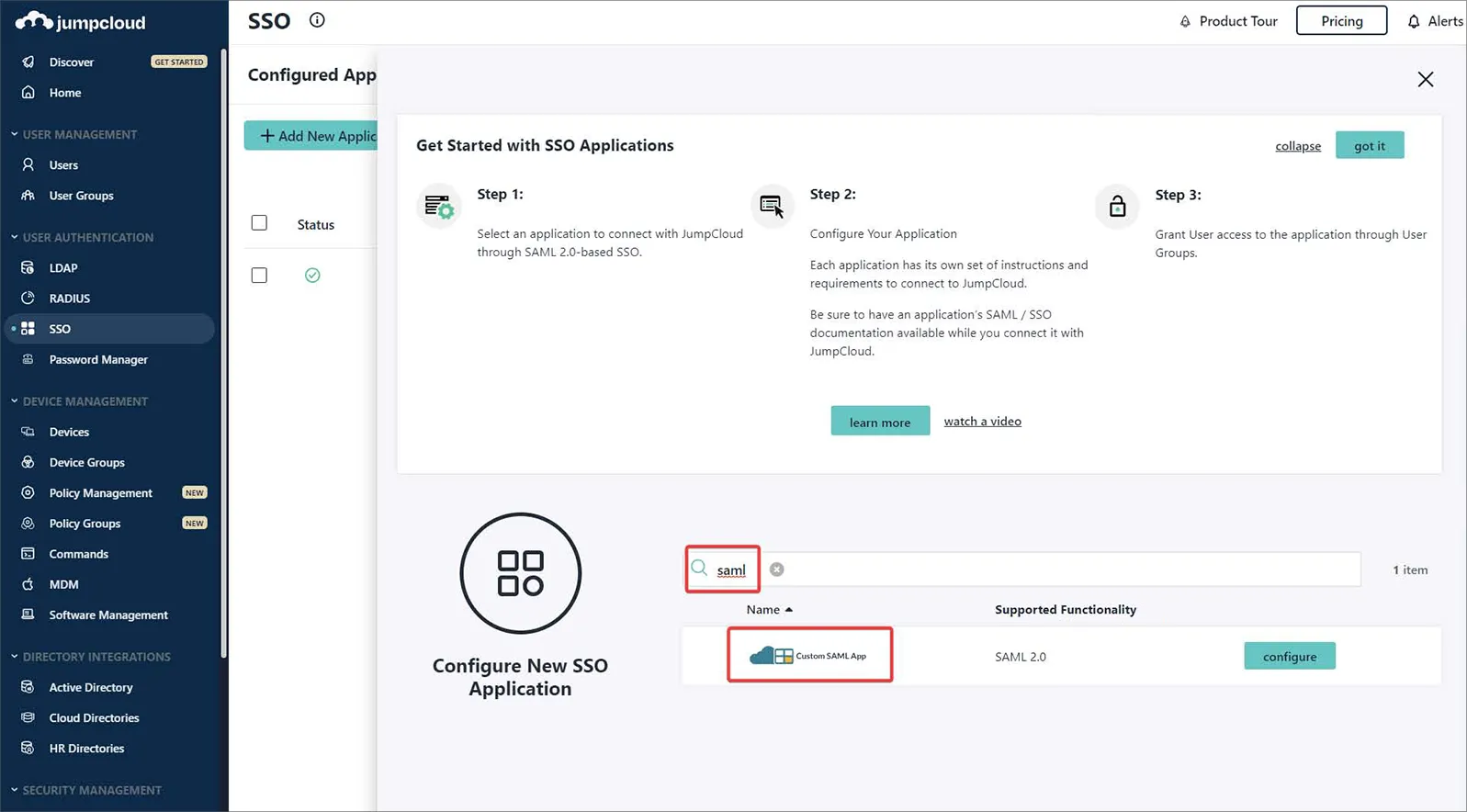
-
Custom SAML App のインスタンスに名前を付けます。この例では、ラベルは
Altiumです。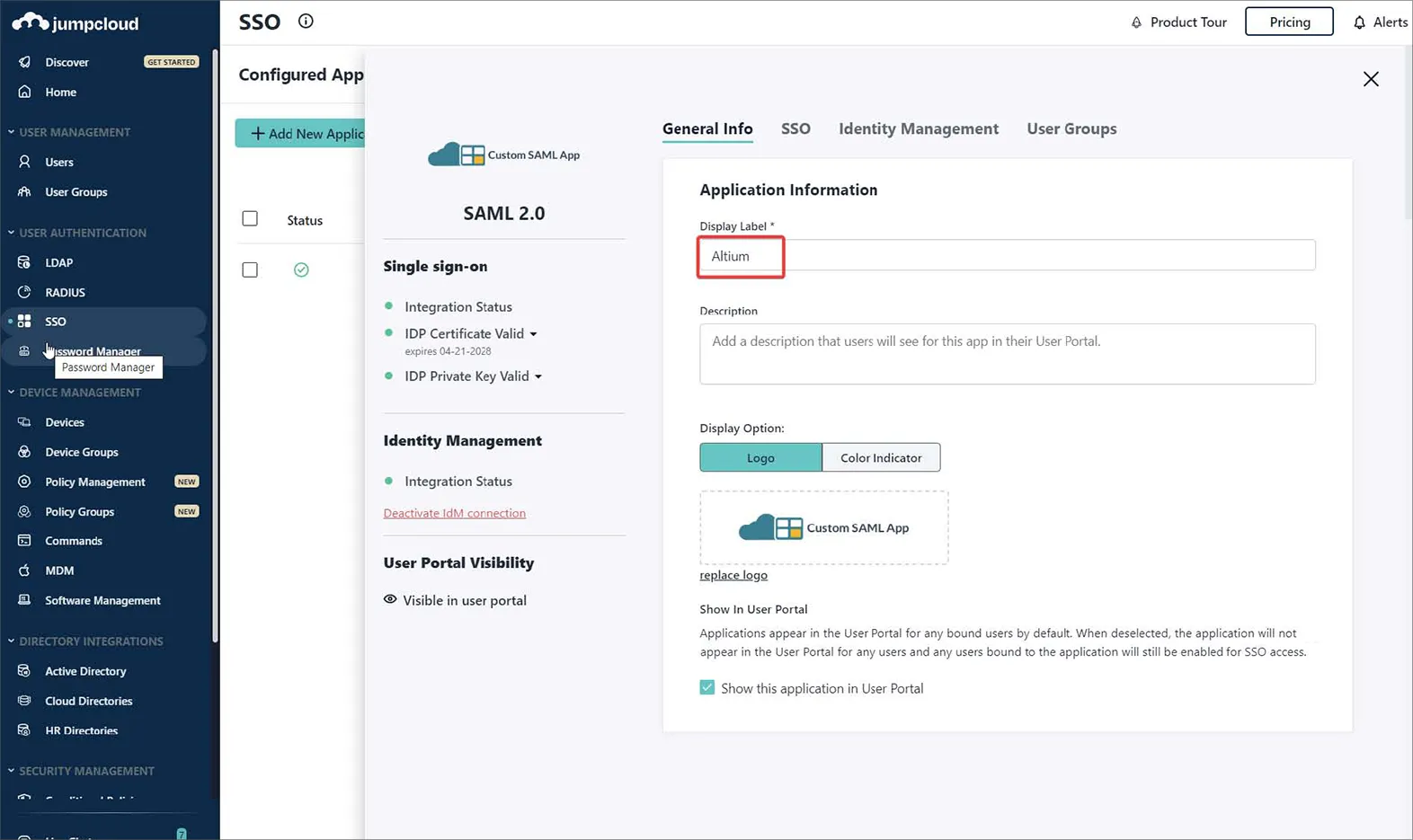
-
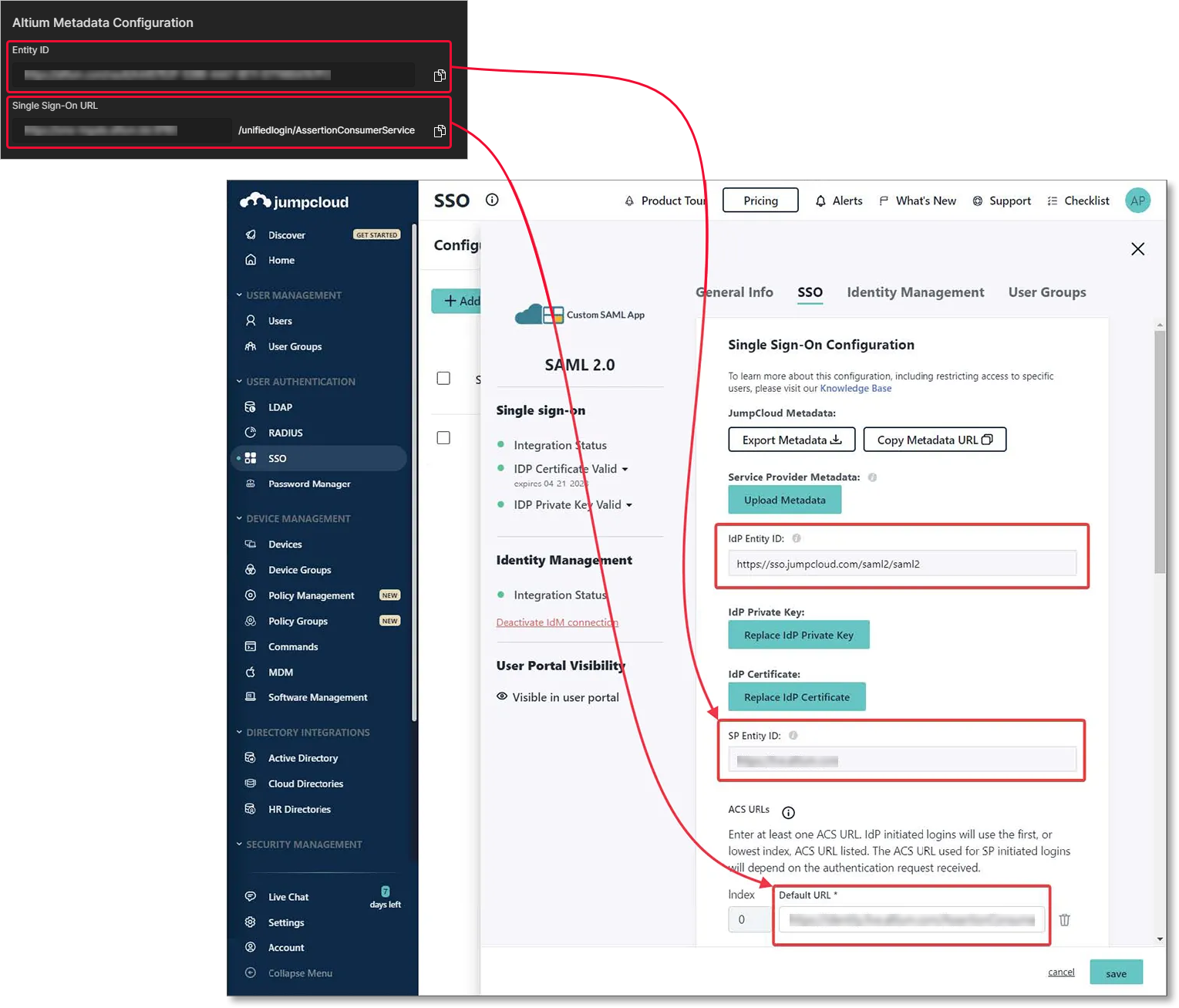
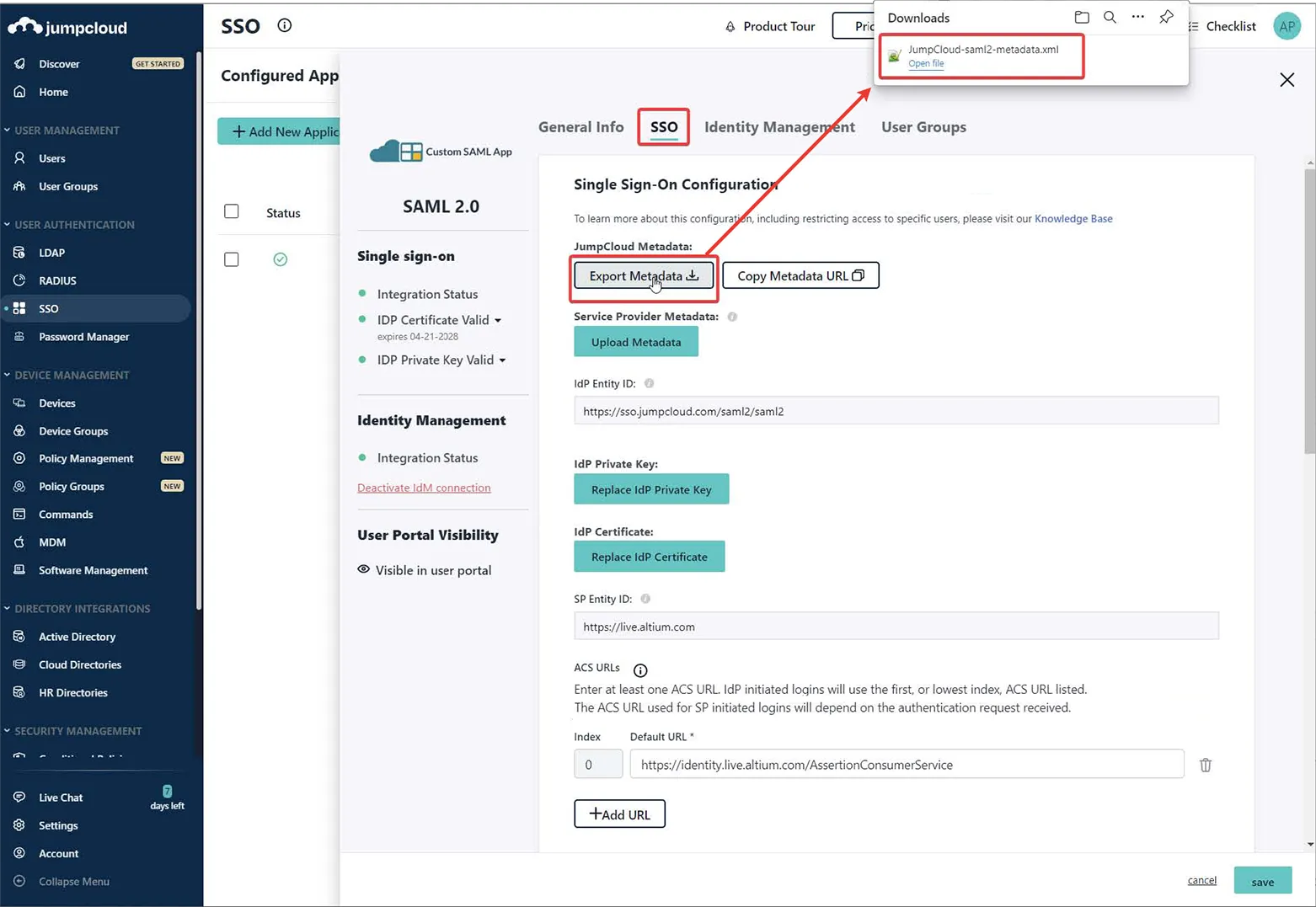
JumpCloud の設定インターフェースで SSO タブに切り替え、図のように Enterprise Server のブラウザーインターフェースの Admin – Settings – Authentication ページから Entity/URL 設定を入力します。
-
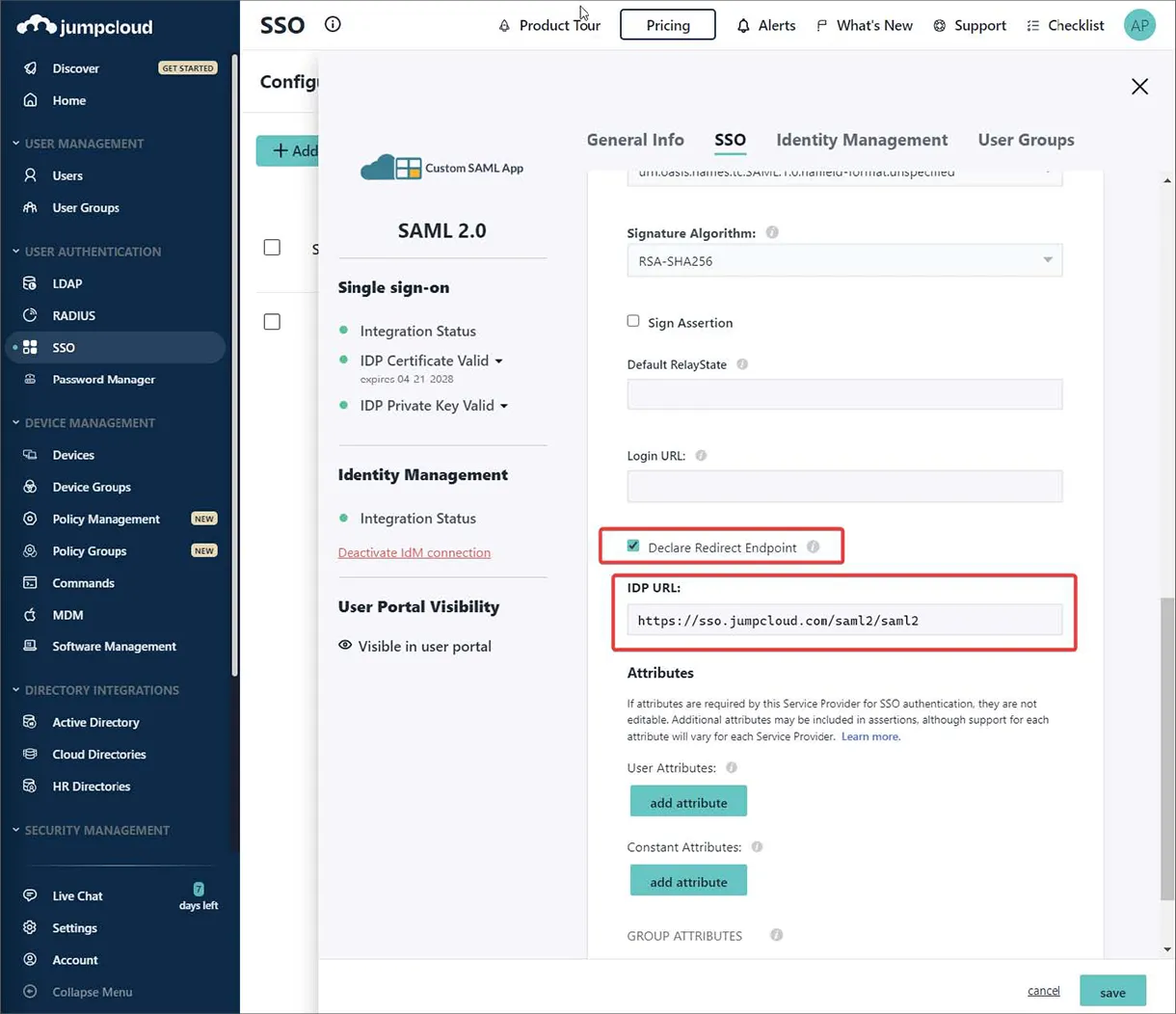
JumpCloud エンドポイント IDP URL を入力し、Declare Redirect Endpoint オプションを有効にします。
-
Export Metadata オプションを使用して、生成された SAML メタデータ XML ファイルをダウンロードします。
-
メタデータ XML ファイルを Enterprise Server のブラウザーインターフェースの Admin – Settings – Authentication ページにアップロードし、その後 SAML 統合接続をテストします。– 上記を参照。
以下の折りたたみセクションを展開すると、Identity Provider として Microsoft Administrative Domain Federated Services (AD FS) を使用する統合プロセスの手順例を確認できます。
Integration with Microsoft AD FS
-
AD FS Management アプリケーションを開きます(通常は Start → Windows Administrative Tools → AD FS Management)。
-
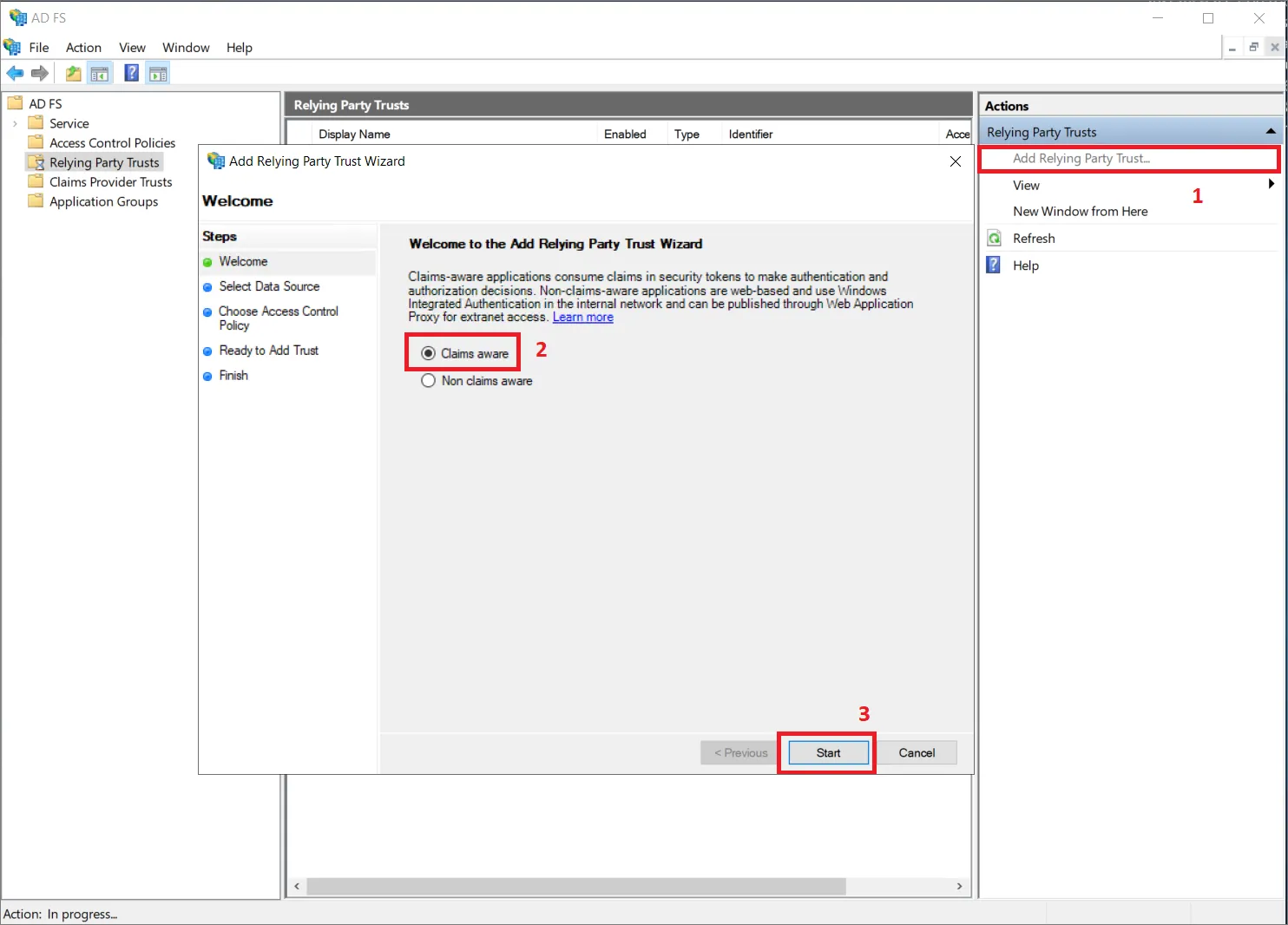
Relying Party Trusts に移動し、Add Relying Party Trust... オプションをクリックします (1)。
-
ポップアップウィンドウで必ず Claims aware を選択し (2)、Start をクリックします (3)。
-
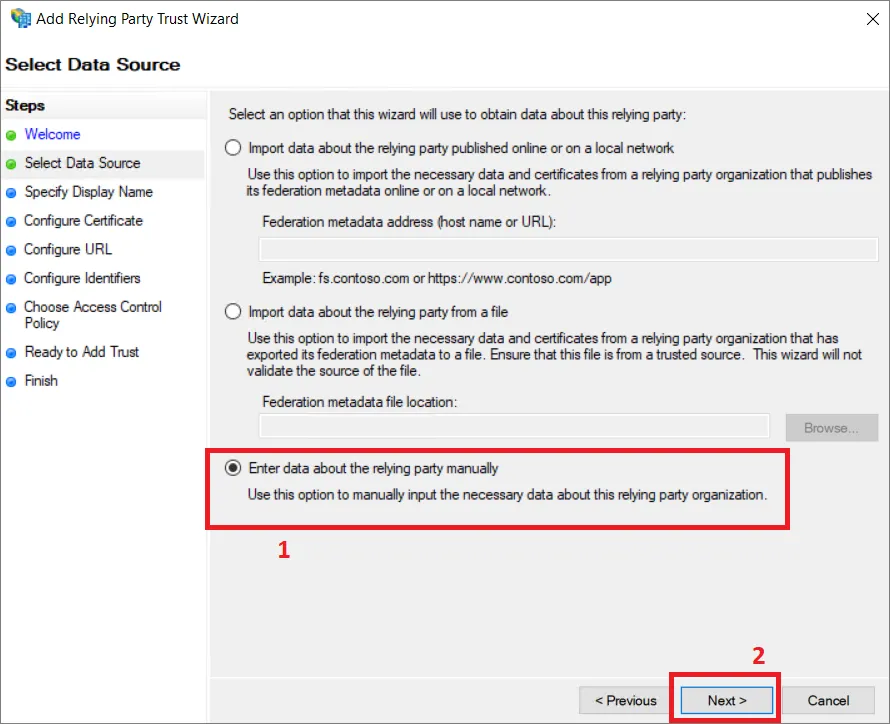
Select Data Source ステップで Enter data about the relying party manually を選択し (1)、Next をクリックします (2)。
-
この信頼に対する表示名を指定します。この例では表示名として
AltiumLiveを使用しています。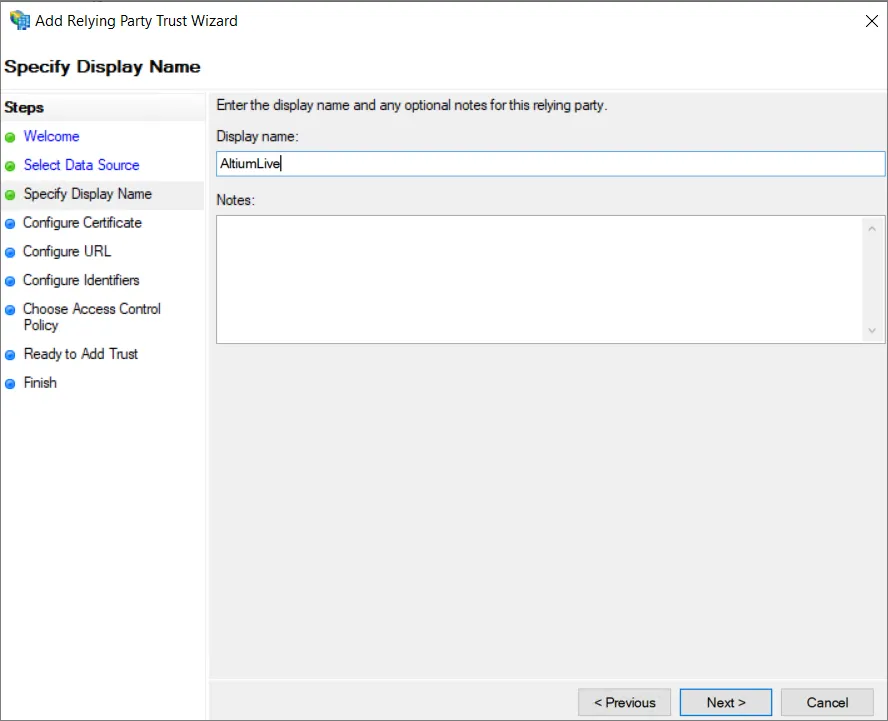
-
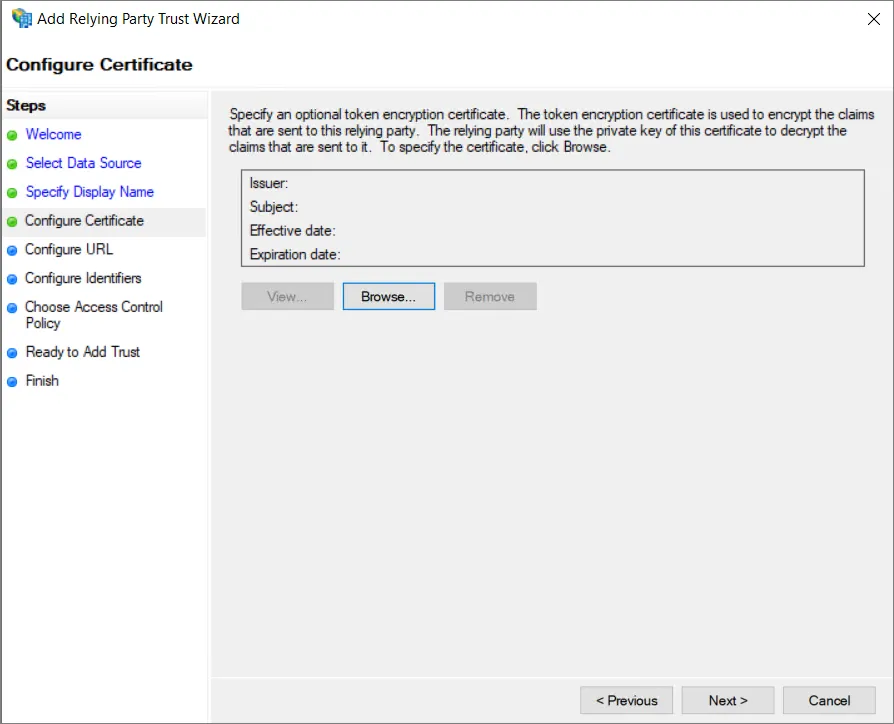
セキュリティ設定に応じて、オプションのトークン暗号化証明書を指定できます。このガイドでは使用しません。
-
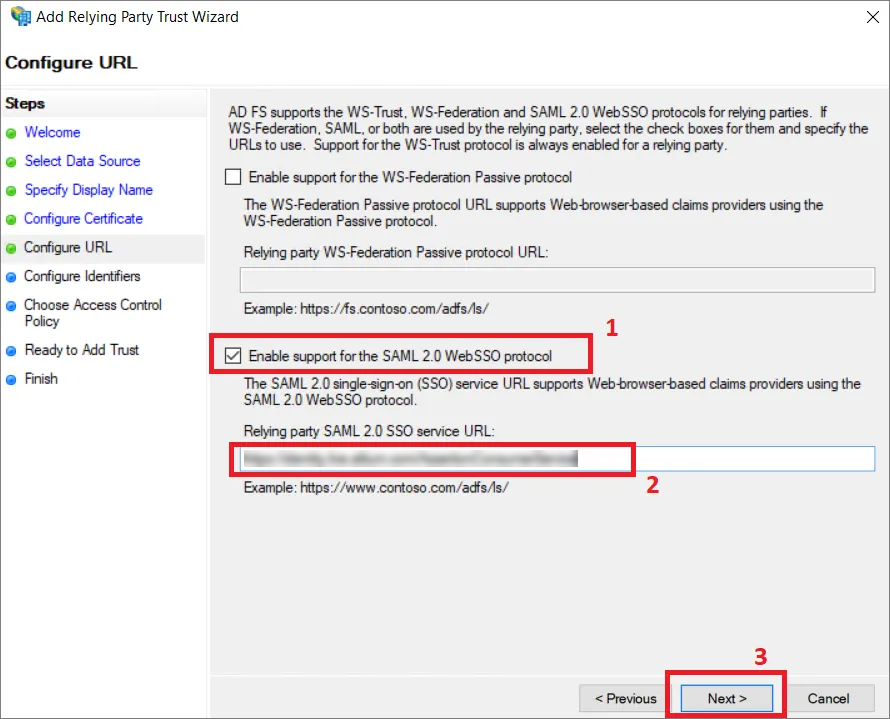
Configure URL ステップで、Enable support for the SAML 2.0 WebSSO protocol オプションが選択されていることを確認し (1)、Enterprise Server のブラウザーインターフェースの Admin – Settings – Authentication ページからコピーした Single Sign-On URL を Relying party SAML 2.0 SSO service URL: フィールドに入力します (2)。Next をクリックします (3)。
-
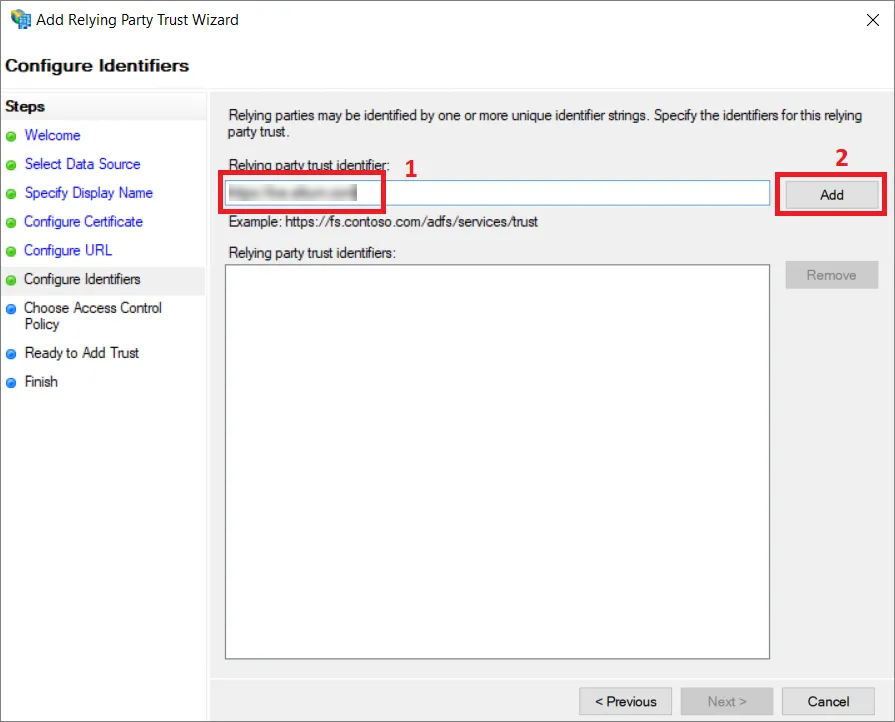
Configure Identifiers ステップで、この信頼の識別子を入力フィールドに入力します (1)。識別子は、Enterprise Server のブラウザーインターフェースの Admin – Settings – Authentication ページの Altium Metadata Configuration 領域にある Entity ID エントリから取得する必要があります。必ず Add ボタンをクリックしてください (2)。
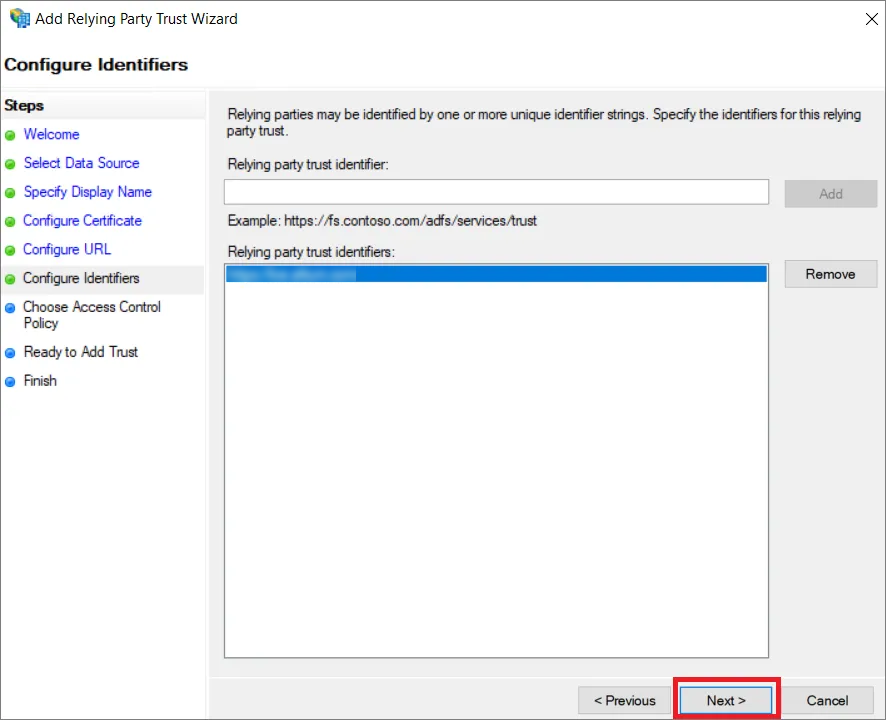
結果は以下のようになります。Next をクリックします。
-
セキュリティ設定によっては、次のステップでオプションのアクセス制御ポリシーを選択できます。この例では追加のポリシーは選択せず、
Permit everyoneオプションで続行します。
-
設定内容を確認し、Next を選択します。
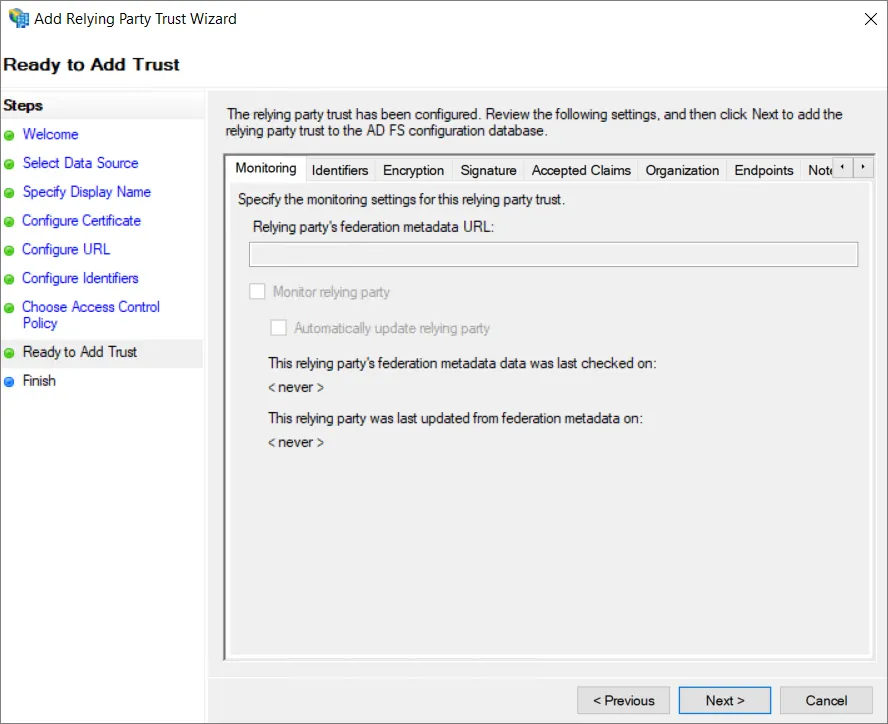
-
信頼のセットアップ中には、すべての設定が利用できるわけではありません。
SHA-1をセキュアハッシュアルゴリズムとして使用できるようにするには、追加したばかりの Relying Party Trust の名前を右クリックし、Properties を選択します。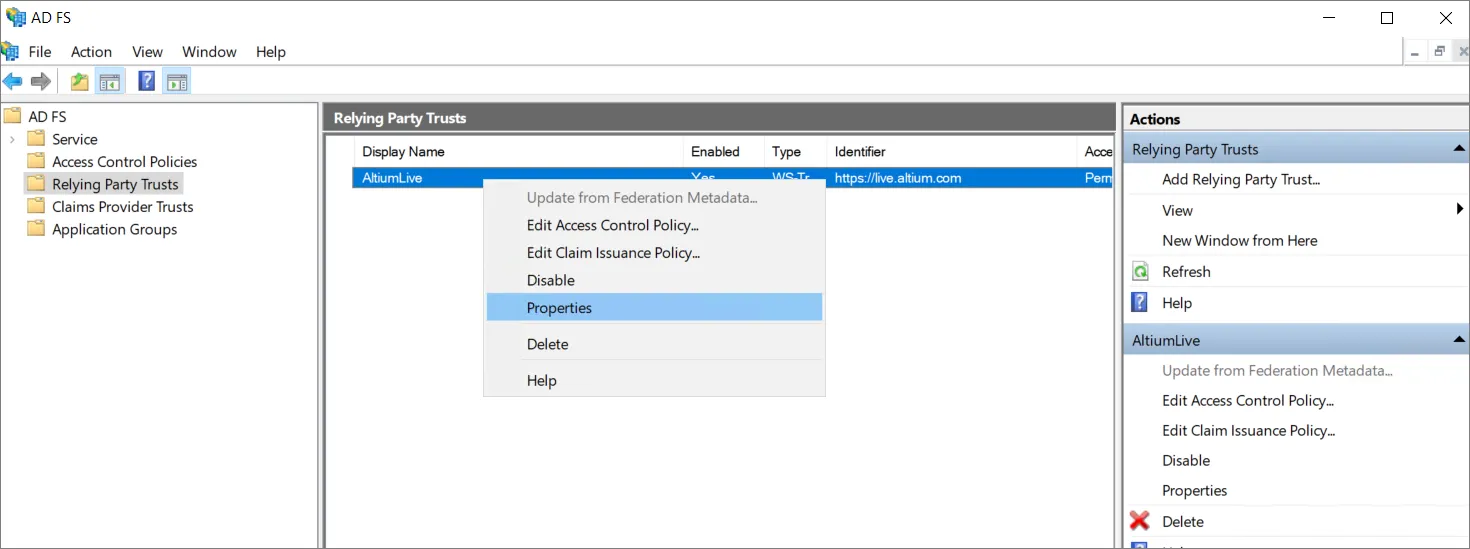
-
プロパティウィンドウで Advanced タブを選択し (1)、セキュアハッシュアルゴリズムとして
SHA-1を設定します (2)。変更を保存するには OK をクリックします。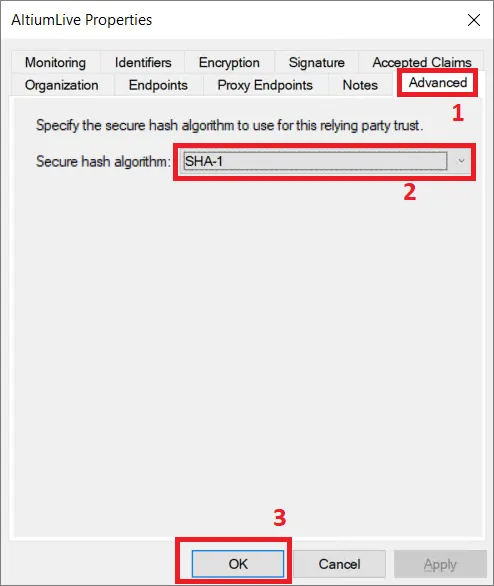
-
AD FS Management ウィンドウに戻り、追加した Relying Party Trust を選択して、Edit Claim Issuance Policy... オプションを選択します。
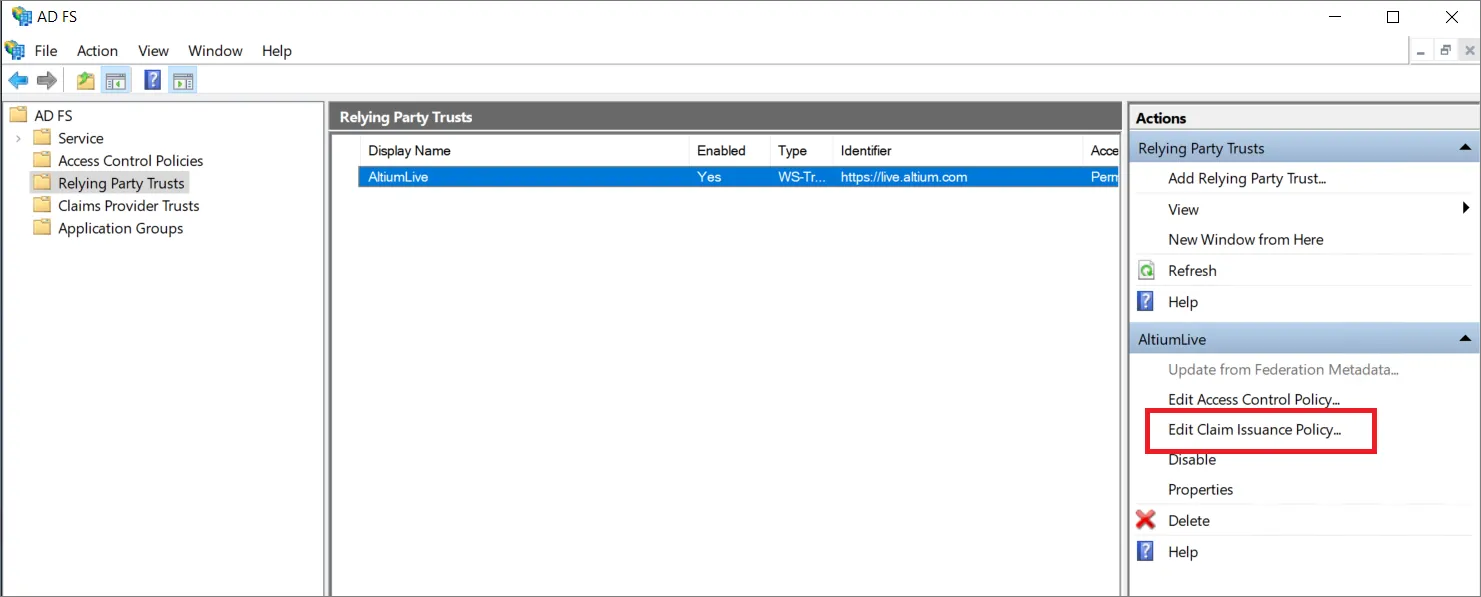
-
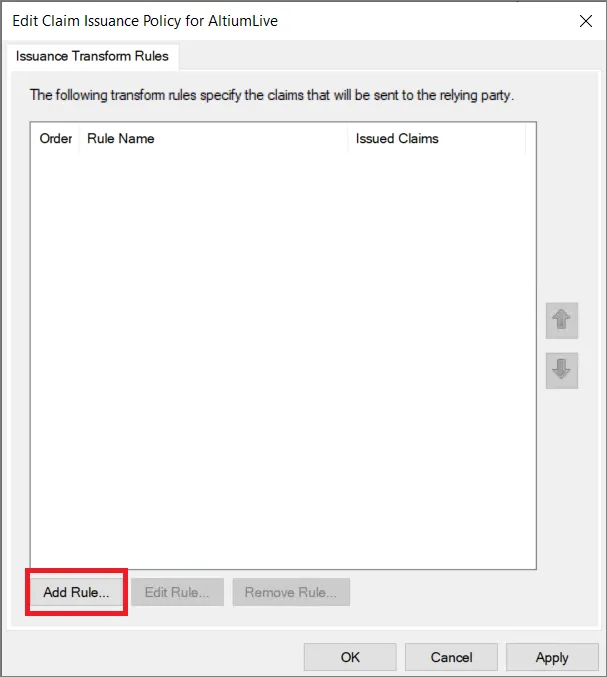
Edit Claim Issuance Policy ウィンドウで Add Rule...
-
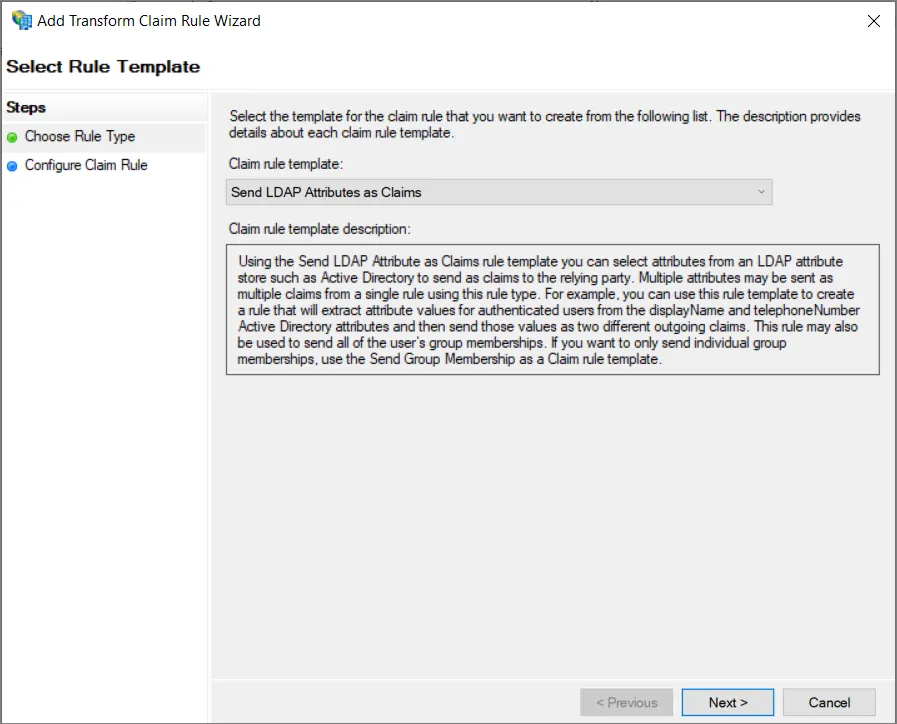
ウィザードの Choose Rule Type ステップで、Send LDAP Attributes as Claims が選択されていることを確認し、Next をクリックします。
-
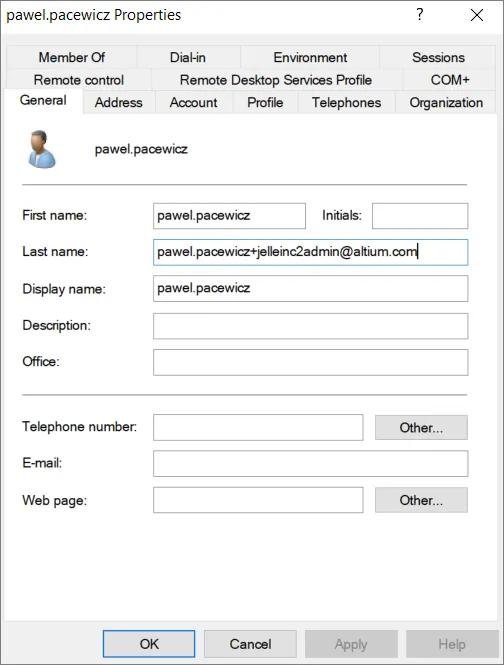
Claim rule name を指定し (1)、 Attribute store として
Active Directoryを選択し (2)、Enterprise Server ユーザーのユーザー名を含む ID から LDAP Attribute を選択します (3)。この属性は、Outgoing Claim Type の Name ID にマッピングする必要があります (3)。Finish をクリックします (4)。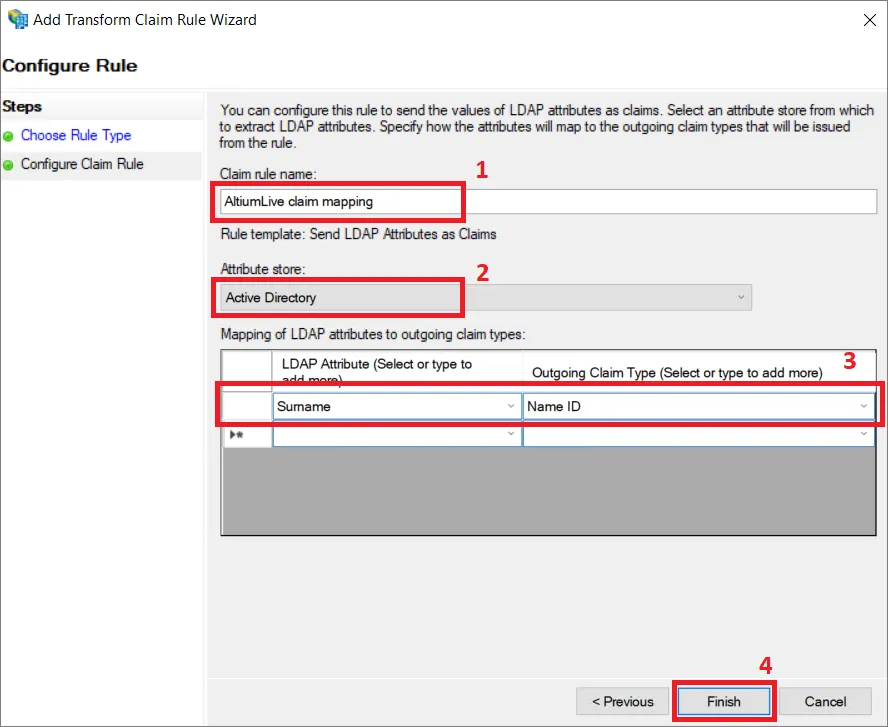
-
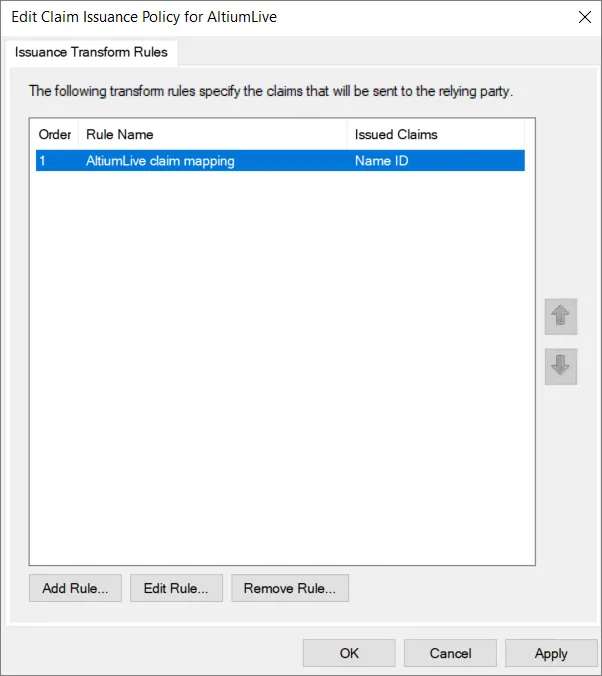
OK をクリックして、クレーム発行ポリシーが保存されていることを確認します。
-
適切なサーバーから
FederationMetadata.xmlファイルをダウンロードします。 -
メタデータ XML ファイルを Enterprise Server のブラウザーインターフェースの Admin – Settings – Authentication ページにアップロードし、その後 SAML 統合接続をテストします。– 上記を参照。
以下の折りたたみセクションを展開すると、Identity Provider として AWS IAM Identity Center を使用する統合プロセスの手順例を確認できます。
Integration with AWS IAM Identity Center
-
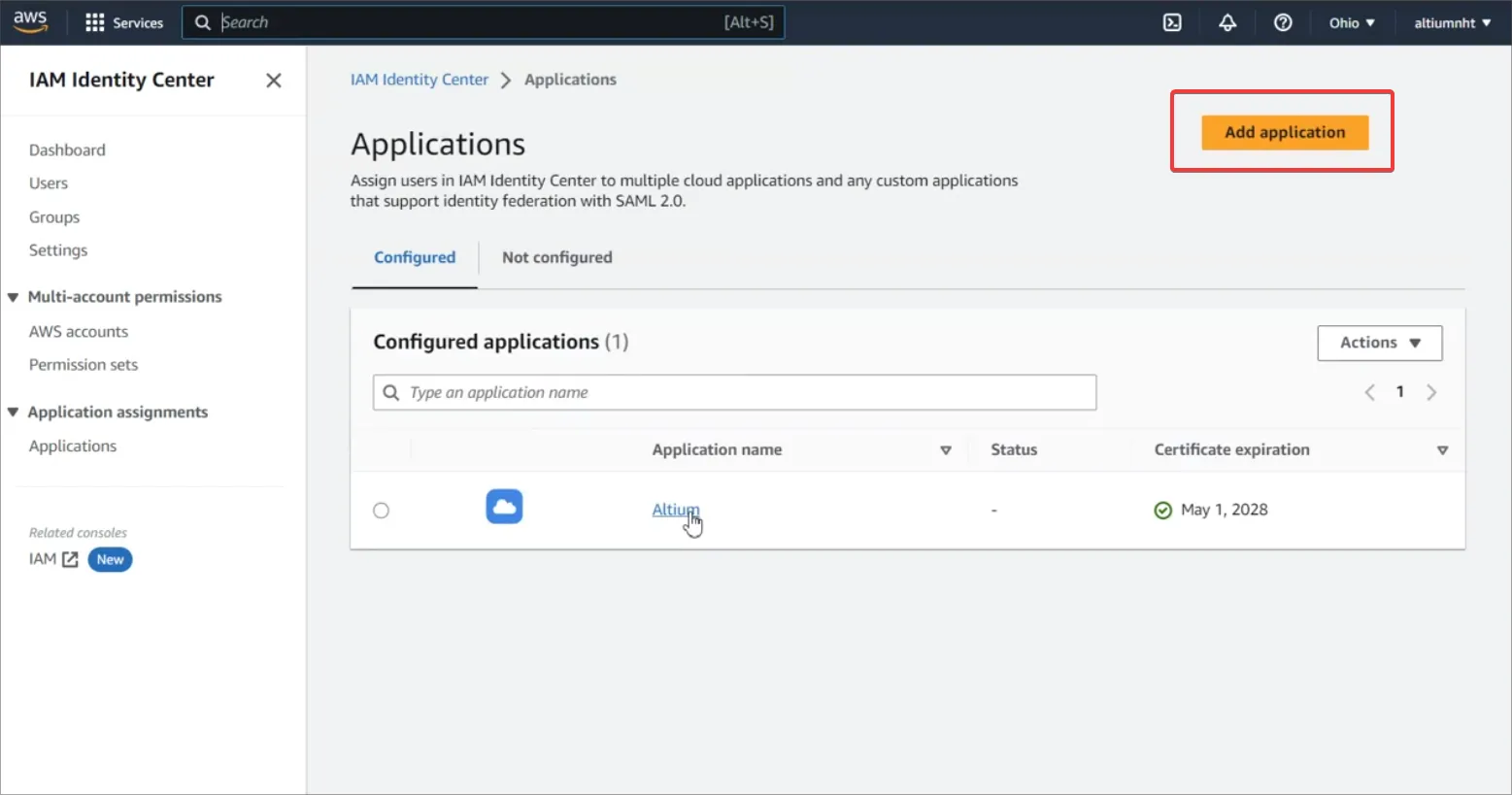
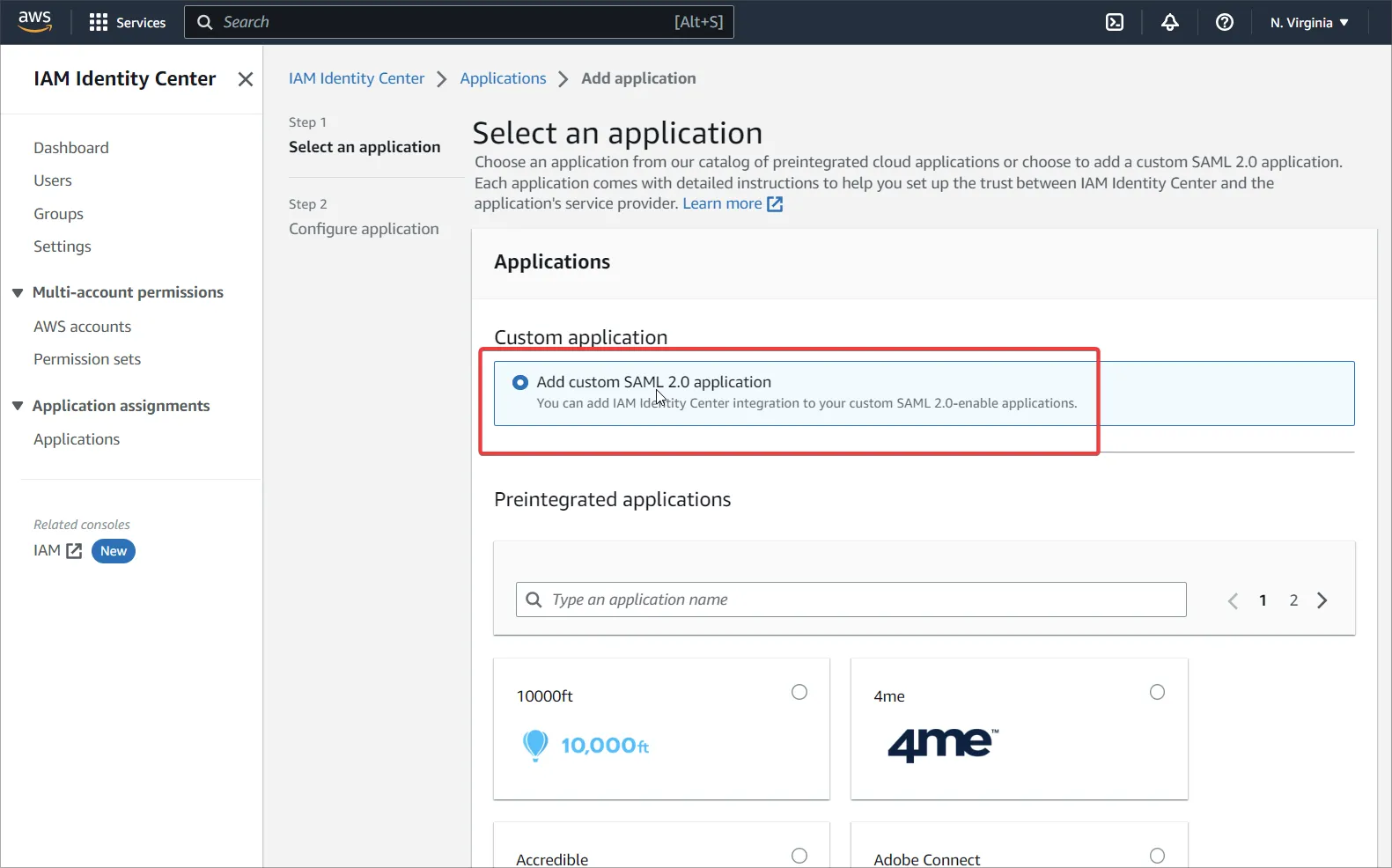
IAM Identity Center に移動し、カスタム SAML 2.0 アプリケーション (Add Application) を追加します。
-
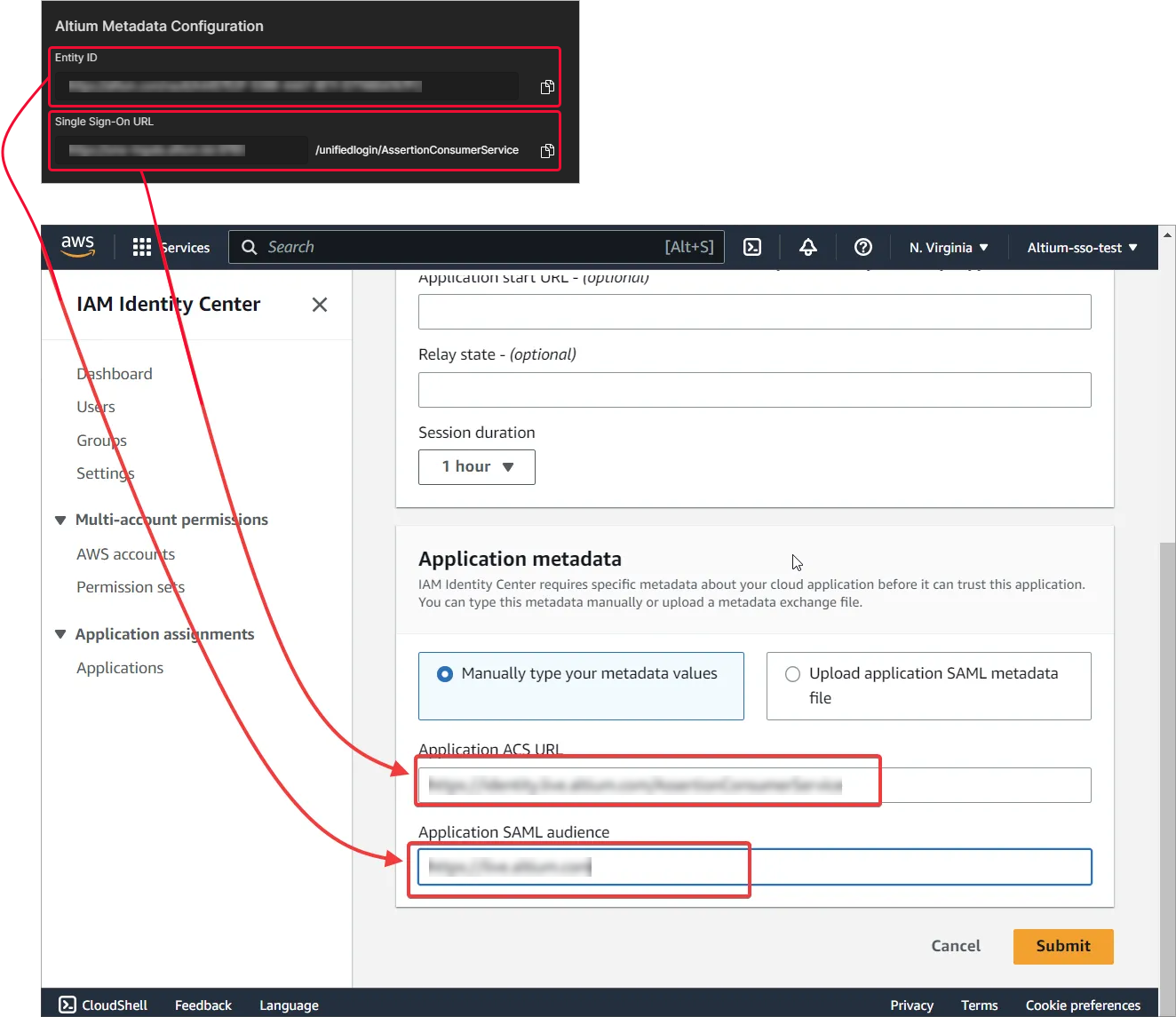
Altium SSO ページの AWS メタデータ URL 設定を入力します。Submit で設定を確認します。
-
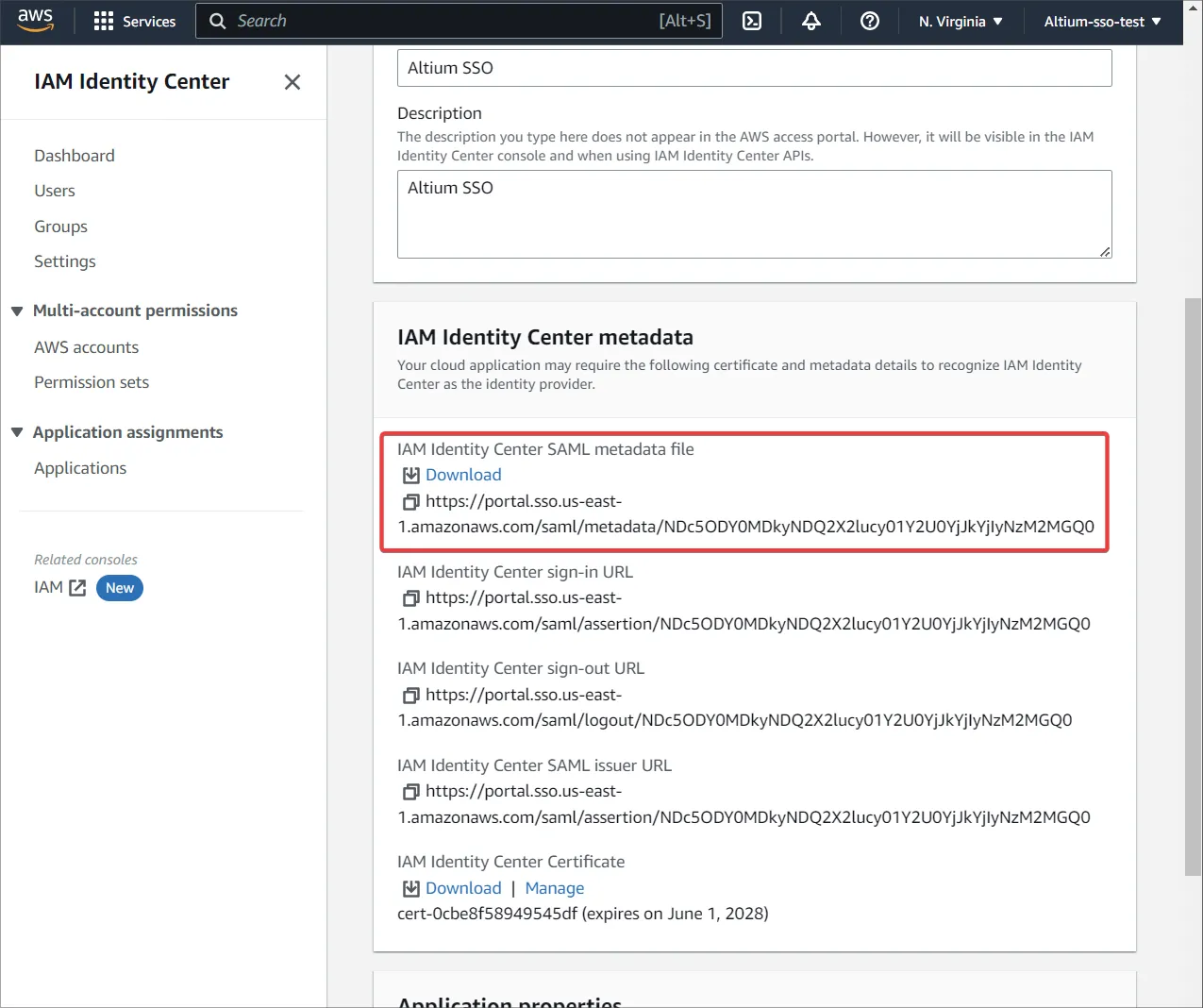
IAM Identity Center metadata 領域からメタデータファイルをダウンロードします。
-
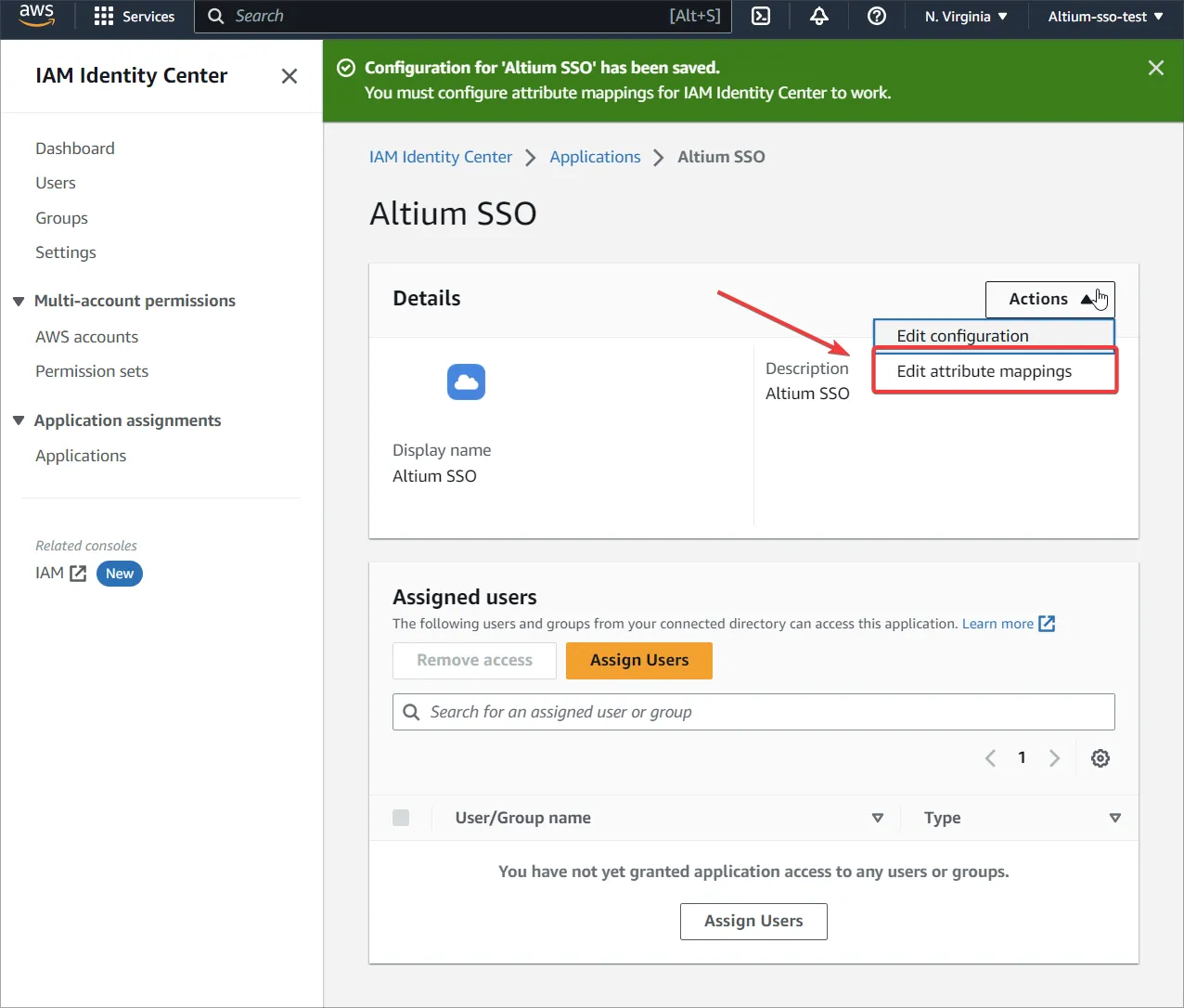
Edit attribute mappings に移動します。
-
Enterprise Server ユーザーのユーザー名を含む属性を指定し、Format には
unspecifiedを選択します。 -
AWS で新しいユーザーを作成し、作成したユーザーまたはグループにアプリケーションを割り当てます。
-
Altium 側と IAM 側の両方に同じユーザーが存在することを確認します。
-
メタデータ XML ファイルを Enterprise Server のブラウザーインターフェースの Admin – Settings – Authentication ページにアップロードし、その後 SAML 統合接続をテストします。– 上記を参照。
OAuth / OIDC シングルサインオン
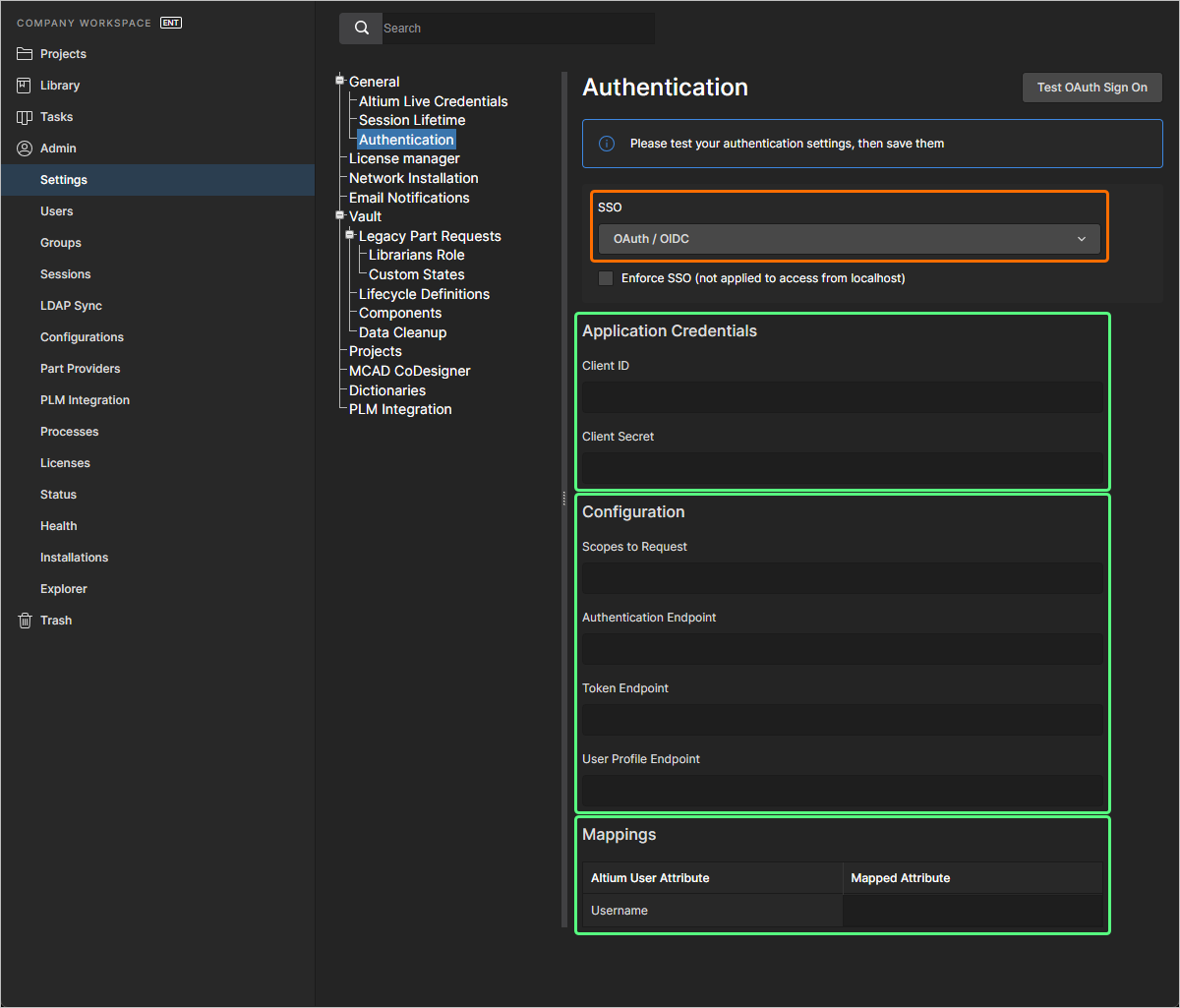
Enterprise Server の SSO 機能は、OAuth / OIDC 標準を使用して設定することもできます。ブラウザーインターフェースの Admin – Settings – Authentication ページにある SSO ドロップダウンで OAuth / OIDC オプションを選択すると、 ページで選択した IdP から提供されるデータを入力できるようになります。
-
Application Credentials:
-
Client ID – IdP のアプリケーション ID。
-
Client Secret – IdP のアプリケーションシークレット。
-
-
Configuration:
-
Scopes to Request – スコープは、アプリケーションがユーザーに対して要求するアクセスレベルを定義します。
-
Authentication Endpoint – このエンドポイントは、ユーザー認証と同意を処理します。アプリケーションは、ユーザーをこのエンドポイントにリダイレクトしてログインさせ、権限を付与してもらいます。
-
Token Endpoint – このエンドポイントは、認可コードまたはリフレッシュトークンをアクセストークンと交換するために使用されます。これは、アプリケーションと認可サーバー間の安全なバックチャネル通信です。
-
User Profile Endpoint – このエンドポイントは、アクセストークンを使用してユーザープロファイル情報(例: 名前、メールアドレス)を取得します。返されるデータは、認可時に付与されたスコープに依存します。
-
-
Mappings – テーブルの Mapped Attribute フィールドには、Enterprise Server 側のユーザー名にマッピングされる属性を入力します。
ボタンを実行して統合テストを行うまでは、SSO は有効になりません。これにより、SSO の ID プロセスと会社の SSO サインインが検証されます。設定のテストが正常に完了したら、 ボタン () をクリックして設定を保存でき、これにより Enterprise Server に実際に適用されます。
 AI で翻訳