
ワークスペースプロジェクト
Altium Designer は Enterprise Server Workspace と連携することで、プロジェクト・ライフサイクルの開発段階を対象とした高度なプロジェクト構成をサポートし、バージョン管理されたプロジェクトの作成と継続的なワークフローを簡素化します。Workspace の管理下での集中ストレージにより、この機能は他のコラボレーションサービスの基盤にもなります。
Workspace プロジェクトを使用する主な利点は次のとおりです。
-
ストレージの簡素化。保存場所について判断する必要がありません。バックアップやその他の基本サービスは自動的に提供されます。
-
コラボレーション機能の基盤。
-
バージョン管理の強制。
-
専用コメントシステムの利点。
-
通知とステータス。ローカルでの変更を含むドキュメントのステータスが、設計チーム全体に可視化されます。
-
複雑な設定なしで同時 PCB 設計が可能。
-
複数人に対して、編集用、または閲覧・コメントのみとして プロジェクトを共有 できる。
-
Project History 機能を使用する際に、VCS 関連のコミットイベントを含む完全な機能を利用可能。
技術的には、プロジェクトは Workspace に保存されるメタ情報と、Workspace 独自のバージョン管理サービスとの緊密な統合の組み合わせです。一般的なワークフローは次のとおりです。
-
新しいプロジェクトを作成します(Altium Designer の Create Project dialog から、Workspace のブラウザインターフェースから、または(Altium Designer 内から)既存のローカルプロジェクトを Workspace で利用可能にすることで)。作成時に、プロジェクト名と説明を定義します。
-
Workspace のブラウザインターフェース、または Altium Designer から直接、プロジェクトへのアクセス権を定義・管理します。
-
共同作業者は全員、(Altium Designer 内から)開くプロジェクトを選択し、その後自動的にチェックアウトされます。
本ドキュメントでは、Enterprise Server Workspace のブラウザインターフェースを通じたプロジェクト作業について説明します。設計ソフトウェアでのプロジェクト作業については、Getting Familiar with the Altium Design Environment を参照してください。
新規プロジェクトの作成
プロジェクトは、Workspace ブラウザインターフェースの Projects ページから直接作成できます。このページには、Workspace で利用可能になっており、現在サインインしているユーザーと共有されているすべてのプロジェクトが一覧表示されます。新しいプロジェクトを作成するには、プロジェクト一覧の上にある  ボタンをクリックし、メニューの Create グループから Project を選択して Create Project ウィンドウを開きます。
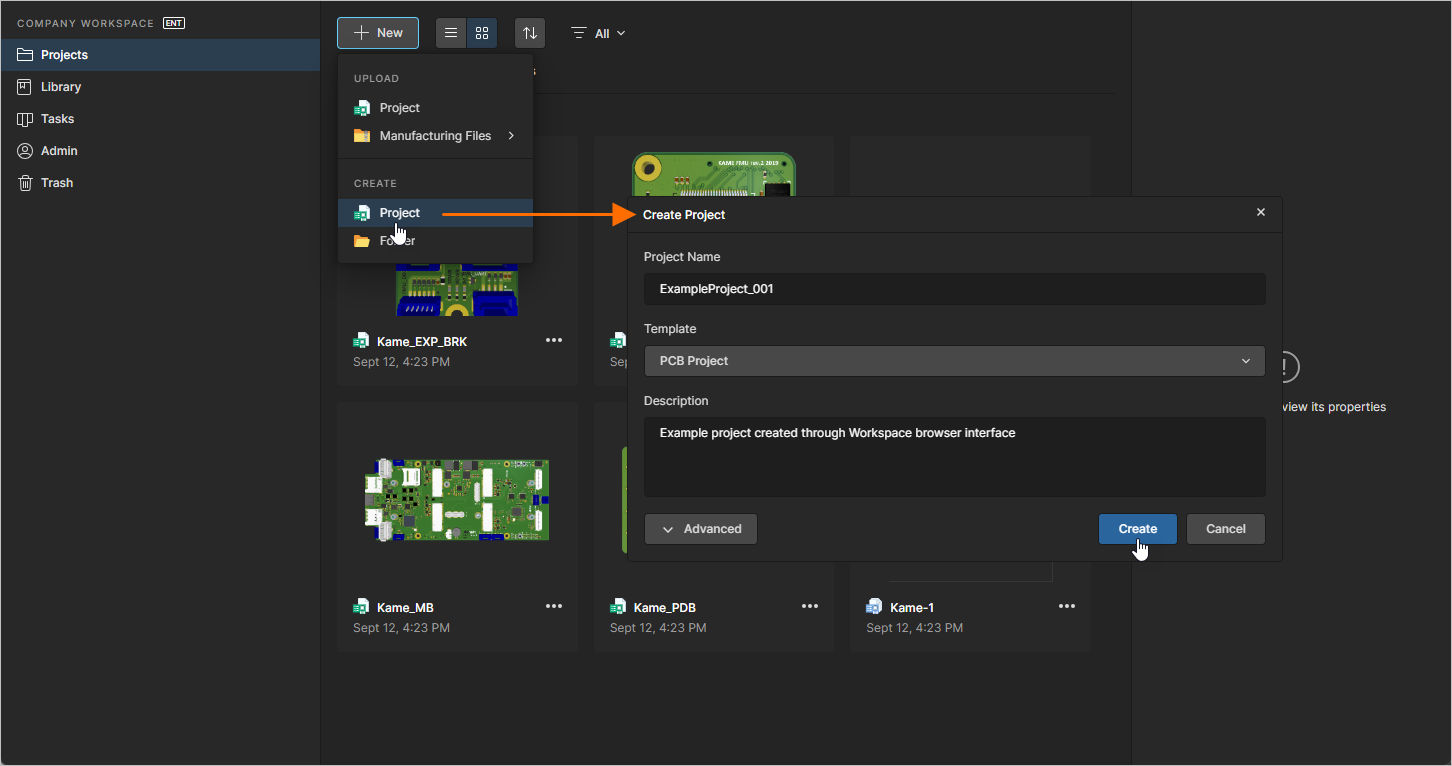 Workspace ブラウザインターフェースから新しいプロジェクトを作成します。
Create Projectウィンドウは最初、簡易表示で次のフィールドが表示されます。
-
Project Name – プロジェクトに必要な名前を入力します
-
Template – 利用可能であればプロジェクトテンプレートを選択します。関連するドロップダウンフィールドには、Workspace に存在するすべての Project Templates が(<Comment> (<ItemID>) 形式で)一覧表示されます。テンプレートを選択すると、プロジェクトタイプが暗黙的に定義されます。既存のプロジェクトテンプレートを基に新規プロジェクトを作成したくない場合は、作成するプロジェクトタイプを(一覧から選べる PCB Project、Multiboard、または
Harnessの項目を使用して)指定します。 -
Description – プロジェクトの任意の説明を入力します。
さらに多くのコントロールにアクセスするには、 ボタンをクリックします。次のフィールドが表示されます。
-
Parent Folder – このフィールドで、Workspace のフォルダ構造内のどこにプロジェクトを作成するかを指定します。現在開いているフォルダ、または(デフォルトでは)Projects になります。新規プロジェクトのデフォルトフォルダパスは、Workspace browser interface の Admin – Settings – Projectsページで指定されます。Create Projectウィンドウで、フィールド右側の Change リンクをクリックすると、Workspace のサーバーフォルダ構造にアクセスでき、プロジェクトを保存する別のフォルダを選択できます(
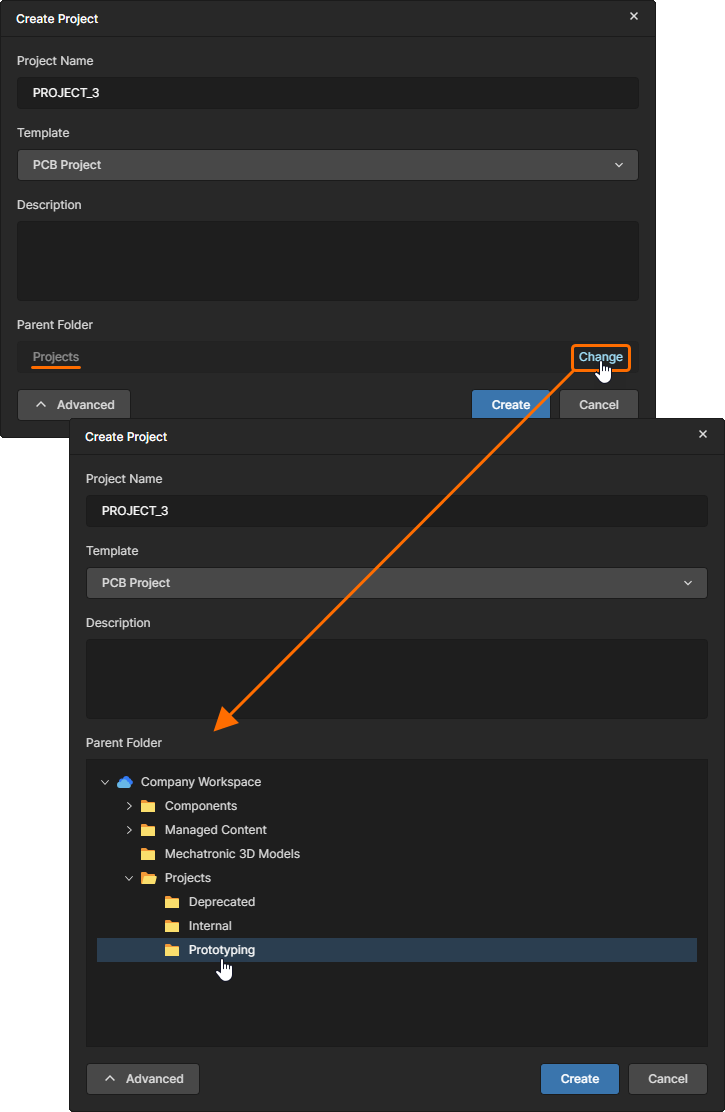 )。
)。
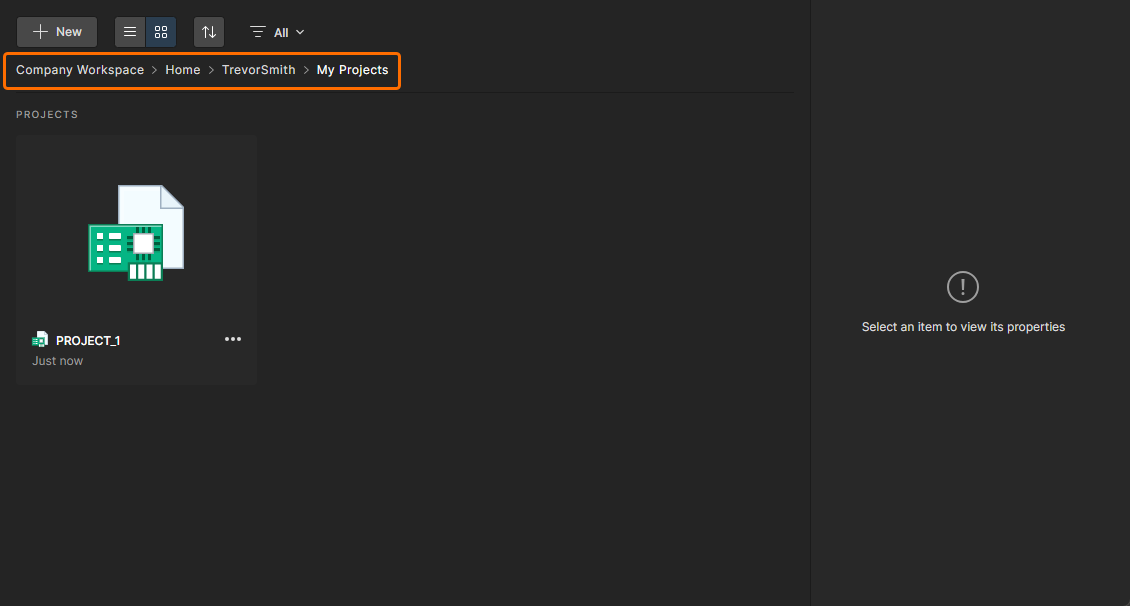
なお、処理実行時に Parent Folder フィールドで書き込み可能なフォルダが選択されていない場合、プロジェクト保存用に Personal Folder 構造が自動的に作成されます。これはメールアドレス名のプライベートなトップレベルフォルダで、My Projects サブフォルダを含みます。作成と使用の例は次のとおりです。
-
新規プロジェクトのデフォルトフォルダ(通常は Projects)が利用できない、または読み取り専用(書き込み不可)である場合、作成/アップロードされたプロジェクトは個人用 My Projects フォルダ(
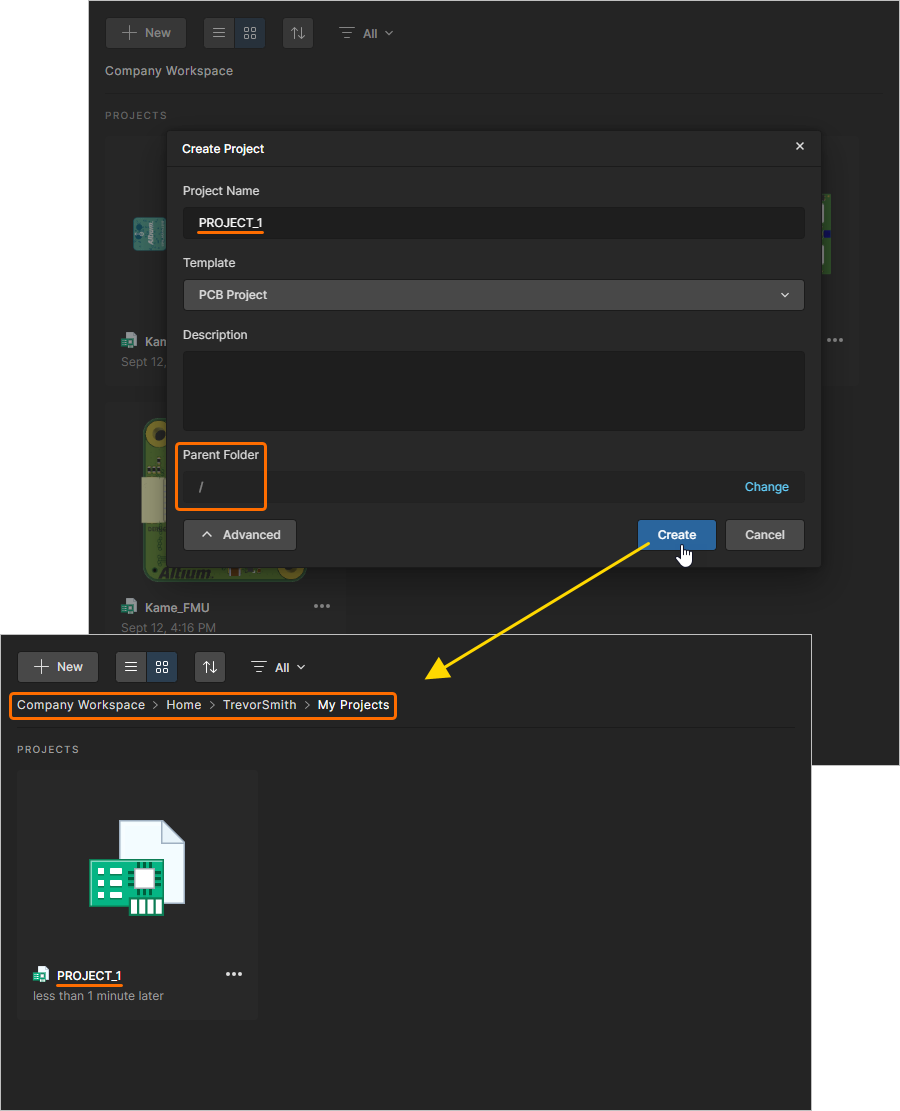 )に保存されます。
-
Parent Folder のターゲット設定がデフォルト以外で、かつこのフォルダへのアクセスが閲覧のみ(書き込み不可)の場合、プロジェクト作成はブロックされ、My Projects フォルダは(
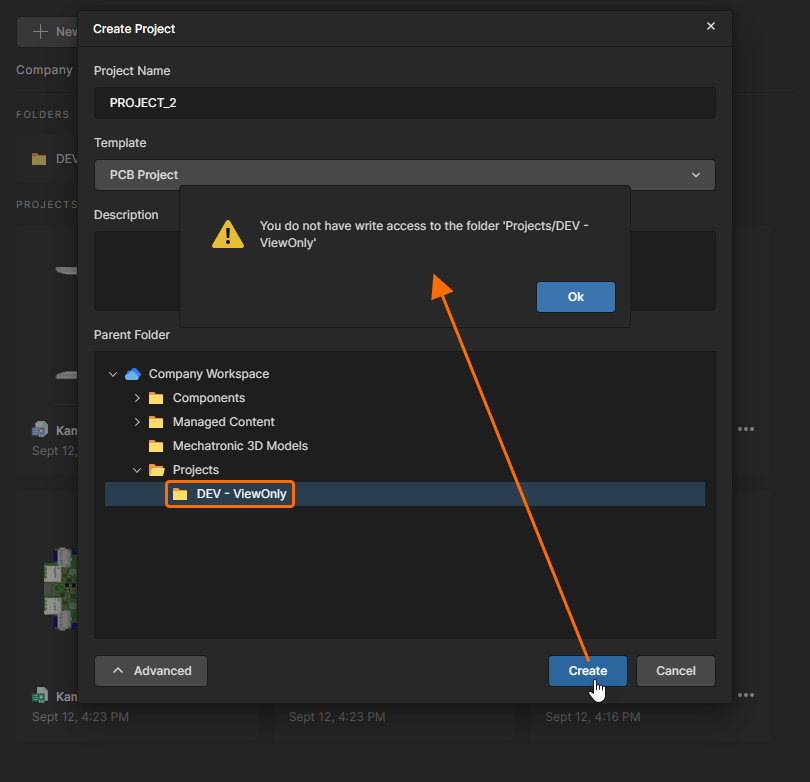 に)追加されません。
詳細は Project Creation Without Folder Write Access を参照してください。
-
必要な設定で新規プロジェクトを定義したら、 をクリックします。概要レベルのプロジェクト一覧に戻り、新しく作成されたプロジェクトのエントリが表示されます。
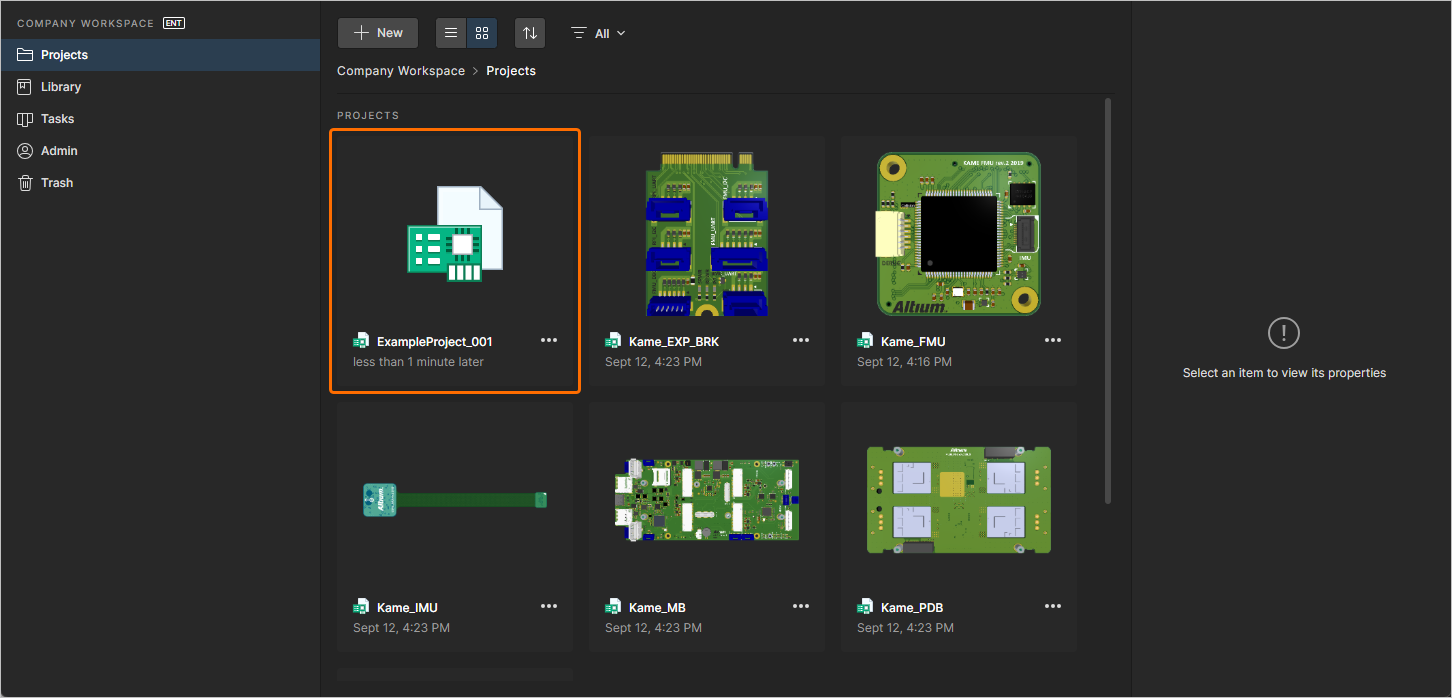 Workspace ブラウザインターフェースの Projectsページに戻ると、新規作成されたプロジェクトが確認できます。
プロジェクトのアクセス権限設定の詳細は、以下の Sharing a Project を参照してください。
既存のローカルプロジェクトをアップロード
既存の設計プロジェクトを Workspace にアップロードすることもできます。手順は次のとおりです。
-
プロジェクト一覧の上にある
ボタンをクリックし、メニューの Upload グループから Project を選択します。プロジェクトの ZIP アーカイブを参照して選択し、Open をクリックしてアップロードを実行します。
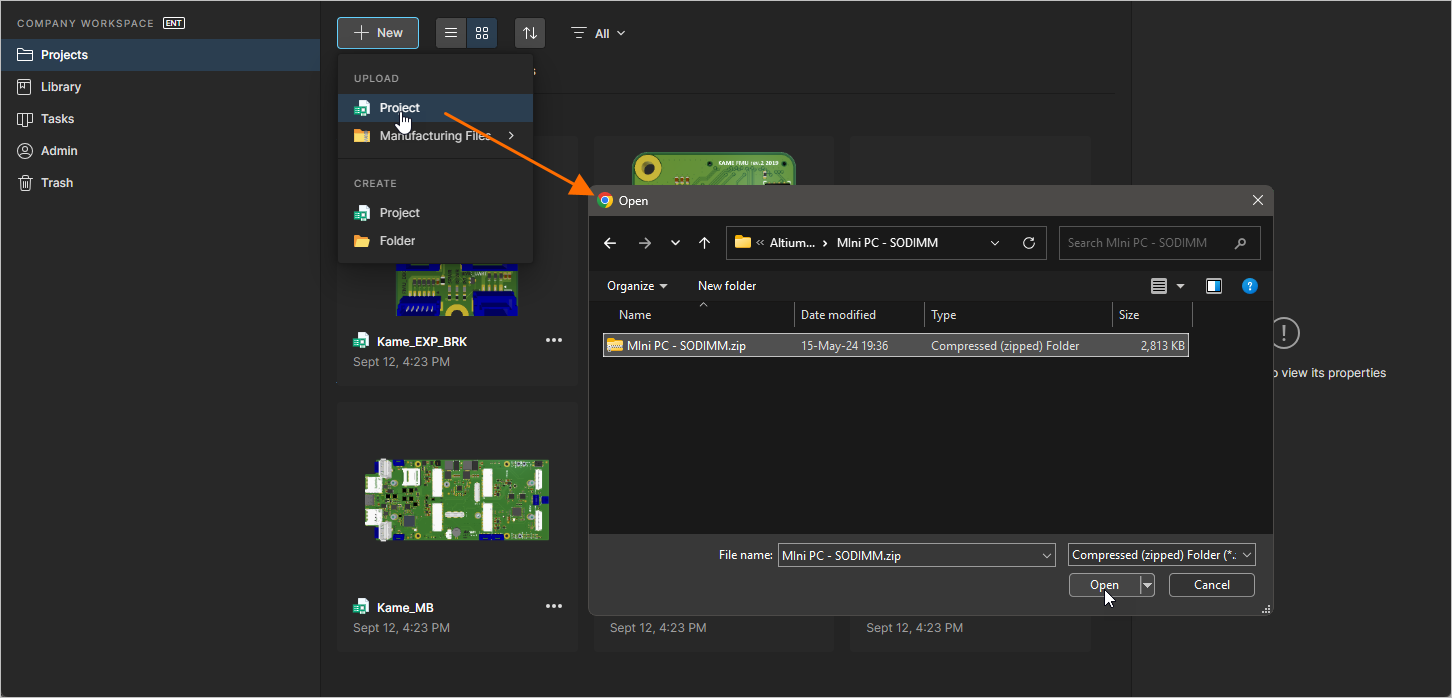
-
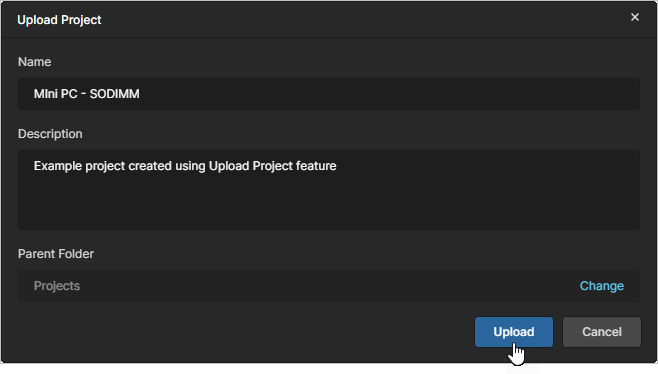
Upload Projectウィンドウが表示されます。デフォルトでは Project Name は既存プロジェクトのものになります。必要に応じて変更し、適切な説明を追加してください。Parent Folder は、アップロード処理を開始した時点でアクティブだったフォルダに設定されます。フィールド右側の Change リンクをクリックすると、Workspace のサーバーフォルダ構造にアクセスでき、プロジェクトを保存する別のフォルダを選択できます。必要に応じて、プロジェクトをサブフォルダ階層として整理できます。詳細は Creating a Hierarchy of Project Folders のセクションを参照してください。必要な設定を行ったら、
 ボタンをクリックします。
-
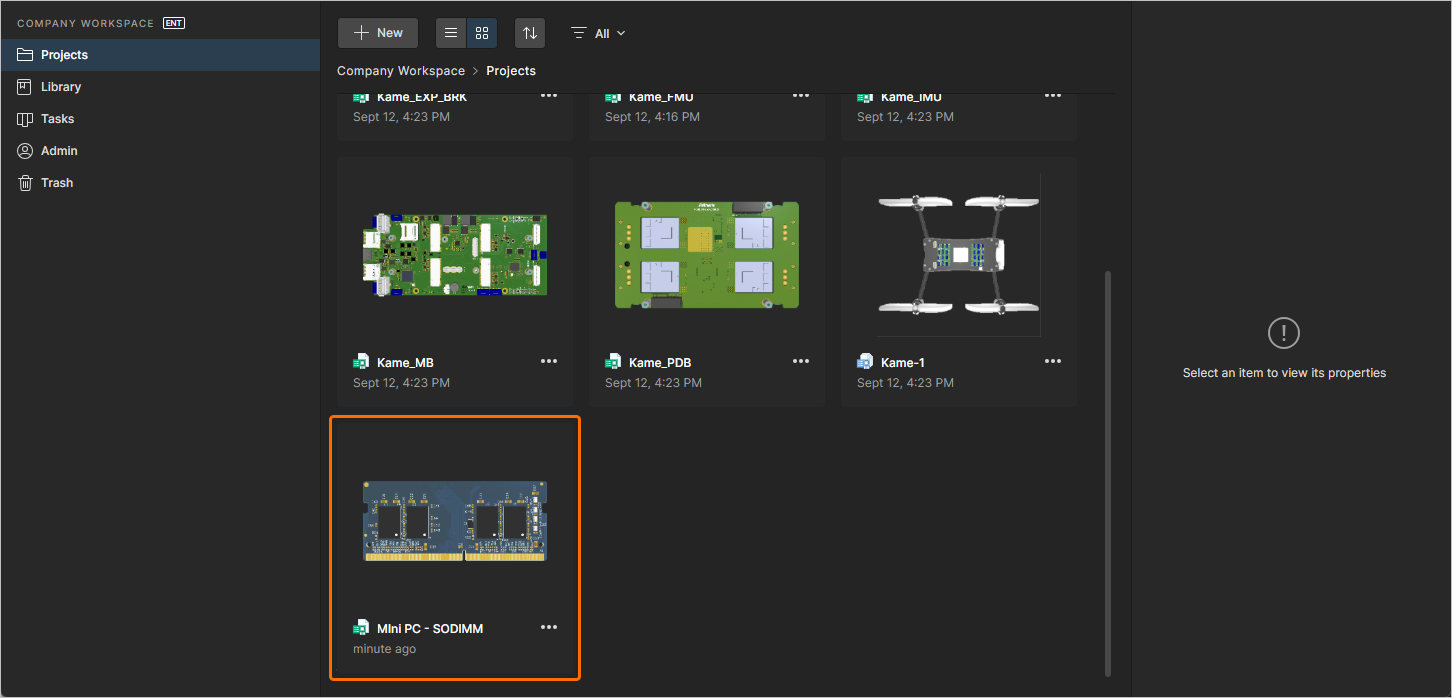
アップロードが進行し、完了後に概要レベルのプロジェクト一覧へプロジェクトのエントリが追加されます。
Important Considerations
プロジェクトのアップロードに含まれるもの:
-
プロジェクトファイル(
PrjPcb)に登録されている、プロジェクトに追加された設計ファイル。 - 指定したプロジェクトフォルダ内のその他すべてのファイル。
プロジェクトのアップロードに not含まれないもの:
-
指定したプロジェクトフォルダのサブフォルダ内のファイル(ただし、プロジェクトに含まれている=プロジェクトファイルに登録されている場合を除く)。
-
指定フォルダの外部にある、プロジェクトに追加/リンクされたファイル。
-
生成された Gerber 製造出力などが入る
Project Outputs for <project>フォルダ内のファイル。
推奨事項:
-
ソースプロジェクトフォルダには、プロジェクトファイル(
PrjPcb)が 1 つだけ含まれるようにしてください。複数のプロジェクトファイルが Workspace リポジトリにアップロードされると、Web Viewer が正しい設計ドキュメントを表示しない場合があります。 -
プロジェクトフォルダ内に、MCADデータやアーカイブファイルなどの大きな追加ファイルを保存するのは避けてください。不要なアップロードや処理が行われないよう、これらはサブフォルダに保存してください。
-
上記のとおり、プロジェクトフォルダ外に保存されているファイルはWorkspaceリポジトリにアップロードされないため、プロジェクトに含めないでください。
-
Workspace History View を使用すると、新しくアップロードされたWorkspaceプロジェクトに含まれているファイルの一覧を確認できます。
-
Workspace内でプロジェクトの設計/製造ファイルにアクセスする最適な方法は、Altium Designer から Make the Project Available Online を実行し、その後 Release the Project を行うことです。生成される Workspace Release Package により、設計/製造ドキュメント一式への閲覧アクセスが提供されます。
GerberまたはODB++ファイルセットのアップロード
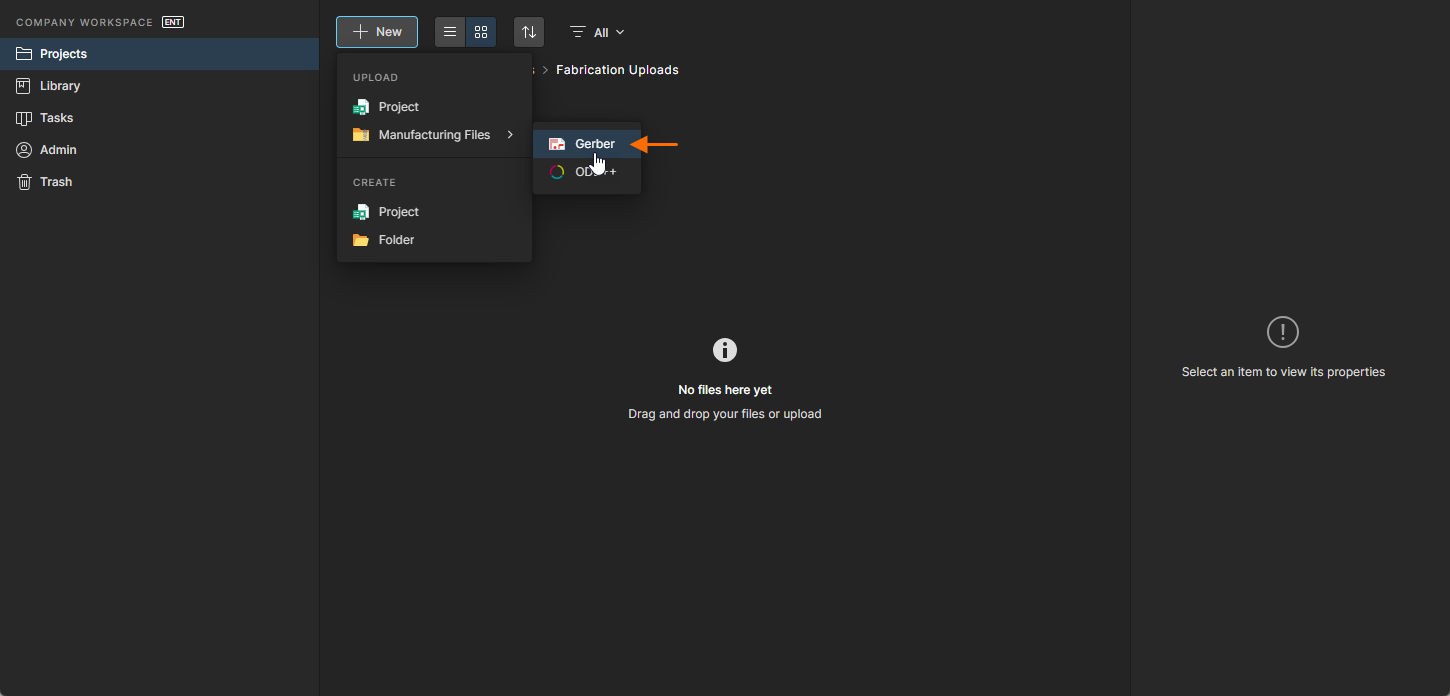
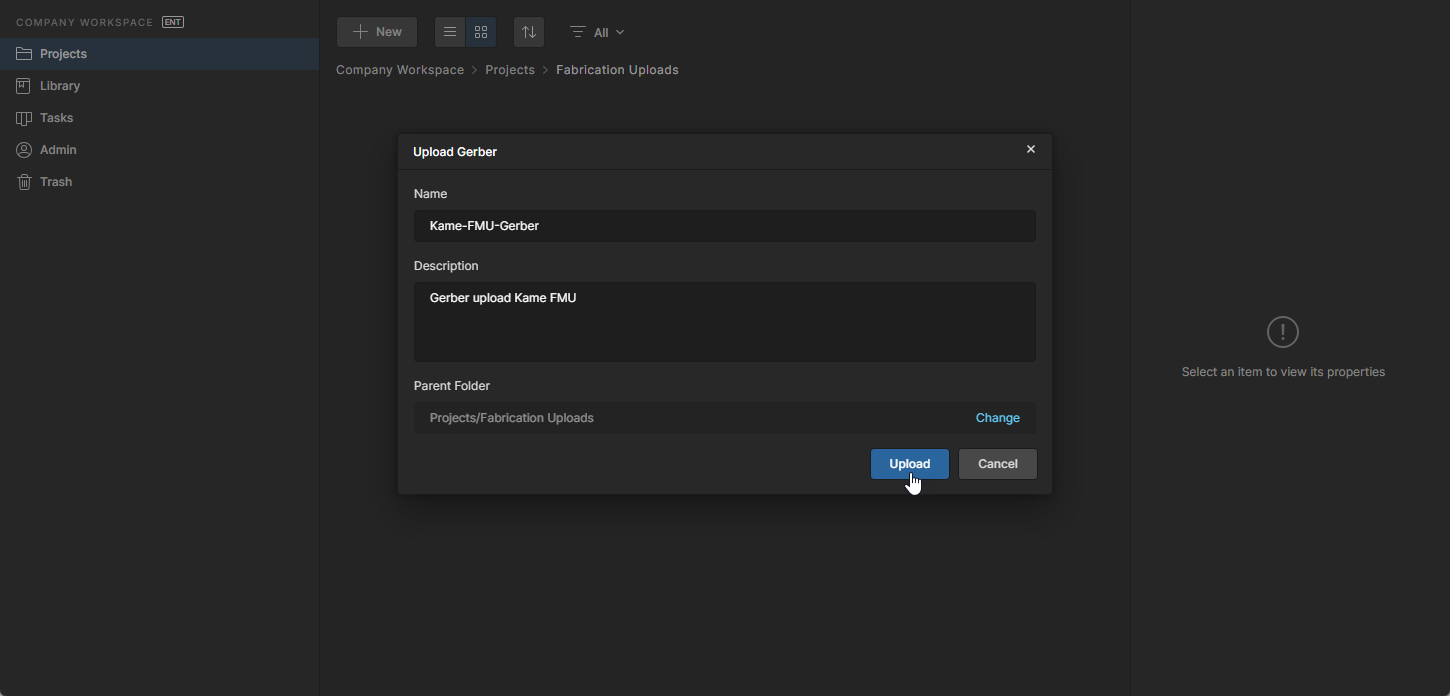
Workspaceは、生成済みのGerber/ODB++製造ファイル一式をアーカイブ形式で受け付けており、Manufacturing Files ボタンメニューから利用できるオプションを通じてアップロードできます。アップロード手順は、上記で説明したプロジェクトのアップロード手順と基本的に同じです。
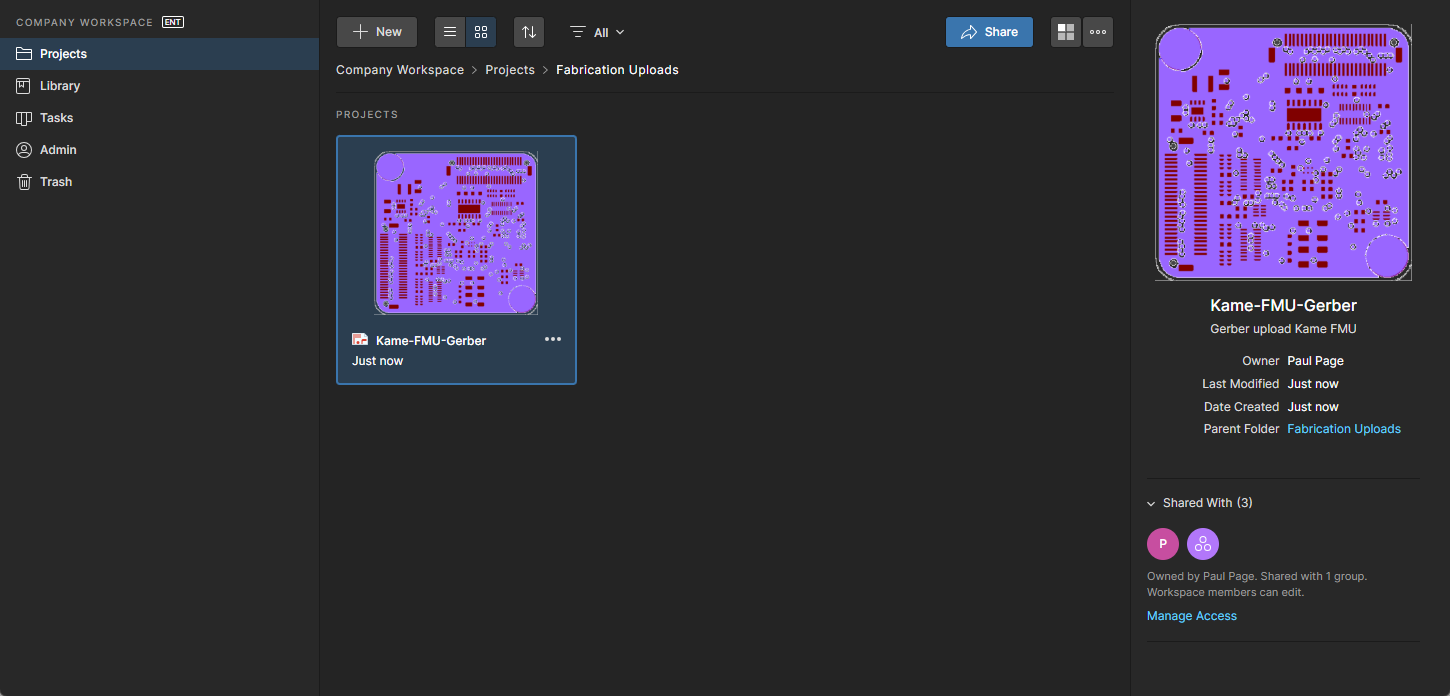
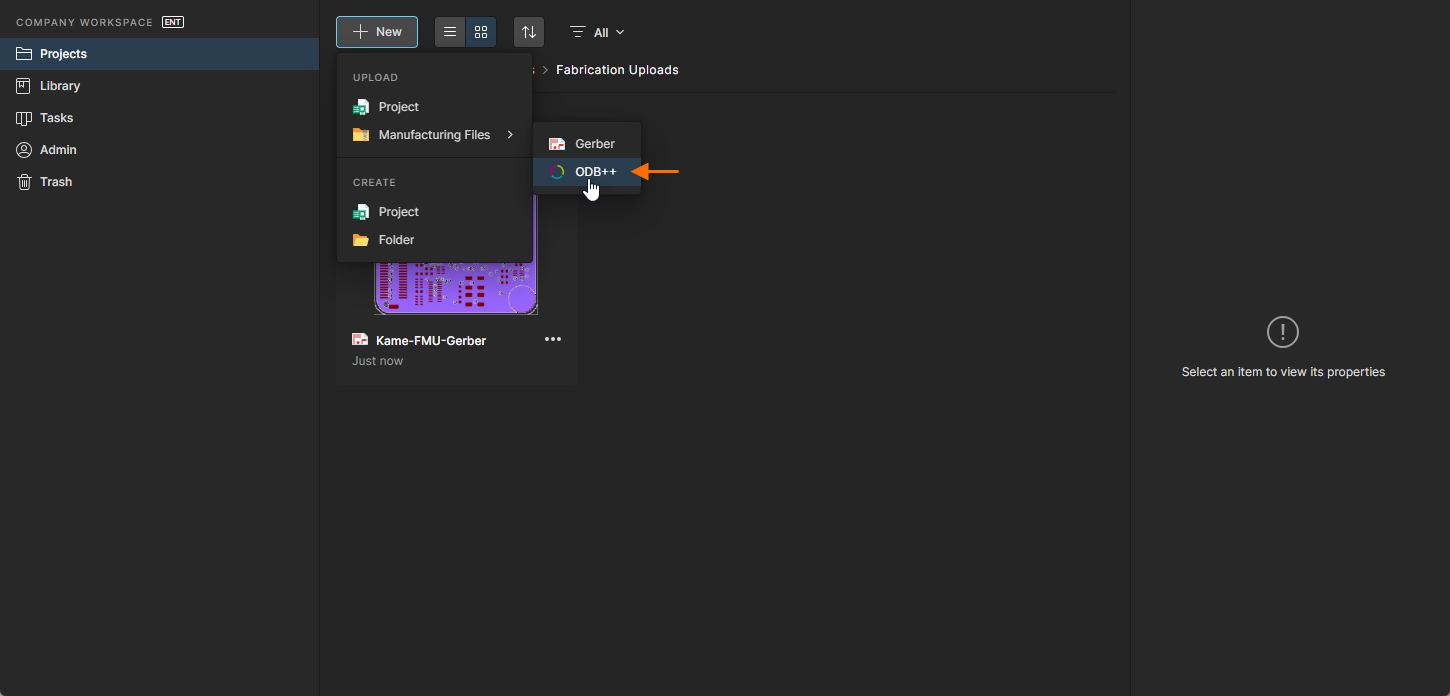
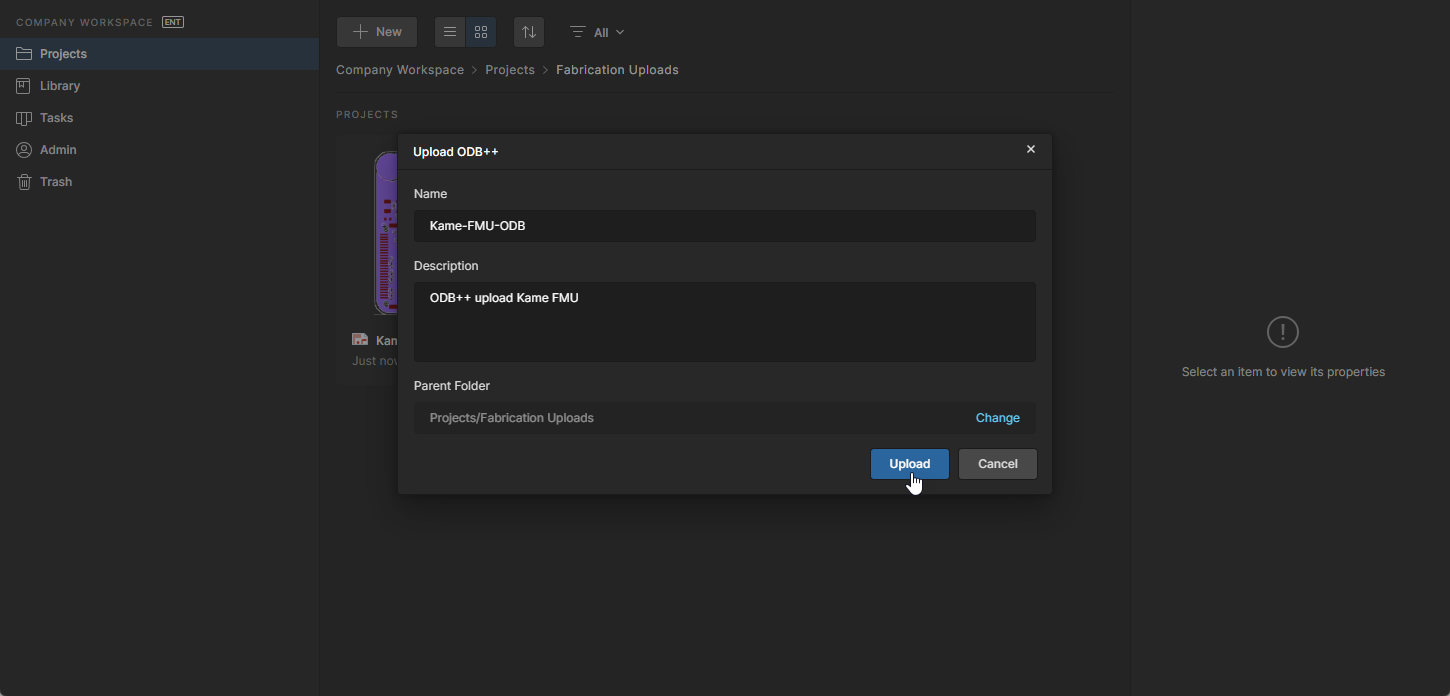
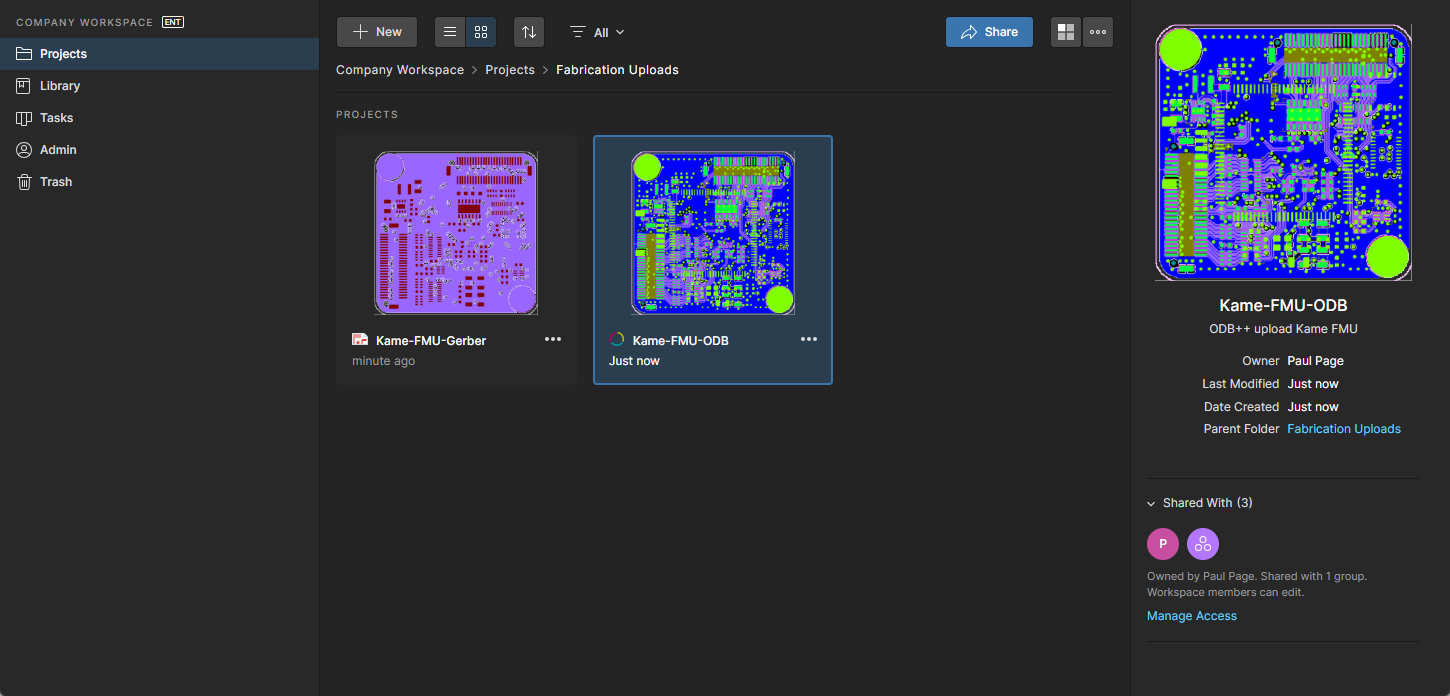
Gerber/ODB++プロジェクト名をクリックするか、関連メニューの Open オプションを使用して、Workspace専用ビューアでファイルセットを読み込みます。これにより、含まれるすべてのファイル/レイヤの合成表示、レイヤの非表示または単独表示、ポイント間測定機能が利用でき、配置した comments も受け付けます。
プロジェクトフォルダ階層の作成
Related information: コンテンツ構造とアクセスの管理
Workspaceでは、サーバー構造内にプロジェクトフォルダを作成・管理することもできます。プロジェクトは、作成されたフォルダ階層内の任意のフォルダに作成したり、移動したりできます。
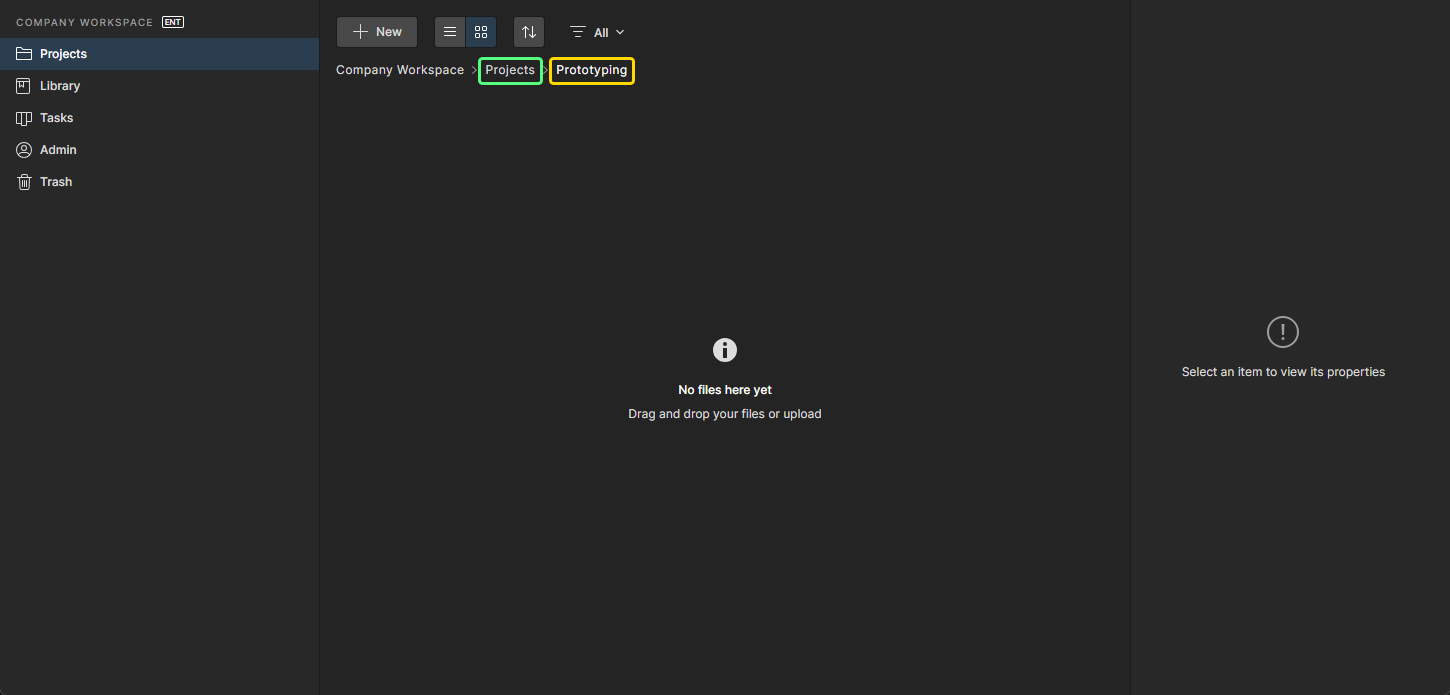
(既定の) 最上位 Project フォルダの下に新しいフォルダを作成するには、プロジェクト一覧の上にある  ボタンをクリックし、メニューの Create グループ内の Folder エントリを選択します。表示される Create Folder ウィンドウで、新しいフォルダ名、親フォルダ、任意の説明を指定します。新しいフォルダは常に現在選択されているフォルダの下に作成され、そのフォルダが親フォルダになります。新しいフォルダの権限は親フォルダから継承され、現在のユーザーと異なる場合は、そのフォルダの「owner」に書き込みアクセスが含まれます。
必要な属性を定義したら  をクリックします。新しいフォルダ(サブフォルダ)が作成され、そのフォルダに移動します。
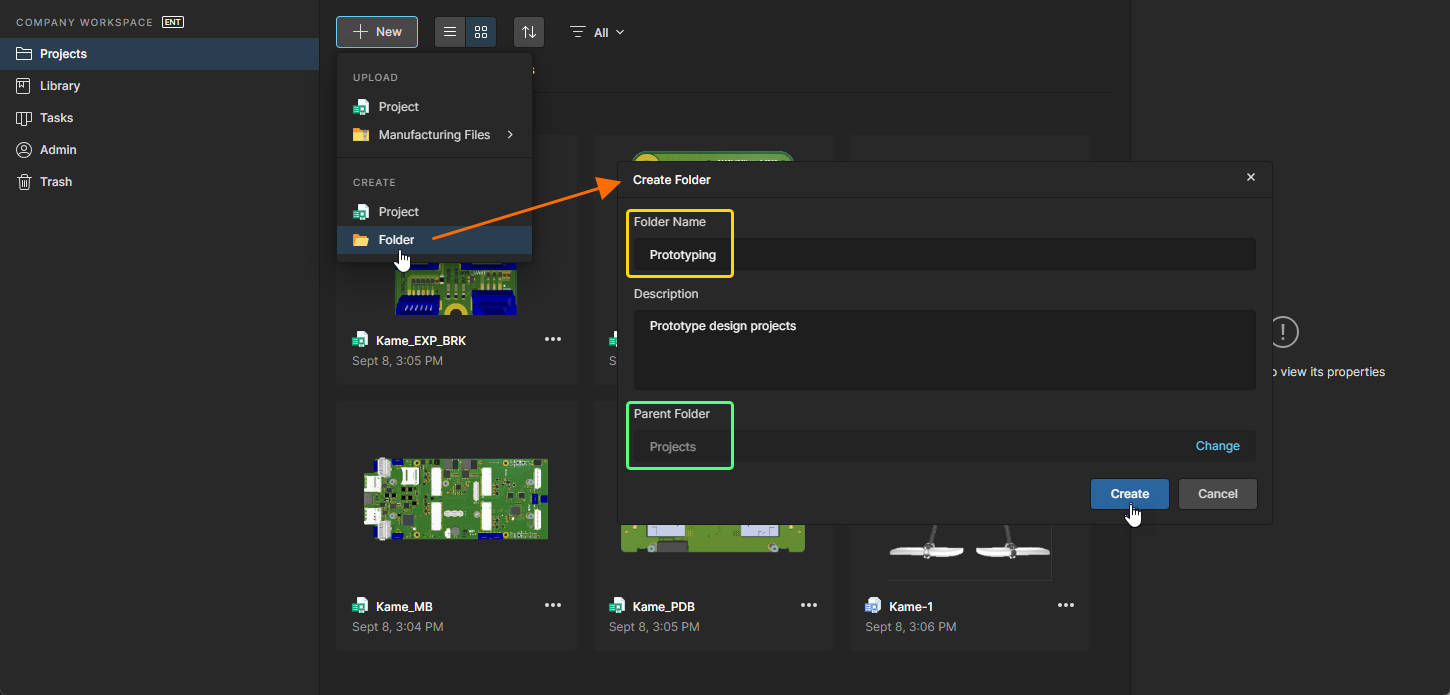
必要に応じてさらにフォルダを作成し、設計プロジェクトを保存・分類するためのフォルダ階層を構築します。これらのフォルダは、次のフォルダを作成する際に親フォルダとして選択できるようになります(以下の画像参照)。
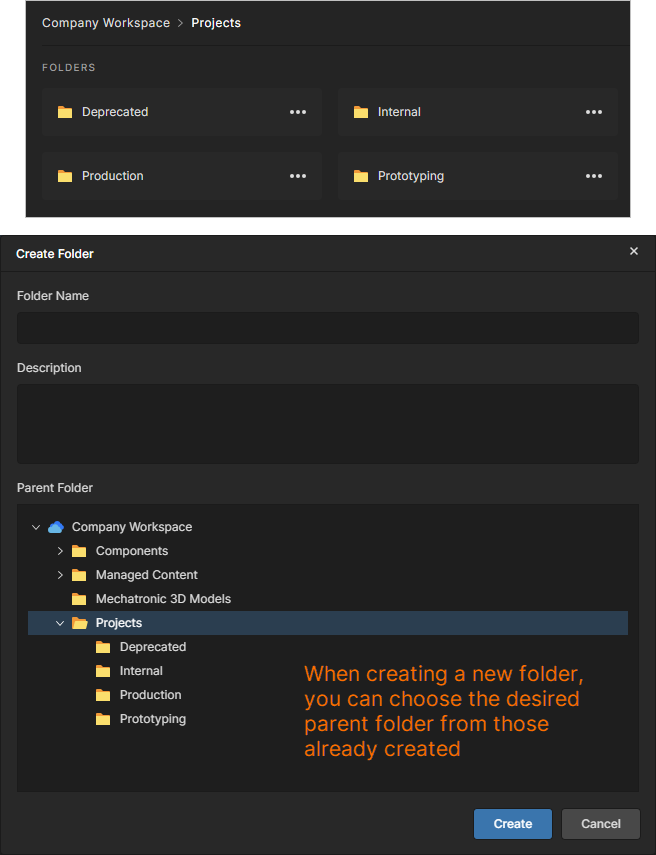 定義されたプロジェクトフォルダ階層の例。
フォルダ階層のナビゲーション
Projects page を既定のグラフィカルビューで開くと、既定の最上位 Projects フォルダのプロジェクトコンテンツが表示されます。1階層下のすべての子プロジェクトフォルダも、ページ上部に表示されます。フォルダ名が長い場合、フォルダ項目にカーソルを合わせるとホバーチップで完全な名前が表示されます。この点では、リストビュー( をクリック)に切り替えると、利用可能な第2階層のフォルダが見やすくなる場合があります。フォルダを選択すると、右側ペインにそのフォルダの情報が表示されます。
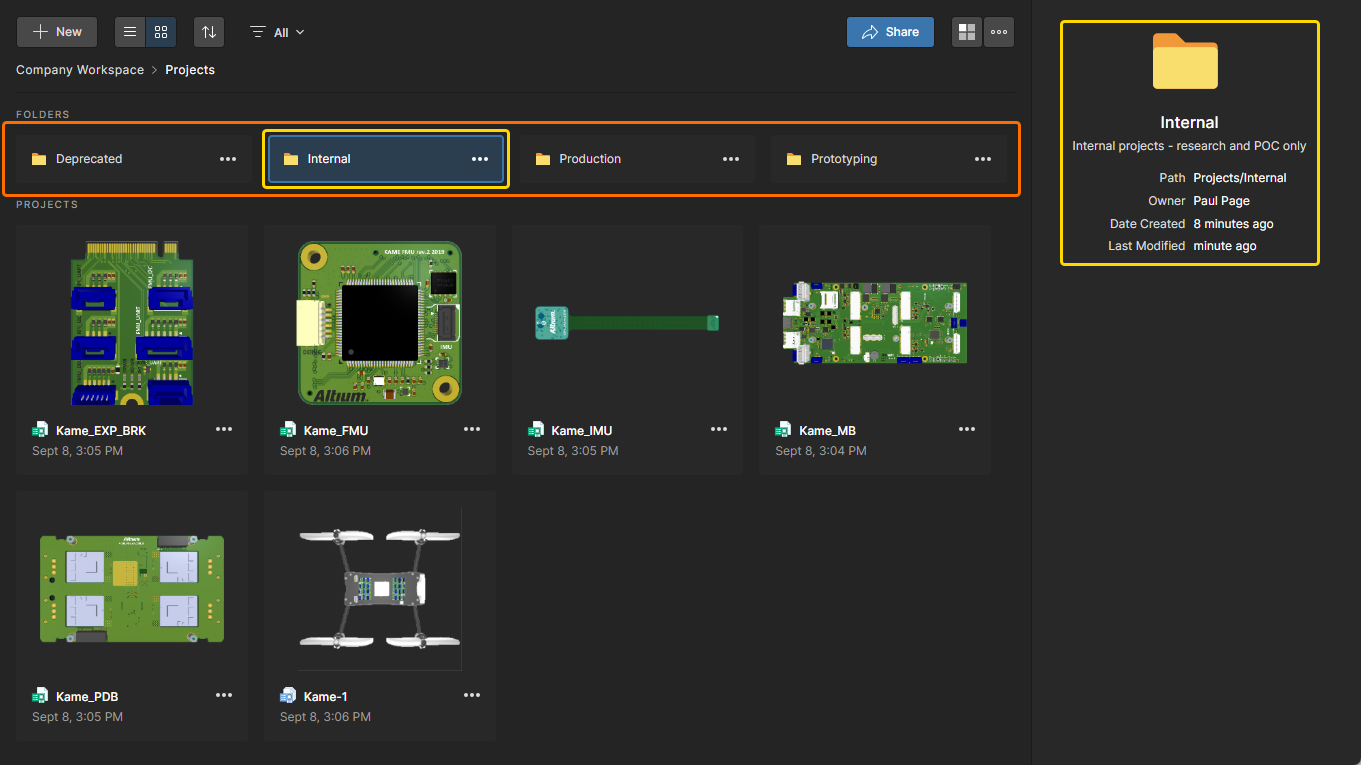
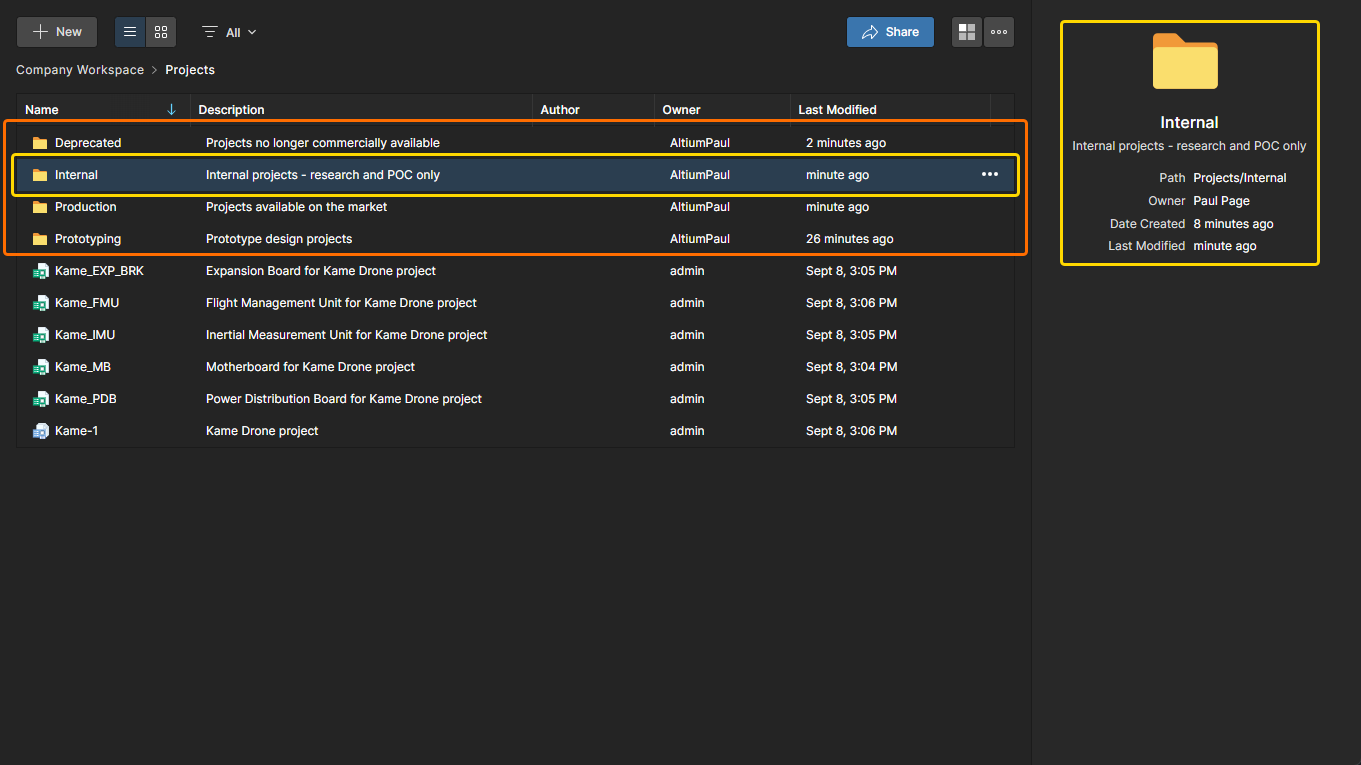
フォルダにアクセスするには、(グラフィカルビューでは)名前をクリックするか、(リストビューでは)項目をダブルクリックします。ビュー上部のパンくず(breadcrumbs)を使用すると、フォルダ階層を素早く上位へ戻れます。
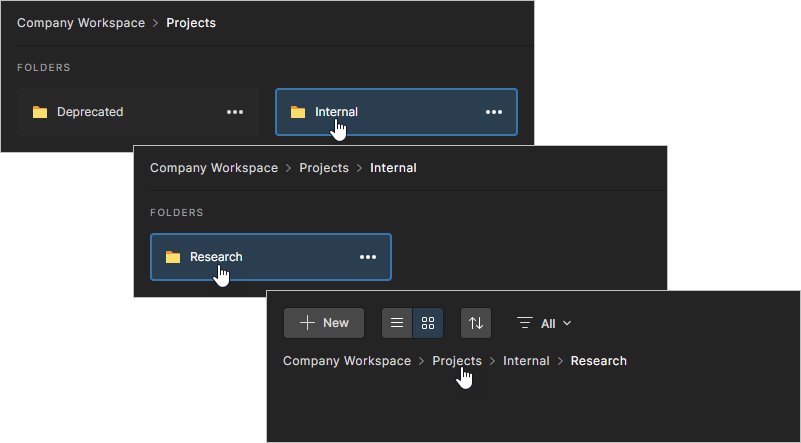
フォルダの共有
既存のプロジェクトフォルダの共有権限を変更するには、Projects page でその項目を選択し、関連する  control から Share エントリを選択するか、上部の
  ボタンをクリックします。Share Item ウィンドウでは、指定したユーザーまたはグループ(Share Item With エントリ)にフォルダアクセスを追加でき、既存の共有権限(Share With 配下)を表示・変更できます。なお、OwnerおよびAdministratorの固有権限は変更できません。
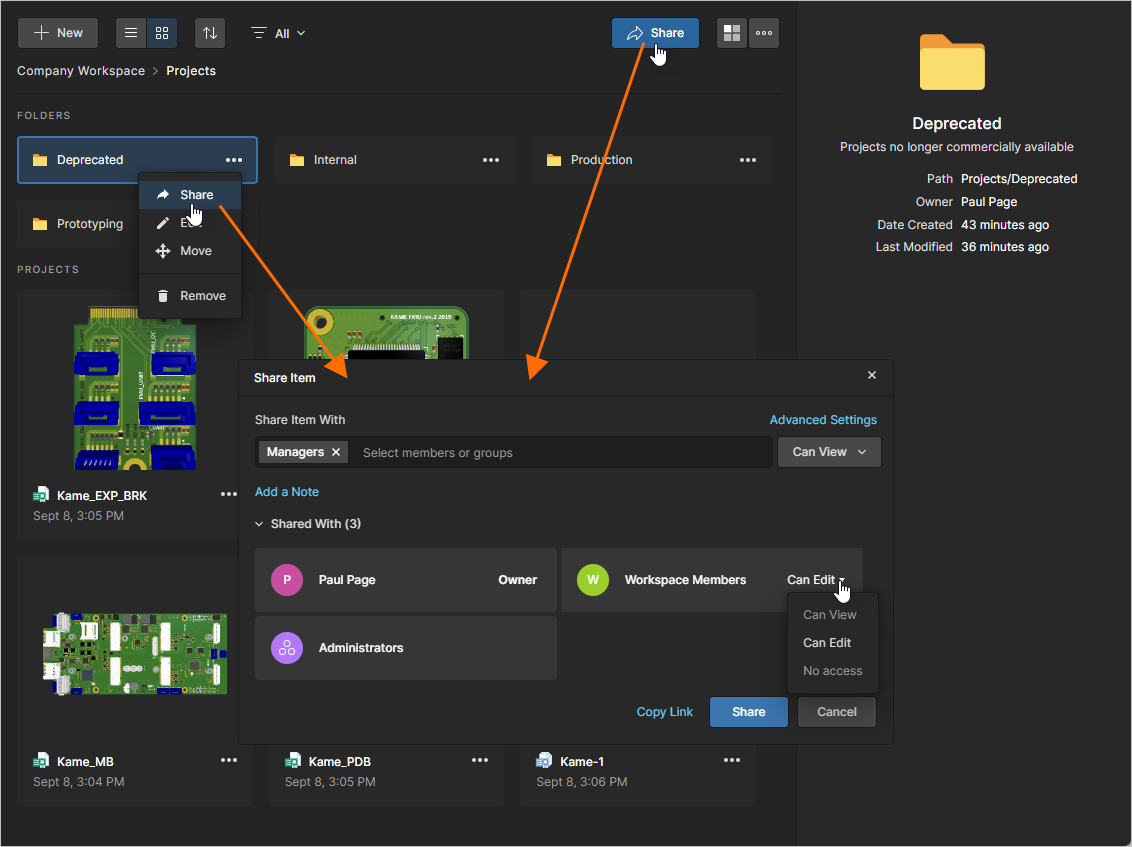 Share Item ウィンドウでは、選択したフォルダに適用される共有権限の追加および変更が可能です。
Shared With エントリでは、一部のユーザーアクセスレベル(View、Edit、No access)が選択できない場合があります。これは、アクセスレベルを変更すると親フォルダから継承された権限セットに矛盾(権限の格下げ)してしまうためです。既定では、すべてのユーザーに対する Edit 権限が適用されます。Share Item ウィンドウの Advance Settings で Inherit parent folder permissions オプションを無効にすると、親フォルダからの権限継承を解除でき、すべてのアクセスレベルオプションが有効になります。
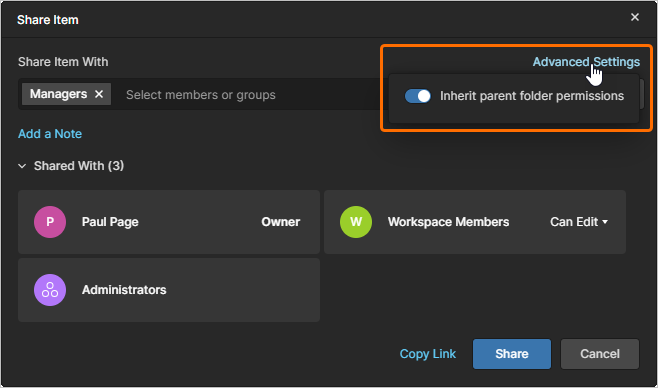
詳細は Managing Content Structure & Access page を参照してください。
フォルダの編集
既存のプロジェクトフォルダのプロパティを編集するには、Projects page でその項目を選択し、プロジェクト/フォルダ一覧の上にある  control をクリックして、関連メニューの Edit entry を選択します。
編集コマンドは Projects page でも利用できます。対象フォルダのタイルを選択し、 アイコンのコンテキストメニューから Edit コマンドを選択します。Projects page がリストビューの場合は、対象フォルダ項目の最右端にある control をクリックし、関連メニューから Edit command を選択します。
次の Edit Folder ウィンドウで、フォルダのNameとDescriptionを変更できます。変更を確定するには  ボタンをクリックします。
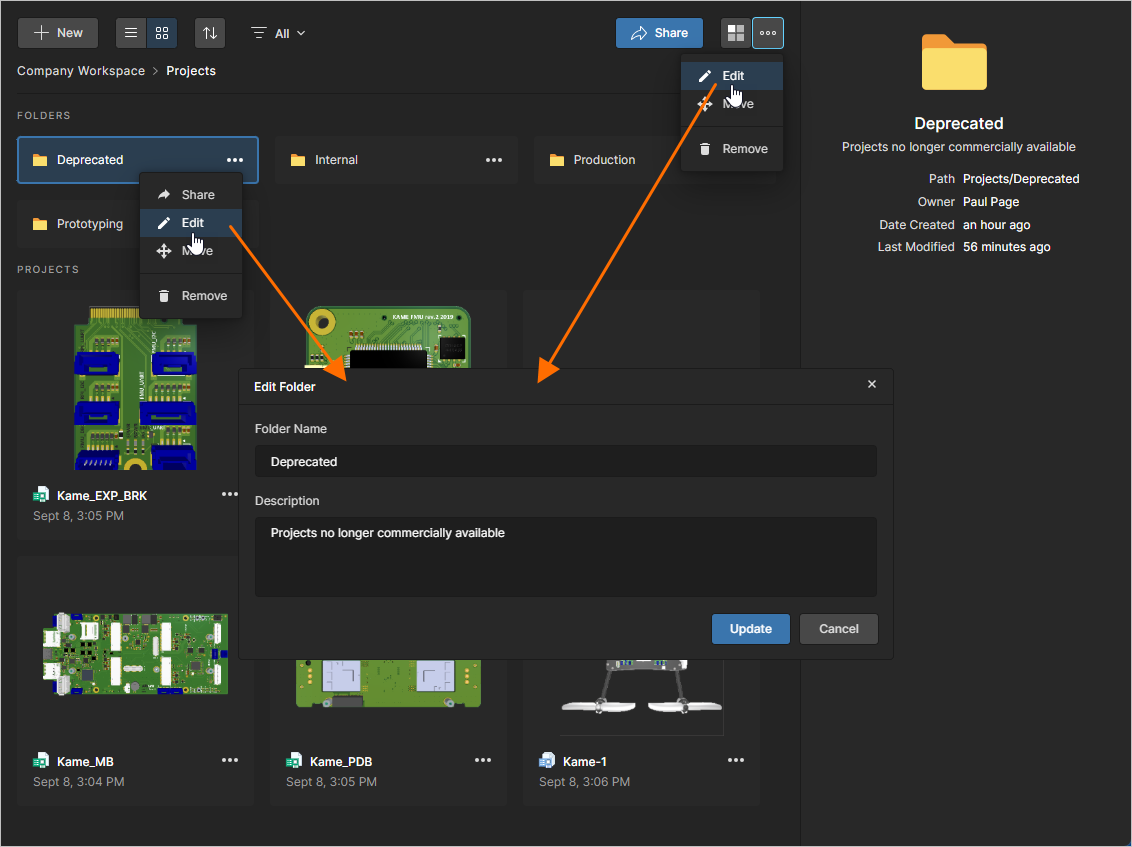
プロジェクトフォルダの Name と Description は、いつでも編集できます。
階層内でのフォルダ移動
階層内でフォルダを別の親フォルダの下へ移動(再配置)するには、Projects page でその項目を選択し、プロジェクト/フォルダ一覧の上にある control をクリックして、関連メニューの Move entry を選択します。
移動コマンドは Projects page でも利用できます。対象フォルダのタイルを選択し、 アイコンのコンテキストメニューから Move コマンドを選択します。Projects page がリストビューの場合は、対象フォルダ項目の最右端にある control をクリックし、関連メニューから Move command を選択します。
Move folder window が表示されるので、新しい親フォルダを選択します。移動を実行するには  ボタンをクリックします。フォルダは、含まれるプロジェクトとともに、選択した新しい親フォルダのサブフォルダとして移動されます。
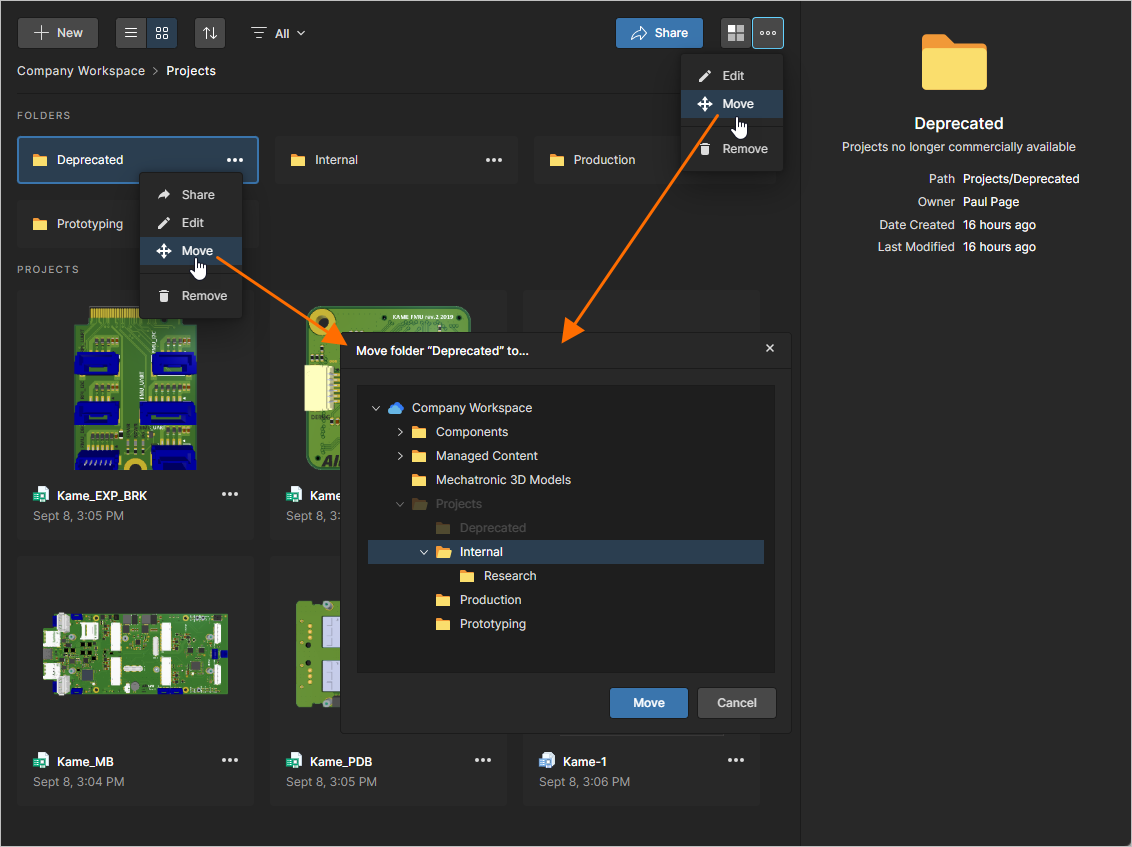
フォルダ階層内でのフォルダ移動は、どの段階でも行えます。
Removing a Folder
Workspace から既存のプロジェクトフォルダを削除するには、Projects ページで該当エントリを選択し、プロジェクトフォルダ一覧の上にある コントロールをクリックして、関連メニューの Remove エントリを選択します。
削除コマンドは Projects ページでも利用できます。必要なフォルダのタイルを選択し、 アイコンのコンテキストメニューから Remove コマンドを選びます。Projects ページがリスト表示の場合は、必要なフォルダのエントリ右端にある コントロールをクリックし、関連メニューから Remove コマンドを選択します。
Remove ウィンドウが表示され、削除の確認を行います。削除を実行するには  ボタンをクリックします。
フォルダはフォルダ階層から削除され、配下のプロジェクトも一緒に削除されます。その後、削除したフォルダの親フォルダへ移動します。プロジェクトフォルダは Trash page から復元、または完全削除できます。フォルダと一緒に削除されたプロジェクトは Trash page から復元または完全削除できますが、実行できるのはそのプロジェクトの所有者、または Workspace 管理者のみです。
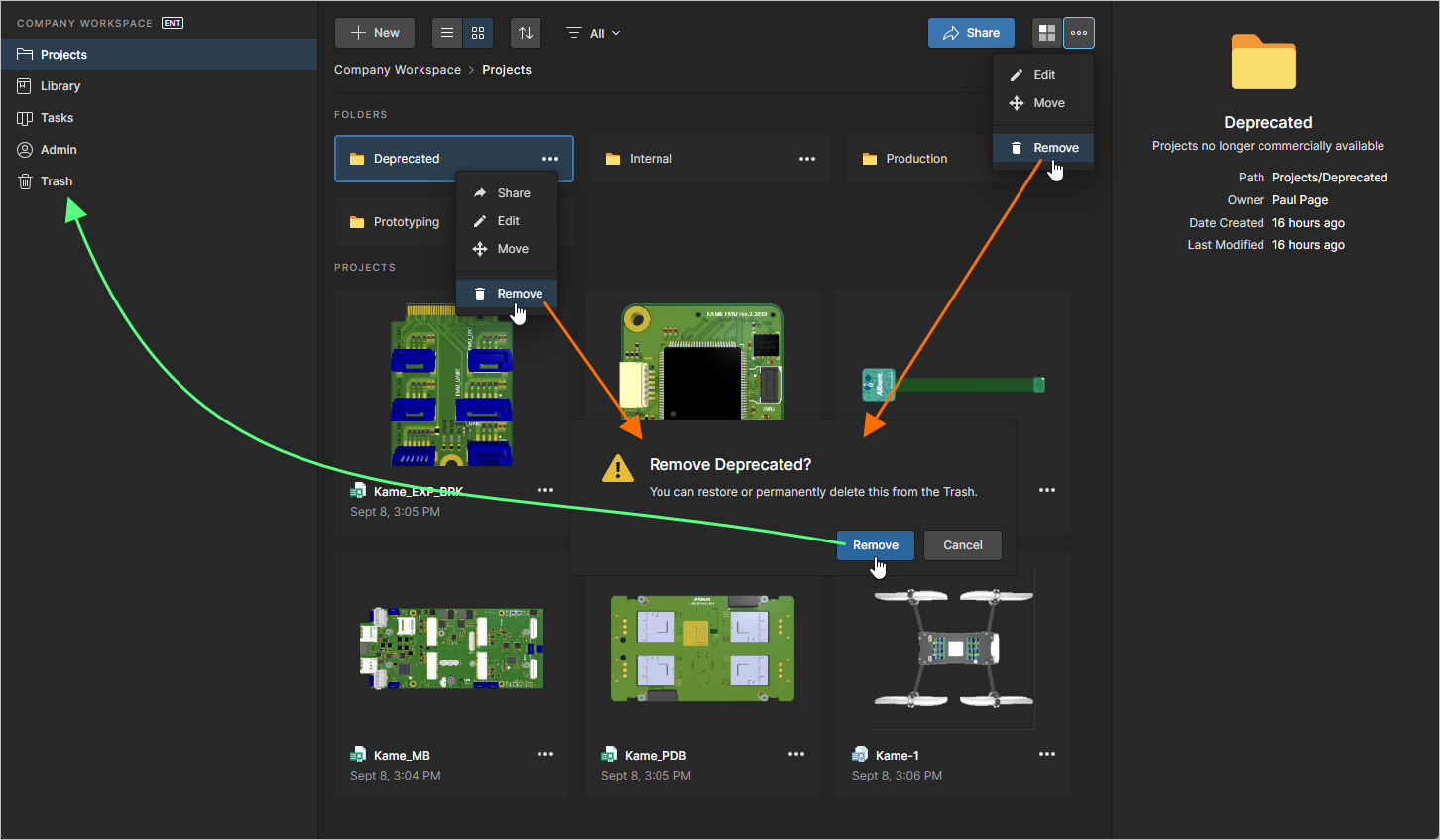
プロジェクトフォルダの削除 – Workspace の隔離された Trash エリアへ送信します。
Browsing Projects
Workspace ブラウザインターフェースの Projects ページにあるプロジェクト一覧には、アクセス可能なすべてのプロジェクトが含まれており、包括的なプロジェクト管理機能とコントロールが用意されています。 ボタンでページをリスト表示に切り替え、
 ボタンでページをグラフィカル表示(デフォルト表示)に切り替えます。
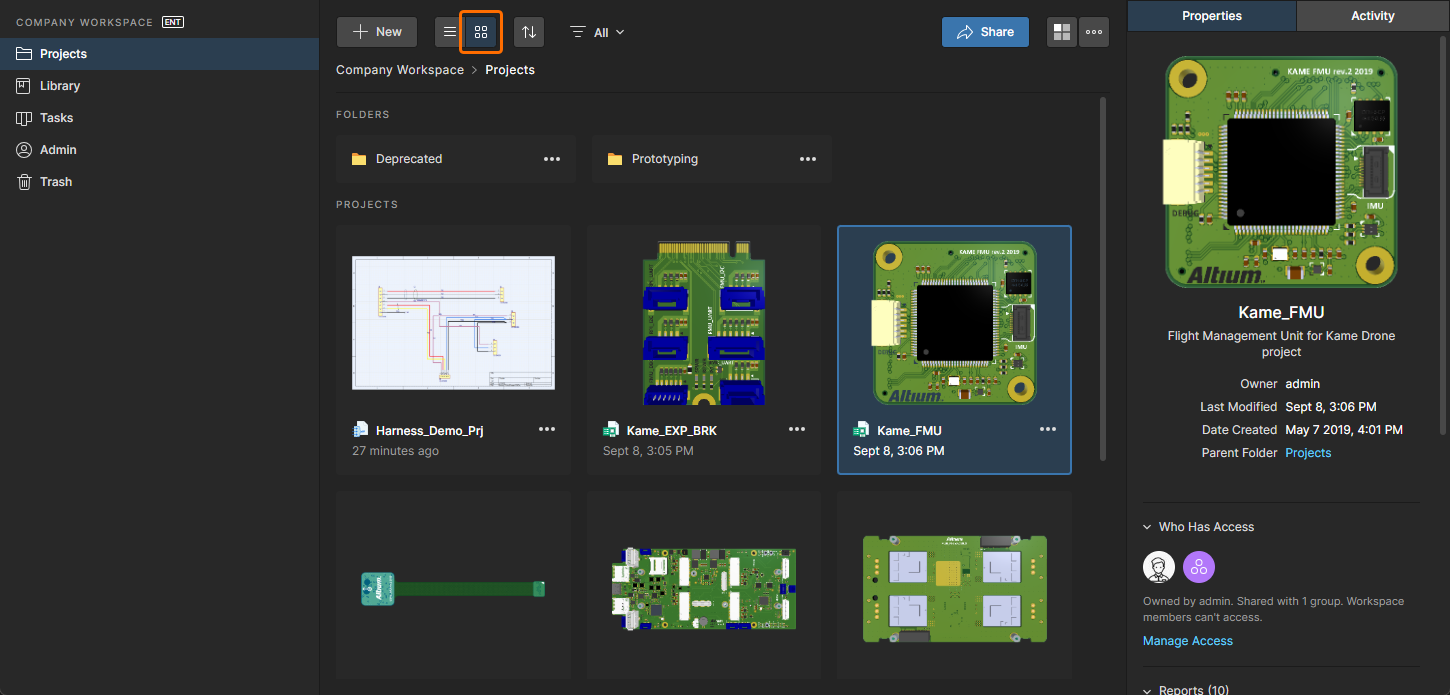
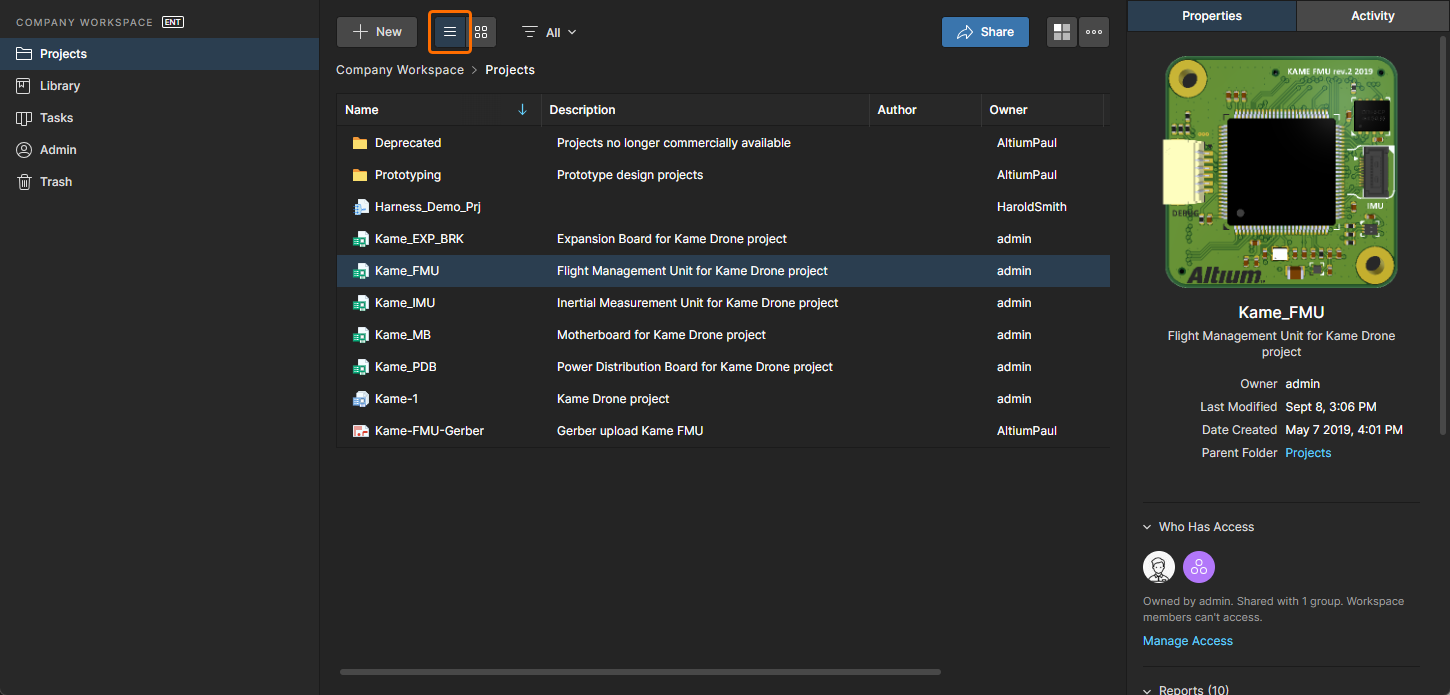
プロジェクトの一覧は最終更新日で自動的にソートされ、最も最近更新されたプロジェクトが(グラフィカル表示では)一覧の左上、(リスト表示では)一覧の先頭に表示されます。グラフィカル表示()では、 ボタンを使用して、プロジェクトドキュメントを名前、説明、作成者、所有者、最終更新日(
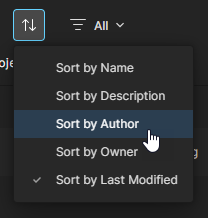 )で素早くソートできます。
リスト表示()では、各列ヘッダーを使って、プロジェクト一覧を Name、Description、Author、Owner、または Last Modified でソートできます。1 回クリックで昇順、もう 1 回クリックで降順に切り替わります。列名の右側の矢印が、現在有効なソート方向を示します。いずれかの表示で選択したソート方法は、両方の表示に適用されます。
フィルタ( )のドロップダウンメニューオプションを使用して、特定のドキュメントタイプ、所有者、そして/またはアクセス権のあるユーザーに絞り込めます。

Filters ウィンドウでは、プロジェクト Type、プロジェクト Owner、またはアクセス可能なユーザー(who Has Access)のフィルタ選択ができます。 オプションをクリックすると、さらに多くのエントリが表示されます。


デフォルトのグラフィカル表示()では、プロジェクトのタイルにプロジェクト名と最終更新日が表示されます。PCB が存在する場合、プロジェクトタイルにはプロジェクトの PCB のトップダウン 3D ビューが自動的に表示されます。
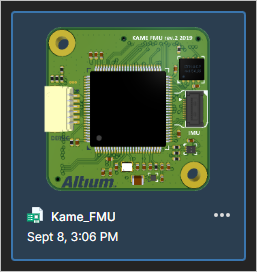 ページのグラフィカル表示における、選択されたプロジェクトおよび Managed BOM のタイル。
リスト表示()では、各プロジェクトエントリに次の情報が含まれます。
-
Name – プロジェクト名。
-
Description – プロジェクトに入力または生成された説明。
-
Author – プロジェクトを作成したユーザー。
-
Owner – プロジェクトが新しい所有者へ移管されていない限り、Author。関連情報は Transferring Project Ownership を参照してください。
-
Last Modified – プロジェクトが最後に更新された日時。
プロジェクトの両表示(グラフィカル/リスト)において、一覧の右上には次のコントロールが用意されています(詳細は後続のリンク先セクションを参照)。これらは一覧で現在選択されているプロジェクトに対して作用します。
 (Share)– クリックすると Share ウィンドウを開き、他ユーザーとプロジェクトを共有するために必要なコントロールにアクセスできます。
(More)– クリックすると追加オプションにアクセスできます。
-
Open – クリックして、プロジェクトの詳細管理 open the detailed management ページを開きます。ブラウザの別タブで開きます。
-
Share – クリックして Share ウィンドウを開き、他ユーザーとプロジェクトを共有するために必要なコントロールにアクセスできます。
-
Move – クリックして Move Project ウィンドウを開きます。ここで、folder hierarchy 内の利用可能なすべてのフォルダから、プロジェクトの移動先となる別の親フォルダを選択できます。
-
Edit – クリックして Edit Project ウィンドウを開きます。ここでプロジェクトの Name、Description、およびサーバー Parameters を変更できます。Parent Folder フィールドは編集不可で、情報表示のみです。親フォルダを変更するには Move command を使用する必要があります。
-
Clone – このコマンドを選択すると Clone Project ウィンドウを開き、プロジェクトの同一コピーを作成するためのコントロールが表示されます。
-
Watch – このコマンドを選択するとプロジェクトをフォローします。Workspace から送信されるメールにより、プロジェクトに関連する通知(例:更新、リリース、権限変更)を受け取ります(Workspace のメール通知が管理者により有効化されている場合)。プロジェクト作成者は自動的にそのプロジェクトをウォッチする設定になります。
-
UnWatch – このコマンドを選択するとプロジェクトのフォローを停止し、そのプロジェクトに関するイベント通知の受信を停止します。
-
Remove – このコマンドを選択すると remove the project を実行します。削除確認のための Remove ウィンドウが表示されます。この操作は「ソフト削除」であり、プロジェクト(Revisions および Releases を含む)は Workspace の Trash エリアへ移動されます。
また、すべてのプロジェクトフォルダを横断してプロジェクトを検索できる、プロジェクト Search 機能も含まれています。Workspace パラメータの名前と値で検索できるため、最適な検索のためにカスタムのプロジェクトパラメータ(例:顧客名、プロジェクト番号)を作成できます。ブラウザインターフェース上部のフィールドに検索文字列の一部を入力すると、属性にその検索文字列を含むプロジェクトエントリのみが一覧に表示されるよう更新されます。
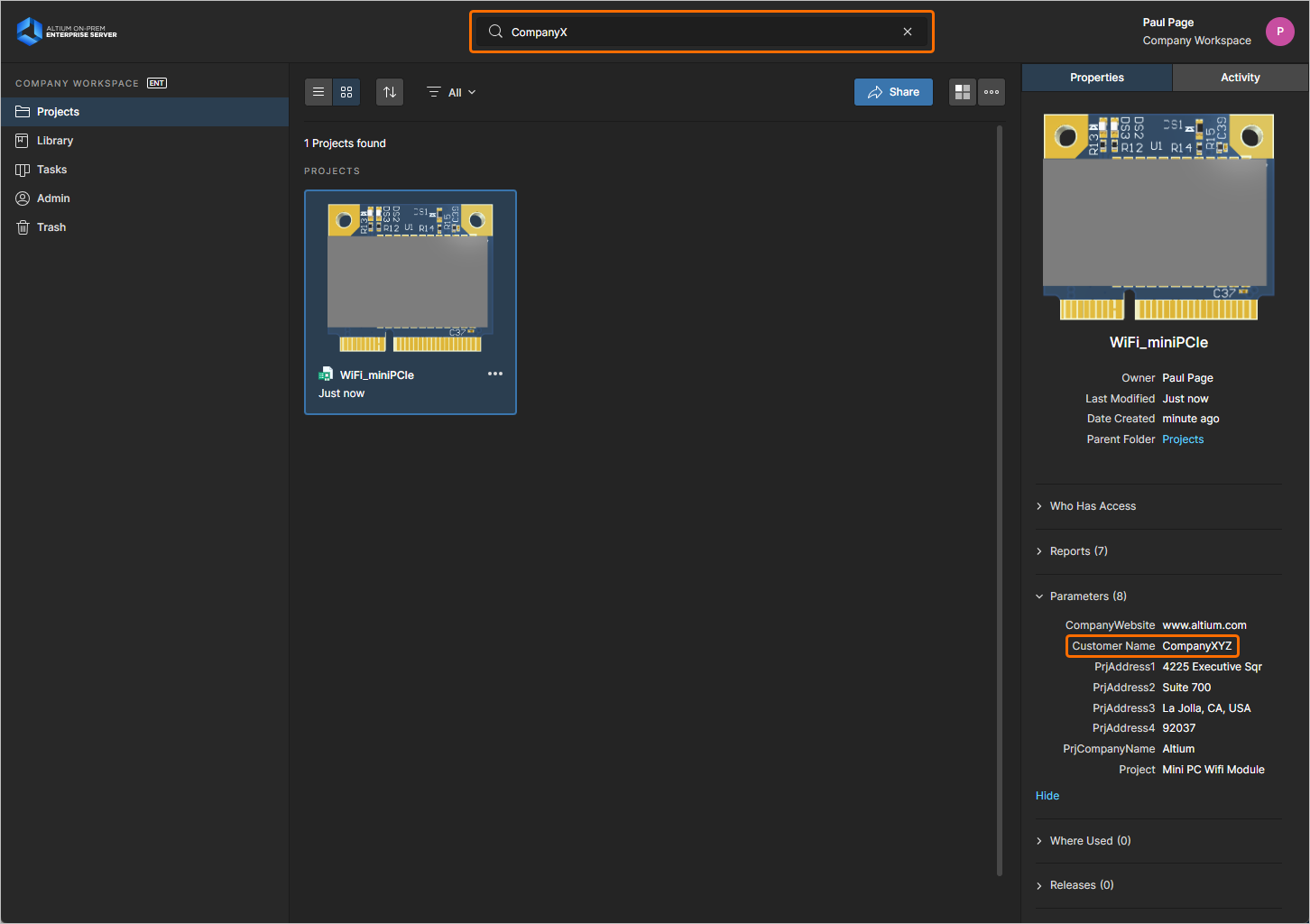 検索機能の使用例。ここではプロジェクトパラメータ(Customer Name)の値に基づいてプロジェクトを見つけています。
Properties Pane
まだ表示されていない場合は、右側ペイン上部の Properties をクリックして Properties ペインにアクセスします。このペインには、現在選択されているプロジェクトの詳細なプロパティ情報が表示されます。
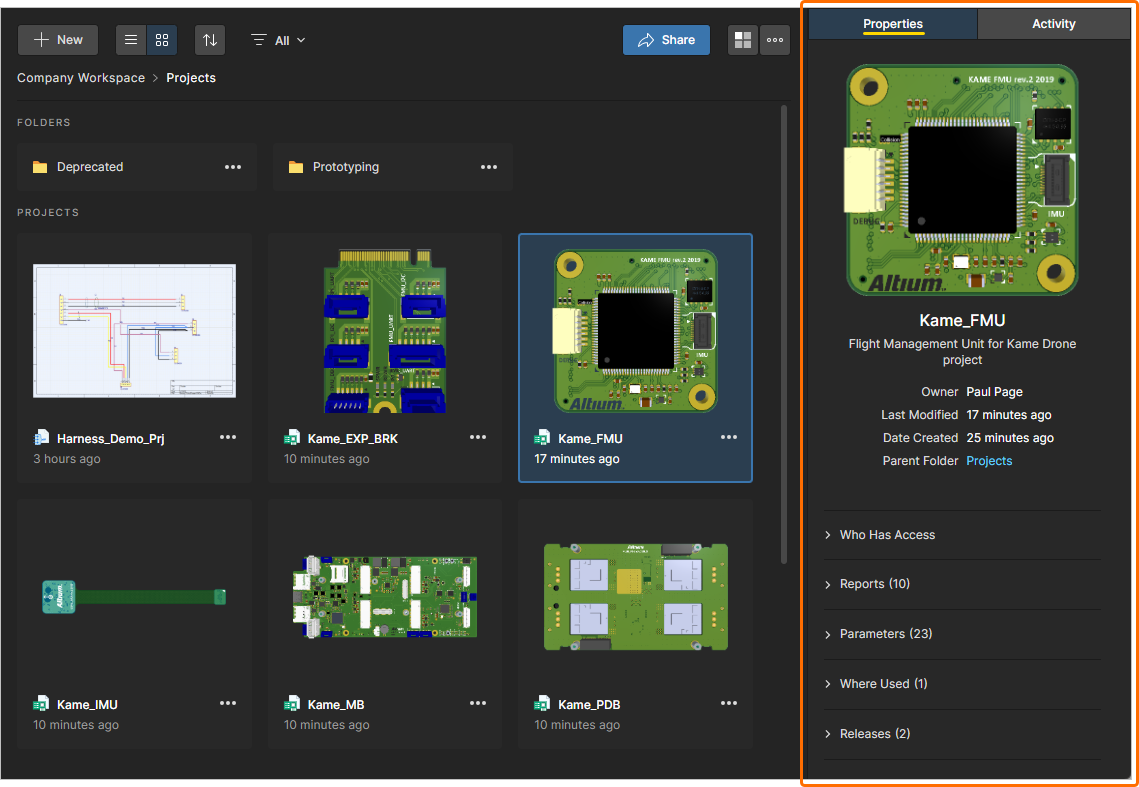 現在選択されているプロジェクトのより詳細な情報を Properties pane で確認します。
Properties pane で利用できるプロパティデータは、Workspace が現在選択されているプロジェクトから抽出または生成したものです。ペイン最上部の領域には(プロジェクトに PCB がある場合)基板の 3D ビューが表示され、プロジェクト名、説明、所有者、作成日時、最終更新日時、そしてプロジェクトの親フォルダへのリンクなど、一般的な上位情報も併せて表示されます。
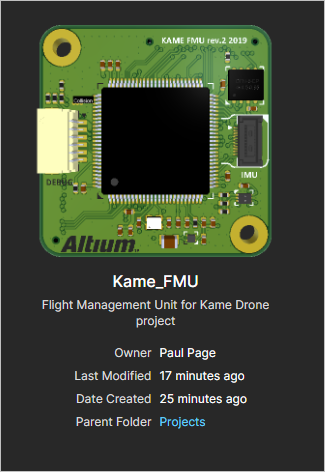
追加プロパティは、次の展開可能な見出しの下に整理されています(説明用の例示画像付き):
-
Child Projects(Multi-board projects のみ)– Multi-boardプロジェクトに含まれ、リンクされているサブプロジェクトPCBの一覧です。サブプロジェクトのリンクをクリックすると、通常どおり Web Viewer でそのPCBプロジェクトを開きます。
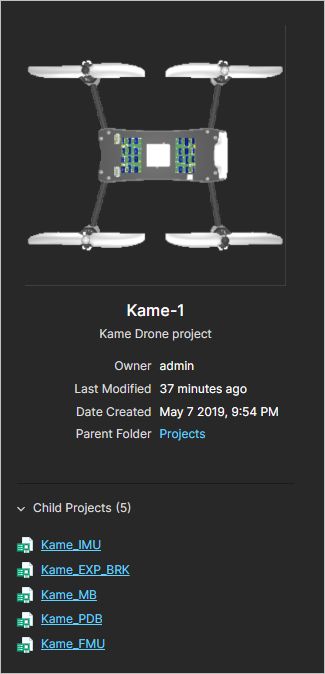
-
Who Has Access – プロジェクトにアクセスできるWorkspaceのグループおよびメンバーの概要です。アイコンにカーソルを合わせると、示されている共有アクセスの詳細が表示され、下のテキストにも要約されています。
Manage Access コマンドを使用すると、プロジェクトの Share ダイアログを直接開けます。以下の Sharing a Project を参照してください。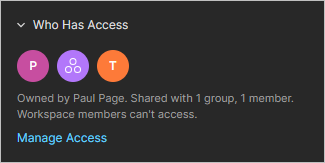
-
Reports – 現在選択されているプロジェクトに対して生成された電気的チェックおよびデザインルールチェック(ERCおよびDRC)で、各レポートのエラー/違反数も含まれます。ERCまたはDRCの項目を選択すると、プロジェクト内でレポートの詳細にアクセスして確認できます。Web Viewerの DRC and ERC Reports を参照してください。
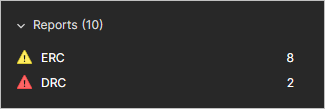
-
Parameters – プロジェクト設計そのものから抽出または算出された詳細データの包括的なコレクションです。Show コントロールをクリックして一覧全体を展開し、再度 Hide をクリックすると折りたたみます。
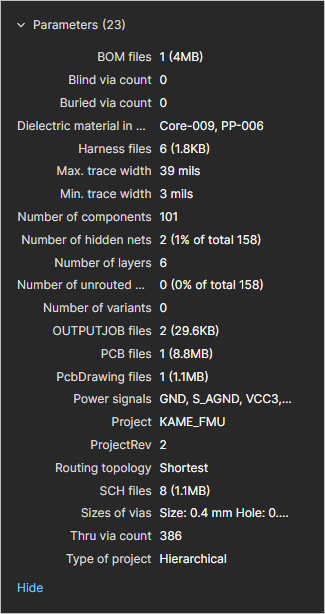
-
Where Used – Multi-board projects など、当該プロジェクトを子エンティティとして利用している関連プロジェクトの一覧です。一覧内の Where Used プロジェクトリンクをクリックすると、その親プロジェクトを開きます。
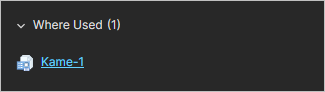
-
Releases – プロジェクトの Releases の一覧です。複数のリリースは時系列順に表示され、最新のものが最上部に表示されます。項目をクリックするとそのリリースが開き、Manufacturing Portal を介して別タブに表示されます。このポータルから、リリースされたファイルデータの表示とナビゲーション、BOMの確認、設計そのもののスナップショット(リリースデータのソース)への表示およびコメントが可能です。また、製造データをさまざまな粒度(完全なデータセットから個別に生成された出力ファイルまで)でダウンロードするためのコントロールにもアクセスできます。選択したリリースは、Manufacturing Package としてメーカーへ直接送信することもできます。
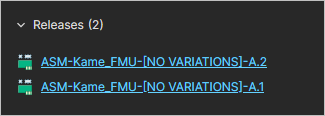
Activity Pane
まだ表示されていない場合は、右側ペイン上部の Activity をクリックして Activity pane にアクセスします。このペインには、現在選択されているプロジェクトのアクティビティ情報が表示されます。各メッセージは、プロジェクトに関連して発生したイベント(プロパティ変更、新しいコミット、リリースなど)を示します。最新のイベントがリストの最上部に表示されます。
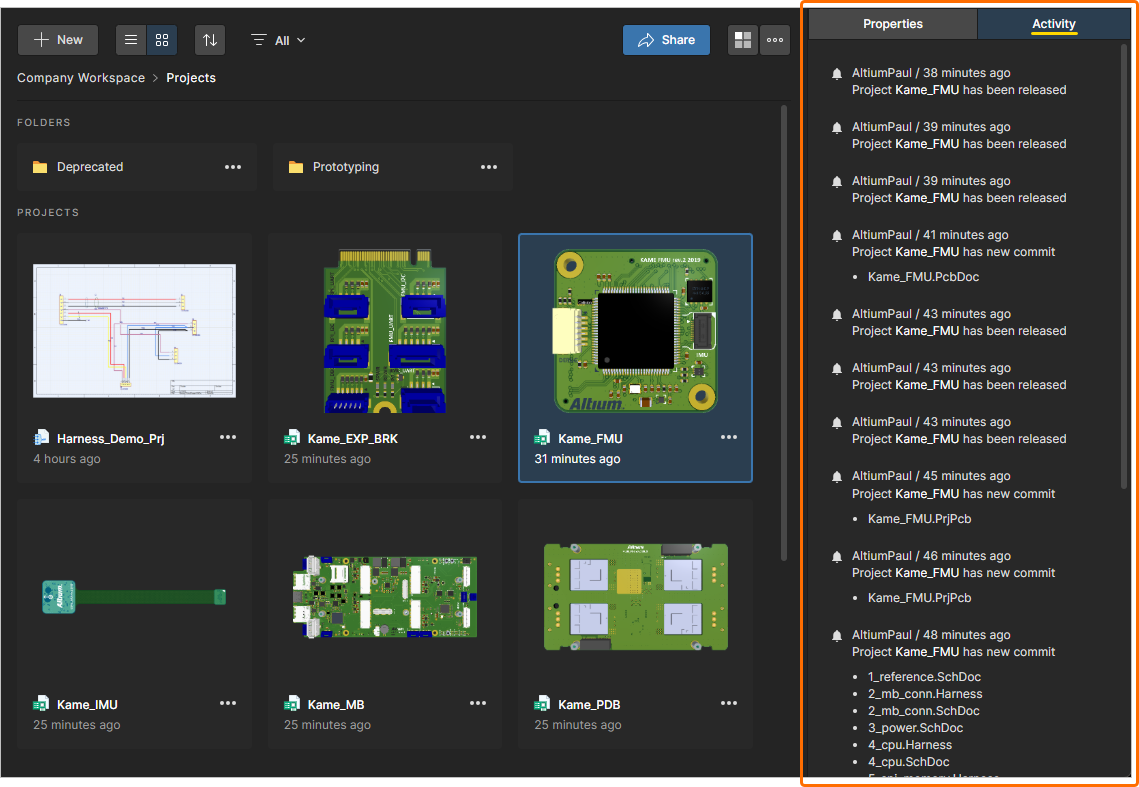 現在選択されているプロジェクトで発生したイベント履歴は、Activity pane で確認できます。
Sharing a Project
プロジェクトがWorkspaceで利用可能になったら、実際にどのユーザーがそのプロジェクトへアクセスできるかを決める必要があります。これはアクセス権限を設定するというより、プロジェクトを共有することで行います。
Sharing Defaults
プロジェクト(新規作成されたもの、またはWorkspaceで利用可能になったもの)は、デフォルトで次の対象と共有されます:
-
プロジェクトのOwner(通常は作成者、またはWorkspaceで利用可能にした設計者): フル編集アクセス。
-
Administrators グループ: フル編集アクセス。
-
その他のユーザーまたはグループ: プロジェクトの親フォルダ(作成されたフォルダ)から継承された権限、またはWorkspace管理者が指定した固定のデフォルト権限セットにより決定されます。
新規作成プロジェクトの default location は、Workspaceインターフェースの Admin – Settings – Projects ページで定義/変更します。Default path for new projects フィールドを選択して編集し、別のデフォルト場所を指定してください。新規プロジェクトはこの場所、またはユーザーが現在開いている他のフォルダ(そのフォルダへの Write アクセス権がある場合)に保存されます。
 ))に保存されます。デフォルト場所以外のフォルダでは、
 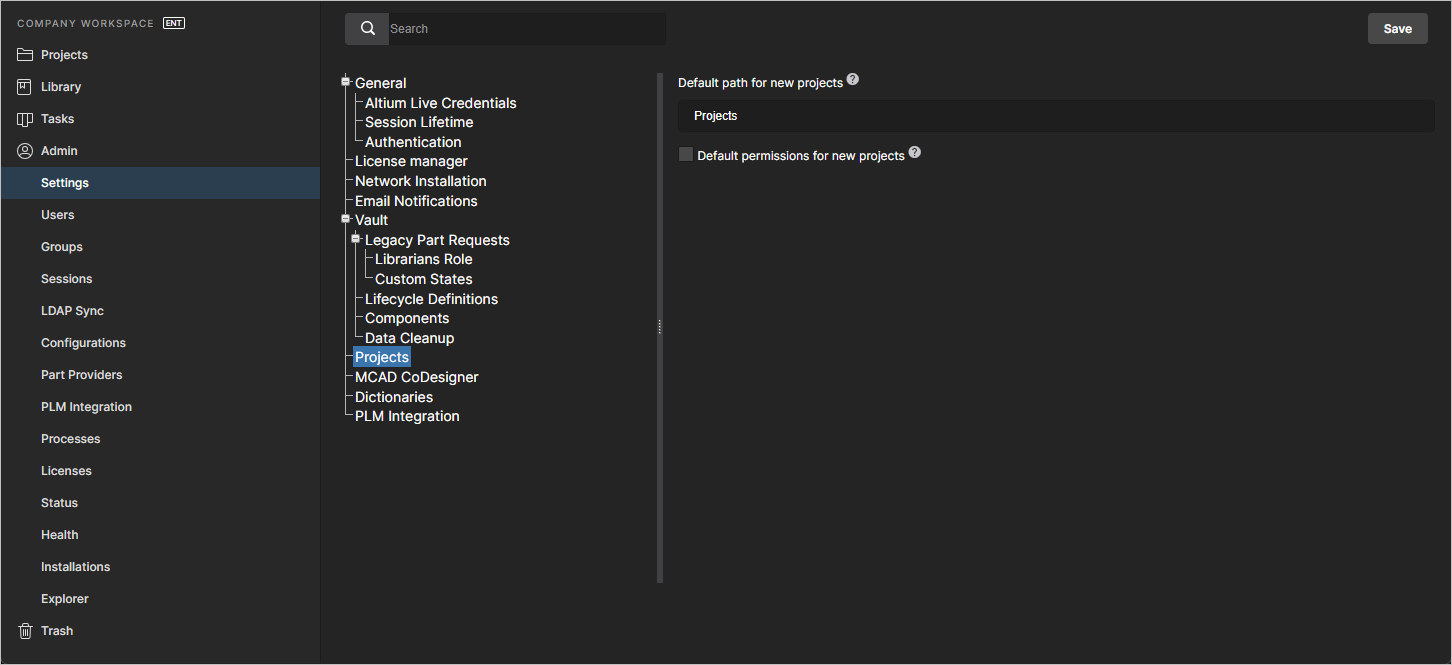 新規プロジェクトのデフォルト場所は、WorkspaceブラウザインターフェースのAdminエリアから管理します。
新規作成プロジェクトの default access permissions は、Admin – Settings – Projects ページで Default permissions for new projects オプションを有効にすることで指定できます。これにより、新規プロジェクトが親フォルダの権限を継承するというデフォルト動作が上書きされます。有効化すると、すべての新規作成プロジェクトに適用される明示的なアクセス権限セットを定義できます。これは、すべての新規プロジェクトが Projects フォルダのような単一の場所に作成される場合に望ましい方法です。詳細は Managing Project Creation Permissions を参照してください。
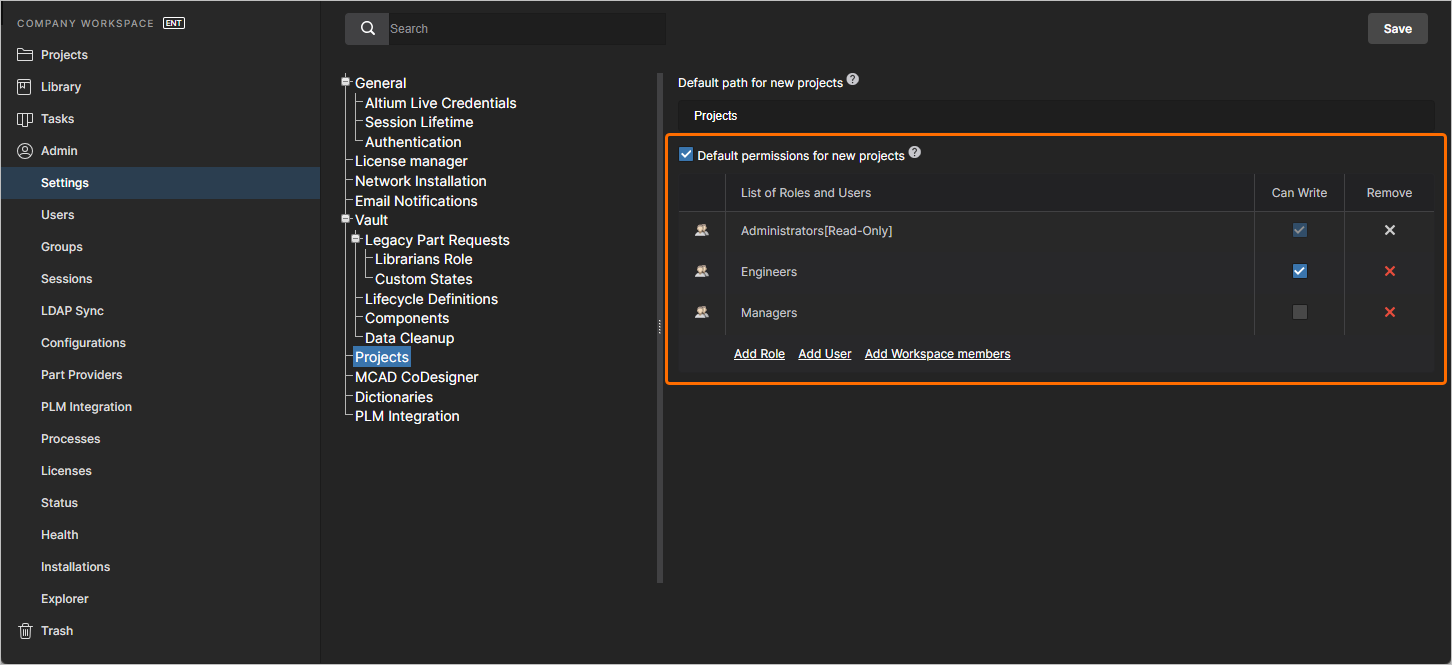 新規プロジェクト向けのデフォルトアクセス権限セットは、WorkspaceブラウザインターフェースのAdminエリアから指定します。
プロジェクトフォルダの共有は、Admin – Explorer ページで、フォルダエントリの右クリックコンテキストメニューから Share Folder オプションにアクセスするか、管理者またはフォルダOwnerの場合は Projects ページビューから設定できます(上記の Sharing a folder を参照)。新しく有効化されたWorkspaceでは、ルート Projects フォルダへの書き込みアクセスがすべてのWorkspaceメンバーに提供されます(共有の観点では、Anyone に対する Write 権限。つまり、すべてのWorkspaceユーザーがフォルダに追加または編集できます)。
共有は特定のユーザーまたはグループに変更できますが、推奨される方法は、このトップレベルフォルダの下にフォルダ階層を作成し、特定のフォルダおよびその配下のプロジェクトにカスタム共有を適用して、共有(ひいてはアクセス)を個別に制御することです。
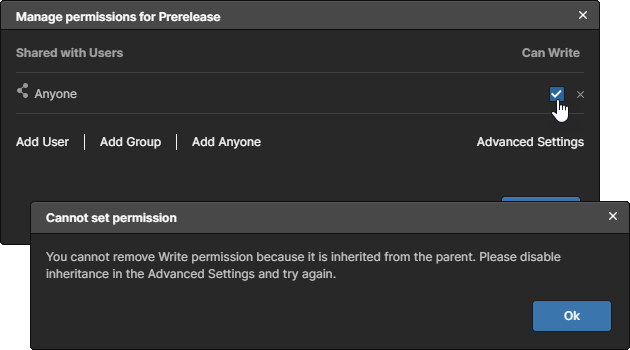 )は、Share ウィンドウの Advanced Settings(
 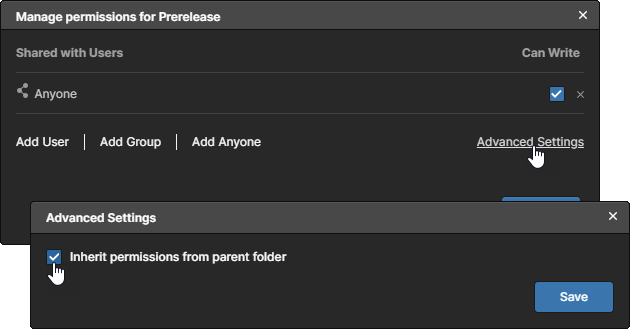 )配下にある Inherit permissions from parent folder オプションを無効にして親子関係を「切り離す」まで、変更(特に権限の引き下げ)ができない場合があります。
 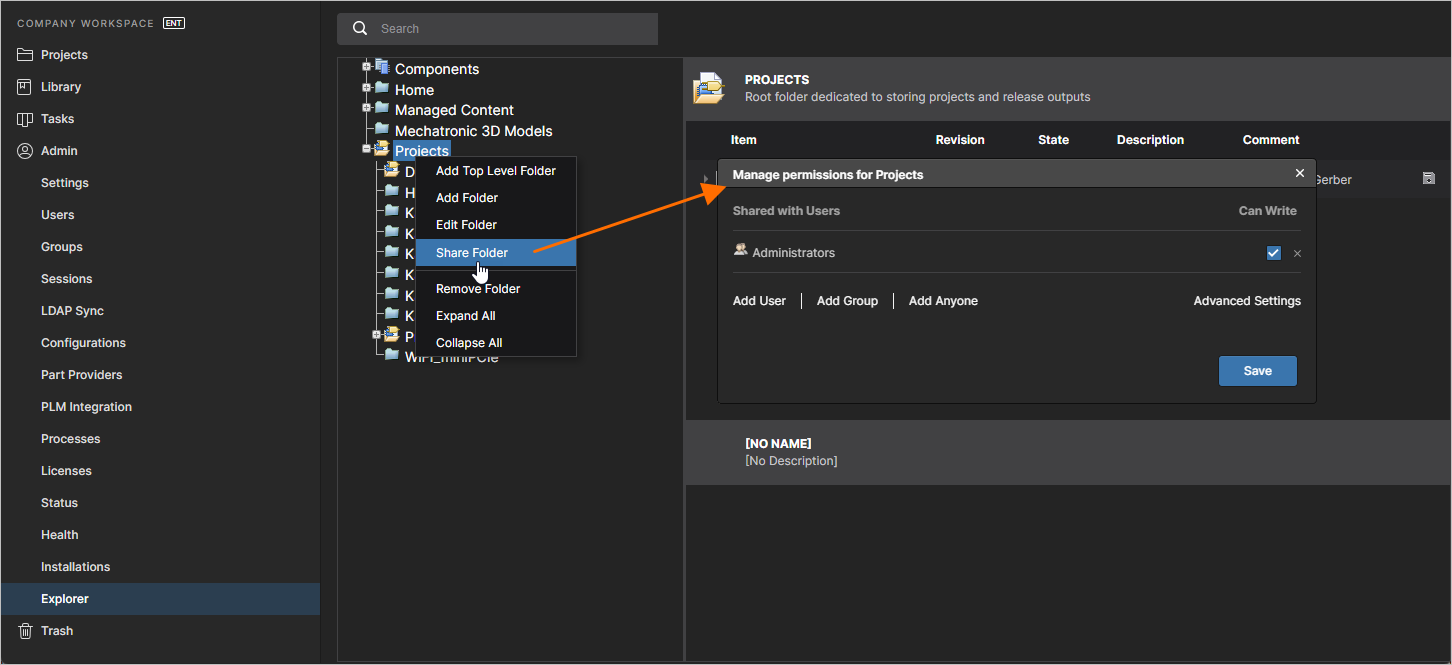 Projects フォルダはWorkspaceの最上位フォルダで、管理者のみがアクセスできます。このレベルの下に権限管理されたフォルダ階層を作成し、Workspaceメンバーのアクセスを管理してください。
Sharing Overview
Workspaceブラウザインターフェースからプロジェクトのアクセス権限を設定するには、インターフェースの Projects ページでプロジェクトのタイルを選択し、 コンテキストメニューから Share コマンドを選ぶか、上部の ボタンをクリックします。Projects ページがリストビューで表示されている場合は、プロジェクトエントリの最右端にある コントロールをクリックし、関連メニューから Share コマンドを選択します。
次の Share ウィンドウには、プロジェクトを他のユーザーと共有するために必要なコントロールがすべて含まれています。
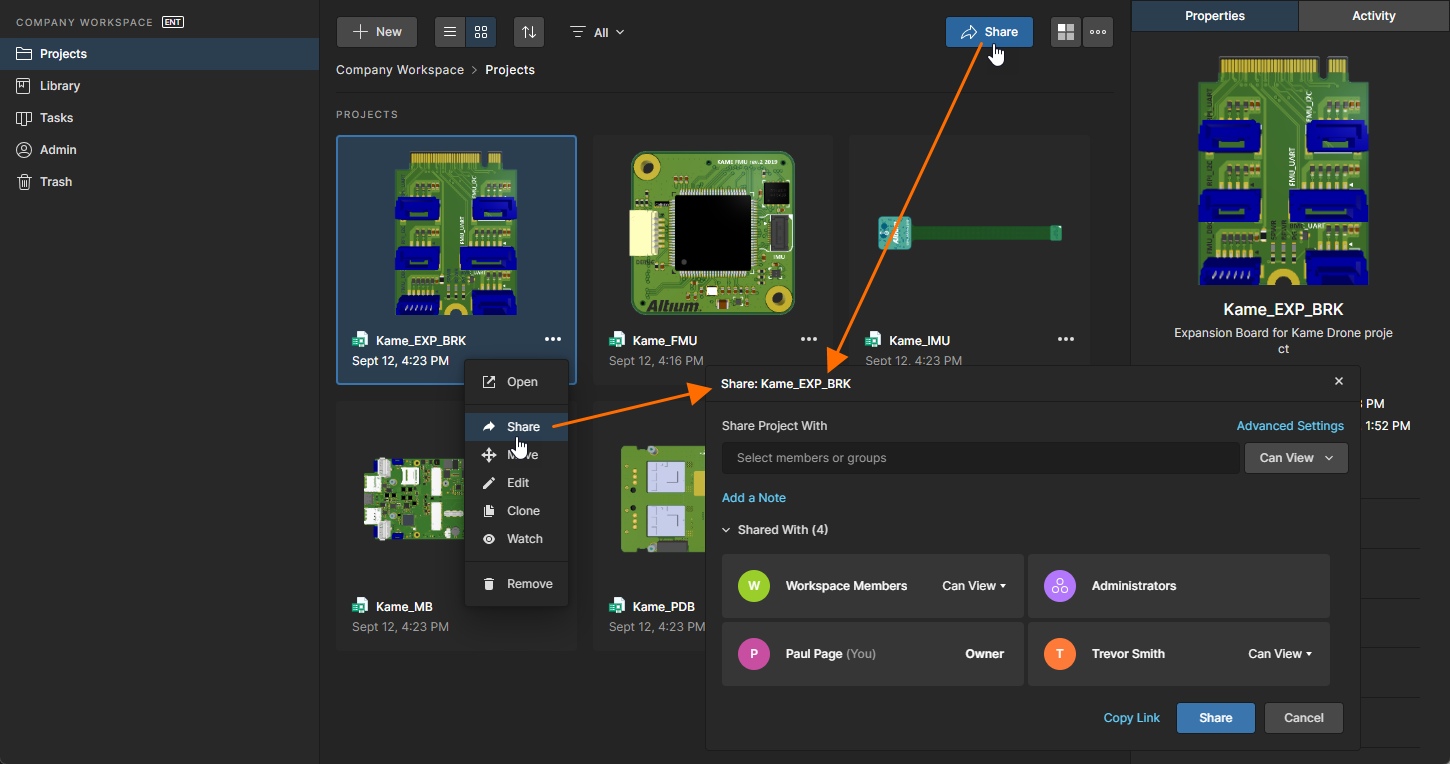
設計プロジェクトがWorkspaceで一元管理されている場合、他者との共有は各プロジェクトの権限を管理するだけで行えます。
注意点:
-
権限の観点では、Can Edit オプションが選択されていると、ユーザー/グループはプロジェクトに対してフル編集アクセスを持ちます。そうでない場合は閲覧のみのアクセスになります。
-
Owner と Administrators グループは常にフル編集アクセスを持ちます(Can Edit)。
-
Owner と Administrators グループを除き、含まれるすべてのユーザー/グループの権限は、個別に Can View または Can Edit に設定するか、アクセス権を完全に削除できます。
-
プロジェクトは、特定のユーザーおよび/またはグループに明示的に共有することも、Workspaceの任意のメンバー(または全メンバー)に共有することもできます。
Sharing with a Specific User or Group
Workspaceで、指定したユーザーおよび/またはグループとプロジェクトを共有する手順は次のとおりです:
-
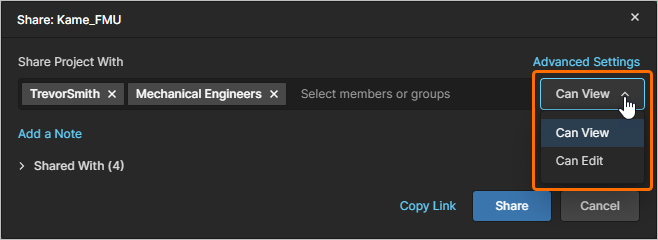
Share ウィンドウの Share Project With フィールドに、必要なユーザー/グループ名を追加します。追加するには、フィールドに目的の名前/グループを入力し始めると、動的リストから一致するユーザー/グループを選択できます。このリストには、Workspaceのメンバー(フィルタされたもの)と、Workspaceで定義済みの既存グループのみが表示されます。複数のユーザー/グループを選択できます。入力済みのユーザー/グループを削除するには、該当エントリに関連付けられた
 コントロールをクリックします。
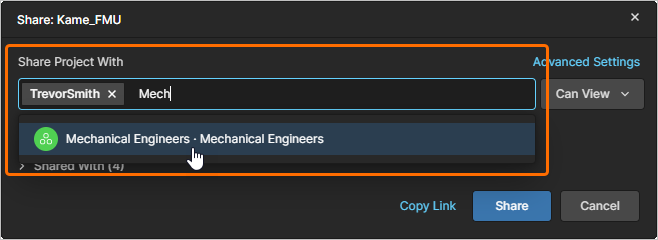
-
追加したユーザー/グループの共有アクセス権限を、関連するドロップダウンメニューから Can View または Can Edit を選択して設定します。後者のオプションには閲覧機能が内包されています。この設定は、最初は Share Project With フィールドに含まれるすべてのエントリ(ユーザー/グループ)に適用されます。
-
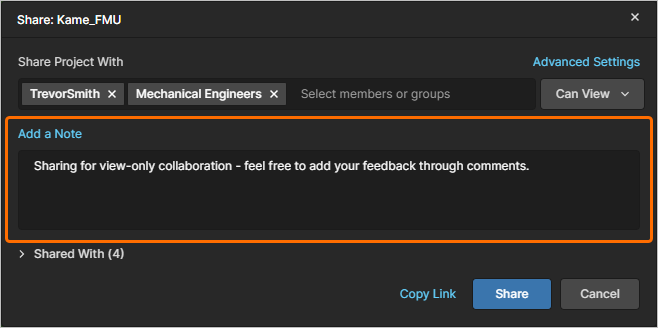
このプロジェクトの共有内容に関する情報を含めたい場合は、
 コントロールをクリックしてテキスト領域を表示します。
-
Shared With コントロールをクリックすると、プロジェクトが現在(かつ明示的に)共有されているユーザー/グループが表示されます。デフォルトでは Owner と Administrators グループが含まれます。
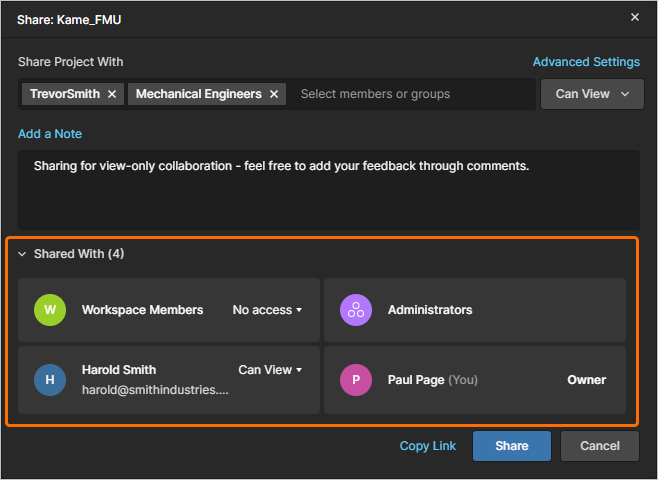
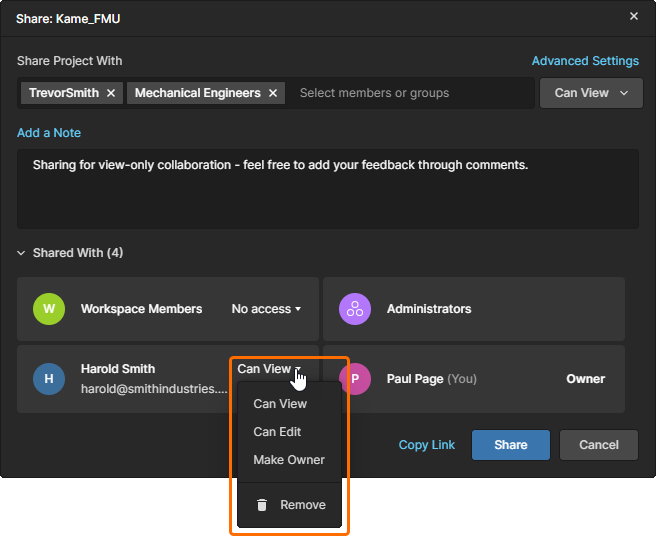
OwnerおよびAdministratorsグループを除き、含まれているすべてのユーザー/グループの権限は、Can View、Can Edit、Ownerとして個別に設定するか、アクセス権を完全に削除できます。現在の権限状態をクリックして、制御項目にアクセスします。Make Ownerオプションの詳細については、Transferring Project Ownershipを参照してください。
-
Workspace内のすべてのメンバーにアクセスを開放するには、Workspace Membersエントリのドロップダウンメニューから、適切な権限レベル(Can View(読み取り専用アクセス)またはCan Edit(完全な読み取り/書き込みアクセス))を選択します。
No accessに設定すると、Owner、Administrators、および共有のために明示的に追加されたユーザーのみがアクセスできます。Workspaceの権限継承スキームにより、一部の権限レベルオプション(
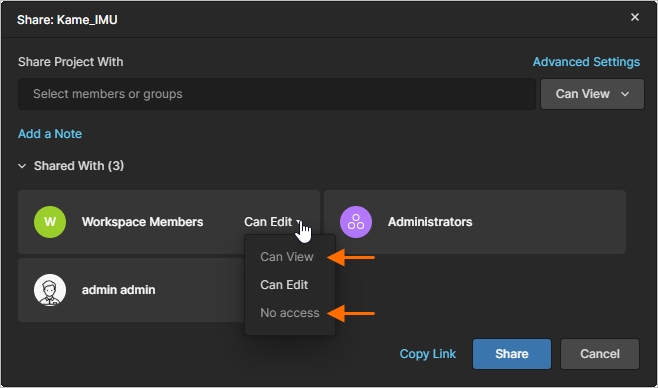 )が無効になる場合がある点に注意してください。これは、親フォルダから継承された権限が降格され、既存の親子継承関係に反することを防ぐためです。意図的に親子継承を解除するには、ShareウィンドウのAdvanced SettingsでInherit parent folder permissionsオプションを無効にします。
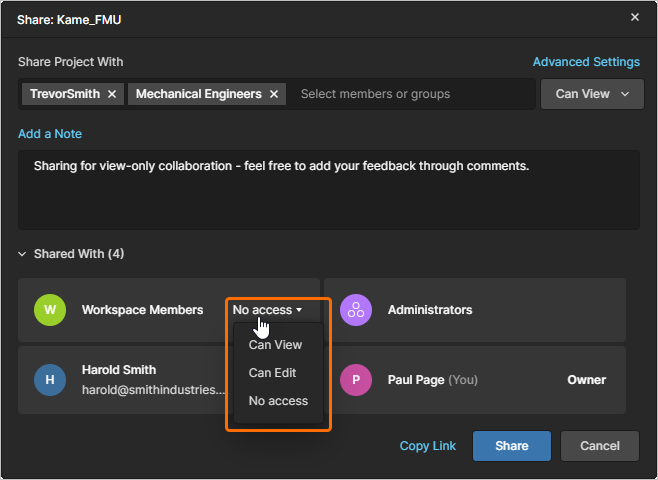
-
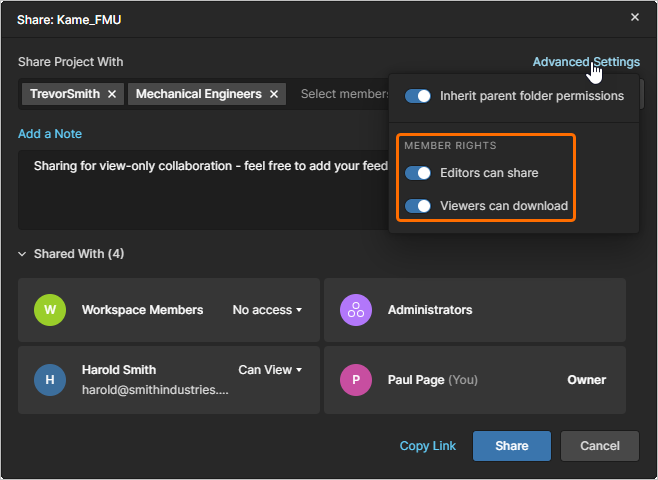
ShareウィンドウのAdvanced Settingsには、共有されたプロジェクトを再共有またはダウンロードできるユーザーを制御するためのオプションが含まれています。これらの設定により、編集権限(
Can Edit)を付与されたユーザーがプロジェクトを共有できるかどうか、また読み取り専用権限(Can View)のユーザーがプロジェクトをダウンロードできるかどうかを指定できます。実際には、これにより追加の共有(
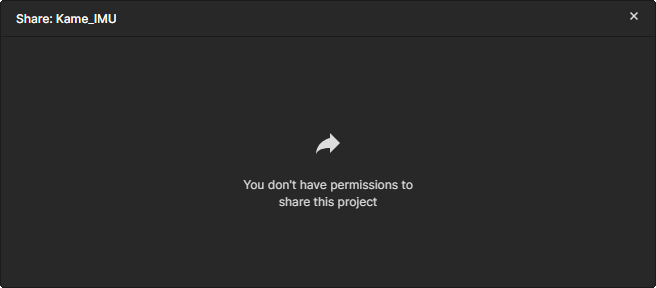 )を制限できます。また、閲覧のみアクセスのユーザーに対しては、ネイティブデータ(プロジェクト自体)および派生データ(例:生成されたGerberやPDF ―
 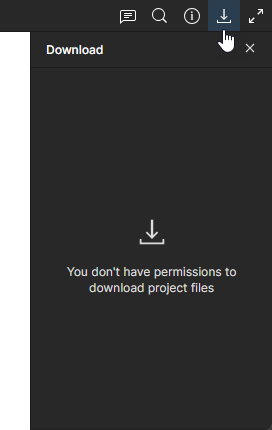 )をダウンロードできるかどうかを制御できます。Web UI上でデータを閲覧し、コメントを提供することは引き続き可能です。
-
 ボタンをクリックして、プロジェクトの共有権限の更新を確定します。ユーザーはプロジェクトのアクセスリストに追加されます。許可されていればAltium Designerでプロジェクトを開くことができ、Workspaceのブラウザベースのインターフェース(Projects ページから)でもアクセスできます。
直接リンクによる共有
プロジェクトへの直接リンクを共有することもできます。リンクは、Sharing ウィンドウ下部の コントロールをクリックして取得します。このリンクは、プロジェクトの現在の共有権限に基づいてアクセスを提供します。ユーザーのアクセスは、Workspace Membersエントリの権限設定(
No access、Can View、Can Edit)または、そのユーザー名(あるいは所属グループ)に対して明示的に設定されたShare Project Withエントリに適用されている権限によって決まります。
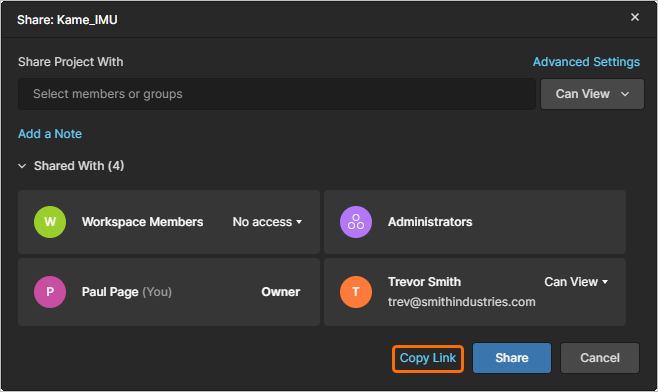 Sharingウィンドウにある既存の共有権限に従って使用が管理される、プロジェクトへの直接リンクを取得します。
リンクはクリップボードにコピーされます。使用すると、(許可されている場合)該当ユーザーに対して、プロジェクトの詳細管理ページへの直接アクセスが提供されます。その概要は次のセクションで示します。
マルチボードプロジェクトの共有
マルチボードプロジェクトは、複数のPCB設計プロジェクトを包含し、完全な機能システムを作成するための特別なプロジェクトタイプです。サブプロジェクトは親のマルチボードプロジェクトにリンクされ、全体システムの電気的・物理的な接続性を確立するためにデータを参照できるようになっています。
マルチボードプロジェクトの作業に関する詳細は、Multi-board Designを参照してください。
マルチボードと関連サブプロジェクト間のリンクは、マルチボードプロジェクト自体(*.PrjMbd)に相対パスとして保存されるため、設計クライアント(Project » Make Project Available on Server)からWorkspace VCSへプロジェクトを保存する際に、これらが有効である必要があります。実務上は、allプロジェクトがWorkspaceに保存され、正しいフォルダ構造に配置されていることを確認することを意味します。ただし多くの場合、マルチボードシステムに関与するすべてのプロジェクトは同じフォルダ内に置かれる可能性が高いでしょう。
マルチボードプロジェクトを共有する場合も同様の考慮が必要です。親のマルチボードプロジェクトと関連サブプロジェクトの両方を、同じWorkspaceメンバーに対して同一の閲覧/編集権限で共有する必要があります。その後、設計クライアントでマルチボードプロジェクトを初めて開くユーザーは、関連サブプロジェクトも開く必要があります。ここでも、相対フォルダ構造がローカルで正しくなるようにしてください。
プロジェクト所有権の移管
Workspace Administratorsに加え、プロジェクトのOwner(既定ではプロジェクトを作成/追加したユーザー)はプロジェクトの完全な編集権限を持ちます。一方、プロジェクトへの共有アクセスを持つ他のメンバーは、プロジェクトのShareウィンドウで指定されたEdit/View権限を持ちます。
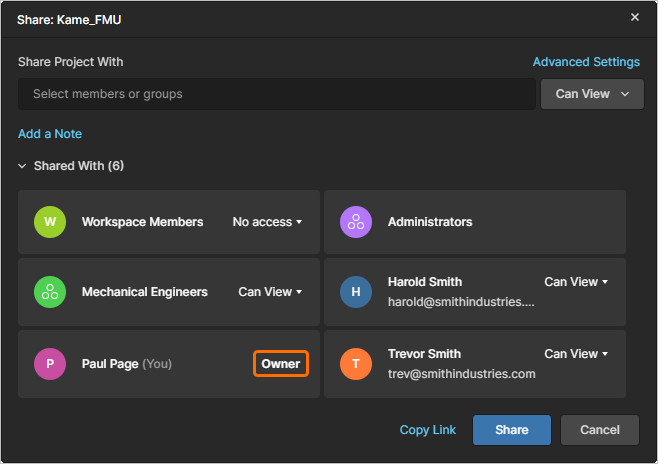 Shareウィンドウには現在のプロジェクトOwnerが表示され、所有権を別のWorkspaceメンバーへ移管するオプションが用意されています。
プロジェクトのOwnerステータスと、それに内在する編集権限は、プロジェクトのShareウィンドウを通じて、あるWorkspaceメンバーから別のメンバーへ移管できます。これにより新しいOwnerがそのプロジェクトを完全に管理できるようになります。このオプションはAdministratorsおよび現在のプロジェクトOwnerが利用でき、移管先は他のWorkspaceメンバーに限られます(ただしEngineersやAdministratorsのようなメンバーグループは対象外)。
所有権ステータスと権限セットを受け取るには、Workspaceメンバーがすでにそのプロジェクトへの共有アクセスを持っている必要があります。その後、メンバーの当該プロジェクトに対する現在のView/Edit権限設定を、Shareウィンドウ(Make Owner)の権限ドロップダウンメニューからOwnerに変更できます。ウィンドウのボタン、続いて表示される警告ウィンドウ( )で所有権移管を確定します。
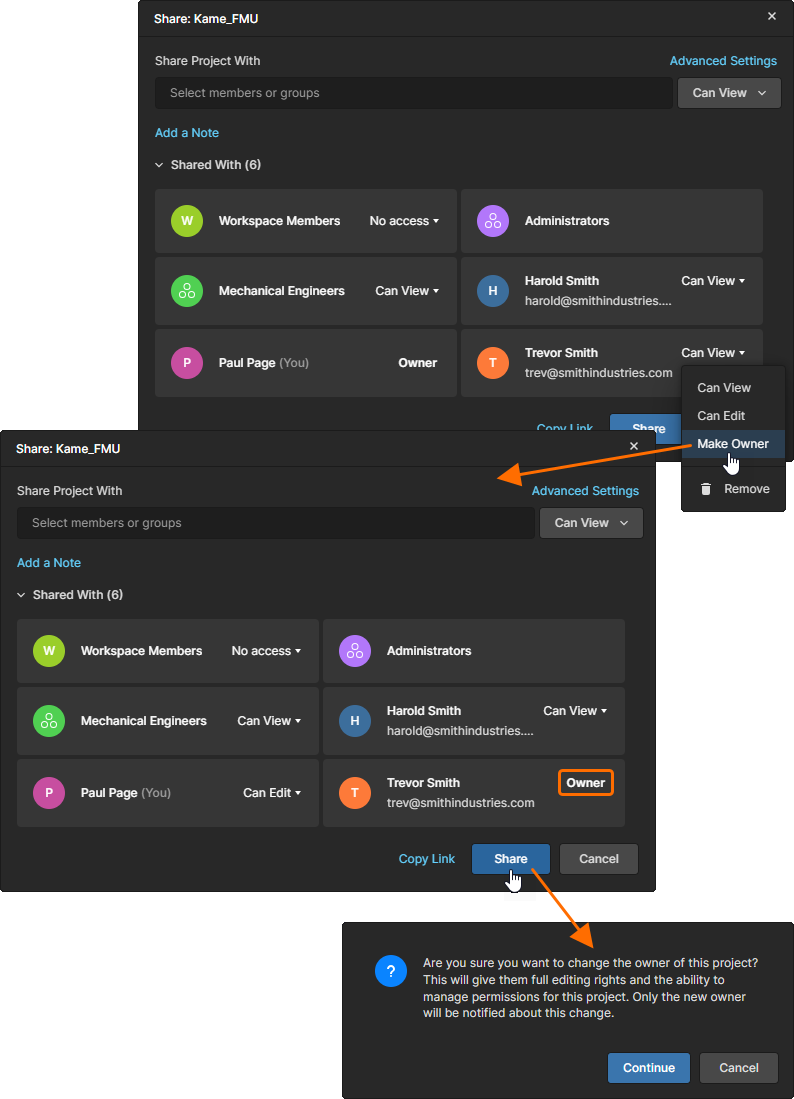
権限ドロップダウンメニューからMake Ownerオプションを選択して、別のWorkspaceメンバーへプロジェクト所有権を移管します。
サーバーのEmail Notificationsが有効な場合、新しいプロジェクトOwnerに所有権移管通知メールが送信されます。
Workspaceプロジェクトアクティビティ
Workspaceは、Workspaceプロジェクトに対して構成可能なProcess Workflowsを適用し、設計レビューの実施や新規プロジェクト作成など、目的に合わせたタスクを実行できる独自の機能を提供します。プロセスおよびその基盤となるWorkflowはWorkspace管理者が作成・設定し、有効化されるとAltium DesignerとWorkspaceのブラウザインターフェースの両方のユーザーが利用できるようになります。
詳細はCreating & Managing Processesを参照してください。
Altium Designerにおけるこれらのプロセスについては、Performing Design Reviewsを参照してください。
ユーザーの観点では、Process Workflowsとその内在するステップはActivitiesとして扱われます。利用可能なアクティビティはユーザーが起動でき、割り当てられたユーザーが一連のタスクとしてWorkflowステップを完了します。これらはTasks pageから利用できます。
Designsページ(Projects)の メニューを選択し、利用可能なProcessesから選んで、現在選択されているプロジェクトのアクティビティを開始します。続くプロセスフォームウィンドウで必要なフィールドとオプションを入力し、その後プロセスを開始します(
 )。起動したProcess Workflowによっては、レビュー用にデータを準備するため、次のステップを送信(
 )する必要がある場合があります。
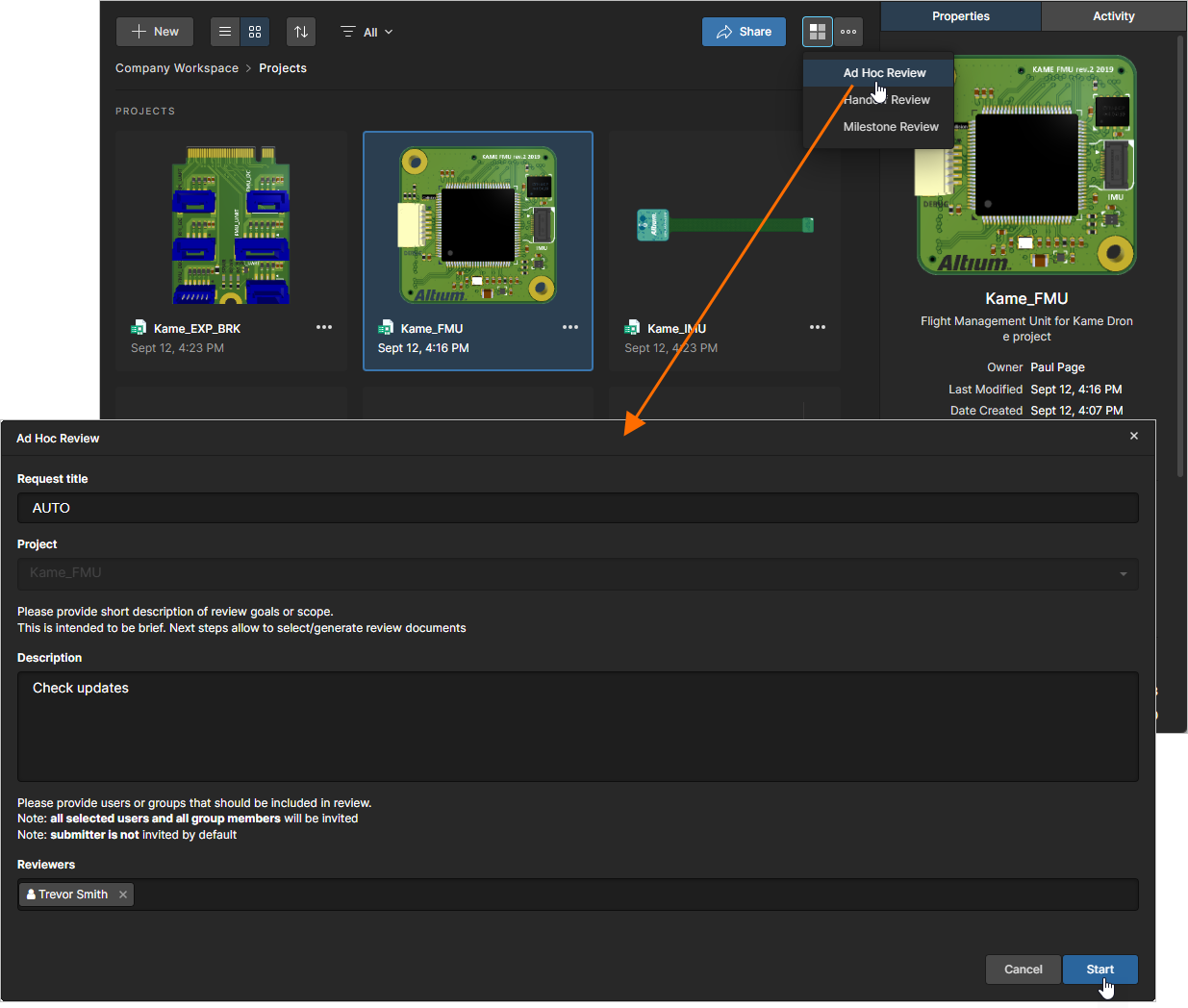
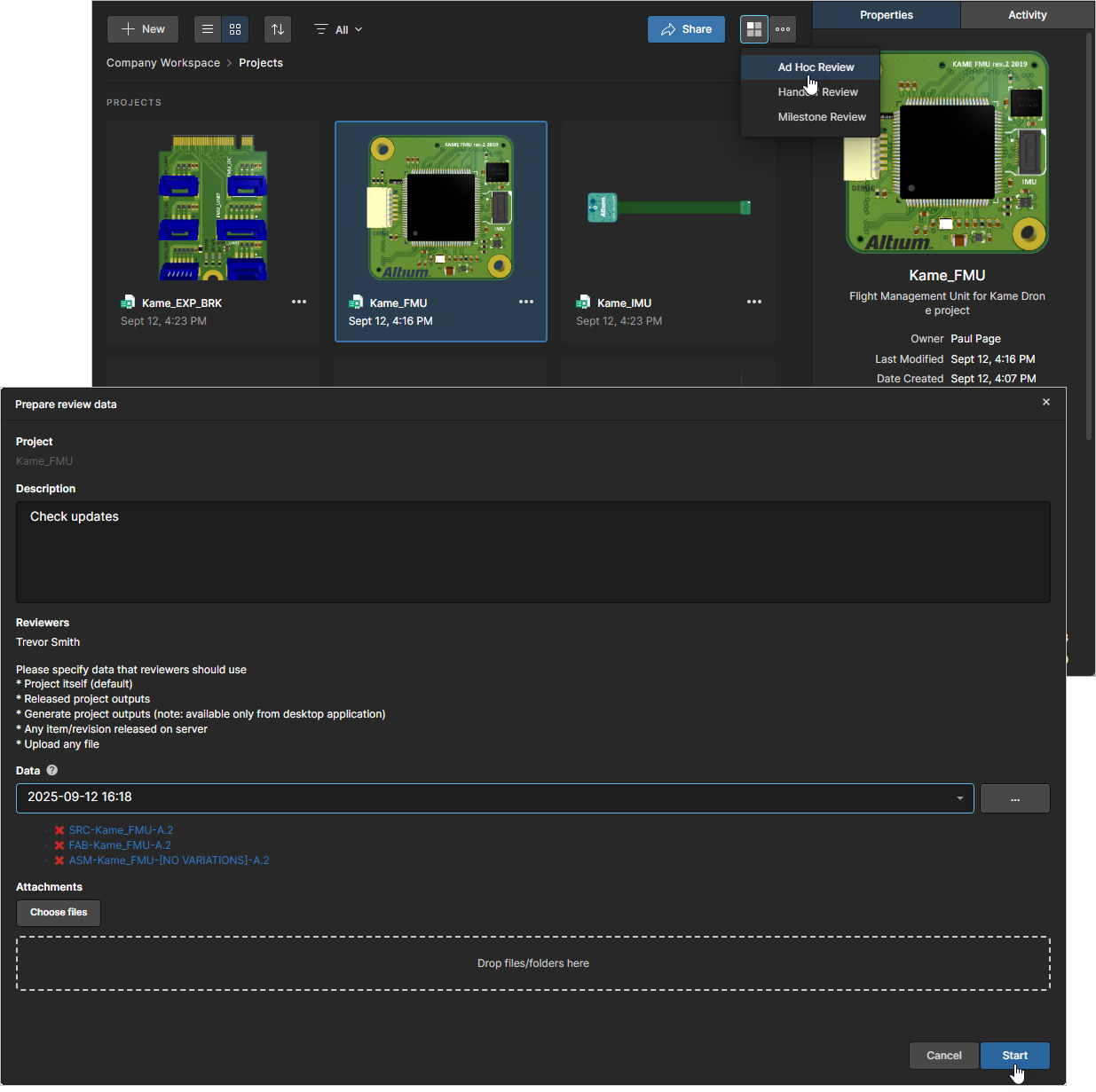
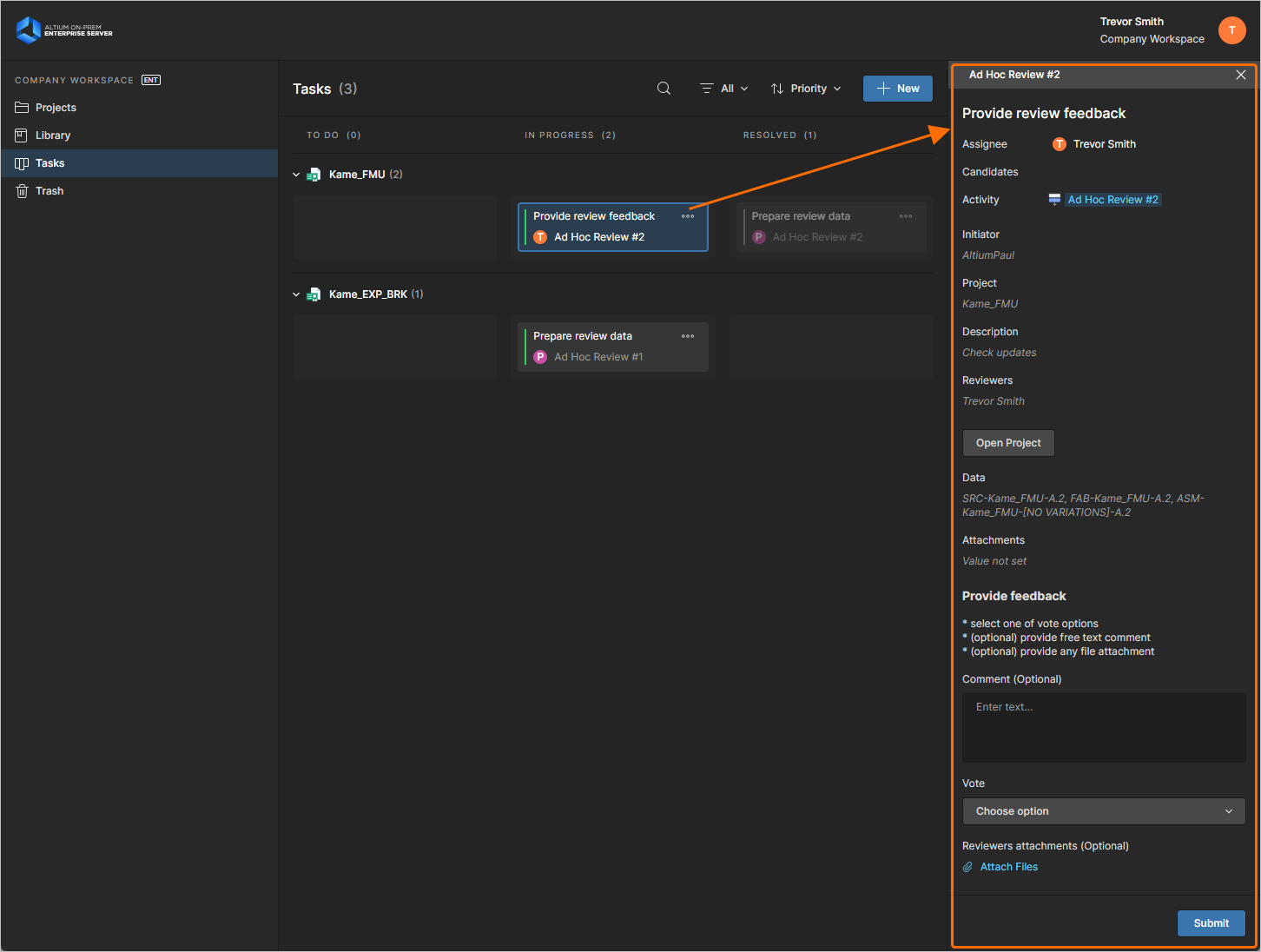
その後、アクティビティに割り当てられたユーザー(複数の場合あり)向けにWorkflow Tasksが作成されます。サインイン中のユーザーに該当するタスクは Tasks pageに表示され、そこで操作してWorkflowを次の段階へ進められます。
アクティビティがグループに割り当てられている場合(たとえばEngineersなど)、関連するTaskはそのグループの全メンバーに加え、アクティビティに個別割り当てされたユーザーにも利用可能になります。このような場合、これらのユーザーのいずれかがレビュー手順を完了し、結果を送信( )できます。
プロジェクトの詳細管理ページへのアクセス
Main page: 特定プロジェクトの管理
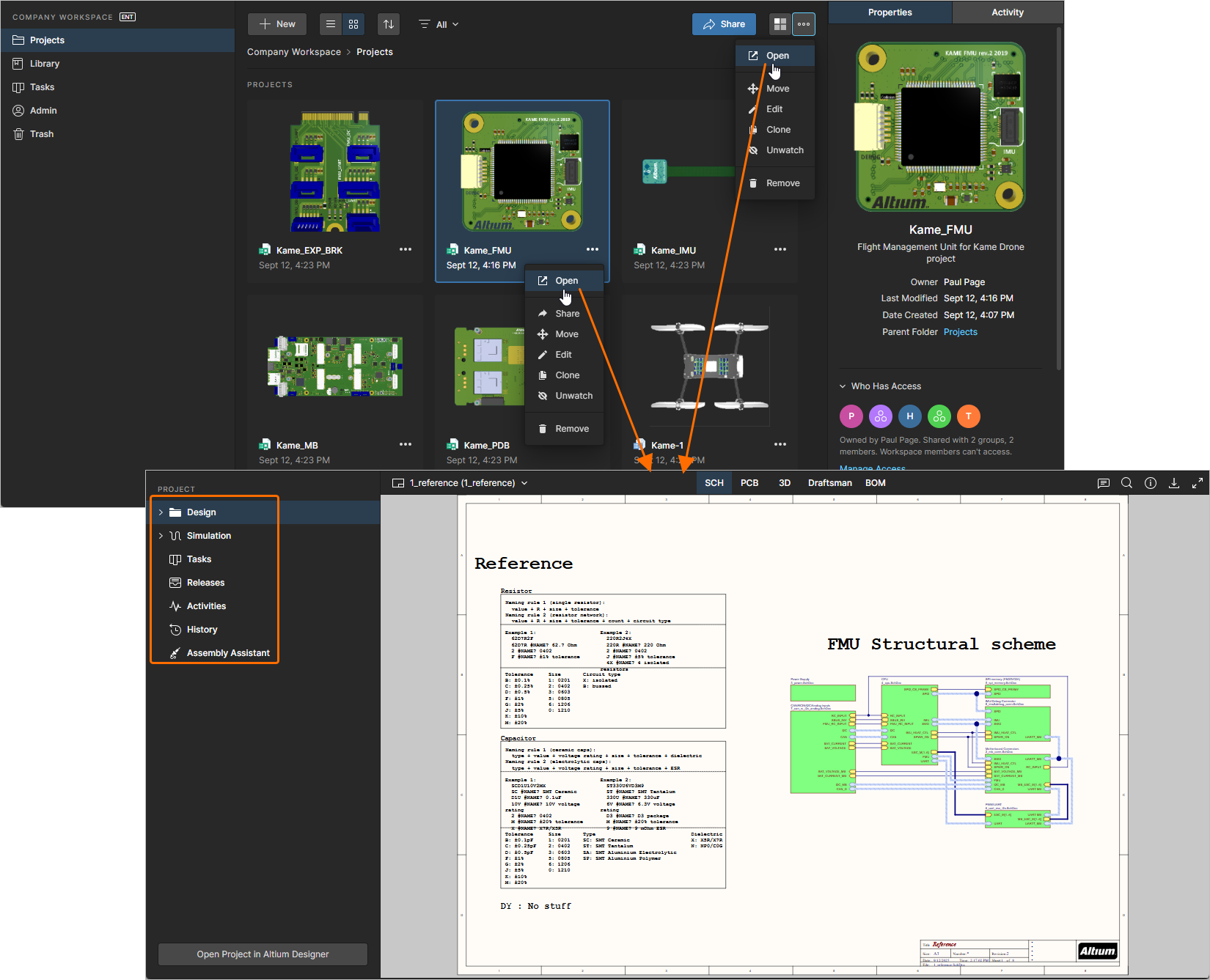
Workspace では、製造を意識した高度な CAD 中心のプロジェクト表示を利用できます。対象のプロジェクトを選択し、プロジェクト一覧の上にある コントロールをクリックして、関連メニューから Open エントリを選ぶと開けます。別の方法として、一覧内の対象プロジェクトのエントリを直接ダブルクリックします。
そのプロジェクトの詳細管理ページが、新しいブラウザタブで開きます。CAD 中心のインターフェースが組み込まれており、次のような表示オプションが用意されています。
-
Design – ソースプロジェクトの設計ドキュメントを表示・ナビゲートし、設計オブジェクトのプロパティを確認し、レビューコメントを配置できます。この表示では Web Viewer インターフェースを使用し、設計データを複数のデータサブビューに分けて提示します。このビューは、プロジェクトの特定のリリースではなくソースプロジェクトデータの最新バージョンを対象とするため、作業中(WIP)ビューと捉えることができます。
-
Simulation – 回路シミュレーション結果ファイルをアップロード(ドラッグ&ドロップ)でき、現在のプロジェクトまたはプロジェクト Release に関連付けられます。ファイルは実質的にプロジェクトへ添付されるため、Workspace のメンバーは、現在開いているプロジェクトに関連するシミュレーション結果ドキュメントを確認および/またはダウンロードできます。詳細は Management of a Specific Project – Simulation を参照してください。
-
Tasks – 現在のプロジェクトに適用されるすべての Tasks(アクティビティジョブ)を提示するフロー形式のインターフェースを表示し、操作できます。
-
Releases – 現在のプロジェクトのすべての Release の概要情報を表示します。各 Release は Manufacturing Portal ビューで開くことができます。さらにその中で、選択したリリースに含まれるリリースパッケージファイル、設計ドキュメント、サプライデータのサブビューが提供されます。
-
Activities – 現在のプロジェクトに適用される、アクティブまたはクローズ済みの Process workflow Activities を表示します。
-
History – プロジェクトに関連する主要イベント(作成、コミット、リリース、クローンなど)の進行タイムラインを参照します。プロジェクトに関連してサポート対象のイベントが発生するたびに、そのイベントは専用タイルとしてタイムラインに追加され、適用可能な場合は(設計データ比較などの)各種アクションがサポートされます。
-
Assembly – BOM エントリとそのグラフィカルな対応要素の相互作用に基づく、ビジュアルな基板アセンブリツールへアクセスできます。監査可能なステップ実行プロセスを起動でき、PCB 基板を物理的に組み立てる手順を進めるのに役立ちます。
詳細は Management of a Specific Project を参照してください。
Moving a Project
プロジェクトをフォルダ階層内の別の親フォルダへ移動(再配置)するには、Projects ページで対象のエントリを選択し、プロジェクト/フォルダ一覧の上にある コントロールをクリックして、関連メニューから Move エントリを選択します。
Move project ウィンドウが表示されるので、新しい親フォルダを選択します。 ボタンをクリックして移動を実行します。プロジェクトは選択したフォルダへ移動され、そのフォルダへ移動します。
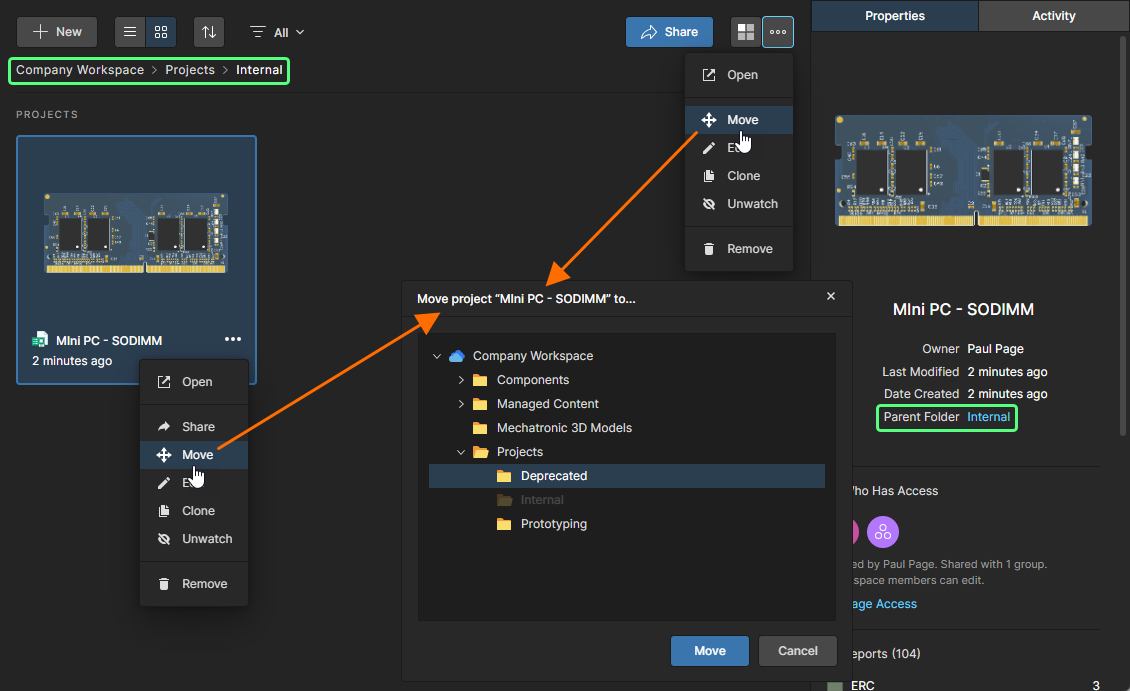
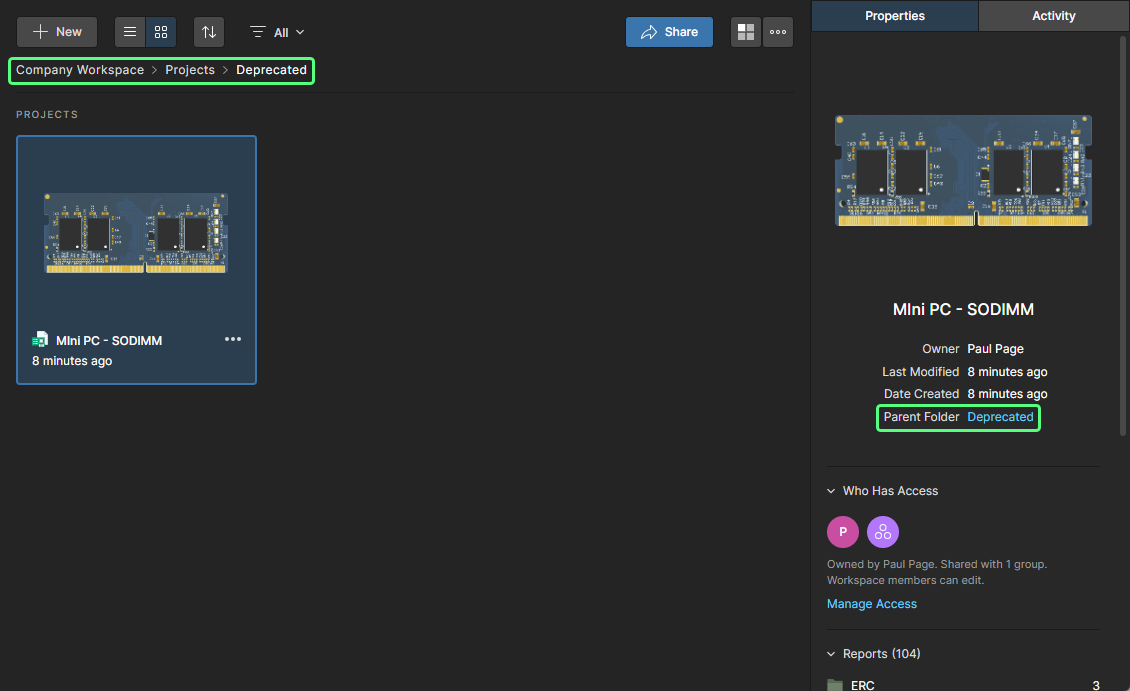
Editing a Project
Workspace 内の既存プロジェクトのプロパティを編集するには、Projects ページで対象のエントリを選択し、プロジェクト一覧の上にある コントロールをクリックして、関連メニューから Edit エントリを選択します。続いて表示される Edit Project ウィンドウ(簡易表示で開きます)で、プロジェクトの Name と Description を変更できます。
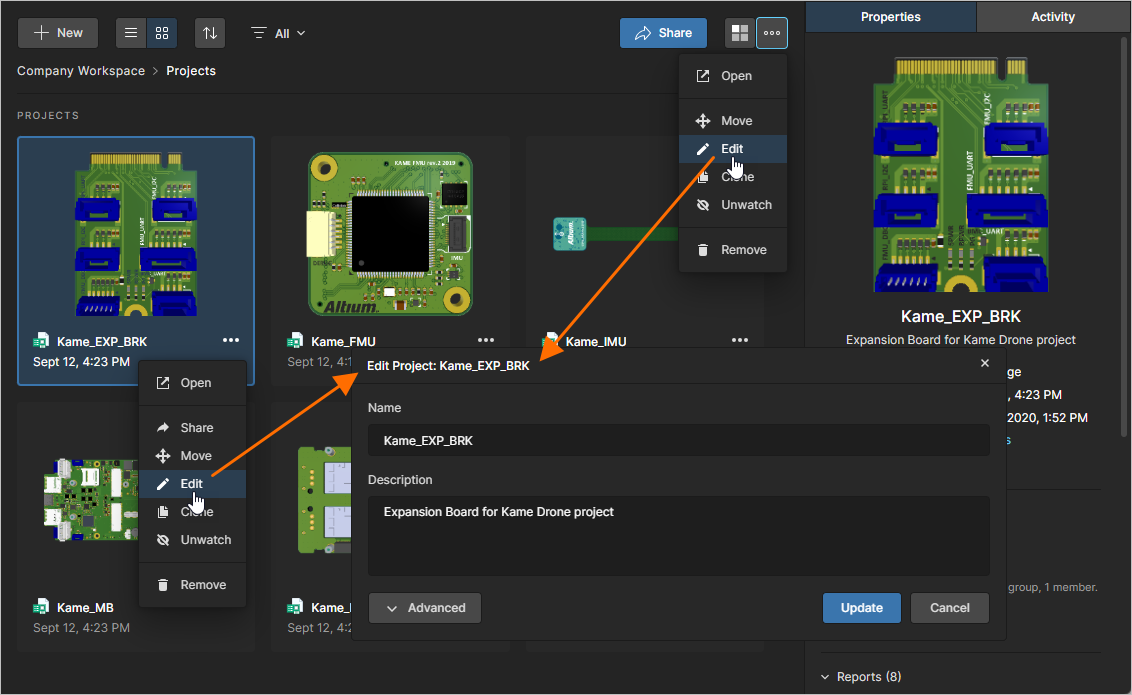 プロジェクトの Name と Description は、どの段階でも編集できます。
Project Editing ウィンドウで  ボタンをクリックすると、プロジェクトから派生し、プロジェクトとともに保存される追加のプロパティデータが表示されます。Parameters コントロールを選択して、パラメータの Name/Value ペアを追加(
 )、編集、または削除(
 )できます。
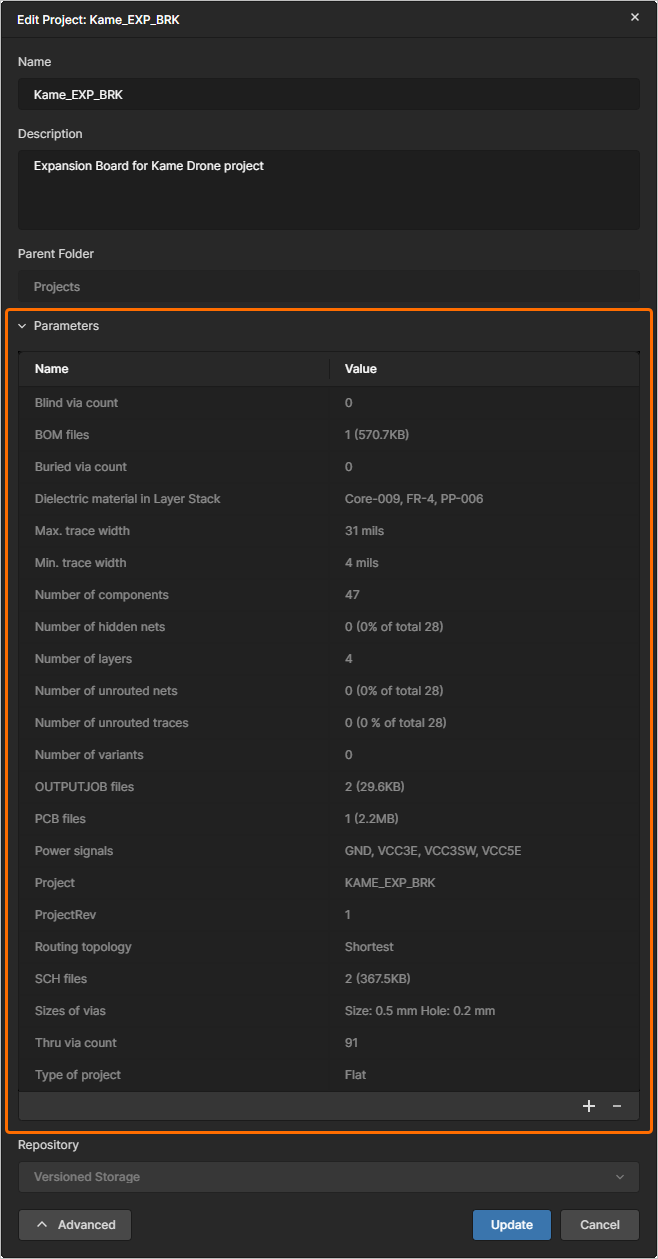
変更内容を確定するには  ボタンをクリックします。
Cloning a Project
既存プロジェクトをクローン(コピー作成)するには、Projects ページで対象のエントリを選択し、プロジェクト一覧の上にある コントロールをクリックして、関連メニューから Clone エントリを選択します。Clone Project ウィンドウが表示されます。
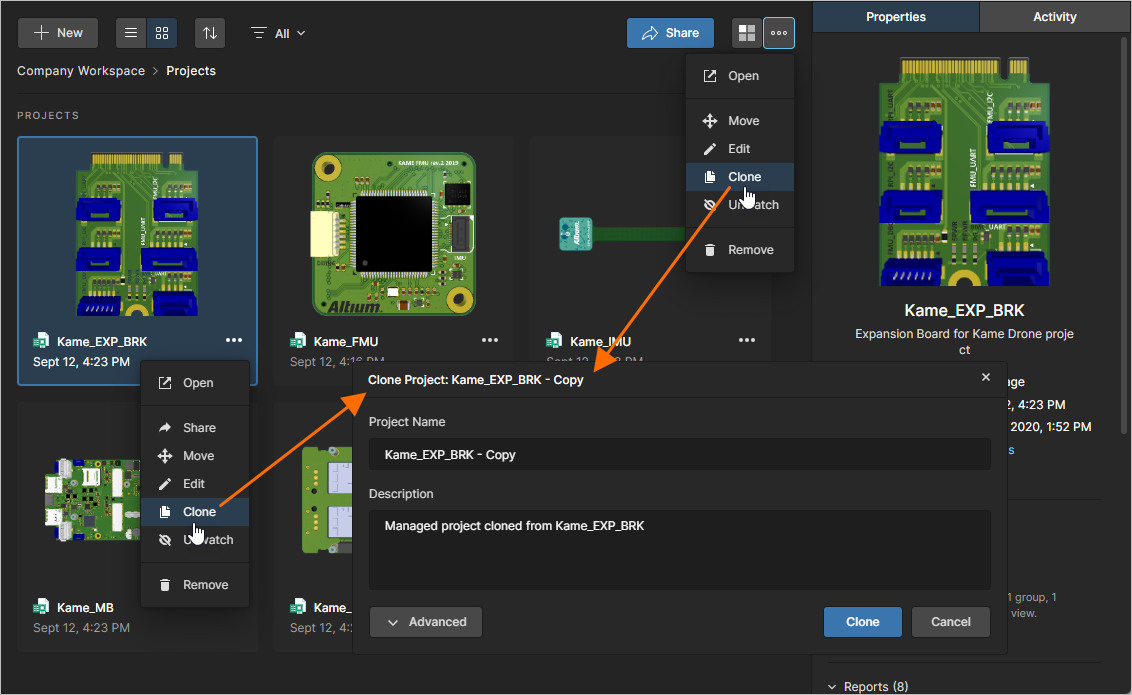
プロジェクトをクローンすると、作業ファイルを含めて同一のコピーを作成できます。
Clone Project ウィンドウで、プロジェクト名と任意の説明を指定します。デフォルトでは、元のプロジェクト名にサフィックス – Copy が付いた名前が使用され、説明も既定値が事前入力されます。
ボタンをクリックして Parent Folder フィールドにアクセスします。デフォルトでは、ソースプロジェクトが配置されているフォルダに設定されます。フィールド右側の Change リンクをクリックすると Workspace のフォルダ構造にアクセスでき、クローンしたプロジェクトを保存する別のフォルダを選択できます。必要に応じて、プロジェクトをサブフォルダ階層として整理できます。詳細は Creating a Hierarchy of Project Folders セクションを参照してください。
必要に応じて各フィールドを設定したら、 ボタンをクリックします。元のプロジェクトは、その構成ファイルおよびデータとともにクローン(複製)され、Projects ページの一覧(選択した親フォルダ配下)に新しいプロジェクトエントリとして追加されます。作成されたクローンは実質的に新規プロジェクトであるため、権限は creating (or uploading) a new project と同様に確立されます。つまり、(デフォルトでは)親フォルダから権限が継承され、クローンを実行したユーザーが Owner になります。関連情報として Managing Project Creation Permissions も参照してください。
Removing a Project
Related page: Trash
Workspace から既存プロジェクトを削除(消去)するには、Projects ページで対象のエントリを選択し、プロジェクト一覧の上にある コントロール、またはプロジェクトタイル内の コントロールをクリックして、関連メニューから Remove エントリを選択します。Projects ページがリスト表示で表示されている場合は、対象プロジェクトのエントリの最右端にある コントロールをクリックし、関連メニューから Remove コマンドを選択します。
次の Remove <project> ウィンドウには、関連するリリースなど、プロジェクトに関連付けられていて同時に削除されるすべてのアイテムが一覧表示されます。Show details オプションを選択すると、プロジェクトの Releases view を開いて、関連するリリースを確認できます。プロジェクトに関連リリースがない場合は、簡略化された Remove ウィンドウが表示されます(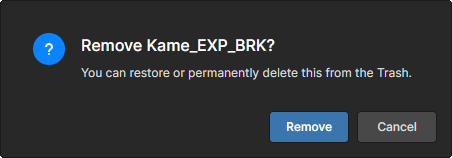 )。
)。
Workspace プロジェクトの削除は、実際には「ソフト削除」です。つまり、プロジェクトと関連するアイテムは Workspace の Trash 領域へ移動されます。Remove <project> ウィンドウの ボタンで削除処理を確定してください。
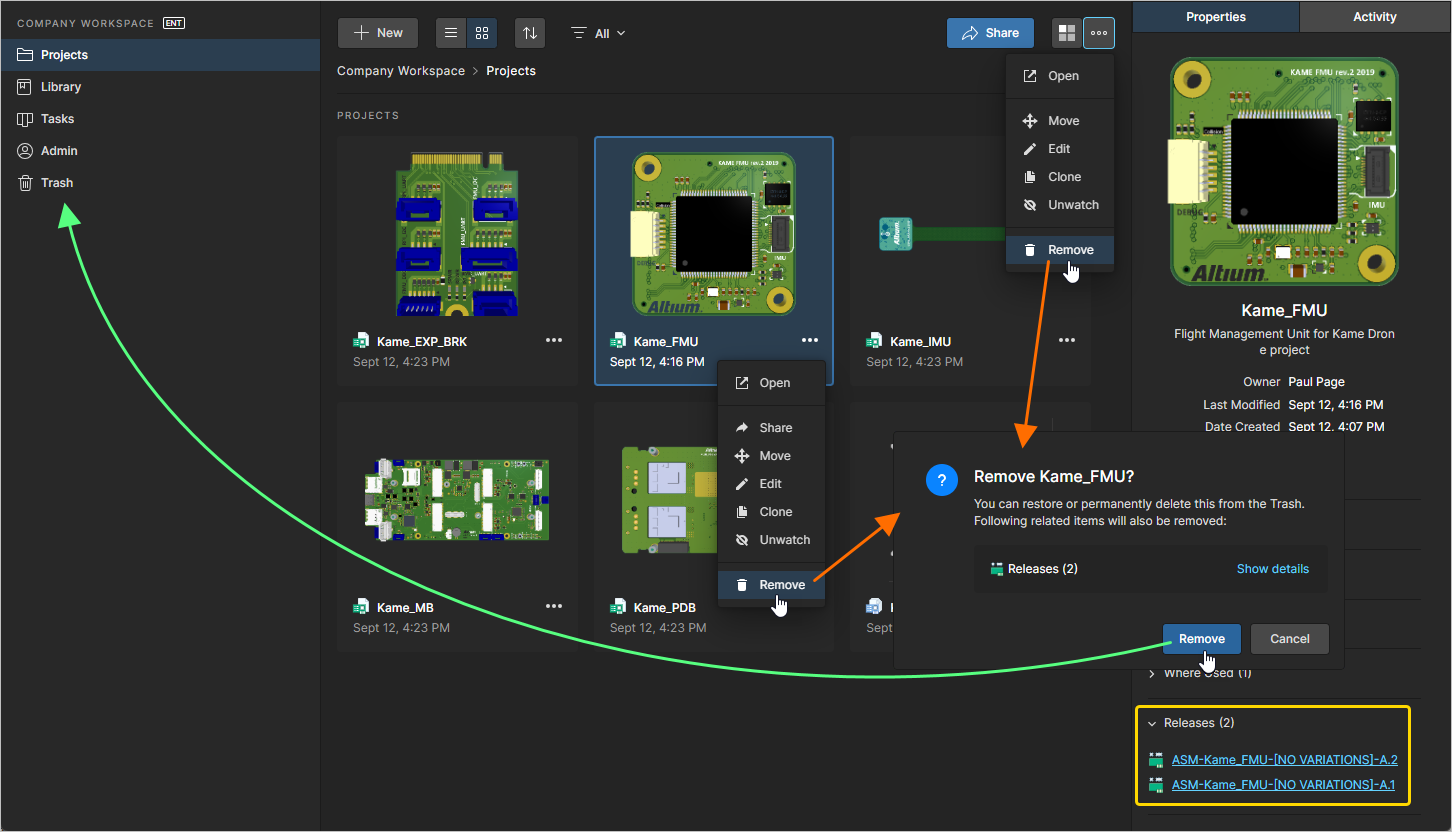
削除が完了すると、プロジェクトのエントリはプロジェクトのメイン一覧から取り除かれます。Altium Designer では、この操作によってローカルの作業コピーは影響を受けませんが、Workspace へ変更を保存できなくなります。ローカルプロジェクトは、もはや存在しない VCS リポジトリを参照する状態になるため、ローカル作業コピーを閉じて再度開くことで、推奨されるアクションの一覧にアクセスできます。
この方法で削除されたすべてのプロジェクトは、インターフェースの Trash ページで確認できます。なお、表示できるのは自分自身がソフト削除したプロジェクト(および他のアイテム)に限られます。管理者は Trash ページの全内容、つまりソフト削除されたすべてのアイテムを確認できます。
ソフト削除されたプロジェクトに関して考慮すべき点:
-
プロジェクトは、設計ソフトウェアからも Web インターフェース内からも、開いたり参照したりできません。
-
プロジェクトで使用されたアイテムを参照する際、そのプロジェクトの Where Used エントリには、プロジェクトが削除されたことが反映されます。
-
プロジェクトは Trash ページから復元または完全削除できますが、実行できるのはそのプロジェクトの所有者または Workspace 管理者のみです。
 AI で翻訳