创建基于流程的项目

Related pages: Processes & Workflows (Altium 365 Workspace, Enterprise Server Workspace), Creating & Managing Processes (Altium 365 Workspace, Enterprise Server Workspace)

Creating a New Process-based Workspace Project

When one or more process definitions for the Project Creations process theme are active, the ability to create a new project through the Create Project dialog is restricted to Local and VCS type projects only. Instead, the creation of Workspace-based projects comes under the control of active process definitions.

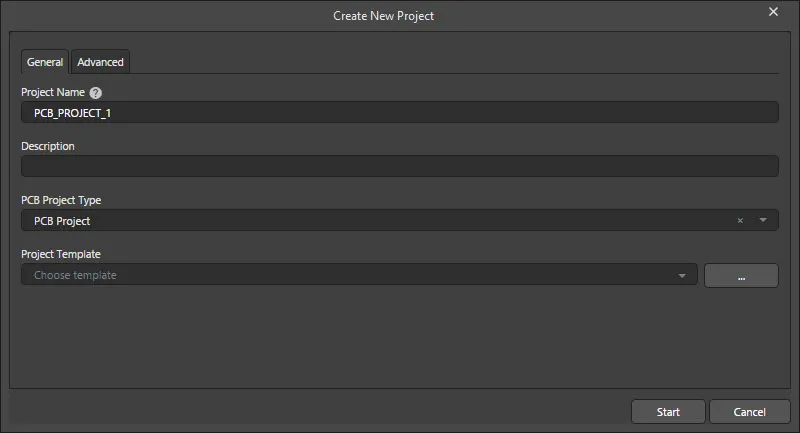
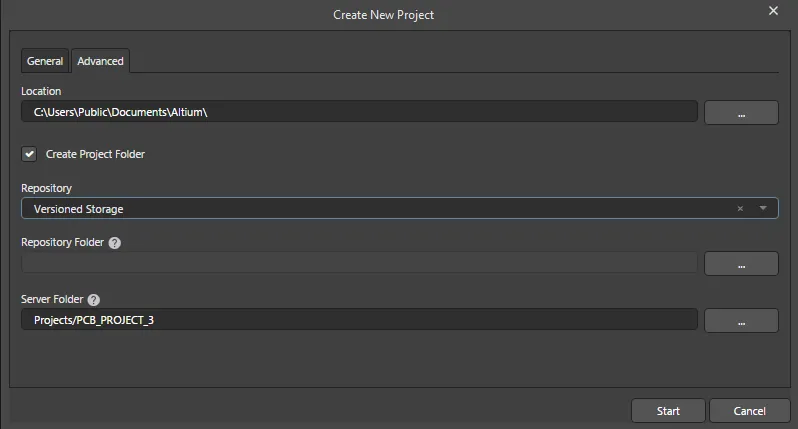
From within Altium Designer, activated process definitions that are part of the Project Creations theme can be accessed from the main File » New » Project in <WorkspaceName> sub-menu. After launching the chosen command, the Create New Project dialog (actually named after the chosen process) opens. Use the General tab of the dialog to give the project a name and description, specify its type, and assign a template, if desired. On the Advanced tab, you can specify the local working directory for the project, choose the target repository and folder and also specify in which folder, within the Workspace's folder structure, it is to reside. Once ready, click Start to create the new Workspace project in accordance with the underlying workflow for that process.

  • To use the Constraint Manager for managing the design constraints for your process-based Workspace PCB project, ensure to assign an appropriate project template when creating that project. This should be a template that was saved from a PCB project that was created with its Constraint Management option enabled in the Create Project dialog.

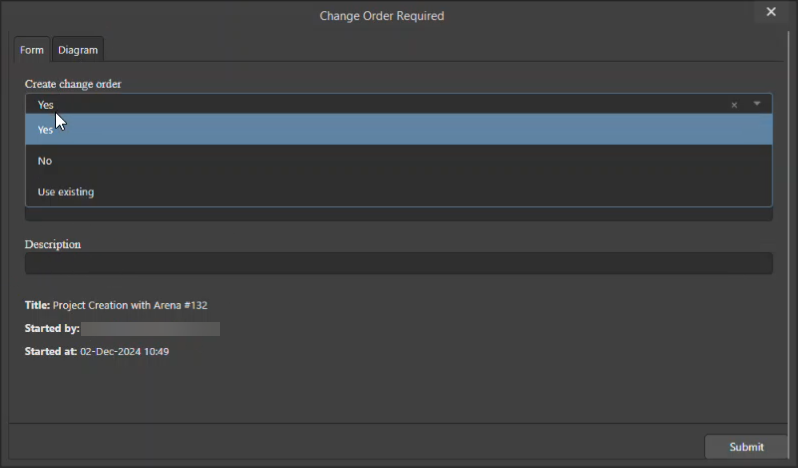
  • If the Change Order (ECO) workflow is configured in the PLM interface instance (learn more), an additional Change Order Form will be presented during project creation, where the Change Order's setup and options are specified ().

The dialog with which to start creation of a project, based on a define process workflow. Note that the name of the dialog will reflect the name of the chosen process.

Process-based Project Converting

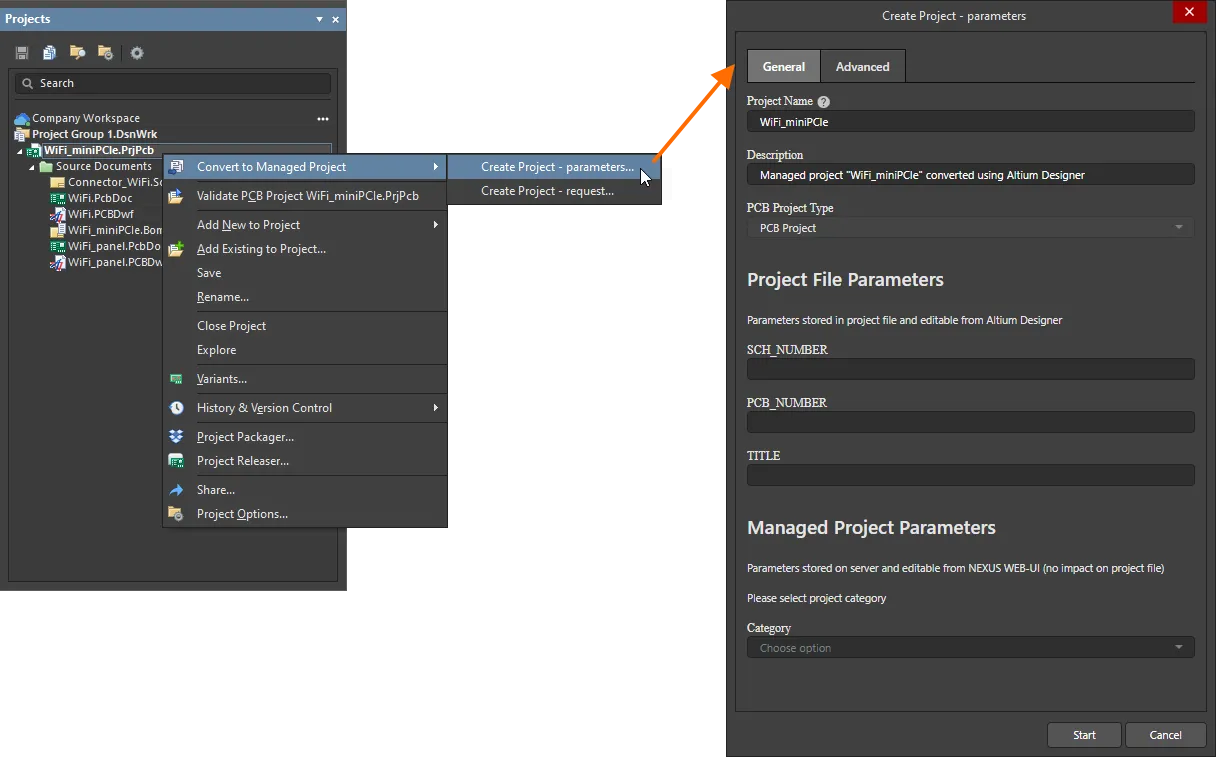
When the connected Workspace includes activated process definitions that are part of the Project Creations theme, the indexed commands can be accessed by right-clicking on a local project in the Projects panel and selecting the desired process from the Convert to Managed Project sub-menu.

If no active process definitions are available for the Project Creations process theme – in your active Workspace – the sub-menu will not be visible.

After launching the command, the Create Project dialog (actually named after the chosen process) opens. Use the General tab of the dialog to describe the project and specify the type of project and template, if desired. On the Advanced tab, you can specify the location of the project and choose the repository, and repository and Workspace folders. Once ready, click Start to create the new Workspace project in accordance with the underlying workflow for that process.

Process-based Project Copying

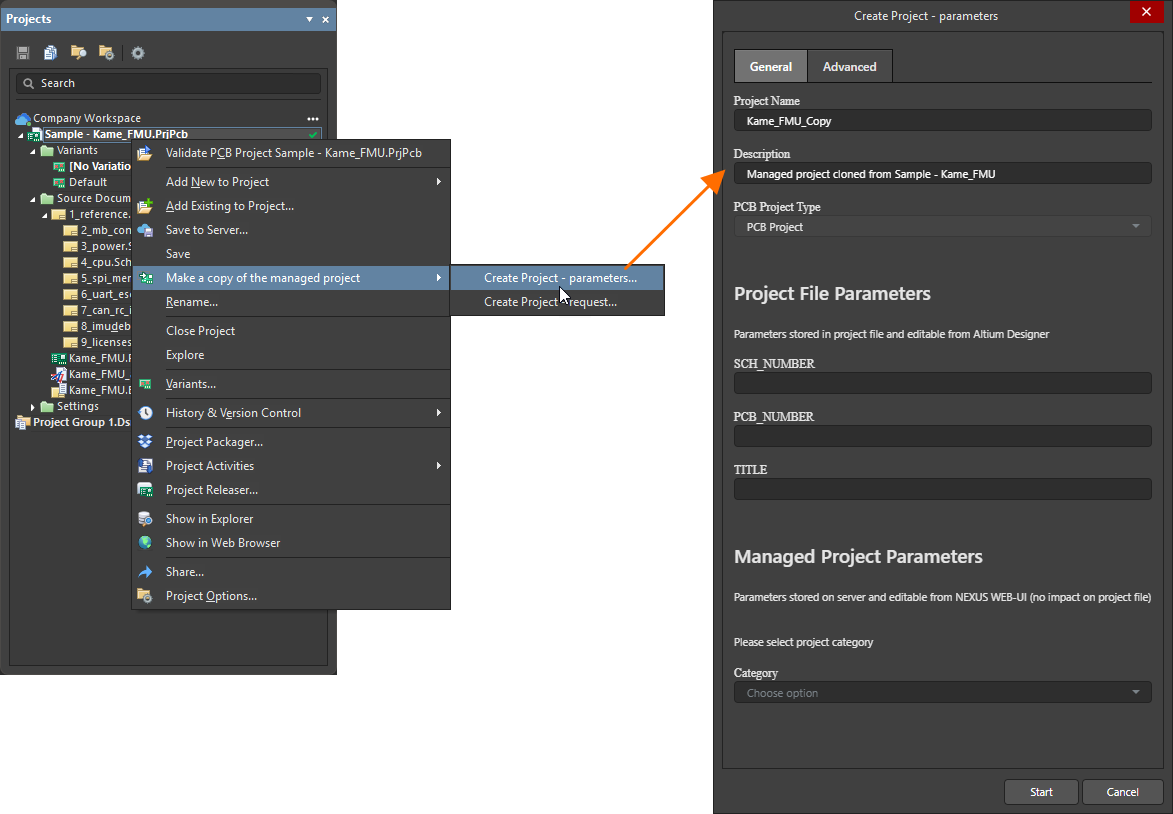
When the connected Workspace includes activated process definitions that are part of the Project Creations theme, the indexed commands can be accessed by right-clicking on a Workspace project in the Projects panel and selecting the desired process from the Make a copy of the managed project sub-menu.

If no active process definitions are available for the Project Creations process theme – in your active Workspace – the sub-menu will not be visible.

After launching the command, the Create Project dialog (actually named after the chosen process) opens. Use the General tab of the dialog to describe the project and specify the type of project and template, if desired. On the Advanced tab, you can specify the location of the project and choose the repository, and repository and Workspace folders. Once ready, click Start to create the new Workspace project in accordance with the underlying workflow for that process.

If you find an issue, select the text/image and pressCtrl + Enterto send us your feedback.
功能可用性

您可使用的功能取决于您所选择的 Altium 解决方案 —— Altium DevelopAltium Agile(Agile Teams 或 Agile Enterprise 版本),或仍在有效订阅期内的 Altium Designer。

如果您在软件中未找到文中提及的功能,请联系 Altium 销售团队了解更多信息。

旧版文档

Altium Designer 文档不再提供版本区分。如果您需要访问 Altium Designer 旧版本的文档,请前往其他安装程序页面的旧版文档部分。

Content