Uploading a Schematic Sheet
You can also upload a schematic sheet into the revision of a Managed Schematic Sheet Item. This can be performed in a couple of ways.
Upload Menu
A schematic sheet can be uploaded by right-clicking on the required Managed Schematic Sheet Item in the Explorer panel, and choosing the Upload command from the context menu. The Create New Revision dialog will appear, in which you can change Name, Description, and add release notes as required. Use the Sources region of the dialog to load the required schematic sheet. This can be performed by dragging and dropping the file from Windows Explorer, onto the region. Alternatively, click the  button – the Add Files dialog (a standard Windows open-type dialog) will appear. Use this to browse to, and open, the required file (
*.SchDoc).
If the Item has no planned revision, upload will be to the next planned revision, created on-the-fly as part of the upload process.
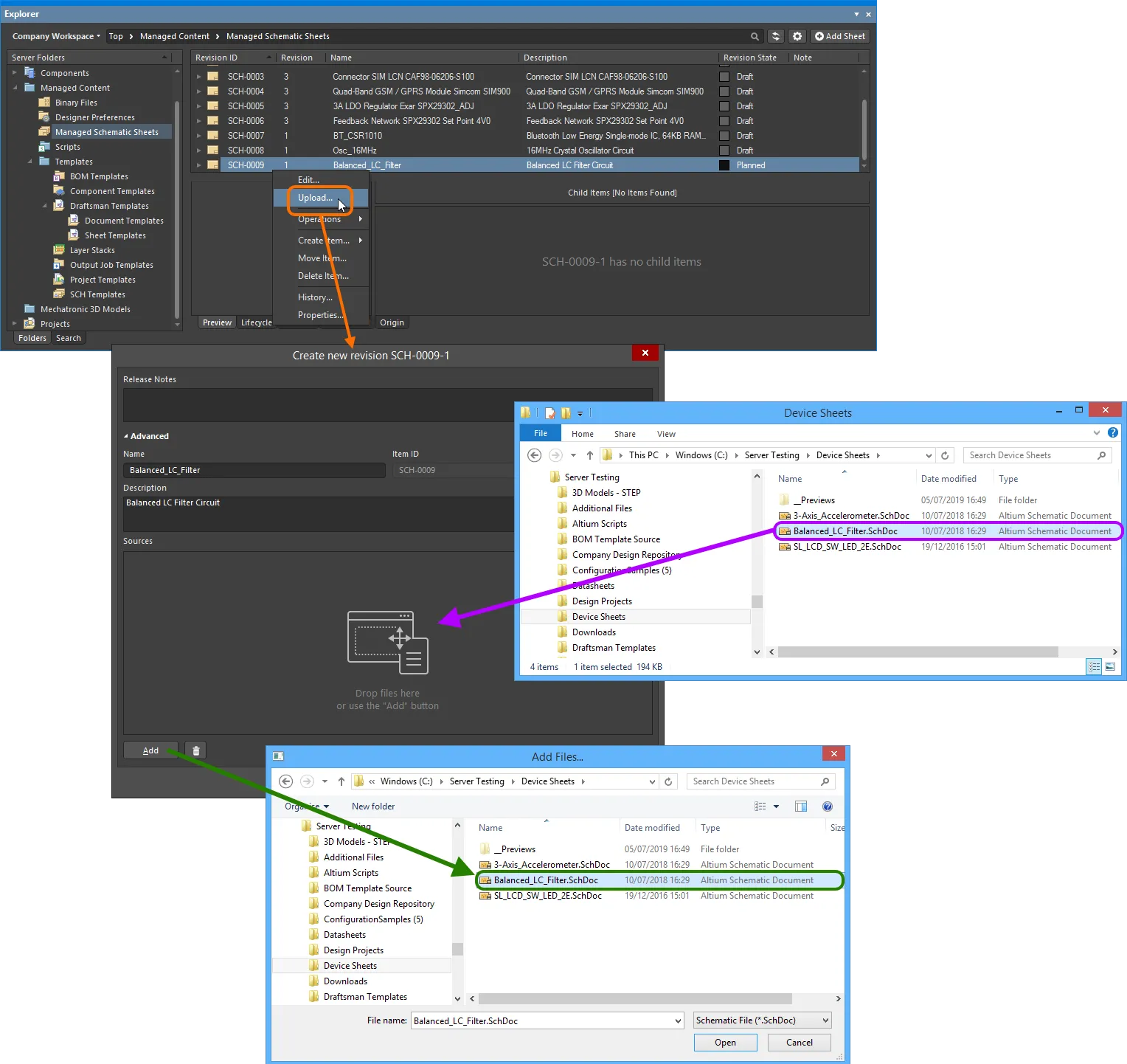
Manually specifying the schematic sheet to be uploaded to the target Managed Schematic Sheet Item.
Once the desired sheet is dropped in, or selected and the Open button clicked, an entry for it will appear back in the Sources region. Proceed with the upload by clicking the OK button. The uploaded sheet will be available on the Preview aspect view tab for the Item Revision, in the Explorer panel.
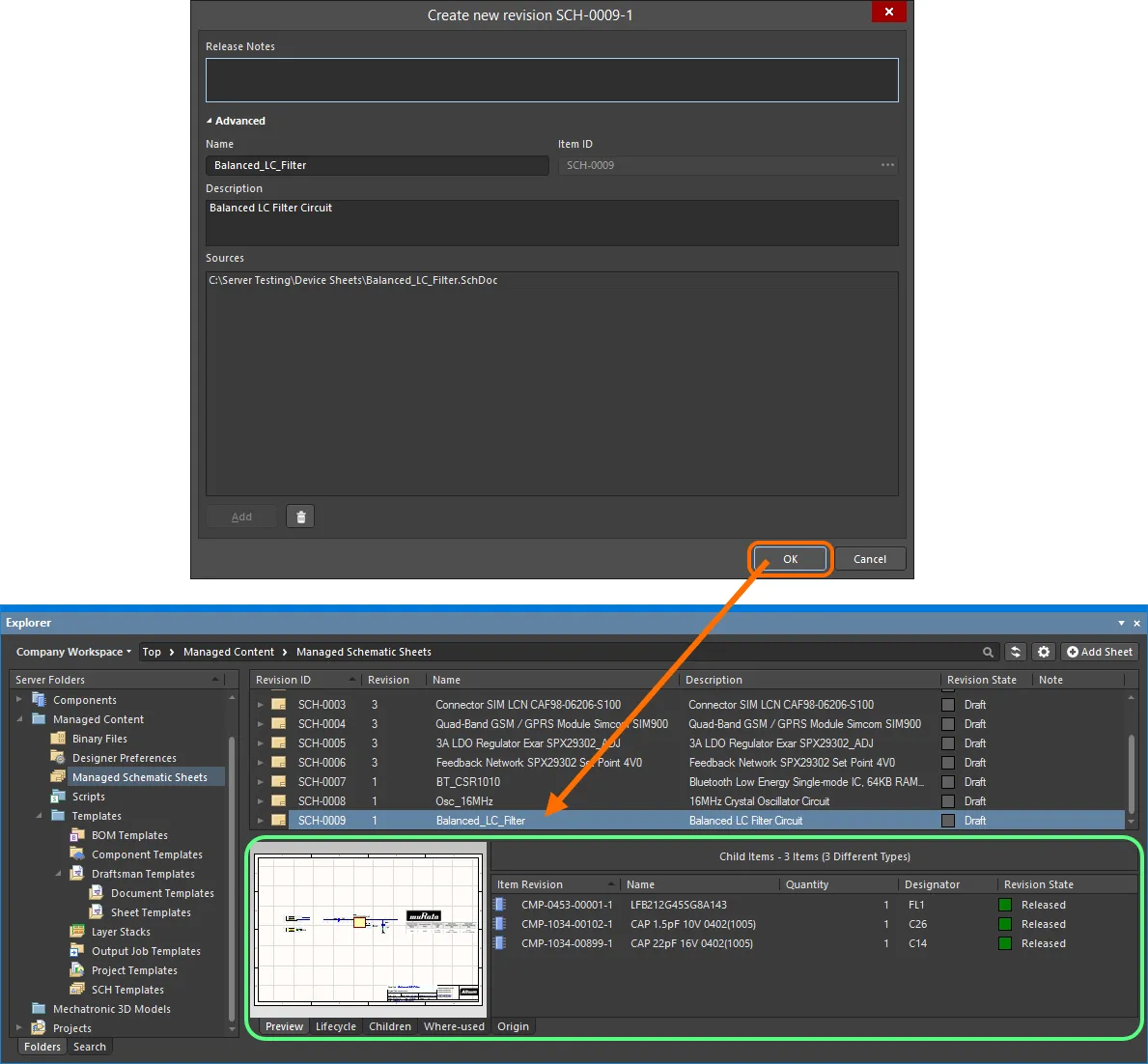
The uploaded sheet can be viewed on the Preview aspect view tab for the revision of the managed schematic sheet, along with a listing of its child Items.
Drag and Drop from Windows Explorer
A schematic sheet can also be uploaded by dragging the selected file from a source folder in your Windows Explorer, and dropping it onto the required target Managed Schematic Sheet Item in the Explorer panel. The Create New Revision dialog will appear, with the dragged file listed in the Sources region. Modify Name (which will be the file name, including extension) and Description (which will be in the format Uploaded from <FileNameandPath>, Size <FileSize>, Created on <FileCreationDate>), and add any Release Notes as required, and then click the OK button.
If the existing Managed Schematic Sheet Item has no planned revision, upload will be to the next planned revision, created on-the-fly as part of the upload process. If you drop the dragged file away from an existing Item, a new Managed Schematic Sheet Item will be created. The Create New Item dialog will appear. The Name of the item will be the file name, including extension. The Description will be in the format Uploaded from <FileNameandPath>, Size <FileSize>, Created on <FileCreationDate>. Change these as required. The Item ID will be in accordance with the Item Naming scheme defined at the folder level. If the folder has no naming scheme defined, naming will follow the $CONTENT_TYPE_CODE-001-{0000} scheme.
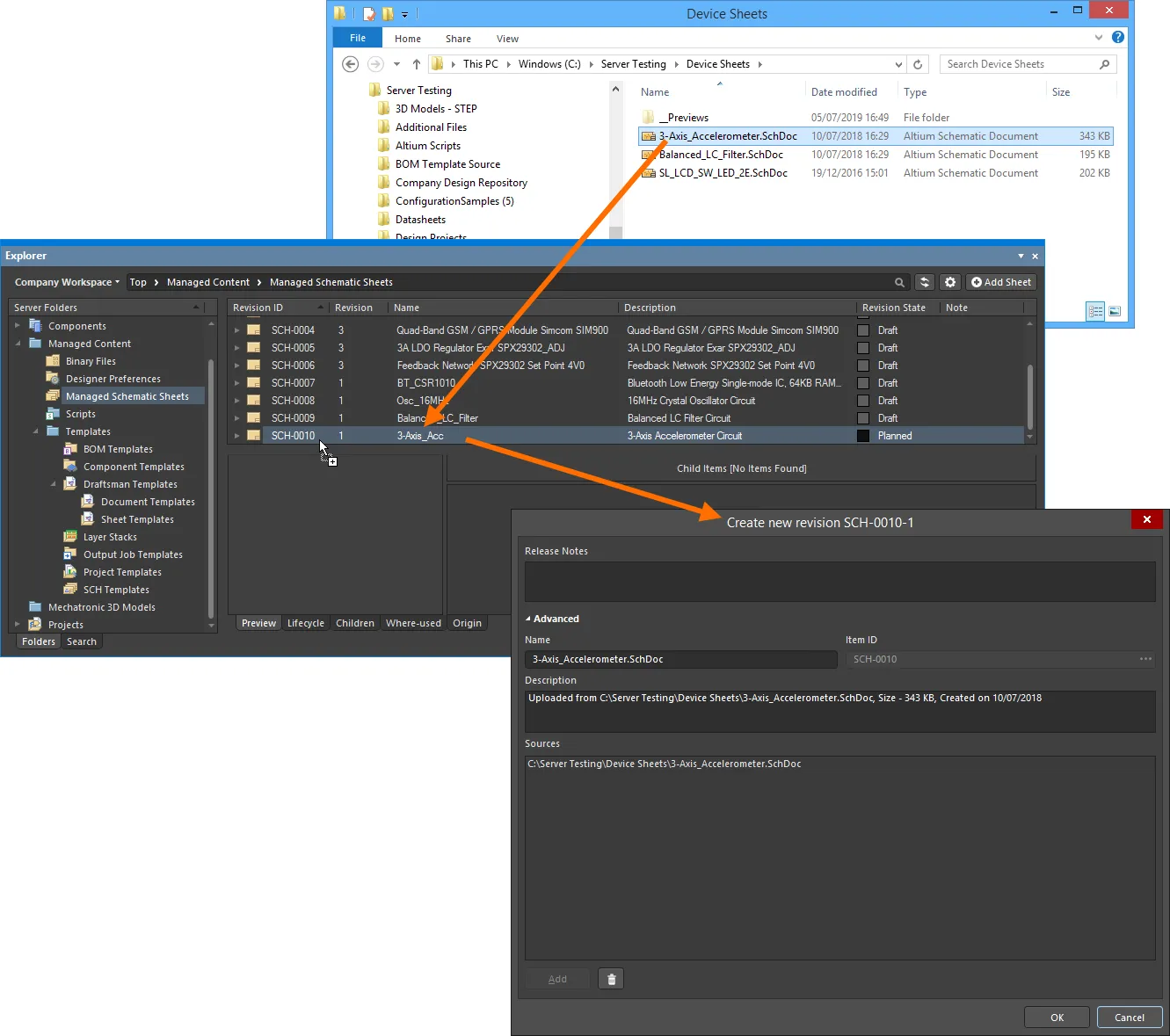
Uploading a schematic sheet using the drag and drop method.
Reusing a Managed Schematic Sheet
Related pages: Getting Familiar with the Altium Design Environment, Controlling Access to Workspace Content
Once a schematic sheet has been saved to a Workspace, and its lifecycle state set to a level that the organization views as ready for use at the design level, that sheet can be reused in future board-level design projects. And keeping to the use of the Workspace as the source of all content in and for a design, it is good practice to reuse your managed schematic sheet content in Workspace Projects – which themselves are under the Workspace's wing.
Using
controlled access to Workspace content, in conjunction with suitable lifecycle schema, authorized personnel (librarians, senior design management) can ratify, and make available, only those managed sheets that are to be used in designs. This allows the designer to design away, reassured that they are using only those sheets of reusable design circuitry authorized to be used.
It is the way you include a managed schematic sheet in the current design that lets Altium Designer know it is not a regular schematic sheet. You add a regular schematic to your project via the File menu, whereas you add a managed schematic sheet to your project by placing it from the Workspace. Placement is performed from Altium Designer's Explorer panel.
Prior to Placement...
Placing a managed schematic sheet truly is simplicity itself. But before you do anything, there are a couple of points to note:
-
A managed schematic sheet's sheet symbol cannot be placed onto a free schematic, the target sheet must be part of a project.
-
Ensure that the schematic sheet that is to receive the associated sheet symbol is open in Altium Designer and is the active document. If documents are open across multiple windows, ensure also that the window containing that active schematic document has focus.
When working with Altium Designer across multiple windows, if the Explorer panel is docked in any mode to a window without the target schematic in it, the Place command will remain grayed-out. This is because clicking within a docked panel focuses the window to which that panel is attached. With the panel floating, however, the required Altium Designer window can be focused (the one with the active target schematic), and that window will keep focus when working inside the panel.
Placement
To place from the Explorer panel:
-
Browse or search for the managed schematic sheet you wish to place.
-
Right-click on the specific revision of the managed schematic sheet required (typically the latest, in which case just right-click directly on the top-level Item entry).
-
Choose the Place command.
A sheet symbol that references the sheet will float attached to the cursor – just pick a ball-park spot on the active schematic sheet and click to effect placement. You can fine-tune and nudge it into its final location at a later stage.
As you place the sheet symbol, Altium Designer copies the managed sheet that the symbol represents, from the Workspace into the project folder, within a sub-folder called \Managed\Sheets. A copy of each managed sheet is stored here, each within its own sub-folder identified by a system-generated unique identifier (GUID).
The GUID-named sub-folder in which the instance of the managed schematic sheet is downloaded and stored must not be edited/renamed in any way.
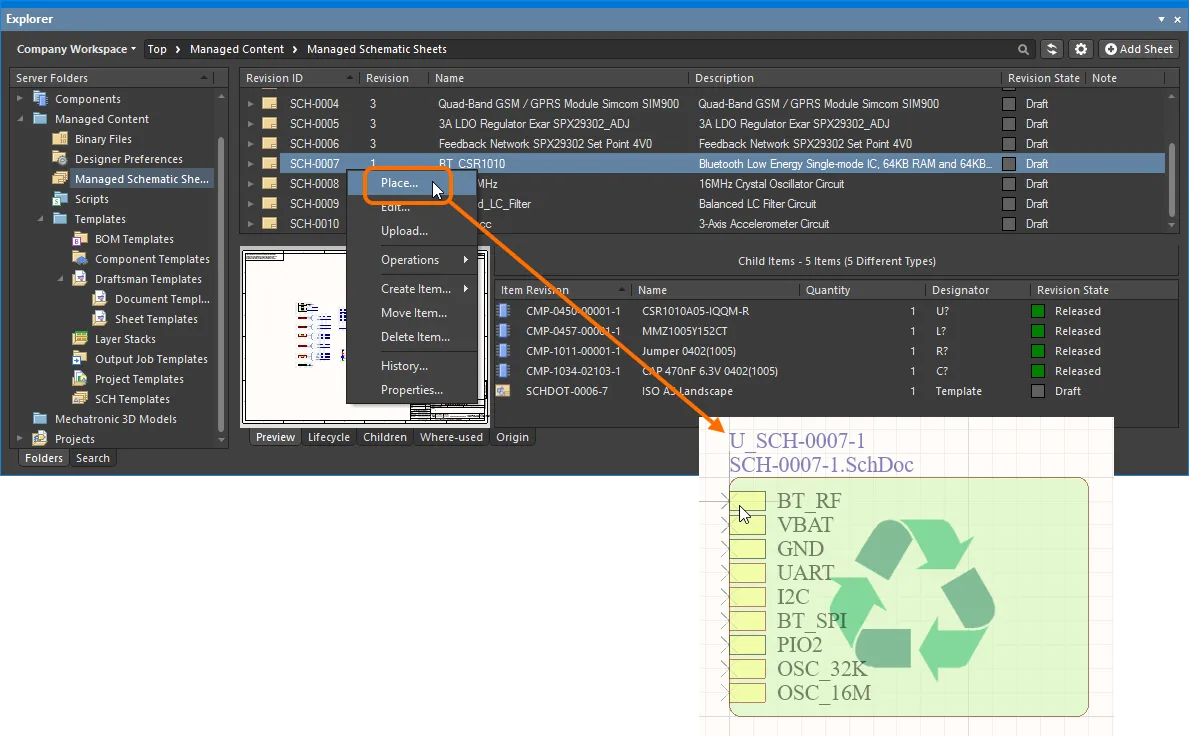
Placement of a managed schematic sheet. Right-click on the desired Item Revision and choose the Place command – a sheet symbol representing the managed schematic sheet is available on the cursor for placement into the design.
Drag and Drop from the Explorer Panel
For more express placement of your managed schematic sheets from the Explorer panel, Altium Designer provides the ability to drag & drop revisions of managed schematic sheets directly onto the active schematic document.
Browse your Workspace for the required managed schematic sheet to be placed. Placement involves a specific revision of its Item, so be sure to expand the main Item entry to list all of its available revisions. Then click on the required revision and drag an instance of it onto the schematic sheet.
You may need to disable the
Show only latest option for the
Explorer panel's Items view. Click the

control (at the top-right of the panel) to access this option.
Drag and drop the top-level entry for a managed schematic sheet itself, to place an instance of the latest revision of that sheet.
Re-Saving a Managed Schematic Sheet
At any stage, you can come back to any revision of a managed schematic sheet in the Workspace, and edit it directly. Right-click on the revision and choose the Edit command from the context menu. Once again, the temporary editor will open, with the schematic sheet contained in the revision opened for editing. Make changes as required, then save the document into the next revision of the managed schematic sheet.
Right-clicking on the top-level entry for a managed schematic sheet itself will edit the latest revision of that sheet.
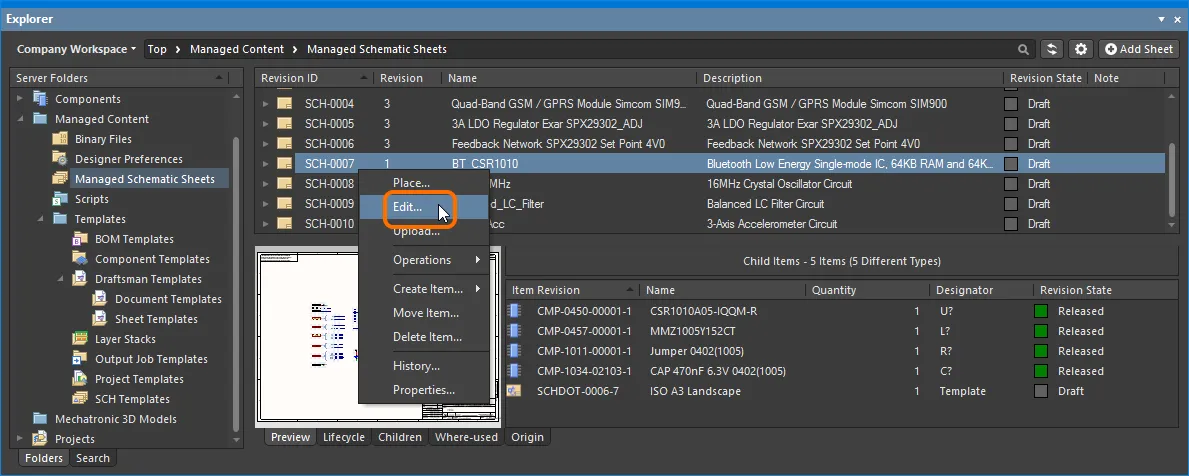
Accessing the command to launch direct editing of an existing revision of a managed schematic sheet.
Updating a Managed Schematic Sheet
If you need to change the schematic sheet stored in a Managed Schematic Sheet Item, and you have the updated sheet, you can upload that sheet to that Item – the new sheet will be stored in the next revision of that Item.
Downloading Saved Data
Download the data stored in a revision of a managed schematic sheet by right-clicking on that revision and choosing the Operations » Download command from the context menu. The applicable file(s) will be downloaded into a sub-folder under the chosen directory, named using the Item Revision ID. The file can be found in the Released folder therein.
Access the Download command from the top-level entry for a managed schematic sheet itself, to download the applicable file(s) stored in the latest revision of that sheet.
Click the Explore button in the Download from Server dialog, to quickly explore to the download folder.
Annotating the Components and Sheets
To guarantee the integrity of the circuitry used in a Managed Sheet, that sheet cannot be edited during normal design use. That means the sheet number and designator assignments cannot be modified on the sheet. So just how do you number all the sheets in the project and annotate all of the components?
These tasks are managed by two commands: sheets are numbered using the Tools » Annotation » Annotate Compiled Sheets command and components are annotated using the Tools » Annotation » Board Level Annotate command. Sheet number and designator assignments are stored in a separate file, <ProjectName>*.annotation.
The component annotation tools need to know the order that the schematic sheets are to be processed. For this reason, it is better to number the sheets before numbering the components.
The Annotating Components and Sheets principles are the same as when using local Device Sheets. For more information on annotating designs that include Managed Sheets, see the following sections on the Device Sheets page:
Soft Deletion
When connected to a Workspace, flexible functionality is available for removing a managed schematic sheet directly from within Altium Designer, from the Explorer panel. Right-click on the sheet's entry in the panel and choose the Delete Item command from the context menu. The Delete Items dialog will appear, in which to confirm the deletion. The action is actually a 'soft delete', whereby the managed schematic sheet will be moved into the Trash area of the Workspace. The Trash is essentially a recycle bin into which any content within your Workspace can be moved (through a soft delete action). It is isolated from the rest of the Workspace.
With the soft-delete facility, you are able to delete a managed schematic sheet that is currently being used.
Multiple managed schematic sheets can be deleted in a single action. Select all required sheets using standard multi-select controls (Shift+Click, Ctrl+Click), then right-click and choose the Delete Items command from the context menu.
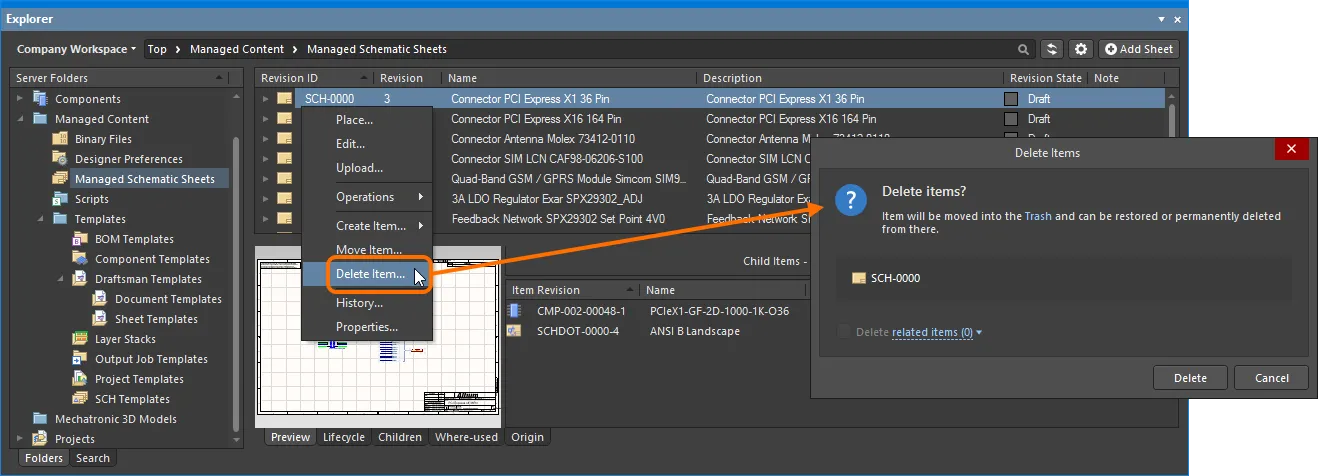
Soft deletion of a managed schematic sheet. The sheet will be moved to the Workspace's Trash area.
To proceed with the deletion, click the  button. The managed schematic sheet will be removed and a Deletion Summary dialog will confirm successful deletion. If there was an issue with deletion, this will be flagged to you.
All content deleted in this manner can be found on the Trash page of the Workspace's browser interface. Note that you can only view the content that you have personally soft deleted. Administrators will be able to see the full content of the Trash page – so all content that has been soft deleted.
Things to consider in relation to a soft deleted managed schematic sheet:
-
The managed schematic sheet will not be available from your design software, or from within the Web interface.
-
Anywhere the managed schematic sheet was being used will reflect that the managed schematic sheet has been deleted.
-
A managed schematic sheet can be restored, or permanently deleted from the Trash page, provided you have editing rights. Permanent deletion is only possible provided it is not being used by a parent Item.
Note that if you have soft deleted a managed schematic sheet – moving it to the Trash – you can create a new managed schematic sheet with that same name again. If you were to subsequently restore the original managed schematic sheet, and the original name is taken, an integer suffix will be used, to keep its name unique within the Workspace.

 AI 翻译
AI 翻译