
Travailler avec Renesas 365 Solutions
Altium Designer, lorsqu’il est connecté à un Workspace Renesas 365, vous permet d’ouvrir vos solutions Renesas 365 pour explorer les projets matériels (PCB) qui leur sont liés et récupérer les modifications depuis le System Data Model (SDM) de la solution.
Pour en savoir plus sur Renesas 365 et sur l’utilisation des solutions depuis son interface basée sur navigateur, consultez la page Renesas 365.
Ouverture d’une solution
Avant d’ouvrir une solution Renesas 365, assurez-vous d’être connecté à votre Workspace Renesas 365 depuis Altium Designer. Le processus de connexion à un Workspace Renesas 365 est similaire à celui d’une connexion à un Workspace hébergé sur la plateforme Altium (en savoir plus).
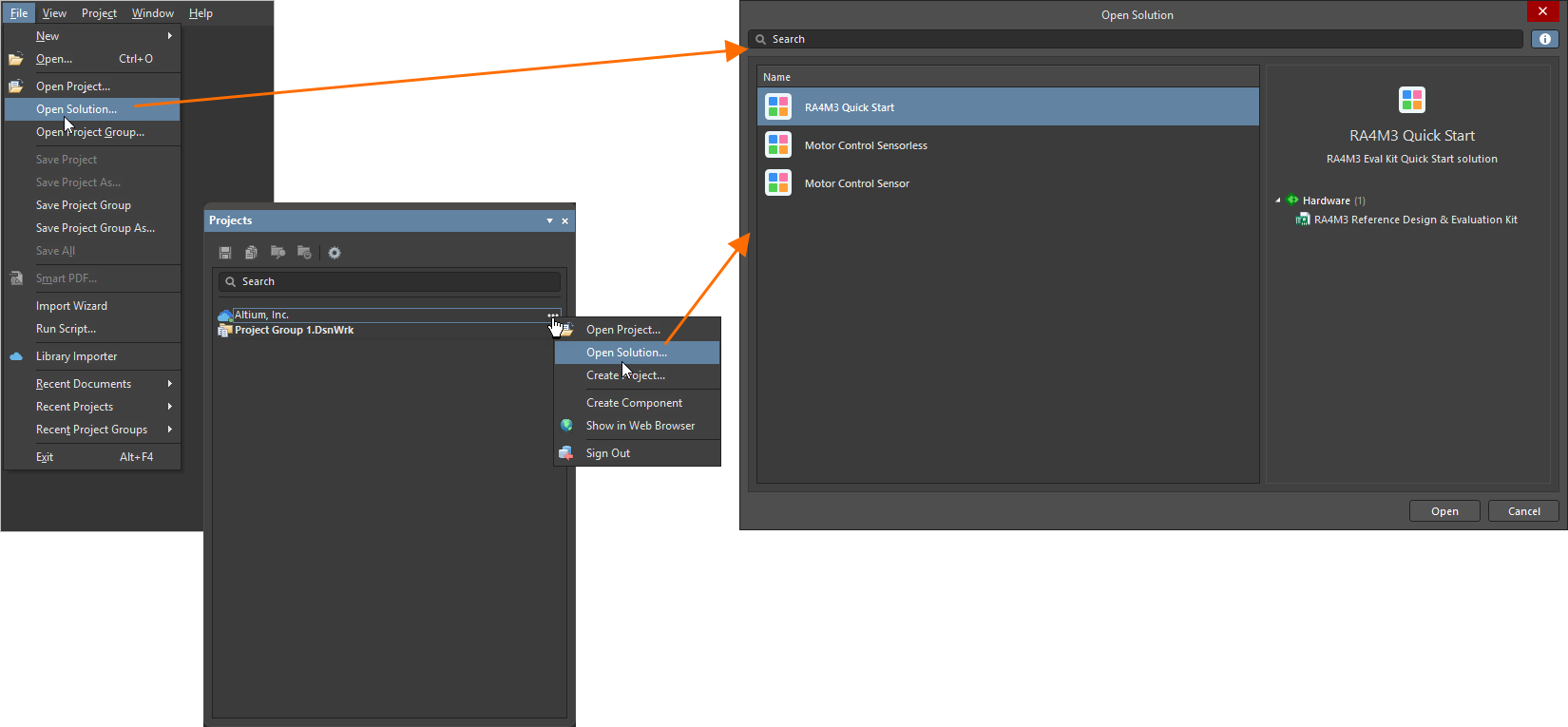
L’ouverture d’une solution à partir de votre Workspace Renesas 365 connecté s’effectue directement à l’aide de la boîte de dialogue Open Solution, accessible en sélectionnant la commande File » Open Solution dans les menus principaux. Vous pouvez également cliquer avec le bouton droit sur l’entrée du Workspace dans le panneau Projects ou cliquer sur le contrôle  à son extrême droite et sélectionner la commande Open Solution. La boîte de dialogue Open Solution offre un emplacement unique pour rechercher, parcourir et ouvrir des solutions. La boîte de dialogue présente une liste des solutions disponibles dans le Workspace Renesas 365 connecté (par leur nom).
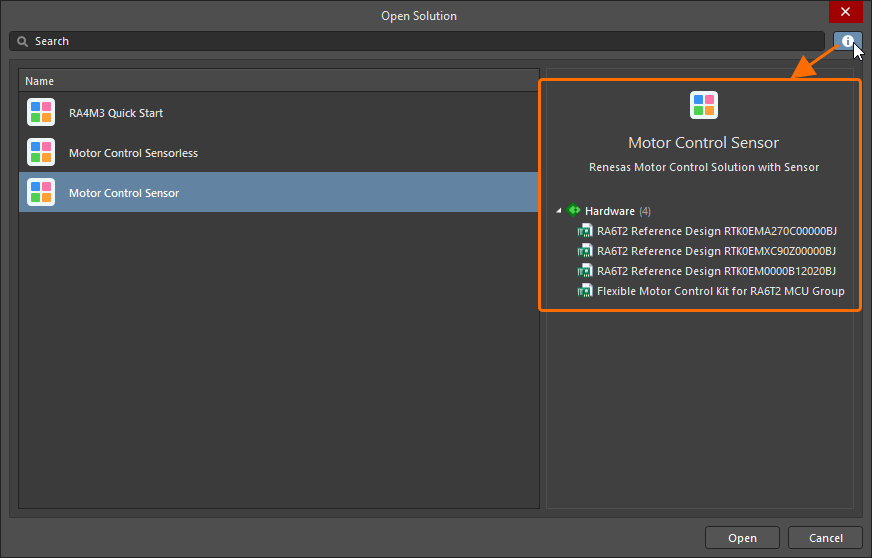
Lorsque l’icône  située en haut à droite de la boîte de dialogue est cliquée, la partie droite de la boîte de dialogue affiche des détails supplémentaires sur la solution sélectionnée, notamment sa description et une liste rétractable des projets matériels qui lui sont liés.
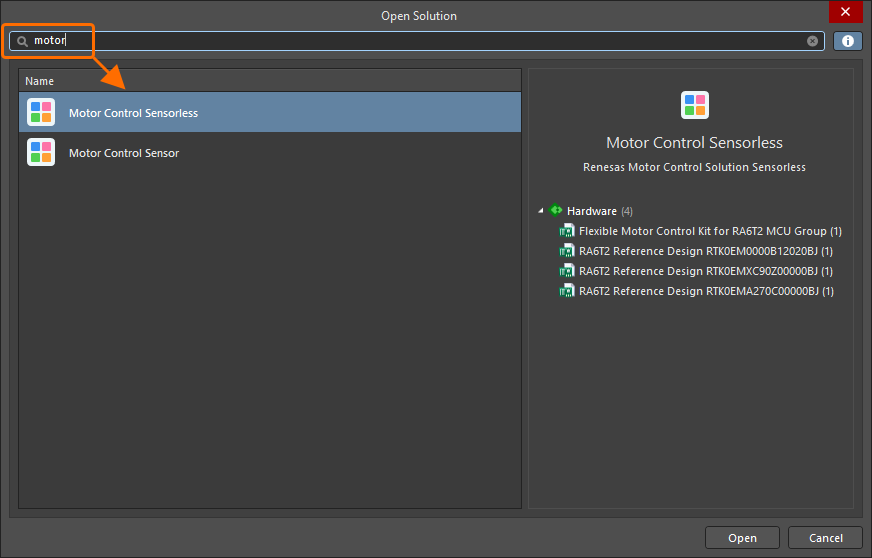
Utilisez le champ Search en haut de la boîte de dialogue Open Solution pour filtrer la liste des solutions par leur nom en saisissant des caractères alphanumériques. Cliquez sur l’icône  à droite de la barre Search pour supprimer la chaîne de recherche actuellement définie.
Pour ouvrir la solution souhaitée, sélectionnez-la dans la liste et cliquez sur le bouton  en bas à droite de la boîte de dialogue. Une fois ouverte, la solution apparaîtra sous une entrée correspondant au Workspace, dans le panneau Projects. Les projets matériels liés à la solution apparaîtront sous l’entrée de la solution. Vous pouvez développer et réduire la structure de la solution dans le panneau Projects pour afficher ou masquer ses projets matériels liés et les documents qui les composent.
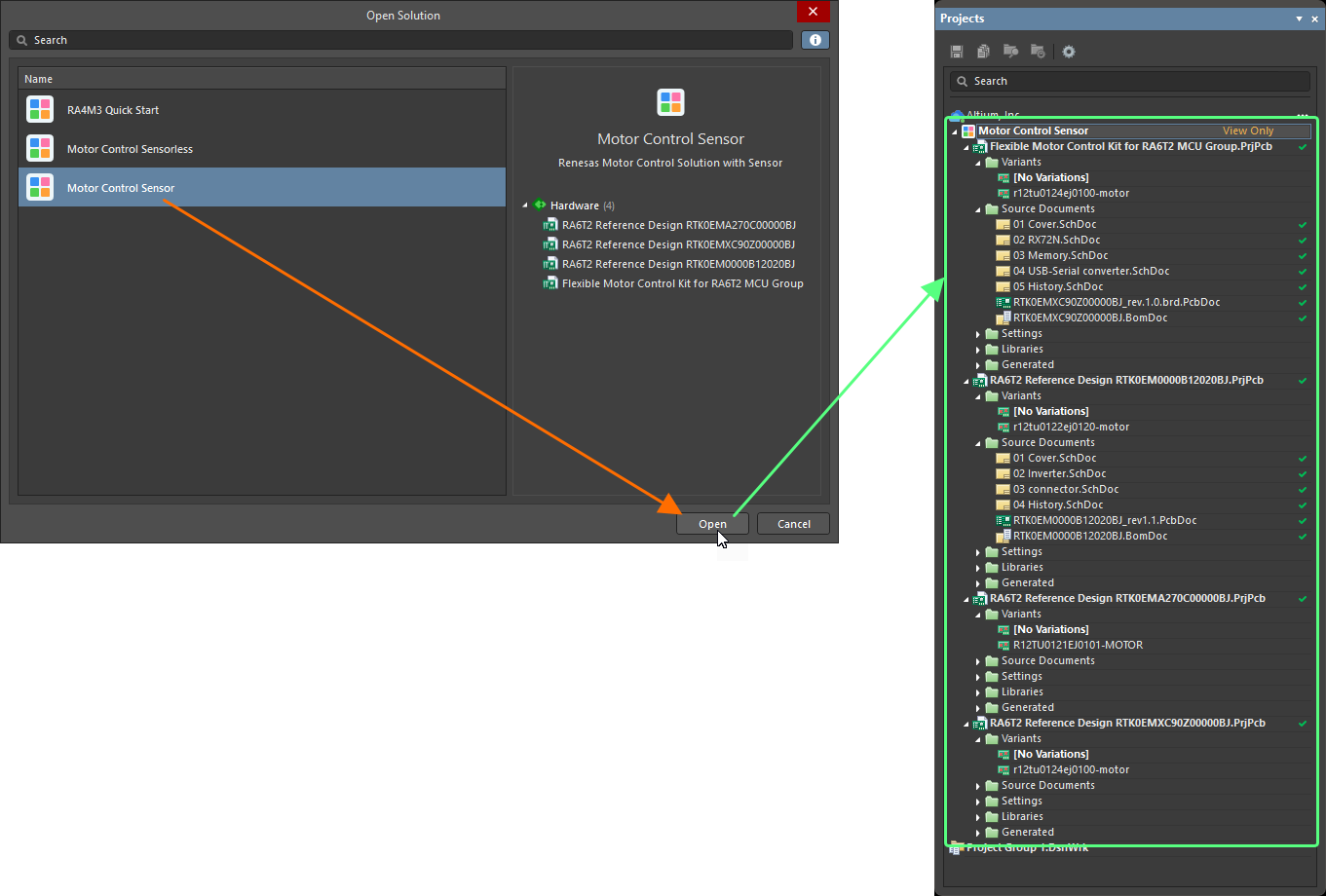
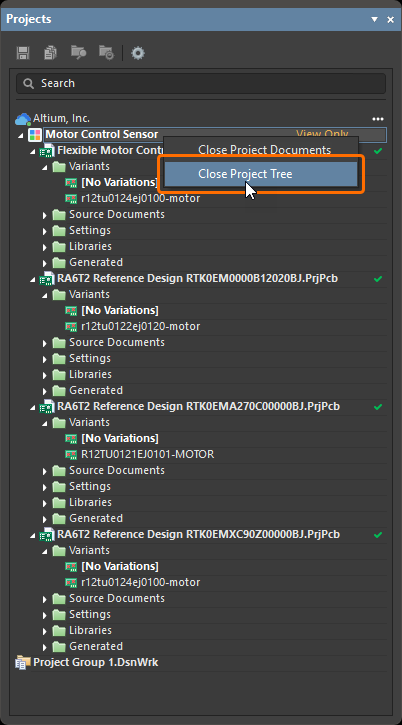 ).
).Récupération du SDM dans un projet matériel
Pour maintenir un projet matériel synchronisé avec les modifications apportées à d’autres aspects de la solution (par exemple, le document ESD de la solution), Altium Designer permet de récupérer dans le projet les modifications du SDM de la solution.
Lorsque le document schématique du projet (*.SchDoc) est le document actif, utilisez la commande Design » Pull from Solution dans les menus principaux. Altium Designer comparera les données entre la solution et le projet et, si des différences sont détectées, la boîte de dialogue Engineering Change Order s’ouvrira et répertoriera l’ensemble correspondant des Engineering Change Orders (ECO).
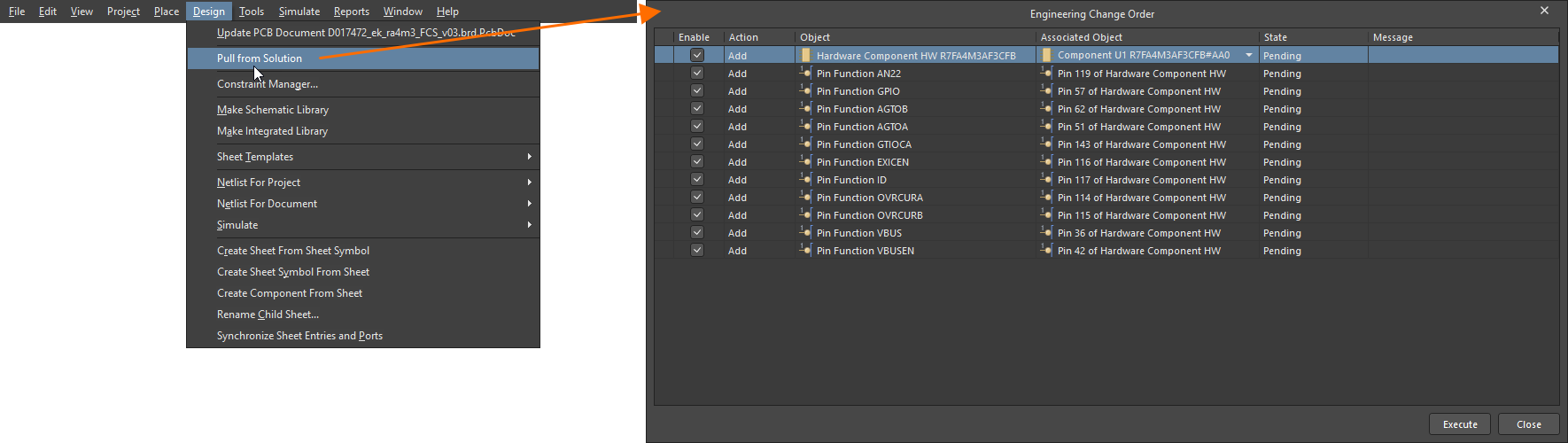
Par défaut, toutes les modifications sont activées dans la boîte de dialogue. Désactivez les modifications que vous souhaitez reporter pour le moment. Utilisez les cases à cocher de la colonne Enable pour activer/désactiver des modifications spécifiques. Vous pouvez aussi cliquer avec le bouton droit n’importe où dans la liste et sélectionner la commande Enable All ou Disable All pour activer ou désactiver, respectivement, toutes les modifications de la liste.
Les modifications suivantes sont prises en charge pour la synchronisation :
-
Addition and removal of a hardware component – cette modification permet d’ajouter ou de supprimer l’association d’un composant placé dans le projet matériel avec un composant matériel placé dans le document ESD de la solution. Par défaut, un composant du projet matériel est sélectionné automatiquement dans la boîte de dialogue Engineering Change Order en fonction de la correspondance entre le texte du composant matériel de l’ESD et la valeur du champ Comment du composant du projet matériel, mais vous pouvez sélectionner un autre composant dans le projet matériel à l’aide de la liste déroulante de la colonne Associated Object pour l’entrée de cette modification dans la boîte de dialogue (
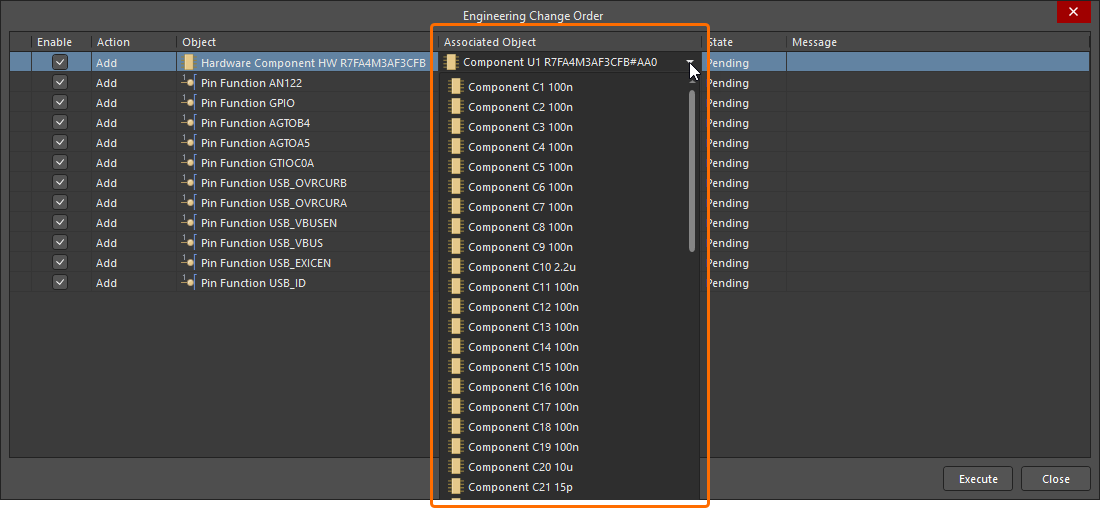 ).
).
-
Addition and removal of a pin function – cette modification permet d’ajouter ou de supprimer une fonction de broche à/de la broche d’un composant du projet matériel conformément à la configuration du dispositif du composant matériel correspondant dans le document ESD de la solution. La fonction de broche appliquée sera automatiquement activée pour la broche, et son nom par défaut sera désactivé. Cliquez sur le nom de broche affiché dans l’espace de conception pour ouvrir une fenêtre contextuelle contenant les fonctions disponibles (
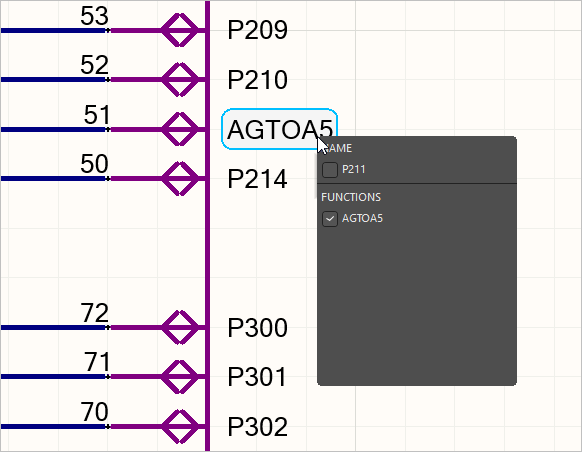 ).
).
Pour plus d’informations sur l’utilisation des broches multifonctions, consultez la page Working with Placed Components.
Lorsque vous êtes satisfait des modifications à effectuer, cliquez sur le bouton  pour exécuter l’ECO et appliquer les modifications valides qu’il contient. Les résultats de l’exécution apparaîtront dans les colonnes State et Message de la boîte de dialogue Engineering Change Order.
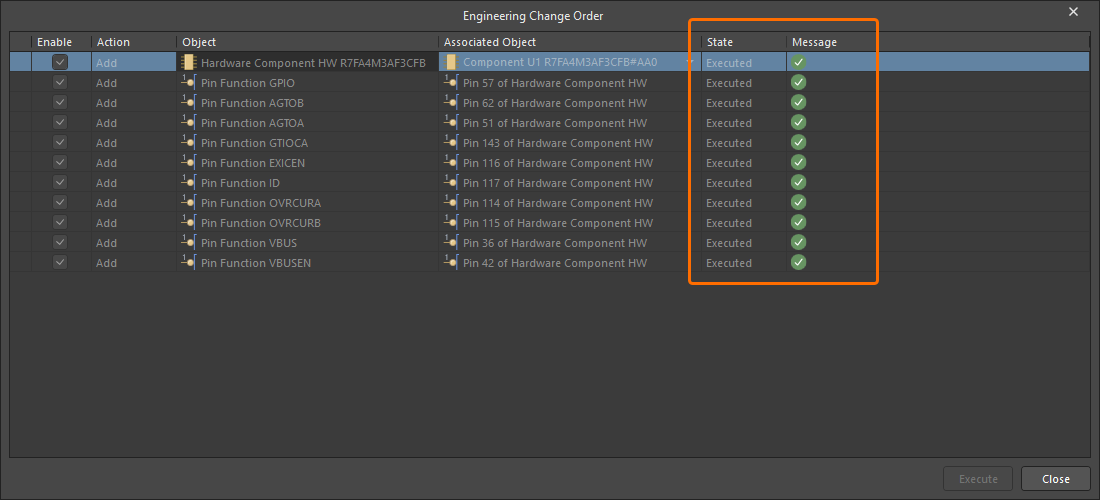
 Localisé par IA