Altium Designer facilitates the linking of your design components to real-world parts, enabling you to have access to live supplier data as you design. Through a direct connection to Altium's component data web services, you are able to search for manufacturer parts and select from the supported suppliers that offer those parts. This 'live' supplier data can then be integrated within the design process – at the library design level, during the design, and at design release time. In short, this feature allows supplier databases to be accessed from within Altium Designer by searching for and selecting manufacturer design components.
The linked part and supplier data will also be included or can be added at design release time in a Bill of Materials – especially useful from a project costing and procurement perspective.
Being able to link to Supplier data does not require you to be signed in to your Altium account. Manufacturer part and supplier searching are conducted through Altium's web services. However, when displaying pricing information in alternate currencies, exchange rates for currency conversion are refreshed daily, provided you are signed in to your account.
This document takes a look at linking to supplier data for component management methodologies that utilize SchLib, DbLib, or SVNDbLib as their 'backbone' for component storage. If you are using a connected Workspace – and Workspace Components – a similar, yet distinctly separate and more powerful link between design component and supply chain is realized through the notion of Part Choices. When the Custom Parts Provider Synchronization feature is enabled in Altium Designer (refer to the Installing & Managing page (Altium Designer Develop, Altium Designer Agile, Altium Designer) for more information about changing installed core functionality), a connected Workspace provides an interface to any parts database connection that has been set up in the Workspace, such as a link to a company’s own internal parts database (directly, or via an ODBC or OLE-DB interface). You need to be connected to the Workspace to access this component data. As such, it is not functionality available to or concerned with the ability to link to Supplier data for file-based component management methodologies.
See Part Source Configuration for more information on the centralized configuration of Suppliers as part of an Altium On-Prem Enterprise Server installation, including setting up an interface to a parts database.
Supplier Preferences
The Data Management – Parts Providers page of the Preferences dialog is command-central for configuring which Suppliers will be available when searching for parts data, along with other options relating to linking to Supplier data.
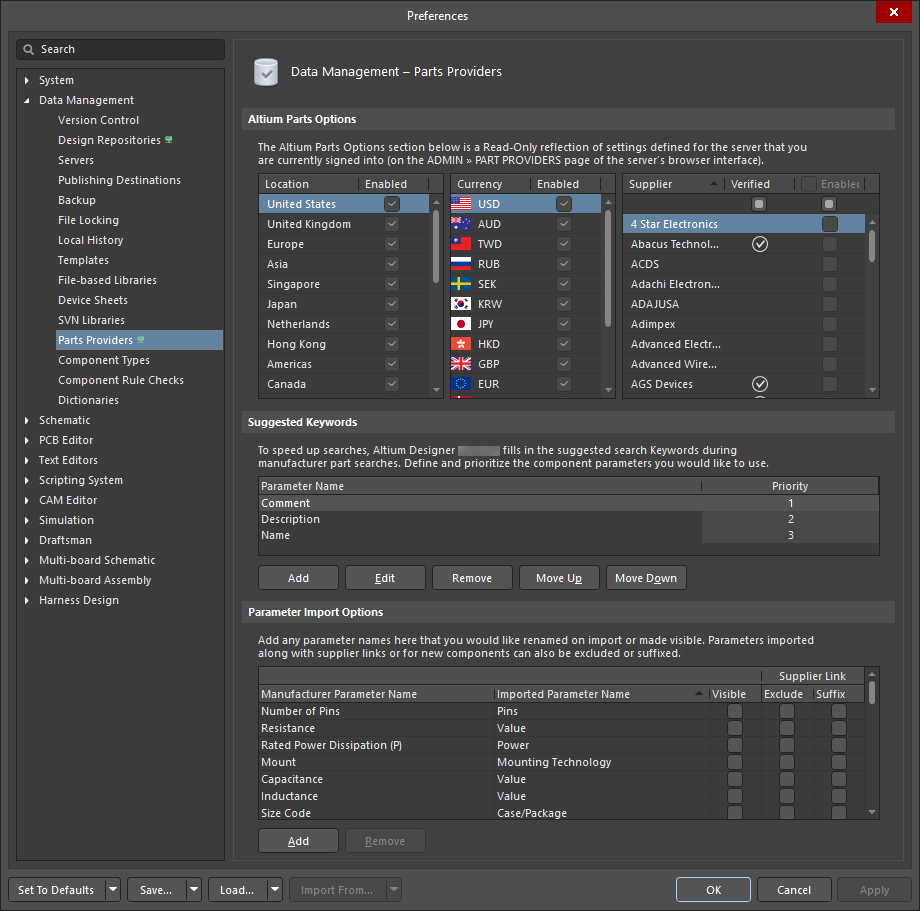
Configure options relating to the feature to link to Supplier data, as part of your Altium Designer preferences.
Use the Altium Parts Options section of the page to configure the service to suit your needs.
Options include the following:
-
Location – enable which geographical regions the parts service will collate parts data from. While many suppliers are multi-regional, if a part is uniquely available in a specific location, it will only be listed if that region is enabled. Drag and drop location entries in the list to set their ordered priority of use.
-
Currency – enable which international currencies will be available for selection when searching for parts and examining results. Drag and drop currency icons in the list to set their ordered priority of use.
-
Supplier – enable which Suppliers to include when performing a supplier data search. Only part results from those Suppliers will be returned. By including more Suppliers for use with the feature, you are able to compare and shop for the best deals on the components required by your design. A Supplier associated with a  symbol in the Verified column indicates that the Altium Parts Provider receives data directly from that supplier.
Note that if you are signed in to a server, the Altium Parts Options region becomes read-only and adopts those settings defined by the server. This is indicated by the presence of the  icon next to the page name in the navigation tree.
Searching for Component Supplier Data
The primary interface to available manufacturer parts and their associated live supplier data is the Manufacturer Part Search panel. Featuring sophisticated part search and location features based on categories and parametric filtering, the panel also functions as a direct portal to real-world parts offered by the various Suppliers you have enabled for the feature. Access this panel by selecting select View » Panels » Manufacturer Part Search from the main menu, or the Manufacturer Part Search option from the  button menu at the lower right of the main screen.
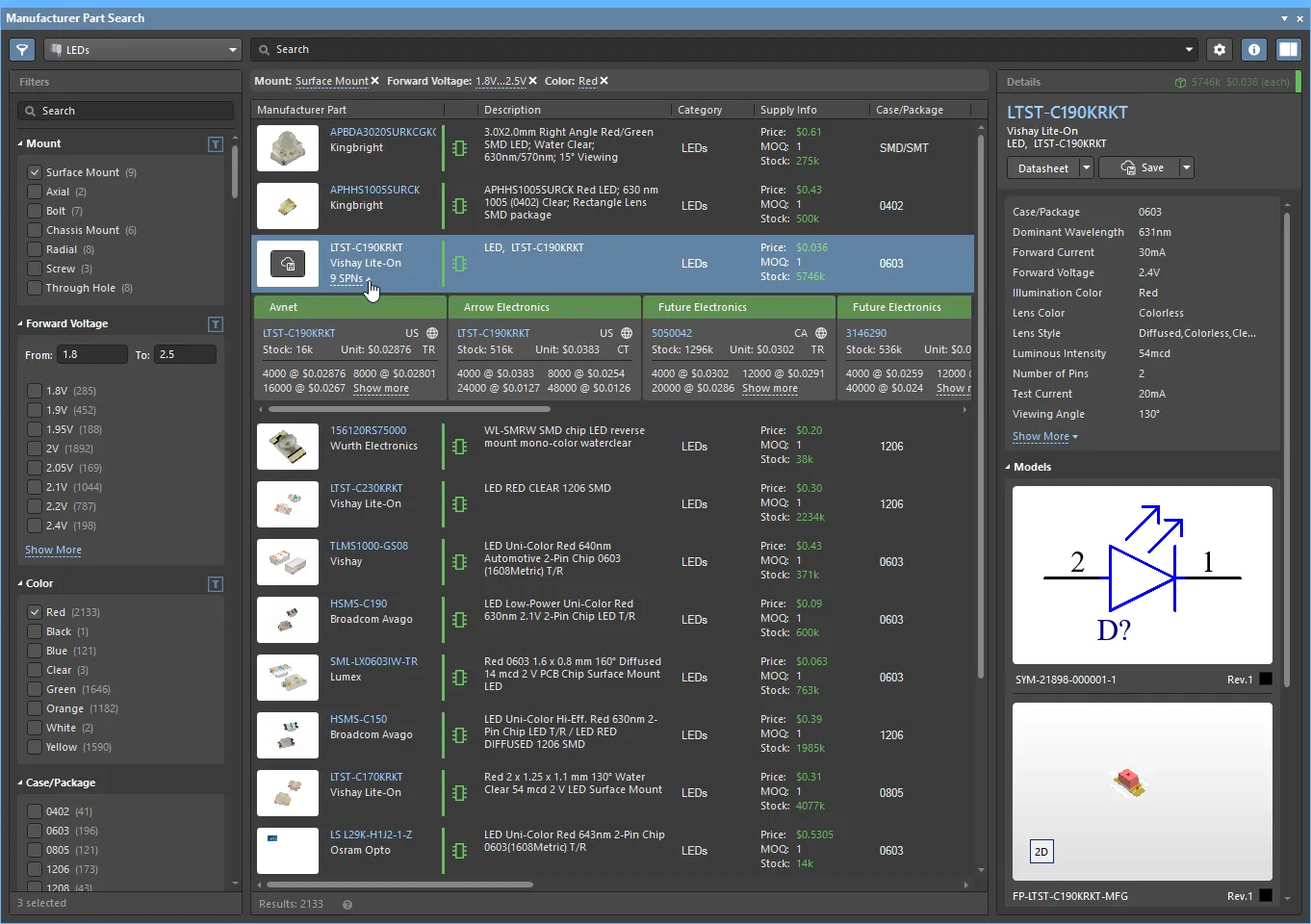 Search for real-world Supplier items through the Manufacturer Part Search panel.
As illustrated, the panel is essentially divided into three functional sections:
-
Component Search, Type and Filtering:
-
In the upper Search field, enter one or more keywords that relate to the component part. The returned results include Supplier Links for each listed manufacturer part.
-
Use the Categories drop-down list (
 ) to constrain the results to the selected type of component.
-
Check relevant parameter options in the Filters pane on the left (enabled with the
 icon) to filter the results to components that comply with those parameter values.
All of the above functions may be used in concert to quickly and accurately zero in on the required component parts, and by association, the live Supplier data available for those parts.
-
Search Results:
-
This central region of the panel populates with all manufacturer parts that match the current search, category and filter criteria. The Supply Info column provides a summary of the supply data for each entry, based on its unit Price, minimum order quantity (MOQ) and available supply Stock for the most suitable vendor. The color strip associated with each manufacturer part provides a quick estimate of its Lifecycle status – for example, green indicates that the part is suitable for volume production, whereas a red strip flags a part considered as obsolete.
-
A selected part entry includes supplier data link in the Manufacturer Part column (for example, 9 SPNs) that opens a horizontal list of supplier choice Tiles for that manufacturer part. Each Tile in that list applies to a particular vendor and provides a snapshot of the current (live) stock level, pricing and supplier part number. See Linking to a Supplier Item below for information on how these are applied to design components.
-
The panel's Option settings, available from the
 button at the top-right of the panel, configure how the search results data are displayed:
-
Currency menu – The currency used in the panel's pricing information is determined by the currency priority setting in the Data Management – Parts Providers page. To quickly change the panel's current setting, select a different currency from this drop-down menu.
-
Exclude Invalid SPNs option – Enable this option to remove the supplier data link in the Manufacturer Part column for entries where the supplier data for that part is unsuitable for use (invalid) – such as when Pricing or Stock information is not available.
-
Part Providers Preferences link – Provides direct access to the Data Management – Parts Providers Preferences page. Only those Suppliers that are enabled on the preferences page will be included in the list of suppliers/vendors for a manufacturer part.
-
Component Details:
-
The panel's Details pane (opened with the
 button at the top right) shows all available data for the selected component, including its parameters, models, datasheets, and links to web-based supplier information.
-
The pane also includes download options to view/save the manufacturer part specifications (
 ), or to locally save the component itself (
 ) by:
) by:
-
Saving the component to the currently connected Altium Workspace, or
-
Downloading the component as a zipped File Library, or
-
Placing the component on the active schematic sheet.
► See the Manufacturer Part Search page for detailed information on its features and application.
Viewing and Editing Supplier Links
The Supplier Links currently defined for a library component, or placed component on a schematic sheet, can be viewed and edited using the Supplier Links for dialog. To access this dialog:
-
For a schematic library component – right-click anywhere within the design space and choose the Supplier Links command from the context menu.
-
For a Database library / SVN Database Library component – right-click on a component entry under the Table Browser tab of the relevant DbLib/SVNDbLib file and choose the Edit Supplier Links command from the context menu.
-
For a placed component on a schematic sheet – right-click on the component and choose the Supplier Links command from the context menu.
After launching the command, the Supplier Links for dialog will open. The dialog lists all of the currently defined links for the component. If multiple manufacturer parts are available - meaning there are multiple solutions - the solutions are automatically ranked from highest to lowest, based on the part's availability, price and manufacturer lifecycle state. The Manufacturer Part is shown on the left with the selected available supplier detailed on the right.
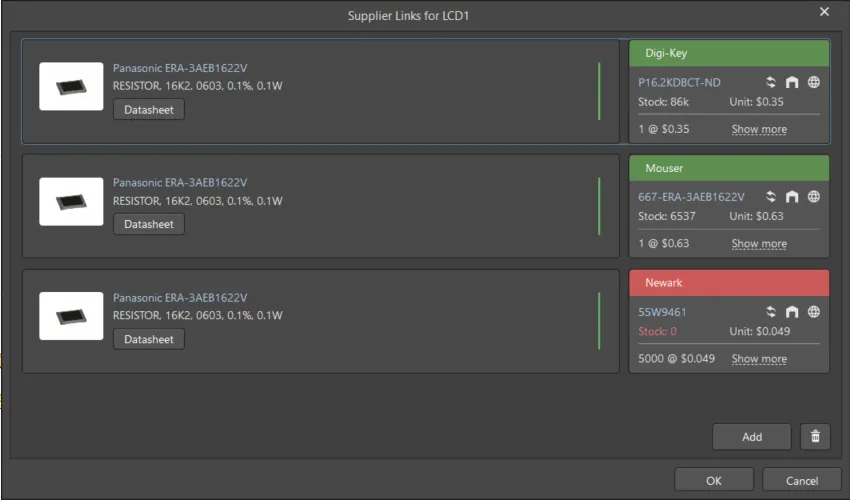
The Supplier Links for dialog
Options and Controls of the Supplier Links for Dialog
Supplier Links
The main body of the dialog shows the supplier links for the currently selected components. Each supplier link consists of the manufacturer part (on the left hand side) and the chosen supplier of that part (on the right hand side). The following sections describe these regions.
Manufacturer Part
The Manufacturer Part on the left displays the Part's image, Manufacturer name, Manufacturer part number (linked to the part on the Manufacturer's website), and descripton. You may also click on  to access the manufacturer's datasheet for that part.
The manufacturer part has an associated vertical colored bar that indicates its fundamental suitability for use, based on the Manufacturer Part's Lifecycle Status. Hover the cursor over the colored bar to see its Manufacturer Lifecycle state, where:
-
White/Gray = Unknown
-
Green = Volume Production
-
Red = Obsolete
-
Orange = Not Recommended for New Design
The Supplier
To the right of the Manufacturer Part is the selected supplier tile. This tile contains the following information relating to this specifically chosen supplier of the manufacturer part:
-
Colored tile banner showing the supplier name. The color reflects the risk associated with choosing that supplier. The risk can change at any time based on the availability and price data received from the Altium Parts Provider.
-
Green = Best
-
Orange = Acceptable
-
Red = Risky
-
Supplier part number (linked to the part on the Supplier's website)
-
Last updated icon with details displayed in the tooltip, color indicates:
-
White/Gray = Default, updated less than one week ago
-
Orange = 1 week < last update < month ago
-
Red = last update > 1 month ago
-
Country code for the Supplier location (ISO alpha 2); colored red if unknown.
-
Part source, details displayed in the tooltip.
-
Stock quantity; red if no stock available.
-
Unit price, red if no price available. Unit price includes currency icon, currency is determined by the location of the supplier.
-
Available price breaks, with Minimum Order Quantities (click on Show More to display additional available price breaks with Minimum Order Quantities).
Additional Controls
-
Click
 to open the Add Supplier Links dialog, which allows you to search for and add a new supplier link for the target component.
-
Click
 to remove a selected supplier link. Use Ctrl+Click to select and remove multiple supplier links.
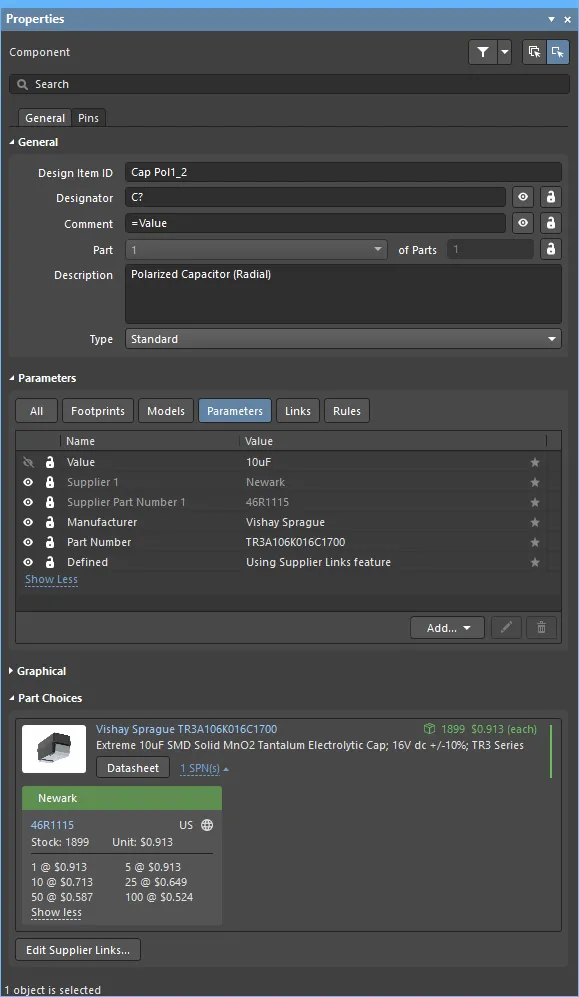
All currently defined Supplier Links for a schematic library component also can be viewed and edited directly from the selected component's Properties panel. The defined Supplier Links for the selected component are shown in the panel's Part Choices region. Detailed data for the selected Supplier Link is available via the clickable link in the Supplier Tile (as shown below), or by searching by that Supplier Part Number 1 parameter value of that component, in the Manufacturer Part Search panel.
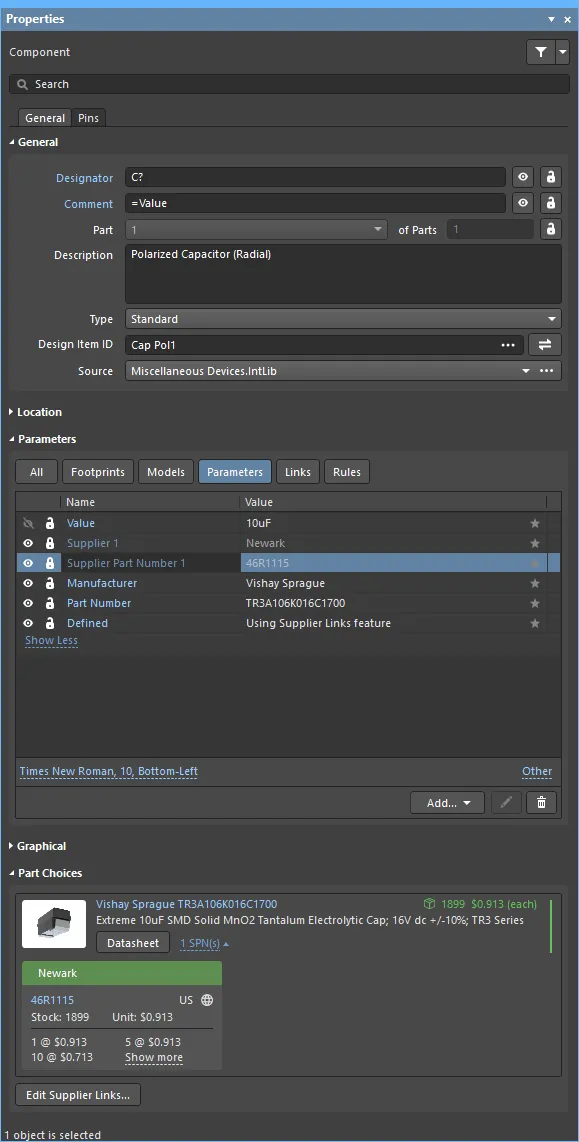
To add an additional Supplier Link, click the  button at the bottom of the Part Choices region. The Supplier Links for dialog will open, click the
  button to open the Add Supplier Links dialog, which can be used to search for and add additional links to the required item. Use the
  button in the Add Supplier Links dialog to remove the selected Supplier Link from the library component.
The Add Supplier Links dialog offers a search feature based on categories and parametric filtering similar to the Manufacturer Part Search panel. Refer to that page for more detail.
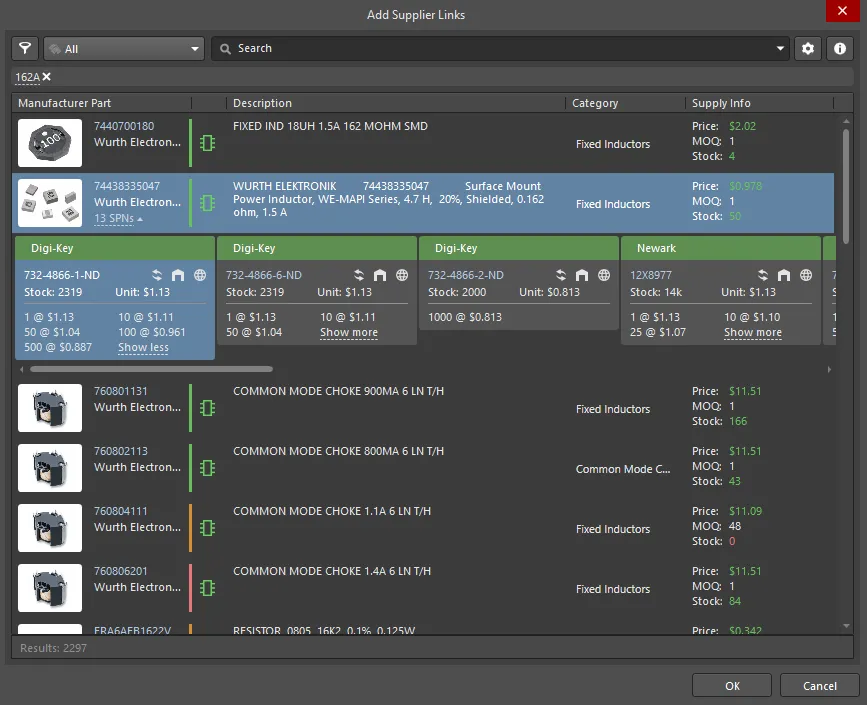
Options and Controls of the Add Supplier Links Dialog
-
Search - enter the desired search terms in the text box and press Enter. The Manufacturer Part results will be listed in the main region of the dialog.
-
Main Results Listing - this shows the resulting Manufacturer Parts returned based on the search criteria entered. For each manufacturer part, the Description, Category, and Supply Info are listed by default. Additional parametric information can be displayed by right-clicking on a column header and choosing the Select Columns command from the context menu. This provides access to the Select Columns dialog.
-
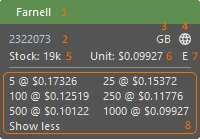
For each manufacturer part, the suppliers that vend that part can be accessed by clicking on the SPNs (Supplier Part Numbers) drop-down. Each SPN Tile includes a colored banner, which indicates the risk associated with choosing that SPN. The order of the SPN Tiles can change based on the availability and the price data from the Altium Parts Provider. An SPN Tile contains the following information:
-
Tile banner, including supplier name, where the banner color indicates:
-
Green = Best
-
Orange = Acceptable
-
Red = Risky
-
Supplier part number (linked to the part on the Supplier's website)
-
Country code for the Supplier location (ISO alpha 2).
-
Source of the part information (hover for details). Color indicates:
-
Gray = Default, updated less than one week ago
-
Orange = 1 week < last update < month ago
-
Red = last update > 1 month ago
-
Stock, red if available stock < order quantity
-
Unit price: red if no price available or price = 0 (currency is set by clicking the
 button in the dialog)
-
Packaging of supplied parts; hover for details.
-
Available price breaks, with Minimum Order Quantities
For the dialog's OK button to become available, you must select an SPN for the desired Manufacturer Part.
Component entries listed with an associated green

icon have symbols and footprints and are therefore ready to be placed in a design. To restrict the listing to those components that have associated model data, select the
Yes option for the
Has Model parameter in the
Filters pane (accessed by clicking the

button at the top left of the dialog).
Many suppliers offer discounts for bulk orders. Click the Show more link in the SPN Tile to view different unit prices based on the quantity ordered from the supplier. (You can then click the Show less link to collapse the bulk quantity price list.)
Tailoring the Search Process – Suggested Keywords
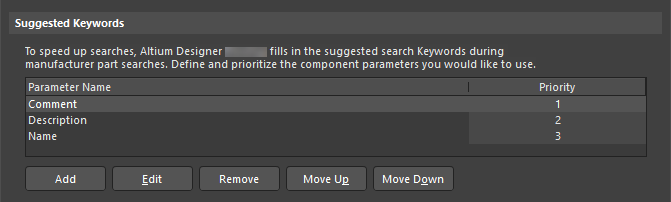
Where the Add Supplier Links dialog is used for locating and selecting suitable component supplier data, the software automatically performs a manufacturer part search based on parameter data extracted from the target component. The search entry used by the software is defined in the Suggested Keywords region on the Data Management – Parts Providers page of the Preferences dialog, which allows the applied search expression to be configured to suit your component library structure. You have full control over which parameters of parts are used as search keywords, and in what order.
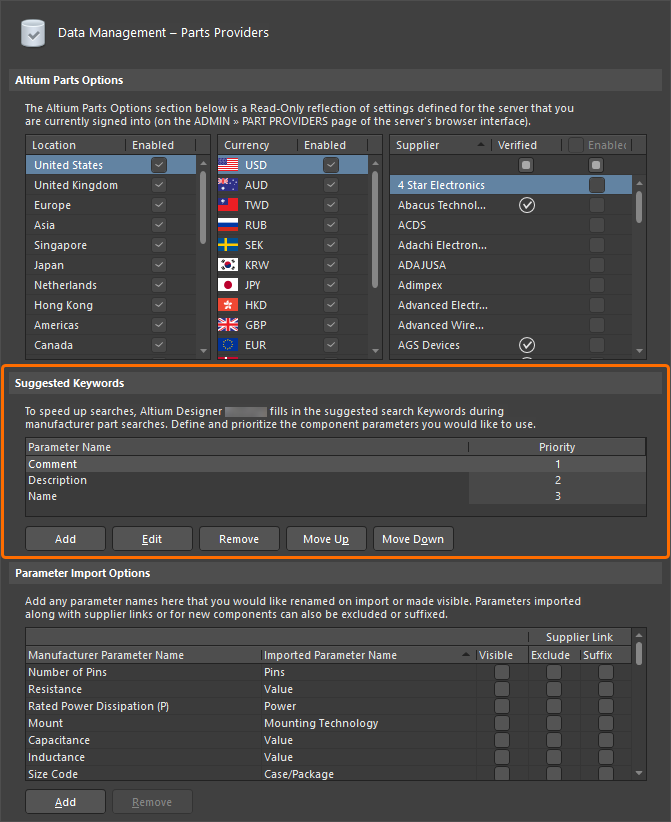 Default suggested keywords that are used when automatically searching for parts in Supplier databases.
In the dialog's Suggested Keywords region, default priority assignments (with the highest priority at the top of the list) mean that, by default, the Comment value will be used as the search criteria first. If the source component has no comment, then the next attempt uses its Description value. If this is also blank, the component's Name will be used.
You can include your own keyword parameters as required by clicking the Add button. This will add a new parameter entry (with default name Parameter Name) to the bottom of the list (and therefore assigning it the lowest priority), with the new parameter automatically focused and ready for a name change. To modify the name of an existing parameter, click once on its name field to focus it, then enter the new name as required. Alternatively, select a parameter by clicking on its associated priority field, then click the Edit button.
Click anywhere on the Priority column to effect the name change. You can also press Enter, but be aware that this will commit the change and close the Preferences dialog.
Use the Move Up or Move Down buttons to shift the currently selected parameter up or down in the list respectively – increasing, or decreasing its assigned Priority accordingly.
 An example user-defined suggested keyword parameter, added and given the top priority.
While the default parameters can be edited, or indeed removed, they can be restored from the drop-down listing associated with a parameter entry.
Quantity and Pricing
Suppliers will typically have different pricing based on the quantity of an item to be purchased from them. The quantity levels required to access increasingly reduced unit price points differ not only between different suppliers but also from item to item for the same supplier. When selecting Manufacturer part Supplier data in the Manufacturer Part Search panel, a summary of this information is available in a part Supplier Tile by selecting the Show more link. This allows you to make an informed pricing (and stock) decision when choosing a Supplier Link, based on the current data.
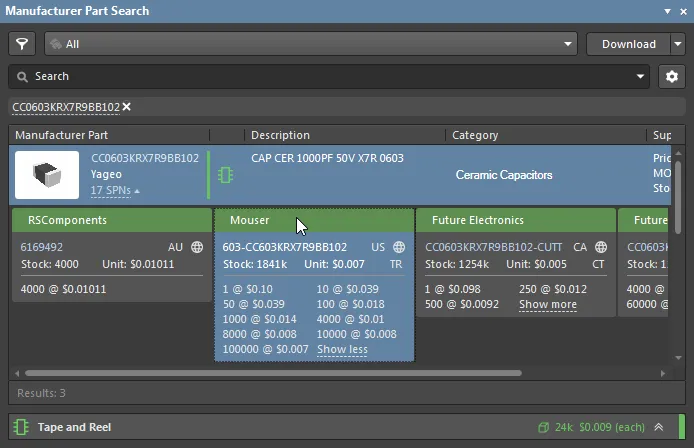
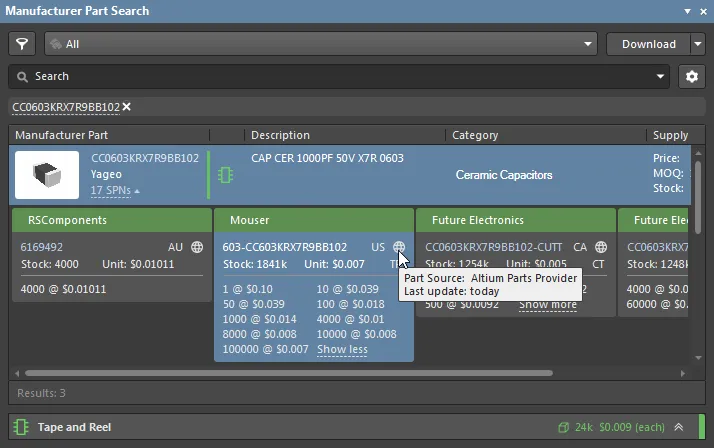
Supplier prices and stock levels vary. Bear in mind that there is a delay in updating the information from Suppliers into the database of the aggregator service delivered by the Altium Parts Provider. Hover the mouse over the  symbol in a Supplier Tile to see when the information was last updated.
Supplier links added to a library component also offer detailed pricing-quantity information in the Part Choices region of the Properties panel, for the currently selected library component.
 Example of displayed Unit Price based on the specified Order Quantity when ordering 100 units reduces the price from 0.1USD to 0.018USD per capacitor.
Currency Conversion
Different Suppliers operate in different, often multiple, regions of the world and as such, it is common to see product pricing reported in different currencies. Altium Designer provides the capability to convert the display of such pricing information into one of a number of supported currencies.
To quickly display all pricing information in a single currency in the Manufacturer Part Search panel, select the required currency from the Currency drop-down menu available from the panel's button. To have pricing displayed in the default currency used by a Supplier, choose the menu's None entry.
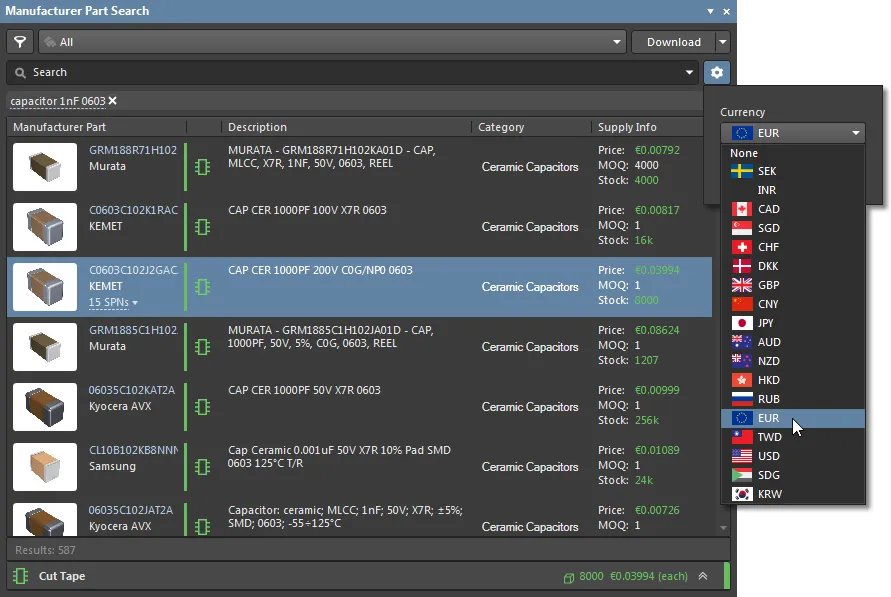
Currency conversion is performed using applicable exchange rates. These rates are updated on a daily basis (every 24hrs), but you need to be signed in to your Altium account for the current conversion rates to be applied.
To set the currency usage preferences in Altium Designer, enable/disable currencies and set their priority on the Data Management – Parts Providers page of the Preferences dialog.
► See Supplier Preferences above for more information.
Importing Specific Parameters
Specified manufacturer/supplier Parameters can be imported from the Manufacturer Part Search panel to a library or placed component using the Add Parameter(s) To command, which is available from the panel's Details pane – opened from the button.
To do so, select a Manufacturer part or one of its Supplier sub-entries in the panel's search results list, and then the desired Parameter entries in the panel's Details pane. Right-click on a selected (highlighted) Parameter entry, and choose the Add Parameter(s) To command option to propagate the parameters to the target component.
-
For a library component, the target is the entry selected in the SCH Library panel or (for a database library) the DBLib Table Browser.
-
For placed component, the target is selected in the Schematic Editor using cursor crosshairs.
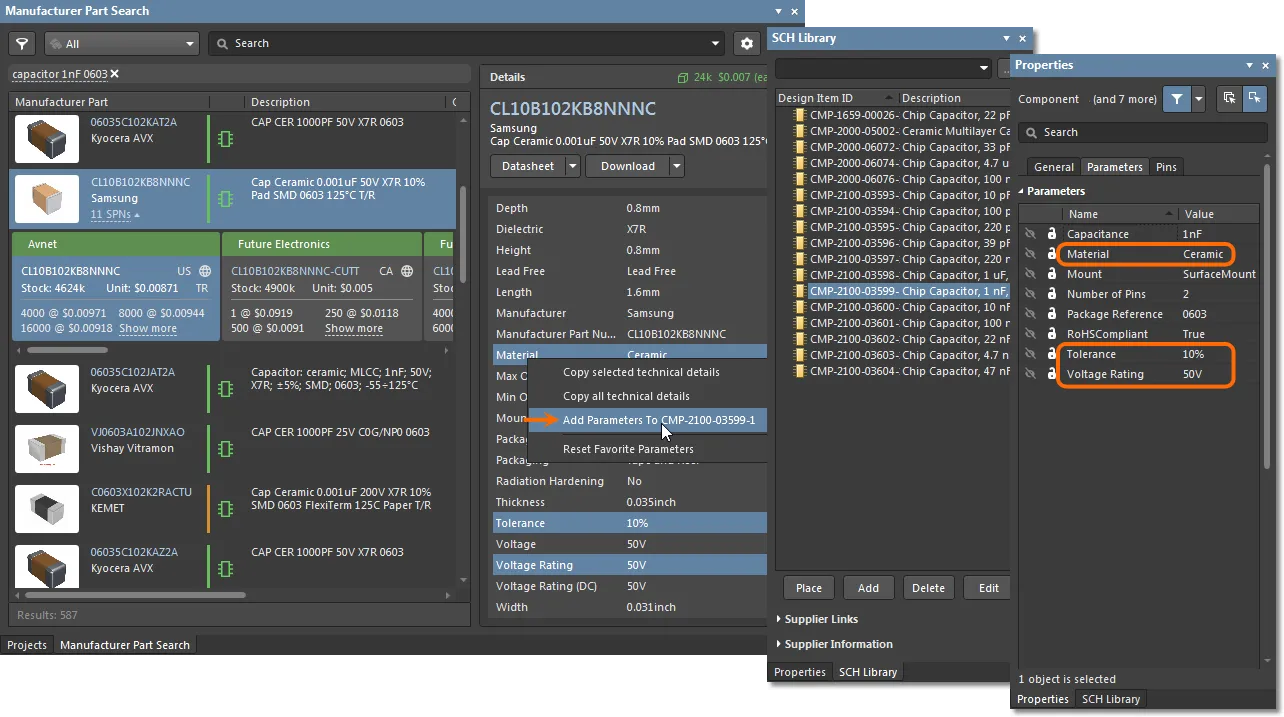
Notable points regarding the propagation of parameter-value pairs are:
-
If the parameter already exists in the target component, its value will be updated – see Voltage Rating in the above example images.
-
If the parameter does not already exist, the imported parameter-value pair will be added to the target component – Tolerance and Material in the above image.
-
The process will comply with the settings in the Parameter Import Options region of the Data Management – Parts Providers page of the Preferences dialog. For example, if Capacitance is mapped to Value, then the latter parameter will be added as a capacitance value to the target component – Value 1nF.
-
Supplier parameters, such as Stock and Pricing, are available in the Details pane of the Manufacturer Part Search panel only when a Supplier Tile (rather than the Manufacturer part) is selected as the source.
-
In the same way as other parameters, added Supplier data will update existing Supplier parameters in the target component. The supplier data suffix remains at 1 and subsequent additions do not increment the suffix value.
Including Supplier Data in a Bill of Materials
Supplier data links added to components in a design, or the links inherent in a component placed from a library, are saved with the design and available for inclusion in a Bill of Materials (BOM).
BOM Report
At the simplest level, component supplier links are available in a BOM Report generated from the project source. Select Reports » Bill of Materials to open the Bill of Materials for Project dialog, which can be configured for your needs and generated in a variety of formats (Excel, PDF, HTML, etc.). The BOM Report is also available for inclusion as a Report Output in a project Output Job.
► See BOM Configuration in the Report Manager for detailed information.
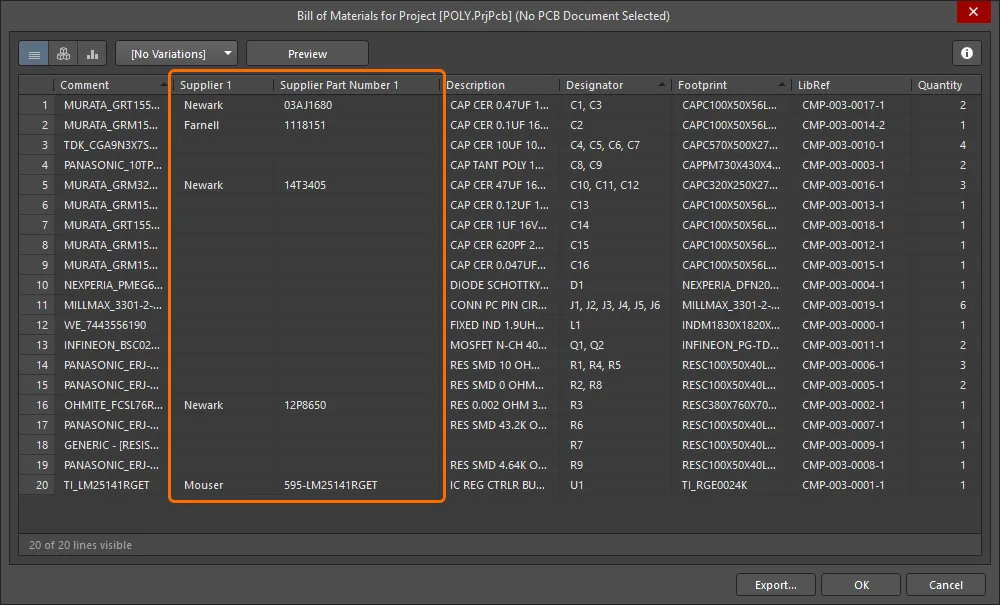 A simple BOM Report will show supplier data parameters for components that include Supplier Links.
A BOM Report will extract Supplier Links data from an ActiveBOM document (see below) if one exists in the project, rather than from the project design documents.
ActiveBOM Document
The far more advanced, and recommended, approach to managing manufacturer and supplier links in a project Bill of Materials is to include an ActiveBOM document in your project – File » New » ActiveBOM Document. Note that the full benefits of this approach are realized when using Workspace Library Components.
► See BOM Management with ActiveBOM for detailed information.
ActiveBOM uses component data Solutions to add a comprehensive set of live parts information, such as manufacturer part details (including Lifecycle status), supplier pricing and stock level.
Existing component Supplier Links, previously added at the library or schematic document level, are automatically converted to ActiveBOM Solutions. Note that these will continue to only displayed the single supplier added when you defined the Supplier Link, even though that manufacturer part may be available from multiple suppliers.
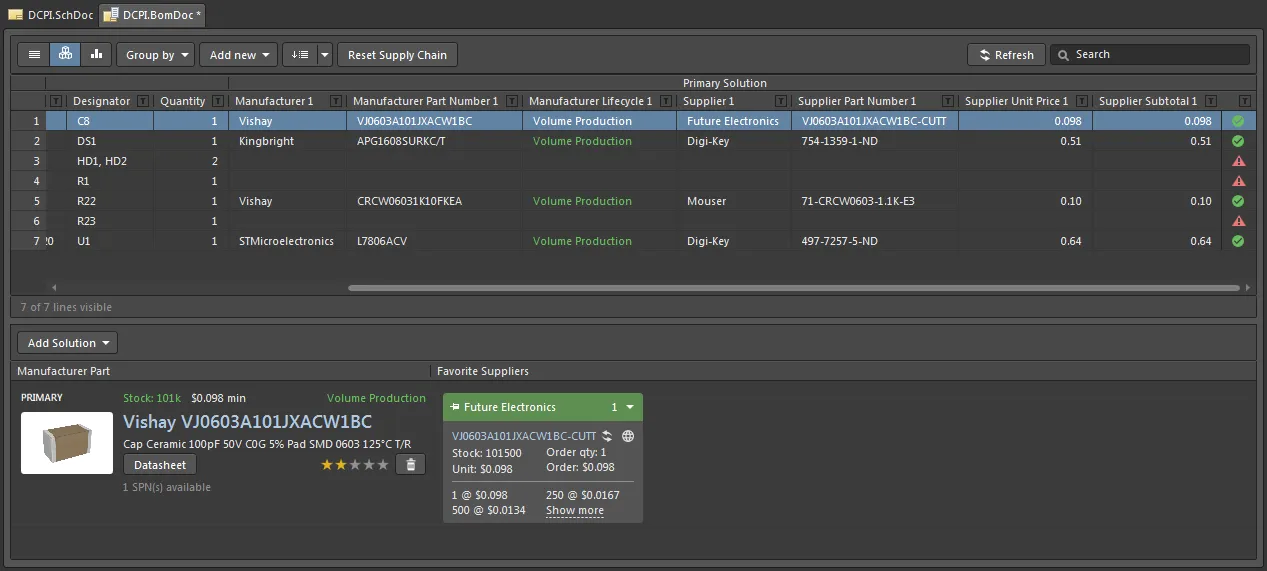
The next step up from BOM Solutions derived from existing Supplier Links added to the components in the library or on the schematic, is to add new component Solutions within the ActiveBOM interface.
ActiveBOM's native, manufacturer-centric Solutions provide advanced data mapping between the design component and the manufacturer part, and all of the approved Suppliers of that part. The real-time Solution data is available right through the design process and becomes the source for all BOM-type outputs.
Not only can you have multiple suppliers of a specific manufacturer part associated to your design component (Solution), you can also associate multiple manufacturer parts to that Solution. If the DesignPart - ManufacturerPart association is stored as part of the design component in your Workspace the approach is referred to as Part Choices, if the association is stored in the ActiveBOM document (BomDoc) it is referred to as Manufacturer Links.
This powerful approach means that the design component does not need to store any information about suppliers or supplier part numbers.
► Learn more about Adding Supply Chain Information to a Component in Altium Designer.
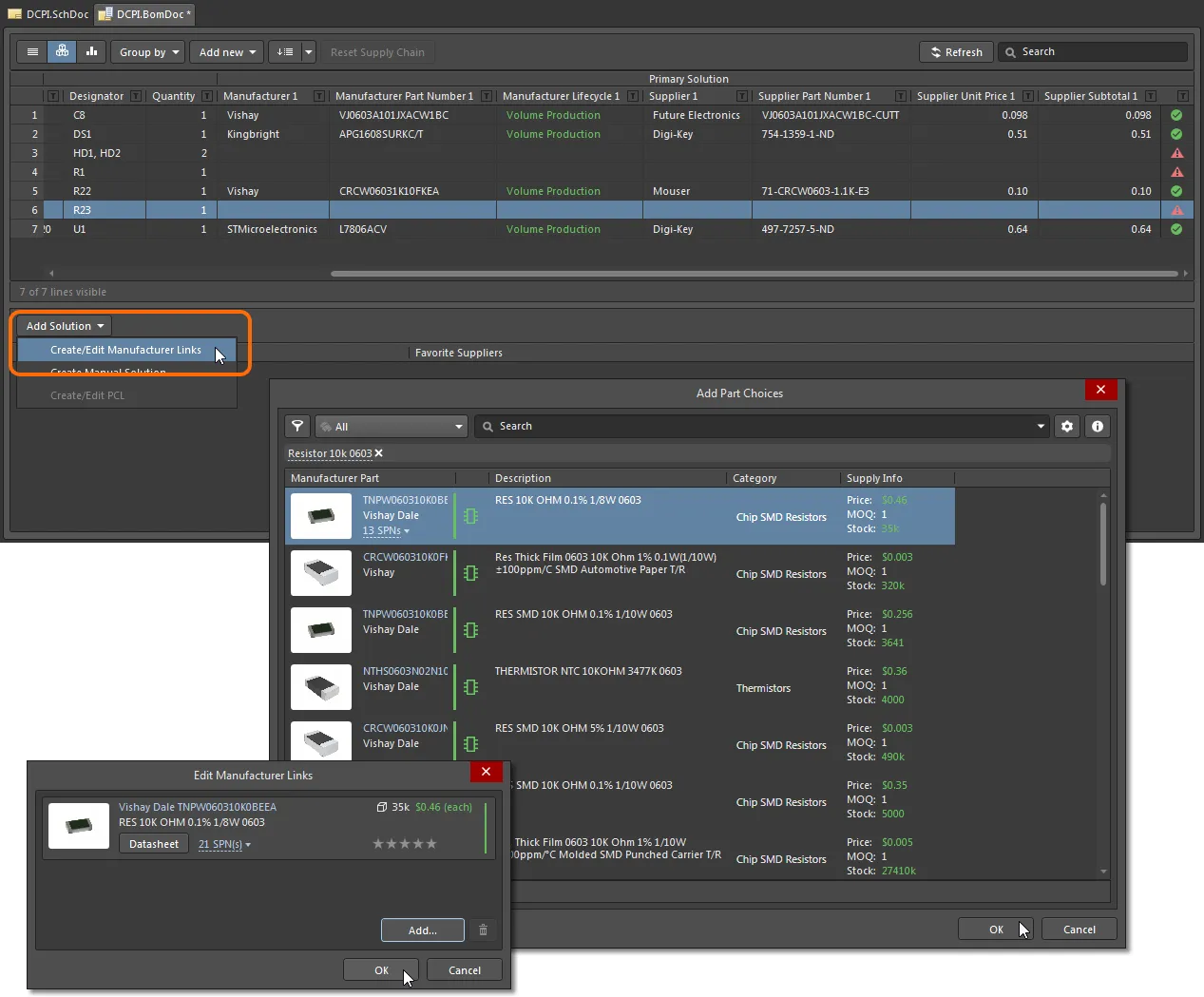
If your design does not use Workspace components, use the Create/Edit Manufacturer Links option from the  button menu to add an ActiveBOM Solution to the currently selected component entry. Select the
  button in the following Edit Manufacturer Links dialog, and then a suitable manufacturer component entry in the Add Part Choices dialog. When confirmed (OK), this part link is added as a new entry in the Edit Manufacturer Links dialog.
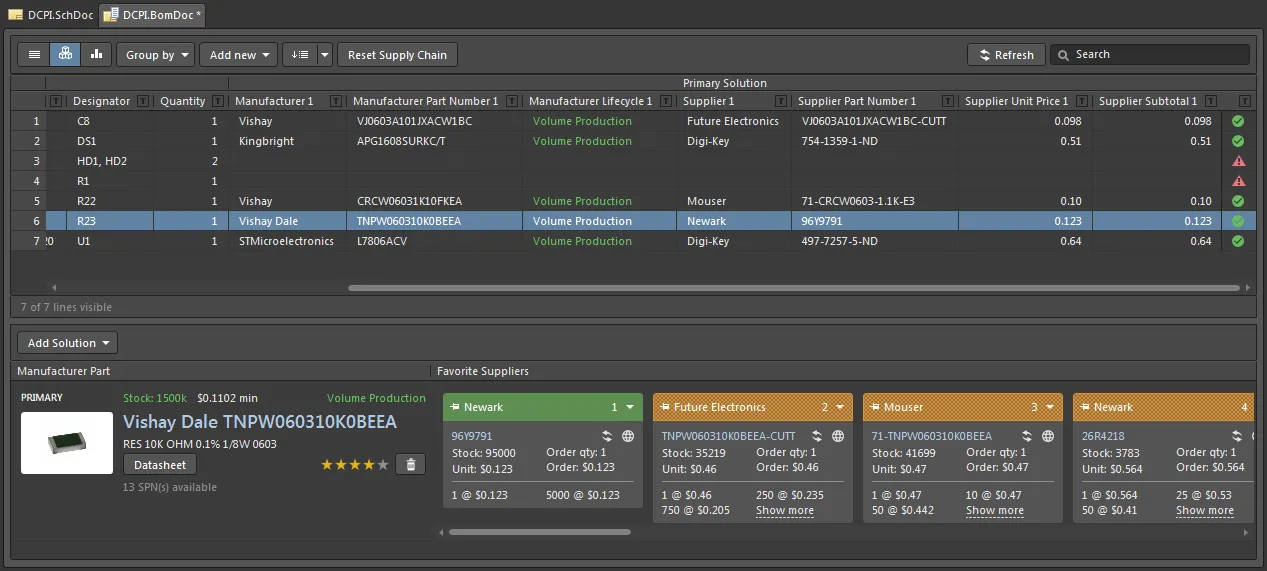
After confirming the addition in the dialog ( ) the ActiveBOM Solution is added to the BOM component entry. Note that the Solution, in this case, includes the full list of Supplier options, where the selected option (colored green) is designated as the 'Best' Supplier Solution for the manufacturer part.
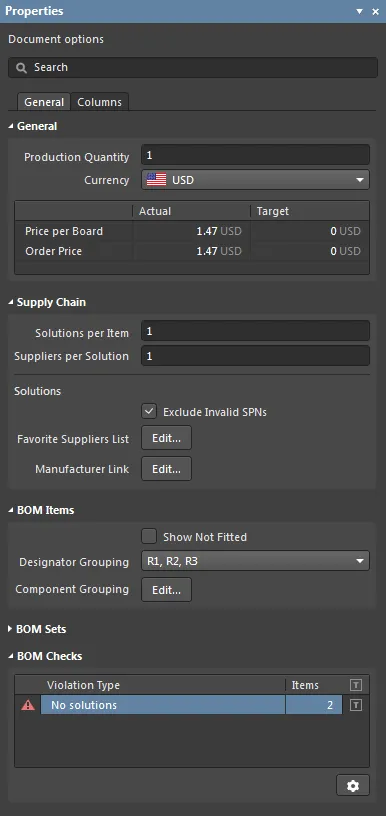
Use the associated Properties panel to configure the ActiveBOM features, such as the applied Currency, Manufacturer link data source, visible data columns, BOM Item groupings, BOM check warnings, etc.
► See BOM Management with ActiveBOM for more information.
