
Определение конструкции устройства из нескольких электронных модулей
Altium Designer поддерживает создание многоплатной сборки, называемой multi-board assembly. После определения логической структуры системы на многоплатной схеме (*.MbsDoc) физическая многоплатная конструкция создается путем переноса проекта системы в пустой документ многоплатной сборки (*.MbaDoc). В ходе этого процесса физические представления (печатные платы и другие многоплатные сборки), на которые ссылается каждый логический блок многоплатной схемы, загружаются в редактор многоплатных сборок. На этой странице рассматривается данный процесс.
Подробнее об этапе логического проектирования многоплатной сборки см. на странице Разработка логического проекта системы.
Чтобы создать новый документ многоплатной сборки:
-
Добавьте новый документ многоплатной сборки (
*.MbaDoc) в многоплатный проект: щелкните правой кнопкой мыши запись проекта на панели Projects и выберите Add New to Project » Multi-board Assembly в контекстном меню. -
Сохраните новый документ многоплатной сборки (щелкните правой кнопкой мыши его запись на панели Projects и выберите Save As в контекстном меню).
-
Перенесите логическое представление системы из многоплатной схемы в документ многоплатной сборки — подробнее.
-
Если модель корпуса доступна, загрузите ее в сборку — подробнее.
-
Разместите каждый элемент в сборке — подробнее см. на странице Размещение и ориентация плат.
-
Соедините элементы сборки с помощью сопряжений — подробнее см. на странице Работа с сопряжениями.
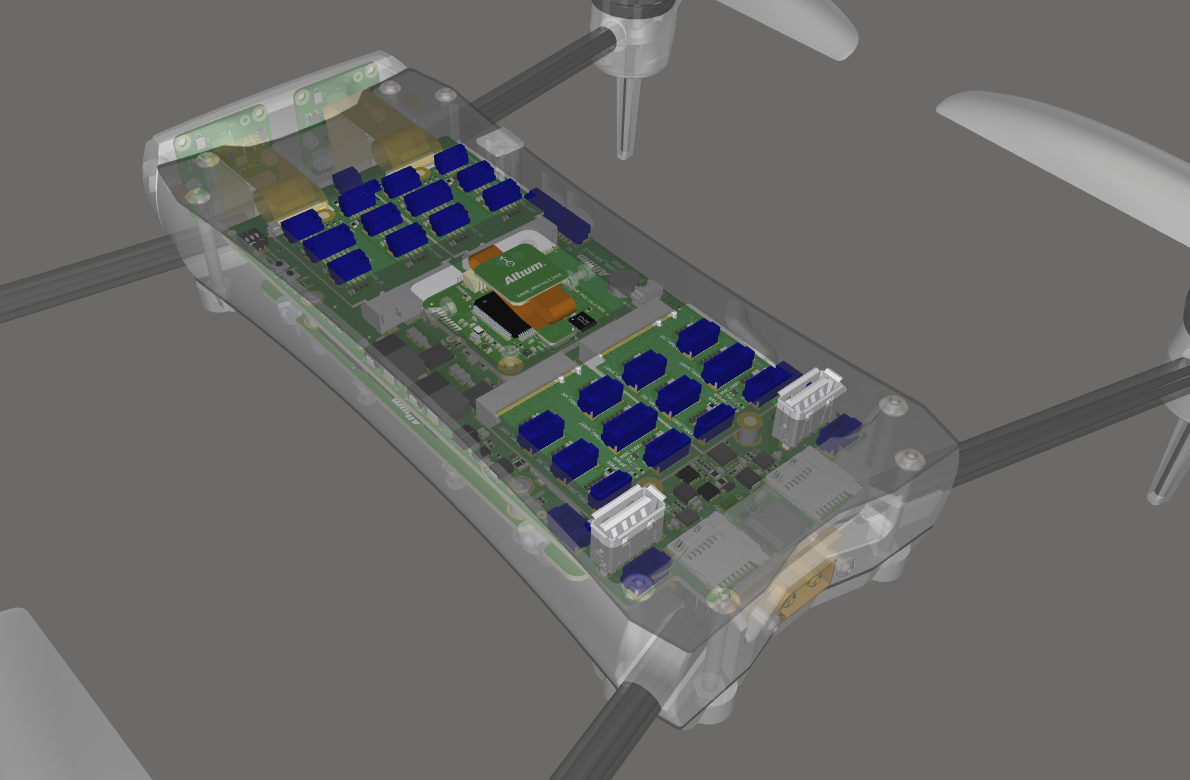
Пример многоплатной сборки. Несколько соединенных печатных плат размещены внутри корпуса.
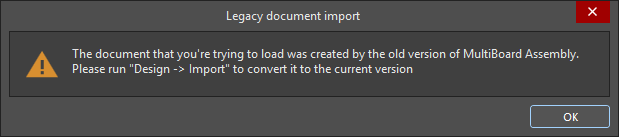
Перенос проекта системы в документ многоплатной сборки
Многоплатный проект переносится из многоплатной схемы в документ многоплатной сборки с помощью одной из следующих команд:
-
Design » Update Assembly - <MultiBoardAssemblyDocumentName>.MbaDoc из главного меню редактора многоплатных схем.
-
Design » Import Changes From <MultiBoardProjectName>.PrjMbd из главного меню редактора многоплатных сборок.
При выполнении одной из этих команд программа анализирует каждый модуль многоплатной схемы, определяет плату или сборку, выбранную для каждого дочернего проекта, и отображает список изменений, необходимых для добавления этих плат в сборку, в диалоговом окне Engineering Change Order.
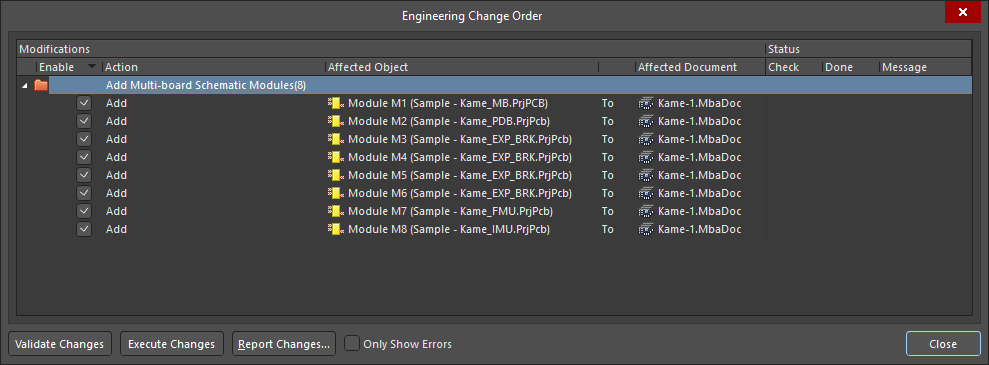
Плата из каждого проекта печатной платы включается в список изменений ECO и загружается в редактор многоплатных сборок при выполнении ECO.
При нажатии кнопки  платы и сборки загружаются в редактор многоплатных сборок. Каждая плата или сборка размещается в рабочей области в той же ориентации, что и в дочернем проекте. Этот процесс занимает некоторое время, поскольку необходимо проанализировать и загрузить полный набор данных для каждой печатной платы.
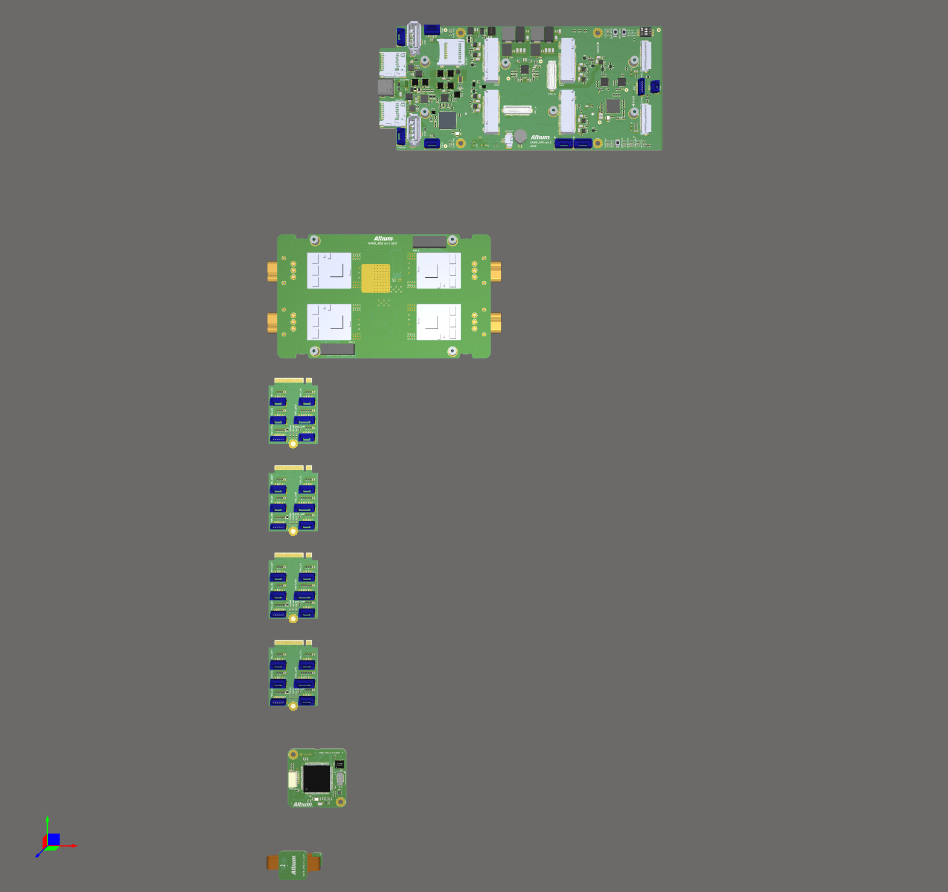
Платы этой многоплатной сборки загружены в рабочую область редактора многоплатных сборок и готовы к размещению.
Добавление дополнительных объектов в многоплатную сборку
В многоплатную сборку также можно загружать дополнительные объекты (помимо печатных плат, на которые ссылается многоплатная схема). Дополнительные объекты можно загрузить через меню Design или с помощью кнопок в верхней части панели Multi-board Assembly.
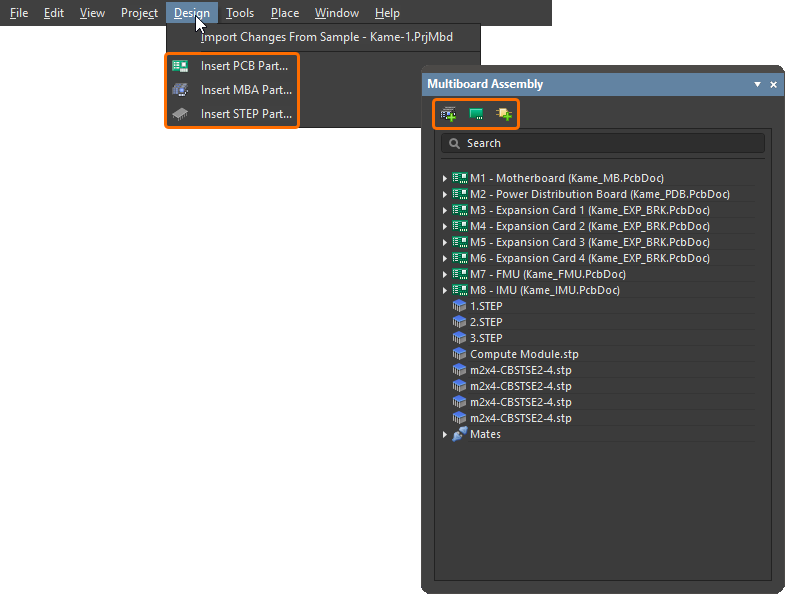
Используйте соответствующую команду или кнопку, чтобы:
-
Insert PCB Part (
 ) — вставить в эту сборку другую печатную плату.
-
Insert MBA Part (
 ) — вставить в эту сборку другую многоплатную сборку.
-
Insert STEP Part (
 ) — вставить в эту сборку механическую модель в формате STEP.
Обновление или редактирование детали сборки
Блокировка и разблокировка детали
Чтобы заблокировать или разблокировать деталь, выберите нужную деталь, щелкните правой кнопкой мыши и выберите команду Lock Selected Part/Unlock Selected Part в контекстном меню. Деталь (или сопряженные детали) будет заблокирована или разблокирована в текущем положении в рабочей области редактора сборки. Также можно щелкнуть правой кнопкой мыши запись детали на панели Multiboard Assembly и выбрать Locked.
-
Заблокированную деталь нельзя редактировать или перемещать.
-
Заблокированные детали отмечены значком замка на панели Multiboard Assembly.
-
Для отдельной заблокированной детали не отображается манипулятор объекта (подробнее о манипуляторе объекта см. на странице Размещение и ориентация плат).
-
Заблокированную деталь нельзя сопрягать, если она выбрана в качестве исходного объекта (объекта, который перемещается; подробнее о сопряжении деталей см. на странице Работа с сопряжениями).
Обновление детали
Если деталь или 3D-тело, добавленные в сборку, были изменены, обновление можно загрузить в многоплатную сборку одним из следующих способов:
-
Выберите команду Edit » Update All Parts в главном меню или щелкните правой кнопкой мыши в любом месте рабочей области и выберите команду Update All Parts в контекстном меню (сочетание клавиш:
Shift+Ctrl+U), чтобы обновить все детали активной многоплатной сборки, используя актуальные данные о топологии из соответствующих дочерних документов печатных плат. -
Выберите нужные детали и выполните команду Edit » Update Selected Part из главного меню или щелкните правой кнопкой мыши в любом месте рабочей области и выберите команду Update Selected Part в контекстном меню (сочетание клавиш:
Ctrl+U), чтобы обновить выбранные детали активной многоплатной сборки, используя актуальные данные о топологии из соответствующих дочерних документов печатных плат. -
Выберите нужное 3D-тело и выполните команду Edit » Update Selected 3D Body из главного меню или щелкните правой кнопкой мыши в любом месте рабочей области и выберите команду Update Selected 3D Body в контекстном меню, чтобы обновить выбранные 3D-тела в активной многоплатной сборке, используя актуальные данные о топологии из соответствующих дочерних документов печатных плат.
Редактирование детали
Сеанс редактирования сборки или печатной платы можно запустить из редактора многоплатной сборки. Выберите нужную деталь и выполните команду Edit » Edit Selected Part или щелкните правой кнопкой мыши в любом месте рабочей области и выберите команду Edit Selected Part в контекстном меню (сочетание клавиш: Ctrl+E). После выполнения команды вы перейдете в режим редактирования детали. Выбранная печатная плата будет по возможности масштабирована и расположена по центру так, чтобы целиком помещаться в главном окне проектирования. Плата сохранит свою обычную цветовую схему, а все остальные платы будут отображаться серым цветом и доступны только для чтения.
Внесите необходимые изменения в размещение компонентов, используя ручное размещение и/или функции выравнивания. Закончив редактирование, выполните команду Finish Part Editing (Ctrl+E). Масштаб рабочей области снова будет изменен так, чтобы отображались все платы сборки, а отредактированная плата останется выбранной.
Чтобы отменить редактирование без применения изменений, используйте команду Cancel Part Editing.
Навигация и управление многоплатной сборкой
Для навигации и управления многоплатной сборкой можно использовать панель Multiboard Assembly.
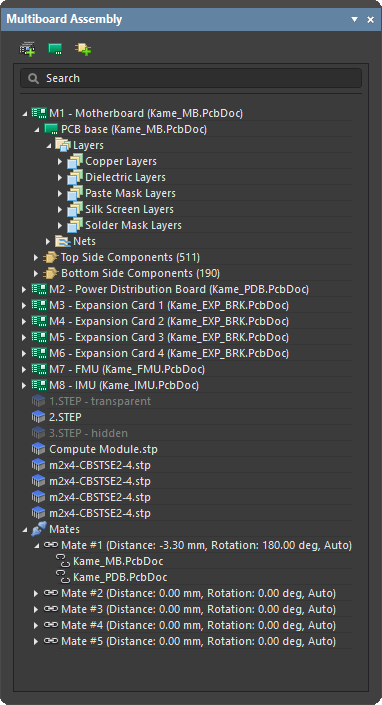
На панели представлено раскрываемое дерево полной структуры сборки, включающее:
-
Входящие в сборку печатные платы и многоплатные сборки, а также компоненты, слои и цепи каждой печатной платы
-
Добавленные модели STEP
-
Другие добавленные многоплатные сборки
-
Сопряжения между объектами сборки
Подсветка элементов многоплатной сборки
Панель Multiboard Assembly позволяет подсвечивать элементы: деталь, выбранная в дереве, подсвечивается в рабочей области. Для элементов верхнего уровня дерева сборки подсветка работает в обоих направлениях: например, состояние выбора записей на панели изменяется при выборе объектов верхнего уровня в рабочей области. На панели поддерживается выбор на всех уровнях дерева, где это имеет смысл. Например, при выборе отдельной цепи она подсвечивается по всей плате, но при выборе отдельного диэлектрического слоя этот слой не подсвечивается. Для выбора нескольких элементов на панели можно использовать стандартные для Windows сочетания клавиш Shift+Click или Ctrl+Click.
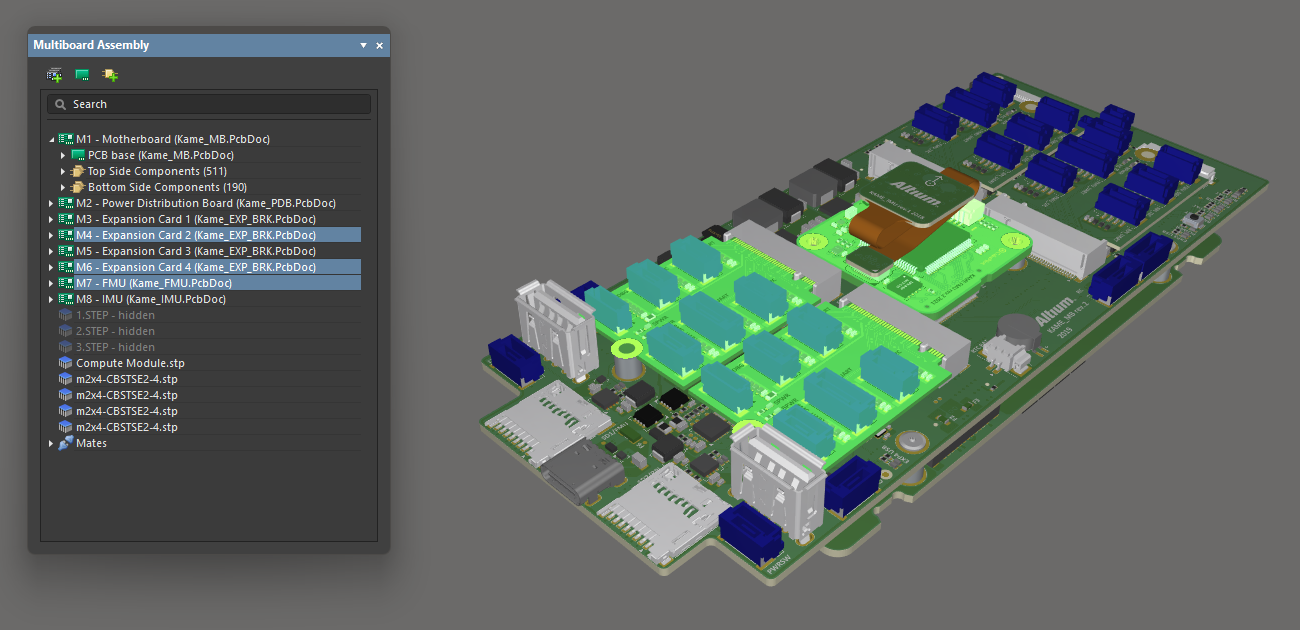
Три платы, выбранные в рабочей области, также подсвечиваются на панели.
Управление видимостью и прозрачностью деталей сборки
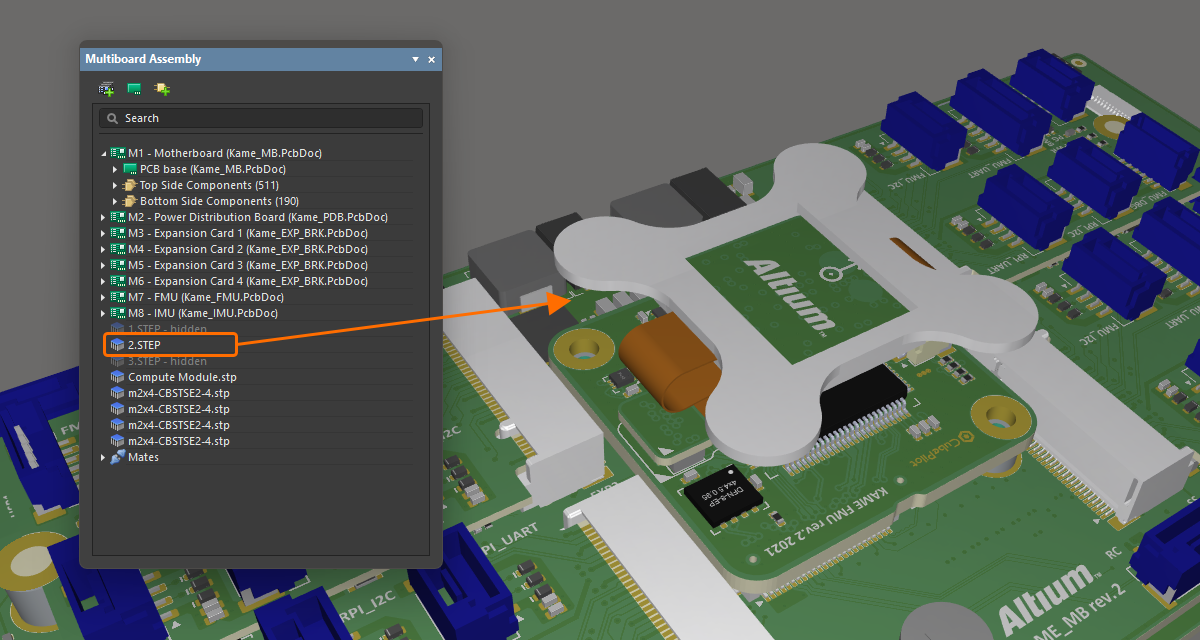
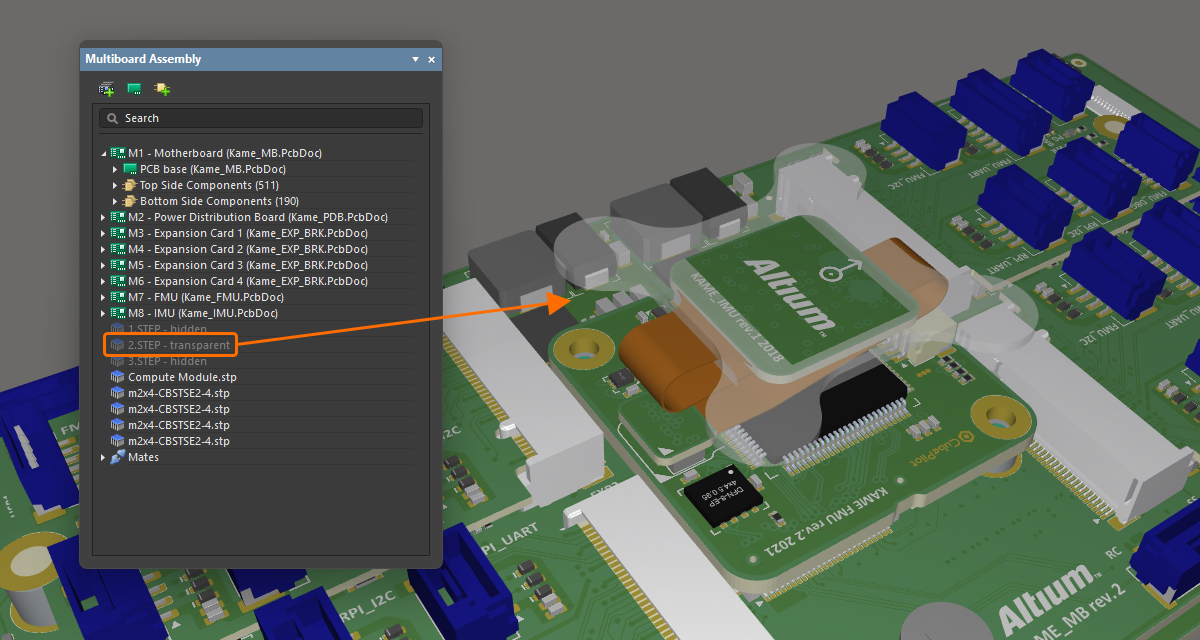
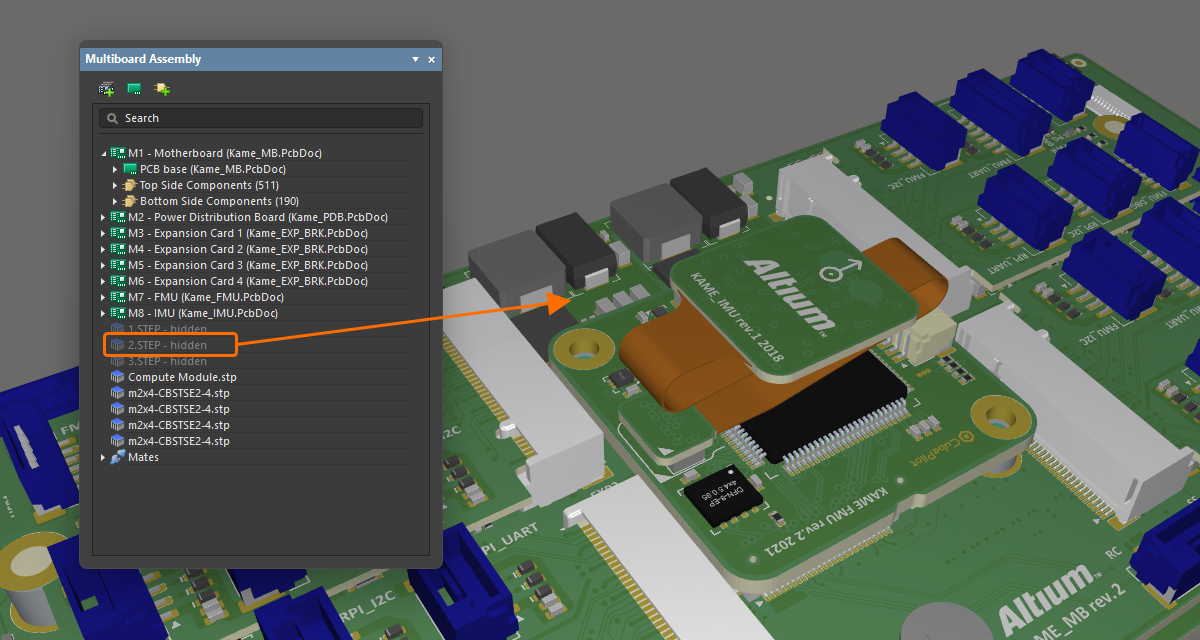
Помимо подсветки одной или нескольких деталей, панель позволяет управлять видимостью и прозрачностью выбранных на ней деталей. Щелкните правой кнопкой мыши выбранные детали и выберите Visible или Transparent в контекстном меню. Прозрачные детали станут просвечивающими. Детали с отключенным параметром Visible будут скрыты.
|
Модель STEP полностью видна в сборке. Та же модель сделана прозрачной. Та же модель полностью скрыта. |
Измерение расстояния
Команда Tools » Measure Distance из главного меню (сочетание клавиш: Ctrl+M) используется для измерения расстояний между 3D-телами в многоплатной сборке. После запуска команды вы перейдете в режим измерения. Измерение выполняется следующим образом:
-
Выберите первый 3D-объект или конкретную грань этого объекта. При наведении курсора на доступный для выбора 3D-объект его цвет изменится. Чтобы выбрать конкретную грань объекта, удерживайте клавишу
Ctrlпри перемещении курсора — грань под курсором будет подсвечена. Наведите курсор и щелкните, чтобы подтвердить выбор объекта или грани. -
Выберите второй 3D-объект или конкретную грань этого объекта.
-
Инструмент наглядно отображает кратчайшее расстояние между двумя выбранными объектами (гранями).
-
Продолжайте измерять расстояния между другими объектами или гранями либо нажмите
Escдля выхода из режима измерения.
Проверка коллизий
Коллизии фиксируются, когда поверхности двух объектов соприкасаются или пересекаются.
Для проверки коллизий выберите Tools » Check Collisions (сочетание клавиш: Ctrl+K). После запуска команды программа проверяет наличие коллизий между различными элементами многоплатной сборки. Сначала каждая плата проверяется на коллизии с верхней и нижней частями корпуса (деталями STEP), а затем выполняется проверка между самими печатными платами.
Все коллизии отображаются на панели Messages, а объекты, вызывающие их, подсвечиваются системным цветом Violation. Используйте область Details панели Messages, чтобы определить, какой компонент на плате, участвующей в конфликте, вызывает коллизию.
При необходимости подсветку нарушений, отображаемую в рабочей области проекта после проверки коллизий, можно убрать, выбрав команду Tools » Clear Violations.
Поддержка гибко-жестких плат
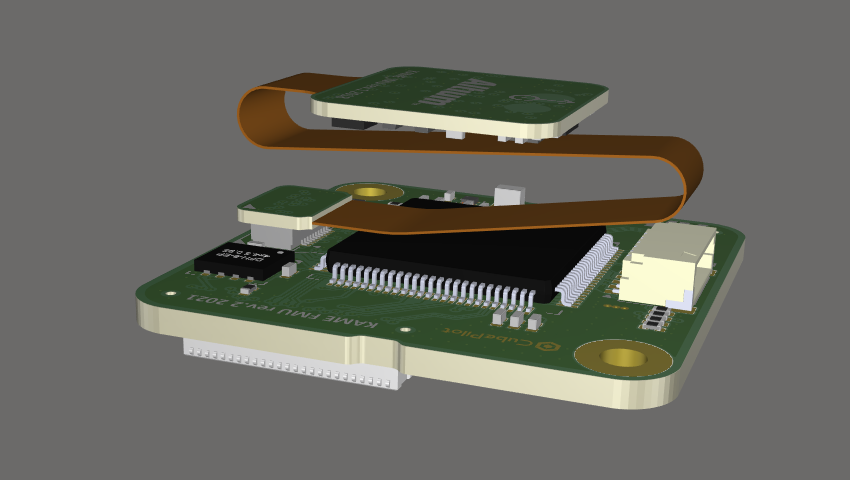
Редактор многоплатных сборок поддерживает гибко-жесткие печатные платы. Гибко-жесткая печатная плата сочетает в себе гибкие и жесткие участки. Редактор многоплатных сборок отображает плату в окончательном сложенном состоянии, заданном в редакторе печатных плат.
Информацию о проектировании гибко-жестких печатных плат см. на странице Проектирование гибко-жесткой печатной платы.
Экспорт в MCAD
Сборку можно экспортировать в формате STEP 3D или Parasolid. Чтобы экспортировать всю сборку в формате STEP 3D (*.step или *.stp), выберите File » Export » STEP 3D в главном меню. Чтобы экспортировать всю сборку в формате Parasolid (*.x_t), выберите File » Export » Parasolid в главном меню.
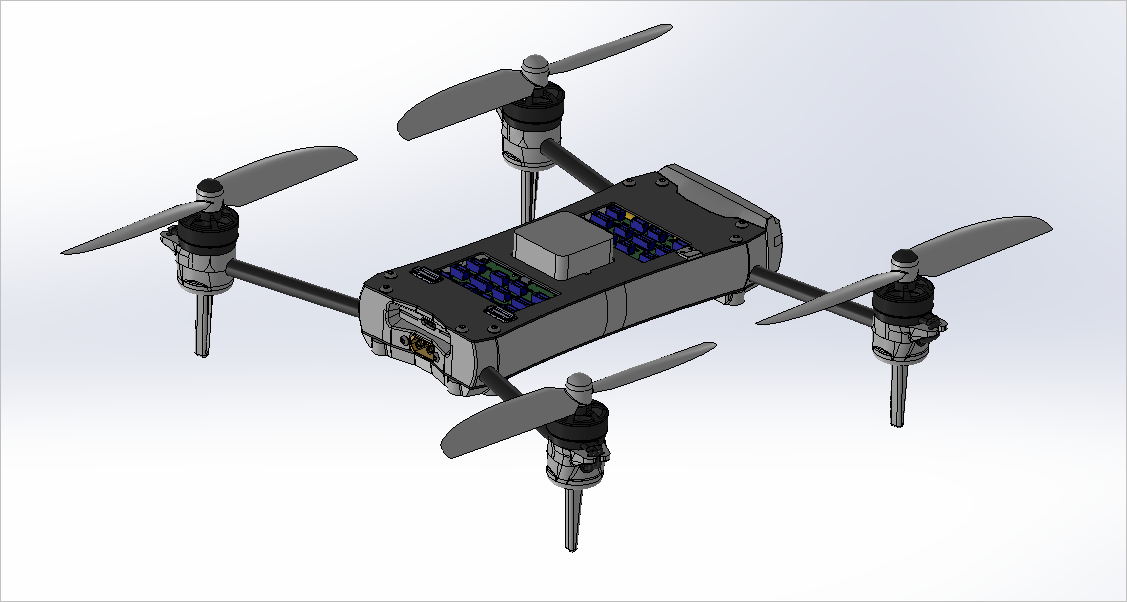
Пример STEP-файла многоплатной сборки, открытого в системе MCAD.
Экспорт в PDF 3D
Документ многоплатной сборки также можно экспортировать в файл PDF (*.pdf). Для этого выберите команду File » Export to PDF File в главном меню.
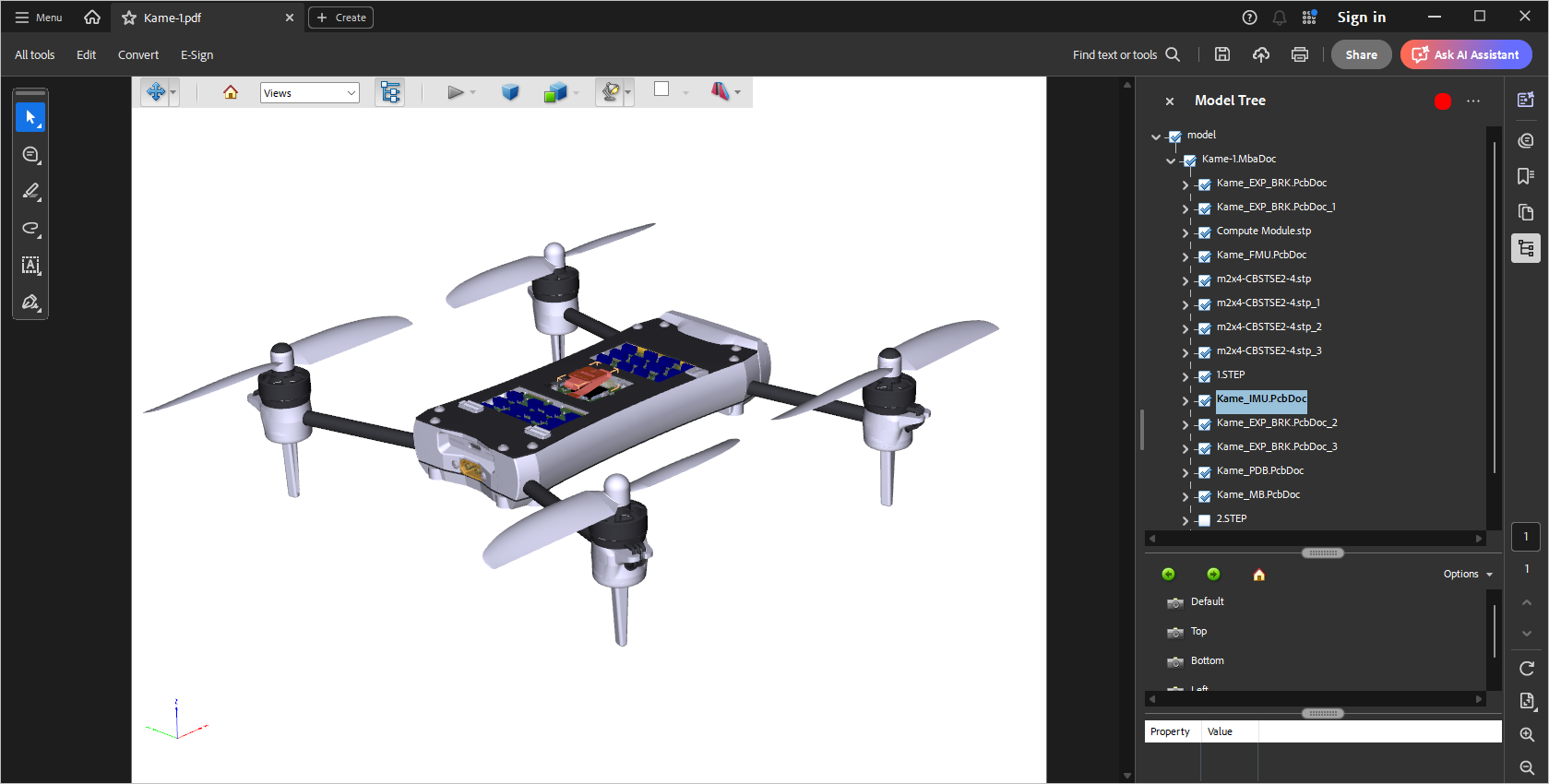
Дополнительную информацию см. на странице Подготовка файла PDF3D.
 Локализовано с помощью ИИ