访问工作区

Interaction with your connected Workspace can be made from different places in Altium Designer. This page takes a look at accessing your Workspace from within Altium Designer.

Altium Designer connects to a Workspace. That Workspace can be delivered in one of the following ways:

You can also interact with you Workspace through your preferred browser using the Workspace's browser-based interface.

Connecting to Your Altium 365 Workspace

First, ensure that you are signed in to your Altium account through Altium Designer. To sign in, click the Current User control at the top right of the design space (shown as  when not signed in) and use the Sign in entry of the associated menu. Refer to the Signing in to Your Altium Account page to learn more.

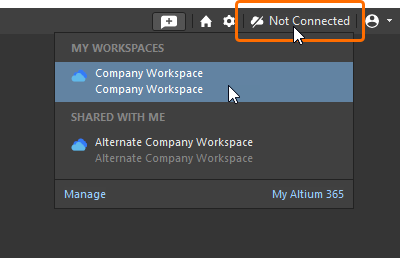
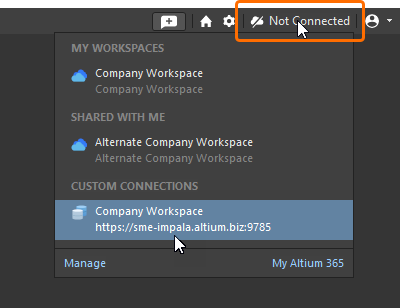
When signed in, you can connect to your Altium 365 Workspace. To do so, click on the Active Server control at the top right of the design space (shown as   when Altium Designer is not connected to a Workspace). In the subsequent menu, all Altium 365 Workspaces that are available to you will be listed across two sections:

  • My Workspaces – these are Altium 365 Workspaces that you have activated for your own organization and for which you are the owner.

  • Shared With Me – these are Altium 365 Workspaces to which you have been invited and subsequently added as a member (i.e., you are not the owner of these Workspaces).

Click the entry for the specific Altium 365 Workspace you wish to connect to.

All Altium 365 Workspaces are presented automatically by having signed in to your Altium account.

Click to access a Workspace from all those available to you. Click to access a Workspace from all those available to you.

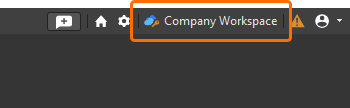
After connecting, the Active Server control will change to reflect you are having connected to the Altium 365 Workspace – refer to the Checking Connection Status section below for more information.

  • Connecting to the Altium Develop Workspace from Altium Designer Develop also provides you with an author seat.

    For more information, refer to the Authoring Access in Altium Designer Develop page.

  • The Manage link in the Active Server control menu takes you to your Altium account profile page from where you can activate, and then manage, Altium 365 Workspaces available to you. Click the My Altium 365 link to access the Altium 365 Platform Interface. In either case, clicking a link will open your default browser (if not already) and open the relevant target in a new tab.

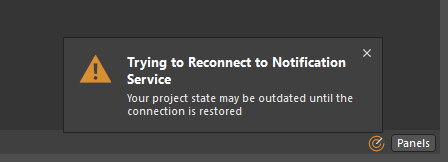
  • When you are connected to an Altium 365 Workspace and there is no internet connection, if the EDMS.ConnectivityMonitor advanced setting is disabled, an informational dialog opens (). No action is necessary since this is only a notice. When the setting is enabled, you will be fully disconnected from the Workspace when there is no internet connection.

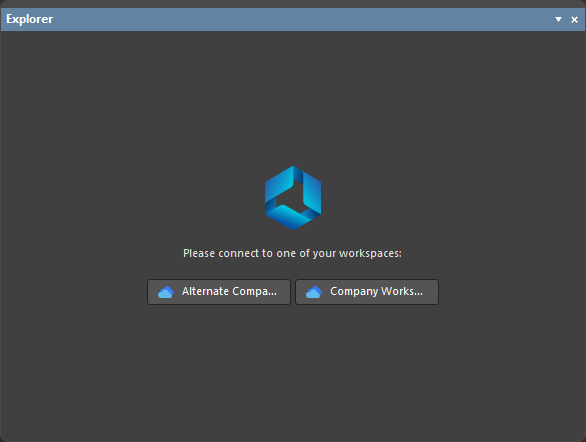
  • You can also connect to your Altium 365 Workspace from other UI elements of Altium Designer that require connection to a Workspace, such as the Explorer panel (). Click a button to connect to the corresponding Workspace.

  • If you are a member of the team for one or more Altium 365 Workspaces and have nominated one of these to be the default Altium 365 Workspace, then you will connect directly to that Workspace when initially signing in to your Altium account (through Altium Designer). After that, each time you sign in to your account within Altium Designer the last connected Workspace will be automatically connected – all set ready to continue designing where you left off.

    Setting the default Altium 365 Workspace is performed from the Workspaces section of your Altium profile page (https://profile.altium.com/) by clicking the button associated with the required Workspace and selecting the Set as default option from the associated menu (the label will be shown in the Workspace's tile on the page).

  • When connecting to a Read-only Workspace, the icon for the connected Workspace will present as  (). All team members will still be able to view/work with existing content in a Read-only Workspace but will not be able to modify that existing content in any way, nor create any new content. Use of existing content in a read-only Workspace is only permitted for the time period defined in the Data Retention Policy.

Connecting to Your Enterprise Server Workspace (Altium Designer Agile, Altium Designer)

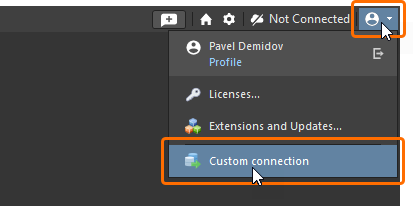
Connect to your Enterprise Server Workspace from within Altium Designer by clicking the Current User control, at the top right of the design space (e.g.,  when signed in to your Altium account or  when not signed in). In the subsequent menu choose the Custom connection command.

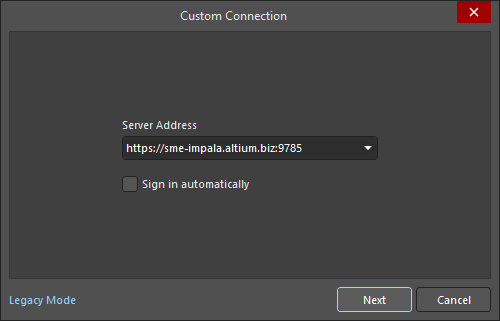
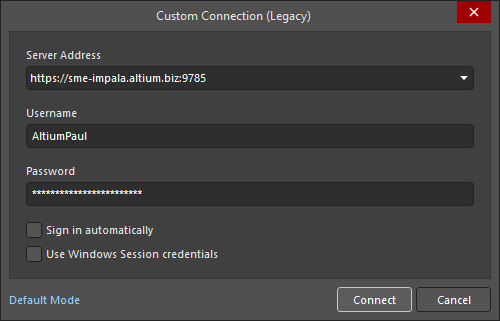
The Custom Connection dialog will appear, with which to connect to the target Workspace. The dialog has two modes – Default and Legacy. To switch between these modes, use the Default Mode / Legacy Mode control at the bottom left of the dialog.

  • In Default mode of the dialog, enter the location URL of the Enterprise Server Workspace to which you want to connect into the Server Address field. The format https://<ComputerName>:<PortNumber> (e.g. https://sme-impala.altium.biz:9785 for an Enterprise Server installed using the default port assignment).

    Click the button and use the page that opens in your default browser to sign in to your Altium account using your preferred (and accessible) method: user name and password credentials, Windows Session credentials, or SSO.

    • If the Workspace is being accessed from an instance of Altium Designer that is running on the same computer on which the Enterprise Server is installed, you may also use https://localhost:9785.​​​​​​

    • Use the Preferences entry in the drop-down of the Server Address field of the Custom Connection dialog to access the Data Management – Servers page of the Preferences dialog to manage Workspaces.

    • It can be a good idea to enable the Sign in automatically option in the Custom Connection dialog so that the entered URL and access credentials are stored and you do not have to repeatedly enter them to access the Workspace when starting Altium Designer.

    • SSO authentication for the chosen SAML or OIDC Identity Provider is configured by an admin of the Enterprise Server in the Admin – Settings area of the Workspace's browser interface. For more information, refer to the Configuring Single Sign-on Authentication page.

  • In Legacy mode of the dialog, enter the URL for the Enterprise Server Workspace into the Server Address field and your Workspace access credentials (Username and Password), then click the button to connect to the Workspace.

    Enable the Use Windows Session credentials option to use your active Windows Session credentials to log into the Workspace. The User Name field will display your Windows username. This enables you to log into the Workspace without the need to create and remember an additional password.

After connecting, the Active Server control will change to reflect you are having connected to the Enterprise Server Workspace – refer to the Checking Connection Status section below for more information.

The Altium On-Prem Enterprise Server relies on a number of Microsoft runtime components for successful operation and access, in some situations these may not be present on the target machine. If you receive an error message about a missing library (DLL) when you attempt to connect to your Enterprise Server Workspace, it indicates that there are missing Microsoft runtime components. Obtain and install the relevant Microsoft Visual C++ Redistributable Package for your OS.

The ‘unified login’ approach to connecting to your Enterprise Server Workspace via an external browser described above is in Open Beta and available when the EDMS.UnifiedLogin option is enabled in the Advanced Settings dialog.

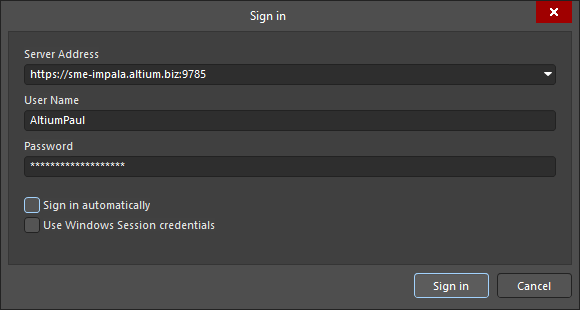
When the EDMS.UnifiedLogin option is disabled in the Advanced Settings dialog, a previous iteration of the Sign in dialog is used to connect to your Enterprise Server Workspace. Controls available in this previous iteration of the dialog are similar to those available in Legacy mode of the Custom Connection dialog described above.

Connecting to a 'Known' Enterprise Server Workspace

If you have previously connected to your Enterprise Server Workspace from within the same instance of Altium Designer, it will become a Known Server. If this is the case, you can connect to that Workspace in a more streamlined fashion. To do so, click on the Active Server control at the top right of the design space. In the subsequent menu, choose the entry for your Workspace, in the Custom Connections grouping. If you enabled the Sign in automatically option when accessing that Workspace previously, you will be connected straight away. If this option was not enabled, the Sign in dialog will appear, with which to connect to the target Workspace. Enter the URL for the Workspace, and your Workspace access credentials, then click the button.

Connecting to your Enterprise Server Workspace when that Workspace is already known. Connecting to your Enterprise Server Workspace when that Workspace is already known.

Note that when the Sign in automatically option is enabled, you will be connected to the Workspace as the user that last connected through the Sign in dialog. If you need to connect as a different user, you will need to use the Custom connection command in the menu associated with the Current User control, at the top right of the design space (e.g., ).

You can also access your 'known' Workspace from a UI element that requires connection to a Workspace (such as the Explorer panel) by clicking the button relevant to that Workspace. Again, if you need to connect as a different user, you will need to use the Custom connection command in the menu associated with the Current User control, at the top right of the design space (e.g., ).

Connecting to an Enterprise Server Workspace from Different Computers

Support is provided for connecting to your Enterprise Server Workspace using the same credentials but from different computers (other than the computer on which the Enterprise Server is installed). If you attempt to connect to a Workspace that you are already connected to from another computer – either through the design software or the Workspace's browser-based interface – a pop-up dialog will alert you to this. You can choose from two options offered in the dialog:

  • Terminate existing session – close the existing session that you have on the other computer and continue to login to the Workspace from the current computer.
  • Start new session – login to the Workspace from the current computer by using an additional connection license and thereby keep logged into the Workspace from the other computer as well.

The same user can be accessing an Enterprise Server Workspace concurrently in different ways (e.g., connected through the design software AND signed-in through an external browser) and it only counts as a single connection from the licensing perspective, when access is made from the same PC. If the same user accesses that Enterprise Server Workspace from different PCs, each different PC access will require a separate connection (so extra seat of a Client Access License). You will therefore only be able to log in from the current computer as well, provided you have enough Client Access Licenses (CAL) remaining.

Application of Environment Configurations

When connecting to a Workspace that has defined Environment Configurations, the configuration service determines the environment configuration to be used for that user, and changes the relevant areas of the Altium Designer environment to enforce the permitted data elements of that configuration.

If the user is assigned to several roles, and multiple environment configurations can apply, the user will be given the choice of which environment configuration to be applied when they sign-in. Choice is made from the Select a Configuration dialog.

If multiple environment configurations apply to a user, that user will be presented with the choice at the time of connecting to the Workspace, through the Select a configuration dialog

If the user is also an Administrator for the Workspace, they have the option to Work as administrator. This allows them to work within Altium Designer, and with the Workspace, without any restrictions.

If no configuration is available for a user, then their working environment will simply be configured with the latest revision of all released Items that are supported by an environment configuration - as though a default configuration were being applied. If there is at least one released revision of a particular Data Item in the Workspace, then that Item Revision will be used - no local file-based entities (e.g., templates) will be available for use.

If multiple environment configurations apply to a user, but they cancel out of choosing one, they will not be able to connect to the Workspace. They will therefore be prevented from accessing design Items in that Workspace and any of the Workspace's provided services.
  • If multiple configuration data items have been defined for a particular design element within an environment configuration, Altium Designer will be configured to provide the user with a choice from those items.

  • If an environment configuration applicable to a user has not been fully defined – i.e. not all data configuration items have been specified/added – those undefined elements of the environment will remain manually definable by the user. This is true also for those applicable elements that are set to Do Not Control.

  • When connected to an Enterprise Server Workspace and having a remembered selection of the environment configuration (using the Remember my choice option), the use of a specific configuration can be disabled or the choice can be changed through the Connection Properties dialog accessed from the Data Management – Servers page of the Preferences dialog by clicking the Properties control for the entry of the Workspace and selecting Connection.

For more information, see Environment Configuration Management (Altium 365 Workspace, Enterprise Server Workspace).

Checking Connection Status

You can check whether you are currently connected to a Workspace from the following places:

  • The menu associated with the Active Server control, at the top right of the design space. When actively connected to a Workspace, the control will reflect the name of that Workspace (e.g., ). The currently connected Workspace will also be highlighted in the associated menu (and is distinguished by the  icon). Clicking the entry provides access to browse the content of that Workspace through Altium Designer's Explorer panel. Clicking the icon provides access to the Workspace's browser interface (through your default browser).

    Verification of being connected to your Altium 365 Workspace
    Verification of being connected to your Altium 365 Workspace

    When actively connected to an Enterprise Server Workspace, the Active Server control will also reflect the name of the Workspace (e.g., ), and the currently connected Workspace will be highlighted in the associated menu (and is distinguished by the icon).

    Verification of being connected to your Enterprise Server Workspace
    Verification of being connected to your Enterprise Server Workspace

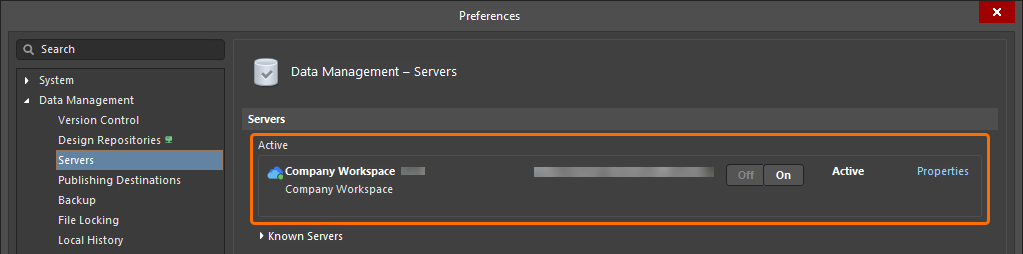
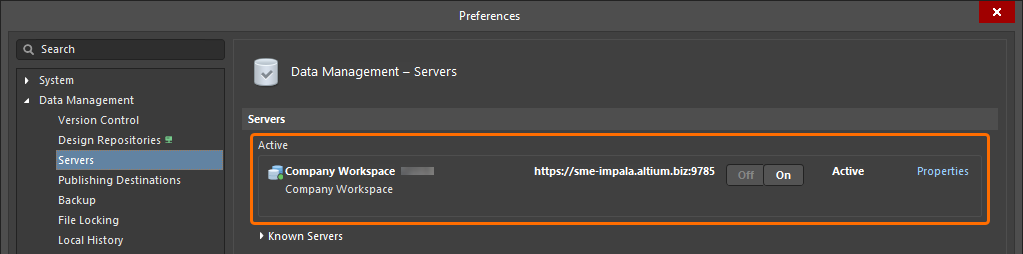
  • The Data Management – Servers page of the Preferences dialog. When connected to the Workspace, that Workspace will be presented as the Active Server. You can only be actively connected to one Workspace through the software at a time. If you have previously connected to other Workspaces from that instance of Altium Designer, they will be listed as Known Servers. While actively connected to one Workspace, you could also be connected to another (it will not be the active Workspace).

    Once connected to the Workspace, it will become the Active Server. An example for an Altium 365 Workspace is shown here.

    Once connected to the Workspace, it will become the Active Server. An example for an Enterprise Server Workspace is shown here.


    From the Data Management – Servers page of the Preferences dialog, you have the ability to manage certain aspects of your connected Workspace.

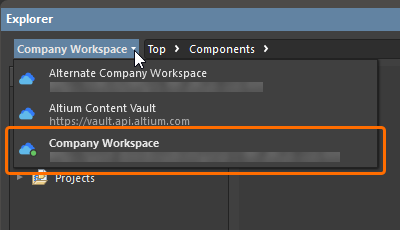
  • The Explorer panel. When connected, the Workspace will be available from the menu associated with clicking on the name of the Workspace currently being browsed.

    Note that all connected Workspaces will be listed, but only one will be active and is distinguished by the inclusion of the icon and its name in bold.

    Browsing the active Altium 365 Workspace through the Explorer panel

    Browsing the active Enterprise Server Workspace through the Explorer panel


Switching Workspaces

You can quickly switch between any of the Workspaces available to you. To do so, click the Active Server control, at the top right of the design space. In the subsequent menu choose the entry for the Workspace you wish to switch to. You will be disconnected from the current Workspace, then connected to the chosen Workspace.

When multiple Workspaces are available, you can quickly switch between them. An example of switching from an Altium 365 Workspace to another Altium 365 Workspace is shown here.

When multiple Workspaces are available, you can quickly switch between them. An example of switching from an Altium 365 Workspace to an Enterprise Server Workspace is shown here.


If switching to an Enterprise Server Workspace and the Sign in automatically option was enabled when accessing that Workspace previously, you will be connected straight away. If this option was not enabled, the Sign in dialog will appear, with which to connect to the target Workspace. Enter the URL for the Workspace, and your Workspace access credentials, then click the button. Note that when the Sign in automatically option is enabled, you will be connected to the Workspace as the user that last connected through the Sign in dialog. If you need to connect as a different user, you will need to use the Custom connection command in the menu associated with the Current User control, at the top right of the design space (e.g. ).

Disconnecting from Your Workspace

You can disconnect from your Workspace from within Altium Designer, in the following ways:

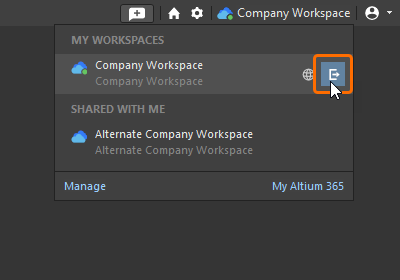
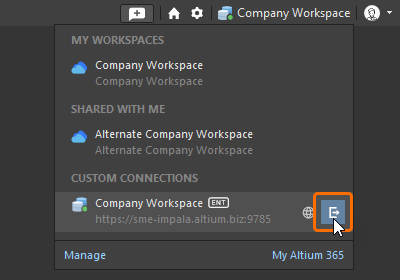
  • By clicking the Active Server control, at the top right of the design space. In the subsequent menu, click the disconnect control () at the far right of the entry for the currently connected Workspace.

    Disconnecting from the active Altium 365 Workspace using the Active Server control menu

    Disconnecting from the active Enterprise Server Workspace using the Active Server control menu

     
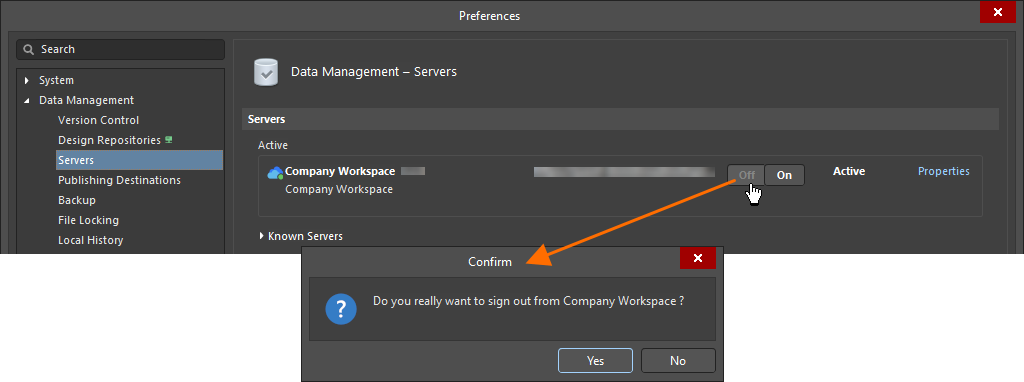
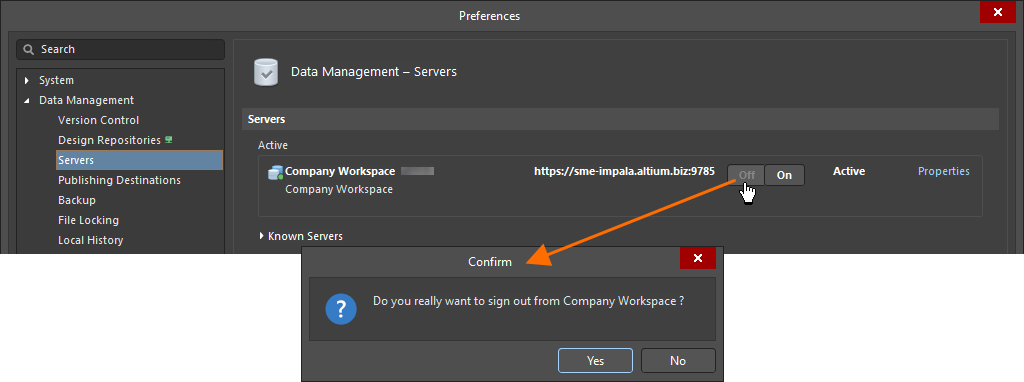
  • By clicking the button, associated with the Active Server, on the Data Management – Servers page of the Preferences dialog. A confirmation dialog will appear – click Yes.

    Disconnecting from the active Altium 365 Workspace using the Preferences dialog

    Disconnecting from the active Enterprise Server Workspace using the Preferences dialog


Your access to the Workspace will also be terminated when you exit Altium Designer. In addition, and for an Administrator of your Workspace, there is the provision to drop a session from the Workspace's browser interface. For an Enterprise Server Workspace, this can be used to terminate an existing session and thereby free up a connection to that Enterprise Server Workspace.

An instance of Altium Designer can also be disconnected from an Enterprise Server Workspace automatically when the client machine is in an inactive, or idle state, i.e., when there is no mouse or keyboard activity on the client machine and no long-term Altium Designer process such as project release is currently in progress. This can be configured in the settings of the Enterprise Server – refer to the Exploring the Browser-based Interface page to learn more.

If you find an issue, select the text/image and pressCtrl + Enterto send us your feedback.
功能可用性

您可使用的功能取决于您所选择的 Altium 解决方案 —— Altium DevelopAltium Agile(Agile Teams 或 Agile Enterprise 版本),或仍在有效订阅期内的 Altium Designer。

如果您在软件中未找到文中提及的功能,请联系 Altium 销售团队了解更多信息。

旧版文档

Altium Designer 文档不再提供版本区分。如果您需要访问 Altium Designer 旧版本的文档,请前往其他安装程序页面的旧版文档部分。

Content