설계 초기 단계의 레이아웃 작업을 더 빠르게 진행할 수 있도록, 표준 기본 Generic Components 개념을 사용할 수 있습니다. 범용(제네릭) 컴포넌트는 사용 가능한 컴포넌트 소스에서 특정 제조사 부품을 찾아 선택할 필요 없이 설계에 빠르게 배치할 수 있습니다. 범용 컴포넌트는 설계 프로세스 후반에 적합한 컴포넌트로 쉽게 교체할 수 있는 자리표시자(placeholder)로 의도되며, 가상(virtual) 또는 파라메트릭(parametric) 컴포넌트로도 볼 수 있습니다.
Altium Designer가 Workspace에 연결되어 있으면, schematic symbol 참조를 Component Template에 추가하는 방식으로 범용 컴포넌트가 자동으로 생성됩니다. 이는 저항(Resistors), 커패시터(Capacitors) 같은 기본 수동소자에 적용되는 템플릿의 기본 동작입니다.
예를 들어 범용 Battery 컴포넌트를 사용할 수 있게 하려면 다음 단계를 수행합니다:
-
Explorer panel에서 필요한 Batteries 템플릿이 있는 컴포넌트 템플릿 폴더로 이동합니다 (Managed Content » Templates » Component Templates 아래 이미지에 표시된 것처럼 기본 Workspace 활성화/설치 기준).
-
Batteries Component Template을 열어 편집합니다.
-
적절한 기본 심볼 모델 파라미터 참조를 추가합니다. 지정하는 심볼 모델은 기존 심볼일 수도 있고, 다른 심볼을 복제(clone)한 뒤 편집한 것일 수도 있으며, 처음부터 새로 만든 사용자 정의 심볼일 수도 있습니다.
-
편집한 템플릿을 Workspace에 다시 저장합니다 (File » Save to Server).

관련 Component Template에 심볼 모델 참조를 추가하여 새 범용 컴포넌트를 생성합니다.
업데이트된 템플릿에 심볼 모델이 존재하면, Components panel에서 All category를 선택했을 때 사용 가능한 항목에 Batteries 범용 컴포넌트 타일이 추가됩니다.
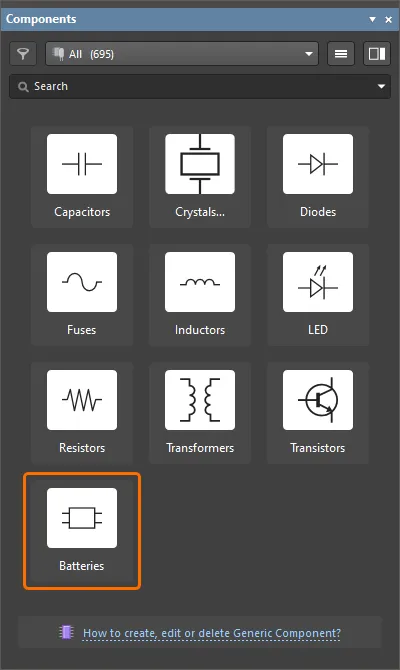
범용 컴포넌트는 Components panel
Components panel에서 범용 컴포넌트의 타일 아이콘은 템플릿에 정의된 ComponentType parameter의 기본값과 템플릿 이름(Component Template Item의 Name property)에 따라 달라집니다. 이 두 가지의 조합을 기반으로 소프트웨어가 해당 조합에 가장 가까운 이미지 키(image key)를 가진 아이콘을 자동으로 선택합니다. 가능한 아이콘 그래픽과 해당 이미지 키는 아래의 접을 수 있는 섹션에 나열되어 있습니다.
Generic Component Icon Graphics
Bridge Rectifiers

Buzzer

Capacitor

Capacitor Polarized

Crystal

Diac

Diode

Diode LED

Diode Schottky

Diode Tunnel

Diode Zener

Fuse

Inductor

Inductor Core

JFET n-channel

JFET p-channel

Microphone

MOSFET

Operational amplifier

Resistor

Resistor Variable

Speaker

Thyristor

Transformer

Transistor NPN

Transistor PNP

적절한 아이콘을 찾지 못하면 아래에 표시된 일반 그래픽이 사용됩니다.

범용 컴포넌트를 삭제하려면, 컴포넌트 템플릿에서 심볼 참조를 제거하거나 컴포넌트 템플릿 자체를 삭제하면 됩니다. 템플릿에서 심볼 참조를 삭제하려면 SCHLIB Default Value 셀을 선택한 다음 키보드의 Delete 키를 누르세요 (show image). 그러면 이 범용 컴포넌트의 타일은 더 이상 Components panel에 표시되지 않습니다.

 AI로 번역됨