Working with Snippets
The snippets feature allows you to save any selection of circuitry on a single schematic sheet or circuitry in a PCB design, including the components and the routing, and then reuse it in any design. The Design Reuse panel allows you to quickly access all of the controls needed to work with and manage your collection of snippets.
Creating a Snippet
A new schematic or PCB snippet can be created from an existing circuitry on a schematic sheet or a PCB document:
-
Select the required circuitry on the schematic or PCB editor.
-
Select the Tools » Convert » Create Snippet from selected objects command from the main menus (in the PCB editor, you can also right-click the selection and choose the Snippets » Create Snippet from selected objects from the context menu).
-
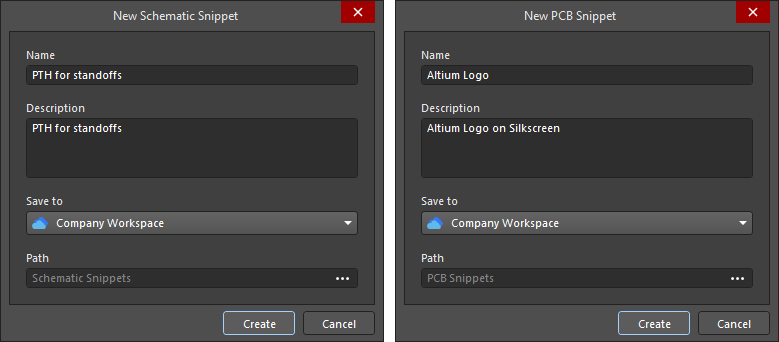
The New Schematic Snippet or New PCB Snippet dialog will appear, in which you can define the Name, Description, saving destination (Save to – the connected Workspace or a local folder), and the folder into which the new snippet will be saved (Path).
Click the
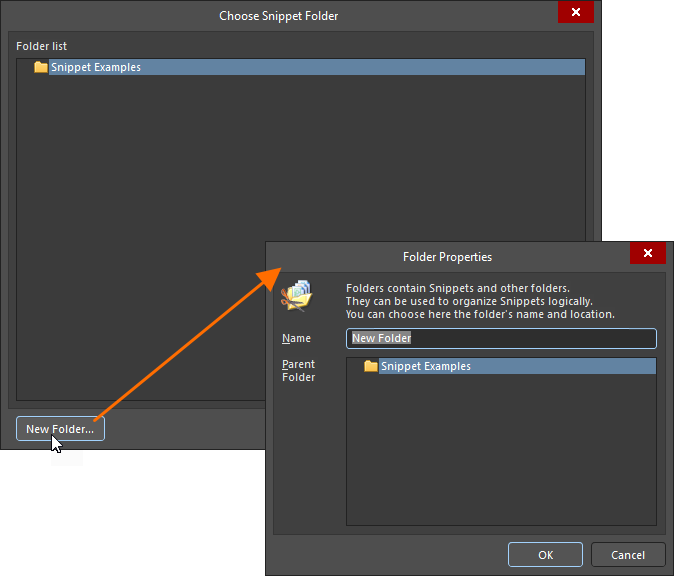
button at the right of the Path field in the dialog to access the Choose Folder dialog (when saving a snippet to the Workspace) or Choose Snippet Folder dialog (when saving a snippet to a local folder) that allows you to select an existing folder into which the snippet will be saved or create a new folder on-the-fly.
-
Click
in the dialog to save the snippet.
Searching for and Placing a Snippet
Workspace and local snippets are available for placement from the Design Reuse panel.
-
When the panel is set to display Workspace resources , it can be used to access snippets stored in your connected Workspace.
-
When the panel is set to display local resources , it provides access to snippets stored in folder on your hard drive (the folders are configured as described above).
You can browse Workspace/local folders to find the required snippet. Alternatively, use the Search field at the top of the panel to search for a snippet by its name or description.
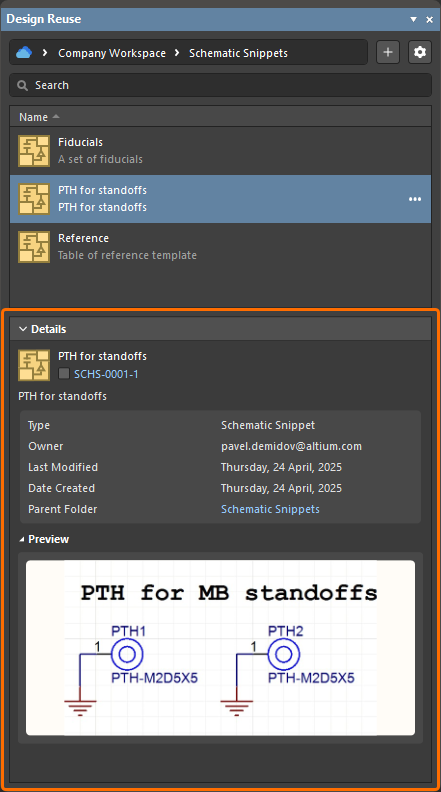
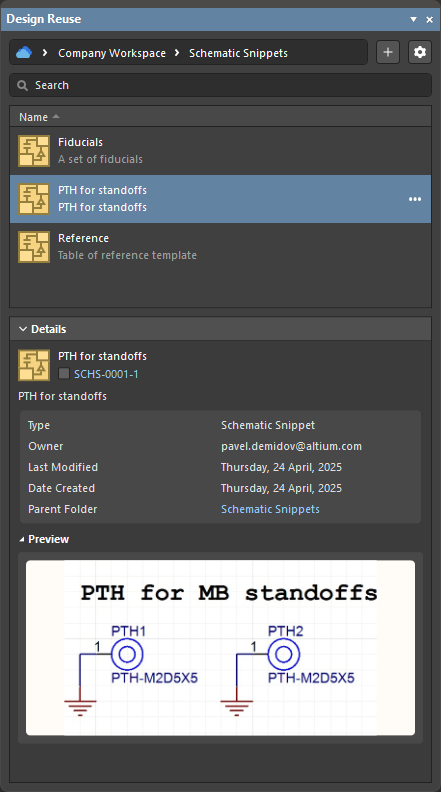
Click the Details control at the bottom of the panel to expand the Details pane that displays details for the selected reuse block, including:
-
Snippet name.
-
The lifecycle state icon and revision (for a Workspace snippet only; click the link to open the detailed History view of the Reuse Block Item with the latest revision selected).
-
Snippet description.
-
Snippet general information.
-
Preview images of the snippet.
Before placing a snippet, ensure you have the correct target document open as the active document. The place command will only be functional if the snippet can correctly be placed on that document, i.e., the snippet type and document type must be the same.
To place a snippet, hover the cursor over its entry in the Design Reuse panel, click the
button (or right-click the entry), and select the Place (for a schematic or PCB snippet) or Place as Sheet Symbol (for a schematic snippet only) command from the menu. When the latter is selected, the snippet will be placed on the active schematic sheet as a sheet symbol. The placed sheet symbol will include sheet entries corresponding to ports in the snippet. The content of the snippet will be placed on an automatically created child schematic sheet referenced by the sheet symbol.
Organizing Local Snippets
Local snippets can be organized into snippet folders, so that related snippets can be grouped together, making it easier for you to find them. Snippets folders are existing Windows folders that cannot be created from within the Design Reuse panel. Instead, they are 'opened' or 'closed' when browsing the local snippets they contain. These folders can only be created directly on your hard drive or network outside of Altium Designer.
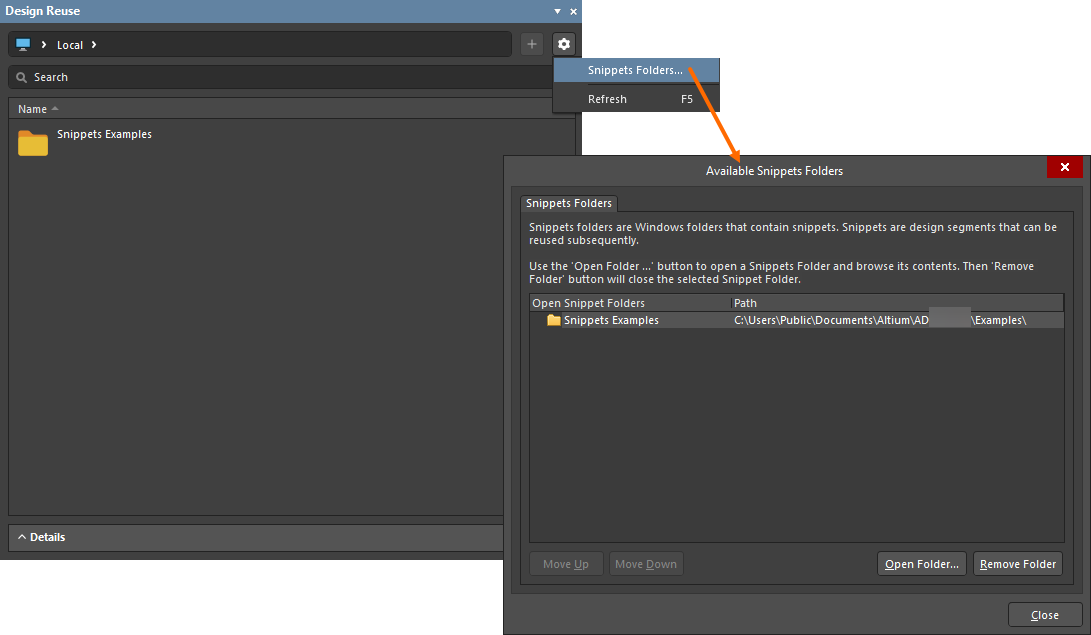
When the Design Reuse panel is set to display local resources (click the left-most icon in the address bar at the top of the panel and select the Local entry – the icon will be shown as , snippets folders can be opened and closed from the Available Snippets Folders dialog accessed by clicking the
button at the top right of the panel and selecting the Snippet Folders command from the menu.
-
Click
to browse to the required folder on your hard drive or network. The selected folder will be added to the list in the dialog and subsequently appear in the Design Reuse panel.
-
To remove a snippets folder from the list (essentially closing it from a browsing perspective), select the folder in the list in the Available Snippets Folders dialog, then click
.
Editing a Snippet
To edit a Workspace snippet, hover the cursor over its entry in the Design Reuse panel, click the
button (or right-click the entry), and select the Edit command from the menu. A temporary editor will open, with the document snippet contained in the latest revision of the Snippet Item opened for editing. Make changes as required, then save the snippet into the next revision of the Item (File » Save to Server).
To edit the content of a local snippet, open the <SCHSnippetName>.SchDoc or <PCBSnippetName>.PcbDoc document from the Windows folder where the snippet is stored (using the File » Open command from Altium Designer's main menus or through the Windows Explorer), make changes as required, and then save the document (File » Save).
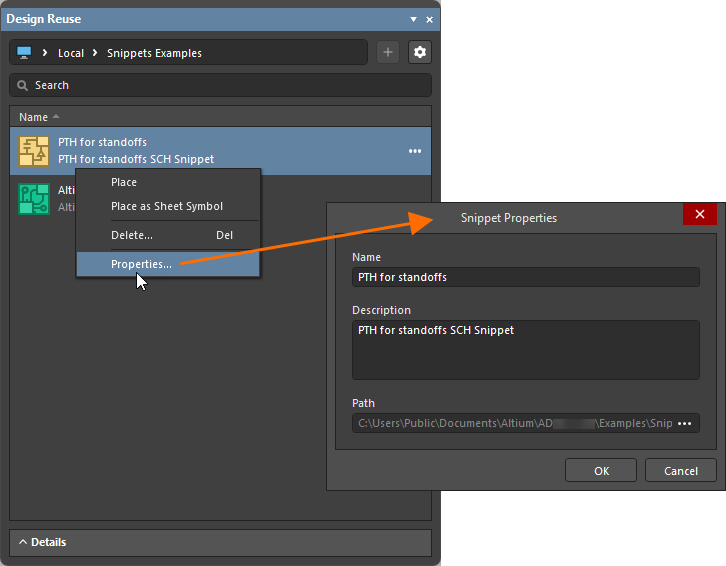
The properties of a local snippet (its name, description, and path) can be edited using the Snippet Properties dialog. To access this dialog, hover the cursor over its entry in the Design Reuse panel and click the
button (or right-click the entry) and select the Edit command from the context menu. Use the dialog to make the required changes.
Other Snippet Actions
The
button menu (and the right-click menu) of a snippet entry in the Design Reuse panel also provides access to the following commands:
-
Move (for a Workspace snippet only) – use to change the location of the Snippet Item in the Workspace folder structure. Launching a command will give access to the Move Item dialog in which to select the target folder under which the Item should be placed into.
-
Share (for a Workspace snippet only) – use to define the sharing permissions for the snippet. After selecting the command, the Share For Item dialog will open in which you can configure sharing as required. Learn more about Item-level sharing.
-
Operations (for a Workspace snippet only) – use to access a drop-down menu of additional functions for snippets as described below.
-
Make a Copy – use to copy the snippet. A temporary editor of the snippet will open, with the same content as in the original snippet. Make required changes and save the snippet to the Workspace.
-
Change Revision State – use to change the revision state of the snippet's latest revision. After selecting the command, the Batch state change dialog opens, which allows you to change the revision state of the snippet.
-
Download – use to download data stored in the snippet. The associated data will be downloaded into a sub-folder under the chosen directory, named using the Item Revision ID. The file can be found in the Released folder(s) therein.
-
-
Delete – use to delete the snippet.
-
For a Workspace snippet, the Delete Items dialog will appear, in which to confirm the deletion.
-
For a local snippet, the Confirm dialog will appear to confirm the deletion. The action will remove the snippet files from the hard drive.
-
-
History (for a Workspace snippet only) – use to access a detailed view for the snippet, opened as a new tabbed view within Altium Designer.
).