
验证元器件
概览
- 了解如何在元件编辑器的单元件编辑模式和批量元件编辑模式下运行元件规则检查,并在“消息”面板中查看结果。
- 了解哪些验证失败会阻止将元件保存到 Workspace。
- 了解在哪里配置用户自定义检查,以及如何解决常见的元件违规问题。
将在元件编辑器中以(单元件编辑或批量元件编辑模式)定义/编辑的工作区库元件保存到已连接的工作区 并使其可用于设计之前,必须确保该元件符合所配置设置的要求。 当您尝试将元件保存回工作区时,元件编辑器会执行一项验证,即元件规则检查。
正如电路板工程具有用于检测违规的验证流程一样,元件编辑器也具有元件验证功能。检测到的所有违规都会列在 Messages 面板中。
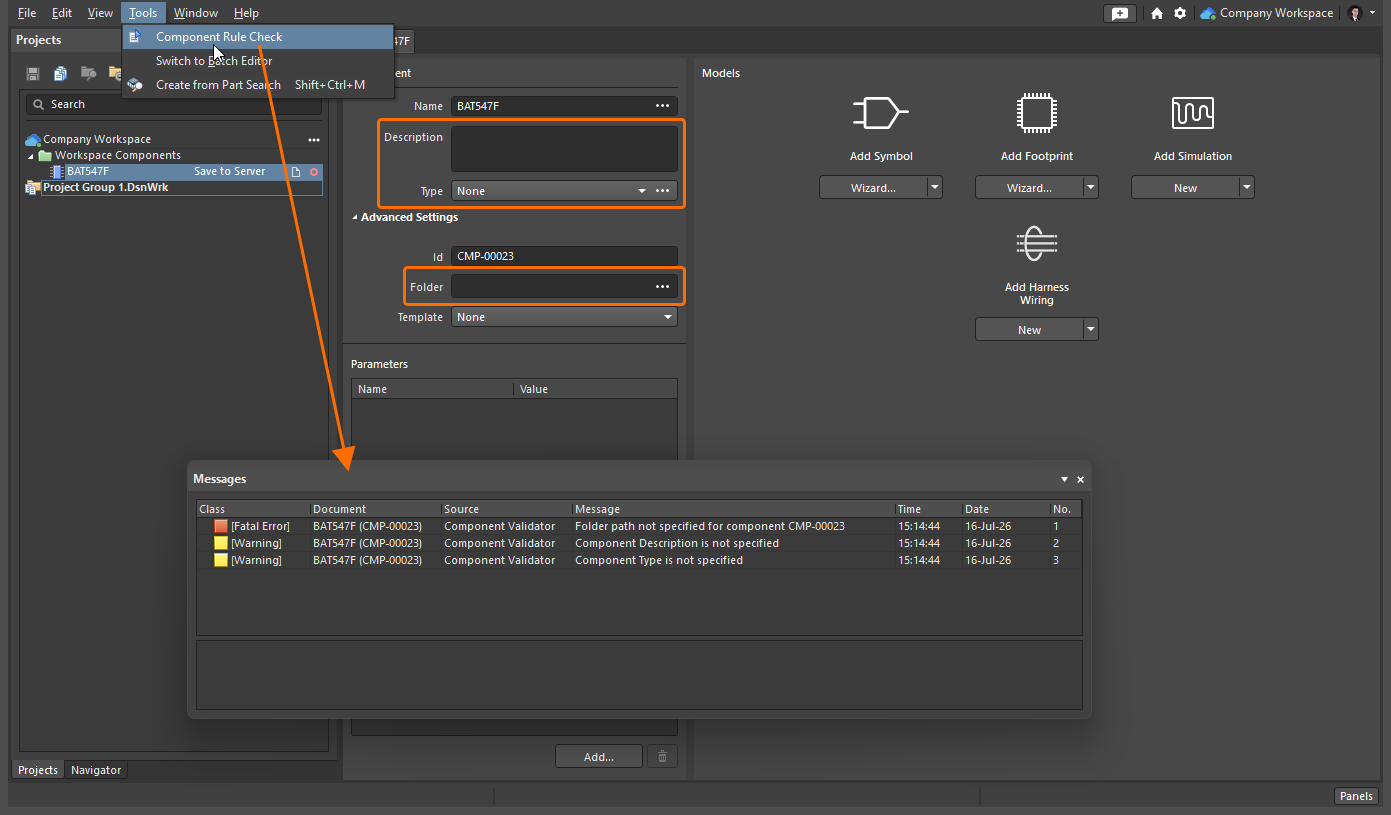
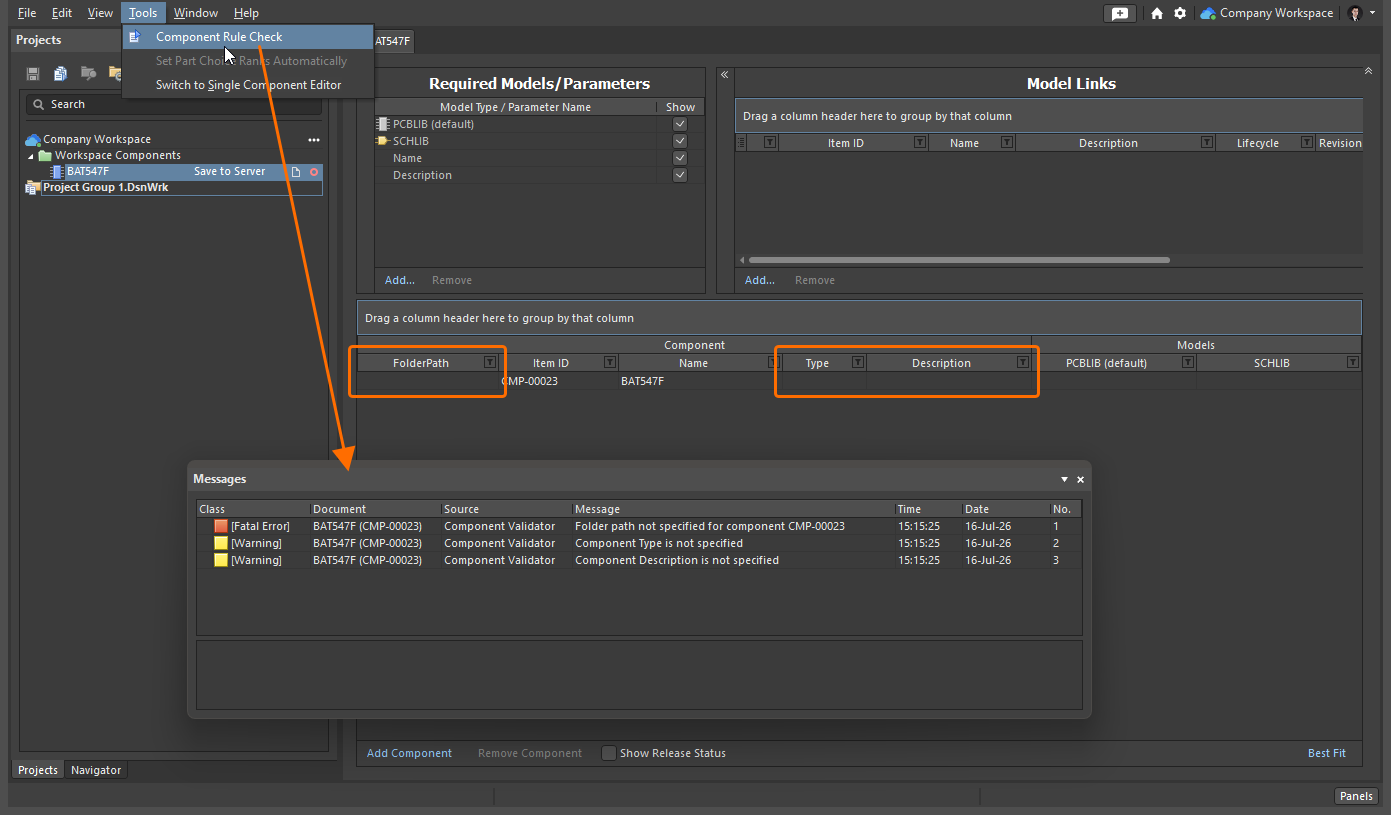
元件验证会检查元件及其已定义模型中可能存在的各种问题,包括内置检查,以及可由用户在全局级别定义的一系列违规类型。
以下内置验证检查的报告模式均为  :
:
Folder path not specified for component
| Summary | This violation occurs when a target Workspace folder where a component being defined in the Component editor should be saved is not specified. |
|---|---|
| Notification | A notification will be displayed in the Messages panel in the following format:
where:
|
| Recommendation for Resolution |
|
 button to access the Choose Folder dialog. Browse to, and choose an existing folder, or create a new one on-the-fly.
 button, and click to access the Choose Folder dialog. Browse to, and choose an existing folder, or create a new one on-the-fly.
Component not having a unique Id
| Summary | This violation occurs when the Item ID of a component being defined in the Component editor is the same as the Item ID of another item in the connected Workspace. |
|---|---|
| Notification | A notification will be displayed in the Messages panel in the following format:
where:
|
| Recommendation for Resolution |
|
| Note | This violation typically occurs when an automatically assigned Item ID value of a component is manually overridden. For a new component created through the File » New » Component command or the Components panel (learn more), this field is populated in accordance with the component template defined for the component type chosen in the Create new component dialog. Where a template does not exist, or where the <Undefined> entry is chosen in the dialog, a default naming scheme ( |
用户可定义的检查在 Preferences 对话框的数据管理 – 元件规则检查页面上配置。
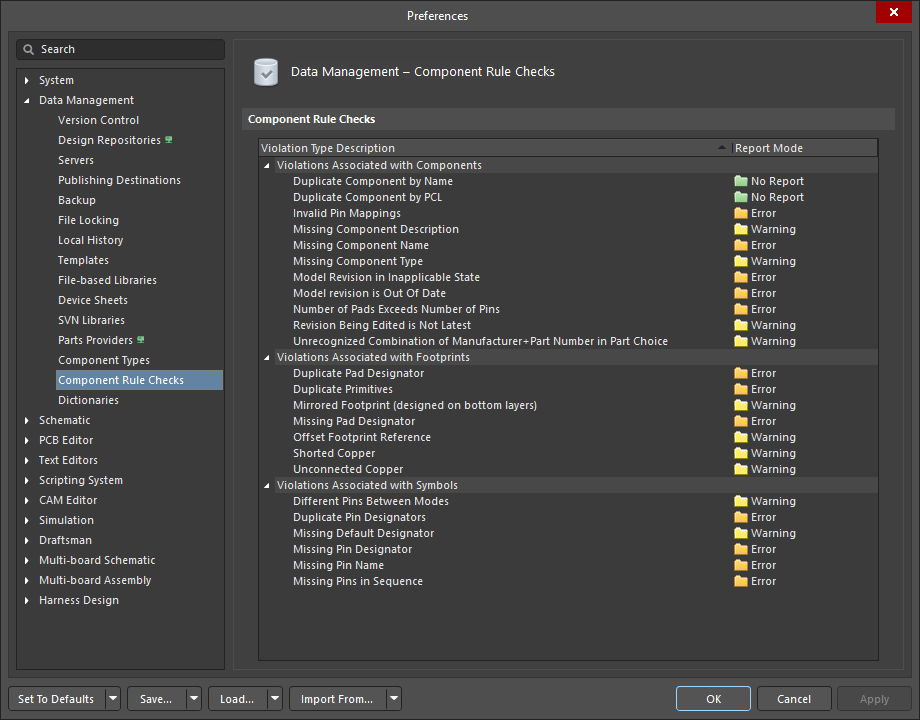
可在全局首选项中配置用户自定义的违规检查,用于验证元件。
任何内置测试未通过,或任何级别为“致命错误”的用户自定义检查未通过,都将阻止元件保存到工作区。
用户自定义检查的默认设置可能不适用于您的元件,因此,熟悉这些选项以及如何根据设计需求进行配置非常重要。有关各项用户自定义错误检查的信息,请参见下文。
与元件相关的违规
Duplicate Component by Name
| Summary | This violation occurs when the name of a component being defined in the Component editor is the same as the name of a component in the connected Workspace. |
|---|---|
| Default Report Mode | |
| Notification | A notification is displayed in the Messages panel in the following format:
|
| Recommendation for Resolution | Assign different and unique name(s) to the component(s) as required.
|

Duplicate Component by PCL
| Summary | This violation occurs when a component being defined in the Component editor has a Part Choice that is used by another component in the connected Workspace. |
|---|---|
| Default Report Mode | |
| Notification | A notification is displayed in the Messages panel in the following format:
|
| Recommendation for Resolution | Assign different and unique Part Choice(s) to the component(s) as required.
|
Invalid Pin Mappings
| Summary | This violation occurs when a component being defined in the Component editor has an ambiguous mapping between component symbol and footprint(s). For example, the violation occurs if the symbol has pins defined in their Designator fields as |
|---|---|
| Default Report Mode | |
| Notification |
where:
|
| Recommendation for Resolution | Edit currently added or select another model to make sure that symbol pins have one-to-one matching to footprint pads.
|

 control at the top right of model's preview to modify the model that is currently being used (referenced) by the component in the corresponding temporary editor for that model type.
 control at the top right of model's preview and choose the Select Model entry from the menu to browse for and choose, a different model, or a different revision of that same model.
 control at the top right of symbol's preview to access the
  button to browse for and choose, a different model, or a different revision of that same model.
Missing Component Description
| Summary | This violation occurs when the description of a component being defined in the Component editor is not specified. |
|---|---|
| Default Report Mode | |
| Notification | A notification is displayed in the Messages panel in the following format:
|
| Recommendation for Resolution | Specify a description for the offending component(s) as required.
|

Missing Component Name
| Summary | This violation occurs when the name of a component being defined in the Component editor is not specified. |
|---|---|
| Default Report Mode | |
| Notification | A notification is displayed in the Messages panel in the following format:
|
| Recommendation for Resolution | Specify a name for the offending component(s) as required.
|
Missing Component Type
| Summary | This violation occurs when the type of component being defined in the Component editor is not specified. |
|---|---|
| Default Report Mode | |
| Notification | A notification is displayed in the Messages panel in the following format:
|
| Recommendation for Resolution | Specify a type for the offending component(s) as required.
|
Model Revision in Inapplicable State
| Summary | This violation occurs when a linked model that is being used (referenced) by a component definition is detected to be in an inapplicable state. For example, the model is currently |
|---|---|
| Default Report Mode | |
| Notification | A notification is displayed in the Messages panel in the following format:
where:
|
| Recommendation for Resolution | Choose a replacement model or revision of the same model that is valid for use in the component.
|
 ).
).Model revision is Out Of Date
| Summary | This violation occurs when a linked model that is being used (referenced) by a component definition is detected to be out of date. If there is a later revision of the model available, the Revision State field will reflect this using the text |
|---|---|
| Default Report Mode | |
| Notification | A notification is displayed in the Messages panel in the following format:
where:
|
| Recommendation for Resolution | Update the component model links that are out-of-date to use the latest revision of the models.
|
Number of Pads Exceeds Number of Pins
| Summary | This violation occurs when a footprint model that is being used (referenced) by a component definition includes more pads (SMD pads placed on copper layers and plated thru-hole pads) than pins of its referenced schematic symbol. |
|---|---|
| Default Report Mode | |
| Notification | A notification is displayed in the Messages面板中,格式如下:
其中:
|
| 解决建议 | 编辑当前添加的符号/封装模型,或选择其他符号/封装模型,确保封装的焊盘数量不超过符号的引脚数量。 |
Revision Being Edited is Not Latest
| Summary | This violation occurs when the component revision being edited is not the latest revision available in the connected Workspace. |
|---|---|
| Default Report Mode | |
| Notification | A notification is displayed in the Messages panel in the following format:
where:
|
| Recommendation for Resolution | Select the latest component revision for editing. To do this, browse for the component in the Components panel, right-click its entry in the panel and choose Edit. |
Unrecognized Combination of Manufacturer+Part Number in Part Choice
| Summary | This violation occurs when an incorrect entry for a component's part choice is added, and the part can not be retrieved by the Workspace. |
|---|---|
| Default Report Mode | |
| Notification | A notification is displayed in the Messages panel in the following format:
where:
|
| Recommendation for Resolution | Specify valid part choice for the offending component(s).
|
与封装相关的违规项
Duplicate Pad Designator
| Summary | This violation occurs when a footprint model linked to a component being defined in the Component editor has multiple pad objects with the same value of the Designator property. |
|---|---|
| Default Report Mode | |
| Notification | A notification is displayed in the Messages panel in the following format:
where:
|
| Recommendation for Resolution | Assign different and unique designators to the pads of the linked footprint model.
The footprint model that is currently being used (referenced) by the component will open in the temporary PCB Library editor. Select offending pads and change values of their Designator property in the Properties panel when a pad is selected (learn more). |
Duplicate Primitives
| Summary | This violation occurs when a footprint model linked to a component being defined in the Component editor has identical objects placed in the same location on the same layer. |
|---|---|
| Default Report Mode | |
| Notification | A notification is displayed in the Messages面板中以以下格式显示:
其中:
|
| 解决建议 | 从封装模型中删除重复对象。 元件当前使用(引用)的封装模型将在临时 PCB 库编辑器中打开。选择重复对象,然后使用 Delete 快捷键将其删除。 |
Mirrored Footprint (designed on bottom layer)
| Summary | This violation occurs when a footprint model linked to a component being defined in the Component editor has significant primitives (pads, tracks, arcs, fills, regions, rectangles, text strings, keepout objects) placed on the In the PCB Library editor, the footprint is built for the top side of the board; it can be flipped to the bottom during the PCB design process if required. |
|---|---|
| Default Report Mode | |
| Notification | A notification is displayed in the Messages panel in the following format:
|
| Recommendation for Resolution | Flip footprint primitives from the
The footprint model that is currently being used (referenced) by the component will open in the temporary PCB Library editor. Select primitives on the |
Missing Pad Designator
| Summary | This violation occurs when a footprint model linked to a component being defined in the Component editor has a Pad object with no value of the Designator property specified. |
|---|---|
| Default Report Mode | |
| Notification | A notification is displayed in the Messages panel in the following format:
where:
|
| Recommendation for Resolution | Specify designator values for the pads of the linked footprint model.
The footprint model that is currently being used (referenced) by the component will open in the temporary PCB Library editor. Select an offending pad and specify the value of its Designator property in the Properties panel when a pad is selected (learn more). |
Offset Footprint Reference
| Summary | This violation occurs when a footprint model linked to a component being defined in the Component editor has its reference point (origin) outside of the bounding rectangle formed by footprint objects. |
|---|---|
| Default Report Mode | |
| Notification | A notification is displayed in the Messages panel in the following format:
|
| Recommendation for Resolution | Change the location of the reference point for it is inside the bounding rectangle formed by footprint objects.
The footprint model that is currently being used (referenced) by the component will open in the temporary PCB Library editor. Use the commands of the Edit » Set Reference sub-menu of the main menus to change the current location of the footprint's reference. |
Shorted Copper
| Summary | This violation occurs when a footprint model linked to a component being defined in the Component editor has 焊盘对象,这些对象通过铜层上的对象相互连接。 |
|---|---|
| 默认报告模式 | |
| 通知 | 通知将以以下格式显示在 Messages 面板中:
其中:
|
| 解决建议 | 移除连接所关联封装模型中焊盘的铜层对象。 元件当前使用(引用)的封装模型将在临时 PCB 库编辑器中打开。选择连接焊盘的铜层对象,然后修改这些对象,使其不再连接焊盘,或将其移除。 |
Unconnected Copper
| Summary | This violation occurs when a footprint model linked to a component being defined in the Component editor has objects on a copper layer, and these objects are not connected to any pad objects. When such a footprint will be placed in a PCB design, a net will not be assigned to these copper layer objects, and they will become dead copper. |
|---|---|
| Default Report Mode | |
| Notification | A notification is displayed in the Messages panel in the following format:
where:
|
| Recommendation for Resolution | Change the footprint model so the objects which are not currently connected to any Pad object in the footprint model are connected to pads.
The footprint model that is currently being used (referenced) by the component will open in the temporary PCB Library editor. Place objects on copper layer(s) to form a connection between footprint pads and objects which are not currently connected to any pad object or remove these unconnected objects. |
与符号相关的违规项
Different Pins Between Modes
| Summary | This violation occurs when one of the display modes for a symbol has an extra pin. |
|---|---|
| Default Report Mode | |
| Notification | A notification is displayed in the Messages panel in the following format:
where:
|
| Recommendation for Resolution | This violation typically arises when an alternate graphical mode is defined for a symbol and either:
Not only must there be an identical number of pins between graphical display modes, but the pins must be also identical in both Designator and Name. Learn more about creating multiple graphical display modes of the same component symbol. Change the Designator and/or Name of offending pin(s) so the number of pins and their Designator and Name properties are the same between the symbol's display modes or remove an extra pin from a display mode.
The symbol model that is currently being used (referenced) by the component will open in the temporary Schematic Library editor. Select offending pins and change values of their Designator and/or Name property in the Properties panel when a pin is selected (learn more), or remove these pins using the |
Duplicate Pin Designators
| Summary | This violation occurs when two or more pins in the component's symbol model have the same designator. |
|---|---|
| Default Report Mode | |
| Notification | A notification is displayed in the Messages 面板中,格式如下:
其中:
|
| 解决建议 | 相应地更改问题引脚的标识符,确保每个引脚的标识符都唯一。 元件当前使用(引用)的符号模型将在临时原理图库编辑器中打开。选择问题引脚,并在选中引脚时于 Properties 面板中更改其 Designator 属性值(了解更多),或使用 |
Missing Default Designator
| Summary | This violation occurs when the component's symbol model has no default designator specified. |
|---|---|
| Default Report Mode | |
| Notification | A notification is displayed in the Messages panel in the following format:
|
| Recommendation for Resolution | Specify a default designator for the offending symbol model.
The symbol model that is currently being used (referenced) by the component will open in the temporary Schematic Library editor. Open the Properties panel when no object is selected in the design space (learn more) and specify the required designator prefix followed by the |
Missing Pin Designator
| Summary | This violation occurs when a pin in the component's symbol model has no designator specified. |
|---|---|
| Default Report Mode | |
| Notification | A notification is displayed in the Messages panel in the following format:
where:
|
| Recommendation for Resolution | Specify a designator for each pin in the offending symbol model.
The symbol model that is currently being used (referenced) by the component will open in the temporary Schematic Library editor. Select offending pins and specify values of their Designator property in the Properties panel when a pin is selected (learn more), or remove pins using the |
Missing Pin Name
| Summary | This violation occurs when a pin in the component's symbol model has no name specified. |
|---|---|
| Default Report Mode | |
| Notification | A notification is displayed in the Messages panel in the following format:
where:
|
| Recommendation for Resolution | Specify a name for each pin in the offending symbol model.
The symbol model that is currently being used (referenced) by the component will open in the temporary Schematic Library editor. Select offending pins and specify values of their Name property in the Properties panel when a pin is selected (learn more), or remove these pins using the |
| Note | Only one violation instance will be listed in the Messages panel for each distinct component. A component may well have a symbol with more than one pin with no name defined. |
Missing Pins in Sequence
| Summary | This violation occurs when missing pins have been detected in the numerical sequence of the offending symbol's pin designator values. For example, if the symbol has pins with designators |
|---|---|
| Default Report Mode | |
| Notification | A notification is displayed in the Messages面板中以以下格式显示:
其中:
|
| 解决建议 | 在违规的符号模型中,添加具有序列中缺失标识符的引脚,或更改引脚标识符,使其构成连续的整数序列。 元件当前使用(引用)的符号模型将在临时原理图库编辑器中打开。使用主菜单中的 Place » Pin 命令添加所需数量的引脚,并在选中引脚时,在 Properties 面板中指定其 Designator 属性值(了解更多),使符号中的引脚标识符构成连续的整数序列。您也可以编辑符号中已放置引脚的 Designator 属性。 |
| 注意 | 某些元件不使用连续的引脚编号,例如采用非连续引脚编号 A1、A3、A5(依此类推)的 BGA。在这种情况下,建议保留此违规项并发布元件,同时在发布说明中注明原因。或者,将 Preferences 对话框的 Data Management – Component Rule Checks 页面上的 Missing Pins in Sequence 检查项设置为 |
 AI 翻译
AI 翻译