
디자인 위반 조사 및 해결
Altium Essentials: PCB Design Rule Checks
This content is part of the official Altium Professional Training Program. For full courses, materials and certification, visit Altium Training.
세심한 주의와 단계별 설계 규칙 검사를 병행하면서 진행했다면, 완성되어 모든 배선이 끝난 보드에 대해 마지막 Batch DRC를 실행했을 때 설계 위반이 거의 없거나 아예 없을 수도 있습니다. 하지만 상당한 수의 위반이 표시될 수도 있으며, 이 경우 이제 해야 할 일은 그러한 위반을 해결하는 것입니다.
Batch DRC를 실행해 생성된 DRC 보고서는 PCB 설계를 처음 접하는 사용자에게 꽤 부담스럽게 보일 수 있습니다. 이 과정을 관리 가능하게 유지하는 비결은 전략을 세우는 것입니다. 한 가지 전략은 보고되는 위반 수를 제한하는 것입니다. Design Rule Checker dialog에서 보고서 옵션을 설정할 때 Stop When Found 기능을 작은 값으로 설정하십시오. 또 다른 전략은 DRC를 여러 단계로 나누어 실행하는 것입니다. 설계에 많은 수의 위반이 포함되어 있다면, 규칙을 한 번에 하나씩 활성화하는 것부터 시작하십시오. 경험이 쌓이면 다양한 설계 규칙을 테스트할 때 자신에게 맞는 선호 방식이 생기게 됩니다.
소프트웨어 내에서 위반 정보는 여러 방식으로 표시됩니다. 위반 마커(Overlay 및 Detail 모두)는 위반의 위치와 성격에 대한 강력한 단서를 제공합니다. 예를 들어 아래 이미지에서 왼쪽의 비아에는 비아 지름이 1mm보다 작다는 것을 보여주는 상세 마커가 있으므로, 해당 비아는 적용되는 Routing Via Style 설계 규칙에서 허용된 크기보다 작아야 합니다. 또한 비아에서 가까운 패드까지 선이 하나 그려져 있는데, 이 선은 이중 슬래시로 끊어져 있습니다. 이는 비아와 패드 사이의 넷이 배선되지 않은 상태(끊어진 상태)임을 나타냅니다. 오류 상태를 해석할 때 상세 마커를 활용하십시오.

크기가 너무 작은 비아와 배선되지 않은 넷을 보여주는 상세 마커.
설계 위반을 효과적으로 해결하려면 먼저 그 위치를 찾아낼 수 있어야 합니다. PCB 편집기는 설계 위반을 조사할 수 있는 다양한 방법을 제공하며, 이에 대해서는 다음 섹션에서 설명합니다.
PCB Rules And Violations Panel에서
PCB Rules and Violation 패널은 어떤 객체에 규칙이 적용되는지, 그리고 왜 실패하는지를 이해하고 해석하는 과정을 단순화해 줍니다. Online DRC 또는 Batch DRC를 실행하면 모든 규칙 위반이 Violations PCB Rules And Violations panel의 영역에 나열됩니다. 특정 규칙 클래스 또는 클래스 내 개별 규칙과 관련된 위반을 찾아볼 수 있습니다. 또는 [All Rules] 클래스를 선택하여 모든 위반을 찾아볼 수도 있습니다.
위반 항목을 클릭하면 문제를 일으킨 객체를 필터 범위로 사용하여 필터링이 적용됩니다. 그 결과 메인 설계 창에 표시되는 화면은 패널 상단에서 활성화된 하이라이트 옵션(Mask/Dim/Normal, Select, Zoom)에 따라 달라집니다.
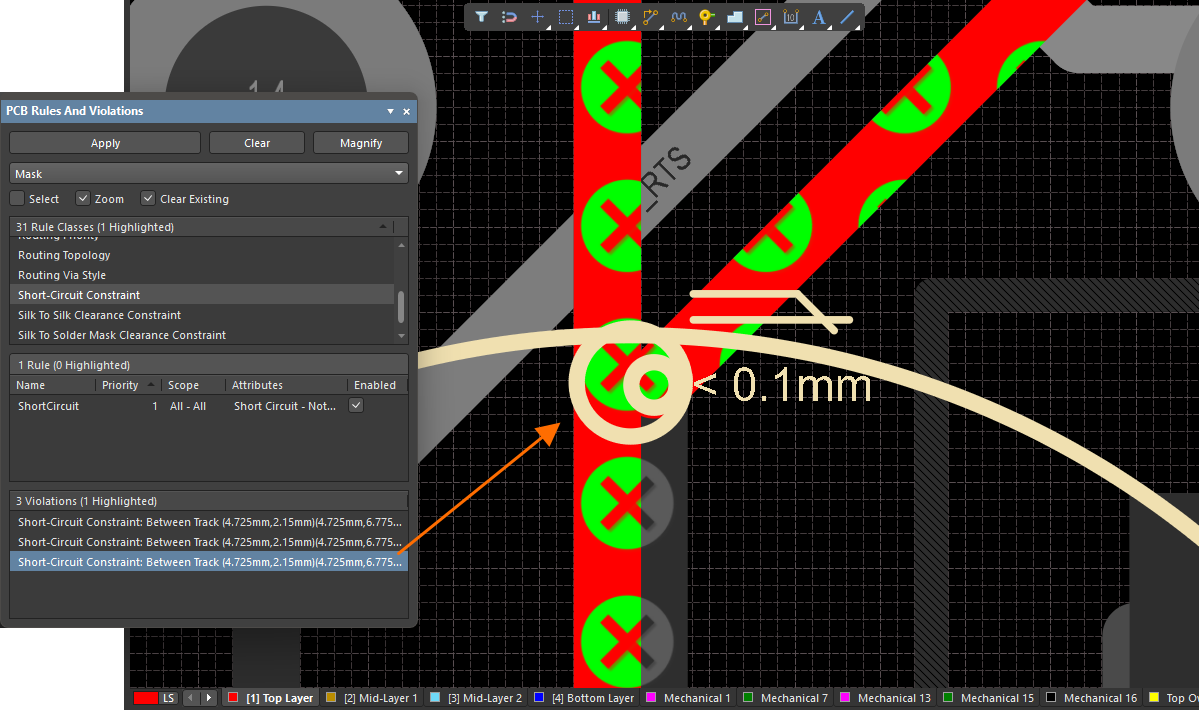
PCB Rules And Violations 패널을 사용하여 규칙 위반을 조사합니다.
위반 항목을 더블클릭하거나(또는 우클릭 후 Properties 선택) Violation Details dialog를 열 수 있으며, 여기에는 위반된 규칙과 그 원인이 된 프리미티브에 대한 정보가 제공됩니다. 이 대화상자에서는 문제가 있는 객체를 하이라이트하여(설계 공간에서 깜박이게 함) 해당 위치로 이동할 수 있으므로, 사실상 '확대 및 중앙 맞춤' 기능을 제공합니다.
 Violation Details dialog를 사용하여 설계 규칙 위반에 관련된 프리미티브를 하이라이트하고(해당 위치로 이동) 있습니다.
PCB Rules And Violations Panel
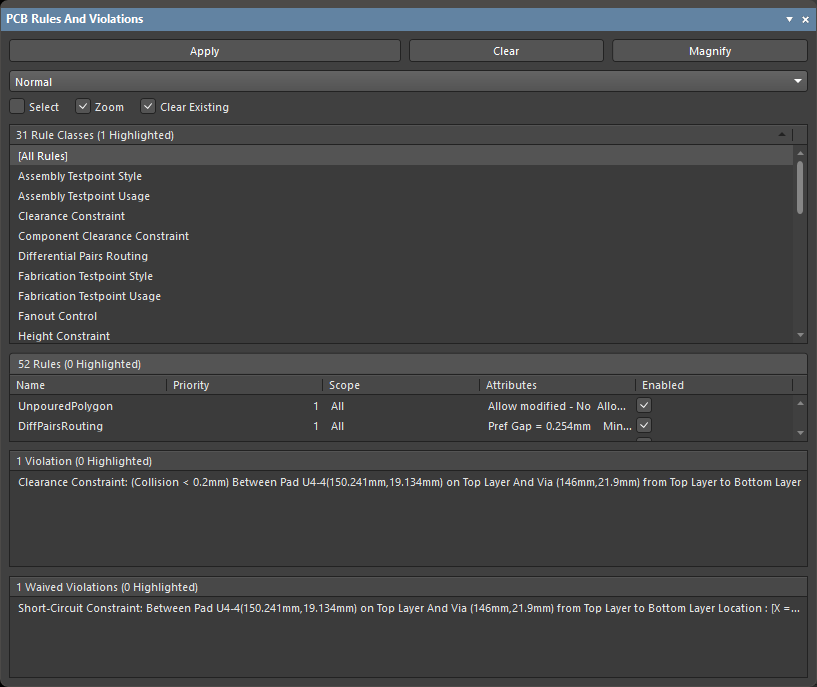
PCB Rules And Violations panel
요약
Design Rule Checking(DRC)은 설계의 논리적 무결성과 물리적 무결성을 모두 검사하는 강력한 자동화 기능입니다. PCB Rules And Violations 패널을 사용하면 현재 보드 레이아웃 설계 공간에서 활성화된 설계 규칙과 위반 사항을 쉽게 찾아볼 수 있습니다. 이 패널은 규칙 탐색 및 편집, 설계 규칙 검사 시작, 그리고 편집기 설계 공간에서 그래픽 오버레이 형태로 개별 위반을 확인하는 중앙 지점을 제공합니다.
패널 접근
- PCB Editor가 활성화된 상태에서 Altium Designer 오른쪽 하단의 PCB Rules And Violations Panels 버튼을 클릭한 다음 PCB Rules And Violations 항목을 선택하면 패널이 표시됩니다.
- 또는 View » Panels » PCB Rules And Violations을 클릭하여 패널에 접근할 수도 있습니다.
- DRC 배치 프로세스가 완료되면 PCB Rules and Violations 패널이 자동으로 실행됩니다.
하이라이트 제어
패널 상단의 컨트롤을 사용하면 설계 공간의 설계 규칙/위반 사항에 하이라이트, 확대 등을 적용할 수 있습니다.
-
Apply - 클릭하면 선택한 하이라이트 옵션이 선택된 규칙에 적용됩니다.
-
Clear - 클릭하면 선택된 규칙에서 하이라이트 옵션이 제거됩니다.
-
Magnify - 클릭하면 하이라이트된 객체의 확대 동작을 제어할 수 있는 팝업이 열립니다. 슬라이더 바를 사용해 확대 수준을 설정하십시오.
-
Drop-down - 드롭다운에서 원하는 마스크/디밍 하이라이트를 선택합니다. 선택 가능한 항목은 다음과 같습니다: Normal, Mask, 그리고 Dim. Dim 및 Mask은 표시 필터 모드로, 관심 객체 이외의 모든 것을 흐리게 표시하여 선택된 객체만 정상 표시 강도로 남깁니다. Dim 모드는 필터를 적용하지만 설계 공간의 모든 객체를 계속 편집할 수 있게 합니다. Mask 모드는 다른 모든 설계 공간 객체를 필터링하여, 필터링되지 않은 객체만 편집할 수 있게 합니다.
-
Select - 활성화하면 규칙을 선택합니다
-
Zoom - 활성화하면 위반 위치로 확대합니다
-
Clear Existing - 활성화하면 선택된 규칙의 기존 하이라이트 기능을 지웁니다.
규칙 및 위반 선택
PCB Rules And Violations 패널 본문은 네 개의 섹션으로 구성되며, 각 섹션은 설계 규칙과 위반 사항을 더 세분화된 범위로 제공합니다.
-
Rule Classes - 클리어런스(Clearances), 폭(Widths) 등 클래스별로 그룹화된 설계 규칙.
-
Rules - 선택된 클래스의 개별 설계 규칙. 특정 DRC는 우클릭 메뉴를 통해 실행할 수 있습니다. 각 규칙에 대해 Name, Priority, Scope, Attributes, Enabled 상태가 표시됩니다.
-
Violations - 활성화된 설계 규칙 검사에 의해 보고된 각 규칙 위반의 세부 정보.
-
Waived Violations - Waive Selected Violations 명령을 사용하여 보고된 각 waived 규칙 위반의 세부 정보. 이 섹션은 적어도 하나의 위반이 waived된 후에만 표시됩니다.
개별 규칙 위반을 선택하면 설계 공간에서 해당 위반이 그래픽으로 하이라이트됩니다. 향상된 위반 그래픽은 문제를 일으킨 프리미티브가 위치한 레이어에만 그려지며, 해당 레이어가 활성화되어 있다면 그 레이어가 공간의 활성 레이어가 됩니다. 규칙 위반 세부 정보가 활성화된 경우(아래 참조), 편집기 그래픽에는 해당 규칙에 대해 정의된 제약값이 표시되고, 문제를 일으킨 프리미티브가 이 값보다 낮은지 또는 높은지가 표시됩니다.

최소 Width 규칙이 12mil로 설정된 경우의 위반.

Via 치수 규칙이 최소 직경 50mil, 홀 크기 28mil로 설정된 경우의 위반.
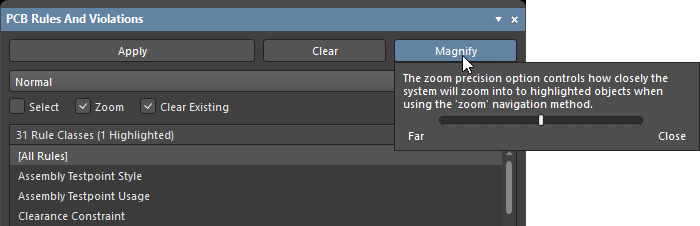
디자인 공간 내부에서 직접 위반 항목에 접근할 수도 있습니다. 문제가 있는 프리미티브 위에 커서를 올린 상태에서 마우스 오른쪽 버튼을 클릭하고 컨텍스트 메뉴에서 Violations를 선택한 다음, 해당 위반 항목을 선택하면 Violation Details 대화상자가 열립니다.

DRC 위반 표시 제어
DRC 위반의 시각적 표시는 그래픽 마커의 스타일, 개수, 색상을 설정하여 가독성을 극대화하거나 사용자 선호에 맞게 구성할 수 있습니다. 위반 세부 정보의 그래픽 표시와 함께, 디자인 프리미티브 위에 여러 스타일 중 하나로 선택한 그래픽 패턴을 오버레이할 수도 있습니다.

위: 위반 세부 정보 활성화. 가운데: 위반 오류 오버레이 활성화. 아래: 세부 정보와 오류 오버레이 모두 활성화.
위반 표시 환경설정
사용자 정의 위반 그래픽 및/또는 정의된 위반 오버레이를 사용하여 DRC 위반을 어떻게 표시할지에 대한 제어는 Preferences 대화상자의 PCB Editor – DRC Violations Display 페이지에서 지정합니다.
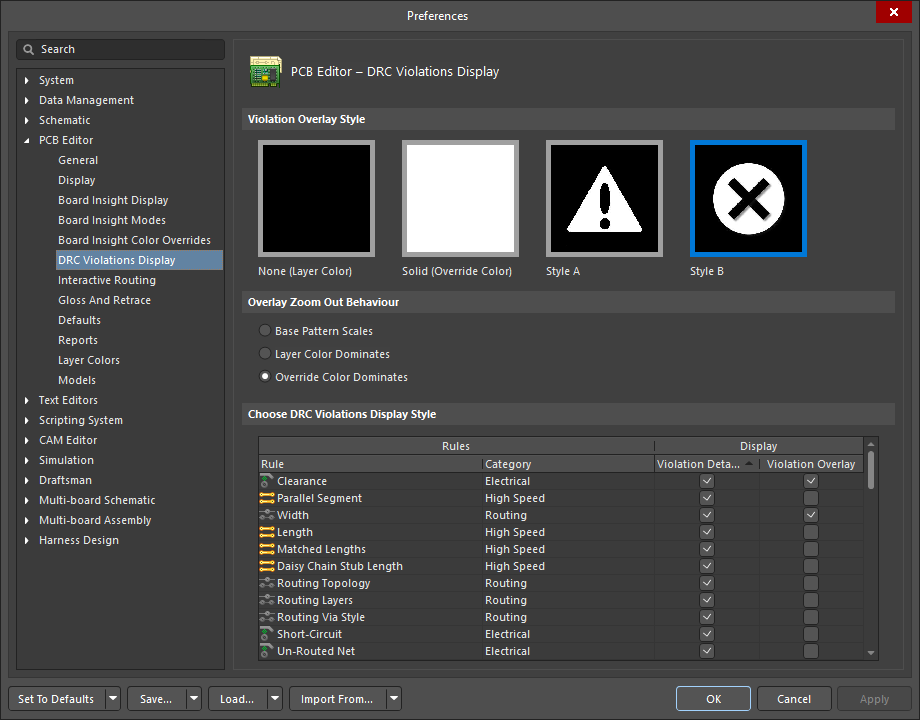
디자인 공간에서 DRC 위반을 어떻게 표시할지 선택합니다. 사용자 정의 그래픽 및/또는 정의된 위반 오버레이를 사용할 수 있습니다.
오버레이 스타일 지정
페이지의 Violation Overlay Style 영역에 있는 옵션을 사용하여 적용할 위반 오버레이 스타일을 지정합니다. 아래 표는 선택한 위반 오버레이 스타일에 따라, Top Layer의 라우팅된 트랙이 Width 규칙을 위반한 경우의 예시 결과를 보여줍니다.
선택된 스타일
|
설명
|
예시 결과
|
|---|---|---|
|
없음(레이어 색상)
|
DRC 재정의 색상이 무시되어, |
|
|
단색(재정의 색상)
|
DRC 재정의 색상이 사용되어, |
|
|
스타일 A
|
DRC 재정의 색상이 느낌표 형태 패턴 표시 |
|
|
스타일 B
|
DRC 재정의 색상이 십자형 패턴 표시 |
|


각 규칙 유형별 위반 표시 스타일 지정
대화상자의 Choose DRC Violations Display Style 영역에는 규칙별로 사용할 표시 스타일을 선택할 수 있는 그리드가 제공됩니다. 규칙 유형에 대해 Violation Details 필드를 활성화하면 해당 규칙의 DRC 위반을 연결된 사용자 정의 위반 그래픽으로 표시합니다. Violation Overlay 필드를 활성화하면 지정된 오버레이 스타일을 사용하여 위반을 표시합니다.
그리드 안에서 마우스 오른쪽 버튼을 클릭하면 모든 규칙 유형에 대해 특정 위반 표시 유형의 사용을 빠르게 활성화하거나 비활성화할 수 있는 명령 메뉴에 접근할 수 있습니다. 현재 디자인에서 사용 중인 규칙에 대해서만 위반 표시(상세 그래픽 또는 오버레이 스타일)를 빠르게 활성화할 수도 있습니다.
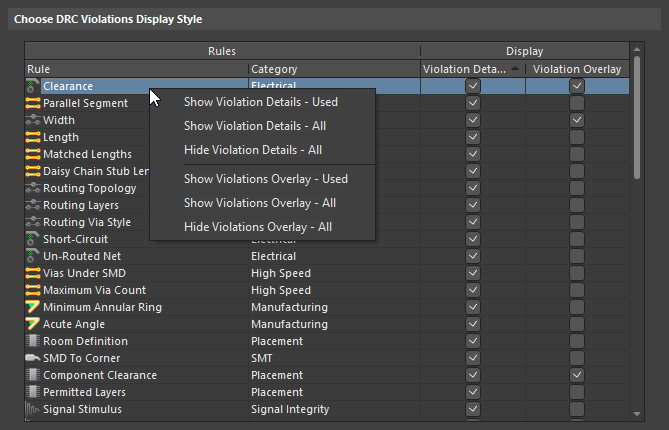
그리드와 관련 명령을 사용하여 디자인 공간에서 DRC 위반이 어떻게 표시될지 정확하게 설정할 수 있습니다.
두 가지 표시 유형을 함께 사용하면 위반에 대해 '거친' 표시와 '세밀한' 표시를 동시에 제공하는 데 유용합니다.
오른쪽 클릭 메뉴
패널의 각 섹션 항목은 오른쪽 클릭 컨텍스트 메뉴를 통해 다양한 옵션을 제공합니다. 각 섹션의 주요 오른쪽 클릭 옵션은 다음과 같습니다.
규칙 클래스
-
Run DRC Rule Class - 해당 클래스에 포함된 모든 규칙을 실행합니다. 클래스에는 단일 규칙(예: Short-Circuit Constraint)만 포함될 수도 있고, 많은 수의 규칙(일반적으로 Clearance Constraint 클래스)을 포함할 수도 있습니다.
-
Clear Violations For Rule Class - 클래스에 포함된 모든 규칙의 위반을 지웁니다(그래픽 표시 및 패널 목록 모두).
규칙
-
Run DRC Rule - 선택한 규칙을 실행합니다.
-
Clear Violations - 선택한 규칙에서 보고된 위반을 지웁니다.
-
Properties - 규칙 구성을 즉시 변경할 수 있는 Edit PCB Rule 대화상자를 엽니다.

위반
-
Properties - 규칙 제약조건과 현재 위반에 대한 전체 세부 정보를 제공하는 Violation Details dialog를 엽니다.

-
Waive Selected Violations - 선택한 위반을 면제 처리하기 위한 정보를 입력하고 저장할 수 있는 Waived Violation Info 대화상자를 엽니다. 필요한 정보를 입력한 후 OK를 클릭하면 면제된 위반이 Waved Violations 영역 아래에 표시됩니다.
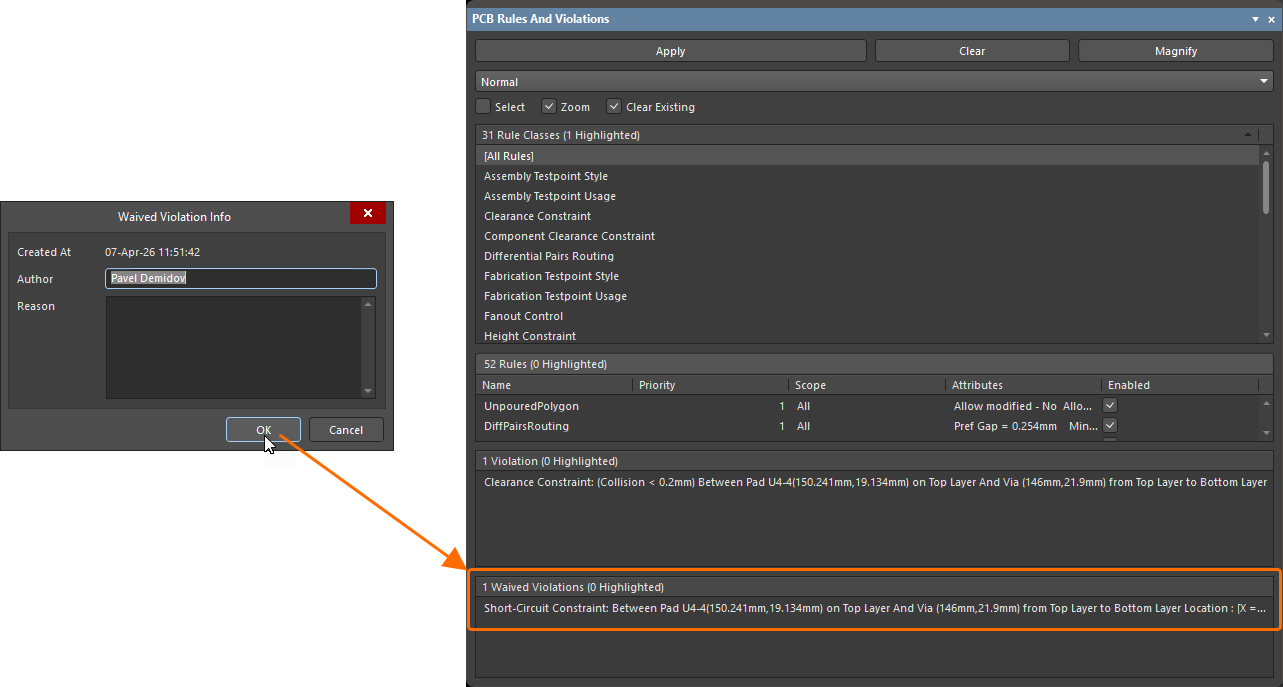
참고
-
PCB Constraint Classes and Rules에 완전히 접근하려면 Design » Rules를 클릭하여 PCB Rules and Constraints Editor 대화상자를 여십시오.
-
온라인 디자인 규칙 검사는 Preferences 대화상자의 PCB Editor - General 페이지에서 활성화/비활성화할 수 있습니다.
-
각 디자인 규칙은 Design Rule Checker 대화상자(Tools » Design Rule Check)에서 온라인 검사 또는 배치 검사(또는 둘 다)에 대해 개별적으로 활성화할 수 있습니다.
-
PCB Rules And Violations 패널의 Rules 목록에서 특정 규칙을 선택하면, 해당 규칙의 범위와 유형에 따라 적용 가능한 객체가 디자인 공간에서 강조 표시됩니다(패널 상단에 구성된 강조 표시 옵션에 따라 다름).
Messages 패널에서
배치 DRC를 실행한 후 Messages 패널의 위반 메시지를 더블클릭하면, 해당 위반을 유발한 객체로 디자인 공간에서 크로스 프로브됩니다.

Messages 패널에서 위반 항목으로 크로스 프로브합니다.
생성된 DRC 보고서에서
Design Rule Checker dialog에서 Create Report File 옵션이 활성화되어 있으면, 배치 DRC 실행 시 감지된 위반은 생성된 Design Rule Verification Report에 나열됩니다. 문제를 일으킨 객체의 하이퍼링크 항목을 클릭하면 디자인 공간에서 해당 객체로 직접 크로스 프로브할 수 있습니다.
 생성된 DRC 보고서에서 문제가 있는 객체로 크로스 프로브합니다.
디자인 공간에서 직접
특정 디자인 객체와 관련된 위반은 PCB 디자인 공간에서 직접 조사할 수 있습니다. 문제가 있는 객체 위에 커서를 놓고 마우스 오른쪽 버튼을 클릭한 다음, Violations 하위 메뉴에서 명령을 선택하십시오. 해당 객체가 연관된 개별 위반을 조사할 수도 있고, Show All Violations 명령을 사용하여 관련된 모든 위반을 볼 수도 있습니다. 어느 경우든 Violation Details 대화상자가 열리며, 위반에 대한 상세 정보와 문제가 있는 객체로 강조 표시하거나 이동하는 제어 기능을 제공합니다. 강조 표시는 일시적이며, 기본적으로 문제가 있는 프리미티브는 원래 가시성을 유지한 채 디자인 공간의 다른 모든 객체만 일시적으로 단색으로 표시됩니다. 또한 위반을 면제 처리하도록 선택할 수도 있습니다.

디자인 공간에서 특정 객체와 관련된 위반을 직접 조사합니다.
Options and Controls of the Violation Details Dialog
-
Violated Rule - 이 영역에는 위 목록에서 현재 선택된 위반 항목에 대해 위반된 설계 규칙이 표시됩니다. 규칙은 유형, 위반된 제약 조건, 그리고 스코프 기준으로 표시됩니다.
-
Violating Primitives - 이 영역에는 현재 선택된 위반에 관련된 프리미티브가 객체 유형, 식별자(해당하는 경우), 위치, 그리고 해당 객체가 존재하는 레이어 기준으로 표시됩니다.
-
Waive this violation - 이 옵션을 활성화하면 위반을 면제할 수 있습니다.
-
Created At - 위반이 면제된 날짜와 시간이 표시됩니다.
-
Author - 위반을 면제한 사용자가 표시됩니다. 이 정보는 계정 정보를 사용해 자동으로 입력되며 수동으로 편집할 수도 있습니다.
-
Reason - 위반을 면제하는 이유를 설명하는 텍스트를 수동으로 입력합니다.
-
-
Highlight - 이 버튼을 클릭하면 현재 선택된 위반에 관련된 프리미티브가 설계 공간에서 잠시 강조 표시됩니다. 강조 표시가 적용되면 문제를 일으킨 프리미티브는 원래 가시성을 유지하고, 설계 공간의 다른 모든 객체는 일시적으로 단색으로 표시됩니다.
-
Jump - 이 버튼을 클릭하면 현재 선택된 위반의 문제 프리미티브 위치로 설계 공간에서 빠르게 이동할 수 있습니다. 해당 프리미티브는 설계 공간 내에서 확대되고 중앙에 배치됩니다.
위반은 Board Insight 팝업을 사용하여 설계 공간에서 직접 탐색할 수도 있습니다. 위반된 객체 위에 커서를 놓고 Shift+V 키보드 단축키로 팝업 표시를 전환하십시오. 위반 항목을 클릭하면 Properties를 포함한 명령 메뉴에 접근할 수 있으며, 여기서 Violation Details 대화상자에 접근할 수 있습니다. 항목을 확장하면 관련된 프리미티브를 탐색할 수 있습니다.

Board Insight 팝업을 사용하여 위반을 조사합니다.
 AI로 번역됨