
인터랙티브 라우팅
Altium Essentials: PCB Routing
This content is part of the official Altium Professional Training Program. For full courses, materials and certification, visit Altium Training.

라우팅이란 구리 레이어에 Track, Arc, 비아와 같은 PCB 설계 객체를 배치하여 각 Net 내의 노드 간에 연결 경로를 정의하고, 노드 간에 연속적인 연결을 형성하는 과정입니다. 연결 경로를 구축하기 위해 이러한 객체를 하나씩 배치하는 대신, interactively route Connection을 생성합니다.
-
PCB Editor에서 대화형 라우팅은 지능형 프로세스입니다. 대화형 라우팅 명령을 실행한 후, Pad를 클릭하여 라우팅할 Connection을 선택합니다. Pad에서 커서를 멀리 이동하면, 대화형 라우터는 해당 Pad에서 현재 커서 위치까지의 라우팅 경로를 정의하려고 시도합니다. 라우터가 정의하는 경로는 현재 corner style 및 gloss 설정을 포함한 다양한 속성에 의해 제어됩니다.
-
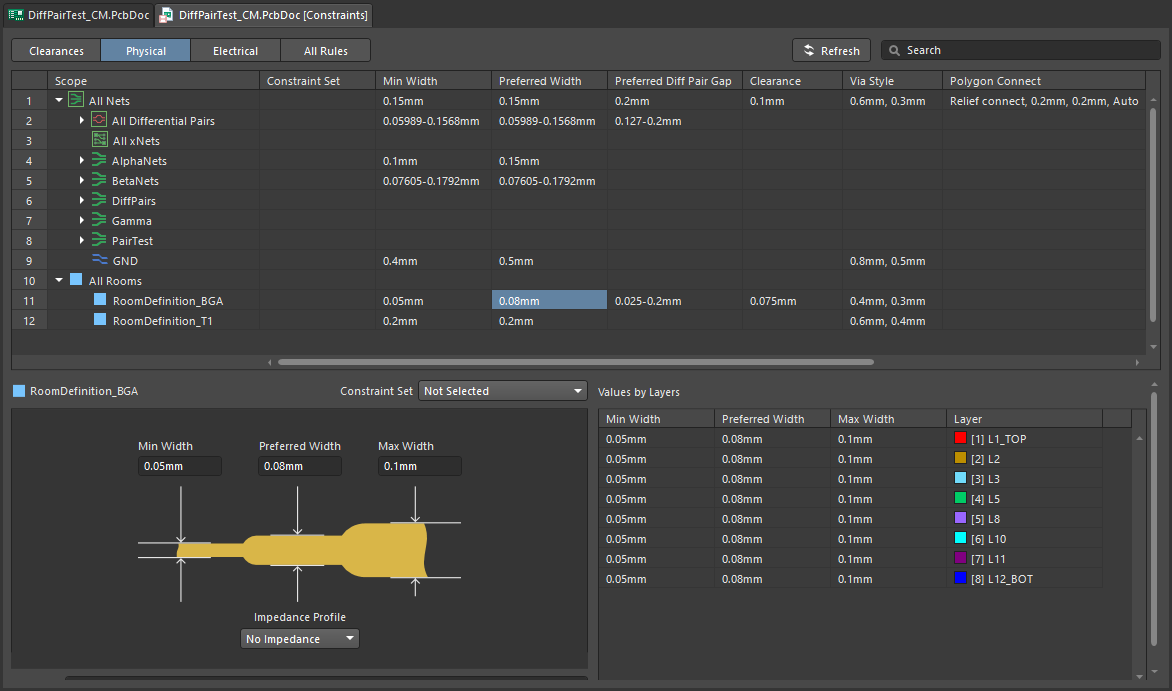
배치되는 Track/Arc의 속성은 Routing Width Design Rule에 의해 제어되며, 다른 넷 객체와의 클리어런스는 전기 Clearance Design Rule
-
인터랙티브 라우터가 기판에 이미 존재하는 개체(예: 컴포넌트 패드 및 다른 Net의 라우팅)에 어떻게 반응하는지는 현재 Routing Conflict Resolution 모드에 따라 달라집니다. 이 모드는 라우터가 Walkaround 장애물을 우회할지, 아니면 Hug 해당 객체를 and Push 필요할 경우 이를 우회할지, 아니면 Push 그 객체를 처리할지, 아니면 Stop, 또는 Ignore 그것.
Connection 라우팅을 대화형으로 설정하기 - 명령을 실행한 후 Connection 선을 클릭하면, 대화형 라우터가 기존 객체를 우회하여 Net 객체에서 현재 커서 위치까지의 경로를 찾습니다. 마우스 버튼을 클릭하면 모든 해치 처리된 Track 세그먼트가 배치되며, Ctrl+Click 라우팅을 자동으로 완성합니다.
대화형 라우팅은 다음에서 수행할 수 있습니다:
-
단일 넷 – Route » Interactive Routing
-
차동 쌍으로 구성된 두 개의 Net – Route » Interactive Differential Pair Routing (자세히 알아보기)
-
선택된 Net 집합 – Route » Interactive Multi-Routing
라우팅 숙련도를 높이려면 PCB 설계 공간 내에서 개체들이 어떻게 배치되어 있는지 잘 이해해야 하며, 다음 섹션에서는 이에 대한 개요를 다룹니다. 또한, 밀집된 설계 공간 내에서 작업 중인 부분을 쉽게 파악할 수 있도록 트레이스 표시를 제어하는 방법을 이해하는 것도 중요하며, 이에 대한 개요는 두 번째 섹션에서 확인할 수 있습니다. 라우팅 숙련도를 높이는 세 번째 기술은 라우팅 과정에서 Track과 비아의 속성을 제어하는 방법을 익히는 것입니다.
이러한 기술을 갖추고 라우팅 과정에 대해 더 자세히 알아보기 위해 이 페이지를 방문하셨다면, ‘대화형 라우터 사용’ 섹션으로 바로 이동하십시오.
설계 공간에서 개체의 위치 지정 방식
PCB Editor는 그리드 기반 편집 환경이며, 기본 설정에서는 대화형 라우팅이 현재 스냅 그리드에 배치됩니다. 스냅 그리드 외에도, 이 소프트웨어에는 설계 객체를 정확하게 배치하고 정렬할 수 있도록 돕기 위해 고안된 여러 가지 추가 스냅 기능이 포함되어 있습니다. 이러한 기능들을 통틀어 Unified Cursor-Snap System라고 통칭됩니다.
커서 Snap 시스템에는 두 가지 핵심 요소가 있으며, what 커서가 Snap되는 대상과 when 스냅될 대상입니다.
-
What - 커서가 Snap되는 공간상의 점에는 다음이 포함됩니다: 사용자 정의 Grids, 작업 Guides, 및 기존 Objects.
-
When - 커서가 Snap 지점에 Snap됩니다: 커서가 Snap Distance, 그리고 해당 Layer.
커서 Snap 기능 시연: Configuration Properties Panel에서 옵션을 설정하거나, Ctrl+E를 눌러 설정하십시오.
스냅 대상 |
|
| Snap to grids | Grids are available in both Cartesian and Polar formats ( |
| Snap to objects | 배치된 오브젝트는 pull 커서가 해당 객체의 스냅 포인트(핫스팟)에 근접한 정도에 따라 Snap Distance해당 오브젝트의 Snap 포인트(핫스팟)와의 근접 거리에 따라 커서를 해당 위치로 끌어당깁니다. 예를 들어, 이 기능을 사용하여 커서를 Track의 중앙이나 Grid 외부의 Pad 중앙으로 끌어올 수 있습니다. 오브젝트 Snap은 모든 레이어, 현재 레이어에만 적용하거나 비활성화할 수 있습니다. Shift+E 단축키를 사용하여 모드를 순차적으로 전환하고, 상태 표시줄( )에서 현재 모드를 확인할 수 있습니다. )에서 현재 모드를 확인할 수 있습니다. |
| Snap to guides | 위 동영상에서 볼 수 있듯이, 수평, 수직, 대각선 및 점 가이드를 배치하여 객체 정렬에 활용할 수 있습니다. 가이드에 대해 자세히 알아보세요. |
| Snap to object axes | 이 기능은 커서를 X 또는 Y 방향으로 끌어, Axis Snap Range (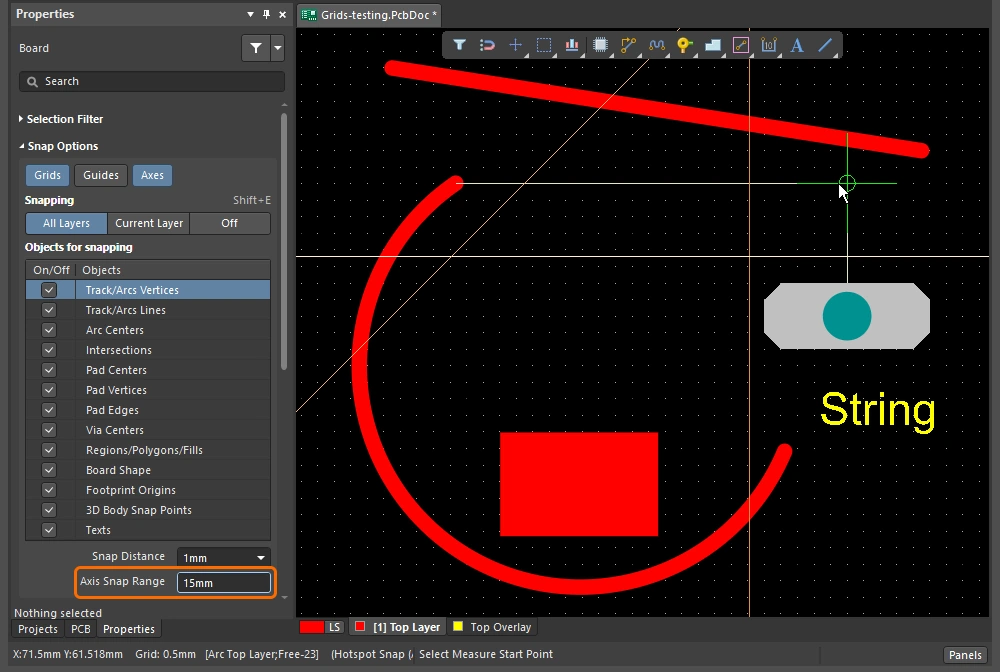 ) ) |
| Controlling the snapping |
|
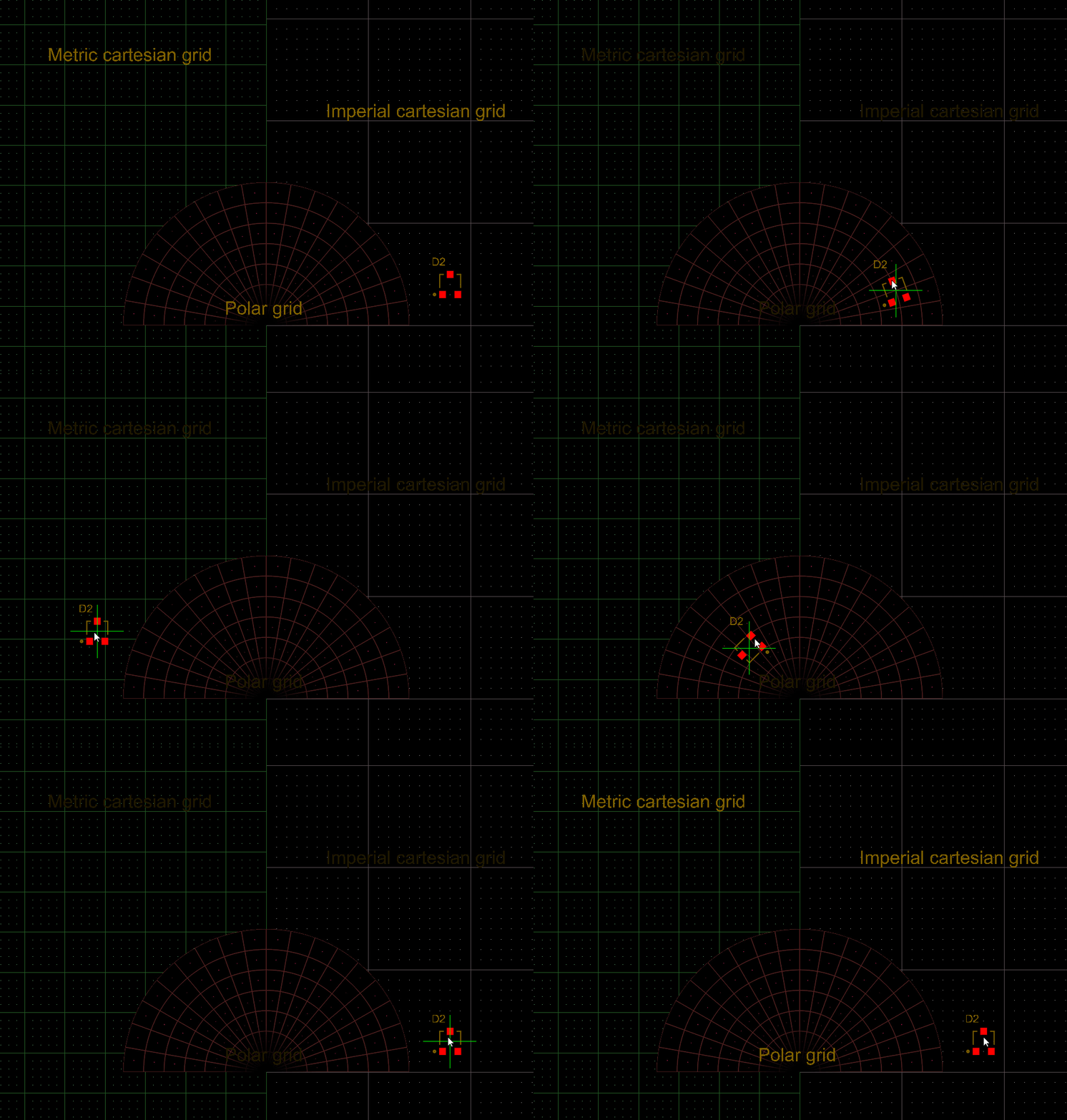 ).
). ).
).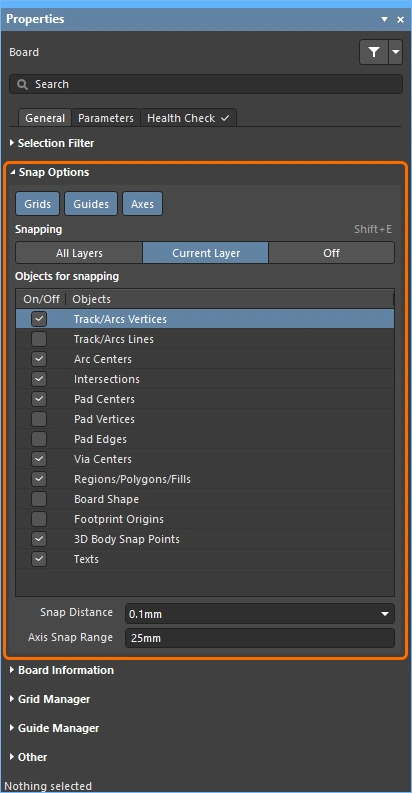 )
)Snapping to the Grid
| Toggle the units | 키를 눌러 Q 키를 누르면 단위를 영국식(Imperial)과 미터법(metric) 사이에서 전환할 수 있습니다. Grid 단위는 변경되지만, Grid 간격은 변경되지 않습니다. |
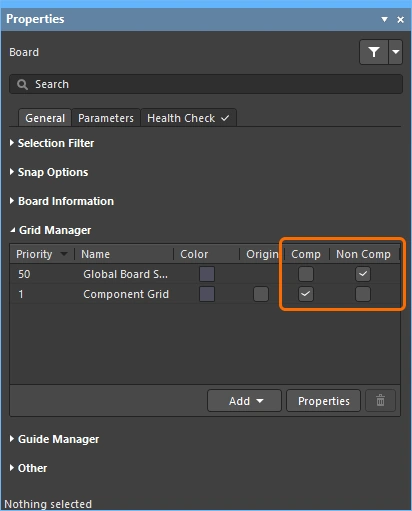
| Active grid? | 현재 커서 위치 아래에 여러 개의 Grid가 정의되어 있는 경우, 우선순위가 가장 높은 Grid(숫자 값이 가장 작은 Grid)이 활성 Grid로 적용됩니다(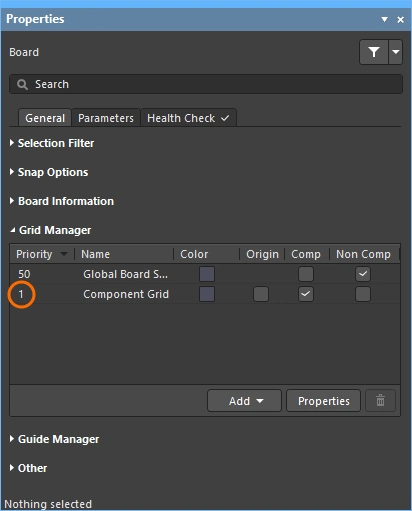 ). ). |
| Quickly select a grid | 미리 정의된 목록에서 Grid를 선택하려면 |
| Edit the grid value | 활성 Grid의 값을 편집하려면 |
| Managing grids | 개별 그리드는 Grid Editor ( |
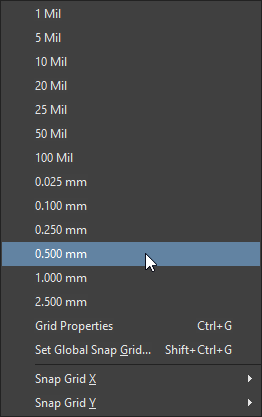 )
)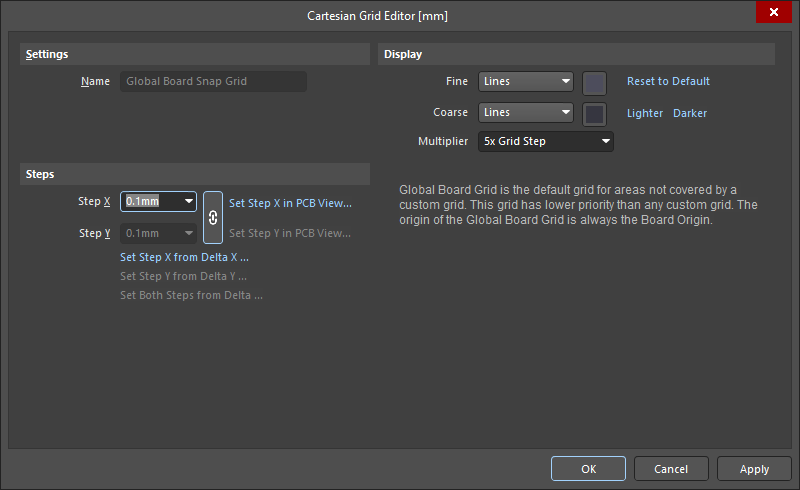 )
)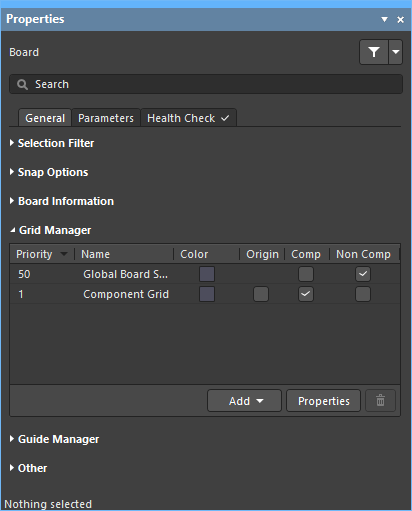 )
)Grid 작업에 대해 자세히 알아보세요.
Snapping to Objects
| Snap to objects | 커서는 다음 위치에 Snap됩니다: 활성화된 Objects for snapping (1), 활성화된 Snapping 레이어(2)에 있는 그리드(1)에 커서가 Snap Distance (3)( |
| When to snap | 객체 Snap에는 ‘꺼짐’, ‘현재 레이어’, ‘모든 레이어’의 세 가지 상태가 있습니다. |
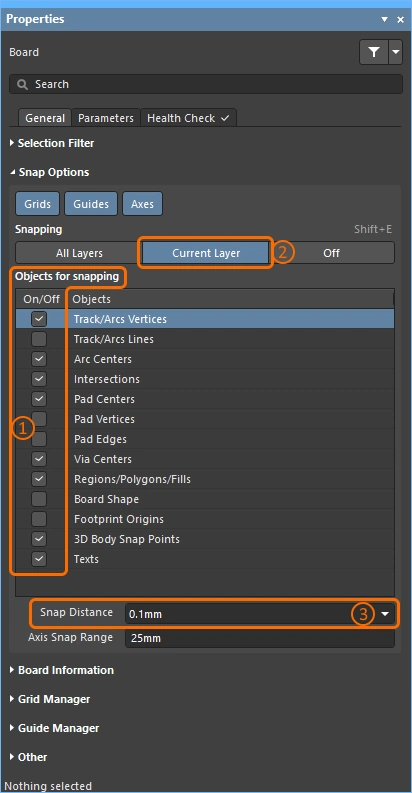 )
)Snapping to Guides and Axes
| To place a guide | 가이드를 배치하려면 Place » Work Guides 하위 메뉴나 Guide Manager 패널의 Properties Panel ( |
| 가이드 속성 | 표시 여부, 색상 및 위치는 Guide Manager 패널의 Properties (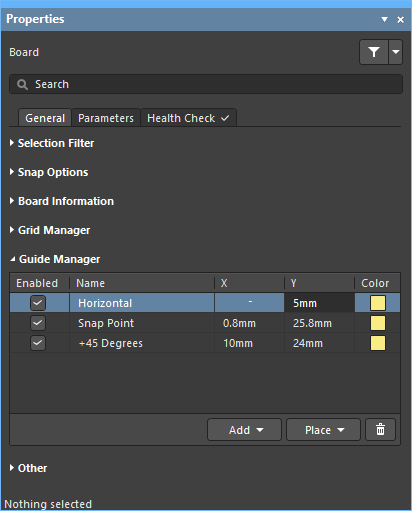 )의 Panel )의 Panel |
| 가이드에 Snap | 가이드 Snap 기능은 다음 조건에서 적용됩니다: Guides ‘Snap’ 옵션이 활성화되어 있고(1), 커서가 Snap Distance (2) ( ) 내에 있을 때 적용됩니다. ) 내에 있을 때 적용됩니다. |
| Enabling axis snapping | 축 Snap은 다음 조건에서 적용됩니다: Axes Snap 옵션이 활성화되어 있고(1), 활성화된 Objects for snapping (2)에 있는, 활성화된 Snapping 레이어(3)에 속하고, Axis Snap Range (4)( |
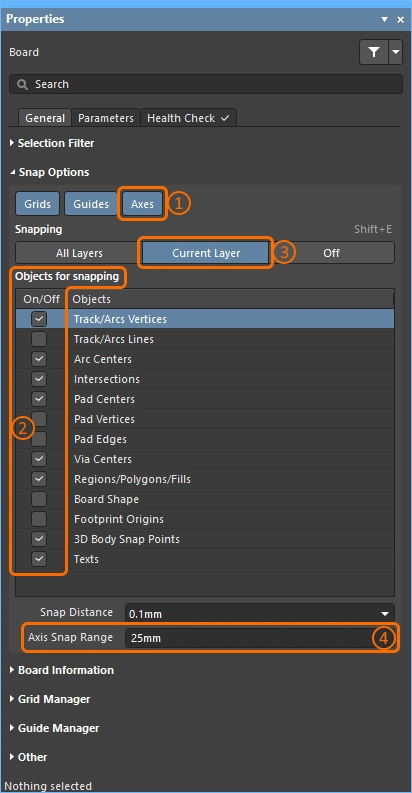 ).
).경로 표시 제어
인쇄 회로 기판 설계는 대개 매우 조밀하고 개체가 빽빽하게 배치되어 있습니다. 이 소프트웨어에는 레이어 표시/숨기기, 마스킹 및 흐리게 하기, 개체 표시/투명도 설정 등 개체 표시를 관리하는 데 도움이 되는 다양한 기능이 있습니다.
디자인을 해석하는 데 도움이 되도록 강조 표시, 개체 및 레이어 제어 기능을 사용하십시오.
| Single layer mode | 단일 레이어 모드로 표시를 전환하려면 Shift+S 를 눌러 표시를 싱글 레이어 모드로 전환하십시오. 총 3가지 모드가 제공되며, PCB Editor – Board Insight Display 페이지에서 Preferences (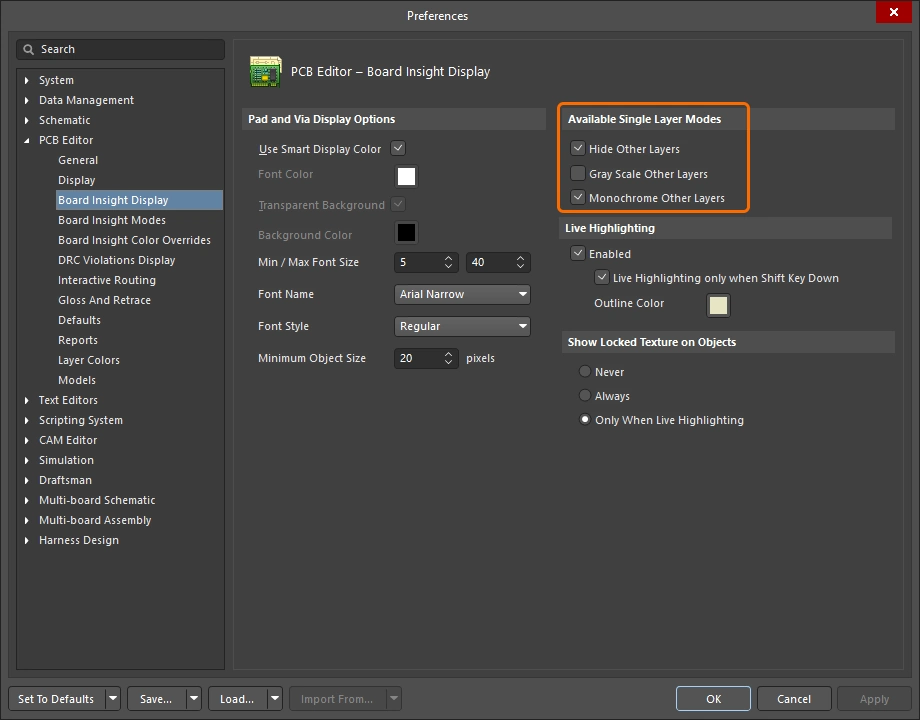 )에서 원하는 모드를 활성화하십시오. )에서 원하는 모드를 활성화하십시오. Shift+S 누를 때마다 활성화된 싱글 레이어 모드로 차례로 전환되며, 최종적으로는 현재 활성화된 모든 레이어가 표시되는 화면으로 돌아갑니다. |
| Layer sets | 미리 정의된 표시 레이어 세트를 구성한 후, 편집 창(xml-ph-0000@deepl.internal)의 Manage Layer Sets 버튼을 사용하여 선택할 수 있습니다(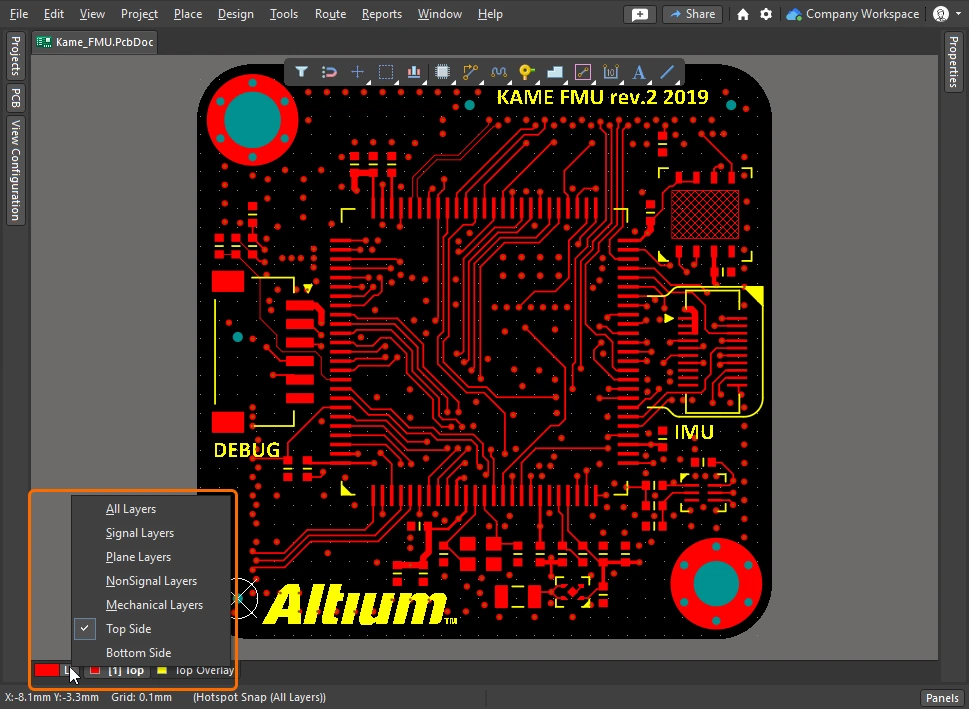 ). 새로운 세트는 View Configuration Panel에서 정의할 수 있으며, 이는 위의 동영상에서 시연됩니다. ). 새로운 세트는 View Configuration Panel에서 정의할 수 있으며, 이는 위의 동영상에서 시연됩니다. |
| Dim or Mask to fade | 컴포넌트, Net, 차동 쌍 또는 모든 유형의 클래스와 같이 관심 있는 개체를 빠르게 강조 표시하려면, PCB Panel에서 해당 개체를 찾아 Dim 또는 Mask 모드(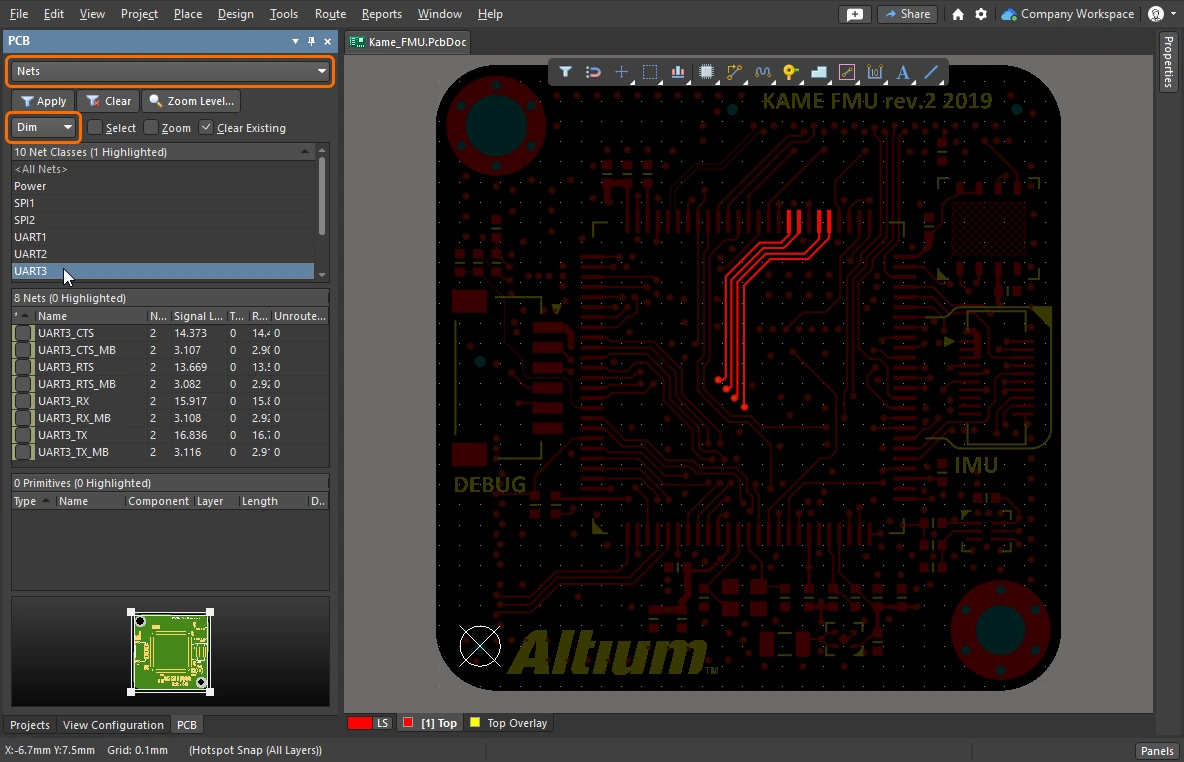 )를 활성화하면 됩니다. 이 두 모드 모두 관심 대상이 아닌 모든 개체를 except 관심 있는 객체만 선명하게 보이게 하여 해당 객체를 두드러지게 만듭니다. Dim 및 Mask 수준은 Configuration에서 설정됩니다. View Configuration Panel( )를 활성화하면 됩니다. 이 두 모드 모두 관심 대상이 아닌 모든 개체를 except 관심 있는 객체만 선명하게 보이게 하여 해당 객체를 두드러지게 만듭니다. Dim 및 Mask 수준은 Configuration에서 설정됩니다. View Configuration Panel(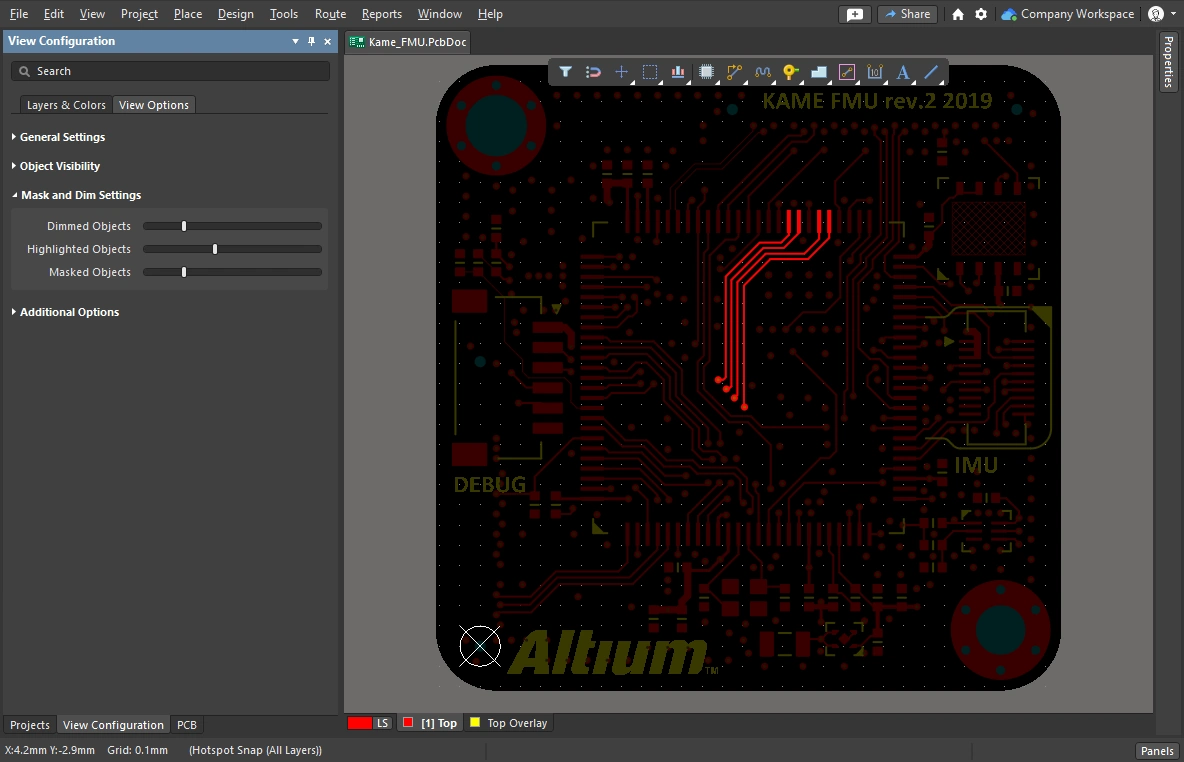 )에서 설정할 수 있습니다. )에서 설정할 수 있습니다. |
| Clearance boundaries | 이 기능을 활성화하면 전기 객체 주변의 필수 클리어런스를 표시할 수 있습니다. ( |
| Object transparency | 각 개체 유형의 투명도 수준은 Configuration에서 설정할 수 있습니다. Object Visibility 패널의 View Configuration (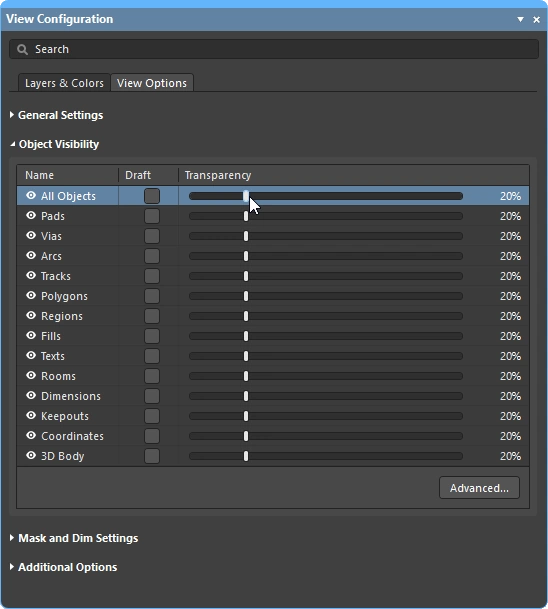 )에서 Panel을 설정할 수 있습니다. Panel 상단의 All Objects 세트 상단의 슬라이더를 사용하여 모든 개체를 동시에 조정할 수 있습니다. )에서 Panel을 설정할 수 있습니다. Panel 상단의 All Objects 세트 상단의 슬라이더를 사용하여 모든 개체를 동시에 조정할 수 있습니다. |
| The visibility of objects | 관심 대상이 아닌 객체를 숨기는 것은 설계 공간을 깔끔하게 정리하는 편리한 방법입니다(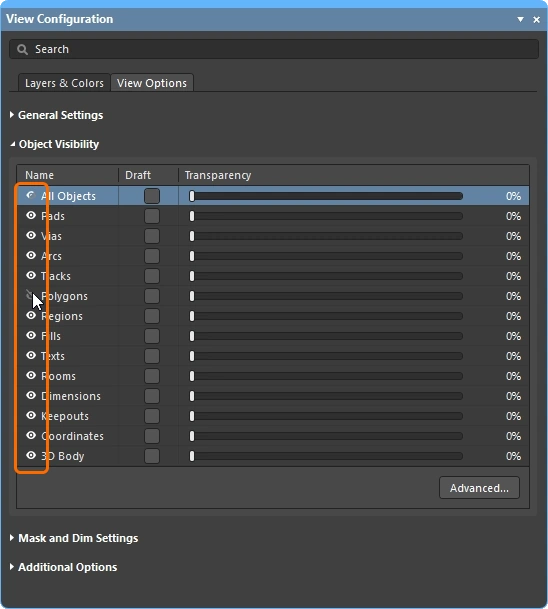 ). 단, 제약 조건 시스템에서는 여전히 해당 객체에 대한 검사가 수행되므로, 가시성에서 다각형을 숨기려면 and 제약 조건 시스템에서, ‘보관(Shelve) ’ 기능을 사용하십시오. ). 단, 제약 조건 시스템에서는 여전히 해당 객체에 대한 검사가 수행되므로, 가시성에서 다각형을 숨기려면 and 제약 조건 시스템에서, ‘보관(Shelve) ’ 기능을 사용하십시오. |
| Displaying net names | 패드, 비아 및 Track에 표시되는 Net 이름의 표시 방식을 제어하려면 View Configuration (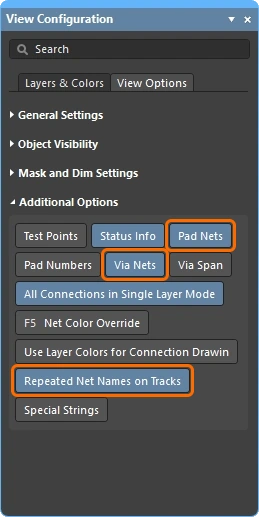 )에서 Panel, Via 및 Track에 표시되는 Net 이름의 표시를 제어하는 옵션을 설정하십시오. Net 이름은 항상 각 Track 세그먼트의 중앙에 표시되지만, 필요한 경우 반복해서 표시할 수도 있습니다. 표시 글꼴 속성은 PCB Editor – Board Insight Display 대화 상자의 Preferences ( )에서 Panel, Via 및 Track에 표시되는 Net 이름의 표시를 제어하는 옵션을 설정하십시오. Net 이름은 항상 각 Track 세그먼트의 중앙에 표시되지만, 필요한 경우 반복해서 표시할 수도 있습니다. 표시 글꼴 속성은 PCB Editor – Board Insight Display 대화 상자의 Preferences (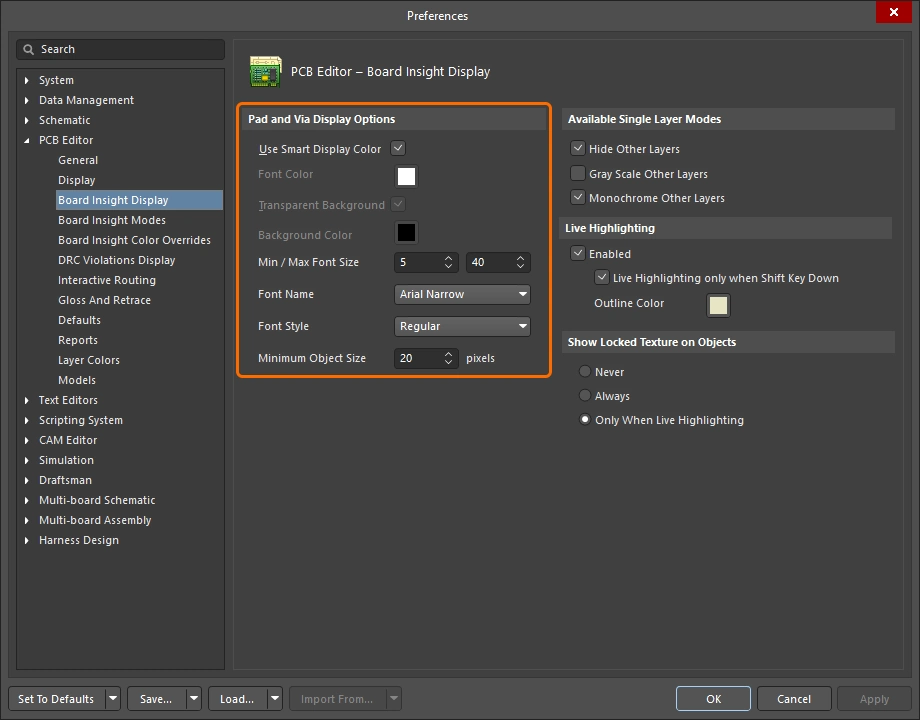 )의 페이지에서 설정합니다. )의 페이지에서 설정합니다. |
 ).
).라우팅 속성 제어
클리어런스, 배선 폭 및 비아 스타일과 같은 설계 제약 조건을 구성했으므로 이제 라우팅을 시작할 준비가 되었습니다. 라우팅을 시작하기 위해 클릭하면, 레이어를 전환할 때 라우터는 어떤 트랙 폭을 사용해야 하고 어떤 비아 크기를 사용해야 하는지 어떻게 알 수 있을까요?
라우팅 설정을 완료한 후, 라우팅 과정에서 배선 폭과 비아 스타일을 선택하는 과정을 간단히 시연합니다.
라우팅 시작 |
|
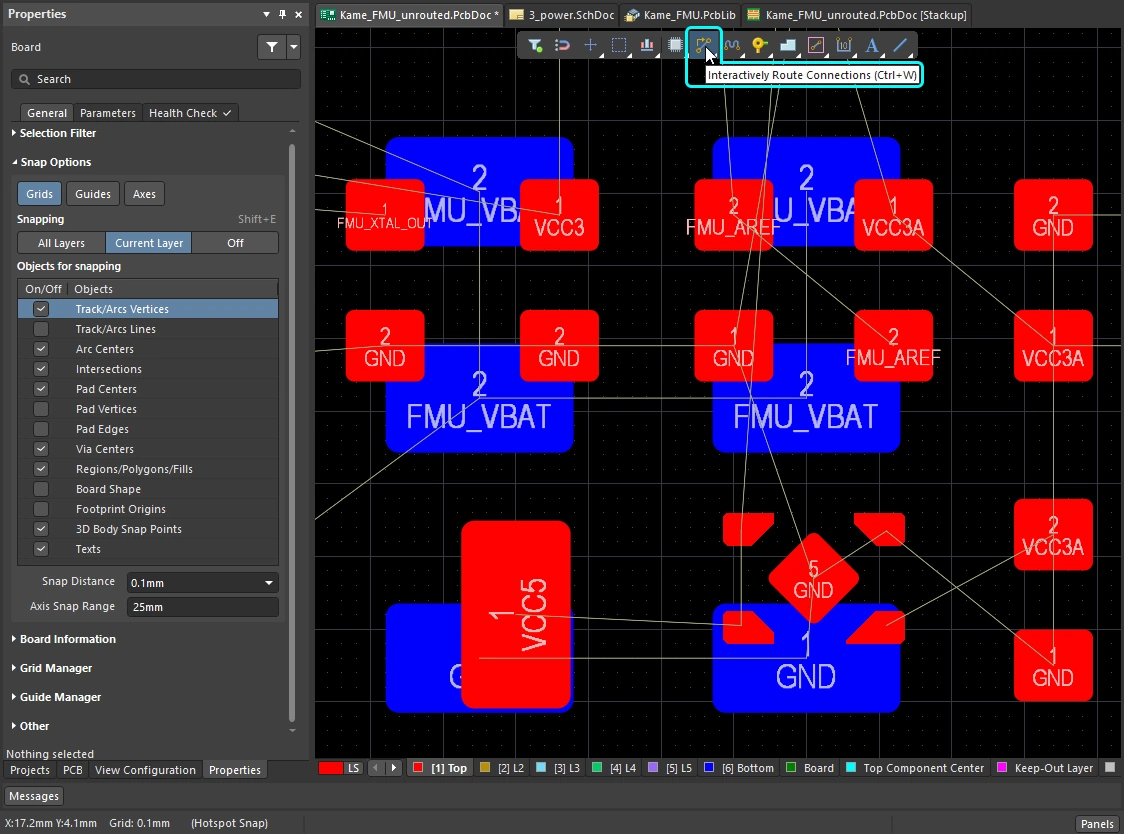
| Launch the interactive router... | 다음 방법 중 하나를 사용하여 대화형 라우팅을 시작할 수 있습니다:
커서에 십자선이 나타나면 라우팅을 시작할 준비가 된 것입니다. |
| ...then click on a connection line | 이 명령을 실행한 후 Connection선을 클릭하면 Interactive Routing 명령을 실행한 후 Connection 라인을 클릭하면, 대화형 라우터가 Connection 라인의 가장 가까운 끝단에 있는 개체로 이동하여 클릭 위치부터 현재 커서 위치까지 Track 세그먼트를 추가합니다. 또한 해당 개체가 현재 레이어에 속해 있지 않은 경우, 해당 개체가 속한 레이어로 전환됩니다.
|
| ...or click on an object | 넷에 속한 개체를 클릭하면 대화형 라우터는 해당 개체가 있는 레이어로 전환하고, 클릭 위치에서 현재 커서 위치까지 Track 세그먼트를 추가합니다. |
| ...or click in free space | 빈 공간을 클릭하면 라우팅을 시작하지만, 이때는 비넷(no-net) 경로가 됩니다. 비넷 경로의 경우 PCB Editor의 Default Track 너비가 사용됩니다. |
| The initial style of the route | 경로의 시작 폭에 대해서는 바로 아래의 접을 수 있는 섹션에 설명되어 있습니다. 커서를 이동할 때 대화형 라우터가 모서리를 형성하는 방식을 corner style라고 합니다. 대각선 모서리가 가장 일반적이지만, Arc를 배치하여 만드는 곡선 모서리도 널리 사용됩니다. |
| Manually editing the properties during routing | 라우팅 도중 값을 수동으로 편집하는 것도 가능합니다.
라우팅 속성에 대한 자세한 내용. |
 )
)Changing the Routing Width (0:29)
 )
) )
) )
)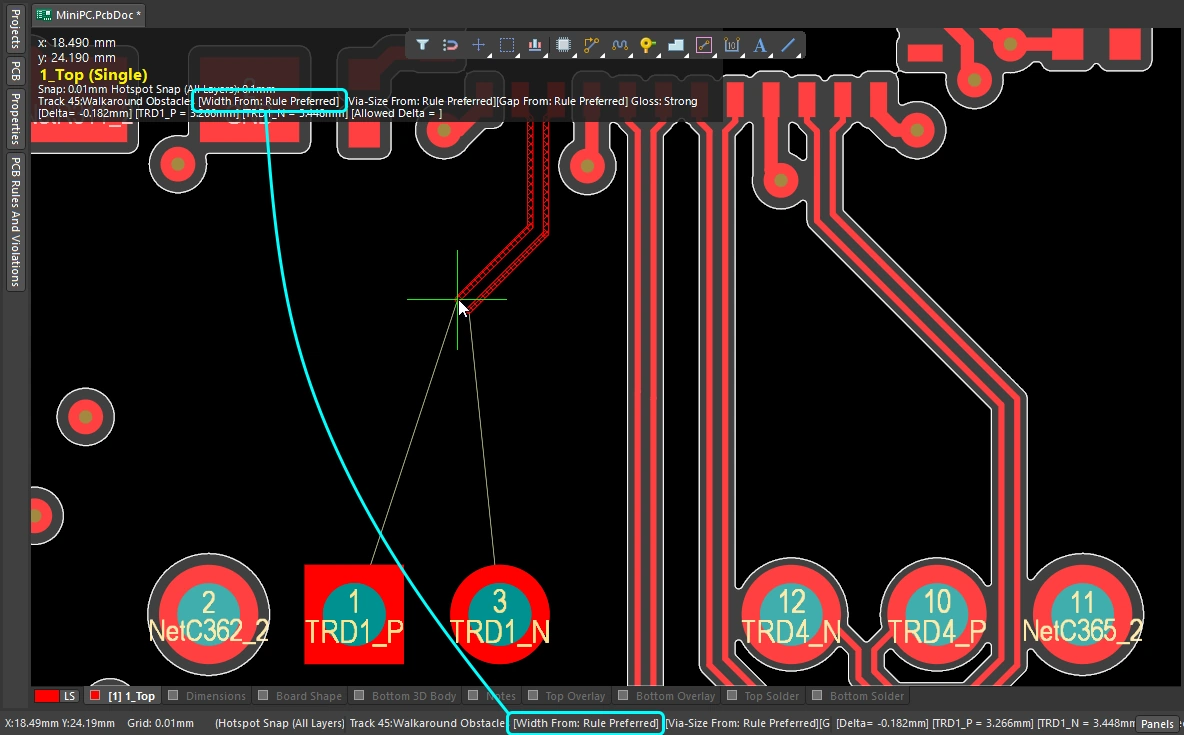 )
)Changing the Routing Layer (1:14)
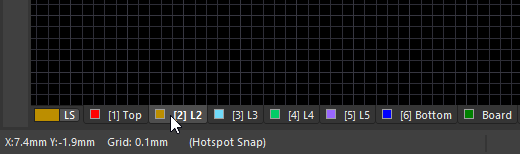 ).
).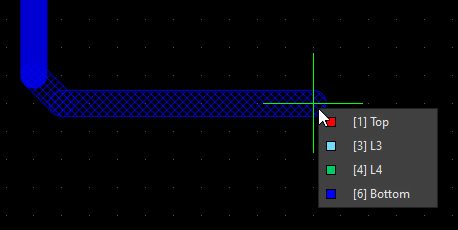 ).
).Changing the Via (1:22)
| Routing via | 라우팅 중에 레이어를 전환하면, 해당 라우팅 비아 스타일 설계 제약 조건에 따라 비아가 자동으로 추가됩니다. |
| Default routing via | 레이어 변경 시 사용되는 비아의 크기는 Via Size Mode 의 Interactive Routing Width Sources ( |
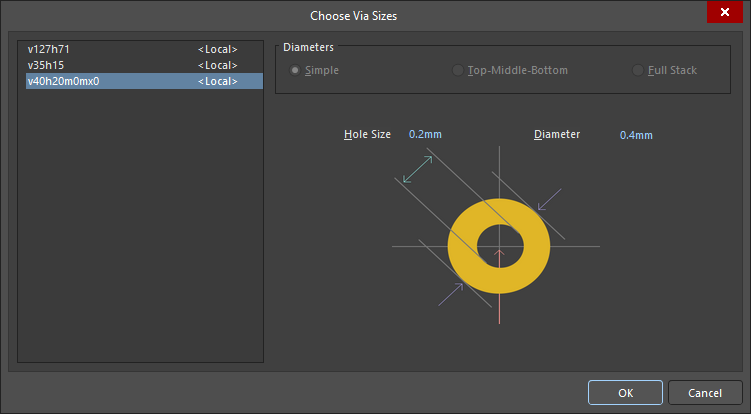
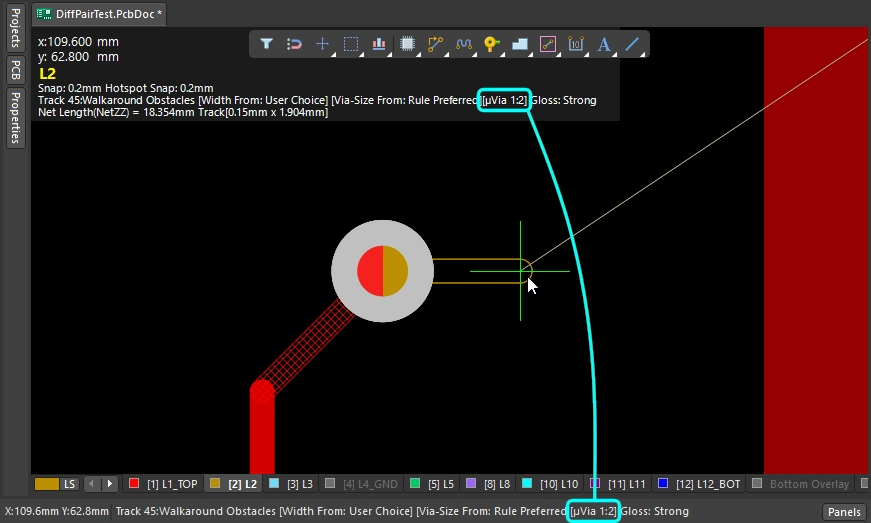
| Cycle available via sizes | 라우팅 중에 4 키를 눌러 ‘최소’, ‘권장’ 또는 ‘최대’ 비아 크기 설정(해당 ‘라우팅 비아 스타일’ 설계 제약 조건에 정의된 대로)을 순차적으로 전환하거나, ‘사용자 정의’ 비아 크기(
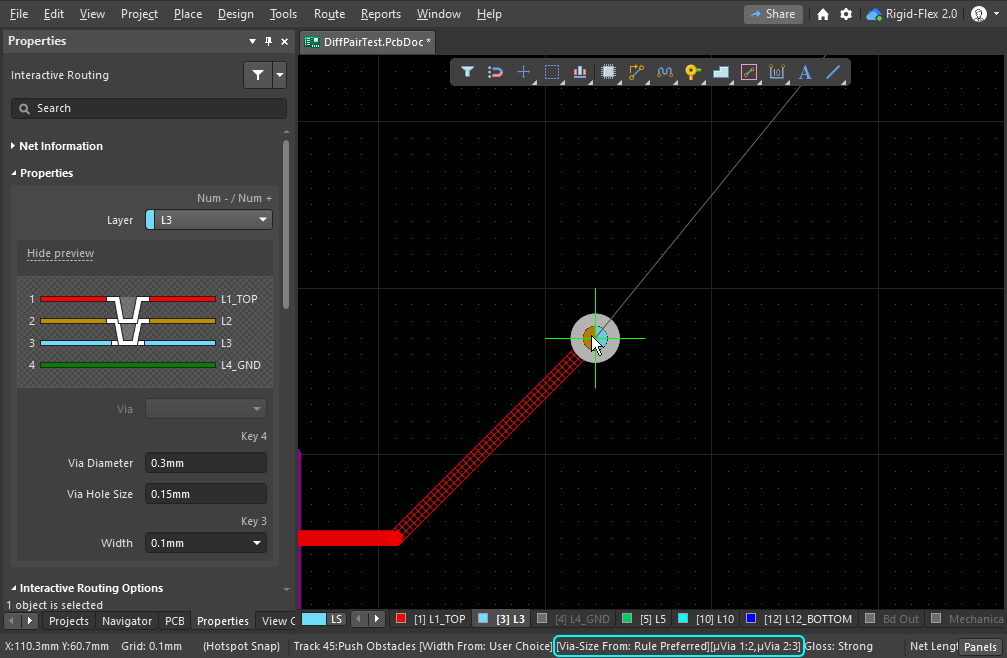
). 마지막으로 선택한 상태가 현재 Via Size Mode로 유지됩니다. 현재 비아 크기 모드는 상태 표시줄과 헤드업 디스플레이(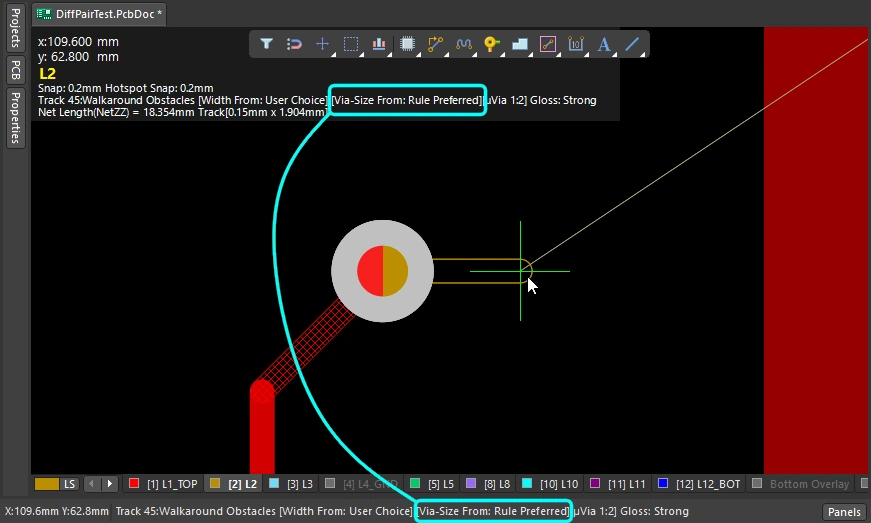 )에 표시됩니다. )에 표시됩니다. |
| Choose a different User via size | 또는 라우팅 중에 |
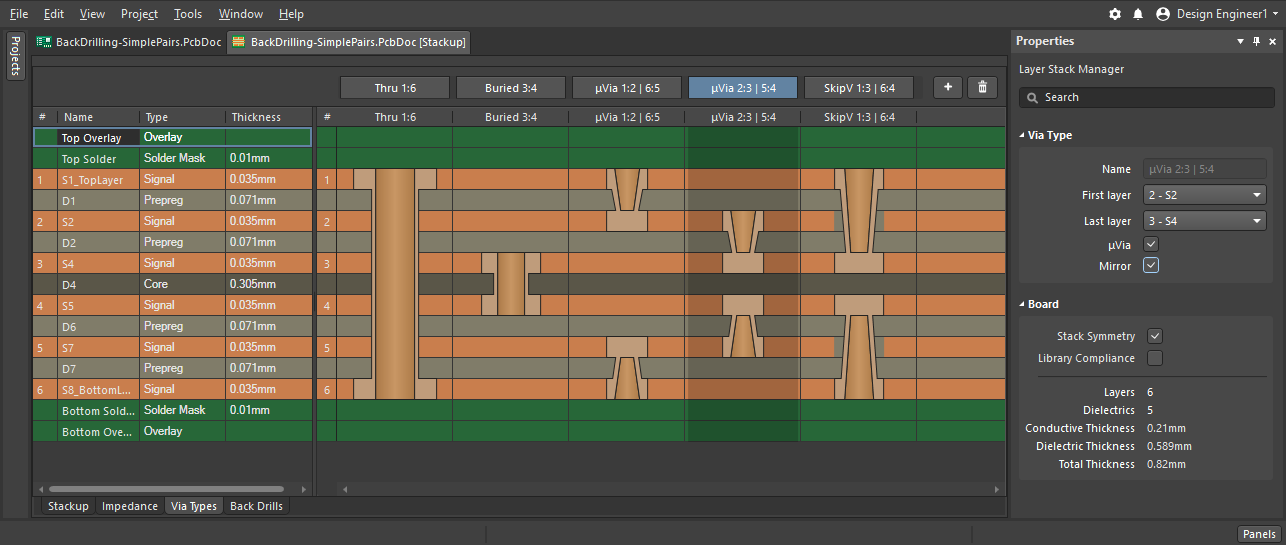
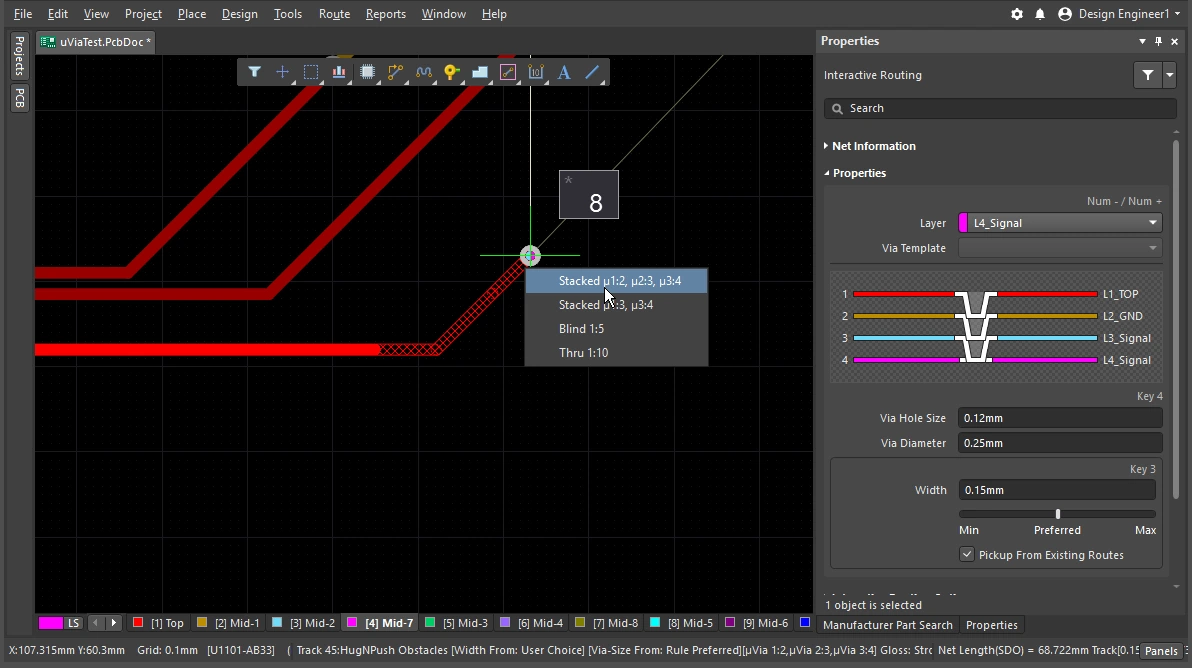
| Cycle the via span | 비아가 가로지르는 레이어는 현재 Via Type에 따라 결정되며, 사용 가능한 비아 유형은 Layer Stack Manager ( |
 )
) )
) ).
). ).
). )
)비아에 대해 자세히 알아보세요.
비아 유형 정의에 대해 자세히 알아보세요.
대화형 라우터 사용
대화형 라우팅 명령을 실행하고 Pad나 Connection선을 클릭하면 어떻게 될까요? 대화형 라우팅 엔진은 클릭 위치에서 가장 가까운 해당 Net(Pad, 비아, Track)의 구리 부분부터 현재 커서 위치까지 경로를 찾으려고 시도하며, 지정된 너비의 트랙/Arc를 배치하고 현재 라우터 설정에 따라 깔끔한 패턴으로 배열합니다.
라우팅 경로는 SMD Pad를 어떻게 빠져나갑니까? 장애물을 만나면 라우팅은 어떻게 반응합니까? 장애물을 우회합니까, 밀어냅니다, 아니면 무시합니까? 모서리는 어떤 모양을 취하며, 다른 컴포넌트의 Pad 사이를 어떻게 통과하나요? 이전 섹션에서는 라우팅 경로 자체의 속성을 제어하는 방법을 설명한 반면, 이 섹션에서는 라우팅 공간이 이동하는 동안 경로를 제어하는 데 필요한 기능을 요약합니다.
대화형 라우터 사용법 |
|
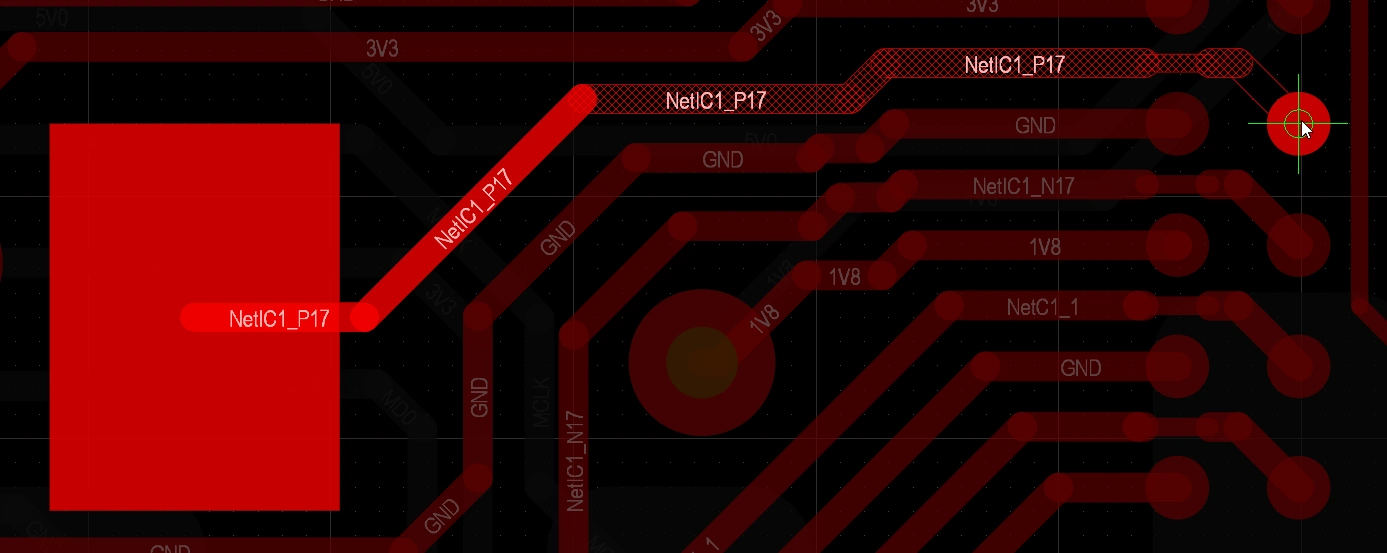
| Hatched/solid/hollow track/arc segments | 점선으로 표시된 Track/Arc는 배치되지 않은 상태이며, 실선으로 표시된 Track/Arc는 배치된 상태입니다( 커서에 연결된 Track이 속이 빈 상태(해치나 실선이 아닌)일 경우, 이를 look-ahead segment라고 부르며, 다음에 클릭할 때 배치되지 않습니다. 이 기능을 사용하면 마지막 세그먼트를 Commit하지 않고도 이전 세그먼트의 끝점을 배치할 수 있습니다( |
| How the router forms the corners | 대화형 라우팅 중에 모서리를 형성하는 Track과 Arc로 이루어진 도형을 corner style라고 합니다. 대각선 코너가 가장 일반적이지만, Arc를 배치하여 만드는 곡선 코너도 널리 사용됩니다. 총 5가지 코너 스타일이 제공되며, 그중 4가지에는 코너 방향 하위 모드도 있습니다.
|
| How the routing leaves a pad | 대화형 라우팅 엔진이 Pad를 빠져나가거나 진입하는 방식은 다음 항목에 의해 제어됩니다.
|
| How the route reacts to an existing object | 이는 현재 설정된 충돌 해결 모드에 따라 결정됩니다. 현재 충돌 해결 모드는 상태 표시줄( |
| 새로운 라우팅의 부드러움 | 커서를 처음 클릭한 위치에서 멀리 이동하면, 라우팅이 물체를 우회하여 현재 커서 위치에 도달할 수 있는 최적의 경로를 찾도록 재구성됩니다. 이 경로의 정돈 정도 또는 품질은 현재 glossing setting. 글로싱(Glossing)은 라우팅 품질을 향상시키는 도구 모음으로, 경로 길이를 줄이고 모서리의 형태를 개선하며 모서리 수를 줄이려고 시도합니다. 또한 직각을 피하고, T자형 접합부 및 Pad에서 예각을 방지하려고 합니다. 글로싱은 차동 쌍도 지원하며, 길이와 간격이 균형 잡힌 쌍의 비율을 높이기 위해 노력합니다. 글로싱에는 ‘Off’, ‘Weak’, ‘Strong’의 세 가지 설정이 있습니다. 대화형 라우팅 또는 대화형 슬라이딩 중에는 |
| Auto-complete the connection | Net을 대화형으로 라우팅할 때
Connection을 자동으로 완료할 수 없는 경우, 툴은 마지막으로 사용했던 대화형 라우팅 모드로 돌아갑니다. |
| Center the routes between pads / vias | 대화형 라우터는 설계 제약 조건을 따르며, 가장 가까운 패드로부터 허용되는 최소 클리어런스를 유지하여 패드 쌍을 통해 자동으로 라우팅합니다. 패드 사이에 간격이 생기도록 라우팅 경로를 이동시키고 싶다면, Trace 중앙 정렬 적용 옵션을 구성하십시오. 모든 Pad 쌍, 비아 쌍 또는 Pad/비아 쌍 사이에서 이 기능을 지원하기 위해, 이 기능은 라우팅 클리어런스를 지능적으로 조정할 수 있는 클리어런스 배수를 사용합니다. |
| Auto-narrow the route | 좁은 틈새를 통과할 수 있도록 트레이스를 좁히는 것이 때로는 해당 Net를 배선할 수 있는 유일한 방법입니다. ‘자동 축소’ 기능은 라우팅 폭 제약 조건에 의해 정의된 허용 최소값을 기준으로 트레이스를 틈새에 딱 맞도록 자동으로 좁혀 이 작업을 수행할 수 있습니다. |
| Route selection strategies | 라우팅에서 작업할 배선을 선택하는 것은 라우팅의 핵심 요소입니다. 배선을 선택하여 배선을 해제하거나, 광택 처리하거나, 속성을 확인하거나, 삭제할 수 있습니다. |
 ).
). )과 헤드업 디스플레이에 표시됩니다.
 ).
). )
) )
)Responding to Obstacles – Conflict Resolution Mode
대화형 라우팅 명령을 실행하고 Pad를 클릭합니다. 패드에서 커서를 멀리 이동하면 대화형 라우팅 엔진이 클릭한 패드에서 현재 커서 위치까지 해치 처리된 Track 세그먼트 경로를 그립니다. 커서를 이동하면 설계 제약 조건과 현재 글로싱 설정에 따라 경로 경로를 가장 잘 정의하도록 해치 처리된 세그먼트가 업데이트됩니다.
대화형 라우터가 Pad나 다른 Net의 라우팅과 같이 PCB 워크스페이스에 이미 존재하는 개체에 어떻게 반응하는지는 현재 routing conflict resolution 모드에 따라 달라집니다. 라우팅 충돌 해결 모드는 대화형 라우팅 엔진이 이러한 장애물을 밀어내려고 할지, 우회할지, 아니면 단순히 무시하고 그 위를 지나가도록 라우팅할지 결정합니다.
충돌 해결 모드의 다양한 동작을 보여주는 간단한 시연입니다.
라우팅 충돌 해결 모드 |
|
| Current mode | 현재 라우팅 충돌 해결 모드는 헤드업 디스플레이( |
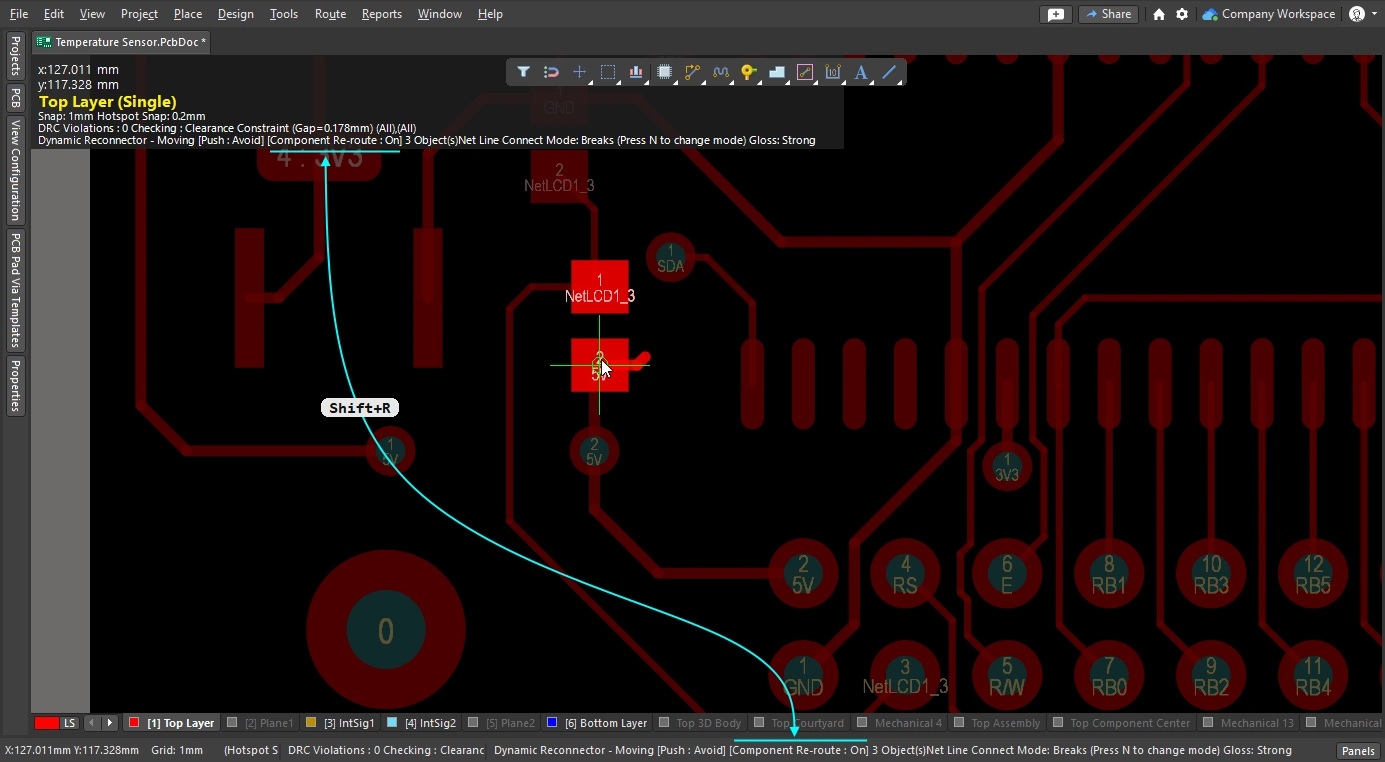
| Changing modes | 대화형 라우팅(또는 대화형 슬라이딩, 드래그를 통한 작업) 중에 모드를 변경하려면 Shift+R 단축키를 누르십시오. |
| Available modes | 개별 충돌 해결 모드는 PCB Editor – Interactive Routing 대화 상자( xml-ph-0000@deepl.internal )에서 개별 충돌 해결 모드를 활성화하거나 비활성화할 수 있습니다. 환경 설정에서 모드가 비활성화된 경우, 드롭다운 Preferences ( |
Glossing during Routing
대화 상자에서 대화형 라우터가 경로를 찾아 마지막 클릭 위치부터 현재 커서 위치까지 트랙 세그먼트를 배치할 뿐만 아니라, 해당 경로가 가능한 한 짧고 최소한의 트랙 세그먼트로 생성되기를 원할 것입니다. 이 과정을 관리하기 위해 PCB Editor에는 Glossing 도구를 포함하고 있습니다.
Glossing(Glossing)은 해당 Design Rule의 의도를 준수하면서 더 깔끔한 라우팅과 Pad 진입부를 생성하기 위해 특별히 개발된 정교한 알고리즘 세트입니다. 글로싱은 경로 길이를 줄이고 모서리의 모양을 개선하며 모서리 수를 줄이려고 시도하며, 일반적으로 더 적은 수의 세그먼트로 더 깔끔한 라우팅을 생성합니다. 또한 글로싱은 서브넷 점퍼를 기존 상태 그대로 유지하며, 공간 기반 폭 규칙이 적용된 경우 경계에서의 폭 변경 사항도 반영합니다. 새로운 대화형 라우팅 경로를 정의하는 동안 커서를 이동하면, 아직 Commit되지 않은 모든 라우팅도 자동으로 글로싱 처리됩니다.
인터랙티브 라우팅 엔진은 라우팅 중인 Net뿐만 아니라, 라우팅 중인 Net의 영향을 받는 인접(이웃) Net에도 글로싱을 적용할 수 있습니다.
글로싱을 껐을 때와 켰을 때 나타나는 서로 다른 결과를 간단히 시연해 보겠습니다.
글로싱 이해하기 |
|
| When does glossing run | 글로싱 도구는 다음 조건에 따라 실행됩니다:
|
| How strong is glossing | 라우팅의 글로싱 강도는 현재 Gloss Effort (Routed) Configuration에 따라 결정됩니다. 옵션을 구성하거나(
|
| Glossing the neighbors | Push 또는 Hug & Push 대화형 라우팅이나 슬라이딩을 수행하는 동안 인접한 라우트(이웃)에 영향을 미칩니다. 이러한 이웃 라우트도 다음 설정에 따라 글로싱될 수 있습니다. Gloss Effort (neighbor) 설정(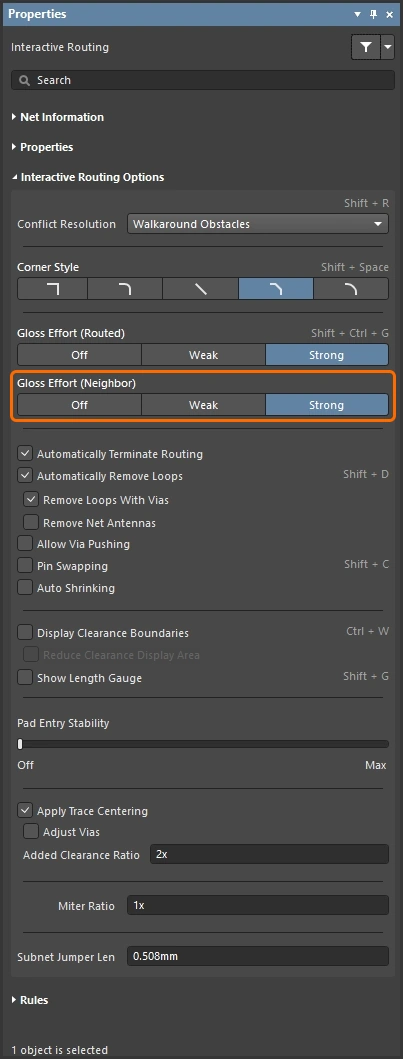 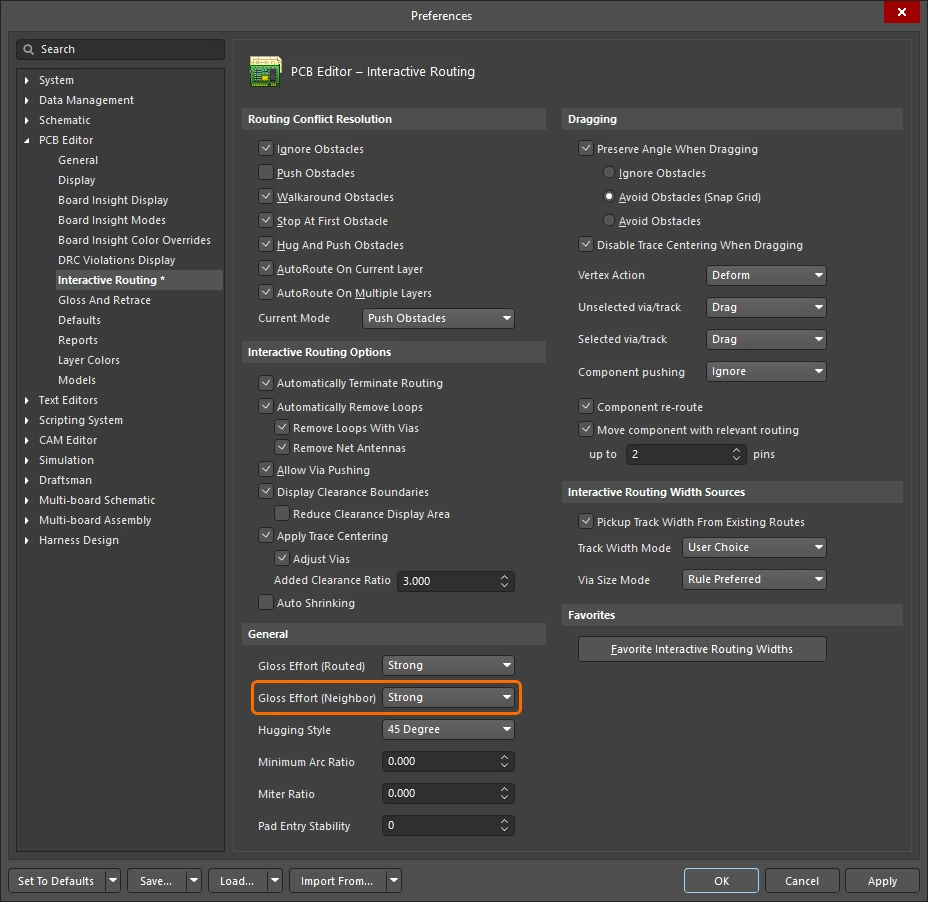 )에 따라 광택 처리가 적용될 수 있습니다. 광택 처리 강도(인접 경로) 설정 )에 따라 광택 처리가 적용될 수 있습니다. 광택 처리 강도(인접 경로) 설정 |
| Hugging - how glossing wraps around other objects and forms corners | 글로싱 엔진이 경로를 다른 객체 주위로 감싸고 모서리를 형성하는 방식을 hugging라고 합니다. 사용 가능한 허깅 스타일 설정은 다음과 같습니다:
|
| Controlling the properties of the corner | 모서리가 직선 Track 세그먼트로 형성되는 경우, Default 동작은 글로싱 엔진이 90도 모서리에 작은 마이터를 적용하는 것이며, 그 크기는 Miter Ratio 설정에 따라 크기가 제어됩니다. 마이터 비율 설정 모서리가 호로 형성되는 경우, 최소 Arc 크기는 Minimum Arc Ratio설정에 의해 제어됩니다. 최소 Arc 비율은 임의 각도 대화형 라우팅 시와 Mixed 허깅 스타일로 슬라이딩할 때에도 적용됩니다. 이 비율은 허용되는 최소 Arc 반지름을 결정하는 데 사용되며, Arc 반지름이 이 최소값 아래로 떨어지면 Arc는 Track 세그먼트로 대체됩니다. 최소 Arc 비율 설정 |
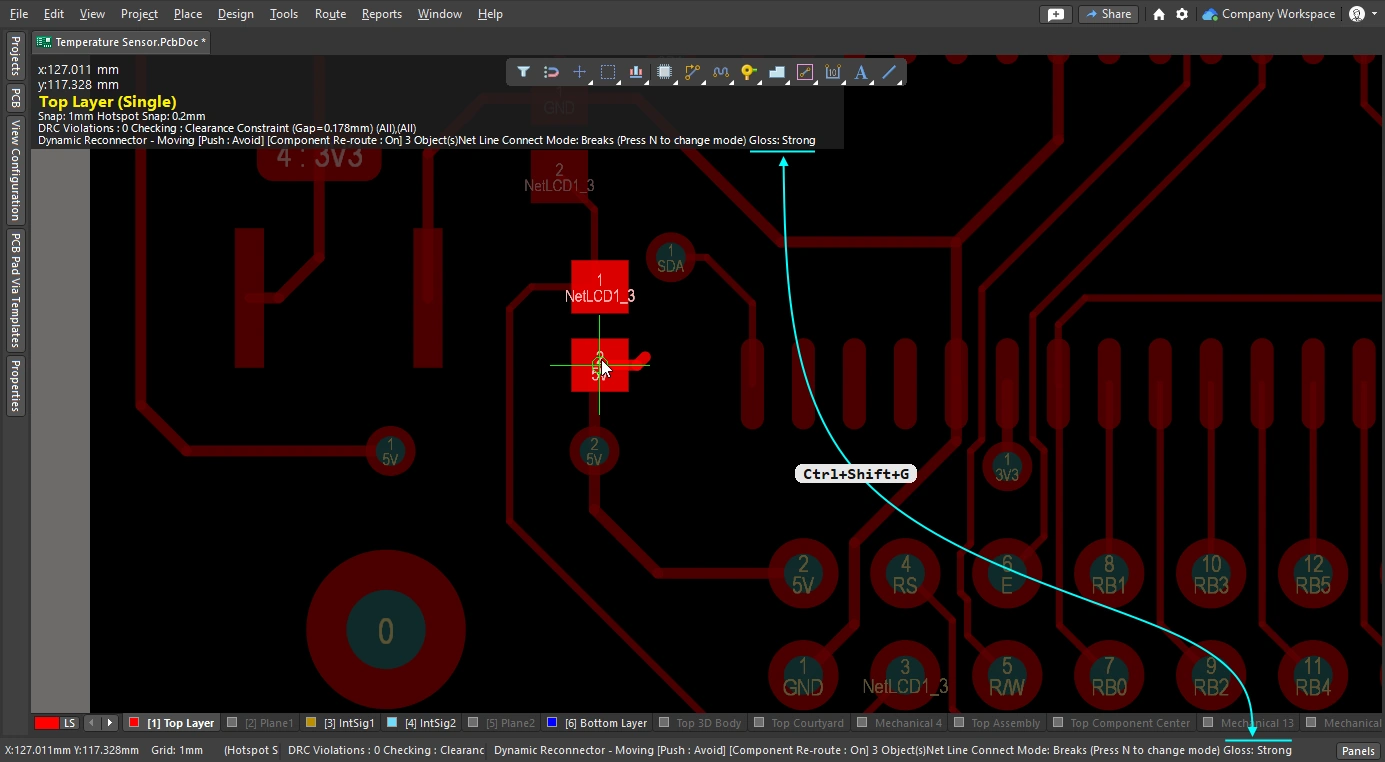
| Inhibit glossing during routing and sliding | 일시적으로 글로싱을 비활성화하고 싶은 경우가 있을 수 있습니다. 라우팅 중에 Ctrl+Shift 단축키를 길게 누르면 라우팅 중 글로싱을 일시적으로 비활성화할 수 있습니다. 키를 놓는 즉시 글로싱은 현재 '라우팅 글로싱 강도' 설정에 따라 재개됩니다. 상태 표시줄에는 이 상태가 반영되지 않으며, 마지막으로 선택된 상태가 계속 표시된다는 점에 유의하십시오. |
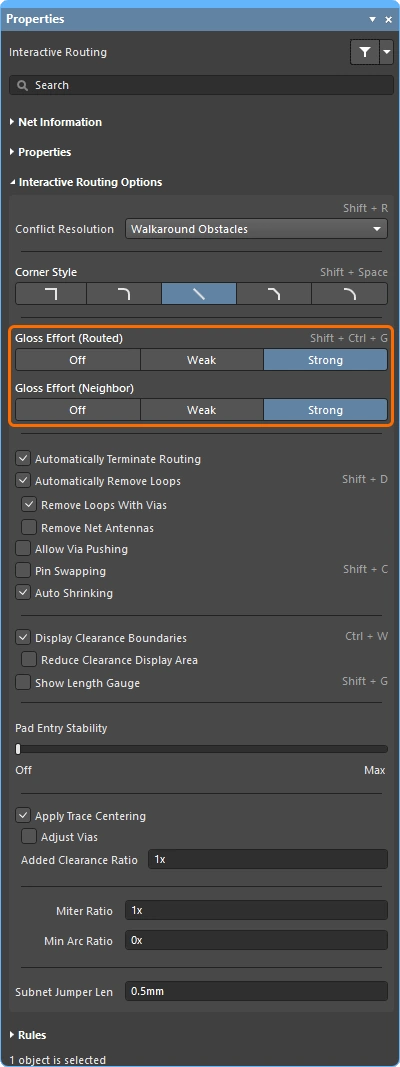
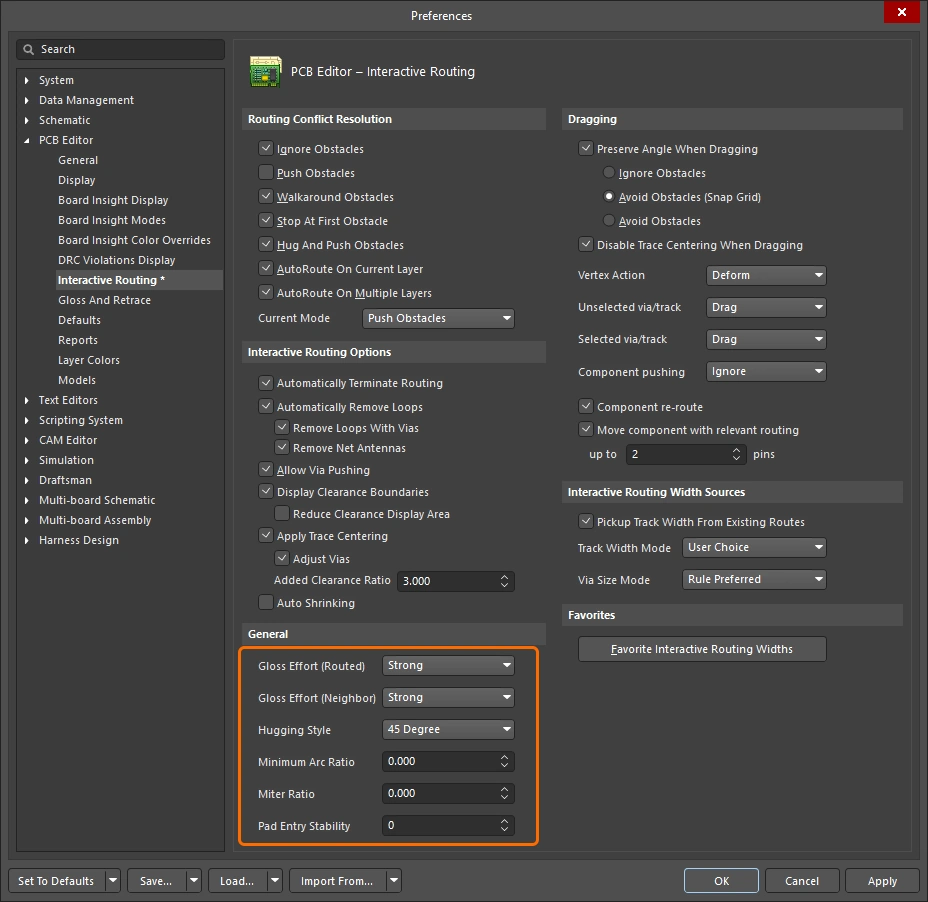 )
)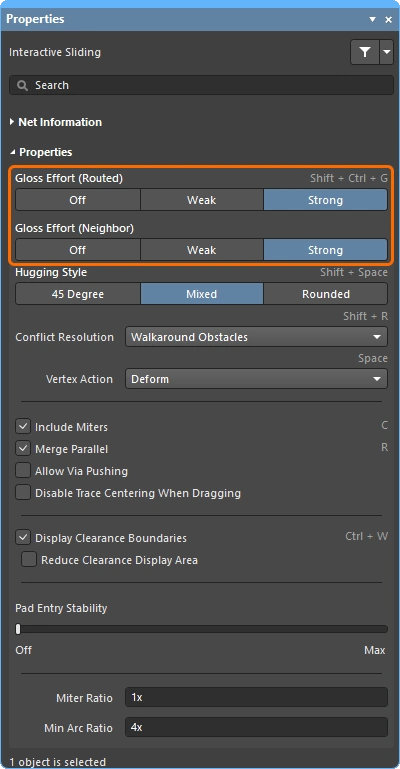

아래 슬라이드는 다양한 ‘광택 처리 강도(라우팅됨)’ 및 ‘광택 처리 강도(인접)’ 설정에 대한 간단한 예시를 보여줍니다.
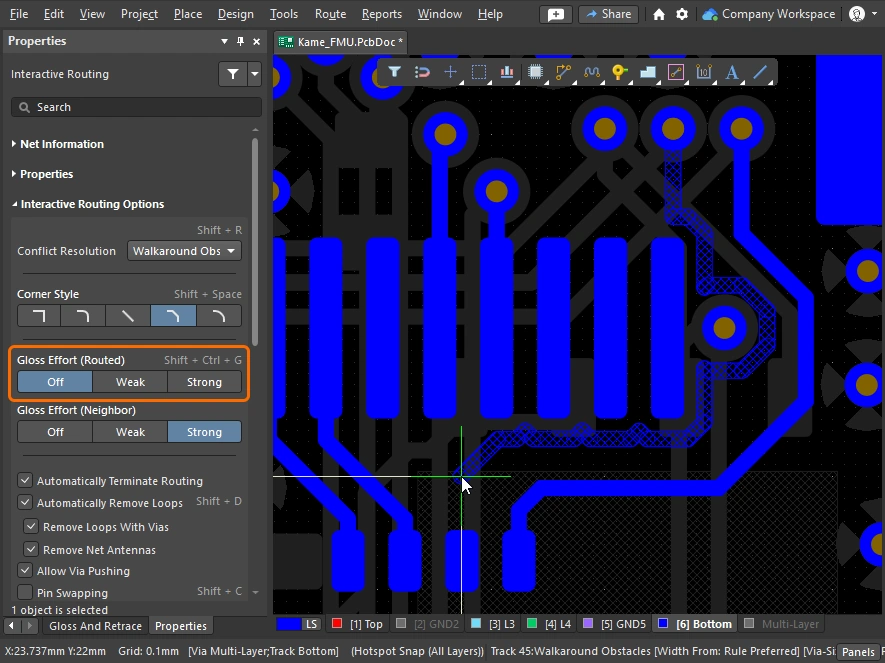
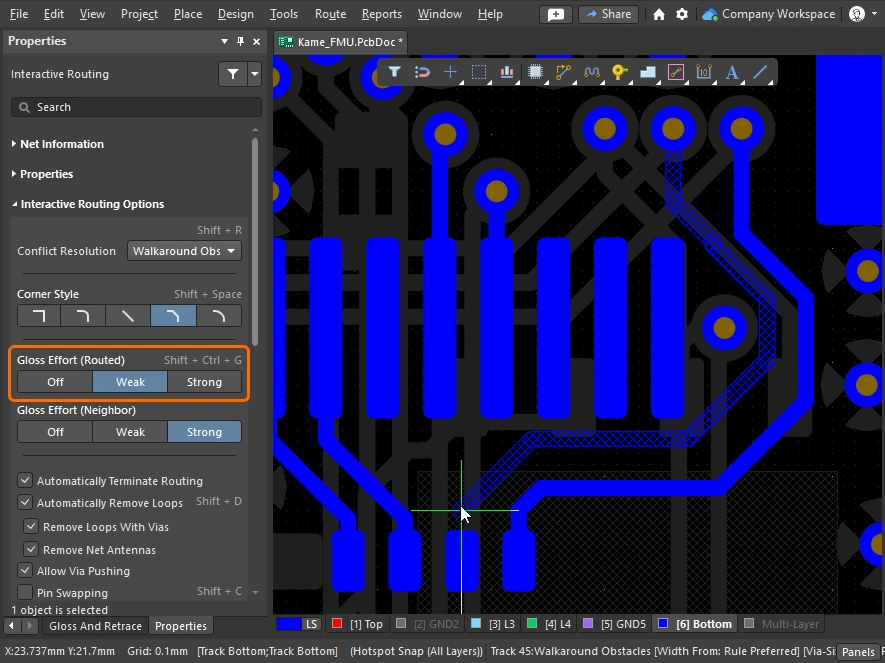
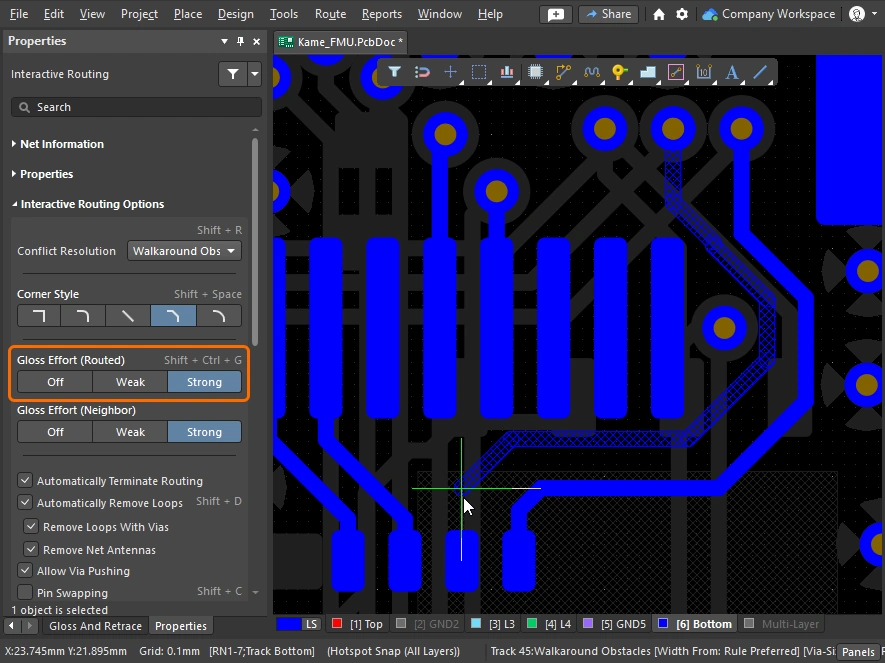
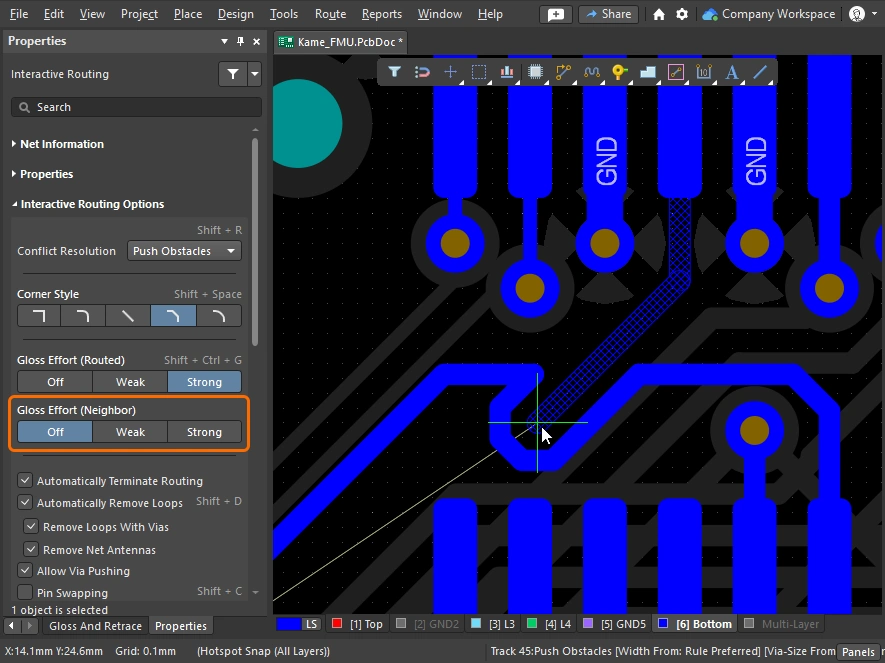
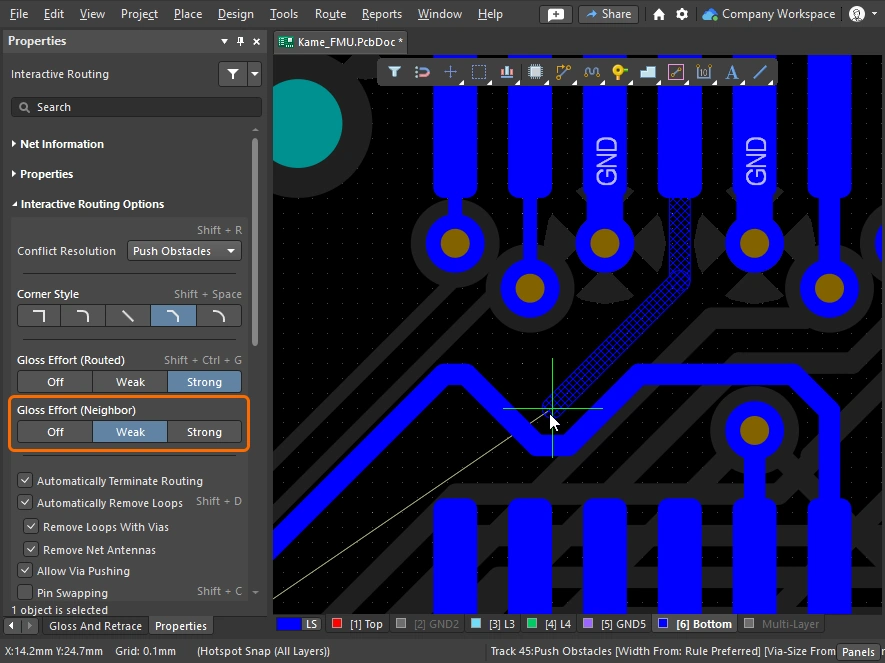
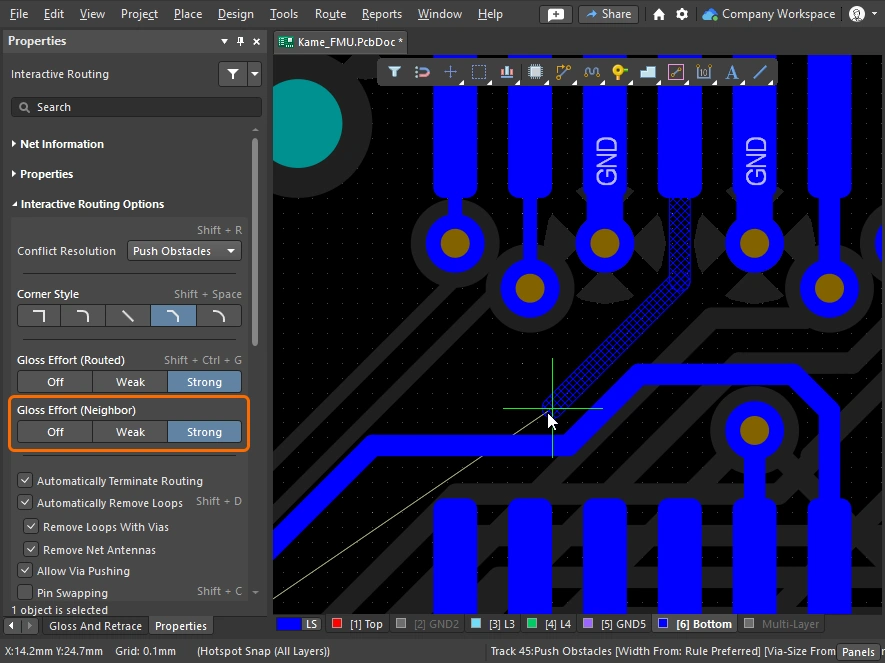
Miter or Curve the Corners
모서리는 짧고 직선인 Track 구간(마이터)을 사용하여 정의하거나, 하나 이상의 Arc를 사용하여 만들 수 있습니다. 아래 이미지는 가장 널리 사용되는 두 가지 모서리 스타일을 보여줍니다. Track 45 그리고 Any Angle.


마이터 모서리
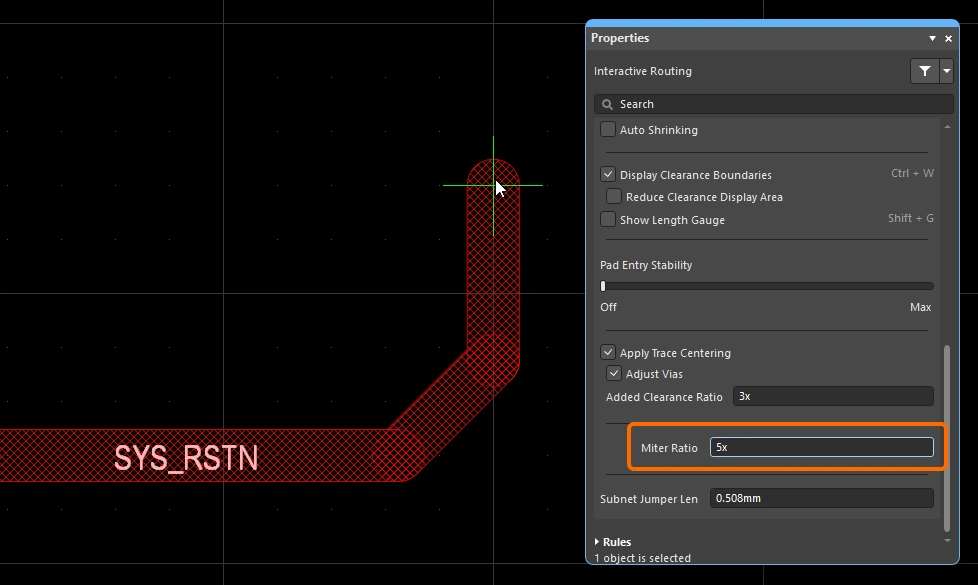
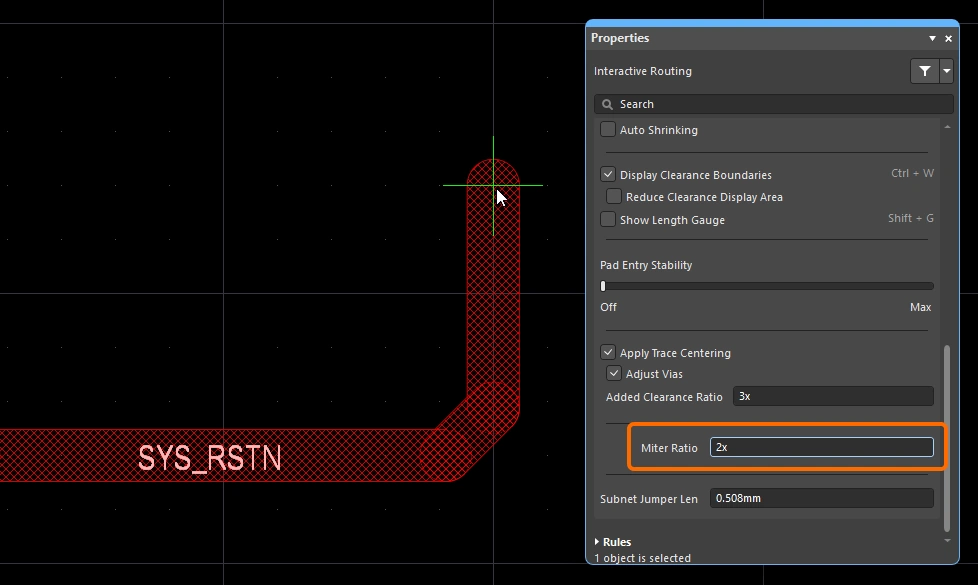
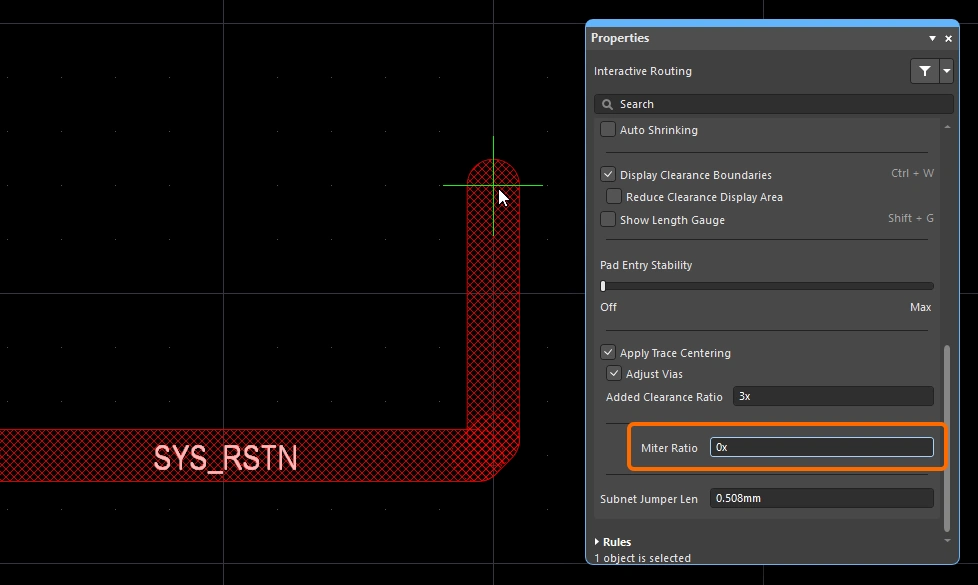
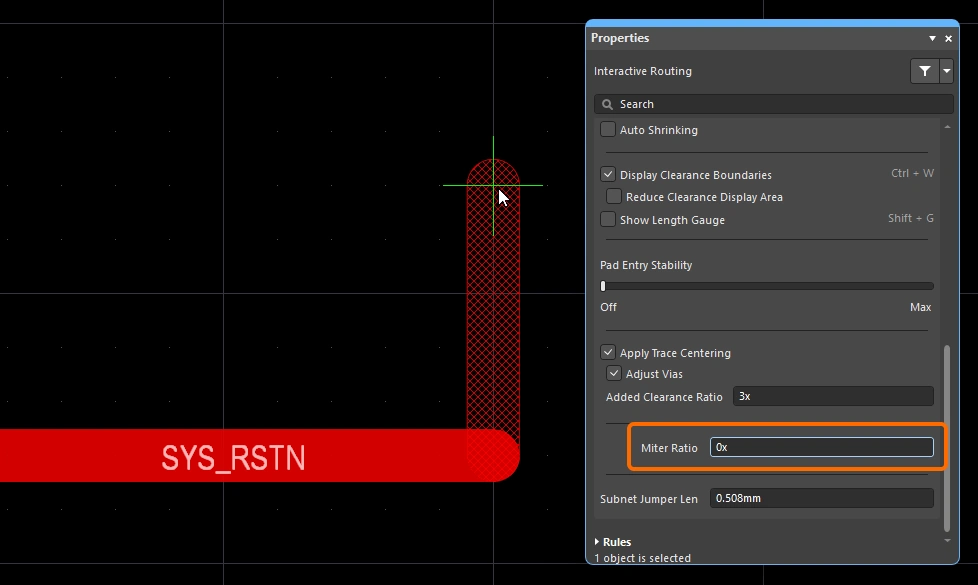
가장 일반적인 라우팅 코너 모양은 45도 마이터(대각선) 코너입니다. 대각선 모서리를 라우팅하려면 ‘Track 45’ 모서리 모드로 전환하십시오. 이를 보완하기 위해 대화형 라우팅 엔진에는 날카로운 모서리에서도 마이터 각도가 유지되도록 하는 마이터 비율 기능이 포함되어 있어, 라우팅 중에 의도치 않게 직각이나 예각을 생성하는 것을 방지합니다.
마이터 비율은 다음과 같이 정의됩니다:
Miter Ratio x current track width = separation between the walls of the tightest U-shape that can be routed for that miter ratio
 마이터 비율은 모서리에 자동으로 추가되는 마이터의 최소 크기를 제어합니다.
대화형 라우팅과 대화형 슬라이딩 모두에 Miter Ratio 옵션이 포함되어 있습니다. 0 이상인 양의 값을 입력하십시오. Trace를 다른 값으로 라우팅한 예 Miter Ratio 옵션의 값을 다르게 설정하여 라우팅한 동일한 트레이스의 예시가 아래에 나와 있습니다.
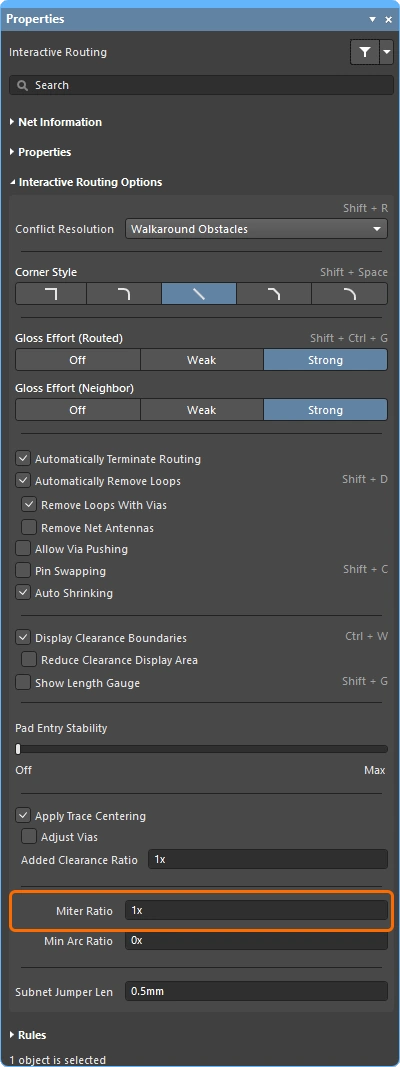 (대화형 라우팅) 또는
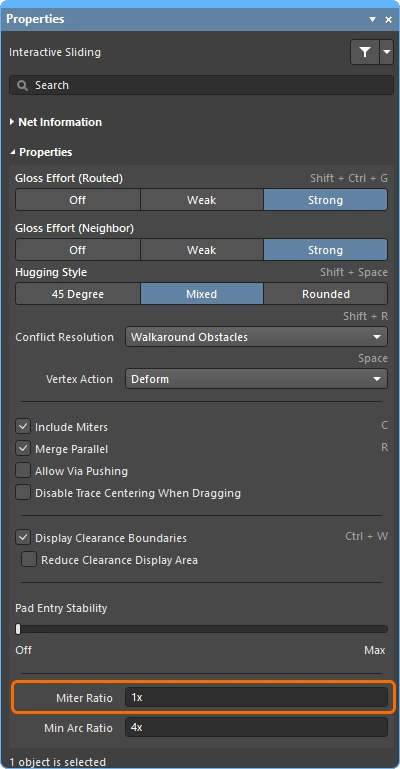 (대화형 슬라이딩)에서 이 버튼을 누르거나, Preferences 대화 상자
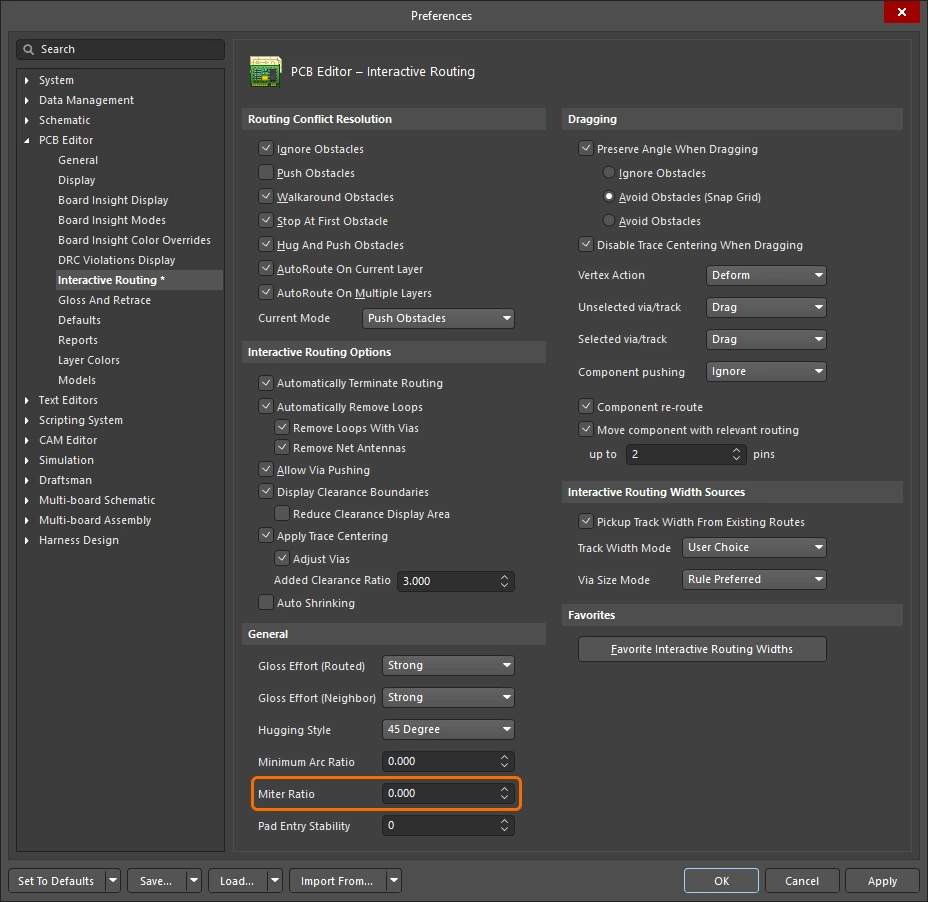 )
)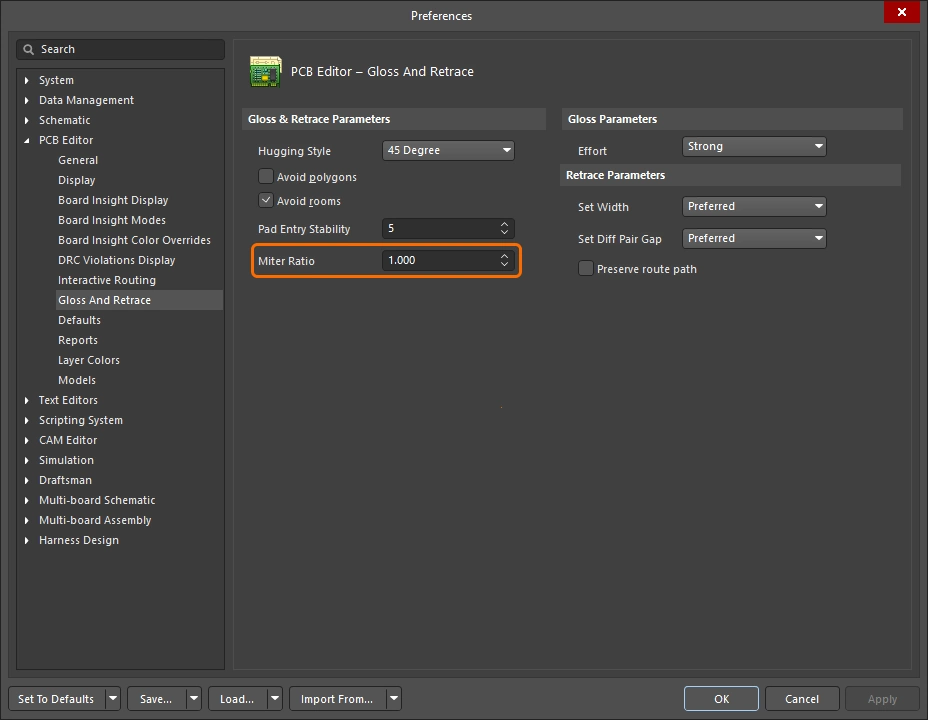 )
)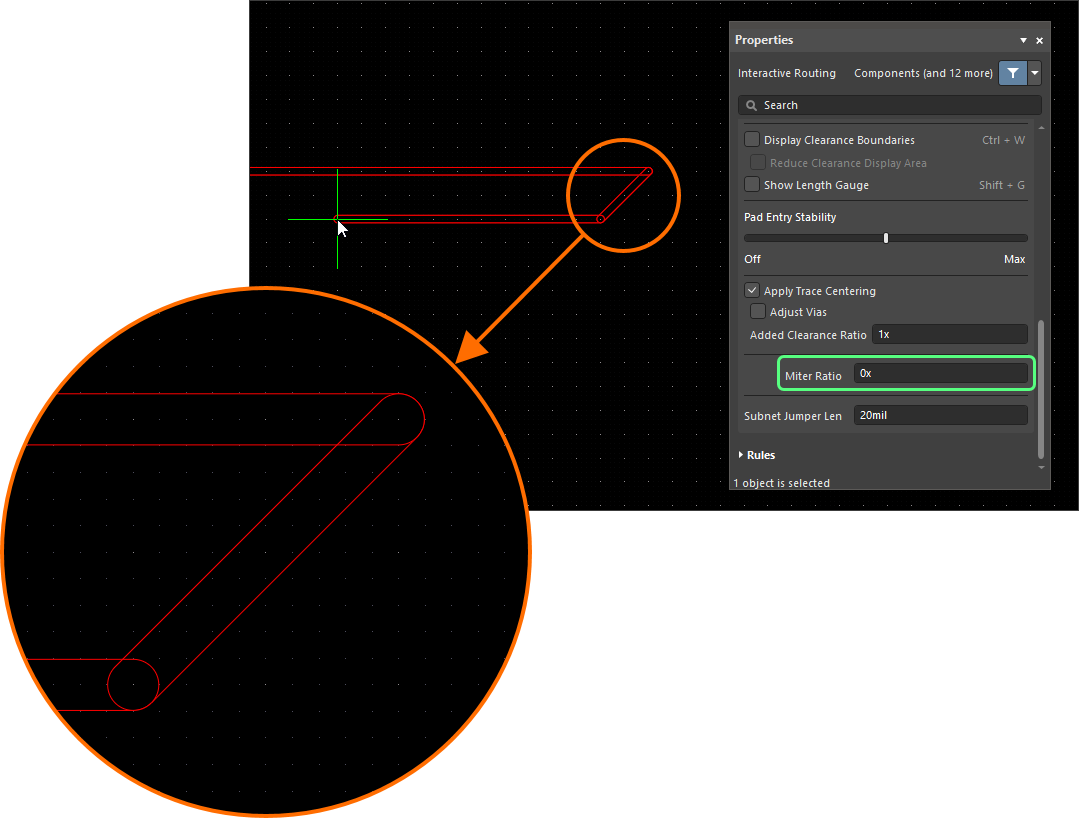 ).
).곡선 모서리
많은 디자이너들이 둥근 모서리를 필요로 합니다. 둥근 모서리는 라우팅을 할 때 Line 45/90 With Arc 모서리 모드나 Line 90/90 With Arc 모드를 사용하여 배치할 수 있습니다. 다만 Line 90/90 With Arc 모드는 90도 모서리를 강제하므로, 경로가 45도 각도로 이어져야 하는 경우에는 Line 45/90 With Arc 모드를 사용하십시오. Arc의 크기는 라우팅 중에  및
및  키를 사용하여 동적으로 크기를 조정할 수 있습니다(크기 조정 속도를 높이려면
 Shift 키를 길게 누르면 크기 조정 속도가 빨라집니다).
대화형 라우팅 중에 곡선 코너 스타일이 선택되면, 글로싱 엔진은 기존 곡선 개체 주위를 접선 경로로 따라가는 경로를 우선적으로 선택합니다. 즉, 코너를 생성하기 위해 배치된 Arc는 기존 개체를 정확히 감싸도록 위치가 결정되고 반경 방향으로 크기가 조정됩니다. 이는 BGA 하부의 이스케이프 비아 패턴과 같이 수많은 곡선형 도형을 통과하는 라우팅을 매끄럽게 형성하기 위해 설계되었습니다. 만약 Routing Gloss Effort 값이 Strong 로 설정하면, Arc 사이의 직선 Track 세그먼트가 수평이나 수직이 아닌 다른 각도로 배치될 수 있습니다.
모든 직선 Track 세그먼트를 정확히 수평 또는 수직으로 배치하되 모서리는 곡선으로 처리해야 하는 경우, 대각선 모서리로 라우팅한 다음 글로싱을 적용하여 모서리를 곡선으로 만드는 것이 더 효율적일 수 있습니다. 이를 위해서는 Hugging Style 값을 Rounded로 설정하고, Gloss Effort 를 Weak로 설정한 후, 라우팅이 선택된 상태에서 Gloss Selected 명령을 실행하면 됩니다. 라우팅이 선택되어 있습니다.
기존 라우팅의 모서리를 둥글게 만들려면, Hugging Style을 Rounded로, Gloss Effort를 Weak로 설정한 다음, 라우팅을 선택하고 Route » Gloss Selected 명령을 실행하십시오.
스네이크 라우팅
방금 설명한 Arc 모서리 모드를 사용하는 것 외에도, 라우팅 스타일을 Any Angle 로 설정하고 Routing Gloss Effort 로 Strong로 설정함으로써 부드럽고 유동적인 점대점 라우팅 스타일을 구현할 수 있습니다. 이를 통해 이른바'스네이크 라우팅'이 생성됩니다. 아래 예시 동영상에서 볼 수 있듯이, 라우팅 경로에 각도가 있는 구간이 여러 개의 곡 Snake Routing라고 불리는 효과를 만들어 냅니다. 아래 예시 동영상에서 볼 수 있듯이, 라우팅 경로가 여러 개의 곡선형 오브젝트를 통과하며 임의의 각도로 흐르도록 해야 할 때 이 기능을 사용하십시오.
스네이크 라우팅 – 코너 스타일이 ‘모든 각도(Any Angle)’로 설정되어 있습니다.
Using the Net Length Gauge
'길이' 제약 조건'일치하는 길이' 제약 조건이 정의된 경우, '길이 조정 게이지'를 표시하여 대화형 라우팅(및 대화형 길이 조정) 중에 길이를 모니터링할 수 있습니다. 라우팅하는 동안 Shift+G 단축키를 사용하여 게이지를 켜고 끌 수 있습니다.
게이지에는 Current Routed Length 숫자로 표시하며, 빨간색/초록색 슬라이더는 Estimated Length를 나타냅니다. 대화형 라우팅 중에는 ‘라우팅된 길이’가 제약 조건의 최소값에 도달하지 않았음에도 게이지 슬라이더가 아래 이미지와 같이 제약 조건의 최소값과 최대값 사이 어딘가에 위치해 있어 혼란스러울 수 있습니다. 이는 대화형 라우팅 중 슬라이더가 ‘예상 길이’를 나타내기 때문이며, 여기서:
Estimated Length = Routed Length + distance to target (length of connection line)
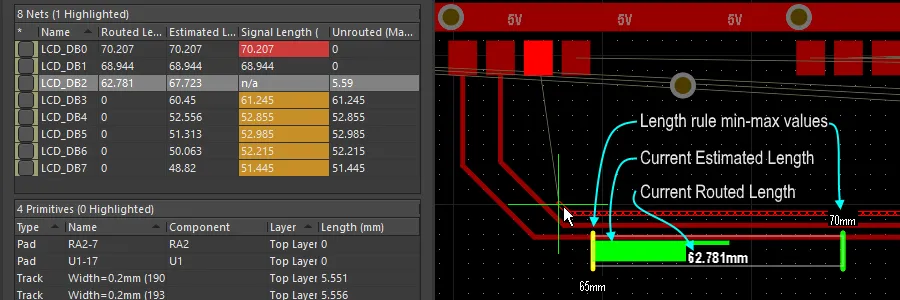 ‘길이’ 설계 제약 조건으로 표시되는 게이지는 대화형 라우팅 중에 준수되며, 현재 라우팅된 길이를 숫자로 표시하고, 슬라이더는 현재 예상 길이를 나타냅니다.
게이지의 기능은 다음과 같습니다:
-
게이지의 Outline을 정의하는 직사각형 상자.
-
허용되는 최소 및 최대 길이를 나타내는 두 개의 노란색 수직 막대입니다. 최소값과 최대값은 위에서 설명한 바와 같이 설계 제약 조건에 의해 정의된 가장 엄격한 제약 조건 세트에서 결정됩니다.
-
목표 길이를 나타내는 녹색 수직 막대로, 이는 수동으로 입력한 값, 기존에 선택된 Net에서 가져온 길이, 또는 설계 제약 조건에 따라 계산된 유효 길이 범위의 중간값 중 하나가 됩니다.
-
(라우팅 조정 중에는) Net의 현재 배선 길이 또는 (대화형 라우팅 중에는) 예상 길이를 보여주는 빨간색 또는 녹색 슬라이더입니다. 현재 길이가 허용 범위 밖에서 허용되는 최소 및 최대 길이 범위 내로 들어오면 슬라이더가 빨간색에서 녹색으로 바뀝니다.
-
현재 라우팅 길이(배치된 Track 및 Arc의 길이)는 게이지 슬라이더 위에 중첩된 숫자 값으로 표시됩니다(예시 이미지에서는 62.781mm).
-
게이지의 직사각형 Outline은 가능한 총 길이 범위를 나타내며, 상한 및 하한의 의미는 사용자가 선택한 타겟 길이 모드에 따라 달라집니다.
-
모드가 수동(Manual) 또는 Net 기준(From Net)이고 적용 가능한 길이 제약 조건이 없는 경우, 슬라이더 상자의 하한은 현재 Net의 길이가 되고, 상한은 지정된 최대 길이(Max Length)가 됩니다.
-
모드가 '수동' 또는 'Net에서'이고 적용 가능한 길이 제약 조건이 있는 경우, 슬라이더 상자의 하한은 제약 조건 또는 현재 경로 길이(둘 중 더 작은 값)에서 가져오고, 상한은 사용자가 정의합니다.
-
모드가 'Rule 기준(From Rule)'이고 적용 가능한 길이 제약 조건, 적용 가능한 일치 길이 제약 조건 또는 둘의 조합이 있는 경우, 슬라이더 상자의 하한은 제약 조건 또는 현재 경로 길이(둘 중 더 작은 값)에서 결정되며, 슬라이더 상자의 상한은 제약 조건의 '최대 한계(MaxLimit)'에서 결정됩니다.
-
Routing Pad Entries
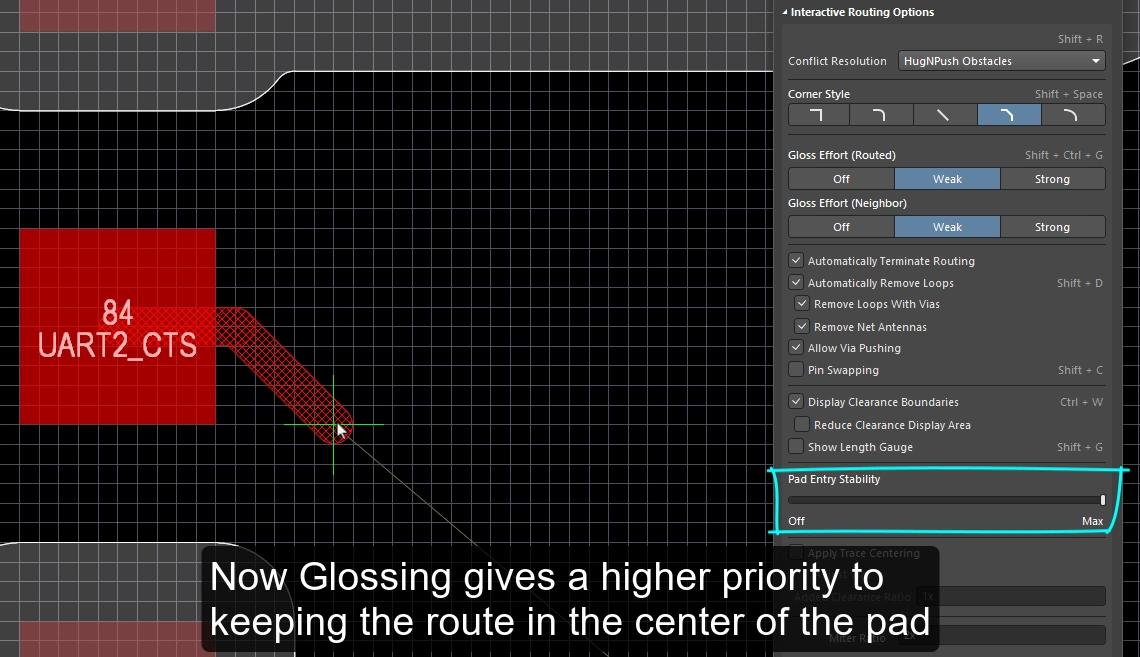
대화형 라우팅 엔진은 해당 SMD 패드 진입 설계 제약 조건에 따라 표면 실장 패드를 출입합니다. 라우팅을 진행하거나(라우트를 슬라이드) 할 때, 현재 글로싱 강도 설정에 따라 출입 지점이 지속적으로 글로싱 처리됩니다. 글로싱은 해당 Design Rule의 의도를 준수하면서 더 깔끔한 라우팅 및 패드 진입을 생성하기 위해 특별히 개발된 정교한 알고리즘 세트입니다. 또한 글로싱 엔진에는 설계자가 글로싱 엔진에 패드 중심선을 우선적으로 고려하도록 지시할 수 있는 ‘패드 진입 안정성’ 기능이 포함되어 있습니다.
SMD Pad 입력 설계 제약 조건
SMT 설계 제약 조건은 대화형 라우터가 표면 실장 패드를 어떻게 출입하는지를 제어하며, 라우팅 프로세스를 시작하기 전에 이를 구성해야 합니다. PCB 규칙 및 제약 조건 Editor 대화 상자를 열고(메인 메뉴에서 Design » Rules )를 열어 이러한 Design Rule을 생성하고 Configuration하십시오.
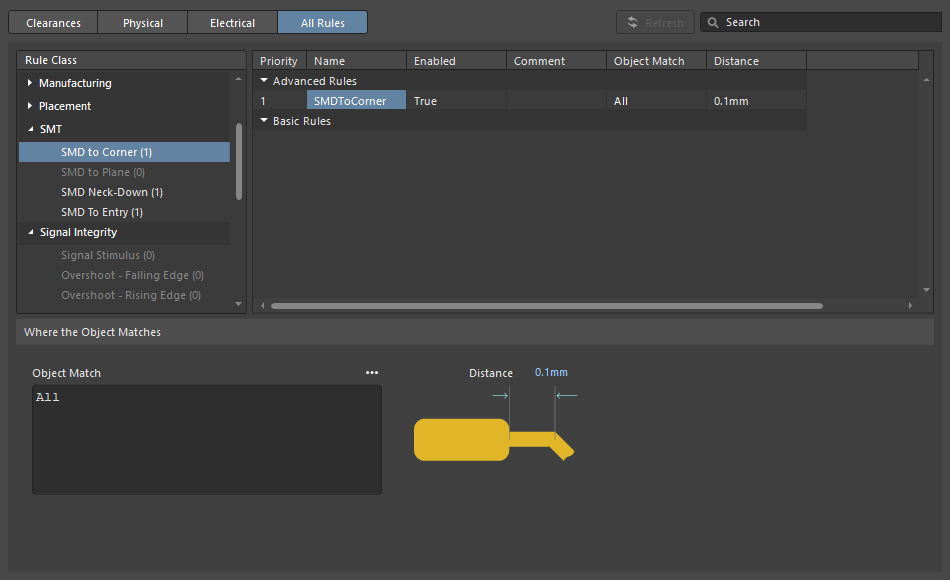
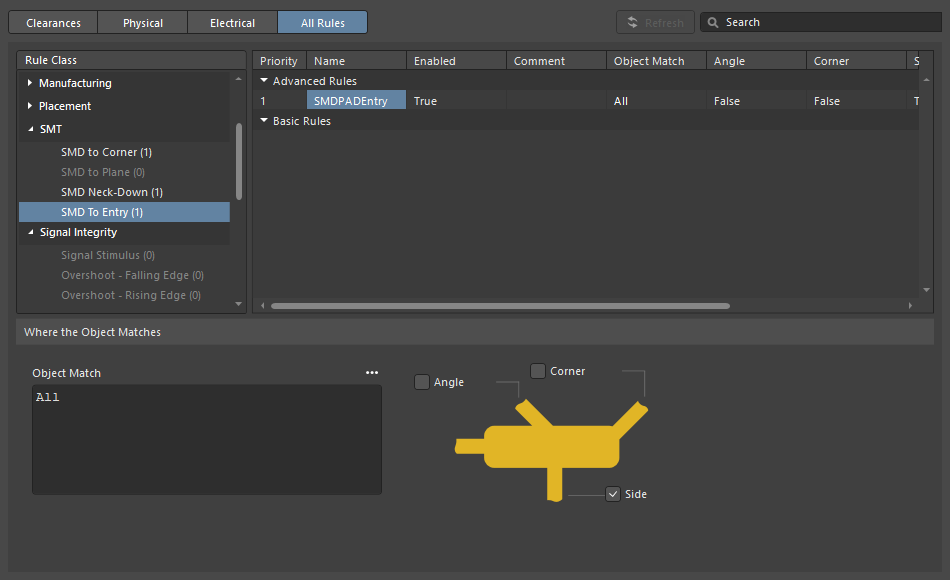
| SMD to Corner | 이 제약 조건은 Pad 가장자리에서 첫 번째 모서리가 위치한 정점의 중심까지의 거리를 정의합니다. 이 값은 Track 폭이나 해당 클리어런스 Rule(둘 중 더 큰 값)보다 커야 합니다. 이 값보다 작아야 하는 경우, 다음 세 가지 방법으로 해결할 수 있습니다:
|
| SMD Entry | 이 제약 조건은 라우팅이 Pad에 진입할 수 있는 위치를 정의합니다. 이 제약 조건에서 Pad의 ‘측면(Side)’은 더 긴 가장자리를 의미합니다. |
Pad 진입 안정성
' Pad Entry Stability 슬라이더는 중앙에 위치한 Pad 진입점을 보호합니다. 이 기능은 글로싱 과정에서 이미 중앙에 위치한 Pad 진입점(출구)을 보호하기 위해 적용되며, 기존에 중심에서 벗어난 Pad 진입점을 다시 중앙으로 맞추려고 시도하지는 않습니다.
-
0 (Off) =보호 없음 -
10 (Max) =최대 보호
Pad 진입 안정성 기능을 사용하여 라우트가 Pad 중앙에 유지되도록 하십시오.
Center Routes Between Pads
대화형 라우팅 엔진은 설계 제약 조건을 따릅니다. 즉, 컴포넌트 패드와 비아 사이를 라우팅할 때 해당 클리어런스 제약 조건에 지정된 최소 클리어런스를 유지하도록 트랙 세그먼트를 배치합니다. 보드 설계자들은 가능한 한 패드와 비아 사이의 라우팅을 중앙에 배치하여, Pad 또는 비아의 Net과 라우팅 중인 Net 사이의 간격을 최대한 확보하고자 하는 경우가 많습니다.
이 Apply Trace Centering 옵션이 바로 이 기능을 수행합니다. 중심 맞추기 알고리즘이 유연하게 작동하고 임의의 두 패드, 두 비아, 또는 임의의 패드와 비아 사이에 적용될 수 있도록, 원하는 중심 맞추기 거리는 해당 클리어런스 제약 조건의 배수로 지정되며, 여기서:
Distance = Clearance + Added Clearance Ratio x Clearance
대화형 라우팅 엔진은 이 거리에서 타겟 패드/비아를 우회하여 라우팅하려고 시도하며 Distance이 거리에서 대상 Pad/비아를 우회하여 배선하며, Trace의 다른 가장자리에서 가장 가까운 Pad나 비아까지의 거리가 Distance보다 작아지면 해당 패드/비아를 자동으로 축소(및 중앙 정렬)합니다.
가능한 경우, 라우팅되거나 드래그되는 Net과 기존 Pad/Via 사이에 추가 클리어런스를 적용합니다.
Pad 진입 안정성 |
|
| Apply trace centering | 'Trace 중앙 정렬 적용' 옵션이 활성화되면, 대화형 라우팅 및 대화형 슬라이딩 중에 Trace 중앙 정렬이 적용됩니다. 라우팅 엔진이 Trace가 Pad/Via 사이를 통과하는 것을 감지하면, 해당 클리어런스 제약 조건의 최대 거리에 해당 클리어런스 제약 조건에 ‘추가 클리어런스 비율’을 곱한 값까지 Trace를 중앙 정렬하려고 시도합니다. ‘드래그 시 Trace 중앙 정렬 비활성화’ 옵션을 사용하여 대화형 슬라이딩 중 중앙 정렬을 비활성화할 수 있습니다. |
| Center between what? | Trace 중앙 정렬 기능은 패드가 동일한 컴포넌트에 속해 있을 필요가 없으며, 임의의 두 패드, 두 비아, 또는 임의의 패드와 비아 사이를 중앙에 정렬할 수 있습니다. ‘비아 조정’ 옵션을사용하여 비아-비아 또는 비아-패드 조합 간의 중앙 정렬을 활성화하거나 비활성화할 수 있습니다. |
| Where is the center? | 이 기능은 관련 Pad/비아 간의 중심을 식별하려고 시도하기보다는, 적용 가능한 클리어런스에 곱셈 계수를 적용한 값을 클리어런스에 더하는 방식을 사용합니다. 예를 들어, 적용 가능한 클리어런스가 0.15 mm인 경우, 이 옵션을 2 로 설정하면 라우팅 엔진이 기존 패드와 비아를 0.15 + 2*0.15 = 0.45 mm 가능한 경우 기존 패드와 비아를 회피하도록 지시합니다. 이후 라우팅 엔진은 필요한 경우 이 클리어런스를 지정된 클리어런스로 줄일 수 있습니다. |
Auto-Shrinking during Routing
현대적인 컴포넌트 기술이 안고 있는 과제 중 하나는 Net이 기판을 가로지르는 동안 서로 다른 폭으로 라우팅해야 한다는 점입니다. 로컬 수준에서는 컴포넌트 핀 사이를 통과할 때 라우팅 폭을 좁혀야 할 필요가 있을 수 있습니다. 기판 수준에서는 BGA 컴포넌트 아래의 볼 사이를 통과하는 모든 라우팅 폭을 좁혀야 할 필요가 있을 수 있습니다. 대화형 라우팅은 다양한 방식으로 이러한 요구 사항을 지원합니다.
국부적 자동 축소
대화형 라우팅 작업 중 흔히 발생하는 문제 중 하나는 라우팅 경로가 컴포넌트 패드에 접근했으나 패드 사이로 정확히 들어맞지 않는 경우입니다. 설계자는 대화형 방식으로 Trace 폭을 좁힌 후(설계 제약 조건에서 허용하는 범위 내에서), 핀 사이로 더 좁은 Trace를 배선한 다음, 다시 대화형 방식으로 폭을 넓혀 해당 Net의 라우팅을 계속할 수 있습니다. 이 과정을 수동으로 제어하는 대신, 자동 축소 기능을 활성화할 수 있습니다.
영역 기반 자동 축소
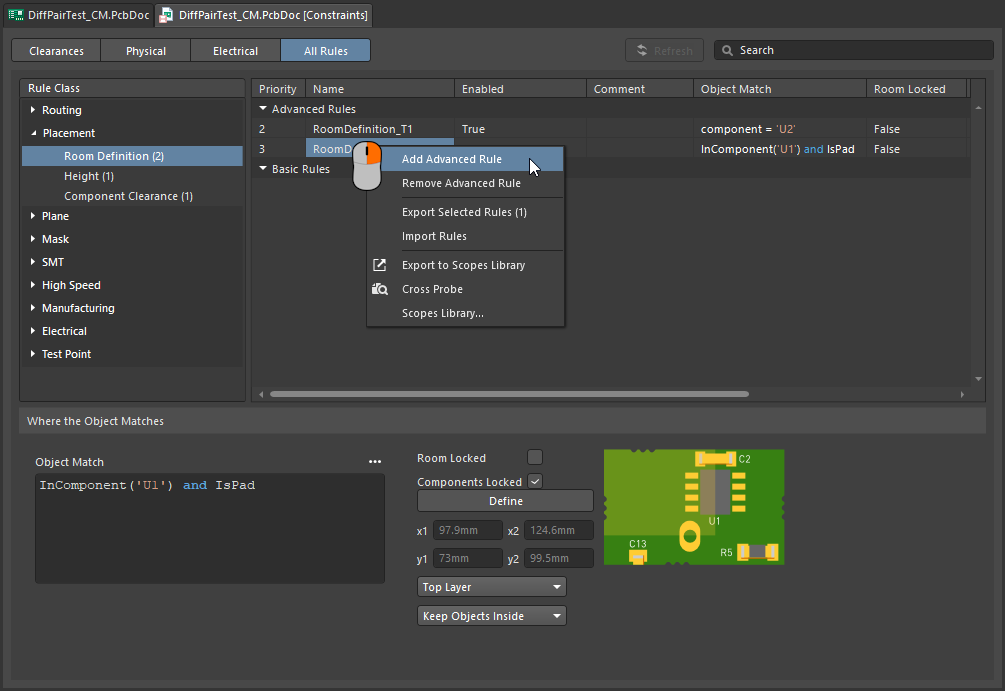
BGA 컴포넌트는 작고 밀집된 Pad 배열을 사용합니다. 이로 인해 라우팅 작업이 까다로워지며, Pad의 내부 행으로 라우팅하기 위해 라우팅 폭을 줄여야 하는 경우가 많습니다. 이 작업은 이 페이지에 설명된 기법을 사용하여 대화형 라우팅 중에 수동으로 수행할 수 있습니다. 또한 배치 룸과 룸 기반 라우팅 폭 제약 조건을 추가하여 이 폭 전환 동작을 자동화할 수도 있습니다. 대화형 라우터는 이러한 제약 조건을 따르기 때문에, 룸에 진입하거나 룸을 빠져나올 때 Track이 자동으로 좁아지거나 넓어집니다.
룸 내에서는 라우팅 폭과 클리어런스가 자동으로 조정됩니다.
특정 영역 내 라우팅 폭 줄이기 |
|
| Define the area | 라우팅 폭을 줄여야 하는 영역은 배치 룸 제약 조건( |
| Define the width | 라우팅 폭은 적용 가능한 라우팅 폭 제약 조건( |
 )
)룸 내 제약 조건 정의에 대해 자세히 알아보세요.
Follow mode – Tracing an Existing Shape
기존의 모양이나 윤곽을 따라 라우팅을 배치해야 하는 것은 까다로운 요구 사항입니다. 윤곽은 장애물, 컷아웃, 기판 가장자리 또는 기존 라우팅일 수 있습니다.
신중하고 정확한 마우스 움직임과 클릭 동작을 통해 against 신규 배선이 윤곽선을 밀착하도록 하기 위해 신중하고 정확한 마우스 움직임과 클릭 동작을 통해 윤곽선을 따라 배선할 필요 없이, ‘따르기(Follow)’ 모드에서 클릭하여 따르고자 하는 윤곽선을 지정한 다음 커서를 이동하여 배선 방향을 정의하면 됩니다. 대화형 라우터는 새로운 경로가 해당 Design Rule을 준수하면서 윤곽선을 따르도록 Track 및 Arc 세그먼트를 추가합니다. 이 기능은 곡선 경로를 배치할 때 특히 유용합니다.
'추종' 모드를 사용하여 기존 모양을 따라 정확하게 라우팅을 수행하십시오.
등고선을 따라 경로 설정하기 |
|
| 첫 번째 단계 | ' Interactive Routing 명령을 실행하고 평소와 같이 라우팅할 Net를 클릭합니다. |
| 'Follow' 모드 활성화 | 라우팅 설정이 시작된 상태에서 위의 동영상에서는 첫 번째 경로에서 보드 컷아웃을 따라가고, 그 이후의 다른 경로들에서는 각각 이전 경로를 따라갑니다. |
| To place the follow route | 마우스를 다음 번에 왼쪽 클릭하면 팔로우 경로의 종료 지점으로 인식되며, 클릭 후에는 일반 대화형 라우팅 설정 모드로 돌아갑니다. |
| To abort Follow mode | 를 누르면 Backspace 를 눌러 ‘따르기’ 모드를 종료하고 일반 대화형 라우팅 설정으로 되돌릴 수 있습니다. 또는 Esc 를 눌러 팔로우 모드를 중단하고 이 Connection의 라우팅 설정을 중단할 수도 있습니다. |
| Differential pairs | 추종 모드는 차동 쌍(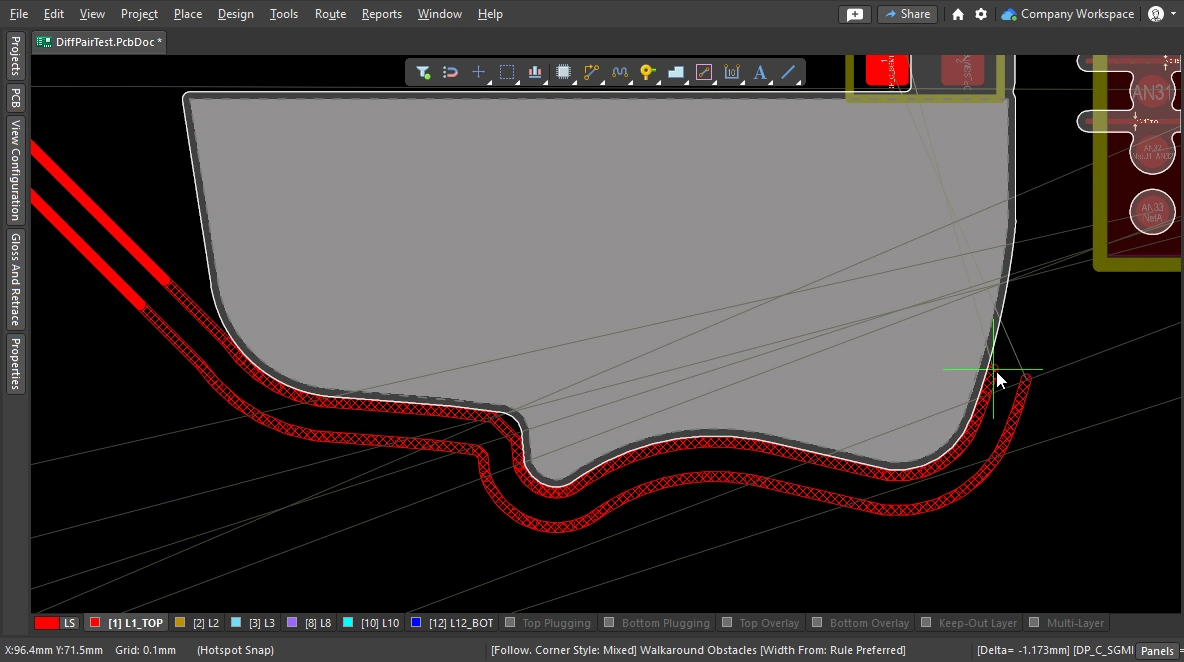 )도 지원합니다. )도 지원합니다. |
Intentionally shorting different nets
두 개의 서로 다른 Nets를 의도적으로 연결해야 하는 경우가 드물지 않습니다. 예를 들어, 아날로그 접지와 디지털 접지를 제어된 방식으로 연결해야 할 때가 있습니다. 이는 Net Tie 컴포넌트를 통해 두 Nets를 연결함으로써 달성할 수 있습니다. 넷 타이(Net Tie) 컴포넌트는 단순히 제어된 단락에 불과하며, 보드상에서 두 네트가 연결될 위치를 직접 결정할 수 있게 해줍니다.
Net Tie 패드로 라우팅할 때의 어려움은, 규칙 엔진이 규칙 위반이 발생할 것으로 판단하여 Net Tie 패드로의 라우팅을 차단한다는 점입니다. Net Tie 패드에서 라우팅을 시작하면 이러한 문제는 발생하지 않습니다. 또는, 일시적으로 Routing Mode 로 Ignore Obstacle로 전환할 수도 있습니다.
Net Tie를 라우팅하려면 Net Tie Pad에서 라우팅을 시작하십시오.
두 Net을 의도적으로 연결하는 방법에 대해 자세히 알아보세요.
Fanout and Escape Routes
Altium Designer에는 BGA 이스케이프 라우팅도 지원하는 표면 실장 컴포넌트 팬아웃 도구가 포함되어 있습니다. 에스케이프 라우팅 엔진은 각 패드를 디바이스 가장자리 바로 바깥쪽까지 라우팅하려고 시도하므로, 해당 패드와의 Connection을 훨씬 쉽게 할 수 있습니다. 팬아웃은 대화형 또는 자동 라우팅 전에 실행되도록 설계되었으며, 라우팅되지 않은 컴포넌트에 대해서만 팬아웃을 시도합니다.
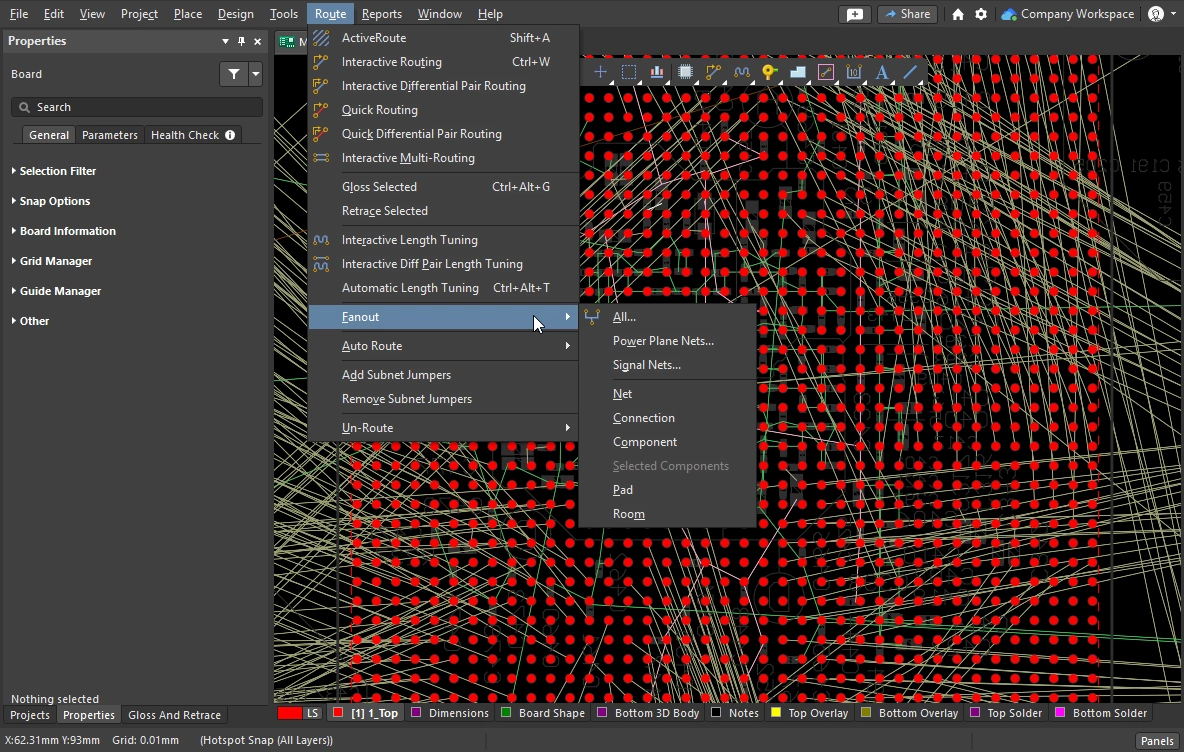
팬아웃 및 이스케이프 라우팅은 Route » Fanout 메인 메뉴의 하위 메뉴에서 또는 부품의 마우스 오른쪽 버튼 메뉴에서 Component Actions » Fanout Component 컴포넌트의 마우스 오른쪽 버튼 클릭 메뉴에서 명령을 사용하여 실행할 수 있습니다.
팬아웃 옵션 설정
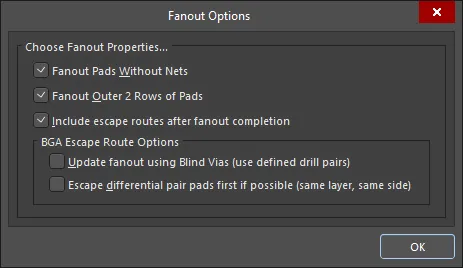
팬아웃 명령 중 하나를 선택하면 Fanout Options 대화 상자가 열립니다. 이 대화 상자에는 팬아웃 및 이스케이프 라우팅 옵션을 지정할 수 있는 컨트롤과 블라인드 비아 사용 옵션이 포함되어 있습니다. 블라인드 비아 옵션은 Layer Stack Manager의 '비아 유형' 탭에 적절한 블라인드 비아 유형이 정의되어 있는 경우에만 사용할 수 있습니다.
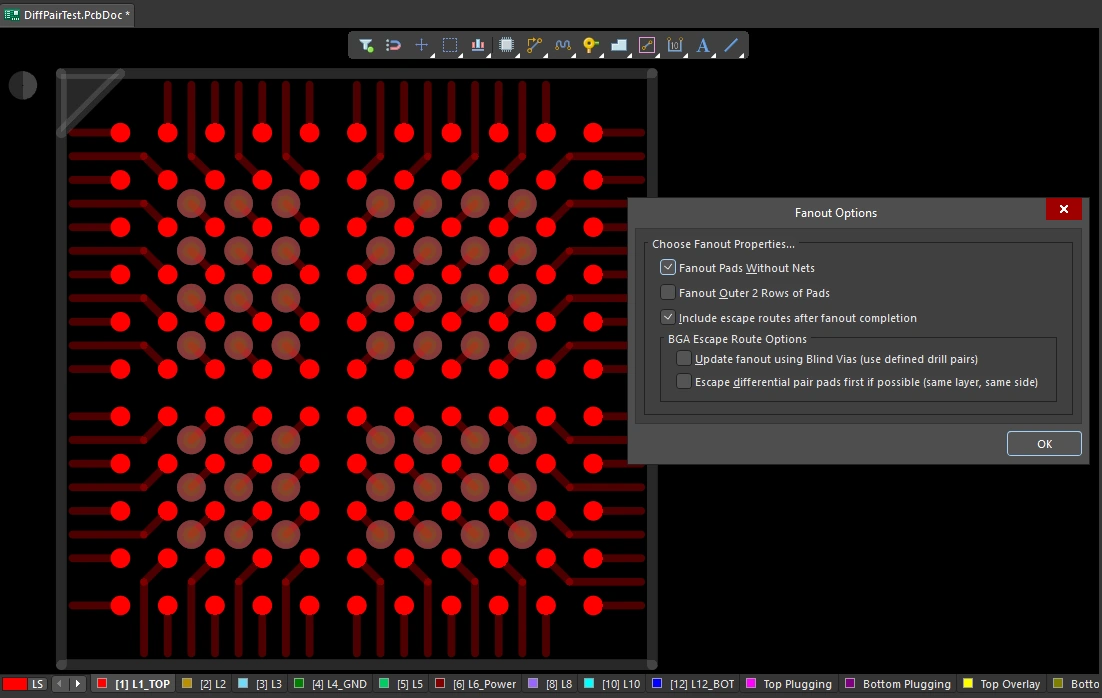 팬아웃된 BGA의 경우, Pad는 실선으로 표시되고 팬아웃 Track 및 비아는 반투명하게 표시됩니다. 팬아웃은 ‘팬아웃 제어’ 제약 조건에 따라 대화 상자의 설정을 기반으로 수행됩니다.
팬아웃 옵션( |
|
| Fanout Pads Without Nets | 이 옵션을 활성화하면 Pad에 할당된 Net이 없더라도 컴포넌트에서 Pad를 팬아웃할 수 있습니다. 이 옵션이 비활성화되면 Net이 할당된 Pad만 팬아웃됩니다. |
| Fanout Outer 2 Rows of Pads | 이 옵션을 활성화하면 바깥쪽 두 행(일반적으로 라우팅하기 쉬운 부분)의 Pad도 팬아웃됩니다. |
| Include escape routes after fanout completion | 이 옵션을 활성화하면 각 팬아웃에 이스케이프 라우팅을 추가할 수 있습니다. 이스케이프 라우팅은 팬아웃 비아와 컴포넌트 패드에 트랙을 배치하여 컴포넌트의 가장자리로 연결합니다. |
| Update fanout using Blind Vias (BGA escape routing only) | <span data-tooltip="{"block":null,"content":" 이 옵션은 ' Include escape routes after fanout completion ' 옵션이 활성화되었을 때 사용할 수 있습니다.\r\n \r\n","placement":"top","arrow":true}">이 옵션 을 활성화하면 레이어 스택에서 구성된 드릴 쌍 레이어 사이에 블라인드 비아를 배치할 수 있습니다. 이 옵션이 비활성화되면 드릴 쌍 레이어 설정에 관계없이 스루홀 비아만 배치됩니다. 블라인드 비아를 사용할 수 있도록 정의된 드릴 레이어 쌍이 없는 경우, 이 옵션은 다음과 같이 표시됩니다. Cannot Fanout using Blind Vias (no layer pairs defined)로 표시됩니다. |
| Escape differential pair pads first if possible (same layer, same side) | <span data-tooltip="{"block":null,"content":" 이 옵션은 ' Include escape routes after fanout completion ' 옵션이 활성화되었을 때 사용할 수 있습니다.\r\n \r\n","placement":"top","arrow":true}">이 옵션 을 활성화하면 다른 팬아웃 작업을 수행하기 전에 할당된 차동 쌍 네트를 함께 팬아웃 및 이스케이프 라우팅하여, 해당 경로를 효과적으로 함께 유지할 수 있습니다. 팬아웃은 이스케이프 라우팅 트랙을 동일한 레이어에 가능한 한 인접하게 배치합니다. |
 )
)팬아웃 동작
사용된 내부 패드는 먼저 전통적인 도그본(끝에 비아가 있는 짧은 라우팅) 방식을 사용하여 다른 레이어에 접근하도록 팬아웃되며, 그 후 비아에서 시작하여 디바이스 가장자리 바로 바깥쪽으로 이스케이프 라우팅됩니다. 이 과정은 모든 패드의 이스케이프 라우팅이 완료될 때까지 사용 가능한 라우팅 레이어를 따라 진행됩니다. 에스케이프 라우팅이 불가능했던 모든 Pad에 대한 보고서가 생성되어 열리며, 보고서 내 항목을 클릭하면 PCB로 크로스 프로브를 실행하여 해당 개체를 확인할 수 있습니다.
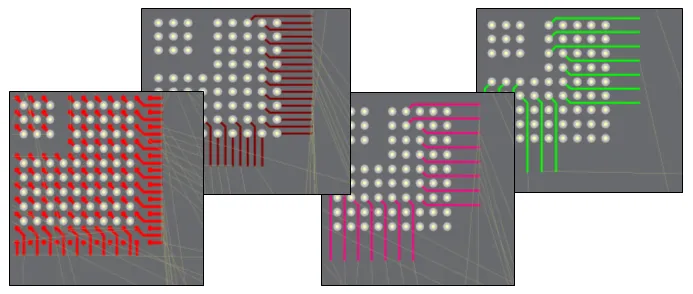 1mm 피치 BGA의 팬아웃 및 이스케이프 라우팅 예시.
팬아웃 수행 |
|
| Running a fanout | 서브 메뉴에서 필요한 팬아웃 명령을 선택합니다. Route » Fanout 서브메뉴에서 필요한 팬아웃 명령을 선택합니다. 어떤 메뉴 명령을 선택하든 상관없이 Fanout Options 대화 상자가 열립니다. Configuration을 완료하고 [확인]을 클릭하면 선택한 팬아웃이 수행됩니다. |
| What controls the fanout process? | [ Fanout Options 설정 외에도, 팬아웃 및 이스케이프 라우팅은 팬아웃 제어, 라우팅 폭, 라우팅 비아 스타일(팬아웃 비아용), 라우팅 레이어 및 전기적 클리어런스제약 조건을 포함한 해당 설계 제약 조건에 따라 수행됩니다. |
| Why does nothing happen when I run a fanout command? | 이는 다음과 같은 이유로 발생할 수 있습니다:
|
| Why do some of the fanouts show violations as soon as they have been placed? |
|
팬아웃 명령어
모든 팬아웃 명령은 Route » Fanout 하위 메뉴에서 사용할 수 있습니다. 또한 커서가 위치한 컴포넌트를 팬아웃하거나, 컴포넌트를 마우스 오른쪽 버튼으로 클릭한 후 Fanout Component 선택하여 팬아웃할 수도 있습니다.
 )
)Interactive Multi-Routing
주소(Address) 및 데이터(Data) 버스와 같이 PCB 상에서 동일한 경로를 따라 함께 라우팅해야 하는 Signal 그룹이 종종 있습니다. 이를 지원하기 위해 대화형 라우터에는 interactive multi-routing 명령을 제공합니다. 멀티 라우팅 프로세스는 멀티 라우팅 Properties Panel(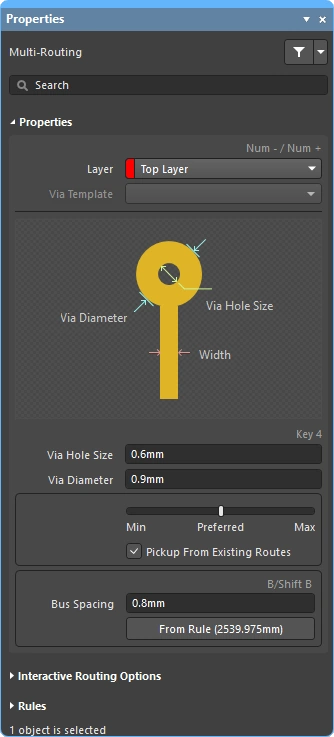 )에서 구성할 수 있으며, 단축키를 사용하여 제어할 수도 있습니다.
선택한 여러 Nets를 동시에 다중 라우팅할 수 있습니다.
대화형 다중 라우팅 중에 Tab 를 눌러 Properties Panel을 열고 Configuration을 구성할 수 있습니다.
다중 라우팅 수행
| Choose the connections to route | 명령을 실행하기 전에, 경로에 포함될 각 Net의 소스 Pad를 선택하십시오. Shift+click 개별 Pad를 선택하려면, Ctrl+click and drag 선택 사각형을 그려 컴포넌트 내의 여러 하위 패드를 하위 선택합니다. |
| Start multi-routing | 이 Interactive Multi-Routing 이 명령은 Route 메뉴 또는 Active Bar (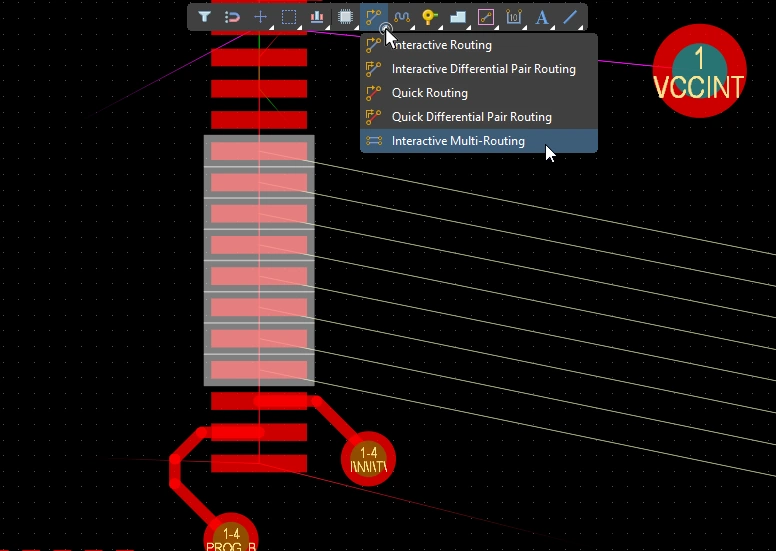 )을 통해 액세스할 수 있습니다. 명령을 실행하면 다중 라우팅을 시작하기 위해 클릭하라는 메시지가 표시됩니다. 설계 공간 내에서 첫 번째 Track 세그먼트 세트를 배치해야 하는 지점을 클릭한 다음, 타겟 위치로 향하여 필요에 따라 라우팅을 계속하면 됩니다. )을 통해 액세스할 수 있습니다. 명령을 실행하면 다중 라우팅을 시작하기 위해 클릭하라는 메시지가 표시됩니다. 설계 공간 내에서 첫 번째 Track 세그먼트 세트를 배치해야 하는 지점을 클릭한 다음, 타겟 위치로 향하여 필요에 따라 라우팅을 계속하면 됩니다. |
| Controlling the track spacing | 단축키 B 단축키를 사용하여 버스 간격을 줄이고, (Shift+B) 단축키를 사용하여 현재 Snap Grid 단위로 간격을 늘릴 수 있습니다. C 를 누르면 해당 라우팅 폭 설계 제약 조건에서 허용하는 최소값으로 버스 간격이 조정됩니다. |
| Changing the route properties | 대화형 라우팅과 동일한 단축키를 사용하여 충돌 해결 모드 순환, 라우팅 레이어 전환, 비아 옵션 변경 등과 같은 다른 작업을 수행할 수 있습니다. |
다중 라우팅 속성 ()
| Layer | 다중 라우팅이 배치되는 레이어입니다. 드롭다운을 사용하여 다른 레이어를 선택하면 비아가 자동으로 추가됩니다. 또는 레이어 변경 단축키를 사용할 수도 있습니다. |
| Via Template | 비아에 템플릿이 연결되어 있는 경우, 해당 템플릿 이름이 여기에 표시되며 드롭다운을 사용하여 변경할 수 있습니다. Pad 및 비아 템플릿에 대해 자세히 알아보세요. |
| Via Hole Size | 사용될 비아 구멍 크기가 표시됩니다. 해당 라우팅 비아 스타일 설계 제약 조건에서 허용하는 범위 내에서 값을 직접 편집할 수 있습니다. |
| Via Diameter | 사용될 비아 직경을 표시합니다. 해당 라우팅 비아 스타일 설계 제약 조건에서 허용하는 범위 내에서 값을 직접 편집할 수 있습니다. |
| Routing width selector | 슬라이더를 사용하여 해당 라우팅 폭 제약 조건에 정의된 최소/권장/최대 값으로 라우팅 폭을 설정합니다. |
| Pickup From Existing Routes | 이 옵션이 활성화되어 있고 기존 Track에서 라우팅하는 경우, 기존 Track 너비가 사용됩니다(슬라이딩 선택기에서 선택한 너비를 무시함). |
| Bus Spacing | 원하는 버스 간격을 입력하거나 |
| From Rule | 버튼을 클릭하거나(또는 C 단축키를 사용하여) 버스 간격을 해당 전기적 클리어런스 제약 조건에 정의된 거리로 변경할 수 있습니다. |
대화형 라우팅 옵션
다중 라우팅 설계 제약 조건 (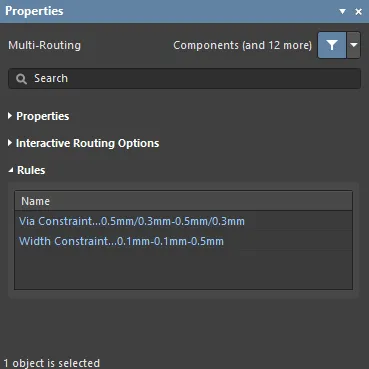 )
)
적용 가능한 라우팅 및 비아 제약 조건은 Rules 섹션에 나열됩니다. Properties Panel의
Subnet Jumpers
FPGA 기반 설계의 가장 큰 장점 중 하나는 PCB와 FPGA 모두에서 라우팅 문제를 해결할 수 있어, 결과적으로 라우팅 레이어를 줄이고 PCB를 단순화할 수 있다는 점입니다. 이를 실현하기 위해서는 설계 시스템이 PCB 기반 및 FPGA 기반 핀 스왑을 모두 지원해야 합니다. Altium Designer는 간단한 2핀 컴포넌트부터 핀 수가 많은 FPGA에 이르기까지 PCB Editor에서 핀 스와핑을 지원합니다.
라우팅이 완료된 PCB를 포함하여 설계 프로세스의 모든 단계에서 핀 스왑을 지원하기 위해, PCB 편집기에서는 subnet jumpers서브넷 점퍼는 소프트웨어가 쉽게 배치 및 제거할 수 있는 요소로 인식하는 짧은 Track 구간으로, Add 및 Remove 서브넷 점퍼 명령을 통해 수동으로 배치하거나 제거할 수 있으며, 대화형 라우팅 중에 핀 교환이 가능한 핀으로 라우팅할 경우 라우팅 엔진에 의해 자동으로 추가될 수도 있습니다.메뉴 Route 를 통해 수동으로 배치하거나 제거할 수 있는 요소로 인식하는 짧은 트랙 구간입니다. 대화형 라우팅 중에 핀 교환이 가능한 핀으로 라우팅할 경우, 라우팅 엔진에 의해 자동으로 추가될 수도 있습니다.


 )
)상호 작용형 라우팅 중에 타겟이 동일 네트워크 경로가 아닌 교환 가능한 경로인 경우, 서브넷 점퍼가 자동으로 추가됩니다.
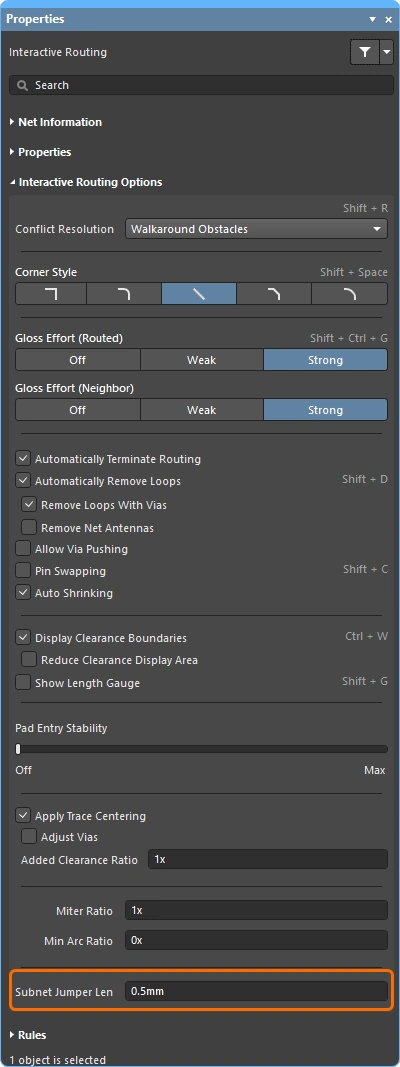 )
)Quick Routing Tools
설계 요구 사항이 덜 까다로운 설계자를 위해 다음과 같은 두 가지 명령도 제공됩니다. quick routing 명령어 쌍도 있습니다. 빠른 라우팅 도구는 커서 경로를 따라 라우팅 구간을 배치하고, 한 번의 클릭으로 라우팅을 완료하며, 장애물을 밀거나 우회하고, 기존 연결을 자동으로 따르는 등 직관적인 방식으로 라우팅 효율과 유연성을 극대화하는 데 도움이 되며, 이 모든 작업은 해당 Design Rule에 따라 수행됩니다.
또한 Quick Routing 명령(메인 메뉴 및 Active Bar)는 설정과 기능이 더 적은 간소화된 라우팅을 제공하여, 비교적 단순한 설계에 적합합니다. 이 명령의 일반적인 동작과 단축키는 표준 대화형 라우팅 명령과 동일합니다.
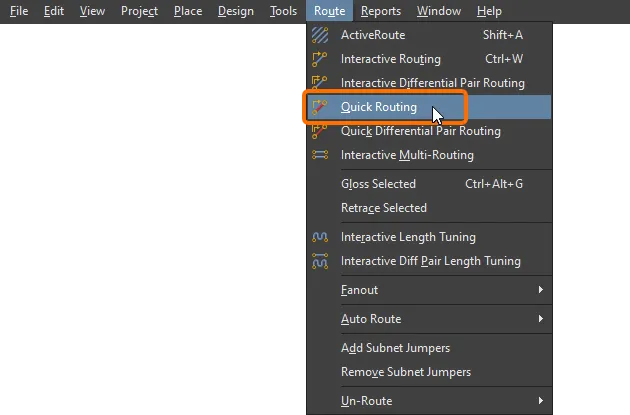
기능 요약 |
|
| Includes | 기능은 다음과 같습니다:
|
| Does not support | 이 라우터는 Quick 라고 불리는데, 이는 기능이 축소된 세트를 제공하기 때문입니다. 퀵 라우터에 포함되지 않은 기능은 다음과 같습니다:
이러한 기능 중 필요한 것이 있다면, 대화형 라우팅 도구를 사용하십시오. |
Net 정보 (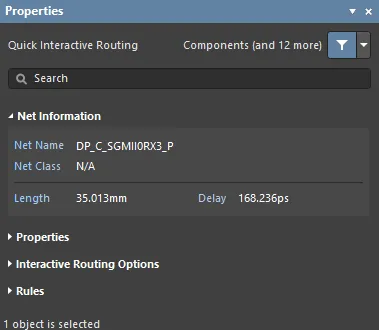 )
)
대화형 라우팅 및 대화형 슬라이딩 중에는 편집 중인 Net에 대한 세부 정보가 Net Information 패널의 Properties Panel에 자세히 표시됩니다.
빠른 라우팅 속성 (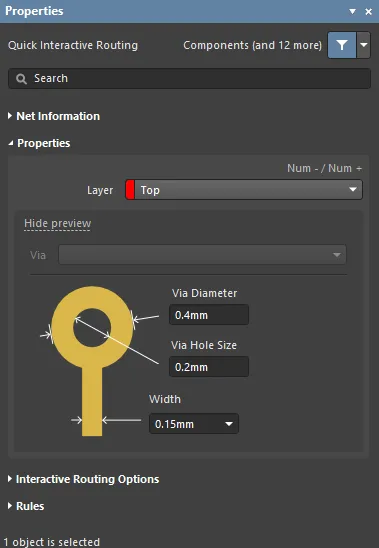 )
)
빠른 대화형/차동 쌍 라우팅 작업 중에는 라우팅 객체의 속성을 Routing Properties 패널의 Properties Panel의
대화형 라우팅 옵션 (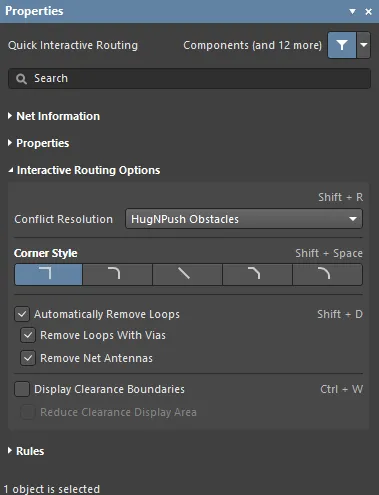 )
)
사용 가능한 대화형 라우팅 옵션은 Interactive Routing Options 패널의 Properties Panel의
설계 제약 조건 (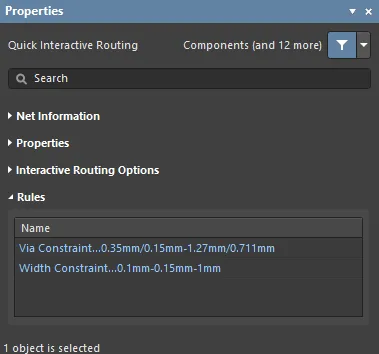 )
)
적용 가능한 라우팅 및 비아 제약 조건은 Rules 패널의 Properties Panel의
라우팅 업데이트
라우팅은 상호작용적인 과정으로, 설계자는 기판 설계를 완료하는 동안 기존 라우팅을 지속적으로 조정, 업데이트하거나 심지어 제거해야 합니다.
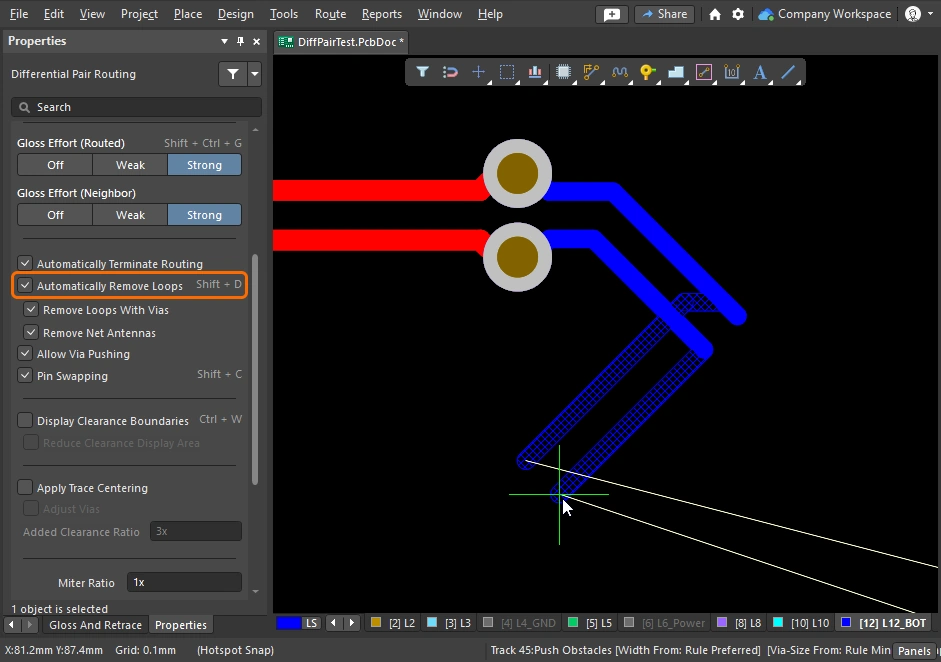
라우팅을 변경하는 가장 간단한 방법은 해당 라우팅을 클릭한 상태로 유지한 뒤 새로운 위치로 드래그하는 것입니다. 때로는 단순히 이동하는 것만으로는 해결되지 않을 수 있으며, 대신 해당 구간을 재배선해야 할 수도 있습니다. 대화형 라우팅 엔진은 Loop Removal를 통해 이를 지원합니다. 이 기능은 대화형 라우팅 과정을 모니터링하며, 기존 경로와 평행하게 새로운 경로가 라우팅된 것을 감지하면 중복된 기존 세그먼트를 자동으로 제거합니다.
기존 라우팅을 드래그하는 것을 Interactive Sliding라고 하며, 이에 대한 제어 기능은 Properties 패널에 표시됩니다(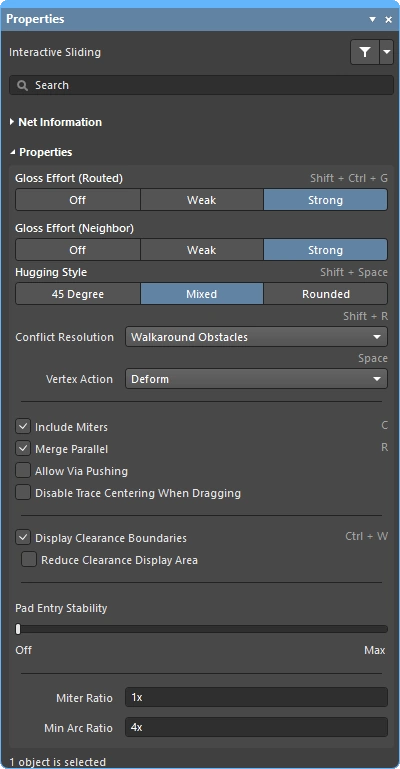 ). 슬라이딩 과정에서 대화형 라우팅 설정 엔진은 해당 설계 제약 조건을 준수하면서 라우팅 설정의 품질을 유지하려고 시도합니다. 슬라이딩 과정을 제어하는 주요 기능으로는 라우팅 충돌 해결 모드(장애물에 대한 대응), 글로스 강도(결과 정리에 투입되는 노력), 허깅(장애물을 감싸며 모서리를 형성하는 기능) 등이 있습니다. T자형 접합부 및 정점 드래그, 비아 드래그, 차동 쌍 드래그 지원 등 대화형 슬라이딩을 지원하는 다양한 기능이 있습니다.
라우팅된 컴포넌트의 드래그를 지원하는 기능도 있습니다.
Strategies for Selecting the Routing
대화형 소프트웨어 도구의 가장 큰 과제 중 하나는 설계자가 라우팅 생성, 재형성 및 정리와 같은 다양한 작업 사이를 쉽고 유연하게 이동할 수 있도록 해당 도구를 설계자의 손끝에 자연스럽게 연결하는 것입니다. 이를 위해서는 관심 있는 경로를 쉽게 선택할 수 있어야 합니다.
배선을 선택하는 가장 쉬운 방법은 아래 동영상에서 볼 수 있듯이, 대상 Net의 임의의 개체를 한 번 클릭한 다음 Tab 키를 누르는 것입니다.
'Ctrl' Tab 단축키를 사용한 라우팅 선택 기법 시연.
를 누르면 Tab:
-
처음 누를 때 – 같은 레이어에 있는 connected 동일한 레이어에 있는 라우팅 객체를 모두 선택합니다
-
두 번째 누를 때 – 연결된 모든 라우팅 객체를 선택합니다. all layers
-
세 번째 – all objects on that net (연결되지 않은 Net 객체가 없으면 건너뜁니다)
-
네 번째 – 초기 선택 집합으로 돌아갑니다
라우팅 기법 |
|
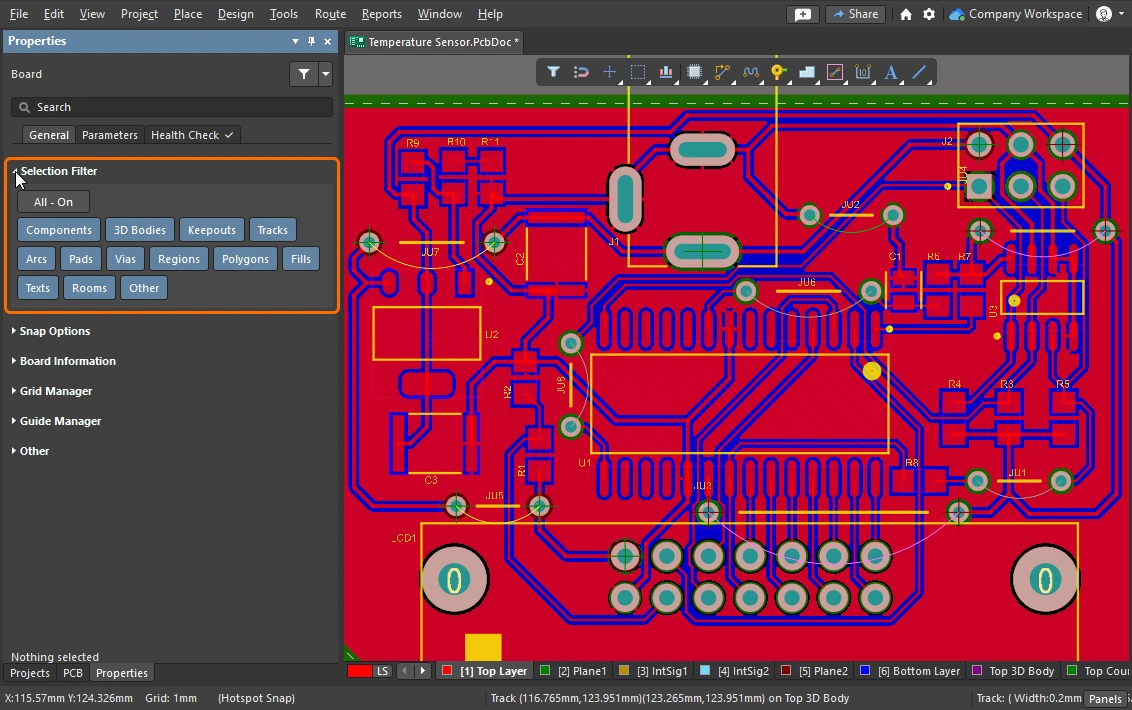
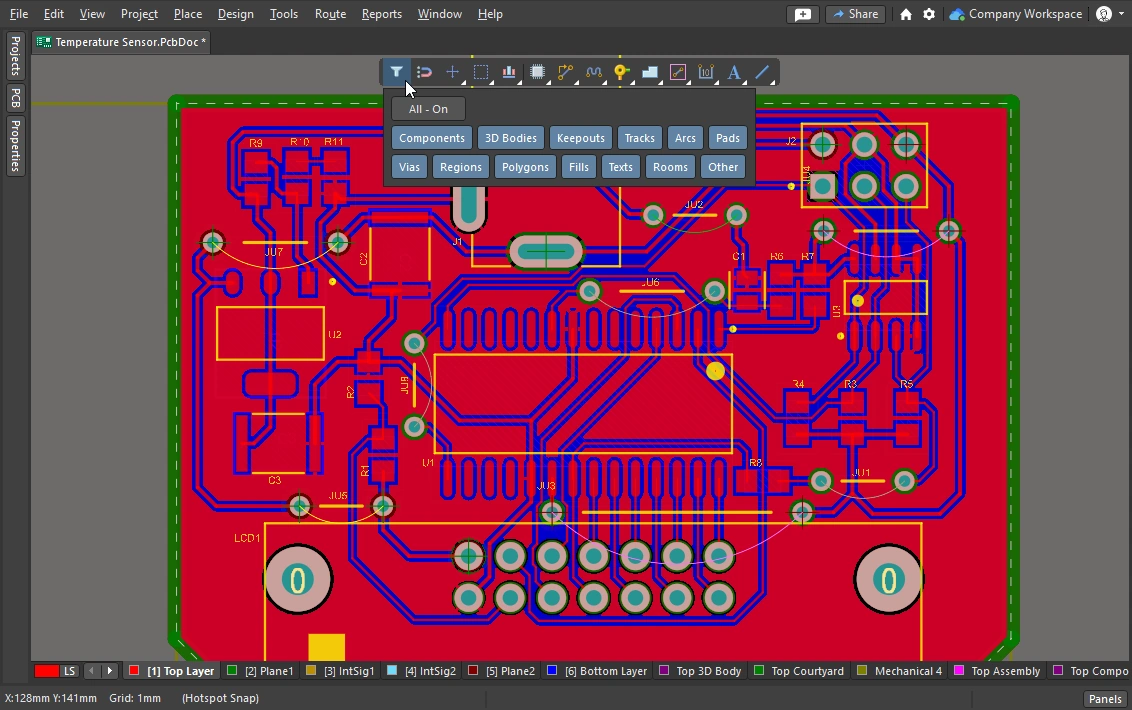
| What can be selected? | Altium Designer의 모든 그래픽 Editor에는 selection filter. 이 필터는 현재 선택 가능한 객체 유형을 정의하며, Properties Panel( |
| Left Mouse Click | 클릭하면 커서 아래에 있는 개체를 선택할 수 있습니다. 커서 아래에 여러 개체가 있는 경우, <span data-tooltip="{"block":null,"content":" Pad\r\n \r\n\r\n비아\r\n \r\n\r\n트랙/Arc\r\n \r\n\r\n컴포넌트\r\n \r\n\r\n다각형\r\n \r\n\r\n영역/Fill\r\n \r\n\r\n텍스트\r\n \r\n","placement":"top","arrow":true}">우선순위 순서. 마우스를 움직이지 않으면, 마우스를 클릭할 때마다 우선순위에 따라 스택에 있는 다음 개체가 선택됩니다. |
| Selection rectangle – everything touched | 빈 공간을 클릭하고 왼쪽으로 드래그하면 녹색 선택 사각형이 형성됩니다 (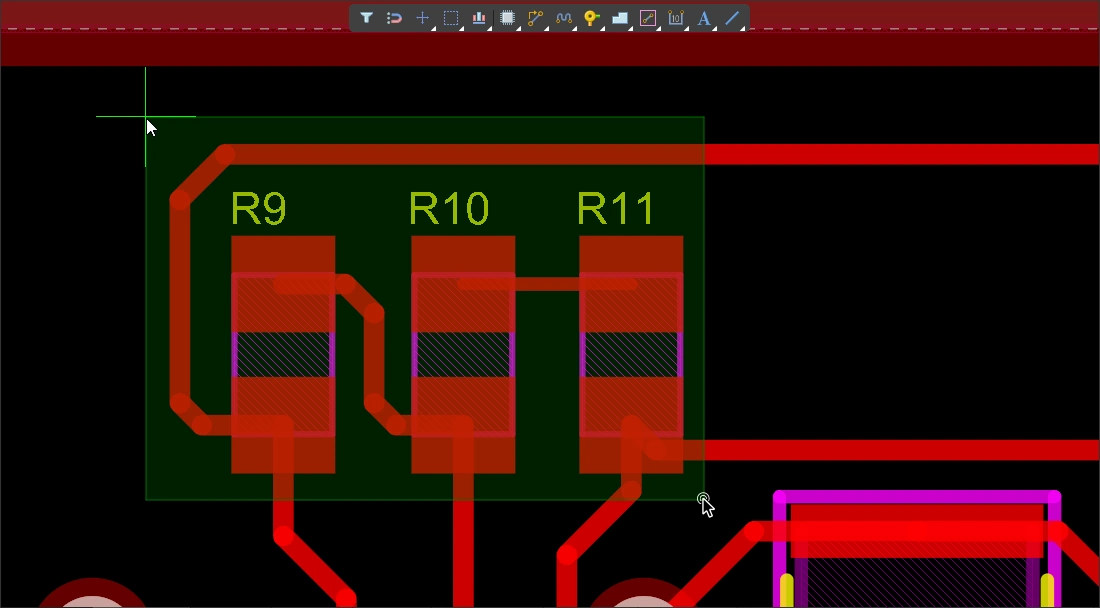 ). 녹색 사각형에 닿은 모든 객체가 선택됩니다 ( ). 녹색 사각형에 닿은 모든 객체가 선택됩니다 (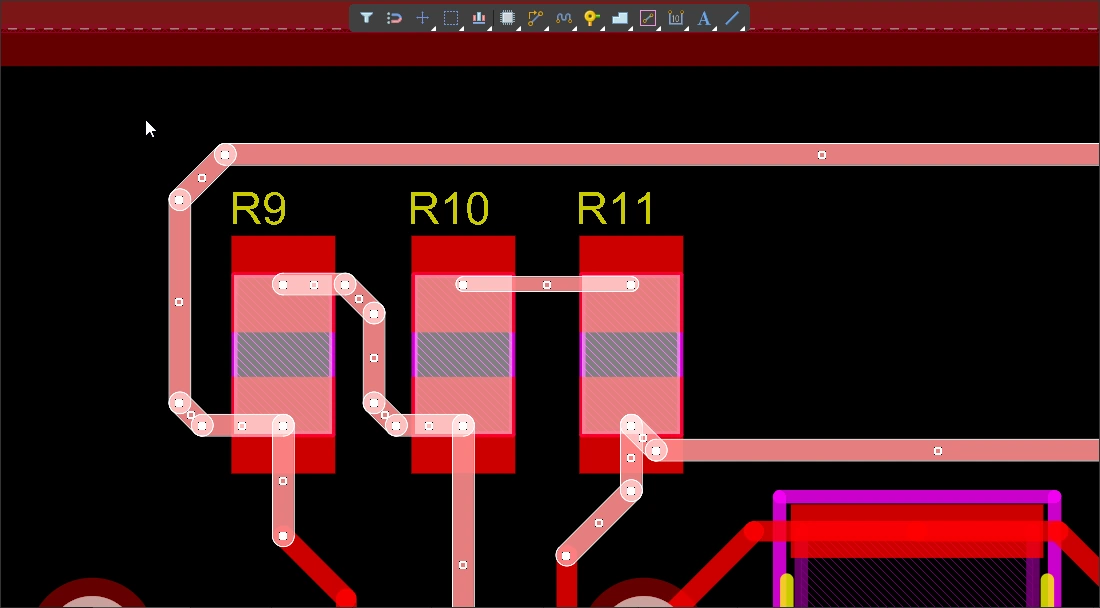 ) (선택 필터에서 허용하는 경우). ) (선택 필터에서 허용하는 경우). |
| Selection rectangle – objects within | 빈 공간을 클릭하고 오른쪽으로 드래그하면 파란색 선택 사각형이 형성됩니다(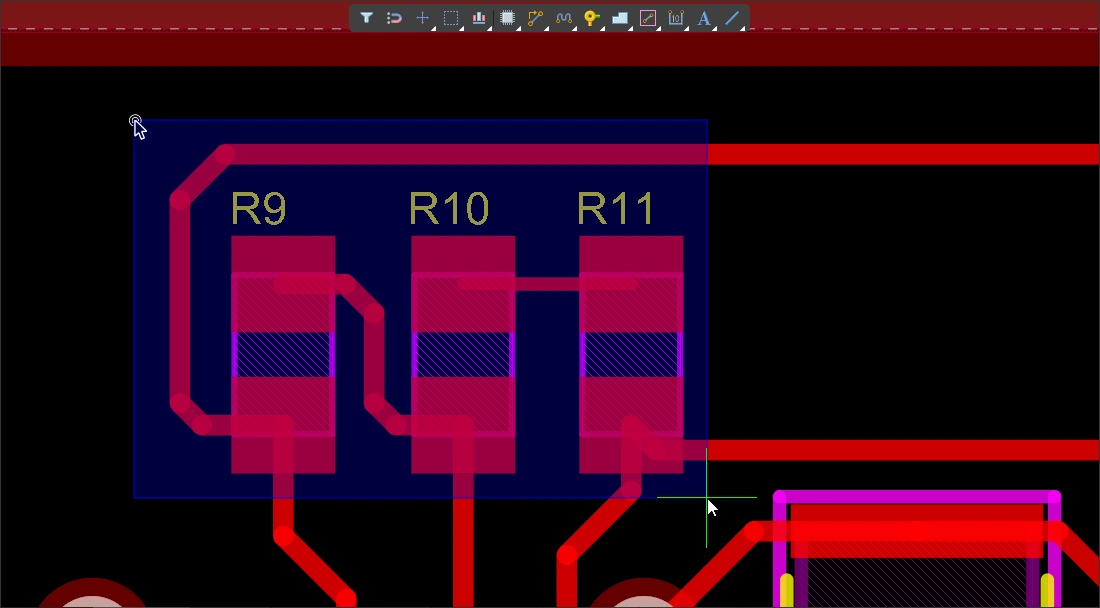 ). 파란색 사각형에 완전히 둘러싸인 모든 객체가 선택됩니다( ). 파란색 사각형에 완전히 둘러싸인 모든 객체가 선택됩니다(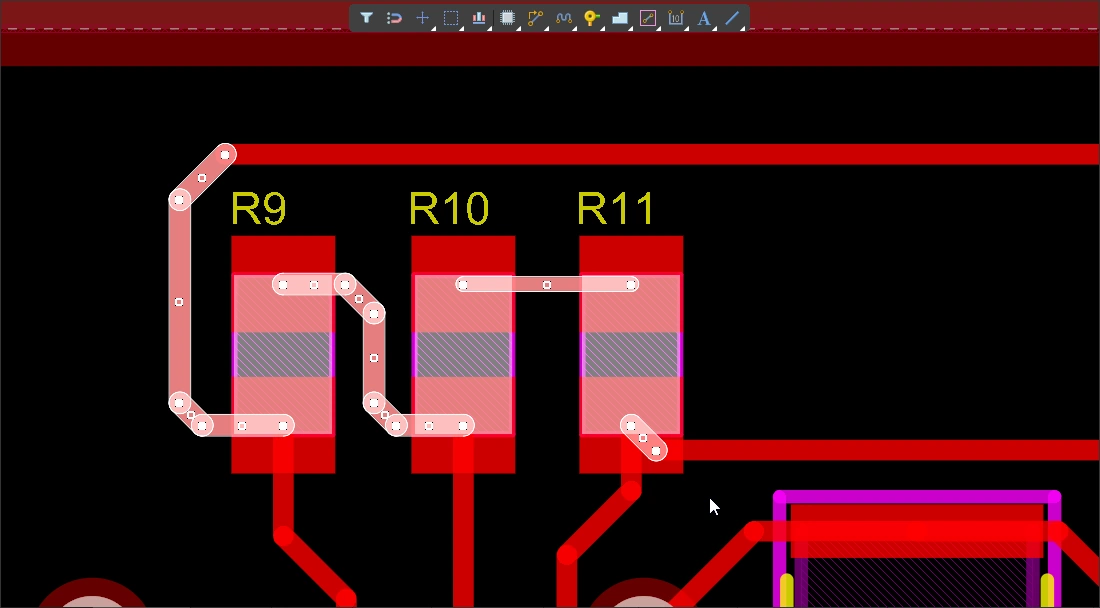 ) (선택 필터에서 허용하는 경우). ) (선택 필터에서 허용하는 경우). |
| Select a connection line | Alt+Left click and drag left ( ). 녹색 선택 사각형과 닿아 있는 모든 표시된 Connection선이 선택됩니다. ). 녹색 선택 사각형과 닿아 있는 모든 표시된 Connection선이 선택됩니다. |
| Select existing routes | Left click and drag left ( ). 녹색 선택 사각형과 닿아 있는 잠금 해제된 모든 Track 세그먼트가 선택됩니다. Tab 키를 사용하여 해당 Nets의 추가 Track 세그먼트를 선택하십시오. ). 녹색 선택 사각형과 닿아 있는 잠금 해제된 모든 Track 세그먼트가 선택됩니다. Tab 키를 사용하여 해당 Nets의 추가 Track 세그먼트를 선택하십시오. |
| Select routes under a component |
|
| Select component pads | Ctrl+Left click and drag left ( ). 녹색 선택 사각형이 닿는 모든 잠금 해제된 컴포넌트 패드가 선택됩니다. ). 녹색 선택 사각형이 닿는 모든 잠금 해제된 컴포넌트 패드가 선택됩니다. |
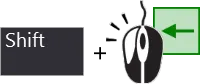
| Adding to the selection | 현재 선택을 유지하려면 Shift 를 길게 누르면 현재 선택 상태를 유지한 채로 다른 오브젝트를 추가로 선택할 수 있습니다. |
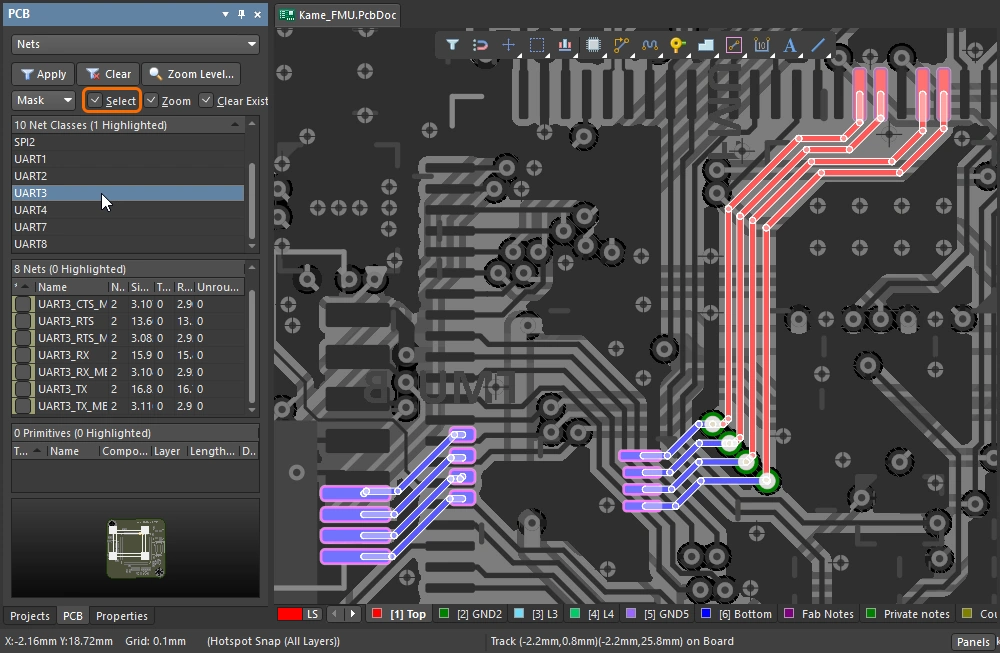
| Selecting from the PCB panel | 선택하려는 객체는 알지만 위치가 확실하지 않은 경우, PCB Panel을 사용하여 Net, 차동 쌍, 컴포넌트 등을 찾아 선택할 수 있습니다. Panel에서 선택할 수 있을 뿐만 아니라, 해당 개체로 확대하고 다른 모든 개체를 페이드(마스크 또는 어둡게)하도록 구성할 수도 있습니다( PCB Panel에 대해 자세히 알아보세요. |
| Accessing all of the selection commands | 메뉴를 선택하여 Edit » Select 메뉴를 선택하면 모든 PCB Editor 선택 명령을 사용할 수 있습니다( 예를 들어, |
 )
) )
) ).
). ).
).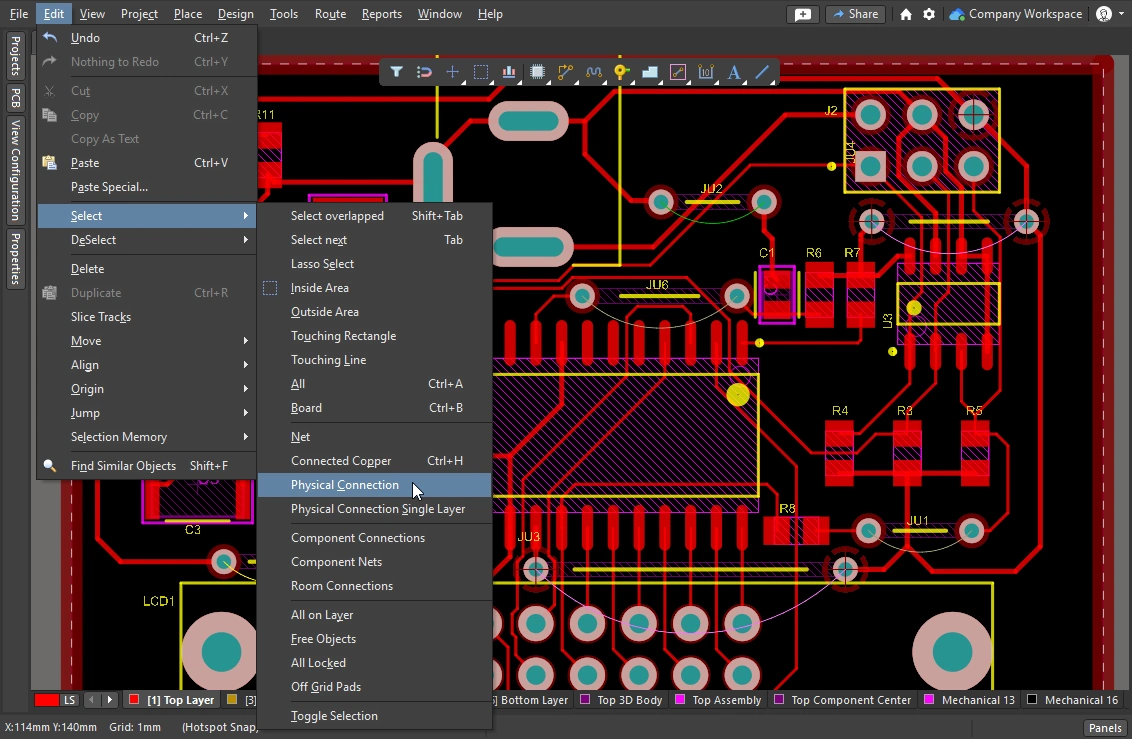 ).
).이 섹션에서는 라우팅 선택 기법을 요약하여 설명합니다. 모든 PCB Editor 개체 선택 명령에 대해 자세히 알아보세요.
Cleaning and Clearing the Routes
전체 Net의 라우팅을 제거하려면 해당 Net을 선택한 후 Delete – 연결 엔진이 자동으로 연결선을 복원합니다. 또한 라우팅의 일부를 선택적으로 제거해야 할 수도 있습니다. 예를 들어, 단일 Physical 연결을 해제하거나, 경로를 따라 특정 지점까지 여러 Track 세그먼트를 제거하는 경우 등이 있습니다.
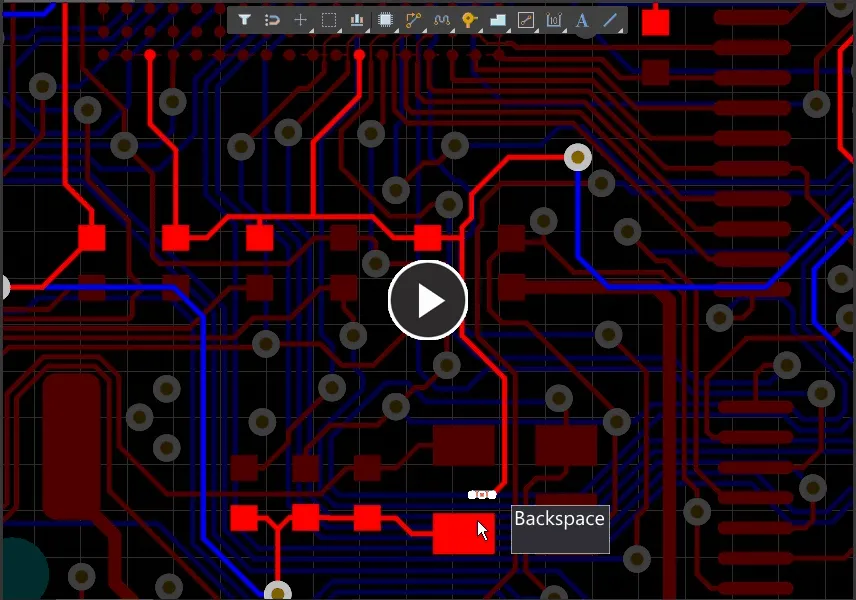
Backspace 키를 사용하여 세그먼트를 제거한 다음, 마지막으로 접촉하는 세그먼트를 선택하십시오.
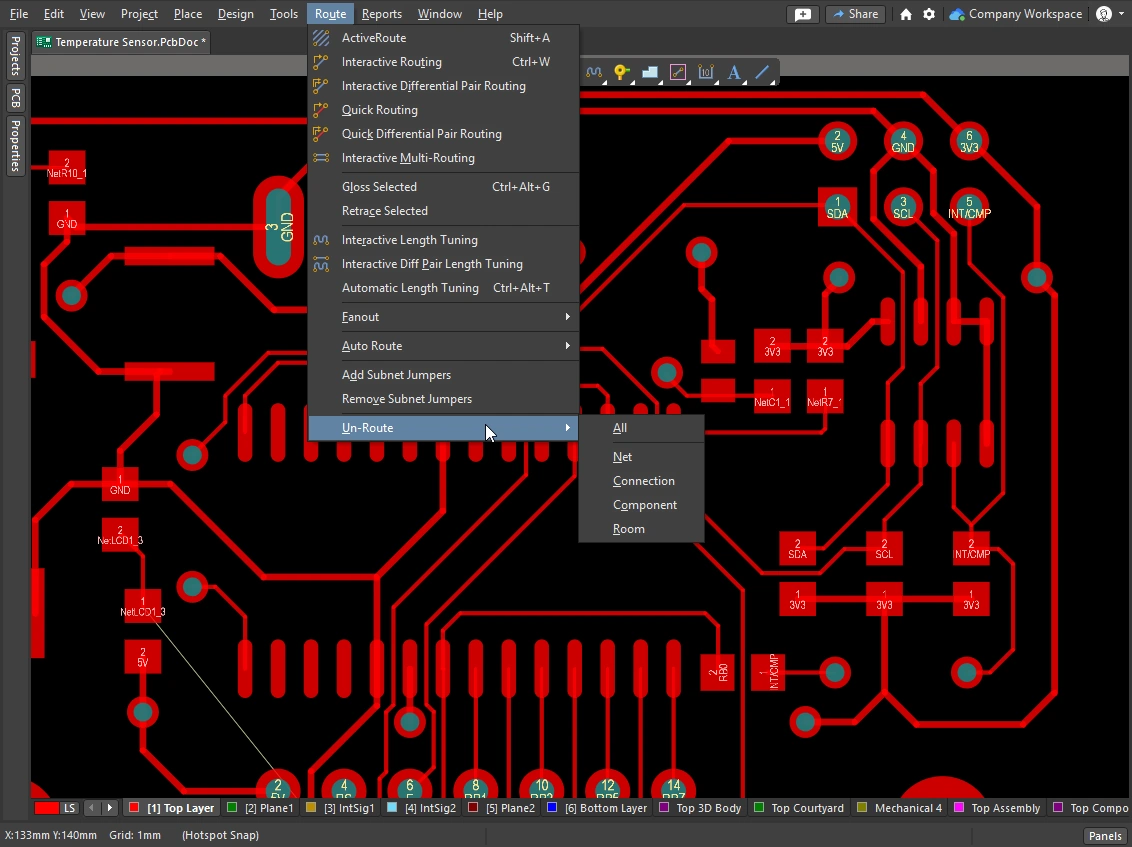 )
)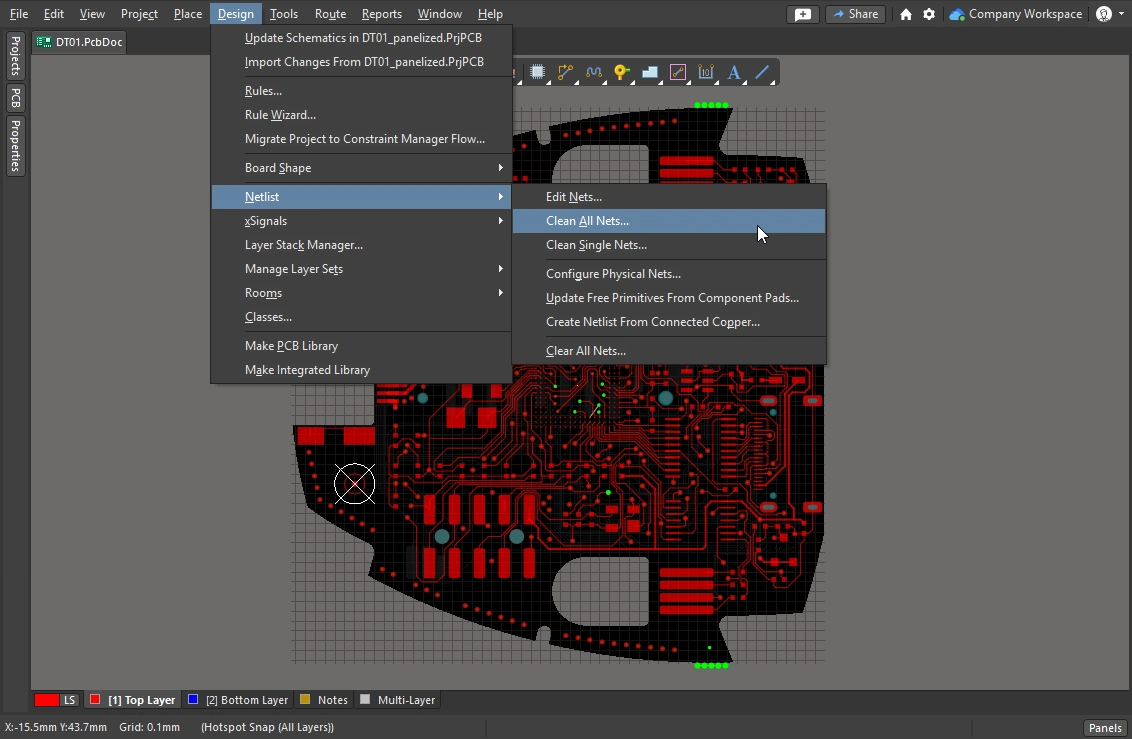 )
)Reroute and Remove Loops
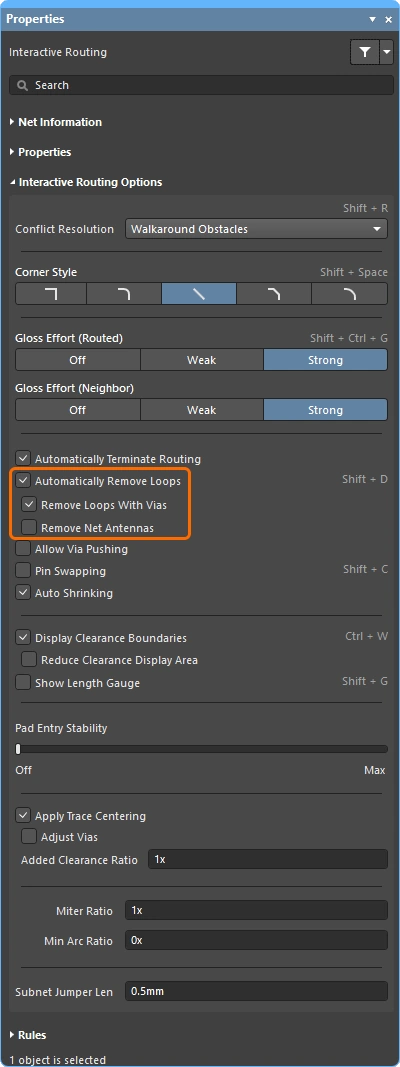
라우팅 작업을 진행하다 보면 기존 라우팅 경로를 변경해야 하는 경우가 있습니다. 경로 변경이 복잡한 경우, 기존 라우팅을 이동시키는 것보다 새로운 경로를 라우팅하는 것이 더 효율적일 수 있습니다. 이 기능은 Automatic Loop Removal 기능에서 지원됩니다.
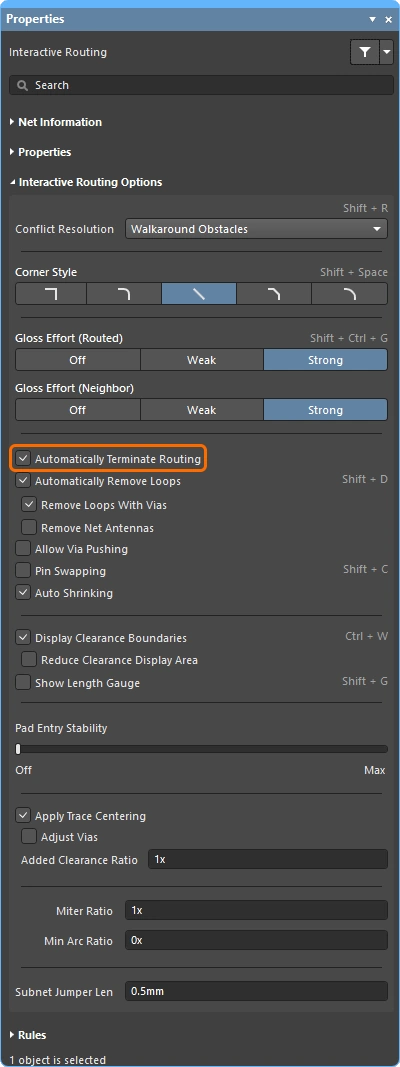
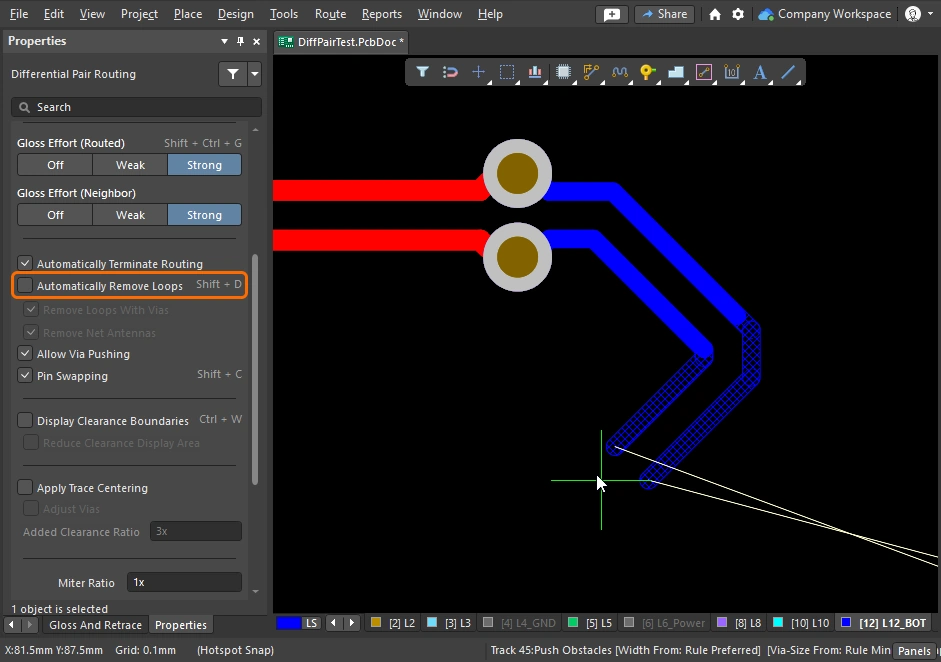
이 기능은 대화형 라우팅 과정을 모니터링하며, 기존 경로와 평행하게 새로운 경로가 라우팅된 것을 감지하면 자동으로 기존의 중복 세그먼트를 제거합니다. 이 옵션은 기본적으로 활성화되어 있으며(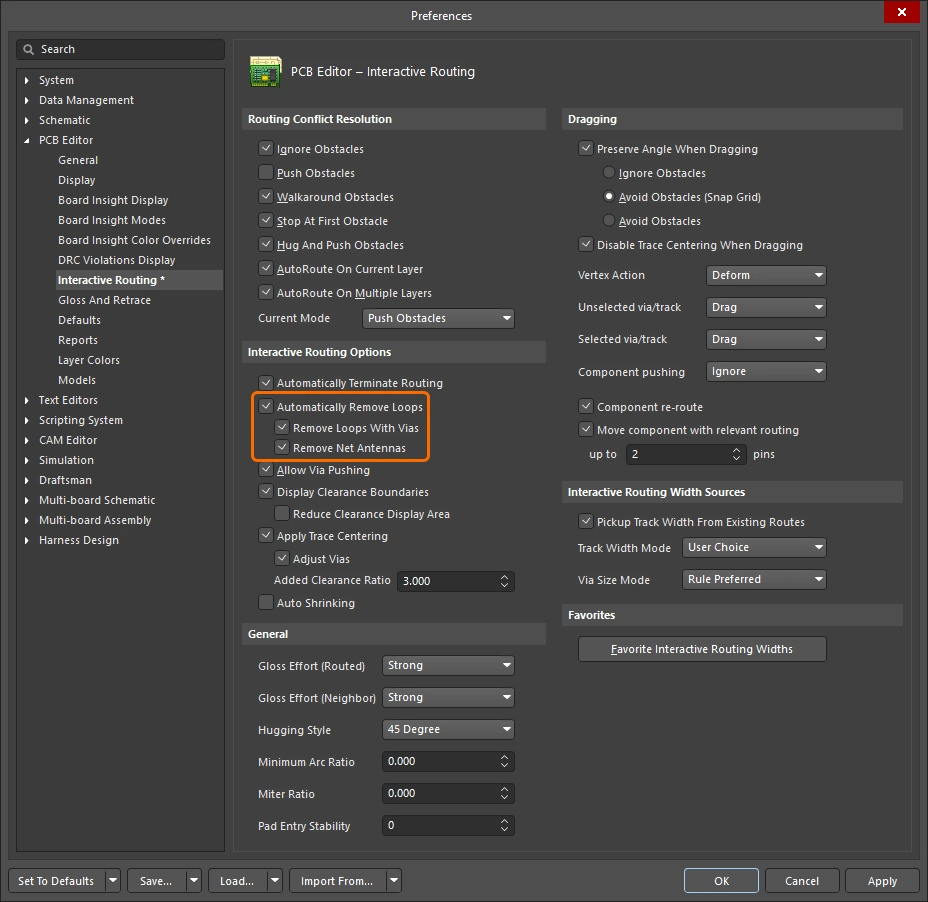 ), 모든 Net에 적용됩니다. 선택한 Net에 대해서는 비활성화할 수 있으며, 특정 루프를 생성하기 위해 대화형 라우팅 중에 일시적으로 비활성화할 수도 있습니다. 이 Net에 대해 루프 제거 기능이 다시 활성화되더라도 방금 생성된 루프는 유지됩니다.
자동 루프 제거 기능이 활성화되어 있으면, 새로운 경로가 기존 경로와 다시 만나게 될 때 기존 루프가 자동으로 제거됩니다.
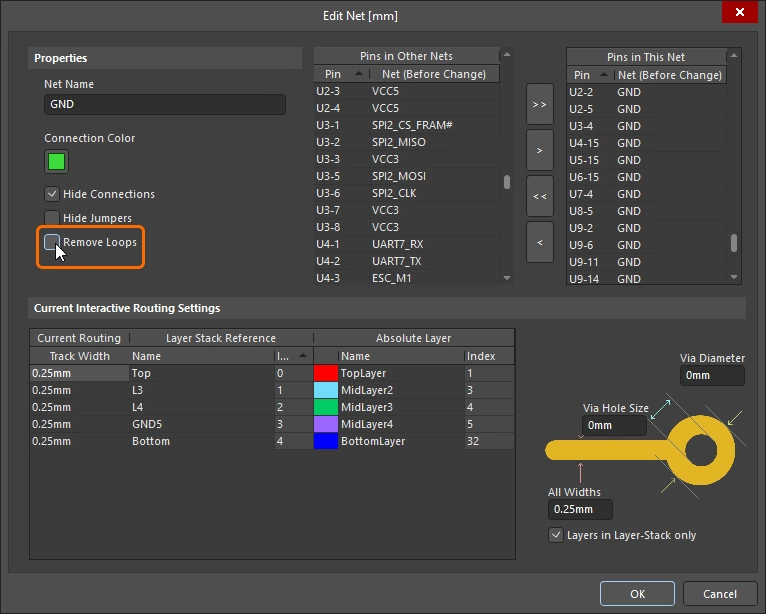 )
)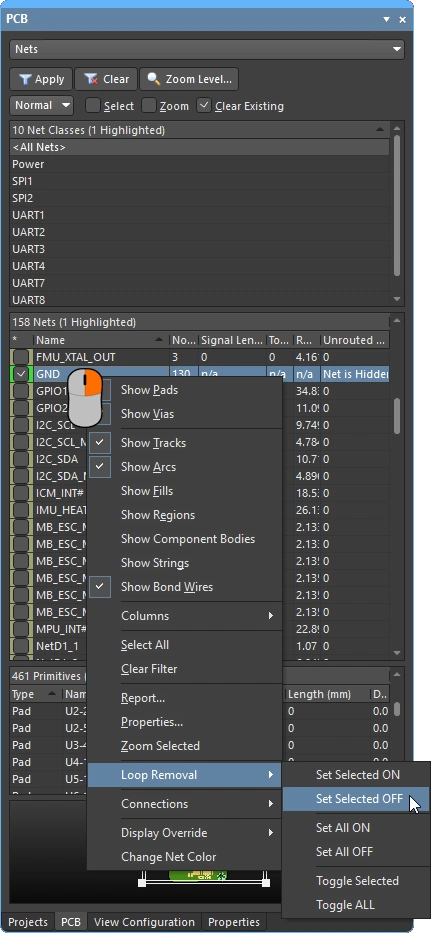 )
) )
) )
)
Moving the Routing
기존 라우팅을 드래그하는 것을 interactive sliding. 대화형 슬라이딩을 위한 제어 기능은 Preferences 대화 상자(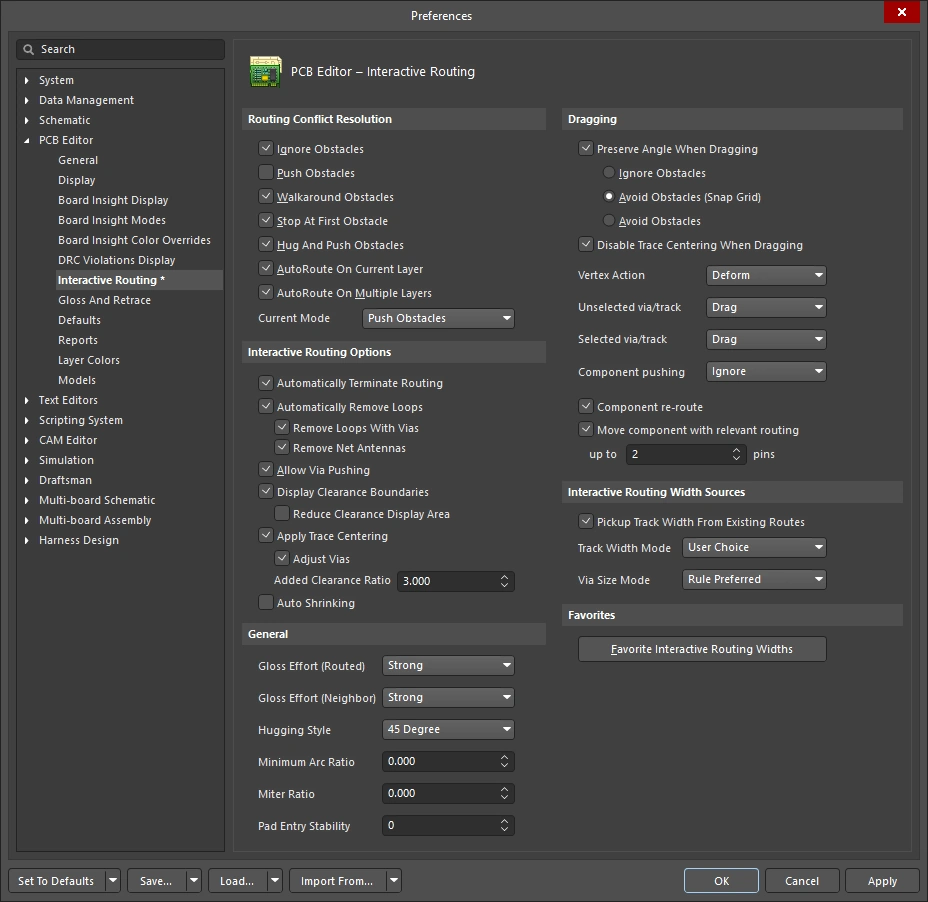 )에서 사용할 수 있으며, Properties Panel에서
 Tab ()을 누르면 슬라이딩 중에 액세스할 수도 있습니다. 슬라이딩 중에 대화형 라우팅 설정 엔진은 해당 설계 제약 조건을 준수하면서 라우팅 설정의 품질을 유지하려고 시도합니다.
슬라이딩 과정을 제어하는 주요 기능으로는 라우팅 충돌 해결 모드(장애물에 대한 대응), 광택 강도(결과 정리에 드는 노력), 허깅(장애물을 감싸고 모서리를 형성하는 기능) 등이 있습니다. T자형 접합부 및 정점 드래그, 비아 드래그, 차동 쌍 드래그 지원 등 대화형 슬라이딩을 지원하는 여러 기능이 있습니다.
기존 라우팅을 수정하는 데 사용되는 대화형 슬라이딩의 시연.
대화형 슬라이딩(드래그) |
|
| To slide (drag) a track | 트랙 세그먼트를 클릭한 상태로 유지한 다음 마우스를 움직여 경로를 슬라이딩하기 시작하십시오. PCB Editor는 연결된 세그먼트와의 45/90도 각도를 자동으로 유지하며, 필요에 따라 세그먼트를 짧게 또는 길게 조정합니다. 대화형 슬라이딩은 비직교 라우팅도 지원합니다. 라우팅이 이동하지 않는 경우, 라우팅이 잠겨 있을 수 있습니다(이를 나타내는 아이콘이 표시됨 |
| To change the sliding behavior | 슬라이딩 중에 Tab 를 눌러 Properties 패널을 열 수 있으며, 여기서 대화형 슬라이딩 설정을 변경할 수 있습니다(). 이 설정들은 슬라이딩되는 Track은 물론, 슬라이딩 중에 밀려나는 인접 Track들도 제어합니다. 보드에서 사용되는 라우팅 스타일에 맞게 슬라이딩 옵션을 구성하십시오. 예를 들어, Hugging Style 대각선 모서리가 있는 라우팅의 경우 45 Degree 라우팅이 직각 모서리를 포함하는 경우, 이를 설정해야 합니다. Shift+Spacebar 단축키를 눌러 슬라이딩 중 Hugging Style 모드를 순환할 수 있습니다. |
| How the sliding routes are impacted | 슬라이딩 시 이동하는 트랙의 형태가 얼마나 재조정되는지는 현재 Gloss Effort (Routed) 설정( |
How the sliding route responds to existing objects |
슬라이딩 중에는 다음 Routing Conflict Resolution 모드(Ignore, Push, HugNPush) 중 하나가 적용됩니다(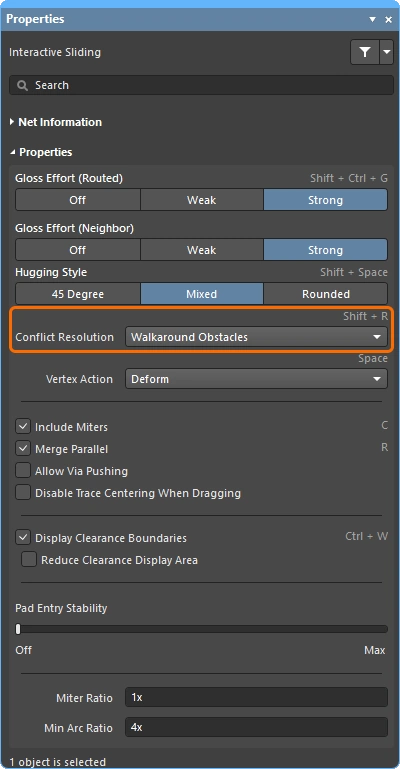 ). Shift+R 를 눌러 Track 세그먼트를 드래그하면서 모드를 순차적으로 전환할 수 있습니다. ). Shift+R 를 눌러 Track 세그먼트를 드래그하면서 모드를 순차적으로 전환할 수 있습니다. |
| How neighboring routes are impacted | 이동하는 트랙이 인접한 라우팅에 미치는 영향은 현재 Gloss Effort (Neighbor) 설정(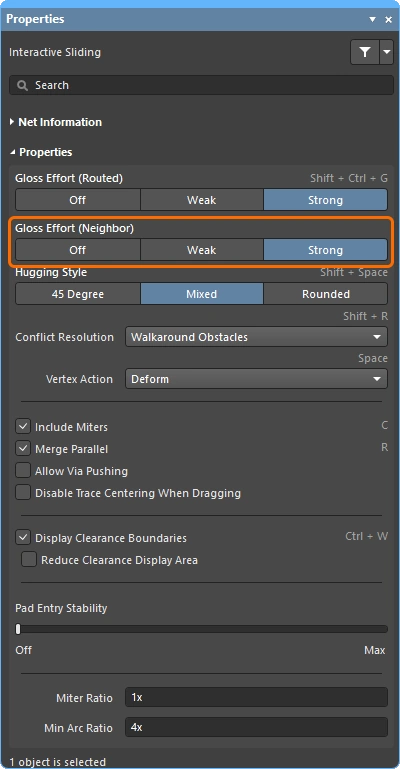 )에 따라 제어되며, 슬라이딩 중에버튼을 눌러 설정을 변경할 수 있습니다. Tab 버튼을 길게 누르면 설정을 변경할 수 있습니다. )에 따라 제어되며, 슬라이딩 중에버튼을 눌러 설정을 변경할 수 있습니다. Tab 버튼을 길게 누르면 설정을 변경할 수 있습니다. |
| Hugging - how glossing wraps around other objects and forms corners | 글로싱 엔진이 경로를 다른 오브젝트 주위로 감싸고 모서리를 형성하는 방식을 hugging라고 합니다. 사용 가능한 Hugging Style 설정은 다음과 같습니다.
|
| 경로 모서리 슬라이딩 | 대화형 슬라이딩 엔진에는 꼭짓점(모서리)을 드래그하기 위한 전용 알고리즘이 포함되어 있습니다.
|
| Move a segment instead of dragging | 기본 동작은 drag (선택된 또는 선택되지 않은) Track을 (밀어 넘기며) 이동하는 것입니다. 연결된 세그먼트와의 연결을 유지하지 않고 move 연결된 세그먼트와의 Connection을 유지하지 않고 세그먼트를 드래그하려면, Ctrl 클릭하고 드래그할 때 누르고 있거나, Default 설정값을 변경하여 Default 드래그 동작을 변경합니다. Unselected via/track 또는 Selected via/track 옵션을 사용하여 기본 드래그 동작을 변경하십시오. Preferences (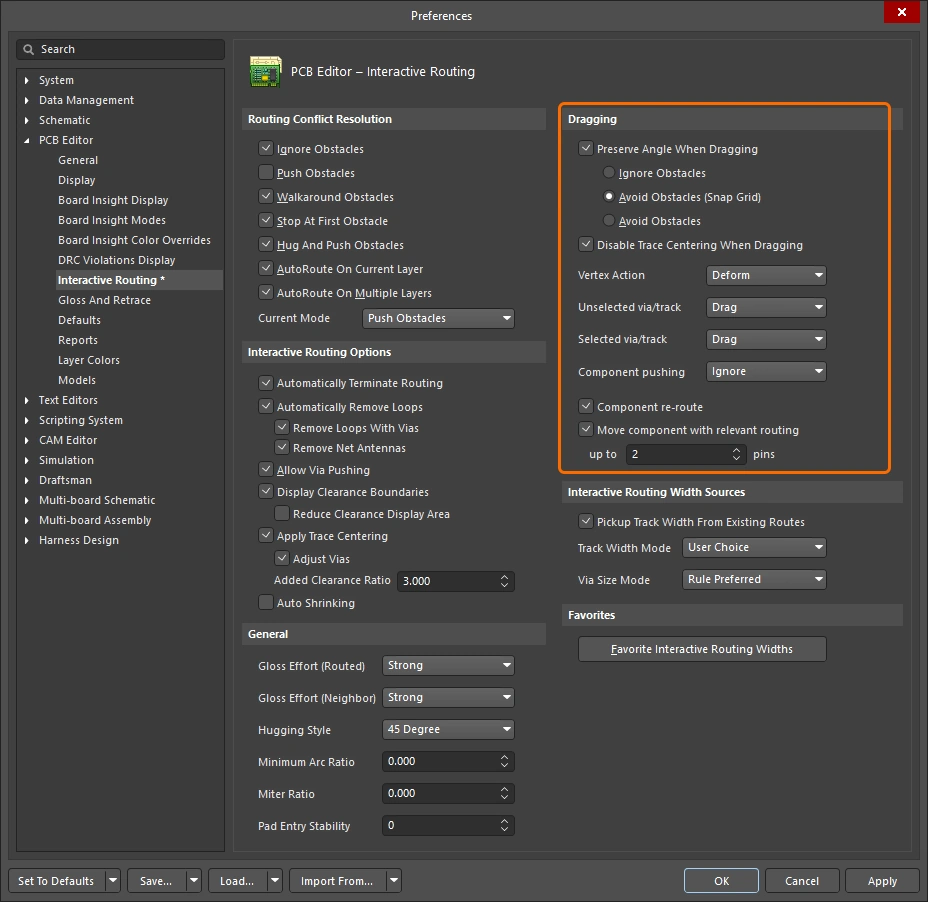 )의옵션을 사용하여 기본 드래그 동작을 변경하십시오. )의옵션을 사용하여 기본 드래그 동작을 변경하십시오. |
| What you snap to during sliding | 슬라이딩 중인 라우팅은 현재 스냅 그리드에 스냅될 뿐만 아니라, 객체 스냅 설정, 레이어 스냅 설정, 그리고 스냅 가이드 및 축 스냅 설정이 활성화되어 있는지에 따라 다른 객체에도 스냅될 수 있습니다 ( ). 대화형 슬라이딩 중에 Snap 기능을 일시적으로 비활성화하려면 Ctrl 키를 길게 누르십시오. 이 페이지 상단에 커서 Snap 동작에대한 요약이 있습니다. |
| Modifying T-junctions | T자형 교차점을 대화형으로 수정할 수 있도록 지원하는 특정 알고리즘이 포함되어 있습니다. 교차점을 클릭하고 드래그하여 T자형 교차점을 수정할 수 있습니다( ). |
| Dragging a via | 인접 경로의 글로싱 기능을 보완하여, 비아 드래그 기능도 지원됩니다. 비아 드래그 기능은 Neighbor Glossing (
). Tab 를 눌러 Panel에 접근하여 설정을 조정할 수 있습니다(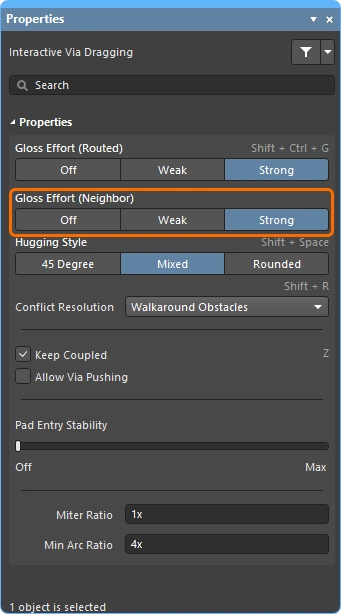 ). ). |
| Dragging a differential pair | 차동 쌍의 구성 요소를 식별하기 위해 커플링 개념이 사용됩니다(
). 소프트웨어가 차동 쌍에 속하는 개체를 인식하면, Keep Coupled ( 파트너 개체들이 커플링되었는지 확인하기 위해, 소프트웨어는 다음 조건을 충족하는지 검사합니다:
|
| Push or jump | '기존 패드 및 비아 건너뛰기' 옵션이 활성화되어 있고, 필요하며 가능한 경우 Allow Via Pushing 옵션이 활성화되어 있는 경우(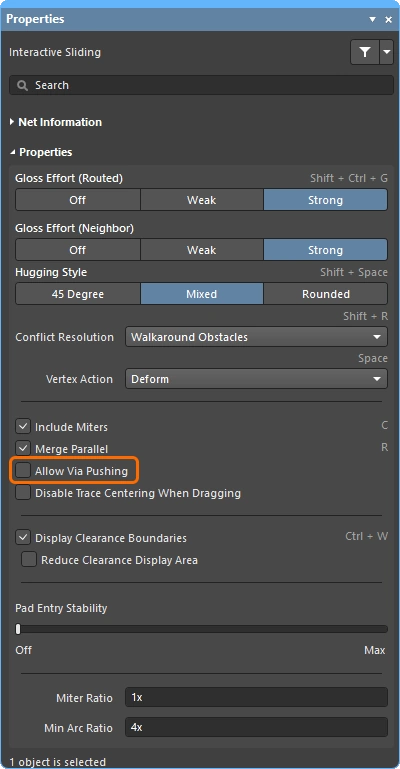 ), 기존 패드와 비아는 건너뛰거나, 필요하고 가능한 경우 비아가 밀려납니다. ), 기존 패드와 비아는 건너뛰거나, 필요하고 가능한 경우 비아가 밀려납니다. |
| Break a track segment | 싱글 트랙 세그먼트를 분할하려면 먼저 해당 세그먼트를 선택한 다음, 커서를 중앙 정점에 놓고 클릭한 상태로 드래그하여 새로운 세그먼트를 추가하십시오. |
| Object visibility | 현재 라우팅을 구성하는 개체를 더 쉽게 확인하려면 Transparency 패널에서 라우팅 개체의 View Configuration (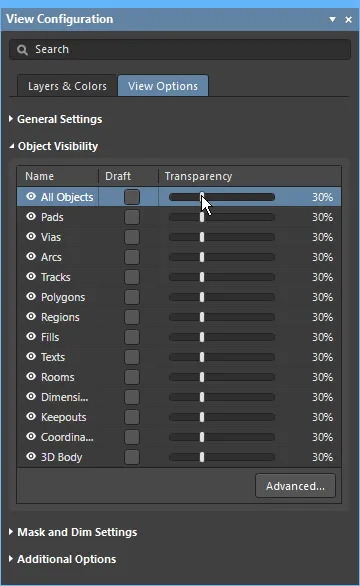 )에서 Panel의 크기를 조정하십시오. )에서 Panel의 크기를 조정하십시오. |
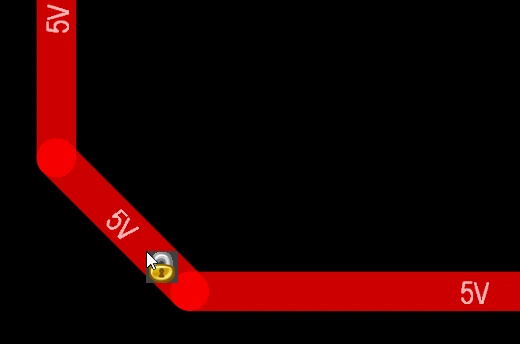 ).
).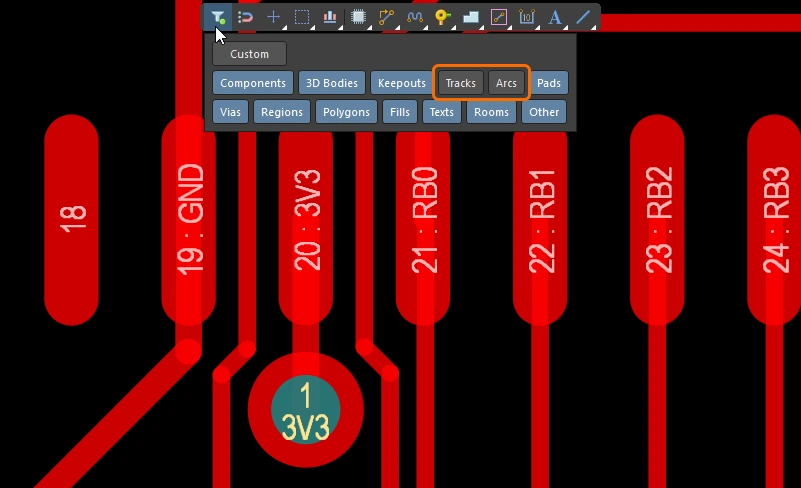 ).
).Moving a Routed Component
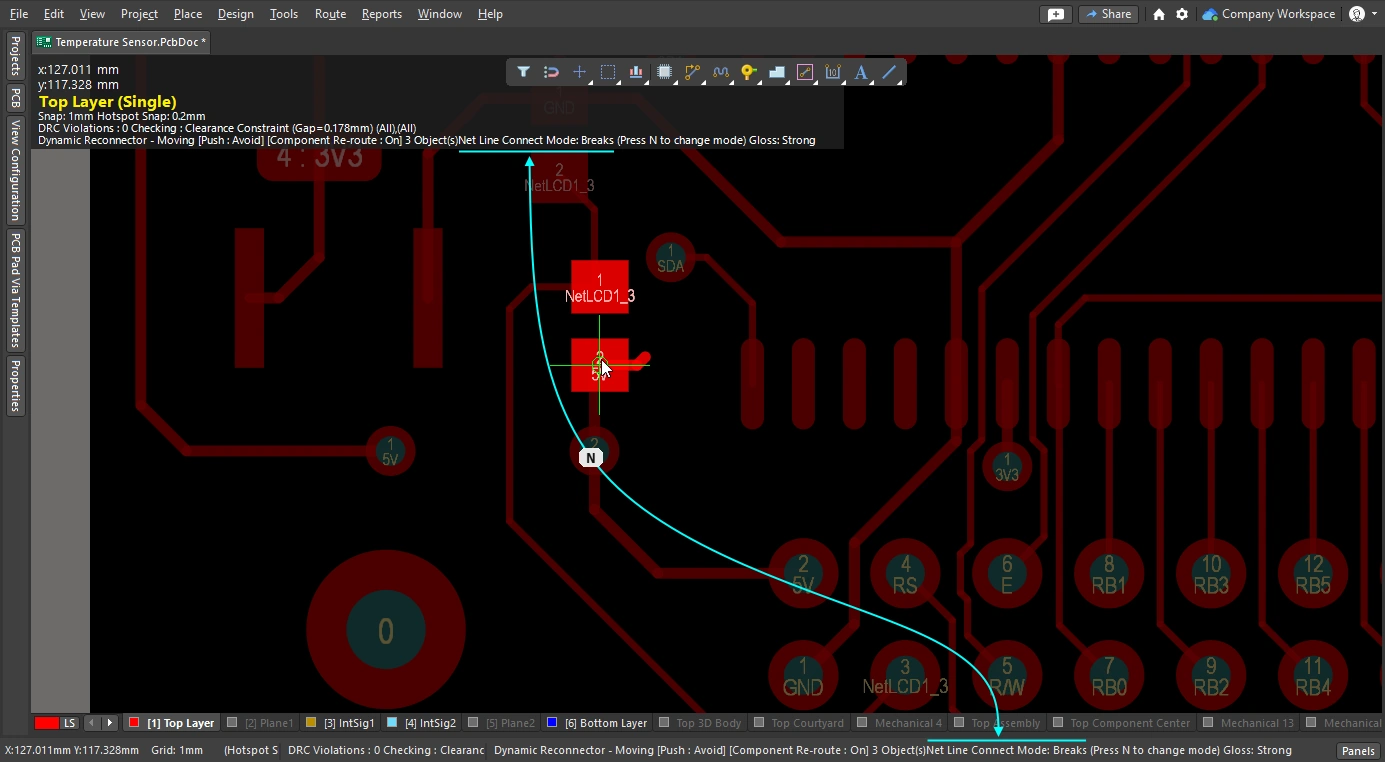
PCB 라우팅 작업 중에는 추가 컴포넌트 및 새로운 라우팅을 위한 공간을 확보하기 위해 라우팅된 컴포넌트의 위치를 조정해야 하는 경우가 종종 있습니다. 이를 지원하기 위해 PCB Editor에는 라우팅 상황을 고려한 컴포넌트 이동 기능이 포함되어 있습니다.
이 도구에는 두 가지 기능이 있습니다. 첫째, 새로운 위치에 맞게 컴포넌트 패드로의 라우팅 경로를 복원하려고 시도합니다. 둘째, 팬아웃, 이스케이프 경로 및 핀 간 라우팅 경로(총칭하여 relevant routing -로 통칭되는—팬아웃, 이스케이프 경로, 컴포넌트 간 배선을 식별하고, (해당 기능이 활성화된 경우) 컴포넌트 이동 중에도 이 라우팅 패턴을 정확히 유지하도록 시도할 수 있다는 점입니다.
이 Component re-route 옵션이 활성화되어 있으면, 이동된 컴포넌트가 배치된 후 연결된 배선 경로가 복원됩니다.
이동된 컴포넌트의 배선 재설정 |
|
| Enable rerouting of moved component(s) | 환경 설정 대화 상자(xml-ph-0000@deepl.internal)에서 Component re-route 환경 설정 대화 상자(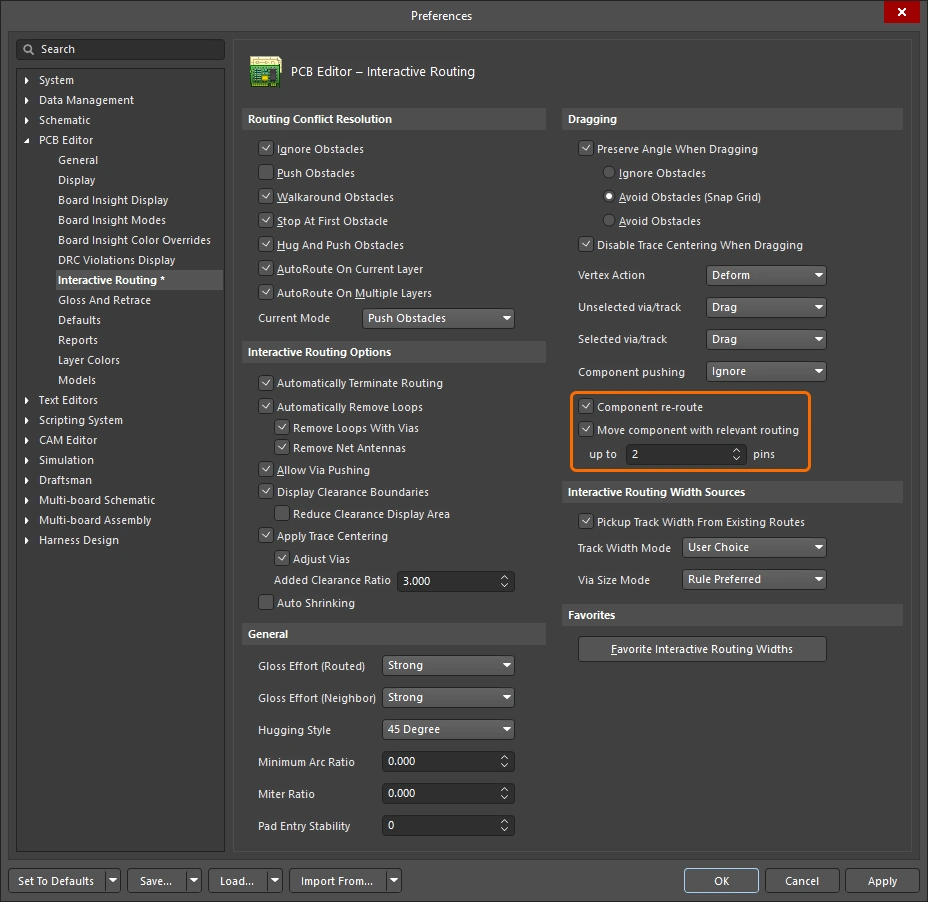 )에서 이 옵션을 활성화하거나, )에서 이 옵션을 활성화하거나, Shift+R 단축키를 사용하여 이동 중에 이 기능을 켜거나 끌 수 있습니다. 이 기능은 한 번의 작업으로 여러 컴포넌트를 이동하는 것을 지원합니다. |
| When does rerouting happen? | 기본적으로 이 기능은 컴포넌트 패드, 팬아웃 또는 이스케이프 경로에서 라우팅을 끊은 다음, 이동하는 컴포넌트가 배치되면 끊어진 연결을 다시 라우팅하려고 시도합니다. |
| Include relevant routing | 팬아웃, 이스케이프 경로 및 핀 간 경로는 통칭하여 ‘관련 라우팅’이라고 합니다. Move component with relevant routing 옵션( |
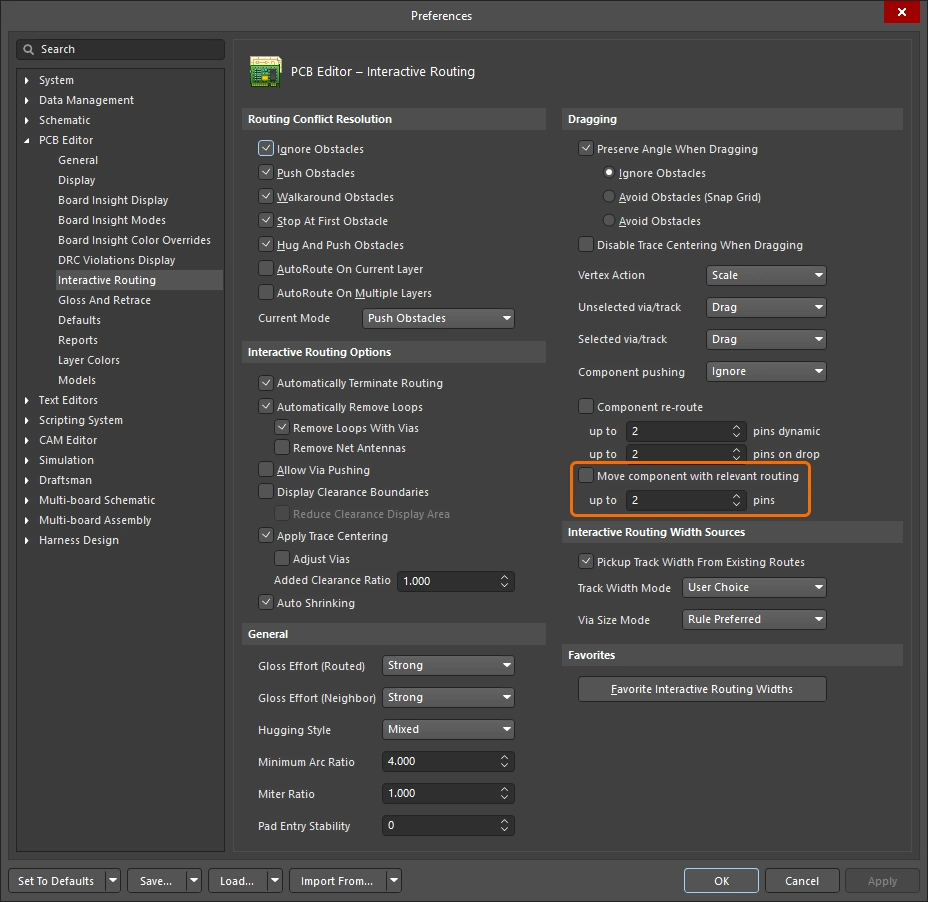 )
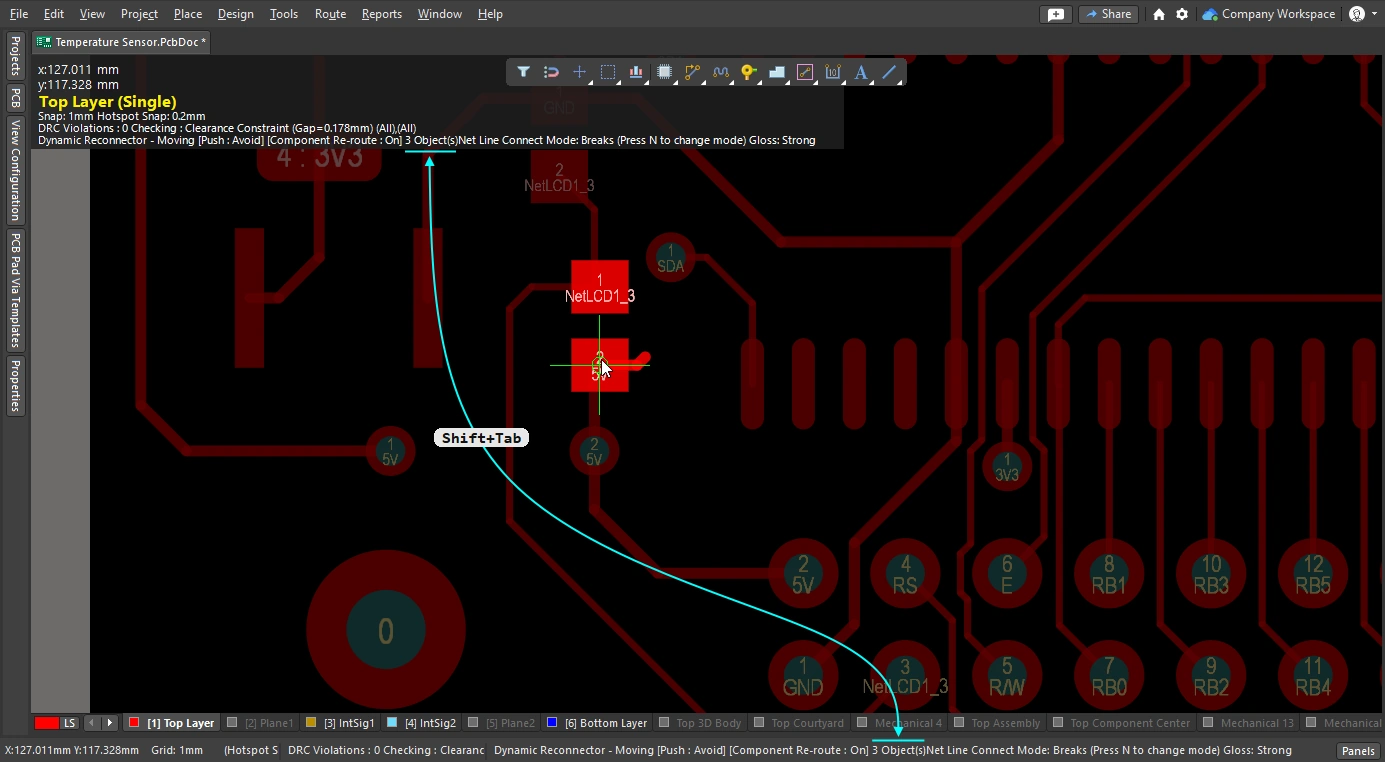
)아래 슬라이드는 라우팅 기능을 사용하여 컴포넌트를 이동할 때 각 기능을 제어하는 방법을 보여줍니다.
Glossing and Retracing Existing Routes
대화형 라우팅 엔진의 핵심 요소는 글로싱 알고리즘입니다. 글로싱은 경로를 세심하게 분석하여 모서리 수를 줄이고, 경로를 깔끔하게 정리하며 길이를 단축합니다. 글로싱은 대화형 라우팅 중에 발생하며, 경로를 따라 커서를 이동할 때 제안된 경로 경로는 지속적으로 글로싱됩니다. 글로싱은 대화형 슬라이딩 중에도 발생합니다. 기존 경로를 드래그하면 해당 경로는 물론, 이동하는 경로의 영향을 받는 인접 경로까지 지속적으로 글로싱됩니다. 또한 글로싱은 선택된 Net 집합에 대해 후처리 단계에서도 수행될 수 있습니다. 라우팅에 적용되는 글로싱의 강도는 현재 글로싱 강도에 따라 결정됩니다.
이 섹션에서는 사후 처리로서 기존 라우팅 경로를 글로싱하는 방법에 중점을 둡니다. 대상 라우팅 경로를 선택한 후, Configuration에서 글로싱 설정을 구성합니다. Gloss and Retrace Panel(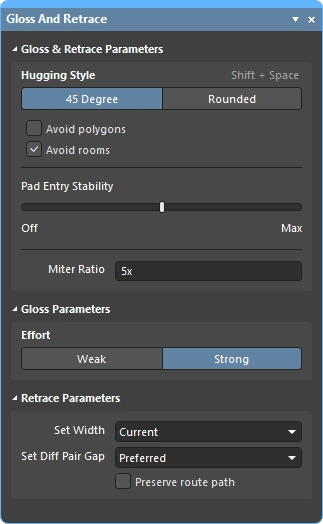 )에서 글로싱 설정을 구성한 후 Route » Gloss Selected 명령을 실행하십시오.
글로싱 엔진에는 retrace 기능을 포함하고 있습니다. 이 기능은 라우팅 폭이나 차동 쌍 간격과 같은 설계 제약 조건의 변경 사항에 맞춰 선택한 라우팅을 업데이트해야 할 때 사용합니다. 리트레이스를 사용하면 기존 전원 라우팅을 “두껍게” 만들거나, 차동 쌍을 새로운 폭 및 간격 설정으로 업데이트할 수 있습니다.
-
Glossing은 기존 Trace 폭과 차동 쌍 간격을 유지하면서 Trace 형상을 개선하는 데 중점을 둡니다.
-
Retrace는 설계 제약 조건을 충족하는 데 중점을 두며, 현재 제약 조건 설정에 맞게 폭과 차동 쌍 간격을 업데이트합니다.
'선택 항목 다듬기(Glossing Selected)' 명령에 대한 참고 사항
| What does Gloss Selected do? | Glossing은 선택된 라우팅을 분석하여 코너의 수를 줄이고, 트레이스를 정돈하며 길이를 단축합니다. 또한 품질이 낮은 Pad 진입부를 수정하고, 차동 쌍 라우팅의 품질을 개선하려고 시도합니다. |
| What is Glossed? |
|
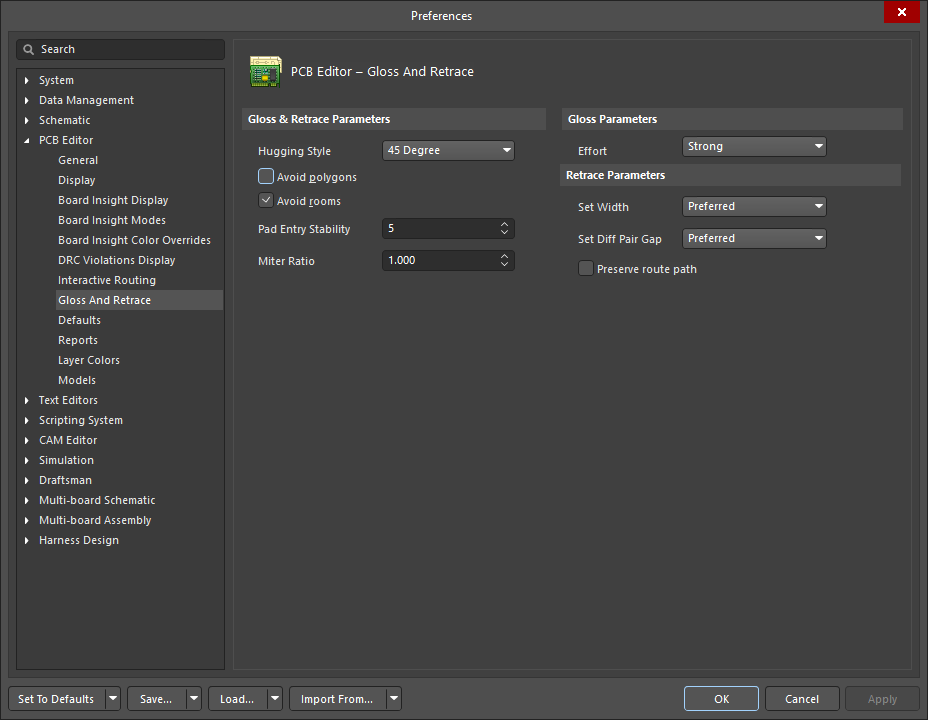
| What options control Gloss Selected? | '선택 항목 강조 표시' 기능은 Configuration에서 설정한 값을 따릅니다. PCB Editor - Gloss and Retrace 페이지에서 구성된설정을 따릅니다( xml-ph-0000@deepl.internal ). Preferences ( |
| Glossing a differential pair |
|
| Support for room-based rules |
|
| Support for Subnet Jumpers | Gloss는 서브넷 점퍼 Track을 고정된 것으로 취급합니다. |
| Exclusions |
|
| Gloss Selected feedback |
|
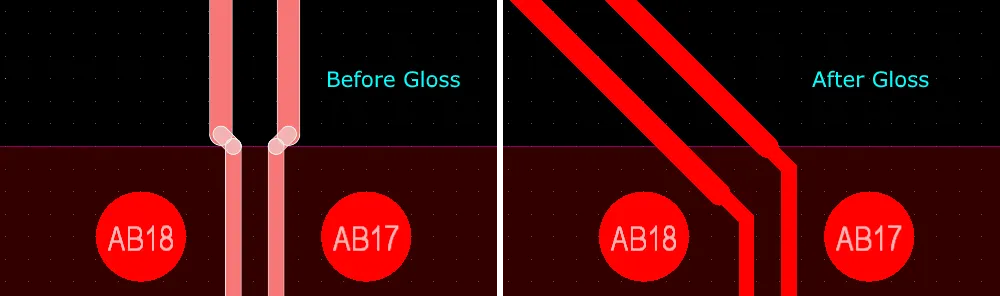
'선택 항목 재추적' 명령에 대한 참고 사항
| What does Retrace Selected do? |
|
| What is Retraced? |
|
| What options control Retrace Selected? | Retrace follows the configuration settings configured in the PCB Editor - Gloss And Retrace 에서 Preferences 대화 상자나 Gloss And Retrace Panel에서 구성된 현재 설정을 따릅니다. |
| Updating the vias in Retraced routes | 'Retrace' 기능은 적용 가능한 '라우팅 폭' 설계 제약 조건이나 Set Width 패널의 Gloss and Retrace 패널의필드에 입력된 값에 따라 트랙과 아크의 폭을 업데이트합니다. 그러나 라우팅 비아 스타일 설계 제약 조건의 변경 사항을 반영하여 라우팅 비아를 업데이트하지는 않습니다. 비아 크기 변경 사항을 해결하려면:
|
| Retracing a differential pair | Retrace를 사용하여 디프 페어 간격을 업데이트하십시오:
|
| Retrace feedback |
|
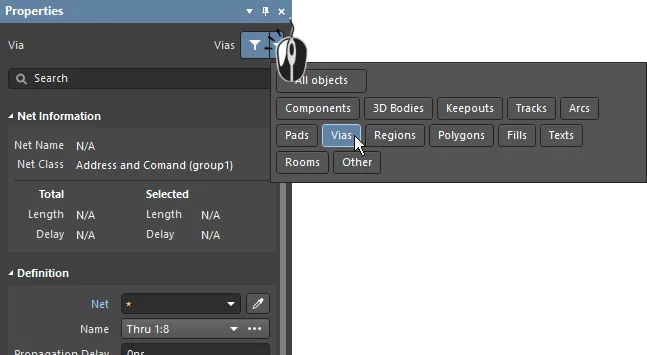 )
)선택된 라우팅 설정 옵션의 광택 및 재추적
이 PCB Editor – Gloss And Retrace ' Preferences (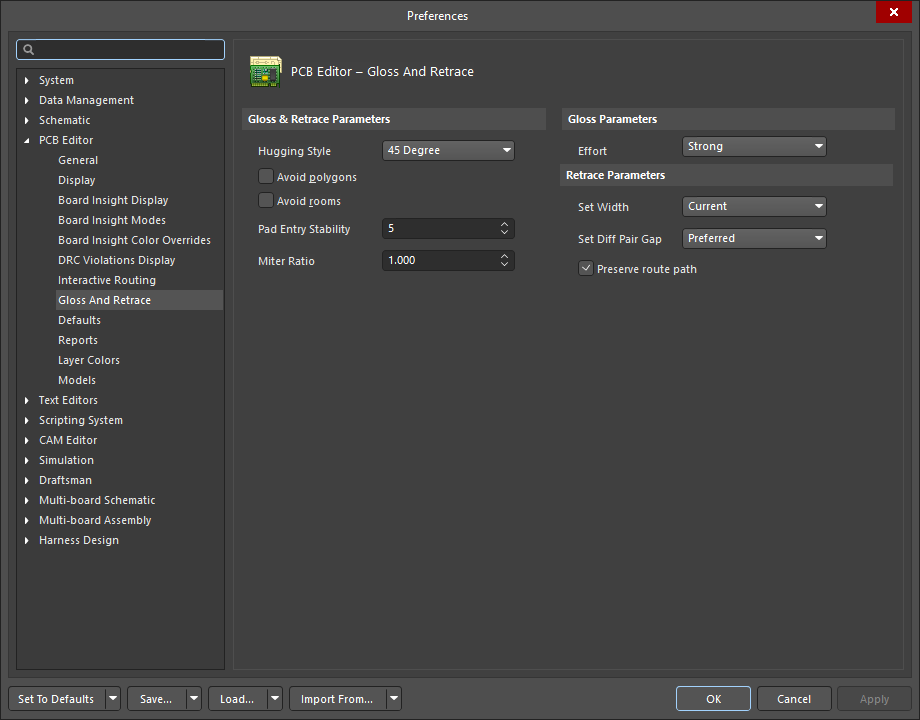 )의이 페이지와 Gloss And Retrace Panel()의 이페이지에서는 PCB 설계 공간 내의 ‘선택 항목 강조 표시’ 및 ‘선택 항목 재추적’ 기능과 관련된 다양한 제어 기능을 제공합니다.
광택 및 리트레이스 파라미터 |
|
Hugging Style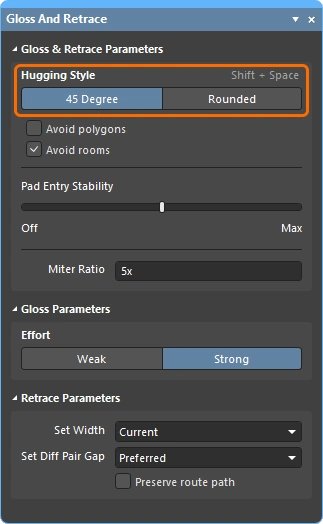 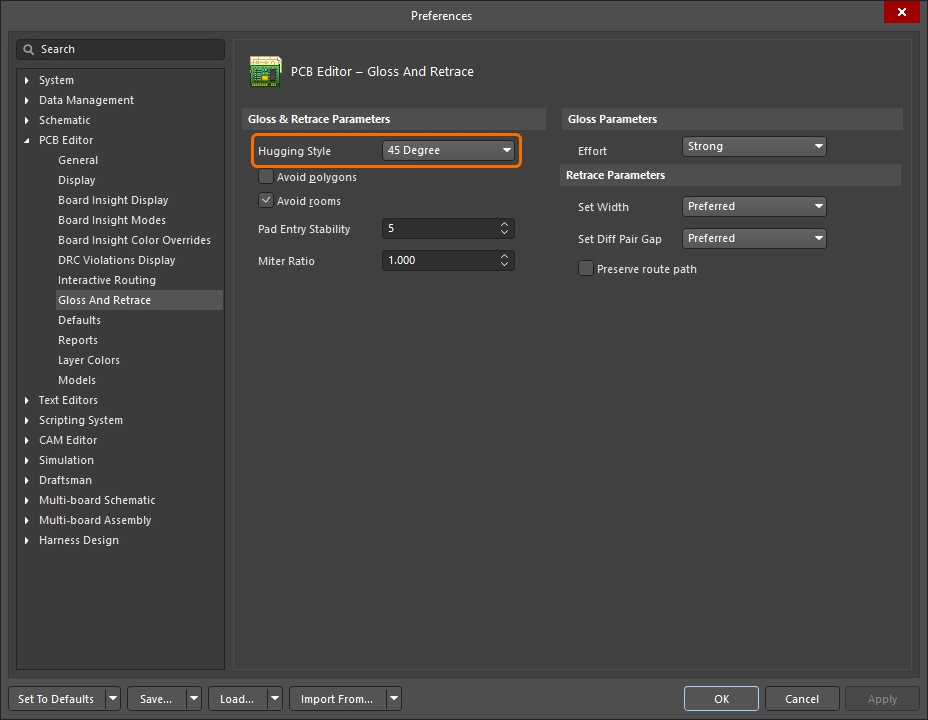 |
|
Avoid polygons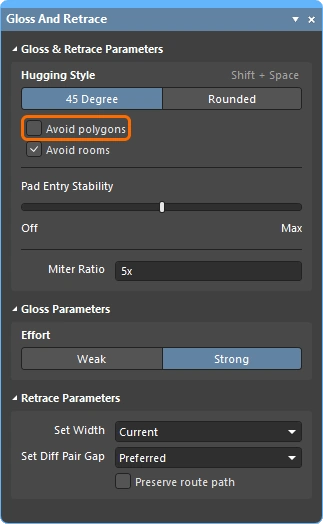 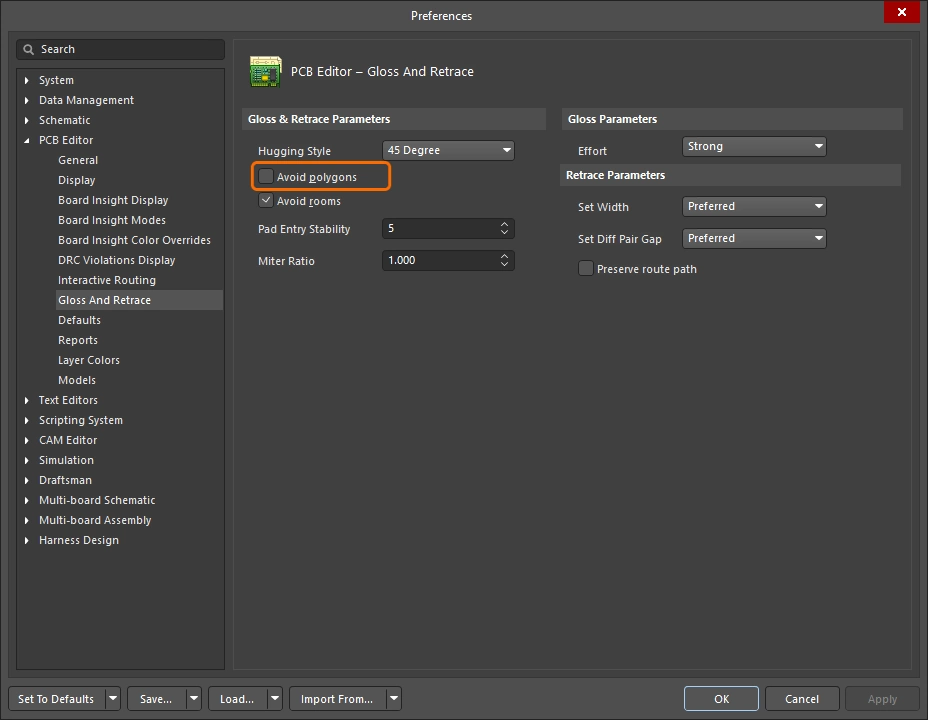 |
이 기능이 활성화되면, Gloss Selected 또는 Retrace Selected 명령이 실행될 때 기존 폴리곤이 유지됩니다. 이 옵션이 비활성화되면 기존 폴리곤은 무시되며(폴리곤을 가로질러 라우팅이 수행됨), 영향을 받은 폴리곤은 다시 채울 수 있습니다. |
Avoid rooms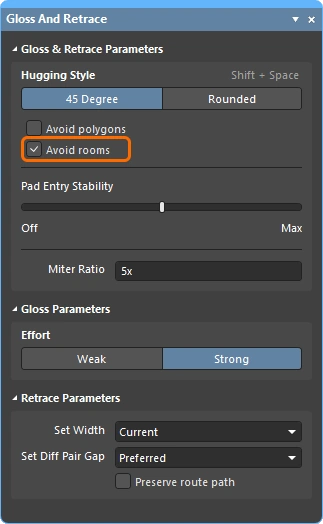 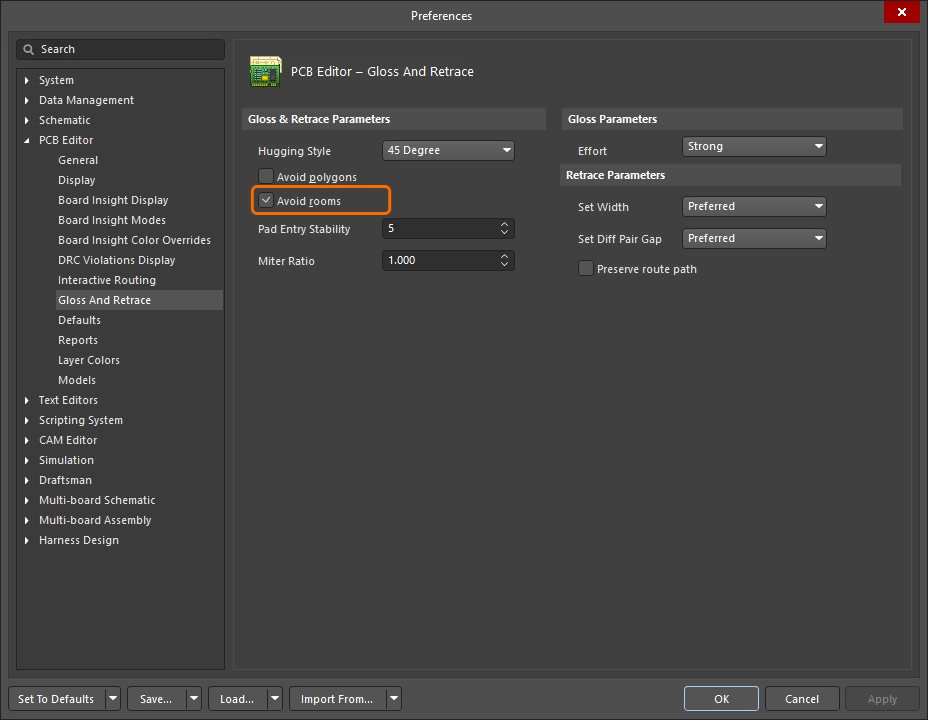 |
이 옵션이 활성화되어 있으면, Gloss Selected 또는 Retrace Selected 명령이 실행될 때 기존 방이 반영됩니다. 설계에 특정 배선 폭 요구 사항이 적용되는 방이 정의되어 있고, 수정/재추적할 라우팅이 해당 방을 가로지르지 않는 경우, 이 옵션이 활성화되어 있으면 결과 라우팅도 이 방을 가로지르지 않게 됩니다. 이 옵션이 비활성화된 경우, 기존 방을 가로질러 라우팅되며, 해당 방 내에서 사용될 너비는 방 기반 규칙의 제약 조건에 정의된 값이 적용됩니다. |
Pad Entry Stability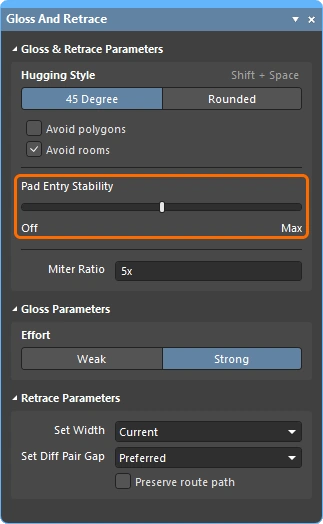 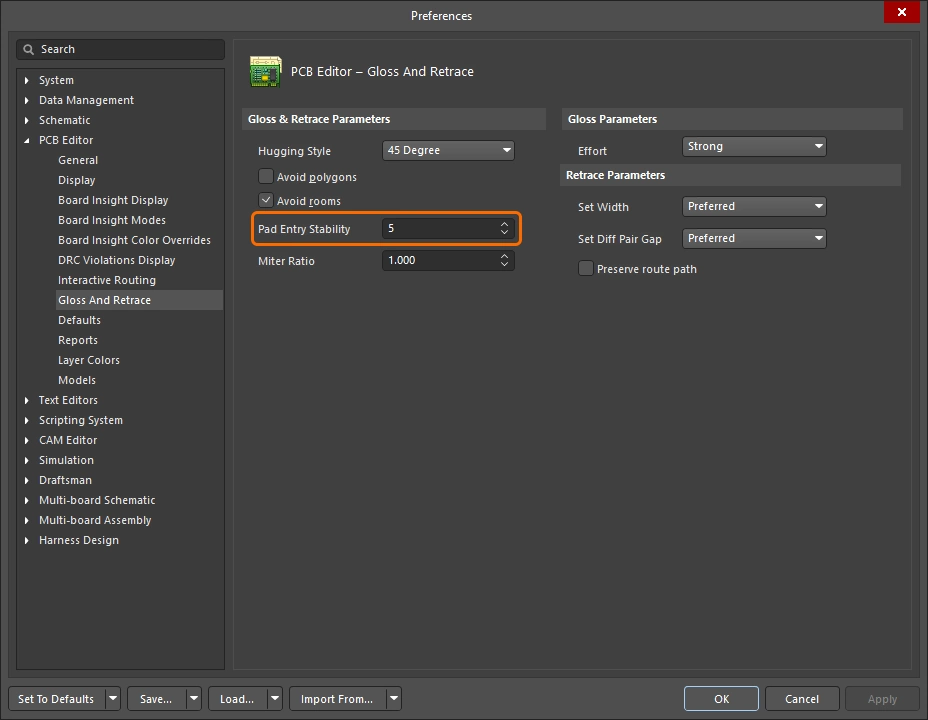 |
중앙 정렬된 Pad 입력을 보호합니다. 원하는 수준(환경 설정)을 입력하거나 슬라이더 바(Panel)를 사용하여 보호 수준을 구성하십시오. ' |
Miter Ratio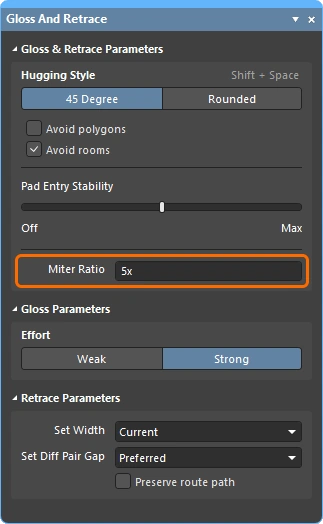 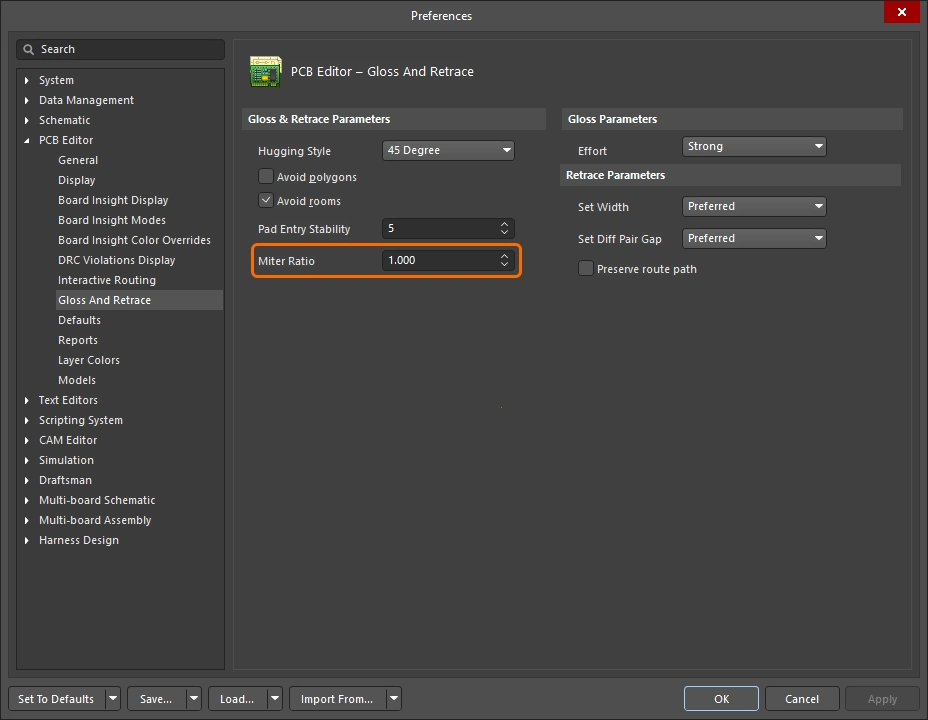 |
최소 코너 타이트니스를 제어합니다. 마이터 비율에 현재 Track 폭을 곱한 값은 해당 비율로 라우팅할 수 있는 가장 타이트한 U자형 구조의 벽면 간격과 같습니다. 0 이상인 양의 값을 입력하십시오. |
Effort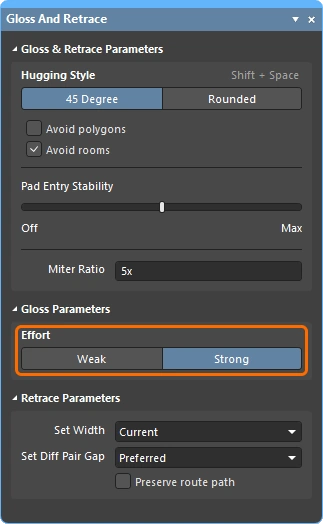 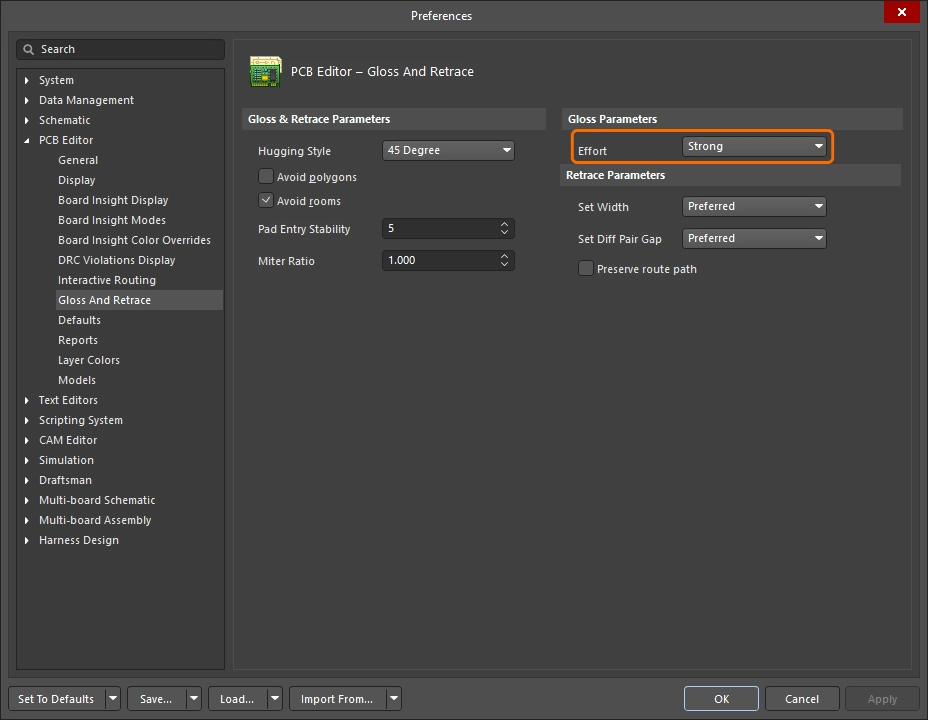 |
다음 옵션 중에서 원하는 광택 수준을 선택하십시오:
|
Set Width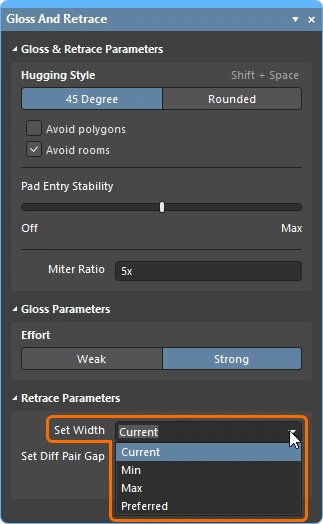 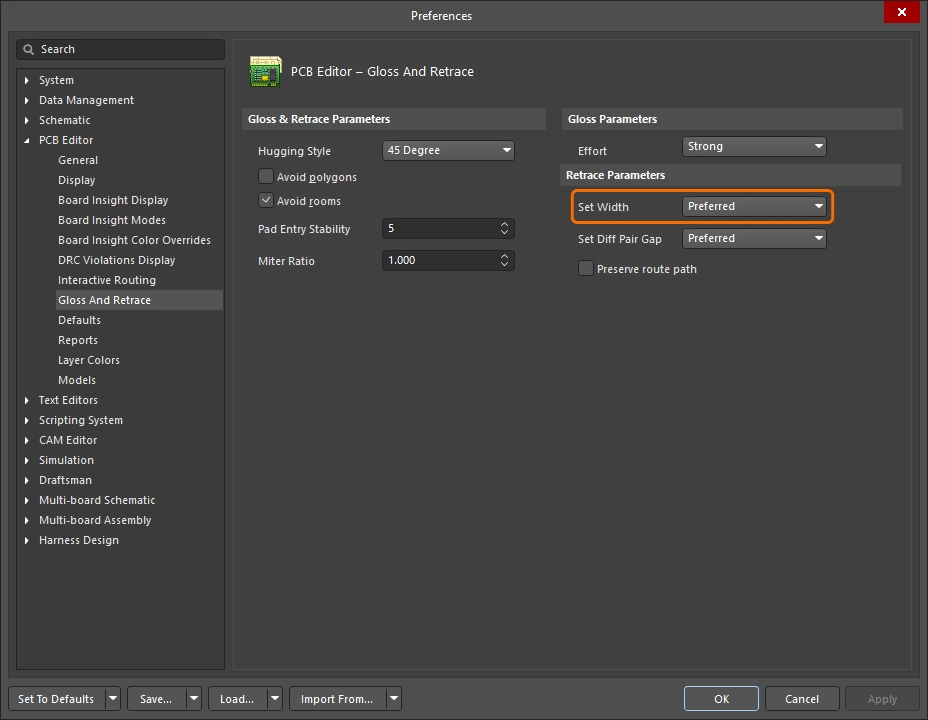 |
드롭다운 메뉴를 사용하여 Rule 기반 폭 옵션 중 하나를 선택하십시오(Min / Max / Preferred) 중 하나를 선택하십시오. 라우팅 설계 제약 조건 중 하나를 선택하십시오. Retrace Selected 명령이 실행될 때 적용 가능한 ‘폭’ 또는 ‘차동 쌍 배선’ 설계 제약 조건의 규칙 기반 폭 옵션(//) 중 하나를 선택하거나, Current width를 사용하여 재추적할 수도 있습니다. 또는 필드에 원하는 Custom 너비 값을 직접 입력하십시오. |
Set Diff Pair Gap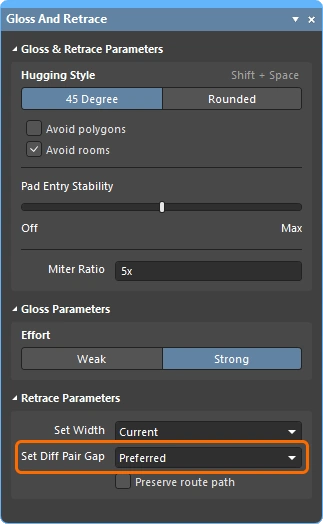 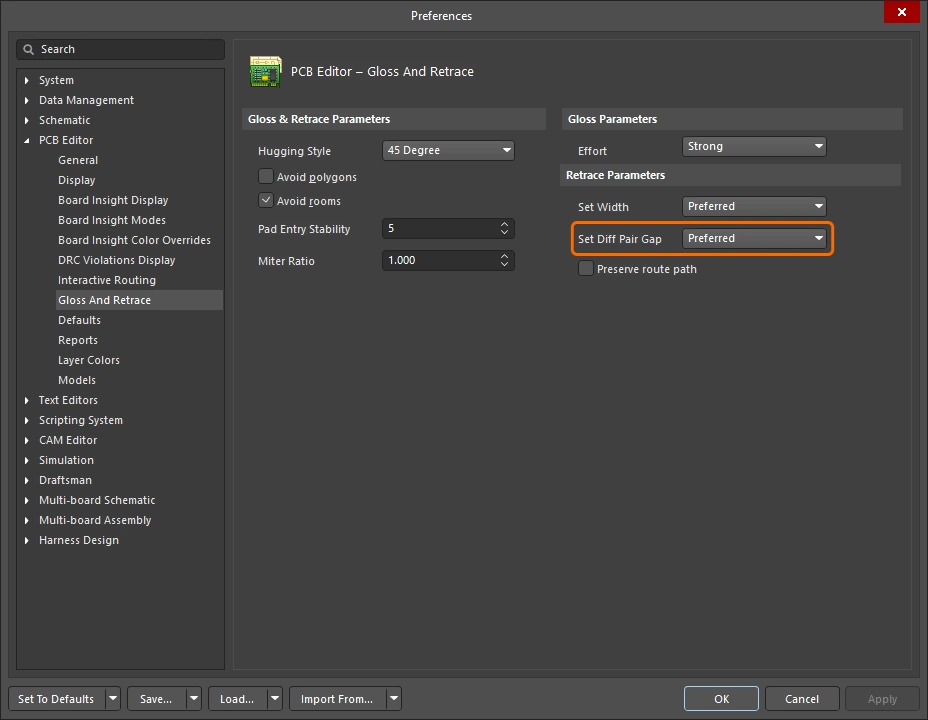 |
드롭다운 메뉴를 사용하여 Rule 기반 간격 옵션 중 하나를 선택하십시오 (Min / Max / Preferred) 중 하나를 선택하십시오. 라우팅 설계 제약 조건 중 하나를 선택하십시오. Retrace Selected 명령이 실행될 때 적용 가능한 차동 페어 배선 설계 제약 조건의 규칙 기반 간격 옵션(//) 중 하나를 선택하거나, Current 차동 페어 트랙 간의 간격을 재추적할 수 있습니다. 또는 필드에 원하는 Custom 간격 값을 직접 입력할 수도 있습니다. 이 옵션은 45 Degree 옵션이 선택된 경우에만 사용할 수 있습니다 Hugging Style선택된 경우에만 사용할 수 있습니다. |
Preserve route path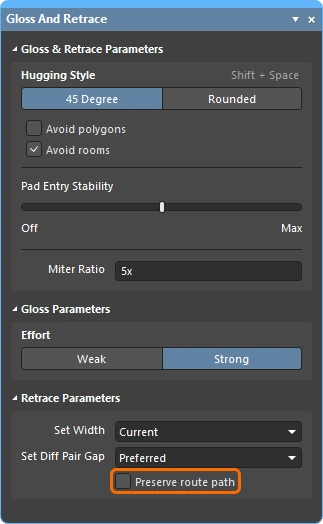 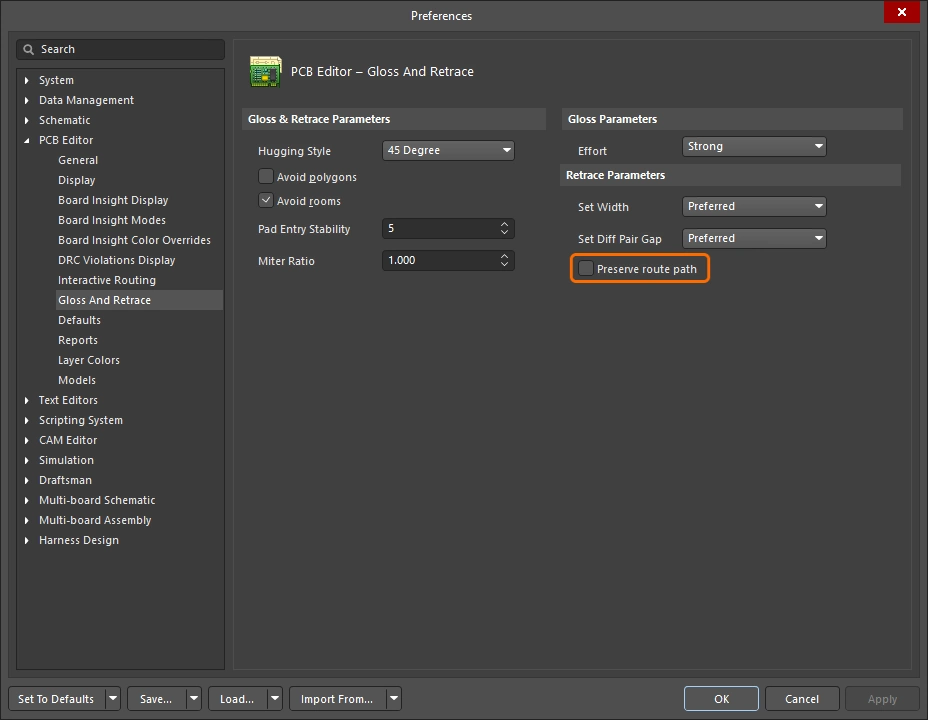 |
재추적(Retrace) 중에 Trace의 정확한 기하학적 구조를 유지하려면 이 옵션을 활성화하십시오. 이 옵션이 활성화되면 재추적 알고리즘이 Trace의 중심선을 수정하지 않습니다. Trace의 너비는 변경되거나 서로 다른 너비의 세그먼트로 분할될 수 있지만, 궤적 자체는 변경되지 않습니다. |
정보 및 경고 메시지
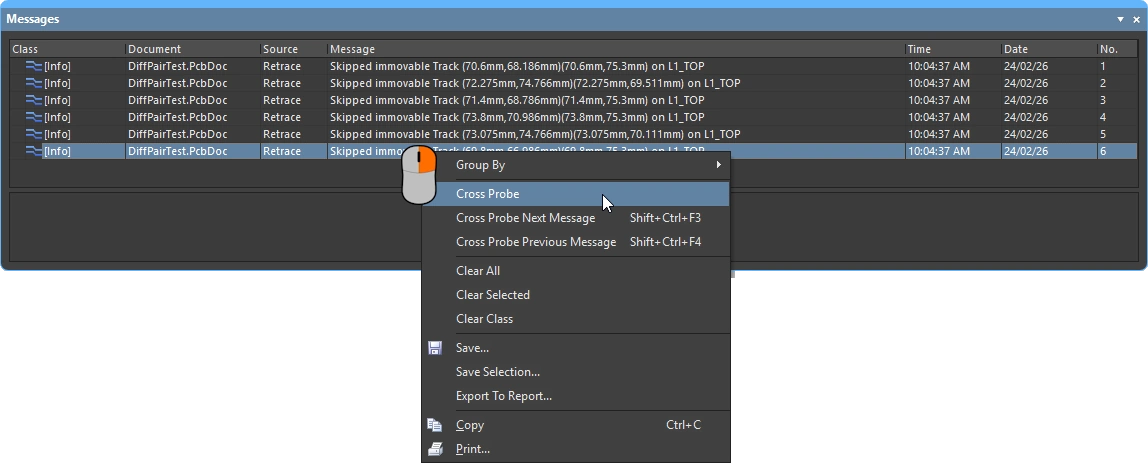
정보 메시지 ( |
|
Skipped immovable + |
개체가 Gloss/Retrace에서 보호됩니다(예: 잠겨 있거나 컴포넌트에 속해 있는 경우). 최대 개수 20개, 클릭 가능. |
Skipped subnet jumper + |
서브넷 점퍼는 그대로 유지되며, 각 경우에 사용자에게 알림이 표시됩니다. 최대 개수 20개, 클릭 가능. |
Skipped reflex angle + |
180도보다 큰 Arc는 글로스 처리되지 않습니다. 최대 개수 20개, 클릭 가능. |
Skipped objects in user-defined Union |
합집합에 속하는 객체는 광택 처리가 되지 않습니다(길이 조정 합집합에는 적용되지 않음). 관련된 유니온당 한 번만 적용됩니다. 최대 개수 20개, 클릭 가능, 유니온의 경계 사각형으로 확대됩니다. |
Command does not apply to arcs (Retrace only) |
Retrace는 Arc를 지원하지 않습니다. 최대 개수 1개, 클릭 가능, 처음 발견된 Arc로 확대됩니다. |
 )
)경고 메시지 |
|
Applicable Diff Pair Routing rule not found for some object(s) + |
일부 Gloss/Retrace 타겟은 디프 페어 넷에 속하지만, 적용 가능한 디프 페어 라우팅 Rule이 없습니다. 이러한 경우, 명령은 타겟을 비-디프 페어 객체로 취급하며, 이는 페어의 양쪽이 서로 Gloss되어 제거될 수 있음을 의미합니다. 최대 개수 1개, 클릭 가능. |
Applicable Width rule not found for some object(s) + |
Retrace는 최소~선호 폭 Rule 설정을 사용합니다. 적용 가능한 폭 Rule이 없는 경우, 현재 폭이 유지됩니다. 최대 개수 1개, 클릭 가능.Retrace는 '최소 ~ 선호 폭' 규칙 설정을 사용합니다. 적용 가능한 폭 규칙이 없는 경우, 현재 폭이 유지됩니다. |
Pre-existing Min Width violation(s) detected + |
Retrace는 최소에서 선호 폭 Rule 설정을 사용하며, DRC 위반을 유발하지 않는 경우 선호 폭을 사용하고, DRC 위반을 방지하기 위해 필요한 경우 더 작은 폭을 사용합니다. 따라서, 처음부터 최소 너비 이상이었다면 DRC 위반이 없는 Track은 계속 DRC 위반이 없는 상태로 유지됩니다. 그보다 더 좁았다면, 최소 너비로 설정할 경우 DRC 위반이 발생할 수 있습니다. 이 메시지는 실제 DRC 위반이 발생했는지 여부와 관계없이 이러한 상황을 경고합니다. 메시지를 클릭할 때쯤이면 원래의 얇은 개체가 넓어지거나 위치가 변경되었을 수 있다는 점에 유의하십시오. 무슨 일이 일어났는지 파악하려면 '실행 취소'를 해야 할 수도 있습니다. 최대 개수 1개, 클릭 가능. |
대화형 라우팅 및 대화형 슬라이딩 옵션
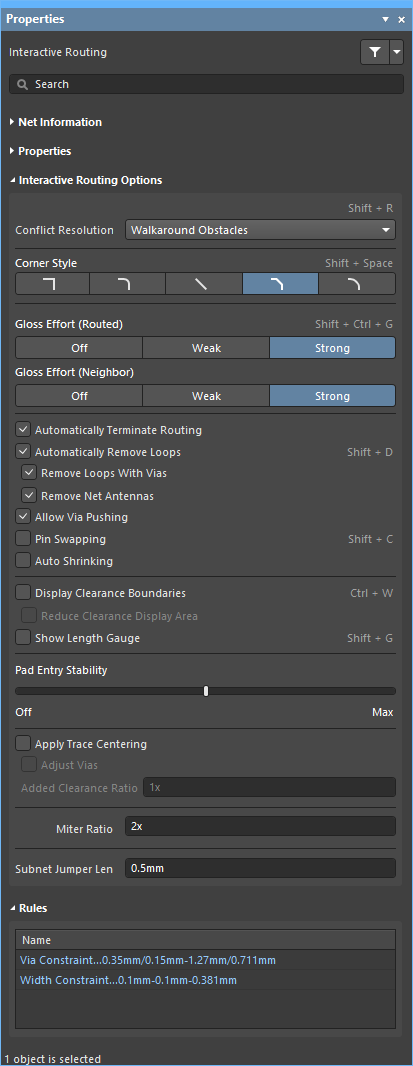
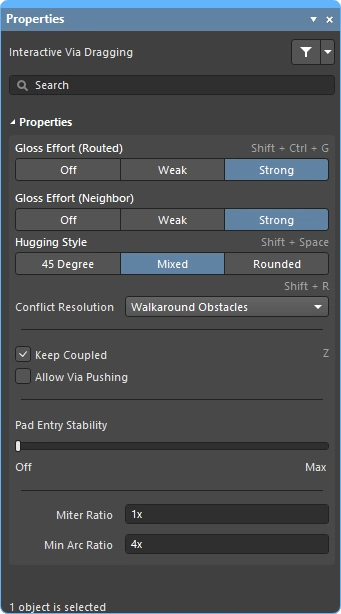 새로운 Connection을 대화형으로 라우팅하든, 추가 라우팅을 위한 공간을 확보하기 위해 기존 경로를 드래그(슬라이딩)하든, 많은 부분에서 동일한 라우팅 기술이 적용됩니다. 이 섹션에서는 Properties Panel에서 사용할 수 있는 ‘대화형 라우팅( xml-ph-0000@deepl.internal )’, ‘대화형 슬라이딩( xml-ph-0001@deepl.internal )’, ‘대화형 비아 드래그( xml-ph-0002@deepl.internal )’ 옵션을 요약합니다. 이러한 기능에 대한 기본 설정은 PCB Editor 섹션의 Preferences (
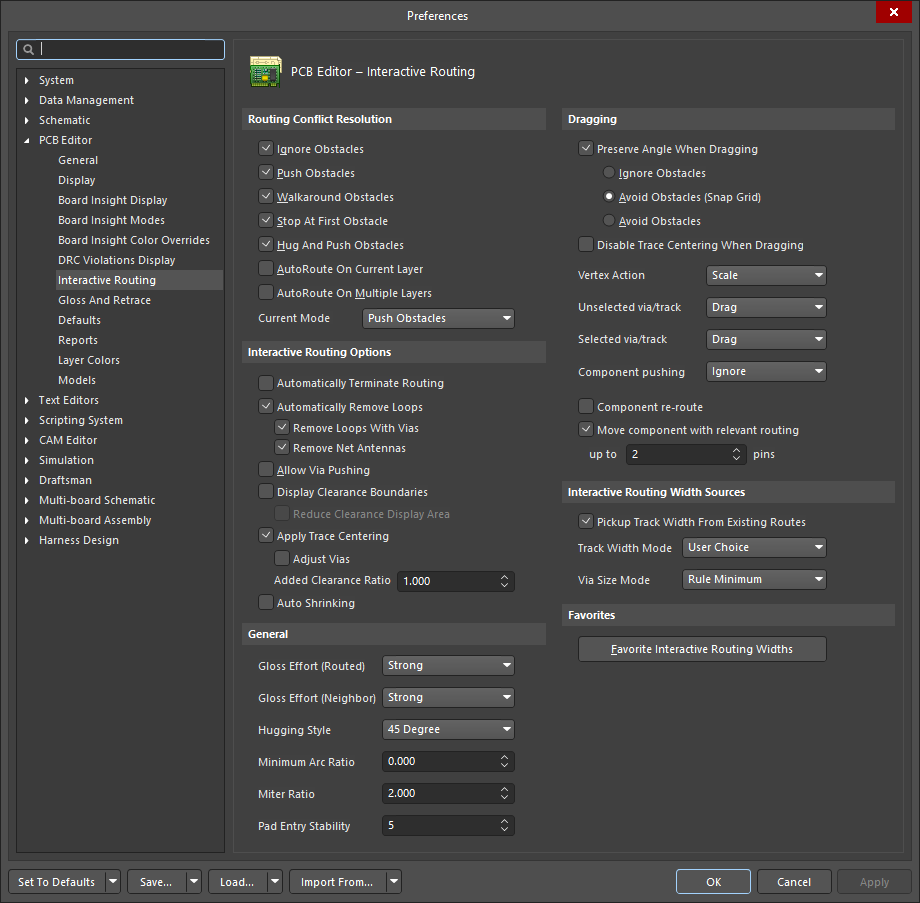 )의섹션에서 구성됩니다.
 )
)충돌 해결 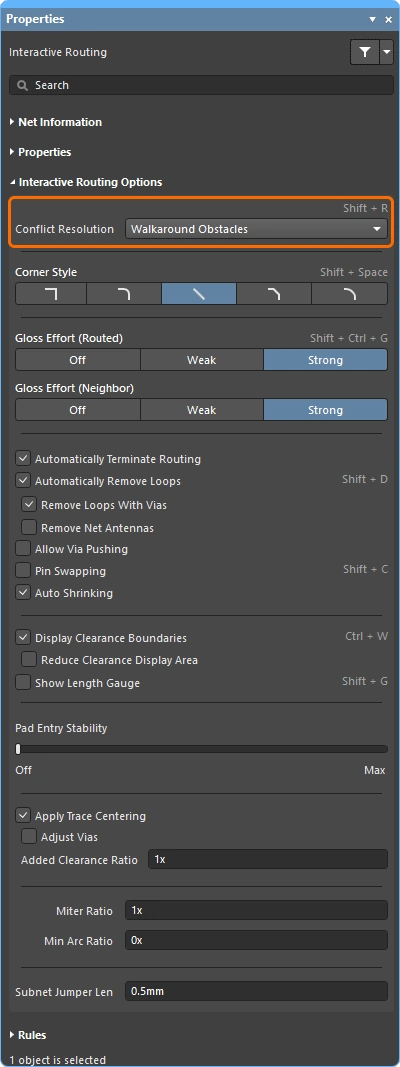
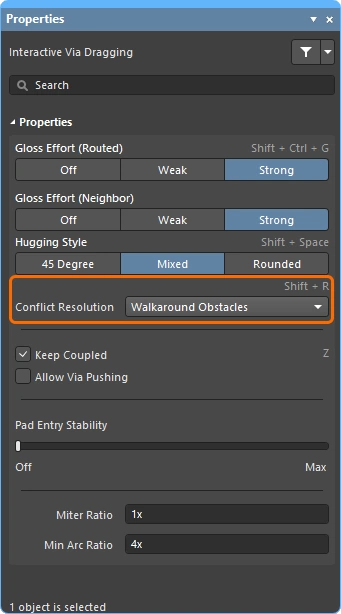
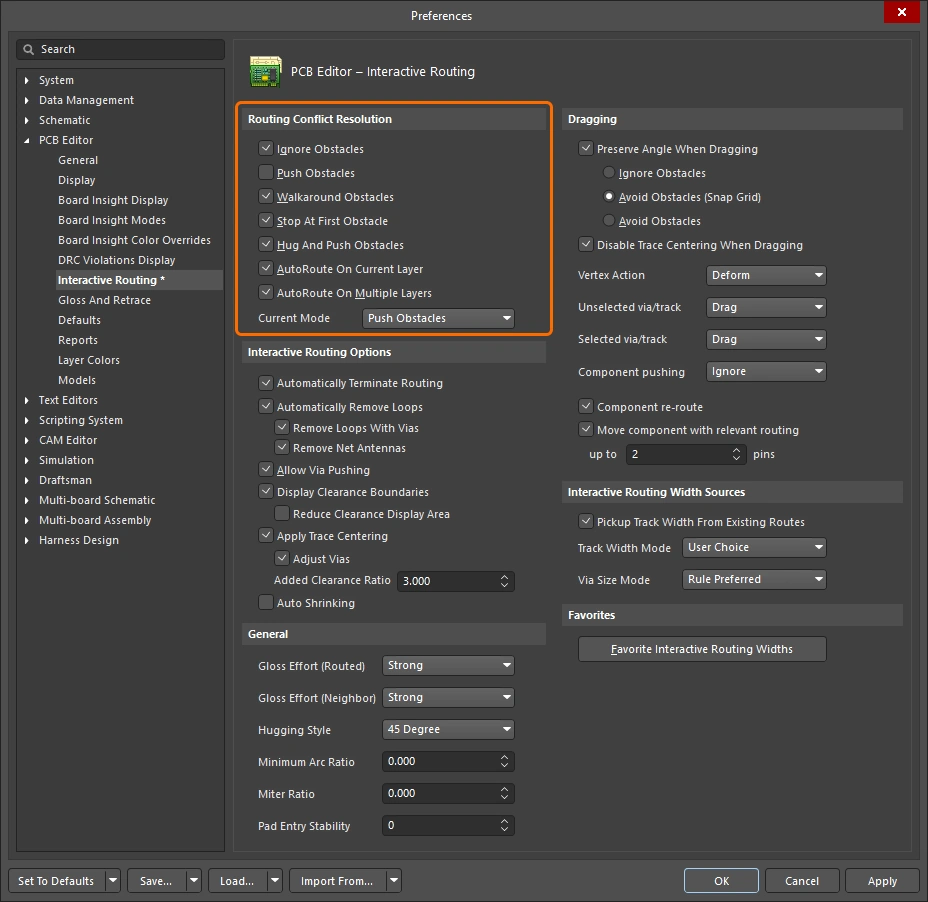
이 옵션은 라우팅/슬라이딩 개체가 기존 개체와 충돌할 때 어떻게 반응할지 결정합니다. Shift+R 단축키를 눌러 라우팅 또는 슬라이딩 중에 사용 가능한 모드를 순차적으로 전환하거나, Tab 를 눌러 Properties Panel을 열고 필요한 설정을 선택하십시오.
대화형 라우팅 중 또는 대화형 슬라이딩 중 충돌 해결 모드에 대한 자세한 내용.
| Routing and Sliding Feature | \r\n\t\t
| Routing-only Feature | \r\n\t\t
| Sliding-only Feature | \r\n\t\t
코너 스타일 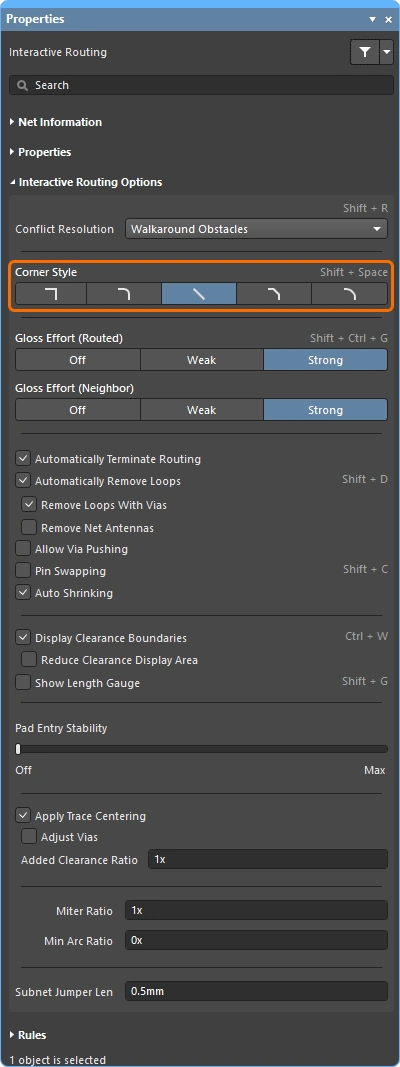
대화형 라우팅 중, 모서리를 형성하는 Track과 Arc로 이루어진 모양을 corner style라고 합니다. 대각선 모서리가 가장 일반적이지만, Arc를 배치하여 만드는 곡선 모서리도 많이 사용됩니다.
인터랙티브 경로 설정(슬라이딩) 중에 Shift+Spacebar 를 눌러 대화형 라우팅(슬라이딩) 중에 5가지 모서리 스타일을 순차적으로 전환하고, Spacebar 를 눌러 코너 방향을 전환하거나, Tab 를 눌러 Properties Panel을 엽니다.
대화형 라우팅 중 또는 대화형 슬라이딩 중에 모서리 스타일을 제어하는 방법에 대한 자세한 내용.
| Routing and Sliding Feature | \r\n\t\t
| Routing-only Feature | \r\n\t\t
| Sliding-only Feature | \r\n\t\t
Track 45

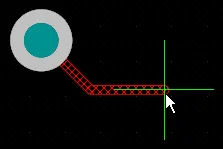 )을 사용하여 모서리를 만듭니다.
 Spacebar 를 눌러 모서리 방향을 전환합니다(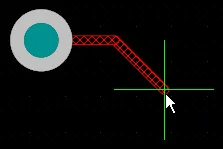 ).
).Track 45 with Arc

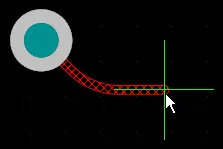 ).
). Spacebar 키를 눌러 모서리 방향을 전환합니다(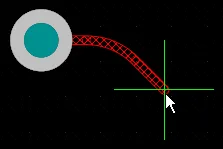 ).
). , & . 키를 사용하여 Arc의 반지름을 대화형으로 변경하고, Shift 키를 길게 누르면 반지름 변경 속도가 빨라집니다.Track 90

 ).
). Spacebar 키를 눌러 코너 방향을 전환합니다( ).
).Track 90 with Arc

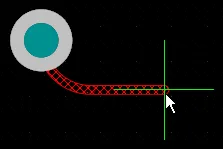 ).
). Spacebar 키를 눌러 코너 방향을 전환합니다(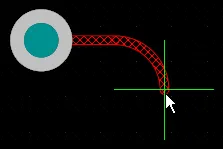 ).
). , & . 키를 사용하여 Arc의 반지름을 대화형으로 변경하고, Shift 키를 길게 누르면 반지름 변경 속도가 빨라집니다.Any Angle

 ). 이 모드를 Strong Glossing과 함께 사용하여 스네이크 라우팅을 수행할 수 있습니다.
글로싱 작업 (라우팅됨) 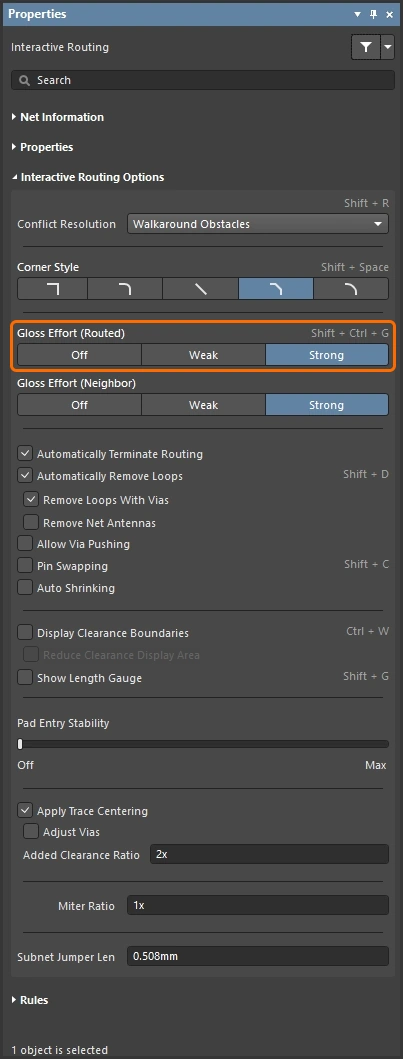
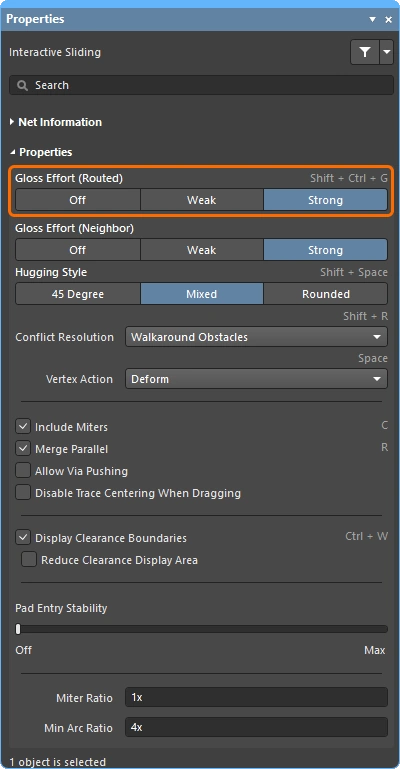
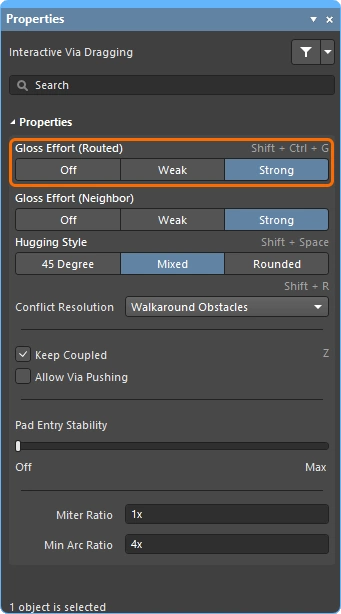
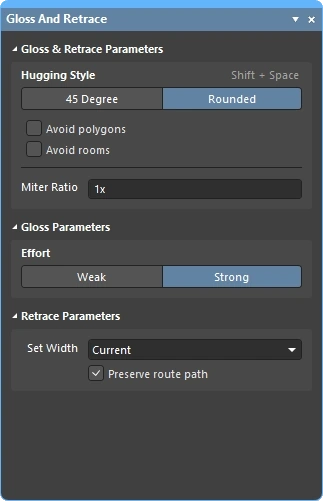
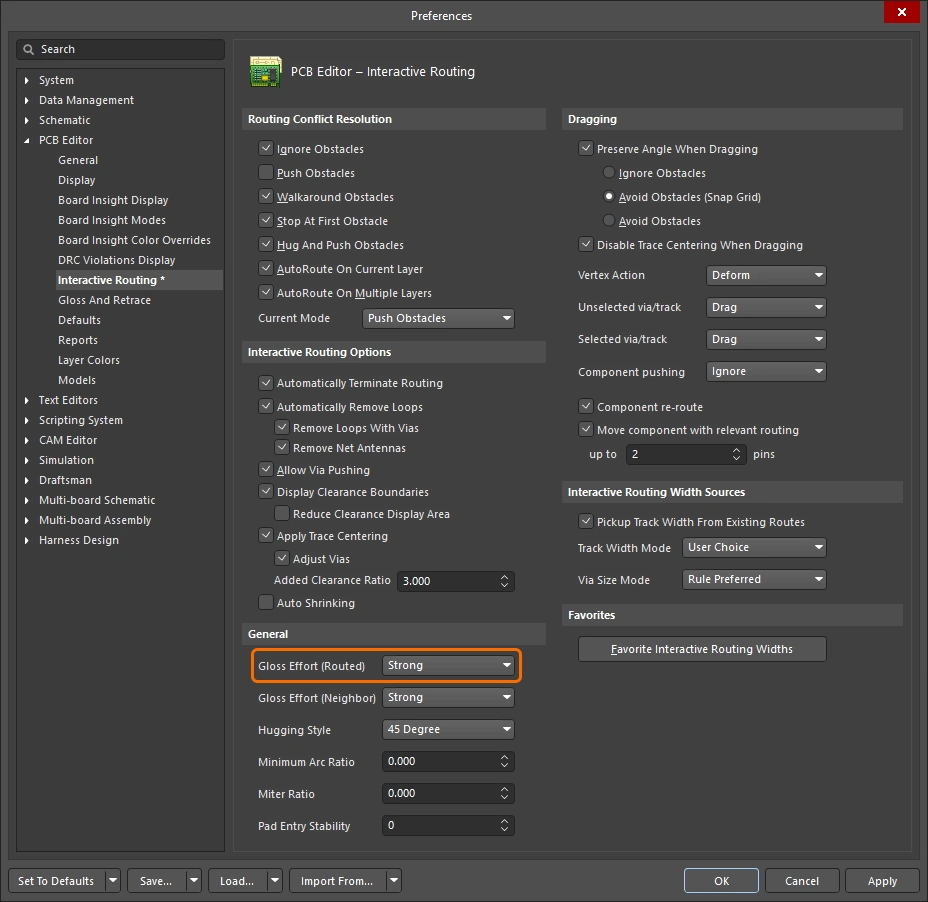
대화형 라우팅이나 대화형 슬라이딩과 같은 라우팅 이벤트가 진행되는 동안, 소프트웨어는 글로싱 엔진을 실행합니다. 글로싱 엔진은 현재 라우팅 이벤트에 의해 배치되거나 영향을 받는 모든 세그먼트를 지속적으로 검토하여 결과의 품질을 개선하려고 시도합니다. 적용되는 노력의 정도를 Gloss Effort라고 합니다.
글로싱 품질의 측정 기준에는 모서리 수 감소, 세그먼트 수 감소, 예각 제거, 전체 경로 길이 단축 등이 포함됩니다. Ctrl+Shift+G 단축키를 사용하여 대화형 라우팅 설정 또는 대화형 슬라이딩 중에 설정을 순차적으로 전환하거나, Tab 를 눌러 Properties Panel을 열고 필요한 설정을 선택하십시오.
대화형 라우팅, 대화형 슬라이딩, 그리고 선택한 라우팅의 글로싱 또는 재추적 중 글로싱 작업에 대한 자세한 내용.
| Routing and Sliding Feature | \r\n\t\t
| Routing-only Feature | \r\n\t\t
| Sliding-only Feature | \r\n\t\t
대화형 슬라이딩 중에는 글로싱 엔진이 설계자가 라우팅 위치를 재조정하려는 시도를 방해하지 않도록 글로싱 강도가 일시적으로 ‘약(Weak)’으로 낮아집니다.
광택 강도 (인접) 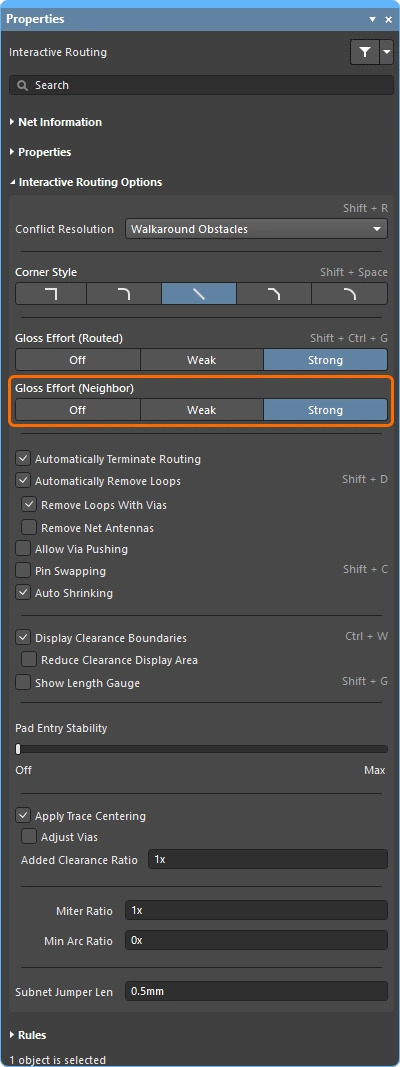
‘글로싱 강도(인접)’ Configuration은 현재 진행 중인 대화형 라우팅 또는 슬라이딩 작업의 영향을 받는 인접 라우트에 적용되는 글로싱의 정도를 설정합니다. 이 Configuration 또한 세 가지 옵션으로 구성됩니다. Off, Weak 및 Strong.
를 누르면 Tab 를 눌러 Properties 를 눌러 Panel을 열고 필요한 설정을 선택하십시오.
대화형 라우팅및 대화형 슬라이딩 중 글로스 처리 관련 자세한 내용.
| Routing and Sliding Feature | \r\n\t\t
| Routing-only Feature | \r\n\t\t
| Sliding-only Feature | \r\n\t\t
허깅 스타일 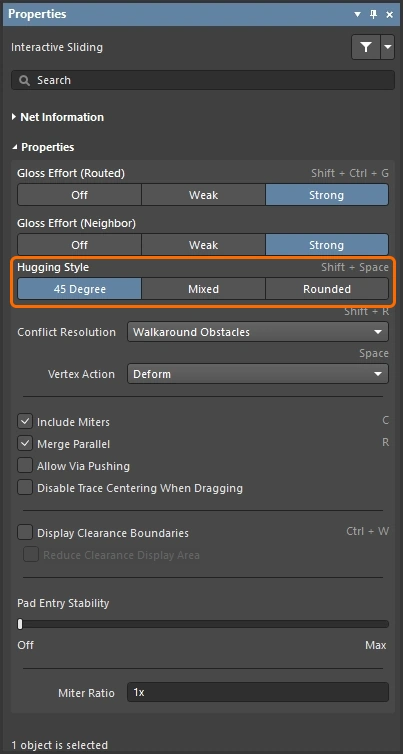
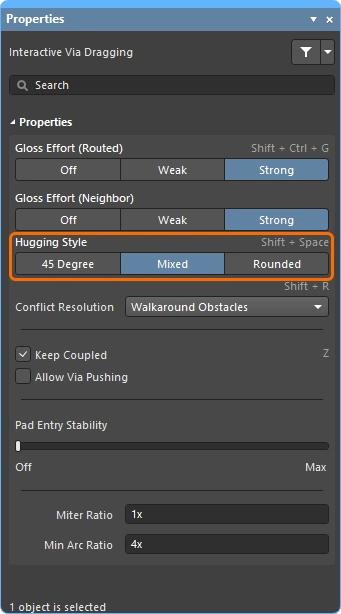
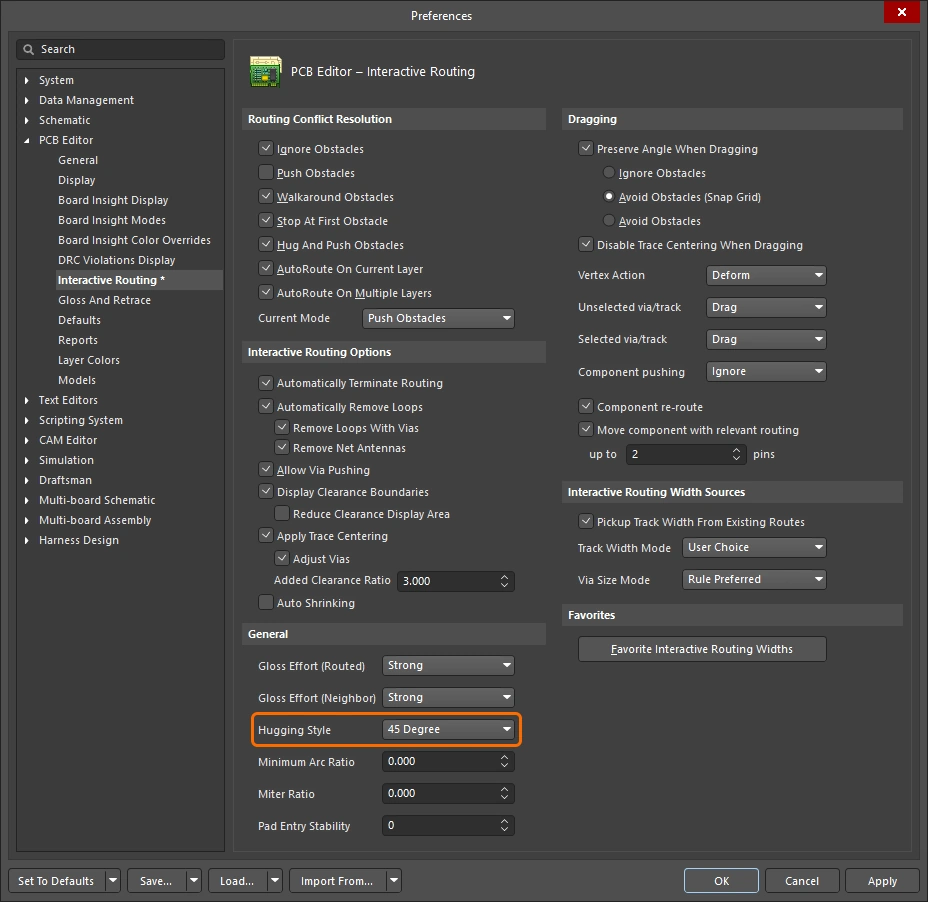
이 옵션은 대화형 슬라이딩 중에 코너 모양을 어떻게 처리할지 제어하며, 슬라이딩되는 Track과 밀려나는 Track 모두에 영향을 미칩니다. 대화형 슬라이딩 중 Track 이동의 영향을 받는 기존 코너는 현재 적용된 허깅 스타일에 따라 변환됩니다(45도에서 둥근 모서리로, 또는 둥근 모서리에서 45도로). 현재의 ‘허깅 스타일’은 선택한 경로의 글로싱 또는 재추적 시에도 적용됩니다.
다음 Shift+Spacebar 단축키를 사용하여 세 가지 모드를 순차적으로 전환할 수 있습니다.
대화형 슬라이딩 중 및 선택한 라우팅의 글로싱 또는 재추적 중 허깅에 대한 자세한 내용.
| Routing and Sliding Feature | \r\n\t\t
| Routing-only Feature | \r\n\t\t
| Sliding-only Feature | \r\n\t\t
정점 동작 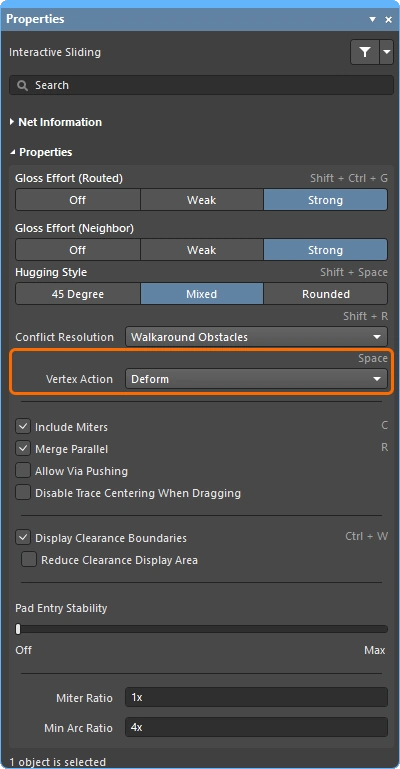
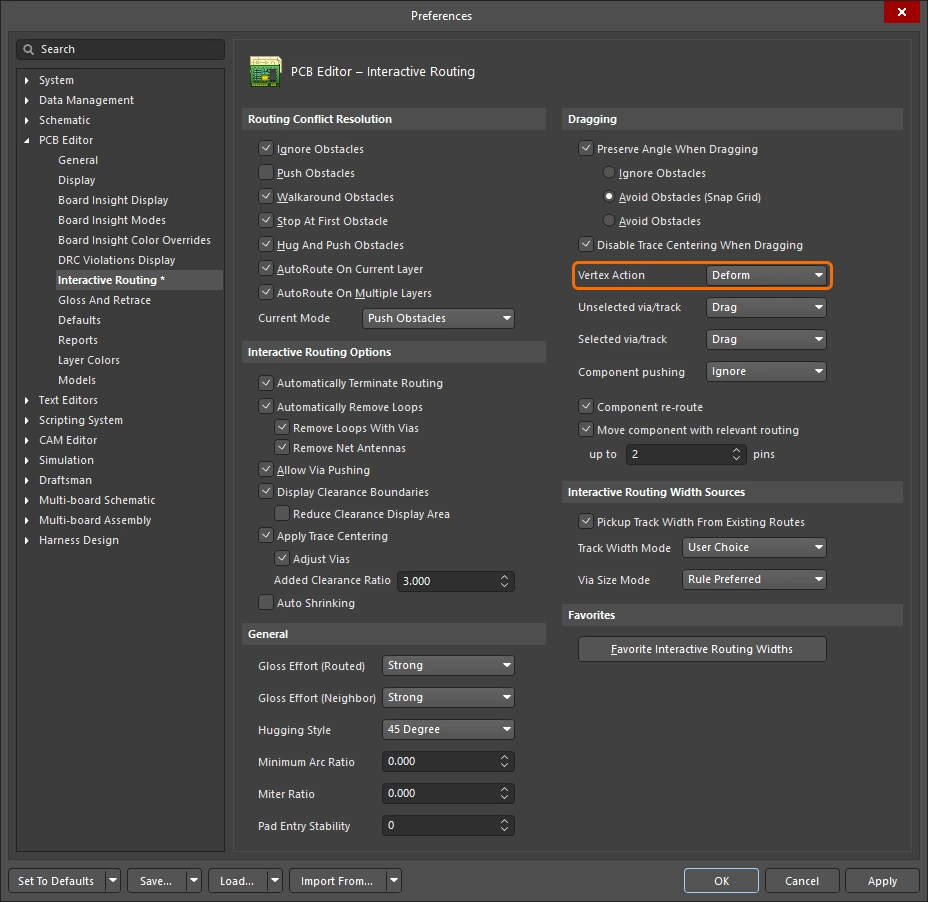
Track이나 Arc 세그먼트를 따라 드래그하는 것이 아니라 정점을 클릭하고 드래그할 때 적용되는 옵션입니다(정점은 두 세그먼트가 만나는 모서리 위치입니다). 슬라이딩 중에 Spacebar 단축키를 사용하여 드래그하는 동안 사용 가능한 모드를 순차적으로 전환할 수 있습니다.
기타 라우팅 설정 옵션
옵션에 대한 단축키가 있는 경우, 해당 내용은 패널의 오른쪽에 자세히 설명되어 있습니다. Properties Panel의 오른쪽에 자세히 설명되어 있습니다. 각 설명에는 해당 옵션을 Configuration할 수 있는 위치의 이미지가 포함되어 있습니다.
| Routing and Sliding Feature | \r\n\t\t
| Routing-only Feature | \r\n\t\t
| Sliding-only Feature | \r\n\t\t
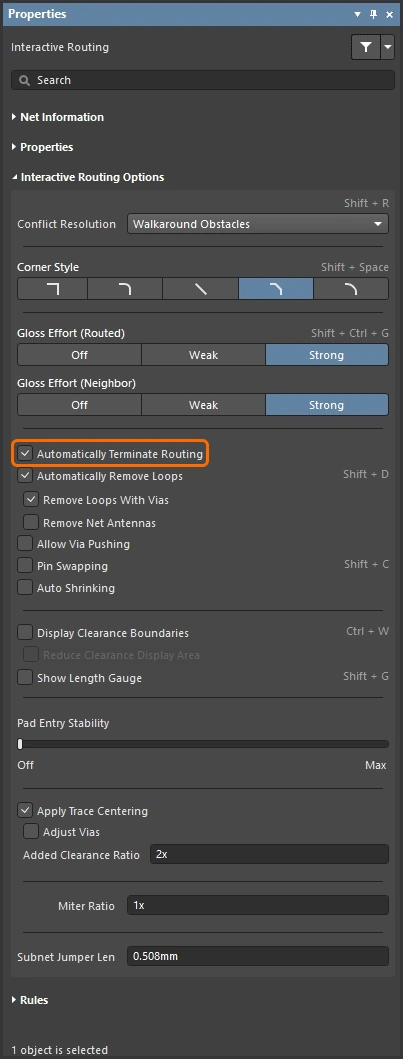
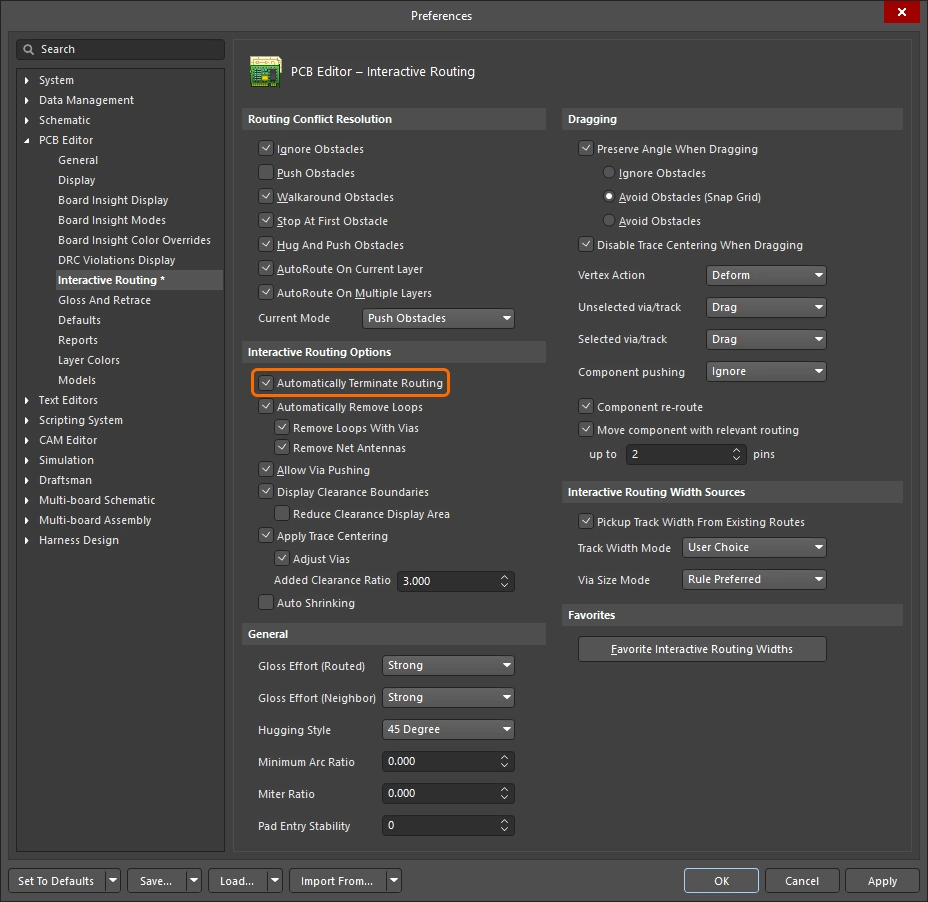
라우팅 중인 현재 연결이 타겟 Pad에 도달하면 해당 네트의 라우팅을 자동으로 중지하되, 대화형 라우팅 명령 모드는 유지하여 클릭 한 번으로 다른 네트의 라우팅을 시작할 수 있도록 합니다.
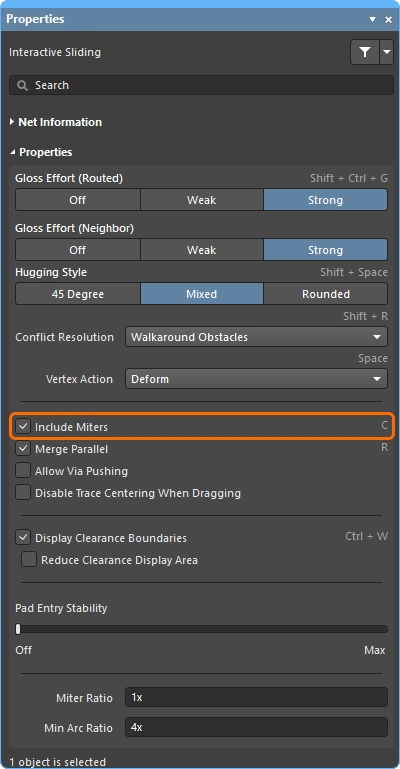
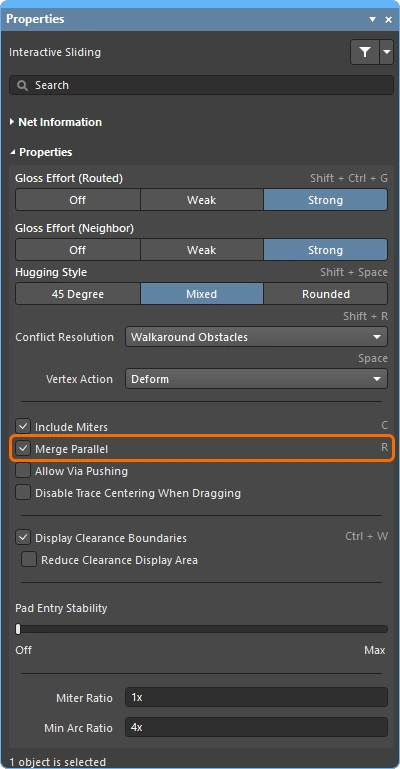
이 옵션이 활성화되면 기존 경로에 대한 새로운 경로를 라우팅할 수 있으며, 새로운 경로가 기존 경로와 다시 만나면 중복 루프가 자동으로 제거됩니다.
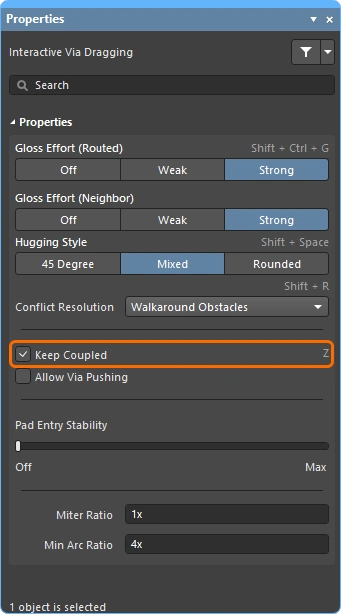
이 옵션을 선택하면 차동 쌍에 속하는 개체가 해당 쌍의 파트너 Track 또는 비아와 함께 드래그되도록 할 수 있습니다.
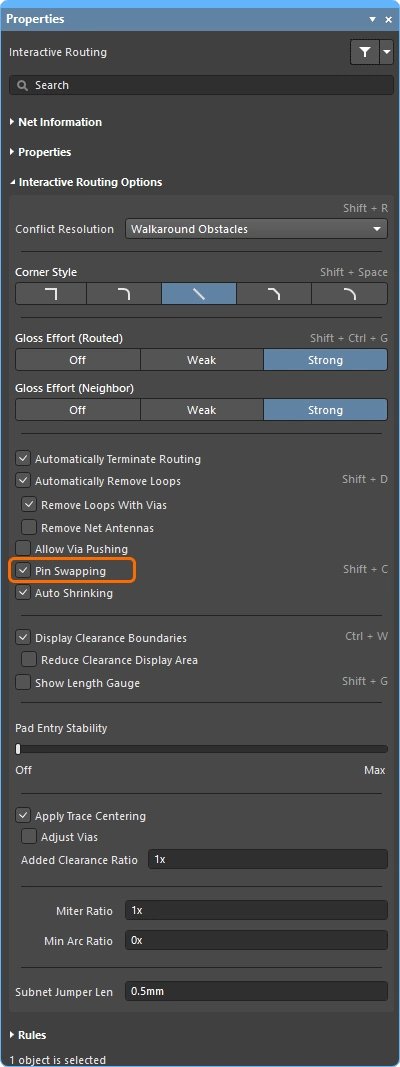
이 Net에 대한 핀 교환을 활성화하려면 이 옵션을 선택하십시오.
핀 스와핑 설정에 대해 자세히 알아보세요.
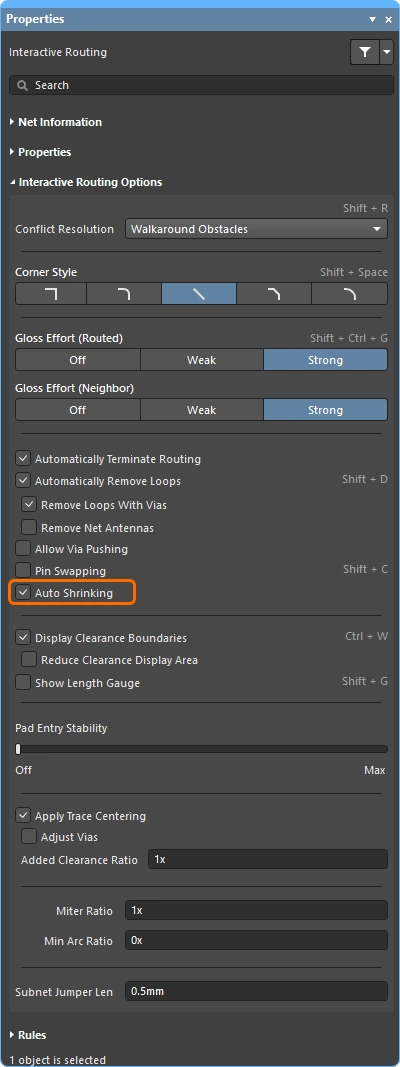
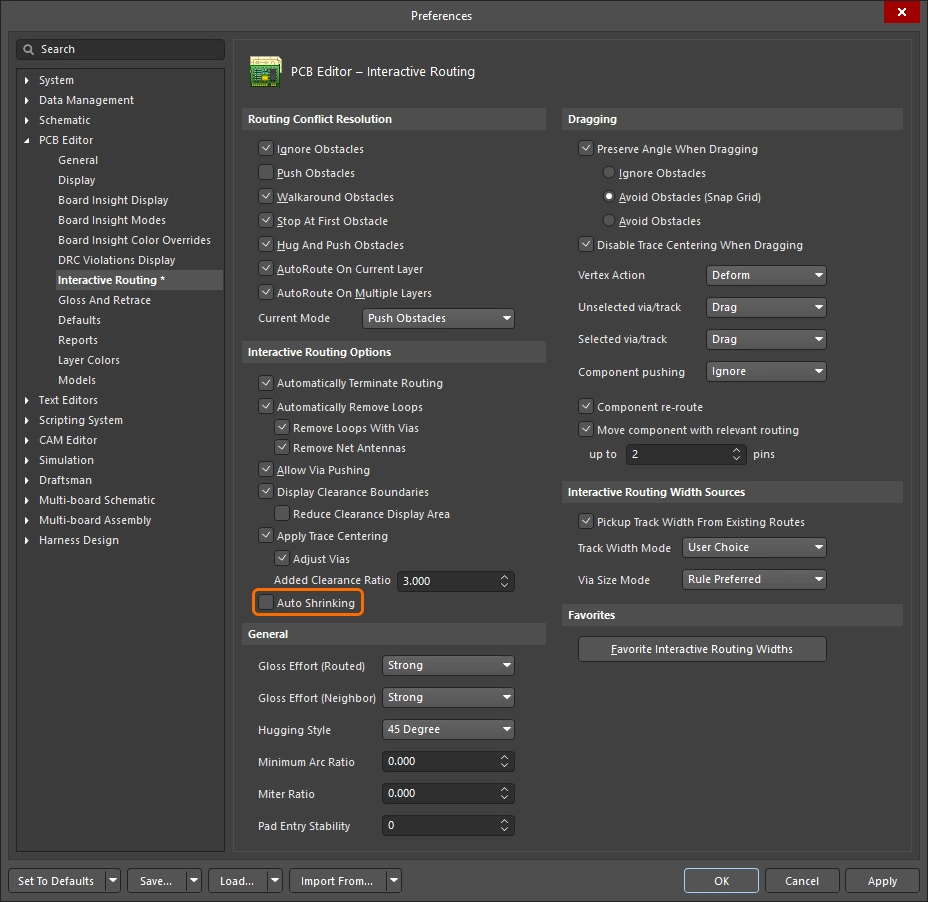
현재 선택된 라우팅 폭으로는 장애물 사이로 Track을 라우팅할 수 없는 위치에서 라우팅이 가능하도록 라우팅 폭을 자동으로 축소하려면 이 옵션을 선택하십시오. 라우팅 폭은 해당 ‘라우팅 폭’ 설계 제약 조건에서 허용하는 최소값까지만 줄일 수 있습니다.
자동 축소 기능에 대한 자세한 내용을 확인하십시오.
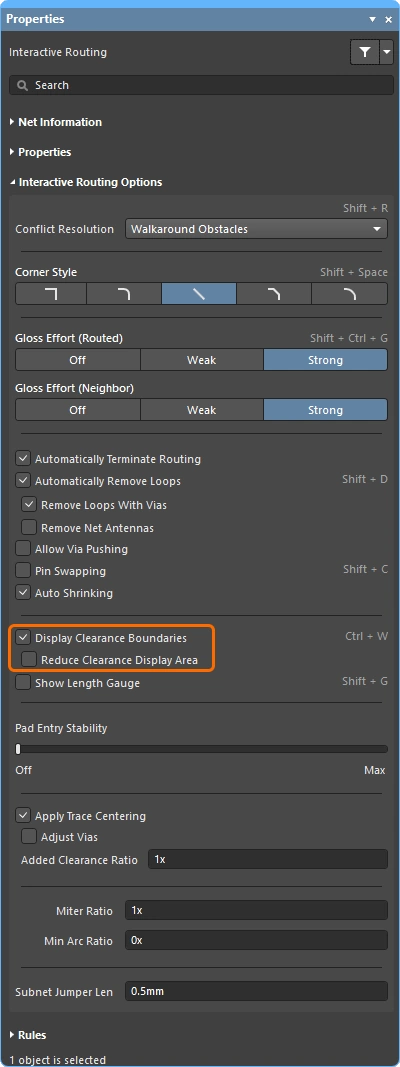
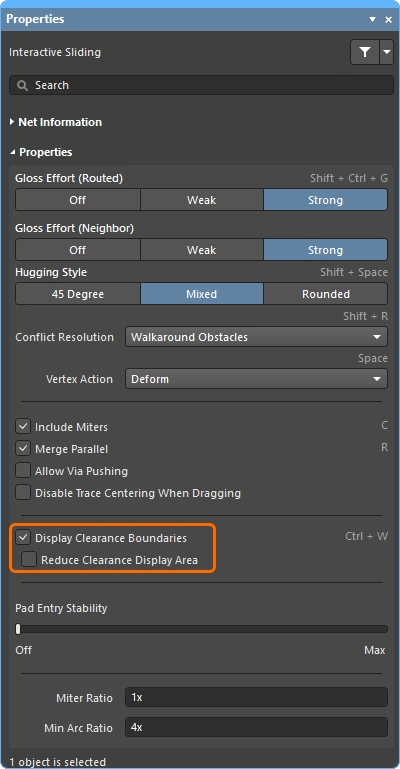
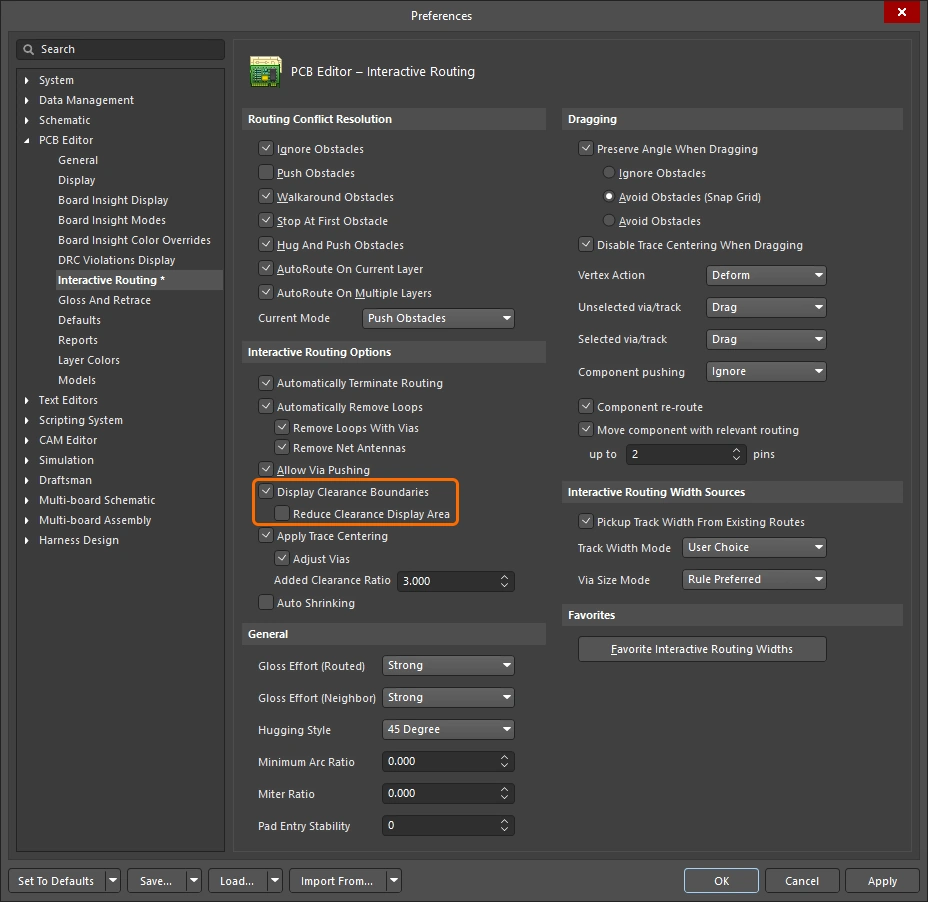
기존 개체 주위의 진입 금지 구역(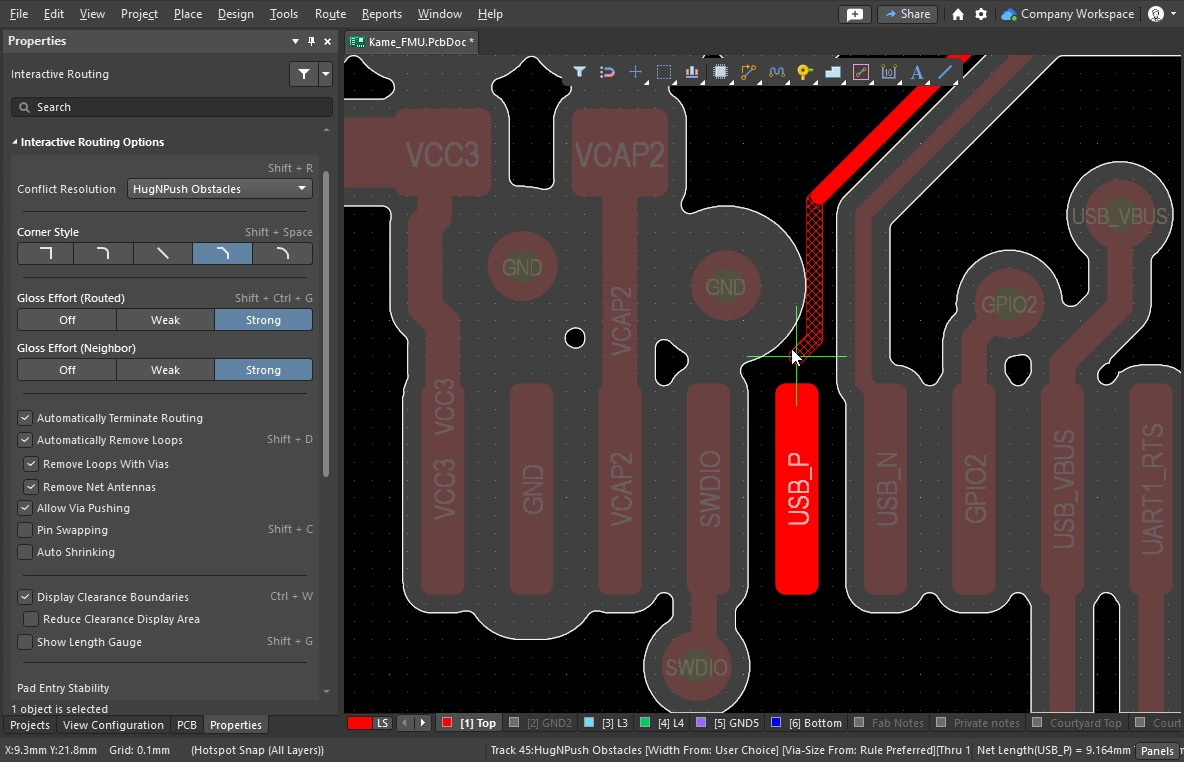 )을 표시합니다. 이 구역은 해당 개체에 적용되는 '클리어런스(Clearance)' Design Rule에 의해 정의됩니다.
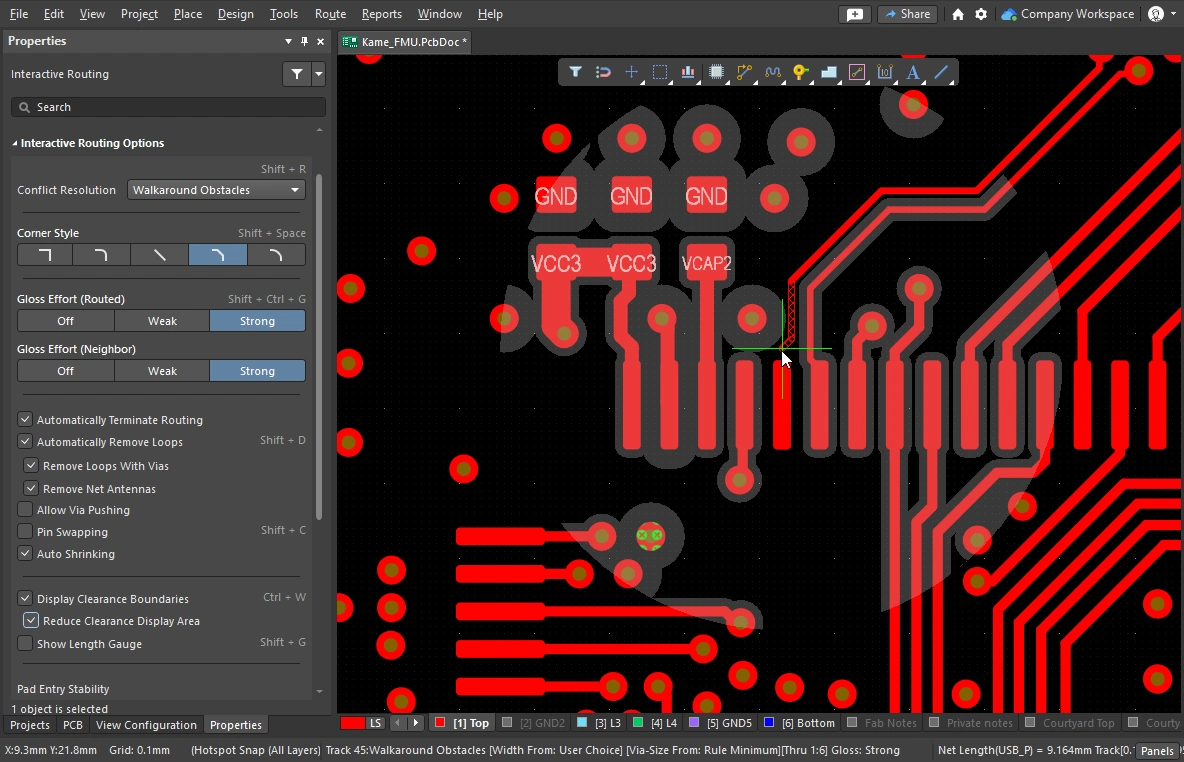 ).
).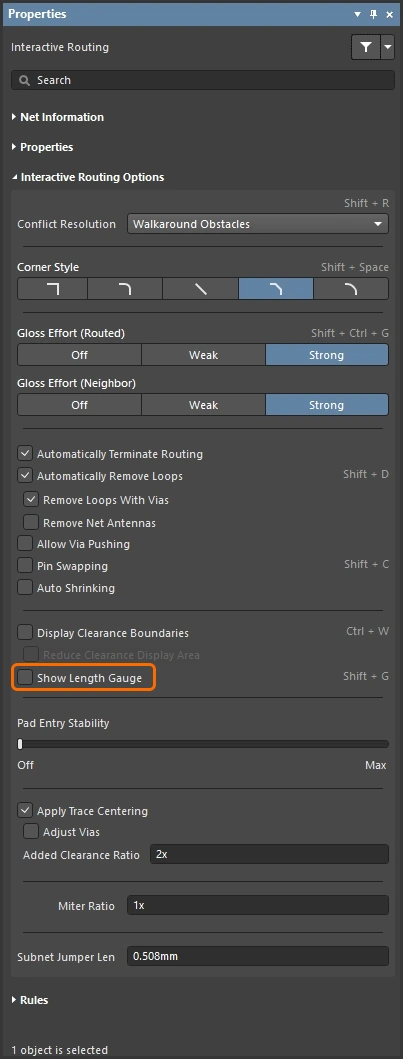
길이 게이지(Length gauge)는 현재 경로가 적용 가능한 ‘길이(Length)’ 및 ‘일치 길이(Matched Length)’ Design Rule을 얼마나 잘 충족하고 있는지 나타냅니다.
길이 조정( Length Tuning)에 대해 자세히 알아보세요.
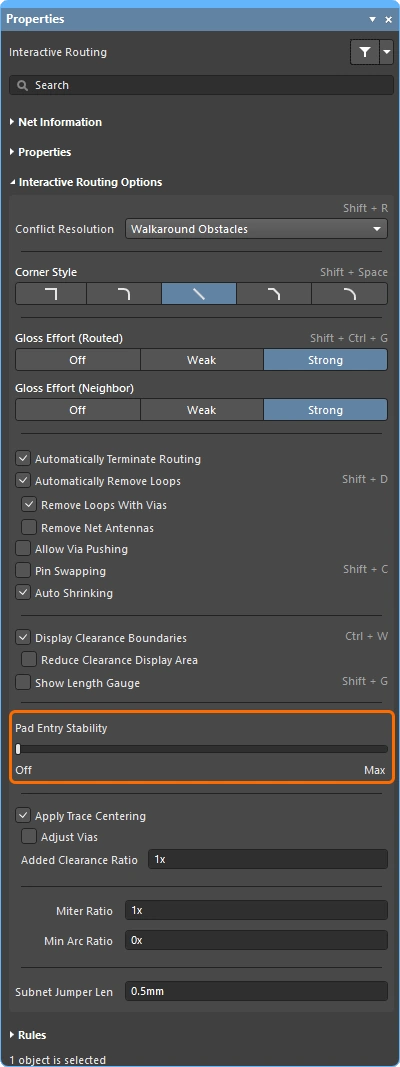
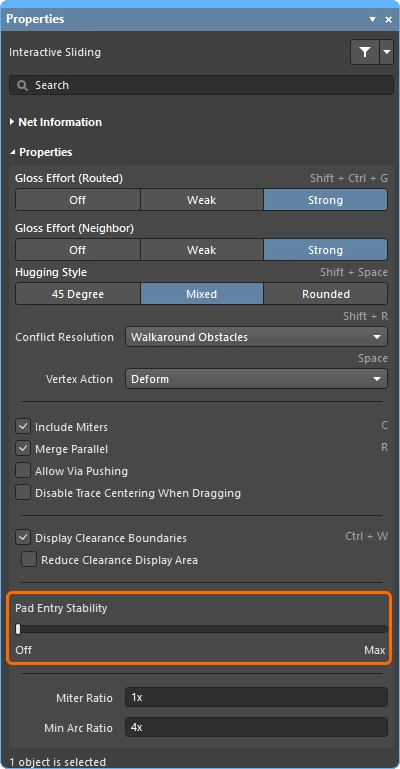
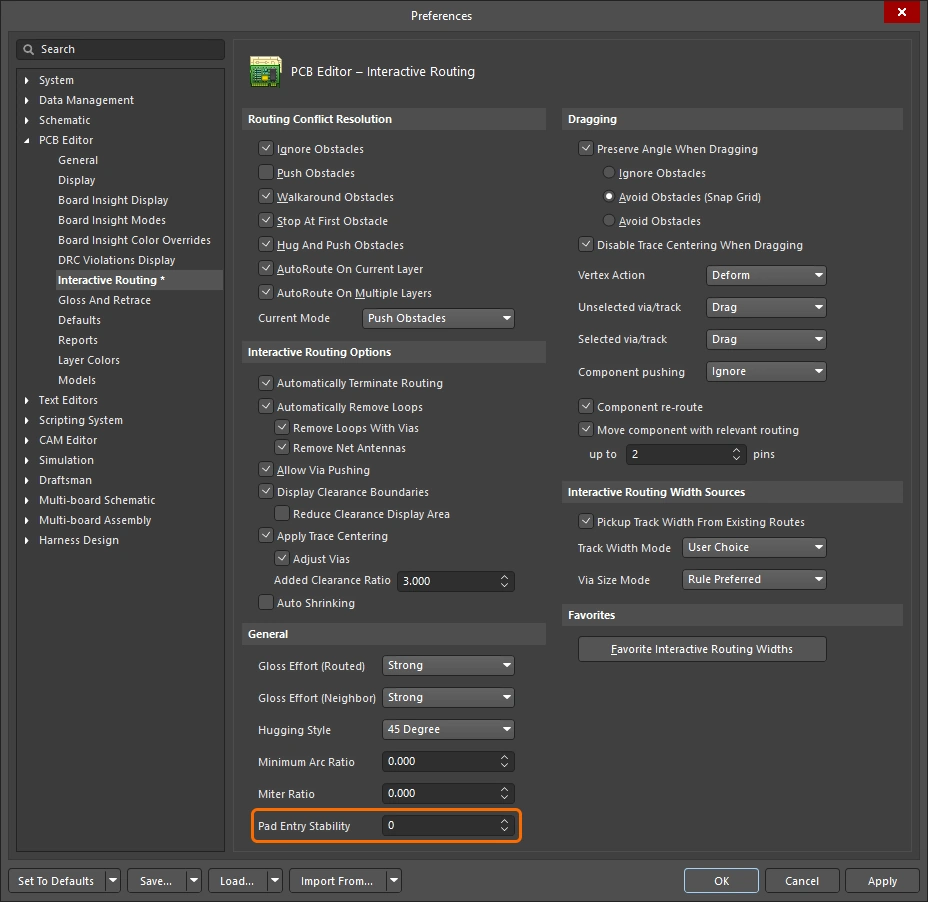
이 슬라이더는 중앙 정렬된 Pad 항목을 보호하여, 글로싱(Glossing)으로 인해 중앙 정렬된 Track의 정렬이 흐트러지는 것을 방지합니다(중앙 정렬된 Track을 중앙에 고정할 뿐, 중앙 정렬되지 않은 Track을 중앙으로 정렬하지는 않습니다). 슬라이더 바를 사용하여 보호 수준을 구성하십시오.
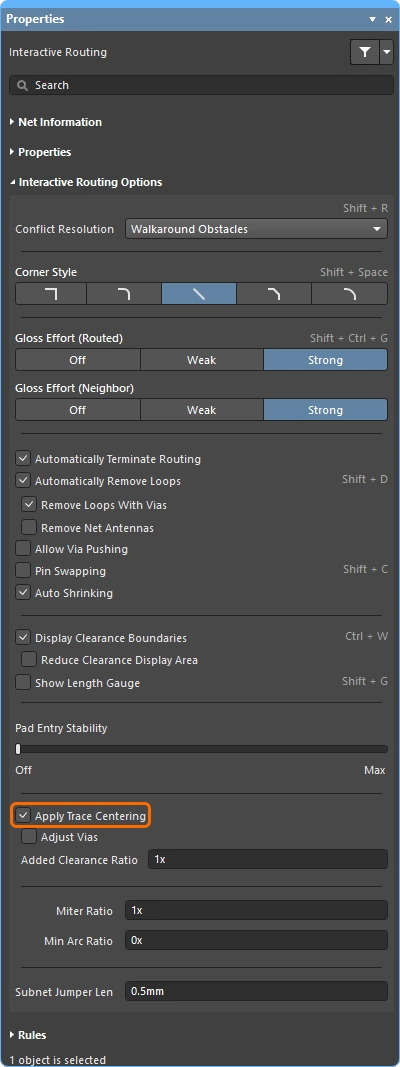
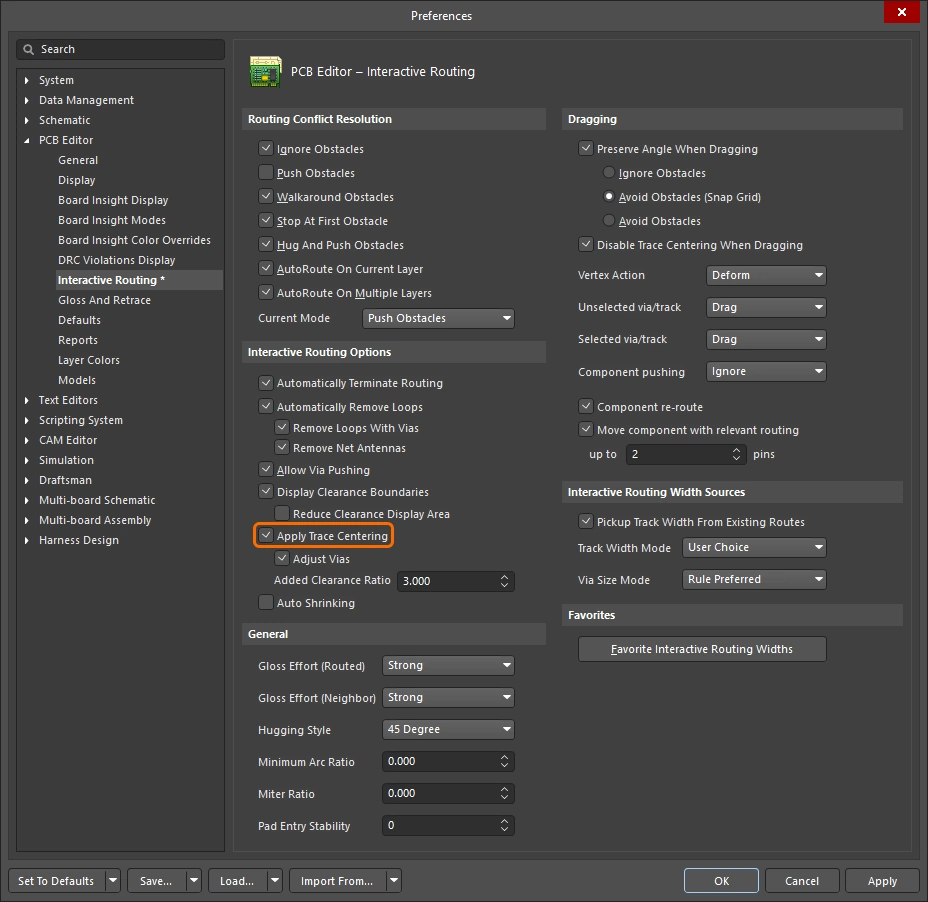
이 기능이 활성화되면 대화형 라우팅 엔진이 라우트가 Pad 사이를 통과하는 시점을 감지하고, 해당 클리어런스 제약 조건에 아래에 지정된 추가 클리어런스 비율을곱한 최대 거리까지 라우트를 중앙에 배치하려고 시도합니다. 'Trace 조정( Adjust Vias)' 하위 옵션이 활성화된 경우, 비아-비아 및 비아-Pad 간에도 Trace 중앙 정렬을 적용할 수 있습니다. 필요한 경우, Track 슬라이딩 중에 이 기능을 비활성화할 수 있습니다.
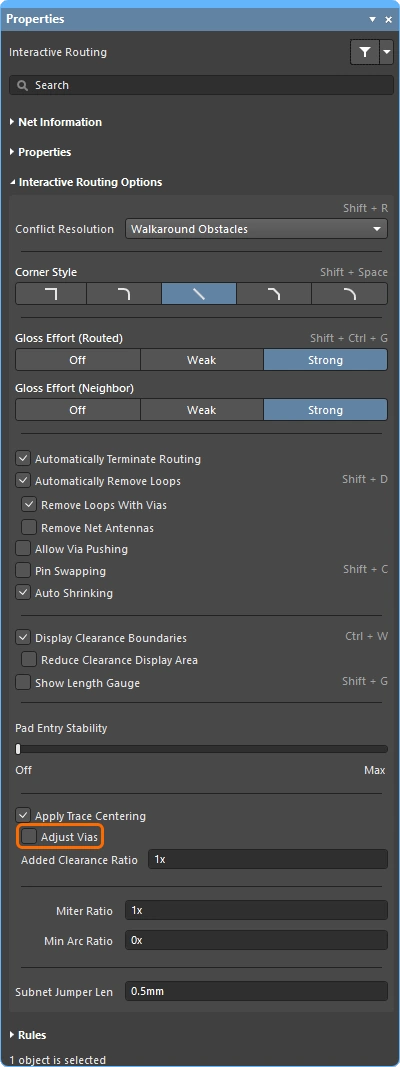
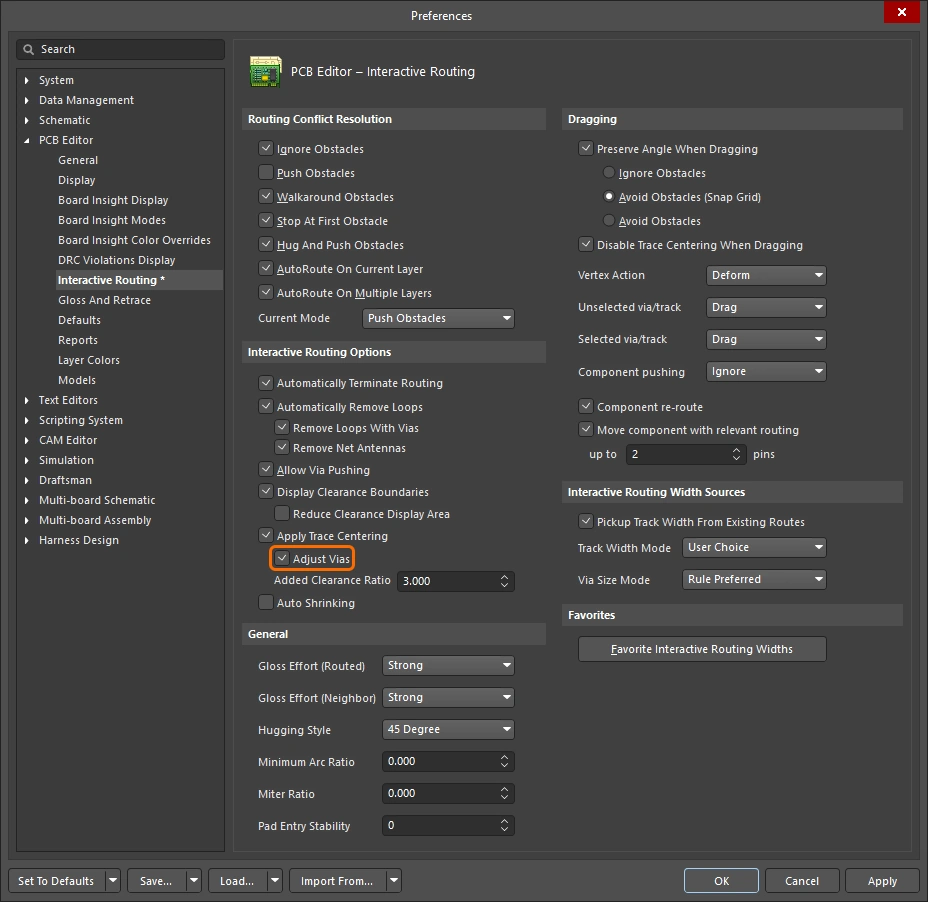
이 옵션은 두 가지 용도로 사용됩니다:
-
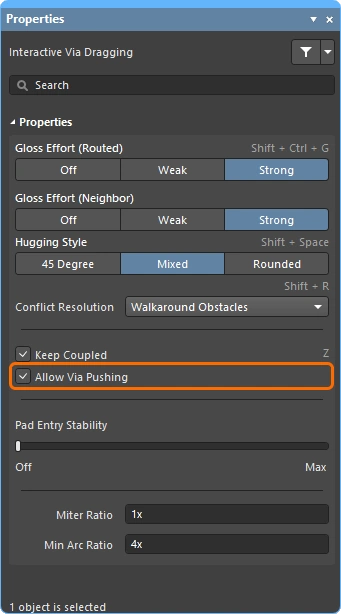
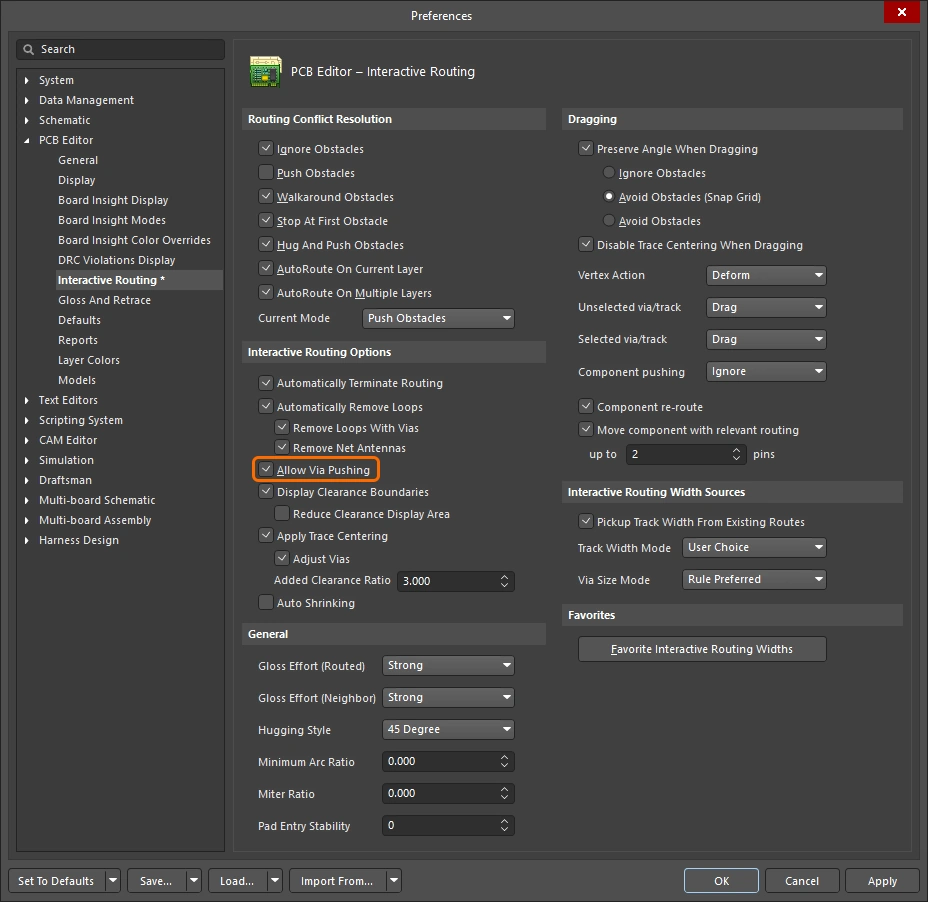
Trace 중앙 정렬 기능이 비아-비아 또는 비아-패드 사이에서도 중앙 정렬을 수행하도록 하려면 이 옵션을 활성화하십시오. 비아-비아 또는 비아-패드 사이의 중앙 정렬이 필요하지 않은 경우 이 옵션을 비활성화하십시오. Trace 중앙 정렬로 인해 비아가 밀려나는 것을 방지하려면 Allow Via Pushing 이 옵션을 비활성화할 수 있습니다. 이 경우, 비아는 밀려나지 않습니다(클리어런스 제약 조건에서 요구하는 최소 클리어런스를 확보하기 위한 경우에도 마찬가지입니다). Trace 중앙 정렬에 대한 자세한 내용.
-
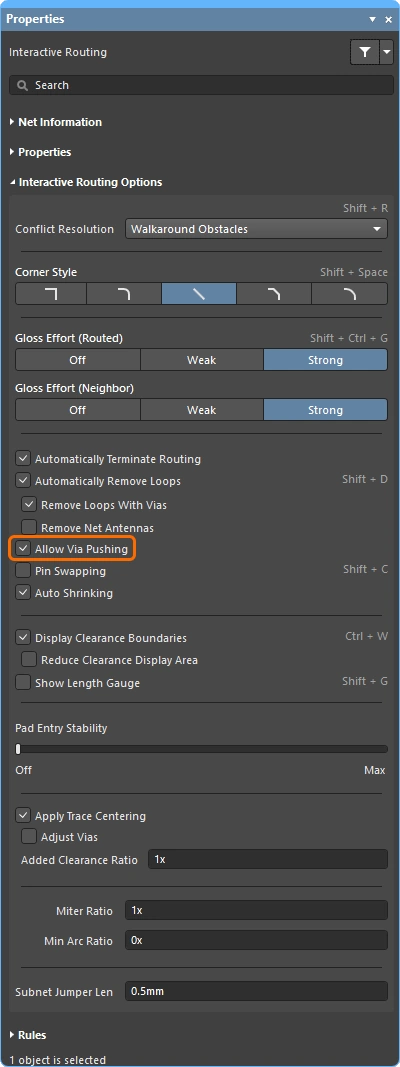
Push 또는 HugNPush 모드에서 비아를 밀어내야 하는지 여부를 설정합니다.
비아를 제외하려면 Adjust Vias 옵션을 비활성화하십시오.
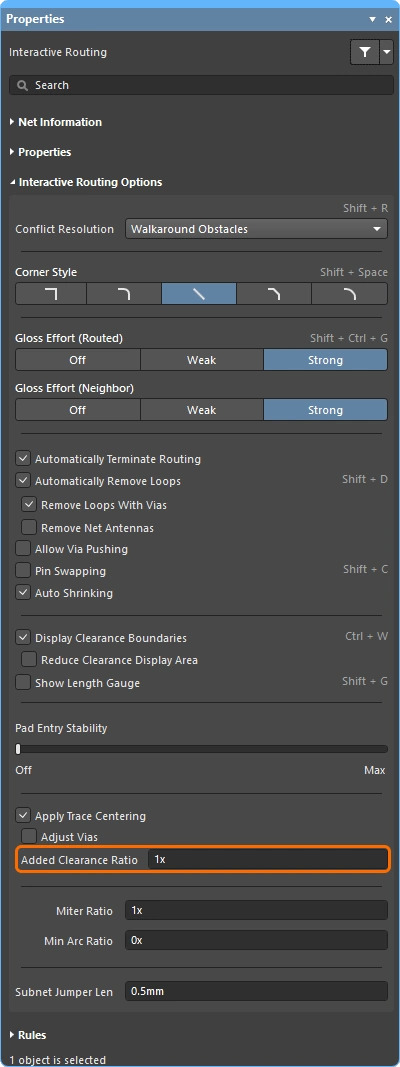
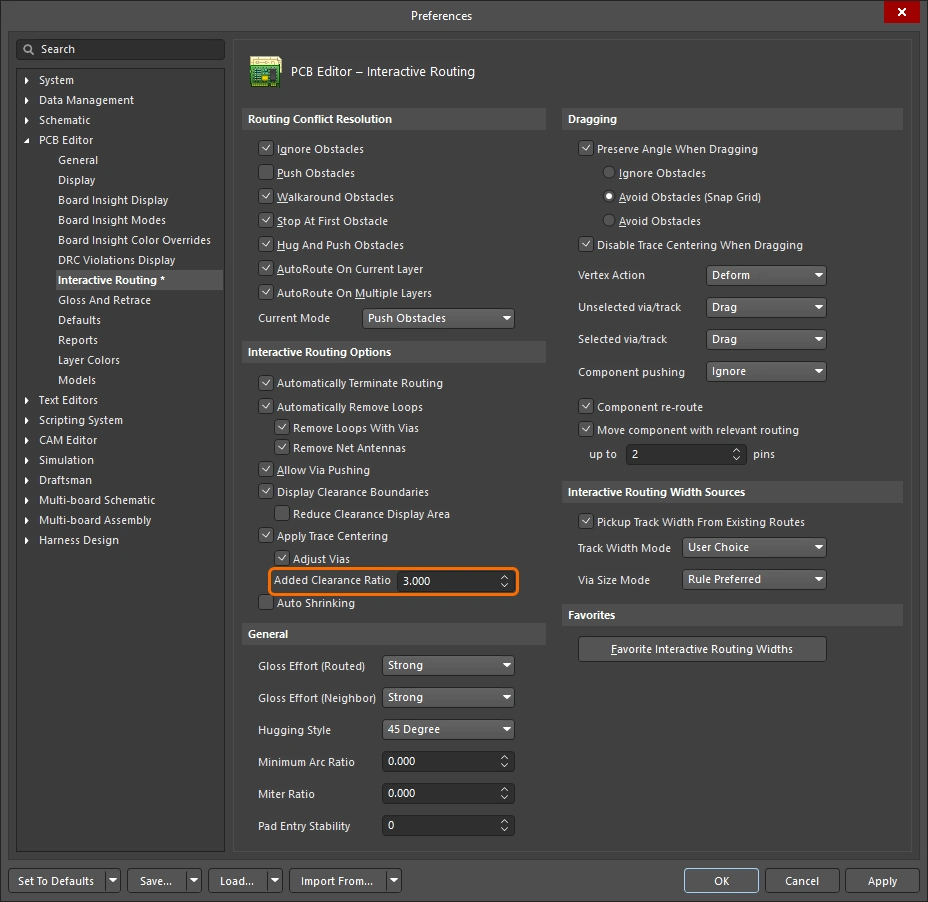
적용 가능한 클리어런스에 곱해지는 배수로, 이 값은 클리어런스에 더해집니다. 예를 들어, 적용 가능한 클리어런스가 0.15 mm인 경우, 이 옵션을 2 로 설정하면, 라우팅 엔진이 가능한 경우 기존 패드와 비아를 0.15 + 2*0.15 = 0.45 mm만큼 제거하도록 지시합니다. 이후 라우팅 엔진은 필요한 경우 이 클리어런스를 지정된 클리어런스까지 줄여 트레이스를 정밀하게 중앙에 배치할 수 있습니다.
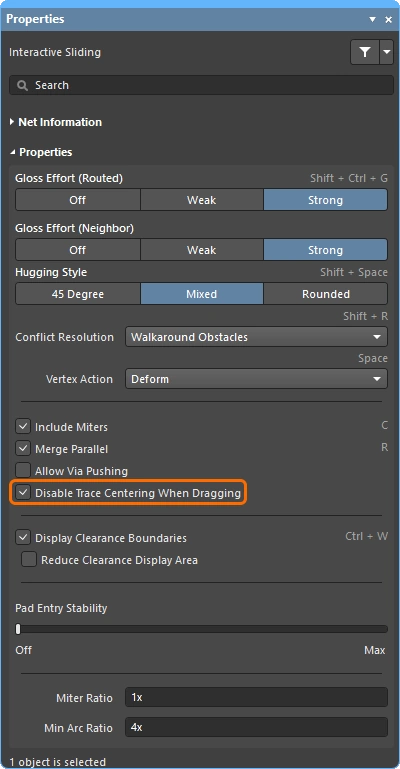
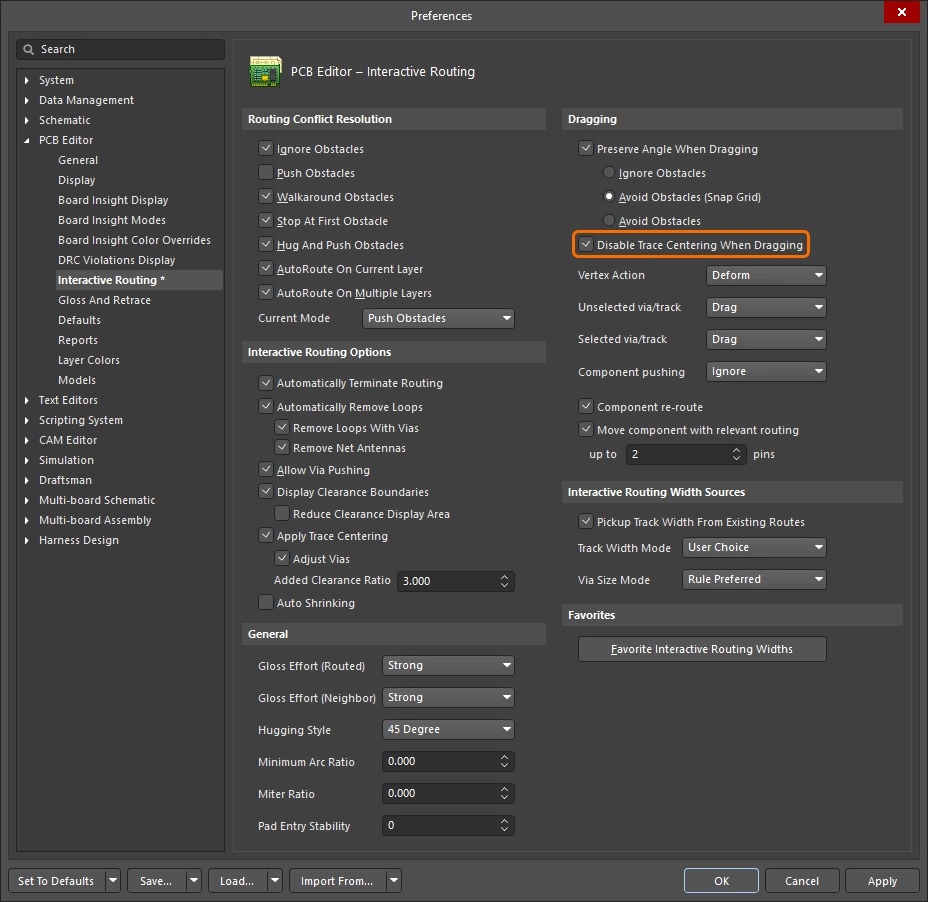
이 옵션을 활성화하면 트레이스를 대화형으로 이동할 때 트레이스 중앙 정렬 기능이 비활성화됩니다. 이 옵션이 활성화되면, 기본 ‘Trace 중앙 정렬 적용’ 옵션이 활성화되어 있더라도 트레이스를 대화형으로 이동하는 동안 트레이스 중앙 정렬이 적용되지 않습니다.
마이터 비율은 최소 코너 곡률 반경을 제어합니다. 마이터 비율에 현재 Track 폭을 곱한 값은 해당 비율로 라우팅할 수 있는 가장 급격한 U자형 곡선의 벽면 간격과 같습니다(). 0 이상인 양의 값을 입력하십시오( x 승수가 자동으로 더해집니다).
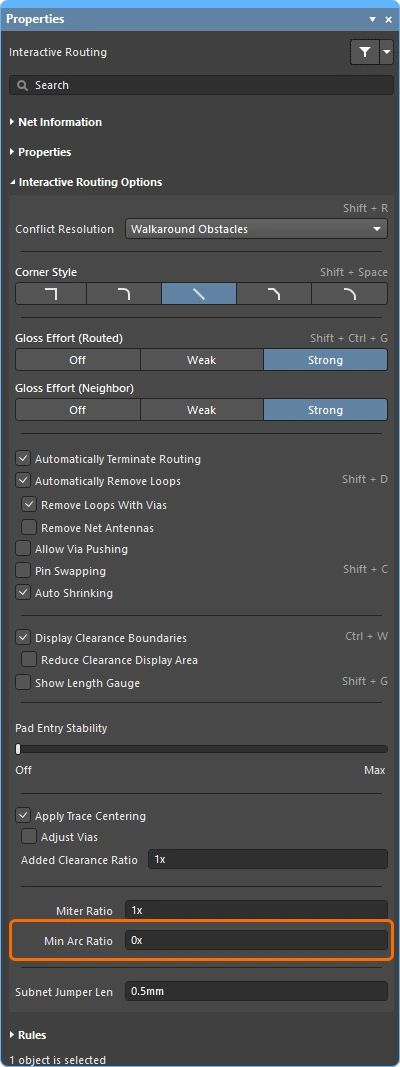
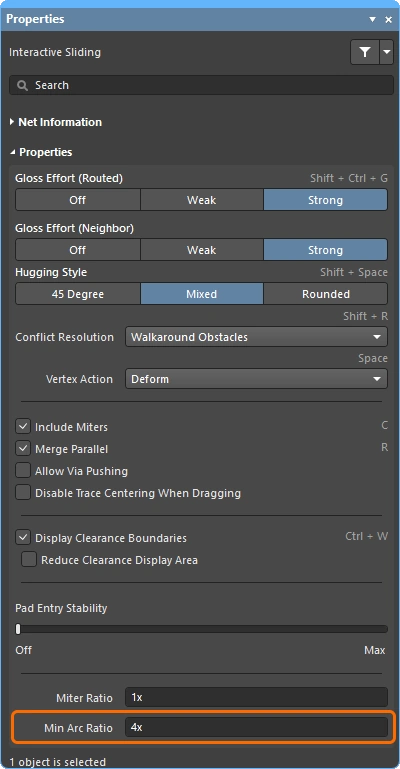
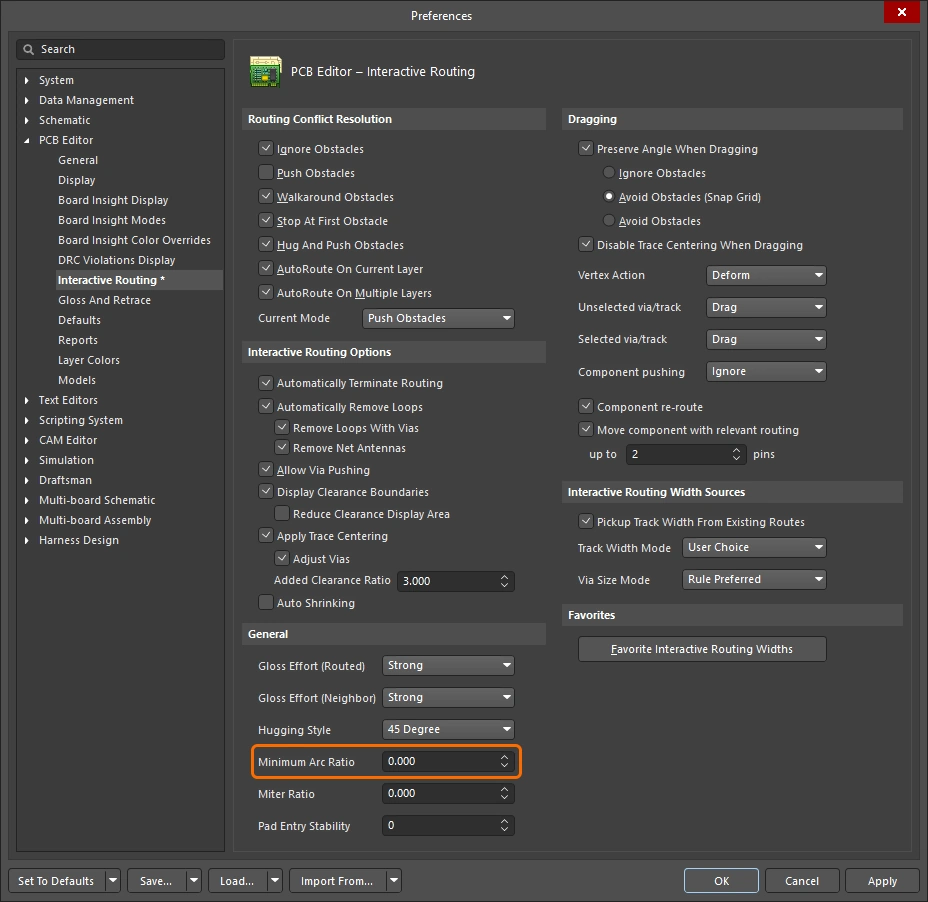
'최소 호 비율'은 모든 각도 대화형 라우팅 및 '혼합 밀착 스타일'을 사용한 대화형 슬라이딩 중에 적용됩니다. 이 비율은 허용되는 최소 호 반지름을 결정하는 데 사용되며, 호 반지름이 이 최소값보다 작아지면 호는 Track 세그먼트로 대체됩니다. 여기서:
Min Arc Radius = Min Arc Ratio x Arc Width
레이아웃이 완료된 PCB를 포함하여 설계 과정의 어느 단계에서든 핀 스와핑을 지원하기 위해, PCB Editor에서는 스와핑이 활성화된 Net에 ‘서브넷 점퍼’라고 하는 작은 라우팅 커넥터를 추가하거나 제거할 수 있습니다. 서브넷 점퍼는 소프트웨어가 쉽게 배치하고 제거할 수 있는 요소로 인식하는 짧은 Track 구간으로, 다음을 통해 수동으로 Add 및 Remove Subnet Jumper 명령을 통해 수동으로 배치하거나, 대화형 배선 중에 핀 교환이 가능한 핀으로 배선할 경우 배선 엔진이 자동으로 배치할 수 있습니다. 이 값은 대화형 배 Route 메뉴의및명령을 통해 수동으로 배치하거나, 대화형 라우팅 중에 핀 교환이 가능한 핀으로 라우팅할 경우 라우팅 엔진에 의해 자동으로 배치됩니다. 이 값은 대화형 라우팅 중에 핀 교환이 가능한 Net에 추가되는 서브넷 점퍼의 길이를 정의합니다.
Net/차동 쌍 정보 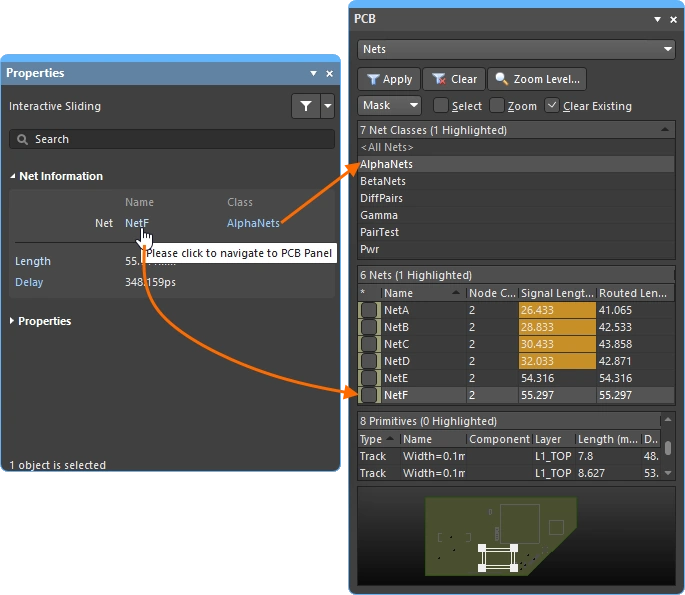
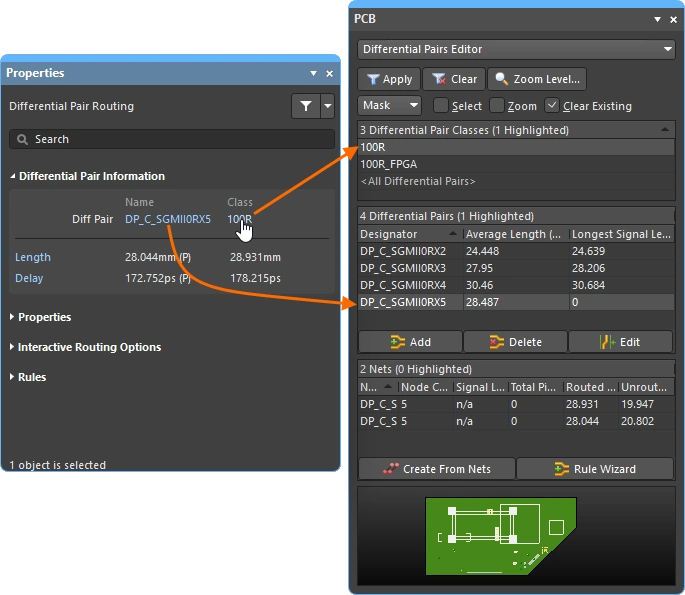
대화형 라우팅/슬라이딩 및 차동 페어 라우팅/슬라이딩 중에 편집 중인 Net에 대한 세부 정보가 Properties Panel 상단에 상세히 표시됩니다.
| Routing and Sliding Feature | \r\n\t\t
| Routing-only Feature | \r\n\t\t
| Sliding-only Feature | \r\n\t\t
Name & Class
Length & Delay
라우팅 속성 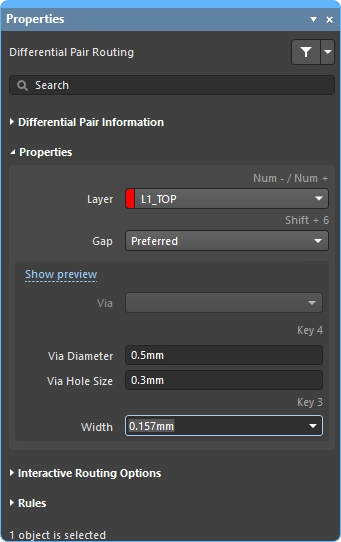
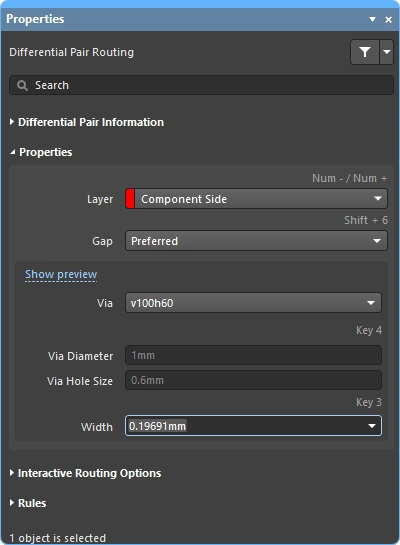
대화형 라우팅 중에는 라우트 객체의 속성을 Properties Panel에서 편집할 수 있습니다.
| Routing and Sliding Feature | \r\n\t\t
| Routing-only Feature | \r\n\t\t
| Sliding-only Feature | \r\n\t\t
멀티 루트가 배치되는 레이어입니다. 드롭다운 메뉴를 사용하여 다른 레이어를 선택하면 비아가 자동으로 추가됩니다. 또는 레이어 변경 단축키를 사용할 수도 있습니다.
현재 트레이스가 차동 쌍인 경우 Gap 이 옵션이 표시되며, 드롭다운을 사용하여 해당 차동 쌍 라우팅 제약 조건에 정의된 최소/권장/최대 값으로 라우팅 간격을 설정하십시오.
차동 쌍 라우팅에 대해 자세히 알아보세요.
배치되는 비아를 정의하는 제약 조건에 Template Preferred 옵션(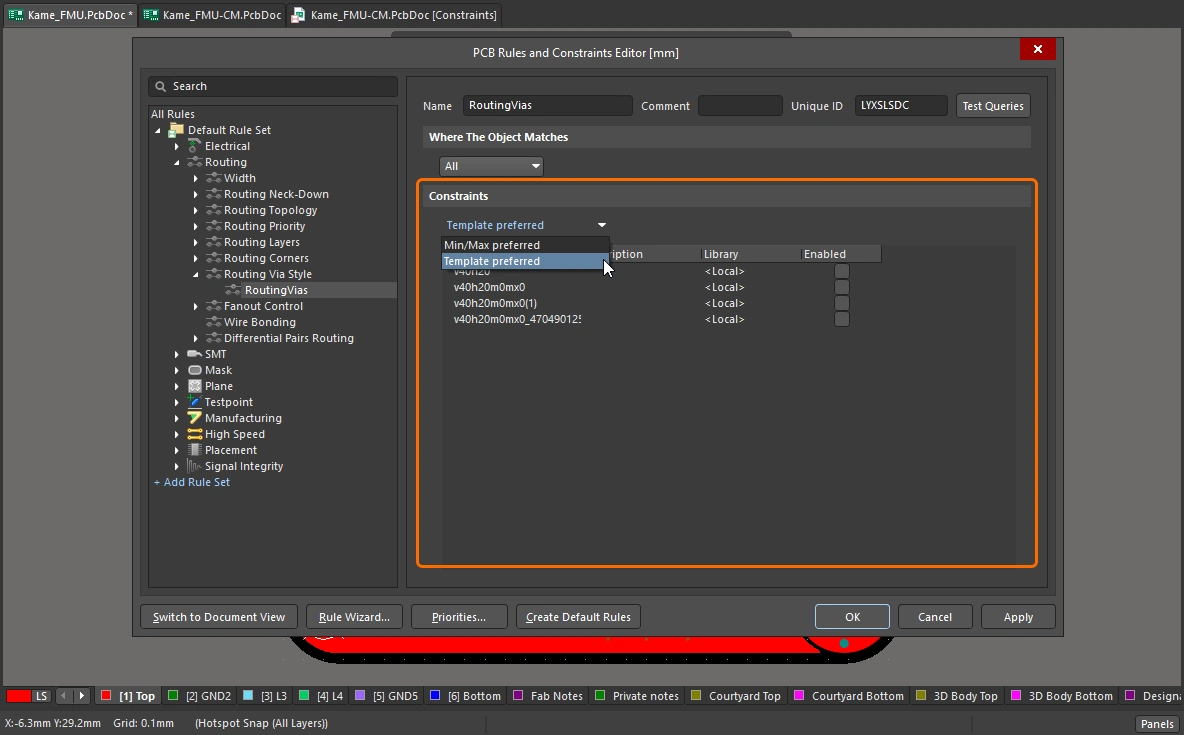 )이 활성화되어 있는 경우, 이 옵션을 사용할 수 있습니다. Default 템플릿 이름이 여기에 표시되며 드롭다운을 사용하여 변경할 수 있습니다.
배치되는 비아를 정의하는 제약 조건에서 Min/Max Preferred 옵션이 활성화되어 있는 경우(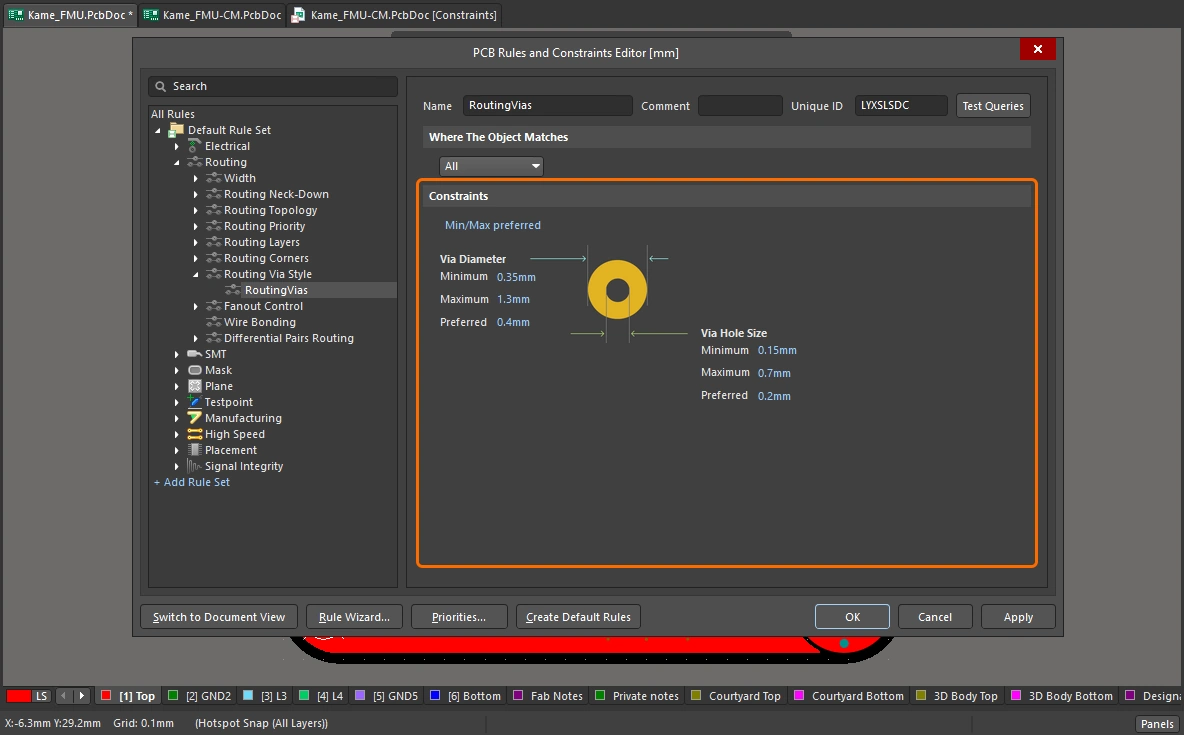 ), 이 드롭다운은 사용할 수 없습니다.
Pad 및 비아 템플릿에 대해 자세히 알아보세요.
사용될 비아 구멍 크기를 표시합니다. 해당 라우팅 비아 스타일 설계 제약 조건에서 허용하는 범위 내에서 값을 직접 편집할 수 있습니다.
사용될 비아 직경을 표시합니다. 해당 라우팅 비아 스타일 설계 제약 조건에서 허용하는 범위 내에서 값을 직접 편집할 수 있습니다.
기존 경로에서 클릭하여 라우팅을 시작할 때, 기본 동작은 동일한 폭을 사용하여 라우팅하는 것입니다. 드롭다운을 사용하여 해당 라우팅 폭 제약 조건에 정의된 최소/권장/최대 값으로 라우팅 폭을 설정하십시오.
적용 가능한 설계 제약 조건(Rule) 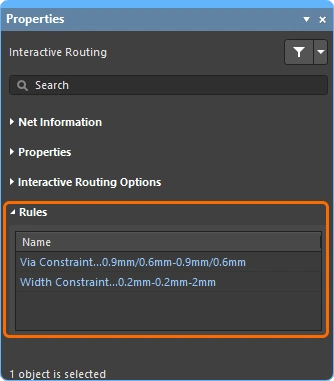
대화형/차동 페어 라우팅 중에, 수행 중인 라우트에 적용되는 ‘라우팅 폭’ 및 ‘라우팅 비아 스타일’ 설계 제약 조건이 Properties Panel에 표시됩니다. 이 항목들은 활성 링크이므로, 필요한 경우 클릭하여 관련 설계 제약 조건을 열어 검토하거나 편집할 수 있습니다.
| Routing and Sliding Feature | \r\n\t\t
| Routing-only Feature | \r\n\t\t
| Sliding-only Feature | \r\n\t\t
Via Constraint
Width Constraint
끌기 옵션
개체를 클릭하고 드래그할 때 적용될 동작을 정의합니다.
| Preserve Angle When Dragging | 이 옵션이 활성화되면 소프트웨어는 Properties (
|
| Disable Trace Centering When Dragging | |
| Vertex Actions | 이 페이지 앞부분에 자세히 설명되어 있습니다 |
| Unselected via/track | <SPAN data-tooltip="{"block":null,"content":"연결된 객체를 고려하지 않고 객체를 재배치합니다\r\n\r\n","placement":"top","track":"any"}"> unselected via 또는 Track을 드래그할 때의 기본 동작을 <span data-tooltip="{"block":null,"content":" 연결된 객체를 고려하지 않고 객체의 위치를 이동합니다\r\n \r\n","placement":"top","arrow":true}"> 이동 또는 <SPAN data-tooltip="{"block":null,"content":"연결된 객체와의 Connection을 유지한 채 객체를 재배치합니다.\r\n \r\n","placement":"top","arrow":true}"> 드래그 동작 중 하나로 설정합니다. 선택되지 않은 모드로 전환하려면,Ctrl 단축키를 누른 상태에서 via 또는 Track을 클릭하고 누르고 있으면 됩니다.
|
| Selected via/track | 'via' 또는 'track'을 드래그할 때의 Default 동작을 정의합니다. selected <span data-tooltip="{"block":null,"content":" 연결된 객체를 고려하지 않고 객체를 재배치합니다.\r\n \r\n","placement":"top","arrow":true}"> 이동 또는 <SPAN data-tooltip="{"block":null,"content":"연결된 객체와의 연결을 유지한 채 객체를 재배치합니다.\r\n \r\n","placement":"top","arrow":true}"> 드래그 동작 중 하나로 설정합니다.선택되지 않은 모드에 액세스하려면단축키를 누른 상태에서 경유지나 트랙을 클릭하고 누른 상태를 유지하세요. 선택되지 않은 모드로 전환하려면,Ctrl 단축키를 누른 상태에서 비아 또는 Track을 클릭하고 길게 누르십시오. |
| Component pushing | 이 필드는 설계 공간 내에서 컴포넌트를 이동할 때의 현재 컴포넌트 충돌 해결 모드를 정의합니다. 이 기능에서 컴포넌트는 선택된 바운딩 박스로 식별됩니다. 다음 모드가 지원됩니다:
|
| Component re-route | 이 기능이 활성화되어 있는 경우, 컴포넌트를 새로운 위치로 이동시킨 후 마우스를 놓으면 소프트웨어는 끊어진 Nets를 다시 연결하기 위해 컴포넌트의 라우팅을 재설정하려고 시도합니다. 이동 중에는 Shift+R 단축키를 사용하여 라우팅 재설정 기능을 켜거나 끌 수 있습니다. 단, 이동된 컴포넌트가 유니온의 구성원인 경우 컴포넌트 라우팅 재설정 기능은 적용되지 않습니다. |
| Move component with relevant routing | 이 옵션을 활성화하면 관련 라우팅(컴포넌트 + Via Fanouts + Escapes + Interconnects)이 포함된 상태에서 컴포넌트 이동 작업이 시작됩니다. Shift+Tab 단축키를 사용하여 선택 집합을 순차적으로 전환할 수 있습니다. 이 옵션을 비활성화하면 선택된 컴포넌트만 포함된 상태로 컴포넌트 이동 작업을 시작합니다. 관련 라우팅 객체 집합은 이동이 시작되기 전에 감지되므로, 이 옵션이 비활성화된 상태에서는 Shift+Tab 선택 집합을 순환할 수 없습니다.
|
 )
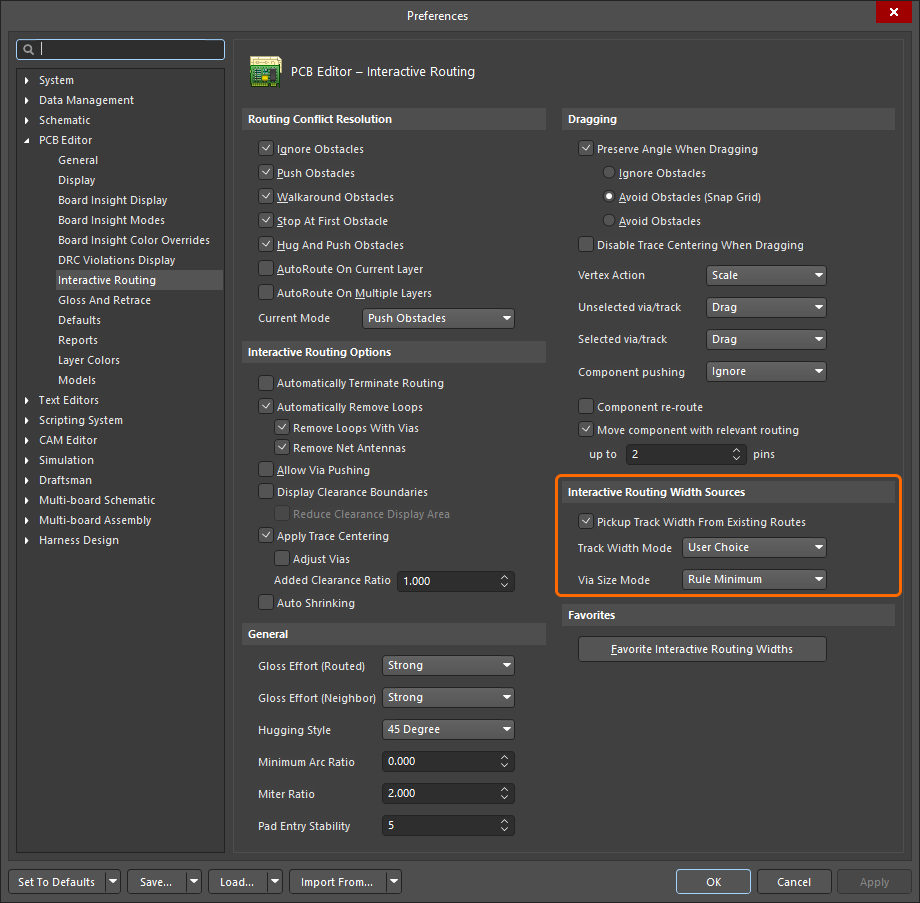
)대화형 라우팅 폭 소스 옵션 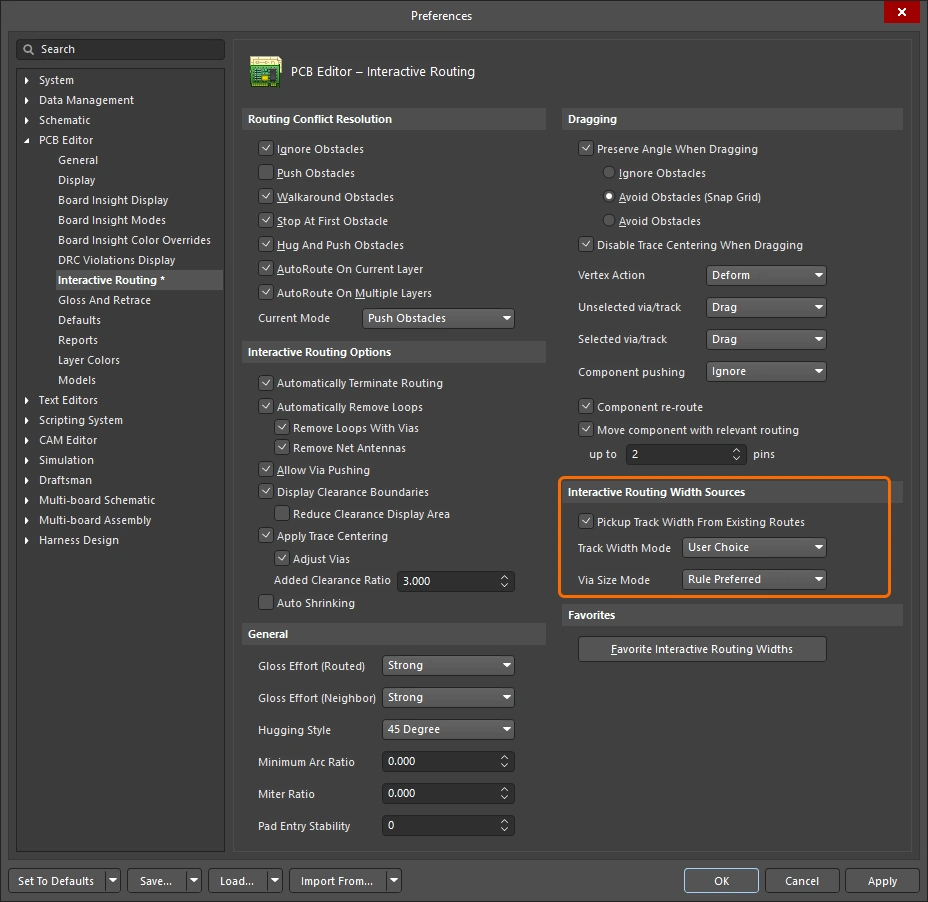
라우팅 중에 마지막으로 사용한 라우팅 폭과 비아 크기를 저장합니다. 라우팅 중에 3 단축키를 눌러 모드를 순환할 수 있습니다.
| Pickup Track Width From Existing Routes | 이 옵션이 활성화되면, 대화형 라우팅을 시작하기 위해 클릭할 때 대화형 라우터는 아래에서 선택한 Track 폭 모드를 사용하는 대신 커서 아래의 Track과 일치하도록 새 라우팅의 폭을 설정합니다. 대화형 라우팅을 시작할 때 클릭 위치 아래에 Track 세그먼트가 없는 경우, 현재 Track 폭 모드가 사용됩니다. |
| Track Width Mode | Connection을 라우팅할 때 사용할 수 있는 폭은 제약 조건 최소, 제약 조건 권장, 제약 조건 최대 및 사용자 지정의 네 가지입니다. 이 옵션은 마지막으로 선택한 모드를 저장하며, 다음에 대화형 라우팅 명령을 실행할 때 이 모드가 사용됩니다. 라우팅 중에 |
| Via Size Mode | 대화형 라우팅 중 레이어 변경에 사용할 수 있는 비아 크기는 제약 조건 최소, 제약 조건 권장, 제약 조건 최대 및 사용자 지정의 네 가지가 있습니다. 이 옵션은 마지막으로 선택한 모드를 저장하며, 다음에 대화형 라우팅 명령을 실행할 때 해당 모드가 사용됩니다. 라우팅 레이어 변경 중에 |
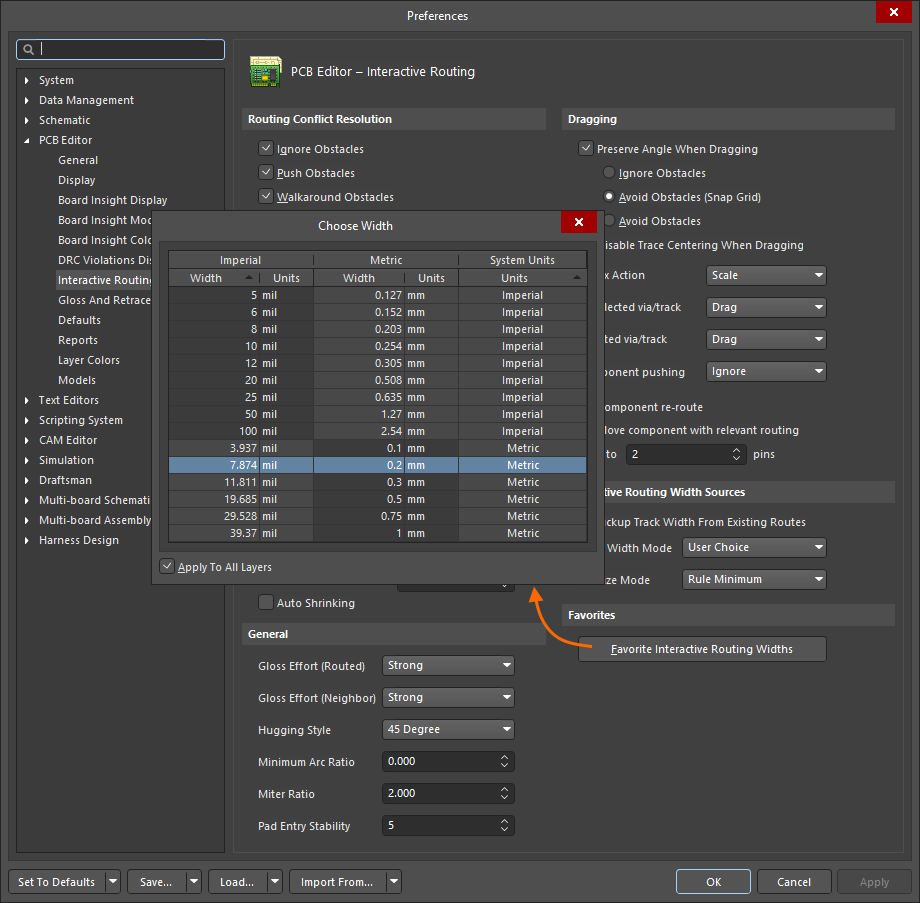
즐겨찾는 폭 옵션 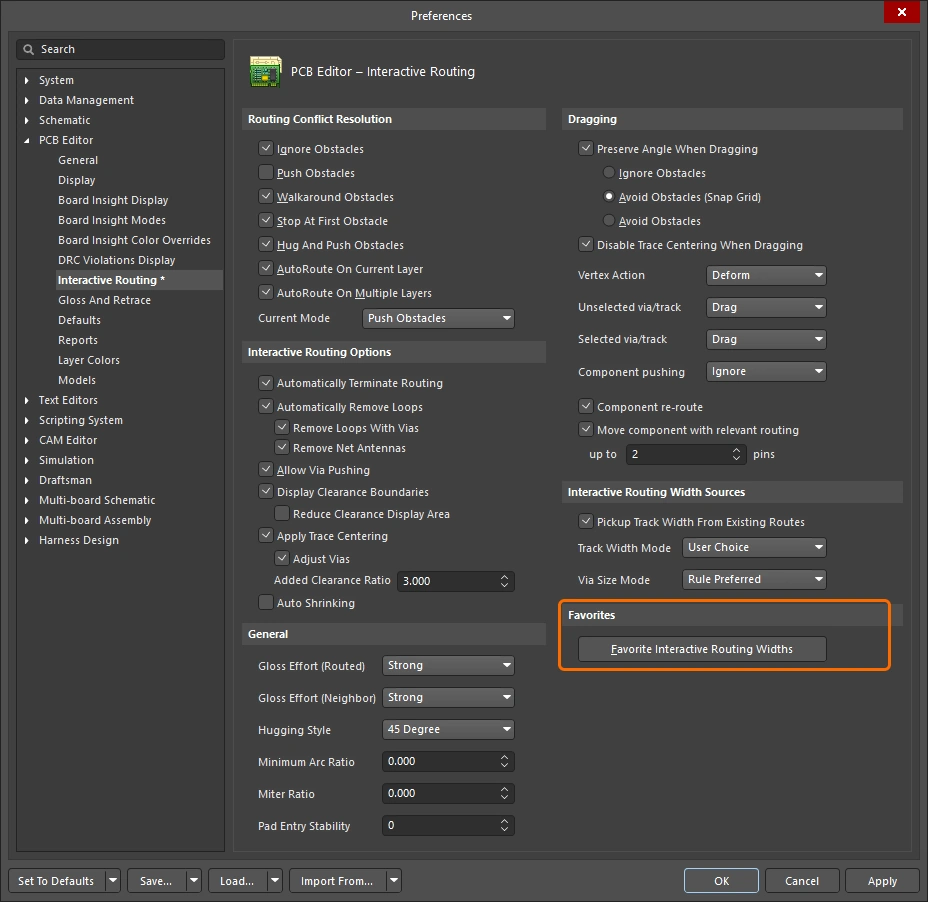
인터랙티브 라우팅 중에 Shift+W 단축키를 누를 때 표시되는 사용자 정의 라우팅 폭 목록을 저장합니다(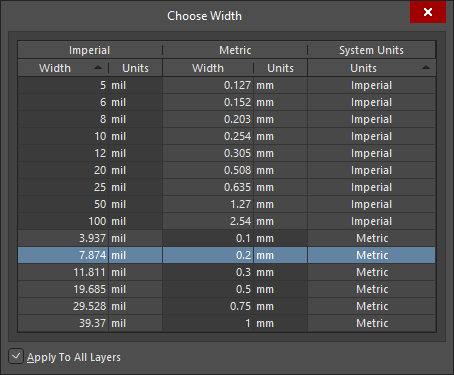 ).
).
| Favorite Interactive Routing Widths | 버튼을 클릭하면 Favorite Interactive Routing Widths 대화 상자를 열면, Configuration 대화 상자에서 대화형 라우팅 중에 Shift+W 대응 단축키가 대화형 라우팅 중에 표시할 수 있도록 구성할 수 있습니다. |
 AI로 번역됨