Simple Placement of Components on Your PCB in Altium Designer

Translation is available for Altium Designer 24: Go to the page

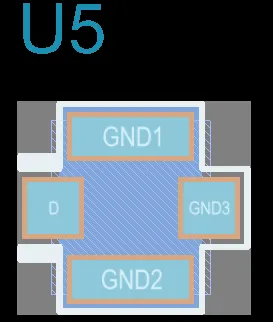
A component can be moved, rotated, and flipped in the PCB design space. To do this, select the required component in the design space by clicking on it. A selected component is highlighted in the current selection color, as shown in the image below.

Click once to select a component.Click once to select a component.

  • Click, hold and drag to move the selected component. The cursor will jump to the component reference point, or the nearest pad center if the Smart Component Snap option is enabled on the PCB Editor - General page of the Preferences dialog. Press the Alt key to constrain the direction of movement to the horizontal or vertical axis depending on the initial direction of movement.

  • While a component is moving on the cursor press the Spacebar to rotate it (Shift+Spacebar to rotate in the other direction). The default rotation step is 90 degrees. To change this setting, use the Rotation Step value in the PCB Editor - General page of the Preferences dialog.

    If the component is being rotated, the Designator and Comment strings can be configured to hold their orientation, or to rotate with the footprint. This behavior is controlled by the Autoposition setting for these strings. The defaults can be set by editing the default Component on the PCB Editor - Defaults page of the Preferences dialog. Note that setting the default will not affect any components that have already been placed.

  • While a component is moved on the cursor, press the L key to flip it to the other side of the board.

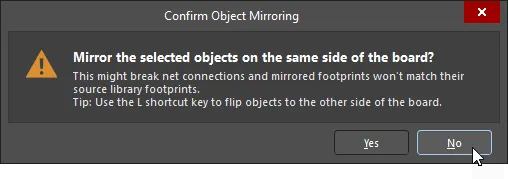
    Do not use the X or Y keys as this will mirror the component but not change its layer. If you use the X or Y keyboard shortcut to mirror a component (or a room containing a component), a warning dialog is presented that asks you to explicitly confirm that mirroring on the same side of the board is what you mean to do. By default, the No button is highlighted, making it more of a conscious decision to click Yes to proceed with the mirroring (). Components with mirrored footprints can be detected by the PCB Health Check Monitor tool and when updating footprints from libraries.

  • Press Delete to remove the selected component from the PCB.

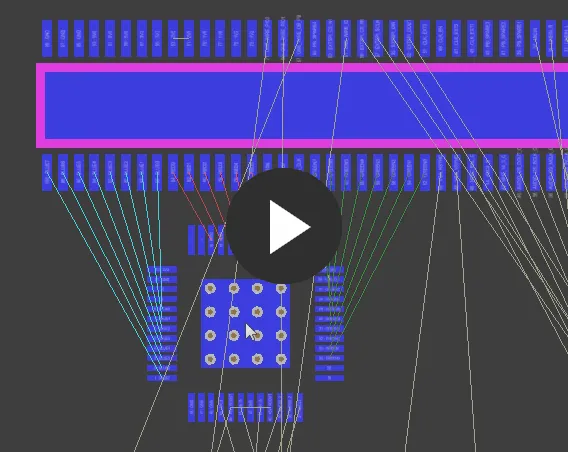
The connection lines are an excellent aid during component placement to help locate and orient components that are connected to each other. As you move the component, connection lines are dynamically optimized so that every connection line follows the shortest path to any other object with the same net name.

Use the connection lines to help locate and orient the components.

To help reduce visual clutter, as you move a component all connection lines are hidden, except the connection lines connected to that component. Press the N key to cycle through net line connect modes. The following modes are supported:

  • Pad to Pad - during the move, connection lines are displayed between pads of the component being moved and the nearest pads of the same nets on the board.
  • Breaks - during the move, connection lines are displayed between pads of the component being moved and the track breaks of the same nets on the board.
  • Hidden - connection lines are hidden.

Current net line connect mode is shown in the Status Bar and the Heads Up Display.

If you find an issue, select the text/image and pressCtrl + Enterto send us your feedback.
기능 제공 여부

사용 가능한 기능은 보유하고 계시는 Altium 솔루션에 따라 달라집니다. 해당 솔루션은 Altium Develop, Altium Agile의 에디션(Agile Teams 또는 Agile Enterprise), 또는 활성기간 내의 Altium Designer 중 하나입니다.

안내된 기능이 고객님의 소프트웨어에서 보이지 않는 경우, 보다 자세한 내용을 위해 Altium 영업팀 에 문의해 주세요.

구버전 문서

Altium Designer 문서는 더 이상 버전별로 제공되지 않습니다. 이전 버전의 Altium Designer 문서가 필요하신 경우, Other Installers 페이지의 Legacy Documentation 섹션을 방문해 주세요.