
3D 보기 제어하기
Altium Essentials: PCB Introduction
This content is part of the official Altium Professional Training Program. For full courses, materials and certification, visit Altium Training.
개요
- 3D 레이아웃 모드에서 PCB를 확대/축소하고, 화면을 이동하고, PCB를 회전하거나 방향을 재설정하는 데 사용하는 단축키와 마우스 조작 방법을 알아봅니다.
- 2D와 3D 모드 사이를 전환할 때 Altium Designer가 뷰 상태를 처리하는 방식과 Default 동작을 변경하는 방법을 이해합니다.
- 투영 방식, 색상, 보드 두께 배율, 3D Body 표시 여부 등 View Configuration Panel에서 제공하는 3D 전용 표시 옵션을 살펴봅니다.
PCB 편집기는 실제 3차원 설계 공간이며, 2차원 및 3차원 표시 모드 간에 쉽게 전환할 수 있습니다. 이 페이지에서는 3D Layout 모드에서 보드의 표시 방식을 제어하는 PCB 편집기의 기능을 설명합니다.
3차원 표시 모드로 전환하려면 기본 메뉴에서 View » 3D Layout Mode 명령을 선택하거나, 3 단축키를 사용하거나, View Configuration 패널의 View Options 탭에 있는 General Settings 영역에서 3D 옵션을 On 상태로 전환합니다. 2차원 표시 모드로 돌아가려면 2 단축키를 누릅니다.
3D에서 PCB 탐색하기
PCB 편집기의 3D Layout 모드에서는 다양한 키보드 및 마우스 조합을 사용하여 뷰를 자유롭게 확대/축소하고 회전할 수 있으며, 보드 내부로 이동할 수도 있습니다. 아래 동영상은 이러한 뷰 제어 방법을 보여줍니다.
키보드 키와 마우스 오른쪽 버튼을 함께 사용하여 3D 뷰의 방향을 조정합니다.
다음 키보드 및 마우스 조합을 사용하여 아래 작업을 수행할 수 있습니다.
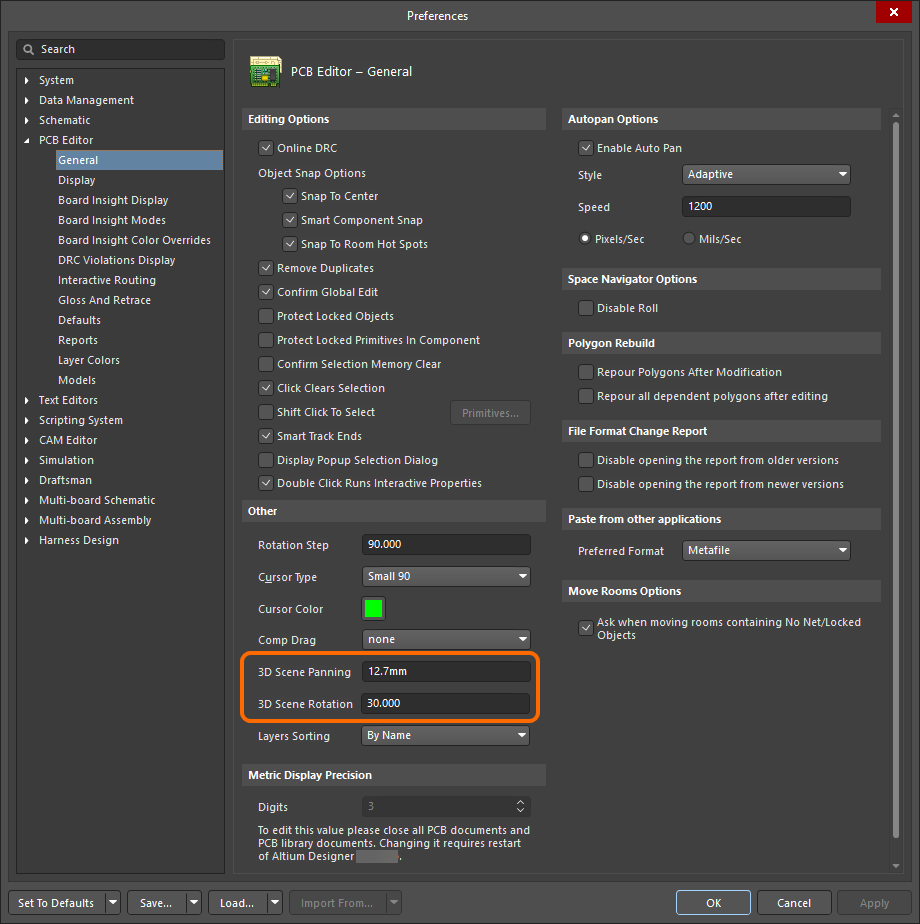 ).
).회전
| 방향 제어 구 표시 | Hold Shift key down Shift 키를 누르고 있으면 현재 커서 위치에 방향 제어 구가 나타납니다(위 애니메이션 참조). 모델은 구의 중심을 기준으로 회전하므로, Shift 키를 누르기 전에 커서를 배치하여 회전 중심점을 지정합니다. 그런 다음 다음 컨트롤을 사용하여 보드를 회전합니다. |
| Shift + Right-drag mouse | Shift 키를 길게 눌러 구를 표시하고, 마우스를 움직여 구에서 원하는 컨트롤을 강조 표시하고 선택한 다음, 마우스 오른쪽 버튼을 클릭하여 Shift + Right-drag mouse 동작을 수행합니다.
|
| Numeric keypad | 다음 숫자 키패드 키를 눌러 회전합니다.
|
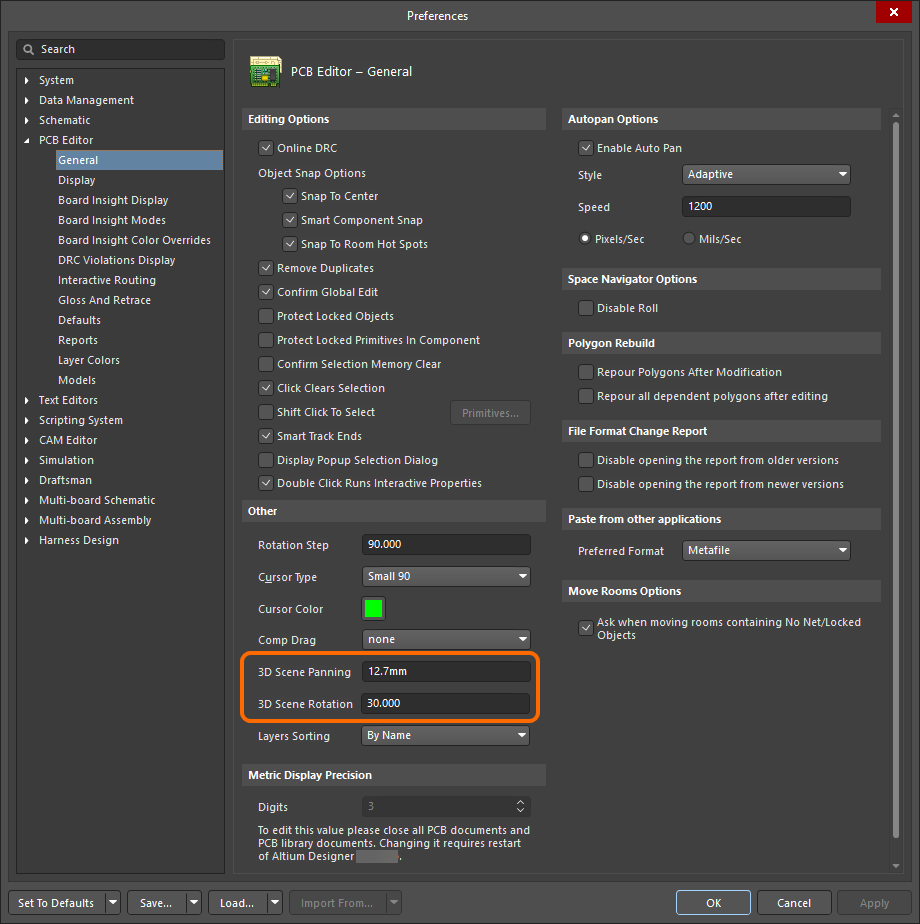 ).
).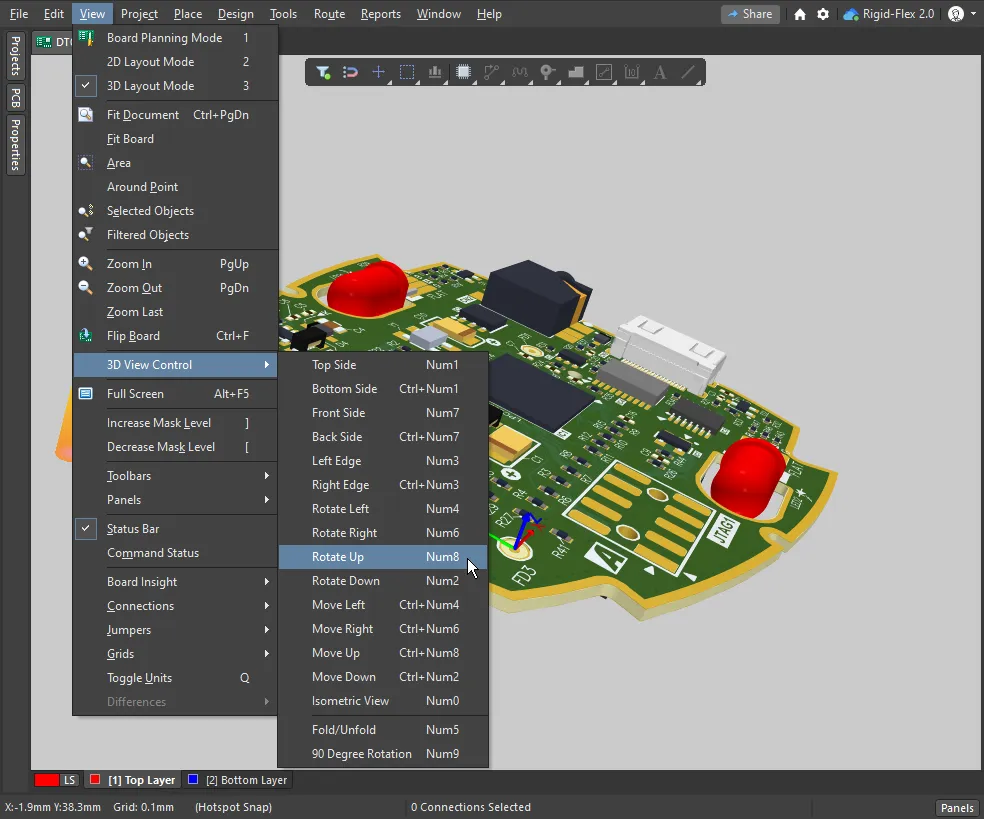 )
)2D 및 3D 뷰 모드 전환 시 뷰 제어하기
2 및 3 단축키를 눌러 2D 및 3D 뷰 모드 간에 전환하면, 기본적으로 각 뷰는 마지막으로 사용한 뷰 상태를 유지합니다. 즉, 2D 모드에서 보드 전체를 표시한 다음 3D 모드로 전환하여 확대하더라도, 2D 모드로 돌아가면 보드 전체가 다시 표시됩니다. 필요한 경우 Ctrl+Alt 단축키를 누른 상태에서 2 또는 3 키를 눌러 이 동작을 변경할 수 있습니다.
|
2D에서 보드 전체가 표시됩니다. 3D로 전환한 다음 확대하고, 2 키를 눌러 2D로 돌아가면 마지막 2D 상태(보드 전체)가 표시됩니다. 대신 Ctrl+Alt 키를 누른 상태에서 2 키를 누르면, 마지막으로 사용한 3D 뷰 상태를 적용하여 보드를 2D로 표시합니다. |


3D 뷰 Configuration 설정
2D 및 3D 뷰 모드는 모두 View Configuration 패널에서 설정합니다. 패널을 표시하려면 L 단축키를 누르거나, 소프트웨어 오른쪽 아래의 Panels 버튼을 사용하거나, View » Panels » View Configuration 메뉴 항목을 선택합니다.
3D Layout 모드로 전환하면 View Configuration 패널의 View Options 탭에 보드의 3D 표시 방식을 제어하는 추가 옵션이 제공됩니다.
 View Configuration 패널의 View Options 탭에는 3D 전용 컨트롤이 포함되어 있습니다.
3D 설정
| Board thickness (Scale) | 3D 뷰의 수직 배율을 제어하여 레이어를 더 쉽게 구분할 수 있도록 합니다. 예를 들어 내부 블라인드 비아의 레이어 간 연결을 검토할 때 유용합니다. 각 3D 레이어의 투명도는 아래에서 설정합니다. 슬라이더를 움직여 특정 레이어의 객체를 see through 할 수 있습니다. 두께 슬라이더를 드래그하여 수직 배율을 실제 보드 두께의 1배에서 100배 사이로 설정합니다. |
| Colors – Realistic / By Layer |
기본적으로 이 패널의 General Settings 섹션에서 현재 선택된 Configuration에 따라 Realistic 색상을 사용하여 3D 보드를 렌더링합니다. By Layer 버튼을 클릭하면 현재 2D 레이어에 지정된 색상을 사용하여 3D 뷰를 표시합니다. |
| Grid |
|
| Component transparency | 3D 컴포넌트의 투명도는 PCB 패널의 3D Models 모드에서 설정합니다. 하나 이상의 컴포넌트를 선택하여 투명도를 조정합니다(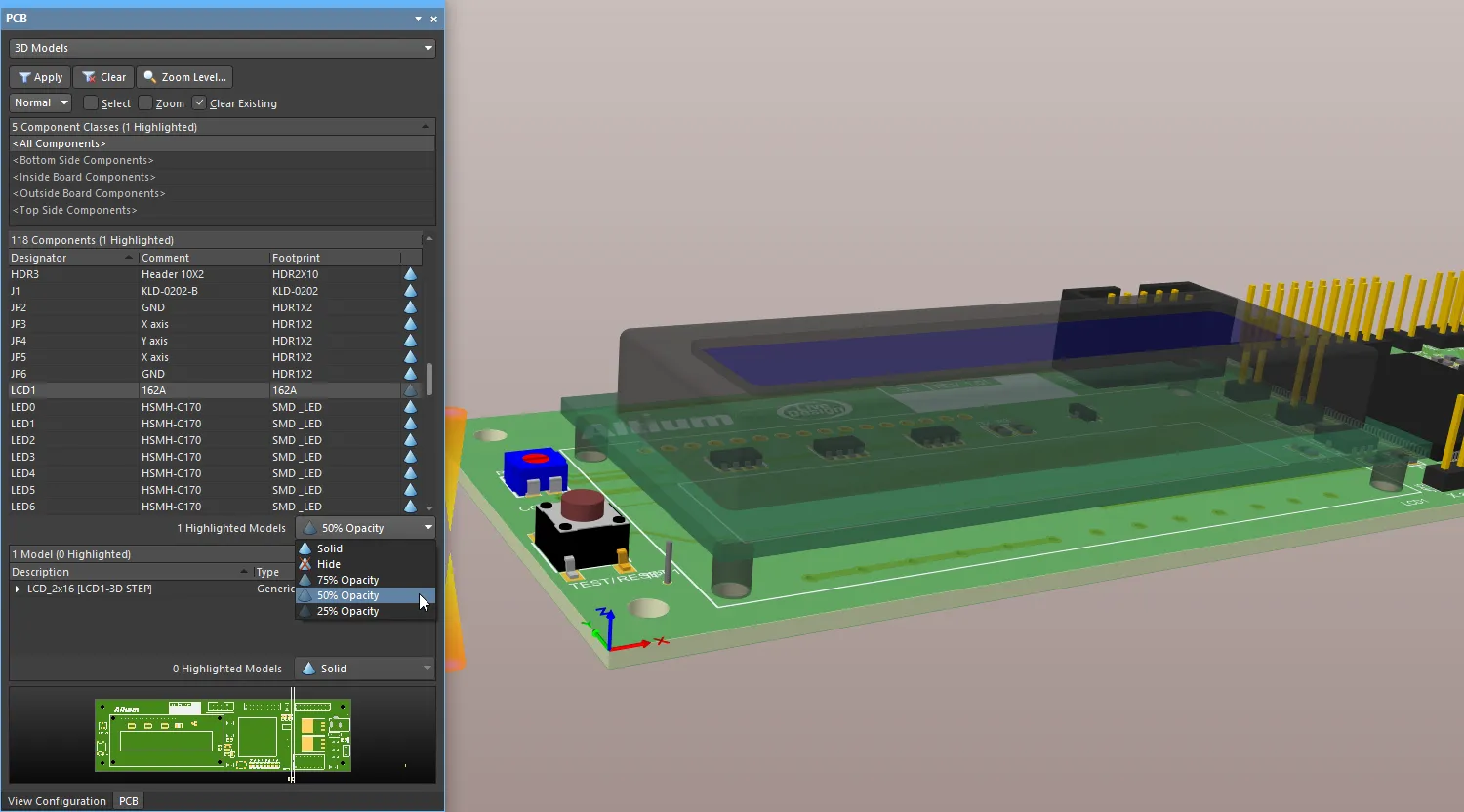 ). ). |
3D 보드의 단면 뷰
단면 뷰를 사용하면 선택한 위치에서 보드를 가상으로 잘라 보드와 컴포넌트의 절단면을 볼 수 있습니다. 이를 통해 더 큰 컴포넌트나 기계 부품 아래에 배치된 작은 컴포넌트를 살펴보거나, 보드의 레이어를 관통하는 블라인드 비아 및 매립 비아의 구조적 경로를 확인할 수 있습니다. 단면 뷰는 보드의 축 하나, 둘 또는 셋을 따라 PCB의 일부가 sliced 또는 cut away되는 평면을 정의하여 구현합니다.
단면 뷰 기능은 PCB 편집기의 3D 레이아웃 모드에서 사용할 수 있습니다. 단면 뷰를 활성화하려면 View » Toggle Section View 명령을 선택하거나, Active Bar의  버튼을 클릭하거나, View Configuration 패널의 Section View 탭에 있는 Section View 옵션의 버튼을 사용하여 표시를 Edit, On 및 Off 간에 전환합니다.
|
Edit 모드의 단면 뷰를 PCB에 적용한 모습. On 모드의 단면 뷰를 PCB에 적용한 모습. Off 모드의 단면 뷰를 PCB에 적용한 모습. |


단면 뷰 컨트롤
| Section View Origin | 단면 뷰를 활성화하면 세 방향 화살표 기즈모(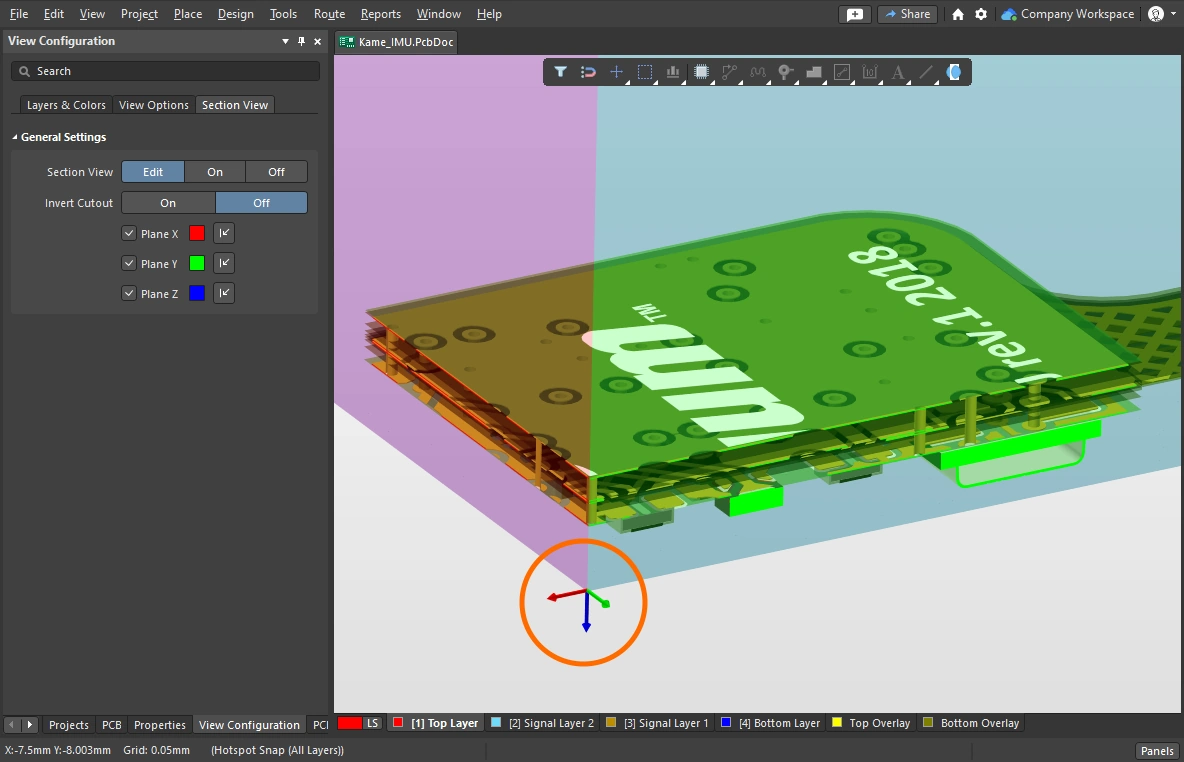 )로 현재 원점이 표시됩니다. 단면 뷰가 Edit 또는 On로 설정되어 있으면 원점 너머(단면 뷰의 양의 공간)에 있는 PCB 객체가 표시됩니다. )로 현재 원점이 표시됩니다. 단면 뷰가 Edit 또는 On로 설정되어 있으면 원점 너머(단면 뷰의 양의 공간)에 있는 PCB 객체가 표시됩니다. |
| Edit | Edit 모드에서는 단면 평면이 설계 공간에 표시됩니다. 각 평면은 단면 뷰 원점에서 뻗어 나가는 유색 반투명 면으로 표시됩니다. 단면 뷰 기즈모에서 해당 색상의 화살표를 클릭하고 드래그하여 각 단면 평면의 위치를 변경할 수 있습니다. 패널 하단의 컨트롤을 사용하여 개별 단면 평면을 활성화하거나 비활성화하고 방향과 색상을 설정할 수도 있습니다. |
| On | 단면 처리가 적용되고 단면 평면은 숨겨집니다. |
| Off | 이 모드에서는 단면 처리가 적용되지 않습니다. |
| Invert Cutout | 기본적으로 현재 단면 뷰의 음의 공간에 있는 모든 객체를 숨깁니다. 즉, 단면 뷰의 양의 공간에 있는 객체만 표시합니다. Invert Cutout 옵션을 활성화하면 이 동작이 반전되어 음의 공간에 있는 객체를 표시하고 양의 공간에 있는 객체를 숨깁니다. |
| Plane controls | Panel 하단에는 평면 제어 기능이 있습니다. 1) 체크박스를 사용하여 특정 단면 평면을 활성화/비활성화하고, 2) 색상 견본을 클릭하여 해당 평면의 색상을 설정하며, 3) 방향 화살표를 클릭하여 해당 평면이 적용되는 방향을 제어합니다(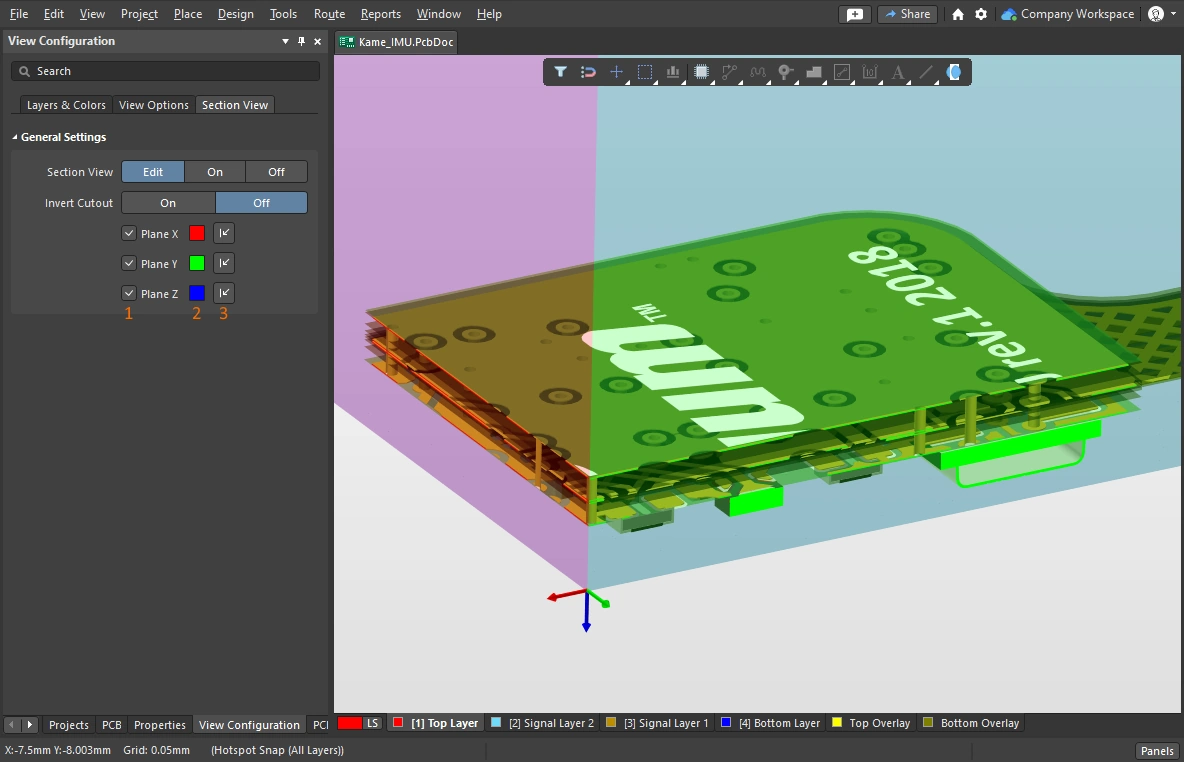 ). ). |
3D 유형 Output 생성
PCB에서 다양한 3D 유형 Output을 생성할 수 있습니다. 아래 표에는 사용 가능한 Output과 각 Output의 설정 및 생성 방법이 요약되어 있습니다.

PCB Editor에서 촬영한 300dpi 3D 스크린샷을 이미지 Editor에서 이 웹 문서 Editor가 지원하는 최대 이미지 크기로 축소한 이미지입니다.
사용 가능한 3D 출력
Output 유형 |
생성 위치 |
참고 사항 |
| Screen capture | PCB Editor | Editor가 3D Layout Mode일 때 Ctrl+C 키를 누르면 현재 뷰의 스크린샷을 촬영할 수 있습니다. 3D Snapshot Resolution 대화 상자가 나타나면 필요한 Render Resolution을 선택하고 OK을 클릭하여 이미지를 Windows 클립보드에 복사합니다. 그런 다음 원하는 비트맵 Editor에 붙여넣습니다. |
| Export as an image | PCB Editor | File » Export » PCB 3D Print 명령을 선택합니다. 이미지 파일을 저장할 위치를 선택하면 PCB 3D Print Settings 대화 상자가 열리며, 여기에서 렌더링 해상도, 보드 표시 방식 및 이미지 형식을 설정할 수 있습니다. |
| PCB 3D Print | OutputJob | PCB 3D Print Settings 대화 상자에서 설정합니다. OutputJob에서 Output을 New PDF 컨테이너 또는 프린터에 직접 연결합니다. Output을 생성하기 전에 보드를 원하는 위치에 배치한 다음, Take Current Camera Position 및 Take Current View Configuration 버튼을 클릭하여 화면에 표시된 내용을 인쇄합니다. Output Job을 Folder Structure Output Container에 연결하여 이미지 파일을 생성할 수도 있습니다. |
| PCB 3D Video | OutputJob | PCB 3D Video 대화 상자에서 설정합니다. OutputJob에서 Output을 New Video 컨테이너에 연결합니다. Output은 다양한 비디오 형식으로 생성할 수 있습니다. 이 Output을 생성하려면 먼저 PCB 3D Movie Editor Panel에서 PCB 3D 동영상을 정의해야 합니다. 자세한 내용은 3D PCB 비디오 준비 페이지를 참조하세요. |
| PDF 3D | 참고 사항/PCB Editor | PDF3D 대화 상자에서 설정합니다. OutputJob에서 Output을 New Folder Structure에 연결합니다. 3D 움직임을 지원하려면 Adobe Acrobat v9 이상이 필요합니다. PCB 3D 동영상이 정의되어 있다면 해당 동영상의 키 프레임도 Output에 포함할 수 있습니다. 자세한 내용은 PDF3D 파일 준비 페이지를 참조하세요. |
| Mechanical data | PCB Editor | 완성된 보드는 다양한 기계 데이터 형식으로 내보내어 MCAD 설계 도구에 불러올 수도 있습니다(필요한 경우 Rigid-Flex 보드를 접힌 상태로 내보낼 수 있습니다). 기계 형식 Import/Export에 대해 자세히 알아보세요. |
 AI로 번역됨