
Arbeiten mit Rooms auf einer PCB
Auf einen Blick
- Sie erfahren, was ein Raum auf einer Leiterplatte ist und wie er dazu dient, die Objektplatzierung und die Designanforderungen innerhalb eines definierten Leiterplattenbereichs zu steuern.
- Sie lernen die wichtigsten Methoden zum Erstellen von Räumen im PCB-Editor kennen: die interaktive Platzierung, die Erstellung aus ausgewählten Bauteilen und die Erstellung über Designvorgaben.
- Sie verstehen, wie Raumobjekte und Room Definition-Vorgaben in Altium Designer zusammenwirken und wie dies im PCB Rules and Constraints Editor sowie im Constraint Manager umgesetzt wird.
Zusammenfassung
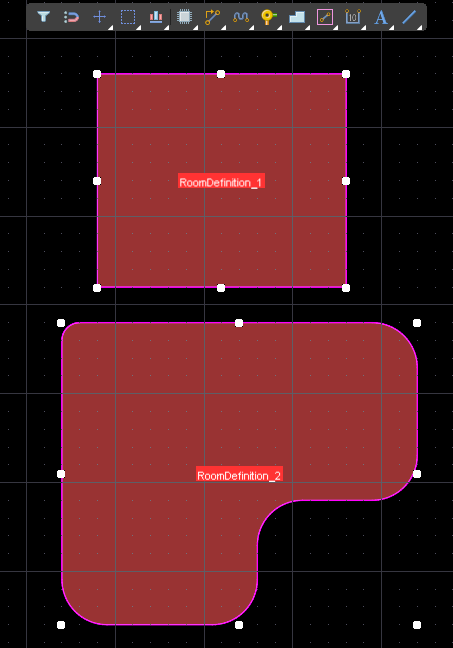 Ein Raum ist ein definierter Bereich auf einer der Außenlagen der Leiterplatte. Ein Raum dient dazu, Designanforderungen innerhalb dieses Leiterplattenbereichs festzulegen, beispielsweise: these components must be in this area oder route these nets this width oder use routing vias of this size.
Ein Raum wird wie andere polygonale Objekte entweder als rechteckige oder als polygonale Form platziert.
Ein Raum liegt nicht nur als benannte X-Y-Form auf der Leiterplatte vor, sondern wird auch automatisch zu einer benannten Design-Constraint vom Typ „Room Definition“ (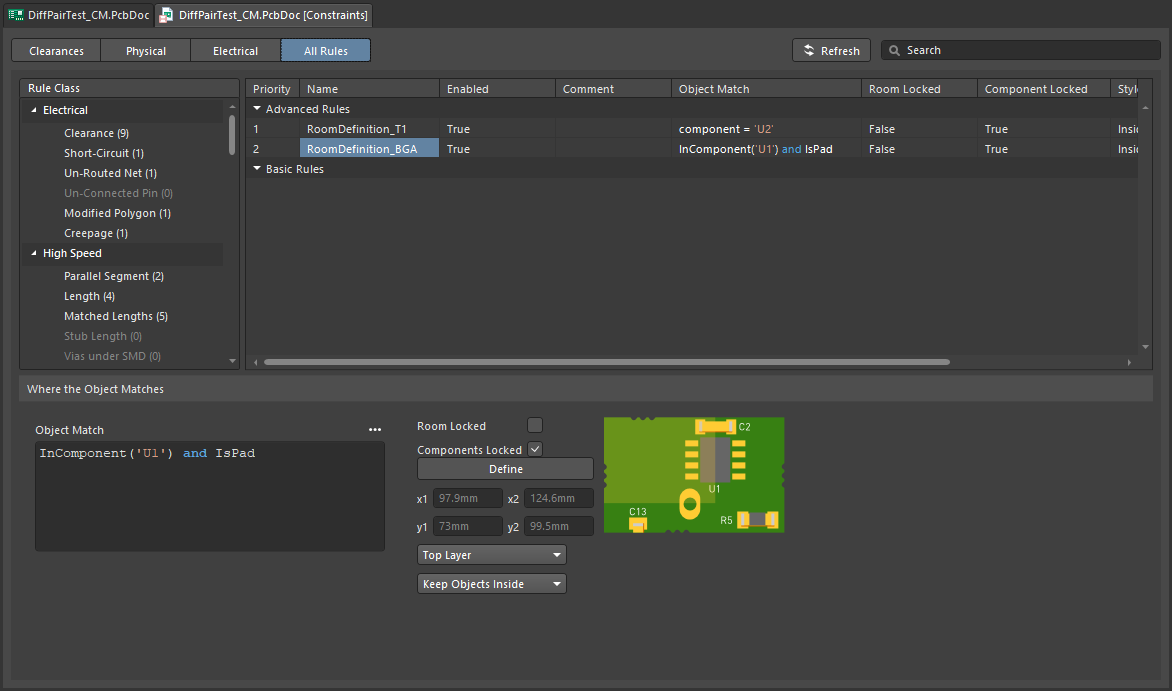 ). Die Einstellungen dieser Constraint legen Folgendes fest: die objects, für die der Raum gilt, ob diese Objekte inside or outside des Raums gehalten werden sollen und die layer, auf die der Raum angewendet wird.
Über die einfache Anforderung keep these objects in (or out) hinaus, die direkt durch die Room Definition-Constraint vorgegeben wird, kann der Raum auch dazu dienen, einen Leiterplattenbereich zu definieren, in dem andere Design-Constraints gelten. Beispielsweise kann für Leiterbahnen unter einem BGA eine bestimmte Breite erforderlich sein (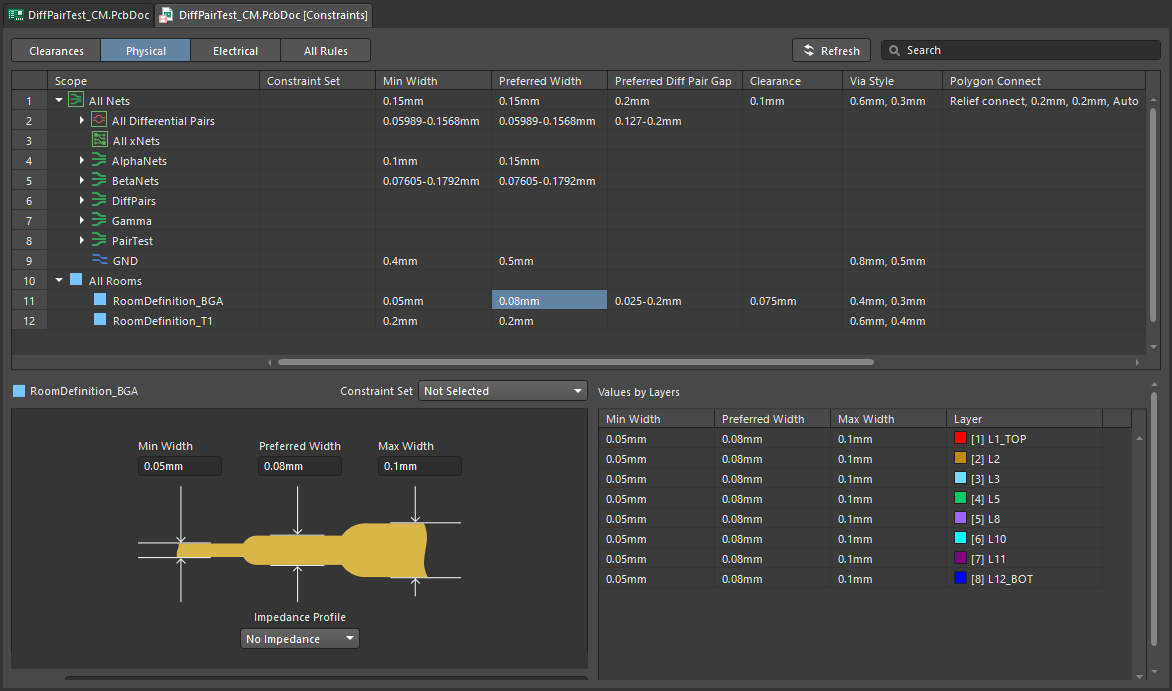 ), oder für das Routing differenzieller Paare unter einem BGA muss ein bestimmtes Impedanzprofil angewendet werden (
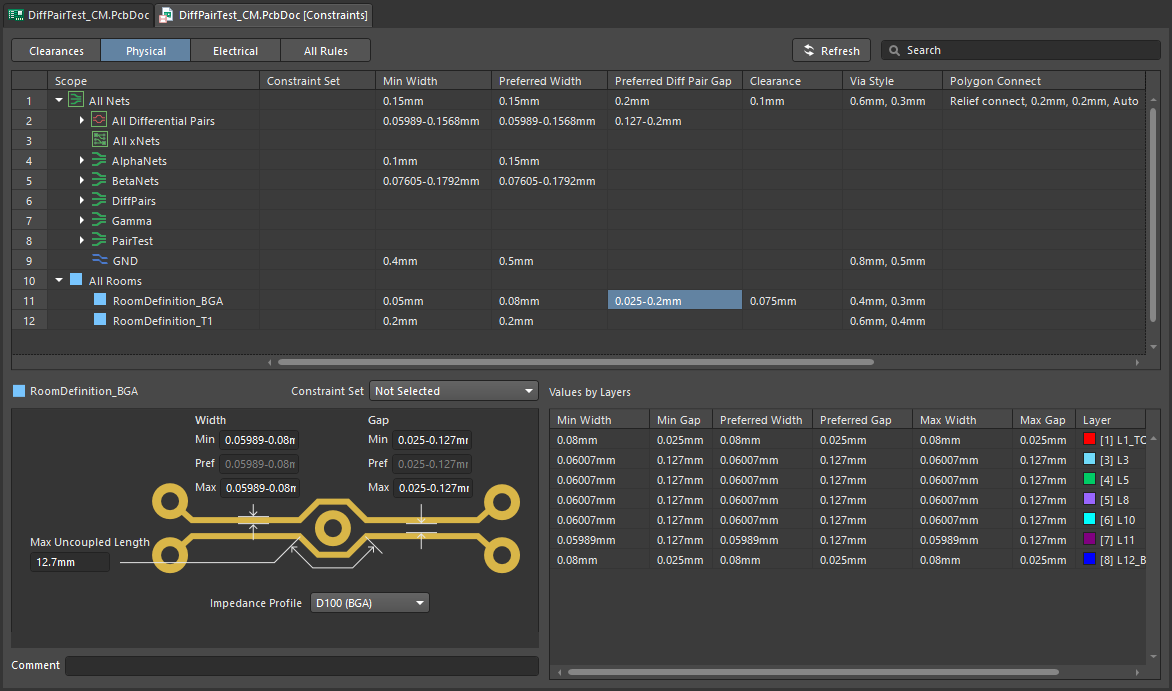 ).
).
Verfügbarkeit
Räume können nur im PCB-Editor platziert bzw. erstellt werden. Verwenden Sie die folgenden Methoden, um Räume zu erstellen:
-
Wählen Sie den gewünschten Befehl aus dem Untermenü Design » Rooms und definieren Sie anschließend entweder interaktiv die Raumform (wenn Sie einen Place-Befehl ausgewählt haben), oder erstellen Sie den Raum automatisch (wenn Sie einen Create-Befehl ausgewählt haben).
-
Fügen Sie eine neue Design-Constraint vom Typ Room Definition hinzu, bearbeiten Sie diese und klicken Sie dann auf die Schaltfläche Define, um die Form des polygonalen Raums interaktiv zu definieren.
-
Erstellen Sie mit dem Befehl Tools » Convert » Create Room from Selected Primitives einen Raum auf Grundlage einer ausgewählten geschlossenen Kontur, die aus Leiterbahnsegmenten und Kreisbögen besteht.
-
Erstellen Sie Räume automatisch bei der Synchronisierung zwischen Schaltplan und PCB-Design. Erfahren Sie mehr über automatisch generierte Räume (und wie Sie diese deaktivieren).
Einen Raum erstellen
Das Verfahren zum Erstellen eines Raums im PCB-Dokument hängt davon ab, ob Sie den Raum interaktiv platzieren oder erstellen und welche Methode Sie dafür gewählt haben.
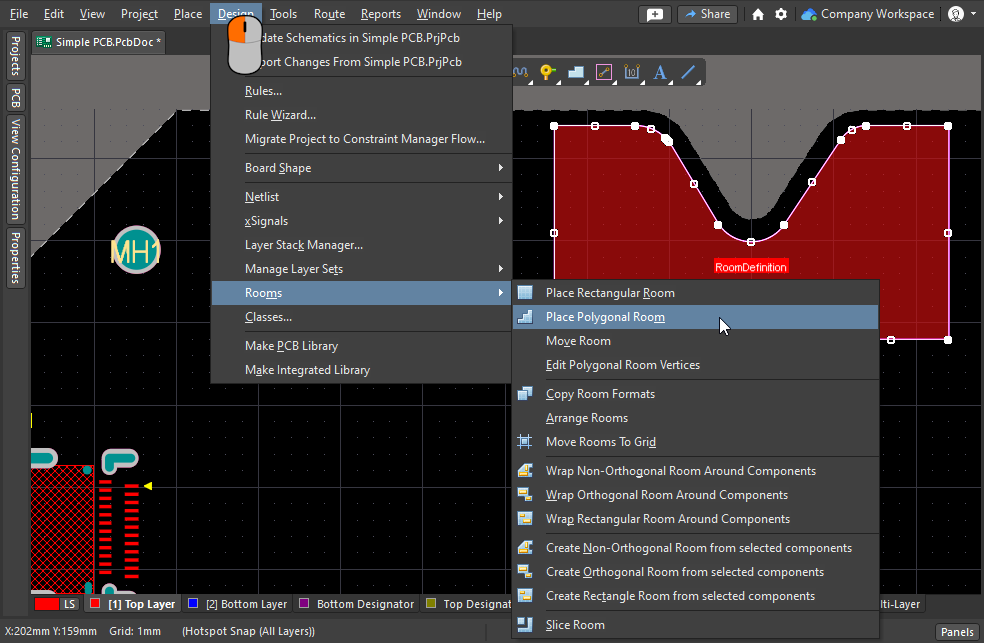 Zum Platzieren oder Erstellen eines Raums stehen verschiedene Verfahren zur Verfügung.
Interaktive Raumplatzierung
Rechteckige oder polygonale Räume können auf der obersten oder untersten Lage des Designs platziert werden. Beachten Sie, dass sie zwar bei jeder aktiven Lage platziert werden können, die Lage, für die sie gelten, jedoch im Rahmen der Room Definition-Design-Constraint zugewiesen wird.
Rechteckiger Raum
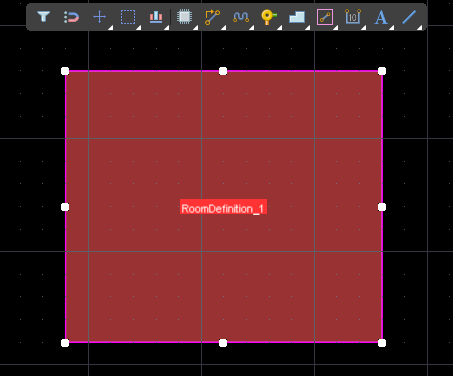
Nach dem Aufrufen des Befehls Design » Rooms » Place Rectangular Room wird der Cursor zu einem Fadenkreuz, und Sie wechseln in den Raumplatzierungsmodus. Die Platzierung erfolgt in diesen Schritten:
-
Klicken Sie oder drücken Sie Enter, um die erste Ecke des Raums zu fixieren.
-
Um die Eigenschaften der zugehörigen Room Definition-Constraint während der Platzierung zu bearbeiten, drücken Sie die Taste Tab .
-
Bewegen Sie den Cursor, um die Größe des Raums anzupassen. Klicken Sie dann oder drücken Sie Enter, um die diagonal gegenüberliegende Ecke zu fixieren und die Platzierung des Raums abzuschließen.
-
Platzieren Sie weitere Räume, oder klicken Sie mit der rechten Maustaste bzw. drücken Sie Esc, um den Platzierungsmodus zu beenden.
Polygonaler Raum
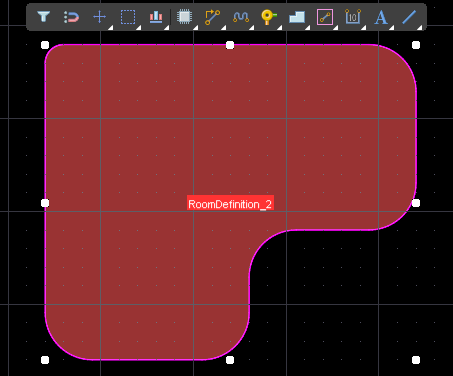
Nach dem Aufrufen des Befehls Design » Rooms » Place Polygonal Room wird der Cursor zu einem Fadenkreuz, und Sie wechseln in den Raumplatzierungsmodus. Die Platzierung erfolgt in diesen Schritten:
-
Positionieren Sie den Cursor und klicken Sie, um den Startpunkt des Raums zu fixieren.
-
Positionieren Sie den Cursor und klicken Sie, um nacheinander die Eckpunkte festzulegen, die die polygonale Form des Raums definieren.
-
Nachdem Sie den letzten Eckpunkt platziert haben, klicken Sie mit der rechten Maustaste oder drücken Sie Esc, um die Platzierung des Raums abzuschließen. Sie müssen das Polygon nicht schließen, da die Software die Form automatisch vervollständigt, indem sie den Startpunkt mit dem zuletzt platzierten Punkt verbindet.
-
Platzieren Sie weitere polygonale Räume, oder klicken Sie mit der rechten Maustaste bzw. drücken Sie Esc, um den Platzierungsmodus zu beenden.
Auf Grundlage ausgewählter Bauteile
Wenn die Bauteile bereits auf der Leiterplatte positioniert sind und Sie einen neuen Raum passend zu ihrer Platzierung erstellen möchten, verwenden Sie einen der drei Create xxx Room from selected components-Befehle. Mit diesen Befehlen lassen sich nicht orthogonale, orthogonale und rechteckige Räume automatisch auf Grundlage der aktuell im Designbereich ausgewählten Bauteile erstellen. Das Vorgehen ist jeweils gleich:
-
Wählen Sie alle Bauteile aus, für die Sie den Raum erstellen möchten. Um die PCB-Bauteile vom Schaltplan aus auszuwählen, führen Sie den Befehl Tools » Cross Select Mode aus und wählen Sie anschließend die Bauteile im Schaltplan aus.
-
Rufen Sie im PCB-Editor den entsprechenden Erstellungsbefehl auf (Design » Rooms » Create xxx Room from selected components). Es wird automatisch eine Bauteilklasse mit den ausgewählten Bauteilen erstellt, sofern nicht bereits eine vorhanden ist.
-
Der gewählte Raumtyp wird anschließend erstellt. Dabei wird die Designregel „Room Definition“ dieses Raums automatisch mit der erstellten Bauteilklasse verknüpft.
-
Die Größe des Raums wird anhand der Auswahlrechtecke der Bauteile so angepasst, dass alle ausgewählten Bauteile hineinpassen.
-
Wenn Sie den Raum durch Klicken und Ziehen verschieben, werden auch alle Bauteile der zugehörigen Bauteilklasse verschoben.
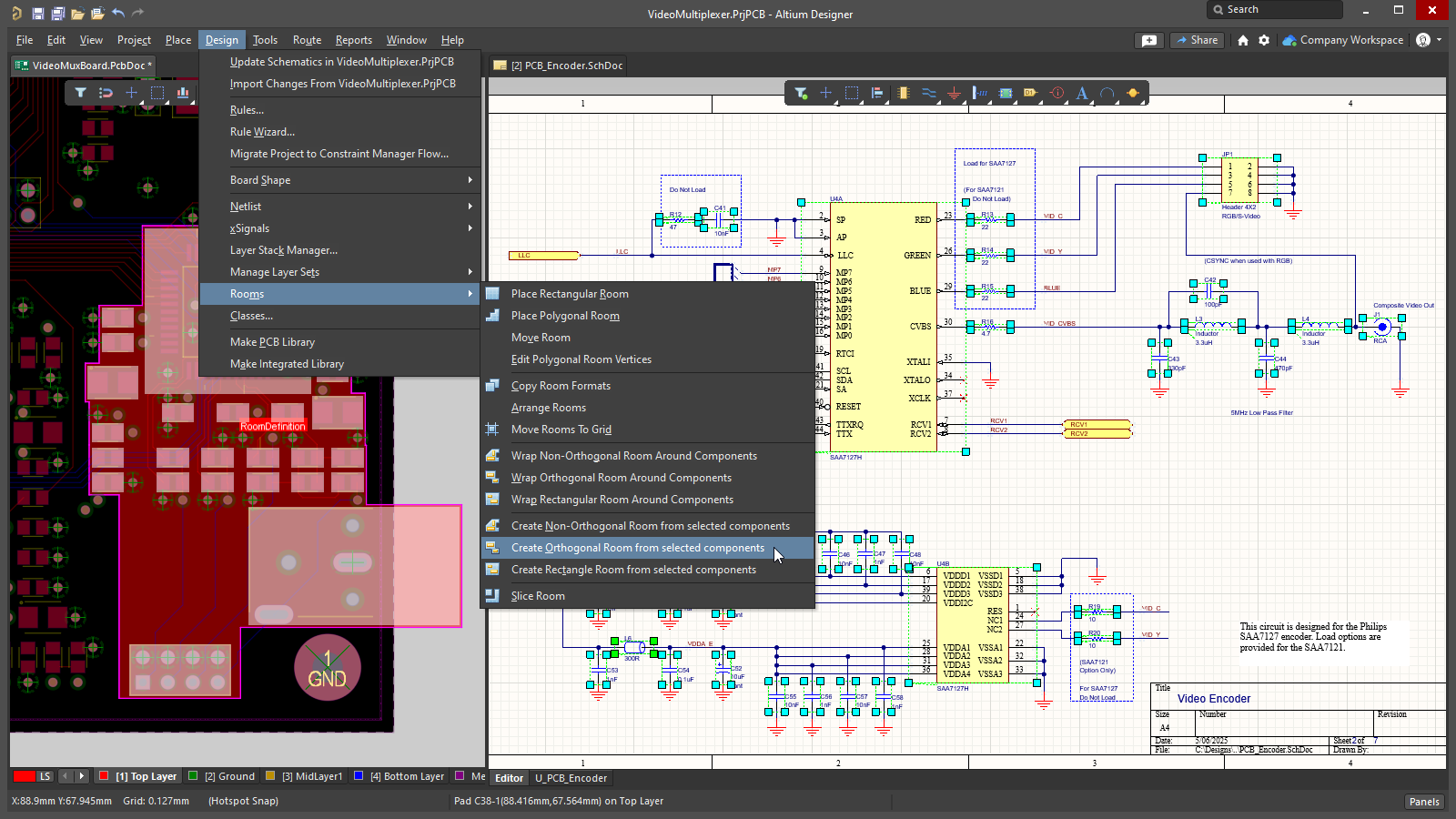 Aus den ausgewählten Leiterplattenbauteilen, die zuvor im Schaltplan ausgewählt wurden, wird ein orthogonaler Raum erstellt.
Durch Hinzufügen einer Designvorgabe zur Raumdefinition
Ein neuer Raum kann auch erstellt werden, indem Sie eine neue Vorgabe im PCB Rule and Constraints Editor oder im Constraint Manager definieren.
Welcher Ansatz wird zum Definieren der Designvorgaben verwendet?
Altium Designer unterstützt zwei unterschiedliche Ansätze zum Definieren von Designvorgaben: den Constraint Manager und den PCB Rule and Constraints Editor.
Der PCB Rule and Constraints Editor war die erste Benutzeroberfläche, die zum Definieren von Vorgaben im PCB-Editor entwickelt wurde. Bei Verwendung des PCB Rule and Constraints Editor definiert der Entwickler: what objects the constraint (rule) applies to und how those objects are to be constrained. Dieser Ansatz ist leistungsfähig, da der Entwickler gezielt die Objekte festlegen kann, für die Vorgaben gelten sollen. Diese können für alles gelten (beispielsweise für alle Netze) oder auf ein bestimmtes Objekt auf der Leiterplatte beschränkt werden (etwa ein einzelnes Pad). Diese flexible Auswahl der Designobjekte wird durch eine Regel-Engine ermöglicht, die auf einer Abfragesprache basiert.
Der Constraint Manager verfolgt beim Definieren der Vorgaben einen objektorientierten Ansatz. Der Entwickler arbeitet aus der Perspektive der Objekte und weist ihnen in einer tabellenähnlichen Oberfläche die verschiedenen elektrischen und physikalischen Vorgaben zu, die für das Design erforderlich sind. Dabei werden die Objekte im grafischen Editor hervorgehoben, sobald sie im Constraint Manager ausgewählt werden. So kann der Entwickler alle Anforderungen an ein Objekt einfach konfigurieren und prüfen, beispielsweise: Diese Netzklasse soll mit dieser Breite, diesem Abstand, diesem Routing-Via und diesem Polygon-Anschlussstil geroutet werden. Möglicherweise soll diese Netzklasse auch auf bestimmten Lagen mit bestimmten Impedanzen geroutet werden. Diese objektorientierte Ansicht ist im PCB Rule and Constraints Editor nicht möglich. Letztendlich wandelt die Software die objektorientierten Vorgaben in dasselbe Regelformat um, das im PCB Rule and Constraints Editor definiert wird. Wechseln Sie zur Ansicht All Rules, nachdem Sie die Vorgaben aus dem PCB-Editor heraus geöffnet haben, um sie anzuzeigen.
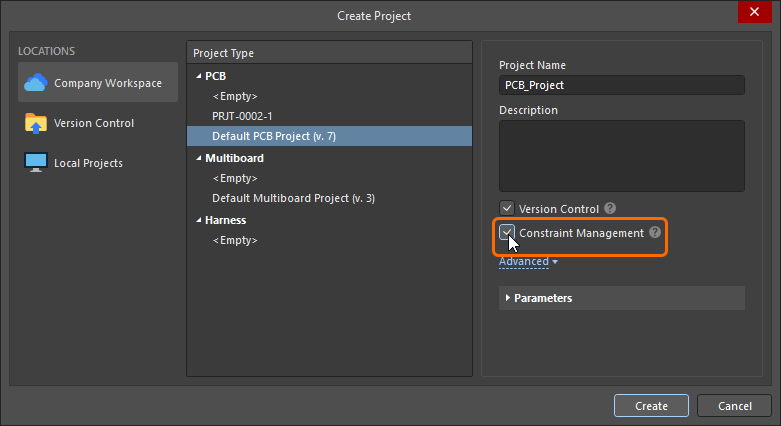 ).
).Diese Dokumentationsseite zeigt Abbildungen der Vorgaben, wie sie sowohl im Dialogfeld PCB Rule and Constraints Editor als auch im Constraint Manager definiert werden. Beachten Sie, dass die Begriffe constraint und rule synonym verwendet werden.
Hinzufügen einer neuen Designvorgabe zur Raumdefinition
Im PCB Rules and Constraints Editor
Für jeden platzierten oder erstellten Raum wird automatisch eine zugehörige Designvorgabe zur Raumdefinition erstellt. Das gilt auch umgekehrt: Wenn Sie eine neue Regel dieses Typs hinzufügen, erscheint das entsprechende Raumobjekt im Designbereich. Auch beim Löschen gilt dieser Zusammenhang: Wenn Sie einen Raum im grafischen Editor löschen, wird die Vorgabe automatisch gelöscht. Wenn Sie die Designvorgabe löschen, wird das grafische Objekt gelöscht.
Wenn die Raumvorgabe über den PCB Rules and Constraint Editor definiert wird, wird standardmäßig ein Raumobjekt mit einer Größe von 5 × 5 Zoll in einem Abstand von 1 Zoll zum absoluten Ursprung (unten links im Bearbeitungsbereich) erstellt. Beachten Sie, dass die Ursprungsmarkierung den benutzerdefinierten relativen Ursprung anzeigt, der an einer beliebigen Stelle im Bearbeitungsbereich festgelegt werden kann.
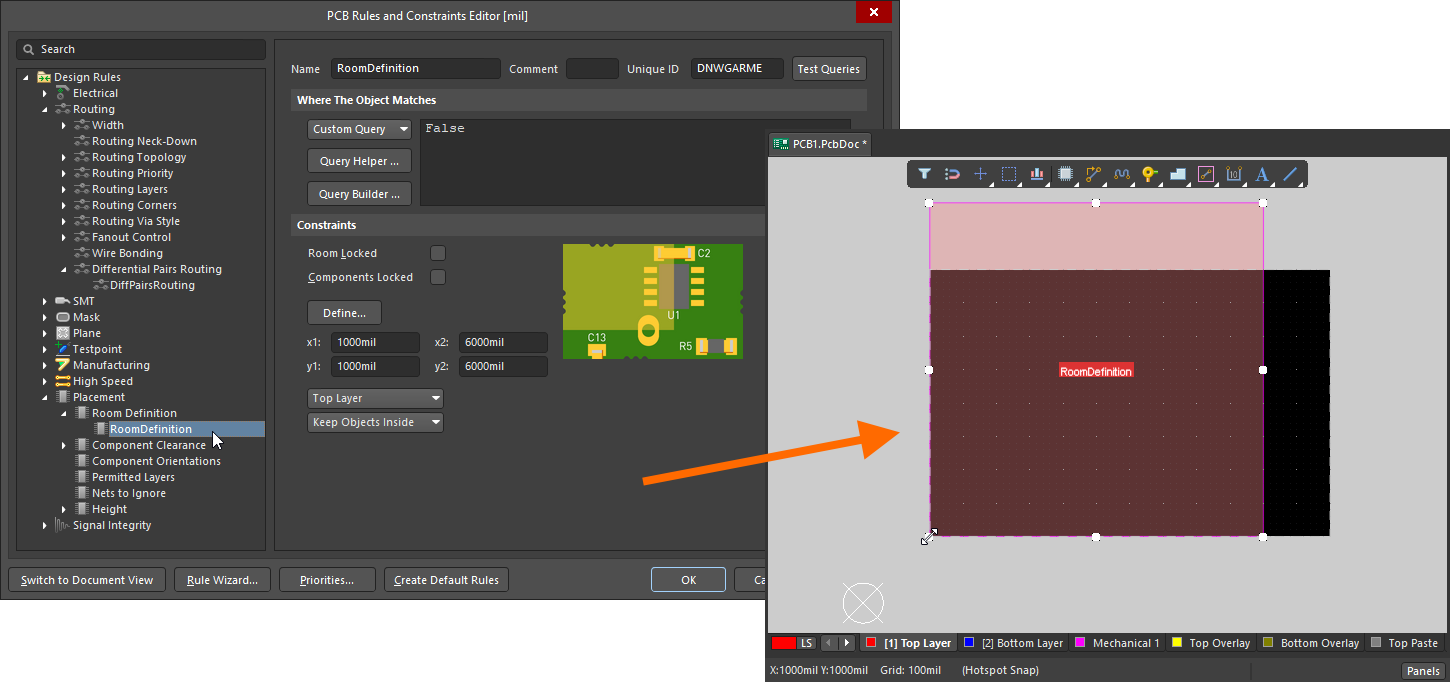 Wenn eine neue Raumvorgabe hinzugefügt wird, wird im Bearbeitungsbereich ein Standardraum definiert.
Nachdem die Vorgabe hinzugefügt wurde, können Sie zum Bearbeitungsbereich zurückkehren und den Raum grafisch bearbeiten. Alternativ können Sie im PCB Rules and Constraints Editor die Raumvorgabe bearbeiten und anschließend auf die Schaltfläche Define klicken, um die Form interaktiv zu definieren. Da ein Raum einen Bereich auf der Leiterplatte definiert, ist es üblicher, den Raum interaktiv zu platzieren und die Designvorgabe automatisch erstellen zu lassen.
Erfahren Sie mehr darüber, wie Sie eine neue Vorgabe im PCB Rules and Constraints Editor hinzufügen.
Im Constraint Manager
Um eine neue Begrenzungsvorgabe (Raumvorgabe) im Constraint Manager: zu erstellen, wechseln Sie zur Ansicht All Rules, wählen Sie Room Definition in der Kategorie Placement, klicken Sie anschließend mit der rechten Maustaste in die Liste der erweiterten Regeln und wählen Sie Add Advanced Rule aus dem Kontextmenü, wie unten gezeigt.
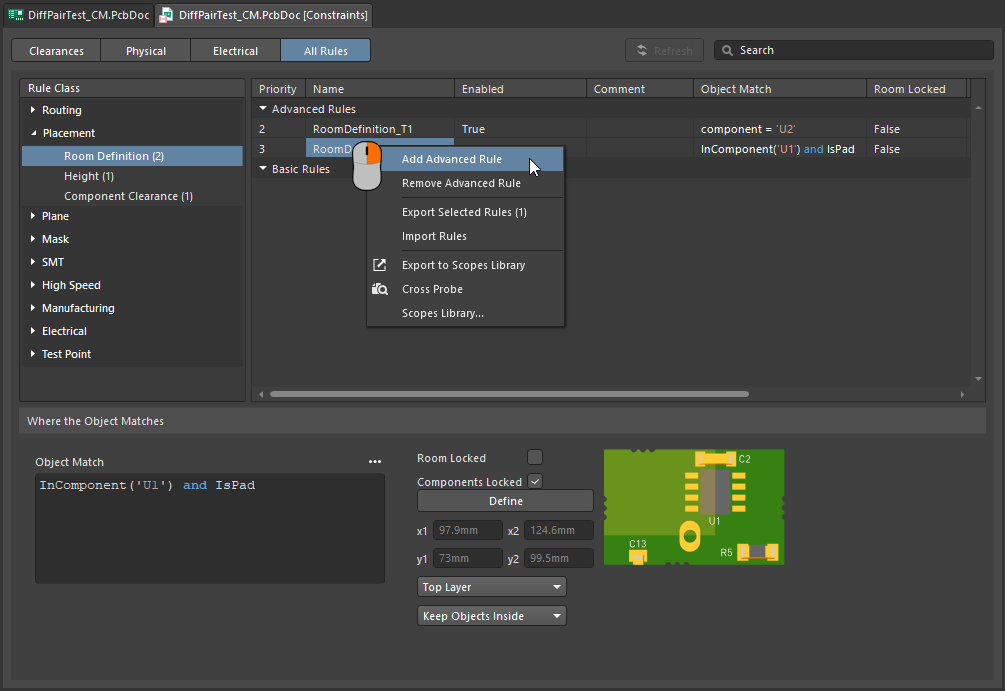 Im Constraint Manager kann eine neue Raumvorgabe hinzugefügt werden.
Zu diesem Zeitpunkt existiert das Raumobjekt noch nicht im grafischen Bearbeitungsbereich. Sie müssen nun auf die Schaltfläche Define klicken (dadurch wechseln Sie zum PCB-Editor) und die Form des Raums definieren. Sobald dies geschehen ist, sind sowohl die Raumvorgabe als auch das Raumobjekt vorhanden, und die Vorgaben können gespeichert werden.
-
Wenn die Raumvorgabe dazu verwendet werden soll, Objekte auf den Bereich innerhalb (oder außerhalb) dieses Leiterplattenbereichs zu beschränken, müssen Sie als Nächstes die Object Match und die weiteren Vorgabeeinstellungen im unteren Bereich des Constraint Manager konfigurieren. Lesen Sie weiter, um mehr darüber zu erfahren.
-
Wenn die Raumvorgabe als Bereichsdefinition in einer anderen Vorgabenart verwendet werden soll, beispielsweise für die Leiterbahnbreite, finden Sie weitere Informationen im Abschnitt Definieren von Vorgaben innerhalb eines Raums.
Erfahren Sie mehr darüber, wie Sie eine neue Vorgabe im Constraints Manager hinzufügen.
Was ist eine Raumvorgabe?
Wie bereits erwähnt, ist ein Raum ein definierter Bereich auf einer der äußeren Leiterplattenlagen, der dazu dient, Designanforderungen innerhalb dieses Leiterplattenbereichs festzulegen.
Alle Designvorgaben haben zwei wesentliche Elemente:
-
what objects this constraint applies to (
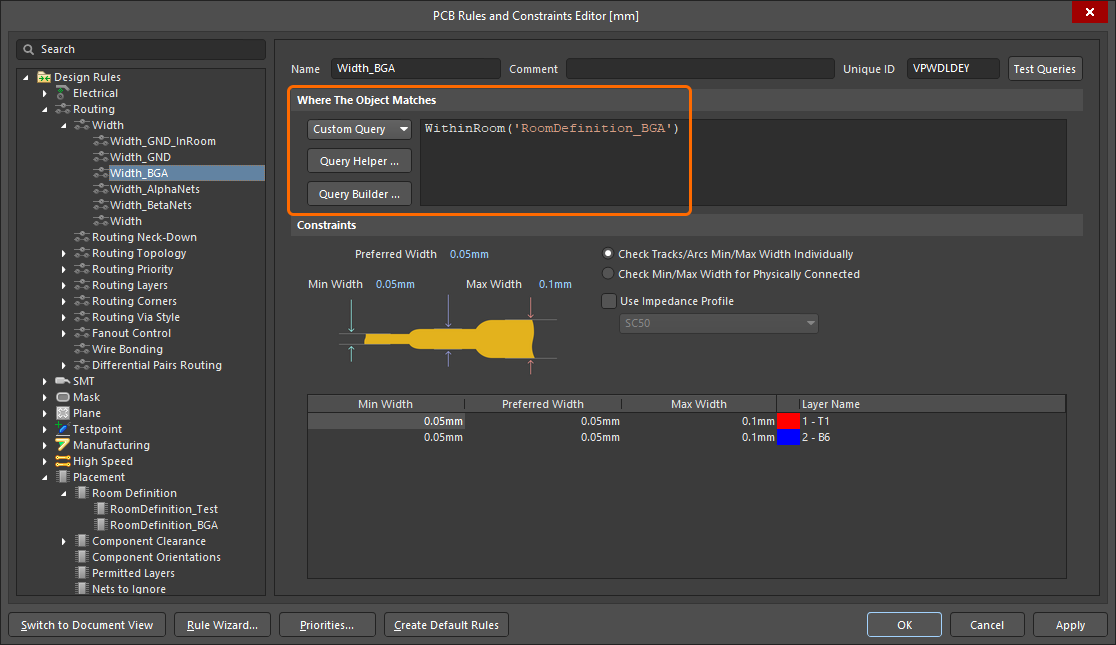 ) und
) und
-
how those objects are to be constrained (
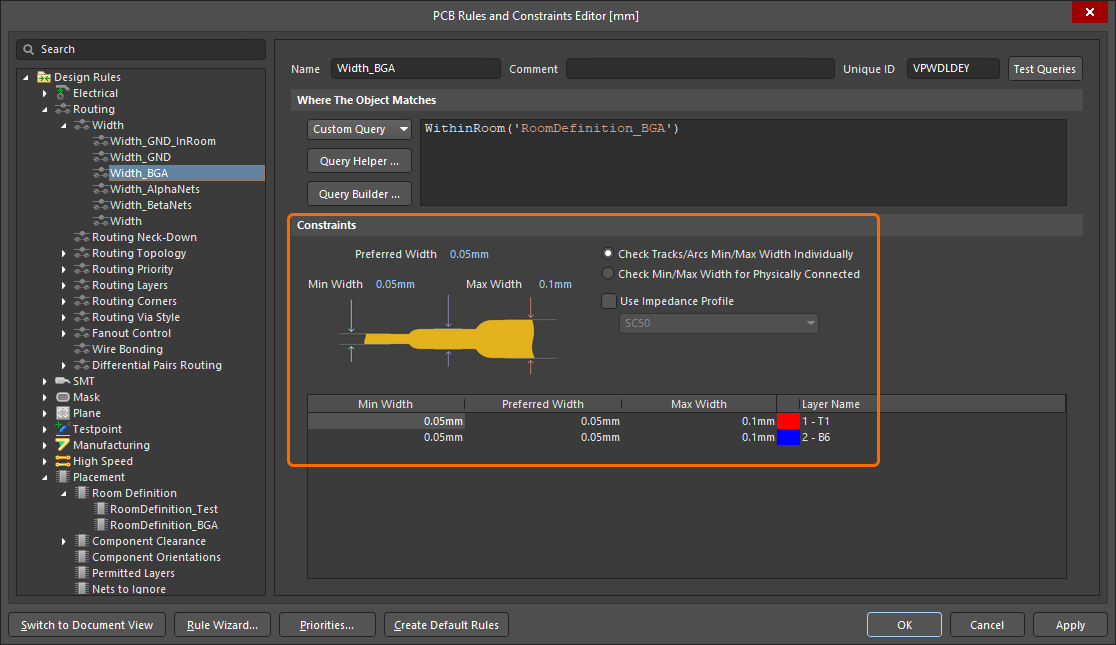 ).
).
Wenn die Raumvorgabe in einem Bereich der Leiterplatte definiert wird, in dem sich keine Bauteile befinden, wird das Kriterium Object Match (the objects this constraint applies to) standardmäßig auf False gesetzt. Das bedeutet, dass diese Vorgabe für keine Objekte gilt. Passen Sie dies nach Bedarf an.
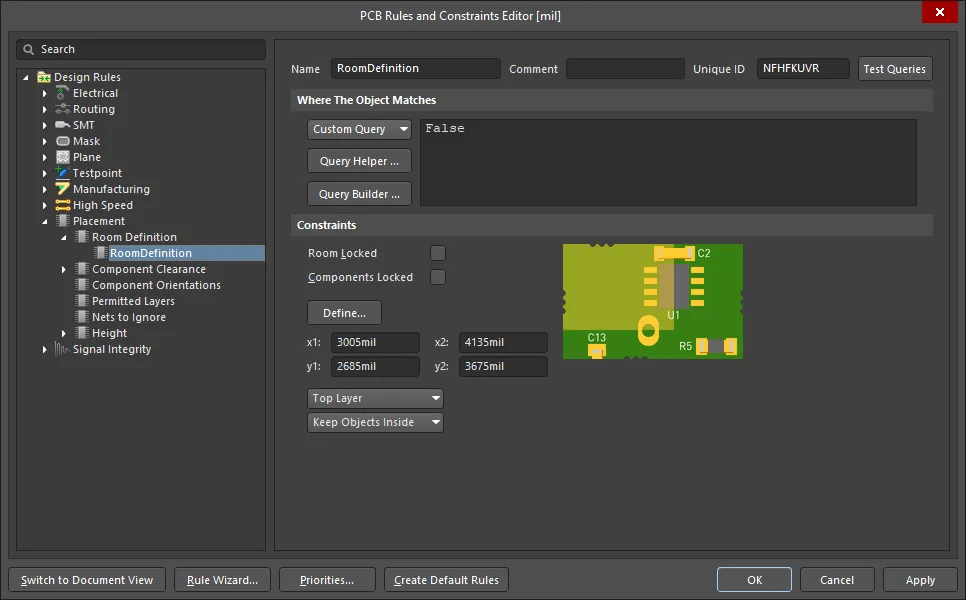 Die neu erstellte Raumdefinition. Beachten Sie, dass der Geltungsbereich der Regel auf „False“ gesetzt ist, sie also für keine Objekte gilt.
Beschränken einer Bauteilklasse
Eine gängige Anwendung einer Raum-Constraint besteht darin, die Position einer Bauteilklasse festzulegen und diese Bauteile damit auf einen bestimmten Bereich der Leiterplatte zu beschränken.
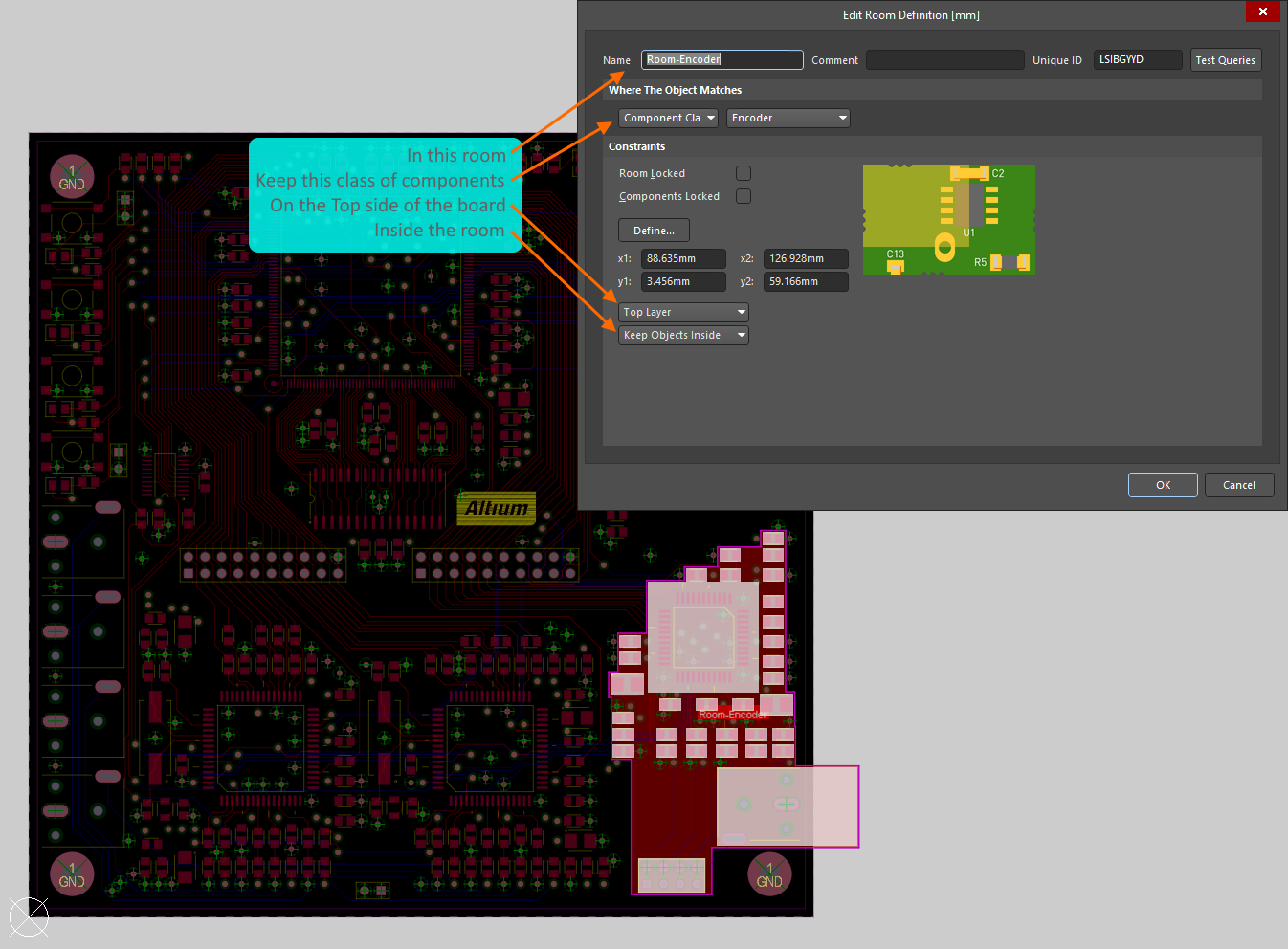 Die Bauteilklasse Encoder ist auf den Raum Room-Encoder auf dem Top Layer der Leiterplatte beschränkt.
Das obige Bild zeigt, wie die Bauteilklasse Encoder auf den Raum Room-Encoder within auf dem Top side der Leiterplatte im PCB Rules and Constraints Editor beschränkt wird (im Wesentlichen genauso wie im Constraint Manager 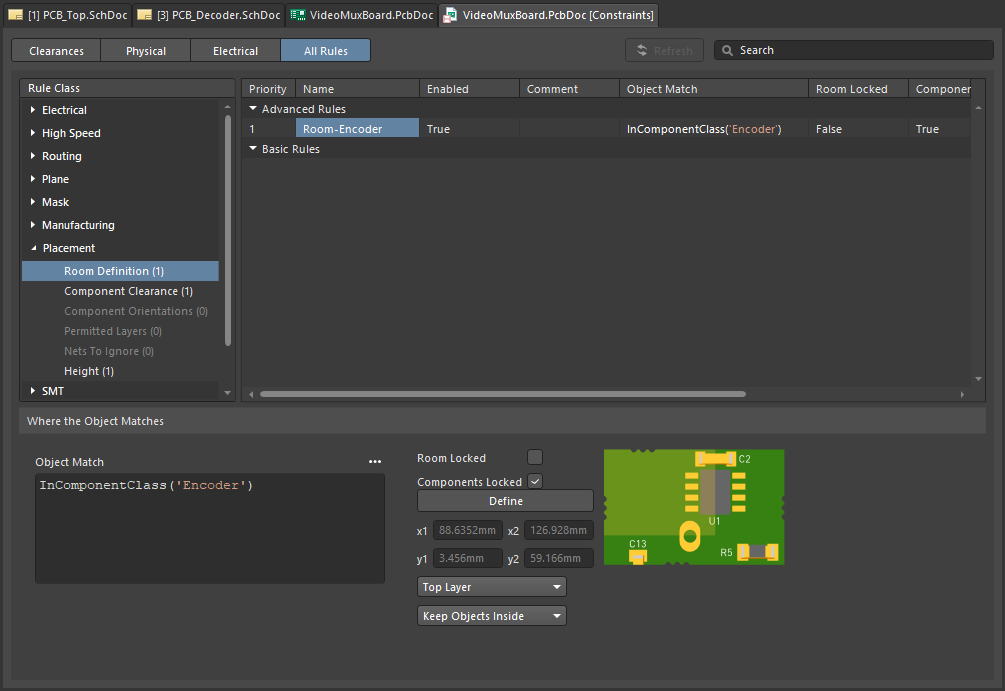 ). Sobald Bauteile einem Raum zugewiesen wurden, werden sie beim Verschieben des Raums mitbewegt. Um einen Raum zu verschieben, ohne die Bauteile zu bewegen, deaktivieren Sie vorübergehend die zugehörige Regel „Room Definition“.
Erfahren Sie mehr über die Design-Constraint „Room Definition“.
Der PCB-Editor bietet eine Reihe leistungsstarker Werkzeuge für die Arbeit mit Räumen. Weitere Informationen finden Sie im Abschnitt Arbeiten mit Räumen auf dieser Seite.
Ein Raum ist nicht nur selbst eine Design-Constraint (Room Definition), sondern kann auch als Objekt verwendet werden, um den Geltungsbereich einer anderen Design-Constraint auf einen Bereich der Leiterplatte zu begrenzen, beispielsweise für Leiterbahnbreite, Abstand oder Via-Stil. Dieses Thema wird im Abschnitt Definieren von Constraints innerhalb eines Raums auf dieser Seite behandelt.
Erstellung bei der Synchronisierung von Schaltplan und PCB-Design
Bei der Übertragung des Designs vom Schaltplan auf die Leiterplatte können Sie für jedes Schaltplanblatt einen Raum erstellen lassen, der dessen Bauteile enthält. In einem mehrstufigen hierarchischen Design ist dies möglicherweise wenig hilfreich. Bei einem großen flachen Design kann ein Raum pro Blatt jedoch die Positionierung der Bauteile auf der Leiterplatte erleichtern.
Die Registerkarte „Class Generation“ des Dialogs Project Options enthält Optionen zum Erzeugen von Räumen für jedes Blatt im Design (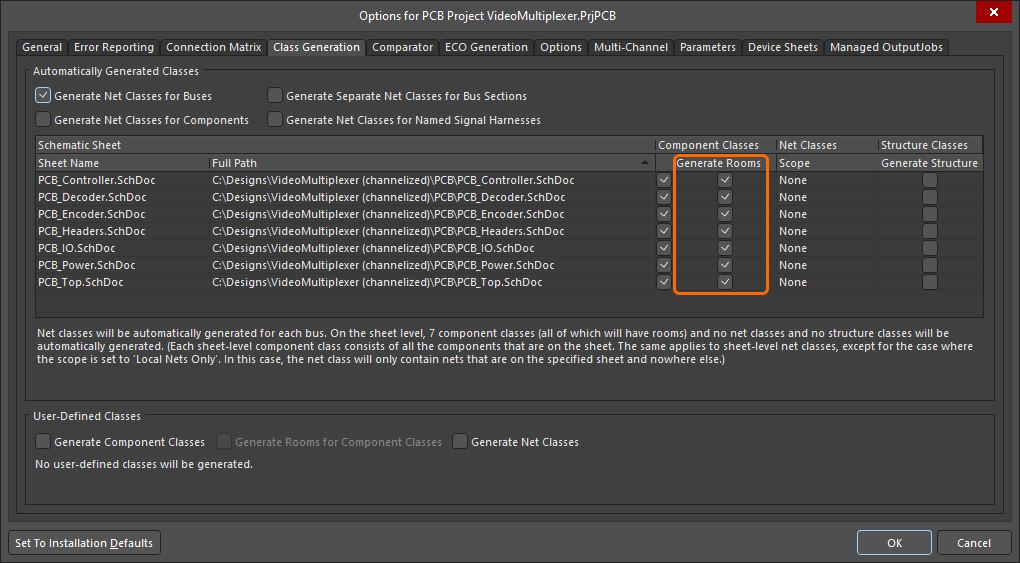 ). Wenn die Option Generate Rooms aktiviert ist, wird beim Ausführen des Befehls Design » Update ein Raum für dieses Blatt erstellt und diesem Raum eine Klasse mit allen Bauteilen des Blatts zugewiesen. Beachten Sie, dass die Bauteile jedes Blatts einer Bauteilklasse hinzugefügt werden. Daher muss für die Option Generate Rooms auch die entsprechende Option Component Class aktiviert sein.
Auf der Leiterplatte wird jede Raum-Constraint mit dem Geltungsbereich InComponentClass('<SheetSymbolDesignator>') erstellt. Wenn das Blatt keine Bauteile enthält, wird kein Raum erstellt. Bei der erstmaligen Übertragung des Schaltplans auf die Leiterplatte werden die Bauteile jeder Bauteilklasse in einer Reihe angeordnet. Anschließend wird um diese Bauteilklasse ein Raum erstellt, wie im folgenden Bild gezeigt.
Deaktivieren Sie die Kontrollkästchen Generate Rooms im Dialog Project Options, wenn keine automatisch erzeugten Räume benötigt werden.
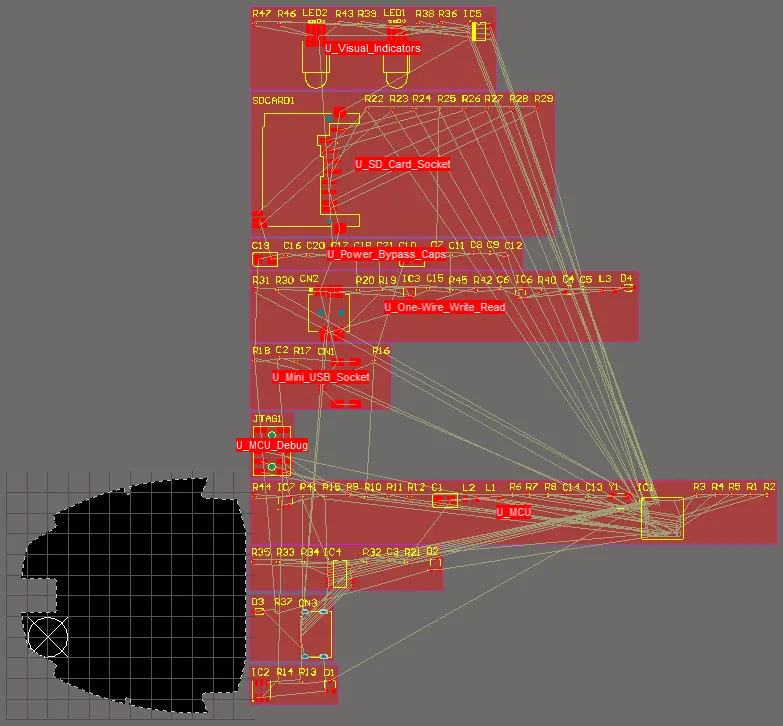 Die Leiterplatte nach der ersten Designsynchronisierung – für jedes Blatt wurde ein Raum erstellt, dem die Bauteilklasse dieses Blatts zugewiesen ist.
Erfahren Sie mehr über das automatische Erzeugen von Räumen, Bauteilklassen und Netzklassen aus dem Schaltplanprojekt.
Weitere Informationen zur Designsynchronisierung finden Sie auf der Seite Schaltpläne und Leiterplatte synchron halten.
Aus ausgewählten Leiterbahnen und Kreisbögen
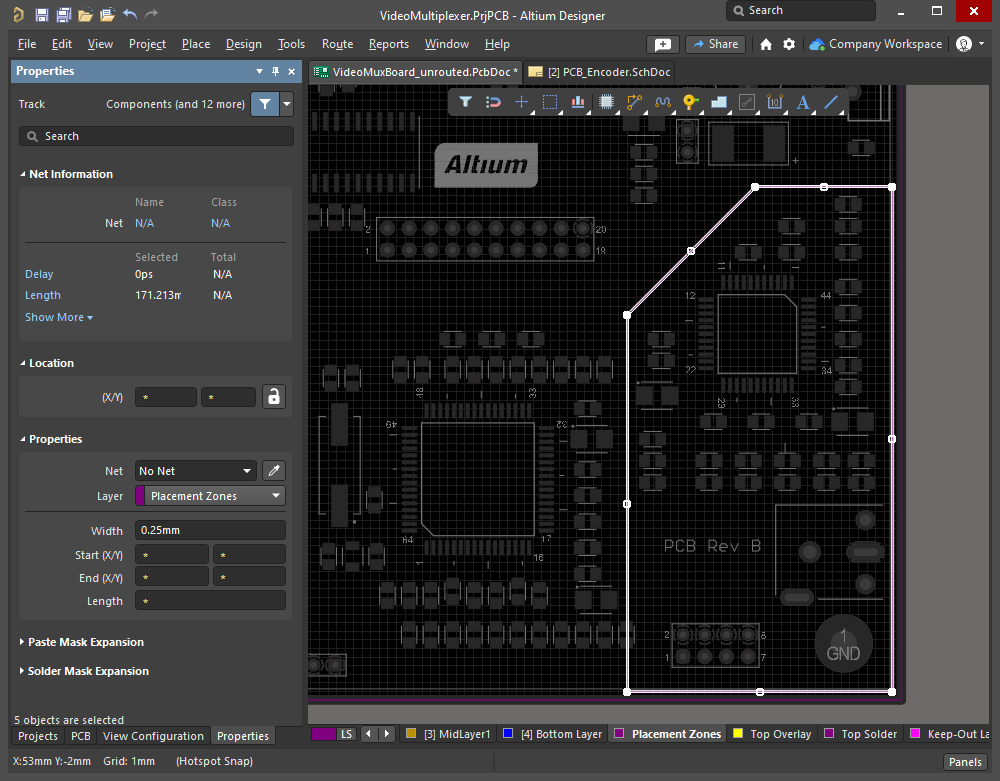
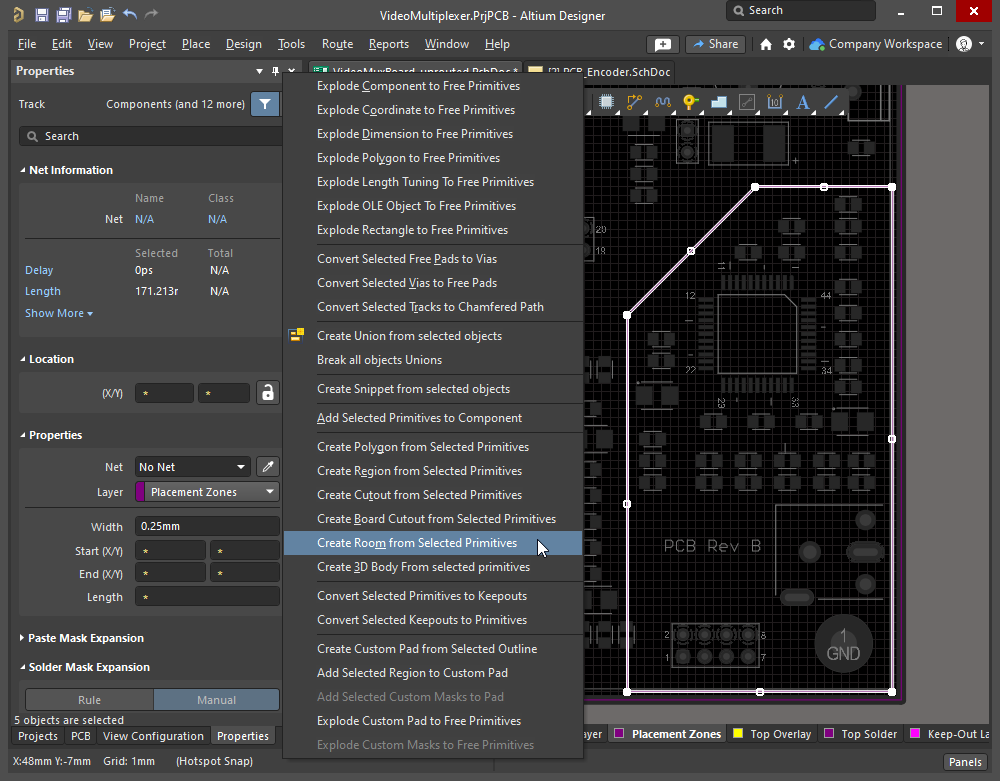
Ein Raumobjekt kann anhand einer geschlossenen Kontur aus ausgewählten Leiterbahn- und/oder Kreisbogenobjekten definiert werden. Wählen Sie dazu im Designbereich alle Leiterbahn- und Kreisbogenprimitive aus, die zur geschlossenen Kontur gehören, und wählen Sie in den Hauptmenüs den Befehl Tools » Convert » Create Room from Selected Primitives. Die folgende Diashow veranschaulicht die einzelnen Schritte.
|
Auf einer mechanischen Lage wurden Leiterbahnen platziert, um den für die Encoder-Bauteile verfügbaren Leiterplattenbereich zu definieren. Führen Sie den Befehl Tools » Convert » Create Room from Selected Primitives aus, um eine Raumdefinition mit derselben Form zu erstellen. Der Dialog Edit Room Definition wird geöffnet, sodass die Parameter der Constraint festgelegt werden können. Diesem Raum wird die Bauteilklasse Um die Form des Raums anzupassen, klicken Sie darauf, um ihn auszuwählen, und führen Sie anschließend den Befehl Design » Rooms » Edit Polygonal Verticies aus. Klicken Sie dann auf einen Eckpunkt oder eine Kante, um die Form des Raums zu ändern. |
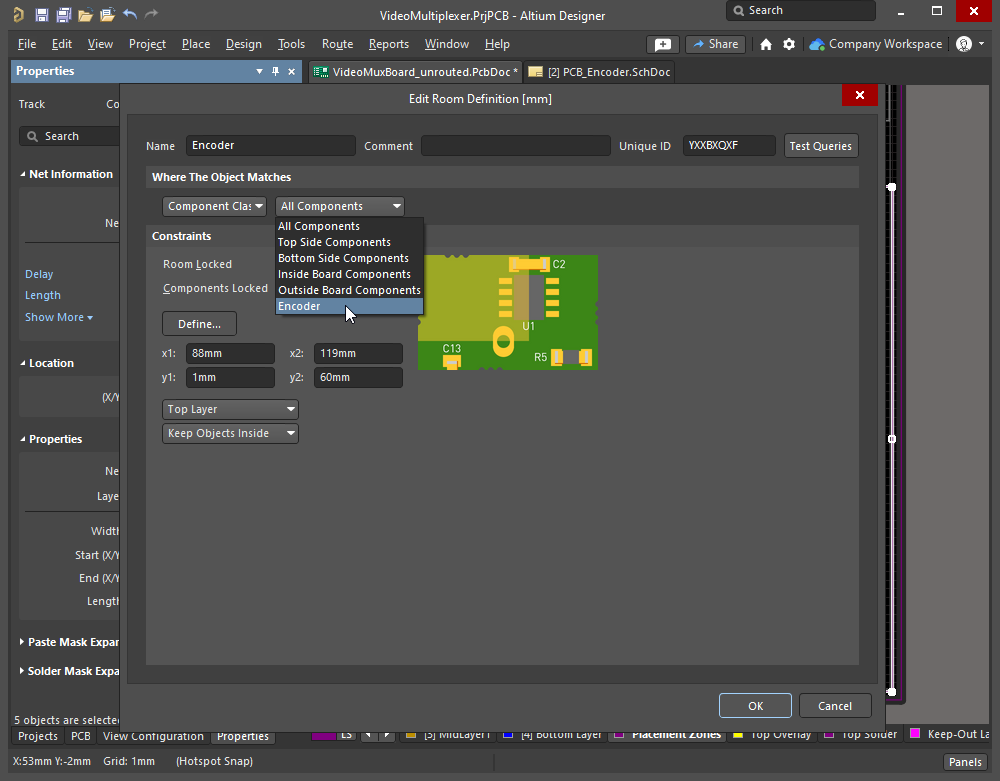
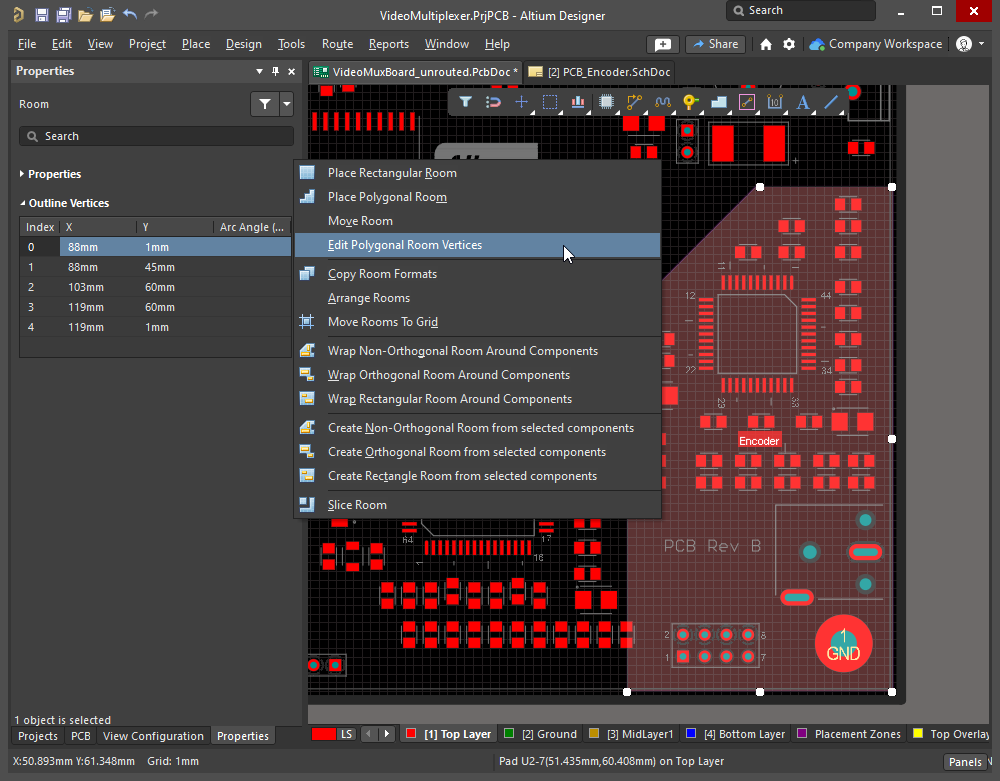
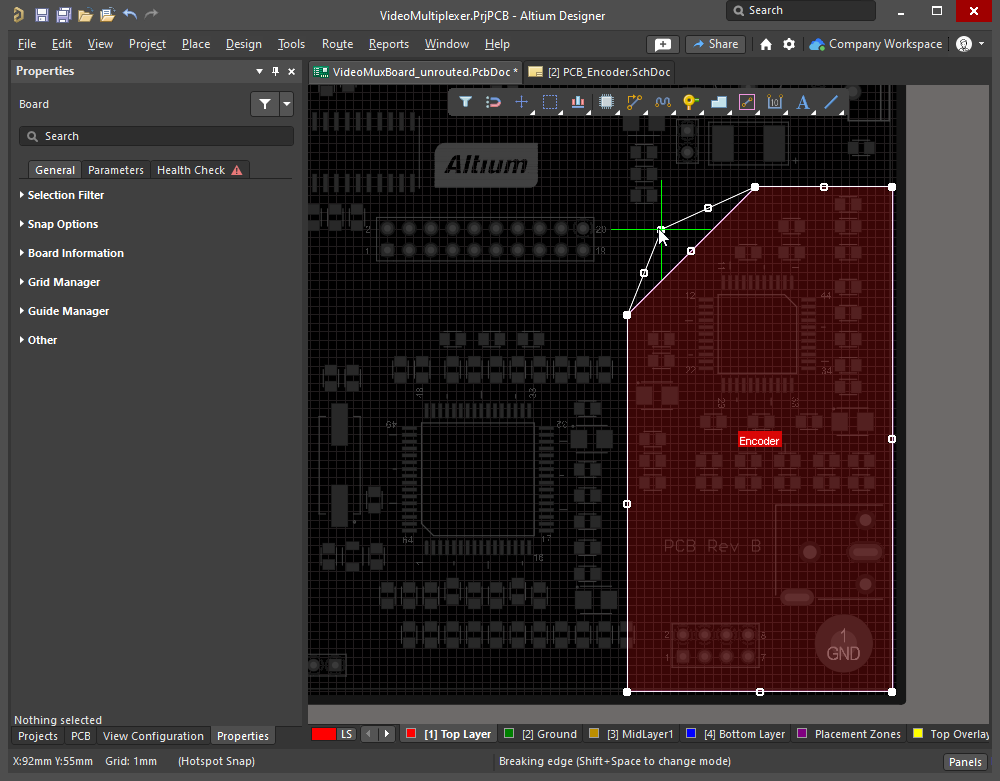
Bearbeiten eines Raums
Die X-Y-Form des Raums und seine Position auf der Leiterplatte können interaktiv geändert werden. Beachten Sie, dass es zwei unterschiedliche Verfahren zum interaktiven Bearbeiten eines Raums gibt: entweder anhand seines Auswahlrechtecks (beschrieben im Abschnitt Ändern von Größe und Position) oder anhand seiner Eckpunkte zur Formbearbeitung (beschrieben im Abschnitt Ändern der Form).
Sie können die Befehle nicht nur über das Untermenü Design » Rooms aufrufen, sondern auch auf kontextspezifische Raumbefehle zugreifen, indem Sie mit der rechten Maustaste auf einen platzierten Raum klicken und das Untermenü Room Actions auswählen.
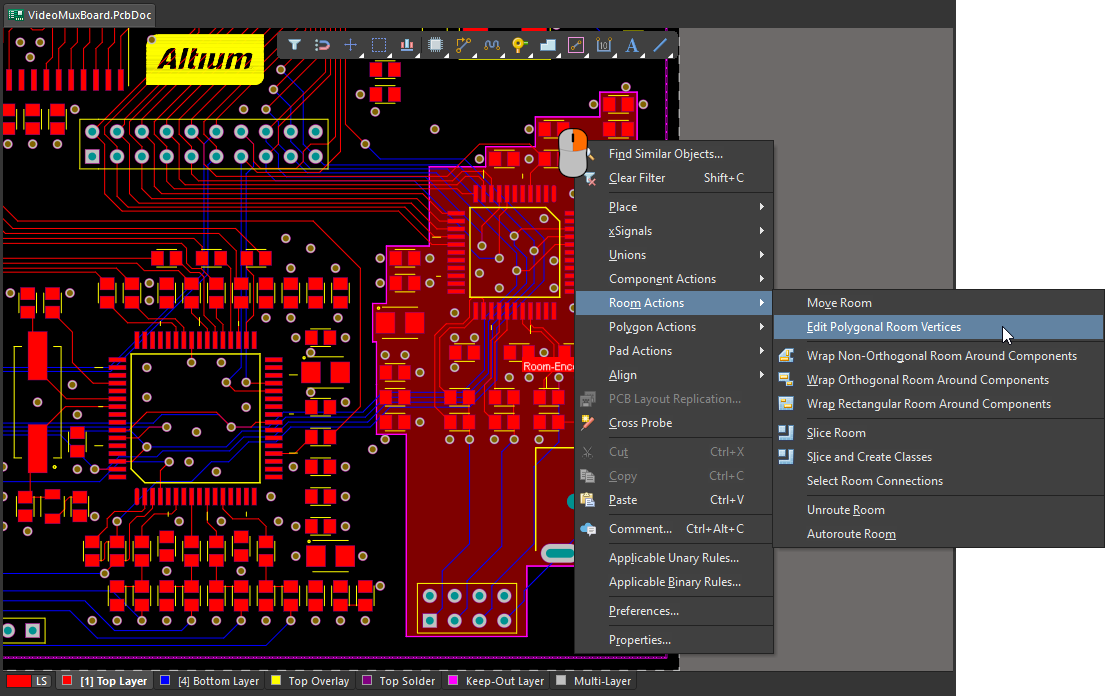 Klicken Sie mit der rechten Maustaste auf einen Raum, um auf raumspezifische Befehle zuzugreifen.
Ändern von Größe und Position
Wenn Sie einmal auf einen Raum klicken, um ihn auszuwählen, werden die folgenden Bearbeitungsgriffe verfügbar – unabhängig davon, ob der Raum ursprünglich als rechteckiger oder polygonaler Raum platziert wurde:
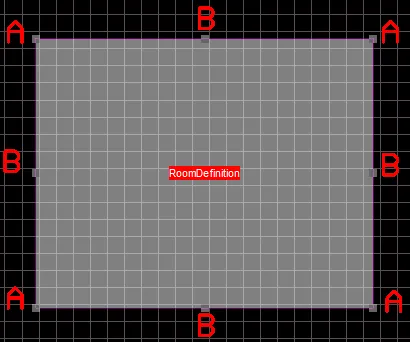
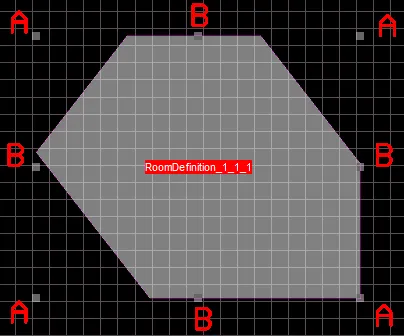 Bearbeitungsgriffe werden angezeigt, wenn Sie einen Raum durch Anklicken auswählen.
Ändern der Raumgröße
-
Durch Ziehen an den Eckgriffen (A) wird der Raum gleichzeitig horizontal und vertikal skaliert.
-
Durch Ziehen an einem Kantengriff (B) wird das Objekt in der jeweiligen Richtung (horizontal oder vertikal) skaliert.
-
Während des Ziehens kann der Raum durch Drücken der folgenden Tasten gedreht oder gespiegelt werden:
-
Spacebar zum Drehen des Objekts gegen den Uhrzeigersinn oder Shift+Spacebar zum Drehen im Uhrzeigersinn. Die Drehung erfolgt entsprechend dem Wert für die Drehschrittweite, der auf der Seite PCB-Editor – Allgemein des Dialogs Preferences festgelegt ist.
-
X oder Y zum Spiegeln des Objekts entlang der X- bzw. Y-Achse.
-
L zum Wechseln des Objekts auf die andere Seite der Leiterplatte. Wenn dem Raum Bauteile zugeordnet sind, werden diese zusammen mit dem Raum auf die andere Seite verschoben.
-
Verschieben eines Raums
Klicken Sie auf einen Raum und ziehen Sie ihn an eine neue Position. Ein Raumobjekt kann auch mit dem Befehl Design » Rooms » Move Room aus den Hauptmenüs oder dem Befehl Room Actions » Move Room aus dem Kontextmenü des Raums verschoben werden. Nach dem Aufrufen des Befehls wird der Cursor zu einem Fadenkreuz und der Modus zum Verschieben von Räumen wird aktiviert. Klicken Sie auf den Raum, um ihn zu verschieben.
Wenn Sie auf einen Raum klicken, um ihn zu verschieben:
-
Der Raum wird an den Cursor angehängt. Der Punkt, an dem der Raum gehalten wird, hängt von der aktuellen Einstellung für Object Snap Options (
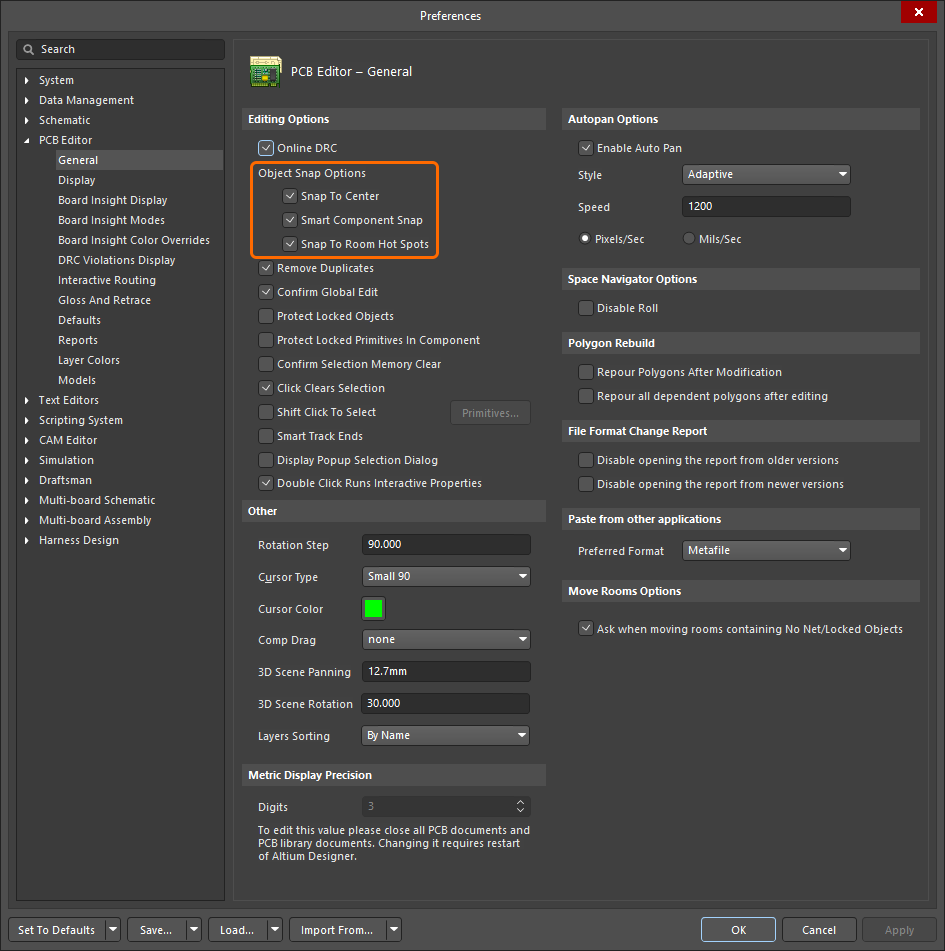 ) ab. Dabei rastet der Cursor am nächstgelegenen aktivierten Fangpunkt ein (Bauteilpad, Bauteilreferenzpunkt oder Raumeckpunkt).
-
Bewegen Sie den Raum an die gewünschte Position und klicken Sie dann oder drücken Sie Enter , um ihn zu platzieren.
-
Verschieben Sie weitere Räume oder klicken Sie mit der rechten Maustaste bzw. drücken Sie Esc, um den Modus zu verlassen.
-
Wenn sich im zu verschiebenden Raum Bauteile befinden, können Sie während des Verschiebens durch Drücken der Tasten Shift oder Ctrl grüne dynamische Ausrichtungslinien einblenden. Verwenden Sie Shift, um weiterhin am aktiven Raster einzurasten, oder Ctrl, um das Raster vorübergehend zu deaktivieren und an einem vorhandenen Objekt außerhalb des Rasters auszurichten.
-
Wenn der Raum Objekte ohne Netzzuordnung und/oder gesperrte Objekte enthält, wird der Dialog Room containing No Net/Locked Objects geöffnet. Legen Sie in diesem Dialog fest, ob diese Objekte zusammen mit dem Raum verschoben werden sollen, und klicken Sie dann auf OK. Damit dieser Dialog angezeigt wird, muss die Option Ask when moving rooms containing No Net/Locked Objects auf der Seite PCB Editor - General des Dialogs Preferences (
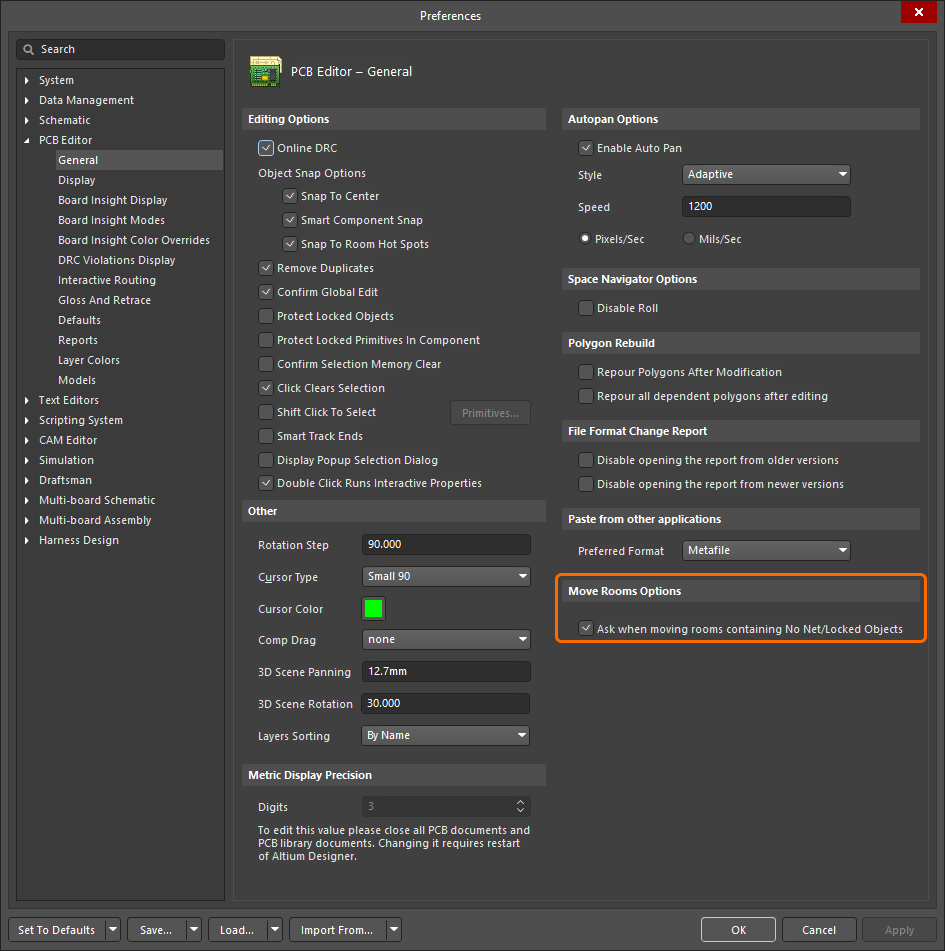 ) aktiviert sein.
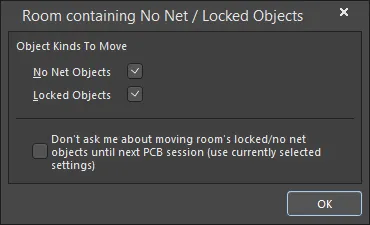
Der Dialog Room containing No Net / Locked Objects
Dialog „Raum enthält Objekte ohne Netzzuordnung / gesperrte Objekte“ |
|
| No Net Objects | Aktivieren Sie diese Option, um Objekte ohne Netzzuordnung zusammen mit dem Raum zu verschieben. |
| Locked Objects | Aktivieren Sie diese Option, um gesperrte Objekte zusammen mit dem Raum zu verschieben. |
| Don't ask me about moving room's locked/no net objects until next PCB session (use currently selected settings) | Aktivieren Sie diese Option, um die ausgewählten Einstellungen zu speichern und für den Rest Ihrer PCB-Sitzung weiterzuverwenden. Der Dialog wird erst wieder geöffnet, wenn eine neue Sitzung gestartet wird. |
Ändern der Form
Die Begrenzungsform eines Raums wird mit dem Befehl Edit Polygonal Room Vertices geändert. Sie können diesen Befehl über das Untermenü Design » Rooms oder das Kontextuntermenü Room Actions aufrufen.
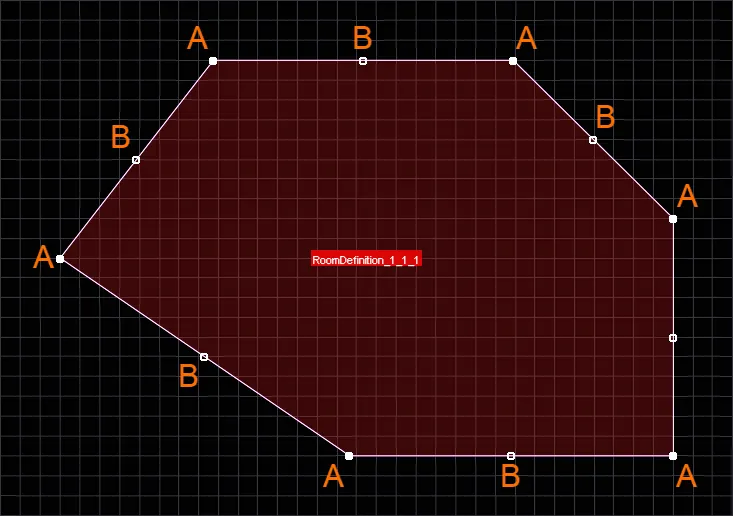
Wenn Sie den Befehl ausführen, werden die Bearbeitungsgriffe für die Begrenzung der polygonalen Raumform angezeigt. Sie können dann:
-
Auf einen A Griff klicken und anschließend den Cursor bewegen, um den betreffenden Eckpunkt zu verschieben. Klicken Sie erneut an der neuen Position, um den Eckpunkt zu platzieren.
-
Drücken Sie beim Verschieben eines A-Griffs die Taste Delete auf der Tastatur, um diesen Eckpunkt aus dem Raum zu entfernen.
-
Klicken Sie auf B oder auf eine Kante (zwischen den Griffen) und bewegen Sie anschließend den Cursor, um diese Kante zu verschieben. Drücken Sie beim Verschieben der Kante Shift+Spacebar, um zwischen den verfügbaren Kantenverhaltensmodi zu wechseln (Kante verschieben, Kante aufbrechen, Kante nach innen abwinkeln).
-
Ctrl+Click B oder Ctrl+Click auf einer Kante und bewegen Sie anschließend den Cursor, um dieser Kante einen Eckpunkt hinzuzufügen und diesen zu verschieben. Klicken Sie erneut an der neuen Position, um den Eckpunkt zu platzieren. Der neue Eckpunkt wird dadurch zu einem A-Eckpunkt, und zwischen ihm und den ursprünglichen A-Eckpunkten werden neue B-Eckpunkte eingefügt.
-
Um auf einen Griff außerhalb des Rasters zuzugreifen, halten Sie die Taste Ctrl gedrückt, um das Einrasten am Raster vorübergehend zu deaktivieren.
-
Ändern Sie die Form des Raums nach Bedarf weiter oder klicken Sie mit der rechten Maustaste bzw. drücken Sie Esc, um die Bearbeitung zu beenden. Die Darstellung des Raums wird entsprechend der neuen Begrenzungsform aktualisiert.
Dieser Befehl kann unabhängig davon verwendet werden, ob der betreffende Raum gesperrt ist oder nicht.
Zerteilen eines Raums
Es stehen Befehle zur Verfügung, um ein platziertes Raumobjekt grafisch in zwei oder mehr separate Räume zu slice. Das Zerteilen erfolgt ähnlich wie das Platzieren einer Linie und bietet dieselben Eckenmodi (die Breite des Schnittobjekts entspricht dabei der aktuellen Standardlinienbreite). Beachten Sie, dass die zur Anzeige des Schnittverlaufs verwendeten Objekte nicht tatsächlich platziert werden. Sie dienen lediglich zur Darstellung des Schnittverlaufs und werden entfernt, sobald der Vorgang abgeschlossen ist. Außerdem müssen Sie den Schnitt nicht genau an der Raumkante beginnen. Es ist einfacher, etwas außerhalb des Raums zu beginnen und auch etwas außerhalb des Raums zu enden.
Es stehen zwei Befehle zum Aufteilen zur Verfügung. Die Vorgehensweise zum Definieren des Schnittpfads ist bei beiden gleich. Sie unterscheiden sich darin, wie sie mit den Komponenten umgehen, die sich im aufzuteilenden Raum befinden. Die Unterschiede zwischen den Befehlen werden im Anschluss an die Beschreibung des Aufteilungsvorgangs erläutert.
|
Klicken Sie mit der rechten Maustaste auf einen Raum, um auf die Slice-Befehle im Menü Room Actions zuzugreifen. Mit der unten beschriebenen Vorgehensweise wurden zwei Schnitte definiert. Es wurden drei Räume erstellt. |
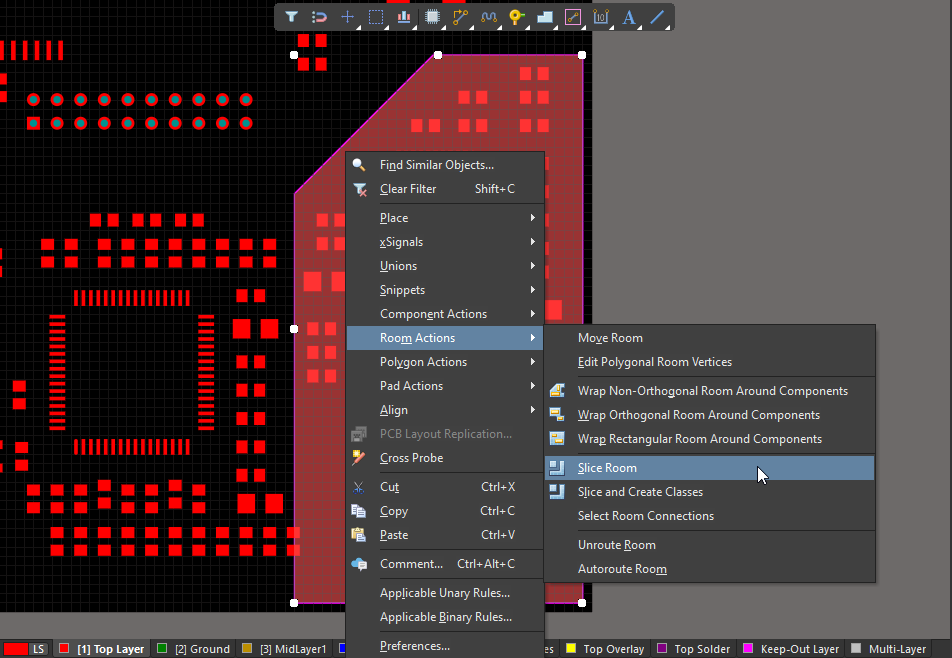
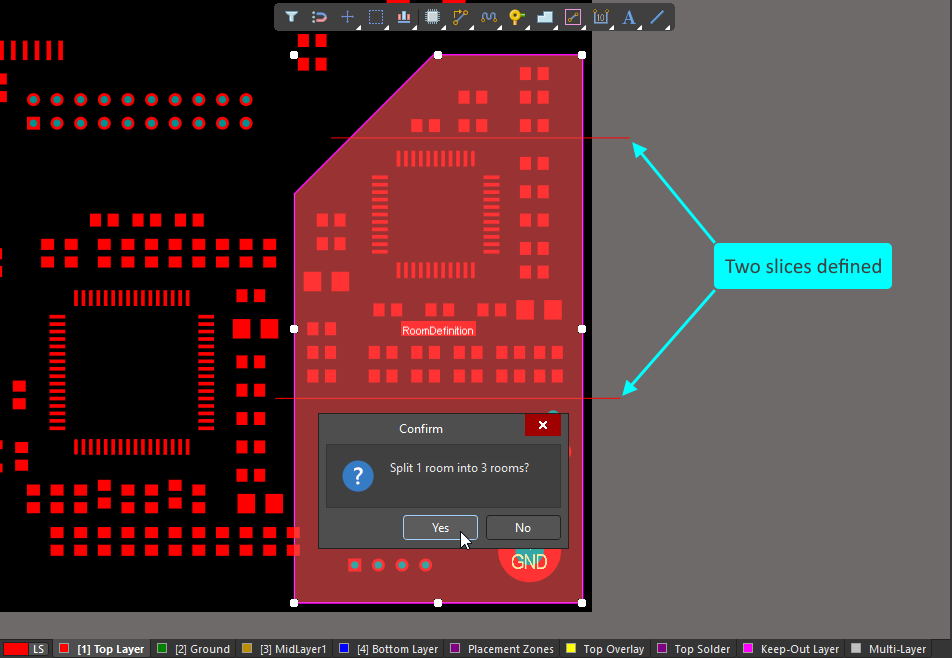
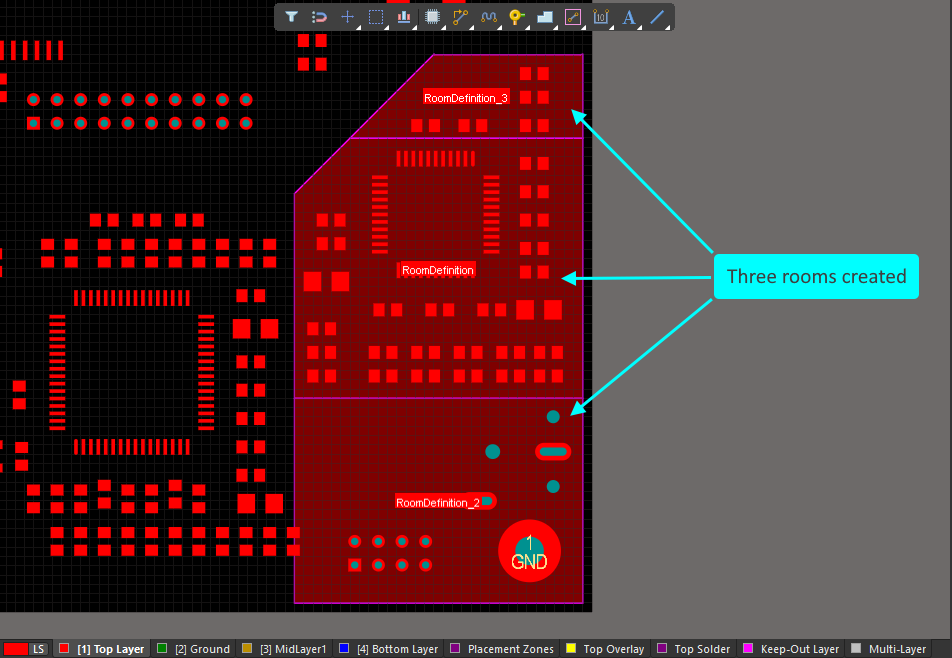
Der Aufteilungsvorgang
Nach dem Aufrufen eines Slice-Befehls:
-
Der Cursor wird zu einem Fadenkreuz, und Sie werden aufgefordert, einen Startpunkt für den Schnitt auszuwählen.
-
Positionieren Sie den Cursor knapp außerhalb des Raums, den Sie aufteilen möchten, und klicken Sie oder drücken Sie Enter. Sie befinden sich nun im Schnittmodus (im Wesentlichen ein Modus zur Linienplatzierung).
-
Bewegen Sie den Cursor in den Raum, um die erste Schnittkante zu definieren, und klicken Sie dann oder drücken Sie Enter, um den Endpunkt dieser Kante zu fixieren.
-
Bewegen Sie den Cursor weiter und klicken Sie, um eine Reihe von Eckpunkten festzulegen, die den Verlauf des Schnitts bestimmen.
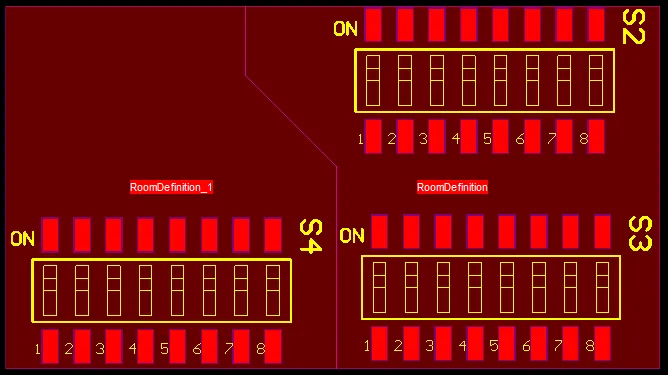
-
Nachdem Sie den letzten Eckpunkt knapp außerhalb des Raums platziert haben, klicken Sie mit der rechten Maustaste oder drücken Sie Esc, um die Platzierung dieses Schnitts abzuschließen.
-
Sie können nun entweder einen weiteren Schnitt durch den Raum beginnen oder mit der rechten Maustaste klicken bzw. Esc drücken, um den Schnittmodus zu verlassen.
-
Ein Bestätigungsdialog wird geöffnet, der angibt, in wie viele Räume der ursprüngliche Raum aufgeteilt wird. Klicken Sie auf Yes, um die vorgenommenen Schnitte zu übernehmen, oder auf No , um sie zu verwerfen. Die daraus entstehenden neuen Raumobjekte werden entsprechend aktualisiert und die zugehörigen Room Definition-Regeln erstellt und zugewiesen.
-
Während der Aufteilung können Sie folgende Tasten drücken:
-
Shift+Spacebar, um die Eckmodi durchzuschalten.
-
Spacebar, um die Richtung der Ecke umzuschalten.
-
Jede Schnittkante benötigt einen Start- und einen Endpunkt.
-
Wenn der Schnittplatzierungsmodus eine Ecke enthält, drücken Sie die Tastenkombination 1, um zwischen der Platzierung einer Kante pro Klick und zweier Kanten pro Klick umzuschalten.
-
Backspace, um die zuletzt platzierte Schnittkante zu entfernen.
-
Erneutes Anpassen eines vorhandenen Raums an seine Komponenten
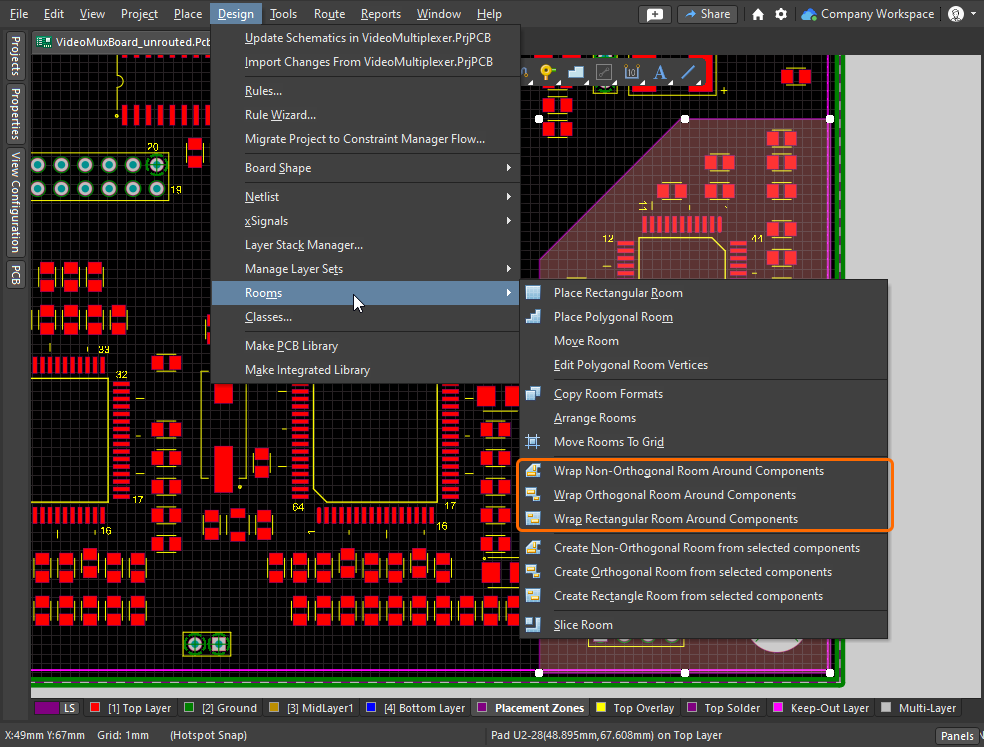
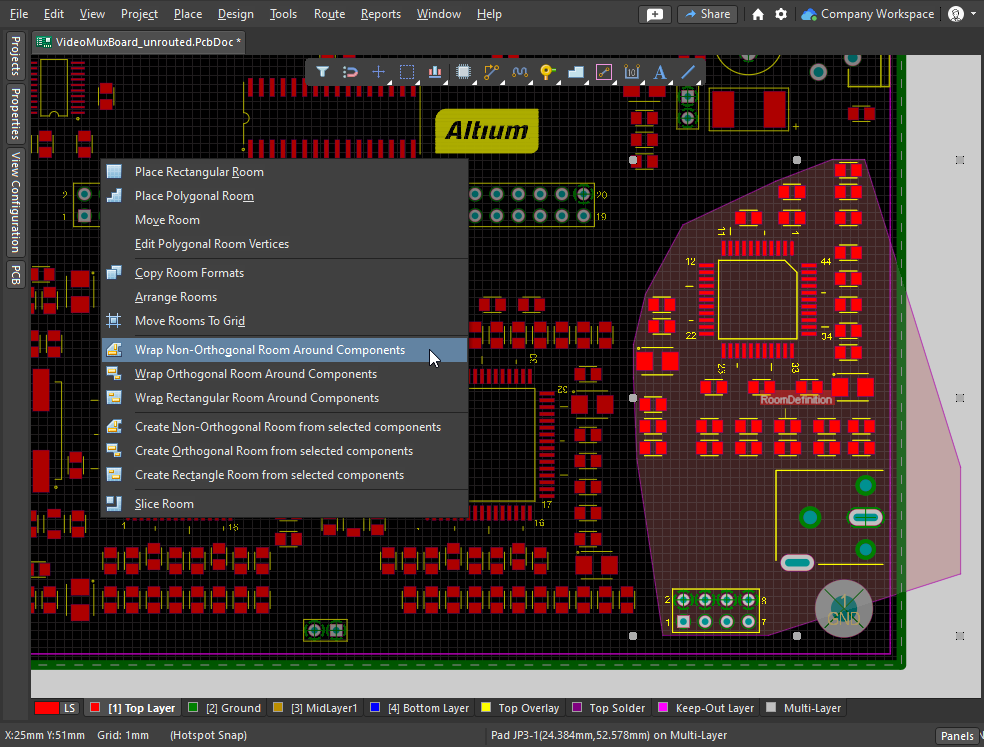
Eine weitere Möglichkeit, die Form eines vorhandenen Raums zu ändern, besteht darin, die Software anzuweisen, den Raum erneut an die ihm zugewiesene Komponentenklasse anzupassen. Sowohl das per Rechtsklick aufrufbare Untermenü Room Actions als auch das Untermenü Design » Rooms enthalten die drei Wrap Room-Befehle, wie in der Diashow gezeigt.
|
Wenn Sie die Komponentenplatzierung innerhalb eines Raums ändern, verwenden Sie einen der drei Wrap -Befehle, um die Raumform zu aktualisieren. Der Befehl Wrap Non-Orthogonal platziert Raumkanten, die die äußersten Punkte der Komponentenumrisse miteinander verbinden. Der Befehl Wrap Orthogonal platziert vertikale und horizontale Raumkanten um die Komponentenumrisse. Der Befehl Wrap Rectangular platziert den kleinstmöglichen rechteckigen Raum, der die Komponentenumrisse umschließt. |
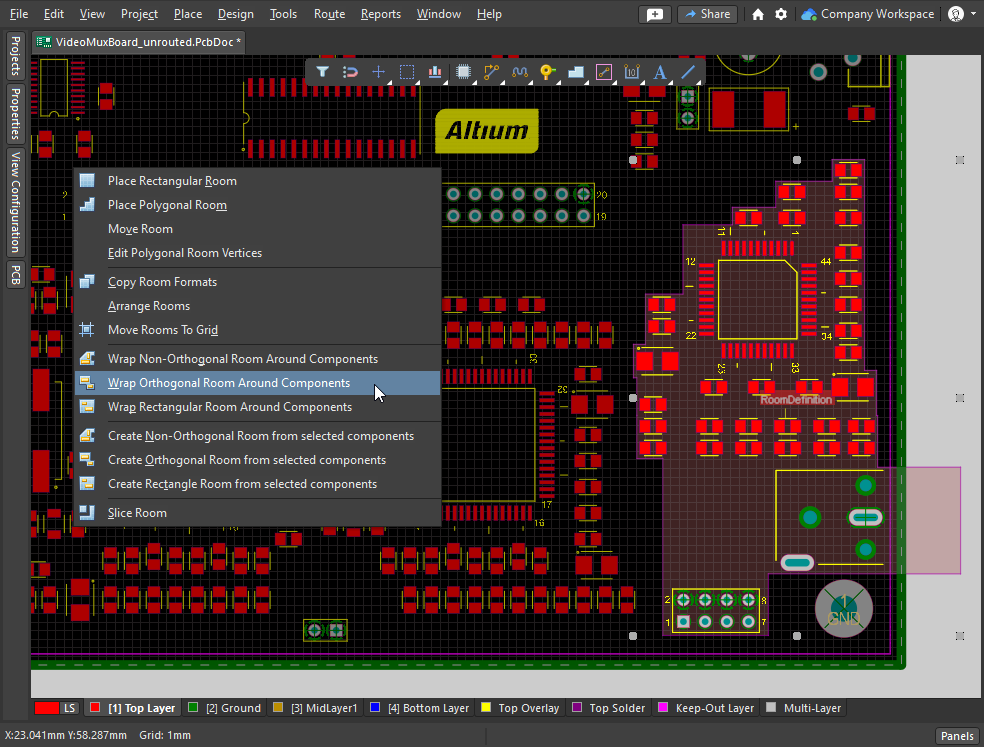
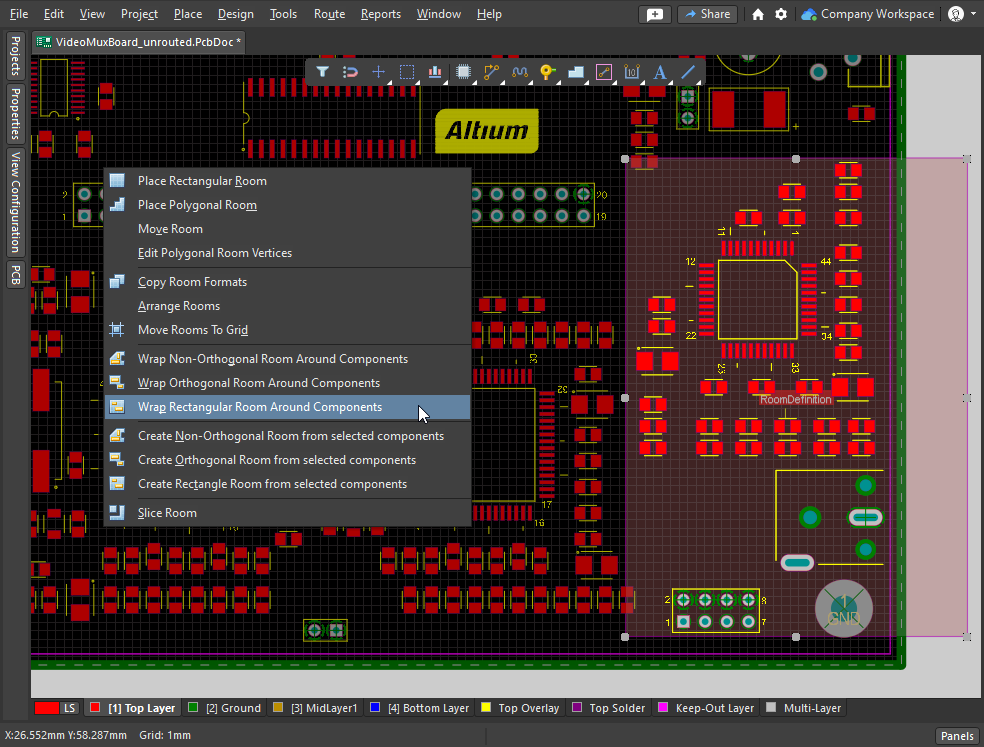
Bearbeitung im Properties-Panel
Das Raumobjekt ist insofern ungewöhnlich, als es sowohl ein Objekt als auch eine Designvorgabe ist.
Bearbeitung über das Properties-Panel
Die Eigenschaften des Raumobjekts, einschließlich seiner Position und Form im Bearbeitungsbereich, können bei ausgewähltem Raum im Panel Properties bearbeitet werden. Das Panel lässt sich über die Schaltfläche Panels unten rechts im Designbereich oder über den Befehl View » Panels » Properties anzeigen.
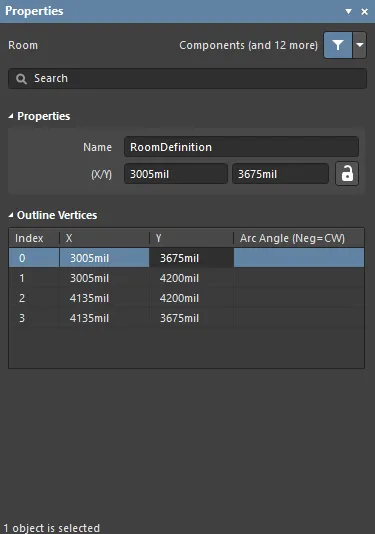 Mit dem Panel Properties können die grafischen Eigenschaften eines Raums bearbeitet werden.
| Name | Der aktuelle Name des Raums und der zugehörigen Room Definition-Regel. Er kann bei Bedarf geändert werden. Der Name hilft nicht nur dabei, die einzelnen Räume zu identifizieren, sondern kann auch verwendet werden, um in einer Designregel gezielt einen bestimmten Raum anzusprechen. |
| (X/Y) (zwei Felder) | Die aktuelle X- und Y-Position des ersten Eckpunkts des Rooms relativ zum aktuellen Ursprung. Bearbeiten Sie den Wert im Feld, um die Position des Rooms relativ zum aktuellen Ursprung zu ändern. Der Wert kann in metrischen oder imperialen Einheiten eingegeben werden; geben Sie die Einheit mit an, wenn diese von der aktuellen Standardeinheit abweicht. Die Standardeinheiten (metrisch oder imperial) werden in der Statusleiste angezeigt und im Bereich Other des Panels Properties festgelegt (wenn im Designbereich keine Objekte ausgewählt sind). Diese Werte können nur bearbeitet werden, wenn die Option X/Y entsperrt ist (das Symbol |
Umriss-Eckpunkte |
|
| Vertices Grid | Listet alle derzeit für den Room definierten Eckpunkte in der Reihenfolge auf, in der sie beim Platzieren des Rooms definiert wurden. Aufeinanderfolgende Eckpunkte werden durch gerade Kanten verbunden. Wenn Sie stattdessen eine bogenförmige Verbindung wünschen, geben Sie einen Wert für den erforderlichen Arc Angle ein. Die Eingabe erfolgt im Feld des Ausgangseckpunkts; der Bogen verläuft von diesem Eckpunkt zum nächsten, darunter in der Liste aufgeführten Eckpunkt. Klicken Sie mit der rechten Maustaste, um Copy / Paste oder Import / Export to CSV auszuwählen. |
| Index | Der zugewiesene Index des Eckpunkts (nicht bearbeitbar; basiert auf der Reihenfolge, in der die Eckpunkte bei der Definition des Rooms platziert wurden). |
| X | Die X-Koordinate (horizontal) des Eckpunkts. Zum Bearbeiten anklicken. |
| Y | Die Y-Koordinate (vertikal) des Eckpunkts. Zum Bearbeiten anklicken. |
| Arc Angle (Neg = CW) | Der Winkel eines Bogens, der diesen Eckpunkt mit dem nächsten verbindet. Standardmäßig sind die Verbindungen gerade Kanten, und dieses Feld bleibt leer. Klicken Sie zum Bearbeiten darauf und geben Sie den gewünschten Bogenwinkel ein. Ein positiver Wert erzeugt einen Bogen gegen den Uhrzeigersinn. Um einen Bogen im Uhrzeigersinn zu zeichnen, geben Sie einen negativen Wert ein. |
 wird angezeigt).
Arbeiten mit Rooms
Die Software bietet verschiedene Funktionen, die Ihnen die Arbeit mit Rooms und den darin enthaltenen Objekten erleichtern. Dazu gehören Befehle, mit denen Sie Rooms in einem Raster anordnen, Rooms auf das aktuelle Fangraster verschieben und bei Designs mit wiederkehrenden Schaltungsabschnitten die Platzierung und das Routing von einem Room auf einen anderen kopieren können.
Sie können einen Room auch verwenden, um andere Designvorgaben auf einen Bereich der Leiterplatte zu beschränken. So können Sie beispielsweise festlegen, dass Netze innerhalb dieses Rooms mit einer bestimmten Leiterbahnbreite und einem bestimmten Mindestabstand oder differenzielle Paare mit einem bestimmten Impedanzprofil geroutet werden müssen.
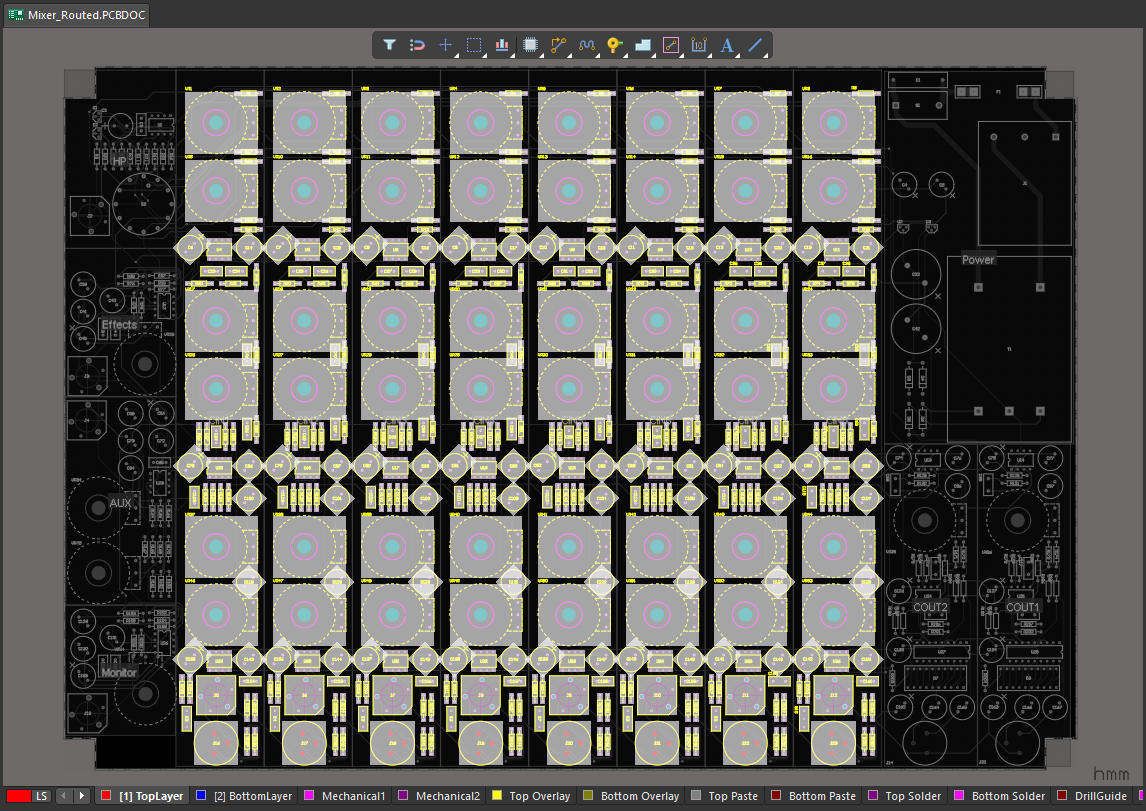 Ein 8-Kanal-Mischpult: Der erste Eingangskanal wurde platziert und geroutet und anschließend mit dem Befehl „Copy Room Format“ auf die anderen sieben Eingangskanäle übertragen.
Definieren von Designvorgaben innerhalb eines Rooms
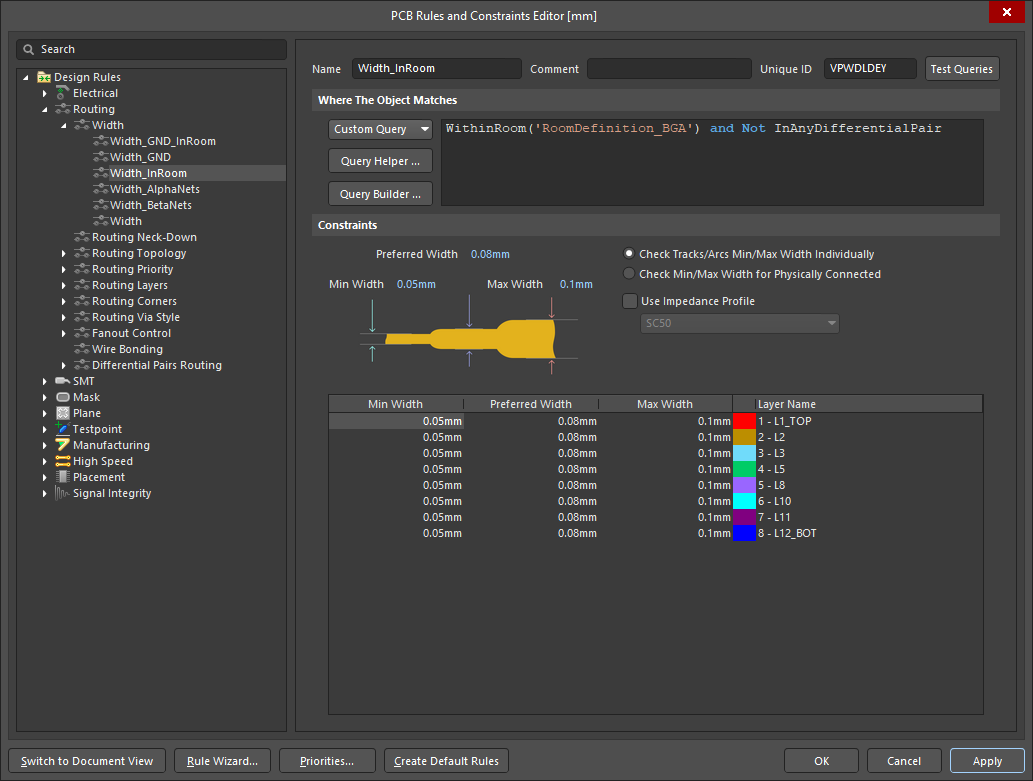
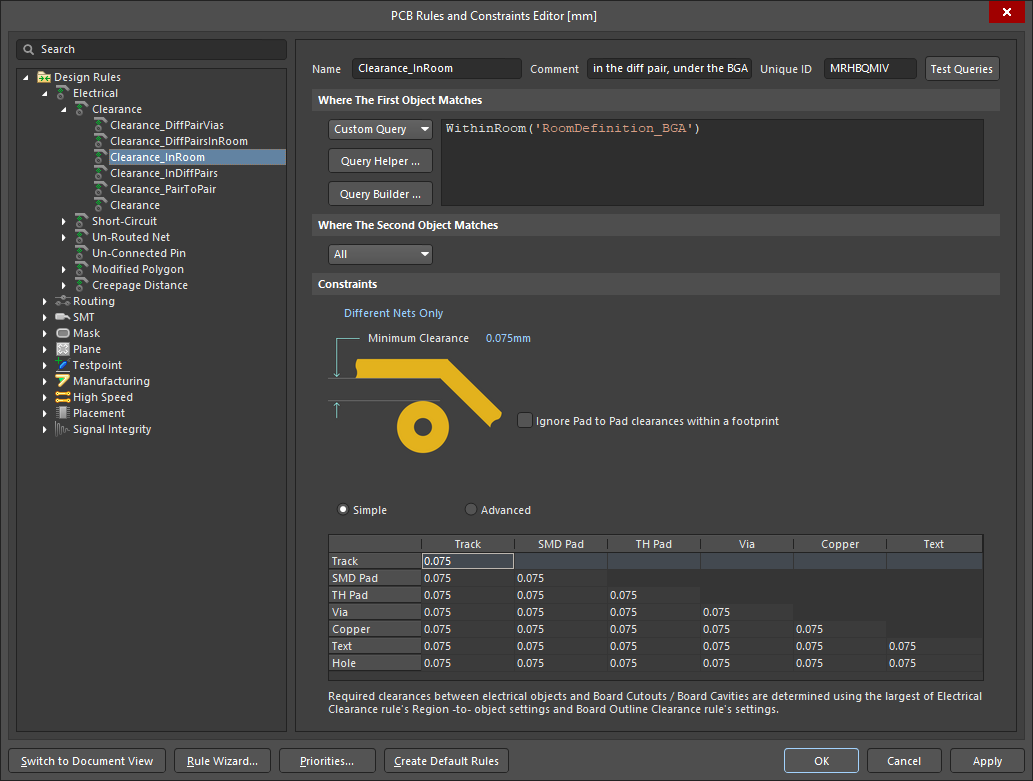
Ein Room kann nicht nur festlegen, dass sich Objekte innerhalb oder außerhalb seiner Grenzen befinden müssen (wie im Abschnitt Designvorgabe „Room Definition“ beschrieben), sondern auch als räumliche Begrenzung für andere Designvorgaben dienen. Beispielsweise kann die Vorgabe für die Leiterbahnbreite verlangen, dass Leiterbahnen unter einem BGA mit anderen Breiten geroutet werden, oder die Vorgabe für den elektrischen Mindestabstand kann in einem bestimmten Bereich der Leiterplatte andere Abstände vorgeben.
Die Leiterbahnbreite und die Mindestabstände werden innerhalb des Rooms gemäß den Einstellungen in „Room Definition“ automatisch angepasst.
Dies wird durch Hinzufügen der in der folgenden Diashow gezeigten Vorgaben „Routing Width“ und „Electrical Clearance“ erreicht.
Im Constraint Manager
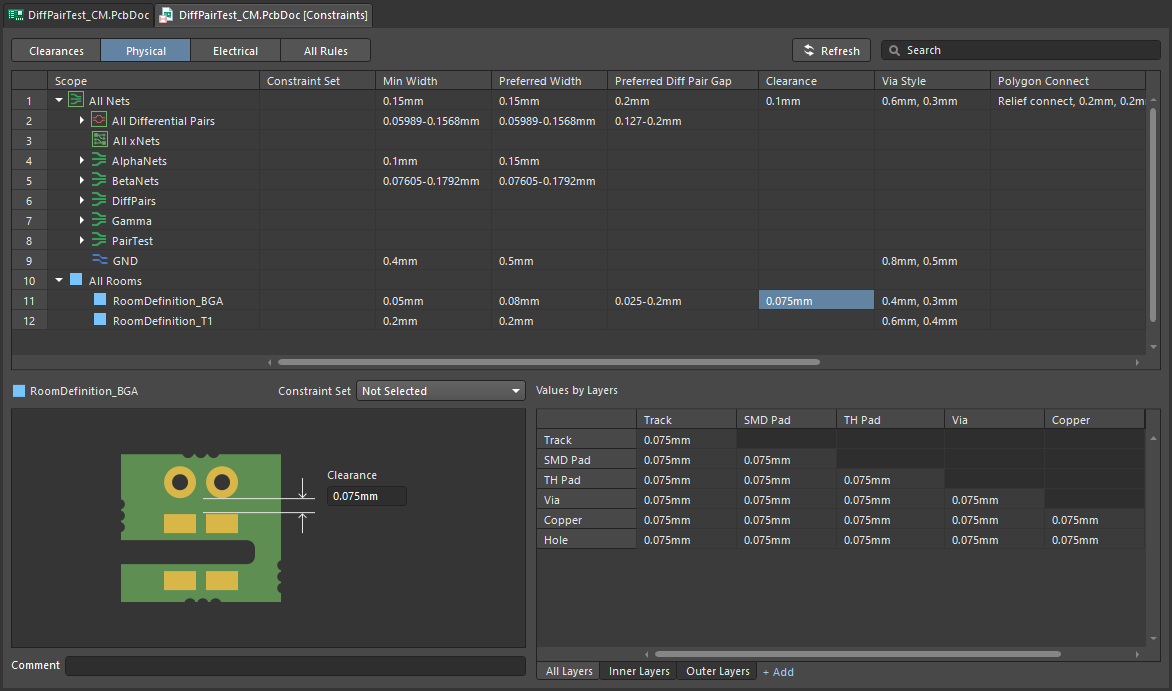
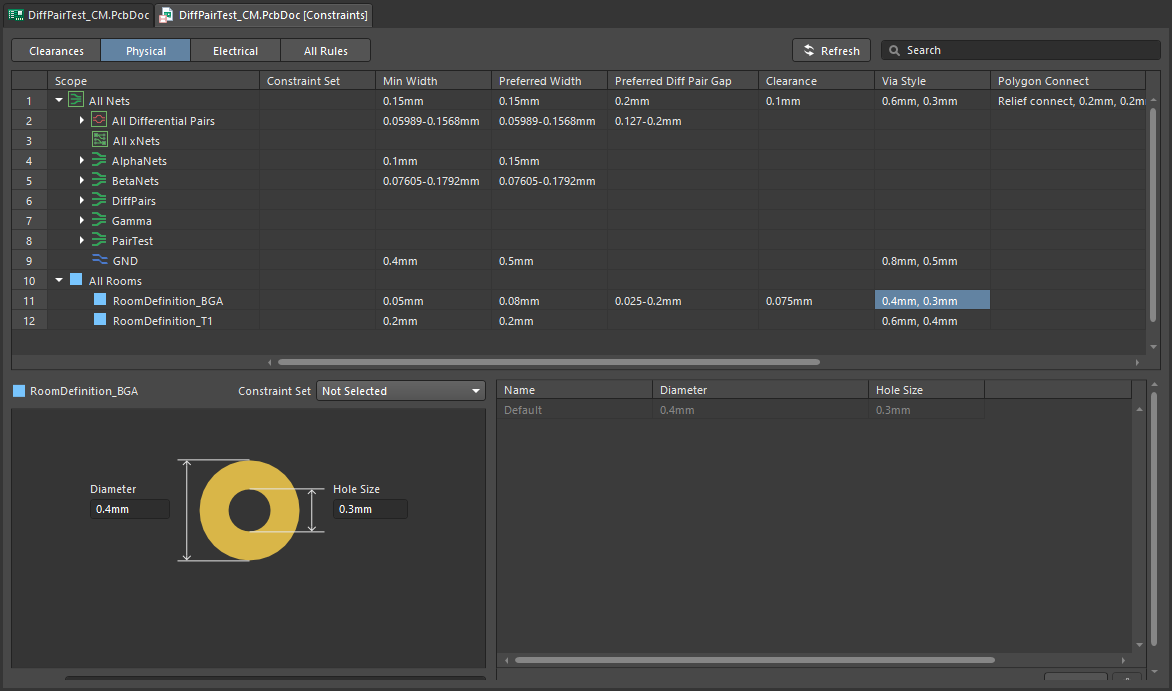
Wenn in der Ansicht All Rules im Constraint Manager eine Room-Vorgabe hinzugefügt wird, steht dieses Room-Objekt auch in der Ansicht Physical zur Verfügung. In dieser Ansicht können Sie schnell bereichsbezogene Vorgaben definieren, die innerhalb des Rooms gelten müssen. Dazu gehören Leiterbahnbreite, elektrischer Mindestabstand, Routing-Via-Stil, Eigenschaften differenzieller Paare, Leiterbahnverengung und Polygon-Anbindungsstil. Die folgende Diashow zeigt die Vorgaben für die Leiterplatte aus dem obigen Video.
|
Innerhalb dieses Rooms muss die Breite aller Routing-Objekte im angegebenen Bereich liegen. Innerhalb dieses Rooms müssen alle Routing-Objekte mindestens diesen Abstand zu Objekten anderer Netze einhalten. Innerhalb dieses Rooms müssen alle Routing-Objekte mindestens diesen elektrischen Mindestabstand einhalten. Innerhalb dieses Rooms müssen alle differenziellen Paare mit dem Impedanzprofil |
Im PCB Rules and Constraint Editor
Um im PCB Rules and Constraint Editor dasselbe Ergebnis zu erzielen, erstellen Sie eine Abfrage, die den Bereich des Rooms definiert. Für die Erfassung der Objekte im Room gibt es zwei Möglichkeiten: Sie können Objekte erfassen, die vollständig innerhalb des Rooms liegen (mit dem Schlüsselwort WithinRoom), oder Objekte, die den Room berühren (mit dem Schlüsselwort TouchesRoom). Die folgende Diashow veranschaulicht dieselben Vorgaben für Leiterbahnbreite, elektrischen Mindestabstand, Routing-Via-Stil und Eigenschaften differenzieller Paare wie die vorherige Constraint Manager Diashow.
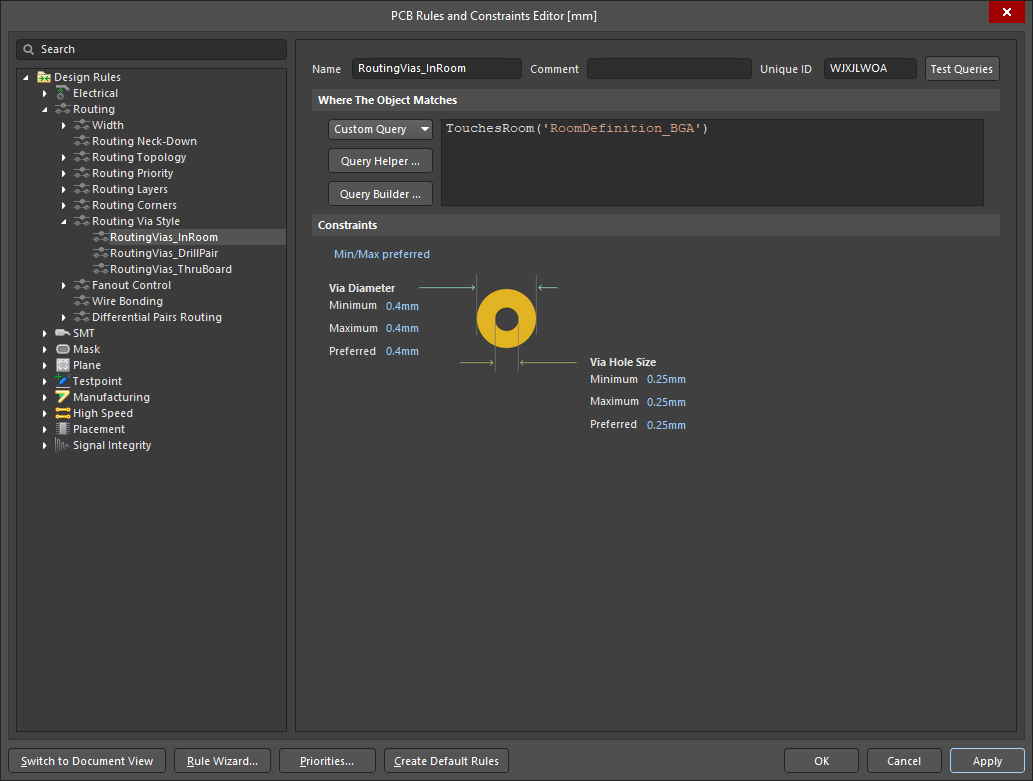
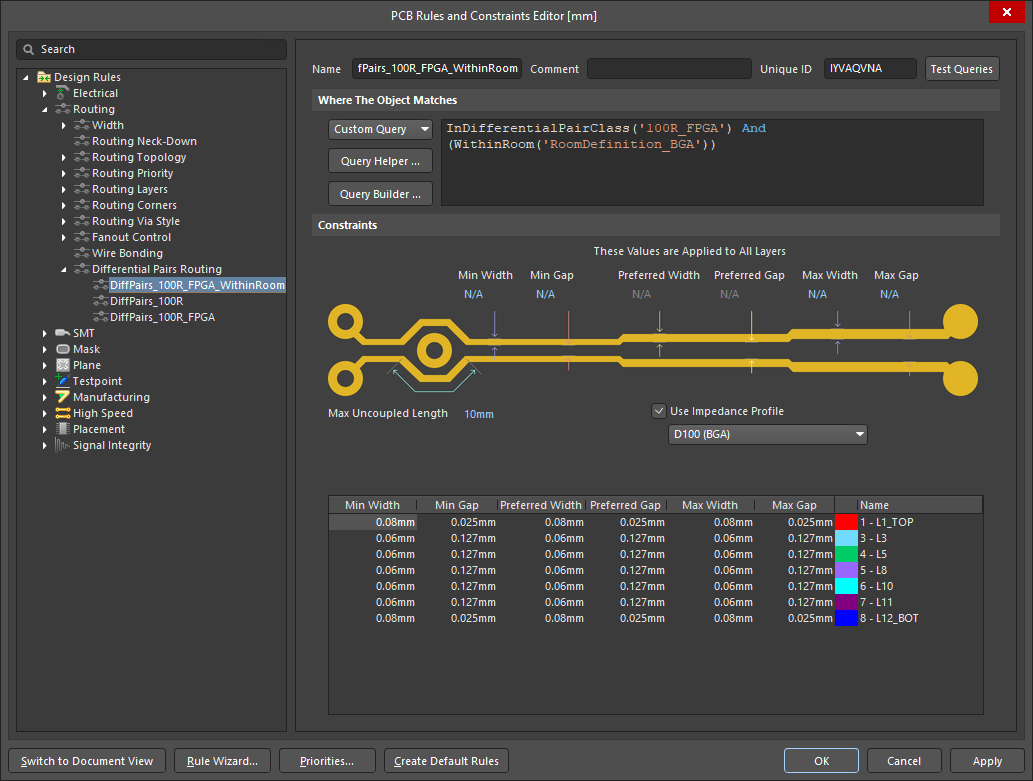
Anordnen ausgewählter Rooms
Mit dem Befehl Design » Rooms » Arrange Rooms können Sie ausgewählte Rooms im Designbereich anordnen. Wählen Sie die gewünschten Rooms aus und führen Sie anschließend den Befehl aus, um den Dialog Arrange Rooms zu öffnen.
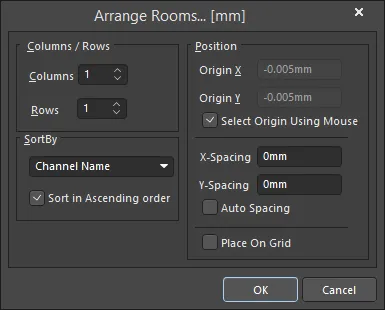 Der Dialog Arrange Rooms.
Legen Sie fest, wie die Rooms angeordnet und in welcher Reihenfolge sie platziert werden sollen. Sie können außerdem die Startposition angeben – entweder durch Eingabe der X-Y-Koordinaten im Dialog oder durch Klicken in den Arbeitsbereich – sowie den Abstand zwischen benachbarten Rooms festlegen. Nach einem Klick auf OK werden die ausgewählten Rooms an die entsprechenden Positionen verschoben.
Spalten/Zeilen |
|
| Columns | Die Anzahl der Spalten, in denen die Rooms platziert werden. Passen Sie dieses Feld nach Bedarf an. |
| Rows | Die Anzahl der Zeilen, in denen die Rooms platziert werden. Passen Sie dieses Feld nach Bedarf an. Wenn nicht alle Rooms in die benutzerdefinierte Anordnung aus Zeilen und Spalten passen, werden oben weitere Zeilen hinzugefügt. |
Sortieren nach |
|
| SortBy | Zeigt die gewählte Sortierreihenfolge an, also die Kriterien, anhand derer die Reihenfolge der Rooms bestimmt wird. Die verfügbaren Optionen werden im Folgenden erläutert. |
| Channel Name | Sortiert die Rooms alphanumerisch anhand ihres Kanalnamens. Erfahren Sie mehr über Mehrkanaldesigns. |
| Room Area | Sortiert die Rooms nach ihrer Fläche. |
| Room Component Count | Sortieren Sie die Räume nach der Anzahl der darin enthaltenen Bauteile. |
| Room Width | Sortieren Sie die Räume nach ihrer X-Abmessung (horizontal). |
| Room Height | Sortieren Sie die Räume nach ihrer Y-Abmessung (vertikal). |
| Sort in Ascending order | Aktivieren Sie diese Option, um die Räume gemäß den aktuellen SortBy-Kriterien in aufsteigender Reihenfolge (vom kleinsten zum größten) zu sortieren. Ist diese Option deaktiviert, erfolgt die Sortierung in absteigender Reihenfolge (vom größten zum kleinsten). |
Position |
|
| Origin X | Definiert die X-Position (horizontal), an der die Platzierung der Räume beginnt. Bearbeiten Sie dieses Feld, um die X-Koordinate zu ändern. Diese kann in mm oder mil angegeben werden. Um die Einheit bei der Eingabe einer Zahl festzulegen, hängen Sie das Suffix mm oder mil an den Wert an. Die Standardeinheiten (metrisch oder imperial) werden durch die Einstellung Units im Panel „Properties“ festgelegt und verwendet, wenn keine Einheit angegeben wird. |
| Origin Y | Definiert die Y-Position (vertikal), an der die Platzierung der Räume beginnt. Bearbeiten Sie dieses Feld, um die Y-Koordinate zu ändern. Diese kann in mm oder mil angegeben werden. Um die Einheit bei der Eingabe einer Zahl festzulegen, hängen Sie das Suffix mm oder mil an den Wert an. Die Standardeinheiten (metrisch oder imperial) werden durch die Einstellung Units im Panel „Properties“ festgelegt und verwendet, wenn keine Einheit angegeben wird. |
| Select Origin Using Mouse | Ist diese Option aktiviert, werden Sie aufgefordert, den Ursprung für die Anordnung der Räume manuell festzulegen. Die Option muss deaktiviert sein, damit Sie Origin X und Origin Ybearbeiten können. |
| X-Spacing | Definiert den X-Abstand (horizontal) zwischen benachbarten Räumen. |
| Y-Spacing | Definiert den Y-Abstand (vertikal) zwischen benachbarten Räumen. |
| Auto Spacing | Ist diese Option aktiviert, werden die Räume mit gleichen X-Abständen (horizontal) und Y-Abständen (vertikal) angeordnet. Die Option muss deaktiviert sein, damit Sie X-Spacing und Y-Spacingbearbeiten können. |
| Place On Grid | Aktivieren Sie diese Option, um die Räume am aktuellen PCB-Fangraster auszurichten. |
Räume auf das Raster verschieben
Um jeden ausgewählten Raum auf den nächstgelegenen Punkt des aktuellen Fangrasters zu verschieben, verwenden Sie den Befehl Design » Rooms » Move Rooms to Grid. Nach dem Aufrufen des Befehls wird ein Bestätigungsdialog geöffnet, in dem Sie gefragt werden, ob Sie die Objekte zusammen mit den ausgewählten Räumen verschieben möchten. Klicken Sie auf Yes , um die Räume und die darin enthaltenen Objekte auf den nächstgelegenen Punkt des Fangrasters zu verschieben, oder klicken Sie auf No , um nur die Räume zu verschieben.
Raumformate kopieren
Eine der leistungsfähigsten Funktionen von Räumen ist die Möglichkeit, die Raumform, die Bauteilplatzierung und das Routing eines Raums auf andere Räume zu kopieren, die einen identischen Satz von Bauteilen enthalten. Dieser Befehl ist besonders beim Layout eines Mehrkanaldesigns nützlich, da sich damit die Platzierung und das Routing eines Kanals auf alle anderen Kanäle übertragen lassen.
So kopieren Sie das Format eines Raums auf andere Räume:
-
Wählen Sie in den Hauptmenüs Design » Rooms » Copy Room Formats.
-
In der Statusleiste werden Sie aufgefordert, einen Quellraum auszuwählen. Positionieren Sie den Cursor über dem Quellraum und klicken Sie oder drücken Sie Enter.
-
In der Statusleiste werden Sie aufgefordert, einen Zielraum auszuwählen. Positionieren Sie den Cursor über dem Raum, auf den Sie die Formatierung kopieren möchten, und klicken Sie oder drücken Sie Enter. Wenn Sie die Formatierung auf mehrere Räume anwenden möchten, können Sie diesen zweiten Klick auf einem beliebigen dieser Räume ausführen.
-
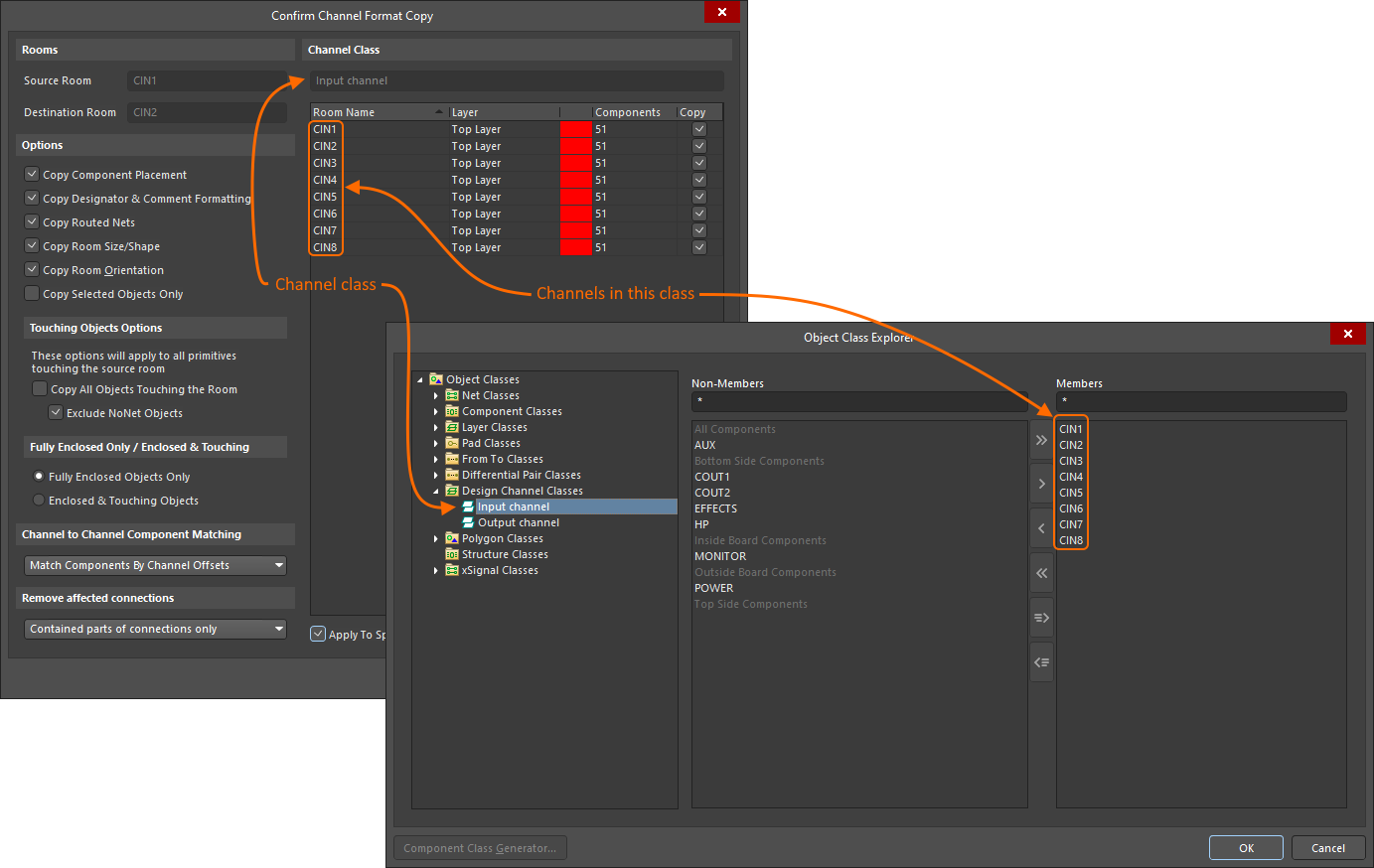
Der Dialog Confirm Channel Format Copy wird geöffnet. Legen Sie mit den Optionen fest, welche Formatierung kopiert werden soll. Standardmäßig wird die Formatierung vom ausgewählten Source Room auf den ausgewählten Destination Room kopiert. Um die Formatierung vom Quellraum auf jeden Raum der erkannten Kanalklasse zu kopieren, aktivieren Sie die Option Apply to Specified Channels und stellen Sie sicher, dass die erforderlichen Kontrollkästchen Copy für die Zielräume aktiviert sind.
-
Klicken Sie im Dialog auf OK, um die Zielräume zu aktualisieren.
-
Sie können weitere Zielräume auswählen oder mit der rechten Maustaste klicken, um den Vorgang abzuschließen.
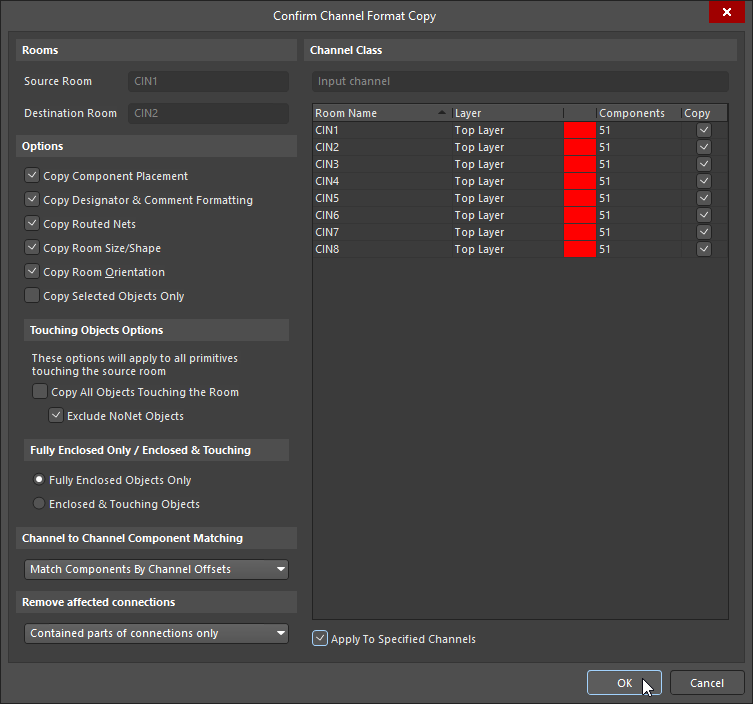
Räume |
|
| Source Room | Der Name des Quellraums (der den Kanal aus dem Schaltplan repräsentiert), dessen Bauteilplatzierung und Routing kopiert werden. |
| Destination Room | Dieses Feld enthält den Namen des Zielraums (der den Kanal aus dem Schaltplan repräsentiert), auf den die kopierte Platzierung und das Routing angewendet werden. Wenn das Projekt ein Mehrkanaldesign ist und die Quell- und Zielkanäle derselben Kanalklasse angehören, wird die Formatierung auf die Kanäle kopiert, die im Bereich Channel Class des Dialogs ( |
Optionen |
|
| Copy Component Placement | Kopieren Sie die Bauteilplatzierung des Quellraums auf die Zielräume. |
| Copy Designator and Comment Formatting | Kopieren Sie das Format der Bauteilbezeichnungen und Kommentare des Quellraums auf den Zielraum. |
| Copy Routed Nets | Kopieren Sie das Routing-Layout (Leiterbahnen/Bögen & Durchkontaktierungen, die zum Routen der Netze verwendet werden) des Quellraums auf den Zielraum. |
| Copy Room Size/Shape | Kopieren Sie die Form des Quellraums und wenden Sie diese auf den Zielraum an. Wenn Copy Room Orientation im Dialog aktiviert ist, wird die Form des Zielraums relativ zu seinem Startpunkt (unten links) geändert, d. h., der untere linke Punkt des Zielraums bleibt unverändert. |
| Copy Room Orientation | Kopieren Sie die Raumausrichtung. Altium Designer erkennt die Ausrichtung der Räume anhand des Drehwinkels des Bauteils mit der höchsten Anzahl an Pins oder, falls mehrere Bauteile dieselbe höchste Anzahl an Pins aufweisen, anhand des Bauteils mit der größten Fläche. Diese Ausrichtung wird verwendet, um den Zielraum zu drehen. |
| Copy Selected Objects Only | Kopieren Sie die Formatierung ausgewählter Objekte des Quellraums auf den Zielraum. |
Optionen für berührende Objekte |
|
| Copy All Objects Touching the Room | Objekte (außer Bauteilen sowie Leiterbahnen/-bögen & Vias) einbeziehen, die vollständig oder teilweise vom Raum umschlossen sind. Diese Option muss aktiviert sein, um sowohl Objekte mit Netzzuweisung als auch solche ohne Netzzuweisung, wie Regionen, Polygone und Sperrflächen, von einem Raum in einen anderen zu kopieren. |
| Exclude NoNet Objects | Objekte ausschließen, denen kein Netz zugewiesen ist. |
Nur vollständig umschlossen / Umschlossen und berührend |
|
| Fully Enclosed Objects Only | Wenn die Option Copy All Objects Touching the Room aktiviert ist, aktivieren Sie diese Option, um nur vollständig umschlossene Objekte zu kopieren. |
| Enclosed & Touching Objects | Wenn die Option Copy All Objects Touching the Room aktiviert ist, aktivieren Sie diese Option, um sowohl umschlossene als auch den Raum berührende Objekte zu kopieren. |
Bauteilzuordnung zwischen Kanälen |
|
| Match Components by Channel Offsets | Jedem Bauteil in einem wiederholten Kanal wird bei der Übertragung des Schaltplans in das PCB-Design ein Kanal-Offset zugewiesen. Verwenden Sie diesen Kanal-Offset, um dasselbe Bauteil in jedem Kanal zu identifizieren. |
| Match Components by Source Designator | Alternativ können Sie den Quellbezeichner aus dem Schaltplan verwenden, um die entsprechenden Bauteile in jedem Kanal zu identifizieren. |
Betroffene Verbindungen entfernen |
|
| Whole connections | Nach dem Kopieren des Kanalformats muss die Software wissen, wie die betroffenen Verbindungen entfernt werden sollen. Wenn diese Option ausgewählt ist, werden die betroffenen Verbindungen innerhalb und außerhalb des Raums entfernt. |
| Touching parts of connections only | Wenn diese Option ausgewählt ist, werden nur die betroffenen Verbindungen entfernt, die den Raum berühren. |
| Contained parts of connections only | Wenn diese Option ausgewählt ist, werden nur die betroffenen Verbindungen innerhalb des Raums entfernt. |
Kanalklasse |
|
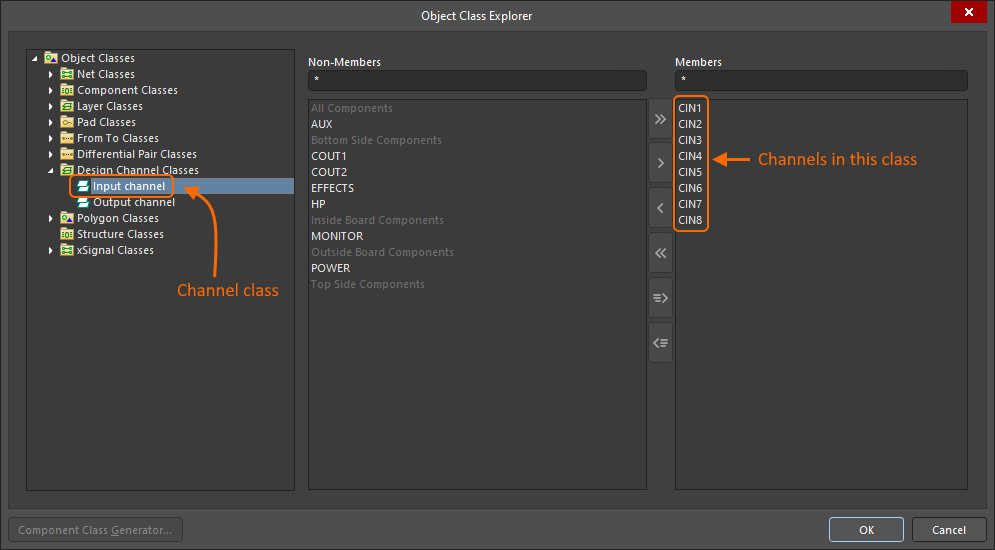
| Channel Class | Wenn ein Mehrkanal-Design vom Schaltplan auf die Leiterplatte übertragen wird, werden die wiederholten Schaltungen (Kanäle) im Dialog Object Class Explorer des PCB-Editors ( |
| Channel Members | Diese Liste enthält die Kanäle, die jeweils durch ihren Raumnamen gekennzeichnet sind. Wenn der Quellraum Teil einer definierten Kanalklasse ist, werden die Klasse und alle ihre Mitglieder aufgelistet. Angezeigt werden die Lage (die Leiterplattenseite, auf der der Raum platziert wurde) und die Anzahl der Bauteile in jedem Kanal. Jeder Kanal verfügt über ein Kontrollkästchen, mit dem festgelegt wird, ob das Kopieren des Formats auf diesen Kanal angewendet werden soll. Das Kontrollkästchen wird verfügbar, wenn die Option Apply To Specified Channel aktiviert ist. |
| Apply To Specified Channel | Standardmäßig wird das Format von Source Room auf alle Kanäle der Kanalklasse kopiert, zu der der Quellraum (Kanal) gehört. Wenn diese Option aktiviert ist, wird das Kontrollkästchen Copy für jeden Kanal verfügbar. So lässt sich gezielt steuern, auf welche Kanäle der Klasse das Format kopiert wird. |
 )
)
Räume ausblenden
Räume innerhalb eines Dokuments können mithilfe der Optionen auf der Registerkarte View Options des Panels Ansichtskonfiguration global angezeigt, ausgeblendet oder im Entwurfsmodus dargestellt werden.
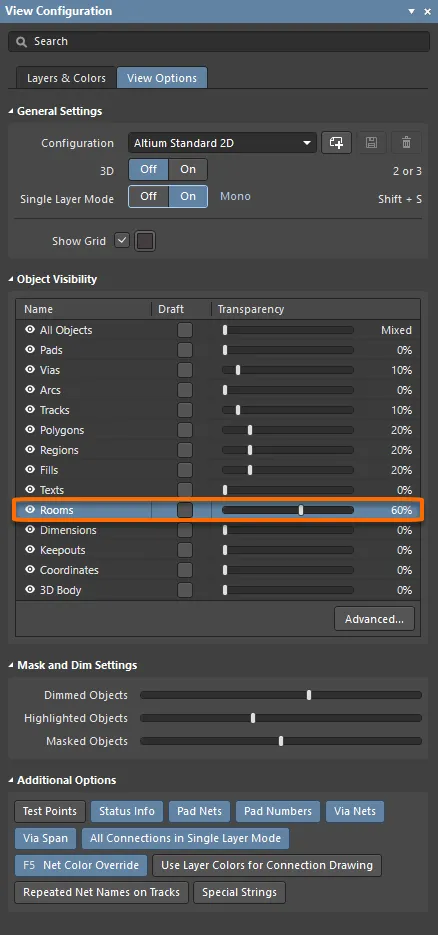 Passen Sie den Schieberegler für die Objektsichtbarkeit von Räumen an, um diese im Bearbeitungsbereich verblassen zu lassen oder auszublenden.
 KI-lokalisiert