
支持 AutoCAD-DXF 导入和导出
Altium Designer 具有从原理图、原理图库、PCB 或 PCB 库文档导入 DXF/DWG 文件和导出 DXF/DWG 文件的功能。
导入
要将 DXF/DWG 文件导入活动 Altium Designer 原理图或 PCB 文档,请从相应的主菜单中选择 File » Import » DXF/DWG命令。要将 DXF/DWG 文件导入活动的 Altium Designer 原理图或 PCB 库,请从相应编辑器的主菜单中选择 File » Import » AutoCAD命令。将打开 Import File对话框将打开,您可在其中浏览并选择所需的 DXF/DWG 文件。然后 Import from AutoCAD对话框将打开。

对话框 Import from AutoCAD对话框(原理图或原理图符号)
Options and Controls of the Import from AutoCAD (SCH) Dialog
块
- Import as components- 导入程序会尝试将 AutoCAD 块(原始对象的分组集合)解析为单个组件,然后将其添加到原理图库中。
- Import as primitives- 导入程序将解析所有 AutoCAD 对象数据,包括作为原始/基本对象(线、弧等)的块中的对象。
AutoCAD 到 Altium Designer 的线宽映射(毫米)
当 AutoCAD 线条数据使用标称、非数值宽度定义 (Smallest, Small等)时,导入程序将把它们映射到此处指定的宽度尺寸(单位:毫米)。 mm)。线宽 Large自动确定线宽。
缩放
设置适合目标文档的 AutoCAD 导入缩放因子。当导入图形的边界定义(报告为 Size) 大于目标示意图工作表 (Sheet size).
将 AutoCAD (0,0) 定位在
- X, Y- 将导入的 AutoCAD 图形中的零点映射到目标原理图工作平面上的指定 X/Y 点。
- Select- 使用光标在原理图上以图形方式设置导入零点。
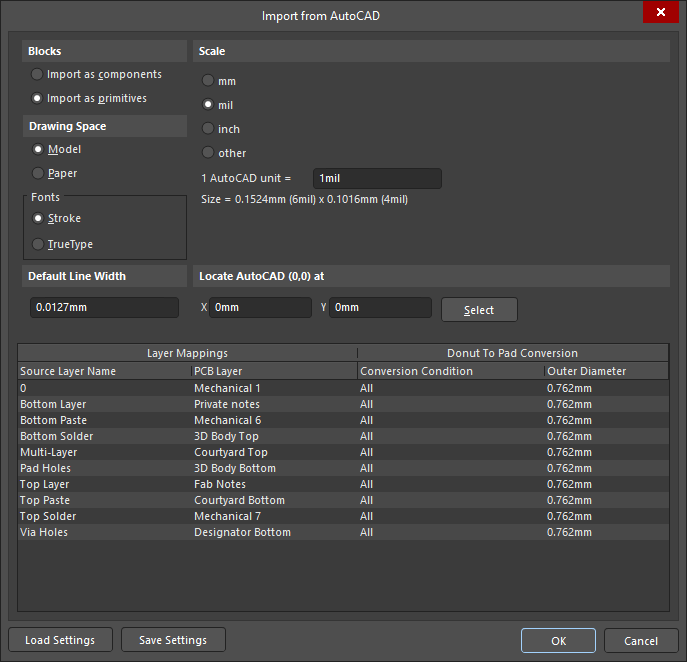
在 Import from AutoCAD对话框(PCB 或 PCB 基底面)
Options and Controls of the Import from AutoCAD (PCB) Dialog
块
- Import as components- 导入程序会尝试将 AutoCAD块(原始对象的分组集合)解析为复合对象,并将其作为 PCB 组件放置在文档中。
- Import as primitives- 导入程序会将所有 AutoCAD 对象数据(包括块中的对象)解析为原始/基本对象(线/轨、弧等)。
绘图空间
AutoCAD DXF/DWG 格式允许包含两种绘图环境 - 空间和空间。 Model空间和 Paper空间。在 AutoCAD 中,图形源处于无限的三维模型空间中,也可以调整大小到二维纸张空间中,为页面打印做准备。保存的 DXF/DWG 文件可以包含模型空间数据或模型空间和纸张空间的数据。
- Model - 选择设置绘图源图形及其尺寸信息,以便从文件的模型空间数据中提取。尺寸数据按真实比例缩放(1:1)。这是可靠导入过程的推荐设置。
- Paper - 选择此选项可设置从文件的纸张空间数据中提取绘图源图形及其尺寸信息。在源文件中,纸张空间的尺寸信息会按比例缩放,以适应指定的页面尺寸和布局。请注意,纸张空间数据可能不包含在 DXF/DWG 文件中,因此选择此选项时不会导入绘图数据。
字体
选择文本对象的字体类型,DXF/DWG 文件中的文本对象将被转换成该字体类型 - 或 Stroke或 TrueType.
默认线宽
当 AutoCAD 源文件中的线条对象不包含宽度数据时将应用的默认线宽。
缩放比例
从 DXF/DWG 文件导入数据时使用单位缩放比例。如果可能,请选择与最初生成源文件时指定的源数据文件中使用的单位相匹配的单位选项。单位选择不正确通常会在导入文件时导致明显的缩放错误。
-
1 AutoCAD unit =- 指示的缩放尺寸将根据所选单位选项动态更改。您也可以输入自定义比例设置 - 单位设置将变为 other.
相关的 "尺寸 "文本以英制和公制单位显示导入图形的投影缩放尺寸。
将 AutoCAD (0,0) 定位在
- X 和 Y- 将导入的 AutoCAD 图形中的零点映射到目标 PCB 布局上的指定 X/Y 点。
- Select - 使用光标在 PCB 布局上以图形方式设置导入零点。
图层映射和甜甜圈到焊盘转换表
使用此区域可指定如何将 AutoCAD 文件中命名的层映射到 Altium Designer 层,以及是否将甜甜圈形状(弧圆)转换为焊盘。
-
Layer Mappings- 列出当前输入输出图层映射:
- Source Layer Name- DXF/DWG 源文件中图层的名称。
- PCB Layer- 使用与 PCB Layer条目相关的下拉菜单(通过单击单元格访问)来选择 Altium Designer PCB 目标层。如果设置为 Not Imported,导入程序将忽略相关源层。
-
Donut To Pad Conversion - 通过以下设置启用后,弧形圆(甜甜圈)将被转换为大小与甜甜圈轮廓(外径)相匹配的焊盘。
-
Conversion Condition- 使用与 Conversion Condition条目的相关下拉菜单(在单元格中单击即可访问),选择何时将甜甜圈转换为垫板。可以设置为
All或None,或仅设置高于或低于 ( ) 的甜甜圈。Larger Than,Smaller Than)指定尺寸的甜甜圈。查看 Outer Diameter. -
Outer Diameter- 输入甜甜圈外径尺寸,或使用下拉菜单选项(通过单击单元格访问)指定尺寸条件,以便将甜甜圈转换为焊盘。
Larger/Smaller Than甜甜圈到垫的转换。
-
Conversion Condition- 使用与 Conversion Condition条目的相关下拉菜单(在单元格中单击即可访问),选择何时将甜甜圈转换为垫板。可以设置为
-
Right-click Menu - 右键上下文菜单选项适用于当前选定的表格行。
-
Layer选项 - 按功能组排列的转换目标层 (
Signal,Mechanical等)。使用各组的子菜单选择映射图层。如果设置为 Not Imported,导入程序将忽略相关的源图层。 - Convert... - 选项与每个条目相关的下拉菜单中的选项相同(见上文)。 Conversion Condition条目(见上文)。
-
Layer选项 - 按功能组排列的转换目标层 (
附加控制
-
Load Settings- 单击以从现有文件加载导入映射和甜甜圈转换设置。
*.ini文件中加载导入映射和甜甜圈转换设置。 -
Save Settings- 单击将当前导入映射和甜甜圈转换设置保存到纯文本文件。
*.ini文件。
导出
Altium Designer 原理图或 PCB 文档可导出为 DXF/DWG 文件格式。在输出任务文件中,单击 [Add New Export Output]并在 AutoCAD dwg/dxf PCB或 AutoCAD dwg/dxf Schematic菜单中选择一个条目。导出输出可直接从文件生成,或作为项目发布流程的一部分。

或者,从 Altium Designer 原理图或 PCB 编辑器的主菜单中选择 File » Export » DXF/DWG命令。
无论是作为 OutJob 文件的一部分导出,还是直接从 File菜单,您都可以在相关对话框中配置导出选项。 Export to AutoCAD对话框中配置导出选项。
-

根据需要设置版本、格式和单位。对于原理图,若要在导出的 AutoCAD 文件中包含当前模板图形,请确保启用 Include Template选项已启用。
-
从 PCB(或 PCB 库)导出时,可使用以下对话框进行配置:

Options and Controls of the Export to AutoCAD Dialog
-
Options
- AutoCAD Version- 使用下拉菜单选择适用于导出文件的 AutoCAD 版本。
- Format- 使用下拉菜单选择格式 (DWG或 DXF导出的 AutoCAD 文件格式。
- Units- 选择 Imperial 或 Metric 单位。
-
Holes
-
Export pads and via holes- 选中此选项可启用导出焊盘和通孔数据。
- Degrees - select the drop-down to choose the orientation of the pad and via holes in degrees.
-
Export pads and via holes- 选中此选项可启用导出焊盘和通孔数据。
-
Components
- Export as blocks- 组件将以符合 AutoCAD 标准的单一块(原始对象的分组集合)形式导出。
- Export as primitives- 组件将以构成组件的原始对象的形式导出。
-
Tracks and Arcs
- Export with rounded ends- 选中此选项可创建圆角的 AutoCAD 线条/圆弧对象。请注意,圆角端点是通过放置一个小圆弧创建的。如果您打算在 MCAD 中提取直线几何图形,请使用方形端点选项。
- Export with square ends- 选中此选项可创建方形末端的 AutoCAD 线条/圆弧对象。
-
Primitives To Export With Zero Line Widths
- None- 将不会导出线宽为零的基元。DXF/DWG 文件中的线宽/弧宽数据将与源 PCB 布局中相应的线宽/弧宽数据一致。
- All- PCB 布局中的所有基元都将以零线宽导出。
- Selected- 只有 PCB 工作区中的选定基元将以零线宽导出。
-
焊盘和通孔
- Export with hatches- 焊盘和通孔将以 AutoCAD 填充对象的形式导出。
- Export with polylines- 焊盘和通孔将作为 AutoCAD 多段线对象导出。
-
Layers
- All On - 访问此下拉菜单可确定要包括哪些层。例如,如果只想包含信号层,请从下拉菜单中选择 &SignalLayers下拉菜单。包含的图层将在 Include 列中选中。
- Name - 显示可用图层的名称。点击父图层名称可最小化图层列表。
- Type - 显示每个图层的图层类型。类型相同的图层通常并列在一起。
-
Include - 选中所选图层对应的复选框,将其包含在导出过程中。
-
Options
 导出文件对话框
支持的 AutoCAD 版本
以下版本的 AutoCAD 支持导入/导出 DXF/DWG 格式的设计:
- AutoCAD 2018(此版本中引入了 DWG 2018 文件格式)。
- AutoCAD 2013(此版本中引入了 DWG 2013 文件格式)。
- AutoCAD 2010(此版本中引入了 DWG 2010 文件格式)。
- AutoCAD 2007(此版本中引入了 DWG 2007 文件格式)。
- AutoCAD 2004(此版本中引入了 DWG 2004 文件格式)。
- AutoCAD 2000(此版本中引入了 DWG 2000 文件格式)。
- AutoCAD R14(此版本中引入了 DWG R14 文件格式)。
- AutoCAD R13(此版本中引入了 DWG R13 文件格式)。
- AutoCAD R12(此版本中引入了 DWG R11/R12 文件格式)。
支持的对象类型
将设计导入 Altium Designer 或从 Altium Designer 导出设计时,支持以下 DWG/DXF 对象类型:
- 圆弧
- 圆
- 尺寸
- 椭圆
- 椭圆弧线
- 舱门
- 插件
- 领导
- 线路
- 多功能领导者
- 多线
- 多文本
- 点
- 折线
- 矩形
- 区域
- 固体
- 花键
- 文本
- 跟踪
 AI 翻译
AI 翻译