
Импорт библиотеки из OrCAD CIS
Поддерживая необходимость работы с библиотеками компонентов базы данных из OrCAD® CIS™, Import Wizard в Altium Designer предоставляет гибкий автоматизированный вариант преобразования библиотек OrCAD CIS для создания эквивалентной Database Library Altium Designer и связанных библиотек схем/PCB.
Используя систему связности, во многом похожую на OrCAD Component Information System (CIS), Database Library Altium Designer размещает ссылки на данные компонентов в источнике данных, совместимом с ODBC, например в корпоративной базе данных компонентов. Записи в централизованной базе данных ссылаются на исходные модели (символы, посадочные места и т. п.) и параметры для наборов утверждённых в компании компонентов.
Database Library Altium Designer предоставляет основанные на библиотеке ссылки на эти определения компонентов, что позволяет размещать корпоративные компоненты из базы данных непосредственно в проектах и затем синхронизировать их обратно с источником данных.
Базовым файлом сопоставления ссылок базы данных для OrCAD CIS является файл конфигурации CIS (*.dbc), который обрабатывается Import Wizard для создания соответствующей структуры Database Library Altium Designer (*.DBLib). Связанные файлы библиотек OrCAD (*.olb , *.llb), которые по сути являются связанными источниками символов и посадочных мест компонентов, также обрабатываются импортёром для создания файлов библиотек Altium Designer (*.SchLib, *.PcbLib).
Импорт файлов OrCAD CIS
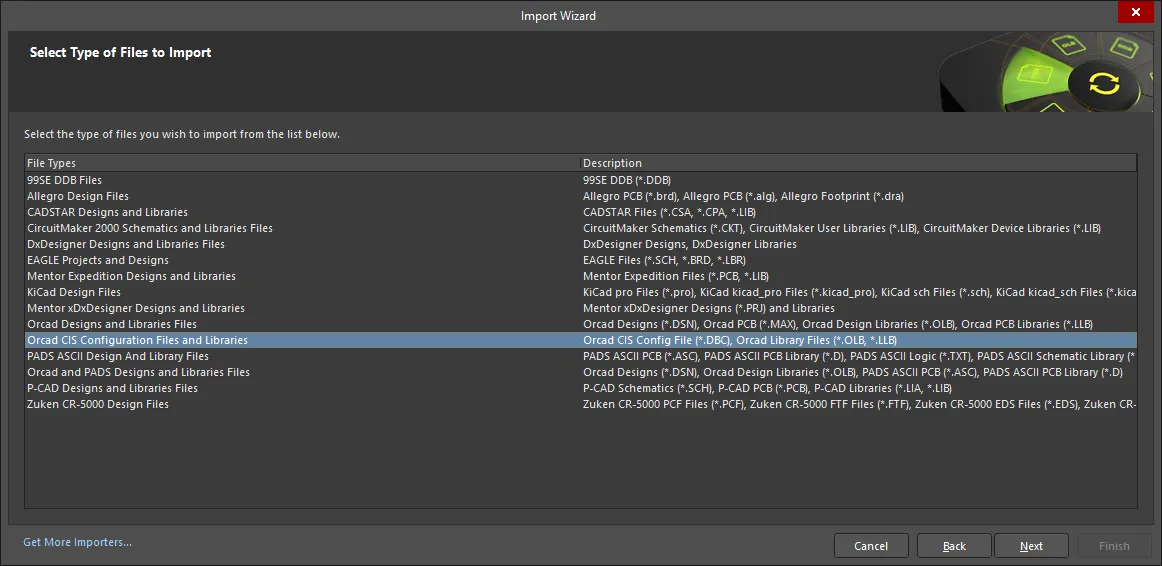
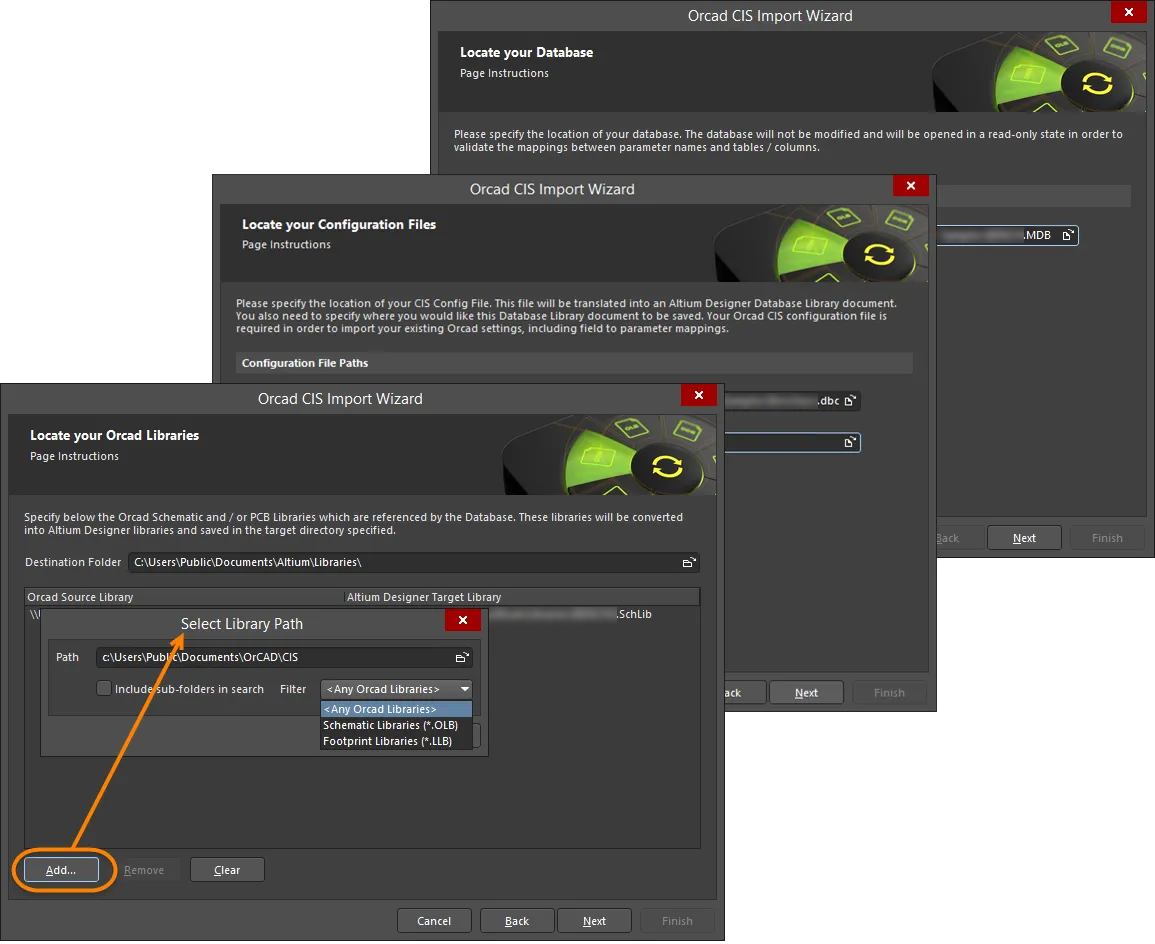
Импортёр файлов проекта OrCAD CIS доступен через Import Wizard Altium Designer (File » Import Wizard) при выборе параметра Orcad CIS Configuration Files and Libraries на странице Select Type of Files to Import мастера. Мастер предоставляет параметры для указания основной базы данных компонентов, исходных файлов конфигурации и библиотек OrCAD CIS, а также целевой Database Library Altium Designer.

Import Wizard - Orcad CIS Configuration Files and Libraries
Файлы конфигурации и библиотеки Orcad CIS
Locating the Database
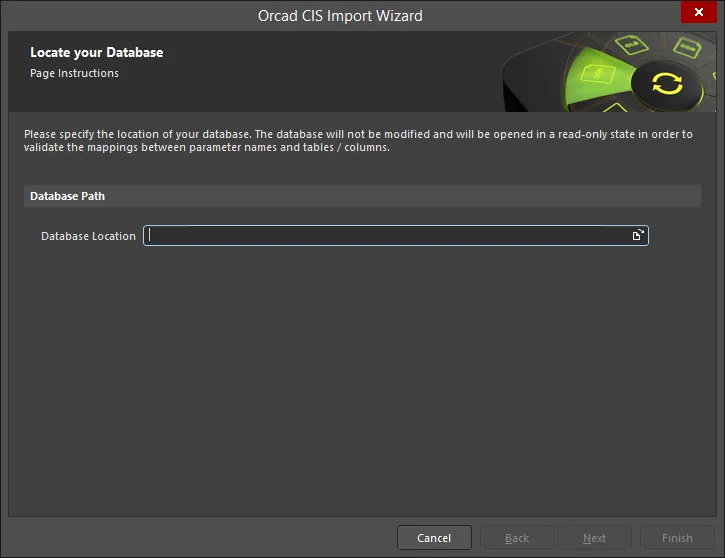
Используйте значок Browse Folder, чтобы найти и выбрать расположение вашей базы данных OrCAD. База данных будет открыта в режиме «только чтение» для проверки сопоставлений между именами параметров и таблицами/столбцами.
Locating Configuration Files
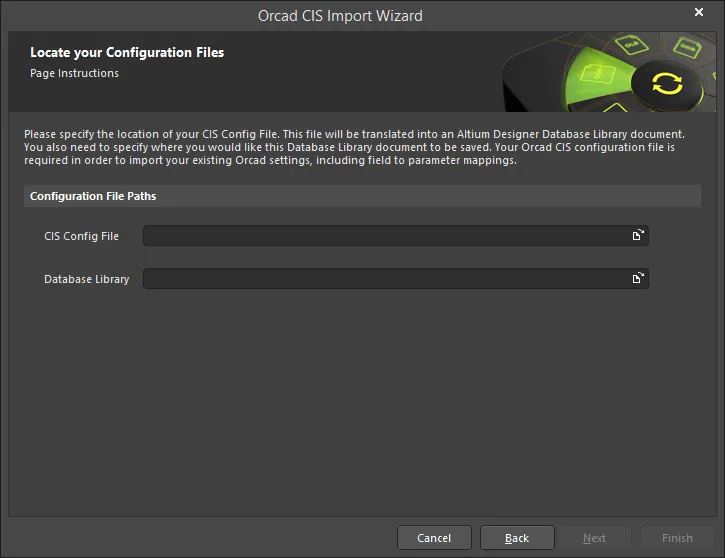
Эта страница мастера используется для указания расположения вашего файла конфигурации CIS. Используйте значок Browse Folder, чтобы найти и выбрать CIS Config File. Используйте значок Database Library Browse Folder, чтобы указать место, куда нужно сохранить документ Database Library.
Locating OrCAD Libraries
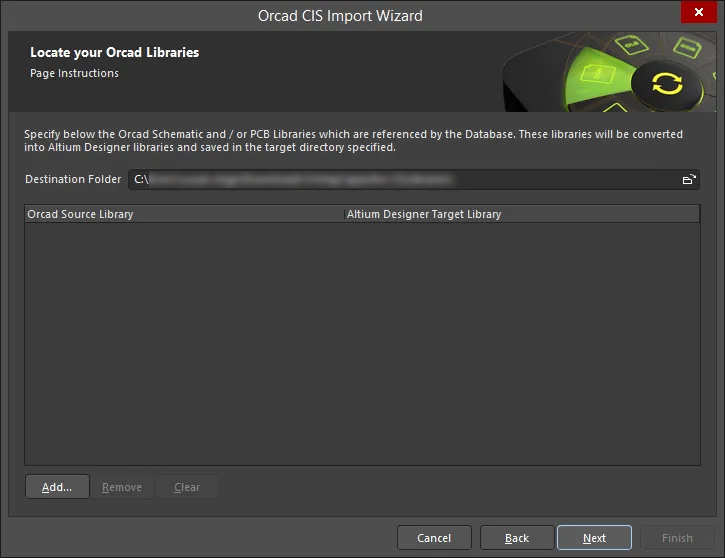
Используйте эту страницу мастера, чтобы указать библиотеки схем и/или PCB OrCAD, на которые ссылается база данных. Библиотеки будут преобразованы в библиотеки Altium Designer и сохранены в указанном Destination Folder.
Нажмите Add, чтобы открыть диалог Select Library Path и выбрать нужный путь к библиотекам.
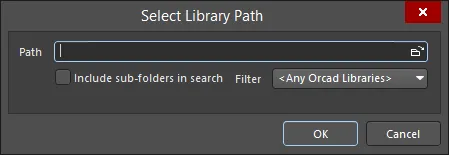
Используйте диалог Select Library Path, чтобы указать нужный путь.
- Browse Folder icon — нажмите, чтобы найти и выбрать путь к библиотекам, содержащий нужные исходные файлы библиотек схем и/или PCB OrCAD.
- Include sub-folders in search — включите, чтобы включать подпапки в поиск.
-
Filter — используйте раскрывающийся список, чтобы фильтровать поиск по типам файлов:
- <Any Orcad Libraries> — выберите, чтобы находить любые библиотеки OrCAD.
- Schematic Libraries (*.OLB) — выберите, чтобы находить только библиотеки схем OrCAD.
- Footprint Libraries (*.LLB) — выберите, чтобы находить только библиотеки посадочных мест OrCAD.
Файлы библиотек, найденные в указанном пути, заполнят страницу мастера, как показано ниже.
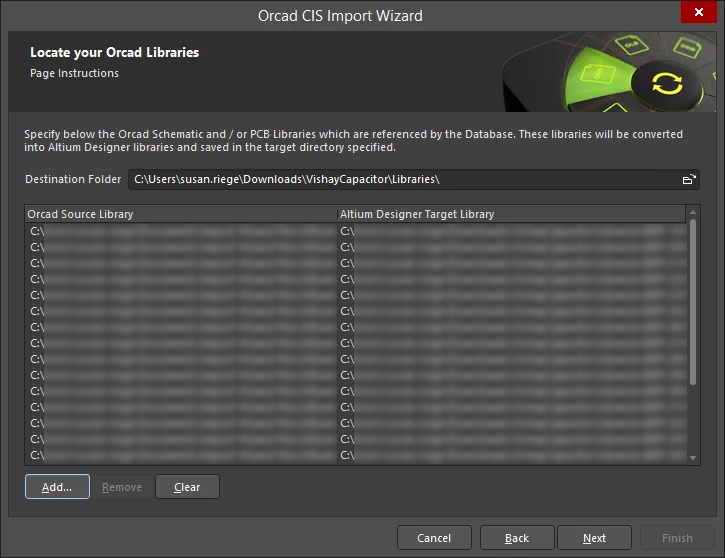
Нажмите Remove, чтобы удалить выбранные файлы. Нажмите Clear, чтобы удалить все файлы.
Closing the Wizard
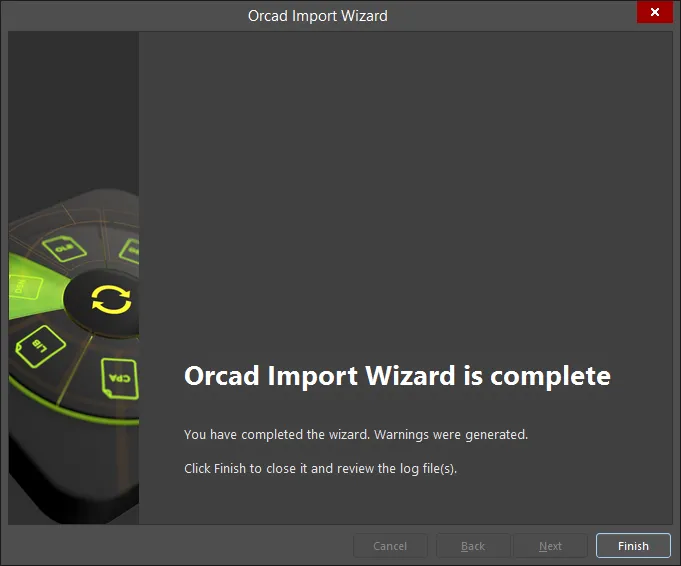
Нажмите Finish, чтобы закрыть мастер. Откроется Database Library (*.DBLib), созданная в процессе импорта.
Файлы OrCAD CIS преобразуются следующим образом:
-
Файлы OrCAD OLB (библиотека схем) будут преобразованы в файлы библиотек схем Altium Designer (
*.SchLib). -
Файлы OrCAD LLB (библиотека PCB) будут преобразованы в файлы библиотек PCB Altium Designer (
*.PcbLib).
Обработка файлов
Import Wizard выполняет преобразование или обработку файлов OrCAD CIS на основе библиотек следующим образом:
-
Файл конфигурации OrCAD CIS (
*.dbc), который определяет ссылку на внешнюю базу данных компонентов и содержит сведения о сопоставлении полей базы данных с параметрами проекта, интерпретируется для создания файла Database Library Altium Designer (*.DBLib). -
Файлы OrCAD CIS преобразуются следующим образом:
- Файлы OrCAD OLB (библиотека схем) будут преобразованы в файлы библиотек схем Altium Designer (*.SchLib).
- Файлы OrCAD LLB (библиотека PCB) будут преобразованы в файлы библиотек PCB Altium Designer (*.PcbLib).
Итоговый результат заключается в том, что структура связывания OrCAD CIS, которая обращается к полям данных во внешней базе данных компонентов (например, к файлу Microsoft® Access™ *.mdb), воспроизводится в Database Library (DBLib) Altium Designer. Кроме того, файлы библиотек OrCAD, используемые как источники символов и моделей компонентов, преобразуются в файлы библиотек Altium Designer, которые затем становятся источниками символов/моделей для нового сопоставления полей базы данных в DBLib.
Использование мастера
Import Wizard в Altium Designer пошагово проводит вас через процессы указания набора исходных и целевых файлов для преобразования OrCAD CIS.
Убедитесь, что на странице Select Type of Files to Import мастера вы выбрали вариант Orcad CIS Configuration File and Libraries как тип импортируемых файлов, а затем на последующих страницах укажите:
- Расположение внешней базы данных — обычно это ваша корпоративная база данных компонентов, совместимая с ODBC.
- Расположение файла конфигурации OrCAD CIS.
- Расположение целевого файла DBLib, который будет создан или дополнен на заключительных шагах мастера.
- Библиотеки схем и/или PCB OrCAD, на которые ссылается внешняя база данных.
Документ Database Library
Когда шаги Import Wizard будут завершены, указанный файл Database Library станет активным в Altium Designer.
При необходимости документ библиотеки можно просмотреть и отредактировать. Важные примечания:
- Import Wizard автоматически добавляет в файл DBLib путь поиска библиотек, указывающий на выбранный каталог, содержащий преобразованные файлы библиотек.
- Определённый ключ поиска задаёт связь данных между внешней базой данных и параметрами DBLib (или свойствами, в терминологии OrCAD). При необходимости пару «поле ключа/параметр» можно изменить в области Field Settings, выбрав альтернативную связь из раскрывающихся меню.
После завершения первоначального просмотра и/или редактирования файл DBLib необходимо сохранить.
При использовании в качестве исходной библиотеки в Altium Designer компоненты, размещённые из активной Database Library, будут получать сопоставленные параметры и данные символов/моделей из внешней базы данных.
Используйте команду Update From Libraries, чтобы обновить размещённый компонент в ответ на изменения, внесённые во внешнюю базу данных компонентов или в связанные исходные библиотеки (Tools » Update From Libraries). Чтобы обновить параметры компонента из исходной базы данных, выберите Tools » Update Parameters From Database.
 Локализовано с помощью ИИ