
Importowanie projektu z programu CADSTAR
Obsługując potencjalną potrzebę pracy z projektami PCB w formacie Zuken® CADSTAR™, Altium Designer zawiera CADSTAR Importer do tłumaczenia plików CADSTAR: schematów, PCB oraz bibliotek na odpowiadające im pliki projektowe Altium Designer. Importer jest dołączony do Altium Designer jako rozszerzenie platformy, a funkcja jest dostępna jako opcja typu pliku importu w kreatorze importu plików projektowych Import Wizard.
Obsługa wersji
Importer CADSTAR w Altium Designer nominalnie obsługuje wersje CADSTAR od 9 do 2018, gdy pliki projektu są konwertowane do opartego na ASCII formatu archiwum CADSTAR – binarne pliki CADSTAR nie są obsługiwane.
Pliki archiwum CADSTAR mają rozszerzenie .cpa lub .csa odpowiednio dla plików PCB i schematów. W praktyce importer obsługuje następujące typy plików CADSTAR:
-
Projekty PCB
-
Projekty schematów
-
Biblioteki części oraz biblioteki symboli schematowych.
-
Biblioteki komponentów PCB
Przygotowanie plików do importu
Poniższa tabela opisuje typy plików CADSTAR obsługiwane przez importer wraz z podsumowaniem sposobu konwersji binarnego formatu plików CADSTAR do formatu archiwum (tam, gdzie jest to wymagane) oraz odpowiadającego wyniku w Altium Designer.
CADSTAR File Type |
Export to CADSTAR Archive |
Altium Designer Output |
Projekt PCB ( |
Skonwertuj binarny projekt pcb ( |
Dokument PCB Altium Design ( |
Projekt schematu ( |
Skonwertuj binarny projekt schematu ( |
Dokument schematu Altium Design ( |
Biblioteka PCB ( |
Skonwertuj binarną bibliotekę pcb ( |
Biblioteka PCB Altium Designer ( |
Biblioteka części ( |
Plik biblioteki części ( |
Importer wykorzystuje zarówno bibliotekę części, jak i archiwum schematu symboli, aby wygenerować bibliotekę schematową Altium Designer ( |
Projekt PCB
Plik układu PCB CADSTAR jest odpowiednikiem dokumentu PCB w Altium Designer. Mając plik układu pcb CADSTAR (*.cpa), importer CADSTAR w Altium Designer przetłumaczy go na natywny dokument PCB (*.PcbDoc). Jeśli układ pcb CADSTAR jest w binarnym formacie pliku, zarchiwizuj go do formatu *.cpa.
Projekty schematów
Aby zaimportować binarne pliki schematów CADSTAR (*.scm) do Altium Designer, muszą one najpierw zostać wyeksportowane do formatu archiwum (*.csa).
Biblioteka schematowa
Importer potrzebuje co najmniej dwóch plików źródłowych CADSTAR, aby utworzyć bibliotekę schematową Altium Designer. Pierwszym jest biblioteka CADSTAR Parts, czyli tekstowa lista części. Elementy części w bibliotece Parts są przywoływane przez definicje symboli w osobnym pliku biblioteki Symbol, który jest drugim plikiem wymaganym przez importer podczas tworzenia biblioteki schematowej Altium Designer.
Plik biblioteki symboli musi być w formacie pliku archiwum schematu CADSTAR (*.csa).
Na przykład, gdy plik biblioteki Parts o nazwie parts.lib używa definicji symboli z pliku biblioteki Symbol o nazwie symbol.lib, ten drugi jest najpierw konwertowany do pliku ASCII symbol.csa za pomocą narzędzia archiwizacji CADSTAR. Następnie importer przetłumaczy pliki parts.lib i symbol.csa do parts.schlib w Altium Designer. Jeśli plik parts.lib odwołuje się do wielu plików symbol.csa , można je dodać podczas procesu importu/konwersji.
W terminologii Altium Designer definicja elementu części w pliku parts.lib oraz definicja symbolu w pliku symbol.csa są odpowiednikiem definicji komponentu w bibliotece schematowej Altium Designer.
Biblioteka PCB
Komponent PCB CADSTAR jest odpowiednikiem footprintu PCB w Altium Designer. Biblioteka PCB CADSTAR (*.lib) musi najpierw zostać skonwertowana do formatu archiwum (ASCII) (*.cpa) i następnie może zostać przetłumaczona do biblioteki PCB Altium Designer (*.PcbLib) przy użyciu importera CADSTAR.
Korzystanie z importera CADSTAR
Importer plików projektowych CADSTAR jest dostępny przez Import Wizard (File » Import Wizard) w Altium Designer, wybierając CADSTAR Designs and Libraries na stronie Select Type of Files to Import kreatora. Kreator udostępnia opcje stron do wskazania zarówno plików projektowych (schemat i PCB), jak i plików bibliotek (parts, symbol i footprint), a także opcje mapowania warstw PCB z CADSTAR do Altium Designer.

Gdy dostępny jest kompletny zestaw plików CADSTAR (projekt schematu, projekt PCB, biblioteka części oraz biblioteki schematu/pcb), zdecydowanie zaleca się zaimportowanie ich wszystkich podczas jednej sesji Import Wizard w Altium Designer. W ten sposób kreator może wygenerować kompletny projekt Altium Designer i jego biblioteki — definicje komponentów w wynikowej bibliotece schematowej (*.SchLib) będą poprawnie zawierały zarówno powiązany symbol, jak i łącze do pasującego footprintu (w wygenerowanym pliku *.PcbLib).
Import Wizard - CADSTAR Designs and Libraries
Projekty i biblioteki CADSTAR
Kreator importu obsługuje następujące typy plików CADSTAR:
- Projekt PCB
- Biblioteka komponentów PCB
- Projekt schematu
- Biblioteka części i biblioteka symboli schematowych

Importing CADSTAR Design Files

Ta strona kreatora służy do wyboru, które pliki projektowe CADSTAR zaimportować. Możesz importować projekty PCB CADSTAR (*.cpa) lub projekty schematów CADSTAR (*.csa).
Kliknij Add, aby wybrać które pliki projektowe CADSTAR zaimportować. Możesz usunąć wybrany plik, klikając Remove.
Selecting CADSTAR Library Files

Ta strona kreatora służy do wyboru, które pliki bibliotek CADSTAR zaimportować.
Kliknij Add, aby wybrać które pliki bibliotek CADSTAR zaimportować. Możesz usunąć wybrany plik, klikając Remove.
Setting the Reporting Options

Użyj strony Reporting Options, aby skonfigurować ogólne opcje raportowania logów .
W sekcji General Settings włącz żądane opcje: Log All Errors, Log All Warnings oraz Log All Events.
Editing the Layer Mapping

Ta strona kreatora służy do przeglądu i edycji mapowania warstw dla każdego projektu lub biblioteki CADSTAR PCB. Domyślne mapowanie jest dostarczane przez kreator w celu zbudowania mapowania warstw dla każdej płytki PCB. Mapowanie warstw można dostosować dla każdego z importowanych projektów. Możesz chcieć zaimportować wiele projektów CADSTAR PCB i mapować tę samą warstwę CADSTAR na tę samą warstwę Altium Designer. Możesz ustawić mapowanie warstw raz i użyć go dla wszystkich importowanych plików. Zaletą importu w ten sposób jest to, że zbiorcze zarządzanie warstwami może oszczędzić czas przy imporcie wielu projektów. Wadą jest to, że domyślne mapowanie warstw nie zawsze jest „inteligentne” przy różniących się strukturach projektów, dlatego mogą być wymagane pewne ręczne zmiany.
CADSTAR Layer Name, Altium Designer Layer oraz CADSTAR Layer Type (Sub Type) są wymienione w obszarze siatki. Użyj strzałki listy rozwijanej po prawej stronie każdego obszaru, aby filtrować wyświetlaną listę dla tego obszaru.
Użyj przycisku Menu, aby manipulować mapowaniami warstw.
- Invert Selection – wybierz, aby odwrócić zaznaczenie: elementy zaznaczone staną się niezaznaczone, a niezaznaczone — zaznaczone.
- Set Selection To – wybierz, aby uzyskać dostęp do podmenu typów warstw, z którego możesz wybrać żądaną warstwę.
- Load Layer Mapping – wybierz, aby otworzyć okno dialogowe Load Configuration i wczytać żądane pliki mapowania.
- Save Layer Mapping – wybierz, aby otworzyć okno dialogowe Choose File to Save Layer Mapping i wybrać ścieżkę, w której zapisać mapowanie warstw.
Specifying the Output Directory
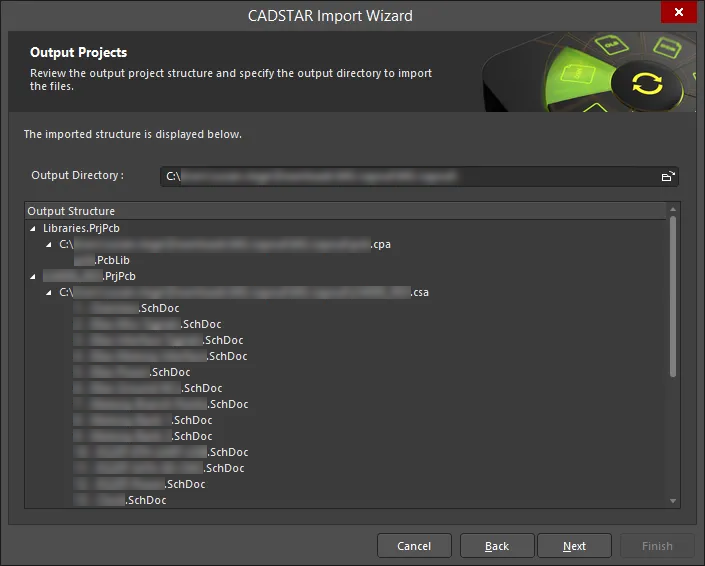
Użyj tej strony kreatora, aby przejrzeć strukturę projektu wyjściowego i określić katalog wyjściowy, do którego mają zostać zaimportowane pliki. Użyj ikony Browse Folder, aby wyszukać i wybrać Output Directory.
Otwiera się strona z zielonym paskiem postępu i wyświetla dokument, który jest aktualnie przetwarzany, wraz z zielonym paskiem pokazującym postęp importu.
Closing the Wizard

Kreator importu CADSTAR został ukończony. Kliknij Finish, aby zamknąć kreator. Struktura projektu/plików wyjściowych zostanie wyświetlona w przestrzeni projektowej Altium Designer.
Pliki CADSTAR są tłumaczone w następujący sposób:
- Pliki archiwum projektu PCB (layout) CADSTAR (
*.cpa) zostaną przetłumaczone na dokumenty PCB Altium Designer (*.pcbdoc). -
Pliki archiwum schematu CADSTAR (
*.csa) zostaną przetłumaczone na dokumenty schematów Altium Designer (*.schdoc). -
Pliki biblioteki części CADSTAR (
*.LIB) oraz archiwum symboli (*.csa) zostaną przetłumaczone na pliki biblioteki schematów Altium Designer (*.schlib). -
Plik archiwum PCB CADSTAR (
*.cpa) zostanie przetłumaczony na pliki biblioteki PCB Altium Designer (*.pcblib).
 Tłumaczenie SI