
Importowanie biblioteki z programu OrCAD CIS
W odpowiedzi na potrzebę pracy z bazodanowymi bibliotekami komponentów z OrCAD® CIS™, kreator importu Altium Designer Import Wizard udostępnia elastyczną, zautomatyzowaną opcję konwersji bibliotek OrCAD CIS w celu utworzenia równoważnej biblioteki Database Library w Altium Designer oraz powiązanych bibliotek schematów/PCB.
Korzystając z systemu łączności podobnego do OrCAD Component Information System (CIS), biblioteka Database Library w Altium Designer przechowuje łącza do danych komponentów w źródle danych zgodnym z ODBC, np. w firmowej bazie komponentów. Rekordy w scentralizowanej bazie odwołują się do modeli źródłowych (symboli, footprintów itp.) oraz parametrów dla zestawów komponentów zatwierdzonych w firmie.
Biblioteka Database Library w Altium Designer zapewnia oparte na bibliotece łącza do tych definicji komponentów, co umożliwia wstawianie komponentów firmowych pochodzących z bazy danych bezpośrednio do projektów — a następnie ich synchronizację z powrotem ze źródłem danych.
Podstawowym plikiem mapowania łączy bazy danych dla OrCAD CIS jest plik konfiguracji CIS (*.dbc), który jest przetwarzany przez Import Wizard w celu utworzenia odpowiadającej mu struktury biblioteki Database Library w Altium Designer (*.DBLib). Powiązane pliki bibliotek OrCAD (*.olb , *.llb), które w praktyce są podłączonymi źródłami symboli i footprintów komponentów, są również obsługiwane przez importer w celu utworzenia plików bibliotek Altium Designer (*.SchLib, *.PcbLib).
Importowanie plików OrCAD CIS
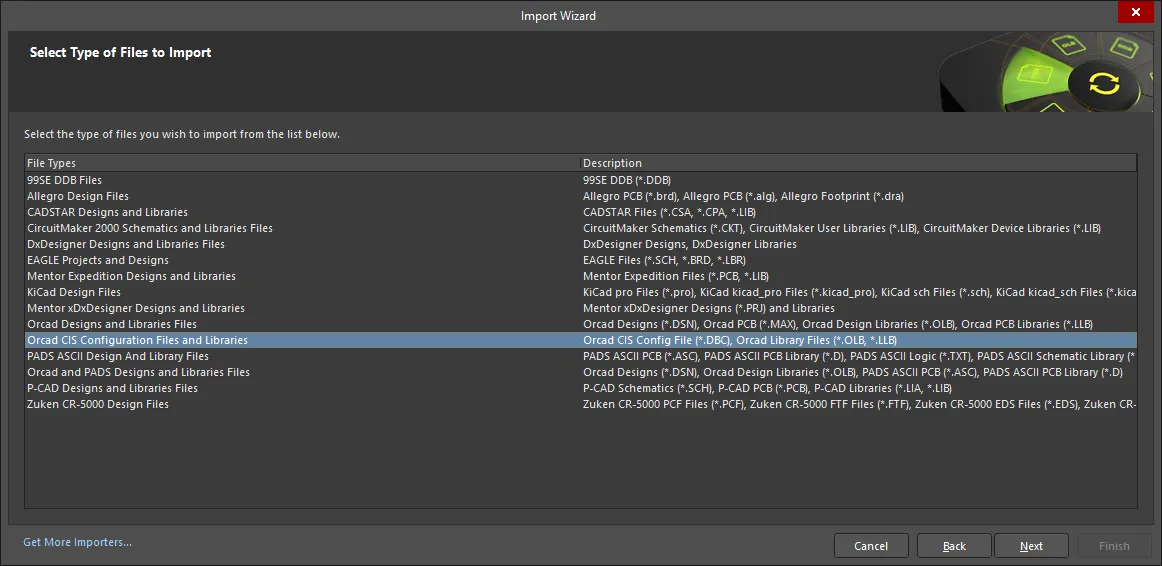
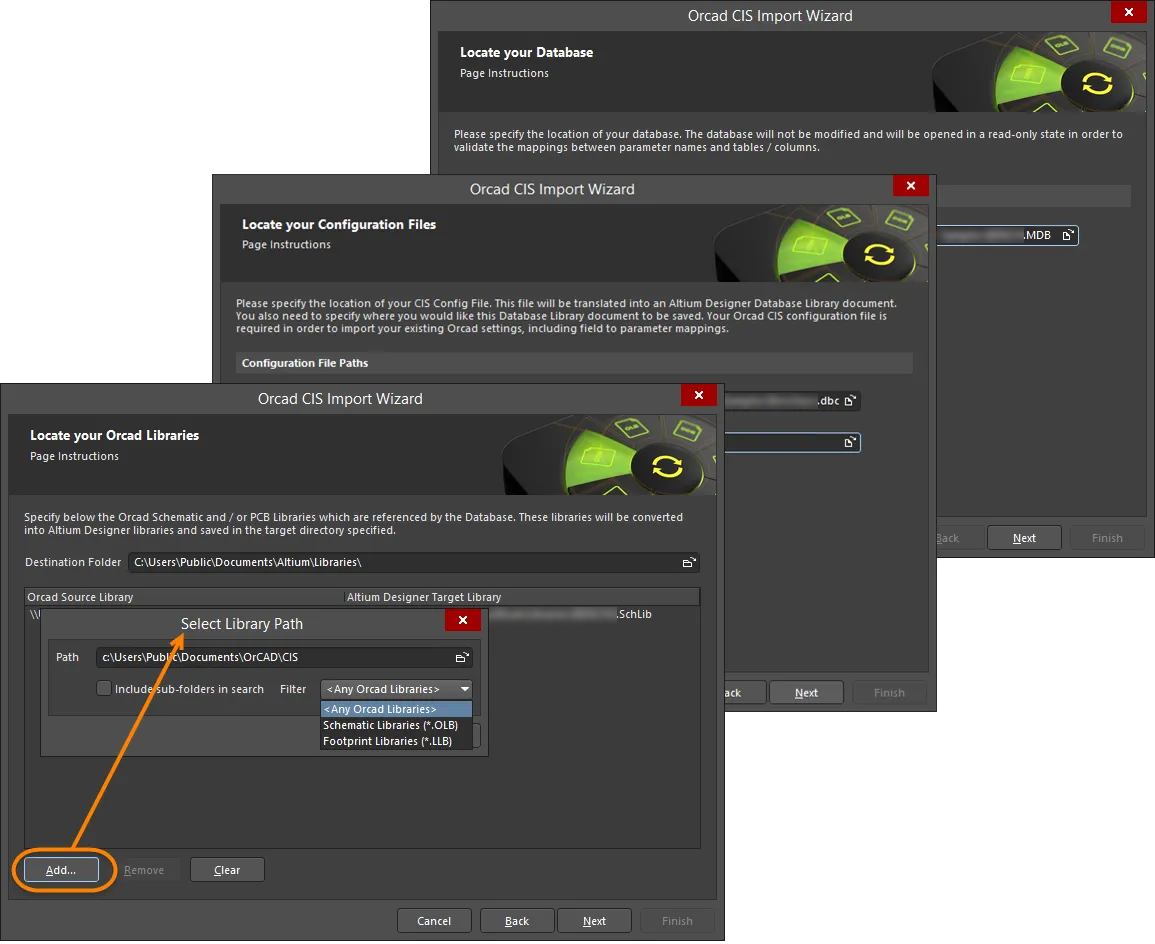
Importer plików projektowych OrCAD CIS jest dostępny w kreatorze Altium Designer Import Wizard (File » Import Wizard) po wybraniu opcji Orcad CIS Configuration Files and Libraries na stronie Select Type of Files to Import kreatora. Kreator udostępnia opcje wskazania głównej bazy komponentów, źródłowej konfiguracji OrCAD CIS i plików bibliotek oraz docelowej biblioteki Database Library w Altium Designer.

Import Wizard - Orcad CIS Configuration Files and Libraries
Pliki konfiguracji i biblioteki Orcad CIS
Locating the Database
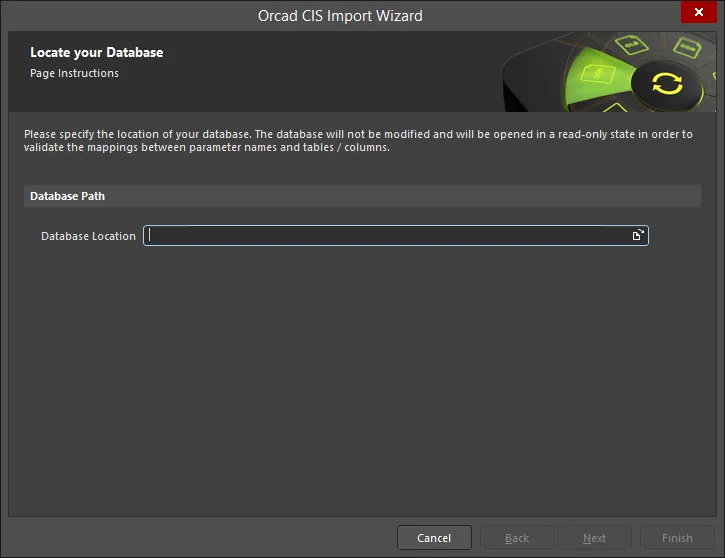
Użyj ikony Browse Folder, aby wyszukać i wybrać lokalizację bazy danych OrCAD. Baza danych zostanie otwarta w trybie tylko do odczytu w celu zweryfikowania mapowań między nazwami parametrów a tabelami/kolumnami.
Locating Configuration Files
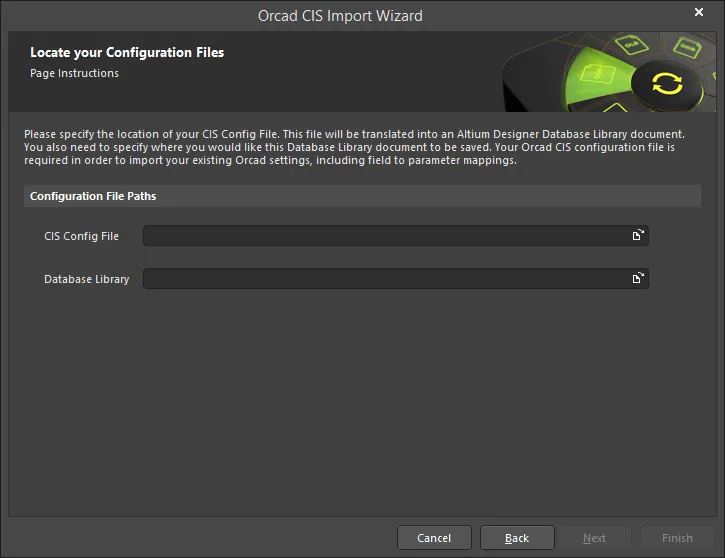
Ta strona kreatora służy do wskazania lokalizacji pliku konfiguracyjnego CIS. Użyj ikony Browse Folder, aby wyszukać i wybrać CIS Config File. Użyj ikony Database Library Browse Folder, aby wskazać lokalizację, w której ma zostać zapisany dokument biblioteki bazy danych.
Locating OrCAD Libraries
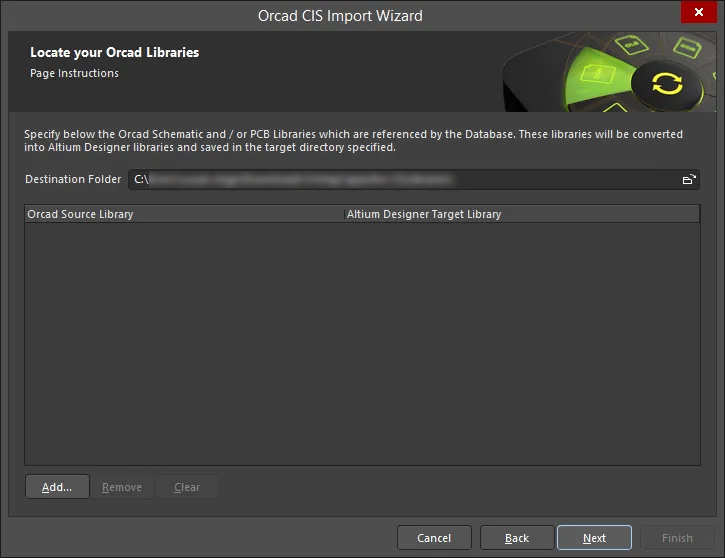
Użyj tej strony kreatora, aby wskazać biblioteki schematów i/lub PCB OrCAD, do których odwołuje się baza danych. Biblioteki zostaną przekonwertowane do bibliotek Altium Designer i zapisane w wskazanym Destination Folder.
Kliknij Add, aby otworzyć okno dialogowe Select Library Path i wybrać żądaną ścieżkę biblioteki.
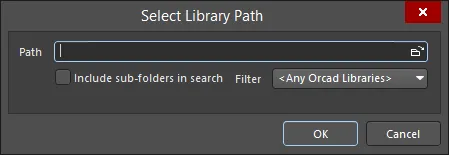
Użyj okna dialogowego Select Library Path, aby określić żądaną ścieżkę.
- Browse Folder icon - kliknij, aby wyszukać i wybrać ścieżkę biblioteki zawierającą żądane źródłowe pliki bibliotek schematów i/lub PCB OrCAD.
- Include sub-folders in search - włącz, aby uwzględnić podfoldery w wyszukiwaniu.
-
Filter - użyj listy rozwijanej, aby filtrować wyszukiwanie według typów plików:
- <Any Orcad Libraries> - wybierz, aby znaleźć dowolne biblioteki OrCAD.
- Schematic Libraries (*.OLB) - wybierz, aby znaleźć tylko biblioteki schematów OrCAD.
- Footprint Libraries (*.LLB) - wybierz, aby znaleźć tylko biblioteki footprintów OrCAD.
Pliki bibliotek znalezione w określonej ścieżce wypełnią stronę kreatora, jak pokazano poniżej.
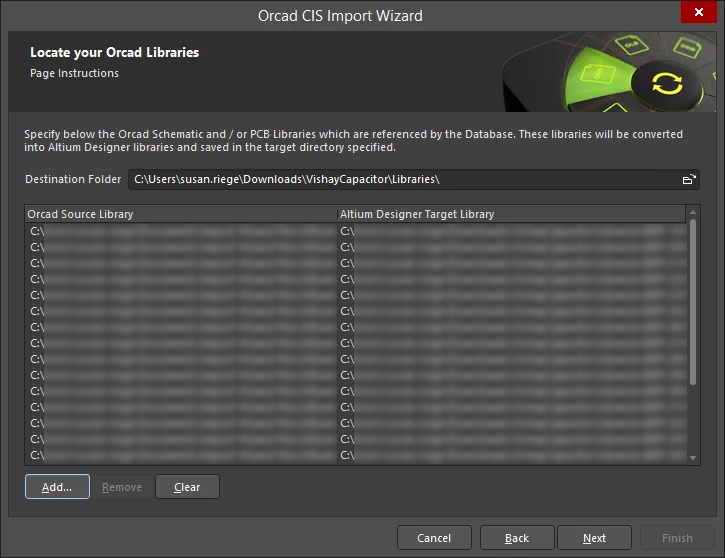
Kliknij Remove, aby usunąć wybrane pliki. Kliknij Clear, aby usunąć wszystkie pliki.
Closing the Wizard
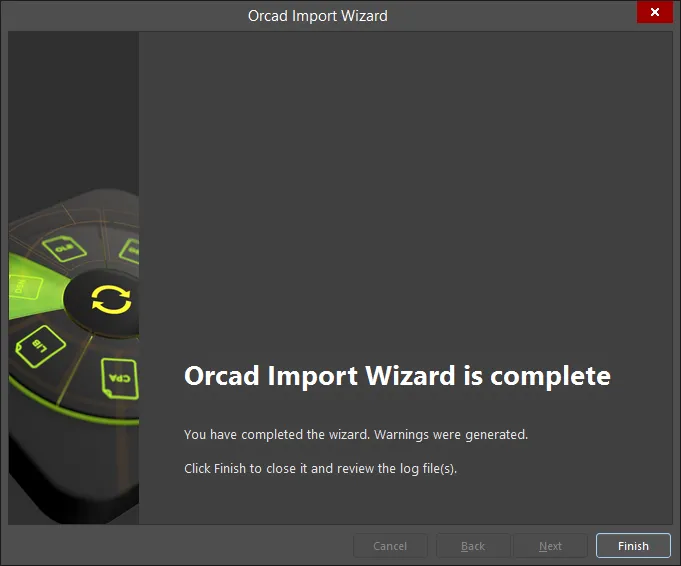
Kliknij Finish, aby zamknąć kreator. Otworzy się biblioteka Database Library (*.DBLib) wygenerowana podczas procesu importu.
Pliki OrCAD CIS są tłumaczone w następujący sposób:
-
Pliki OrCAD OLB (biblioteka schematów) zostaną przetłumaczone na pliki bibliotek schematów Altium Designer (
*.SchLib). -
Pliki OrCAD LLB (biblioteka PCB) zostaną przetłumaczone na pliki bibliotek PCB Altium Designer (
*.PcbLib).
Przetwarzanie plików
Import Wizard tłumaczy lub przetwarza pliki oparte na bibliotekach OrCAD CIS w następujący sposób:
-
Plik konfiguracji OrCAD CIS (
*.dbc), który definiuje łącze do zewnętrznej bazy komponentów i zawiera informacje o mapowaniu pól bazy danych na parametry projektu, jest interpretowany w celu utworzenia pliku biblioteki Database Library w Altium Designer (*.DBLib). -
Pliki OrCAD CIS są tłumaczone w następujący sposób:
- Pliki OrCAD OLB (biblioteka schematów) zostaną przetłumaczone na pliki bibliotek schematów Altium Designer (*.SchLib).
- Pliki OrCAD LLB (biblioteka PCB) zostaną przetłumaczone na pliki bibliotek PCB Altium Designer (*.PcbLib).
Efektem końcowym jest to, że struktura łączenia OrCAD CIS, która uzyskuje dostęp do pól danych w zewnętrznej bazie komponentów (np. pliku Microsoft® Access™ *.mdb), zostaje odtworzona w bibliotece Database Library (DBLib) w Altium Designer. Ponadto pliki bibliotek OrCAD używane jako źródła symboli i modeli komponentów są konwertowane do plików bibliotek Altium Designer, które następnie stają się źródłami symboli/modeli dla nowego mapowania pól bazy danych w DBLib.
Korzystanie z kreatora
Kreator importu Altium Designer prowadzi krok po kroku przez proces wskazania zakresu plików źródłowych i docelowych dla tłumaczenia OrCAD CIS.
Upewnij się, że na stronie Select Type of Files to Import kreatora wybierzesz opcję Orcad CIS Configuration File and Libraries jako typ plików do importu, a następnie na kolejnych stronach wskaż:
- Lokalizację zewnętrznej bazy danych – zazwyczaj firmowej bazy komponentów zgodnej z ODBC.
- Lokalizację pliku konfiguracji OrCAD CIS.
- Lokalizację docelowego pliku DBLib, który zostanie utworzony lub do którego zostaną dodane dane w końcowych krokach kreatora.
- Biblioteki schematów i/lub PCB OrCAD, do których odwołuje się zewnętrzna baza danych.
Dokument Database Library
Po zakończeniu kroków Import Wizard wskazany plik Database Library zostanie uaktywniony w Altium Designer.
Dokument biblioteki można w razie potrzeby przejrzeć i edytować. Istotne uwagi:
- Import Wizard automatycznie dodaje do pliku DBLib ścieżkę wyszukiwania bibliotek wskazującą na wybrany katalog zawierający przetłumaczone pliki bibliotek.
- Zdefiniowany klucz wyszukiwania (lookup key) określa relację danych między zewnętrzną bazą danych a parametrami DBLib (lub właściwościami, w terminologii OrCAD). W razie potrzeby parę pole/parametr klucza wyszukiwania można zmienić w obszarze Field Settings, wybierając alternatywną relację z list rozwijanych.
Po zakończeniu wstępnego przeglądu i/lub edycji plik DBLib musi zostać zapisany.
Gdy jest używana jako biblioteka źródłowa w Altium Designer, komponenty wstawiane z aktywnej biblioteki Database Library będą pobierać zmapowane parametry oraz dane symbolu/modelu z zewnętrznej bazy danych.
Użyj polecenia Update From Libraries, aby zaktualizować wstawiony komponent w odpowiedzi na zmiany wprowadzone w zewnętrznej bazie komponentów lub w powiązanych bibliotekach źródłowych (Tools » Update From Libraries). Aby zaktualizować parametry komponentu z bazy źródłowej, wybierz Tools » Update Parameters From Database.
 Tłumaczenie SI