
Importowanie projektu z Allegro
Aby obsłużyć potrzebę ładowania i pracy z plikami projektowymi Cadence® Allegro™, Import Wizard w Altium Designer zawiera możliwość importowania projektów PCB Allegro w postaci binarnej (*.brd - sprawdź wymagania wstępne importu), ASCII (*.alg) (które są tłumaczone na pliki PCB Altium Designer (*.PcbDoc)) oraz plików footprintów Allegro (*.dra) (które są tłumaczone na pliki bibliotek PCB Altium Designer (*.PcbLib).
Pliki PCB Allegro (do wersji 17.4) są tłumaczone na pliki PCB Altium Designer przez importer Allegro w kreatorze, który jest dołączony jako rozszerzenie platformy Altium Designer.
Wymagania wstępne importu
Kreator importu Altium Designer może bezpośrednio importować pliki PCB Allegro w formacie ASCII (*.alg). Aby zaimportować binarny plik PCB Allegro (*.brd) lub plik footprintu (*.dra), plik musi zostać przetłumaczony z formatu binarnego na ASCII. Tłumaczenie z binarnego do ASCII jest wykonywane przez narzędzie Cadence o nazwie Extracta, konfigurowalne narzędzie wiersza poleceń, które potrafi wyodrębniać i tłumaczyć dane z binarnego pliku PCB, przy czym proces ekstrakcji jest kontrolowany przez plik poleceń określający dane wymagane do wyodrębnienia. Dowiedz się więcej o Extracta.
Obsługiwane wersje plików binarnych
Extracta wyodrębni dane tylko z binarnych plików PCB Allegro (*.brd) i plików footprintów (*.dra), których wersja jest taka sama jak wersja używanego Extracta lub niższa. Aby sprawdzić wersję Extracta, otwórz Wiersz polecenia systemu Windows i wpisz Extracta -version.
Importowanie, gdy Allegro jest na tym samym komputerze co Altium Designer
Jeśli Altium Designer jest zainstalowany na tym samym komputerze co Cadence Allegro, proces ekstrakcji może być obsłużony automatycznie przez Import Wizard Altium Designer. Proces uruchamiania kreatora jest opisany poniżej. Należy pamiętać, że kreator sprawdza również wersję plików; obecnie kreator obsługuje pliki Allegro do wersji 17.4 .
Importowanie, gdy Allegro nie jest na tym samym komputerze co Altium Designer
Jeśli Extracta.exe nie jest zainstalowany na tym samym komputerze co Altium Designer, możesz ręcznie uruchomić proces ekstrakcji na komputerze, na którym zainstalowano narzędzie Extracta. Altium Designer uruchamia proces ekstrakcji przy użyciu pliku Allegro2Altium.bat.
Aby ręcznie wyodrębnić dane płytki w formacie ASCII:
-
Skopiuj plik
Allegro2Altium.batz folderu<Altium_Designer_Installation_Folder>\Systemdo znanej lokalizacji na komputerze z zainstalowanym Allegro. -
Skopiuj binarny plik Allegro (
*.brdlub*.dra), który chcesz przekonwertować, do tego samego folderu. -
Uruchom Wiersz polecenia systemu Windows i użyj polecenia
cd, aby przejść do folderu zawierającego skopiowane pliki. Przykład:cd C:\Documents\Files\Test -
Po przejściu do właściwego katalogu uruchom plik wsadowy Altium za pomocą polecenia
Allegro2Altium. Na przykład:Allegro2Altium your_file.brdlub
Allegro2Altium your_file.dragdzie
your_file.brdlubyour_file.drato nazwa pliku binarnego, który chcesz przekonwertować. Jeśli nazwa pliku zawiera spacje, ujmij ją w podwójny cudzysłów, na przykładAllegro2Altium "your file.brd". -
Proces utworzy w folderze plik ASCII (
your_file.brd.alglubyour_file.dra.alg). Skopiuj ten plik płytki ASCII z powrotem na komputer, na którym można go zaimportować do Altium Designer przy użyciu Import Wizard.
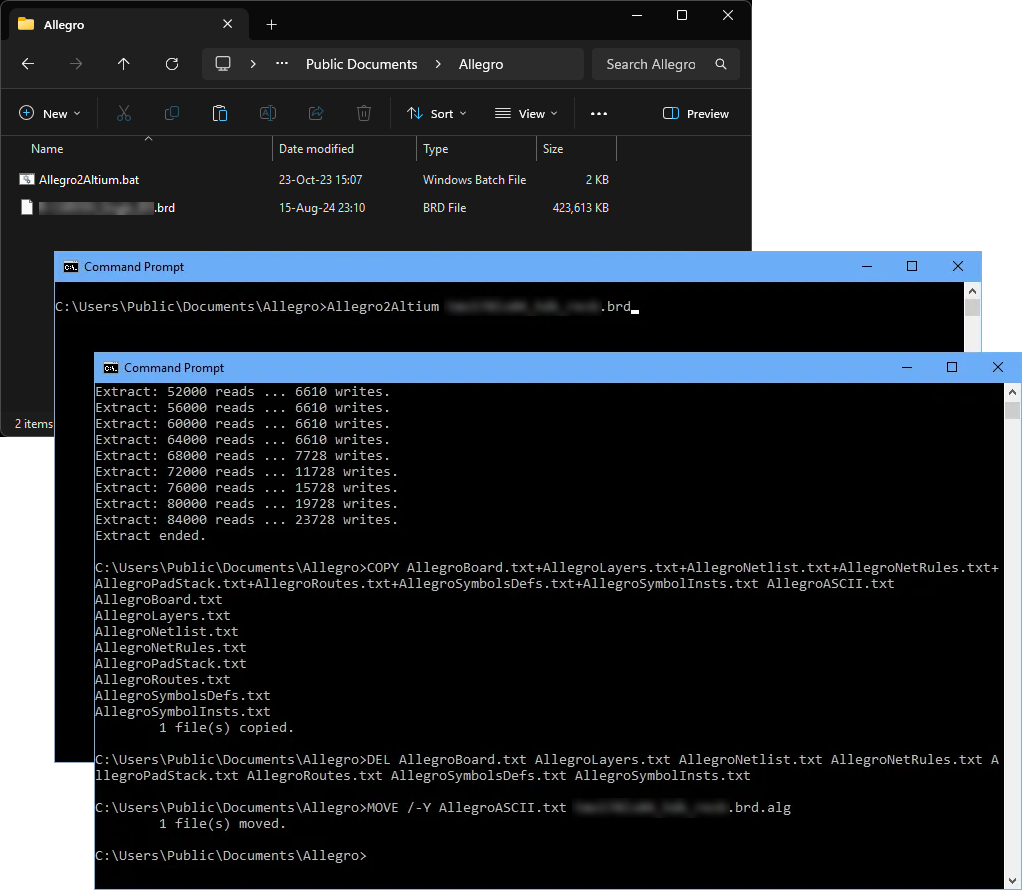 Proces konwersji projektu Allegro ASCII jest kontrolowany przez specjalny plik wsadowy
 Allegro2Altium.
Dostęp do importera i jego uruchamianie
Importer plików projektowych PCB Allegro jest dostępny przez Import Wizard Altium Designer (File » Import Wizard), gdzie opcję wybiera się na stronie Select Type of Files to Import kreatora – wybierz opcję Allegro Design Files.
Podczas dodawania plików do listy plików importu użyj rozwijanego filtra przeglądarki plików, aby wybrać między binarnymi plikami Allegro (*.brd) a plikami ASCII Allegro (*.alg).
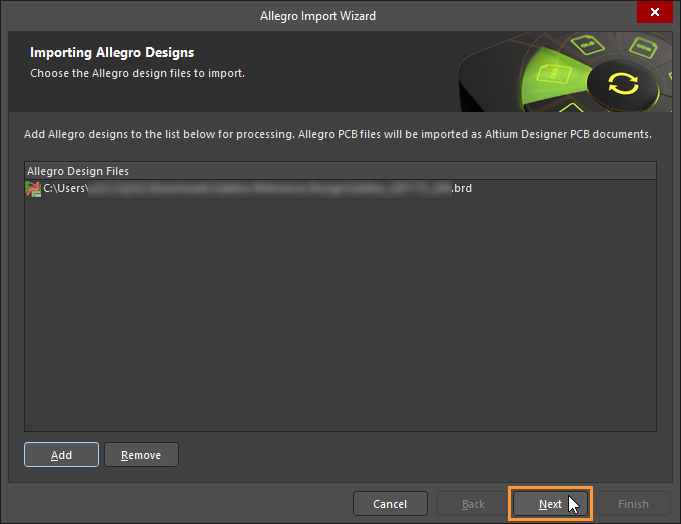 Wybierz do importu binarne albo ASCII pliki projektowe Allegro. Aby importować binarne pliki Allegro (
*.brd), Allegro musi być zainstalowane na komputerze lokalnym.
Jeśli spróbujesz zaimportować binarny plik projektu Allegro (*.brd) przy użyciu Kreatora importu i nie masz lokalnie zainstalowanego Allegro, proces importu zostanie wstrzymany i zostanie wyświetlone okno dialogowe z ostrzeżeniem. W takim przypadku zaimportuj wersję ASCII pliku projektu utworzoną w procesie ekstrakcji pliku ASCII Allegro (jak opisano powyżej).

Aby ukończyć proces importu i tłumaczenia plików, przejdź przez pozostałe strony Kreatora importu, aby dostosować i zakończyć konwersję plików projektowych Allegro na pliki projektowe Altium Designer.
Import Wizard - Allegro Design Files
Pliki projektowe Allegro

Selecting the Design Files to Import

Kliknij Add, aby wybrać, które pliki projektowe Allegro chcesz zaimportować. Możesz usunąć wybrany plik, klikając Remove.
Selecting the Constraint Files to Import

Kliknij Add, aby wybrać, które pliki ograniczeń Allegro *.DCFX chcesz zaimportować. Możesz usunąć wybrany plik, klikając Remove.
Selecting the Footprint Files to Import

Kliknij Add, aby wybrać, które pliki footprintów Allegro (*.dra) chcesz zaimportować. Możesz usunąć wybrany plik, klikając Remove.
Setting the Reporting Options

Użyj strony Reporting Options, aby skonfigurować ogólne opcje raportowania logów. Dla każdego tłumaczonego pliku PCB Allegro generowany jest raport logu w formacie pliku ASCII (*.LOG). Ten log jest zapisywany w podfolderze \Imported oryginalnych plików Allegro. Po tłumaczeniu otwórz raport logu w edytorze tekstu, aby sprawdzić szczegóły.
W sekcji General Settings włącz żądane opcje.
Setting PCB Specific Options
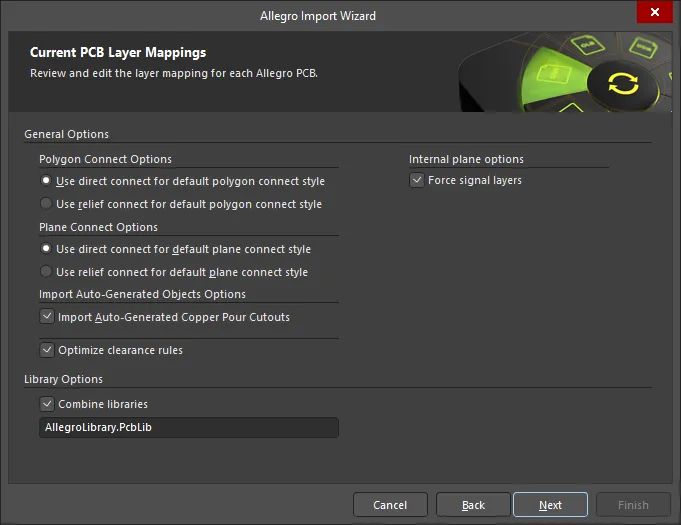
Ta strona kreatora służy do określenia opcji specyficznych dla procesu importu PCB.
Wybierz żądany Polygon Connect Options: Use direct connect for default polygon connect style albo Use relief connect for default polygon connect style.
Wybierz
Włącz opcję
Włącz opcję
Włącz opcję Force signal layers, aby importować warstwy plane jako warstwy sygnałowe.
Editing the Layer Mapping

Ta strona kreatora służy do przeglądania i edycji mapowania warstw dla każdego PCB Allegro. Kreator zapewnia domyślne mapowanie do zbudowania mapowania warstw dla każdego PCB. Mapowanie warstw można dostosować dla każdego z importowanych projektów. Możesz chcieć zaimportować wiele projektów PCB Allegro i przypisać tę samą warstwę Allegro do tej samej warstwy Altium Designer. Możesz ustawić mapowanie warstw raz i używać go dla wszystkich plików przeznaczonych do importu. Zaletą importowania w ten sposób jest oszczędność czasu dzięki zbiorczemu zarządzaniu warstwami podczas importowania wielu projektów. Wadą jest to, że domyślne mapowanie warstw nie zawsze inteligentnie uwzględnia różnice w strukturach projektów, dlatego mogą być wymagane pewne ręczne zmiany.
Na obszarze siatki są wymienione Allegro Layer Name, Allegro Layer Type, Altium Layer Type i Altium Layer Name. Kliknij ikonę  po prawej stronie każdego obszaru, aby filtrować wyświetlaną listę tego obszaru.
W razie potrzeby możesz edytować mapowanie warstw dla dowolnych lub wszystkich projektów PCB albo plików bibliotek importu Allegro na tej stronie kreatora. Aby grupować według kolumny, przeciągnij nagłówek kolumny do określonego obszaru u góry tabeli.
Kliknięcie prawym przyciskiem myszy w obszarze siatki udostępnia podmenu, w którym możesz:
- Load Layer Mapping – wybierz, aby otworzyć okno dialogowe Load Configuration i załadować żądane pliki mapowania.
- Save Layer Mapping – wybierz, aby otworzyć okno dialogowe Choose File to Save Layer Mapping i wybrać ścieżkę, w której chcesz zapisać mapowanie warstw.
Specifying the Output Directory
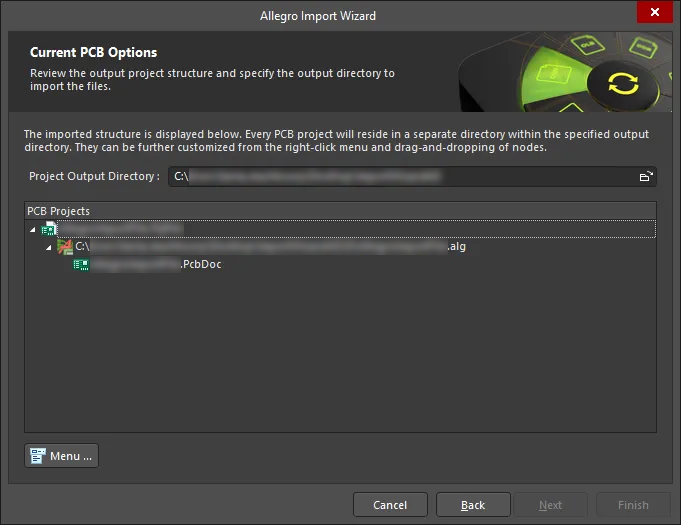
Użyj tej strony kreatora, aby przejrzeć strukturę projektu wyjściowego i określić katalog wyjściowy, do którego mają zostać zaimportowane pliki. Użyj ikony Browse Folder, aby wyszukać i wybrać Project Output Directory.
Kliknij Menu, aby uzyskać dostęp do opcji edycji struktury projektu:
-
Create Project – kliknij, aby otworzyć okno dialogowe Create Project i dodać projekt.
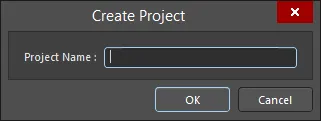
Użyj okna dialogowego Create Project, aby dodać nowy projekt. -
Rename Project – kliknij, aby zmienić nazwę wybranego projektu. Ta opcja jest dostępna tylko wtedy, gdy wybrano
*.PrjPcb file. - Remove Selected Projects – kliknij, aby usunąć wybrany projekt ze struktury PCB Projects.
- Reset Structure to Default – kliknij, aby zresetować strukturę PCB Projects do ustawień domyślnych.
-
Add Designs to Project – kliknij, aby dodać projekt(y) do projektu. Ta opcja jest dostępna tylko wtedy, gdy wybrano
*.PrjPcb file. -
Remove Selected Designs - kliknij, aby usunąć wybrane pliki projektowe.
Closing the Wizard

Kreator importu Allegro został ukończony. Kliknij Finish, aby zamknąć kreator.
Imported Allegro files:
Pliki Allegro są tłumaczone następująco:
-
Pliki binarnych projektów PCB Allegro (
*.brd) są tłumaczone na pliki PCB Altium Designer (*.PcbDoc). -
Pliki Allegro ASCII Extract (
*.alg) są tłumaczone na pliki PCB Altium Designer (*.PcbDoc). -
Pliki footprintów Allegro (
*.dra) są tłumaczone na pliki bibliotek PCB Altium Designer (*.PcbLib).
Uwagi
-
Zapoznaj się ze szczegółowym artykułem bazy wiedzy na temat importowania plików Allegro do Altium Designer.
-
W Altium Designer modele 3D STEP są przechowywane wewnątrz obiektu 3D Body, który jest umieszczany w footprintcie PCB.
-
Dowiedz się więcej o tworzeniu footprintu PCB w Altium Designer.
-
Dowiedz się więcej o pracy z 3D Bodies oraz dodatkowych narzędziach do pracy z 3D Bodies.
-
-
Importer Allegro obsługuje import niestandardowych pad stacków zdefiniowanych w projekcie płytki Allegro. Import takiego projektu utworzy w Altium Designer niestandardowe kształty padów. Dodatkowo, jeśli jako część niestandardowego pad stacku w Allegro zdefiniowano odnogi połączeń thermal tie, zostaną one zaimportowane jako niestandardowe połączenia thermal relief.
-
Gdy dla pada w panelu Properties w Allegro Constraint Manager ustawiono thermal relief typu orthogonal, diagonal albo full contact, pady te są importowane do Altium Designer z odpowiednio skonfigurowanymi niestandardowymi thermal reliefs. Należy pamiętać, że jeśli szerokość lub odstęp thermal relief nie są ustawione dla pada w Allegro Constraint Manager, wartości dla Conductor Width i Air Gap Width w Altium Designer zostaną pobrane odpowiednio z reguł minimalnej szerokości linii oraz reguły odstępu pinów zdefiniowanych w projekcie Allegro.
-
Aby zapewnić spójność z projektem Allegro, wartości reguł związanych z szerokością są importowane do Altium Designer w następujący sposób:
-
Min Neck Width –> Min Width
-
Line Min Width –> Preferred Width
-
Line Max Width –> Max Width
Jeśli w projekcie Allegro brakuje wartości (lub jest równa zero), dziedziczy ona wartość z poprzedniego zakresu.
-
-
Podczas importowania projektu Allegro możesz importować bardziej szczegółowe informacje o pad stackach. Umożliwia to import dokładniejszych właściwości padów do Altium Designer, dzięki czemu są one bliższe swoim odpowiednikom w źródłowym projekcie Allegro. W ramach tej funkcji obsługiwane są różne kształty miedzi na warstwach podczas importowania pliku footprintu Allegro.
-
Podczas importowania projektu Allegro, jeśli polygon pour ma powierzchnię mniejszą niż 2500 sq.mil, jego opcja Remove Islands Less Than jest automatycznie wyłączana.
-
Podczas importowania projektu Allegro może być obsługiwany import masek lutowniczych i pasty na poziomie padstack dla padów (zwykłych i niestandardowych kształtów, w tym padów tented) oraz przelotek (z uwzględnieniem obliczania rozszerzeń i stron tented).
Również podczas importowania projektu Allegro z poniżej wymienionymi zdefiniowanymi sub-classami na warstwach Top lub Bottom, w wygenerowanym dokumencie PCB tworzona jest para warstw komponentu, aby uwzględnić wartości z tych warstw Top i Bottom, przy czym warstwy te są domyślnie ukryte pod względem widoczności.
Sub-class projektu Allegro
Para warstw komponentu Altium
Layers - Components - Comp value
COMPONENT_VALUE_TOP i COMPONENT_VALUE_BOTTOM
Layers - Components - Dev type
DEVICE_TYPE_TOP i DEVICE_TYPE_BOTTOM
Layers - Components - Tolerance
TOLERANCE_TOP i TOLERANCE_BOTTOM
Layers - Components - User part
PART_NUMBER_TOP i PART_NUMBER_BOTTOM
 Tłumaczenie SI