Улучшение проектирования печатных плат
Значение по умолчанию для правила Solder Mask Expansion теперь 0 mil (Open Beta)
В соответствии со стандартом IPC-7351B в части значений по умолчанию для padstack, где окна паяльной маски обычно имеют соотношение 1:1 к размеру площадки, значения для правила Solder Mask Expansion (в документах PCB) и расширения паяльной маски, управляемого правилами (в документах библиотек PCB), теперь по умолчанию установлены в 0 mil (ранее 4 mil).
Для библиотеки PCB (*.PcbLib) поддержка этих новых значений по умолчанию реализована на уровне библиотеки и наследуется всеми посадочными местами компонентов, создаваемыми в ней. Одна и та же PCBlib будет показывать для всех объектов расширение паяльной маски, управляемое правилами, 4 mil при открытии в предыдущей версии Altium Designer и 0 mil при открытии в этом выпуске и более поздних, как показано ниже для объекта pad.
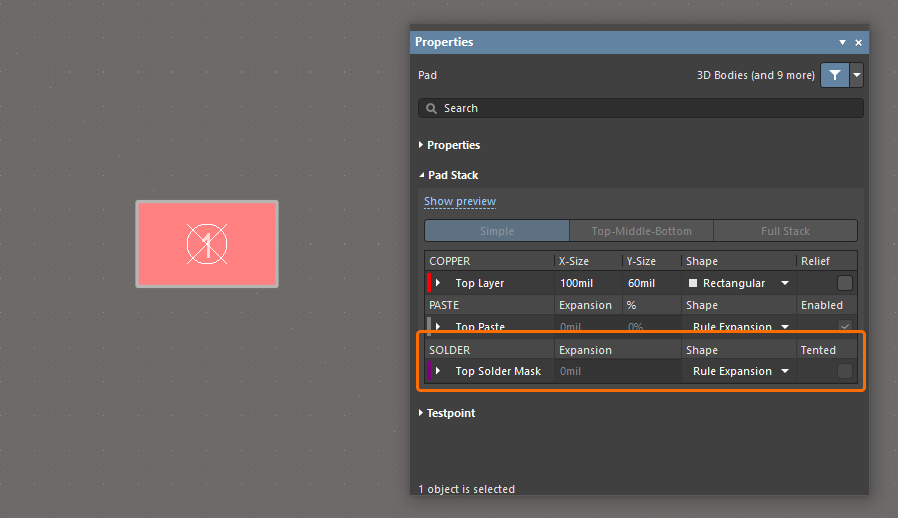
Для документа PCB (*.PcbDoc) все существующие правила Solder Mask Expansion сохраняют свои исходные значения. Значения по умолчанию, используемые для любого вновь создаваемого правила, определяются версией Altium Designer, в которой это правило было создано, и не меняются при открытии в другой версии Altium Designer. Таким образом, по умолчанию будет расширение 4 mil, если правило создано в предыдущей версии Altium Designer и открыто в любой другой версии, и расширение 0 mil, если правило создано в этом выпуске (или более позднем) и открыто в любой другой версии, как показано ниже.
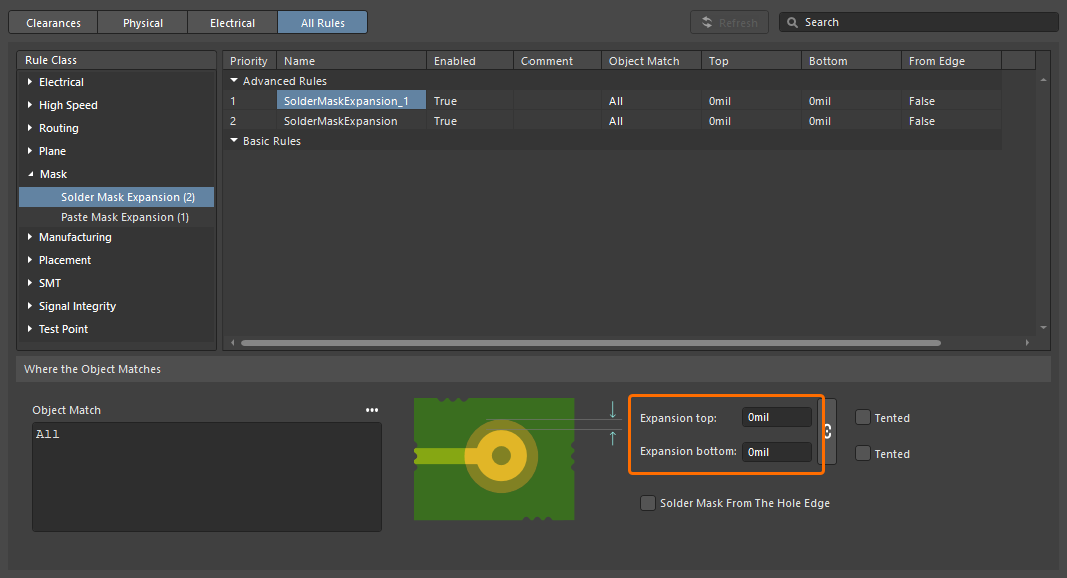
Вновь созданное правило проектирования Solder Mask Expansion в Constraint Manager.
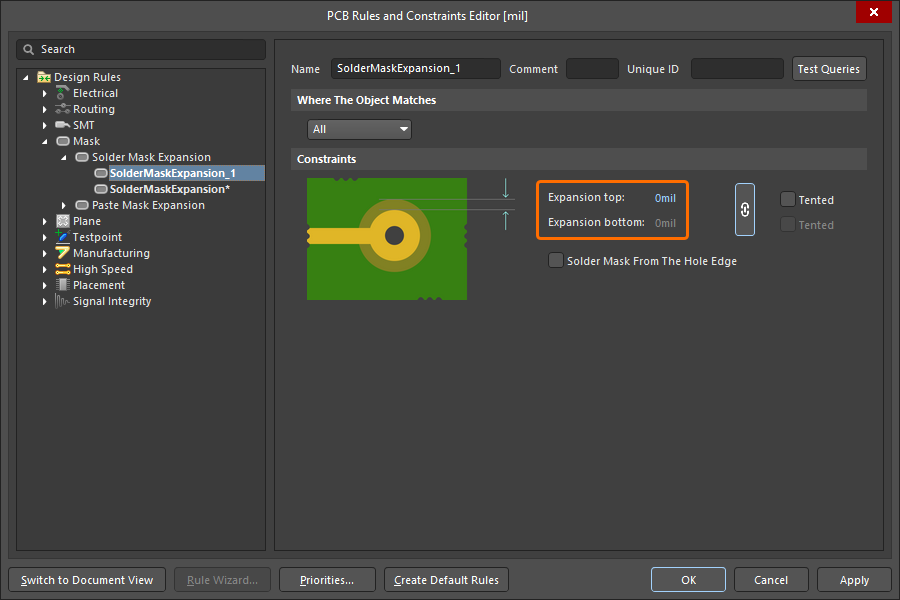
Вновь созданное правило проектирования Solder Mask Expansion в диалоговом окне PCB Rules and Constraints Editor.
Связанные окна предварительного просмотра в соответствующих панелях (PCB Library, Manufacturer Part Search, Components и Explorer) также обновлены, чтобы корректно показывать новое значение расширения по умолчанию 0 mil при просмотре вновь созданного документа в этом выпуске.
Дополнительные сведения о правиле проектирования Solder Mask Expansion см. на странице Типы правил маски.
Эта функция находится в статусе Open Beta и доступна, когда в диалоговом окне Advanced Settings включен параметр PCB.SolderMaskZeroExpansion.
Улучшение Constraint Manager
Добавлена возможность фильтрации классов
В представлении Constraint Manager Clearances реализована возможность фильтрации классов, чтобы упростить работу с большим количеством классов. Это позволяет создавать фильтры (или группировки) классов для переключения между ними и работы с целевыми подмножествами матрицы зазоров.
Используйте кнопку  в правом верхнем углу представления Clearances, чтобы открыть всплывающее окно, в котором можно создавать, редактировать, удалять, а также включать/отключать фильтры.
Дополнительные сведения о работе с матрицей зазоров см. на странице Defining Design Requirements Using the Constraint Manager.
Улучшение Draftsman
Улучшенный импорт DXF в документы Draftsman (Open Beta)
Эта функция добавляет поддержку импорта DXF-файлов версии R12 и более поздних в документы производственных чертежей (*.PCBDwf, *.HarDwf, *.MbDwf). Также теперь поддерживается импорт DXF-файлов, содержащих сплайны.
Дополнительные сведения об импорте DXF см. на странице Draftsman Placement & Editing Techniques.
Эта функция находится в статусе Open Beta и доступна, когда в диалоге Advanced Settings dialog включена опция Draftsman.TeighaNet.
Улучшение Wire Bonding
Примитивы Bond Wire в панелях
Теперь бонд-провода отображаются с корректным типом (Bond Wire) в следующих местах:
-
Область Primitives панели PCB при выбранном компоненте в режиме Nets mode
-
Область Component Primitives панели PCB при выбранной цепи в режиме Components mode
-
Панель PCB Library panel при выбранном посадочном месте.
Выбор примитива бонд-провода приведет к выбору/подсветке соответствующего бонд-провода в рабочем пространстве проекта.
Кроме того, в контекстном меню области (по правому клику) теперь доступна соответствующая опция Show Bond Wires для переключения видимости бонд-проводов.
Дополнительные сведения о wire bonding см. на странице Wire Bonding.
Улучшение проектирования 3D-MID
Проверка правил проектирования 3D-MID (Open Beta)
В этом выпуске добавлена пакетная проверка правил проектирования (DRC) на нарушения правил Width, Clearance, Length и Matched Lengths применительно к проложенным дорожкам на вашей 3D-подложке. Обратите внимание: хотя сформированный отчет DRC будет содержать информацию по всем этим проверкам, в рабочем пространстве будут подсвечиваться только нарушения зазоров (clearance).
Дополнительные сведения см. на странице 3D-MID Design.
Эта функция находится в статусе Open Beta и доступна, когда в диалоге Advanced Settings dialog включена опция 3DLayout.DRC.
Улучшение multi-board проектирования
Возможность задавать «Termination Type» для записей жгута
Теперь Termination Type для записи жгута можно задавать на multi-board схеме. Доступны следующие типы оконцевания:
-
Connector – стандартный вариант, используемый при подключении к ответному разъему на печатной плате. Обычно предполагает стандартные разъемы, устанавливаемые на плату.
-
Crimps/Ferrules – отдельные провода оконцовываются обжимными контактами (crimps) или наконечниками (ferrules) перед установкой в разъем со стороны печатной платы.
-
Wire termination – провода обрезаются «вровень» на конце жгута и затем либо прижимаются винтом, либо припаиваются непосредственно к плате. Это типично для прямых соединений «провод–плата», например в некоторых разъемах JST.
Эта информация отражается в свойствах выбранной записи жгута и соответствующей записи модуля.
Дополнительные сведения о работе с соединениями на multi-board схеме см. на странице Working with Connections.
Улучшения проектирования жгутов
Улучшенная синхронизация проводов
Провода жгута, соединенные через разрыв провода (wire break), теперь распознаются даже при разных Design Item ID. Кроме того, теперь сравниваются все сегменты проводов с одинаковым обозначением (designator), соединенные одним и тем же wire break (по part number, comment, color и всем параметрам). Если обнаружены различия, сообщается о нарушении Mismatched parameters in connected wire segments. Также в Properties panel провода и wire break появляется предупреждение, указывающее на обнаруженный конфликт параметров. Нажмите Synchronize в предупреждении, чтобы открыть диалог Conflict Wire Parameters, где можно выбрать, какие параметры использовать для сегмента провода.
Возможность размещать покрытие поверх точки соединения
Теперь вы можете применить/продлить покрытие жгута over через точку соединения (junction point — точка соединения на чертеже компоновки, где сходятся два или более пучка) на чертеже компоновки жгута (*.LdrDoc). Это устраняет необходимость иметь отдельные покрытия жгута между точками соединения в участке, содержащем несколько разъемов.
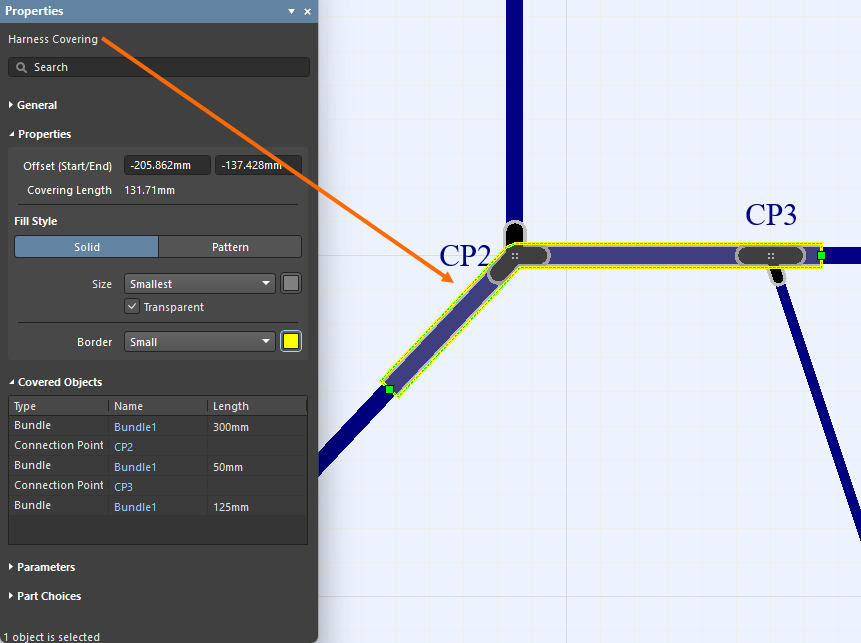
Кроме того, началом покрытия теперь считается самая левая и самая верхняя точка его траектории, а сама траектория теперь включает только те пучки, на которых лежит покрытие.
Дополнительные сведения см. на странице Creating the Layout Drawing.
Поле Quantity в BOM изменено на «As Required» для некоторых объектов
Провода, кабели и покрытия жгута — это объекты, зависящие от длины, и их значение отображается в поле Length . Чтобы избежать путаницы, поле Quantity для записей проводов, кабелей и покрытий жгута в таблице Bill Of Materials и в документе ActiveBOM в документе производственного чертежа (*.HarDwf) теперь имеет значение As Required.
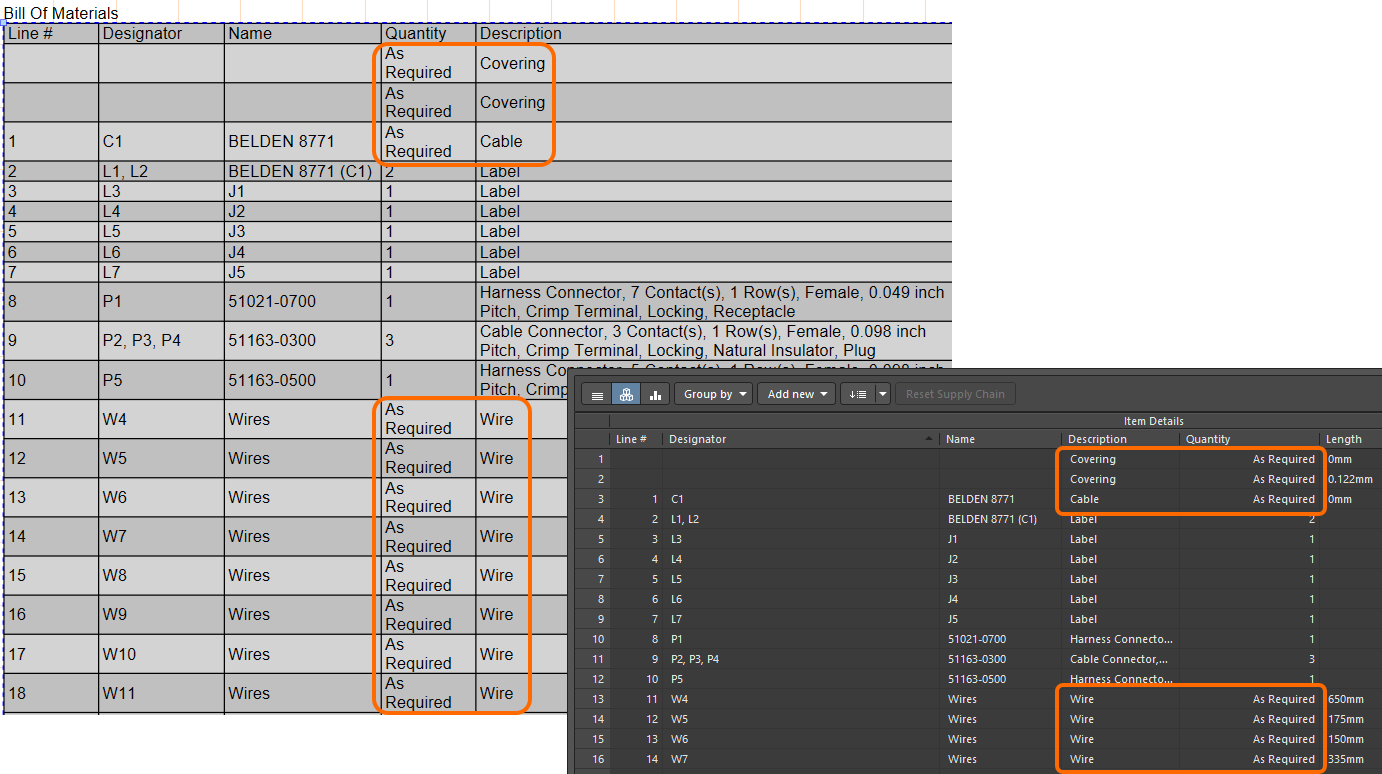
Дополнительные сведения см. на странице Managing Your Bill of Materials (BOM) with ActiveBOM.
Улучшенная группировка выводов в списке соединений
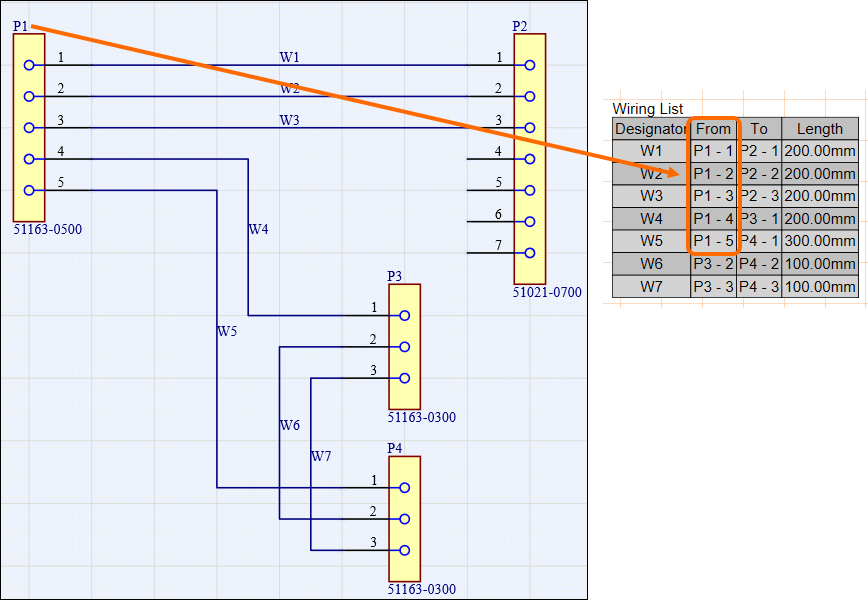
Улучшена группировка выводов в wiring list, размещаемом в документе производства жгута (*.HarDwf). Начиная с этого выпуска, автоматическая группировка применяется к разъему с наибольшим количеством проводов, и все его гнезда (cavities) корректно группируются в столбце From списка соединений, как показано на изображении ниже.
Книга Excel для производителей жгутов
Добавлена возможность генерировать через Output Job одну книгу Excel, содержащую данные для использования производителями жгутов. Для этого в разделе Report Outputs доступен новый выводчик — Manufacturing Data.
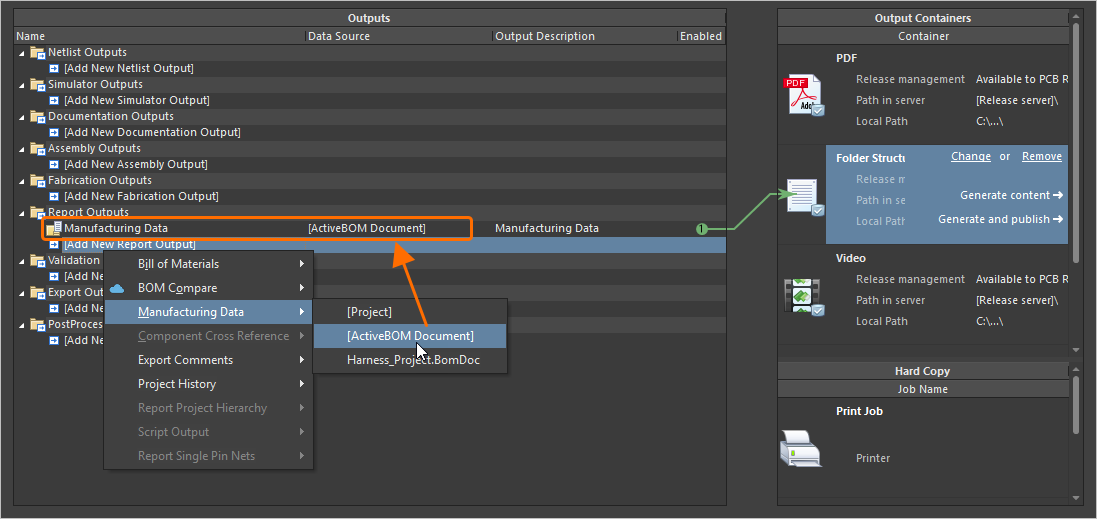
Сформированная книга включает четыре отдельных листа:
-
Bill of Materials – полезен для быстрого формирования коммерческого предложения.
-
Wiring List – для использования с машинами обработки проводов.
-
Labels – сводка физических этикеток для печати для пучков жгута, для использования с принтерами Zebra или другими.
-
Coverings – сводка покрытий, которые нужно применить поверх пучков жгута.
Рекомендуется использовать документ ActiveBOM проекта жгута в качестве источника вывода Manufacturing Data.
Дополнительные сведения см. на странице Preparing Reports.
Улучшение платформы
Переход на .NET 8
В этом выпуске Altium Designer переходит с .NET 6 на .NET 8. Он поставляется в составе Altium Designer и позволяет использовать более поздние возможности и разработки .NET, включая общие улучшения производительности.
-
В рамках этого перехода Windows 7 и 8.x больше не поддерживаются в качестве базовой ОС для запуска Altium Designer.
-
Начиная с этого выпуска из ПО удалены все сторонние расширения, которые оказались несовместимыми с .NET 8. Если позднее будут выпущены обновленные версии этих расширений, совместимые с Altium Designer 26.1 (или более поздними версиями), свяжитесь с beta.program@altium.com, чтобы их снова добавили в установочный пакет.
Дополнительные сведения см. на странице System Requirements.
WebView2 (Open Beta)
Начиная с этого релиза, для элементов, связанных с браузером, в Altium Designer используется WebView2 (например, страница Home). Это обеспечивает доступ к новейшему движку веб-браузера внутри Altium Designer — достаточно просто обновлять Windows.
Эта функция находится в стадии Open Beta и доступна, когда включена опция System.UseWebView2 в диалоге Advanced Settings dialog. Обратите внимание: если опция отключена или подключенное Workspace не поддерживает WebView2, автоматически будет использоваться CefSharp v.126.
Улучшения управления данными
Возможность копирования проекта Workspace с использованием процессного workflow
Добавлена поддержка создания копии проекта Workspace с использованием определённых (и включённых) процессных workflow. Когда проект Workspace открыт, щёлкните правой кнопкой по записи проекта в панели Projects и выберите активированное определение процесса (входящее в тему Project Creations) в подменю Make a copy of the managed project, чтобы начать копирование проекта в соответствии с базовым workflow этого процесса.
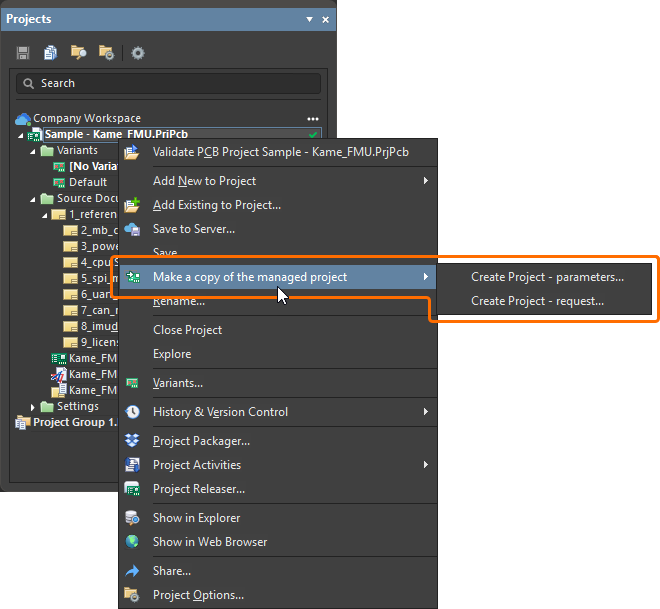
Дополнительные сведения см. на странице Process-based Project Creation.
Добавлена возможность сохранять состояние жизненного цикла при выпуске моделей
При выпуске новой ревизии модели компонента (schematic symbol, PCB footprint, simulation model или harness wiring) в подключённое Workspace теперь можно сохранять текущее состояние жизненного цикла модели.
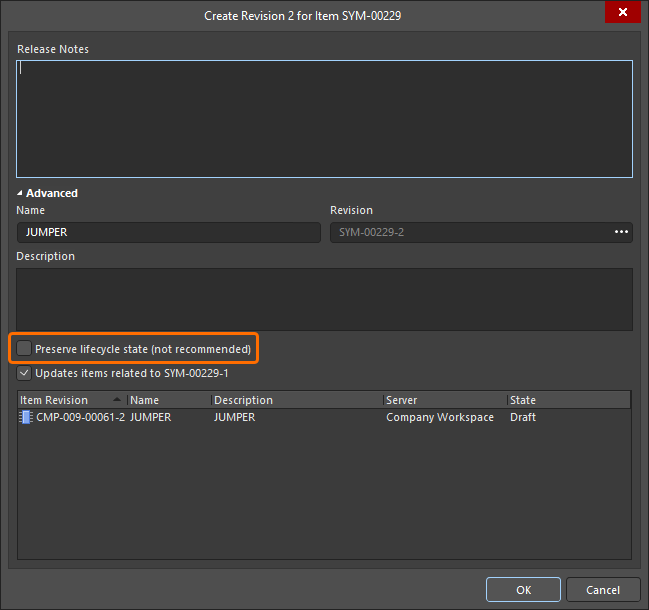
Обратите внимание: эта возможность доступна пользователям с назначенным операционным разрешением Allow to skip lifecycle state change for new revisions (подробнее см. Setting Global Operation Permissions for a Workspace).
Дополнительные сведения о редактировании содержимого Workspace см. на странице Creating & Editing Content.
Ссылки в комментариях к Design Review
Когда комментарий добавляется в рамках design review, ссылка на этот review (From <DesignReviewName>) теперь отображается в соответствующей записи в панели Comments And Tasks и в контекстном окне комментирования для этого комментария (в области проектирования). Нажмите ссылку, чтобы открыть страницу review Overview в новой вкладке браузера по умолчанию.
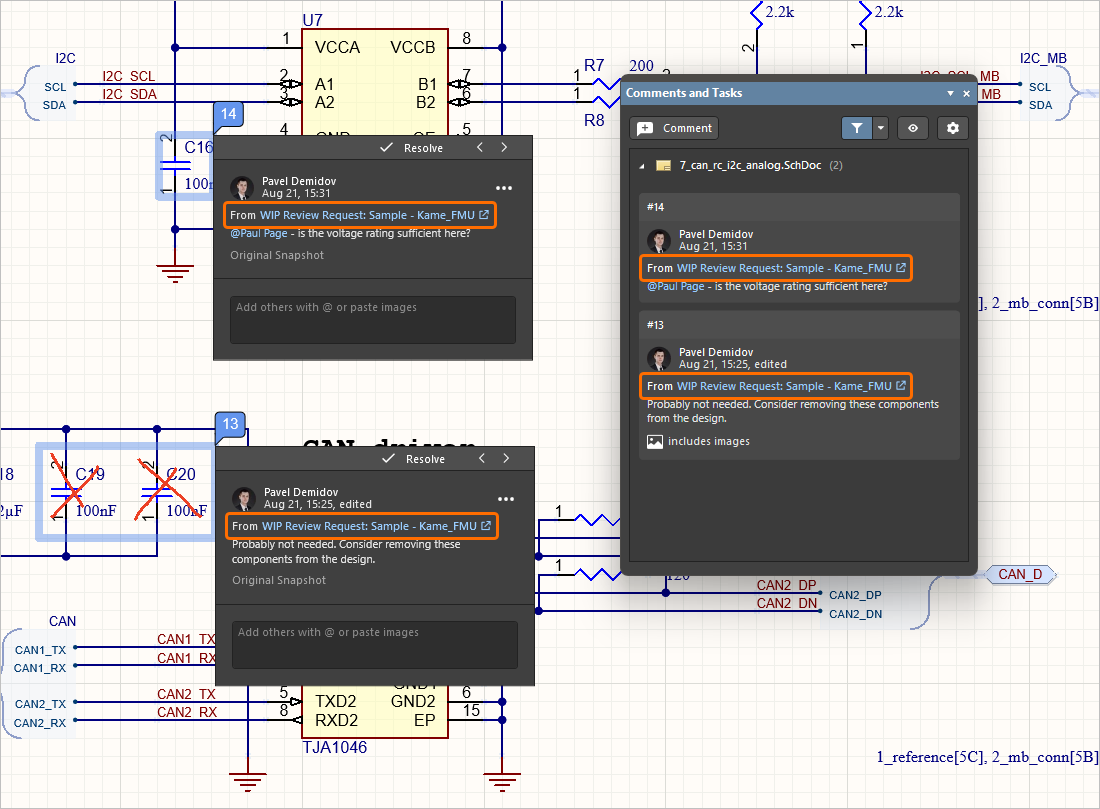
Дополнительные сведения о комментировании документов см. на странице Document Commenting.
Поддержка дополнительных единично-ориентированных типов данных
При определении пользовательского параметра в составе шаблона компонента в подключённом Workspace на платформе Altium Platform теперь поддерживаются следующие дополнительные единично-ориентированные типы данных:
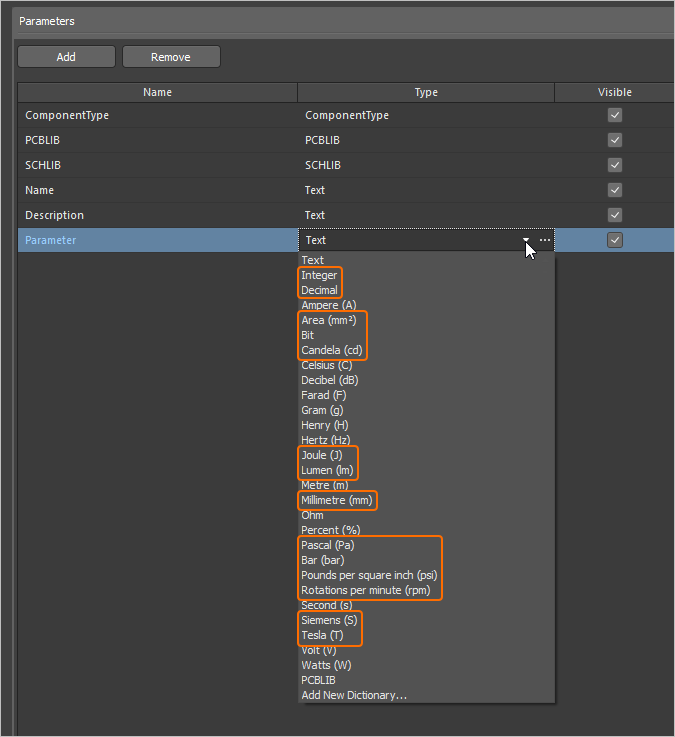
Параметры, использующие эти новые типы единиц, поддерживаются в различных областях ПО, включая панель Components panel, редактор компонентов (как в режиме single, так и batch), а также функциями Library Importer и Components Synchronization (в разделе Parameter Mapping панели Properties).
Дополнительные сведения о единично-ориентированных типах данных параметров компонентов см. на странице Component Templates.
Возможность синхронизации Part Choices при использовании Components Synchronization
Добавлена возможность задавать и синхронизировать информацию о part choice с помощью функции Components Synchronization и связанного с ней документа конфигурации Components Synchronization Configuration (*.CmpSync). Управление синхронизируемыми параметрами доступно в области Part Choices Mapping панели Properties, когда в документе выбрана таблица. Используйте кнопки для добавления и удаления пар параметров part choice (Manufacturer / Part Number) и параметры выпадающего меню для задания сопоставления. Когда сопоставления определены, соответствующие параметры появляются под столбцами Part Choice n в области сетки документа.
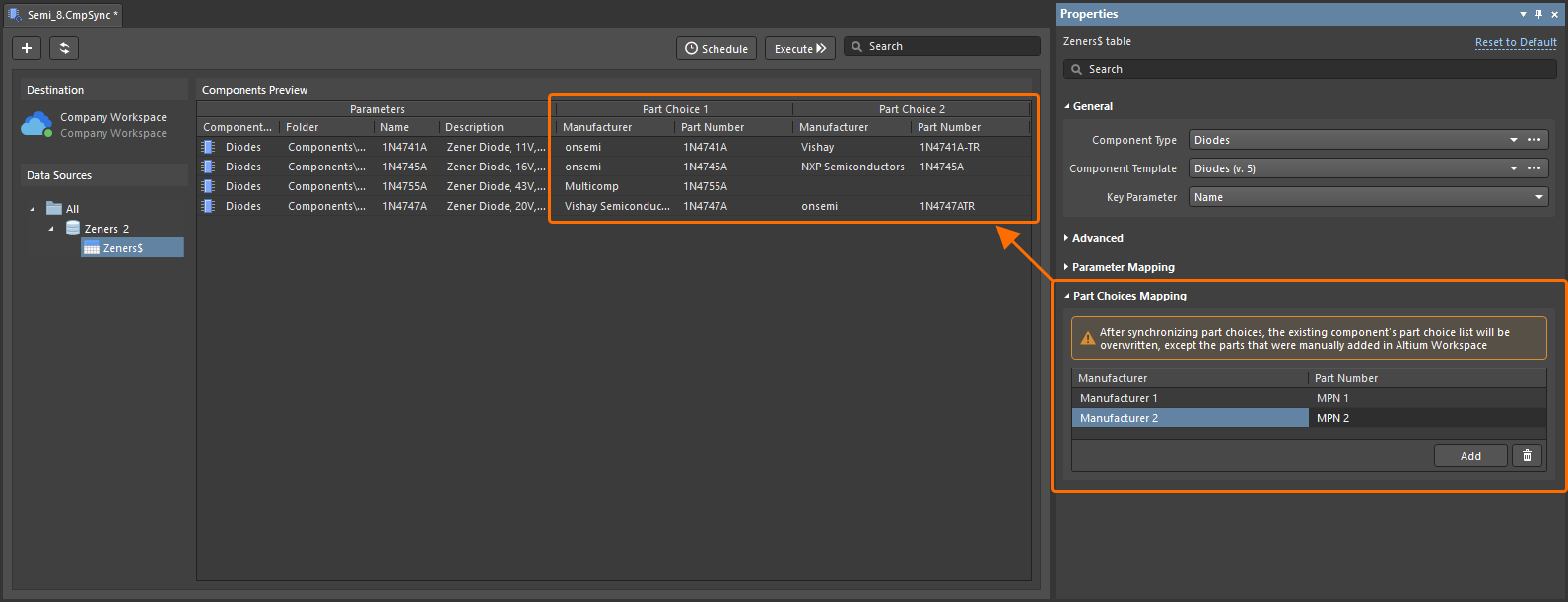
Обратите внимание: после выполнения процесса синхронизации список part choice компонента будет перезаписан заново сопоставленными part choices, за исключением тех part choices, которые были добавлены вручную.
Дополнительные сведения о функции Components Synchronization см. на странице Component Database to Workspace Data Synchronization.
Новое предупреждение о проблемах подключения к Workspace
Если возникает проблема с подключением к Workspace и не удаётся обновить последние состояния VCS для документов проекта, элемент управления Refresh VCS Statuses (с соответствующим предупреждением во всплывающей подсказке) теперь отображается рядом с записью проекта в панели Projects. После восстановления соединения щёлкните по записи, чтобы снова синхронизировать состояния VCS и увидеть последние изменения.
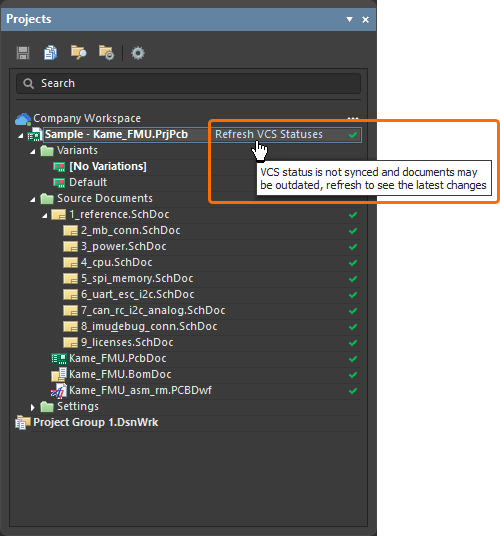
Дополнительные сведения об индикации статуса документов см. на странице Managing Project Documents.
Улучшение BOM CoDesign
Исключение полей, связанных с поставщиками, из результата сравнения BOM (Open Beta)
При сравнении ActiveBOM с выбранным Managed BOM с помощью функции BOM CoDesign, когда расширенная настройка отключена, данные, связанные с поставщиками (Supplier и Supplier Part Number параметры), исключаются из Differences section на вкладке Related BOMs панели Properties , если доступ к ней был выполнен из документа ActiveBOM.
Дополнительные сведения об анализе результатов сравнения см. на странице BOM CoDesign.
Эта функция находится в стадии Open Beta и доступна, когда опция BOM.CoDesign.Comparison.IncludeSupplierData отключена в диалоге Advanced Settings dialog.
Улучшения импорта/экспорта
Улучшенный импорт проектов Allegro
Все необходимые конфигурационные файлы теперь включены в файл Allegro2Altium.bat — batch-файл, входящий в установку Altium Designer и используемый для преобразования бинарного файла Allegro (*.brd или *.dra) в формат ASCII (когда такой проект/библиотека находится не на том же ПК, что и Altium Designer). Таким образом, для импорта требуется только bat-файл, без каких-либо дополнительных файлов.
Дополнительные сведения см. на странице Importing a Design from Allegro.
Поддержка альтернативных представлений компонентов из проектов xDX Designer
Теперь поддерживаются режимы альтернативного представления компонентов — как в сгенерированных схемных документах, так и в документах библиотек схем — при импорте проекта xDX Designer.
Дополнительные сведения см. на странице Importing a Design from xDX Designer or DxDesigner.
Функции, ставшие полностью публичными в Altium Designer 26.1
Следующие функции с этим релизом официально переведены в статус Public:
Дополнительные возможности в Altium Designer 26.1

 Локализовано с помощью ИИ